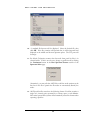
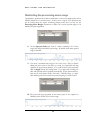
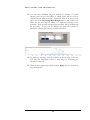
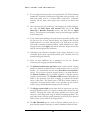
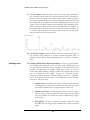
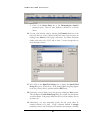
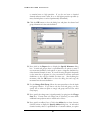
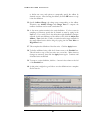
1
SIERRA ANALYTICS, INC. Version 3.0.0 ™ Polymerix Software User Manual VERSION 3.0.0 – MARCH 2013 Polymerix Software User Manual Copyright 2010 to 2013 Sierra Analytics, Inc. 5815 Stoddard Road, Suite 601 Modesto, CA 95356 USA +1-209-545-8506 [email protected] http://www.MassSpec.com i Table of Contents Introduction .............................................................................. 1 How this manual is organized ......................................................... 1 Some conventions used in this manual ........................................... 1 Sierra’s Web site ............................................................................. 2 Getting Started ......................................................................... 3 Goals for this chapter ...................................................................... 3 Installing Polymerix ......................................................................... 3 Registration ..................................................................................... 9 Installing the license key ............................................................... 16 What was covered in this chapter ................................................. 19 In the next chapter ........................................................................ 19 Polymerix Workflow Model and User Interface Overview ....... 20 Goals for this chapter .................................................................... 20 The workflow model ...................................................................... 20 Introducing the Polymerix user interface ....................................... 22 What was covered in this chapter ................................................. 27 In the next chapter ........................................................................ 27 Data Import, Spectrum Selection, and Processing ................. 28 Goals for this chapter .................................................................... 28 Importing data ............................................................................... 29 Restricting the processing mass range ......................................... 33 Detecting peaks ............................................................................ 35 Mass adjustment ........................................................................... 38 Mass mode ................................................................................... 40 Deisotoping ................................................................................... 41 Saving and loading parameter template files ................................ 46 What was covered in this chapter ................................................. 47 In the next chapter ........................................................................ 48 Find Homopolymer Series ...................................................... 49 Goals for this chapter .................................................................... 49 Overview ....................................................................................... 49 ii Simplest use case example .......................................................... 50 Understanding reference peaks .................................................... 51 How Polymerix handles reference peak selection ......................... 52 Automatic reference peak selection .............................................. 52 Find Homopolymer Series page .................................................... 53 Selecting the repeat unit ............................................................... 54 Selecting end groups and adducts ................................................ 55 Setting constraints on chemical composition ................................ 56 Troubleshooting Tips..................................................................... 59 What was covered in this chapter ................................................. 59 In the next chapter ........................................................................ 59 Homopolymer Analysis........................................................... 60 Goals for this chapter .................................................................... 60 Molecular weight distribution statistics .......................................... 60 The Homopolymer Analysis page user interface ........................... 62 Setting homopolymer processing parameters ............................... 63 Defining homopolymer series ........................................................ 65 Homopolymer molecular weight statistics ..................................... 69 Visualizing homopolymer series assignments ............................... 70 Assignments ........................................................................................... 70 Filtered Assignments .............................................................................. 70 Filtered Residuals ................................................................................... 71 Details ..................................................................................................... 71 Mass Ranges .......................................................................................... 71 Distribution Plots ..................................................................................... 72 Assignment and matching details ................................................. 73 The simple matching algorithm ............................................................... 73 Cluster matching ..................................................................................... 73 Centroid cluster matching ....................................................................... 74 Centroid cluster matching algorithm ....................................................... 74 What was covered in this chapter ................................................. 74 In the next chapter ........................................................................ 75 Copolymer Analysis ............................................................... 76 Goals for this chapter .................................................................... 76 Copolymer definition ..................................................................... 76 The Copolymer Analysis page user interface ................................ 77 Setting copolymer processing parameters .................................... 78 Defining copolymer series ............................................................. 79 Copolymer molecular weight statistics .......................................... 80 iii Visualizing copolymer series assignments .................................... 80 Assignments ........................................................................................... 80 Filtered Assignments .............................................................................. 81 Filtered Residuals ................................................................................... 81 Details ..................................................................................................... 82 Mass Ranges .......................................................................................... 82 AB Distribution ........................................................................................ 83 Repeat A Statistics.................................................................................. 84 Repeat B Statistics.................................................................................. 85 Repeat A Plot .......................................................................................... 85 Repeat B Plot .......................................................................................... 86 What was covered in this chapter ................................................. 86 In the next chapter ........................................................................ 87 The Relative Area Tool........................................................... 88 Goals for this chapter .................................................................... 88 The Relative Area page ................................................................ 88 Specifying ranges ......................................................................... 89 Relative Area results ..................................................................... 89 In the next chapter ........................................................................ 90 Autocorrelation ....................................................................... 91 Goals for this chapter .................................................................... 91 Accessing the Autocorrelation page .............................................. 91 The autocorrelation spectrum ....................................................... 91 The end group spectrum ............................................................... 93 User interface and parameters ...................................................... 94 What was covered in this chapter ................................................. 97 In the next chapter ........................................................................ 97 Creating and Customizing Output .......................................... 98 Goals for this chapter .................................................................... 98 Polymerix options .......................................................................... 98 Copying to the clipboard ............................................................. 100 Saving and exporting results ....................................................... 101 Printing ........................................................................................ 103 What was covered in this chapter ............................................... 106 In the next chapter ...................................................................... 106 Release Notes...................................................................... 107 Version 3.0 .................................................................................. 107 Major new features ............................................................................... 107 Updates, bug fixes, and new features .................................................. 107 iv Version 2.0 .................................................................................. 108 Updates, bug fixes, and new features .................................................. 108 Example Report ................................................................... 110 v 1 Chapter I N T R O D U C T I O N Introduction Some tips on using this manual effectively W elcome to Polymerix. We’re looking forward to helping you get the most out of your data with a minimum of headache. But before getting started, we would like to explain some of the conventions we use in this manual which we hope will make it easier for you to understand how to use the manual and software to maximum effectiveness. How this manual is organized Our goal in writing this manual is to guide you from initial installation and registration to expert use of Polymerix by presenting the material in a way that models your workflow. Instead of a programmer’s point of view (“Here’s the File menu. It has five submenus…”), we try to take a task-oriented approach, in which each major task is broken into a series of smaller subtasks. We use a minimum of explanation and a maximum of illustration to help make the tasks as clear and easy to follow as possible. So, the first part of this manual is a description of the tasks to get you started in using Polymerix. In many cases, the steps will be sufficient to solve most problems. However, Polymerix is complex software, with many parameters and options to handle a wide range of sample types and analytical approaches. The second part of the manual goes into much greater detail to describe this complexity, explaining each setting and its effect on the analysis. Finally, because no single software product can accomplish all things for all people, the last part of the manual details the export format used to store all of Polymerix’s parameters and results and gives some examples of how to extract information for use in other software. Some conventions used in this manual We have standardized on certain typographical conventions to help distinguish normal text from labels, prompts, or other text you see onscreen, to highlight important items, and to point out areas where you must pay attention to avoid mistakes that could affect the quality or accuracy of your results. 1 I N T R O D U C T I O N I C O N Text that appears in boldface normal font is used to display menu items, labels, or other prompts that appear onscreen. Text that appears in boldface Arial font is used to emphasize some point in this manual. An icon is displayed to indicate an important point or warning: An arrow sets off an item of importance. K E Y Valuable information Warning Lengthy process An exclamation point indicates a warning. An hourglass indicates a step that might require lengthy processing. In the later parts of the manual, text in computer font is used to present items from Polymerix’s parameter and results formats, or to indicate text you would write in scripting files used to extract and process these formats. Sierra’s Web site Visit our Web site at http://www.MassSpec.com for more Polymerix information, application notes, publications, and other useful information. We plan to update the site frequently with new content. 2 I N S T A L L A T I O N , L I C E N S I N G , A N D R E G I S T R A T I O N 2 Chapter Getting Started How to install Polymerix, submit registration details, and install a license key P olymerix is a registered and licensed product. Depending on the details of your purchase, you may have a limited or a perpetual term license. In either case, we will issue a license key valid for the term of your license which must be installed on your PC before the software will function. At the end of a limited license term, the software will cease to run until you renew your license and obtain a new key. Goals for this chapter In this chapter, we will explain how to: Install Polymerix from the distribution media or through a Web download Register the software and obtain a license key Install the license key and begin using the software Installing Polymerix We deliver Polymerix software in one of two ways: physically, on a CD-ROM, or electronically via an Internet download from Sierra’s Web site. Starting the installation program If you received Polymerix on a CD-ROM, insert the disk into your CD-ROM drive. The installation program should start automatically. If it does not start, browse to the CD-ROM folder and double-click the Polymerix_3.0_FullSetup EXE file to start the installation program. If you received an e-mail with a Web link, double-click the link in the e-mail (or copy the link to your Web browser if your e-mail program does not permit opening links), and follow the instructions on the Web page to download an appropriate setup program, which differs depending upon the data importers which are provided. Save 3 I N S T A L L A T I O N , L I C E N S I N G , A N D R E G I S T R A T I O N the downloaded file to your disk, unzip the distribution, and then double-click the Polymerix_3.0_FullSetup.exe file (or the Polymerix_3.0_*Setup.exe file, where * represents a vendor name) to start the installation program. The installation program is a dialog-based “wizard” that guides you through the setup steps 1. The first page of the setup wizard is shown above. The item labeled Application is already selected. In order to be able to read raw data directly from mass spectrometry vendor format files, you must also select one or more of the formats listed under the Data access section. In this example, the full set of supported formats is available and has been selected. Depending on the details of your purchase, you may have a different set of data access selections. If your copy of Polymerix was purchased through an MS instrument vendor, only that vendor’s formats will be available. 4 I N S T A L L A T I O N , L I C E N S I N G , A N D R E G I S T R A T I O N 2. Select the desired data access option(s), then click the Next > button. At any time, you may click the Cancel button to stop the installation and remove any installed files from your computer. You must select at least one of the data access items if you wish to read raw data from vendor format files. 5 I N S T A L L A T I O N , L I C E N S I N G , A N D R E G I S T R A T I O N 3. Next, choose the installation location. By default, Polymerix will be installed in the folder C:\Polymerix. If this folder does not exist, it will be created. If you wish to install Polymerix in a different folder, click the Browse… button to choose an alternative. Click Next > to continue. 6 I N S T A L L A T I O N , L I C E N S I N G , A N D R E G I S T R A T I O N 4. Choose the name for the Start Menu folder. If you do not wish to have an entry made on the Start Menu and a Polymerix icon placed on your desktop, select the Do not create shortcuts option. Click Install to begin copying files to the installation location. 7 I N S T A L L A T I O N , L I C E N S I N G , A N D R E G I S T R A T I O N 5. As the installation program extracts and copies files to the destination folder, the progress is displayed. To see details of this process, click the Show details button. 8 I N S T A L L A T I O N , L I C E N S I N G , A N D R E G I S T R A T I O N 6. Once installation has completed, click the Close button to end the setup program. This screenshot shows the installation wizard after the Show details button was clicked. The details shown for your installation might be different. Registration After installation, the next step is to register the software and submit a request for a license key. Registration is required. The software will not function until registration has been completed and a valid license key has been entered. Two options for licensing You may license your installation of Polymerix using either a fixed license or a floating license. A fixed license locks your copy of Polymerix to a specific PC. The registration procedure reads information from the PC hardware creates a license key request. Using this request and the term of your license, we create a license key that permits Polymerix to run only on the chosen PC. A floating license allows installation and registration of Polymerix on up to 4 PCs, using a combination of each PC’s hardware information and a USB memory stick. Once licensed, the software may be run on any of the PCs, but only one at a time. The USB memory stick must be inserted at all times while 9 I N S T A L L A T I O N , L I C E N S I N G , A N D R E G I S T R A T I O N the software is in use. If the USB device is removed, the software will cease working until the device is reinserted. You must choose a license type when you first register Polymerix. Once you have submitted a registration request and have installed a license key, we may not permit you to change the license type until the license is renewed at the end of the license term. We may issue a new license key under special circumstances, such as a lost USB memory stick or an upgrade to a new PC, but we may require that you first un-register the software and send us proof via e-mail. A summary of the registration process Using the Registration Wizard to request a license key These are the steps involved in registration: 1. Run the Registration Wizard and enter information used to identify the type of license, USB device if applicable, and your contact details. 2. E-mail the registration information to us. The Wizard will automatically create the e-mail for you. 3. Wait for our e-mail in reply. It will contain your license key. When you start Polymerix for the first time, it detects that the software is not registered and invokes the Registration Wizard. The wizard is a dialog-based procedure that guides you stepwise through the registration process. 1. Double-click the Polymerix icon on your desktop or select Programs Polymerix Polymerix from the Start menu to start the Polymerix application. The Polymerix “splash screen” will appear for a few seconds, and then the first page of the Registration Wizard will be shown. 10 I N S T A L L A T I O N , L I C E N S I N G , A N D R E G I S T R A T I O N 2. Since you do not yet have a license key, click the Next > button to continue. 11 I N S T A L L A T I O N , L I C E N S I N G , A N D R E G I S T R A T I O N 3. On this second page you choose the type of license, fixed or floating. If you wish to lock the software to a single PC, choose the Fixed option, otherwise choose the Floating option. A floating license permits installation on up to 4 PCs, but requires use of a USB device that you can transfer from PC to PC when you wish to run Polymerix. The USB device must be installed in the PC during the entire duration of your Polymerix session. Usually, a USB “memory stick” is the most convenient way to do this. Any kind of USB device may be used, as long as it has a unique name and serial number that can be detected by the software. Click the Next > button to continue. 12 I N S T A L L A T I O N , L I C E N S I N G , A N D R E G I S T R A T I O N 4. If you chose the floating license option, on this page you will select the USB device used for the license key. If the USB device is not inserted, install it now, and then click the Refresh button until it appears in the list of available devices. Note: If you are registering the software on more than one PC, you must use the same USB device on each one. We will not issue license keys based on different USB devices if you have only purchased a single license to the software. Select the USB device from the list and click the Next > button to continue. 13 I N S T A L L A T I O N , L I C E N S I N G , A N D R E G I S T R A T I O N 5. Please enter your contact details on this page. We would appreciate complete details, including mailing address. We collect this information so that we can provide personalized support and updates for your software. We do not share this information with anyone. Click the Next > button to continue. 14 I N S T A L L A T I O N , L I C E N S I N G , A N D R E G I S T R A T I O N 6. This final page shows the information that will be submitted as your license request. Please review it carefully. If you need to make changes, click the < Back button to go to the appropriate page. If everything is correct, click the Save… button to create the registration request file. 15 I N S T A L L A T I O N , L I C E N S I N G , A N D R E G I S T R A T I O N 7. Once the license request file is saved, continue with the Polymerix redeem download instructions. They will allow you to retrieve a license key file, which you will use in the next section. Installing the license key If registration was successful, we will send you a license key by reply to your e-mail. You will use the Registration Wizard again, this time to copy the license key into the software and license the copy. A summary of the license installation process Using the Registration Wizard to install a license key These are the steps involved in installing your license key: 1. Open the saved file with the license key. 2. Run the Registration Wizard and load the license key file into the wizard. 3. Start using Polymerix! Until you have installed a valid license key, each time you start the Polymerix software it will run the Registration Wizard. 16 I N S T A L L A T I O N , L I C E N S I N G , A N D R E G I S T R A T I O N 1. Double-click the Polymerix icon on your desktop or select Programs Polymerix Polymerix from the Start menu to start the Polymerix application. The Polymerix “splash screen” will appear for a few seconds, and then the first page of the Registration Wizard will be shown. 2. On the first page of the wizard, click the Register button. This will open a file selection dialog. Choose the registration key file you saved from online registration process.. 17 I N S T A L L A T I O N , L I C E N S I N G , A N D R E G I S T R A T I O N 3. Select the license key file and click the Open button. The Registration Wizard will read the file contents and verify them. 4. If everything is OK, the “Thank you” dialog will be displayed. Click the OK button to close this dialog, then the Finish button on the Registration Wizard. 5. The main Polymerix page will then be displayed. If the registration failed for any reason, a message will be displayed with that information, and the registration wizard will remain open. If you used a USB memory device for the registration request, be sure it is inserted and recognized by your PC. If everything seems OK, but the licensing still fails, please contact us at [email protected] and we will try to work through the problem with you. 6. Please note that registration keys are specific to the PC that was used to generate the license request. You cannot use the same file to license Polymerix on a different PC. If you are using a floating registration, you 18 I N S T A L L A T I O N , L I C E N S I N G , A N D R E G I S T R A T I O N must create a registration request and receive a license key file for each PC, using the same USB device each time. 7. Time to get to some real work! What was covered in this chapter In this chapter, we described how to: Install the Polymerix software from the distribution. Create a registration request and submit it by e-mail to obtain a license key. Install the license key in the software In the next chapter We will describe the workflow model used in the Polymerix software, and show how that workflow is implemented in the main parts of the Polymerix user interface. 19 P O L Y M E R I X W O R K F L O W A N D U S E R I N T E R F A C E 3 Chapter Polymerix Workflow Model and User Interface Overview How Polymerix models the data reduction, analysis, and reporting workflow and the principal elements of the user interface P olymerix's workflow model is designed to simulate the same processes and steps you would use if you were to perform this data analysis and reduction manually. The user interface implements this workflow model in an intuitive and graphical fashion. Goals for this chapter In this chapter we will cover the following material: We will describe the model used in Polymerix for the data reduction, analysis, and reporting workflow. We will present the major parts of the Polymerix user interface and how they fit the workflow model. The workflow model Goals of polymer analysis A typical polymeric or related sample consists of one or more homologous series, each consisting of one (for a homopolymer) or two (for a copolymer) repeating units (the monomers), with alpha and omega (or total) end groups. When analyzed by mass spectrometry, the resulting spectrum may likewise show spectral features for each of these series and possibly more, dependent on the sampling and ionization method and resolving power of the instrument. The goals of polymer analysis are to assign a unique chemical composition and abundance to as many of the detected features as possible, and to compute the molecular weight distribution statistics for each series. Steps in the workflow The workflow for this analytical process can be broken down into a series of dependent steps: 20 P O L Y M E R I X W O R K F L O W A N D U S E R I N T E R F A C E 1. Data import and reduction of the profile (continuum) mode spectrum to an m/z and abundance peak list, followed by optional mass adjustment of the peak list to assign highly accurate m/z values and/or deisotoping to merge higher isotopomers into the monoisotopic peak. 2. Creation of one or more homologous series definitions to permit assignment of the sets of peaks in the spectrum. 3. Visualization of sample composition and series assignments through the use of graphs and tables. 4. Creation of a report of the results of the analysis. Each of these steps depends on successful completion of the previous step. Failure to accurately peak detect the profile spectrum can lead to missed peaks or false additional peaks, which will result in the failure of subsequent steps to produce correct results. Likewise, bad mass assignment will result in inaccurate correction of peak m/z values, which in turn leads to incorrect or missed series assignments, and so forth. Mapping workflow to the user interface Mapping this workflow onto an intuitive user interface is a major goal of the software. The user interface must permit specification of the relevant parameters for each processing stage, and then allow browsing the processing results to validate their correctness. Corresponding to the workflow described above, the user interface is organized into pages each of which corresponds to a step in the workflow: 1. A data reduction and processing page, which displays the total ion chromatogram (TIC) if present, the input profile spectrum, and the fully processed spectrum that will be used for series assignment. 2. A page with graphical tools for helping to determine from spectral data the chemical compositions of the units which construct a homopolymer. The resultant chemical compositions can be transferred to the homopolymer analysis page. 3. A homopolymer analysis page used to view the quantitative results of performing homopolymer series assignments. Homopolymer series definitions can be specified here. 4. A copolymer analysis page, used to setup copolymer series definitions and to view the assignments and decomposition into spectral subsets by repeat unit count. 5. A relative area page, where relative areas of multimodal distributions can be selected and measured. 6. An optional autocorrelation page, which can assist in determining repeat units and total end groups for an unknown polymer. The functionality of 21 P O L Y M E R I X W O R K F L O W A N D U S E R I N T E R F A C E this page has largely been superseded by the Find Homopolymer Series page in item two above. In support of these pages are many dialogs and other user interface items for data import and export, setting parameters, displaying tables and graphics, and switching between the various pages and data views. Introducing the Polymerix user interface The general layout of the Polymerix user interface is similar to that used in many popular software applications. There are menu and tool bars, a set of main workspace pages, and a control panel for rapid switching between these pages. These are indicated in the screenshot below. Processing Page The buttons in the workspace control panel are used to switch between the top-level pages on the right. In almost all cases, one of the first steps in your workflow will be to import raw data, perform peak detection and other processing, and review the results to ensure that the processing is correct. The Processing page, shown below, is used for that purpose. 22 P O L Y M E R I X W O R K F L O W A N D U S E R I N T E R F A C E The topmost pane uses tabs to choose between different data import and processing parameter specification editors. In the second pane is the TIC (or equivalent for multiscan infusions or other sampling). The third pane shows the raw data as imported, prior to any processing. In the bottom pane shows the final processed spectrum after all processing parameters have been applied. The m/z axes of the spectrum plots are linked, and zooming or panning in one by changes the other to the same axis range. Autocorrelation Page The Autocorrelation Analysis button is not displayed by default, because Find Homopolymer Series (see below) supersedes the functionality of autocorrelation analysis in most cases. To enable and show the button, select View Autocorrelation from the Menu bar and then exit and restart Polymerix.. Clicking the Autocorrelation Analysis button on the control panel changes the right side to the Autocorrelation Page. For an unknown polymer, autocorrelation analysis may provide insights into the nature of the repeat units and total end group. This page provides a way to review the autocorrelation and end group spectra and manipulate their settings. 23 P O L Y M E R I X W O R K F L O W A N D U S E R I N T E R F A C E In the topmost pane the autocorrelation and end group parameters may be adjusted. In the middle pane the autocorrelation spectrum is displayed. In the bottommost pane the end group spectrum is shown. Each spectrum is manipulated independently. Find Homopolymer Series Page Clicking the Find Homopolymer Series button on the control panel changes the right side to the Find Homopolymer Series Page. This page assists the user in determining the chemical formulas of a centroided spectrum’s homopolymer repeat units, end groups, and adducts. Once determined the chemical formulas can be transferred to the Homopolymer Analysis Page for quantitative analysis. 24 P O L Y M E R I X W O R K F L O W A N D U S E R I N T E R F A C E In the topmost pane, series parameters and setup results are displayed. The top spectrum plot shows the spectrum being analyzed. The middle spectrum plot shows a selected series. The bottom plot displays the residual spectrum – in other words, all peaks still not assigned to a series. Homopolymer Analysis Page Clicking the Homopolymer Analysis button on the workspace control panel switches the right-hand side to the Homopolymer Analysis page. 25 P O L Y M E R I X W O R K F L O W A N D U S E R I N T E R F A C E The top pane of this page contains tabbed views for defining homopolymer series and editing peak matching parameters. The middle pane contains a table of the polymer series molecular weight distribution statistics and relative amounts, and the bottom pane contains a series of tabbed views that display the assignment results in graphical or tabular form. Copolymer Analysis Page Clicking the Copolymer Analysis button on the workspace control panel switches the right-hand side to the Copolymer Analysis Page. It is very similar to the Homopolymer Analysis page, but with additional features specific to the twodimensional nature of copolymer distributions. Clicking the Relative Area button on the workspace control panel switches the righthand side to the Relative Area Page. This page is used to subdivide the spectrum into two or more regions to measure relative percentages of spectral intensity in each region. This is useful if the polymer has a multimodal distribution or if there are multiple charge states, and you are interested in the relative amount of polymer in each distribution. Relative Area Page 26 P O L Y M E R I X W O R K F L O W A N D U S E R I N T E R F A C E The top panel allows creation of areas by m/z range. The middle panel displays a tabulation of the total relative abundance in each range, and the bottom panel shows a graphical view of each range. What was covered in this chapter In this chapter, we Described the analytical workflow modeled by Polymerix Explained how that workflow is mapped to the user interface, and Introduced the major components and views in the user interface. In the next chapter We will discuss the first part of the workflow: data import, peak detection, and internal recalibration. 27 D A T A I M P O R T A N D 4 Chapter P R O C E S S I N G Data Import, Spectrum Selection, and Processing How to import and reduce raw input spectra to a spectrum appropriate for polymer series assignment T he most critical initial steps in assigning polymer compositions to mass spectral components are selecting spectra to be co-added from a multiscan data set, accurately processing the input spectrum to create an optional centroid peak list, correcting the mass axis, deisotoping, and applying corrections to accommodate loss of resolution at high m/z.. Goals for this chapter In this chapter, we will explain how to: Use the data browser to select and import raw data from vendor format data files. Select a range of spectra to be co-added from a multi-scan data set. Select an m/z sub-range to exclude non-polymer peaks Set peak detection parameters. Apply a mass axis adjustment to reduce mass calibration errors Adjust spectral assignment to accommodate resolution loss at high m/z. Use deisotoping to merge higher isotopomer peaks into a single monoisotopic peak in each isotope cluster. 28 D A T A I M P O R T A N D P R O C E S S I N G Importing data When you installed the Polymerix software, you selected one or more data format options. This then installed specialized data import software that recognizes files in those vendors’ formats and a browser that can display information contained in those files when navigating through your hard disk folder hierarchy. In addition, Polymerix supports import of peak list data contained in ASCII mass, intensity peak list files. The data import browser 1. Start the software (as usual, by double-clicking the Polymerix icon). Click the Data Processing button in the Workspace Control panel. 2. To import vendor format MS data, from the File menu click on the Import Chromatogram command. Alternatively, click the Chromatogram button in the Import section of the Spectrum Select tab pane from the Data Processing page. 29 D A T A I M P O R T A N D P R O C E S S I N G 3. The data import browser appears. In the figure below, there are two MS data sets in Waters MassLynx data format shown. Both have been recognized by the browser as raw MS data formats, so they are displayed with a special spectrum icon. If you selected additional formats when you installed Polymerix and those datasets were also in this folder, they would also be shown with spectrum icons. 4. Selecting one of the datasets will display a list of the scan functions it holds (using the vendor’s nomenclature). In this case, the MassLynx file contains a single scan function in positive ion mode, produced with MALDI (LD) ionization. Click the OK button to import the selected 30 D A T A I M P O R T A N D P R O C E S S I N G data. Click the Cancel button to close the browser without importing data. 5. Some datasets may contain multiple spectra, for example where a sample was infused over time or multiple MALDI laser shots were acquired. These are automatically recognized by the data import browser. After selecting the dataset and clicking OK, the total ion chromatogram (TIC) or its equivalent for infusion or other multi-scan acquisitions will be displayed in the TIC pane of the Data Processing page. 6. To select a single spectrum, simply right-click once in the Total Ion Chromatogram pane at the appropriate scan time or number. To select and co-add a range of spectra, right-click and, while still holding the mouse button down, drag across the desired time range in either direction, then release the mouse button. In each case, the selected scan or scan range will be extracted from the dataset, co-added, and displayed in the middle and bottom panes. 7. To zoom in on a region of the TIC or spectrum, left-click, drag, and release with the mouse. To zoom out, simply left-click once. 8. Each time you right-click and drag to select a spectrum range from the TIC, the input (middle pane) and target (lower pane) spectra will be replaced with the new selection. When you are satisfied with the chosen spectrum, it is time to move onto peak detection and processing. 9. To import a single spectrum from an ASCII peak list file, from the File menu click on the Import Spectrum command. 31 D A T A I M P O R T A N D P R O C E S S I N G 10. A standard file browser will be displayed. Select the desired file, then click OK. If the file contains valid spectral data, it will be imported and displayed in the middle and bottom spectrum panes. The TIC pane will be empty. 11. By default, Polymerix assumes that data read from peak list files is in centroid mode. If this is not the case, change to profile mode by clicking the Continuum button in the Raw Spectrum Format section of the Spectrum Select page. Alternatively, you may edit the ASCII file to add the word continuum as the first line in the file to permit the file reader to automatically identify the mode. 12. ASCII peak list files must have the following format: Each line contains a single m/z, intensity pair, separated by a comma, space, or tab delimiter. Most mass spectral data systems will automatically create this format when exporting a peak list. 32 D A T A I M P O R T A N D P R O C E S S I N G Restricting the processing mass range Occasionally a spectrum will contain contaminants or other non-sample peaks such as MALDI matrix ions or chemical noise. If these are in a region of the spectrum that can be isolated from the region containing sample peaks, then you may use the Processing Mass Ranges parameters to define one or more spectral ranges to be included for peak assignment. 8. On the Spectrum Select tab, there is a table containing a list of mass ranges that will be included for processing. By default, then entire spectral range is included. 9. You chose a restricted mass range in one of two ways: First, by directly editing the mass values in the table, or second, by a right-click and drag operation in the spectrum window. If you edit the mass values manually, click the Apply button after setting them. If you right-click and drag, the table and spectrum will be updated automatically. In the spectrum above, there are no useful peaks outside of the 800 – 2000 Da range, so a rightclick and drag was used to restrict the processing range, as shown below. 10. The processed target spectrum in the bottom pane is also updated to eliminate peaks outside of the chosen range: 33 D A T A I M P O R T A N D P R O C E S S I N G 11. You may select additional ranges if needed, for example, if a major impurity peak occurs in the midst of sample peaks, and you wish to exclude this peak from processing. In this case, click the + button at the upper left of the Processing Mass Ranges table to add another row. Select the new sub-range by editing or a right-click and drag in the spectrum. Both the table and processed spectrum will be updated with the new range. In this case, an arbitrary new range was selected for illustration, even though it obvious contains only noise. 12. To remove a sub-range, click the – button at the left edge of the row. You may also temporarily remove a mass range by unchecking the checkbox on that row. 13. When all mass ranges are specified, click the Apply button to set them in the parameters list. 34 D A T A I M P O R T A N D P R O C E S S I N G Detecting peaks After importing data and selecting a spectrum range, the Data Processing page should look similar to the figure below. Evaluating peak detection parameters For most modern instruments, the resolution is high enough to resolve individual isotopic peaks in isotope clusters over most if not all of the m/z range. In this case, it is generally desirable to process data in peak detected (or centroid) mode. For data where peaks are not fully resolved, it is possible to process without centroiding (i.e. in profile mode) with often very satisfactory results. Polymerix’s peak detection parameters allow for three different instrument scan function types: Constant (or near constant) width peaks, such as produced by quadrupole or high-resolution FT-ICR or orbitrap instruments; Proportional width peaks, such as produced by magnetic sector instruments; and TOF-mode peak widths, as produced by time of flight instruments. Select the mode appropriate for your data type, then click the Apply button. Evaluate the results of peak detection by zooming in on a small section of the bottom (target) spectrum, and compare the middle (profile) spectrum with the bottom (peak detected) target spectrum. 35 D A T A I M P O R T A N D P R O C E S S I N G To zoom out one step, simply click the left mouse button without dragging. Are there detected peaks in the bottom spectrum where you would expect them to be, based on the profile peaks in the upper spectrum? In this case, the peak detection parameters are probably OK and do not need to be changed. Are closely spaced profile peaks merged into a single centroid peak? Are profile peaks split into two centroid peaks? Either of these situations indicates that the peak detection parameters are not set correctly. Setting peak detection parameters To set peak detection parameters, click the Peak Detect tab on the top pane of the Data Processing page. This displays the Peak Detect view, shown above. The scan law determines how the peak width changes as a function of m/z. The peak width value is measured using full width at 5% peak height, or 10% valley. Depending on your instrument type, click the button to the left in the Peak Width / Resolution section to select the appropriate type. TOF spectra require two parameters: the peak width (in Da) and the m/z value at which the width was measured. The peak width does not need to be precise – within a factor of two is generally acceptable. 36 D A T A I M P O R T A N D P R O C E S S I N G 1. For very high resolution spectra, such as produced by FT-ICR or Orbitrap instruments, Polymerix’s peak detection algorithm works well with a very small peak width, such as a constant width of 0.001 Da. Polymerix, however, will not always detect peaks with a width of less than 4 data points. 2. After choosing the peak width type and changing the width parameter, also select the Peak detect and centroid check box in the Peak Detection / Baseline Correction section, and then click the Apply button. This will process and redisplay the new processed target spectrum in the bottom pane. 3. If you observe peak splitting in the peak detected spectrum (profile peaks are split into two or more centroid peaks), this indicates that the peak width parameter is too small. Missed peaks (or in TOF mode, too many noise peaks or baseline anomalies) indicate a peak width that is too large. Change the value, click Apply, and evaluate the result. Repeat if necessary until the centroid spectrum is satisfactory. 4. Polymerix’s peak detection algorithm always assigns intensities to the centroided peaks based upon mathematical areas calculated from the spectrum being peak detected. 5. There are three additional sets of parameters on this tab: correction, peak merging, and peak thresholding. Baseline 6. The Subtract baseline from spectrum option is used to flatten a sloping baseline to eliminate systematic errors in peak intensity due to a non-zero baseline. It is automatically selected when Peak detect and centroid is chosen. If you choose to process in profile mode (i.e. no peak detection), the Subtract baseline option is available separately. Using this option is generally recommended. The Baseline width parameter determines the width of the spectrum used when averaging to compute the baseline offset at each point. The default value of 500 Da is usually adequate to compensate for broad baseline drifts. If the baseline has more narrow artifacts, using a smaller parameter might provide a better fit. 7. The Merge to peak width option helps when the spectra are very noisy, and peak detection results in a cluster of smaller peaks around the true centroid. Selecting this option will merge together each of these peak clusters to yield a single peak using an intensity-weighting algorithm. The peak width mode and peak width parameter selected for peak detection will be used to set the width of the merge window. 8. The MS Threshold option is used to filter the smallest peaks out of a peak detected spectrum based upon a relative abundance threshold value. 37 D A T A I M P O R T A N D P R O C E S S I N G 9. Once all parameters have been chosen, click the Apply button to set them. Mass adjustment Overview of mass adjustment Occasionally, the m/z assignment read from the data file is incorrect due to inadequate calibration in the instrument software. Polymerix offers a simple way to adjust the mass axis by applying a zero order mass offset, linear slope, or both. If you suspect a problem in mass assignment, click on the Mass Adjust tab of the Data Processing parameters pane. 14. Click the Adjust spectrum masses checkbox to enable mass adjustment mode. 15. To apply a mass offset, click the Offset checkbox to enable offset adjustment. You may either type an mass adjustment value (in Da) into the edit box, or use the two sets of arrow buttons to interactively change it. The left-hand set of arrow buttons adjusts by 1 Da, while the righthand set adjusts by 0.1 Da. As the buttons are clicked, the spectrum will shift left or right accordingly, as shown in the pictures below. 38 D A T A I M P O R T A N D P R O C E S S I N G 16. To apply a linear slope adjustment, click the Slope checkbox. As with offset adjustment, the left-hand arrow buttons adjust the slope in coarse increments of 10 ppm, while the right-hand set adjusts in increments of 1 ppm. Note that in the plot above, the two monoisotopic peaks differ by 44.034 Da, while in the plot below the difference is 44.065 Da. The 10 ppm positive slope results in an increasing mass difference with m/z, whereas an offset alone simply shifts the spectrum while maintaining the same mass differences. 39 D A T A I M P O R T A N D P R O C E S S I N G 17. Only the processed target spectrum (bottom pane) is changed. This is the convention used throughout the Data Processing page – the middle pane shows the raw input spectrum, the bottom panes shows the processed target spectrum that will be used for polymer series assignment. 18. When you are satisfied with the mass adjustment, click the Apply button to set the parameters. 19. Often it is necessary to use the mass adjustment in concert with series assignment in an iterative process to ensure that all peaks are assigned. For this purpose, the Mass Adjust tab is duplicated on the Homopolymer Analysis and Copolymer Analysis pages. Mass mode In Polymerix, it is most common to do analysis on peak-detected data, with assignments to monoisotopic peaks. For users of instruments with insufficient resolution to resolve isotopic peaks throughout the spectrum, analysis is a bit more difficult when peak detection cannot be uniformly applied. For this purpose, Polymerix permits processing in monoisotopic, chemical (average) or nominal mass modes, and will apply a correction to the matched peaks to convert them to either mode as necessary. For example, if resolution is degraded above 2000 Da, the detected peak m/z values are the chemical m/z values of the whole cluster, not of the individual isotopic peaks. In this case, you may choose to have molecular weight statistics reported as 40 D A T A I M P O R T A N D P R O C E S S I N G monoisotopic or chemical mass, and Polymerix will smoothly adjust as the m/z region changes. The default mass mode is monoisotopic throughout the m/z range. To change the mass mode, click on the Mass Mode tab in the Data Processing parameters pane. 1. As can be seen above, you may select one of three processing modes. If Monoisotopic is selected, all results will be reported based on assignments to monoisotopic peaks. Likewise, if Chemical or Nominal is selected, results will be reported in that mode. 2. For monoisotopic mode, an additional option is to convert unresolved chemical mass peaks to the equivalent monoisotopic peak m/z above the given m/z value. If this option is selected, polymer formulas will be matched to the spectrum based on chemical mass, and the result converted to the equivalent monoisotopic mass above the threshold. 3. For chemical mass mode, the additional option allows matches to monoisotopic peaks to be converted to the equivalent chemical m/z below the given m/z value. If this option is selected, formulas will be matched to monoisotopic peaks based on monoisotopic mass, then converted to the equivalent chemical mass below the threshold. 4. In either of the monoisotopic or chemical mode cases, the optional processing ensures that mass errors due to lack of resolution are minimized, and that mass values are consistently reported across the entire spectral range. Deisotoping The final topic in this data processing chapter is deisotoping. This is the process of applying a model chemical formula to each isotope cluster in a centroided spectrum, and merging all higher isotopomeric peaks into a single monoisotopic peak. 41 D A T A I M P O R T A N D P R O C E S S I N G The new centroid cluster matching feature which was added to Polymerix in version 3.0 should be used instead of deisotoping. Tools on the Find Homopolymer Series page will only work with non-deisotoped spectra. In monoisotopic mass mode, Polymerix will match predicted polymer m/z values only to monoisotopic peaks and use the resulting matched intensity in the molecular weight statistics calculations. For polymers with a wide polydispersity (and thus wide mass range), this will result in bias since higher m/z isotope cluster have more abundance in higher isotopes. To eliminate this bias, the deisotoping option is provided. Note: Deisotoping is only available when the processed spectrum is peak detected. If peak detection is not selected, the deisotoping parameters will be disabled. To set deisotoping parameters, click the Deisotope tab on the Data Processing parameters pane. 1. The deisotoping algorithm operates by predicting an isotope cluster from a model chemical formula, matching that to an experimental isotope cluster, then moving the intensity found in the isotopic peaks back into the monoisotopic peak. The model chemical formula is created by adding together an end group composition, adduct, and an appropriate multiple of the repeat formula to yield a model formula with mass close to the experimental mass. The predicted peaks and their relative abundances are then matched to experimental data. This process is repeated for each isotope cluster in the spectrum. To enable deisotoping, click the Deisotope spectrum checkbox. 2. Next, you must specify at least the repeat formula. The end group and adduct entries are optional. To specify a repeat formula, click the button next to the Repeat Formula edit box. 42 D A T A I M P O R T A N D P R O C E S S I N G 3. This displays the Select Formula dialog box. In the top part of the dialog is a list of predefined monomers (repeat units). If your sample includes one of these, you may select it and click the OK button. 4. If your monomer is not on the list, you may add a new definition which will be stored for use again in the future. In this case, click the New button, and the Edit Chemical Entity dialog will be displayed: 5. Enter a name for the monomer and supply the chemical formula (in proper chemical nomenclature). The formula will be validated, and the masses automatically calculated. Click the OK button close the dialog box. The new entry will be added to the list in the Select Formula dialog. 6. To specify a repeat formula for a one-time use, type the formula in the By Formula edit box. These formula are temporary and are not stored for re-use. Typing into this box will automatically select this option. Click the OK button to validate the formula and close the Select Formula dialog box. 43 D A T A I M P O R T A N D P R O C E S S I N G 7. After closing the dialog box, the selected entry or formula will be added to the parameters. 8. You may optionally select an end group. This may be important if the end group has a significant contribution to the observed isotope cluster, for example, if it contains chlorine, bromine, silicon, or sulfur. Click the button to the right of the End Group edit box to display the Select End Group dialog box. As with the repeat formulas, there is a predefined list. You may choose one of these if appropriate, or define a new one using the same process as for repeat formulas. Click the OK button to close the dialog and add the formula to the end group parameters. 9. Finally, if there is an adduct with an unusual isotopic pattern, such as lithium or silver, you may wish to specify that also. Click the button to the right of the Adduct edit box to display the Select Adduct dialog box.. As with the previous two, there is a predefined list or you may define a new one. After making your choice, click the OK button to close the dialog box and put the adduct in the parameter set. 44 D A T A I M P O R T A N D P R O C E S S I N G 10. Finally, to perform the deisotoping, click the Apply button. The effect of deisotoping is shown in the example below. You can see in the zoomed view that the higher isotopes have been completely removed and merged into the monoisotopic peak. 11. It is important to note that the deisotoping algorithm never removes more of an isotopic peak than the model predicts. If there are overlapping isotope clusters where a higher isotopomer of one cluster is isobaric with the monoisotopic peak of another, only as much of the higher isotopomeric peak is removed as is predicted from the formula, leaving a residual peak. This could happen for a polymer 45 D A T A I M P O R T A N D P R O C E S S I N G mixture with two different end groups, one containing a C=C double bond and the other a C-C saturated bond. This is a 2 Da difference, and could result in an isobaric overlap between the monoisotopic peak of the saturated species with the M+2 isotope of the unsaturated one. Saving and loading parameter template files After all that work of creating appropriate processing parameters, it would be a shame if you had to re-enter all that information every time you used Polymerix on a similar sample. To avoid this, Polymerix allows storing parameters in files as named templates. Polymerix parameter template files use the .pmt file extension. 1. To save parameters to a template file, use the File Save Template… menu command. This allows you to choose a file name and save the parameters. 46 D A T A I M P O R T A N D P R O C E S S I N G 2. To load a previously saved template, use the File Open Template… menu command. This will display a file selection dialog, from which you can choose the desired template file. When you close the file dialog by clicking its OK button, the template file will be read in and all of the current parameters replaced with the new ones read from the file. Parameter template files do not contain any experiment information, only parameters. Therefore parameter templates can be applied to experimental data of any sample of a similar type. They can be transferred from PC to PC, since they also do not contain any absolute folder or file path information. What was covered in this chapter In this chapter, We presented the Data Import browser and described how to select and import a data file. We also described how, in the case of a multiple-scan dataset, you can select a single spectrum or a range of spectra to be co-added prior to import. We described how to select spectral sub-ranges for processing. We discussed the peak detection process and how to set peak detection parameters. 47 D A T A I M P O R T A N D P R O C E S S I N G We presented ways to overcome inadequate resolution and mass assignment by changing the mass mode and by adjusting the mass axis. We discussed deisotoping and how this important algorithm can overcome bias in computing molecular weight distribution statistics. And finally, we described how to save and load parameters using Polymerix template files. In the next chapter In the next chapter we will describe the Find Homopolymer Series page and how it can be used to assist in determining and specifying the composition of an unknown polymer. 48 F I N D H O M O P O L Y M E R 5 Chapter S E R I E S Find Homopolymer Series How to use the find homopolymer series page to analyze unknown or partially known polymers P olymerix is normally used to deconvolve polymer series and compute molecular weight distributions for materials of known chemical composition. The Find Homopolymer Series page can help a user determine and specify the chemical composition of polymers in a given spectrum. Goals for this chapter In this chapter, we will: Provide a brief high level overview of the polymer series finding process and its requirements. Show how the tools are used with a very simple example. Introduce the concept of reference masses and describe how they are used. Show details about how to use the tools on the Find Homopolymer Series page to construct repeat unit formula, end group formula, and adduct formula specifications. Provide tips for solving common problems such as not being able to find any results. Overview The spectrum being analyzed must have been peak detected and should not have been deisotoped. The masses of selected monoisotopic peaks from the spectrum are analyzed and candidate lists of the potential chemical components which correspond to those masses are generated. The user chooses from these lists of candidate compositions, generating polymer series definitions which can be used for quantitative analysis. When multiple components are present the process can be repeated. 49 F I N D H O M O P O L Y M E R S E R I E S Spectral data with high mass accuracy will work best with the Find Homopolymer Series page. Correct selection of neighboring monoisotopic peaks from the same polymer series is crucial for the correct determination of chemical compositions. Finally, the tools are constrained to determining composition of homopolymer series only, as opposed to copolymer series. Simplest use case example The simplest example of using the Find Homopolymer Series tool to determine the chemical composition of a homopolymer is as follows: Load a dataset and select a peak detected polymer spectrum for analysis. Navigate to the Find Homopolymer Series page. Click the Find button. Choose a chemical formula for repeat unit from the list provided by Polymerix and click the OK button. Choose chemical formulas for combined end group and adduct from the list provided by Polymerix and click the OK button. 50 F I N D H O M O P O L Y M E R S E R I E S In this case Polymerix creates a new polymer series definition using C8H8 (styrene) for its repeat formula, a combined end group of C4H10, and Ag (silver) as the adduct. Peaks from the spectrum being analyzed which match the series definition are extracted and displayed. Understanding reference peaks The Find Homopolymer Series tool uses pairs of adjacent monoistopic peaks in a polymer mass spectrum to determine potential repeat compositions and combinations of end group and adduct. Pairs of reference masses are assumed to differ only by the monoisotopic mass of the repeat unit, corresponding to molecular ions whose formulas differ in composition only by a single repeat unit. Automatic versus manual selection Monoisotopic reference masses can be selected either automatically or manually. Automatic reference mass selection is accomplished using the Find button. Manual reference mass selection is accomplished by right clicking and dragging on spectrum plots. Excess Mass and errors Whenever Polymerix has both a reference mass and a hypothetical polymer formula the amount that the reference mass is in excess of the m/z of its closest corresponding molecular ion in the polymer series is calculated and displayed either as “Excess Mass” in mDa (milliDaltons) or as “Error” in both mDa and ppm. Result lists of chemical 51 F I N D H O M O P O L Y M E R S E R I E S compositions corresponding to a reference peak are sorted in order of increasing magnitude of calculated errors. How Polymerix handles reference peak selection When the user selects a pair of reference peaks either automatically with the Find button or manually by right clicking and dragging on a spectrum plot Polymerix responds as follows: The reference peaks are highlighted in red where they are shown in spectrum plots. The mass difference between the peaks is computed for use in analyzing the repeat unit’s chemical composition. If no repeat unit is currently specified or if the mass difference is incompatible with the currently specified repeat unit then the user is presented with a list of repeat unit chemical formulas to choose from. The user is presented with a list of end group and adduct formulas to choose from. Polymerix creates a new polymer series definition from the user’s choices. Reference peak highlighting is removed where it is shown in spectrum plots. Automatic reference peak selection Polymerix uses a heuristic algorithm when attempting to automatically select reference peaks from a spectrum. The algorithm attempts to identify large monoisotopic peaks corresponding to a homopolymer series. It takes account of the range of possibilities for adduct chemical composition when attempting to determine which peak within an isotope cluster is the monoisotopic peak. This accounting is important for higher mass polymers when silver (Ag) is used as an adduct. Automatic reference peak finding ignores peaks in the spectrum being analyzed which match any existing polymer series specifications. Because the automatic reference peak finding algorithm is based on a heuristic, it may not always correctly identify monoisotopic reference peaks from the same series, and it may select reference peaks which seem less than ideal. If the wrong peaks are identified the repeat unit selection dialog and the end group selection dialog will often show no potential chemical compositions or only chemical compositions which don’t make sense to the user. In such cases, manual selection by right clicking and dragging on spectrum plots may provide a workable alternative. 52 F I N D H O M O P O L Y M E R S E R I E S Find Homopolymer Series page In the topmost panel series specifications and reference masses are displayed. The top spectrum plot shows the complete spectrum being analyzed. The middle spectrum plot shows the currently selected series with its reference peaks highlighted in red. The bottom plot displays the residual spectrum – in other words, all peaks still unassigned. In the above example the residual spectrum mass peaks are all less than 2% RA. Series list The Series list shows a list of polymer series specifications which includes a mass range for each series and chemical formulae for repeat unit, end groups, and adduct. When a series is selected as the current series, its row is highlighted and the current series spectrum plot will show peaks which match the series. The Series list also displays the two reference masses used to determine the chemical composition of the polymer and the “excess mass” at the first reference mass, which indicates the difference between the reference mass and its closest calculated mass from the polymer series which is being specified. Clicking on an excess mass field when either end group is empty will bring up the End group and adduct selection dialog. Clicking on most of the other columns in the series list will allow individual components of the polymer series definition to be entered or edited. The reference masses cannot be entered or edited. Find button This invokes the automatic reference peak finder which attempts to find a pair of reference peaks from the residual spectrum which correspond to a polymer series. Clear button This clears all polymer definitions in the series list. 53 F I N D H O M O P O L Y M E R S E R I E S Settings button This brings up the Find Series Settings dialog. From Series Setup button This transfers series definitions from the Homopolyer Analysis page. Additionally, some settings such as spectrum match tolerance and charge polarity are transferred from Homopolymer Analysis. To Series Setup button This transfers series definitions to the Homopolymer Analysis page for subsequent quantitative analysis. In addition to the series definitions, the spectrum match tolerance and polarity from the Find Series Settings dialog are transferred to Homopolymer Analysis. Finally, the Homopolymer Analysis mass mode is set to “monoistopic” and the use clusters option is enabled. Source spectrum plot This shows the spectrum being analyzed. Right clicking and dragging on the plot allows the user to select reference peaks for elemental composition determination. Current series spectrum plot This shows peaks from the spectrum being analyzed which match the currently selected series from the series list. Peaks used as reference masses in the series are colored in red. Right clicking and dragging on the plot allows the user to select a mass range for the series. Residual spectrum plot This shows the peaks which remain after peaks which match enabled series specifications in the series list have been removed. Right clicking and dragging on the plot allows the user to select reference peaks for elemental composition determination. Selecting the repeat unit Repeat unit selection dialog This dialog is displayed when the user selects a new pair of reference masses. It allows the user to select the polymer’s repeat unit as well as charge state. 54 F I N D H O M O P O L Y M E R S E R I E S The currently selected row represents the user’s selection of repeat unit composition. In the bottom panel, all parameters that were in effect are shown. These parameters can be adjusted using the Settings button, which brings up the Find Series Settings dialog. Selecting end groups and adducts End group and adduct selection dialog Polymerix displays this dialog when reference peaks are selected, or when the “Excess Mass” column for an entry in the Series list is clicked and either the “Apha End Group” or “Omega End Group” column for the entry is empty. 55 F I N D H O M O P O L Y M E R S E R I E S This is actually two lists each of which has a highlighted selection. In the top list, chemical compositions which differ only by an integral number of repeat units are eliminated. Additionally, the columns which are presented in the top list will vary slightly depending upon whether the end group being determined is an Alpha or Omega endgroup versus determining a combined end group. The bottom list corresponds to the composition which is currently selected in the top list. When the End group maximum mass from Find Series Settings is large enough then the bottom list will present multiple choices of end group which differ by integral numbers of repeat units. In the bottom panel, all parameters that were in effect are shown. These parameters can be adjusted using the Settings button, which brings up the Find Series Settings dialog. Setting constraints on chemical composition Find Series Settings dialog The Find Series Settings dialog is used to set constraints on the chemical compositions considered when attempting to match reference peaks. The available chemical elements used for constructing repeat units, end groups, and adducts are specified here. 56 F I N D H O M O P O L Y M E R S E R I E S The Find Series Settings are made persistent on the user’s local computer so that when Polymerix is next started the same settings will be in effect. None of the Find Series Settings are saved with Polymerix document files. The screen shot below shows the default Find Series Settings for Polymerix. Element tables When considering possible chemical formulas Polymerix restricts the formulas under consideration using element tables. There are three independent tables which correspond to repeat units, end groups, and adducts. These tables are shown on the right side of the Find Series Settings dialog. For repeat units and end groups, the number of atoms of a particular element can be numerically constrained for the repeat unit or end group. Change an entry by selecting and modifying its text. Add a new entry to an element table by clicking on the “+” in column one. Remove an entry by clicking on the “-“ in column one of the entry’s element table line. 57 F I N D H O M O P O L Y M E R S E R I E S Repeat tolerance Repeat Tolerance is the maximum mass tolerance allowed when computing potential repeat formulas. Can be specified in mDa (milliDaltons) or ppm. End group tolerance End Group Tolerance is the maximum mass tolerance allowed in computing end group formulas. Can be specified in mDa (milliDaltons) or ppm. Maximum result count Maximum Result Count is the maximum number of repeat formulas or end group formulas that are displayed for user selection. If more than this number of potential formulas satisfy the end group or repeat tolerance then only those formulas which best match the reference mass are shown. End group mass range The End Group Mass Minimum and Maximum are mass limits for the mass of the end group whose composition is being determined. All end group formulas are computed using the minimum and maximum masses provided. Charge range Charge Minimum and Maximum define the charge count range to be used for the computations. To enable multiply charged ions Maximum Charge must be set higher than its default value of 1. DBE range DBE Minimum and Maximum is the allowed double bond equivalent range to be considered for both repeat formulas and end group formulas. In the case of a polystyrene polymer, a maximum of at least 4 must be used, since the styrene repeat formula (C8H8) has a DBE value of 4. Electron mode This sets another restriction on DBE values, limiting whether integral and/or nonintegral values are allowed. For repeat units, selecting an Electron Mode of “Normal” will limit result chemical compositions to those with integral DBE values and selecting “Reversed” will limit result compositions to those with non-integral DBE values. For end groups, composition results are limited in such a way that the sum of end group DBE values is integral when “Normal” is selected and non-integral when “Reversed” is selected. Selecting “None” disables electron mode restrictions. Element ratio restrictions Enabling Element Ratio Restrictions requires that the formulas for repeat and end group are “reasonable”, for example H14 won’t be allowed. Positive charge Specifies ion polarity. Polymerix uses this to account for electron masses when determining elemental composition. The To Series Setup button transfers this setting to homopolymer analysis and the From Series Setup button sets this setting using the corresponding value from Homopolymer Analysis. Mixed adducts Mixed Adducts is only used for multiply charged data. It specifies that different adducts may be combined with each other when forming multiply charged ions. For instance, a doubly charge species with H+ and NH4+ would be allowed. Spectrum match tolerance The Spectrum Match Tolerance values are the same as in Homopolyer Analysis. 58 F I N D H O M O P O L Y M E R S E R I E S The To Series Setup button transfers this setting to homopolymer analysis and the From Series Setup button sets this setting using the corresponding value from Homopolymer Analysis. Reset button This restores all the parameters in the Find Series Settings dialog to default values. Troubleshooting Tips With high mass accuracy data and chemical composition constraints which have been properly set up, Polymerix should be able to correctly determine chemical compositions. If Polymerix is showing no results or only results which don’t make chemical sense, the problem is usually that Polymerix has done a poor job of automatically selecting reference peaks for use in determining chemical compositions. Restricting mass ranges using the Data Processing page may help automatic reference peak selection work. Once a series is found the mass range restriction may be removed. Double check the results of automatic reference peak selection. Manual reference peak selection, even of a different pair of reference peaks from the same series, may solve the problem. Double check the chemical constraints being used. If multiply charged ion series aren’t being recognized make sure the Charge Maximum setting is set higher than its default value of one. What was covered in this chapter In this chapter we Showed how to use Find Homopolyer Series page to easily set up homopolymer series definitions by selecting from candidate lists of chemical compositions generated from polymer spectral data. Described reference masses and how they are used by the Find Homopolymer Series page. Showed how to manipulate the various settings which are used when constructing candidate chemical compositions. In the next chapter In the next chapter, we will present the procedure for homopolymer analysis and describe the tables and graphics produced as a result of homopolymer series assignment. 59 H O M O P O L Y M E R 6 Chapter A N A L Y S I S Homopolymer Analysis Defining and reviewing homopolymer series assignments A fter Polymerix has applied all of the data processing parameters to produce a processed target spectrum, the time has come in the case of a homopolymer sample, to set up the definitions of the homopolymer series and assign compositions to spectral peaks.. Goals for this chapter In this chapter, we will Describe the molecular weight distribution statistics calculated by Polymerix Illustrate in detail the user interface for creating homopolymer series definitions. Explain how to browse the series assignment results in tables and graphics. Molecular weight distribution statistics Molecular weight averages One of the primary goals of the Polymerix software is to produce molecular weight distribution statistics on the total sample as well as each of the polymer series within it. These statistics are commonly used in polymer chemistry to describe a polymer. The statistics calculated by Polymerix are: Mn: Number average molecular weight Mw: Weight average molecular weight 60 H O M O P O L Y M E R A N A L Y S I S Mz: Third order molecular weight Polydispersity PD: Polydispersity Degrees of polymerization DPn: Number average degree of polymerization DPw: Weight average degree of polymerization DPz: Third order average degree of polymerization %si: Percentage of series of i-th entry %Si: Percentage of spectrum of i-th series entry %wi: Weight percentage of series of i-th entry %Wi: Weight percentage of spectrum of i-th series entry Formula and mass of i-th series entry Relative abundances Miscellaneous 61 H O M O P O L Y M E R A N A L Y S I S Monoisotopic peak error for i-th series entry, the difference between the m/z value where the most abundant matched peak occurs and its calculated value Cluster error for i-th series entry, the difference between the intensity weighted mass average for a matched entry and its calculated value Totals by series and by spectrum Where: Mi = mass of i-th series member ni = moles (≈ relative abundance) of i-th series peak R = mass of repeat unit The Homopolymer Analysis page user interface Switch to the Homopolymer Analysis page by clicking the Homopolymer Analysis button on the Workspace Control Panel. The Homopolymer Analysis page is shown below after the data processing steps have been completed. For the PEG example spectrum shown, the data processing options included limiting the mass range to between 800 and 2000 Da and applying peak detection and baseline correction. At the top of the page are the parameter setting tabs. There are three of these, a Processing tab for setting peak matching tolerances and options for combining related homopolymer series, a Series Setup tab used to define the homopolymer homologous series that will be matched as part on the analysis, and a copy of the Mass Adjust tab described previously in the Data Processing chapter. 62 H O M O P O L Y M E R A N A L Y S I S In the middle of the page is a table of the homopolymer molecular weight distribution statistics. These are calculated for the sample as a whole and for each series individually. At the bottom of the page there is a series of tabbed panes showing the assignment results in various graphical and tabular formats. Each of these will be described in more detail in the sections below. Setting homopolymer processing parameters Homopolymer analysis parameters are spread among three tabs at the top of the Homopolymer Analysis page. Match tolerance 1. The first tab, Processing, contains parameters to control the tolerance for matching m/z values predicted from the homopolymer series definition with experimental peaks in the target spectrum. 2. First, the Match Tolerance parameter should be set to correspond to the instrument scan function type. As in peak detection, these choices are: Constant, used for quadrupole and ion trap instruments where the peak width is constant or nearly so over the mass range of interest. This choice also works well for very high resolution data such as is produced by FT-ICR or Orbitrap instruments, Proportional, used for magnetic sector instruments, and TOF, used for time of flight instruments. 20. Select the appropriate scan type, and then set the matching tolerance appropriately. In general, for well-resolved, peak detected spectra where there are now very closely-spaced peaks, the match tolerance can be set to any reasonable value that would not result in a tolerance window so wide as to cause mismatches. In the example spectrum, peaks are separated by 44 Da, so any window narrower than that is acceptable. Typically, a value of 0.5 Da or less (or the equivalent in ppm) is acceptable. 63 H O M O P O L Y M E R A N A L Y S I S 21. The Use clusters option should be selected when the target spectrum has not been deisotoped or has not been peak detected and it is desirable to match all peaks belonging to the target isotope cluster. With this option selected and continuum data, the monoisotopic peak will be matched, then the window will be broadened to match the additional peaks in the isotope cluster. With this option selected and centroided data, individual peaks within computed isotope clusters will be matched using the tolerance. In the example below an isotope cluster is shown. The match tolerance is set to 0.1 Da, which matches the isotope cluster peaks but not the peaks which lie between isotope cluster peaks. 22. The Positive charge option should be selected to match the polarity of the spectrum being analyzed. It controls whether Polymerix adds or subtracts electron masses when computing the m/z values for a polymer series. Combining series 23. Combine Within Series With Same Repeat: Next are optional choices for combining homopolymer series. In many cases, multiple series are found in the spectrum simply due to sampling or ionization artifacts. For example, the appearance of multiple charge states in ESI, or of both proton and sodium adducts is simply a result of the ionization process and not a true reflection of the sample. In this case, Polymerix provides options to combine the results for these different series into a composite result. In all cases though, the series to be combined must have the same repeat unit. The choices are: Charge states: By selecting this option, results for series with the same repeat unit, end group, and adduct that differ only by charge state will be combined into a single composite series result. Adducts and losses: By selecting this option, results for series with the same end group, repeat unit, and charge state that differ only by an adduct or a neutral loss will be combined into a single series results. End groups: Finally, by selecting this option, results for series that differ only by end group are combined into a single composite result. 64 H O M O P O L Y M E R A N A L Y S I S 24. Any combination of these options can be chosen, depending on the nature of the sample and ionization artifacts. With nothing selected, all series will be assigned and reported separately. 25. Once the match tolerance and series combination options have been chosen, click the Apply button to set them. Defining homopolymer series A homopolymer series consists of three parts: An alpha end group, which starts the polymer chain; Some number of repeat units or monomers; and An omega end group that terminates the chain. In addition, the process of sample introduction and ionization may result in modification of this core structure, including addition or one or more adducts and multiple charge states, or a neutral loss. For each combination of end group, repeat unit, adduct, loss and charge state, Polymerix builds a list of target species to be matched against the processed target spectrum. In the nomenclature used by Polymerix this list of targets is called a series. Polymerix does not know in advance what target lists to build; there is no built-in database of polymers and their chemical and mass spectral properties. You must specify everything Polymerix is to look for in the spectrum, by defining homopolymer series. The Find Homopolyer Series page introduced in version 3.0 of Polymerix provides an alternative means of defining homopolymer series in which the user can specify the details of a series definition by selecting from lists of chemical compositions generated by Polymerix based upon polymer spectral data. Resultant series definitions can be transferred from the Find Homopolymer Series page. Using the Find Homopolymer Series page it takes five mouse clicks and no keystrokes to set up the example which follows. 65 H O M O P O L Y M E R A N A L Y S I S 1. Click on the Series Setup tab of the Homopolymer Analysis parameters pane. With no series defined, it should look as shown above. 26. To start, enable the first series by selecting the Enabled check box to the left of the first row. Next, if desired, change the name of the new series by clicking in the Label box and typing a new name. By default, Polymerix entitles each series as S1, S2, S3, and so forth. You may change these to more descriptive names. 27. Next, click in the Alpha End Group box to display the Specify End Group dialog box, shown above. If the desired alpha end group appears in the list, you may select it, and then click the OK button. 28. Otherwise, you may define a new end group by clicking the New button. This will display the Edit End Group dialog box, which was described in an earlier chapter. End groups defined in this way will be added to the list for future use. 29. Alternatively, you may temporarily specify the end group either by chemical formula or by mass. Using a chemical formula is strongly preferred, because then Polymerix can calculate monoisotopic, chemical, 66 H O M O P O L Y M E R A N A L Y S I S or nominal mass to high precision. If you do not know a chemical formula and must enter a mass, do so to the highest precision possible (as many decimal places as can be experimentally determined). 30. Click the OK button to close the dialog box and place the selected end group information in the series definition. 31. Next, click in the Repeat box to display the Specify Monomer dialog box. As with end groups, there is a predefined list, an option to create a new monomer definition, and options to enter a temporary definition by either chemical formula or mass. If you will be using Polymerix frequently on the same class of polymer, it is very convenient to add new monomer definitions so they will be available for future use. After defining the monomer, click the OK button to close the dialog box and copy the monomer into the series definition. 32. For the Omega End Group, follow the same procedure as for the alpha end group selection. If you know only the total end group, you may specify this as either an alpha or omega end group and leave the other entry empty. 33. Next, specify the charge state (a signed quantity) by typing into the Charge State box.. If more than one charge state is observed, you must define additional homopolymer series to match each of those. 34. Next, specify an adduct, if any. Click in the Adduct box to show a button; click the button to display the Specify Adduct dialog box. As with other chemical entities, there is a predefined list of common adducts, an option 67 H O M O P O L Y M E R A N A L Y S I S to define new ones, and options to temporarily specify the adduct by formula or mass. After choosing the adduct, click the OK button to copy it into the definition. 35. Specify Adduct Charge, the charge state corresponding to the adduct. Polymerix uses Adduct Charge and Charge State to compute the number of adducts used to create a molecular ion. 36. A few more options remain in the series definition. If a loss occurs in sampling or ionization, specify that by formula or mass by typing in the Loss box. If you wish to have the molecular weight distribution statistics adjusted for the mass difference of the adduct or loss, click the Adjust For Adduct / Loss check box. Finally, to restrict the mass range searched for the newly-defined series edit the range by typing into the Low Mass or High Mass boxes. 37. This completes the definition of the first series. Click the Apply button. 38. To define additional series, click the + button next to the Enabled box. This will make a copy of the last series onto a new line. Make whatever changes are necessary, then click the Apply button again. Continue until all needed series are defined. 39. To remove a series definition, click the − button in the column to the left of the Enabled box. 40. At this point, it might be a good idea to save the definitions into a template file for later use. 68 H O M O P O L Y M E R A N A L Y S I S With one series defined, our example looks like the screen shots above. The series definition has been expanded into a list of targets appropriate for the 800 – 2000 Da mass range chosen, and these have been matched against the spectral features. Matched peaks have been labeled and colored. The labels show the series name, (S1), repeat count (Rn), m/z, and intensity. Homopolymer molecular weight statistics When homopolymer series are defined and the Apply button clicked, Polymerix immediately calculates molecular weight statistics for the whole spectrum as well as for each series. These are displayed in the middle pane of the Homopolymer Analysis page. 69 H O M O P O L Y M E R A N A L Y S I S This table starts with a summary row for the entire sample, followed by a row for each series. If one or more of the options to combine series was selected during setup, the combined series will be shown instead of individual series (e.g. S1 + S2). The left side of the table presents the statistics, and the right side summarizes the series definition. Visualizing homopolymer series assignments There are four tabs in the bottom pane of the Homopolymer Analysis page, each presenting the assignment details in a different way. Assignments The Assignments tab presents the target spectrum with all matched series peaks labeled. This can be a cluttered plot if there are many series with many assigned peaks. However, it shows at a glance if there are major unassigned peaks in the spectrum. Here we have defined an additional series, with a proton adduct. Filtered Assignments The Filtered Assignments tab shows only the assigned peaks in the spectrum. 70 H O M O P O L Y M E R A N A L Y S I S Filtered Residuals The Filtered Residuals tab shows only the peaks in the spectrum which have not been assigned to a series. In the current example, since the peaks corresponding to the polymer have been matched, all that remains in the spectrum is low intensity noise. Details This presents a table containing quantitative details of every peak assignment for all series. The left side of the table summarizes assignments for all series, followed by additional groups of columns giving assignment details for each series, by repeat unit count. Depending upon the data being analyzed and the parameters being used for quantitative analysis, columns for “Homopolymer m/z” and “Cluster m/z” may or may not be shown. Mass Ranges The Mass Ranges table displays a list of the calculated m/z ranges used for determining series assignments ordered by m/z value. The table lists the m/z window 71 H O M O P O L Y M E R A N A L Y S I S (as defined by the matching constraints), series name, repeat unit count, and the number of isobaric overlaps (collisions) if any. Distribution Plots This graphical view is linked to the Homopolymer Results Summary table. Selecting a row in the table displays the peaks assigned to the series defined in that row. In the first illustration below, the first series (S1) is selected; in the second series (S2) is selected. 72 H O M O P O L Y M E R A N A L Y S I S Assignment and matching details The algorithms which Polymerix uses for quantitative analysis vary depending upon the data being analyzed and the settings being used for analysis. When multiple series have been defined and there are series overlaps, the different algorithms assign intensity values to series differently. At its highest level, mass matching can be divided into matching based upon single masses versus matching based upon computed isotope clusters. When computed isotope clusters are being used for matching, centroided data is matched differently than continuum data. Matching based upon single masses and matching of continuum data based upon isotope clusters share the same algorithm for making intensity assignments and resolving intensity assignments in overlapping series. Isotope cluster based matching of centroid data uses a different algorithm for resolving intensity assignments in overlapping series. The simple matching algorithm This algorithm is used when the Use clusters option is not selected, or when Use clusters is selected and the data being analyzed is continuum data. The steps in the algorithm are as follows: 1. Use polymer series definitions and the match tolerance to generate mass ranges corresponding to each series. Each mass range corresponds to a distinct repeat count or, for copolymers, a combination of repeat A and repeat B counts. 2. Partition the mass ranges into those without m/z collisions and those with m/z collisions. 3. Assign intensity values from the spectrum being analyzed to the collision-less mass ranges. 4. Construct absolute intensity estimates for the mass ranges which have not yet been assigned using the assignments determined in the previous and linear interpolation and extrapolation. 5. Assign intensity values from the spectrum being analyzed to the collided mass ranges. The intensity estimates from the previous step are used to determine a proportional (to the estimates) intensity distribution to each mass range for a spectrum data point which matches multiple mass ranges. Cluster matching When the Use clusters option is enabled, Polymerix will calculate theoretical isotope clusters corresponding to a series, and use these theoretical clusters together with the match tolerance to construct the mass ranges described above. The low m/z value for 73 H O M O P O L Y M E R A N A L Y S I S a mass range corresponds to the monoisotopic peak of its isotope cluster. The high m/z value for a mass range corresponds to the highest mass peak in the isotope cluster for which the peak’s intensity is greater than or equal to 2% relative abundance. Centroid cluster matching When the Use clusters option is enabled and centroided data is being analyzed, the assignment process is similar to that used for simple matching, but with an important difference – the individual peaks in theoretical isotope clusters are used for matching, in addition to the mass ranges described above. With small match tolerance values, this excludes some intensity values from being assigned to a series. The example below shows an isotope cluster. Because the match tolerance is set to 0.1 Da, only the isotope cluster peaks are matched. Match contributions from data between the isotope cluster peaks are filtered out. Centroid cluster matching algorithm The steps used for centroid cluster matching are as follows. 1. Determine mass ranges as described above. 2. Assign intensity values from the spectrum being analyzed to different series, based upon mass ranges, theoretical isotope clusters, and the match tolerance. When a data point in the spectrum being analyzed matches multiple series, its intensity values are equally distributed to each of the matching series. Centroid cluster matching also does special accounting for theoretical isotope cluster monoisotopic peaks. The m/z value for the most abundant peak which matches each monoisotopic peak is determined and used for calculating error values. When series assignments are shown in data plots, the series annotations are positioned at m/z values corresponding to computed monoisotopic masses. What was covered in this chapter In this chapter, we 74 H O M O P O L Y M E R A N A L Y S I S Described the statistics calculated by Polymerix to describe homopolymer series. Showed how to define a homopolymer series and set matching parameters. Explained the result tables and plots produced by Polymerix in the series assignment process. Explained the algorithms used for quantitative analysis. In the next chapter In the next chapter, we will present the procedures for defining copolymer series and visualizing copolymer assignment results. 75 C O P O L Y M E R 7 Chapter A N A L Y S I S Copolymer Analysis Defining and reviewing copolymer series assignments T he definition and analysis of copolymer series is very similar to homopolymer analysis, with one crucial difference. Instead of one repeating unit, there are two, and as a consequence the assignments for a series form a two-dimensional grid. Keeping the count of one repeat unit fixed, the second repeat unit typically has a repeat distribution similar to a homopolymer. Increment the first repeat unit count, there is another distribution for the second repeat unit, and so forth. Goals for this chapter In this chapter, we will: Describe Polymerix’s definition of copolymers Present the Copolymer Analysis page and how to use it. Show how to define copolymer series. Explain the tables and plots produced by Polymerix during copolymer series assignment. Copolymer definition 76 C O M P O L Y M E R A N A L Y S I S In the Polymerix world, a copolymer series is a polymer containing two different repeat units, which we label as A and B in the schematic above. Like a homopolymer, a copolymer series also has alpha and omega end groups, an adduct and/or neutral loss, and a charge state. In a mass spectrometric determination of a copolymer molecular weight distribution, there is information only about the total m/z value of a given peak. Nothing can be inferred about the copolymer sequence responsible for the observed m/z value. It could be a block, alternate, or random copolymer or something else. All that is known is that, after subtracting out the end group and adduct masses, there are n counts of repeat unit A and m counts of repeat unit B. However, as will be shown in the description of copolymer series setup below, you can add your knowledge of the chemistry to help guide the assignment process, by putting constraints on the type of copolymer and ranges of A and B counts. This may serve to eliminate any possibility of isobaric overlaps or at least minimize them to compositions that are chemically meaningful. The Copolymer Analysis page user interface Switch to the Copolymer Analysis page by clicking the Copolymer Analysis button on the Workspace Control Panel. The Copolymer Analysis page is shown below, after the data processing steps have been completed. As with the Homopolymer Analysis page, there are three panes; the upper pane contains several tabs of copolymer analysis parameters, the middle pane displays molecular weight distribution statistics, and the bottom pane is a tabbed display of plots and tables with different views onto the assignment results. 77 C O M P O L Y M E R A N A L Y S I S The analysis parameters pane contains a copy of the Mass Adjust tab. This is a copy of the same tab in the Data Processing page and will not be described further here. Setting copolymer processing parameters In addition to the same match tolerance and series combination options as are available for homopolymer analysis, there is an additional parameter set used to define the type of copolymer and constrain the number of A and B combinations. 1. To set a constraint on the relative counts of A and B units, click the Processing tab. On the right side is a new section, Constraint. There are four constraints: None: The A and B monomer units may occur in any combination. Alternating: The copolymer is strictly alternate, and the A count = B count 1 for all assignments. This allows for one extra A or B unit at the end of the chain. If the A and B counts must be strictly equal, use the ratio constraint below instead. A to B ratio: The ratio of A count to B count must fall within a specified range. When either this or the next option is selected, the Minimum and Maximum edit boxes are enabled. Enter the minimum and maximum values of the A/B ratio. B to A ratio: This is simply the inverse of the A to B ratio and is provided for convenience. 41. After setting the desired matching, combination, and constraint parameters, click the Apply button. 78 C O M P O L Y M E R A N A L Y S I S Defining copolymer series As was mentioned above, the major difference between a homopolymer and a copolymer series definition is the presence of a second repeat unit. 1. Click the Series Setup tab to view the copolymer series definition table. 2. Most of the editable components in this table are the same as for homopolymer series setup, and behave in the same way: click in a box, click the button, and then select or define a chemical entity from the dialog. 3. As can be seen from the screen shots above, there are a few new items as well. First, instead of a single repeat unit, there are now separate selections for A and B repeats. Next, there are lower and upper limits on the A repeat count and B repeat count (set by typing into the Min A, Max A, Min B, and Max B edit boxes). These repeat count constraints are used in conjunction with the ratio constraints on the Processing tab to limit the number of combinations of A and B count generated for matching to the spectrum. 4. For example, suppose the A to B ratio constraint was chosen with minimum and maximum ratio both set to 2. This means that for every B, there must be two A units. So, if the A and B count limits are each set from 1 – 100, then the only (A,B) counts that will actually be considered are (2,1), (4,2), (6, 3),…, (100,50) since no others satisfy both the ratio and count range limits. 79 C O M P O L Y M E R A N A L Y S I S 5. After defining the necessary series, click the Apply button to assign the spectrum. Copolymer molecular weight statistics The table of copolymer molecular weight distribution statistics is identical to that created for homopolymers, with the substitution of Repeat A and Repeat B columns for the single Repeat column. The statistics are computed in the same way as for homopolymers. Visualizing copolymer series assignments Because copolymer assignments are a two-dimensional result, the results are presented in a two-dimensional manner. Since assignments are deconvolved into separate distributions by A and B count, some additional tables and plots are provided to show the distribution of each repeat unit as a composite and separately. Assignments This is basically the same plot as for homopolymer analysis, showing the entire target spectrum with all assigned peaks labeled. Instead of an Rn repeat count label, there is an AnBm label. A detail view of the screen shot above illustrates this: 80 C O M P O L Y M E R A N A L Y S I S Filtered Assignments This plot is also the same as for homopolymer analysis; only the assigned peaks are shown in the plot. Filtered Residuals This plot is also the same as for homopolymer analysis; only peaks which have not been assigned to any series are shown in the plot. 81 C O M P O L Y M E R A N A L Y S I S Details The Details table groups the assignments by B count within A count. That is, the first group contains the range of B counts matched for the minimum A count, the next group contain the B counts for the next A count, and so forth. Mass Ranges The Mass Ranges table displays a list of the calculated m/z ranges used for determining series assignments ordered by m/z value. The table lists the m/z window (as defined by the matching constraints), series name, A and B unit counts, and the number of isobaric overlaps (collisions) if any. 82 C O M P O L Y M E R A N A L Y S I S AB Distribution This interesting table is a “top down” view of the A vs. B distribution. A repeat unit counts increase downward on the Y axis, while B counts increase along the X axis. For every AB combination where a matching peak was found, the table cell contains the relative abundance on the peak. In addition, the cells are color-coded; the more intense the color, the higher the relative abundance. 83 C O M P O L Y M E R A N A L Y S I S Repeat A Statistics On this tab is a table of molecular weight distribution statistics for all A unit series by fixed B count. That is, keeping the B count fixed, statistics are computed for every peak in the series with that B count and variable A count. This is repeated for the next B count, and so forth. This is the equivalent of taking each column in the AB distribution table and computing statistics for it. 84 C O M P O L Y M E R A N A L Y S I S Repeat B Statistics Likewise, by slicing the AB distribution table by rows, the molecular weight distribution over B counts for each fixed A count can be computed. Repeat A Plot More useful than tables of numbers, even with color coding, is to display spectra filtered by series and by A and B count. In the Repeat A Plot tab, the vertical slices taken through the AB Distribution table are displayed as spectra. The screen shot above shows the A unit spectrum for a fixed B count of 14. The scroll bar at the bottom of the plot is used to step through each B unit count. Clicking to the right increments the B count, clicking to the left decrements it. Each 85 C O M P O L Y M E R A N A L Y S I S plot is initially scaled to actual relative abundance on a 0 – 100 scale; left-click with the mouse in the plot window to autoscale it to the full height of the plot. Repeat B Plot Likewise, horizontal slices through the AB Distribution table can create plots of the B unit spectrum for fixed A counts. Similarly, the scroll bar is used to step through the A count increments. Two steps in A count are shown in the screen shots below. The first is the B spectrum for A0, the next is the B spectrum for A1. Here it can be seen that the B distribution is smooth for each of the A counts. What was covered in this chapter In this chapter we Described the definition of a copolymer used by Polymerix. Explained how to set processing parameters and define copolymer series. 86 C O M P O L Y M E R A N A L Y S I S Presented the various result plots and tables and illustrated the utility of each one. In the next chapter In the next chapter we will describe the relative area tool. 87 R E L A T I V E 8 Chapter A R E A The Relative Area Tool Using the relative area tool T he Relative Area tool is just that, a simple tool that gives an estimate of the total relative abundance due to spectral features in selected parts of the spectrum. Goals for this chapter In this chapter, we will: Describe the Relative Area page Explain how to select spectral regions for relative area measurement The Relative Area page Like other Polymerix pages, the Relative Area page consists of three panels. 88 R E L A T I V E A R E A At the top of the page are parameters for specifying the relative area regions. In the middle is a pane containing a table of the relative area ranges and relative abundance percentages. Finally, the bottom pane displays the processed target spectrum with each area highlighted in color. Specifying ranges There are two ways to specify relative area ranges. 1. Click the + button in the upper left corner of the Mass Ranges to Analyze table. This adds a new row to the table. Type the m/z range start and end values. Continue until all ranges have been defined, and then click the Apply button. 2. Alternatively, you may right-click and drag in the spectrum window. Right-click at the beginning of the range, and then while holding the mouse button down, drag to the end of the range. Repeat this for each new range. The ranges will automatically be added to the table. If you wish, you may fine-tune the range setting by editing the table afterward. Click the Apply button to calculate the percentages. Relative Area results The relative areas and their percentages are displayed in the table in the middle pane. For each range, Polymerix computes the total integrated intensity, the percentage that intensity reflects of all of the defined ranges and of the spectrum as a whole (which may include area outside of defined ranges). 89 R E L A T I V E A R E A In the next chapter In the next chapter, we will describe the autocorrelation analysis process and how it can assist in determining the composition of an unknown polymer. Autocorrelation analysis has been superseded by the functionality provided by the Find Homopolymer Series page, so the chapter can be skipped. 90 C O P Y I N G , E X P O R T I N G , A N D P R I N T I N G 9 Chapter Autocorrelation How to use autocorrelation to analyze unknown poly,ers P olymerix is normally used to deconvolve polymer series and compute molecular weight distributions for materials of known composition. What can you do when you have an unknown polymer, or a polymer where only partial information is known? Goals for this chapter In this chapter, we will: Describe how to enable and access the Autocorrelation page Describe the autocorrelation algorithms and what the resulting spectra mean, and Show how to use the information in the autocorrelation and end group spectra to assist in determining repeat unit or end group composition. Accessing the Autocorrelation page The Autocorrelation Analysis page and its button are not displayed by default, because Find Homopolymer Series supersedes the functionality of autocorrelation analysis in most cases. To enable and show the button, select the View menu’s Autocorrelation… item and then exit and restart Polymerix. Once Polymerix has been restarted there will be a new Autocorrelation icon not previously shown. Clicking on the icon will access the Autocorrelation Analysis page. Summary of the algorithm The autocorrelation spectrum 91 A U T O C O R R E L A T I O N Autocorrelation is a method by which all m/z differences between peaks in a mass spectrum can be computed. The peaks in an autocorrelation spectrum indicate a frequently-occurring m/z difference where the mass spectral peaks have high relative abundance. The autocorrelation spectrum can be computed by a brute-force process: For every point in a spectrum, compute the m/z difference between it and every other point in the spectrum, and assign to each difference an intensity weighted by the intensity of the two points. Create a difference spectrum by summing together the differences computed for every point. For a large spectrum with many points, this can be a very compute-intensive process. There is a simpler way, based on the Fourier transform. Without going into great detail, the autocorrelation spectrum can be computed simply by taking the Fourier transform of the original mass spectrum, convoluting it with itself, and then transforming the result back. What does the autocorrelation spectrum look like? Take for example a singly-charged ethylene oxide (EO) homopolymer spectrum. Regardless of the polymer molecular weight, there will be a series of peaks separated by the EO monomer mass, or 44 Da. There may be more than one EO series present, possibly due to different end groups or adducts, but each of these series will have a spacing of 44 Da as well. The autocorrelation spectrum will therefore have a strong peak at 44 Da. It will also have peaks of lower intensity at 88 Da, 132 Da, and higher multiples of 44 Da. These overtones are due to the fact that for every group of peaks with a difference of 44 Da, the first and third peaks, second and fourth peaks, and so on are separated by 88 Da, while the first and fourth, second and fifth, etc. has a 132 Da spacing, etc. However, there are fewer pairs of peaks with each higher multiple of the base separation, so these overtones form a progression of decreasing abundance in the autocorrelation spectrum. In addition, if there is more than one homologous series, there will be autocorrelation peaks corresponding to the mass shifts between the series. For example, if a sample contains both protonated and sodiated series, there will be an autocorrelation peak at 22 Da, the difference in m/z between H (1 Da) and Na (23 Da). Likewise, if there are two or more end groups, there will be autocorrelation peaks corresponding to the mass differences between them. Thus, the peaks in the autocorrelation spectrum give clues to the nature of the repeating unit chemical composition. If the original spectrum is singly-charged, then the peaks in the autocorrelation spectrum that are due to real chemical differences can be assigned a chemical composition. 92 A U T O C O R R E L A T I O N The end group spectrum Computing the end group spectrum Once an autocorrelation spectrum has been computed, it is possible to get an estimate of the end groups by computing an end group spectrum. The process is as follows: From the autocorrelation spectrum, pick the base peak and assign it as the mass of the repeat unit (monomer). Then, for each peak in the experimental spectrum, subtract from it the highest integer multiple possible of the repeat mass. Insert these remainder mass values as peaks in the end group spectrum. If the repeat mass was correctly chosen, there will be clusters of peaks in the end group spectrum at positions corresponding to each of the total end group plus adduct masses. To give a concrete example, suppose the experimental spectrum has peaks at 63, 85, 107, 129, 151, 173, 195, and 217 Da. The autocorrelation spectrum shows, among other differences, a strong peak at 44 Da. If we use 44 as a repeat unit, then we compute an end group spectrum according to the results shown in the table below: Expt. m/z 63 85 107 129 151 173 195 217 Max # of 44 repeats 1 1 2 2 3 3 4 4 Max # x 44 44 44 88 88 132 132 176 176 Remainder 19 41 19 41 19 41 19 41 As should be clear from examining the table, the end group spectrum will have only two peaks, at 19 Da and 41 Da. The difference between these two is 22 Da, leading to the inference that there are two homologous series in the sample, one with proton adduct and the other with sodium adduct. So, the peaks at 19 Da must be due to the total of the end groups plus a proton, and likewise the peaks at 41 Da are due to the total of the end groups plus a sodium ion. Subtracting 1 Da from the 19Da peak and 23 Da from the 41 Da peak leaves 18 Da in both cases. This leads to the conclusion that the total end group is water, H2O. With this information and some knowledge of polymer chemistry, it seems likely that the sample is an ethylene oxide polymer with H and OH end groups. A real example would undoubtedly be more complex and subject to errors in calculation of the repeat mass and remainder masses. In particular, if the total end group plus adduct mass is larger than the repeat mass, then the algorithm described above will subtract too many repeat units, leading to masses in the end group spectrum that are too small by one or more repeat masses. This will lead to nonsensical 93 A U T O C O R R E L A T I O N compositions. In such cases, you may need to add one or more repeat masses into the peak values to see if that makes more sense as a total end group mass. Nevertheless, autocorrelation analysis can often give valuable insights into composition of an unknown material. User interface and parameters The autocorrelation and end group spectra are computed automatically from the process target spectrum. The see these spectra, click the Autocorrelation Analysis button on the Workspace Control Panel to switch to the Autocorrelation Analysis page. A magnified view of portions of these two spectra is shown below: 94 A U T O C O R R E L A T I O N 1. There are two sets of parameters used in the autocorrelation analysis. The first controls the computation of the autocorrelation spectrum itself, and whether the repeat mass determined automatically from it is used to compute the end group spectrum. 2. The default repeat mass range for the autocorrelation spectrum is from 10 to 300 Da. This will cover a large number of common monomers. If observation of the experimental spectrum gives evidence for a larger repeat mass, adjust these parameters, and then click the Apply button. 3. The second set of parameters controls how the end group spectrum is computed. By default, the mass of the maximum intensity peak in the autocorrelation spectrum is chosen as the repeat mass. In this case, the only end group parameter available is the minimum end group mass, which is usually set to zero. To set a different end group minimum mass, change the value, then click the Apply button. 95 A U T O C O R R E L A T I O N 4. In the illustration above, the repeat mass value 43.946 Da was chosen, using the mass of the maximum abundance point in the autocorrelation spectrum. Applying this to compute the end group spectrum leads to a cluster of peaks near 43 Da. 5. However, 43.946 Da does not correspond to any meaningful chemical formula for a monomeric repeat unit. A better, but still close value is 44.0262 Da, corresponding to the mass of the ethylene oxide monomer with formula C2H4O. Particularly in TOF spectra, peak tailing due to detector dead time can result in intensity-dependent variations in peak centroids. This leads to broadening and shifts in the autocorrelation spectrum. So, let’s make the assumption that the actual repeat mass is 44.0262 Da and recompute the end group spectrum accordingly. 6. In the Repeat Mass Range section, uncheck the Auto-compute end groups checkbox. In the End Group Mass section, check the Use repeat mass checkbox, and enter the value 44.0262 in the edit box. Click the Apply button. The end group spectrum will be recomputed, this time using 44.0262 Da as the repeat mass. 7. Now, as can be seen from the portion of the end group spectrum below, it consists of just a single peak at 41.000 Da. This implies a sodium adduct. Subtracting the mass of Na (22.990 Da) yields a 96 A U T O C O R R E L A T I O N remainder of 18.010 Da, very close to the exact mass for H2O of 18.0105 Da. What was covered in this chapter In this chapter, we Showed how to access the autocorrelation analysis page. Described the process for creating autocorrelation and end group spectra. Demonstrated how these spectra might be used to help identify an unknown polymer. In the next chapter the next chapter we will describe how to get all results out of Polymerix and into other documents, files, or printed reports and how to set some plot customization options. 97 H O M O P O L Y M E R 6 Chapter A N A L Y S I S Creating and Customizing Output How to do get creative with Polymerix results A fter spending a lot of time and thought setting up polymer analysis parameters, series, and analyzing data, it would be nice to be able to do something with it besides look at it on screen. In this chapter we will present all of the various options for getting information out of Polymerix and into your other documents, reports, and files. Goals for this chapter In this chapter, we will: Describe how to customize the appearance of Polymerix’s plots Explain how to copy plots, spectral data, and tabular results to the Windows Clipboard. Show how to save and export Polymerix results Polymerix options There are few options that can be set to customize plot colors and labeling. Plot labeling options 1. To set options, select the Edit Options… menu command. This will display the Polymerix Options dialog box. 98 C O P Y I N G , E X P O R T I N G , A N D P R I N T I N G 2. The Display tab allows you to specify the X-axis labeling preference for the chromatogram (TIC) plot as either scan number or retention time, and to set options for labeling of peaks in mass spectra. To include a label on the spectra, click the checkbox to enable it. Optionally change the number of decimals of precision in the label. Plot color options 3. The Colors tab allows you to specify the colors used for the TIC, spectrum, plot titles, and assigned series. The colored rectangles to the right of each item are buttons. Clicking the button displays a Color 99 C O P Y I N G , E X P O R T I N G , A N D P R I N T I N G selection dialog box, from which you may choose a basic color or define a custom color. 4. Click OK to close the Polymerix Options dialog box. The user interface will be updated immediately to reflect any changes. Copying to the clipboard The graphics in any of the spectrum panes may be copied to the Windows clipboard as a bitmap picture, or the spectrum details shown in that plot can be copied as a spectrum peak list. Copying a spectrum The currently-selected spectrum pane is always the source for a copy operation. The current spectrum pane is the one in which the last mouse click operation was performed. To copy the pane, do the following: 1. Left-click on the spectrum to select it. Zoom in if desired – the copied image will exactly as seen on screen. 2. To copy the plot graphics, select the Edit Copy Spectrum Plot menu command (or press the Ctrl + C keys) to copy the spectrum image to the Clipboard. The graphics can then be pasted into another application, such as Microsoft Word or PowerPoint. 100 C O P Y I N G , E X P O R T I N G , A N D P R I N T I N G 3. To copy the spectrum data as a peak list, select the Edit .Copy Spectrum Data menu command (or press the Ctrl + D keys). This places a list of the spectrum peaks on the Clipboard. These may be pasted into Microsoft Word or Excel as a table. Copying results The series definitions, statistics, and detailed assignments can be copied to the clipboard as a formatted table. 1. Click on the Details tab to bring it to focus.. 2. Select the Edit Copy Results menu command to place a formatted table on the Clipboard. This may be pasted into Microsoft Word or Excel as a table. Saving and exporting results Polymerix results and the input (unprocessed) spectrum can also be saved as ASCII files for import into Microsoft Excel or other software. 101 C O P Y I N G , Exporting results Exporting the input spectrum E X P O R T I N G , A N D P R I N T I N G 1. To save Polymerix results, select the File Export Results… menu command. A file dialog will appear to allow the choice of file name and location. 42. To export the input spectrum as an ASCII peak list, select the File Export Spectrum… menu command. A file dialog will be displayed to allow file name and location selection. The spectrum will be saved as a tab delimited file, with one (m/z, intensity) pair per line. 102 C O P Y I N G , E X P O R T I N G , A N D P R I N T I N G Printing Polymerix produces a preformatted printed report as output. There are a number of choices for the items to include in the report. 1. Select the File Print… menu command. An enhanced Print dialog will be displayed. 103 C O P Y I N G , E X P O R T I N G , A N D P R I N T I N G 2. In addition to the normal printing options at the top of the dialog, the lower part of the dialog contains Polymerix-specific printing options. Selecting an option will create one or more pages in the output containing the chosen results. These are: Data Processing: Produces a page containing data file header information, the raw input spectrum plot, and the processed target spectrum plot. Note that the plots will be displayed in the report at their current on-screen zoom state. Homopolymer spectrum: Produces a page containing the plot shown on the Assignments tab of the Homopolymer Analysis page. 104 C O P Y I N G , E X P O R T I N G , A N D P R I N T I N G Homopolymer filtered spectrum: Produces a page containing the plot shown on the Filtered Assignments tab of the Homopolymer Analysis page. Homopolymer residuals spectrum: Produces a page containing the plot shown on the Filtered Residuals tab of the Homopolymer Analysis page. Homopolymer distribution plots: Produces multiple pages, one containing a plot of the total series spectrum, and followed by additional pages, each containing an individual series spectrum plot. Homopolymer summary: Produces a page containing the Homopolymer Results Summary, as seen in the middle pane of the Homopolymer Analysis page. Homopolymer details: Produces one or mages of the tabulated homopolymer assignment details, as seen on the Details tab. Copolymer spectrum: Produces a one page plot of the copolymer Assignments spectrum. Copolymer filtered spectrum: Produces a one-page plot containing the copolymer Filtered Assignments spectrum. Copolymer residuals spectrum: Produces a one-page plot containing the copolymer Filtered Residuals spectrum. Copolymer summary: Produces a page containing the Copolymer Results Summary as seen in the middle pane of the Copolymer Analysis page. Copolymer details: Produces one or more pages tabulating the copolymer assignment details, sorted by series, and by increasing B count within A count. Autocorrelation results: This check box is only shown if autocorrelation has been enabled by use of the View menu’s Autocorrelation… item. Produces a page with the autocorrelation and end group distribution plots, at their current on-screen zoom level. An example homopolymer analysis report is included in the Appendix. 105 C O P Y I N G , E X P O R T I N G , A N D P R I N T I N G What was covered in this chapter In this chapter, we Described how to customize plot display options Showed how to copy plots, spectral data, and results to the Clipboard Explained how to save and export Polymerix results. In the next chapter There is no next chapter… you’ve reached the end of the manual! It’s time to go to work and analyze some polymers. 106 R E L E A S E N O T E S A Appendix Release Notes Version 3.0 Major new features The major new features improve polymer analysis of centroided data with high mass accuracy. The new centroid cluster matching feature matches individual peaks in each isotope cluster for a polymer series. This allows matching of centroided data without deisotoping. For data with high mass accuracy, the new matching feature allows use of much smaller match tolerance values. Use of smaller match tolerance values can reduce or eliminate mass overlaps between different series. The Find Homopolymer Series feature can help a user select chemical compositions for a homopolymer series from lists based upon pairs of reference peaks in the spectrum being analyzed. Selecting compositions using Find Homopolymer Series is often easier and quicker than manually setting up polymer series definitions in Homopolymer Series Setup. Find Homopolymer Series uses centroid cluster matching. Updates, bug fixes, and new features User interaction is essentially unchanged from Version 2.0. Some superfluous mouse clicks have been eliminated. Added support for multiply charged data with mixed adducts. Added a Filtered Residuals tab and plot to polymer analysis results. Added a Mass Ranges tab and table to homopolymer analysis results. Added error metrics to Homopolymer Details and Copolymer Details. Added percent of series molecular weight metric for series components. Changed the position of series annotations in plots so that their x positions always correspond to calculated monoisotopic peaks for the series. Depreciated the Autocorrelation tool, but added a menu item to the View menu so that it is still accessible. 107 R E L E A S E N O T E S Account for electron mass when computing mass ranges for use in matching. Added a Positive charge checkbox to both Homopolymer Setup and Copolymer Setup. Fixed a problem with the calculations of intensity weighted mass averages. Negative intensity values are now ignored in these computations. New data file format. Data files created by earlier versions of Polymerix can be loaded by Polymerix version 3.0, but data files created by Polymerix version 3.0 cannot be used with earlier versions of Polymerix. Fixed problem with multiple charge states combined with a loss. Added % RA threshold to MS peak processing. Added the Reset Mass Ranges checkbox to the Data Processing page. Improved peak detection. Version 2.0 Updates, bug fixes, and new features User interaction is essentially unchanged from Version 1.0. Moved copolymer processing from Polymerix V2 beta to the 2.0 Release version including full copolymer reporting. Implemented improved mass spectral peak detection. Fixed known printing and report generation problems, including missing lines, blank pages, incorrect page count when switching between landscape/portrait, incorrect sizing of collate icons, blank copolymer assignments spectrum. Fixed bug in copolymer details display which used to manifest when copolymer series other than the last were disabled. Result summaries now include entities specified by mass and consolidate shared formulas. Polymer statistics now have zero values when intensities don't match. Fixed heap corruption bug in Homopolymer spectrum view when attempting to color unassigned masses. Fixed homopolymer assignment bug where assignments were generated for masses of zero. Added "Filtered Assignments" spectrum view. Added homopolymer distribution plots. Added intensity weighted mass metrics. Changed MS data access to use ordinary DLL instead of COM DLL. (If low-level data access tools supplied by the vendor use COM, this is not affected by this change. Only Sierra’s high-level data access is changed). Updated installation script to use new DLLs. 108 R E L E A S E N O T E S Changed licensing to use a new scheme that does not depend on MAC address. Two methods are provided: o “fixed” license (licensed to a single PC) or o “floating” license using a designated portable USB device (licensed up to 4 PCs). Copies using a floating license must have the USB device installed at all times when the software is in use. The software will exit if the USB device is removed. 109 E X A M P L E R E P O R T B Appendix Example Report An example of a homopolymer analysis report On the following pages is an example of a full report for a PEG homopolymer analysis. On the Print dialog, the Data Processing and all Homopolymer report options were selected. 110 R E L E A S E N O T E S 111 R E L E A S E N O T E S 112 R E L E A S E N O T E S 113 R E L E A S E N O T E S 114 R E L E A S E N O T E S 115 R E L E A S E N O T E S 116 R E L E A S E N O T E S 117 R E L E A S E N O T E S 118