1
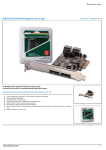
4-CHANNEL SATA II PCI EXPRESS CARD User Manual 1 Features Marvell 88SX7042 chipset Compliant with PCI Express Base Specification 1.0a Compliant with Serial ATA 1.0 specification with support for full complement of SATA II optional features Supports SATA II Native Command Queuing (NCQ) Provides four independent channels to support up to four Serial ATA drives Supports SATA up to 300MB/Sec Supports Windows 7, Vista, XP, 2000 Bus Interface PCI-Express x 4 Connectors 4 x internal SATA connectors 2 x external eSATA connectors System Requirements PCI Express-enabled system with one available PCI Express slot Windows 7, Vista, XP, 2000 2 Hardware Description G (Jumper Settings) JP J2-J5 J6-J9 Description Active Port 1-2 close Enable SATA Connector D 2-3 close Enable SATA Connector E 1-2 close Enable SATA Connector C 2-3 close Enable SATA Connector F 3 Note: There are six SATA ports in PCIe SATA II 300 4-Channel Adapter. We name these ports A to F. Ports A to D are internal SATA ports and E & F are external SATA ports. By changing the jumper setting on the PCIe SATA II 300 4-Channel Adapter that allows you to select between external and internal ports to use. By default, Port A, B, C and D are working. Hardware Installation 1. Turn Off the power to your computer and any other connected peripheral devices. 2. Unplug the power cord from the back of the computer. 3. Remove your computer’s cover. 4. Remove the slot bracket from an available PCI Express slot. 5. To install the card, carefully align the card’s bus connector with the selected PCI Express slot on the motherboard. Push the board down firmly, but gently, until it is well seated. 6. Replace the slot bracket’s holding screw to secure the card. Device Connection The PCIe SATA II 300 4-Channel Adapter is a four channel Serial ATA 4 controller that supports up to four Serial ATA hard disk drives. 1. Install your hard disk drive(s) in chassis. 2. Connect the Serial ATA hard disk drive to the system power supply using the included Serial ATA power cable. 3. Connect one end of the Serial ATA cable to the hard disk drive. 4. Attach the other end of the Serial ATA cable to the Serial ATA controller on the PCIe SATA II 300 4-Channel Adapter. 5. Follow the same instructions to connect up to four hard drives. Device connection is now complete. 6. Replace the computer cover and reconnect the power cord. Driver Installation For Windows® 2000 For A New Installation A new installation requires a floppy disk for the driver installation. To make this floppy disk, copy the contents of the “DS-30104\2K_XP_2003_Vista” folder, found on the driver CD, onto a blank floppy disk then follow the directions below. 1. Follow Windows® 2000 installation procedure. 2. Restart the computer when prompted by the installation. 5 3. At the Windows® 2000 Setup screen, press F6 to install the driver. 4. When prompted, press S to specify the location of the driver. 5. Insert the floppy disk, then press Enter. 6. Select Marvell Serial ATA Adapter , then press Enter. 7. Press Enter again to finish driver installation, then follow the on-screen instructions to complete the Windows installation. For An Existing Installation 1. At Found New Hardware Wizard, click Next. 2. Select Search for a suitable driver for my device(recommend) then click Next. 3. Insert the driver CD, check CD-ROM drives, uncheck the other boxes, click Next, then click Next again. 4. If the Digital Signature Not Found message appears, click Yes. Our driver has been thoroughly tested for stability and compatibility. 5. Click Finish. 6 For Windows® XP/Server 2003 For New Installation A new installation requires a floppy disk for the driver installation. To make this floppy disk, copy the contents of the “DS-30104\2K_XP_2003_Vista” folder, found on the driver CD, onto a blank floppy disk then follow the directions below. 1. Follow Microsoft’s Windows installation procedure. 2. Restart the computer when prompted by Windows’ installation. 3. At the Windows Setup screen, press F6 to install the driver. 4. When prompted, press S to specify the location of the driver. 5. Insert the floppy disk, then press Enter. 6. Select Marvell Serial ATA Adapter, then press Enter. 7. Press Enter to finish driver installation, then follow the on-screen instructions to complete the Windows installation. Note: If the Security Alert warning pops up, click Yes. Our driver has passed Microsoft compatibility testing, this message appears during new installation. 7 For An Existing Installation 1. At the Found New Hardware Wizard: XP (w/SP1 or earlier)/Server 2003: continue to step #2 XP (w/SP2 or later)/Server 2003(w/SP1 or later): select No, not this time, then click Next. 2. Insert the driver CD, select Install the software automatically (Recommended), and click Next. 3. If the Hardware Installation window pops up, click Continue Anyway, then Finish. Our driver has been thoroughly tested for stability and compatibility. 4. Click Finish For Windows® XP-x64/Server 2003-x64 For New Installation A new installation requires a floppy disk for the driver installation. To make this floppy disk, copy the contents of the “DS-30104\XP_2003_Vista x64” folder, found on the driver CD, onto a blank floppy disk then follow the directions below. 1. Follow Microsoft’s Windows installation procedure. 2. Restart the computer when prompted by Windows’ installation. 8 3. At the Windows Setup screen, press F6 to install the driver. 4. When prompted, press S to specify the location of the driver. 5. Insert the floppy disk, then press Enter. 6. Select Marvell Serial ATA Adapter, then press Enter. 7. Press Enter to finish driver installation, then follow the on-screen instructions to complete the Windows installation. Note: If the Security Alert warning pops up, click Yes. Our driver has passed Microsoft compatibility testing, this message appears during new installation. For An Existing Installation 1. At the Found New Hardware Wizard, select No, not this time, then click Next. 2. Insert the driver CD, select Install the software automatically (Recommended), and click Next. 3. If the Hardware Installation window pops up, click Continue Anyway, then Finish. Our driver has been thoroughly tested for stability and compatibility. 4. Click Finish. 9 For Windows® Vista For New Installation A new installation requires a floppy disk for the driver installation. To make this floppy disk, copy the contents of the “DS-30104\2K_XP_2003_Vista” folder, found on the driver CD, onto a blank floppy disk then follow the directions below. 1. Follow Microsoft’s Windows installation procedure. 2. Restart the computer when prompted by Windows’ installation. 3. At the Windows Setup screen, press Load Driver to install the driver. 4. Insert the floppy disk, please select Marvell Serial ATA Gen 2 PCI Express Adapter (A:\mvsata.inf), then press Next. (Change A:\ to match your floppy drive letter) 5. Follow the on-screen instructions to complete the Windows installation. 10 For An Existing Installation 1. At Found New Hardware Wizard, select Locate and install driver software (recommended). 2. Insert the driver CD, click Next. 3. If the system prompts the user informing the drivers are not signed, select the option Install this driver software anyway. 4. Click Close to complete the installation For Windows® Vista-x64 For New Installation A new installation requires a floppy disk for the driver installation. To make this floppy disk, copy the contents of the “DS-30104\XP_2003_Vista x64” folder, found on the driver CD, onto a blank floppy disk then follow the directions below. 1. Follow Microsoft’s Windows installation procedure. 2. Restart the computer when prompted by Windows’ installation. 3. At the Windows Setup screen, press Load Driver to install the driver. 4. Insert the floppy disk, please select Marvell Serial ATA Gen 2 PCI Express Adapter (A:\mvsata.inf), then press Next. (Change A:\ to match your floppy drive letter) 11 5. Follow the on-screen instructions to complete the Windows installation. For An Existing Installation 1. At Found New Hardware Wizard, select Locate and install driver software (recommended). 2. Insert the driver CD, click Next. 3. If the system prompts the user informing the drivers are not signed, select the option Install this driver software anyway. 4. Click Close to complete the installation. To Verify Windows® Installation 1. Right click My Computer and click Manage. 2. Select Device Manager. 3. Double click SCSI and RAID Controller (Storage controller – Vista), then double click Marvell Serial ATA Gen 2 PCI Express Adapter to display driver properties. A message this device is working properly is displayed in the dialog box, the driver has been correctly installed. 12