1
NVR User Manual
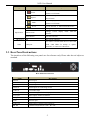
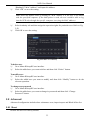
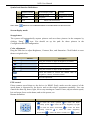
the dome towards right
to stop rotating the dome.
Drag the scroll bar to adjust rotating speed of the dome.
'Iris' button. Click
button near 'Iris' button to increase light
of the dome. Click
button near 'Iris' button to decrease light
of the dome.
'Zoom' button. Click
button near 'Zoom' button to zoom in
the locale picture of this camera. Click
button near 'Zoom'
button to zoom out the locale picture of this camera.
'Focus' button. Click
focus. Click
button near 'Focus' button to have long
button near 'Focus' button to have short focus.
Go to the Preset
Select and do auto cruise
Track
Auto scan
Wiper button
Light button
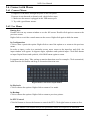
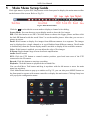
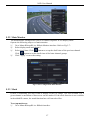
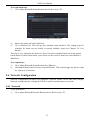
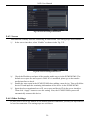
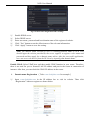
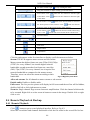
Click the right mouse on the live interface to display a pull-down menu as below.
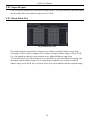
Stream: The NVR supports master stream and sub stream.
Master stream has higher frame rate, max 25fps (PAL)/30fps
(NTSC) for every channel, but it needs higher network
bandwidth; second stream has low frame rate, max 6fps
(PAL)/7fps (NTSC) for every channel, but it requires low
network bandwidth as compared to the master stream.
Therefore, users can select the stream according to their
bandwidth.
Fig 8-2 Right Key Sub Menu
All to sub stream: Set all channel to master stream or sub stream.
Enable audio: Enable or disable audio.
Full screen: The live preview picture will display in full screen and the tool bar will be hidden;
double click left or click right mouse to return.
Zoom in: Single channel large screen electronic amplification. Click the channel which needs
to be zoomed. Right click to select zoom in button to zoom in the image. Double click or right
click to exit.
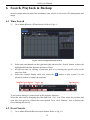
8.4 Remote Playback & Backup
8.4.1 Remote Playback
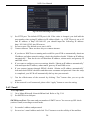
Click
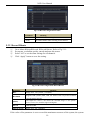
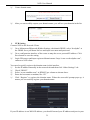
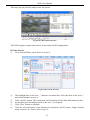
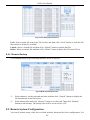
button to go to record playback interface. Refer to Fig 8-3:
Select the record date and channels and double-click the file name in the record file list box.
46