1
Sun WorkShop 6 Installation Guide
Sun Microsystems, Inc.
901 San Antonio Road
Palo Alto, CA 94303
U.S.A. 650-960-1300
Part No. 806-3553-10
May 2000, Revision A
Send comments about this document to: [email protected]
Copyright © 2000 Sun Microsystems, Inc., 901 San Antonio Road • Palo Alto, CA 94303-4900 USA. All rights reserved.
This product or document is distributed under licenses restricting its use, copying, distribution, and decompilation. No part of this product or
document may be reproduced in any form by any means without prior written authorization of Sun and its licensors, if any. Third-party
software, including font technology, is copyrighted and licensed from Sun suppliers.
Parts of the product may be derived from Berkeley BSD systems, licensed from the University of California. UNIX is a registered trademark in
the U.S. and other countries, exclusively licensed through X/Open Company, Ltd. For Netscape™, Netscape Navigator™, and the Netscape
Communications Corporation logo™, the following notice applies: Copyright 1995 Netscape Communications Corporation. All rights reserved.
Sun, Sun Microsystems, the Sun logo, docs.sun.com, AnswerBook2, Solaris, SunOS, JavaScript, SunExpress, Sun WorkShop, Sun WorkShop
Professional, Sun Performance Library, Sun Performance WorkShop, Sun Visual WorkShop, and Forte are trademarks, registered trademarks,
or service marks of Sun Microsystems, Inc. in the U.S. and other countries. All SPARC trademarks are used under license and are trademarks or
registered trademarks of SPARC International, Inc. in the U.S. and other countries. Products bearing SPARC trademarks are based upon an
architecture developed by Sun Microsystems, Inc.
The OPEN LOOK and Sun™ Graphical User Interface was developed by Sun Microsystems, Inc. for its users and licensees. Sun acknowledges
the pioneering efforts of Xerox in researching and developing the concept of visual or graphical user interfaces for the computer industry. Sun
holds a non-exclusive license from Xerox to the Xerox Graphical User Interface, which license also covers Sun’s licensees who implement OPEN
LOOK GUIs and otherwise comply with Sun’s written license agreements.
Sun f90/f95 is derived from Cray CF90™, a product of Silicon Graphics, Inc.
Federal Acquisitions: Commercial Software—Government Users Subject to Standard License Terms and Conditions.
DOCUMENTATION IS PROVIDED “AS IS” AND ALL EXPRESS OR IMPLIED CONDITIONS, REPRESENTATIONS AND WARRANTIES,
INCLUDING ANY IMPLIED WARRANTY OF MERCHANTABILITY, FITNESS FOR A PARTICULAR PURPOSE OR NONINFRINGEMENT, ARE DISCLAIMED, EXCEPT TO THE EXTENT THAT SUCH DISCLAIMERS ARE HELD TO BE LEGALLY INVALID.
Copyright © 2000 Sun Microsystems, Inc., 901 San Antonio Road • Palo Alto, CA 94303-4900 Etats-Unis. Tous droits réservés.
Ce produit ou document est distribué avec des licences qui en restreignent l’utilisation, la copie, la distribution, et la décompilation. Aucune
partie de ce produit ou document ne peut être reproduite sous aucune forme, par quelque moyen que ce soit, sans l’autorisation préalable et
écrite de Sun et de ses bailleurs de licence, s’il y en a. Le logiciel détenu par des tiers, et qui comprend la technologie relative aux polices de
caractères, est protégé par un copyright et licencié par des fournisseurs de Sun.
Des parties de ce produit pourront être dérivées des systèmes Berkeley BSD licenciés par l’Université de Californie. UNIX est une marque
déposée aux Etats-Unis et dans d’autres pays et licenciée exclusivement par X/Open Company, Ltd. La notice suivante est applicable à
Netscape™, Netscape Navigator™, et the Netscape Communications Corporation logo™: Copyright 1995 Netscape Communications
Corporation. Tous droits réservés.
Sun, Sun Microsystems, the Sun logo, docs.sun.com, AnswerBook2, Solaris, SunOS, JavaScript, SunExpress, Sun WorkShop, Sun WorkShop
Professional, Sun Performance Library, Sun Performance WorkShop, Sun Visual WorkShop, et Forte sont des marques de fabrique ou des
marques déposées, ou marques de service, de Sun Microsystems, Inc. aux Etats-Unis et dans d’autres pays. Toutes les marques SPARC sont
utilisées sous licence et sont des marques de fabrique ou des marques déposées de SPARC International, Inc. aux Etats-Unis et dans d’autres
pays. Les produits portant les marques SPARC sont basés sur une architecture développée par Sun Microsystems, Inc.
L’interface d’utilisation graphique OPEN LOOK et Sun™ a été développée par Sun Microsystems, Inc. pour ses utilisateurs et licenciés. Sun
reconnaît les efforts de pionniers de Xerox pour la recherche et le développement du concept des interfaces d’utilisation visuelle ou graphique
pour l’industrie de l’informatique. Sun détient une licence non exclusive de Xerox sur l’interface d’utilisation graphique Xerox, cette licence
couvrant également les licenciés de Sun qui mettent en place l’interface d’utilisation graphique OPEN LOOK et qui en outre se conforment aux
licences écrites de Sun.
Sun f90/f95 est derivé de CRAY CF90™, un produit de Silicon Graphics, Inc.
CETTE PUBLICATION EST FOURNIE “EN L’ETAT” ET AUCUNE GARANTIE, EXPRESSE OU IMPLICITE, N’EST ACCORDEE, Y COMPRIS
DES GARANTIES CONCERNANT LA VALEUR MARCHANDE, L’APTITUDE DE LA PUBLICATION A REPONDRE A UNE UTILISATION
PARTICULIERE, OU LE FAIT QU’ELLE NE SOIT PAS CONTREFAISANTE DE PRODUIT DE TIERS. CE DENI DE GARANTIE NE
S’APPLIQUERAIT PAS, DANS LA MESURE OU IL SERAIT TENU JURIDIQUEMENT NUL ET NON AVENU.
Please
Recycle
Important Note on New Product
Names
As part of Sun’s new developer product strategy, we have changed the names of our
development tools from Sun WorkShop™ to Forte™ Developer products. The
products, as you can see, are the same high-quality products you have come to
expect from Sun; the only thing that has changed is the name.
We believe that the Forte™ name blends the traditional quality and focus of Sun’s
core programming tools with the multi-platform, business application deployment
focus of the Forte tools, such as Forte Fusion™ and Forte™ for Java™. The new
Forte organization delivers a complete array of tools for end-to-end application
development and deployment.
For users of the Sun WorkShop tools, the following is a simple mapping of the old
product names in WorkShop 5.0 to the new names in Forte Developer 6.
Old Product Name
New Product Name
Sun Visual WorkShop™ C++
Forte™ C++ Enterprise Edition 6
Sun Visual WorkShop™ C++ Personal
Edition
Forte™ C++ Personal Edition 6
Sun Performance WorkShop™ Fortran
Forte™ for High Performance Computing 6
Sun Performance WorkShop™ Fortran
Personal Edition
Forte™ Fortran Desktop Edition 6
Sun WorkShop Professional™ C
Forte™ C 6
Sun WorkShop™ University Edition
Forte™ Developer University Edition 6
In addition to the name changes, there have been major changes to two of the
products.
■
Forte for High Performance Computing contains all the tools formerly found in
Sun Performance WorkShop Fortran and now includes the C++ compiler, so High
Performance Computing users need to purchase only one product for all their
development needs.
■
Forte Fortran Desktop Edition is identical to the former Sun Performance
WorkShop Personal Edition, except that the Fortran compilers in that product no
longer support the creation of automatically parallelized or explicit, directivebased parallel code. This capability is still supported in the Fortran compilers in
Forte for High Performance Computing.
We appreciate your continued use of our development products and hope that we
can continue to fulfill your needs into the future.
Contents
Preface
1.
1
Preparing for Installation
11
Software Installation Overview
System Requirements
11
12
Online Documentation Requirements
13
Configuring a StandAlone License Server
13
Configuring a System Without a Network Interface Card
2.
Requesting Your Licenses
Choosing a License
14
15
16
Personal Edition (Node-locked), Desktop Edition (Node-locked), and
Floating Licenses 16
Domain-Based Licenses
17
Choosing a License Server Configuration
18
Single Independent Server Configuration
18
Multiple Independent Server Configuration
Redundant Server Configuration
19
Completing the License Request Form
19
18
v
Contacting the Sun License Center
Email Contact
21
Saving an Email License to File
Fax Contact
Installing Software
Special Cases
22
24
Telephone Contact
3.
21
24
25
25
From Try and Buy Software to Purchase
25
Early Access Versions of Sun WorkShop 6
Supporting Previous Software Releases
Local or Remote Installation
28
29
Using the Command-Line Installation
Changing PATH and MANPATH Variables
4.
Installing Your Licenses
Special Cases
27
28
Software Installation Steps
Using Web Start
27
36
42
45
46
Using lit License Installer
46
Email License File Installation
Fax License Installation
47
49
Using the lit_tty Command-Line Executable
Email License File Installation
Fax License Installation
Demo License Installation
51
51
52
54
(Optional) Changing the Owner of the License Server Daemon
vi
Sun WorkShop 6 Installation Guide • May 2000
55
5.
Understanding Fortran Licenses
About Fortran Licenses
57
Using Fortran Licenses
58
57
Using Fortran Limited Licenses or Unlimited Licenses
59
Using Fortran Limited Licenses With Unlimited Licenses
6.
Removing Software
65
Using the Web Start Uninstaller
65
Using the Command Line Uninstaller
7.
Troubleshooting
61
66
67
Registry Data File Problems
67
Information Mismatch If You Use pkgadd Without Web Start
Information Mismatch If You Use pkgrm Without Web Start
License Problems
No License Received
Index
68
68
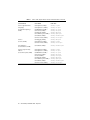
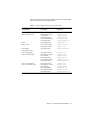
Sun WorkShop Products and Packages
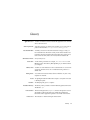
Glossary
68
68
License Was Not Installed Properly or Does Not Work
A.
67
69
73
77
Contents
vii
viii
Sun WorkShop 6 Installation Guide • May 2000
Figures
FIGURE 3-1
Local and Remote Installations
FIGURE 3-2
Product Selection Window
FIGURE 3-3
Install License Window 35
FIGURE 4-1
License Installation Tool Window
FIGURE 4-2
Add License Window 49
FIGURE 5-1
License Error Message
FIGURE 5-2
UNSUPPORTED Entry in license_log
28
32
48
60
60
Figures
ix
x
Sun WorkShop 6 Installation Guide • May 2000
Tables
TABLE P-1
Typographic Conventions 4
TABLE P-2
Shell Prompts
TABLE P-3
Related Sun WorkShop 6 Documentation by Document Collection
TABLE P-4
Related Solaris Documentation
TABLE 1-1
System Requirements by Platform in Developer or Full Cluster Distribution
Configurations 12
TABLE 5-1
Sun WorkShop Fortran Products and License Tokens 58
TABLE 5-2
Limited or Unlimited License Function With and Without Parallelization Flags 59
TABLE 5-3
Limited and Unlimited License Function With and Without Parallelization Flags
TABLE A-1
Solaris SPARC Platform Edition Licenses and Feature Names 69
TABLE A-2
Solaris Intel Platform Edition Licenses and Feature Names 71
4
6
9
62
Tables
xi
xii
Sun WorkShop 6 Installation Guide • May 2000
Preface
Sun WorkShop 6 Installation Guide gives instructions for how to:
■
■
■
■
■
Install the Sun WorkShop™ 6 software development tools
Obtain and install the licenses for those software development tools
Use the Fortran licenses
Remove Sun WorkShop software
Troubleshoot licensing and installation problems
This book is designed for system administrators who install software and configure
license servers so that users can access licensed software. Experience with the
Solaris™ operating environment and UNIX® commands is required.
Multiplatform Release
This Sun WorkShop release supports versions 2.6, 7, and 8 of the Solaris™ SPARC™
Platform Edition and Solaris Intel Platform Edition Operating Environments.
Note – The term “x86” refers to the Intel 8086 family of microprocessor chips,
including the Pentium, Pentium Pro, and Pentium II processors and compatible
microprocessor chips made by AMD and Cyrix. In this document, the term “x86”
refers to the overall platform architecture, whereas “Intel Platform Edition” appears in
the product name.
1
Access to Sun WorkShop Development
Tools
Because Sun WorkShop product components and man pages do not install into the
standard /usr/bin/ and /usr/share/man directories, you must change your
PATH and MANPATH environment variables to enable access to Sun WorkShop
compilers and tools.
To determine if you need to set your PATH environment variable:
1. Display the current value of the PATH variable by typing:
% echo $PATH
2. Review the output for a string of paths containing /opt/SUNWspro/bin/.
If you find the paths, your PATH variable is already set to access Sun WorkShop
development tools. If you do not find the paths, set your PATH environment variable
by following the instructions in this section.
To determine if you need to set your MANPATH environment variable:
1. Request the workshop man page by typing:
% man workshop
2. Review the output, if any.
If the workshop(1) man page cannot be found or if the man page displayed is not
for the current version of the software installed, follow the instructions in this
section for setting your MANPATH environment variable.
Note – The information in this section assumes that your Sun WorkShop 6 products
were installed in the /opt directory. Contact your system administrator if your Sun
WorkShop software is not installed in /opt.
The PATH and MANPATH variables should be set in your home .cshrc file if you are
using the C shell or in your home .profile file if you are using the Bourne or Korn
shells:
■
To use Sun WorkShop commands, add the following to your PATH variable:
/opt/SUNWspro/bin
2
Sun WorkShop 6 Installation Guide • May 2000
■
To access Sun WorkShop man pages with the man command, add the following to
your MANPATH variable:
/opt/SUNWspro/man
For more information about the PATH variable, see the csh(1), sh(1), and ksh(1)
man pages. For more information about the MANPATH variable, see the man(1) man
page. For more information about setting your PATH and MANPATH variables to
access this release, see “Changing PATH and MANPATH Variables” on page 42 or
your system administrator.
Contacting Technical Support
Sun Service Centers will assist you with installing and licensing problems. Contact
the Sun Service Center at
http://www.sun.com/service/contacting/solution.html
How This Book Is Organized
Chapter 1, “Preparing for Installation,” describes the software installation sequence
and system requirements.
Chapter 2, “Requesting Your Licenses,” describes how to request your software
licenses from the Sun License Center.
Chapter 3, “Installing Software,” explains how to install FLEXlm 7.0b license
manager software and the Sun WorkShop development tools.
Chapter 4, “Installing Your Licenses,” describes how to install your WorkShop
licenses.
Chapter 5, “Understanding Fortran Licenses,” describes Fortran licenses.
Chapter 6, “Removing Software,” explains how to remove Sun WorkShop software.
Chapter 7, “Troubleshooting,” offers some troubleshooting hints if you encounter
problems during licensing or installation.
Appendix A, “Sun WorkShop Products and Packages,” lists the Sun WorkShop 6
development tools available, the licenses needed to start the tool, and the feature
names.
Preface
3
Glossary defines key words and phrases used in this guide.
Typographic Conventions
TABLE P-1 shows the typographic conventions that are used in Sun WorkShop
documentation.
TABLE P-1
Typographic Conventions
Typeface
Meaning
Examples
AaBbCc123
The names of commands, files,
and directories; on-screen
computer output
Edit your .login file.
Use ls -a to list all files.
% You have mail.
AaBbCc123
What you type, when
contrasted with on-screen
computer output
% su
Password:
AaBbCc123
Book titles, new words or terms,
words to be emphasized
Read Chapter 6 in the User’s Guide.
These are called class options.
You must be superuser to do this.
AaBbCc123
Command-line placeholder text;
replace with a real name or
value
To delete a file, type rm filename.
Shell Prompts
TABLE P-2 shows the default system prompt and superuser prompt for the C shell,
Bourne shell, and Korn shell.
TABLE P-2
4
Shell Prompts
Shell
Prompt
C shell
%
Bourne shell and Korn shell
$
C shell, Bourne shell, and Korn shell superuser
#
Sun WorkShop 6 Installation Guide • May 2000
Sun WorkShop Documentation
You can access Sun WorkShop documentation in the following ways:
■
Through the Internet at the docs.sun.comsm Web site. You can search for a
specific book title or you can browse by subject, document collection, or product
at the following Web site:
http://docs.sun.com
■
Through the installed Sun WorkShop products on your local system or
network. Sun WorkShop 6 HTML documents (manuals, online help, man pages,
component readme files, and release notes) are available with your installed Sun
WorkShop 6 products. To access the HTML documentation, do one of the
following:
■
■
In any Sun WorkShop or Sun WorkShop™ TeamWare window, choose
Help ➤ About Documentation.
In your Netscape™ Communicator 4.0 or compatible version browser, open the
following file:
/opt/SUNWspro/docs/index.html
(If your Sun WorkShop software is not installed in the /opt directory, ask your
system administrator for the equivalent path on your system.) Your browser
displays an index of Sun WorkShop 6 HTML documents. To open a document in
the index, click the document’s title.
Preface
5
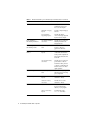
TABLE P-3 lists related Sun WorkShop 6 manuals by document collection.
TABLE P-3
Related Sun WorkShop 6 Documentation by Document Collection
Document Collection
Document Title
Description
Forte™ Developer 6 /
Sun WorkShop 6 Release
Documents
About Sun WorkShop 6
Documentation
Describes the documentation
available with this Sun
WorkShop release and how to
access it.
What’s New in Sun
WorkShop 6
Provides information about the
new features in the current and
previous release of Sun
WorkShop.
Sun WorkShop 6 Release
Notes
Contains installation details
and other information that was
not available until immediately
before the final release of Sun
WorkShop 6. This document
complements the information
that is available in the
component readme files.
Analyzing Program
Performance With Sun
WorkShop 6
Explains how to use the new
Sampling Collector and
Sampling Analyzer (with
examples and a discussion of
advanced profiling topics) and
includes information about the
command-line analysis tool
er_print, the LoopTool and
LoopReport utilities, and UNIX
profiling tools prof, gprof,
and tcov.
Debugging a Program With
dbx
Provides information on using
dbx commands to debug a
program with references to
how the same debugging
operations can be performed
using the Sun WorkShop
Debugging window.
Introduction to Sun
WorkShop
Acquaints you with the basic
program development features
of the Sun WorkShop
integrated programming
environment.
Forte Developer 6 /
Sun WorkShop 6
6
Sun WorkShop 6 Installation Guide • May 2000
TABLE P-3
Related Sun WorkShop 6 Documentation by Document Collection (Continued)
Document Collection
Document Title
Description
Forte™ C 6 / Sun WorkShop 6
Compilers C
C User’s Guide
Describes the C compiler
options, Sun-specific
capabilities such as pragmas,
the lint tool, parallelization,
migration to a 64-bit operating
system, and ANSI/ISOcompliant C.
Forte™ C++ 6 / Sun WorkShop
6 Compilers C++
C++ Library Reference
Describes the C++ libraries,
including C++ Standard
Library, Tools.h++ class library,
Sun WorkShop Memory
Monitor, Iostream, and
Complex.
C++ Migration Guide
Provides guidance on
migrating code to this version
of the Sun WorkShop C++
compiler.
C++ Programming Guide
Explains how to use the new
features to write more efficient
programs and covers
templates, exception handling,
runtime type identification,
cast operations, performance,
and multithreaded programs.
C++ User’s Guide
Provides information on
command-line options and
how to use the compiler.
Sun WorkShop Memory
Monitor User’s Manual
Describes how the Sun
WorkShop Memory Monitor
solves the problems of memory
management in C and C++.
This manual is only available
through your installed product
(see /opt/SUNWspro/docs/
index.html) and not at the
docs.sun.com Web site.
Fortran Library Reference
Provides details about the
library routines supplied with
the Fortran compiler.
Fortran Programming Guide
Discusses issues relating to
input/output, libraries,
program analysis, debugging,
and performance.
Forte™ for High Performance
Computing 6 / Sun WorkShop
6 Compilers Fortran 77/95
Preface
7
TABLE P-3
Related Sun WorkShop 6 Documentation by Document Collection (Continued)
Document Collection
Document Title
Description
Fortran User’s Guide
Provides information on
command-line options and
how to use the compilers.
FORTRAN 77 Language
Reference
Provides a complete language
reference.
Interval Arithmetic
Programming Reference
Describes the intrinsic
INTERVAL data type supported
by the Fortran 95 compiler.
Forte™ TeamWare 6 /
Sun WorkShop TeamWare 6
Sun WorkShop TeamWare 6
User’s Guide
Describes how to use the Sun
WorkShop TeamWare code
management tools.
Forte Developer 6/
Sun WorkShop Visual 6
Sun WorkShop Visual User’s
Guide
Describes how to use Visual to
create C++ and Java™
graphical user interfaces.
Forte™ / Sun Performance
Library 6
Sun Performance Library
Reference
Discusses the optimized library
of subroutines and functions
used to perform computational
linear algebra and fast Fourier
transforms.
Sun Performance Library
User’s Guide
Describes how to use the Sunspecific features of the Sun
Performance Library, which is
a collection of subroutines and
functions used to solve linear
algebra problems.
Numerical Computation Guide
Numerical Computation
Guide
Describes issues regarding the
numerical accuracy of floatingpoint computations.
Standard Library 2
Standard C++ Class Library
Reference
Provides details on the
Standard C++ Library.
Standard C++ Library
User’s Guide
Describes how to use the
Standard C++ Library.
Tools.h++ User’s Guide
Discusses use of the C++
classes for enhancing the
efficiency of your programs.
Tools.h++ Class Library
Reference
Provides details on the
Tools.h++ class library.
Tools.h++ 7
8
Sun WorkShop 6 Installation Guide • May 2000
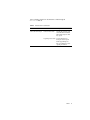
TABLE P-4 describes related Solaris documentation available through the
docs.sun.com Web site.
TABLE P-4
Related Solaris Documentation
Document Collection
Document Title
Description
Solaris Software Developer
Linker and Libraries Guide
Describes the operations of the
Solaris link-editor and runtime
linker and the objects on which
they operate.
Programming Utilities Guide
Provides information for
developers about the special
built-in programming tools
that are available in the Solaris
operating environment.
Preface
9
10
Sun WorkShop 6 Installation Guide • May 2000
CHAPTER
1
Preparing for Installation
This chapter describes:
■
■
The software installation overview
System requirements
Software Installation Overview
The following is the general process you will follow to install your Sun WorkShop™
software and your licenses (subsequent chapters contain specific instructions):
1. Your application and license servers must meet the minimum requirements for
this release. See “System Requirements” on page 12.
2. You must request and receive your license information from the Sun License
Center before you can install your licenses and start your software development
tools. Chapter 2 describes how to request your license information from Sun.
3. You can install Sun WorkShop on your application server and license manager
software on your license server. Chapter 3 describes product installation and
Chapter 4 describes license installation. Chapter 5 explains how to use the Fortran
licenses.
After following the instructions in this manual, you will be ready to use your Sun
WorkShop development tools.
11
System Requirements
This Sun WorkShop release supports versions 2.6, 7, and 8 of the Solaris™ SPARC™
Platform Edition and the Solaris Intel Platform Edition operating environments in
Developer or Full Cluster configurations.
Note – For disk space requirements and important last-minute information about
this release, see the release notes on the Sun WorkShop 6 web site at
http://www.sun.com/forte
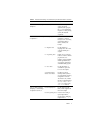
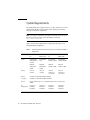
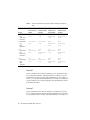
TABLE 1-1 lists the system requirements for each platform in Developer or Full
Cluster distribution configurations.
TABLE 1-1
Solaris SPARC Platform Edition
Solaris Intel Platform Edition
2.6
Solaris 7 and 8
2.6
Solaris 7 and 8
Recommended:
SPARCstation™ 5/
170 MHz
Recommended:
Ultra
Recommended:
Pentium/133 MHz
Recommended:
Pentium/233 MHz
Minimum:
SPARCstation/
50 MHz
Minimum:
SPARCstation/
50 MHz
Minimum:
Pentium/90 MHz
Minimum:
Pentium/90 MHz
Monitor
1024 x 768
resolution
1024 x 768
resolution
1024 x 768
resolution; 15”
color monitor
1024 x 768
resolution; 15”
color monitor
Memory
128 Mbytes recommended; 64 Mbytes minimum
Swap Space
300 Mbytes recommended; 200 Mbytes minimum
Browser
Netscape Communicator 4.0 or a compatible Netscape version, with JavaScript
enabled
OS
Configurations
Developer or
Full Cluster
Distribution
System
12
System Requirements by Platform in Developer or Full Cluster Distribution
Configurations
Developer or
Full Cluster
Distribution
Sun WorkShop 6 Installation Guide • May 2000
Developer or
Full Cluster
Distribution
Developer or
Full Cluster
Distribution
Online Documentation Requirements
To view Sun WorkShop documentation that is available in HTML format, you must
use Netscape™ Communicator 4.0 or a compatible Netscape version. Netscape
Communicator is included in the Solaris™ 7 Operating Environment and the
Solaris™ 8 Operating Environment.
If you are running the Solaris 2.6 Operating Environment and you do not have
Netscape Communicator 4.0 or a compatible version, you can download Netscape
Communicator 4.7 for the Solaris 2.6 Operating Environment.
To download Netscape Communicator 4.7, see the following Netscape
Communications Corporation Web site:
http://www.netscape.com/download/index.html
Sun WorkShop online help (in HTML) requires that you have JavaScript™ enabled,
which is a default setting in Netscape preferences.
Configuring a StandAlone License Server
Several license server configuration requirements are handled automatically if your
license server is part of a network, but might be overlooked if your license server is
a standalone machine.
TCP/IP
FLEXlm 7.0b license manager software requires that TCP/IP be set up and
operational before FLEXlm 7.0b will allow you to access your licensed software. One
way to test if TCP/IP is functional is to successfully telnet to the hostname of your
license server, which is the machine running the license daemon. For more
information, refer to the tcp man page or see your system administrator.
localhost
If your license server is a standalone machine, consider editing your
/etc/inet/hosts file to alias localhost to the hostname on the SERVER line in
your license file.
Chapter 1
Preparing for Installation
13
Configuring a System Without a Network
Interface Card
If your license server does not have a network interface card, you must configure the
operating system on your license server appropriately. To configure a machine to not
have a network interface card, follow these steps:
1. Become a superuser (root) by typing:
% su
Password: root-password
2. Type the following:
# /usr/sbin/sys-unconfig
Your machine will reboot automatically, or you will be prompted to reboot.
3. Answer the questions as prompted.
Select no when you are asked whether the system is to be networked.
14
Sun WorkShop 6 Installation Guide • May 2000
CHAPTER
2
Requesting Your Licenses
Sun Microsystems uses license agreements to specify manufacturer and user
obligations concerning the number of users who can access the Sun WorkShop™
software.
Note – For information about domain-based licenses that support products licensed
through the GoldPass and ScholarPASS programs, see “Domain-Based Licenses” on
page 17.
The following is the process you will follow to request and receive your licenses
from the Sun License Center (detailed instructions are described in this chapter):
1. Choose a license (see “Choosing a License” on page 16).
2. Choose a license server configuration (see “Choosing a License Server
Configuration” on page 18).
3. Complete the License Request Form (see “Completing the License Request Form”
on page 19). When you purchase your Sun WorkShop software, you receive a
Proof of License Certificate in the product package. The Proof of License
Certificate contains your software serial number, which you will be asked to type
on the License Request Form.
4. Contact the Sun License Center to give the information contained in the License
Request Form (see “Contacting the Sun License Center” on page 21).
5. Receive your license information from the Sun License Center. The Sun License
Center responds to your license request within two business days after receiving
your request.
Answers to frequently asked questions (FAQ) about Sun WorkShop licensing are
available through the World Wide Web by visiting the following web page:
http://www.sun.com/forte
15
Choosing a License
This release of Sun WorkShop supports the following types of licenses:
■
■
■
■
Personal Edition (node-locked) and Desktop Edition (node-locked) licenses
Floating license
Demo license (see “Demo License Installation” on page 54)
Domain license
Note – Node-locked (Personal Edition and Desktop Edition) licenses can use a
single independent or a redundant server configuration.
Personal Edition (Node-locked), Desktop Edition
(Node-locked), and Floating Licenses
This release of Sun WorkShop supports a node-locked (Personal Edition and
Desktop Edition) license, where the licensed software only runs on the machine (the
node) to which the software is locked. The machine where the licensed software is
installed is the application server, and the machine running the license daemons is
the license server. With a node-locked license, the license server and the application
server might be the same machine, and only one user can run the application on the
machine at any one time. If the license server and application server are two
different machines, the license on the license server is used only by the host that is
specified in the license file.
With a floating license, developers can access licensed software simultaneously over
the network through FLEXlm license manager software. When two or more users
invoke the same software product at the same time, they are considered concurrent
users. The concurrent user license model makes software available to any user on
any computer on a network because licenses are floating and not tied to a specific
machine. FLEXlm license manager software monitors and controls access to the
software. A license can be checked out by any developer on the network and then
returned for others to use. A license is checked out transparently by each user who
accesses the licensed software.
16
Sun WorkShop 6 Installation Guide • May 2000
Domain-Based Licenses
Domain-based licenses tie licensed products to a network domain. Domain-based
licenses support products licensed through the GoldPass and ScholarPASS programs
and link software to network domains rather than specific license servers. Domainbased licenses function without using a centralized license manager and without
enforcing hard limits on the number of users.
The license agreement signed by your organization includes information about the
network domains where licensed software is installed and any limitation on the
number of users. Licenses are issued only for the domains associated with your site
as described in your agreement.
Depending on how your network domains are set up, you can acquire a license for a
single product (or product feature) that makes it available on all of the network
domains at your site. You can also receive individual licenses for each domain and
subdomain. This allows you reasonable control of user access to the software. For
example, the license agreement may simply identify my_org.org as the domain on
which licensed software may operate. However, you can acquire a license for a
particular subdomain (for example, eng.my_org.org) and limit access to that
subdomain as well as its subdomains.
Requesting Domain-Based Licenses
Domain-based licenses are available one or two weeks after your GoldPass or
ScholarPASS license agreement has been approved. Check the date of the agreement
before requesting your license.
Follow these steps to request your domain-based licenses:
1. Collect the following information:
■
Site number. This number identifies your organization for all ScholarPASS or
GoldPass licensed software. Upon approval of your agreement, a site number is
assigned to each site in your organization. If you do not have this number, ask for
it from the individual in your organization who signed the licensing agreement.
■
Your Sun WorkShop product name, version number, and serial number. The serial
number is printed on the label attached to the Proof of License Certificate, which
is part of your ScholarPASS or GoldPass product package.
■
Network domain names. The domain names that you supply are verified against
the information that was provided in the license agreement. A license will be
issued only if your requested domains are associated with your site number.
Chapter 2
Requesting Your Licenses
17
2. Follow the steps in “Completing the License Request Form” on page 19 to request
and receive your license information from the Sun License Center.
In Step 8 of the License Request Form, add your site number and network domain
name or names.
Choosing a License Server Configuration
There are three types of license server configurations available with Sun WorkShop:
■
■
■
Single independent server
Multiple independent server
Redundant server
For examples of license server configurations, see Chapter 1 in Sun WorkShop
Installation and Licensing Reference.
Note – Node-locked (Personal Edition and Desktop Edition) licenses can use a
single independent or a redundant server configuration.
Single Independent Server Configuration
A single independent server administers all software licenses. This scenario is suited
for sites where programmers, the license server, and application servers are close
together on the network. The single independent server configuration is the default
and the easiest to install and administer.
Multiple Independent Server Configuration
When you use two or more servers independently, you create a multiple
independent server configuration. Using this configuration, you indicate a number
of rights to use (RTUs) for each server, and users can obtain a license token from any
one of the servers. This scenario is most common for medium to large software
development environments distributed over a network.
Distributing the total number of license tokens among multiple license servers
increases the likelihood that at least some license tokens will always be available;
any license tokens served by computers that are offline are unavailable until those
machines are returned to the network.
18
Sun WorkShop 6 Installation Guide • May 2000
Redundant Server Configuration
A redundant server configuration enables you to have three servers acting as one
logical server managing a set of license tokens. This configuration requires that two
of the redundant license servers be operative and able to contact each other. If the
redundant servers cannot contact each other, none of the license tokens are available.
At any point, one of the redundant servers is the master server, the one that actually
issues license tokens with a heavier processing load. If the master server is
unavailable, then the next available peer in the configuration becomes the master
server.
Note – Once you have selected the machine to be used as a redundant license
server, that machine cannot be used in a different licensing configuration.
The main advantage of redundant servers is an increased likelihood that if any
tokens are available, then all tokens are available. The cost is increased installation
and maintenance complexity.
Completing the License Request Form
Note – You must use English when completing the License Request Form if you will
be contacting the Sun License Center located in the United States.
To obtain your licenses, complete the License Request Form by following these steps:
1. Put the Sun WorkShop 6 CD into your CD-ROM drive.
2. Copy the License Request Form template from the CD to a file name on your
system by typing:
% cp /cdrom/devpro_v7n1_platform/License_Request_Form filename
Replace platform with sparc if you use the Solaris SPARC Platform Edition operating
environment or intel if you use the Solaris Intel Platform Edition operating
environment.
The file is read only when you copy it from the CD to your system; you will need to
change permissions on the file in order to write to it.
3. Open your copy of the License Request Form in your preferred editor.
4. In Step 1, type your name, company name, address, telephone and fax numbers,
and email address.
Chapter 2
Requesting Your Licenses
19
5. In Step 2, type an X next to the description that best describes your job title.
6. In Step 3, type an X next to Fax only if you want the Sun License Center to fax
your license information to you.
Note – If you ask the Sun License Center to fax your license information to you, you
must retype your license information when you install your licenses; if you ask the
Sun License Center to email your license information to you, you do not have to
retype it.
7. In Step 4, for Try and Buy licenses only, enter the product name and version
number of the Sun WorkShop product you are evaluating.
8. In Step 5, type the product name and version number, number of rights to use
(RTUs) for which you want a license, and the serial number.
Use the information listed on your Proof of License Certificate (in your product
packaging). You do not have to install all of the RTUs listed on your Proof of License
Certificate at the same time.
9. In Step 6, enter the license server information for either a single license server or
redundant license server.
Note – If you will be using a multiple independent license server configuration,
complete a separate License Request Form for each license server.
For floating licenses, you have completed the License Request Form when you have
completed Step 6 of the form. Skip to “Contacting the Sun License Center” on
page 21.
Note – If you want to use the same license server for both floating and Personal
Edition (node-locked) and Desktop Edition (node-locked) licenses, complete a
separate License Request Form for each license configuration.
10. If you purchased a Personal Edition (node-locked) and Desktop Edition (nodelocked) product, type the node-locked hostid in Step 7 of the form.
Use the output of /usr/bin/hostid for the machine (node) to which the licensed
software will be locked (the licensed software will run only on the specified node).
20
Sun WorkShop 6 Installation Guide • May 2000
Note – Single independent (including node-locked) and redundant server licenses
cannot be mixed in the same license file (the licenses_combined file). A license
server and its license file is for either a single independent server or a three
redundant server set. A license server cannot handle both. A Personal Edition (nodelocked) or Desktop Edition (node-locked) license can be installed on a three
redundant server set. The Personal Edition or Desktop Edition hostid on the
INCREMENT line in the license file can be the hostid of one of the redundant servers,
if that is where the licensed application will be run, or it can be the hostid of an
entirely different machine.
11. If you purchased a Sun WorkShop product through the GoldPass or ScholarPASS
programs, type your site number and network domain name or names in Step 8 of
the form.
For more information about the GoldPass and ScholarPASS programs, see “DomainBased Licenses” on page 17.
Contacting the Sun License Center
You can contact the Sun License Center through email, fax, or telephone.
Note – The Sun License Center responds by fax or email (the method you ask them
to use when you completed Step 3 on the License Request Form) to your license
request within two business days after receiving your request.
Email Contact
1. Open your email message composition tool.
2. Copy and paste the completed License Request Form into your email message
composition tool.
3. Send the email message to the Sun License Center.
The Sun License Center email address is on the Proof of License Certificate in the
product package.
Chapter 2
Requesting Your Licenses
21
Saving an Email License to File
1. Save to a file the license information that you received from Sun.
Caution – Do not modify the license information that you received from Sun. Any
modification could invalidate your licenses.
The email you received from Sun has the license information either in an email
attachment (see step 2) or embedded in the body of the email message (see step 3).
Note – lit (License Installation Tool) reads the license information directly from
the file where you saved the license information you received through email.
2. If you received an email attachment, save only the email attachment to a directory
and a file name of your choice on your system.
You are ready to proceed to Chapter 3.
22
Sun WorkShop 6 Installation Guide • May 2000
3. If you received an email with the license information embedded in the email
message, then copy the license to a file with a name of your choice on your
system.
The license information is at the end of the email. The license information will look
similar to the license below:
#
# Product : Forte H-Perf Computing 6/SPARC, 6
# Date
: 06-Mar-2000
#
INCREMENT workshop.c.sparc sunwlicd 6.000 05-apr-2000 0 \
FB0A00211F6E47DA4569 "0" DEMO
#LICENSE_FILE workshop.c.sparc 6.000 sunpro 1
INCREMENT workshop.cc.sparc sunwlicd 6.000 05-apr-2000 0 \
BBAAA011A70D5DA55649 "0" DEMO
#LICENSE_FILE workshop.cc.sparc 6.000 sunpro 1
INCREMENT workshop.dbx.sparc sunwlicd 6.000 05-apr-2000 0 \
6BBAD0C1E59E07451CB5 "0" DEMO
#LICENSE_FILE workshop.dbx.sparc 6.000 sunpro 1
INCREMENT workshop.mpmt.sparc sunwlicd 6.000 05-apr-2000 0 \
1B8AF091A0719719982C "0" DEMO
#LICENSE_FILE workshop.mpmt.sparc 6.000 sunpro 1
INCREMENT workshop.teamware.sparc sunwlicd 6.000 05-apr-2000 0 \
CBDA30E1D8BA961D6FDE "0" DEMO
#LICENSE_FILE workshop.teamware.sparc 6.000 sunpro 1
INCREMENT workshop.tools.sparc sunwlicd 6.000 05-apr-2000 0 \
EB5AA0A1C290FAACDB83 "0" DEMO
#LICENSE_FILE workshop.tools.sparc 6.000 sunpro 1
INCREMENT workshop.f77.sparc sunwlicd 6.000 05-apr-2000 0 \
CB3A5071C8BA195483B6 "0" DEMO
#LICENSE_FILE workshop.f77.sparc 6.000 sunpro 1
INCREMENT workshop.f90.sparc sunwlicd 6.000 05-apr-2000 0 \
FB8A40714AF0090C4686 "0" DEMO
#LICENSE_FILE workshop.f90.sparc 6.000 sunpro 1
Caution – If you are using a DOS-based email system, use the dos2unix command
to convert the license file before using lit to read the license information. If you do
not convert the license file before using lit, you might not be able to use your
developer tools. See the dos2unix man page for more information.
4. Proceed to Chapter 3 for software installation.
Chapter 2
Requesting Your Licenses
23
Fax Contact
1. Print the License Request Form you completed.
2. Fax the form to the Sun License Center.
The Sun License Center fax number is on the Proof of License Certificate in the
product package.
3. Go to Chapter 3. See “Fax License Installation” on page 49 for installation details.
Telephone Contact
1. Telephone the Sun License Center to give the information on your License
Request Form.
The Sun License Center telephone number is on the Proof of License Certificate in
the product package. You can request to receive the license by Fax or email.
2. Go to Chapter 3.
24
Sun WorkShop 6 Installation Guide • May 2000
CHAPTER
3
Installing Software
This chapter gives you step-by-step instructions for installing your FLEXlm 7.0b
license manager software and your Sun WorkShop™ 6 development tools.
Special Cases
If you are upgrading from Sun WorkShop Try and Buy (trial software) to purchased
Sun WorkShop software, see “From Try and Buy Software to Purchase” on page 25.
If you installed an Early Access version of Sun WorkShop 6, see “Early Access
Versions of Sun WorkShop 6” on page 27 for special instructions.
If you plan to support this new Sun WorkShop release and previous Sun WorkShop
releases on the same machine, see “Supporting Previous Software Releases” on
page 27.
Otherwise, proceed to “Software Installation Steps” on page 28.
From Try and Buy Software to Purchase
If you installed Sun WorkShop 6 development tools on a trial basis (known as Try
and Buy software) and then purchased Sun WorkShop 6, you do not need to reinstall
your purchased Sun WorkShop 6 development tools. You do need to install FLEXlm
7.0b license manager software if you did not install FLEXlm on your license server
when you installed your Sun WorkShop Try and Buy development tools.
25
To determine if you have FLEXlm 7.0b license manager software on your system,
follow these steps:
1. Become a superuser (root) by typing:
% su
Password: root-password
2. Search for the installed license configuration data package by typing:
# pkginfo | grep SUNWwslic
3. Run lmver by typing the following:
# cd /etc/opt/licenses/
# ./lmver ./sunwlicd
■
If there is output from the command showing v7.0b, you have FLEXlm 7.0b
license manager software already installed. Install your licenses by following the
instructions in Chapter 4. Once your licenses are installed, you will be ready to
use your Sun WorkShop development tools.
■
If there is no output about the SUNWwslic package, follow these steps:
a. Install FLEXlm 7.0b license manager software on your license server.
The section “Using Web Start” on page 29 describes how to install FLEXlm license
manager software.
Note – You do not need to reinstall any of your Sun WorkShop development tools,
and you do not need to reset your PATH and MANPATH variables.
b. Install your licenses on your license server.
See Chapter 4 for instructions.
When your licenses are installed, you are ready to use your Sun WorkShop
development tools.
26
Sun WorkShop 6 Installation Guide • May 2000
Early Access Versions of Sun WorkShop 6
You must remove all versions of Sun WorkShop 6 before installing the purchased
product. See Chapter 6 for complete instructions on using Web Start to remove Sun
WorkShop software.
If you installed a trial version of Sun WorkShop 6 that you downloaded from
http://access1.sun.com/workshop6.0ea prior to purchasing Sun WorkShop
6, you must manually remove the following packages:
■
■
■
■
SPROpl
SPROpls
SPROplsx
SPROplx
You must uninstall these packages before installing your purchased Sun WorkShop 6
product. Use the pkgrm command to uninstall the packages by following these
steps:
1. Become a superuser by typing:
% su
Password: root-password
2. Remove a package by typing:
# pkgrm package-name
Repeat Steps 1 and 2 until you have removed all four packages. See the pkgrm man
page for more information about the pkgrm command.
Note – Use the pkgrm command to uninstall only those packages that you installed
manually.
Supporting Previous Software Releases
To support previous Sun WorkShop releases as well as this Sun WorkShop release on
the same machine, select an installation directory for the new release that is different
from the directory where the previous Sun WorkShop release resides. For example, if
you previously installed development tools in /opt, install the new development
tools in a new directory that you created on a file system with sufficient disk space.
For example:
/opt/SUNWspro
Chapter 3
Installing Software
27
for the previous version, and
/opt/new/SUNWspro
for the new version.
After installation, modify your PATH and MANPATH environment variables to include
the new directory. See “Changing PATH and MANPATH Variables” on page 42
about setting the variables to access the new release.
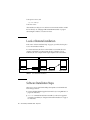
Local or Remote Installation
In the section “Software Installation Steps” on page 28, you will be asked to pick a
local or remote installation method.
In a remote installation, the software is downloaded on one machine (the source
computer) and installed on another machine (the target computer). In a local
installation, the source computer and the target computer are the same machine.
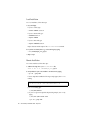
Remote Installation
Local Installation
Source/target computer
FIGURE 3-1
CD-ROM drive
Source computer
CD-ROM drive
Target computer
Local and Remote Installations
Software Installation Steps
There are two ways to install Sun WorkShop development tools and FLEXlm 7.0b
license manager software:
28
■
Solaris™ Web Start (Web Start) graphical user interface (see “Using Web Start” on
page 29 for instructions)
■
installer command-line installation executable if you do not have graphical
user interface capabilities (see “Using the Command-Line Installation” on page 36
for instructions)
Sun WorkShop 6 Installation Guide • May 2000
Using Web Start
These instructions describe how to use Web Start to install the Sun WorkShop
development tools and the FLEXlm 7.0b license manager software.
Note – Throughout these instructions, replace platform with sparc if you use the
Solaris™ SPARC Platform Edition or with intel if you use the Solaris™ Intel Platform
Edition.
1. Pick a local or remote installation method.
To help you decide, see “Local or Remote Installation” on page 28. Then follow the
instructions in this step.
2. Check that your Sun WorkShop CD is in your CD-ROM drive.
3. On the source machine, enable client access by typing the following at a command
line:
% /usr/openwin/bin/xhost + target-machine-name
Replace target-machine-name with the output of the /usr/bin/hostname command
entered on the target machine.
4. Become a superuser (root) by typing:
% su
Password: root-password
5. Check that Volume Manager is running on your machine by typing the following
at a command line:
# ps –ef | grep vold
If you see an entry that contains /usr/sbin/vold, Volume Manager is running on
your machine.
■
■
If Volume Manager is running on your machine, skip to step 6.
If Volume Manager is not running on your machine, type:
# mkdir -p /cdrom/devpro_v7n1_platform
# mount -F hsfs -r cdrom-device /cdrom/devpro_v7n1_platform
An example of cdrom-device is /dev/dsk/c0t6d0s2.
6. Follow the instructions for local or remote installation.
Chapter 3
Installing Software
29
Local Installation
For a local installation, follow these steps:
a. Set your display.
If you use a C shell, type:
# setenv DISPLAY hostname:0
If you use a Bourne shell, type:
# DISPLAY=hostname:0
# export DISPLAY
If you use a Korn shell, type:
# export DISPLAY=hostname:0
Replace hostname with the output of the /usr/bin/hostname command.
b. If you have not already done so, go to the CD image by typing:
# cd /cdrom/devpro_v7n1_platform
c. Skip to step 7.
Remote Installation
For a remote installation, follow these steps:
a. Add the following line to your /etc/dfs/dfstab file:
share -F nfs -o ro /cdrom/devpro_v7n1_platform
b. Verify whether if your source machine is an NFS server by typing:
# ps -ef | grep nfsd
If screen output that resembles the following example appears, then nfsd is
running:
root 237 1 17 Jun 04 ? 0:00 /usr/lib/nfs/nfsd -a 16
■
If nfsd is running, type:
# /usr/sbin/shareall
■
If you do not get screen output like the preceding example, start nfsd by
typing:
# /etc/init.d/nfs.server start
# ps -ef | grep nfsd
30
Sun WorkShop 6 Installation Guide • May 2000
You should see screen output similar to the previous example. If not, contact
your system administrator or your Sun authorized service provider.
c. Make sure your source machine is exporting your product directory by typing:
# /usr/sbin/dfshares
Screen output that resembles the following example appears:
RESOURCE
server-name:product-location
SERVER
server-name
ACCESS TRANSPORT
-
d. Log in to the target machine by typing:
# rlogin target-machine-name -l user
Password: user-password
% su
Password: root-password
Replace user with your user login name (not root).
e. Go to the source machine by typing:
# cd /net/source-machine/cdrom/devpro_v7n1_platform
If you cannot change to that directory and you do not have an automounter on
your network, create a mount point on the target machine and mount the product
directory by typing the following commands:
Note – Do not type the backslash (\). The backslash indicates that the command
must be typed as one line.
# mkdir /remote_products
# /usr/sbin/mount -F nfs -r source-machine:/cdrom/\
devpro_v7n1_platform /remote_products
# cd /remote_products
f. Redirect the target machine display.
If you use a C shell, type:
# setenv DISPLAY source-machine-name:0
If you use a Bourne shell, type:
# DISPLAY=source-machine-name:0; export DISPLAY
If you use a Korn shell, type:
# export DISPLAY=source-machine-name:0
Chapter 3
Installing Software
31
7. Start the Web Start Installer by typing:
# ./installer
The following dialog appears:
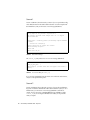
Installing Solaris Product Registry’s /usr/lib/libwsreg.so library
[SUNWwsr2
package]
which is required by the installer.
Okay to install /usr/lib/libwsreg.so [SUNWwsr2]? <y|n>:
8. Type y to install the SUNWwsr2 package. This package allows the
productregistry file to log properly.
9. Press Return.
The Welcome window appears.
10. In the Welcome window, click next.
The 64-Bit Selection window opens. The default selection is 64-bit, which installs 32and 64-bit packages. If you will be developing on Solaris 7 and 8 SPARC Platform
Edition, decide if you want to install only 32-bit packages or both 32-bit and 64-bit
packages.
Note – The 64-bit selection window does not appear for an x86 platform installation.
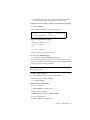
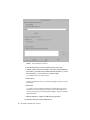
11. Click Next to proceed to the Product Selection window (FIGURE 3-2).
FIGURE 3-2
32
Product Selection Window
Sun WorkShop 6 Installation Guide • May 2000
The default selection License Software (FLEXlm 7.0) installs FLEXlm 7.0b and the
License Installation Tools.
Caution – You cannot install your license without installing the License Software,
and you cannot execute your installed product software without installing your
software license.
Note – The default selection Solaris patches for Forte Developer 6 installs the
patches. If you have previously installed patches, installing the default patches does
not downgrade your system. For more information on patches, see the README files
in the Patch directory.
12. Select the software that you want to install by clicking the radio buttons in the
Default Install column or Custom Install column.
Note – If you are upgrading to FLEXlm 7.0b license manager software from an
earlier FLEXlm version, your license manager is automatically brought down during
the upgrade. After you install your new licenses, the license installation tool starts
your license manager again. During the upgrade, your licensed software will be
unavailable.
A default installation installs all components and all online documentation that is
associated with the components.
A custom installation allows you to select which components you want to install.
Note – If you select Custom Install, the Component Selection window appears after
you complete step 13.
13. Click Next to continue to the Select Install Directory. Decide if you want to
change the software installation directory from /opt.
See “Supporting Previous Software Releases” on page 27 if you want to install this
new Sun WorkShop release on a machine that contains previous Sun WorkShop
releases.
Note – Web Start allows you to install multiple products in one location only and it
must be on the same system from which Web Start is started.
Chapter 3
Installing Software
33
The installation directory that you choose is your default installation directory for
this Web Start session:
■
If you want to install in /opt, click Next.
■
If you want to install the software in a directory other than /opt, type the new
location in the text box.
■
If you want to browse for another location, do the following:
a. Click Browse and select the location where you want the software installed.
b. Click OK from the Browse window.
You return to the Select Install Directory.
14. Click Next to continue with the installation.
■
If you selected Default Install in step 12, the installer checks the diskspace, and
the Ready to Install windows opens to show a list of items to be installed.
Note – If you do not have sufficient disk space, Web Start warns you.
■
If you selected Custom Install in step 12, click Next.
The Component Selection window opens. By default, all components are selected.
a. Deselect any components that you do not want to install.
b. Click Next.
A new Component Selection window opens for each product that you select for
custom installation.
c. Continue through the Component Selection windows for each product.
d. Click Next in the last Component Selection window.
The installer checks the disk space, and the Ready to Install window opens with a
list of items to be installed.
15. In the Ready to Install window, verify the items that you want to install.
a. If you want to install more products, click Back to return to the Product
Selection window, make your selections, and click Next to return to the Ready
to Install window.
b. When you complete your selection, click Install Now to start the installation.
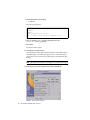
The Installing ... window appears with progress bars to indicate the installation
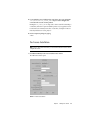
status. When the installation is complete, the Install License window opens
(FIGURE 3-3).
34
Sun WorkShop 6 Installation Guide • May 2000
FIGURE 3-3
Install License Window
16. Determine if you want to install your licenses now.
a. If you choose to not install licenses now, click Next.
The Installation Summary window opens. If you do not use Web Start to install
your licenses, you must use lit and lit_tty to install your licenses. See
Chapter 4 for license installation.
b. If you choose to install licenses now, click Install License.
Go to Chapter 4 for complete instructions on installing licenses.
17. Review the messages in the Installation Summary window, then click Exit to quit
the Web Start installation.
18. If you mounted the product directory in step 6 during a remote installation,
unmount by typing:
# cd /
# /usr/sbin/umount /remote_products
19. Exit from superuser privileges by typing:
# exit
Chapter 3
Installing Software
35
20. If you performed a remote installation, follow these steps (if you did not perform
a remote installation, skip to step 21):
a. Exit from the remote machine by typing:
% exit
b. Do the following regarding the NFS server:
■
If nfsd was already running in step 6, type the following:
# /usr/sbin/unshare /cdrom/devpro_v7n1_platform
■
If you manually started nfsd in step 6, stop it by typing:
# /etc/init.d/nfs.server stop
c. Remove the following line from the /etc/dfs/dfstab file:
share -F nfs -o ro /cdrom/devpro_v7n1_platform
d. Exit from superuser privileges by typing:
# exit
21. Disable client access by typing the following:
% /usr/openwin/bin/xhost - target-machine-name
22. Review the README files located in the top directory of the software you installed.
23. Set your PATH and MANPATH variables by following the steps in “Changing PATH
and MANPATH Variables” on page 42.
Note – If you use more than one license server, follow the software installation steps
to install the license manager software and the license file on each license server.
Using the Command-Line Installation
These instructions describe how to install the FLEXlm 7.0b license manager software
and the Sun WorkShop development tools using the command-line interface.
Follow these steps:
1. On your source computer, become a superuser (root) by typing:
% su
Password: root-password
2. Check that the Sun WorkShop CD is in your CD-ROM drive.
36
Sun WorkShop 6 Installation Guide • May 2000
3. Pick a local or remote installation method.
To help you decide, see “Local or Remote Installation” on page 28. Then follow the
instructions in this step.
Note – Throughout these instructions, replace platform with sparc if you use the
Solaris™ SPARC Platform Edition or with intel if you use the Solaris™ Intel Platform
Edition.
Local Installation
For a local installation, follow these steps:
a. If you have not already done so, go to the CD by typing:
# cd /cdrom/devpro_v7n1_platform
b. Skip to step 4.
Remote Installation
For a remote installation, follow these steps:
a. Add the following line to the /etc/dfs/dfstab file:
share -F nfs -o ro /cdrom/devpro_v7n1_platform
b. Find out if your source machine is an NFS server by typing:
# ps -ef | grep nfsd
If screen output like the following appears, then nfsd is running:
root 237 1 17 Jun 04 ? 0:00 /usr/lib/nfs/nfsd -a 16
■
If nfsd is running, type:
# /usr/sbin/shareall
■
If you do not get screen output like the above, start nfsd by typing:
# /etc/init.d/nfs.server start
# ps -ef | grep nfsd
You should then get screen output like the above. If not, contact your system
administrator or your Sun authorized service provider.
Chapter 3
Installing Software
37
c. Make sure your source machine is exporting your product directory by typing:
# /usr/sbin/dfshares
Screen output like the following appears:
RESOURCE
server-name:product-location
SERVER
server-name
ACCESS TRANSPORT
-
d. Log in to the target machine by typing:
# rlogin target-machine-name -l user
Password: user-password
% su
Password: root-password
Replace user with your user login name (not root).
e. Go to the source machine by typing:
# cd /net/source-machine/cdrom/devpro_v7n1_platform
If you cannot change to that directory and you do not have an automounter on
your network, create a mount point on the target machine and mount the product
directory by typing the following commands:
Note – Do not type the backslash (\). The backslash indicates that the command
must be typed as one line.
# mkdir /remote_products
# /usr/sbin/mount -F nfs -r source-machine:/cdrom/\
devpro_v7n1_platform /remote_products
# cd /remote_products
4. Start the command-line installation by typing:
# ./installer -nodisplay
The following dialog appears:
Installing Solaris Product Registry’s /usr/lib/libwsreg.so library
[SUNWwsr2
package]
which is required by the installer.
Okay to install /usr/lib/libwsreg.so [SUNWwsr2]? <y|n>:
38
Sun WorkShop 6 Installation Guide • May 2000
5. Type y to install the SUNWwsr2 package. This package allows the
productregistry file to log properly.
6. When the welcome message appears, press Return.
7. Decide whether you want 64-bit support.
Type y to select 64-bit support or n to select 32-bit support. If
no character is entered, the choice will default to 64-bit support.
Note – The 64-bit selection does not appear for an x86 platform installation.
8. The following product selection text appears:
The default selection License Software (FLEXlm 7.0) installs FLEXlm 7.0b and the
License Installation Tools.
Caution – You cannot install your license without installing the License Software,
and you cannot execute your installed product software without installing your
software license.
Chapter 3
Installing Software
39
Note – The default selection Solaris patches for Forte Developer 6 installs the
patches. If you have previously installed patches, installing the default patches does
not downgrade your system. For more information on patches, see the README files
in the Patch directory.
9. To select or deselect a product for installation, type the number (0-9)
corresponding to the product you are considering.
Note – If you are upgrading to FLEXlm 7.0b license manager software from an
earlier FLEXlm version, your license manager is automatically brought down during
the upgrade. After you install your new licenses, the license installation tool starts
your license manager again. During the upgrade, your licensed software will be
unavailable.
10. Select the type of installation you want for that product.
■
For no installation, type 1. No installation deselects a product and the product is
not installed.
■
For default installation, type 2. Default installation installs all components and
online documentation associated with that product.
■
For custom installation, type 3. Custom installation allows you to select the
components of that product you want to install. (You will be taken through
custom installation in step 13.)
11. To select or deselect another product for installation, return to step 9. Select Done
if you are finished.
12. Before you can proceed, you must specify a location for installation.
Note – Web Start allows you to install multiple products in one location only and it
must be on the same system from which Web Start is started.
■
■
If the default directory, /opt, is your desired installation directory, press Return.
If not, enter the name of the new directory.
13. If you selected custom installation for a product in step 10, you will now be taken
through the custom installation steps for that product.
a. Select or deselect a component for installation by entering the number
corresponding to the component, and press Return.
b. When finished, type 0 and press Return.
40
Sun WorkShop 6 Installation Guide • May 2000
14. A list of products and its components will be listed for verification.
■
■
■
Type 1 if you want to proceed with installation.
Type 2 if you want to start over from step 6.
Type 3 if you want to exit installation.
15. If you typed 1 to proceed with installation, a progress indicator will appear.
a. When installation is 100% complete, you can view a product’s log file by typing
the number corresponding to that product.
b. When finished viewing the log files, type the number corresponding to done.
16. If you mounted the product directory in step 3 during a remote installation,
unmount by typing:
# cd /
# /usr/sbin/umount /remote_products
17. Exit from superuser privileges by typing:
# exit
18. If you performed a remote installation, follow these steps (if not, skip to step 19):
a. Exit from the remote machine by typing:
% exit
b. Do the following regarding the NFS server:
■
If nfsd was already running in step 3, type the following:
# /usr/sbin/unshare /cdrom/devpro_v7n1_platform
■
If you manually started nfsd in step 3, stop it by typing:
# /etc/init.d/nfs.server stop
c. Remove the following line from the /etc/dfs/dfstab file:
share -F nfs -o ro /cdrom/devpro_v7n1_platform
d. Exit from superuser privileges by typing:
# exit
19. Review the README files located in the top directory of the software you installed.
20. Set your PATH and MANPATH variables. See “Changing PATH and MANPATH
Variables” on page 42
Chapter 3
Installing Software
41
Changing PATH and MANPATH Variables
Because the Sun WorkShop product components and man pages do not install into
the system /usr/bin/ and /usr/share/man directories, you must change your
PATH and MANPATH environment variables to enable access to Sun WorkShop.
Note – The paths shown in this section assume that Sun WorkShop packages have
been installed in the standard /opt directory. If you have indicated another
installation directory when you started Web Start, replace /opt in the examples with
the installation path you have selected.
The PATH and MANPATH variables should be set in your home .cshrc file if you are
using the C shell, or your home .profile file if you are using the Bourne or Korn
shells.
■
To invoke the Sun WorkShop commands, you need to add /opt/SUNWspro/bin
to your PATH environment variable.
■
To access Sun WorkShop man pages with the man command, you need to add
/opt/SUNWspro/man to your MANPATH environment variable.
■
To access the man pages for the Sun WorkShop license management tools, add
/opt/SUNWste/license_tools/man to your MANPATH variable.
SunOS™ man pages csh(1), sh(1), and ksh(1) describe the PATH variable for the C,
Bourne, and Korn shells. The man(1) man page describes the MANPATH variable.
You can display the current value of PATH to determine if you need to set your PATH
variable to locate Sun WorkShop commands. If the command
% echo $PATH
displays a string of paths containing
/opt/SUNWspro/bin/
you do not need to set your PATH variable because it is already set. (/opt may be
replaced by an alternative install path.)
You can determine if you need to set your MANPATH variable by requesting the
workshop(1) man page. If the man workshop command is not able to find the
workshop(1) man page, or if the page displayed is not for the version of the
software just installed, you do not have the MANPATH variable set correctly.
42
Sun WorkShop 6 Installation Guide • May 2000
The discussion that follows shows how to permanently add these paths to the
appropriate environment variables so that all Sun WorkShop components are always
available. These commands can also be entered at a shell prompt to temporarily
enable only that shell.
Note – Do not type the backslash (\). The backslash indicates that the command
must be typed as one line.
1. Add Sun WorkShop to your PATH and MANPATH variables.
■
If you are using the C shell (csh), first determine if your MANPATH variable is
already set. At a shell prompt, type the command:
% echo $MANPATH
If the response is “Undefined variable” (C shell) or an empty line (Bourne/Korn
shell), the MANPATH variable is not set. If paths to one or more man directories are
displayed, the variable is set.
Now edit the .cshrc file in your home directory and add the following line at
the end of the file:
set path=(/opt/SUNWspro/bin
$path)
If the MANPATH variable is not already set, add the following line:
setenv MANPATH
\
/opt/SUNWspro/man:/opt/SUNWste/license_tools/man:/usr/share/man
If the MANPATH variable is already set, add the following line instead:
setenv MANPATH
\
/opt/SUNWspro/man:/opt/SUNWste/license_tools/man:$MANPATH
■
If you are using the Bourne or Korn shells (sh or ksh), edit the .profile file in
your home directory and add the following lines:
PATH=/opt/SUNWspro/bin${PATH:+:}${PATH}
\
MANPATH=
/opt/SUNWspro/man:/opt/SUNWste/license_tools/man:
${MANPATH:=/usr/share/man}
\
There should not be any blanks in these two lines.
2. Save the .cshrc or .profile file that you modified in step 1.
3. Reinitialize your shell by executing the following command:
■
For the C shell, type:
source ~/.cshrc
■
For the Bourne or Korn shell, type:
. ~/.profile
Chapter 3
Installing Software
43
Note – The PATH and MANPATH variables must be set to include Sun WorkShop in
each user’s environment for users to access the installed software.
Continue to Chapter 4 if you have not installed your licenses. If you have installed
your licenses, you are now ready to use your Sun WorkShop products.
44
Sun WorkShop 6 Installation Guide • May 2000
CHAPTER
4
Installing Your Licenses
This chapter gives you step-by-step instructions for installing your licenses.
Before you can install your licenses, you must have:
■
Requested and received license information from the Sun License Center (see
Chapter 2)
■
Installed FLEXlm 7.0b license manager software on each license server (see
Chapter 3 for installation instructions)
Note – For information about domain-based licenses, which support products
licensed through the GoldPass and ScholarPASS programs, see “Domain-Based
Licenses” on page 17.
This chapter describes how to install your licenses in the following ways:
■
Through the License Installation Tool (lit) graphical user interface
■
Through the lit_tty command-line interface if you do not have graphical user
interface capabilities
Answers to Sun WorkShop licensing frequently asked questions (FAQ) are available
through the World Wide Web at the following location:
http://www.sun.com/forte
45
Special Cases
The following cases require special handling:
■
When you completed your License Request Form, if you requested to have your
floating and node-locked (Personal Edition or Desktop Edition) licenses on the
same license server, you should have received separate license information from
the Sun License Center for floating licenses and for node-locked licenses that you
requested. To install your licenses on the same license server, run lit (see “Using
lit License Installer” on page 46) or lit_tty (see “Using the lit_tty CommandLine Executable” on page 51) on your license server for floating licenses you
received from the Sun License Center and run it again for node-locked licenses
you received from the Sun License Center.
■
If you are upgrading from Sun WorkShop Try and Buy (trial software) to
purchased Sun WorkShop software, see “From Try and Buy Software to Purchase”
on page 25.
Note – Single independent (including node-locked) and redundant server licenses
cannot be mixed in the same license file (the licenses_combined file). A license
server and its license file is for either a single independent server or a three
redundant server set. A license server cannot handle both. A Personal Edition and
Desktop Edition (node-locked) license can be installed on a three redundant server
set only if it was requested to run on a redundant server configuration. The Personal
Edition or Desktop Edition hostid on the INCREMENT line in the license file can be
the hostid of one of the redundant servers, if that is where the licensed application
will be run, or it can be the hostid of an entirely different machine.
Using lit License Installer
This section describes how to start lit from the command line. Invoking lit will
start the GUI interface for license installation.
Note – License software must be installed before proceeding with lit instructions.
See “Software Installation Steps” on page 28 to install license software.
46
Sun WorkShop 6 Installation Guide • May 2000
Email License File Installation
You must run lit on your license server.
If you will be using redundant server configuration, you must install FLEXlm 7.0b
license manager software and run lit on all three redundant servers.
1. Enable client access by typing the following at a command line on your license
server:
% /usr/openwin/bin/xhost + hostname
Replace hostname with the output of the /usr/bin/hostname command run on
your license server.
2. Become a superuser (root) by typing:
% su
Password: root-password
3. Set your display.
If you use a C shell, type:
# setenv DISPLAY hostname:0
If you use a Bourne shell, type:
# DISPLAY=hostname:0
# export DISPLAY
If you use a Korn shell, type:
# export DISPLAY=hostname:0
Replace hostname with the output of the /usr/bin/hostname command.
4. Start the License Installation Tool by typing:
# /etc/opt/licenses/lit &
The License Installation Tool window opens (FIGURE 4-1).
For Fax license installation, go to “Fax License Installation” on page 49.
Chapter 4
Installing Your Licenses
47
FIGURE 4-1
License Installation Tool Window
5. Verify the radio button for Load from an Email Saved to a File is active.
6. In the File text box in the License Installation Tool window, type the pathname to
the file where you saved the license information that Sun emailed to you, or click
the browse button (...) to use a file chooser to find the saved file.
If you used the file chooser, continue to step 8.
7. Click Load File.
Your licenses listed in the email you received from Sun appear in the Licenses to be
Installed pane.
8. Click Install.
lit installs your licenses. When the installation is complete, the message License
installation was successful appears in the lower left corner of the window. If you
receive an error message, see “Contacting Technical Support” on page 3 for technical
support information.
9. When the installation is complete, click OK in the pop-up window.
10. Click Exit to dismiss the License Installation Tool.
48
Sun WorkShop 6 Installation Guide • May 2000
11. If your application server is different from your license server, copy and run the
/etc/opt/licenses/LIC_CONFIG_SCRIPT script on each of the application
servers that will access the software products.
Running the LIC_CONFIG_SCRIPT script creates a license router file for WorkShop 6
or elementary license file for previous WorkShop releases on your application server.
For information on elementary license files or router files, see Chapter 2 in the Sun
WorkShop Installation and Licensing Reference.
12. Exit from superuser privileges by typing:
# exit
Fax License Installation
Note – Refer to the license information you received from the Sun License Center to
complete this section.
1. Click Entered Manually in the License Installation Tool window.
The Add License window opens.
FIGURE 4-2
Add License Window
Chapter 4
Installing Your Licenses
49
2. Use the pulldown menu in License Installation For to select WorkShop6.0 if it is
not already selected.
3. In License Type, select the license type you are installing.
a. If License Type is node-locked, enter the hostid.
4. Type the expiration date in dd-mmm-yyyy format (for example, 22-may-2000) that
the Sun License Center provided.
5. Use the Product pulldown menu to select the software for which you want to
install a license.
The license information you received from the Sun License Center provides the
feature names you need.
6. For Version, verify the software version.
7. For RTU, enter the number of users.
8. For Password, type the password the Sun License Center provided.
9. For Vendor String (VS), type the number the Sun License Center provided.
10. For Password Checksum (PC), verify the number.
The PC includes the license expiration date, vendor string, RTU, and password. If
there is a discrepancy, recheck the number to verify the components listed are
correct. If you need further assistance, contact the Sun License Center.
11. For Data Checksum (DC), verify the number.
The DC includes the license feature name, feature version, license server node name,
license server hostid, and node-locked hostid. If there is a discrepancy, recheck the
number to verify the components listed are correct. If you need further assistance,
contact the Sun License Center.
12. Click Add.
13. This license is added to the Licenses to be Installed pane in the License
Installation Tool window.
14. Repeat step 5 through step 12 as needed to install more licenses.
15. Click Exit in the Add License window.
16. Click Install in the License Installation Tool window.
17. When the installation is complete, click OK in the pop-up window.
18. Click Exit to dismiss the License Installation Tool.
50
Sun WorkShop 6 Installation Guide • May 2000
19. If your application server is different from your license server, copy and run the
/etc/opt/licenses/LIC_CONFIG_SCRIPT script on each of the application
servers that will access the software products.
Running the LIC_CONFIG_SCRIPT script creates an elementary license file or router
file on your application server. For information on elementary license files and
router files, see Chapter 2 in the Sun WorkShop Installation and Licensing Reference.
20. Exit from superuser privileges by typing:
# exit
Using the lit_tty Command-Line
Executable
This section describes how to use the lit_tty command-line executable to install
your licenses on your license server. See Chapter 2 for information on obtaining your
license.
If you will be using redundant server configuration, you must install FLEXlm 7.0b
license manager software and run lit_tty on all three redundant servers.
Running the LIC_CONFIG_SCRIPT script creates a license router file for WorkShop 6
or elementary license file for previous WorkShop releases on your application server.
For information on elementary license files or router files, see Chapter 2 in the Sun
WorkShop Installation and Licensing Reference.
Note – License software must be installed before you can proceed with lit_tty
instructions. See Software Installation Steps on page 28 to install license software.
Email License File Installation
1. Become a superuser (root) on your license server by typing the following at the
command line:
% su
Password: root-password
Chapter 4
Installing Your Licenses
51
2. Start lit_tty by typing:
# /etc/opt/licenses/lit_tty -f license-file
Replace license-file with the path to the file where you saved the license information
that Sun emailed to you (see “Saving an Email License to File” on page 22). Refer to
the lit_tty man page for more information.
3. Decide if you want the displayed licenses installed.
■
■
If you want the displayed licenses installed, type y. lit_tty installs your
licenses.
If the licenses that are displayed are not the licenses you want to install, type n.
See “Contacting Technical Support” on page 3 for technical support.
4. Exit from superuser privileges by typing:
# exit
Fax License Installation
If you received your license information from the Sun License Center through a fax,
follow these instructions to install your licenses.
Note – If you have not filled out a License Request Form, see Chapter 2 for
instructions.
1. Become a superuser (root) by typing the following at the command line:
% su
Password: root-password
2. Start lit_tty by typing:
# /etc/opt/licenses/lit_tty
3. In the Select Product to License screen, type an x next to WorkShop6.0.
If instead of the Select Product to License screen you see the Select Product screen,
skip to step 4.
Press Return to navigate down the product list to WorkShop6.0.
4. In the Select Product screen, type an x next to the product for which you want to
install a license.
Your Proof of License Certificate provides information about the product(s) you
purchased. If you do not want to install a license for the product where the cursor is,
press Return to navigate to the next product on the list.
52
Sun WorkShop 6 Installation Guide • May 2000
Note – Only one product can be selected at a time. The process is iterative and will
prompt you at the end of each cycle to install a license for the remaining products on
the list.
5. Select the license type by pressing Enter until the cursor is in the appropriate box
for Floating, Node-locked, Demo, or Domain license.
6. Type an x, then press Enter until the cursor is at Servers.
7. Type an x to select the number of servers you will use.
Press Tab to select a different number of servers.
8. Verify the license server name and hostid.
The license server name and hostid default to the machine where you are installing
the license. Your hostid is the output of the /usr/bin/hostid command; your
server name is the output of the /usr/bin/hostname command.
9. Press Return to navigate past Phone Number List.
For Sun License Center telephone and fax numbers, see your Proof of License
Certificate.
10. For Nodelocked to Host ID, type one of the following:
■
■
For a floating license, type none.
For a Personal Edition (node-locked) or Desktop Edition (node-locked) license,
type the same hostid you typed on your License Request Form.
11. For the expiration date, type none.
12. For Rights to Use, type the number of rights to use that you received from the Sun
License Center.
13. For Password, type the password that you received from the Sun License Center.
14. For Vendor String (VS), type the number from the VS column in the license
information that the Sun License Center provided.
15. Verify the Data Checksum (DC).
The DC includes the license feature name, feature version, license server node name,
license server hostid, and node-locked hostid. If there is a discrepancy, recheck the
number to verify the components listed are correct. If you need further assistance,
contact the Sun License Center.
16. Verify the Password Checksum (PC).
The PC includes the license expiration date, vendor string, RTU, and password. If
there is a discrepancy, recheck the number to verify the components listed are
correct. If you need further assistance, contact the Sun License Center.
Chapter 4
Installing Your Licenses
53
17. Type an x next to Done Setting Up This License.
18. Press any key to return to selecting products for which you want to install a
license, and repeat step 4 through step 17.
If you are done selecting products for which you want to install a license, press
Return to navigate to the bottom of the screen.
Note – A server name and hostid are identified for each license. Make sure you use
the license that is unique to the license server’s server name and hostid.
19. Decide whether you want to install the licenses.
■
■
To install the licenses, type an x next to Exit – Save Licenses.
To quit without installing the license, type an x next to Exit – Don’t Save Licenses.
20. If your application server and your license server are different machines, copy the
/etc/opt/licenses/LIC_CONFIG_SCRIPT script and run it on each of the
application servers that will access the software.
Demo License Installation
You install the demo license the same as you would install other Sun licenses. See
“Using lit License Installer” on page 46 or “Using the lit_tty Command-Line
Executable” on page 51 for license installation. In order for you to use Sun
WorkShop, the demo license file must be installed on your application server,
because the demo license does not use the license manager and will not
communicate with the license server. If you choose to install your demo license on
your license server, you will need to copy the license file sunpro.lic,node to your
application server.
Note – The demo license file must be named sunpro.lic,node (be sure to include
the comma and the period in the name of the demo license file).
1. On the license server, type:
% cd /etc/opt/licenses
2. From the license server install directory, copy the sunpro.lic,node file to the
product directory /install-directory/SUNWspro/license_dir on your application
server.
For more information about demo licenses, see Sun WorkShop 6 Try and Buy Quick
Install or Sun WorkShop 6 Try and Buy Quick Install After Download.
54
Sun WorkShop 6 Installation Guide • May 2000
(Optional) Changing the Owner of the
License Server Daemon
The license server daemon is automatically configured to be owned by nobody,
which is a predefined account on Solaris™. The adjust_flexlm_owner script is
provided to allow you to change the user name to a functional name, such as
gsi_admin.
Note – This is only required if you want to use the license admin utilities as
something other than root.
The user name you select starts the license server daemon and has access to the
license manager software utilities. Permissions are updated to allow group read and
execute privileges for the user name you selected.
Note – If you decide to use a user name that does not exist, create the user account
before running the adjust_flexlm_owner script.
Run the adjust_flexlm_owner script by typing the following at a command line:
# /etc/opt/licenses/adjust_flexlm_owner
Caution – To avoid security risks, do not change ownership to root.
For your changes to take effect, you must stop the license daemon (if it is running)
and restart it. To do so, follow the instructions at the end of the script. You can run
the adjust_flexlm_owner script at any time to change the ownership and execute
privileges of the daemon and utilities.
Chapter 4
Installing Your Licenses
55
56
Sun WorkShop 6 Installation Guide • May 2000
CHAPTER
5
Understanding Fortran Licenses
This chapter describes Fortran licenses and how to use them.
About Fortran Licenses
Sun WorkShop™ 6 has a new type of license available for Fortran. The new license is
a limited license and is available only with the Forte™ Fortran Desktop Edition 6.
You request and install the license in the same manner as other Sun WorkShop
licenses. See Chapter 2 and Chapter 4 for license request and license installation
instructions.
The limited license disallows the ability to parallelize code, and it limits the
scalability of executables to one CPU (Central Processing Unit). The limited license is
ideal for creating personal or internal applications that do not require multiple CPUs
to function.
Fortran is also available with an unlimited license, which is shipped in Forte™
Developer University Edition and Forte™ for High Performance Computing 6
(referred to as HPC in Sun WorkShop Fortran documentation). The unlimited license
allows you to parallelize code and does not limit the scalability of the executables.
The Fortran limited license is a node-locked license, and the floating license is an
unlimited license. A node-locked license functions with the node-locked workstation
that is specified in the license file, and the floating license can function with any
workstation. See Chapter 2 for more detail on node-locked and floating licenses.
57
TABLE 5-1 is a list of the licenses available with the three Fortran products.
TABLE 5-1
Sun WorkShop Fortran Products and License Tokens
License Tokens Available
Sun WorkShop Fortran Product
Unlimited
Forte™ Fortran Desktop Edition 6
Limited
workshop.f90l.sparc
workshop.f77l.sparc
Forte™ Developer University
Edition
workshop.f90.sparc
workshop.f77.sparc
Forte™ for High Performance
Computing 6
workshop.f90.sparc
workshop.f77.sparc
Using Fortran Licenses
The license tokens available in the Forte Fortran Desktop Edition 6 compiler are
workshop.f90l.sparc and workshop.f77l.sparc, which are both limited. The
Fortran limited license will not allow you to use any parallelization when you
compile. The three parallelization flags that will not function with the limited license
are:
■
■
■
-parallel
-explicitpar
-autopar
Your ability to parallelize depends on the availability of the Fortran licenses. If you
have access to an unlimited license, you can use the parallelization flags. If you have
access to the limited license only, then you cannot use the parallelization flags.
However, if you have access to both a limited and unlimited license, then you can
use the parallelization options.
58
Sun WorkShop 6 Installation Guide • May 2000
Using Fortran Limited Licenses or Unlimited
Licenses
TABLE 5-2 lists the various scenarios and the compile results that occur when
parallelization flags are used and not used with the limited license and unlimited
license. The scenarios in this table show how the licenses function when you have
access to either a limited license or unlimited license, but not both.
TABLE 5-2
Limited or Unlimited License Function With and Without Parallelization
Flags
Compile Results
Scenario
Limited License Token
Unlimited License Token
1. Parallelization Flag
Node-locked
Workstation
Error
no a.out
parallelized a.out
2. Parallelization Flag
Other Workstation
Error
no a.out
parallelized a.out
3. No Parallelization
Flag
Node-locked
Workstation
non-parallelized a.out
non-parallelized a.out
4. No Parallelization
Flag
Other Workstation
Error
no a.out
non-parallelized a.out
Note – In the Scenarios column of TABLE 5-2, Node-locked Workstation is the
workstation that is indicated in the limited (node-locked) license file. Other
Workstation is a workstation that is not node-locked to the limited license.
Chapter 5
Understanding Fortran Licenses
59
Scenario 1
Scenario 1 (TABLE 5-2) shows the results you receive if you use a parallelization flag
with a limited license from the node-locked workstation. You cannot compile with
the limited license, and you will receive an error message (FIGURE 5-1).
riscjr{impact}11 f90 -parallel -loopinfo f90.f
f90: Warning: Optimizer level changed from 0 to 3 to support
parallelized code
License Error : Licensing product (Sun WorkShop Compiler FORTRAN
90 SPARC).
License File: 7588@riscjr
License server does not support this feature
Feature:workshop.f90.sparc
Server name
FLEXlm error:-18,147.
FIGURE 5-1
License Error Message
The license_log entry will show an UNSUPPORTED message (FIGURE 5-2).
7:56:36 (sunwlicd) UNSUPPORTED: "workshop.f90.sparc"
(PORT_AT_HOST_PLUS
)
impact@anyhost (License server does not support this feature (18,327))
FIGURE 5-2
UNSUPPORTED Entry in license_log
If you are using an unlimited license, the license server will check out that license,
and you can use parallelization options.
Scenario 2
Scenario 2 (TABLE 5-2) shows the results you receive if you use the parallelization
flag from a workstation other than the node-locked workstation. If you try to use a
limited license, you will receive an error message (FIGURE 5-1) and will not
compile. You also will receive an UNSUPPORTED message (FIGURE 5-2) in the
license_log. If you are using the unlimited license token, you can parallelize
when you compile.
60
Sun WorkShop 6 Installation Guide • May 2000
Scenario 3
Scenario 3 (TABLE 5-2) shows the results you receive if you do not use the
parallelization flag from a node-locked workstation. If you are using a limited
license token, you will not receive an error message, and your compile will
complete. If you are using an unlimited license token, you will not receive an error
message, and your compile will complete. You will receive an UNSUPPORTED
message (FIGURE 5-2) in the license_log.
Scenario 4
Scenario 4 (TABLE 5-2) shows the results you receive if you do not use the
parallelization flag from a workstation other than a node-locked workstation. If you
are using a limited license, you receive an error message (FIGURE 5-1) and your
compilation will not complete. You will receive an UNSUPPORTED message
(FIGURE 5-2) in the license_log because the license server searches for the
limited license first when no parallelization option is used. However, if you are
using an unlimited license, your compilation will complete. You will receive an
UNSUPPORTED message (FIGURE 5-2) in the license_log.
Using Fortran Limited Licenses With Unlimited
Licenses
If you have access to both Fortran limited and unlimited licenses, you can use
parallelization options when you compile. When you have access to both licenses,
there is chance that the license will be unavailable. As a standard operation of
licensing software, you are placed in a queue and must wait until a license is
available. Once a license is available, your compilation will proceed. TABLE 5-3
shows the license function during various scenarios.
Note – In the Scenarios column of TABLE 5-3, Node-locked Workstation is the
workstation that is indicated in the limited (node-locked) license file. Other
Workstation is a workstation that is not node-locked to the limited license.
Chapter 5
Understanding Fortran Licenses
61
TABLE 5-3
Limited and Unlimited License Function With and Without Parallelization
Flags
Compile Results If You Have Both License Tokens
Both License Tokens
Available
Limited License Token
Unavailable
Unlimited License
Token Unavailable
Both License Tokens
Unavailable
1. Parallelization
Flag
Node-locked
Workstation
parallelized
a.out
parallelized
a.out
queue
parallelized
a.out
queue
parallelized
a.out
2. Parallelization
Flag
Other
Workstation
parallelized
a.out
parallelized
a.out
queue
parallelized
a.out
queue
parallelized
a.out
3. No
Parallelization
Flag
Node-locked
Workstation
nonparallelized
a.out
queue
nonparallelized
a.out
nonparallelized
a.out
queue
nonparallelized
a.out
4. No
Parallelization
Flag
Other
Workstation
nonparallelized
a.out
nonparallelized
a.out
queue
nonparallelized
a.out
queue
nonparallelized
a.out
Scenarios
Scenario 1
Scenario 1 (TABLE 5-3) shows the license function if you use a parallelization flag
from a node-locked workstation. If the unlimited license is available, you can use
parallelization flags when you compile. If the unlimited license is not available, you
receive a queue message. Once the unlimited license is available, your compilation
will proceed. Because you are using parallelization flags, the limited license will not
be invoked in this scenario.
Scenario 2
Scenario 2 (TABLE 5-3) shows the license function if a parallelization flag is used
from a workstation other than the node-locked. If the unlimited license is available,
you can parallelize when you compile. If the unlimited license is not available, you
62
Sun WorkShop 6 Installation Guide • May 2000
receive a queue message. Once the unlimited license is available, your compilation
will proceed. Because you are using parallelization flags, the limited license will not
be invoked in this scenario.
Scenario 3
Scenario 3 (TABLE 5-3) shows how the licenses function when you use no
parallelization flags from a node-locked workstation. You will receive a queue
message if the node-locked license is unavailable, because the license server looks
only for the limited license when the parallelization flag is not used. If both licenses
are unavailable, you receive a queue message. Once the limited license is available,
your compilation will proceed.
Scenario 4
Scenario 4 (TABLE 5-3) shows how the licenses function when you use no
parallelization flags from a workstation other than a node-locked workstation. You
will receive a queue message when the unlimited license is not available or when
neither license is available. Once the unlimited license is available, your compilation
will proceed. In all instances, you will receive the following message:
5:58:02 (sunwlicd) DENIED: "workshop.f90l.sparc" avitar@anyhost
(Invalid host (-9,333))
Chapter 5
Understanding Fortran Licenses
63
64
Sun WorkShop 6 Installation Guide • May 2000
CHAPTER
6
Removing Software
This chapter describes how to remove software products that are installed on your
system.
When you have successfully installed your software, an uninstaller is automatically
generated. There are two ways to use this uninstaller to remove Sun WorkShop™
development tools:
■
■
Using the Web Start uninstaller GUI
Using the command line uninstaller
Using the Web Start Uninstaller
When Sun WorkShop is installed correctly, a Web Start GUI uninstaller is created.
To run the Web Start uninstaller, follow these steps:
1. Become a superuser (root) by typing:
% su
Password: root-password
2. Go to the product directory by typing:
# cd /var/sadm/prod/com.sun.forte_developer_6
3. Run the Web Start uninstall GUI by typing the following:
# /usr/bin/java uninstall_product-name
Note – Do not include the .class extension when you type the command.
The Web Start uninstall GUI appears. The first window shows you which product
will be uninstalled.
65
4. Click Next to continue.
5. Select Full Uninstallation.
6. Click Uninstall Now.
7. Click Exit to quit the uninstaller.
Using the Command Line Uninstaller
To remove software products, follow these steps:
1. Become a superuser (root) by typing:
% su
Password: root-password
2. Go to the product directory by typing:
# cd /var/sadm/prod/com.sun.forte_developer_6
3. Type the following to run the command-line uninstaller:
# /usr/bin/java uninstall_product-name -nodisplay
Note – Do not include the .class extension when you type the command.
The first line shows you what product will be uninstalled.
4. Press Return to continue.
5. For a full uninstallation, type 1.
All components are automatically removed.
6. If you proceed with uninstallation, a progress indicator will appear.
When uninstallation is 100% complete, you will have the option to view the
product’s log file by typing its corresponding number. When finished, type the
number corresponding to done.
7. Type Exit to quit the uninstaller.
66
Sun WorkShop 6 Installation Guide • May 2000
CHAPTER
7
Troubleshooting
This chapter describes problems that may occur during the Sun WorkShop licensing
and installation process.
Registry Data File Problems
If you installed Sun WorkShop™ 6 without first invoking Web Start, the install
registry data file productregistry is not consistent with the product packages
installed on the system. The install productregistry file contains information
about the products and packages installed on your system by Web Start. It is used
and updated by Web Start when you install or uninstall software.
The current productregistry file is located in the following directory:
/var/sadm/install/
Information Mismatch If You Use pkgadd
Without Web Start
If you ran the pkgadd command to install any part of the Sun WorkShop 6 without
invoking Web Start, your registry data file may contain incorrect or outdated
information about the products and packages installed on your system. To ensure
that your productregistry file is up-to-date and accurate:
● Run Web Start and install the software according to the instructions in Chapter 3.
Web Start will install the products and create the registry database.
Use the same directory you specified when you ran the pkgadd command.
67
Information Mismatch If You Use pkgrm Without
Web Start
If you ran the pkgrm command to uninstall any part of the Sun WorkShop without
invoking Web Start, your productregistry file may contain incorrect or outdated
information about the products and packages installed on your system. To ensure
that your productregistry file is up-to-date and accurate:
● Follow the instructions in Chapter 6 to do an uninstallation. Web Start uninstalls
the products and creates or updates the registry database. If you ran a patchadd
or patchrm command, the productregistry file will remain unchanged. Patches
are not registered in the productregistry file.
License Problems
The following problems may occur during license installation or license attainment.
License Was Not Installed Properly or Does Not
Work
If your license was not installed properly or it does not work, do the following:
1. Verify that you followed the license installation instructions in “Using lit License
Installer” on page 46 or “Using the lit_tty Command-Line Executable” on page 51.
2. View the License FAQ (frequently asked questions) at
http://www.sun.com/forte
No License Received
If you did not receive your license, do the following:
1. Verify that you requested your license from the Sun License Center.
2. Send your license request to the Sun License Center.
If you encounter other technical problems, contact Sun Service Centers. See
“Contacting Technical Support” on page 3 for more information.
68
Sun WorkShop 6 Installation Guide • May 2000
APPENDIX
A
Sun WorkShop Products and
Packages
This appendix provides information about the Sun WorkShop products available for
software development, the products for which you need a license to run the
software, and the feature names for each product.
TABLE A-1 provides the license information and the feature names for Sun WorkShop
products offered in the Solaris SPARC Platform Edition.
TABLE A-1
Solaris SPARC Platform Edition Licenses and Feature Names
Product
(License Sticker ID)
License Needed
Feature Name
Forte C++ Enterprise Edition 6
(Forte C++ Enterp Ed 6/SPARC)
WS
WS
WS
WS
WS
WS
WS
Compilers C/SPARC, 6
Compilers C++/SPARC, 6
Visual/SPARC, 6
Debugging/SPARC, 6
LockLint LoopTool/SPARC, 6
TeamWare/SPARC, 6
Dev/Perf Tools/SPARC, 6
workshop.c.sparc
workshop.cc.sparc
workshop.visu.sparc
workshop.dbx.sparc
workshop.mpmt.sparc
workshop.teamware.sparc
workshop.tools.sparc
Forte C++ Personal Edition 6
(Forte C++ Personal Ed 6/SPARC)
WS
WS
WS
WS
WS
WS
WS
Compilers C/SPARC, 6
Compilers C++/SPARC, 6
Visual/SPARC, 6
Debugging/SPARC, 6
LockLint LoopTool/SPARC, 6
TeamWare/SPARC, 6
Dev/Perf Tools/SPARC, 6
workshop.c.sparc
workshop.cc.sparc
workshop.visu.sparc
workshop.dbx.sparc
workshop.mpmt.sparc
workshop.teamware.sparc
workshop.tools.sparc
Forte Fortran Desktop Edition 6
(Forte Fortran DT Ed 6/SPARC
WS
WS
WS
WS
WS
Compilers C/SPARC, 6
Debugging/SPARC, 6
FORTRAN 77 Lim/SPARC, 6
Fortran 95 Lim/SPARC, 6
Dev/Perf Tools/SPARC, 6
workshop.c.sparc
workshop.dbx.sparc
workshop.f77l.sparc
workshop.f95l.sparc
workshop.tools.sparc
69
TABLE A-1
Solaris SPARC Platform Edition Licenses and Feature Names (Continued)
Product
(License Sticker ID)
License Needed
Feature Name
Forte for High Performance
Computing 6
(Forte H-Perf Computing 6/
SPARC)
WS
WS
WS
WS
WS
WS
WS
WS
workshop.c.sparc
workshop.cc.sparc
workshop.f77.sparc
workshop.f90.sparc
workshop.dbx.sparc
workshop.mpmt.sparc
workshop.teamware.sparc
workshop.tools.sparc
Forte C 6
(Forte C 6/SPARC)
WS Debugging/SPARC, 6
WS Compilers C/SPARC, 6
WS Dev/Perf Tools/SPARC, 6
workshop.dbx.sparc
workshop.c.sparc
workshop.tools.sparc
Forte TeamWare 6
(Forte TeamWare 6/SPARC)
WS TeamWare/SPARC, 6
workshop.teamware.sparc
Forte Developer University
Edition 6
(Forte University Ed 6/SPARC)
WS
WS
WS
WS
WS
WS
WS
WS
WS
workshop.c.sparc
workshop.cc.sparc
workshop.f77.sparc
workshop.f90.sparc
workshop.visu.sparc
workshop.dbx.sparc
workshop.mpmt.sparc
workshop.teamware.sparc
workshop.tools.sparc
70
Compilers C/SPARC, 6
Compilers C++/SPARC, 6
FORTRAN 77/SPARC, 6
Fortran 95/SPARC, 6
Debugging/SPARC, 6
LockLint LoopTool/SPARC, 6
TeamWare/SPARC, 6
Dev/Perf Tools/SPARC, 6
Compilers C/SPARC, 6
Compilers C++/SPARC, 6
FORTRAN 77/SPARC, 6
Fortran 95/SPARC, 6
Visual/SPARC, 6
Debugging/SPARC, 6
LockLint LoopTool/SPARC, 6
TeamWare/SPARC, 6
Dev/Perf Tools/SPARC, 6
Sun WorkShop 6 Installation Guide • May 2000
TABLE A-2 provides the license information and the feature names for Sun WorkShop
products offered in the Solaris Intel Platform Edition.
TABLE A-2
Solaris Intel Platform Edition Licenses and Feature Names
Product
(License Sticker ID)
License Needed
Feature Name
Forte C++ Enterprise Edition 6
(Forte C Enterp Ed 6/Intel)
WS
WS
WS
WS
WS
WS
workshop.c.x86
workshop.cc.x86
workshop.visu.x86
workshop.dbx.x86
workshop.tools.x86
workshop.teamware.x86
Forte C 6
(Forte C 6/Intel)
WS Debugging/Intel, 6
WS Dev/Perf Tools/Intel, 6
WS Compilers C/Intel, 6
workshop.dbx.x86
workshop.tools.x86
workshop.c.x86
Forte TeamWare 6
(Forte TeamWare 6/Intel)
WS TeamWare/Intel, 6
workshop.teamware.x86
Forte University Edition 6
(Forte University Ed 6/Intel)
WS
WS
WS
WS
WS
WS
Compilers C/Intel, 6
Compilers C++/Intel, 6
Visual/Intel, 6
Debugging/Intel, 6
Dev/Perf Tools/Intel, 6
TeamWare/Intel, 6
workshop.c.x86
workshop.cc.x86
workshop.visu.x86
workshop.dbx.x86
workshop.tools.x86
workshop.teamware.x86
Forte C++ Personal Edition 6
(Forte C++ Personal Ed 6/Intel)
WS
WS
WS
WS
WS
WS
Compilers C/Intel, 6
Compilers C++/Intel, 6
Visual/Intel, 6
Debugging/Intel, 6
Dev/Perf Tools/Intel, 6
TeamWare/Intel, 6
workshop.c.x86
workshop.cc.x86
workshop.visu.x86
workshop.dbx.x86
workshop.tools.x86
workshop.teamware.x86
Compilers C/Intel, 6
Compilers C++/Intel, 6
Visual/Intel, 6
Debugging/Intel, 6
Dev/Perf Tools/Intel, 6
TeamWare/Intel, 6
Appendix A
Sun WorkShop Products and Packages
71
72
Sun WorkShop 6 Installation Guide • May 2000
Glossary
application server
A machine on which the software is installed. The application server can be the
same as the license server.
daemon options file
A file that is stored on your license server and allows you to control access to
products. The default file is /etc/opt/licenses/daemon_options.
data checksum (DC)
A number you receive from the Sun License Center to help you verify you
have entered all license information correctly into the license installation tool
lit and lit_tty. The DC is made from the license feature name, feature version,
license server node name, license server hostid, and node-locked hostid.
demonstration license
See Try and Buy license.
device name
A name referring to hardware. For example, /dev/dsk/c0t6d0s2 is a CDROM device name. The name may differ depending on your machine and how
you configure it.
diskless client
A machine on a network that does not have a disk and relies on a server for file
storage and other basic services. Do not install the licensing software on a
diskless client.
floating license
A concurrent user license that makes software available to any user on any
computer on a network.
hostid
An eight-digit hexadecimal number that is unique to each system and is used
to identify that system.
hostname
An identifying name given to a computer.
installation directory
The directory where you decide to install Sun WorkShop products and licenses.
The default is /opt.
license daemon
The license manager daemon (lmgrd.ste) monitors the requests for access to
Sun WorkShop software. This daemon also handles the communication
between the software application requested for use and the vendor daemon.
license server
The workstation or machine running the license daemon.
Glossary
73
local installation
node
node locked
package dependency
password checksum
(PC)
product server
redundant license
servers
An addressable point on a network. Each node in a network has a different
name. A node can connect a computing system, a terminal, or various other
peripheral devices to the network.
Refers to an application that can run only on the licensed machine (the node).
The dependence of one package on the installation of other packages. For
example, if you install a compiler, you must also install the backend
component, header file, and front-end component packages.
A number you receive from the Sun License Center to help you verify you
have entered all license information correctly into the license installation tool
lit and lit_tty. The expiration date, vendor string, RTU, and password all
contribute to the generation of this number.
See application server.
Three servers acting as a single logical license server.
remote installation
Where you perform the installation or download the product software on one
machine (source computer) and install the software on another machine (target
computer). See source computer and target computer.
server
A machine that provides a network service. For example, license checkouts and
checkins must be performed on a server.
server pool
Two or more independent servers combined so that users can obtain a license
token from any one of the servers. See Multiple Independent Server
Configuration on page 4 of the Sun WorkShop 6 Installation and Licensing
Reference Manual.
source computer
The machine with the CD-ROM drive where you loaded the product CD; the
machine where you downloaded the product software. See also local
installation, remote installation, and target computer.
target computer
The machine where the product software is installed. See also local installation,
remote installation, and source computer.
Try and Buy license
74
Where you perform the installation on the machine with the CD-ROM drive
where you loaded the product CD and install the product software on that
same machine; where you download the product software and install the
product software on the same machine. In a local installation, the source
computer and the target computer are the same machine. See source computer
and target computer.
A license that allows you to evaluate free of charge any Sun WorkShop
software for a specified period of time (also called demonstration or demo
licenses). A Try and Buy license does not need a license daemon to run and
allows an unlimited number of concurrent users.
Sun WorkShop 6 Installation Guide • May 2000
vendor daemon
The daemon that tracks which users have licenses for a product, if they are
checked out, and how many licenses are available. The Sun WorkShop
daemons, sunwlicd and suntechd, run on the license server.
vendor string (VS)
A code used to ensure license passwords are unique. For ScholarPASS and
GoldPASS domain licensed customers, this code contains the customer’s
domain name.
Glossary
75
76
Sun WorkShop 6 Installation Guide • May 2000
Index
C
G
command
lmdown 73
command-line executables
installing licenses 51
compatibility 27
concurrent user licenses 16
configurations
multiple independent 18
redundant 19
single independent 18
GoldPass program 17
H
HPC licenses 57
I
installation
compatibility 27
overview 11
D
daemon
license 73
Demo 54
demo license 54
domain licenses 17
F
FAQ 15
floating licenses 16
form, license request 19
Fortran limited license 57
frequently asked questions 15
L
LIC_CONFIG_SCRIPT script 49, 51
license
daemon
take down 73
license daemon
taking down 73
license installation tool 46
license request
contacting Sun 21
emailing Sun 21
faxing to Sun 24
form 19
telephoning Sun 24
Index
77
license server
configuring 49, 51
no network interface card 14
multiple independent 18
redundant 19
single independent 18
with floating and node-locked licenses 46
licenses
demo 54
floating 16
Fortran limited license 57
HPC 57
node locked 16
Personal Edition 16
types 16
using concurrently 16
licenses_combined file 21, 46
licensing
FAQ 15
frequently asked questions 15
lmdown 73
M
memory requirements 12
monitor resolution requirements 12
multiple independent server 18
N
network interface card 14
node-locked licenses 16
redundant server 19, 46
removing packages 66
request form, license 19
requirements, system 12
S
ScholarPASS program 17
scripts
LIC_CONFIG_SCRIPT 49, 51
serial number 15
server
configuring 49, 51
multiple independent 18
redundant 19
single independent 18
with floating and node-locked licenses 46
single independent server 18
software
compatibility 27
software serial number 15
software upgrade, trial to purchase 25
Solaris versions supported 1, 12
standalone license server
localhost 13
no network interface card 14
TCP/IP 13
Sun WorkShop
removing 65
system requirements 12
T
P
product
license 15
Proof of License Certificate 15
purchased software, from trial 25
78
R
Sun WorkShop 6 Installation Guide • May 2000
TCP/IP functionality 13
testing TCP/IP functionality 13
three-server configuration 19
trial software 25
Try and Buy software 25
types of licenses 16
U
V
uninstall script 65
university edition 57
upgrading from trial to purchase 25
using software concurrently 16
version
compatibility 27
Index
79
80
Sun WorkShop 6 Installation Guide • May 2000