1
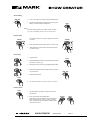
Scene Editing
5 . Once you've made your changes, tap the MIDI/Rec button
MIDI / REC
6 . Tap the Scene button that corresponds to the scene you're
editing. This will overwrite the exited scene.
SCENE
NOTE:
Be sure to select the same scene in steps 3 and 6, otherwise
you may accidentally record over an exited scene.
Scanner Copy
SCANNER
This function allows you to copy the setting of one scanner
to another.
SCANNER
1 . Press and hold down the Scanner button you want to copy.
2 . While holding the Scanner button, tap the Scanner button
you want to copy to.
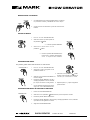
Scene Copy
1 . Program enable.
BANK
SCENE
2 . Tap the Bank Up/Down button to select the bank that contains
the scene you wish to copy.
3 . Select the scene you want to copy by tapping its Scene button.
BANK
4 . Tap the Bank Up/Down button to select the bank you wish to
copy the scene to.
MIDI / REC
5 . Tap the MIDI/Rec button.
SCENE
6 . Tap the Scene button you wish copy the scene to.
Delete a Scene
SCENE
1 . Tap the desired Scene button to select the scene you
wish to delete.
2 . Press and hold down the Auto/Del button.
While holding down the Auto/Del button, tap the Scene
button that stores the scene you wish to delete.
When a programmed scene is deleted, all DMX channel
in this scene is set to 0.
SHOW CREATOR
AUTO/DEL
USER MANUAL
SCENE
PAGE 5