1
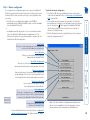
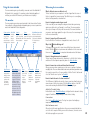
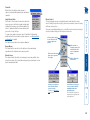
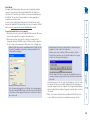
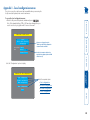
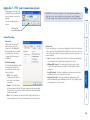
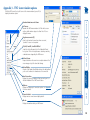
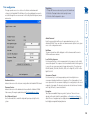
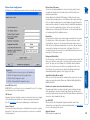
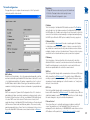
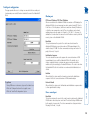
Appendix 3 - VNC viewer window options Refresh Screen Requests data from the server for a complete redraw of the screen image, not just the items that change. Virtual Media... As part of the Adder Virtual Media feature, this dialog allows you to select a drive to be shared across the connection New Connection... Displays the connection dialog so that you can log on to a different AdderLink IP or VNC server location. Options... Displays the full range of connection options - see Appendix 2 for more details. Connection Info... Displays various connection and display details. Ctrl, Alt, Send F8, Send Ctrl-Alt-Del Sends the selected keypress(es) to the AdderLink IP and host system. This is necessary because certain keys and key combinations are trapped by the VNC viewer. Single mouse mode (P) Used for fast network connections where a second, “predictor” cursor is not required. Full screen Expands the VNC viewer window to fill the whole screen with no visible window edges or toolbar. Press F8 to redisplay this menu. Standard window control items Click the VNC icon in the top left corner of the viewer window (or press F8) to display the window options: About... Displays information about your VNC viewer. 50