1
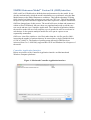
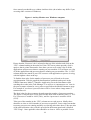
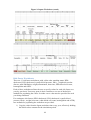
Clear: Allows jobs to be cleared from the list. It will ask if you wish to clear all jobs
or just the completed ones. This button is only displayed when the queue is stopped
and no job is active.
Delete: Allows the selected Workbook to be removed from the queue. Only displayed
when the currently selected Workbook is waiting to be processed.
Abort: Allows the Workbook currently being processed to be aborted, abandoning any
data produced so far. Only displayed when the currently selected Workbook is
running.
Processing Workbooks and reading the results
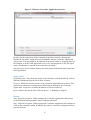
Once one or more Workbook jobs are added to the queue you can start processing by
clicking the Start button. This causes the Controller Application to process each job
sequentially until all are complete, at which point the queue stops.
The results for each job are saved as a .xlsx file in the same folder as the input file,
with “Outputs” appended to the filename. For example, if the input file is called “My
Outcomes Workbook.xlsm” then the output file will be called “My Outcomes
Workbook Outputs.xlsx”.
It is important to realise that Workbooks are only read at the time they are processed.
This means that if you change a Workbook after adding it to the queue then those
changes will still affect the resultant output file.
Additional jobs can be added to the queue at any time, even when the queue is
running and processing data. Equally, jobs waiting to be processed can be removed
from the queue before they are started.
Optimising the number of processes to use
Diabetes simulation models are complex and can take a long time to run, because
each patient must be simulated multiple times and because the parameter values used
to determine the transition probabilities must be varied to account for uncertainty.
Simulations run times may take days, and sometimes weeks. Most modern computers
have multiple processors, i.e. CPUs or cores, enabling simulation run times to be
greatly reduced by using more than one processor. This software release of OM2 has
the ability to use up to 10 CPUs.
Additional CPUs can be enabled by changing the “Number of processes to use”
setting on the Model Parameters worksheet to any value from 1 to 10. It is important
to select the correct number of CPUs for the machine running the model. The
following guide will allow you to select the best option for your machine. Once
decided, it should be the same for all models that you run on that machine. If you
change your computer the number of processes should be re-optimised.
The optimisation process depends upon the type of computer you are using. Below is
a guide for Microsoft Windows and another for Apple Macintosh.
Optimising the number of processes on a Macintosh platform
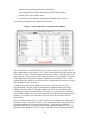
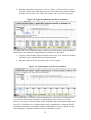
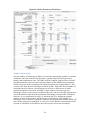
On a Mac OS X machine use the Activity Monitor application provided with the
operating system, which is located in the Utilities folder, as follows:
7