1
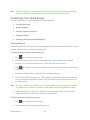
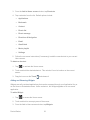
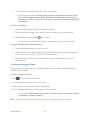
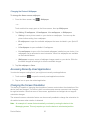
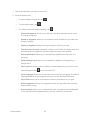
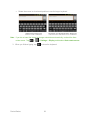
Clear search history: Removes the search history all searches performed on your Gmail account. Labels: Allows you to manage which conversations are synchronized and how often. Notification settings: Email notifications: When checkmarked, the phone will notify you whenever you receive new email. (See Using the Notifications Panel.) Select ringtone: Allows you to choose a ringtone to sound when you receive a new email notification. Vibrate: When checkmarked, the phone will vibrate when you receive a new email notification. Notify once: When checkmarked, the phone will notify you once for new email, not for every new message. Synchronizing Accounts Your device is able to synchronize data from a variety of different sources or sites. These accounts can range from Google, a Corporate Exchange Server, and other social sites, including Facebook, Twitter, and MySpace. Corporate and Google accounts are also able to synchronize Calendar events and Contacts. To enable the auto-sync feature: 1. Tap 2. > > Settings > Accounts & sync. Tap Auto-sync. A checkmark indicates the feature is enabled. Tap an account you've already set up to choose the type of data you want to synchronize. For example, you can choose to sync your Google Calendar and/or Gmail data. Synchronizing Your Google Account By default, there are no accounts managed by the device. These must be added manually. To add an account (using a Google account type as an example): 1. Tap > > Settings > Accounts & sync. 2. Tap Add account > Google. 3. Tap Next > Sign in. Accounts and Messaging 110