1
Mobile Email
Text Messaging
Instant Messaging
Take your email with you. With Mobile Email you can
check your Yahoo!® Mail, AOL® and Windows Live® quickly and
easily from your wireless phone.
When you need to communicate privately and quickly, use text
messaging. You can text message to other mobile phones and
email addresses.
If you subscribe to an instant messaging service such as
AIM®, Yahoo!® or Windows Live®, you can take the
convenience and fun of instant messaging on the go with
your mobile phone.
1.
2.
3.
4.
In Idle Mode, press the Menu soft key
From the Menu screen, press 2 for Messaging
Press 3 for Mobile E-mail
Scroll to the e-mail carrier of your choice and press the
key
Select which domain your personal account uses
(e.g., “@hotmail.com”), then press the Select soft key
5. Type in your personal Email address (e.g., “silverfox2”), then enter
your account’s Password and press the Sign In soft key
6. You will be connected to your account’s Inbox and contacts, where
you can send and receive emails
1. From the Idle screen press Menu Soft Key
2. Press 2 for Messaging then press 1 to Create New Message
3. Enter phone number of the person you wish to send your text message to
4. Scroll down to the body of the message and type
5. Press the Right soft key for Send To, to send your message
Yahoo!, Y! and the Yahoo! and Y! logos are the trademarks and/or registered trademarks of Yahoo! Inc.
AOL, America Online and the Triangle logo are registered trademarks of America Online.
Windows Live and the Windows Live Logo are either trademarks or registered trademarks of Microsoft Corporation in the United
States and/or other countries and are used under license from Microsoft.
Take a Picture
1. To take a picture, press and hold the Camera key located on the right
side of the phone
2. Press Up and Down on navigation for zoom, and
Right and Left to adjust brightness. Press the Left soft key to adjust
image resolution and select shooting mode, frames, effects, timer,
or other options
3. Press the
key to take the photo
4. To send picture, press the Options soft key
5. Press 1 to select Send
6. Follow the instructions on screen to choose Messages, Bluetooth®, or
Image Station®
7. Enter the phone number, press the Send to soft key. Press the
key to
send the message with the photo attached
Stay Organized and on schedule with time-saving tools including a calendar, alarm clock and tasks. All of these great tools are just a few clicks
away.
3. Scroll to Applications and press
Note: Pictures will automatically be saved in My Stuff (7) in the Graphics folder.
choose your IM service:
In Idle mode, press the Menu soft key
From the Menu screen, press 2 for Messaging
Press 4 for IM
Highlight your IM community and press the
key
Press 1 to Sign In. The first time you enter a community, enter your
Screen Name/ID or Email and your Password
Check the Auto Sign On/In box to be automatically connected in the future
Press the Left soft key to Sign In/On
use IM:
Once signed on, you’re ready to send instant messages to your buddy list already set up with
your IM service
Note: When you receive an incoming instant message, a “new message” icon will appear on screen.
Downloadable Fun
Whether you are into the latest hits or the classics, let your phone
reflect your style with downloadable ringtones and graphics.
Or entertain yourself and those around you with the most popular
downloadable games and applications.
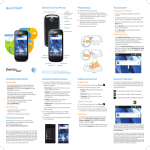
MEdia
Net Home
With MEdia Net, you can get the information that is important to you at a
My Links
EDIT
glance. Check local weather, your team scores or movie listings with just omeWeather
IT
Net H
D
E
ia
Lo
d
s Angeles
a few clicks.
ME
1.
2.
3.
4.
In Idle mode, press the Menu soft key
Press 4 for MEdia Net
Press 1 for MEdia Net Home
Highlight the content you want to view and press the
- Weather
- News
- Sports... and more!
Currently 85
inks
My L
s s
Sp
r
ort
le
e
e
th
g
5 ees
Wea Los An tlYa
8nk
(MLB)
en y
Curr NYY 3 - Sea 2 (F
inal)
key
Personalize your MEdia Net home screen:
1. From the MEdia Net home screen, scroll to “Customize
MEdia Net” and press the
key
2. Select Edit Categories and press the
key
3. Highlight the categories you would like to appear on your MEdia Net home screen and press Save
Ch
ec) k Yoaur
rts
LB
l) Email on
Spo ees (M
the 2 (Fin
Yank 3 - Sea Go!
on
il
a
NYY
Categ
m
ori
our E es
EDIT
ck1YWhat’s Ho
Che o
t! DIT
!
E
G
the 2 Tones, Game
s & Pics
riesil &
g3oMa
Me
Cate
ics
Hot! ss&ag
Ping
t’sort
4
a
Sp
s
h
e
s
m
1W
, Ga
g
ster
in
e
5
g
En
n
a
o
tai
s
2T
Mesnment
0 ail &
re Categories
3 MMo
rts
o
My
p
Ac
coun
t ent
m
4S
s
rtain
Cu
ntemi
gorie
zeaME
5 Esto
C te dia Net
He
More
t
0 lp
n
u
Net
cco
Edia
My A
ize MSearch
m
to
Cus
rch
Sea
Help
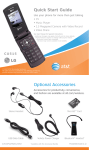
Optional Accessories
AT&T has accessories for productivity, convenience and
fashion. You can also shop accessories at att.com/wireless
1. In Idle mode, press the Menu soft key
2. Highlight My Stuff (7) and press
6.
7.
To
1.
Organize Me
Capture those special moments right from
your phone and send them to friends and family.
It’s easy.
To
1.
2.
3.
4.
5.
MEdia™ Net
- Select 5 for Alarm
- Select 6 for Calendar
- Select 7 for Tasks
1. In Idle mode, press the Menu soft key.
2. Press 5 for AT&T Mall.
3. Select Shop Tones (1), Shop Games (2) Shop Graphics (3) or Shop Applications (5) and press the
key.
4. When your web connection is established, choose a category, and press the
key.
microSD™ Memory Card
USB Cable
Car Power Charger
Leather Case
Bluetooth Headset