1
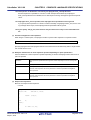
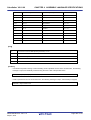
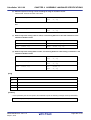
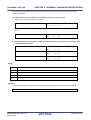
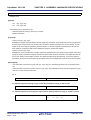
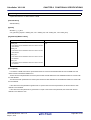
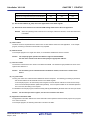
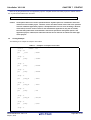
User's Manual
CubeSuite+ V2.01.00
Integrated Development Environment
User's Manual: RH850 Coding
Target Device
RH850 Family
All information contained in these materials, including products and product specifications,
represents information on the product at the time of publication and is subject to change by
Renesas Electronics Corp. without notice. Please review the latest information published by
Renesas Electronics Corp. through various means, including the Renesas Electronics Corp.
website (http://www.renesas.com).
www.renesas.com
Rev.1.01 Sep 2013
Notice
1.
Descriptions of circuits, software and other related information in this document are provided only to illustrate the operation of
semiconductor products and application examples. You are fully responsible for the incorporation of these circuits, software,
and information in the design of your equipment. Renesas Electronics assumes no responsibility for any losses incurred by you
or third parties arising from the use of these circuits, software, or information.
2.
Renesas Electronics has used reasonable care in preparing the information included in this document, but Renesas Electronics
does not warrant that such information is error free. Renesas Electronics assumes no liability whatsoever for any damages
incurred by you resulting from errors in or omissions from the information included herein.
3.
Renesas Electronics does not assume any liability for infringement of patents, copyrights, or other intellectual property rights of
third parties by or arising from the use of Renesas Electronics products or technical information described in this document. No
license, express, implied or otherwise, is granted hereby under any patents, copyrights or other intellectual property rights of
Renesas Electronics or others.
4.
You should not alter, modify, copy, or otherwise misappropriate any Renesas Electronics product, whether in whole or in part.
Renesas Electronics assumes no responsibility for any losses incurred by you or third parties arising from such alteration,
modification, copy or otherwise misappropriation of Renesas Electronics product.
5.
Renesas Electronics products are classified according to the following two quality grades: “Standard” and “High Quality”. The
recommended applications for each Renesas Electronics product depends on the product’s quality grade, as indicated below.
“Standard”:
Computers; office equipment; communications equipment; test and measurement equipment; audio and visual
equipment; home electronic appliances; machine tools; personal electronic equipment; and industrial robots etc.
“High Quality”: Transportation equipment (automobiles, trains, ships, etc.); traffic control systems; anti-disaster systems; anticrime systems; and safety equipment etc.
Renesas Electronics products are neither intended nor authorized for use in products or systems that may pose a direct threat to
human life or bodily injury (artificial life support devices or systems, surgical implantations etc.), or may cause serious property
damages (nuclear reactor control systems, military equipment etc.). You must check the quality grade of each Renesas
Electronics product before using it in a particular application. You may not use any Renesas Electronics product for any
application for which it is not intended. Renesas Electronics shall not be in any way liable for any damages or losses incurred
by you or third parties arising from the use of any Renesas Electronics product for which the product is not intended by Renesas
Electronics.
6.
You should use the Renesas Electronics products described in this document within the range specified by Renesas Electronics,
especially with respect to the maximum rating, operating supply voltage range, movement power voltage range, heat radiation
characteristics, installation and other product characteristics. Renesas Electronics shall have no liability for malfunctions or
damages arising out of the use of Renesas Electronics products beyond such specified ranges.
7.
Although Renesas Electronics endeavors to improve the quality and reliability of its products, semiconductor products have
specific characteristics such as the occurrence of failure at a certain rate and malfunctions under certain use conditions. Further,
Renesas Electronics products are not subject to radiation resistance design. Please be sure to implement safety measures to
guard them against the possibility of physical injury, and injury or damage caused by fire in the event of the failure of a Renesas
Electronics product, such as safety design for hardware and software including but not limited to redundancy, fire control and
malfunction prevention, appropriate treatment for aging degradation or any other appropriate measures. Because the evaluation
of microcomputer software alone is very difficult, please evaluate the safety of the final products or systems manufactured by
you.
8.
Please contact a Renesas Electronics sales office for details as to environmental matters such as the environmental compatibility
of each Renesas Electronics product. Please use Renesas Electronics products in compliance with all applicable laws and
regulations that regulate the inclusion or use of controlled substances, including without limitation, the EU RoHS Directive.
Renesas Electronics assumes no liability for damages or losses occurring as a result of your noncompliance with applicable laws
and regulations.
9.
Renesas Electronics products and technology may not be used for or incorporated into any products or systems whose
manufacture, use, or sale is prohibited under any applicable domestic or foreign laws or regulations. You should not use
Renesas Electronics products or technology described in this document for any purpose relating to military applications or use
by the military, including but not limited to the development of weapons of mass destruction. When exporting the Renesas
Electronics products or technology described in this document, you should comply with the applicable export control laws and
regulations and follow the procedures required by such laws and regulations.
10. It is the responsibility of the buyer or distributor of Renesas Electronics products, who distributes, disposes of, or otherwise
places the product with a third party, to notify such third party in advance of the contents and conditions set forth in this
document, Renesas Electronics assumes no responsibility for any losses incurred by you or third parties as a result of
unauthorized use of Renesas Electronics products.
11. This document may not be reproduced or duplicated in any form, in whole or in part, without prior written consent of Renesas
Electronics.
12. Please contact a Renesas Electronics sales office if you have any questions regarding the information contained in this document
or Renesas Electronics products, or if you have any other inquiries.
(Note 1) “Renesas Electronics” as used in this document means Renesas Electronics Corporation and also includes its majorityowned subsidiaries.
(Note 2) “Renesas Electronics product(s)” means any product developed or manufactured by or for Renesas Electronics.
(2012.4)
How to Use This Manual
This manual describes the role of the CubeSuite+ integrated development environment for developing applications and
systems for RH850 family, and provides an outline of its features.
CubeSuite+ is an integrated development environment (IDE) for RH850 family, integrating the necessary tools for the
development phase of software (e.g. design, implementation, and debugging) into a single platform.
By providing an integrated environment, it is possible to perform all development using just this product, without the
need to use many different tools separately.
Readers
This manual is intended for users who wish to understand the functions of the
CubeSuite+ and design software and hardware application systems.
Purpose
This manual is intended to give users an understanding of the functions of the
CubeSuite+ to use for reference in developing the hardware or software of systems
using these devices.
Organization
This manual can be broadly divided into the following units.
CHAPTER 1 GENERAL
CHAPTER 2 FUNCTIONS
CHAPTER 3 COMPILER LANGUAGE SPECIFICATIONS
CHAPTER 4 ASSEMBLY LANGUAGE SPECIFICATIONS
CHAPTER 5 SECTION ALLOCATION
CHAPTER 6 FUNCTIONAL SPECIFICATIONS
CHAPTER 7 STARTUP
CHAPTER 8 REFERENCING COMPILER AND ASSEMBLER
CHAPTER 9 CAUTIONS
APPENDIX A WINDOW REFERENCE
APPENDIX B INDEX
How to Read This Manual
It is assumed that the readers of this manual have general knowledge of electricity,
logic circuits, and microcontrollers.
Conventions
Data significance:
Higher digits on the left and lower digits on the right
Active low representation:
XXX (overscore over pin or signal name)
Note:
Footnote for item marked with Note in the text
Caution:
Information requiring particular attention
Remark:
Supplementary information
Numeric representation:
Decimal ... XXXX
Hexadecimal ... 0xXXXX
Related Documents
The related documents indicated in this publication may include preliminary versions.
However, preliminary versions are not marked as such.
Document Name
CubeSuite+
Integrated Development Environment
Document No.
Start
R20UT2682E
RX Design
R20UT2683E
V850 Design
R20UT2134E
R8C Design
R20UT2135E
RL78 Design
R20UT2684E
78K0R Design
R20UT2137E
78K0 Design
R20UT2138E
RH850 Coding
This manual
RX Coding
R20UT2470E
V850 Coding
R20UT0553E
Coding for CX Compiler
R20UT2659E
R8C Coding
R20UT0576E
RL78,78K0R Coding
R20UT2140E
78K0 Coding
R20UT2141E
RH850 Build
R20UT2585E
RX Build
R20UT2472E
V850 Build
R20UT0557E
Build for CX Compiler
R20UT2142E
R8C Build
R20UT0575E
RL78,78K0R Build
R20UT2143E
78K0 Build
R20UT0783E
RH850 Debug
R20UT2685E
RX Debug
R20UT2702E
V850 Debug
R20UT2446E
R8C Debug
R20UT0770E
RL78 Debug
R20UT2445E
78K0R Debug
R20UT0732E
78K0 Debug
R20UT0731E
Analysis
R20UT2686E
Message
R20UT2687E
User's Manual
Caution
The related documents listed above are subject to change without
notice. Be sure to use the latest edition of each document when
designing.
All trademarks or registered trademarks in this document are the property of their respective owners.
TABLE OF CONTENTS
CHAPTER 1 GENERAL ... 9
1.1 Outline ... 9
1.2 Special Features ... 9
1.3 Limits ... 9
CHAPTER 2 FUNCTIONS ... 11
2.1 Variables (C Language) ... 11
2.1.1 Allocating to sections accessible with short instructions ... 11
2.1.2 Changing allocated section ... 13
2.1.3 Change the allocated area using the -Xpreinclude option ... 15
2.1.4 Defining variables for use during standard and interrupt processing ... 16
2.1.5 Defining const constant pointer ... 18
2.2 Functions ... 19
2.2.1 Changing area to be allocated to ... 19
2.2.2 Calling away function ... 19
2.2.3 Embedding assembler instructions ... 20
2.2.4 Executing in RAM ... 20
2.3 Variables (Assembler) ... 21
2.3.1 Defining variables with no initial values ... 21
2.3.2 Defining variable with initial values ... 22
2.3.3 Defining const constants ... 23
CHAPTER 3 COMPILER LANGUAGE SPECIFICATIONS ... 24
3.1 Basic Language Specifications ... 24
3.1.1 Unspecified behavior ... 24
3.1.2 Undefined behavior ... 25
3.1.3 Processing system dependent items ... 27
3.1.4 C99 language function ... 37
3.1.5 Option to process in strict accordance with ANSI standard ... 39
3.1.6 Internal representation and value area of data ... 40
3.1.7 Section name ... 48
3.1.8 Register mode ... 49
3.2 Extended Language Specifications ... 51
3.2.1 Macro name ... 51
3.2.2 Reserved words ... 52
3.2.3 Compiler generated symbols ... 52
3.2.4 #pragma directive ... 52
3.2.5 Using extended language specifications ... 54
3.2.6 Modification of C source ... 94
CHAPTER 4 ASSEMBLY LANGUAGE SPECIFICATIONS ... 95
4.1 Description of Source ... 95
4.1.1 Description ... 95
4.1.2 Expressions and operators ... 104
4.1.3 Arithmetic operators ... 106
4.1.4 Logic operators ... 114
4.1.5 Relational operators ... 119
4.1.6 Shift operators ... 128
4.1.7 Byte separation operators ... 131
4.1.8 2-byte separation operators ... 134
4.1.9 Section aggregation operators ... 138
4.1.10 Other operator ... 143
4.1.11 Restrictions on operations ... 145
4.1.12 Identifiers ... 146
4.2 Directives ... 147
4.2.1 Outline ... 147
4.2.2 Section definition directives ... 148
4.2.3 Symbol definition directives ... 158
4.2.4 Compiler output directives ... 161
4.2.5 Data definition/Area reservation directives ... 167
4.2.6 External definition/External reference directives ... 181
4.2.7 Macro directives ... 185
4.3 Control Instructions ... 197
4.3.1 Outline ... 197
4.3.2 Assembler control instructions ... 198
4.3.3 File input control instructions ... 206
4.3.4 Conditional assembly control instructions ... 209
4.4 Macro ... 218
4.4.1 Outline ... 218
4.4.2 Usage of macro ... 218
4.4.3 Macro operator ... 219
4.5 Reserved Words ... 220
4.6 Assembler Generated Symbols ... 221
4.7 Instruction Set ... 222
4.8 Description of Instructions ... 234
4.8.1 Load/Store instructions ... 235
4.8.2 Arithmetic operation instructions ... 247
4.8.3 Saturated operation instructions ... 301
4.8.4 Logical instructions ... 311
4.8.5 Branch instructions ... 346
4.8.6 Bit manipulation instructions ... 366
4.8.7 Stack manipulation instructions ... 375
4.8.8 Special instructions ... 380
4.8.9 Loop instructions ... 416
4.8.10 Floating-point operation instructions ... 419
4.8.11 Other instructions ... 499
CHAPTER 5 SECTION ALLOCATION ... 500
5.1 Sections ... 500
5.1.1 Section concatenation ... 500
5.2 Special Symbol ... 502
CHAPTER 6 FUNCTIONAL SPECIFICATIONS ... 504
6.1
6.2
6.3
6.4
Supplied Libraries ... 504
Header Files ... 504
Re-entrant ... 505
Library Function ... 506
6.4.1 Program diagnostic functions ... 506
6.4.2 Functions with variable arguments ... 508
6.4.3 Character string functions ... 512
6.4.4 Memory management functions ... 528
6.4.5 Character conversion functions ... 534
6.4.6 Character classification functions ... 537
6.4.7 Standard I/O functions ... 550
6.4.8 Standard utility functions ... 584
6.4.9 Non-local jump functions ... 613
6.4.10 Mathematical functions ... 617
6.4.11 RAM section initialization function ... 663
6.4.12 Initialization peripheral devices function ... 666
6.4.13 Operation runtime functions ... 668
CHAPTER 7 STARTUP ... 670
7.1 Outline ... 670
7.2 Startup Routine ... 670
7.2.1 Exception vector table ... 670
7.2.2 Startup routine for the boot loader project ... 671
7.2.3 Startup routine for the application project ... 674
7.2.4 Passing information from the application project to the boot loader project ... 679
7.3 Coding Example ... 680
7.4 Symbols ... 691
7.4.1 Global pointer (gp) ... 692
7.4.2 Element pointer (ep) ... 694
7.5 ROMization ... 698
7.5.1 Outline ... 698
7.5.2 Creating ROMized load module file ... 699
CHAPTER 8 REFERENCING COMPILER AND ASSEMBLER ... 701
8.1 Function Call Interface ... 701
8.1.1 General-purpose registers guaranteed before and after function calls ... 701
8.1.2 Setting and referencing arguments and return values ... 701
8.1.3 Address indicating stack pointer ... 704
8.1.4 Stack frame ... 704
8.2 Calling of Assembly Language Routine from C Language ... 707
8.3 Calling of C Language Routine from Assembly Language ... 708
8.4 Reference of Argument Defined by Other Language ... 709
8.5 General-purpose Registers ... 709
CHAPTER 9 CAUTIONS ... 711
9.1 Volatile Qualifier ... 711
9.2 V850E3v5 G3K Core Specification for Assembler (-Xcpu=g3k Option) ... 712
APPENDIX A WINDOW REFERENCE ... 713
A.1 Description ... 713
APPENDIX B INDEX ... 739
CubeSuite+ V2.01.00
CHAPTER 1 GENERAL
CHAPTER 1 GENERAL
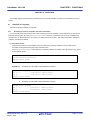
This chapter provides a general outline of the RH850 family's C compiler package (CC-RH).
1.1
Outline
CC-RH is a program that converts programs described in C language or assembly language into machine language.
1.2
Special Features
CC-RH is equipped with the following special features.
(1) Language specifications in accordance with ANSI standard
The C language specifications conform to the ANSI standard.
(2) Advanced optimization
Advanced optimization is used, applying global program optimization as well as conventional optimization.
This yields smaller, faster code, and also reduces build times.
(3) High portability
The program supports porting programs from the existing SuperH RISC engine C/C++ compiler.
In addition, the industry-standard DWARF2 format is used for debugging information.
(4) Multifunctional
Static analysis and other functionality is provided via linking between CubeSuite+.
1.3
Limits
The maximum values that can be coded in C and assembly-language programs are indicated below.
(1) Compiler limits
There are no limits on translation. The maximum translatable value depends on the memory of the host machine
on which the program is running. Exceeding the maximum value an assembler specified will result in an error.
Remark
The maximum number of bytes for one object is 2 Gbytes (in the host environment).
(2) Assembler limits
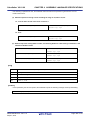
The maximum values that can be coded in assembly-language programs are indicated below.
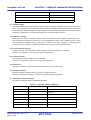
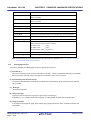
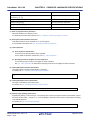
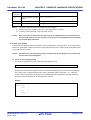
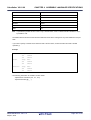
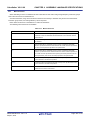
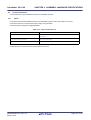
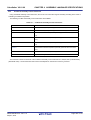
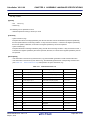
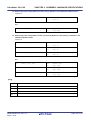
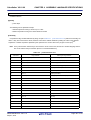
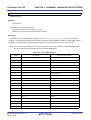
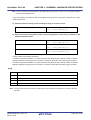
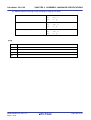
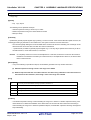
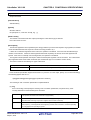
Table 1-1. Assembler Limits
Description
Limit
Symbol length (Token length)
4,294,967,294Note
Label length (Token length)
4,294,967,294Note
Number of symbols
4,294,967,294Note
Number of parameters in LOCAL directive
4,294,967,294Note
Number of automatically generated LOCAL directive symbols
4,294,967,294Note
Nesting levels in INCLUDE directive
4,294,967,294 Note
TDATA relocation attribute section
256 bytes
R20UT2584EJ0101 Rev.1.01
Sep 01, 2013
Page 9 of 751
CubeSuite+ V2.01.00
CHAPTER 1 GENERAL
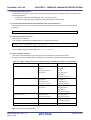
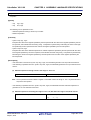
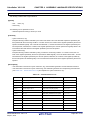
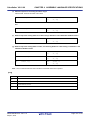
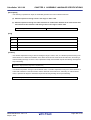
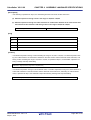
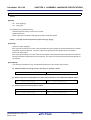
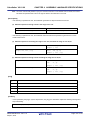
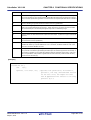
Description
ALIGN directive
Limit
Even number of 2 or more, but less
than 231
Number of arguments in IRP directive
4,294,967,294Note
Note Depends on memory of host machine on which it is running.
R20UT2584EJ0101 Rev.1.01
Sep 01, 2013
Page 10 of 751
CubeSuite+ V2.01.00
CHAPTER 2 FUNCTIONS
CHAPTER 2 FUNCTIONS
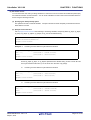
This chapter explains the programming method and how to use the expansion functions for more efficient use of the
CC-RH.
2.1
Variables (C Language)
This section explains variables (C language).
2.1.1
Allocating to sections accessible with short instructions
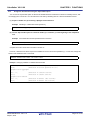
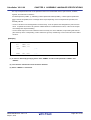
CC-RH normally uses two instructions (for a total of 8 bytes) to access variables: a movhi instruction (4 bytes) and an
ld/st instruction (4 bytes). By using a #pragma section directive, however, it generates code to access variables using
one instruction: an ld/st instruction (4 or 6 bytes) or a sld/sst instruction (2 bytes). This makes it possible to reduce the
code size. See below for details.
(1) GP relative access
This generates code to access variables using one instruction by placing variables in sections that can be
accessed via the global pointer (GP) and an ld/st instruction.
Use a #pragma section directive when defining or accessing variables, and specify either gp_disp16 or gp_disp23
as the attribute strings.
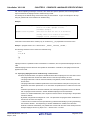
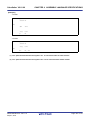
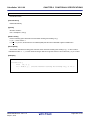
#pragma section attribute-strings
variable-declaration/definition
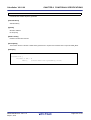
#pragma section default
Examples 1.
Accessing via a GP-relative 4-byte load/store instruction
#pragma section gp_disp16
int a = 1;
/*allocated to .sdata section*/
int b;
/*allocated to .sbss section*/
#pragma section default
2.
Accessing via a GP-relative 6-byte load/store instruction
#pragma section gp_disp23
int a = 1;
/*allocated to .sdata23 section*/
int b;
/*allocated to .sbss23 section*/
#pragma section default
R20UT2584EJ0101 Rev.1.01
Sep 01, 2013
Page 11 of 751
CubeSuite+ V2.01.00
CHAPTER 2 FUNCTIONS
(2) EP relative access
You can reduce the code size by locating variables in a section that can be accessed via the element pointer (EP)
and a sld/sst instruction or ld/st instruction. You can locate variables in a section that can be accessed relative to
the EP using the following methods.
(a) Specifying the -Omap/-Osmap option
This optimizes access to external variables. It outputs code that accesses frequently accessed external variables relative to the EP.
(b) #pragma section directive
Use a #pragma section directive when defining or accessing variables, and specify either ep_disp4, ep_disp5,
ep_disp7, ep_disp8, ep_disp16, ep_disp23, or ep_auto as the attribute string.
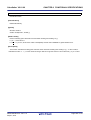
#pragma section attribute-strings
variable-declaration/definition
#pragma section default
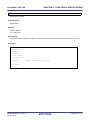
Examples 1.
Accessing via a EP-relative 2-byte load/store instruction
#pragma section ep_disp4
int a = 1;
/*allocated to .tdata4 section*/
int b;
/*allocated to .tbss4 section*/
#pragma section default
Even if ep_disp5, ep_disp7, or ep_disp8 is specified as the attribute string, access is via an EP-relative 2-byte load/store instruction (i.e. is the same as in the case of ep_disp4).
2.
Accessing via a EP-relative 4-byte load/store instruction
#pragma section ep_disp16
int a = 1;
/*allocated to .edata section*/
int b;
/*allocated to .ebss section*/
#pragma section default
3.
Accessing via a EP-relative 6-byte load/store instruction
#pragma section ep_disp23
int a = 1;
/*allocated to .edata23 section*/
int b;
/*allocated to .ebss23 section*/
#pragma section default
R20UT2584EJ0101 Rev.1.01
Sep 01, 2013
Page 12 of 751
CubeSuite+ V2.01.00
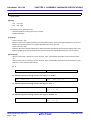
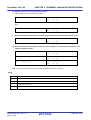
2.1.2
CHAPTER 2 FUNCTIONS
Changing allocated section
The default allocation sections are as follows:
- Variables with no initial value: .bss section
- Variables with initial value: .data section
- const constants: .const section
To change the allocated section, specify the attribute strings using #pragma section directive.
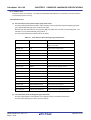
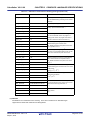
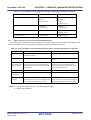
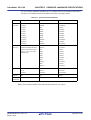
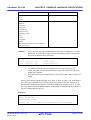
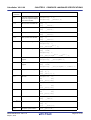
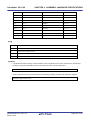
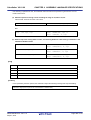
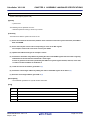
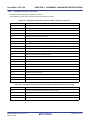
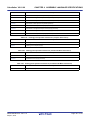
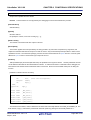
The relationship between attribute strings and the section generated is as follows.
Attribute Strings
r0_disp16
r0_disp23
r0_disp32
ep_auto
Initial Value
Default Section
Section Name
Name
Change
Base Register
Access Instruction
Yes
.zdata
Possible
r0
ld/st 1 instruction
No
.zbss
Possible
r0
ld/st 1 instruction
Yes
.zdata23
Possible
r0
ld23/st23 1 instruction
No
.zbss23
Possible
r0
ld23/st23 1 instruction
Yes
.data
Possible
r0
movhi+ld/st 2 instruction
No
.bss
Possible
r0
movhi+ld/st 2 instruction
Automatically
Impossible
ep
sld/sst 1 instruction
Yes/No
selected from
among .tdata4,
.tdata5, .tdata7,
and .tdata8
ep_disp4
Yes
.tdata4
Possible
ep
sld/sst 1 instruction
No
.tbss4
Possible
ep
sld/sst 1 instruction
Yes
.tdata5
Possible
ep
sld/sst 1 instruction
No
.tbss5
Possible
ep
sld/sst 1 instruction
Yes
.tdata7
Possible
ep
sld/sst 1 instruction
No
.tbss7
Possible
ep
sld/sst 1 instruction
Yes
.tdata8
Possible
ep
sld/sst 1 instruction
No
.tbss8
Possible
ep
sld/sst 1 instruction
Yes
.edata
Possible
ep
ld/st 1 instruction
No
.ebss
Possible
ep
ld/st 1 instruction
Yes
.edata23
Possible
ep
ld23/st23 1 instruction
No
.ebss23
Possible
ep
ld23/st23 1 instruction
Yes
.sdata
Possible
gp
ld/st 1 instruction
No
.sbss
Possible
gp
ld/st 1 instruction
Yes
.sdata23
Possible
gp
ld23/st23 1 instruction
No
.sbss23
Possible
gp
ld23/st23 1 instruction
const
Yes
.const
Possible
r0
movhi+ld/st 2 instruction
zconst
Yes
.zconst
Possible
r0
ld/st 1 instruction
zconst23
Yes
.zconst23
Possible
r0
ld23/st23 1 instruction
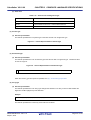
default
After this statement, any previous #pragma section will be ignored, and the default allocation will be
ep_disp5
ep_disp7
ep_disp8
ep_disp16
ep_disp23
gp_disp16
gp_disp23
used.
R20UT2584EJ0101 Rev.1.01
Sep 01, 2013
Page 13 of 751
CubeSuite+ V2.01.00
CHAPTER 2 FUNCTIONS
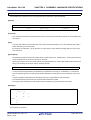
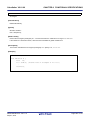
Example #pragma section directive description
#pragma section gp_disp16 "mysdata"
int a = 1;
/*allocated to mysdata.sdata attribute section*/
int b;
/*allocated to mysdata.sbss attribute section*/
#pragma section default
When referencing a variable using the #pragma section directive from a function in another file (i.e. reference file), it is
necessary to also specify the #pragma section directive in the reference file and to define the affected variable as extern
format.
Unlike when specifying a variable by means of a definition or declaration, it outputs the following error if the variable
cannot be accessed with the specified section attribute.
E0562330 : Relocation size overflow : "file"-"section"-"offset"
Examples 1.
File that defines a table
#pragma section zconst
const unsigned char table_data[9] = {1, 2, 3, 4, 5, 6, 7, 8, 9}; /*allocated to .zconst
section*/
#pragma section default
2.
File that references a table
#pragma section zconst
extern
const unsigned char
table_data[];
/*allocated to .zconst section*/
#pragma section default
Code such as the following can be used if portability of C source to the SH family of compilers is a concern.
Example #pragma section directive description
#pragma section mydata
int a = 1;
/*allocated to mydata.data section*/
int b;
/*allocated to mydata.bss section*/
#pragma section default
R20UT2584EJ0101 Rev.1.01
Sep 01, 2013
Page 14 of 751
CubeSuite+ V2.01.00
2.1.3
CHAPTER 2 FUNCTIONS
Change the allocated area using the -Xpreinclude option
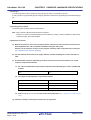
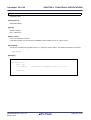
You can use the -Xpreinclude option to allocate all variables declared or defined in a file into an arbitrary section, without changing the C source file. You can reduce the code size by allocating them in a section with efficient access.
(1) Prepare a header file (.h) containing a #pragma section directive.
Example Allocating in .sdata/.sbss section [section.h]
#pragma section gp_disp16
(2) Use the -Xpreinclude option to include the header you created in (1) at the beginning of the compilation
unit.
Example If the header file with the specified section is section.h
>ccrh main.c -Xpreinclude=section.h
Compiled as if main.c starts with an include of "section.h".
However, a link-time error will be output if the variables do not fit in the section specified in (1). In this case, change the
section of the variables in the C source file.
E0562330 : Relocation size overflow : "file"-"section"-"offset"
Example Changing variables to .sdata23/.sbss23 section
int a = 1;
/*Allocated in section specified in (1)*/
int b;
/*Allocated in section specified in (1)*/
#pragma section gp_disp23
int c = 1;
/*Allocated in .sdata23 section*/
int d;
/*Allocated in .sbss23 section*/
#pragma section default
int e = 1;
/*Allocated in default .data section*/
int f;
/*Allocated in default .bss section*/
R20UT2584EJ0101 Rev.1.01
Sep 01, 2013
Page 15 of 751
CubeSuite+ V2.01.00
2.1.4
CHAPTER 2 FUNCTIONS
Defining variables for use during standard and interrupt processing
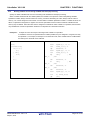
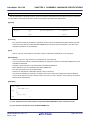
Specify as volatile variables that are to be used during both standard and interrupt processing.
When a variable is defined with the volatile qualifier, the variable is not optimized. When manipulating variables
specified as volatile, always read the value from memory, and when substituting the value, always write the value to
memory. You cannot change the access order or access width of variables specified as volatile. A variable for which volatile is not specified is assigned to a register as a result of optimization and the code that loads the variable from the
memory may be deleted. When the same value is assigned to variables for which volatile is not specified, the instruction
may be deleted as a result of optimization because it is interpreted as a redundant instruction.
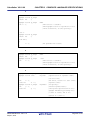
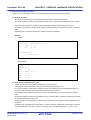
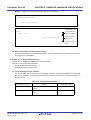
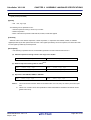
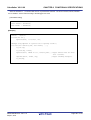
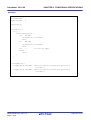
Examples 1.
Example of source and output code image when volatile is not specified
If variables a and b are not specified with the volatile quantifier, they are assigned to a register, and may
be optimized. If, for example, an interrupt occurs within this code, and a variable value is modified within
the interrupt, the value will not be reflected.
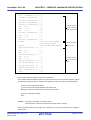
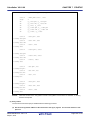
int a;
_func:
int b;
movhi
highw1(#_a), r0, r6
void func(void){
ld.w
loww(#_a)[r6], r6
cmp
0x00000000, r6
movhi
highw1(#_b), r0, r6
ld.w
loww(#_b)[r6], r6
bgt
.bb1_2
if(a <= 0){
b++;
} else {
b+=2;
}
.bb1_1:
b++;
; bb1
add
}
0x00000001, r6
br
.bb1_2:
.bb1_3
; bb9
; bb3
add
.bb1_3:
R20UT2584EJ0101 Rev.1.01
Sep 01, 2013
; bb3
0x00000002, r6
; bb9
add
0x00000001, r6
movhi
highw1(#_b), r0, r7
st.w
r6, loww(#_b)[r7]
jmp
[r31]
Page 16 of 751
CubeSuite+ V2.01.00
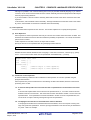
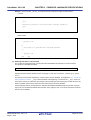
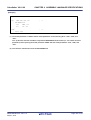
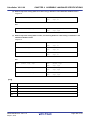
2.
CHAPTER 2 FUNCTIONS
Source and output code when volatile has been specified
If the volatile qualifier is specified for variables a, b, and c, the output code is such that the values of
these variables are read from and written to memory whenever they must be assigned new values.
Even if an interrupt occurs in the meantime and the values of the variables are changed by the interrupt,
for example, the result in which the change is reflected can be obtained.
When volatile is specified, the code size increases compared with when volatile is not specified because
the memory has to be read and written.
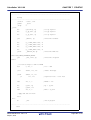
volatile int a;
_func:
volatile int b;
movhi
highw1(#_a), r0, r6
void func(void){
ld.w
loww(#_a)[r6], r6
cmp
0x00000000, r6
if(a <= 0){
b++;
} else {
bgt
.bb1_1:
b+=2;
.bb1_2
; bb3
; bb1
movhi
highw1(#_b), r0, r6
}
ld.w
loww(#_b)[r6], r6
b++;
add
0x00000001, r6
br
.bb1_3
}
.bb1_2:
; bb3
movhi
highw1(#_b), r0, r6
ld.w
loww(#_b)[r6], r6
add
0x00000002, r6
.bb1_3:
R20UT2584EJ0101 Rev.1.01
Sep 01, 2013
; bb9
; bb9
movhi
highw1(#_b), r0, r7
st.w
r6, loww(#_b)[r7]
ld.w
loww(#_b)[r7], r6
add
0x00000001, r6
st.w
r6, loww(#_b)[r7]
jmp
[r31]
Page 17 of 751
CubeSuite+ V2.01.00
2.1.5
CHAPTER 2 FUNCTIONS
Defining const constant pointer
The pointer is interpreted differently depending on the "const" specified location.
To assign the const section to the zconst section, specify #pragma section zconst. To assign the const section to the
zconst23 section, specify #pragma section zconst23.
- const char *p;
This indicates that the object (*p) indicated by the pointer cannot be rewritten.
The pointer itself (p) can be rewritten.
Therefore the state becomes as follows and the pointer itself is allocated to RAM (.data etc.).
*p = 0;
/*error*/
p = 0;
/*correct*/
- char *const p;
This indicates that the pointer itself (p) cannot be rewritten.
The object (*p) indicated by the pointer can be rewritten.
Therefore the state becomes as follows and the pointer itself is allocated to ROM (.const/.zconst/.zconst23).
*p = 0;
/*correct*/
p = 0;
/*error*/
- const char *const p;
This indicates that neither the pointer itself(p) nor the object (*p) indicated by the pointer can be rewritten.
Therefore the state becomes as follows and the pointer itself is allocated to ROM (.const/.zconst/.zconst23).
*p = 0;
/*error*/
p = 0;
/*error*/
R20UT2584EJ0101 Rev.1.01
Sep 01, 2013
Page 18 of 751
CubeSuite+ V2.01.00
2.2
CHAPTER 2 FUNCTIONS
Functions
This section explains functions.
2.2.1
Changing area to be allocated to
When changing a program area's section name, specify the function using the #pragma section directive as shown
below.
#pragma section text
["section name"]
If you create an arbitrary section with a text attribute using the #pragma section directive, the name of the section that
is generated will be "specified-string + text".
Specify the start address of the section with the -start option, as follows.
-start=sec.text/1000
Specify the address as a base-16 number. If the address is not specified, it will be assigned from address 0.
The -start option is a link option. For details, see "CubeSuite+ Integrated Development Environment User's Manual:
RH850 Build".
2.2.2
Calling away function
The C compiler uses the jarl instruction to call functions.
However, depending on the program allocation the address may not be able to be resolved, resulting in an error when
linking because the jarl instruction is 22-bit displacement.
One way to resolve the error above is to first specify -Xcall_jump=32 to generate jarl32 and jr32 instructions.
If the -Xcall_jump=22 option is specified, then you can make function calls that do not depend on the displacement
width by specifying the C compiler's -Xfar_jump option.
When calling a function set as far jump, the jarl32 and jr32 instruction rather than the jarl instruction is output.
One function is described per line in the file where the -Xfar_jump option is specified. The names described should be
C language function names prefixed with "_" (an underscore).
Example The file where the -Xfar_jump option is specified
_func_led
_func_beep
_func_motor
:
_func_switch
If the following is described in place of "_function-name", all functions will be called using far jump.
{all_function}
R20UT2584EJ0101 Rev.1.01
Sep 01, 2013
Page 19 of 751
CubeSuite+ V2.01.00
2.2.3
CHAPTER 2 FUNCTIONS
Embedding assembler instructions
With the CC-RH assembler instructions can be described in the following formats within C source programs. This
treats the function itself as an assembler instruction, and performs inline expansion at the call site.
- #pragma directive
#pragma inline_asm
static int func(int a, int b) {
/*Assembler instruction*/
}
Remarks 1.
Note the following when using inline assembly.
- Specify #pragma inline_asm before the definition of the function body.
- Also generate external definitions of functions specified with #pragma inline_asm.
- If you use a register to guarantee the entrance and exit of an inline function with embedded assembly, you must save and restore this register at the beginning and end of the function.
- RH850 assembly language can use comments starting with the hash character ("#"). Do not use #
comments inside functions coded in assembly, because the preprocessor will interpret these as preprocessing directives.
- If you write a label in a function coded in assembly, labels with the same name will be created for
each inline expansion. In this situation, use local labels coded in assembly. Although local labels
have the same name in the assembly source, the assembler converts them to different names automatically.
2.
2.2.4
See "Describing assembler instruction".
Executing in RAM
A program allocated to external ROM can be copied to internal RAM and executed in internal RAM while linking and
after copying if the relative value of each section and each symbol (TP, EP, GP) is not destroyed. Use caution, as some
programs can be copied while others cannot.
After resetting, it is copied to internal RAM, and if the program is not changed, then the ROMization function can be
used to easily pack the text section.
R20UT2584EJ0101 Rev.1.01
Sep 01, 2013
Page 20 of 751
CubeSuite+ V2.01.00
2.3
CHAPTER 2 FUNCTIONS
Variables (Assembler)
This section explains variables (Assembler).
2.3.1
Defining variables with no initial values
Use the .ds directive in a section with no initial value to allocate area for a variable with no initial value.
[label:]
.ds
(size)
In order that it may be referenced from other files as well, it is necessary to define the label with the .public directive.
.public label name[, absolute-expression]
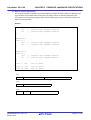
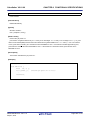
Example Defining variables with no initial values
.dseg
sdata
.public _val0, 0x4
--Sets _val0 as able to be referenced from other files
.public _val1, 0x2
--Sets _val1 as able to be referenced from other files
.public _val2, 0x1
--Sets _val2 as able to be referenced from other files
.align
4
--Aligns _val0 to 4 bytes
.ds
(4)
--Allocates 4 bytes of area for val0
.ds
(2)
--Allocates 2 bytes of area for val1
.ds
(1)
--Allocates 1 byte of area for val2
_val0:
_val1:
_val2:
R20UT2584EJ0101 Rev.1.01
Sep 01, 2013
Page 21 of 751
CubeSuite+ V2.01.00
2.3.2
CHAPTER 2 FUNCTIONS
Defining variable with initial values
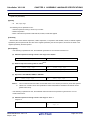
To allocate a variable area with a default value, use the .db directives/.db2/.dhw directives/.db4/.dw directives in the
section with the default value.
- 1-byte values
[label:]
.db value
- 2-byte values
[label:]
.db2 value
- 4-byte values
[label:]
.db4 value
In order that it may be referenced from other files as well, it is necessary to define the label with the .public directive.
.public label name[, absolute-expression]
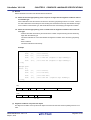
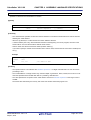
Example Defining variable with initial values
.dseg
sbss
.public _val0, 0x4
--Sets _val0 as able to be referenced from other files
.public _val1, 0x2
--Sets _val1 as able to be referenced from other files
.public _val2, 0x1
--Sets _val2 as able to be referenced from other files
.align
4
--Aligns _val0 to 4 bytes
.db4
100
--Allocates a 4-byte area for _val0, and stores 100 in it
.db2
10
--Allocates a 2-byte area for _val0, and stores 10 in it
.db
1
--Allocates a 1-byte area for _val0, and stores 1 in it
_val0:
_val1:
_val2:
R20UT2584EJ0101 Rev.1.01
Sep 01, 2013
Page 22 of 751
CubeSuite+ V2.01.00
2.3.3
CHAPTER 2 FUNCTIONS
Defining const constants
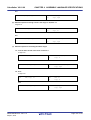
To define a const, use the .db directives/.db2/.dhw directives/.db4/.dw directives within the .const, .zconst or .zconst23
section.
- 1-byte values
[label:]
.db value
- 2-byte values
[label:]
.db2 value
- 4-byte values
[label:]
.db4 value
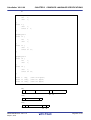
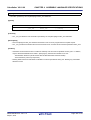
Example Defining const constants
.cseg
const
.public _p, 0x2
--Sets _p as able to be referenced from other files
.align
4
--Aligns _val0 to 4 bytes
.db2
10
--Allocates a 2-byte area for _p, and stores 10 in it
_p:
R20UT2584EJ0101 Rev.1.01
Sep 01, 2013
Page 23 of 751
CubeSuite+ V2.01.00
CHAPTER 3 COMPILER LANGUAGE SPECIFICATIONS
CHAPTER 3 COMPILER LANGUAGE SPECIFICATIONS
This chapter explains Compiler language specifications (basic language specification, extended language
specifications, etc.)supported by the CC-RH.
3.1
Basic Language Specifications
The CC-RH supports the language specifications stipulated by the ANSI standards. These specifications include items
that are stipulated as processing definitions. This section describes language specifications that are not specified or
defined by the ANSI standard, or that are process-dependent.
It describes the differences between when the option for processing in strict compliance with the ANSI standard (Xansi) is specified, and when it is not.
See "3.2 Extended Language Specifications" for extended language specifications explicitly added by the CC-RH.
3.1.1
Unspecified behavior
This section describes behavior that is not specified by the ANSI standard.
(1) Execution environment - initialization of static storage
Static data is output during compilation as a data section.
(2) Meanings of character displays - final line location, backspace (\b), horizontal tab (\t), vertical tab (\t)
This is dependent on the design of the display device.
(3) Types - floating point
IConforms to IEEE754Note.
Note IEEE: Institute of Electrical and Electronics Engineers
IEEE754 is a system for handling floating-point calculations, providing a uniform standard for data formats,
numerical ranges, and the like handled.
(4) Expressions - evaluation order
Unspecified.
(5) Function calls - parameter evaluation order
Unspecified.
(6) Structure and union specifiers
See "(8) Bit field" for the boundary alignment of structure objects with bit fields.
(7) Function definitions - storage of formal parameters
Unspecified.
(8) # operator
Unspecified.
R20UT2584EJ0101 Rev.1.01
Sep 01, 2013
Page 24 of 751
CubeSuite+ V2.01.00
3.1.2
CHAPTER 3 COMPILER LANGUAGE SPECIFICATIONS
Undefined behavior
This section describes behavior that is not defined by the ANSI standard.
(1) Character set
A message is output if a source file contains a character not specified by the character set.
(2) Lexical elements
A message is output if there is a single or double quotation mark ("/") in the last category (a delimiter or a single
non-whitespace character that does not lexically match another preprocessing lexical type).
(3) Identifiers
Since all identifier characters have meaning, there are no meaningless characters.
(4) Identifier binding
A message is output if both internal and external binding was performed on the same identifier within a translation
unit.
(5) Compatible type and composite type
All declarations referencing the same object or function must be compatible. Otherwise, a message will be output.
(6) Character constants
Specific non-graphical characters can be expressed by means of extended notation, consisting of a backslash (\)
followed by a lower-case letter. The following are available: \a, \b, \f, \n, \r, \t, and \v. There is no other extended
notation; other letters following a backslash (\) become that letter.
(7) String literals - concatenation
When a simple string literal is adjacent to a wide string literal token, they are concatenated into a wide string literal.
(8) String literals - modification
Users modify string literals at their own risk.
(9) Header names
If the following characters appear in strings between the delimiter characters < and >, or between two double quotation marks ("), then they are treated as part of the file name: characters, comma (,), double quote ("), two slashes
(//), or slash-asterisk (/*). The backslash (\) is treated as a folder separator.
(10) Floating point type and integral type
If a floating-point type is typecast into an integral type, and the integer portion cannot be expressed as an integral
type, then it is undefined.
(11) lvalues and function specifiers
If an incomplete type becomes an value, then it is undefined..
(12) Function calls - number of arguments
If there are not enough actual parameters, then it is undefined.
(13) Function calls - types of extended parameters
If a function is defined without a function prototype, and the types of the extended arguments do not match the
types of the extended formal parameters, then the values of the formal parameters will be undefined.
R20UT2584EJ0101 Rev.1.01
Sep 01, 2013
Page 25 of 751
CubeSuite+ V2.01.00
CHAPTER 3 COMPILER LANGUAGE SPECIFICATIONS
(14) Function calls - incompatible types
If a function is defined with a type that is not compatible with the type specified by the expression indicating the
called function, then the return value of the function will be invalid.
(15) Function calls - incompatible types
If a function is defined in a form that includes a function prototype, and the type of an extended argument is not
compatible with that of a formal parameter, or if the function prototype ends with an ellipsis, then it will be interpreted as the type of the formal parameter.
(16) Addresses and indirection operators
If an incorrect value is assigned to a pointer, then the behavior of the unary * operator will either obtain an undefined value or result in an illegal access, depending on the hardware design and the contents of the incorrect value.
(17) Cast operator - function pointer casts
If a typecast pointer is used to call a function with other than the original type, then it is undefined.
(18) Cast operator - integral type casts
If a pointer is cast into an integral type, and the amount of storage is too small, then it is undefined.
(19) Multiplicative operators
A message will be output if a divide by zero is detected during compilation.
(20) Additive operators - non-array pointers
If addition or subtraction is performed on a pointer that does other than indicate elements in an array object, then it
is undefined.
(21) Additive operators - subtracting a pointer from another array
If subtraction is performed using two pointers that do not indicate elements in the same array object, then it is
undefined.
(22) Bitwise shift operators
If the right operand is negative or the expanded left operand is wider than the bit width, then it is undefined.
(23) Function operators - pointers
If the objects referred to by the pointers being compared are not members of the same aggregate or union object,
then it is undefined.
(24) Simple assignment
If a value stored in an object is accessed via another object that overlaps that object's storage area in some way,
then the overlapping portion must match exactly. Furthermore, the types of the two objects must have modified or
non-modified versions with compatible types. Assignment to non-matching overlapping storage could cause the
value of the assignment source to become corrupted.
(25) Structure and union specifiers
If the member declaration list does not include named members, then a message will be output warning that the list
has no effect. Note, however, that the same message will be output accompanied by an error if the -Xansi option
is specified.
R20UT2584EJ0101 Rev.1.01
Sep 01, 2013
Page 26 of 751
CubeSuite+ V2.01.00
CHAPTER 3 COMPILER LANGUAGE SPECIFICATIONS
(26) Type modifiers - const
If an object defined with a const modifier is modified using an lvalue that is the non-const modified version, then it
is undefined.
(27) Type modifiers - volatile
If an object defined with a const modifier is modified using an lvalue that is the non-const modified version, then it
is undefined.
(28) return statements
A message will be output if a return statement without an expression is executed, and the caller uses the return
value of the function, and there is a declaration. If there is no declaration, then the return value of the function will
be undefined.
(29) Function definitions
If a function taking a variable number of arguments is defined without a parameter type list that ends with an ellipsis, then the values of the formal parameters will be undefined.
(30) Conditional inclusion
If a replacement operation generates a "defined" token, or if the usage of the "defined" unary operator before
macro replacement does not match one of the two formats specified in the constraints, then it will be handled as an
ordinary "defined".
(31) Macro replacement - arguments not containing preprocessing tokens
A message is output if the arguments (before argument replacement) do not contain preprocessing tokens.
(32) Macro replacement - arguments with preprocessing directives
A message is output if an argument list contains a preprocessor token stream that would function as a processing
directive in another circumstance.
(33) # operator
A message is output if the results of replacement are not a correct simple string literal.
(34) ## operator
A message is output if the results of replacement are not a correct simple string literal.
3.1.3
Processing system dependent items
This section explains items dependent on processing system in the ANSI standards.
(1) Data types and sizes
The byte order in a word (4 bytes) is "from least significant to most significant byte" Signed integers are expressed
by 2's complements. The sign is added to the most significant bit (0 for positive or 0, and 1 for negative).
- The number of bits of 1 byte is 8.
- The number of bytes, byte order, and encoding in an object files are stipulated below.
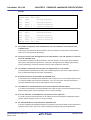
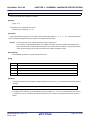
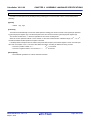
Table 3-1. Data Types and Sizes
Data Types
Sizes
char
1 byte
short
2 bytes
R20UT2584EJ0101 Rev.1.01
Sep 01, 2013
Page 27 of 751
CubeSuite+ V2.01.00
CHAPTER 3 COMPILER LANGUAGE SPECIFICATIONS
Data Types
Sizes
int, long, float
4 bytes
double, long double, long long
8 bytes
pointer
Same as unsigned int
(2) Translation stages
The ANSI standards specify eight translation stages (known as "phases") of priorities among syntax rules for translation. The arrangement of "non-empty white space characters excluding line feed characters" which is defined as
processing system dependent in phase 3 "Decomposition of source file into preprocessing tokens and white space
characters" is maintained as it is without being replaced by single white space character.
(3) Diagnostic messages
When syntax rule violation or restriction violation occurs on a translation unit, the compiler outputs as error message containing source file name and (when it can be determined) the number of line containing the error. These
error messages are classified: "Warning", "Abort error", "Fatal error" and "other" messages. For output formats of
messages, see the "CubeSuite+ Integrated Development Environment User's Manual: Message".
(4) Program startup processing
The name and type of a function that is called on starting program processing are not stipulted.
Therefore, it is dependent on the user-own coding and target system.
(5) Program execution
The configuration of the interactive unit is not stipulated.
Therefore, it is dependent on the user-own coding and target system.
(6) Character set
The values of elements of the execution environment character set are ASCII codes.
(7) Multi-byte characters
Supported multi-byte characters are ECU, SJIS, UTF-8, big5 and gb2312.
Japanese and Chinese description in comments and character strings is supported.
(8) Significance of character display
The values of expanded notation are stipulated as follows.
Table 3-2. Expanded Notation and Meaning
Expanded Notation
Value (ASCII)
Meaning
\a
07
Alert (Warning tone)
\b
08
Backspace
\f
0C
Form feed (New Page)
\n
0A
New line (Line feed)
\r
0D
Carriage return (Restore)
\t
09
Horizontal tab
\v
0B
Vertical tab
R20UT2584EJ0101 Rev.1.01
Sep 01, 2013
Page 28 of 751
CubeSuite+ V2.01.00
CHAPTER 3 COMPILER LANGUAGE SPECIFICATIONS
(9) Translation limit
There are no limits on translation. The maximum translatable value depends on the memory of the host machine
on which the program is running.
(10) Quantitative limit
(a) The limit values of the general integer types (limits.h file)
The limits.h file specifies the limit values of the values that can be expressed as general integer types (char
type, signed/unsigned integer type, and enumerate type).
Because multi-byte characters are not supported, MB_LEN_MAX does not have a corresponding limit. Consequently, it is only defined with MB_LEN_MAX as 1.
The limit values defined by the limits.h file are as follows.
Table 3-3. Limit Values of General Integer Type (limits.h File)
Name
CHAR_BIT
Value
+8
Meaning
The number of bits (= 1 byte) of the minimum
object not in bit field
SCHAR_MIN
-128
Minimum value of signed char
SCHAR_MAX
+127
Maximum value of signed char
UCHAR_MAX
+255
Maximum value of unsigned char
CHAR_MIN
-128
Minimum value of char
CHAR_MAX
+127
Maximum value of char
SHRT_MIN
-32768
Minimum value of short int
SHRT_MAX
+32767
Maximum value of short int
USHRT_MAX
+65535
Maximum value of unsigned short int
INT_MIN
-2147483648
Minimum value of int
INT_MAX
+2147483647
Maximum value of int
UINT_MAX
+4294967295
Maximum value of unsigned int
LONG_MIN
-2147483648
Minimum value of long int
LONG_MAX
+2147483647
Maximum value of long int
ULONG_MAX
+4294967295
Maximum value of unsigned long int
LLONG_MIN
-9223372036854775807
Minimum value of long long int
LLONG_MAX
+9223372036854775807
Maximum value of long long int
ULLONG_MAX
+18446744073709551615
Maximum value of unsigned long long int
(b) The limit values of the floating-point type (float.h file)
The limit values related to characteristics of the floating-point type are defined in float.h file.
The limit values defined by the float.h file are as follows.
R20UT2584EJ0101 Rev.1.01
Sep 01, 2013
Page 29 of 751
CubeSuite+ V2.01.00
CHAPTER 3 COMPILER LANGUAGE SPECIFICATIONS
Table 3-4. Definition of Limit Values of Floating-point Type (float.h File)
Name
FLT_ROUNDS
Value
+1
Meaning
Rounding mode for floating-point addition.
1 for the RH850 family (rounding in the nearest
direction).
FLT_RADIX
+2
Radix of exponent (b)
FLT_MANT_DIG
+24
Number of numerals (p) with FLT_RADIX of
DBL_MANT_DIG
+53
LDBL_MANT_DIG
+53
FLT_DIG
+6
DBL_DIG
+15
LDBL_DIG
+15
and then restore the decimal number of q
FLT_MIN_EXP
-125
Minimum negative integer (emin) that is a nor-
DBL_MIN_EXP
-1021
LDBL_MIN_EXP
-1021
of FLT_RADIX minus 1.
FLT_MIN_10_EXP
-37
Minimum negative integerlog10bemin-1 that falls in
DBL_MIN_10_EXP
-307
LDBL_MIN_10_EXP
-307
FLT_MAX_EXP
+128
DBL_MAX_EXP
+1024
LDBL_MAX_EXP
+1024
minus 1.
FLT_MAX_10_EXP
+38
Maximum integer that falls in the range of a nor-
DBL_MAX_10_EXP
+308
LDBL_MAX_10_EXP
+308
log10 ((1 - b-p) * bemaxx)
FLT_MAX
3.40282347E + 38F
Maximum value of finite floating-point numbers
DBL_MAX
1.7976931348623158E+308
LDBL_MAX
1.7976931348623158E+308
FLT_EPSILON
1.19209290E - 07F
DBL_EPSILON
2.2204460492503131E-016
LDBL_EPSILON
2.2204460492503131E-016
FLT_MIN
1.17549435E - 38F
DBL_MIN
2.2250738585072014E-308
LDBL_MIN
2.2250738585072014E-308
floating- point mantissa as base
Number of digits of a decimal number (q) that
can round a decimal number of q digits to a
floating-point number of p digits of the radix b
malized floating-point number when
FLT_RADIX is raised to the power of the value
the range of a normalized floating-point number
when 10 is raised to the power of its value.
Maximum integer (emax) that is a finite floatingpoint number that can be expressed when
FLT_RADIX is raised to the power of its value
malized floating-point number when 10 is raised
to this power.
that can be expressed
(1 - b-p) * bemax
Difference between 1.0 that can be expressed
by specified floating-point number type and the
lowest value which is greater than 1.
b1 - p
Minimum value of normalized positive floatingpoint number
bemin - 1
(11) Identifier
All identifiers are considered to have meaning. There are no restrictions on identifier length.
Uppercase and lowercase characters are distinguished.
R20UT2584EJ0101 Rev.1.01
Sep 01, 2013
Page 30 of 751
CubeSuite+ V2.01.00
CHAPTER 3 COMPILER LANGUAGE SPECIFICATIONS
(12) char type
If a value larger than a char is stored in a char type, then the value is converted to type char.
A char type with no type specifier (signed, unsigned) specified is treated as a signed integer as the default assumption.
char
c = '\777';
/*Value of c is -1.*/
(13) Floating-point constants
The floating-point constants conform to IEEE754Note.
Note IEEE: Institute of Electrical and Electronics Engineers
IEEE754 is a system for handling floating-point calculations, providing a uniform standard for data formats,
numerical ranges, and the like handled.
(14) Character constants
(a) Both the character set of the source program and the character set in the execution environment are
basically ASCII codes, and correspond to members having the same value.
However, for the character set of the source program, character codes in Japanese can be used (see
"(8) Significance of character display").
(b) The last character of the value of an integer character constant including two or more characters is
valid.
(c) A character that cannot be expressed by the basic execution environment character set or escape
sequence is expressed as follows.
<1> An octal or hexadecimal escape sequence takes the value indicated by the octal or hexadecimal
notation
\777
511
<2> The simple escape sequence is expressed as follows.
\'
'
\"
"
\?
?
\\
\
<3> Values of \a, \b, \f, \n, \r, \t, \v are same as the values explained in "(8) Significance of character display".
(d) Character constants of multi byte characters are not supported.
R20UT2584EJ0101 Rev.1.01
Sep 01, 2013
Page 31 of 751
CubeSuite+ V2.01.00
CHAPTER 3 COMPILER LANGUAGE SPECIFICATIONS
(15) Character string
A character string can be described in Japanese and Chinese.
The default character code is Shift JIS.
A character code in input source file can be selected by using the -Xcharacter_set option of the CC-RH.
-Xcharacter_set=[none | euc_jp | sjis | utf8 | big5 | gb2312]
(16) Header file name
The method to reflect the string in the two formats (< > and " ") of a header file name on the header file or an
external source file name is stipulated in "(33) Loading header file".
(17) Comment
A comment can be described in Japanese and Chinese. The character code is the same as the character string in
"(15) Character string".
(18) Signed constants and unsigned constants
If the value of a general integer type is converted into a signed integer of a smaller size, the higher bits are truncated and a bit string image is copied.
If an unsigned integer is converted into the corresponding signed integer, the internal representation is not
changed.
(19) Floating-points and general integers
If the value of a general integer type is converted into the value of a floating-point type, and if the value to be converted is within a range that can be expressed but not accurately, the result is rounded to the closest expressible
value.
(20) double type and float type
When casting a double to a float, or a long double to a double or a float, if the typecast value cannot be represented accurately in the available value range, then the result will be rounded to the nearest value that can be represented.
(21) Signed type in operator in bit units
The characteristics of the shift operator conform to the stipulation in "(27) Shift operator in bit units".
The other operators in bit units for signed type are calculated as unsigned values (as in the bit image).
(22) Members of structures and unions
If the value of a union member is stored in a different member, the value will be stored in accordance with the alignment condition. As a result, access to members of the union will be of the subsequently accessed type.
(23) sizeof operator
The value resulting from the "sizeof" operator conforms to the stipulation related to the bytes in an object in "(1)
Data types and sizes".
For the number of bytes in a structure and union, it is byte including padding area.
(24) Cast operator
When a pointer is converted into a general integer type, the required size of the variable is the same as the size of
the unsigned long type. The bit string is saved as is as the conversion result.
Also, although it is possible to typecast an arbitrary integer to a pointer, after the integer is typecast to a pointer, the
integer's bit pattern is retained unchanged.
R20UT2584EJ0101 Rev.1.01
Sep 01, 2013
Page 32 of 751
CubeSuite+ V2.01.00
CHAPTER 3 COMPILER LANGUAGE SPECIFICATIONS
(25) Division/remainder operator
The result of the division operator ("/") when the operands are negative and do not divide perfectly with integer division, is as follows: If either the divisor or the dividend is negative, the result is the smallest integer greater than the
algebraic quotient.
If both the divisor and the dividend are negative, the result is the largest integer less than the algebraic quotient.
If the operand is negative, the result of the "%" operator takes the sign of the first operand in the expression.
(26) Addition and subtraction operators
If two pointers indicating the elements of the same array are subtracted, the type of the result is unsigned long
type.
(27) Shift operator in bit units
If E1 of "E1 >> E2" is of signed type and takes a negative value, an arithmetic shift is executed.
(28) Storage area class specifier
Optimize for the fastest possible access, regardless of whether there is a storage-class area specifier "register"
declaration.
(29) Structure and union specifier
(a) A simple int type bit field without signed or unsigned appended is treated as a signed field, and the
most significant bit is treated as the sign bit.
(b) To retain a bit field, a storage area unit to which any address with sufficient size can be assigned can
be allocated. If there is insufficient area, however, the bit field that does not match is packed into to
the next unit according to the alignment condition of the type of the field.
The allocation sequence of the bit field in unit is from lower to higher.
(c) Each member of the non-bit field of one structure or union is aligned at a boundary as follows:
char, unsigned char type, and its array
Byte boundary
short, unsigned short type, and its array
2-byte boundary
Others (including pointer)
4-byte boundary
If packing is used, however, the boundaries of all members will be the byte boundary.
(30) Enumerate type specifier
The type of an enumeration specifier is signed int.
However, when the -Xenum_type=auto option is specified, each enumerated type is treated as the smallest integer
type capable of expressing all the enumerators in that type.
(31) Type qualifier
The configuration of access to data having a type qualified to be "volatile" is dependent upon the address (I/O port,
etc.) to which the data is mapped. If packing is used, however, the boundaries of all members will be the byte
boundary.
R20UT2584EJ0101 Rev.1.01
Sep 01, 2013
Page 33 of 751
CubeSuite+ V2.01.00
CHAPTER 3 COMPILER LANGUAGE SPECIFICATIONS
(32) Condition embedding
(a) The value for the constant specified for condition embedding and the value of the character constant
appearing in the other expressions are equal.
(b) A single-character character constant cannot have a negative value.
(33) Loading header file
(a) A preprocessing directive in the form of "#include <character string>"
A preprocessing directive in the form of "#include <character string>" searches for a header file from the folder
specified by the -I option if "character string" does not begin with "\"Note, and then searches standard include
file folder (..\inc folder with a relative path from the bin folder where the ccrh is placed).
If a header file uniformly identified is searched with a character string specified between delimiters "<" and ">",
the whole contents of the header file are replaced.
Note "/" are regarded as the delimiters of a folder.
Example
#include
<header.h>
The search order is as follows.
- Folder specified by -I
- Standard include file folder
(b) A preprocessing directive in the form of "#include "character string""
A preprocessing directive in the form of "#include "character string"" searches for a header file from the folder
where the source file exists, then searches specified folder (-I option) and then searches standard include file
folder (..\inc folder with a relative path from the bin folder where the ccrh is placed).
If a header file uniformly identified is searched with a character string specified between delimiters " " " and " "
", the whole contents of the header file are replaced.
Example
#include
"header.h"
The search order is as follows.
- Folder where source file exists
- Folder specified by -I
- Standard include file folder
(c) The format of "#include preprocessing character phrase string"
The format of "#include preprocessing character phrase string" is treated as the preprocessing character
phrase of single header file only if the preprocessing character phrase string is a macro that is replaced to the
form of <character string> or "character string".
R20UT2584EJ0101 Rev.1.01
Sep 01, 2013
Page 34 of 751
CubeSuite+ V2.01.00
CHAPTER 3 COMPILER LANGUAGE SPECIFICATIONS
(d) A preprocessing directive in the form of "#include <character string>"
Between a string delimited (finally) and a header file name, the length of the alphabetic characters in the
strings is identified,
And the file name length valid in the compiler operating environment is valid.
The folder that searches a file conforms to the above stipulation.
(34) #pragma directive
The CC-RH can specify the following #pragma directives.
(a) Data or program memory allocation
#pragma section section-type ["section-name"]
Allocates variables to an arbitrary section.
For details about the allocation method, see "(1) Allocation of data and program to section".
(b) Describing assembler instruction
#pragma inline_asm
Assembler directives can be described in a C source program.
For the details of description, see "(2) Describing assembler instruction".
(c) Inline expansion specification
#pragma inline [(]function-name[, function-name ...][)]
#pragma noinline [(]function-name[, function-name ...][)]
A function that is expanded inline can be specified.
For the details of expansion specification, see "(3) Inline expansion".
(d) Interrupt/exception handler specification
#pragma interrupt interrupt-request-name function-name [allocation-method]
[Option]...]
[Option
Interrupt/Exception handlers are described in C language.
For the details of description, see "(c) Describing interrupt/exception handler".
(e) Interrupt disable function specification
#pragma block_interrupt [(]function-name[)]
Interrupts are disabled for the entire function.
For details of description, see "(b) Disabling interrupts in entire function".
R20UT2584EJ0101 Rev.1.01
Sep 01, 2013
Page 35 of 751
CubeSuite+ V2.01.00
CHAPTER 3 COMPILER LANGUAGE SPECIFICATIONS
(f) Structure type packing specification
#pragma pack [(][1|2|4][)]
Specifies the packing of a structure type. The packing value, which is an alignment value of the member, is
specified as the numeric value. A value of 1, 2, 4 can be specified. When the numeric value is not specified, it
is by default alignment.
For details of description, see "(8) Structure type packing".
(g) Specifying bit field assignment
#pragma bit_order [{left|right}]
This specifies a change to the order of the bit field.
For details of description, see "(9) Bit field assignment".
(h) Core number specification (for a multi-core device)
#pragma pmodule pm-specification
A function to which a core number is to be assigned can be specified.
For details of description, see "(10) Core number specification (for a multi-core device)".
(35) Predefined macro names
All the following macro names are supported.
Table 3-5. List of Supported Macros
Macro Name
Definition
__LINE__
Line number of source line at that point (decimal).
__FILE__
Name of source file (character string constant).
__DATE__
Date of translating source file (character string constant in the form of "Mmm dd
yyyy"). Here, the name of the month is the same as that created by the asctime
function stipulated by ANSI standards (3 alphabetic characters with only the first
character is capital letter) (The first character of dd is blank if its value is less than
10).
__TIME__
Translation time of source file (character string constant having format "hh:mm:ss"
similar to the time created by the asctime function).
__STDC__
Decimal constant 1 (defined when the -Xansi option is specified).Note
__RENESAS__
This value is not set.
__RENESAS_VERSION__
If the version is V.XX.YY.ZZ, this will be 0xXXYYZZ00.
Example) V.1.00.00 -> -D__RENESAS_VERSION__=0x01000000
__CCRH__
This value is not set .
__CCRH
This value is not set.
__RH850__
This value is not set.
__RH850
This value is not set.
R20UT2584EJ0101 Rev.1.01
Sep 01, 2013
Page 36 of 751
CubeSuite+ V2.01.00
CHAPTER 3 COMPILER LANGUAGE SPECIFICATIONS
Macro Name
__v850e3v5__
Definition
This value is not set (defined when v850e3v5 or rh850 is specified by the -Xcommon
option is specified).
__v850e3v5
This value is not set (defined when v850e3v5 or rh850 is specified by the -Xcommon
option is specified).
__DBL8
This value is not set.
__DOUBLE_IS_64BITS__
This value is not set.
__BITLEFT
This value is not set (defined when left is specified by the -Xbit_order option).
__BITRIGHT
This value is not set (defined when right is specified by the -Xbit_order option).
__AUTO_ENUM
This value is not set (defined when auto is specified by the -Xenum_type option).
__FPU
This value is not set (defined when fpu is specified by the -Xfloat option).
__CHAR_SIGNED__
This value is not set..
Register mode macro
Since this macro indicates the target CPU, its value is not set.
Macro defined with register mode is as follows.
32 register mode:
__reg32__
22 register mode:
__reg22__
Universal register mode: __reg_common__
_LIT
This value is not set.
__MULTI_LEVEL__
level value designated in Xmulti_level = level
Note For the processing to be performed when the -Xansi option is specified, see "3.1.5 Option to process in
strict accordance with ANSI standard".
3.1.4
C99 language function
This section describes the C99 language functions supported by the CC-RH.
(1) Comment by //
Text from two slashes (//) until a newline character is a comment. If there is a backslash character (\) immediately
before the newline, then the next line is treated as a continuation of the current comment.
(2) Concatenating wide character strings
The result of concatenating a character string constant with a wide character string constant is a wide character
string constant.
(3) _Bool type
_Bool type is supported.
(4) long long int type
long long int type is supported. long long int type is 8-byte of integer type.
Appending "LL" to a constant value is also supported. It is also possible to specify this for bit field types.
(5) Integer promotion
In accordance with support for types _Bool and long long, integer promotion is also in accordance with the C99
specification.
R20UT2584EJ0101 Rev.1.01
Sep 01, 2013
Page 37 of 751
CubeSuite+ V2.01.00
CHAPTER 3 COMPILER LANGUAGE SPECIFICATIONS
(6) Existing argument expansion
In accordance with support for types _Bool and long long, existing argument expansion is also in accordance with
the C99 specification..
- Functions are called after expanding type _Bool_ to type int (4 bytes).
- Functions are called with type (unsigned) long long remaining as an 8 bytes value.
(7) Comma permission behind the last enumeration child of a enum definition
When defining an enum type, it is permissible for the last enumerator in the enumeration to be followed by a
comma (,).
enum EE {a, b, c,};
(8) Inline keyword (inline function)
Inline keyword is supported.
This can also be specified using a pragma directive, via the following format.
#pragma inline [(]function-name[, function-name, ...][)]
For the details of expansion specification, see "(3) Inline expansion".
(9) Types of integer constants
In accordance with the addition of type long long, the types of integer constants are as follows.
The type of an integer constant will be the first type in the lists below capable of representing that value.
Table 3-6. Types of Integer Constants (If type long long is enabled (when -Xansi is not specified))
Suffix
None
Decimal Constant
int
Octal Constant or Hexadecimal
int
long int
unsigned int
Note
unsigned long int
long int
long long int
unsigned long int
long long int
unsigned long long int
u or U
l or L
unsigned int
unsigned int
unsigned long int
unsigned long int
unsigned long long int
unsigned long long int
long int
long int
long long int
unsigned long int
long long int
unsigned long long int
Both u or U, and l or L
ll or LL
unsigned long int
unsigned long int
unsigned long long int
unsigned long long int
long long int
long long int
unsigned long long int
Both u or U, and ll or LL
unsigned long long int
unsigned long long int
Note Different from C99 specification
R20UT2584EJ0101 Rev.1.01
Sep 01, 2013
Page 38 of 751
CubeSuite+ V2.01.00
CHAPTER 3 COMPILER LANGUAGE SPECIFICATIONS
Table 3-7. Types of Integer Constants (If type long long is disabled (when -Xansi is specified))
Suffix
Decimal Constant
None
Octal Constant or Hexadecimal
int
int
long int
unsigned int
unsigned long int
long int
unsigned long int
u or U
l or L
unsigned int
unsigned int
unsigned long int
unsigned long int
long int
long int
unsigned long int
Both u or U, and l or L
3.1.5
unsigned long int
unsigned long int
Option to process in strict accordance with ANSI standard
If the -Xansi option is specified to CC-RH, it will perform processing in strict accordance with the ANSI standard. The
differences between when the -Xansi option is specified and when not specified are as follows.
Table 3-8. Processing When -Xansi Option Strictly Conforming to Language Specifications is Specified
Item
With -Xansi Specification
An errorNote 1 occurs if type other than int is
Bit field
Without -Xansi Specification
Specification of types other than int is allowed.
specified for bit field.
# line number
An error occurs.
Treated in same manner as "#line line number".Note 2
Parameters of func-
If the type of a return value or parameter is dif-
The type of the return value is converted to the
tions declared with
ferent but type conversion is possible between
type at the call site, the parameters are con-
#pragma inline
the specified function call and definition, then an
verted to the type of the function definition, and
error will occur.
inline expansion is performed.
__STDC__
Defines value as macro with value 1.
Does not define.
_Bool type
An error occurs.
Specification is allowed.
Structure and union
If the member declaration list does not include
If the member declaration list does not include
specifiers
named members, then an error message will be
named members, then an warning message will
output indicating that the list has no effect.
be output indicating that the list has no effect.
long long type
Notes 1.
2.
Normal error beginning with "E". The same applies hereafter.
See the ANSI standards.
R20UT2584EJ0101 Rev.1.01
Sep 01, 2013
Page 39 of 751
CubeSuite+ V2.01.00
3.1.6
CHAPTER 3 COMPILER LANGUAGE SPECIFICATIONS
Internal representation and value area of data
This section explains the internal representation and value area of each type for the data handled by the CC-RH.
(1) Integer type
(a) Internal representation
The leftmost bit in an area is a sign bit with a signed type (type declared without "unsigned"). The value of a
signed type is expressed as 2' s complement.
Figure 3-1. Internal Representation of Integer Type
_Bool
7
0
Only the 0th bit has meaning. Bits 1 to 7 are undefined.
When the -Xansi option is used, _Bool type will cause a C90 violation error.
char
7
0
signed char (no sign bit for unsigned)
7
0
short (no sign bit for unsigned)
15
0
int, long (no sign bit for unsigned)
31
0
long long (no sign bit for unsigned)
63
0
When the -Xansi option is used, long long type will cause a C90 violation error.
R20UT2584EJ0101 Rev.1.01
Sep 01, 2013
Page 40 of 751
CubeSuite+ V2.01.00
CHAPTER 3 COMPILER LANGUAGE SPECIFICATIONS
(b) Value area
Table 3-9. Value Area of Integer Type
Type
Value Area
charNote
-128 to +127
short
-32768 to +32767
int
-2147483648 to +2147483647
long
-2147483648 to +2147483647
long long
-9223372036854775808 to +9223372036854775807
unsigned char
0 to 255
unsigned short
0 to 65535
unsigned int
0 to 4294967295
unsigned long
0 to 4294967295
unsigned long long
0 to 18446744073709551615
(2) Floating-point type
(a) Internal representation
Internal Representation of floating-point data type conforms to IEEE754Note. The leftmost bit in an area of a
sign bit. If the value of this sign bit is 0, the data is a positive value; if it is 1, the data is a negative value.
Note IEEE: Institute of Electrical and Electronics Engineers
IEEE754 is a standard to unify specifications such as the data format and numeric range in systems
that handle floating-point operations.
Figure 3-2. Internal Representation of Floating-Point Type
float
S
31 30
M
E
23
22
0
S: Sign bit of mantissa
E: Exponent (8 bits)
M: Mantissa (23 bits)
double
S
63 62
E
M
52 51
0
S: Sign bit of mantissa
E: Exponent (11 bits)
M: Mantissa (52 bits)
R20UT2584EJ0101 Rev.1.01
Sep 01, 2013
Page 41 of 751
CubeSuite+ V2.01.00
CHAPTER 3 COMPILER LANGUAGE SPECIFICATIONS
(b) Value area
Table 3-10. Value Area of Floating-Point Type
Type
Value Area
float
1.17549435E-38F to 3.40282347E+38F
double
2.2250738585072014E-308 to 1.7976931348623158E+308
long double
2.2250738585072014E-308 to 1.7976931348623158E+308
(3) Pointer type
(a) Internal representation
The internal representation of a pointer type is the same as that of an unsigned int type.
Figure 3-3. Internal Representation of Pointer Type
31
0
(4) Enumerate type
(a) Internal representation
The internal representation of an enumerate type is the same as that of a signed int type. The leftmost bit in
an area of a sign bit.
Figure 3-4. Internal Representation of Enumerate Type
31 30
0
When the -Xenum_type=auto option is specified, see "(30) Enumerate type specifier".
(5) Array type
(a) Internal representation
The internal representation of an array type arranges the elements of an array in the form that satisfies the
alignment condition (alignment) of the elements
Example
char
a[8] = {1, 2, 3, 4, 5, 6, 7, 8};
The internal representation of the array shown above is as follows.
R20UT2584EJ0101 Rev.1.01
Sep 01, 2013
Page 42 of 751
CubeSuite+ V2.01.00
CHAPTER 3 COMPILER LANGUAGE SPECIFICATIONS
Figure 3-5. Internal Representation of Array Type
7
0 7
0 7
0 7
0 7
0 7
0 7
0 7
0
(6) Structure type
(a) Internal representation
The internal representation of a structure type arranges the elements of a structure in a form that satisfies the
alignment condition of the elements.
Example
struct {
short
s1;
int
s2;
char
s3;
long
s4;
} tag;
The internal representation of the structure shown above is as follows.
Figure 3-6. Internal Representation of Structure Type
s4
31
s3
0 31
8 7 0 31
s2
s1
0 31
16 15
0
For the internal representation when the structure type packing function is used, see "(8) Structure type packing".
(7) Union type
(a) Internal representation
A union is considered as a structure whose members all start with offset 0 and that has sufficient size to
accommodate any of its members. The internal representation of a union type is like each element of the
union is placed separately at the same address.
Example
union {
int
u1;
short
u2;
char
u3;
long
u4;
} tag;
R20UT2584EJ0101 Rev.1.01
Sep 01, 2013
Page 43 of 751
CubeSuite+ V2.01.00
CHAPTER 3 COMPILER LANGUAGE SPECIFICATIONS
The internal representation of the union shown in the above example is as follows.
Figure 3-7. Internal Representation of Union Type
31
16
15
8
7
0
tag.u3 (1 byte)
tag.u2 (2 bytes)
tag.u1, tag.u4 (4 bytes)
(8) Bit field
(a) Internal representation
The most significant bit of a bit field declared as a signed type, or without an explicit sign declaration, will be
the sign bit. The first bit field to be declared will be allocated starting from the least significant bit in the area
with the sign of the type when the bit field was declared. If the alignment condition of the type specified in the
declaration of a bit field is exceeded as a result of allocating an area that immediately follows the area of the
preceding bit field to the bit field, the area is allocated starting from a boundary that satisfies the alignment condition.
You can allocate the members of a bit field starting from the most significant bit using the -Xbit_order=left
option or by specifying #pragma bit_order left. See "(9) Bit field assignment" or "CubeSuite+ Integrated
Development Environment User's Manual: RH850 Build" for details.
Examples 1.
struct {
unsigned int
f1:30;
int
f2:14;
unsigned int
f3:6;
} flag;
The internal representation for the bit field in the above example is as follows.
Figure 3-8. Internal Representation of Bit Field
f2
f3
63
52 51
R20UT2584EJ0101 Rev.1.01
Sep 01, 2013
46 45
f1
32 30
0
Page 44 of 751
CubeSuite+ V2.01.00
CHAPTER 3 COMPILER LANGUAGE SPECIFICATIONS
2.
struct {
int
f1:5;
char
f2:4;
int
f3:6;
} flag;
The internal representation for the bit field in the above example is as follows.
Figure 3-9. Internal Representation of Bit Field
f2
f3
31
18
17
12 11
f1
8
7
5
4
0
The ANSI standards do allow only int and unsigned int types to be specified for a bit field, but the CC-RH
allows char, short, long, long long and those unsigned types.
For the internal representation of bit field when the structure type packing function is used, see "(8) Structure
type packing".
(9) Alignment condition
(a) Alignment condition for basic type
Alignment condition for basic type is as follows.
If the -Xinline_strcpy option of the CC-RH is specified, however, all the arrey types are 4-byte boundaries.
Table 3-11. Alignment Condition for Basic Type
Basic Type
(unsigned) char and its array type
Alignment Conditions
Byte boundary
_Bool type
(unsigned) short and its array type
2-byte boundary
Other basic types (including pointer)
4-byte boundary
(unsigned) long long and its array type
double and its array type
long double and its array type
4-byte boundary
(b) Alignment condition for union type
The alignment conditions for a union type are the same as those of the structure's member whose type has the
largest alignment condition.
Here are examples of the respective cases:
R20UT2584EJ0101 Rev.1.01
Sep 01, 2013
Page 45 of 751
CubeSuite+ V2.01.00
CHAPTER 3 COMPILER LANGUAGE SPECIFICATIONS
Examples 1.
union
tug1 {
unsigned short i; /*2 bytes member*/
unsigned char
};
c; /*1 bytes member*/
/*The union is aligned with 2-byte.*/
2.
union
tug2 {
unsigned int
unsigned char
};
i;
/*4 bytes member*/
c; /*1 byte member*/
/*The union is aligned with 4-byte.*/
(c) Alignment condition for structure type
The alignment conditions for a structure type are the same as those of the structure's member whose type has
the largest alignment condition.
Here are examples of the respective cases:
Examples 1.
struct
ST {
char
};
c;
/*1 byte member*/
/*Structure is aligned with 1-byte.*/
2.
struct
};
ST {
char
c;
/*1 byte member*/
short
s;
/*2 bytes member*/
/*Structure is aligned with 2-byte.*/
3.
struct
};
ST {
char
c;
/*1 byte member*/
short
s;
/*2 bytes member*/
short
s2;
/*2 bytes member*/
/*Structure is aligned with 2-byte.*/
R20UT2584EJ0101 Rev.1.01
Sep 01, 2013
Page 46 of 751
CubeSuite+ V2.01.00
CHAPTER 3 COMPILER LANGUAGE SPECIFICATIONS
4.
struct
};
ST {
char
c;
/*1 byte member*/
short
s;
/*2 bytes member*/
int
i;
/*4 bytes member*/
/*Structure is aligned with 4-byte.*/
5.
struct
};
ST {
char
c;
/*1 byte member*/
short
s;
/*2 bytes member*/
int
i;
/*4 bytes member*/
long long
ll;
/*4 bytes member*/
/*Structure is aligned with 4-byte.*/
(d) Alignment condition for function argument
The alignment condition for a function argument is a 4-byte boundary.
(e) Alignment condition for executable program
The alignment condition when an executable object module file is created by linking object files is 2-byte
boundary.
R20UT2584EJ0101 Rev.1.01
Sep 01, 2013
Page 47 of 751
CubeSuite+ V2.01.00
3.1.7
CHAPTER 3 COMPILER LANGUAGE SPECIFICATIONS
Section name
The following table lists the names, section types, and section attributes of these reserved sections.
Table 3-12. Reserved Sections
Section
Default
Type
Section
ment
Name
Size
Program
.text
Description
Executable program
areas
Uninitial-
.bss
ized data
areas
Sections accessed with r0-relative ld/st (two instruc-
Section Type
SHT_PROGBI
SHF_ALLOC +
TS
SHF_EXECINSTR
SHT_NOBITS
tions)
.zbss
.zbss23
Section Attribute
SHF_ALLOC +
Align
2
4
SHF_WRITE
Sections that can be accessed with r0-relative ld/st
instruction
Generation when #pragma section r0_disp* is specified
.ebss
.ebss23
Sections that can be accessed with ep-relative ld/st
instruction
Generation when #pragma section ep_disp* is specified
.tbss4
.tbss5
Sections that can be accessed with ep-relative sld/
sst instruction
Generation when #pragma section ep_disp* is spec-
.tbss7
ified
.tbss8
.sbss
.sbss23
Sections that can be accessed with gp-relative ld/st
instruction
Generation when #pragma section gp_disp* is specified
Initial-
.data
ized data
areas
.zdata
.zdata23
Sections accessed with r0-relative ld/st (two instruc-
SHT_PROGBI
SHF_ALLOC +
tions)
TS
SHF_WRITE
4
Sections that can be accessed with r0-relative ld/st
instruction
Generation when #pragma section r0_disp* is specified
.edata
.edata23
Sections that can be accessed with ep-relative ld/st
instruction
Generation when #pragma section ep_disp* is specified
.tdata4
.tdata5
Sections that can be accessed with ep-relative sld/
sst instruction
Generation when #pragma section ep_disp* is spec-
.tdata7
ified
.tdata8
.sdata
.sdata23
Sections that can be accessed with gp-relative ld/st
instruction
Generation when #pragma section gp_disp* is specified
R20UT2584EJ0101 Rev.1.01
Sep 01, 2013
Page 48 of 751
CubeSuite+ V2.01.00
CHAPTER 3 COMPILER LANGUAGE SPECIFICATIONS
Section
Default
Type
Section
ment
Name
Size
Con-
.const
stant
data
.zconst
areas
.zconst23
Description
Section Type
Sections accessed with r0-relative ld/st (two instruc-
SHT_PROGBI
tions)
TS
Section Attribute
SHF_ALLOC
Align
4
Sections that can be accessed with r0-relative ld/st
instruction
Generation when #pragma section .zconst* is specified
The default section name can be changed using #pragma section.
3.1.8
Register mode
The CC-RH provides three register modes. By specifying these register modes efficiently, the contents of some
registers do not need to be saved or restored when an interrupt occurs or the task is switched. As a result, the processing
speed can be improved. The register modes are specified by using the register mode specification option (-Xreg_mode)
of the CC-RH. This function reduces the number of registers internally used by the CC-RH on a step-by-step basis. As a
result, the following effects can be expected:
- The registers not used can be used for the application program (that is, a source program in assembly language).
- The overhead required for saving and restoring registers can be reduced.
Caution
In an application program that has many variables to be allocated to registers by the CC-RH, the
variables so far allocated to a register are accessed from memory when a register mode has been
specified. As a result, the processing speed may drop.
Next table and next Figure show the three register modes supplied by the CC-RH.
Table 3-13. Register Modes Supplied by CC-RH
Register Modes
Work Registers
Register Variable Registers
32-register mode (Default)
r10 to r19
r20 to r29
22-register mode
r10 to r14
r25 to r29
common register mode
r10 to r14
r25 to r29
R20UT2584EJ0101 Rev.1.01
Sep 01, 2013
Page 49 of 751
CubeSuite+ V2.01.00
CHAPTER 3 COMPILER LANGUAGE SPECIFICATIONS
Figure 3-10. Register Modes and Usable Registers
32-register mode
31
22-register mode
0
31
common register mode
0
31
0
r0
r0
r0
r10
r10
r10
r14
r15
r14
r15
r24
r25
r24
r25
r29
r29
r29
r31
r31
r31
Other registers
Work register
r19
r20
Register Variable Registers
Other registers
Registers that can be used freely in application
Specification example on command line
> ccrh -Xreg_mode=22 file.c <- compiled in 22-register mode
R20UT2584EJ0101 Rev.1.01
Sep 01, 2013
Page 50 of 751
CubeSuite+ V2.01.00
3.2
CHAPTER 3 COMPILER LANGUAGE SPECIFICATIONS
Extended Language Specifications
This section explains the extended language specifications supported by the CC-RH.
3.2.1
Macro name
Below are #pragma directives supported as extended language specifications.
Table 3-14. List of Supported Macros
Macro Name
Definition
__LINE__
Line number of source line at that point (decimal).
__FILE__
Name of source file (character string constant).
__DATE__
Date of translating source file (character string constant in the form of "Mmm dd yyyy"). Here,
the name of the month is the same as that created by the asctime function stipulated by ANSI
standards (3 alphabetic characters with only the first character is capital letter) . The first character of dd is blank if its value is less than 10.
__TIME__
Translation time of source file (character string constant having format "hh:mm:ss" similar to
the time created by the asctime function).
__STDC__
Decimal constant 1 (defined when the -Xansi option is specified).Note
__RENESAS__
This value is not set.
__RENESAS_VERSION__
If the version is V.XX.YY.ZZ, this will be 0xXXYYZZ00.
Example) V.1.00.00 -> -D__RENESAS_VERSION__=0x01000000
__CCRH__
This value is not set .
__CCRH
This value is not set .
__CC850__
This value is not set.
__CC850
This value is not set.
__v850e3v5__
This value is not set (defined when v850e3v5 or rh850 is specified by the -Xcommon option is
specified).
__v850e3v5
This value is not set (defined when v850e3v5 or rh850 is specified by the -Xcommon option is
specified).
__DBL8
This value is not set .
__DOUBLE_IS_64BITS__
This value is not set.
__BITLEFT
This value is not set (defined when left is specified by the -Xbit_order option).
__BITRIGHT
This value is not set (defined when right is specified by the -Xbit_order option).
__AUTO_ENUM
This value is not set (defined when auto is specified by the -Xenum_type option).
__FPU
This value is not set (defined when fpu is specified by the -Xfloat option).
__CHAR_SIGNED__
This value is not set.).
Register mode macro
Since this macro indicates the target CPU, its value is not set.
Macro defined with register mode is as follows.
32 register mode:
__reg32__
22 register mode:
__reg22__
Universal register mode: __reg_common__
_LIT
This value is not set.
__MULTI_LEVEL__
level value designated in Xmulti_level = level
R20UT2584EJ0101 Rev.1.01
Sep 01, 2013
Page 51 of 751
CubeSuite+ V2.01.00
CHAPTER 3 COMPILER LANGUAGE SPECIFICATIONS
Note For the processing to be performed when the -Xansi option is specified, see "3.1.5 Option to process in strict
accordance with ANSI standard".
3.2.2
Reserved words
The CC-RH adds the following characters as reserved words to implement the expanded function. These words are
similar to the ANSI C keywords, and cannot be used as a label or variable name.
Reserved words that are added by the CC-RH are listed below.
_Bool, __bsh, __bsw, __caxi, __clr1, __di, __ei, __halt, __hsw, inline, __ldlw, __ldsr, __mul32, __mul32u, __nop,
__not1, __satadd, __satsub, __sch0l, __sch0r, __sch1l, __sch1r, __set1, __set_il, __stcw, __stsr, __synce,
__synci, __syncm, __syncp
All names that include two underscores (__) are also invalid as label or variable names.
3.2.3
Compiler generated symbols
The following is a list of symbols generated by the compiler for use in internal processing.
Symbols with the same names as the symbols below cannot be used.
Table 3-15. Compiler Generated Symbols
Target
Generated Symbol
extern function name
_function name
static function name
_function name.numNote
extern variable name
_variable name
static variable in the file
_variable name.numNote
static variable in the function
_variable name.numNote.function label
Label in the function
.BB.LABEL.num1_num2Note
Character string
.STR.num
switch table
.SWITCH.LABEL.num1_num2Note
.SWITCH.LABEL.num1_num2Note.END
Note num, num1, and num2 are arbitrary numbers.
3.2.4
#pragma directive
Below are #pragma directives supported as extended language specifications.
Table 3-16. List of Supported #pragma Directive
#pragma directive
#pragma section attribute-strings "section-name"
Definition
Data or program memory allocation
#pragma section attribute-strings
#pragma section [character string]
#pragma inline_asm [(]function-name[(size=numerical value)][,...][)]
Description with assembler instruction
#pragma inline [(]function-name[, function-name ...][)]
Inline expansion
#pragma noinline [(]function-name[, function-name, ...][)]
R20UT2584EJ0101 Rev.1.01
Sep 01, 2013
Page 52 of 751
CubeSuite+ V2.01.00
CHAPTER 3 COMPILER LANGUAGE SPECIFICATIONS
#pragma directive
#pragma interrupt [(]function-name[(interrupt specification [, interrupt
Definition
Interrupt/Exception handler specification
specification]...)] [,...] [)]
#pragma block_interrupt [(]function-name[)]
Interrupt disable function specification
#pragma pack [(][1|2|4][)]
Structure type packing specification
#pragma bit_order [{left|right}]
Bit field assignment
#pragma pmodule pm-specification
Core number specification (for a multi-core device)
(1) Data or program memory allocation
Allocates variables to an arbitrary section.
For details about the allocation method, see "(1) Allocation of data and program to section".
(2) Description with assembler instruction
Assembler directives can be described in a C source program.
For the details of description, see "(2) Describing assembler instruction".
(3) Inline expansion
(a) Inline expansion specification
A function that is expanded inline can be specified.
For the details of expansion specification, see "(3) Inline expansion".
(b) Specifying functions ineligible for inline expansion
You can specify that a function is not eligible for inline expansion.
See "(3) Inline expansion" for details about specifying functions to be ineligible for inline expansion.
(4) Interrupt/Exception handler specification
Interrupt/Exception handlers are described in C language.
For details, see "(c) Describing interrupt/exception handler".
#pragma interrupt
[)]
[(]function-name[(interrupt specification [,interrupt specification]...)] [,...]
(5) Interrupt disable function specification
Interrupts are disabled for the entire function.
For details, see "(b) Disabling interrupts in entire function".
#pragma block_interrupt [(]function-name[)]
(6) Structure type packing specification
Specifies the packing of a structure type. The packing value, which is an alignment value of the member, is specified as the numeric value. A value of 1, 2, 4 can be specified. When the numeric value is not specified, the setting
is the default alignment.
For details, see "(8) Structure type packing".
#pragma pack [(][1|2|4][)]
R20UT2584EJ0101 Rev.1.01
Sep 01, 2013
Page 53 of 751
CubeSuite+ V2.01.00
CHAPTER 3 COMPILER LANGUAGE SPECIFICATIONS
(7) Bit field assignment
CC-RH can switch the order of a bit field.Specifies the switching the order of a bit field.
For details, see "(9) Bit field assignment".
#pragma bit_order [{left|right}]
(8) Core number specification (for a multi-core device)
A function to which a core number is to be assigned can be specified.
For details, see "(10) Core number specification (for a multi-core device)".
#pragma pmodule pm-specification
3.2.5
Using extended language specifications
This section explains using expanded specifications.
- Allocation of data and program to section
- Describing assembler instruction
- Inline expansion
- Controlling interrupt level
- Interrupt/Exception processing handler
- Disabling or enabling maskable interrupts
- Embedded functions
- Structure type packing
- Bit field assignment
- Core number specification (for a multi-core device)
(1) Allocation of data and program to section
CC-RH can allocate modules and data to arbitrary sections at the C-language level. This makes it possible to
specify placement using the relocation attribute characteristics of each section.
(a) #pragma section directive
Describe the #pragma section directive in the following format.
#pragma section attribute-strings "section-name"
Variable declaration/definition
#pragma section attribute-strings
Variable declaration/definition
#pragma section [character string]
Variable declaration/definition
Section relocation attributes are specified using attribute strings, and section names are specified in the form
"section-name". All static variables included after this pragma will be placed in the specified section in accordance with the section relocation attribute.
If "attribute string" in the format "#pragma section attribute-string" is identical to "character string" in the format
"#pragma section [character-string]", then it will be treated as the format "#pragma section attribute-string" for-
R20UT2584EJ0101 Rev.1.01
Sep 01, 2013
Page 54 of 751
CubeSuite+ V2.01.00
CHAPTER 3 COMPILER LANGUAGE SPECIFICATIONS
mat, without outputting a message. However, if the -check=shc option is specified, then a message will be
output if treated as the "#pragma section attribute-string" format.
The identity test of attribute-string and character-string is case sensitive. To give an example, the all-caps
string R0_DISP32 will not be treated as an attribute string.
Example
#pragma section r0_disp32
/*Here, "data" matches an attribute string, so it is*/
/*seen as the format "#pragma section*/
/*attribute-string"*/
#pragma section R0_DISP32
/*This does not match the case of an attribute*/
/*string, and so it is treated as the format*/
/*"#pragma section [character-string]"*/
If the section name starts with a number (0-9), an underscore ("_") is prepended to the section name.
Example #pragma section 123 -> Section name : _123.bss, _123.const, _123.text, ...
The following characters can be used in the character string.
-0-9
- a - z, A - Z
-_
-@
-.
If #pragma section is specified for either a declaration or a definition, the one specified with #pragma section is
valid.
If different #pragma section directives are specified for declarations or definitions, the #pragma section that
appears first is valid.
<1> Specifying "#pragma section attribute-string "section-name""
Renames the default section, and places variables declared after the #pragma in the new section name.
- This pragma directive renames the default section to the name specified by the user.
- This pragma directive is valid for external variables, string literals, function-internal static variables,
and functions.
- This pragma directive invalidates specifications of the same attribute coded prior to this point, and
enables the new section specification. If no new section is specified, then it is valid to the end of the
file.
- If default is specified as the relocation attribute, then subsequent assignments revert to the default
with no #pragma section declared. "default" disables all #pragma section statements.
- If there is no variable initialization, then it is placed in the bss section corresponding to the specified
relocation attribute
- By default, string literals are assigned to .const. The placement for #pragma section declarations is
the same as for other const objects.
- A section name consists of the user-specified string, followed automatically by a string representing
the relocation attribute. Thus depending on whether initialization is enabled, if the relocation
attribute is switched automatically, it is possible that a section with the same name will be produced.
Example: #pragma section r0_disp32 "xxx" -> Section name : xxx.data
R20UT2584EJ0101 Rev.1.01
Sep 01, 2013
Page 55 of 751
CubeSuite+ V2.01.00
CHAPTER 3 COMPILER LANGUAGE SPECIFICATIONS
- If a const relocation attribute is specified, then only variables with the const modifier are allocated to
the section, and variables without this modifier are allocated to the default section.
Table 3-17. Section Relocation Attribute
Target
Renamable Attribute Strings
Default Section Name
User-modified Section NameNot2
Definition
r0_disp16
.zdata
xxx.zdata
(type data)
r0_disp23
.zdata23
xxx.zdata23
r0_disp32
.data
xxx.data
ep_disp4
.tdata4
xxx.tdata4
ep_disp5
.tdata5
xxx.tdata5
ep_disp7
.tdata7
xxx.tdata7
ep_disp8
.tdata8
xxx.tdata8
ep_disp16
.edata
xxx.edata
ep_disp23
.edata23
xxx.edata23
gp_disp16
.sdata
xxx.sdata
gp_disp23
.sdata23
xxx.sdata23
Declaration
The compiler automatically
.zbss
xxx.zbss
(type bss)
determines variable definitions
.zbss23
xxx.zbss23
.bss
xxx.bss
.tbss4
xxx.tbss4
.tbss5
xxx.tbss5
.tbss7
xxx.tbss7
.tbss8
xxx.tbss8
.ebss
xxx.ebss
.ebss23
xxx.ebss23
.sbss
xxx.sbss
.sbss23
xxx.sbss23
const
.const
xxx.const
zconst
.zconst
xxx.zconst
zconst23
.zconst23
xxx.zconst23
Type text
text
.text
xxx.text
Clearing of
default
Clears all specifications, and restores the default section name.
without an initial value to be of
type bss. It is thus not a bss
attribute string.
Type const
specification
Note This is the actual section name when the section name of "xxx" is given.
R20UT2584EJ0101 Rev.1.01
Sep 01, 2013
Page 56 of 751
CubeSuite+ V2.01.00
CHAPTER 3 COMPILER LANGUAGE SPECIFICATIONS
Examples 1.
#pragma section r0_disp32
"mydata"
int i = 0;
/*Allocated to "mydata.data"*/
int j;
/*Allocated to "mydata.bss"*/
#pragma section gp_disp16
int i2 = 1;
"mydata2"
/*Allocated to "mydata2.sdata"*/
#pragma section const
"myconst"
const int c2 = 0;
/*Allocated to "myconst.const"*/
int j2;
/*Allocated to ".bss"*/
2.
#pragma section ep_disp4
extern
int
"XXX"
i;
void func()
{
i = 5;
}
#pragma section r0_disp32
int i = 5;
"OOO"
/*Allocated to "XXX.tdata4"*/
/*When #pragma section is specified for the first*/
/*declaration, it takes priority*/
3.
#pragma section ep_disp4
int
i;
#pragma section ep_disp23
int
i;
/*Allocated to "tbss4"*/
/*When #pragma section is specified for the first*/
/*declaration, it takes priority*/
R20UT2584EJ0101 Rev.1.01
Sep 01, 2013
Page 57 of 751
CubeSuite+ V2.01.00
CHAPTER 3 COMPILER LANGUAGE SPECIFICATIONS
4.
<def.c>
#pragma section ep_disp4
extern
int
i;
#pragma section ep_disp4
int i = 5;
"XXX"
/*Allocated to ".tdata4"*/
/*When #pragma section is specified for the*/
/*first declaration, it takes priority*/
<use.c>
#pragma section ep_disp4
extern
int
i;
void func()
{
i = 5;
/*No problems with access*/
}
5.
#pragma section ep_disp4
extern
int
i;
#pragma section ep_disp4
int
"XXX"
i = 5;
"OOO"
/*Allocated to ".tdata4"*/
/*When #pragma section is specified for the*/
/*first declaration, it takes priority*/
6.
#pragma section r0_disp16
"myzdata"
#pragma section const
"myconst"
/*Specification of "myzdata" ends*/
/*at this line*/
int
i = 0;
const int
/*No effect, because not .data const*/
ci = 0;
#pragma section r0_disp16
int
j = 0;
const int
/*myconst.const*/
"myzadata"
/*Re-specify*/
/*Becomes myzdata.zdata*/
cj = 0;
/*The myconst specification in the*/
/*pragma immediately preceding the*/
/*.const is erased, and it is*/
/*placed in ".const".*/
R20UT2584EJ0101 Rev.1.01
Sep 01, 2013
Page 58 of 751
CubeSuite+ V2.01.00
CHAPTER 3 COMPILER LANGUAGE SPECIFICATIONS
7.
extern
int
i;
#pragma section ep_disp4
int
i;
/*Allocated to ".tdata4"*/
/*Although this differs from the declaration side, even if*/
/*this is accessed without #pragma section ep_disp23 in*/
/*other translation units, access is correctly done in*/
/*long-distance addressing mode (however, it is not*/
/*efficient)*/
8.
#pragma section ep_disp23
#pragma section default
extern
int
i;
#pragma section ep_disp4
int
i;
/*Allocated to ".tdata4"*/
/*#pragma section default, which restores the section name*/
/*to the default name, is not regarded as a section*/
/*specification*/
/*The extern declaration is handled as a declaration*/
/*without section specification*/
<2> Specifying "#pragma section attribute-strings"
Variables declared after the #pragma will be placed in the default section.
- Specifies placement of data in the default section name.
- The placement rules are the same as for "#pragma section attribute-string "section-name"", except
for the fact that they are placed in the default section name.
R20UT2584EJ0101 Rev.1.01
Sep 01, 2013
Page 59 of 751
CubeSuite+ V2.01.00
CHAPTER 3 COMPILER LANGUAGE SPECIFICATIONS
Table 3-18. Section Relocation Attribute
Target
Attribute Strings
Default Section Name
Definition (type
r0_disp16
.zdata
data)
r0_disp23
.zdata23
r0_disp32
.data
ep_auto
Automatically selected from among .tdata4,
.tdata5, .tdata7, and .tdata8
ep_disp4
.tdata4
ep_disp5
.tdata5
ep_disp7
.tdata7
ep_disp8
.tdata8
ep_disp16
.edata
ep_disp23
.edata23
gp_disp16
.sdata
gp_disp23
.sdata23
Declaration (type
The compiler automatically determines variable
.zbss
bss)
definitions without an initial value to be of type
.zbss23
bss. It is thus not a bss attribute string.
.bss
.tbss4
.tbss5
.tbss7
.tbss8
.ebss
.ebss23
.sbss
.sbss23
Type const
const
.const
zconst
.zconst
zconst23
.zconst23
Type text
text
.text
Clearing of speci-
default
Clears all specifications, and restores the
fication
default section name.
Example
#pragma section gp_disp16
int a = 1;
/*Allocated to ".sdata"*/
int b;
/*Allocated to ".sbss"*/
- -ep_auto produces the same behavior as ep_disp4, ep_disp5, ep_disp7, or ep_disp8 depending on
the type of declaration.
Type of Declaration
Corresponding ep_dispn
unsigned char
ep_disp4
unsigned short
ep_disp5
R20UT2584EJ0101 Rev.1.01
Sep 01, 2013
Page 60 of 751
CubeSuite+ V2.01.00
CHAPTER 3 COMPILER LANGUAGE SPECIFICATIONS
Type of Declaration
Corresponding ep_dispn
signed char
ep_disp7
char
_Bool
signed short
ep_disp8
signed int
unsigned int
signed long
unsigned long
signed long long
unsigned long long
float
double
long double
pointer
enumerate type (when the size of the elements is
that of the int type)
Remarks 1.
The ep_dispn for array-type variables depends on the type of the elements. In a multidimensional array (an array of arrays), however, the selected ep_dispn corresponds to
the type of the elements stored in the array.
#pragma section ep_auto
char
c_ary[3][5] = {0};
/*.tdada7 (char)*/
char*
p_ary[3][5] = {0};
/*.tdata8 (pointer)*/
2.
If a variable of the enumerate type is smaller than one of the int type due to the Xenum_type option having been specified, the ep_dispn that corresponds to the given
smaller type is selected.
3.
Structures and unions are not allocated as any from among .tdata4, .tdata5, .tdata7, and
.tdata8.
- Since ep_auto produces the same behavior as ep_disp4, ep_disp5, ep_disp7, or ep_disp8 depending on the type of declaration, ep_auto and the ep_dispn that produces the same behavior being
specified for the declaration and definition of the same variable does not lead to an error. ep_auto
and an ep_dispn that produces different behavior being specified for the declaration and definition of
the same variable will lead to an error.
Examples 1.
#pragma section ep_auto
extern
unsigned char
ch;
#pragma section ep_disp4
unsigned char
R20UT2584EJ0101 Rev.1.01
Sep 01, 2013
ch; /*Allocated as .tdata4 with no errors or warnings*/
Page 61 of 751
CubeSuite+ V2.01.00
CHAPTER 3 COMPILER LANGUAGE SPECIFICATIONS
2.
#pragma section ep_auto
extern
unsigned char
ch;
#pragma section ep_disp7
unsigned char
ch; /*Allocated as .tdata4 with no errors or warnings*/
/*When #pragma section is specified for the first*/
/*declaration, it takes priority*/
<3> Specifying "#pragma section [character-string]"
This switches the section name output by the compiler.
The section name after switching from the default section name is as follows.
Target
Program
Specifying
#pragma section xxx
Default
After Switching
text
xxx.text
Constant
const
xxx.const
Initialized data
data
xxx.data
Uninitialized data
bss
xxx.bss
- If the string is omitted, all section names are set to the default.
Example
#pragma section abc
int a;
/*a is allocated to the section abc.bss*/
const int d=1;
/*d is allocated to the section abc.const*/
void f(void)
/*f is allocated to the section abc.text*/
{
a = d;
}
#pragma section
int b;
/*b is allocated to the section .bss*/
void g(void)
/*g is allocated to the section .text*/
{
b = d;
}
#pragma section 123
int c;
/*c is allocated to the section _123.bss*/
void h(void)
/*h is allocated to the section _123.text*/
{
c = d;
}
R20UT2584EJ0101 Rev.1.01
Sep 01, 2013
Page 62 of 751
CubeSuite+ V2.01.00
CHAPTER 3 COMPILER LANGUAGE SPECIFICATIONS
(2) Describing assembler instruction
With the CC-RH, assembler instruction can be described in the functions of a C source program.
(a) #pragma directives
One of the #pragma directives to embed assembler instructions is #pragma inline_asm.
This treats the function itself as an assembler instruction only, and performs inline expansion at the call site.
Performs inline expansion on functions coded in assembly and declared with #pragma inline_asm.
The calling conventions for an inline function with embedded assembly are the same as for ordinary function
calls.
Specifying (size = numerical value) does not affect the result of compilation.
Example
- C source
#pragma inline_asm
static int
func_add
func_add(int a, int b){
add
r6, r7
mov
r7, r10
}
void func(int *p){
*p = func(10,20);
}
- Output codes
_func:
prepare r20, 0
mov
r6, r20
movea
0x0014, r0, r7
mov
10, r6
add
r6, r7
mov
r7, r10
(b) Notes for Use of #pragma inline_asm
- Specify #pragma inline_asm before the definition of the function body.
- Also generate external definitions of functions specified with #pragma inline_asm.
- If you use a register to guarantee the entrance and exit of an inline function with embedded assembly, you
must save and restore this register at the beginning and end of the function.
- The compiler passes strings in #pragma inline_asm to the assembler as-is, without checking or modifying
them.
- Only positive integer constants are specifiable for (size = numerical value). Specifying a floating-point number
or value less than 0 will cause an error.
- If #pragma inline_asm is specified for a static function, then the function definition will be deleted after inline
expansion.
- Assembly code is targeted by the preprocessor. Caution is therefore needed when using #define to define a
macro with the same name as an instruction or register used in assembly language (e.g. "MOV" or "r5").
R20UT2584EJ0101 Rev.1.01
Sep 01, 2013
Page 63 of 751
CubeSuite+ V2.01.00
CHAPTER 3 COMPILER LANGUAGE SPECIFICATIONS
- Although it is possible to use comments starting with a hash ("#") in RH850 assembly language, if you use this
comment, do not use # comments inside functions coded in assembly, because the preprocessor will interpret
these as preprocessing directives.
- If you write a label in a function coded in assembly, labels with the same name will be created for each inline
expansion.
In this situation, use local labels coded in assembly. Although local labels have the same name in the assembly source, the assembler converts them to different names automatically.
(3) Inline expansion
The CC-RH allows inline expansion of each function. This section explains how to specify inline expansion.
(a) Inline Expansion
Inline expansion is used to expand the main body of a function at a location where the function is called. This
decreases the overhead of function call and increases the possibility of optimization. As a result, the execution
speed can be increased.
If inline expansion is executed, however, the object size increases.
Specify the function to be expanded inline using the #pragma inline directive.
#pragma inline [(]function-name[, function-name, ...][)]
Describe functions that are described in the C language. In the case of a function, "void func1() {}", specify
"func1". Two or more function names can be specified with each delimited by "," (comma).
#pragma inline
func1, func2
void
func1() {...}
void
func2() {...}
void func(void) {
func1();
/*function subject to inline expansion*/
func2();
/*function subject to inline expansion*/
}
(b) Conditions of inline expansion
At least the following conditions must be satisfied for inline expansion of a function specified using the
#pragma inline directive.
Inline expansion may not be executed even if the following conditions are satisfied, because of the internal
processing of the CC-RH.
<1> A function that expands inline and a function that is expanded inline are described in the same
file
A function that expands inline and a function that is expanded inline, i.e., a function call and a function
definition must be in the same file. This means that a function described in another C source cannot be
expanded inline. If it is specified that a function described in another C source is expanded inline, the
CC-RH does not output a warning message and ignores the specification.
<2> The #pragma inline directive is described before function definition.
If the #pragma inline directive is described after function definition, the CC-RH outputs a warning message and ignores the specification. However, prototype declaration of the function may be described in
any order. Here is an example.
R20UT2584EJ0101 Rev.1.01
Sep 01, 2013
Page 64 of 751
CubeSuite+ V2.01.00
CHAPTER 3 COMPILER LANGUAGE SPECIFICATIONS
Example
[Valid Inline Expansion Specification]
#pragma inline
func1, func2
void
func1();
/*prototype declaration*/
void
func2();
/*prototype declaration*/
void
func1() {...}
/*function definition*/
void
func2() {...}
/*function definition*/
[Invalid Inline Expansion Specification]
void
func1();
/*prototype declaration*/
void
func2();
/*prototype declaration*/
void
func1() {...}
/*function definition*/
void
func1() {...}
/*function definition*/
#pragma inline
func1, func2
<3> The number of arguments is the same between "call" and "definition" of the function to be
expanded inline.
If the number of arguments is different between "call" and "definition" of the function to be expanded
inline, the CC-RH ignores the specification.
<4> The types of return value and argument are the same between "call" and "definition" of the function to be expanded inline.
If the number of arguments is different between "call" and "definition" of the function to be expanded
inline, the CC-RH ignores the specification. If the type of the argument is the integer type (including
enum) or pointer-type, and in the same size, however, inline expansion is executed.
<5> The number of arguments of the function to be expanded inline is not variable.
If inline expansion is specified for a function with a variable arguments, the CC-RH outputs neither an
error nor warning message and ignores the specification.
<6> Recursive function is not specified to be expanded inline.
If a recursive function that calls itself is specified for inline expansion, the CC-RH outputs neither an error
nor warning message and ignores the specification. If two or more function calls are nested and if a
code that calls itself exists, however, inline expansion may be executed.
<7> The addresses of formal parameters are not referenced from inside the function.
If you reference the address of a formal parameter from inside a function, then the inline expansion specification will be ignored, without outputting an error or warning message.
<8> does not make calls via the addresses of functions for inline expansion.
If you call a function for inline expansion via its address, then the inline expansion specification will be
ignored, without outputting an error or warning message.
<9> An interrupt handler is not specified to be expanded inline.
A function specified by the #pragma interrupt is recognized as an interrupt handler. If inline expansion is
specified for this function, the CC-RH outputs a warning message and ignores the specification.
R20UT2584EJ0101 Rev.1.01
Sep 01, 2013
Page 65 of 751
CubeSuite+ V2.01.00
CHAPTER 3 COMPILER LANGUAGE SPECIFICATIONS
<10> Interrupts are not disabled in a function by the #pragma block_interrupt directive.
#If inline expansion is specified for a function in which interrupts are declared by the #pragma
block_interrupt directive to be disabled, the CC-RH outputs a warning message and ignores the specification.
<11> If #pragma inline_asm is specified, then a #pragma inline specification will be ignored.
If you specify inline expansion for a function coded in assembly using #pragma inline_asm, then a warning message will be output, and the #pragma inline specification will be ignored.
<12> If you specify -merge_files, then functions may be inlined even if they are not coded within the
file.
(c) Functions ineligible for inline expansion
When using the -Oinline option, use #pragma noinline to prevent inline expansion of a specific function.
#pragma noinline
[(]function-name[, function-name, ...][)]
Specifying #pragma inline and #pragma noinline for the same function simultaneously within a single translation unit will cause an error.
(d) Examples of differences in inline expansion operation depending on option specification
Here are differences in inline expansion operation depending on whether the #pragma inline directive or an
option is specified.
-Oinline=0
Inline expansion specification will be ignored, without outputting an error or warning message.
-Oinline=1
Inline expansion will be performed on functions specified for it.
-Oinline=2
Inline expansion will be performed on functions automatically, even if it is not specified.
However, inline expansion will not be performed on functions specified as ineligible for
inline expansion.
-Oinline=3
Inline expansion will be performed on functions automatically, even if it is not specified.
However, inline expansion will not be performed on functions specified as ineligible for
inline expansion.
(e) Sample inline expansion
Below is an example of inline expansion.
- C source
pragma inline
static int
(func)
func(int a, int b)
{
return
(a+b)/2;
}
int
x;
main()
{
x = func (10, 20);
}
R20UT2584EJ0101 Rev.1.01
Sep 01, 2013
Page 66 of 751
CubeSuite+ V2.01.00
CHAPTER 3 COMPILER LANGUAGE SPECIFICATIONS
- Sample expansion
int
x;
main()
{
int
func_result;
int
a_1 = 10, b_1 = 20;
{
func_result = (a_1+b_1)/2;
}
x = func_result;
}
(4) Controlling interrupt level
The CC-RH can manipulate the interrupts of the RH850 family as follows in a C source.
- By controlling interrupt level
- By enabling or disabling acknowledgment of maskable interrupts (by masking interrupts)
In other words, the interrupt control register can be manipulated.
(a) Controlling the interrupt priority level
For this purpose, the "__ set_il" function is used. Specify this function as follows to manipulate the interrupt
priority level.
__set_il_rh(int interrupt-priority-level, void* address of interrupt control
register);
Integer values 1 to 16 can be specified as the interrupt priority level. With RH850, sixteen steps, from 0 to 15,
can be specified as the interrupt priority level. To set the interrupt priority level to "5", therefore, specify the
interrupt priority level as "6" by this function.
(b) Enable or disable acknowledgement of maskable interrupts (interrupt mask)
Specify the __ set_il function as follows to enable or disable acknowledgment of a maskable interrupt.
__set_il_rh(int enables/disables maskable interrupt, void* address of interrupt
control register);
Integer values -3 to 0 can be specified to enable or disable the maskable interrupt.
Set Value
Operation
0
Enables acknowledgement of maskable interrupt (unmasks interrupt).
-1
Disables acknowledgment of maskable interrupt (masks interrupt).
-2
To use direct branching (standard specification) as the interrupt vector method
-3
To use table lookup (extended specification) as the interrupt vector method
R20UT2584EJ0101 Rev.1.01
Sep 01, 2013
Page 67 of 751
CubeSuite+ V2.01.00
CHAPTER 3 COMPILER LANGUAGE SPECIFICATIONS
(5) Interrupt/Exception processing handler
The CC-RH can describe an "Interrupt handler" or "Exception handler" that is called if an interrupt or exception
occurs. This section explains how to describe these handlers.
(a) Occurrence of interrupt/exception
If an interrupt or exception occurs in the RH850 family, the program jumps to a handler address corresponding
to the interrupt or exception.
The arrangement of the handler addresses and the available interrupts vary depending on the device of the
RH850. See the Relevant Device's User's Manual of each device for details.
How to describe interrupt servicing is explained specifically in "(c) Describing interrupt/exception handler".
(b) Processing necessary in case of interrupt/exception
If an interrupt/exception occurs while a function is being executed, interrupt/exception processing must be
immediately executed. When the interrupt/exception processing is completed, execution must return to the
function that was interrupted.
Therefore, the register information at that time must be saved when an interrupt/exception occurs, and the register information must be restored when interrupt/exception processing is complete.
(c) Describing interrupt/exception handler
The format in which an interrupt/exception handler is described does not differ from ordinary C functions, but
the functions described in C must be recognized as an interrupt/exception handler by the CC-RH. With the
CC-RH, an interrupt/exception handler is specified using the #pragma interrupt directive.
#pragma interrupt
[(]Function-name[(interrupt specification [, interrupt
specification]...)] [,...] [)]
Describe functions that are described in the C language. In the case of a function, "void func1() {}", specify
"func1".
Always give interrupt functions a return type of void.
The function exit code of an interrupt function is different from that of an ordinary function. You must therefore
not call them in the same way as ordinary functions.
- Define an interrupt function
You can define an interrupt function with either no parameters or one parameter.
Examples 1.
Using no parameters
void i_func(void)
{
:
}
2.
Using one parameter
void i_func(unsigned long dummy)
{
:
}
R20UT2584EJ0101 Rev.1.01
Sep 01, 2013
Page 68 of 751
CubeSuite+ V2.01.00
CHAPTER 3 COMPILER LANGUAGE SPECIFICATIONS
- interrupt specification
The following interrupt specification can be specified.
enable=
Specifies whether multiplex interrupts are enabled. This can be set to true, false, or manual.
- true
Output ei/di.
Outputs code to save or restore eipc/eipsw.
- false (default)
Does not output ei/di.
Does not output code to save or restore eipc/eipsw.
- manual
Does not output ei/di.
Outputs code to save or restore eipc/eipsw.
priority=
You can only specify one of either "priority" or "channel", but not both (writing both will cause
channel=
a compilation error).
- priority=
Specifies the exception trigger. You can write only one of the following tokens.
SYSERR/HVTRAP/FETRAP/TRAP0/TRAP1/RIE/FPP/FPI/UCPOP/MIP/MDP/ITLBE/
DTLBE/PIE/MAE/FENMI/FEINT/EIINT_priorityX (X is 0 -15)
- channel=
Specifies the interrupt channel. Select this if you are using the extended specification for
interrupts.
Generates code determining the EI compiler to be used.
If you did not specify either "priority" or "channel", it will determine the EIINT.
fpu=
Specifies saving and restoration of fpepc/fpsr in the fpu context. This can be set to true,
false, or auto.
- true
Saves and restores fpepc/fpsr.
- false
Does not save or restore fpepc/fpsr.
- auto (default)
Interpreted as true when the -Xfloat option is specified.
Interpreted as false when -Xfloat=soft is specified.
callt=
Specifies saving/restoration of ctpc/ctpsw in the callt context. This can be set to true, false.
- true (default)
Saves and restore ctpc/ctpsw.
- false
Does not save or restore ctpc/ctpsw.
If you write an interrupt specification, you must include a term to the right of the equals sign ("=").
For example, writing only "enable=" will cause a compilation error. The default interrupt specification signifies the behavior when individual interrupt specifications are not written.
R20UT2584EJ0101 Rev.1.01
Sep 01, 2013
Page 69 of 751
CubeSuite+ V2.01.00
CHAPTER 3 COMPILER LANGUAGE SPECIFICATIONS
- Output code for EI level exception
The compiler inserts the following instructions at the entrance and exit of an EI level exception interrupt
function. EIINT and FPI are some of the main corresponding items.
However, this is not inserted into all interrupt functions. Necessary processing is output in accordance
with user-defined #pragma statements, compiler options, etc.
- [Entrance code of interrupt functions]
(1) Allocates stack area for saving context
(2) Saves Caller-Save register used in interrupt function
(3) Saves EIPC and EIPSW
(4) If the function has a formal parameter, set EIIC to R6
(5) Enables multiplex interrupts
(6) Saves WCTPC and CTPSW
(7) Saves WFPEPC and FPSR
- [Exit code of interrupt functions]
(8) Sets imprecise interrupt standby
(9) Restorse FPEPC and FPSR
(10) Restores CTPC and CTPSW
(11) Disables multiplex interrupts
(12) Restores EIPC and EIPSW
(13) Restores Caller-Save register used in interrupt function
(14) Frees stack area for saving context
(15) eiret
Below is a specific example of the output code. Numbers (1) to (15) in the code correspond to the numbered actions above.
Note that the instructions in the output code will not necessarily be identical to this example. The instructions, general-purpose registers, and other details may differ from this example.
Examples 1.
Sample1: output of EI level exception
#pragma interrupt func1(enable=true, callt=true, fpu=true)
void func1(unsigned long eiic)
{
User-coded processing;
}
R20UT2584EJ0101 Rev.1.01
Sep 01, 2013
Page 70 of 751
CubeSuite+ V2.01.00
CHAPTER 3 COMPILER LANGUAGE SPECIFICATIONS
_func1:
movea
-0x00000038, r3, r3 ; (1)
st23.dw r6, 0x00000030[r3]
; (2)
stsr
0, r6
; (3)
stsr
1, r7
; (3)
st23.dw r6, 0x00000028[r3]
; (3)
stsr
; (4)
13, r6
ei
; (5)
Compiler embeds
st23.dw r4, 0x00000020[r3]
; (2)
entrance code into
st23.dw r8, 0x00000018[r3]
; (2)
beginning of
st23.dw r10, 0x00000010[r3] ; (2)
stsr
16, r8
; (6)
stsr
17, r9
; (6)
st23.dw r8, 0x00000008[r3]
; (6)
stsr
7, r8
; (7)
stsr
6, r9
; (7)
st23.dw r8, 0x00000000[r3]
; (7)
prepare ....
; Saves Callee-Save register
:
; User-coded processing
dispose ....
; Restores Callee-Save register
synce
; (8)
ld23.dw 0x00000000[r3], r8
; (9)
ldsr
r9, 6
; (9)
ldsr
r8, 7
; (9)
ld23.dw 0x00000008[r3], r8
; (10)
ldsr
r9, 17
; (10)
ldsr
r8, 16
; (10)
interrupt function
Interrupt processing
coded by user
ld23.dw 0x00000010[r3], r10 ; (13)
Compiler embeds
ld23.dw 0x00000018[r3], r8
; (13)
exit code into end of
ld23.dw 0x00000020[r3], r4
; (13)
interrupt function
di
; (11)
ld23.dw 0x00000028[r3], r6
; (12)
ldsr
r7, 1
; (12)
ldsr
r6, 0
; (12)
ld23.dw 0x00000030[r3], r6
; (13)
movea
; (14)
0x00000038, r3, r3
eiret
R20UT2584EJ0101 Rev.1.01
Sep 01, 2013
; (15)
Page 71 of 751
CubeSuite+ V2.01.00
2.
CHAPTER 3 COMPILER LANGUAGE SPECIFICATIONS
Sample2: output of EI level exception
If there are no formal parameters, and interrupt multiplexing is set to manual (enable=manual)
#pragma interrupt func1(enable=true, callt=true, fpu=true)
void func1(unsigned long eiic)
{
User-coded processing;
}
_func1:
movea
-0x00000038, r3, r3 ; (1)
st23.dw r6, 0x00000030[r3]
; (2)
stsr
0, r6
; (3)
stsr
1, r7
; (3)
st23.dw r6, 0x00000028[r3]
; (3)
st23.dw r4, 0x00000020[r3]
; (2)
Compiler embeds
st23.dw r8, 0x00000018[r3]
; (2)
entrance code into
st23.dw r10, 0x00000010[r3] ; (2)
beginning of
stsr
16, r8
; (6)
interrupt function
stsr
17, r9
; (6)
st23.dw r8, 0x00000008[r3]
; (6)
stsr
7, r8
; (7)
stsr
6, r9
; (7)
st23.dw r8, 0x00000000[r3]
; (7)
prepare ....
; Saves Callee-Save register
:
; User-coded processing
dispose ....
; Restores Callee-Save register
ld23.dw 0x00000000[r3], r8
; (9)
ldsr
r9, 6
; (9)
ldsr
r8, 7
; (9)
ld23.dw 0x00000008[r3], r8
; (10)
ldsr
r9, 17
; (10)
ldsr
r8, 16
; (10)
Interrupt processing
coded by user
ld23.dw 0x00000010[r3], r10 ; (13)
Compiler embeds
ld23.dw 0x00000018[r3], r8
; (13)
exit code into end of
ld23.dw 0x00000020[r3], r4
; (13)
interrupt function
ld23.dw 0x00000028[r3], r6
; (12)
ldsr
r7, 1
; (12)
ldsr
r6, 0
; (12)
ld23.dw 0x00000030[r3], r6
; (13)
movea
; (14)
0x00000038, r3, r3
eiret
R20UT2584EJ0101 Rev.1.01
Sep 01, 2013
; (15)
Page 72 of 751
CubeSuite+ V2.01.00
CHAPTER 3 COMPILER LANGUAGE SPECIFICATIONS
- Output code for FE level exception
The compiler inserts the following instructions at the entrance and exit of an FE level exception interrupt
function. FEINT and PIE are some of the main corresponding items.
However, this is not inserted into all interrupt functions. Necessary processing is output in accordance
with user-defined #pragma statements, compiler options, etc.
- [Entrance code of interrupt functions]
(1) Allocates stack area for saving context
(2) Saves all Caller-Save register used in interrupt function
(3) If the function has a formal parameter, sets FEIC to R6
(4) Saves CTPC and CTPSW
(5) Saves FPEPC and FPSR
- [Exit code of interrupt functions]
(6) Restores FPEPC and FPSR
(7) Restores CTPC and CTPSW
(8) Restores all Caller-Save register used in interrupt function
(9) Frees stack area for saving context
(10) feret
Below is a specific example of the output code. Numbers (1) to (10) in the code correspond to the numbered actions above.
Note that the instructions in the output code will not necessarily be identical to this example. The instructions, general-purpose registers, and other details may differ from this example.
Example Sample output of FE level exception
#pragma interrupt func1(priority=feint, callt=true, fpu=true)
void func1(unsigned long feic)
{
User-coded processing;
}
R20UT2584EJ0101 Rev.1.01
Sep 01, 2013
Page 73 of 751
CubeSuite+ V2.01.00
CHAPTER 3 COMPILER LANGUAGE SPECIFICATIONS
_func1:
movea
-0x00000030, r3, r3 ; (1)
st23.dw r4, 0x00000028[r3]
; (2)
st23.dw r6, 0x00000020[r3]
; (2)
st23.dw r8, 0x00000018[r3]
; (2)
st23.dw r10, 0x00000010[r3] ; (2)
stsr
14, r6
; (3)
stsr
16, r8
; (4)
stsr
17, r9
; (4)
st23.dw r8, 0x00000008[r3]
; (4)
stsr
7, r8
; (5)
stsr
6, r9
; (5)
st23.dw r8, 0x00000000[r3]
; (5)
prepare ....
; Saves Callee-Save registe
:
; User-coded processing
dispose ....
; Restores Callee-Save register
ld23.dw 0x00000000[r3], r8
; (6)
ldsr
r9, 6
; (6)
ldsr
r8, 7
; (6)
ld23.dw 0x00000008[r3], r8
; (7)
ldsr
r9, 17
; (7)
ldsr
r8, 16
; (7)
ld23.dw 0x00000010[r3], r10 ; (8)
ld23.dw 0x00000018[r3], r8
; (8)
ld23.dw 0x00000020[r3], r6
; (8)
ld23.dw 0x00000028[r3], r4
; (8)
movea
; (9)
0x00000030, r3, r3
feret
Compiler embeds
entrance code into
beginning of FEINT
FEINT processing
coded by user
Compiler embeds
exit code into end of
FEIN
; (10)
- Output code for FE level exception (cannot recover/restore)
The compiler inserts the following instructions at the entrance and exit of an FE level exception (cannot
recover/restore) interrupt function. FENMI and SYSERR are some of the main corresponding items.
- [Entrance code of interrupt functions]
(1) If the function has a formal parameter, sets FEIC to R6
Nothing is output if the function does not have any parameters.
- [Exit code of interrupt functions]
None
Remark
No saving or restoration of context is output.
Code the save and restore the Callee-Save register is also not output.
Below is a specific example of the output code. Numbers (1) in the code correspond to the numbered
actions above.
R20UT2584EJ0101 Rev.1.01
Sep 01, 2013
Page 74 of 751
CubeSuite+ V2.01.00
CHAPTER 3 COMPILER LANGUAGE SPECIFICATIONS
Example Sample output of FE level exception (cannot recover/restore)
#pragma interrupt func1(priority=fenmi)
void func1(unsigned long feic)
{
User-coded processing;
}
Compiler embeds
_func1:
entrance code into
stsr
14, r6
; (1)
beginning of FENMI
:
FENMI processing
:
; User-coded processing
coded by user
:
No code is output at
the end
(d) Notes on describing interrupt/exception handler
- A function specified as an interrupt/exception handler cannot be expanded inline. The #pragma inline directive is ignored even if specified.
(6) Disabling or enabling maskable interrupts
The CC-RH can disable the maskable interrupts in a C source.
This can be done in the following two ways.
- Locally disabling interrupt in function
- Disabling interrupts in entire function
(a) Locally disabling interrupt in function
The "di instruction" and "ei instruction" of the assembler instruction can be used to disable an interrupt locally
in a function described in C language. However, the CC-RH has functions that can control the interrupts in a C
language source.
Table 3-19. Interrupt Control Function
Interrupt Control Function
__DI
Operation
Disables the acceptance of all maskable
Processing by CC-RH
Generates di instruction.
interrupts.
__EI
Enables the acceptance of all maskable inter-
Generates ei instruction.
rupts.
R20UT2584EJ0101 Rev.1.01
Sep 01, 2013
Page 75 of 751
CubeSuite+ V2.01.00
CHAPTER 3 COMPILER LANGUAGE SPECIFICATIONS
Example How to use the __DI and __EI functions and the codes to be output are shown below.
- C source
void func1(void) {
:
__DI();
/*Describe processing to be performed with interrupt disabled.*/
__EI();
:
}
- Output codes
_func1:
-- prologue code
:
di
-- processing to be performed with interrupt disabled
ei
:
-- epilogue code
jmp
[lp]
(b) Disabling interrupts in entire function
The CC-RH has a "#pragma block_interrupt" directive that disables the interrupts of an entire function.
This directive is described as follows.
#pragma block_interrupt [(]function-name[)]
Describe functions that are described in the C language. In the case of a function, "void func1() {}", specify
"func1".
The interrupt to the function specified by "function-name" above is disabled. As explained in "(a) Locally disabling interrupt in function", __ DI()" can be described at the beginning of a function and "__ EI()", at the end.
In this case, however, an interrupt to the prologue code and epilogue code output by the CC-RH cannot be disabled or enabled, and therefore, interrupts in the entire function cannot be disabled.
Using the #pragma block_interrupt directive, interrupts are disabled immediately before execution of the prologue code, and enabled immediately after execution of the epilogue code. As a result, interrupts in the entire
function can be disabled.
R20UT2584EJ0101 Rev.1.01
Sep 01, 2013
Page 76 of 751
CubeSuite+ V2.01.00
CHAPTER 3 COMPILER LANGUAGE SPECIFICATIONS
Example How to use the #pragma block_interrupt directive and the code that is output are shown below.
- C source
#pragma block_interrupt func1
void func1(void) {
:
/*Describe processing to be performed with interrupt disabled.*/
:
}
- Output codes
_func1:
di
-- prologue code
:
-- processing to be performed with interrupt disabled
:
-- epilogue code
ei
jmp
[lp]
(c) Notes on disabling interrupts in entire function
Note the following points when disabling interrupts in an entire function.
- If an interrupt handler and a #pragma block_interrupt directive are specified for the same interrupt, the
interrupt handler takes precedence, and the setting of disabling interrupts is ignored.
- If the following functions are called in a function in which an interrupt is disabled, the interrupt is enabled
when execution has returned from the call.
- Function specified by #pragma block_interrupt.
- Function that disables interrupt at the beginning and enables interrupt at the end.
- Describe the #pragma block_interrupt directive before the function definition in the same file; otherwise an
error occurs during compilation.
- However, the order of prototype declaration of a function is not affected.
- Neither #pragma inline nor inline expansion can be specified by an optimization option for the function
specified by a #pragma block_interrupt directive. The inline expansion specification is ignored.
- A code that manipulates the ep flag (that indicates exception processing is in progress) in the program
status word (PSW) is not output even if #pragma block_interrupt is specified.
(7) Embedded functions
In the CC-RH, some of the assembler instructions can be described in C source as "Embedded Functions". However, it is not described "as assembler instruction", but as a function format set in the CC-RH.
If a parameter is specified whose type cannot be implicitly converted to that of the parameter of the embedded
function, then an warning is output, and it is treated as an embedded function.
A error is also output if a register number that does not exist in the hardware is specified for ldsr()/stsr().
The instructions that can be described as functions are as follows.
R20UT2584EJ0101 Rev.1.01
Sep 01, 2013
Page 77 of 751
CubeSuite+ V2.01.00
CHAPTER 3 COMPILER LANGUAGE SPECIFICATIONS
Table 3-20. Assembler Instruction
Assembler
Function
Embedded Function
Instruction
di
Interrupt control
ei
-
void __DI(void);
void __EI(void);
Interrupt-priority-level control
int
NUM;
void*
ADDRNote 1;
void __set_il_rh(NUM, ADDR);
- NUM : 1 - 16
movhi highw1(ADDR), r0, rX
ld.b
loww(ADDR)[rX], rY
andi
0x00F0, rY, rY
ori
(Priority - 1), rY, rY
st.b
loww(ADDR)[rX]
- NUM : 0
movhi highw1(ADDR), r0, rX
clr1
7, loww(ADDR)[rX]
- NUM : -1
movhi highw1(ADDR), r0, rX
set1
7, loww(ADDR)[rX]
- NUM : -2
movhi highw1(ADDR), r0, rX
clr1
6, loww(ADDR)[rX]
- NUM : -3
movhi highw1(ADDR), r0, rX
set1
6, loww(ADDR)[rX]
- NUM : No greater than 4 and no less than 17
Out-of-range error
nop
No operation
void __nop(void);
halt
Stops the processor
void __halt(void);
satadd
Saturated addition
long
a, b;
long
__satadd(a, b);
long
a, b;
long
__satsub(a, b);
long
a;
long
__bsh(a);
long
a;
long
__bsw(a);
long
a;
long
__hsw(a);
Instruction that assigns higher
long
a, b;
32 bits of multiplication result
long
__mul32(a, b);
satsub
bsh
bsw
hsw
mul
Saturated subtraction
Halfword data byte swap
Word data byte swap
Word data halfword swap
to variable
R20UT2584EJ0101 Rev.1.01
Sep 01, 2013
Page 78 of 751
CubeSuite+ V2.01.00
Assembler
CHAPTER 3 COMPILER LANGUAGE SPECIFICATIONS
Function
Embedded Function
Instruction
mulu
Instruction that assigns higher
unsigned long
a, b;
32 bits of unsigned multiplica-
unsigned long
__mul32u(a, b);
tion result to variable
sch0l
sch0r
sch1l
sch1r
ldsr
Bit (0) search from MSB side
Bit (0) search from LSB side
Bit (1) search from MSB side
Bit (1) search from LSB side
Loads to system register
long
a;
long
__sch0l(a);
long
a;
long
__sch0r(a);
long
a;
long
__sch1l(a);
long
a;
long
__sch1r(a);
long
regID;
unsigned long
a;
void __ldsr(regIDNote 2, a);
ldsr
Loads to system register
long
regID;
long
selID;
unsigned long
a;
void __ldsr_rh(regIDNote 2, selIDNote 2, a);
stsr
stsr
Stores contents of system
long
register
unsigned long
Stores contents of system
long
regID;
register
long
selID;
regID;
unsigned long
caxi
Compare and Exchange
long
*a;
long
b, c;
__stsr(regIDNote 2);
__stsr_rh(regIDNote 2, selIDNote 2);
long __caxi(a, b, c);
clr1
Bit clear
unsigned char
*a;
int
bit;
void __clr1(a, bit);
set1
Bit set
unsigned char
*a;
int
bit;
void __set1(a, bit);
not1
Bit not
unsigned char
*a;
int
bit;
void __not1(a, bit);
ldl.wNote 3
stc.wNote 3
synce
Atomic load.
Store
Exception synchronization
R20UT2584EJ0101 Rev.1.01
Sep 01, 2013
long
*a;
long
__ldlw(a);
long
*a;
long
b;
void
__stcw(a, b);
void __synce(void);
Page 79 of 751
CubeSuite+ V2.01.00
Assembler
CHAPTER 3 COMPILER LANGUAGE SPECIFICATIONS
Function
Embedded Function
Instruction
Instruction pipeline synchroni-
synce
void __synci(void);
zation
syncm
Memory synchronization
void __syncm(void);
syncp
Pipeline synchronization
void __syncp(void);
Notes 1.
For ADDR, specify the address of the interrupt control register.
2.
Specified the system register number (0 to 31) in regID and 0 to 7 in selID.
3.
A warning is output when the -Xcpu=g3k option is used.
Caution
Even if a function is defined with the same name as an embedded function, it cannot be used.
If an att isempt made to call such a function, processing for the embedded function provided by
the compiler takes precedence.
(8) Structure type packing
In the CC-RH, the alignment of structure members can be specified at the C language level. This function is equivalent to the -Xpack option, however, the structure type packing directive can be used to specify the alignment value
in any location in the C source.
Caution
The data area can be reduced by packing a structure type, but the program size increases and
the execution speed is degraded.
(a) Format of structure type packing
The structure type packing function is specified in the following format.
#pragma pack [(][1|2|4][)]
#pragma pack changes to an alignment value of the structure member upon the occurrence of this directive.
The numeric value is called the packing value and the specifiable numeric values are 1, 2, 4. When the
numeric value is not specified, the setting is the default alignment.Since this directive becomes valid upon
occurrence, several directives can be described in the C source.
Example
#pragma pack 1
struct
/*structure member aligned using 1-byte alignment*/
TAG {
char
c;
int
i;
short
s;
};
R20UT2584EJ0101 Rev.1.01
Sep 01, 2013
Page 80 of 751
CubeSuite+ V2.01.00
CHAPTER 3 COMPILER LANGUAGE SPECIFICATIONS
(b) Rules of structure type packing
The structure members are aligned in a form that satisfies the condition whereby members are aligned according to whichever is the smaller value: the structure type packing value or the member's alignment value.
For example, if the structure type packing value is 2 and member type is int type, the structure members are
aligned in 2-byte alignment.
Example
struct
S {
char
c;
/*satisfies 1-byte alignment condition*/
int
i;
/*satisfies 4-byte alignment condition*/
char
c;
/*satisfies 1-byte alignment condition*/
int
i;
/*satisfies 1-byte alignment condition*/
char
c;
/*satisfies 1-byte alignment condition*/
int
i;
/*satisfies 2-byte alignment condition*/
};
#pragma pack 1
struct
S1 {
};
#pragma pack 2
struct
S2 {
};
struct
S
sobj;
/*size of 8 bytes*/
struct
S1
s1obj;
/*size of 5 bytes*/
struct
S2
s2obj;
/*size of 6 bytes*/
sobj
c
0
i
63
31 32
7 8
s1obj
c
0
i
39
7 8
s2obj
i
c
0
7 8
R20UT2584EJ0101 Rev.1.01
Sep 01, 2013
15 16
47
Page 81 of 751
CubeSuite+ V2.01.00
CHAPTER 3 COMPILER LANGUAGE SPECIFICATIONS
(c) Union
A union is treated as subject to packing and is handled in the same manner as structure type packing.
Examples 1.
union
U {
char c;
int i;
};
#pragma pack 1
union
U1 {
char c;
int i;
};
#pragma pack 2
union
U2 {
char c;
int i;
};
union
U
uobj;
/*size of 4 bytes*/
union
U1
u1obj;
/*size of 4 bytes*/
union
U2
u2obj;
/*size of 4 bytes*/
2.
union
U {
int i:7;
};
#pragma pack 1
union
U1 {
int i:7;
};
#pragma pack 2
union
U2 {
int i:7;
};
union
U
uobj;
/*size of 4 bytes*/
union
U1
u1obj;
/*size of 1 byte*/
union
U2
u2obj;
/*size of 2 bytes*/
R20UT2584EJ0101 Rev.1.01
Sep 01, 2013
Page 82 of 751
CubeSuite+ V2.01.00
CHAPTER 3 COMPILER LANGUAGE SPECIFICATIONS
(d) Bit field
Data is allocated to the area of the bit field element as follows.
<1> When the structure type packing value is equal to or larger than the alignment condition value of
the member type
Data is allocated in the same manner as when the structure type packing function is not used. That is, if
the data is allocated consecutively and the resulting area exceeds the boundary that satisfies the alignment condition of the element type, data is allocated from the area satisfying the alignment condition.
<2> When the structure type packing value is smaller than the alignment condition value of the element type
- If data is allocated consecutively and results in the number of bytes including the area becoming
larger than the element type
The data is allocated in a form that satisfies the alignment condition of the structure type packing
value.
- Other conditions
The data is allocated consecutively.
Example
struct
S {
short
a:7;
/*0 to 6th bit*/
short
b:7;
/*7 to 13th bit*/
short
c:7;
/*16 to 22nd bit (aligned to 2-byte boundary)*/
short
d:15;
/*32 to 46th bit (aligned to 2-byte boundary)*/
short
a:7;
/*0 to 6th bit*/
short
b:7;
/*7 to 13th bit*/
short
c:7;
/*14 to 20th bit*/
short
d:15;
/*24 to 38th bit
} sobj;
#pragma pack 1
struct
S1 {
(aligned to byte boundary)*/
} s1obj;
sobj
a
b
6 7
0
d
c
13
16
22 23
31 32
46 47
63
s1obj
a
0
b
6 7
c
13 14
d
20
23
21 24
38
39
(e) Alignment condition of top structure object
The alignment condition of the top structure object is the same as when the structure packing function is not
used.
R20UT2584EJ0101 Rev.1.01
Sep 01, 2013
Page 83 of 751
CubeSuite+ V2.01.00
CHAPTER 3 COMPILER LANGUAGE SPECIFICATIONS
(f) Size of structure objects
Perform packing so that the size of structure objects becomes a multiple value of whichever is the smaller
value: the structure alignment condition value or the structure packing value. The alignment condition of the
top structure object is the same as when the structure packing function is not used.
Examples 1.
struct
S {
int
i;
char
c;
};
#pragma pack 1
struct
S1 {
int
i;
char
c;
};
#pragma pack 2
struct
S2 {
int
i;
char
c;
};
struct
S
sobj;
/*size of 8 bytes*/
struct
S1
s1obj;
/*size of 5 bytes*/
struct
S2
s2obj;
/*size of 6 bytes*/
sobj
i
0
c
31 32
39 40
63
s1obj
c
i
0
31 32
39
s2obj
c
i
0
R20UT2584EJ0101 Rev.1.01
Sep 01, 2013
31 32
39 40
47
Page 84 of 751
CubeSuite+ V2.01.00
CHAPTER 3 COMPILER LANGUAGE SPECIFICATIONS
2.
struct
S {
int
i;
char
c;
};
struct
T {
char
c;
struct
S
s;
};
#pragma pack 1
struct
S1 {
int
i;
char
c;
};
struct
T1 {
char
c;
struct
S1
s1;
};
#pragma pack 2
struct
S2 {
int
i;
char
c;
};
struct
T2 {
char
c;
struct
S2
s2;
};
struct
T
tobj;
/*size of 12 bytes*/
struct
T1
t1obj;
/*size of 6 bytes*/
struct
T2
t2obj;
/*size of 8 bytes*/
tobj
s.i
c
0
7 8
s.c
31 32
63
64
71
72
95
t1obj
s1.i
c1
0
s1.c
7 8
39 40 47
t2obj
c2
0
s2.i
7 8 15 16
s2.c
47
55
48
R20UT2584EJ0101 Rev.1.01
Sep 01, 2013
63
56
Page 85 of 751
CubeSuite+ V2.01.00
CHAPTER 3 COMPILER LANGUAGE SPECIFICATIONS
(g) Size of structure array
The size of the structure object array is a value that is the sum of the number of elements multiplied to the size
of structure object.
Example
struct
S {
int
i;
char
c;
};
#pragma pack 1
struct
S1 {
int
i;
char
c;
};
#pragma pack 2
struct
S2 {
int
i;
char
c;
};
struct
S
sobj[2];
/*size of 16 bytes*/
struct
S1
s1obj[2];
/*size of 10 bytes*/
struct
S2
s2obj[2];
/*size of 12 bytes*/
sobj
i
0
31
39
32
c
i
c
63 64
40
95
96
103
104
127
s1obj
i
0
c
31
i
39
32
c
71
40
79
72
s2obj
i
0
R20UT2584EJ0101 Rev.1.01
Sep 01, 2013
i
c
31
32
39
40
47
c
79
48
95
87
80
88
Page 86 of 751
CubeSuite+ V2.01.00
CHAPTER 3 COMPILER LANGUAGE SPECIFICATIONS
(h) Area between objects
For example, sobj.c, sobj.i, and cobj may be allocated consecutively without a gap in the following source program (the allocation order of sobj and cobj is not guaranteed).
Example
#pragma pack 1
struct
S {
char
c;
int
i;
} sobj;
char
cobj;
sobj, cobj
c
0
i
7 8
cobj
39 40
47
(i) Notes concerning structure packing function
<1> Specification of the -Xpack option and #pragma pack directive at the same time
If the -Xpack option is specified when structure packing is specified with the #pragma pack directive in
the C source, the specified option value is applied to all the structures until the first #pragma pack directive appears. After this, the value of the #pragma pack directive is applied.
If you subsequently write #pragma pack (no value), then the value specified with this option is applied
following that line.
Example When -Xpack=4 is specified
struct
S2 {...};
/*Packing value is specified as 4 in option.
-Xpack=4 option is valid: packing value is 4.*/
#pragma pack 2
struct
S1 {...};
#pragma pack
struct
S2_2 {...};
/*Packing is specified as 2 in #pragma directive
pragma pack(2) is valid: packing value is 2.*/
/*No specification of packing value with #pragma directive
-Xpack=4 option is valid: packing value is 4.*/
<2> Structure packing value and alignment value of members
Structure members are arranged so that the alignment conditions match the smaller of the structure's
packing value and the members' alignment value. For example, if the structure's packing value is 2, and
a member type is long, then it is ordered to meet the 2-byte alignment condition.
R20UT2584EJ0101 Rev.1.01
Sep 01, 2013
Page 87 of 751
CubeSuite+ V2.01.00
CHAPTER 3 COMPILER LANGUAGE SPECIFICATIONS
Example
struct S {
char
c;
/*Meets 1-byte alignment condition*/
long
i;
/*Meets 4-byte alignment condition*/
char
c;
/*Meets 1-byte alignment condition*/
long
i;
/*Meets 1-byte alignment condition*/
char
c;
/*Meets 1-byte alignment condition*/
long
i;
/*Meets 2-byte alignment condition*/
struct S
sobj;
/*Size 8 bytes*/
struct S1
s1obj;
/*Size 5 bytes*/
struct S2
s2obj;
/*Size 6 bytes*/
};
#pragma pack(1)
struct S1 {
};
#pragma pack(2)
struct S2 {
};
<3> Nested #pragma pack specification
Specify nested #pragma pack specifications for a structure as follows.
A warning is output for structure or union members with different alignment.
The alignment of members generating the warning will be in accordance with the #pragma pack statements in the source code.
Example
#pragma pack 1
struct ST1
{
char
c;
#pragma pack 4
struct ST4
//size=8, align=4 (Type is 4)
{
char
c;
//offset=1
short
s;
//offset=3
int
i;
//offset=5
} st4;
//size=8, align=1 (1, because this is an ST1 member)
//Warning at location of member st4
int i;
} st1;
R20UT2584EJ0101 Rev.1.01
Sep 01, 2013
//size=13, align=1
Page 88 of 751
CubeSuite+ V2.01.00
CHAPTER 3 COMPILER LANGUAGE SPECIFICATIONS
(9) Bit field assignment
CC-RH can switch the order of a bit field.
(a) Format for specifying bit field assignment
Specify bit field assignment using the following format.
#pragma bit_order [{left|right}]
If left is specified, then members are assigned from the MSB; if right is specified, then they are assigned from
the LSB.
Examples 1.
The default is right.
#pragma bit_order right
struct {
unsigned int
f1:30;
int
f2:14;
unsigned int
f3:6;
} flag;
The internal representation for the bit field in the above example is as follows.
Figure 3-11. Internal Representation of Bit Field
f3
63
52 51
f2
46 45
f1
32 30
0
2.
#pragma bit_order left
struct {
unsigned int
f1:30;
int
f2:14;
unsigned int
f3:6;
} flag;
The internal representation for the bit field in the above example is as follows.
Figure 3-12. Internal Representation of Bit Field
f2
63
f1
f3
50 49
R20UT2584EJ0101 Rev.1.01
Sep 01, 2013
44 43
32 31
2 1 0
Page 89 of 751
CubeSuite+ V2.01.00
CHAPTER 3 COMPILER LANGUAGE SPECIFICATIONS
3.
#pragma bit_order right
struct {
int
f1:5;
char
f2:4;
int
f3:6;
} flag;
The internal representation for the bit field in the above example is as follows.
Figure 3-13. Internal Representation of Bit Field
f2
f3
31
18
17
12 11
f1
8
7
5
4
0
4.
#pragma bit_order left
struct {
int
f1:5;
char
f2:4;
int
f3:6;
} flag;
The internal representation for the bit field in the above example is as follows.
Figure 3-14. Internal Representation of Bit Field
f2
31
f1
f3
28 27
R20UT2584EJ0101 Rev.1.01
Sep 01, 2013
22 21
8 7
3
2
0
Page 90 of 751
CubeSuite+ V2.01.00
CHAPTER 3 COMPILER LANGUAGE SPECIFICATIONS
(10) Core number specification (for a multi-core device)
The core number specification function enables selection of data allocation area (the local memory in a specified
core or the global memory shared by all cores) or selection of the core for function execution (a specified core or
any core) when a multi-core device is used.
This function is specified by a combination of the #pragma directive described below and link options.
For example, to allocate variable x (assumed to be allocated to a data section) to the local memory for core number 1, specify as follows.
- Specify a pragma directive as follows before the first definition or declaration of variable x in the file:
#pragma pmodule pm1
This makes the compiler and assembler allocate variable x to section .data.pm1.
- Specify the following link option:
-start=.data.pm1/fe8f0000
This makes the linker allocate section .data.pm1 to the local memory for core number 1 (This example
assumes 0xfe8f0000 as an address in the local memory for core number 1).
Specifying core numbers for variables or functions has the following merits.
- When a core number is added to each section name, the user can manage the correspondence between
cores and variables or functions; that is, which variable is allocated to the local memory of which core and
which function is executed in which core.
This information can be viewed through CubeSuite+.
- As core numbers are added to all section names including the default section names, the user does not need
to change the section names for every core.
- The compiler can check the correspondence between core numbers and data or functions (If a function that
should be executed only in core 1 calls a function that should be executed only in core 2, the compiler can
detect it as an error).
(a) Format for specifying core number
Specify a core number for a multi-core device in the following format.
#pragma pmodule pm-specification
This pragma directive is valid only when the -Xmulti_level option is specified. If the -Xmulti_level option is not
specified, a warning is output and the core number specification is ignored.
The following table shows the available pm specification forms and the names of the corresponding allocated
sections.
Only pm1 to pm255 or cmn can be written as pm specification. For a variable or a function with pm specification, a period (.) and the string used for pm specification is added at the end of the allocated section name.
R20UT2584EJ0101 Rev.1.01
Sep 01, 2013
Page 91 of 751
CubeSuite+ V2.01.00
CHAPTER 3 COMPILER LANGUAGE SPECIFICATIONS
-Xmulti_level
pm Specification
Value
Value
1
Meaning
Name of Allocation
Section
None
Default (cmn) is specified.
cmn
- For data
***.cmn
***.cmn
Allocated to the global shared memory
used in common for all cores.
- For a function
The function can be executed in any core
0
pm1
Data or function for core 1
***.pm1
:
:
:
pm255
Data or function for core 255
***.pm255
A warning message is output and the core number specification is
***
ignored.
(No string is added at the
end of the section
name.)
- If a pm specification other than cmn or pm1 to pm255 is written, a compilation error is generated.
- #pragma pmodule is applied to all static variable declarations, function declarations, and string literalsNote
that appear after the #pragma pmodule declaration line.
Note This directive is applied to all items allocated to the section; it is also applied to the string literals
allocated to the const section.
- #The #pragma pmodule directive adds the string described above to both the default section names and
user-specified section names.
Example .data
-> .data.pm1
mydata.data -> mydata.data.pm1
- When the same variable or function declaration is specified multiple times within a single translation unit,
if different #pragma pmodule specifications are written for them, the first specification is valid.
Example
#pragma pmodule pm1
extern
int
i;
#pragma pmodule pm2
int
i = 5;
//pm1 is valid
The following shows specification examples.
These examples assume that the -Xmulti_level=1 is specified.
R20UT2584EJ0101 Rev.1.01
Sep 01, 2013
Page 92 of 751
CubeSuite+ V2.01.00
CHAPTER 3 COMPILER LANGUAGE SPECIFICATIONS
Examples 1.
#pragma section r0_disp16
int
i;
//.zbss.pm1
-------------------------------------------------------------------------------#pragma pmodule pm2
int
i;
//.bss.pm2
int
j = 5;
//.data.pm2
const int
k = 10;
void func(void)
//.const.pm2
//.text.pm2
{
func2("abcde");
//"abcde" = .const.pm2
}
-------------------------------------------------------------------------------#pragma pmodule pm2
#pragma section r0_disp16
int
i;
//.zbss.pm2
-------------------------------------------------------------------------------#pragma section r0_disp16
#pragma pmodule pm2
int
i;
//.zbss.pm2
-------------------------------------------------------------------------------#pragma pmodule pm2
#pragma pmodule pm3
#pragma section r0_disp16
int
i;
//.zbss.pm3
#pragma pmodule pm1
int
j;
//.zbss.pm1
2.
extern
int
i;
#pragma pmodule pm2
int
i;
//.bss.pm2 (No warning)
3.
#pragma pmodule pm2
extern
int
int
i;
R20UT2584EJ0101 Rev.1.01
Sep 01, 2013
i;
//.bss.pm2 (No warning)
Page 93 of 751
CubeSuite+ V2.01.00
CHAPTER 3 COMPILER LANGUAGE SPECIFICATIONS
4.
#pragma pmodule pm2
extern
int
i;
#pragma pmodule pm3
int
3.2.6
i;
//.bss.pm2 (No warning)
Modification of C source
By using expanded function object with high efficiency can be created. However, as expanded function is adapted in
RH850 family, C source needs to be modified so as to use in other than RH850 family.
Here, 2 methods are described for shifting to the CC-RH from other C compiler and shifting to C compiler from the CCRH.
<From other C compiler to the CC-RH>
- #pragmaNote
C source needs to be modified, when C compiler supports the #pragma. Modification methods are examined
according to the C compiler specifications.
- Expanded Specifications
It should be modified when other C compilers are expanding the specifications such as adding keywords etc.
Modified methods are examined according to the C compiler specifications.
Note #pragma is one of the pre-processing directives supported by ANSI. The character string next to #pragma
is made to be recognized as directives to C compiler. If that directive does not supported by the compiler,
#pragma directive is ignored and the compiler continues the process and ends normally.
<From the CC-RH to other C compiler>
- The CC-RH, either deletes key word or divides # fdef in order shift to other C compiler as key word has been
added as expanded function.
Examples 1.
Disable the keywords
#ifndef __CCRH__
#define interrupt
/*considered interrupt function as normal function*/
#endif
2.
#ifdef
Change to other type
__v850e3v5__
#define _Bool char
/*change _Bool type variable to char type variable*/
#endif
R20UT2584EJ0101 Rev.1.01
Sep 01, 2013
Page 94 of 751
CubeSuite+ V2.01.00
CHAPTER 4 ASSEMBLY LANGUAGE SPECIFICATIONS
CHAPTER 4 ASSEMBLY LANGUAGE SPECIFICATIONS
This chapter explains the assembly language specifications supported by the CC-RH assembler.
4.1
Description of Source
This section explains description of source, expressio, and operators.
4.1.1
Description
An assembly language statement consists of a "symbol", a "mnemonic", "operands", and a "comment".
[symbol][:Δ]
[mnemonic]
[operand], [operand]
;[comment]
Separate labels by colons or one or more whitespace characters. Whether colons or spaces are used, however,
depends on the instruction coded by the mnemonic.
It is irrelevant whether blanks are inserted in the following location.
- Between the symbol name and colon
- Between the colon and mnemonic
- Before the second and subsequent operands
- Before semicolon that indicates the beginning of a comment
One or more blank is necessary in the following location.
- Between the mnemonic and the operand
Figure 4-1. Organization of Assembly Language Statement
Symbol:
add
0x10, r19
Symbol
;For example
Operand
Comment
Mnemonic
One assembly language statement is described on one line. There is a line feed (return) at the end of the statement.
(1) Character set
The characters that can be used in a source program (assembly language) supported by the asembler are the
following 3 types of characters.
- Language characters
- Character data
- Comment characters
R20UT2584EJ0101 Rev.1.01
Sep 01, 2013
Page 95 of 751
CubeSuite+ V2.01.00
CHAPTER 4 ASSEMBLY LANGUAGE SPECIFICATIONS
(a) Language characters
These characters are used to code instructions in the source.
Table 4-1. Language Characters and Usage of Characters
Character
Usage
Numerals
Constitutes an identifier and constant
Lowercase letter (a-z)
Constitutes a mnemonic, identifier, and constant
Uppercase letter (A-Z)
Constitutes an identifier and constant
@
Constitutes an identifier and constant
_ (underscore)
Constitutes an identifier
.(period)
Constitutes an identifier and constant
~
Constitutes an identifier and constant
, (comma)
Delimits an operand
: (colon)
Delimits a label
; (semicolon)
Beginning of comment
*
Multiplication operator
/
Division operator
+
Positive sign and addition operator
- (hyphen)
Negative sign and subtraction operator
' (single quotation)
Character constant and symbol indicating a complete macro parameter
<
Relational operator
>
Relational operator
()
Specifies an operation sequence
$
Symbol indicating the start of a control instruction equivalent to an
assembler option
Symbol specifying relative addressing
gp offset reference of label
=
Relational operator
!
Beginning immediate addressing and negation operator
Δ (blank)
Field delimiter
~
Concatenation symbol (in macro body)
&
Logical product operator
#
Beginning indicates and comment
[]
Indirect indication symbol
"(double quotation)
Start and end of character string constant
%
ep offset referring of a label and remainder operator
<<
Left shift operator
>>
Right shift operator
|
Logical sum operator
^
Exclusive OR operator
R20UT2584EJ0101 Rev.1.01
Sep 01, 2013
Page 96 of 751
CubeSuite+ V2.01.00
CHAPTER 4 ASSEMBLY LANGUAGE SPECIFICATIONS
(b) Character data
Character data refers to characters used to write character string constant, character constant, and the quoteenclosed operands of some control instructions.
Caution
Character data can use all characters except 0x00 (including multibyte kanji, although the
encoding depends on the OS). If 0x00 is encountered, an error occurs and all characters
from the 0x00 to the closing single quote ( ' ) are ignored.
(c) Comment characters
Comment characters are used to write comments.
Caution
Comment characters and character data have the same character set.
(2) Symbol
The symbol field is for symbols, which are names given to addresses and data objects. Symbols make programs
easier to understand.
(a) Symbol types
Symbols can be classified as shown below, depending on their purpose and how they are defined.
Symbol Type
Name
Label
Purpose
Definition Method
Used as names for addresses and data
Write in the symbol field of a Symbol
objects in source programs.
definition directive.
Used as labels for addresses and data
Write a symbol followed by a colon ( : ).
objects in source programs.
External
Used to reference symbols defined by other
Write in the operand field of an external
reference name
source modules.
reference directive.
Section name
Used at link time.
Write in the symbol field of a section
definition directive.
Macro name
Use to name macros in source programs.
Write in the symbol field of macro directive.
(b) Conventions of symbol description
Observe the following conventions when writing symbols.
- The characters which can be used in symbols are the alphanumeric characters and special characters
(@, _, .).
The first character in a symbol cannot be a digit (0 to 9). If you wish to specify a number as first character
with a section name, enclose each file name with a double quotation (").
- The maximum number of characters for a symbol is 4,294,967,294 (=0xFFFFFFFE) (theoretical value).
The actual number that can be used depends on the amount of memory, however.
- Reserved words cannot be used as symbols.
See "4.5 Reserved Words" for a list of reserved words.
- The same symbol cannot be defined more than once.
However, a symbol defined with the .set directive can be redefined with the .set directive.
- The assembler distinguishes between lowercase and uppercase characters.
- When a label is written in a symbol field, the colon ( : ) must appear immediately after the label name.
R20UT2584EJ0101 Rev.1.01
Sep 01, 2013
Page 97 of 751
CubeSuite+ V2.01.00
CHAPTER 4 ASSEMBLY LANGUAGE SPECIFICATIONS
Example Correct symbols
CODE01
.cseg
VAR01
.set
0x10
; "CODE01" is a section name.
; "VAR01" is a name.
LAB01:
.dw
0
; "LAB01" is a label.
Example Incorrect symbols
1ABC
.set
0x3
; The first character is a digit.s
LAB
mov
1, r10
; "LAB"is a label and must be separated from the mnemonic
; field by a colon ( : ).
FLAG:
.set
0x10
; The colon ( : ) is not needed for symbols.
Example A statement composed of a symbol only
ABCD:
; ABCD is defined as a label.
(c) Points to note about symbols
The assembler generates a name automatically when a section definition directive does not specify a name.
These section names are listed below.
Duplicate section name definitions are errors.
Section Name
.text
Directive
.cseg directive
Relocation Attribute
TEXT
.const
CONST
.zconst
ZCONST
.zconst23
ZCONST23
R20UT2584EJ0101 Rev.1.01
Sep 01, 2013
Page 98 of 751
CubeSuite+ V2.01.00
CHAPTER 4 ASSEMBLY LANGUAGE SPECIFICATIONS
Section Name
.bss
Directive
.dseg directive
Relocation Attribute
BSS
.data
DATA
.sbss
SBSS
.sdata
SDATA
.sbss23
SBSS23
.sdata23
SDATA23
.tdata
TDATA
.tbss4
TBSS4
.tdata4
TDATA4
.tbss5
TBSS5
.tdata5
TDATA5
.tbss7
TBSS7
.tdata7
TDATA7
.tbss8
TBSS8
.tdata8
TDATA8
.ebss
EBSS
.edata
EDATA
.ebss23
EBSS23
.edata23
EDATA23
.zbss
ZBSS
.zdata
ZDATA
.zbss23
ZBSS23
.zdata23
ZDATA23
(d) Symbol attributes
Every symbol and label has both a value and an attribute.
The value is the value of the defined data object, for example a numerical value, or the value of the address
itself.
Macro names do not have values.
The following table lists symbol attributes.
Attribute Type
BIT
Classification
Value
- Symbols defined as bit values
Decimal notation:
- Symbols defined with the EXTBIT directive
-2147483648 to 2147483647
Hexadecimal notation:
0x80000000 to 0x7FFFFFFF (signed)
MACRO
Macro names defined with the Macro directive
These attribute types have no values.
FNUMBER
Symbols defined with the FLOAT directive
1.40129846e-45 to 3.40282347e+38
(Single precision floating point)
R20UT2584EJ0101 Rev.1.01
Sep 01, 2013
Page 99 of 751
CubeSuite+ V2.01.00
CHAPTER 4 ASSEMBLY LANGUAGE SPECIFICATIONS
Attribute Type
DFNUMBER
Classification
Value
Symbols defined with theDOUBLE directive
4.9406564584124654e-324 to
(Double-precision floating point)
1.7976931348623157e+308
Example
BIT1
.set
0xFFE20.0
; The symbol BIT1 has the BIT attribute and a value of 0xFFE20.0.
(3) Mnemonic field
Write instruction mnemonics, directives, and macro references in the mnemonic field.
If the instruction or directive or macro reference requires an operand or operands, the mnemonic field must be
separated from the operand field with one or more blanks or tabs.
However, if the first operand begins with "#", "$","!", or "[", the statement will be assembled properly even if nothing
exists between the mnemonic field and the first operand field.
Example Correct mnemonics
mov
1, r10
Example Incorrect mnemonics
mov1, r10
; There is no blank between the mnemonic and operand fields.
mo v
; The mnemonic field contains a blank.
1, r10
MOVE
; This is an instruction that cannot be coded in the mnemonic field.
(4) Operand field
In the operand field, write operands (data) for the instructions, directives, or macro references that require them.
Some instructions and directives require no operands, while others require two or more.
When you provide two or more operands, delimit them with a comma ( , ).
The following types of data can appear in the operand field:
- Constants (numeric constants, character constants, character string constants)
- Register names
- Symbols
- Expressions
See the user's manual of the target device for the format and notational conventions of instruction set operands.
The following sections explain the types of data that can appear in the operand field.
(a) Constants
A constant is a fixed value or data item and is also referred to as immediate data.
There are numeric constants, character constants and character string constants.
- Numeric constants
Integer constants can be written in binary, octal, decimal, or hexadecimal notation.
Integer constants has a width of 32 bits. A negative value is expressed as a 2's complement. If an integer
value that exceeds the range of the values that can be expressed by 32 bits is specified, the assembler
R20UT2584EJ0101 Rev.1.01
Sep 01, 2013
Page 100 of 751
CubeSuite+ V2.01.00
CHAPTER 4 ASSEMBLY LANGUAGE SPECIFICATIONS
uses the value of the lower 32 bits of that integer value and continues processing (it does not output any
message).
Type
Notation
Example
Binary
Append an "0b" suffix to the number.
0b1101
Octal
Append an "0" suffix to the number.
074
Decimal
Simply write the number.
128
Hexadecimal
Append an "0x" suffix to the number.
0xA6
Floating constants consist of the following elements. Specify the exponent and mantissa as decimal
constants. Do not use (3), (4), or (5) if an exponent expression cannot be used.
(1) sign of mantissa part ("+" is optional)
(2) mantissa part
(3) 'e' or 'E' indicating the exponent part
(4) sign of exponent part ("+" is optional)
(5) exponent part
Example
123.4
-100.
10e-2
-100.2E+5
You can indicate that the number is a floating constant by appending "0f" or "0F" to the front of the
mantissa.
Example
0f10
- Character constants
A character constant consists of a single character enclosed by a pair of single quotation marks (' ') and
indicates the value of the enclosed characterNote.
If any of the escape sequences listed below is specified in " ' " and " ' ", the assembler regards the
sequence as being a single character.
Example
'A'
; 0x00000041
' '
; 0x00000020 (1 blank)
Note If a character constant is specified, the assembler assumes that an integer having the value of
that character constant is specified.
R20UT2584EJ0101 Rev.1.01
Sep 01, 2013
Page 101 of 751
CubeSuite+ V2.01.00
CHAPTER 4 ASSEMBLY LANGUAGE SPECIFICATIONS
Table 4-2. Value and Meaning of Escape Sequence
Escape Sequence
Value
Meaning
\0
0x00
null character
\a
0x07
Alert
\b
0x08
Backspace
\f
0x0C
Form feed
\n
0x0A
Line feed
\r
0x0D
Carriage return
\t
0x09
Horizontal tab
\v
0x0B
Vertical tab
\\
0x5C
Back slash
\'
0x27
Single quotation marks
\"
0x22
Double quotation mark
\?
0x3F
Question mark
\ddd
0 to 0377
Octal number of up to 3 digits (0 < d < 7) Note
\xhh
0 to 0xFF
Hexadecimal number of up to 2 digits
(0 < h < 9, a < h < f, or A < h < F)
Note If a value exceeding "\377" is sp value of the escape sequence becomes the lower 1 byte. Cannot
be of value more than 0377. For example value of"\777"is 0377.
- Character string constants
A character-string constant is expressed by enclosing a string of characters from those shown in "(1)
Character set", in a pair of single quotation marks ( " ).
To include the single quote character in the string, write it twice in succession.
Example
"ab"
; 0x6162
"A"
; 0x41
" "
; 0x20 (1 blank)
(b) Register names
The following registers can be named in the operand field:
- r0, zero, r1, r2, hp, r3, sp, r4, gp, r5, tp, r6, r7, r8, r9, r10, r11, r12, r13, r14, r15, r16, r17, r18, r19, r20, r21,
r22, r23, r24, r25, r26, r27, r28, r29, r30, ep, r31, lp
r0 and zero (Zero register), r2 and hp (Handler stack pointer), r3 and sp (Stack pointer), r4 and gp (Global
pointer), r5 and tp (Text pointer), r30 and ep (Element pointer), r31 and lp (Link pointer) shows the same register.
Remark
For the ldsr and stsr instructions, the PSW, and system registers are specified by using the numbers. Further, in assembler, PC cannot be specified as an operand.
R20UT2584EJ0101 Rev.1.01
Sep 01, 2013
Page 102 of 751
CubeSuite+ V2.01.00
CHAPTER 4 ASSEMBLY LANGUAGE SPECIFICATIONS
(c) Symbols
The assembler supports the use of symbols as the constituents of the absolute expressions or relative expressions that can be used to specify the operands of instructions and directives.
(d) Expressions
An expression is a combination of constants and symbols, by an operator.
Expressions can be specified as instruction operands wherever a numeric value can be specified.
See "4.1.2 Expressions and operators" for more information about expressions.
Example
TEN
.set
0x10
mov
TEN - 0x05, r10
In this example, "TEN - 0x05" is an expression.
In this expression, a symbol and a numeric value are connected by the - (minus) operator. The value of the
expression is 0x0B, so this expression could be rewritten as "mov 0x0B, r10".
(5) Comment
Describe comments in the comment field, after a semicolon ( ; ).
The comment field continues from the semicolon to the new line code at the end of the line, or to the EOF code of
the file.
Comments make it easier to understand and maintain programs.
Comments are not processed by the assembler, and are output verbatim to assembly lists.
Characters that can be described in the comment field are those shown in "(1) Character set".
R20UT2584EJ0101 Rev.1.01
Sep 01, 2013
Page 103 of 751
CubeSuite+ V2.01.00
4.1.2
CHAPTER 4 ASSEMBLY LANGUAGE SPECIFICATIONS
Expressions and operators
An expression is a symbol, constant or location counter (indicated by $), an operator combined with one of the above,
or a combination of operators.
Elements of an expression other than the operators are called terms, and are referred to as the 1st term, 2nd term, and
so forth from left to right, in the order that they occur in the expression.
The assembler supports the operators shown in "Table 4-3. Operator Types". Operators have priority levels, which
determine when they are applied in the calculation. The priority order is shown in "Table 4-4. Operator Precedence
Levels".
The order of calculation can be changed by enclosing terms and operators in parentheses "( )".
Example
mov32
5 * (SYM + 1), r12
In the above example, "5 * (SYM+1)" is an expression. "5" is the 1st term, "SYM" is the 2nd term, and "1" is the 3rd
term. The operators are "*", "+", and "( )".
Table 4-3. Operator Types
Operator Type
Operators
Arithmetic operators
+, -, *, /, %, +sign, -sign
Logic operators
!, &, |, ^
Relational operators
==, !=, >, >=, <, <=, &&, ||
Shift operators
>>, <<
Byte separation operators
HIGH, LOW
2-byte separation operators
HIGHW, LOWW, HIGHW1
Section aggregation operators
STARTOF, SIZEOF
Other operator
()
The above operators can also be divided into unary operators and binary operators.
Unary operators
+sign, -sign, !, HIGH, LOW, HIGHW, LOWW, HIGHW1
Binary operators
+, -, *, /, %, &, |, ^, ==, =, >, >=, <, <=, >>, <<, &&, ||
Table 4-4. Operator Precedence Levels
Priority
Level
Higher
1
+sign, -sign, !
2
*, /, %, >>, <<
3
&, |, ^
4
+, -
5
==, !=, >, >=, <, <=
6
&&, ||
Lower
Operators
Expressions are operated according to the following rules.
R20UT2584EJ0101 Rev.1.01
Sep 01, 2013
Page 104 of 751
CubeSuite+ V2.01.00
CHAPTER 4 ASSEMBLY LANGUAGE SPECIFICATIONS
- The order of operation is determined by the priority level of the operators.
When two operators have the same priority level, operation proceeds from left to right, except in the case of unary
operators, where it proceeds from right to left.
- Sub-expressions in parentheses "( )" are operated before sub-expressions outside parentheses.
- Expressions are operated using unsigned 32-bit values.
If intermediate values overflow 32 bits, the overflow value is ignored.
- If the value of a constant exceeds 32 bits, an error occurs, and its value is calculated as 0.
- In division, the decimal fraction part is discarded.
If the divisor is 0, an error occurs and the result is 0.
- Negative values are represented as two's complement.
- External reference symbols are evaluated as 0 at the time when the source is assembled (the evaluation value is
determined at link time).
(1) Evaluation examples
Expression
Evaluation
2+4*5
22
(2 + 3) * 4
20
10/4
2
0-1
0xFFFFFFFF
-1 > 1
0x0 (False)
EXT
Note
+1
1
Note EXT: External reference symbols
R20UT2584EJ0101 Rev.1.01
Sep 01, 2013
Page 105 of 751
CubeSuite+ V2.01.00
4.1.3
CHAPTER 4 ASSEMBLY LANGUAGE SPECIFICATIONS
Arithmetic operators
The following arithmetic operators are available.
Operator
Overview
+
Addition of values of first and second terms.
-
Subtraction of value of first and second terms.
*
Multiplacation of value of first and second terms.
/
Divides the value of the 1st term of an expression by the value of its 2nd term
and returns the integer part of the result.
%
Obtains the remainder in the result of dividing the value of the 1st term of an
expression by the value of its 2nd term.
+sign
Returns the value of the term as it is.
-sign
The term value 2 complement is sought.
R20UT2584EJ0101 Rev.1.01
Sep 01, 2013
Page 106 of 751
CubeSuite+ V2.01.00
CHAPTER 4 ASSEMBLY LANGUAGE SPECIFICATIONS
+
Addition of values of first and second terms.
[Function]
Returns the sum of the values of the 1st and 2nd terms of an expression.
[Application example]
START:
.org
0x100
jr
START + 6
; (1)
(1) The jr instruction causes a jump to "address assigned to START plus 6", namely, to address "0x100 + 0x6
= 0x106" when START label is 0x100.
R20UT2584EJ0101 Rev.1.01
Sep 01, 2013
Page 107 of 751
CubeSuite+ V2.01.00
CHAPTER 4 ASSEMBLY LANGUAGE SPECIFICATIONS
Subtraction of value of first and second terms.
[Function]
Returns the result of subtraction of the 2nd-term value from the 1st-term value.
[Application example]
BACK:
.org
0x100
jr
BACK - 6
; (1)
(1) The jr instruction causes a jump to "address assigned to BACK minus 6", namely, to address "0x100 - 0x6
= 0xFA" when BACK label is 0x100.
R20UT2584EJ0101 Rev.1.01
Sep 01, 2013
Page 108 of 751
CubeSuite+ V2.01.00
CHAPTER 4 ASSEMBLY LANGUAGE SPECIFICATIONS
*
Multiplacation of value of first and second terms.
[Function]
Returns the result of multiplication (product) between the values of the 1st and 2nd terms of an expression.
[Application example]
TEN
.set
0x10
mov
TEN * 3, r10
; (1)
(1) With the .set directive, the value "0x10" is defined in the symbol "TEN".
The expression "TEN * 3" is the same as "0x10 * 3" and returns the value "0x30".
Therefore, (1) in the above expression can also be described as: mov 0x30, r10.
R20UT2584EJ0101 Rev.1.01
Sep 01, 2013
Page 109 of 751
CubeSuite+ V2.01.00
CHAPTER 4 ASSEMBLY LANGUAGE SPECIFICATIONS
/
Divides the value of the 1st term of an expression by the value of its 2nd term and returns the integer part of the result.
[Function]
Divides the value of the 1st term of an expression by the value of its 2nd term and returns the integer part of the result.
The decimal fraction part of the result will be truncated. If the divisor (2nd term) of a division operation is 0, an error
occurs
[Application example]
mov
256 / 50, r10
; (1)
(1) The result of the division "256 / 50" is 5 with remainder 6.
The operator returns the value "5" that is the integer part of the result of the division.
Therefore, (1) in the above expression can also be described as: mov 5, r10.
R20UT2584EJ0101 Rev.1.01
Sep 01, 2013
Page 110 of 751
CubeSuite+ V2.01.00
CHAPTER 4 ASSEMBLY LANGUAGE SPECIFICATIONS
%
Obtains the remainder in the result of dividing the value of the 1st term of an expression by the value of its 2nd term.
[Function]
Obtains the remainder in the result of dividing the value of the 1st term of an expression by the value of its 2nd term.
An error occurs if the divisor (2nd term) is 0.
[Application example]
mov
256 % 50, r10
; (1)
(1) The result of the division "256 / 50" is 5 with remainder 6.
The MOD operator returns the remainder 6.
Therefore, (1) in the above expression can also be described as: mov 6, r10.
R20UT2584EJ0101 Rev.1.01
Sep 01, 2013
Page 111 of 751
CubeSuite+ V2.01.00
CHAPTER 4 ASSEMBLY LANGUAGE SPECIFICATIONS
+sign
Returns the value of the term as it is.
[Function]
Returns the value of the term of an expression without change.
[Application example]
FIVE
.set
+5
; (1)
(1) The value "5" of the term is returned without change.
The value "5" is defined in symbol "FIVE" with the .set directive.
R20UT2584EJ0101 Rev.1.01
Sep 01, 2013
Page 112 of 751
CubeSuite+ V2.01.00
CHAPTER 4 ASSEMBLY LANGUAGE SPECIFICATIONS
-sign
The term value 2 complement is sought.
[Function]
Returns the value of the term of an expression by the two's complement.
[Application example]
NO
.set
-1
; (1)
(1) -1 becomes the two's complement of 1.
0000 0000 0000 0000 0000 0000 0000 0001 becomes:
1111 1111 1111 1111 1111 1111 1111 1111
Therefore, with the .set directive, the value "0xFFFFFFFF" is defined in the symbol "NO".
R20UT2584EJ0101 Rev.1.01
Sep 01, 2013
Page 113 of 751
CubeSuite+ V2.01.00
4.1.4
CHAPTER 4 ASSEMBLY LANGUAGE SPECIFICATIONS
Logic operators
The following logic operators are available.
Operator
Overview
!
Obtains the logical negation (NOT) by each bit.
&
Obtains the logical AND operation for each bit of the first and second term
values.
|
Obtains the logical OR operation for each bit of the first and second term values.
^
Obtains the exclusive OR operation for each bit of the first and second term
values.
R20UT2584EJ0101 Rev.1.01
Sep 01, 2013
Page 114 of 751
CubeSuite+ V2.01.00
CHAPTER 4 ASSEMBLY LANGUAGE SPECIFICATIONS
!
Obtains the logical negation by each bit.
[Function]
Negates the value of the term of an expression on a bit-by-bit basis and returns the result.
[Application example]
mov
!0x3, r10
; (1)
(1) Logical negation is performed on "0x3" as follows:
0xFFFC is returned.
Therefore, (1) can also be described as: mov 0xFFFC, r10.
NOT)
0000
0000
0000
0000
0000
0000
0000
0011
1111
1111
1111
1111
1111
1111
1111
1100
R20UT2584EJ0101 Rev.1.01
Sep 01, 2013
Page 115 of 751
CubeSuite+ V2.01.00
CHAPTER 4 ASSEMBLY LANGUAGE SPECIFICATIONS
&
Obtains the logical AND operation for each bit of the first and second term values.
[Function]
Performs an AND (logical product) operation between the value of the 1st term of an expression and the value of its
2nd term on a bit-by-bit basis and returns the result.
[Application example]
mov
0x6FA & 0xF, r10
; (1)
(1) AND operation is performed between the two values "0x6FA" and "0xF" as follows:
The result "0xA" is returned. Therefore, (1) in the above expression can also be described as:
mov 0xA, r10.
&)
0000
0000
0000
0000
0000
0110
1111
1010
0000
0000
0000
0000
0000
0000
0000
1111
0000
0000
0000
0000
0000
0000
0000
1010
R20UT2584EJ0101 Rev.1.01
Sep 01, 2013
Page 116 of 751
CubeSuite+ V2.01.00
CHAPTER 4 ASSEMBLY LANGUAGE SPECIFICATIONS
|
Obtains the logical OR operation for each bit of the first and second term values.
[Function]
Performs an OR (Logical sum) operation between the value of the 1st term of an expression and the value of its 2nd
term on a bit-by-bit basis and returns the result.
[Application example]
mov
0xA | 0b1101, r10
; (1)
(1) OR operation is performed between the two values "0xA" and "0b1101" as follows:
The result "0xF" is returned.
Therefore, (1) in the above expression can also be described as: mov 0xF, r10.
|)
0000
0000
0000
0000
0000
0000
0000
1010
0000
0000
0000
0000
0000
0000
0000
1101
0000
0000
0000
0000
0000
0000
0000
1111
R20UT2584EJ0101 Rev.1.01
Sep 01, 2013
Page 117 of 751
CubeSuite+ V2.01.00
CHAPTER 4 ASSEMBLY LANGUAGE SPECIFICATIONS
^
Obtains the exclusive OR operation for each bit of the first and second term values.
[Function]
Performs an Exclusive-OR operation between the value of the 1st term of an expression and the value of its 2nd term
on a bit-by-bit basis and returns the result.
[Application example]
mov32
0x9A ^ 0x9D, r12
; (1)
(1) XOR operation is performed between the two values "0x9A" and "0x9D" as follows:
The result "0x7" is returned.
Therefore, (1) in the above expression can also be described as: mov32 0x7, r12.
^)
0000
0000
0000
0000
0000
0000
1001
1010
0000
0000
0000
0000
0000
0000
1001
1101
0000
0000
0000
0000
0000
0000
0000
0111
R20UT2584EJ0101 Rev.1.01
Sep 01, 2013
Page 118 of 751
CubeSuite+ V2.01.00
4.1.5
CHAPTER 4 ASSEMBLY LANGUAGE SPECIFICATIONS
Relational operators
The following relational operators are available.
Operator
Overview
==
Compares whether values of first term and second term are equivalent.
!=
Compares whether values of first term and second term are not equivalent.
>
Compares whether value of first term is greater than value of the second.
>=
Compares whether value of first term is greater than or equivalent to the value of
the second term.
<
Compares whether value of first term is smaller than value of the second.
<=
Compares whether value of first term is smaller than or equivalent to the value of
the second term.
&&
Calculates the logical product of the logical value of the first and second
operands.
||
R20UT2584EJ0101 Rev.1.01
Sep 01, 2013
Calculates the logical sum of the logical value of the first and second operands.
Page 119 of 751
CubeSuite+ V2.01.00
CHAPTER 4 ASSEMBLY LANGUAGE SPECIFICATIONS
==
Compares whether values of first term and second term are equivalent.
[Function]
Returns ∼0 (True) if the value of the 1st term of an expression is equal to the value of its 2nd term, and 0 (False) if both
values are not equal.
R20UT2584EJ0101 Rev.1.01
Sep 01, 2013
Page 120 of 751
CubeSuite+ V2.01.00
CHAPTER 4 ASSEMBLY LANGUAGE SPECIFICATIONS
!=
Compares whether values of first term and second term are not equivalent.
[Function]
Returns ∼0 (True) if the value of the 1st term of an expression is not equal to the value of its 2nd term, and 0 (False) if
both values are equal.
R20UT2584EJ0101 Rev.1.01
Sep 01, 2013
Page 121 of 751
CubeSuite+ V2.01.00
CHAPTER 4 ASSEMBLY LANGUAGE SPECIFICATIONS
>
Compares whether value of first term is greater than value of the second.
[Function]
Returns ∼0(True) if the value of the 1st term of an expression is greater than the value of its 2nd term, and 0 (False) if
the value of the 1st term is equal to or less than the value of the 2nd term.
R20UT2584EJ0101 Rev.1.01
Sep 01, 2013
Page 122 of 751
CubeSuite+ V2.01.00
CHAPTER 4 ASSEMBLY LANGUAGE SPECIFICATIONS
>=
Compares whether value of first term is greater than or equivalent to the value of the second term.
[Function]
Returns ∼0 (True) if the value of the 1st term of an expression is greater than or equal to the value of its 2nd term, and
0 (False) if the value of the 1st term is less than the value of the 2nd term.
R20UT2584EJ0101 Rev.1.01
Sep 01, 2013
Page 123 of 751
CubeSuite+ V2.01.00
CHAPTER 4 ASSEMBLY LANGUAGE SPECIFICATIONS
<
Compares whether value of first term is smaller than value of the second.
[Function]
Returns ∼0 (True) if the value of the 1st term of an expression is less than the value of its 2nd term, and 0 (False) if the
value of the 1st term is equal to or greater than the value of the 2nd term.
R20UT2584EJ0101 Rev.1.01
Sep 01, 2013
Page 124 of 751
CubeSuite+ V2.01.00
CHAPTER 4 ASSEMBLY LANGUAGE SPECIFICATIONS
<=
Compares whether value of first term is smaller than or equivalent to the value of the second term.
[Function]
Returns ∼0 (True) if the value of the 1st term of an expression is less than or equal to the value of its 2nd term, and 0
(False) if the value of the 1st term is greater than the value of the 2nd term.
R20UT2584EJ0101 Rev.1.01
Sep 01, 2013
Page 125 of 751
CubeSuite+ V2.01.00
CHAPTER 4 ASSEMBLY LANGUAGE SPECIFICATIONS
&&
Calculates the logical product of the logical value of the first and second operands.
[Function]
Calculates the logical product of the logical value of the first and second operands.
R20UT2584EJ0101 Rev.1.01
Sep 01, 2013
Page 126 of 751
CubeSuite+ V2.01.00
CHAPTER 4 ASSEMBLY LANGUAGE SPECIFICATIONS
||
Calculates the logical sum of the logical value of the first and second operands.
[Function]
Calculates the logical sum of the logical value of the first and second operands.
R20UT2584EJ0101 Rev.1.01
Sep 01, 2013
Page 127 of 751
CubeSuite+ V2.01.00
4.1.6
CHAPTER 4 ASSEMBLY LANGUAGE SPECIFICATIONS
Shift operators
The following shift operators are available.
Operator
>>
Overview
Obtains only the right-shifted value of the first term which appears in the second
term.
<<
Obtains only the left-shifted value of the first term which appears in the second
term.
R20UT2584EJ0101 Rev.1.01
Sep 01, 2013
Page 128 of 751
CubeSuite+ V2.01.00
CHAPTER 4 ASSEMBLY LANGUAGE SPECIFICATIONS
>>
Obtains only the right-shifted value of the first term which appears in the second term.
[Function]
Returns a value obtained by shifting the value of the 1st term of an expression to the right the number of bits specified
by the value of the 2nd term.
The sign bit is not shifted.
The sign bit is inserted in the high-order bits, the same number of times as the number of bits that were shifted.
If the number of shifted bits is 0, the value of the first term is returned as is. If the number of shifted bits exceeds 31, 0
is returned.
[Application example]
mov32
0x800001AF >> 5, r20
; (1)
(1) The value "0x800001AF" is shifted 5 bits to the right, leaving the sign bit.
"0xFC00000D" is forwarded to r20.
Therefore, (1) in the above example can also be described as: mov32 0xFC00000D,r20.
1000
0000
0000
1111
1100
0000
1's of a sign bit are inserted.
R20UT2584EJ0101 Rev.1.01
Sep 01, 2013
0000
0000
0000
0000
0001
1010
1111
0000
0000
1101
0111
1
For 5 bits, the right shift
Page 129 of 751
CubeSuite+ V2.01.00
CHAPTER 4 ASSEMBLY LANGUAGE SPECIFICATIONS
<<
Obtains only the left-shifted value of the first term which appears in the second term.
[Function]
Returns a value obtained by shifting the value of the 1st term of an expression to the left the number of bits specified by
the value of the 2nd term.
Zeros equivalent to the specified number of bits shifted move into the low-order bits.
If the number of shifted bits is 0, the value of the first term is returned as is. If the number of shifted bits exceeds 31, 0
is returned.
[Application example]
mov32
0x21 << 2, r20
; (1)
(1) This operator shifts the value "0x21" to the left by 2 bits.
"0x84" is forwarded to r20.
Therefore, (1) in the above example can also be described as: mov32 0x84, r20.
00
0000
0000
0000
0000
0000
0000
0010
0001
0000
0000
0000
0000
0000
0000
1000
0100
0's are inserted.
For 2 bits, the left shift
mov32
0x3BF >> 2 << 2, r20
; (2)
(2) This operator shifts the value "0x3B" to the right by 2 bits, and shifts to the left by 2 bits.
"0x3BC" is forwarded to r20.
Therefore, (2) in the above example can also be described as: mov32 0x3BC, r20.
0000
0000
0000
0000
0000
0000
0000
0000
0000
0000
0011
0000
1011 1111
1110
1111
For 2 bits, the right shift
0's are inserted.
00
0000
0000
For 2 bits, the left shift
R20UT2584EJ0101 Rev.1.01
Sep 01, 2013
11
0000
0000
0000
0011
1011
1100
0's are inserted.
Page 130 of 751
CubeSuite+ V2.01.00
4.1.7
CHAPTER 4 ASSEMBLY LANGUAGE SPECIFICATIONS
Byte separation operators
The following byte separation operators are available.
Operator
Overview
HIGH
Returns the high-order 8-bit value of a term.
LOW
Returns the low-order 8-bit value of a term.
R20UT2584EJ0101 Rev.1.01
Sep 01, 2013
Page 131 of 751
CubeSuite+ V2.01.00
CHAPTER 4 ASSEMBLY LANGUAGE SPECIFICATIONS
HIGH
Returns the high-order 8-bit value of a term.
[Function]
Returns the high-order 8-bit value of a term.
[Application example]
mov
HIGH(0x1234), r10
; (1)
(1) By executing a mov instruction, this operator returns the high-order 8-bit value "0x12" of the expression
"0x1234".
Therefore, (1) in the above example can also be described as: mov 0x12, r10.
R20UT2584EJ0101 Rev.1.01
Sep 01, 2013
Page 132 of 751
CubeSuite+ V2.01.00
CHAPTER 4 ASSEMBLY LANGUAGE SPECIFICATIONS
LOW
Returns the low-order 8-bit value of a term.
[Function]
Returns the low-order 8-bit value of a term.
[Application example]
mov
LOW(0x1234), r10
; (1)
(1) By executing a mov instruction, this operator returns the low-order 8-bit value "0x34" of the expression
"0x1234".
Therefore, (1) in the above example can also be described as: mov 0x34, r10.
R20UT2584EJ0101 Rev.1.01
Sep 01, 2013
Page 133 of 751
CubeSuite+ V2.01.00
4.1.8
CHAPTER 4 ASSEMBLY LANGUAGE SPECIFICATIONS
2-byte separation operators
The following 2-byte separation operators are available.
Operator
Overview
HIGHW
Returns the high-order 16-bit value of a term.
LOWW
Returns the low-order 16-bit value of a term.
HIGHW1
The value calculated by adding the value at the 15th bit to the uppermost 16 bits
of the term.
R20UT2584EJ0101 Rev.1.01
Sep 01, 2013
Page 134 of 751
CubeSuite+ V2.01.00
CHAPTER 4 ASSEMBLY LANGUAGE SPECIFICATIONS
HIGHW
Returns the high-order 16-bit value of a term.
[Function]
Returns the high-order 16-bit value of a term.
[Application example]
movea
HIGHW(0x12345678), R0, r10
; (1)
(1) By executing a movea instruction, this operator returns the high-order 16-bit value "0x1234" of the
expression "0x12345678".
Therefore, (1) in the above example can also be described as: movea 0x1234, R0, r10.
R20UT2584EJ0101 Rev.1.01
Sep 01, 2013
Page 135 of 751
CubeSuite+ V2.01.00
CHAPTER 4 ASSEMBLY LANGUAGE SPECIFICATIONS
LOWW
Returns the low-order 16-bit value of a term.
[Function]
Returns the low-order 16-bit value of a term.
[Application example]
movea
LOWW(0x12345678), R0, r10
; (1)
(1) By executing a movea instruction, this operator returns the low-order 16-bit value "0x5678" of the
expression "0x12345678".
Therefore, (1) in the above example can also be described as: movea 0x5678, R0, r10.
R20UT2584EJ0101 Rev.1.01
Sep 01, 2013
Page 136 of 751
CubeSuite+ V2.01.00
CHAPTER 4 ASSEMBLY LANGUAGE SPECIFICATIONS
HIGHW1
The value calculated by adding the value at the 15th bit to the uppermost 16 bits of the term.
[Function]
The value calculated by adding the value at the 15th bit to the uppermost 16 bits of the term.
[Application example]
movhi
HIGHW1(0x12348765), R0, r10
; (1)
(1) Given the value 0x12348765, a movhi instruction adds the value at the 15th bit (1) to the top 16 bits
(0x1234), returning the value 0x1235.
Therefore, (1) in the above example can also be described as: movhi 0x1235, R0, r10.
R20UT2584EJ0101 Rev.1.01
Sep 01, 2013
Page 137 of 751
CubeSuite+ V2.01.00
4.1.9
CHAPTER 4 ASSEMBLY LANGUAGE SPECIFICATIONS
Section aggregation operators
The following section aggregation operators are available.
Operator
Overview
STARTOF
Returns the start address of the term section after linking.
SIZEOF
Returns the size of the term section after linking.
R20UT2584EJ0101 Rev.1.01
Sep 01, 2013
Page 138 of 751
CubeSuite+ V2.01.00
CHAPTER 4 ASSEMBLY LANGUAGE SPECIFICATIONS
STARTOF
Returns the start address of the term section after linking.
[Function]
Returns the start address of the term section after linking.
[Application example]
.DW
STARTOF(.text)
; (1)
(1) Allocates a 4-byte area, and initializes it with the start address of the .text section.
Each section and its alignment condition must be specified.
.DW
STARTOF(user.text)
.SECTION
user.text, TEXT
.ALIGN
4
The alignment condition can be omitted if the default condition for that section is to be used.
.DW
STARTOF(user.text)
.SECTION
user.text, TEXT
The section definition and alignment condition can be omitted if the default section name and default alignment
condition are to be used for that section.
.DW
STARTOF(.text)
To use this operator in conjunction with SIZEOF:
.DW
STARTOF(.data) + SIZEOF(.data)
To specify a section name that begins with a number:
.DW
STARTOF(123.user.text)
.SECTION
"123.user.text", TEXT
[Caution]
- STARTOF can only be written as an operand of the data definition directive, .dw.
- Section names that are not defined in the same module are not specifiable.
For this reason, if a section is defined in another module, the section definition directive you use to define the
section and the .align directive you use to adjust its alignment condition must match those of the definitions of the
same section in other modules.
If a section is specified but has not been defined or has a different alignment condition to that selected in another
module, the following messages are output.
R20UT2584EJ0101 Rev.1.01
Sep 01, 2013
Page 139 of 751
CubeSuite+ V2.01.00
CHAPTER 4 ASSEMBLY LANGUAGE SPECIFICATIONS
- When the section has not been defined:
E0550249: Illegal syntax.
- When the section has a different alignment condition:
W0561322: Section alignment mismatch : "section"
- You can omit the section definitions and .align directives when default section names and default values of the
alignment conditions are to be used, respectively.
- This operator can be specified in combination with SIZEOF by using the binary operator "+".
Note, however, that it is not possible on the same line to write multiple instances of STARTOF and SIZEOF or
include an expression other than STARTOF or SIZEOF.
R20UT2584EJ0101 Rev.1.01
Sep 01, 2013
Page 140 of 751
CubeSuite+ V2.01.00
CHAPTER 4 ASSEMBLY LANGUAGE SPECIFICATIONS
SIZEOF
Returns the size of the term section after linking.
[Function]
Returns the size of the term section after linking.
[Application example]
.DW
SIZEOF(.text)
; (1)
(1) Allocates a 4-byte area, and initializes it with the size of the .text section.
Each section and its alignment condition must be specified.
.DW
SIZEOF(user.text)
.SECTION
user.text, TEXT
.ALIGN
4
The alignment condition can be omitted if the default condition for that section is to be used.
.DW
SIZEOF(user.text)
.SECTION
user.text, TEXT
The section definition and alignment condition can be omitted if the default section name and default alignment
condition are to be used for that section.
.DW
SIZEOF(.text)
To use this operator in conjunction with STARTOF:
.DW
STARTOF(.data) + SIZEOF(.data)
To specify a section name that begins with a number:
.DW
SIZEOF(123.user.text)
.SECTION
"123.user.text", TEXT
[Caution]
- SIZEOF can only be written as an operand of the data definition directive, .dw.
- Section names that are not defined in the same module are not specifiable.
For this reason, if a section is defined in another module, the section definition directive you use to define the
section and the .align directive you use to adjust its alignment condition must match those of the definitions of the
same section in other modules.
If a section is specified but has not been defined or has a different alignment condition to that selected in another
module, the following messages are output.
R20UT2584EJ0101 Rev.1.01
Sep 01, 2013
Page 141 of 751
CubeSuite+ V2.01.00
CHAPTER 4 ASSEMBLY LANGUAGE SPECIFICATIONS
- When the section has not been defined:
E0550249: Illegal syntax.
- When the section has a different alignment condition:
W0561322: Section alignment mismatch : "section"
- You can omit the section definitions and .align directives when default section names and default values of the
alignment conditions are to be used, respectively.
- This operator can be specified in combination with STARTOF by using the binary operator "+".
Note, however, that it is not possible on the same line to write multiple instances of STARTOF and SIZEOF or
include an expression other than STARTOF or SIZEOF.
R20UT2584EJ0101 Rev.1.01
Sep 01, 2013
Page 142 of 751
CubeSuite+ V2.01.00
4.1.10
CHAPTER 4 ASSEMBLY LANGUAGE SPECIFICATIONS
Other operator
The following operators is also available.
Operator
()
R20UT2584EJ0101 Rev.1.01
Sep 01, 2013
Overview
Prioritizes the calculation within ( ).
Page 143 of 751
CubeSuite+ V2.01.00
CHAPTER 4 ASSEMBLY LANGUAGE SPECIFICATIONS
()
Prioritizes the calculation within ( ).
[Function]
Causes an operation in parentheses to be performed prior to operations outside the parentheses.
This operator is used to change the order of precedence of other operators.
If parentheses are nested at multiple levels, the expression in the innermost parentheses will be calculated first.
[Application example]
mov
(4 + 3) * 2, r10
(4 + 3) * 2
(1)
(2)
Calculations are performed in the order of expressions (1), (2) and the value "14" is returned as a result.
If parentheses are not used,
4+3*2
(1)
(2)
Calculations are performed in the order (1), (2) shown above, and the value "10" is returned as a result.
See "Table 4-4. Operator Precedence Levels", for the order of precedence of operators.
R20UT2584EJ0101 Rev.1.01
Sep 01, 2013
Page 144 of 751
CubeSuite+ V2.01.00
4.1.11
CHAPTER 4 ASSEMBLY LANGUAGE SPECIFICATIONS
Restrictions on operations
An expression consists of a "constant", "symbol", "label reference", "operator", and "parentheses".It indicates a value
consisting of these elements. The expression distinguishes between Absolute expression and Relative expressions.
(1) Absolute expression
An expression indicating a constant is called an "absolute expression". An absolute expression can be used when
an operand is specified for an instruction or when a value etc. is specified for a directive. An absolute expression
usually consists of a constant or symbol. The following format is treated as an absolute expression.
(a) Constant expression
If a reference to a previously defined symbol is specified, assumes that the constant of the value defined for
the symbol has been specified. Therefore, a defined symbol reference can be used in a constant expression.
Example
SYM1
.set
0x100
--Define symbol SYM1
mov
SYM1, r10
--SYM1, already defined, is treated as a constant
expression.
(b) Symbol
The expressions related to symbols are the following ("+" is either "+" or "-").
- Symbol
- Symbol + constant expression
- Symbol - symbol
- Symbol - symbol + constant expression
A "symbol" here means an undefined symbol reference at that point. If a reference to a previously defined
symbol is specified, assumes that the "constant" of the value defined for the symbol has been specified.
Example
SYM1
add
SYM1 + 0x100, r11
--SYM1 is an undefined symbol at this point
.set
0x10
--Defines SYM1
(c) Label reference
The following expressions are related to label reference ("+" is either "+" or "-").
- Label reference - label reference
- Label reference - label reference + constant expression
Here is an example of an expression related to a label reference.
Example
mov
$label1 - $label2, r11
A "reference to two labels" as shown in this example must be referenced as follows.
- The same section has a definition in the specified file.
- Same reference method (such as $label and $label, and #label and #label)
R20UT2584EJ0101 Rev.1.01
Sep 01, 2013
Page 145 of 751
CubeSuite+ V2.01.00
CHAPTER 4 ASSEMBLY LANGUAGE SPECIFICATIONS
When not meeting these conditions, a message is output, and assembly is canceled.
However, if a reference to the absolute address of a label not having a definition in the specified file is
specified as label reference on one side of "- label reference" in an "expression related to label reference", it is
assumed that the same reference method as that of the label on the other side is used, because of the current
organization of the assembler. Note that an absolute expression in this format cannot be specified for a
branch instruction. If such an expression is specified, a message is output, and assembly is canceled.
The .DW directive can be assembled if two label accesses are absolute address references, even if the
definitions are in different sections of different files.
(2) Relative expressions
An expression indicating an offset from a specific addressNote 1 is called a "relative expression". A relative
expression is used to specify an operand by an instruction or to specify a value by data definition directive. A
relative expression usually consists of a label reference. The following formatNote 2 is treated as an relative
expression.
Notes 1.
This address is determined when the optimizing linker is executed. Therefore, the value of this offset
may also be determined when the optimizing linker is executed.
2.
The absolute value system and the relative value system can regard an expression in the format of "symbol + label reference", as being an expression in the format of "label reference - symbol," but it
cannot regard an expression in the format of "label reference - (+symbol)" as being an expression in the
format of "label reference - symbol". Therefore, use parentheses "( )" only in constant expressions.
(a) Label reference
The following expressions are related to label reference ("+" is either "+" or "-").
- Label reference
- Label reference + constant expression
- Label reference - symbol
- Label reference - symbol + constant expression
Here is an example of an expression related to a label reference.
Example
SIZE
4.1.12
.set
0x10
add
#label1, r10
add
#label1 + 0x10, r10
add
#label2 ? SIZE, r10
add
#label2 ? SIZE + 0x10, r10
Identifiers
An identifier is a name used for symbols, labels, macros etc.
Identifiers are described according to the following basic rules.
- Identifiers consist of alphanumeric characters and symbols that are used as characters (@,_, .)
However, the first character cannot be a number (0 to 9).
- Reserved words cannot be used as identifiers.
With regard to reserved words, see "4.5 Reserved Words".
- The assembler distinguishes between uppercase and lowercase.
R20UT2584EJ0101 Rev.1.01
Sep 01, 2013
Page 146 of 751
CubeSuite+ V2.01.00
4.2
CHAPTER 4 ASSEMBLY LANGUAGE SPECIFICATIONS
Directives
This section explains the directives.
Directives are instructions that direct all types of instructions necessary for the assembler.
4.2.1
Outline
Instructions are translated into machine language as a result of assembling, but directives are not converted into
machine language in principle.
Directives contain the following functions mainly:
- To facilitate description of source programs
- To initialize memory and reserve memory areas
- To provide the information required for assemblers and optimizing linkers to perform their intended processing
The following table shows the types of directives.
Table 4-5. List of Directives
Type
Directives
Section definition directives
.cseg, .dseg, .section, .org
Symbol definition directives
.set
Compiler output directives
.file, .line, .stack, ._line_top, ._line_end
Data definition/Area reservation directives
.db, .db2/.dhw, .dshw, .db4/.dw, .db8/.ddw, .float, .double, .ds, .align
External definition/External reference directives
.public, .extern
Macro directives
.macro, .local, .rept, .irp, .exitm, .exitma, .endm
The following sections explain the details of each directive.
In the description format of each directive, "[ ]" indicates that the parameter in square brackets may be omitted from
specification, and "..." indicates the repetition of description in the same format.
R20UT2584EJ0101 Rev.1.01
Sep 01, 2013
Page 147 of 751
CubeSuite+ V2.01.00
4.2.2
CHAPTER 4 ASSEMBLY LANGUAGE SPECIFICATIONS
Section definition directives
A section is a block of routines or data of the same type. A "section definition directive" is a directive that declares the
start or end of a section.
Sections are the unit of allocation in the optimizing linker.
Example
.cseg
:
.dseg
:
Two sections with the same section name must have the same relocation attribute. Consequently, multiple sections
with differing relocation attributes cannot be given the same section name. If two sections with the same section name
have different relocation attributes, an error will occur.
Sections can be broken up. In other words, sections in a single source program file with the same relocation attribute
and section name will be processed as a single continuous section in the assembler.
If the sections are broken into separate source program files, then they will be processed by the optimizing linker.
Section names cannot be referenced as symbols.
The following section definition directives are available.
Table 4-6. Section Definition Directives
Directive
Overview
.cseg
Indicates to the assembler the starting of a code section
.dseg
Indicates to the assembler the start of a data section
.section
Indicates to the assembler the start of a section
.org
Indicates to the assembler the start of a section at an absolute address
.offset
Specifies an offset from the first address of a section
R20UT2584EJ0101 Rev.1.01
Sep 01, 2013
Page 148 of 751
CubeSuite+ V2.01.00
CHAPTER 4 ASSEMBLY LANGUAGE SPECIFICATIONS
.cseg
Indicate to the assembler the start of a code section.
[Syntax]
Symbol field
Mnemonic field
[section-name]
.cseg
Operand field
Comment field
[relocation-attribute]
[; comment]
[Function]
- The .cseg directive indicates to the assembler the start of a code section.
- All instructions described following the .cseg directive belong to the code section until it comes across a section
definition directives.
[Use]
- The .cseg directive is used to describe instructions, .db, .dw directives, etc. in the code section defined by the
.cseg directive.
- Description of one functional unit such as a subroutine should be defined as a single code section.
[Description]
- The start address of a code section can be specified with the .org directive.
- A relocation attribute defines a range of location addresses for a code section.
Table 4-7. Relocation Attributes of .cseg
Relocation
Description
Attribute
Format
Explanation
Default Value of
Alignment
Condition
TEXT
TEXT
ZCONST
ZCONST
Allocates the program.
2
This section is for constant (read-only) data. It allocates a mem-
4
ory range (up to 32 Kbytes, in the positive direction from r0), referenced with 1 instructions using r0 and 16-bit displacement.
ZCONST23
ZCONST23
This section is for constant (read-only) data. It allocates a mem-
4
ory range (up to 4 Mbytes, in the positive direction from r0), referenced with 1 instructions using r0 and 23-bit displacement.
CONST
CONST
This section is for constant (read-only) data. It allocates a mem-
4
ory range (up to 4 Gbytes, in the positive direction from r0), referenced with 2 instructions using r0 and 32-bit displacement.
- If there is a label or an instruction to output object code before a section definition directive, a relocatable code
section is generated as the default section. The section name here will be ".text", and the relocation attribute will
be "TEXT".
- The assembler will output an error if a relocation attribute other than "Table 4-7. Relocation Attributes of .cseg" is
specified.
- By describing a section name in the symbol field of the .cseg directive, the code section can be named. If no section name is specified for a code section, the assembler will automatically give a default section name to the code
section.
The default section names of the code sections are shown below.
R20UT2584EJ0101 Rev.1.01
Sep 01, 2013
Page 149 of 751
CubeSuite+ V2.01.00
CHAPTER 4 ASSEMBLY LANGUAGE SPECIFICATIONS
Relocation Attribute
Default Section Name
TEXT
.text
ZCONST
.zconst
ZCONST23
.zconst23
CONST
.const
The default section names have the relocation attributes shown above. Giving them any other attributes is not possible.
- If you wish to specify a number as first character with a section name, enclose each file name with a double
quotation (").
Example
test
.cseg
text
nop
nop
"test"
.cseg
text
nop
nop
"123test"
.cseg
text
nop
nop
- The following characters are usable in section names.
- Alphanumeric characters (0-9, a-z, A-Z)
- Special characters (@, _, .)
R20UT2584EJ0101 Rev.1.01
Sep 01, 2013
Page 150 of 751
CubeSuite+ V2.01.00
CHAPTER 4 ASSEMBLY LANGUAGE SPECIFICATIONS
.dseg
Indicate to the assembler the start of a data section.
[Syntax]
Symbol field
Mnemonic field
[section-name]
.dseg
Operand field
Comment field
[relocation-attribute]
[; comment]
[Function]
- The .dseg directive indicates to the assembler the start of a data section.
- A memory following the .dseg directive belongs to the data section until it comes across a section definition directives.
[Use]
- The .ds directive is mainly described in the data section defined by the .dseg directive.
[Description]
- The start address of a data section can be specified with the .org directive.
- A relocation attribute defines a range of location addresses for a data section.
The relocation attributes available for data sections are shown below.
Table 4-8. Relocation Attributes of .dseg
Relocation
Description
Attribute
Format
Explanation
Default Value of
Alignment
Condition
SDATA
SDATA
Allocates a memory range (up to 64 Kbytes, combined with SBSS
4
section), referenced with 1 instructions using gp and 16-bit displacement, having an initial value.
SBSS
SBSS
Allocates a memory range (up to 64 Kbytes, combined with
4
SDATA section), referenced with 1 instructions using gp and 16bit displacement, not having an initial value.
SDATA23
SDATA23
Allocates a memory range (up to 8MKbytes, combined with
4
SBSS23 section), referenced with 1 instructions using gp and 23bit displacement, having an initial value.
SBSS23
SBSS23
Allocates a memory range (up to 8Mbytes, combined with
4
SDATA23 section), referenced with 1 instructions using gp and
23-bit displacement, not having an initial value.
TDATA
TDATA
Allocates a memory range (up to 256 bytes, in the positive direc-
4
tion from ep), referenced with 1 instructions using ep, having an
initial value.
TDATA4
TDATA4
Allocates a memory range(up to 16 bytes, in the positive direction
4
from ep), referenced with 1 instructions using ep and 4-bit displacement, having an initial value.
R20UT2584EJ0101 Rev.1.01
Sep 01, 2013
Page 151 of 751
CubeSuite+ V2.01.00
Relocation
Description
Attribute
Format
CHAPTER 4 ASSEMBLY LANGUAGE SPECIFICATIONS
Explanation
Default Value of
Alignment
Condition
TBSS4
TBSS4
Allocates a memory range (up to 16 bytes, in the positive direction
4
from ep), referenced with 1 instructions using ep and 4-bit displacement, not having an initial value.
TDATA5
TDATA5
Allocates a memory range(up to 32 bytes, in the positive direction
4
from ep), referenced with 1 instructions using ep and 5-bit displacement, having an initial value.
TBSS5
TBSS5
Allocates a memory range (up to 32 bytes, in the positive direction
4
from ep), referenced with 1 instructions using ep and 5-bit displacement, not having an initial value.
TDATA7
TDATA7
Allocates a memory range(up to 128 bytes, in the positive direc-
4
tion from ep), referenced with 1 instructions using ep and 7-bit displacement, having an initial value.
TBSS7
TBSS7
Allocates a memory range (up to 128 bytes, in the positive direc-
4
tion from ep), referenced with 1 instructions using ep and 7-bit displacement, not having an initial value.
TDATA8
TDATA8
Allocates a memory range(up to 256 bytes, in the positive direc-
4
tion from ep), referenced with 1 instructions using ep and 8-bit displacement, having an initial value.
TBSS8
TBSS8
Allocates a memory range (up to 256 bytes, in the positive direc-
4
tion from ep), referenced with 1 instructions using ep and 8-bit displacement, not having an initial value.
EDATA
EDATA
Allocates a memory range (up to 64 Kbytes, combined with EBSS
4
section), referenced with 1 instructions using ep and 16-bit displacement, having an initial value.
EBSS
EBSS
Allocates a memory range (up to 64 Kbytes, combined with
4
EDATA section), referenced with 1 instructions using ep and 16bit displacement, not having an initial value.
EDATA23
EDATA23
Allocates a memory range (up to 8 Mbytes, combined with
4
EBSS23 section), referenced with 1 instructions using ep and 16bit displacement, having an initial value.
EBSS23
EBSS23
Allocates a memory range (up to 8 Mbytes, combined with
4
EDATA23 section), referenced with 1 instructions using ep and
16-bit displacement, not having an initial value.
ZDATA
ZDATA
Allocates a memory range (up to 32 Kbytes, combined with ZBSS
4
section, in the negative direction from r0), referenced with 1
instructions using r0 and 16-bit displacement, having an initial
value.
ZBSS
ZBSS
Allocates a memory range (up to 32 Kbytes, combined with
4
ZDATA section, in the negative direction from r0), referenced with
1 instructions using r0 and 16-bit displacement, not having an initial value.
ZDATA23
ZDATA23
Allocates a memory range (up to 4 Mbytes, combined with
4
ZBSS23 section, in the negative direction from r0), referenced
with 1 instructions using r0 and 23-bit displacement, having an initial value.
R20UT2584EJ0101 Rev.1.01
Sep 01, 2013
Page 152 of 751
CubeSuite+ V2.01.00
Relocation
Description
Attribute
Format
CHAPTER 4 ASSEMBLY LANGUAGE SPECIFICATIONS
Explanation
Default Value of
Alignment
Condition
ZBSS23
ZBSS23
Allocates a memory range (up to 4 Mbytes, combined with
4
ZDATA23 section, in the negative direction from r0), referenced
with 1 instructions using r0 and 23-bit displacement, not having an
initial value.
DATA
DATA
Allocates a memory range (up to 4 Gbytes, combined with BSS
4
section, in the negative direction from r0), referenced with 1
instructions using r0 and 32-bit displacement, having an initial
value.
BSS
BSS
Allocates a memory range (up to 4 Gbytes, combined with DATA
4
section, in the negative direction from r0), referenced with 1
instructions using r0 and 32-bit displacement, not having an initial
value.
Note If a section with the TDATA relocation attribute is defined in multiple files of source code, linkage of the code
will lead to an error.
- The assembler will output an error if a relocation attribute other than "Table 4-8. Relocation Attributes of .dseg" is
specified.
- Machine language instructions cannot be described in a data section with BSS relocation attributes. If described,
an error is output.
- By describing a section name in the symbol field of the .dseg directive, the data section can be named. If no section name is specified for a data section, the assembler automatically gives a default section name.
The default section names of the data sections are shown below.
Relocation Atribute
Default Section Name
SDATA
.sdata
SBSS
.sbss
SDATA23
.sdata23
SBSS23
.sbss23
TDATA
Note
.tdata
TDATA4
.tdata4
TBSS4
.tbss4
TDATA5
.tdata5
TBSS5
.tbss5
TDATA7
.tdata7
TBSS7
.tbss7
TDATA8
.tdata8
TBSS8
.tbss8
EDATA
.edata
EBSS
.ebss
EDATA23
.edata23
EBSS23
.ebss23
R20UT2584EJ0101 Rev.1.01
Sep 01, 2013
Page 153 of 751
CubeSuite+ V2.01.00
CHAPTER 4 ASSEMBLY LANGUAGE SPECIFICATIONS
Relocation Atribute
Default Section Name
ZDATA
.zdata
ZBSS
.zbss
ZDATA23
.zdata23
ZBSS23
.zbss23
DATA
.data
BSS
.bss
Note A specification possible section name is only a default section name in TDATA relocation attributes. But, it
is possible to omit.
The default section names have the relocation attributes shown above. Giving them any other attributes is not possible.
- If you wish to specify a number as first character with a section name, enclose each file name with a double
quotation (").
Example
test
"test"
"123test"
.dseg
data
.dw
0x1234
.dw
0x5678
.dseg
data
.dw
0x1234
.dw
0x5678
.dseg
data
.dw
0x1234
.dw
0x5678
- The following characters are usable in section names.
- Alphanumeric characters (0-9, a-z, A-Z)
- Special characters (@, _, .)
R20UT2584EJ0101 Rev.1.01
Sep 01, 2013
Page 154 of 751
CubeSuite+ V2.01.00
CHAPTER 4 ASSEMBLY LANGUAGE SPECIFICATIONS
.section
Indicate to the assembler the start of section.
[Syntax]
Symbol field
Mnemonic field
.section
Operand field
section-name, relocation-attribute
Comment field
[; comment]
[Function]
- The .section directive indicates to the assembler the start of a section (no separation of code and data).
[Use]
- You can define all sections that can be defined via .cseg or .dseg directives using the .section directive, rather than
differentiating code and data sections using the .cseg and .dseg directives.
R20UT2584EJ0101 Rev.1.01
Sep 01, 2013
Page 155 of 751
CubeSuite+ V2.01.00
CHAPTER 4 ASSEMBLY LANGUAGE SPECIFICATIONS
.org
Indicate the start of a section at an absolute address to the assembler.
[Syntax]
Symbol field
Mnemonic field
Operand field
Comment field
.org
absolute-expression
[; comment]
[Function]
- Indicate the start of a section at an absolute address to the assembler.
- After the .org directive, it is valid until the next section definition directive.
- The range from the .org directive to the line with the next section definition directive (.cseg, .dseg, .section or .org)
is regarded as a section where the code is placed at absolute addresses.
- The name of each section starting at an absolute address takes the form of "section for which .org was written" +
".AT" + "specified address". The relocation attribute is the same as that of the section for which .org was written.
- If .org is written prior to a section definition directive at the beginning of a file of source code, the name of the section will be ".text.AT" + "specified address" and the relocation attribute will be "TEXT".
[Example]
If .org is written immediately after a section definition directive, the section is only generated from the absolute address.
.section
"My_text", text
.org
0x12
mov
r10, r11
.org
0x30
mov
r11, r12
;"My_text.AT12" is allocated to address 0x12
;"My_text.AT30" is allocated to address 0x30
If the .org directive does not immediately follow the section definition directive, only the range of code from the .org
directive is a section starting at the given absolute address.
.section
"My_text", text
nop
;Allocated in "My_text"
.org
0x50
mov
r10, r11
;Allocated in "My_text.AT50"
[Caution]
- The operand value is in accordance with "Absolute expression". An illegal value will lead to an error and cause
processing to end.
- The overall definition of a single section may contain multiple .org directives. Note, however, that an error will
occur if an address specified for a section by .org is in an address range to which another section starting at an
absolute address has been allocated in the same file.
- A .org directive is not allowed for a section that has the TDATA relocation attribute. Doing so will lead to an error
and cause processing to end.
R20UT2584EJ0101 Rev.1.01
Sep 01, 2013
Page 156 of 751
CubeSuite+ V2.01.00
CHAPTER 4 ASSEMBLY LANGUAGE SPECIFICATIONS
.offset
Specifies an offset from the first address of a section.
[Syntax]
Symbol field
Mnemonic field
.offset
Operand field
absolute-expression
Comment field
[; comment]
[Function]
- The .offset directive specifies an offset from the first address of a section that holds instruction code for the lines
following the .offset directive.
- After the .org directive, it is valid until the next section definition directive.
- If .offset is written prior to any section definition directive at the beginning of a source program, the name of the
section will be ".text" and the relocation attribute will be "TEXT".
- Section names can also be enclosed in double-quotation marks (").
If you wish to specify a number as first character with a section name, enclose each file name with a double quotation (").
Example
.section
"My_data", data
.offset
0x12
mov
r10, r11
; The offset is 0x12
[Caution]
- The operand value is in accordance with "Absolute expression". An illegal value will lead to an error and cause
processing to end.
- The overall definition of a single section may contain multiple .org directives. Note, however, that an error occurs
when the specified value is smaller than that for a preceding .offset directive.
- The value specified as an operand of the .offset directive must be an Absolute expression in the range of 0x0 to
0x7fffffff.
The actual value is limited by the memory size of the host machine where the program runs.
R20UT2584EJ0101 Rev.1.01
Sep 01, 2013
Page 157 of 751
CubeSuite+ V2.01.00
4.2.3
CHAPTER 4 ASSEMBLY LANGUAGE SPECIFICATIONS
Symbol definition directives
Symbol definition directives specify symbols for the data that is used when writing to source modules. With these, the
data value specifications are made clear and the details of the source module are easier to understand.
Symbol definition directives indicate the symbols of values used in the source module to the assembler.
The following symbol definition directives are available.
Table 4-9. Symbol Definition Directives
Directive
Overview
.set
Defines a name
.equ
Defines a symbol
R20UT2584EJ0101 Rev.1.01
Sep 01, 2013
Page 158 of 751
CubeSuite+ V2.01.00
CHAPTER 4 ASSEMBLY LANGUAGE SPECIFICATIONS
.set
Defines a name.
[Syntax]
Symbol field
Mnemonic field
name
.set
Operand field
absolute-expression
Comment field
[; comment]
[Function]
Defines a symbol having a symbol name specified by the symbol field and a absolute-expression value specified by the
operand field.
[Use]
- You can use this directive to define names for numerical data that can be used instead of the actual numbers in the
operands of machine-language instructions and directives in source code.
- We recommend defining frequently used numerical values as names. Even if a given value in the source program
is to be changed, you will only need to change the value corresponding to the name.
[Description]
- Incorrect formats for an operand will cause processing to end.
- The .set directive may be described anywhere in a source program.
- Each name is a redefinable symbol.
- Names cannot be externally defined.
[Example]
Defines the value of symbol sym1 as 0x10.
sym1
.set 0x10
[Caution]
- Any label reference or undefined symbol reference must not be used to specify a value.
Otherwise, the assembler outputs the following message then stops assembling.
E0550203: illegal expression (string)
- If a label name, a macro name defined by the .macro directive, or a symbol of the same name as a formal parameter of a macro is specified, the assembler outputs the following message and stops assembling.
E0550212: symbol already define as string
R20UT2584EJ0101 Rev.1.01
Sep 01, 2013
Page 159 of 751
CubeSuite+ V2.01.00
CHAPTER 4 ASSEMBLY LANGUAGE SPECIFICATIONS
.equ
Defines a symbol.
[Syntax]
Symbol field
Mnemonic field
Operand field
Comment field
symbol
.equ
absolute-expression
[; comment]
[Function]
Defines a symbol having a symbol name specified by the symbol field and a absolute-expression value specified by the
operand field.
[Use]
- You can use this directive to define symbols for numerical data that can be used instead of the actual numbers in
the operands of machine-language instructions and directives in source code.
[Description]
- Incorrect formats for an operand will cause processing to end.
- The .set directive may be described anywhere in a source program.
- Symbols that have already been defined by using .equ cannot be redefined.
- The symbol generated by the .equ directive can be externally defined by the .public directive.
R20UT2584EJ0101 Rev.1.01
Sep 01, 2013
Page 160 of 751
CubeSuite+ V2.01.00
4.2.4
CHAPTER 4 ASSEMBLY LANGUAGE SPECIFICATIONS
Compiler output directives
Compiler output directives inform the assembler of information output by the compiler, such as compiler debugging
information.
The following compiler output directives are available.
Table 4-10. Compiler Output Directives
Directive
Overview
.file
Generates a symbol table entry
.line
Line-number information from the C source program
.stack
Defines the stack amount of consumption for a symbol
._line_top
Information specified by the compiler #pragma inline_asm statement
._line_end
Information specified by the compiler #pragma inline_asm statement
R20UT2584EJ0101 Rev.1.01
Sep 01, 2013
Page 161 of 751
CubeSuite+ V2.01.00
CHAPTER 4 ASSEMBLY LANGUAGE SPECIFICATIONS
.file
Generates a symbol table entry (FILE type).
[Syntax]
Symbol field
Mnemonic field
.file
Operand field
Comment field
"file-name"
[; comment]
[Function]
- The ".file" directive is compiler debugging information.
[Description]
- The file name is written with the specified image.
- This is the name of the C source program file that the compiler outputs.
R20UT2584EJ0101 Rev.1.01
Sep 01, 2013
Page 162 of 751
CubeSuite+ V2.01.00
CHAPTER 4 ASSEMBLY LANGUAGE SPECIFICATIONS
.line
Line-number information from the C source program.
[Syntax]
Symbol field
Mnemonic field
.line
Operand field
["file-name",] line-number
Comment field
[; comment]
[Function]
- The ".func" directive is compiler debugging information.
[Description]
- Modifies the line numbers and filenames referenced during debugging.
- The line numbers and filenames in the source program are not updated between the first .line directive and the
next one.
- If the filename is omitted, then only the line number is changed.
- This is the line-number information of the C source program that the compiler outputs.
R20UT2584EJ0101 Rev.1.01
Sep 01, 2013
Page 163 of 751
CubeSuite+ V2.01.00
CHAPTER 4 ASSEMBLY LANGUAGE SPECIFICATIONS
.stack
Defines the stack amount of consumption for a symbol.
[Syntax]
Symbol field
Mnemonic field
.stack
Operand field
symble-name=value
Comment field
[; comment]
[Function]
- The ".stack" directive is compiler debugging information.
[Description]
- This defines the stack amount of consumption for a symbol.
- The stack amount of consumption for a symbol can only be defined once, and subsequent definitions are ignored.
- The stack amount of consumption can only be defined as a 4-byte range of 0x0 to 0xFFFFFFFC. If a different
value is specified, then the definition is ignored.
- This is the function information of the C source program that the compiler outputs.
R20UT2584EJ0101 Rev.1.01
Sep 01, 2013
Page 164 of 751
CubeSuite+ V2.01.00
CHAPTER 4 ASSEMBLY LANGUAGE SPECIFICATIONS
._line_top
Information specified by the compiler #pragma inline_asm statement.
[Syntax]
Symbol field
Mnemonic field
Operand field
._line_top
inline_asm
Comment field
[; comment]
[Function]
- The ._line_top directive is the information specified by the compiler #pragma inline_asm statement.
[Description]
- This is the #pragma inline_asm statement information of the C source program that the compiler outputs.
- The ._line_top directive indicates the start of the instructions for a function which has been specified as inline_asm.
[Caution]
- Assembler control instructions are not usable in assembly code for functions specified as inline_asm. In addition,
only the directives listed below are usable. Specifying any other directive will lead to an error.
- data definition directives (.db/.db2/.dhw/.db4/.dw/.db8/.ddw/.dshw/.ds/.float/.double)
- macro directives (.macro/.irp/.rept/.local)
- Defining labels other than local labels is forbidden in functions specified as inline_asm. Defining any other labels
will lead to errors.
R20UT2584EJ0101 Rev.1.01
Sep 01, 2013
Page 165 of 751
CubeSuite+ V2.01.00
CHAPTER 4 ASSEMBLY LANGUAGE SPECIFICATIONS
._line_end
Information specified by the compiler #pragma inline_asm statement.
[Syntax]
Symbol field
Mnemonic field
Operand field
._line_end
inline_asm
Comment field
[; comment]
[Function]
- The ._line_end directive is the information specified by the compiler #pragma inline_asm statement.
[Description]
- This is the #pragma inline_asm statement information of the C source program that the compiler outputs.
- The ._line_end directive indicates the end of the instructions for a function which has been specified as inline_asm.
[Caution]
- Assembler control instructions are not usable in assembly code for functions specified as inline_asm. In addition,
only the directives listed below are usable. Specifying any other directive will lead to an error.
- data definition directives (.db/.db2/.dhw/.db4/.dw/.db8/.ddw/.dshw/.ds/.float/.double)
- macro directives (.macro/.irp/.rept/.local)
- Defining labels other than local labels is forbidden in functions specified as inline_asm. Defining any other labels
will lead to errors.
R20UT2584EJ0101 Rev.1.01
Sep 01, 2013
Page 166 of 751
CubeSuite+ V2.01.00
4.2.5
CHAPTER 4 ASSEMBLY LANGUAGE SPECIFICATIONS
Data definition/Area reservation directives
The data definition directive defines the constant data used by the program.
The defined data value is generated as object code.
The area reservation directive secures the area for memory used by the program.
The following data definition and partitioning directives are available.
Table 4-11. Data Definition/Area Reservation Directives
Directive
Overview
.db
Initialization of byte area
.db2/.dhw
Initialization of 2-byte area
.dshw
Initializes a 2-byte area with the specified value, right-shifted one bit
.db4/.dw
Initialization of 4-byte area
.db8/.ddw
Initialization of 8-byte area
.float
Initialization of 4-byte area
.double
Initialization of 8-byte area
.ds
Secures the memory area of the number of bytes specified by operand
.align
Aligns the value of the location counter
R20UT2584EJ0101 Rev.1.01
Sep 01, 2013
Page 167 of 751
CubeSuite+ V2.01.00
CHAPTER 4 ASSEMBLY LANGUAGE SPECIFICATIONS
.db
Initialization of byte area.
[Syntax]
Symbol field
Mnemonic field
[label:]
.db
Operand field
(absolute-expression)
Comment field
[; comment]
or
[label:]
.db
expression[, ... ]
[; comment]
or
[label:]
.db
"Character string constants"
[; comment]
[Function]
- The .db directive tells the assembler to initialize a byte area.
The number of bytes to be initialized can be specified as "size".
- The .db directive also tells the assembler to initialize a memory area in byte units with the initial value(s) specified
in the operand field.
[Use]
- Use the .db directive when defining an expression or character string used in the program.
[Description]
- If a value in the operand field is parenthesized, the assembler assumes that a size is specified. Otherwise, an initial value is assumed.
(1) With size specification:
(a) If a size is specified in the operand field, the assembler initializes an area equivalent to the specified
number of bytes with the value "0".
(b) An absolute expression can be described as a size. If the size description is illegal, the CC-RH outputs
an error message and will not execute initialization.
(2) With initial value specification:
(a) Expression
The value of an expression must be 1-byte data. Therefore, the value of the operand must be in the range of
0x0 to 0xFF. If the value exceeds 1 byte, the assembler will use only lower 1 byte of the value as valid data.
(b) Character string constants
If the first operand is surrounded by corresponding double quotes ("), then it is assumed to be a string constant.
If a character string constants is described as the operand, an 8-bit ASCII code will be reserved for each character in the string.
R20UT2584EJ0101 Rev.1.01
Sep 01, 2013
Page 168 of 751
CubeSuite+ V2.01.00
CHAPTER 4 ASSEMBLY LANGUAGE SPECIFICATIONS
- Two or more initial values may be specified within a statement line of the .db directive.
- As an initial value, an expression that includes a relocatable symbol or external reference symbol may be
described.
- If the relocation attribute of the section containing the .db directive is "BSS", then an error is output because initial
values cannot be specified.
[Example]
.cseg
text
WORK1:
.db
(1)
; (1)
WORK2:
.db
(2)
; (1)
.cseg
text
MASSAG:
.db
"ABCDEF"
; (2)
DATA1:
.db
0xA, 0xB, 0xC
; (3)
DATA2:
.db
(3 + 1)
; (4)
DATA3:
.db
"AB" + 1
; (5)
<- Error
(1) Because the size is specified, the assembler will initialize each byte area with the value "0".
(2) A 6-byte area is initialized with character string 'ABCDEF'
(3) A 3-byte area is initialized with "0xA, 0xB, 0xC".
(4) A 4-byte area is initialized with "0x0".
(5) This description occurs in an error.
R20UT2584EJ0101 Rev.1.01
Sep 01, 2013
Page 169 of 751
CubeSuite+ V2.01.00
CHAPTER 4 ASSEMBLY LANGUAGE SPECIFICATIONS
.db2/.dhw
Initialization of 2-byte area.
[Syntax]
Symbol field
Mnemonic field
[label:]
Operand field
.db2
(absolute-expression)
Comment field
[; comment]
or
[label:]
.db2
expression[, ... ]
[; comment]
or
[label:]
.dhw
(absolute-expression)
[; comment]
or
[label:]
.dhw
expression[, ... ]
[; comment]
[Function]
- The .db2 and .dhw directive tells the assembler to initialize 2-byte area.
The number of 2-byte data to be initialized can be specified as "size".
- The .db2 and .dhw directive also tells the assembler to initialize a memory area in 2-byte units with the initial
value(s) specified in the operand field.
[Use]
- Use the .db2 and .dhw directive when defining a 2-byte numeric constant such as an address or data used in the
program.
[Description]
- If a value in the operand field is parenthesized, the assembler assumes that a size is specified. Otherwise, an initial value is assumed.
(1) With size specification:
(a) If a size is specified in the operand field, the assembler initializes an area equivalent to the specified
number of 2-byte with the value "0".
(b) An absolute expression can be described as a size. If the size description is illegal, the CC-RH outputs
an error message and will not execute initialization.
(2) With initial value specification:
(a) Expression
The value of an expression must be 2-byte data. Therefore, the value of the operand must be in the range of
0x0 to 0xFFFF. If the value exceeds 2-byte, the assembler will use only lower 2-byte of the value as valid
data.
No character string constants can be described as an initial value.
R20UT2584EJ0101 Rev.1.01
Sep 01, 2013
Page 170 of 751
CubeSuite+ V2.01.00
CHAPTER 4 ASSEMBLY LANGUAGE SPECIFICATIONS
- If the relocation attribute of the section containing the .db2 and .dhw directive is "BSS", then an error is output
because initial values cannot be specified.
- Two or more initial values may be specified within a statement line of the .db2 and .dhw directive.
- As an initial value, an expression that includes a relocatable symbol or external reference symbol may be
described.
R20UT2584EJ0101 Rev.1.01
Sep 01, 2013
Page 171 of 751
CubeSuite+ V2.01.00
CHAPTER 4 ASSEMBLY LANGUAGE SPECIFICATIONS
.dshw
Initializes a 2-byte area with the specified value, right-shifted one bit.
[Syntax]
Symbol field
[label:]
Mnemonic field
.dshw
Operand field
expression[, ... ]
Comment field
[; comment]
[Function]
- Initializes a 2-byte area with the specified value, right-shifted one bit.
[Description]
- The value is secured as 2-byte data, as the value of the expression right-shifted 1 bit.
- If the relocation attribute of the section is "BSS", then an error is output because the .dshw directive cannot be
described.
- It is possible to code an absolute expression in the operand expression.
- The value of the expression, right-shifted one bit, must be in the range 0x0 to 0xFFF. In other cases, the data from
the lower two bytes will be secured.
- Any number of expressions may be specified on a single line, by separating them with commas.
- It is not possible to code string constants in the operand.
R20UT2584EJ0101 Rev.1.01
Sep 01, 2013
Page 172 of 751
CubeSuite+ V2.01.00
CHAPTER 4 ASSEMBLY LANGUAGE SPECIFICATIONS
.db4/.dw
Initialization of 4-byte area.
[Syntax]
Symbol field
Mnemonic field
[label:]
.db4
Operand field
Comment field
(absolute-expression)
[; comment]
or
[label:]
.db4
expression[, ... ]
[; comment]
or
[label:]
.dw
(absolute-expression)
[; comment]
or
[label:]
.dw
expression[, ... ]
[; comment]
[Function]
- The .db4 and .dw directive tells the assembler to initialize 4-byte area.
The number of 4-byte data to be initialized can be specified as "size".
- The .db4 and .dw directive also tells the assembler to initialize a memory area in 4-byte units with the initial
value(s) specified in the operand field.
[Use]
- Use the .db4 and .dw directive when defining a 4-byte numeric constant such as an address or data used in the
program.
[Description]
- If a value in the operand field is parenthesized, the assembler assumes that a size is specified. Otherwise, an initial value is assumed.
(1) With size specification:
(a) If a size is specified in the operand field, the assembler initializes an area equivalent to the specified
number of 4-byte with the value "0".
(b) An absolute expression can be described as a size. If the size description is illegal, the CC-RH outputs
an error message and will not execute initialization.
(2) With initial value specification:
(a) Expression
The value of an expression must be 4-byte data. Therefore, the value of the operand must be in the range of
0x0 to 0xFFFFFFFF. If the value exceeds 4-byte, the assembler will use only lower 2-byte of the value as
valid data.
No character string constants can be described as an initial value.
- Two or more initial values may be specified within a statement line of the .db4 and .dw directive.
R20UT2584EJ0101 Rev.1.01
Sep 01, 2013
Page 173 of 751
CubeSuite+ V2.01.00
CHAPTER 4 ASSEMBLY LANGUAGE SPECIFICATIONS
- As an initial value, an expression that includes a relocatable symbol or external reference symbol may be
described.
- If the relocation attribute of the section containing the .db4 and .dw directive is "BSS", then an error is output
because initial values cannot be specified.
R20UT2584EJ0101 Rev.1.01
Sep 01, 2013
Page 174 of 751
CubeSuite+ V2.01.00
CHAPTER 4 ASSEMBLY LANGUAGE SPECIFICATIONS
.db8/.ddw
Initialization of 8-byte area.
[Syntax]
Symbol field
Mnemonic field
[label:]
.db8
Operand field
Comment field
(absolute-expression)
[; comment]
absolute-expression[, ... ]
[; comment]
or
[label:]
.db8
or
[label:]
.ddw
(absolute-expression)
[; comment]
absolute-expression[, ... ]
[; comment]
or
[label:]
.ddw
[Function]
- The .db8 and .ddw directive tells the assembler to initialize 8-byte area.
The number of 8-byte data to be initialized can be specified as "size".
- The .db8 and .ddw directive also tells the assembler to initialize a memory area in 8-byte units with the initial
value(s) specified in the operand field.
[Use]
- Use the .db8 and .ddw directive when defining a 8-byte numeric constant such as an address or data used in the
program.
[Description]
- If a value in the operand field is parenthesized, the assembler assumes that a size is specified. Otherwise, an initial value is assumed.
(1) With size specification:
(a) If a size is specified in the operand field, the assembler initializes an area equivalent to the specified
number of 8-byte with the value "0".
(b) An absolute expression can be described as a size. If the size description is illegal, the CC-RH outputs
an error message and will not execute initialization.
(2) With initial value specification:
(a) Expression
The value of an expression must be 8-byte data. Therefore, the value of the operand must be in the range of
0x0 to 0xFFFFFFFFFFFFFFFF. If the value exceeds 8-byte, the assembler will use only lower 8-byte of the
value as valid data.
No character string constants can be described as an initial value.
R20UT2584EJ0101 Rev.1.01
Sep 01, 2013
Page 175 of 751
CubeSuite+ V2.01.00
CHAPTER 4 ASSEMBLY LANGUAGE SPECIFICATIONS
- If the relocation attribute of the section is "BSS", then an error is output because the .db8 and .ddw directive cannot be described.
- Two or more initial values may be specified within a statement line of the .db8 and .ddw directive.
R20UT2584EJ0101 Rev.1.01
Sep 01, 2013
Page 176 of 751
CubeSuite+ V2.01.00
CHAPTER 4 ASSEMBLY LANGUAGE SPECIFICATIONS
.float
Initialization of 4-byte area.
[Syntax]
Symbol field
[label:]
Mnemonic field
.float
Operand field
absolute-expression[, ... ]
Comment field
[; comment]
[Function]
- The .float directive tells the assembler to initialize 4-byte area.
- The .float directive also tells the assembler to initialize a memory area in 4-byte units with the absolute-expression
specified in the operand field.
[Description]
- The value of the absolute expression is secured as a single-precision floating-point number. Consequently, the
value of the expression must be between 1.40129846e-45 and 3.40282347e+3. In other cases, the data from the
lower four bytes will be secured as a single-precision floating-point number.
- If the relocation attribute of the section is "BSS", then an error is output because the .float directive cannot be
described.
- Two or more absolute-expression may be specified within a statement line of the .float directive.
R20UT2584EJ0101 Rev.1.01
Sep 01, 2013
Page 177 of 751
CubeSuite+ V2.01.00
CHAPTER 4 ASSEMBLY LANGUAGE SPECIFICATIONS
.double
Initialization of 8-byte area.
[Syntax]
Symbol field
[label:]
Mnemonic field
.double
Operand field
absolute-expression[, ... ]
Comment field
[; comment]
[Function]
- The .double directive tells the assembler to initialize 8-byte area.
- The .double directive also tells the assembler to initialize a memory area in 8-byte units with the initial value(s)
specified in the operand field.
[Description]
- The value of the absolute expression is secured as a double-precision floating-point number. Consequently, the
value of the expression must be between 4.9406564584124654e-324 and 1.7976931348623157e+308. In other
cases, the data from the lower eight bytes will be secured as a double-precision floating-point number.
- If the relocation attribute of the section is "BSS", then an error is output because the .double directive cannot be
described.
- Two or more absolute-expression may be specified within a statement line of the .double directive.
R20UT2584EJ0101 Rev.1.01
Sep 01, 2013
Page 178 of 751
CubeSuite+ V2.01.00
CHAPTER 4 ASSEMBLY LANGUAGE SPECIFICATIONS
.ds
Secures the memory area of the number of bytes specified by operand.
[Syntax]
Symbol field
Mnemonic field
[label:]
Operand field
.ds
Comment field
(absolute-expression)[, ... ]
[; comment]
absolute-expression
[; comment]
or
[label:]
.ds
[Function]
- The .ds directive tells the assembler to reserve a memory area for the number of bytes specified in the operand
field.
[Use]
- The .ds directive is mainly used to reserve a memory (RAM) area to be used in the program.
If a label is specified, the value of the first address of the reserved memory area is assigned to the label. In the
source module, this label is used for description to manipulate the memory.
[Description]
- If a value in the first operand is parenthesized, the assembler assumes that a size is specified. Otherwise, an initial value is assumed.
- The first operand is a size specification. If a second operand is also specified, then it will be treated as the initial
value for that value.
(1) With size specification:
(a) If a size is specified in the operand, then if an initial value is specified, the compiler will fill the specified number of bytes with the specified value; otherwise, it will fill that number of bytes with zeroes
("0"). Note, however, that no area will be secured if the specified number of bytes is 0.
(b) An absolute expression can be described as a size. If the size description is illegal, the CC-RH outputs
an error message and will not execute initialization.
(2) With initial value specification:
(a) Expression
The value of an expression must be byte data. Therefore, the value of the operand must be in the range of
0x0 to 0xFF. If the value exceeds byte, the assembler will use only lower 1-byte of the value as valid data.
- As an initial value, an expression that includes a relocatable symbol or external reference symbol may be
described.
- If the relocation attribute of the section containing this directive is "BSS", then an error is output and this directive
is ignored because initial values cannot be specified.
R20UT2584EJ0101 Rev.1.01
Sep 01, 2013
Page 179 of 751
CubeSuite+ V2.01.00
CHAPTER 4 ASSEMBLY LANGUAGE SPECIFICATIONS
.align
Aligns the value of the location counter.
[Syntax]
Symbol field
[label:]
Mnemonic field
.align
Operand field
line-condition[, absolute-expression]
Comment field
[; comment]
[Function]
- Aligns the value of the location counter.
[Description]
- Aligns the value of the location counter for the current section, specified by the previously specified section definition directive under the alignment condition specified by the first operand. If a hole results from aligning the value
of the location counter, it is filled with the value of the absolute expression specified by the second operand, or with
the default value of 0.
- Specify an even number of 2 or more, but less than 231, as the alignment condition. Otherwise, the CC-RH
outputs the error message then stops assembling.
- The value of the second operand's absolute-expression must be in the range of 0x0 to 0xFF. If the value exceeds
range of 0x0 to 0xFF, the assembler will use only lower 1-byte of the value as valid data.
- This directive merely aligns the value of the location counter in a specified file for the section. It does not align an
address after arrangement.
R20UT2584EJ0101 Rev.1.01
Sep 01, 2013
Page 180 of 751
CubeSuite+ V2.01.00
4.2.6
CHAPTER 4 ASSEMBLY LANGUAGE SPECIFICATIONS
External definition/External reference directives
External definition, external reference directives clarify associations when referring to symbols defined by other modules.
This is thought to be in cases when one program is written that divides module 1 and module 2. In cases when you
want to refer to a symbol defined in module 2 in module 1, there is nothing declared in either module and and so the symbol cannot be used. Due to this, there is a need to display "I want to use" or "I don't want to use" in respective modules.
An "I want to refer to a symbol defined in another module" external reference declaration is made in module 1. At the
same time, a "This symbol may be referred to by other symbols" external definition declaration is made in module 2.
This symbol can only begin to be referred to after both external reference and external definition declarations in effect.
External definition, external reference directives are used to to form this relationship and the following instructions are
available.
Table 4-12. External Definition/External Reference Directives
Directive
.public
Overview
Declares to the optimizing linker that the symbol described in the operand field is
a symbol to be referenced from another module
.extern
Declares to the optimizing linker that a symbol (other than bit symbols) in another
module is to be referenced in this module
R20UT2584EJ0101 Rev.1.01
Sep 01, 2013
Page 181 of 751
CubeSuite+ V2.01.00
CHAPTER 4 ASSEMBLY LANGUAGE SPECIFICATIONS
.public
Declares to the optimizing linker that the symbol described in the operand field is a symbol to be referenced from
another module.
[Syntax]
Symbol field
[label:]
Mnemonic field
.public
Operand field
label-name[, absolute-expression ]
Comment field
[; comment]
[Function]
- The .public directive declares to the optimizing linker that the symbol described in the operand field is a symbol to
be referenced from another module.
[Use]
- When defining a symbol to be referenced from another module, the .public directive must be used to declare the
symbol as an external definition.
[Description]
- A label with the same name as the one specified by the first operand is declared as an external labelNote.
Note that if a second operand was specified, this specifies the size of the data indicated by that label. However,
specifications of size are ignored (although including them has been allowed to retain compatibility with CX).
Note This is an external symbol (symbol with a GLOBAL binding class).
- Although this directive does not function any differently than an ".extern" directive in that it declares an external
label, if this directive is used to declare a label with a definition in the specified file as an external label, use the
".extern" directive to declare labels without definitions in the specified file as external labels.
- The .public directive may be described anywhere in a source program.
- The ".public" directive can only define one symbol per line.
- When the symbol(s) to be described in the operand field isn't defined within the same module, an warning is output. When the symbol(s) isn't defined in any file, it will cause an error during linking.
- The following symbols cannot be used as the operand of the .public directive:
(1) Symbol defined with the .set directive
(2) Externally referenced symbol (symbol defined with the .extern directive)
(3) Section name
(4) Module name
(5) Macro name
(6) Undefined symbol in the source program
R20UT2584EJ0101 Rev.1.01
Sep 01, 2013
Page 182 of 751
CubeSuite+ V2.01.00
CHAPTER 4 ASSEMBLY LANGUAGE SPECIFICATIONS
[Example]
- Module 1
.public A1
; (1)
.extern B1
A1:
.db2
0x10
.cseg
text
jr
B1
- Module 2
.public B1
; (2)
.extern A1
.cseg
text
mov
A1, r12
B1:
(1) This .public directive declares that symbol "A1" is to be referenced from other modules.
(2) This .public directive declares that symbol "B1" is to be referenced from another module.
R20UT2584EJ0101 Rev.1.01
Sep 01, 2013
Page 183 of 751
CubeSuite+ V2.01.00
CHAPTER 4 ASSEMBLY LANGUAGE SPECIFICATIONS
.extern
Declares to the optimizing linker that a symbol (other than bit symbols) in another module is to be referenced in this
module.
[Syntax]
Symbol field
Mnemonic field
[label:]
.extern
Operand field
label-name[,
absolute-expression ]
Comment field
[; comment]
[Function]
- The .extern directive declares to the optimizing linker that a symbol in another module is to be referenced in this
module.
[Use]
- When referencing a symbol defined in another module, the .extern directive must be used to declare the symbol as
an external reference.
[Description]
- A label with the same name as the one specified by the first operand is declared as an external labelNote.
Note that if a second operand was specified, this specifies the size of the data indicated by that label. However,
specifications of size are ignored (although including them has been allowed to retain compatibility with CX).
Note This is an external symbol (symbol with a GLOBAL binding class).
- Although this directive does not function any differently than an ".public" directive in that it declares an external
label, if this directive is used to declare a label without a definition in the specified file as an external label, use the
".public" directive to declare labels with definitions in the specified file as external labels.
- The .extern directive may be described anywhere in a source program.
- The ".extern" directive can only define one symbol per line.
- No error is output even if a symbol declared with the .extern directive is not referenced in the module.
- An error will occur if the symbol specified as the first operand has already been defined or declared with a .public
or .extern directive in the given module. The symbol name is output in the error message.
- Names of macros cannot be used as the first operand.
R20UT2584EJ0101 Rev.1.01
Sep 01, 2013
Page 184 of 751
CubeSuite+ V2.01.00
4.2.7
CHAPTER 4 ASSEMBLY LANGUAGE SPECIFICATIONS
Macro directives
When describing a source it is inefficient to have to describe for each series of high usage frequency instruction groups.
This is also the source of increased errors.
Via macro directives, using macro functions it becomes unnecessary to describe many times to the same kind of
instruction group series, and coding efficiency can be improved.
Macro basic functions are in substitution of a series of statements.
The following macro directives are available.
Table 4-13. Macro Directives
Directive
.macro
Overview
Executes a macro definition by assigning the macro name specified in the symbol field to a series of statements described between .macro directive and the
.endm directive.
.local
The specified string is declared as a local symbol that will be replaced as a specific identifier.
.rept
Tells the assembler to repeatedly expand a series of statements described
between .rept directive and the .endm directive the number of times equivalent to
the value of the expression specified in the operand field.
.irp
Tells the assembler to repeatedly expand a series of statements described
between .irp directive and the .endm directive the number of times equivalent to
the number of actual parameters while replacing the formal parameter with the
actual parameters (from the left, the order) specified in the operand field.
.exitm
This directive skips the repetitive assembly of the .irp and .rept directives enclosing this directive at the innermost position.
.exitma
This directive skips the repetitive assembly of the irp and .rept directives enclosing this directive at the outermost position.
.endm
Instructs the assembler to terminate the execution of a series of statements
defined as the functions of the macro.
R20UT2584EJ0101 Rev.1.01
Sep 01, 2013
Page 185 of 751
CubeSuite+ V2.01.00
CHAPTER 4 ASSEMBLY LANGUAGE SPECIFICATIONS
.macro
Executes a macro definition by assigning the macro name specified in the symbol field to a series of statements
described between .macro directive and the .endm directive.
[Syntax]
Symbol field
Mnemonic field
macro-name
.macro
Operand field
[formal-parameter[, ... ]]
Comment field
[; comment]
:
Macro body
:
.endm
[; comment]
[Function]
- The .macro directive executes a macro definition by assigning the macro name specified in the symbol field to a
series of statements (called a macro body) described between this directive and the .endm directive.
[Use]
- Define a series of frequently used statements in the source program with a macro name. After its definition only
describe the defined macro name, and the macro body corresponding to the macro name is expanded.
[Description]
- If the .endm directive corresponding to .macro directive does not exist, the CC-RH outputs the message.
- For the macro name to be described in the symbol field, see the conventions of symbol description in "(2) Symbol".
- To reference a macro, describe the defined macro name in the mnemonic field.
- For the formal parameter(s) to be described in the operand field, the same rules as the conventions of symbol
description will apply.
- Formal parameters are valid only within the macro body.
- An error occurs if any reserved word is described as a formal parameter. However, if a user-defined symbol is
described, its recognition as a formal parameter will take precedence.
- The number of formal parameters must be the same as the number of actual parameters. If a shortage of actual
parameters, the CC-RH outputs the error message.
- The theoretical maximum number of formal parameters is 4,294,967,294 (i.e. 0xFFFFFFFE). The actual number
that can be used depends on the amount of memory, however.
- A name or label defined within the macro body if declared with the .local directive becomes effective with respect
to one-time macro expansion.
- The number of macros that can be defined within a single source module is not specifically limited. In other words,
macros may be defined as long as there is memory space available.
- Formal parameter definition lines, reference lines, and symbol names are not output to a cross-reference list.
- Two or more sections must not be defined in a macro body. If defined, an error will be output.
- An error will be output if there are extra formal parameters that are not referenced in the macro body.
- If an undefined macro is called in a macro body, the CC-RH outputs the message then stops assembling.
- If a currently defined macro is called in a macro body, the CC-RH outputs the message then stops assembling.
- If a parameter defined by a label or directive is specified for a formal parameter, the CC-RH outputs the message
and stops assembling.
R20UT2584EJ0101 Rev.1.01
Sep 01, 2013
Page 186 of 751
CubeSuite+ V2.01.00
CHAPTER 4 ASSEMBLY LANGUAGE SPECIFICATIONS
- The only actual parameters that can be specified in the macro call are label names, symbol names, numbers,
registers, and instruction mnemonics.
If a label expression (LABEL-1), addressing-method specification label (#LABEL), or base register specification
([gp]) or the like is specified, then a message will be output depending on the actual parameter specified, and
assembly will halt.
- A line of a sentence can be designated in the macro-body. Such as operand can't designate the part of the sentence. If operand has a macro call, performs a label reference is undefined macro name, or the CC-RH outputs
the message then stops assembling.
- An error will be output if a macro is defined in the macro body of a macro definition, but processing will continue
(the content up to the corresponding ".endm" directive is ignored). Referencing a macro name will cause a definition error.
[Example]
ADMAC
.macro
PARA1, PARA2
mov
PARA1, r12
add
PARA2, r12
.endm
ADMAC
; (1)
; (2)
0x10, 0x20
; (3)
(1) A macro is defined by specifying macro name "ADMAC" and two formal parameters "PARA1" and
"PARA2".
(2) This directive indicates the end of the macro definition.
(3) Macro "ADMAC" is referenced.
R20UT2584EJ0101 Rev.1.01
Sep 01, 2013
Page 187 of 751
CubeSuite+ V2.01.00
CHAPTER 4 ASSEMBLY LANGUAGE SPECIFICATIONS
.local
The specified string is declared as a local symbol that will be replaced as a specific identifier.
[Syntax]
Symbol field
Mnemonic field
.local
Operand field
symbol-name[, ... ]
Comment field
[; comment]
[Function]
- The .local directive declares a specified symbol name as a local symbol that will be replaced as an assembler-specific symbol.
[Use]
- If a macro that defines a symbol within the macro body is referenced more than once, the assembler will output a
double definition error for the symbol.
By using the .local directive, you can reference (or call) a macro, which defines symbol(s) within the macro body,
more than once.
[Description]
- The theoretical maximum number of symbol names is 4,294,967,294 (i.e. 0xFFFFFFFE). The actual number that
can be used depends on the amount of memory, however.
- Specifying 4,294,967,294 or more local symbols as formal parameters to ".local" quasi directives will cause the following error message to be output, and the assembly will halt.
F0550514 : Paramater table overflow.
- Local symbol names generated by the assembler are generated in the range of .??00000000 to .??FFFFFFFF.
- Only an undefined symbol or a symbol that has been declared as a local symbol can be declared as a local symbol.
- A specific symbol that will replace the specified symbol name is generated for each declaration.
- To make the declared symbol valid, the symbol should be defined as a label.
- The symbol name declared as a local symbol cannot be defined for any purpose other than a label.
[Example]
m1
.macro
x
.local
a, b
a:
.dw
a
b:
.dw
x
.endm
m1
10
m1
20
The expansion is as follows.
R20UT2584EJ0101 Rev.1.01
Sep 01, 2013
Page 188 of 751
CubeSuite+ V2.01.00
CHAPTER 4 ASSEMBLY LANGUAGE SPECIFICATIONS
.??00000000:
.dw
.??00000000
.??00000001:
.dw
10
.??00000002:
.dw
.??00000002
.??00000003:
.dw
20
R20UT2584EJ0101 Rev.1.01
Sep 01, 2013
Page 189 of 751
CubeSuite+ V2.01.00
CHAPTER 4 ASSEMBLY LANGUAGE SPECIFICATIONS
.rept
Tells the assembler to repeatedly expand a series of statements described between this directive and the .endm directive the number of times equivalent to the value of the expression specified in the operand field.
[Syntax]
Symbol field
Mnemonic field
[label:]
.rept
Operand field
absolute-expression
Comment field
[; comment]
:
.endm
[; comment]
[Function]
- The .rept directive tells the assembler to repeatedly expand a series of statements described between this directive and the .endm directive (called the REPT-ENDM block) the number of times equivalent to the value of the
expression specified in the operand field.
[Use]
- Use the .rept and .endm directives to describe a series of statements repeatedly in a source program.
[Description]
- An error occurs if the .rept directive is not paired with the .endm directive.
- If the .exitm directive appears in the REPT-ENDM block, subsequent expansion of the REPT-ENDM block by the
assembler is terminated.
- Assembly control instructions may be described in the REPT-ENDM block.
- Macro definitions cannot be described in the REPT-ENDM block.
- The value is evaluated as a 32-bit signed integer.
- If there is no arrangement of statements (block), nothing is executed.
- If the result of evaluating the expression is negative, the CC-RH outputs the message then stops assembling.
- An error will be output if a macro is defined in the macro body of a macro definition, and processing will continue,
without performing expansion.
[Example]
.cseg
text
; REPT-ENDM block
.rept
3
; (1)
nop
; Source text
.endm
; (2)
(1) This .rept directive tells the assembler to expand the REPT-ENDM block three consecutive times.
(2) This directive indicates the end of the REPT-ENDM block.
R20UT2584EJ0101 Rev.1.01
Sep 01, 2013
Page 190 of 751
CubeSuite+ V2.01.00
CHAPTER 4 ASSEMBLY LANGUAGE SPECIFICATIONS
.irp
Tells the assembler to repeatedly expand a series of statements described between .irp directive and the .endm directive the number of times equivalent to the number of actual parameters while replacing the formal parameter with the
actual parameters (from the left, the order) specified in the operand field.
[Syntax]
Symbol field
Mnemonic field
[label:]
.irp
Operand field
formal-parameter[ actual-parameter[, ... ]]
Comment field
[; comment]
:
.endm
[; comment]
[Function]
- The .irp directive tells the assembler to repeatedly expand a series of statements described between this directive
and the .endm directive (called the IRP-ENDM block) the number of times equivalent to the number of actual
parameters while replacing the formal parameter with the actual parameters (from the left, the order) specified in
the operand field.
[Use]
- Use the .irp and .endm directives to describe a series of statements, only some of which become variables, repeatedly in a source program.
[Description]
- If the .endm directive corresponding to .irp directive does not exist, the CC-RH outputs the message.
- If the .exitm directive appears in the IRP-ENDM block, subsequent expansion of the IRP-ENDM block by the
assembler is terminated.
- Macro definitions cannot be described in the IRP-ENDM block.
- Assembly control instructions may be described in the IRP-ENDM block.
- The theoretical maximum number of actual parameters is 4,294,967,294 (i.e. 0xFFFFFFFE). The actual number
that can be used depends on the amount of memory, however.
- If the same parameter name is specified for a formal parameter and an actual parameter, the CC-RH outputs the
message and stops assembling.
- If a parameter defined by a label or other directive is specified for a formal parameter and an actual parameter, the
CC-RH outputs the message and stops assembling.
- An error will be output if a macro is defined in the macro body of a macro definition, and processing will continue,
without performing expansion.
R20UT2584EJ0101 Rev.1.01
Sep 01, 2013
Page 191 of 751
CubeSuite+ V2.01.00
CHAPTER 4 ASSEMBLY LANGUAGE SPECIFICATIONS
[Example]
.cseg
text
.irp
PARA 0xA, 0xB, 0xC
; (1)
; IRP-ENDM block
add
PARA, r12
mov
r11, r12
.endm
; (2)
; Source text
(1) The formal parameter is "PARA" and the actual parameters are the following three: "0xA", "0xB", and
"0xC".
This .irp directive tells the assembler to expand the IRP-ENDM block three times (i.e., the number of actual
parameters) while replacing the formal parameter "PARA" with the actual parameters "0xA", "0xB", and
"0xC"
(2) This directive indicates the end of the IRP-ENDM block.
R20UT2584EJ0101 Rev.1.01
Sep 01, 2013
Page 192 of 751
CubeSuite+ V2.01.00
CHAPTER 4 ASSEMBLY LANGUAGE SPECIFICATIONS
.exitm
This directive skips the repetitive assembly of the .irp and .rept directives enclosing this directive at the innermost position.
[Syntax]
Symbol field
[label:]
Mnemonic field
.exitm
Operand field
Comment field
[; comment]
[Function]
- This directive skips the repetitive assembly of the .irp and .rept directives enclosing this directive at the innermost
position.
[Description]
- If this directive is not enclosed by .irp and .rept directives, the CC-RH outputs the message then stops assembling.
R20UT2584EJ0101 Rev.1.01
Sep 01, 2013
Page 193 of 751
CubeSuite+ V2.01.00
CHAPTER 4 ASSEMBLY LANGUAGE SPECIFICATIONS
.exitma
This directive skips the repetitive assembly of the irp and .rept directives enclosing this directive at the outermost position.
[Syntax]
Symbol field
[label:]
Mnemonic field
.exitma
Operand field
Comment field
[; comment]
[Function]
- This directive skips the repetitive assembly of the irp and .rept directives enclosing this directive at the outermost
position.
[Description]
- If this directive is not enclosed by .irp and .rept directives, the CC-RH outputs the message then stops assembling.
R20UT2584EJ0101 Rev.1.01
Sep 01, 2013
Page 194 of 751
CubeSuite+ V2.01.00
CHAPTER 4 ASSEMBLY LANGUAGE SPECIFICATIONS
.endm
Instructs the assembler to terminate the execution of a series of statements defined as the functions of the macro.
[Syntax]
Symbol field
Mnemonic field
Operand field
.endm
Comment field
[; comment]
[Function]
- The .endm directive instructs the assembler to terminate the execution of a series of statements defined as the
functions of the macro.
[Use]
- The .endm directive must always be described at the end of a series of statements following the .macro, .rept, and/
or the .irp directives.
[Description]
- A series of statements described between the .macro directive and .endm directive becomes a macro body.
- A series of statements described between the .rept directive and .endm directive becomes a REPT-ENDM block.
- A series of statements described between the .irp directive and .endm directive becomes an IRP-ENDM block.
- If the .macro, .rept, or .irp directive corresponding to this directive does not exist, the CC-RH outputs the message
then stops assembling.
[Example]
(1) MACRO-ENDM
ADMAC
.macro
PARA1, PARA2
mov
A, #PARA1
add
A, #PARA2
.endm
(2) REPT-ENDM
.cseg
text
:
.rept
3
inc
B
DEC
C
.endm
R20UT2584EJ0101 Rev.1.01
Sep 01, 2013
Page 195 of 751
CubeSuite+ V2.01.00
CHAPTER 4 ASSEMBLY LANGUAGE SPECIFICATIONS
(3) IRP-ENDM
.cseg
text
:
.irp
PARA, <1, 2, 3>
add
A, #PARA
mov
[DE], A
.endm
R20UT2584EJ0101 Rev.1.01
Sep 01, 2013
Page 196 of 751
CubeSuite+ V2.01.00
4.3
CHAPTER 4 ASSEMBLY LANGUAGE SPECIFICATIONS
Control Instructions
Control Instructions provide detailed instructions for assembler operation.
4.3.1
Outline
Control instructions provide detailed instructions for assembler operation and so are written in the source.
Control instructions do not become the target of object code generation.
Control instruction categories are displayed below.
Table 4-14. Control Instruction List
Control Instruction Type
Assembler control instructions
Control Instruction
REG_MODE, NOMACRO, MACRO, DATA, SDATA, NOWARNING,
WARNING
File input control instructions
INCLUDE, BINCLUDE
Conditional assembly control instructions
IFDEF, IFNDEF, IF, IFN, ELSEIF, ELSEIFN, ELSE, ENDIF
As with directives, control instructions are specified in the source.
R20UT2584EJ0101 Rev.1.01
Sep 01, 2013
Page 197 of 751
CubeSuite+ V2.01.00
4.3.2
CHAPTER 4 ASSEMBLY LANGUAGE SPECIFICATIONS
Assembler control instructions
The assembler control instruction can be used to control the processing performed by the assembler.
The following assembler control instructions are available.
Table 4-15. Assembler Control Instructions
Control Instruction
Overview
REG_MODE
Outputs a register mode information section
NOMACRO
Does not expand the subsequent instructions
MACRO
Cancels the specification made with the NOMACRO directive
DATA
Assumes that external data having symbol name extern_symbol has been allocated to the data or bss attribute section, and expands the instructions which reference that data
SDATA
Assumes that external data having symbol name extern_symbol has been allocated to the sdata or sbss attribute section, and dose not expand the instructions
which reference that data
NOWARNING
Does not output warning messages
WARNING
Output warning messages
R20UT2584EJ0101 Rev.1.01
Sep 01, 2013
Page 198 of 751
CubeSuite+ V2.01.00
CHAPTER 4 ASSEMBLY LANGUAGE SPECIFICATIONS
REG_MODE
A register mode information section is output.
[Syntax]
[Δ]$[Δ]REG_MODE[Δ]specify-register-mode[Δ][;comment]
[Function]
- A register mode information section is output into the object module file generated by the assembler.
[Description]
- Specify the register mode as "22" (indicating register mode 22); "32" (indicating register mode 32); or "common"
(indicating universal register mode).
- A register mode information section stores information about the number of working registers and register-variable
registers used by the compiler. It is set in the object module file via this control instruction.
- If register mode 22 is used, then there are 5 working registers and 5 register-variable registers; and if register
mode 32 is used, then there are 10 of each.
- If register mode 32 is used, a register mode information section is not output into the object module file generated
by the assembler.
- If the register mode of this control instruction differs from the register mode specified via options, then CC-RH will
output a warning, and ignore the register mode specified via the options.
- If the register modes specified by this control instruction span multiple lines, and the specified register modes are
different, then the first register-mode specification will be valid. CC-RH will output warnings for the different register-mode specifications, and ignore those specifications.
R20UT2584EJ0101 Rev.1.01
Sep 01, 2013
Page 199 of 751
CubeSuite+ V2.01.00
CHAPTER 4 ASSEMBLY LANGUAGE SPECIFICATIONS
NOMACRO
Does not expand the subsequent instructions.
[Syntax]
[Δ]$[Δ]NOMACRO[Δ][;comment]
[Function]
- Does not expand the subsequent instructions, other than the setfcond/jcond/jmp/cmovcond/sasfcond instructions.
R20UT2584EJ0101 Rev.1.01
Sep 01, 2013
Page 200 of 751
CubeSuite+ V2.01.00
CHAPTER 4 ASSEMBLY LANGUAGE SPECIFICATIONS
MACRO
Cancels the specification made with the NOMACRO directive.
[Syntax]
[Δ]$[Δ]MACRO[Δ][;comment]
[Function]
- Cancels the specification made with the NOMACRO directive for the subsequent instructions.
R20UT2584EJ0101 Rev.1.01
Sep 01, 2013
Page 201 of 751
CubeSuite+ V2.01.00
CHAPTER 4 ASSEMBLY LANGUAGE SPECIFICATIONS
DATA
Assumes that external data having symbol name extern_symbol has been allocated to the data or bss attribute section,
and expands the instructions which reference that data.
[Syntax]
[Δ]$[Δ]DATA[Δ]symbol-name[Δ][;comment]
[Function]
- Assumes that external data having symbol name extern_symbol has been allocated to the data or bss attribute
section, and expands the instructions which reference that data.
- This format is used when a variable for which "data" is specified in #pragma section is externally referenced by an
assembler source file.
R20UT2584EJ0101 Rev.1.01
Sep 01, 2013
Page 202 of 751
CubeSuite+ V2.01.00
CHAPTER 4 ASSEMBLY LANGUAGE SPECIFICATIONS
SDATA
Assumes that external data having symbol name extern_symbol has been allocated to the sdata or sbss attribute section, and dose not expand the instructions which reference that data.
[Syntax]
[Δ]$[Δ]SDATA[Δ]symbol-name[Δ][;comment]
[Function]
- Assumes that external data having symbol name extern_symbol has been allocated to the sdata or sbss attribute
section, and does not expand the instructions which reference that data.
- This format is used when a variable for which "sdata" is specified in #pragma section is externally referenced by an
assembler source file.
R20UT2584EJ0101 Rev.1.01
Sep 01, 2013
Page 203 of 751
CubeSuite+ V2.01.00
CHAPTER 4 ASSEMBLY LANGUAGE SPECIFICATIONS
NOWARNING
Does not output warning messages.
[Syntax]
[Δ]$[Δ]NOWARNING[Δ][;comment]
[Function]
- Does not output warning messages for the subsequent instructions.
R20UT2584EJ0101 Rev.1.01
Sep 01, 2013
Page 204 of 751
CubeSuite+ V2.01.00
CHAPTER 4 ASSEMBLY LANGUAGE SPECIFICATIONS
WARNING
Output warning messages.
[Syntax]
[Δ]$[Δ]WARNING[Δ][;comment]
[Function]
- Output warning messages for the subsequent instructions.
R20UT2584EJ0101 Rev.1.01
Sep 01, 2013
Page 205 of 751
CubeSuite+ V2.01.00
4.3.3
CHAPTER 4 ASSEMBLY LANGUAGE SPECIFICATIONS
File input control instructions
Using the file input control instruction, the CC-RH can input an assembler source file or binary file to a specified position.
The following file input control instructions are available.
Table 4-16. File Input Control Instructions
Control Instruction
Overview
INCLUDE
Quotes a series of statements from another source module file
BINCLUDE
Inputs a binary file
R20UT2584EJ0101 Rev.1.01
Sep 01, 2013
Page 206 of 751
CubeSuite+ V2.01.00
CHAPTER 4 ASSEMBLY LANGUAGE SPECIFICATIONS
INCLUDE
Quote a series of statements from another source module file.
[Syntax]
[Δ]$[Δ]INCLUDE[Δ]([Δ]file-name[Δ])[Δ][;comment]
[Function]
- The INCLUDE control instruction tells the assembler to insert and expand the contents of a specified file beginning
on a specified line in the source program for assembly.
[Use]
- A relatively large group of statements that may be shared by two or more source modules should be combined into
a single file as an INCLUDE file.
If the group of statements must be used in each source module, specify the filename of the required INCLUDE file
with the INCLUDE control instruction.
With this control instruction, you can greatly reduce time and labor in describing source modules.
[Description]
- The INCLUDE control instruction can only be described in ordinary source programs.
- The search pass of an INCLUDE file can be specified with the option (-I).
- The assembler searches INCLUDE file read paths in the following sequence:
(1) Folder specified by the option (-I)
(2) Standard include file folder
(3) Folder in which the source file exists
(4) Folder containing the (original) C source file
(5) Currently folder
- The INCLUDE file can do nesting (the term "nesting" here refers to the specification of one or more other
INCLUDE files in an INCLUDE file).
- The maximum nesting level for include files is 4,294,967,294 (=0xFFFFFFFE) (theoretical value). The actual number that can be used depends on the amount of memory, however.
- If the specified INCLUDE file cannot be opened, the CC-RH outputs the message and stops assembling.
- If an include file contains a block from start to finish, such as a section definition directive, macro definition directive, or conditional assembly control instruction, then it must be closed with the corresponding code. If it is not so
closed, then an error will be output, and assembly will continue assuming the include file is closed.
- Section definition directive, macro definition directives, and conditional assembly control instructions that are not
targets for assembly are not checked.
R20UT2584EJ0101 Rev.1.01
Sep 01, 2013
Page 207 of 751
CubeSuite+ V2.01.00
CHAPTER 4 ASSEMBLY LANGUAGE SPECIFICATIONS
BINCLUDE
Inputs a binary file.
[Syntax]
[Δ]$[Δ]BINCLUDE[Δ]([Δ]file-name[Δ])[Δ][;comment]
[Function]
- Assumes the contents of the binary file specified by the operand to be the result of assembling the source file at
the position of this control instruction.
[Description]
- The search pass of an INCLUDE file can be specified with the option (-I).
- The assembler searches INCLUDE file read paths in the following sequence:
(1) Folder specified by the option (-I)
(2) Standard include file folder
(3) Folder in which the source file exists
(4) Folder containing the (original) C source file
(5) Currently folder
- This control instruction handles the entire contents of the binary files. When a relocatable file is specified, this control instruction handles files configured in ELF format. Note that it is not just the contents of the .text selection, etc.
that are handled.
- If a non-existent file is specified, the CC-RH outputs the message then stops assembling.
R20UT2584EJ0101 Rev.1.01
Sep 01, 2013
Page 208 of 751
CubeSuite+ V2.01.00
4.3.4
CHAPTER 4 ASSEMBLY LANGUAGE SPECIFICATIONS
Conditional assembly control instructions
Using conditional assembly control instruction, the CC-RH can control the range of assembly according to the result of
evaluating a conditional expression.
The following conditional assembly control instructions are available.
Table 4-17. Conditional Assembly Control Instructions
Control Instruction
Overview
IFDEF
Control based on symbol (assembly performed when the symbol is defined)
IFNDEF
Control based on symbol (assembly performed when the symbol is not defined)
IF
Control based on absolute expression (assembly performed when the value is
true)
IFN
Control based on absolute expression (assembly performed when the value is
false)
ELSEIF
Control based on absolute expression (assembly performed when the value is
true)
ELSEIFN
Control based on absolute expression (assembly performed when the value is
false)
ELSE
Control based on absolute expression/symbol
ENDIF
End of control range
The maximum number of nest level of the conditional assembly control instruction is 4,294,967,294 (=0xFFFFFFFE)
(theoretical value). The actual number that can be used depends on the amount of memory, however.
R20UT2584EJ0101 Rev.1.01
Sep 01, 2013
Page 209 of 751
CubeSuite+ V2.01.00
CHAPTER 4 ASSEMBLY LANGUAGE SPECIFICATIONS
IFDEF
Control based on symbol (assembly performed when the symbol is defined).
[Syntax]
[Δ]$[Δ]IFDEF[Δ]switch-name[Δ][;comment]
[Function]
- If the switch name specified by the operand is defined.
(a) If this control instruction and the corresponding ELSEIF, ELSEIFN, or ELSE control instruction exist,
assembles the block enclosed within this control instruction and the corresponding control instruction.
(b) If none of the corresponding control instruction detailed above exist, assembles the block enclosed
within this control instruction and the corresponding ENDIF control instruction.
- If the specified switch name is not defined.
Skips to the ELSEIF, ELSEIFN, ELSE, or ENDIF control instruction corresponding to this control instruction.
[Use]
- With these conditional assembly control instructions, source statements subject to assembly can be changed without major modifications to the source program.
- If a statement for debugging that becomes necessary only during the program development is described in a
source program, whether or not the debugging statement should be assembled (translated into machine language)
can be specified by setting switches for conditional assembly.
[Description]
- This control instruction can be placed in an ordinary source program.
- The rules of describing switch names are the same as the conventions of symbol description (for details, see "(2)
Symbol").
- Switch names can overlap with user-defined symbols other than reserved words. Note, however, that overlapping
between switch names is checked.
- Switch names are not output to the assembly list file's symbol-list information or cross-reference information.
R20UT2584EJ0101 Rev.1.01
Sep 01, 2013
Page 210 of 751
CubeSuite+ V2.01.00
CHAPTER 4 ASSEMBLY LANGUAGE SPECIFICATIONS
IFNDEF
Control based on symbol (assembly performed when the symbol is not defined).
[Syntax]
[Δ]$[Δ]IFNDEF[Δ]switch-name[Δ][;comment]
[Function]
- If the switch name specified by the operand is defined.
Skips to the ELSEIF, ELSEIFN, ELSE, or ENDIF control instruction corresponding to this control instruction.
- If the specified switch name is not defined.
(a) If this control instruction and the corresponding ELSEIF, ELSEIFN, or ELSE control instruction exist,
assembles the block enclosed within this control instruction and the corresponding control instruction.
(b) If none of the corresponding control instruction detailed above exist, assembles the block enclosed
within this control instruction and the corresponding ENDIF control instruction.
[Use]
- With these conditional assembly control instructions, source statements subject to assembly can be changed without major modifications to the source program.
- If a statement for debugging that becomes necessary only during the program development is described in a
source program, whether or not the debugging statement should be assembled (translated into machine language)
can be specified by setting switches for conditional assembly.
[Description]
- This control instruction can be placed in an ordinary source program.
- The rules of describing switch names are the same as the conventions of symbol description (for details, see "(2)
Symbol").
- Switch names can overlap with user-defined symbols other than reserved words. Note, however, that overlapping
between switch names is checked.
- Switch names are not output to the assembly list file's symbol-list information or cross-reference information.
R20UT2584EJ0101 Rev.1.01
Sep 01, 2013
Page 211 of 751
CubeSuite+ V2.01.00
CHAPTER 4 ASSEMBLY LANGUAGE SPECIFICATIONS
IF
Control based on absolute expression (assembly performed when the value is true).
[Syntax]
[Δ]$[Δ]IF[Δ]absolute-expression[Δ][;comment]
[Function]
- If the absolute expression specified by the operand is evaluated as being true (≠ 0).
(a) If this control instruction and the corresponding ELSEIF, ELSEIFN, or ELSE control instruction exist,
assembles the block enclosed within this control instruction and the corresponding control instruction.
(b) If none of the corresponding control instruction detailed above exist, assembles the block enclosed
within this control instruction and the corresponding ENDIF control instruction.
- If the absolute expression is evaluated as being false (= 0).
Skips to the ELSEIF, ELSEIFN, ELSE, or ENDIF control instruction corresponding to this control instruction.
[Use]
- With these conditional assembly control instructions, source statements subject to assembly can be changed without major modifications to the source program.
- If a statement for debugging that becomes necessary only during the program development is described in a
source program, whether or not the debugging statement should be assembled (translated into machine language)
can be specified by setting switches for conditional assembly.
[Description]
- This control instruction can be placed in an ordinary source program.
- Absolute expressions are evaluated as 32-bit signed integers.
R20UT2584EJ0101 Rev.1.01
Sep 01, 2013
Page 212 of 751
CubeSuite+ V2.01.00
CHAPTER 4 ASSEMBLY LANGUAGE SPECIFICATIONS
IFN
Control based on absolute expression (assembly performed when the value is false).
[Syntax]
[Δ]$[Δ]IFN[Δ]absolute-expression[Δ][;comment]
[Function]
- If the absolute expression specified by the operand is evaluated as being true (≠ 0).
Skips to the ELSEIF, ELSEIFN, ELSE, or ENDIF control instruction corresponding to this control instruction.
- If the absolute expression is evaluated as being false (= 0).
(a) If this control instruction and the corresponding ELSEIF, ELSEIFN, or ELSE control instruction exist,
assembles the block enclosed within this control instruction and the corresponding control instruction.
(b) If none of the corresponding control instruction detailed above exist, assembles the block enclosed
within this control instruction and the corresponding ENDIF control instruction.
[Use]
- With these conditional assembly control instructions, source statements subject to assembly can be changed without major modifications to the source program.
- If a statement for debugging that becomes necessary only during the program development is described in a
source program, whether or not the debugging statement should be assembled (translated into machine language)
can be specified by setting switches for conditional assembly.
[Description]
- This control instruction can be placed in an ordinary source program.
- Absolute expressions are evaluated as 32-bit signed integers.
R20UT2584EJ0101 Rev.1.01
Sep 01, 2013
Page 213 of 751
CubeSuite+ V2.01.00
CHAPTER 4 ASSEMBLY LANGUAGE SPECIFICATIONS
ELSEIF
Control based on absolute expression (assembly performed when the value is true).
[Syntax]
[Δ]$[Δ]ELSEIF[Δ]absolute-expression[Δ][;comment]
[Function]
- If the absolute expression specified by the operand is evaluated as being true (≠ 0).
(a) If this control instruction and the corresponding ELSEIF, ELSEIFN, or ELSE control instruction exist,
assembles the block enclosed within this control instruction and the corresponding control instruction.
(b) If none of the corresponding control instruction detailed above exist, assembles the block enclosed
within this control instruction and the corresponding ENDIF control instruction.
- If the absolute expression is evaluated as being false (= 0).
Skips to the ELSEIF, ELSEIFN, ELSE, or ENDIF control instruction corresponding to this control instruction.
[Use]
- With these conditional assembly control instructions, source statements subject to assembly can be changed without major modifications to the source program.
- If a statement for debugging that becomes necessary only during the program development is described in a
source program, whether or not the debugging statement should be assembled (translated into machine language)
can be specified by setting switches for conditional assembly.
[Description]
- This control instruction can be placed in an ordinary source program.
- Absolute expressions are evaluated as 32-bit signed integers.
R20UT2584EJ0101 Rev.1.01
Sep 01, 2013
Page 214 of 751
CubeSuite+ V2.01.00
CHAPTER 4 ASSEMBLY LANGUAGE SPECIFICATIONS
ELSEIFN
Control based on absolute expression (assembly performed when the value is false).
[Syntax]
[Δ]$[Δ]ELSEIFN[Δ]absolute-expression[Δ][;comment]
[Function]
- If the absolute expression specified by the operand is evaluated as being true (≠ 0).
Skips to the ELSEIF, ELSEIFN, ELSE, or ENDIF control instruction corresponding to this control instruction.
- If the absolute expression is evaluated as being false (= 0).
(a) If this control instruction and the corresponding ELSEIF, ELSEIFN, or ELSE control instruction exist,
assembles the block enclosed within this control instruction and the corresponding control instruction.
(b) If none of the corresponding control instruction detailed above exist, assembles the block enclosed
within this control instruction and the corresponding ENDIF control instruction.
[Use]
- With these conditional assembly control instructions, source statements subject to assembly can be changed without major modifications to the source program.
- If a statement for debugging that becomes necessary only during the program development is described in a
source program, whether or not the debugging statement should be assembled (translated into machine language)
can be specified by setting switches for conditional assembly.
[Description]
- This control instruction can be placed in an ordinary source program.
- Absolute expressions are evaluated as 32-bit signed integers.
R20UT2584EJ0101 Rev.1.01
Sep 01, 2013
Page 215 of 751
CubeSuite+ V2.01.00
CHAPTER 4 ASSEMBLY LANGUAGE SPECIFICATIONS
ELSE
Control based on absolute expression/symbol.
[Syntax]
[Δ]$[Δ]ELSE[Δ]absolute-expression[Δ][;comment]
[Function]
- If the specified switch name is not defined by the IFDEF control instruction, if the absolute expression of the IF, or
ELSEIF control instruction is evaluated as being false (= 0), or if the absolute expression of the IFN, or ELSEIFN
control instruction is evaluated as being true (≠ 0), assembles the arrangement of statements (block) enclosed
within this control instruction and the corresponding ENDIFcontrol instruction.
[Use]
- With these conditional assembly control instructions, source statements subject to assembly can be changed without major modifications to the source program.
- If a statement for debugging that becomes necessary only during the program development is described in a
source program, whether or not the debugging statement should be assembled (translated into machine language)
can be specified by setting switches for conditional assembly.
[Description]
- This control instruction can be placed in an ordinary source program.
R20UT2584EJ0101 Rev.1.01
Sep 01, 2013
Page 216 of 751
CubeSuite+ V2.01.00
CHAPTER 4 ASSEMBLY LANGUAGE SPECIFICATIONS
ENDIF
End of control range.
[Syntax]
[Δ]$[Δ]ENDIF[Δ]absolute-expression[Δ][;comment]
[Function]
Indicates the end of the control range of a conditional assembly control instruction.
[Use]
- With these conditional assembly control instructions, source statements subject to assembly can be changed without major modifications to the source program.
- If a statement for debugging that becomes necessary only during the program development is described in a
source program, whether or not the debugging statement should be assembled (translated into machine language)
can be specified by setting switches for conditional assembly.
[Description]
- This control instruction can be placed in an ordinary source program.
R20UT2584EJ0101 Rev.1.01
Sep 01, 2013
Page 217 of 751
CubeSuite+ V2.01.00
4.4
CHAPTER 4 ASSEMBLY LANGUAGE SPECIFICATIONS
Macro
This section lainshe hthe cro function.
This is very convenient function to describe serial instruction group for number of times in the program.
4.4.1
Outline
This macro function is very convenient function to describe serial instruction group for number of times in the program.
Macro function is the function that is deployed at the location where serial instruction group defined as macro body is
referred by macros as per .macro, .endm directives.
Macro differs from subroutine as it is used to improve description of the source.
Macro and subroutine has features respectively as follows. Use them effectively according to the respective purposes.
- Subroutine
Process required many times in program is described as one subroutine. Subroutine is converted in machine language only once by assembler.
Subroutine/call instruction (generally instruction for argument setting is required before and after it) is described
only in subroutine reference. Consequently, memory of program can be used effectively by using subroutine.
It is possible to draw structure of program by executing subroutine for process collected serially in program
(Because program is structured, entire program structure can be easily understood as well setting of the program
also becomes easy.).
- Macro
Basic function of macro is to replace instruction group.
Serial instruction group defined as macro body by .macro, .endm directives are deployed in that location at the
time of referring macro. Assembler deploys macro/body that detects macro reference and converts the instruction
group to machine language while replacing temporary parameter of macro/body to actual parameter at the time of
reference.
Macro can describe a parameter.
For example, when process sequence is the same but data described in operand is different, macro is defined by
assigning temporary parameter in that data. When referring the macro, by describing macro name and actual
parameter, handling of various instruction groups whose dercription is different in some parts only is possible.
Subroutine technique is used to improve efficiency of coding for macro to use to draw structure of program and reducing memory size.
4.4.2
Usage of macro
A macro is described by registering a pattern with a set sequence and by using this pattern. A macro is defined by the
user. A macro is defined as follows. The macro body is enclosed by ".macro" and ".endm".
PUSHMAC .macro
REG
add
-4, sp
st.w
REG, 0x0[sp]
;The following two statements constitute the macro body.
.endm
If the following description is made after the above definition has been made, the macro is replaced by a code that
"stores r19 in the stack".
PUSHMAC r19
R20UT2584EJ0101 Rev.1.01
Sep 01, 2013
Page 218 of 751
CubeSuite+ V2.01.00
CHAPTER 4 ASSEMBLY LANGUAGE SPECIFICATIONS
In other words, the macro is expanded into the following codes.
add
-4, sp
st.w
r19, 0x0[sp]
4.4.3
Macro operator
This section describes the combination symbols "~" and "$", which are used to link strings in macros.
(1) ∼ (Concatenation)
- The concatenation "∼" concatenates one character or one character string to another within a macro body.
At macro expansion time, the character or character string on the left of the concatenation is concatenated to
the character or character string on the right of the sign. The "∼" itself disappears after concatenating the
strings.
- The symbols before and after the combination symbol "~" in the symbols of a macro definition can be recognized as formal parameters or local symbols, and combination symbols can also be used as delimiter symbols. At macro expansion time, strings before and after the "∼" in the symbol are evaluated as the local
symbols and formal parameters, and concatenated into single symbols.
- The character "~" can only be used as a combination symbol in a macro definition.
- The "∼" in a character string and comment is simply handled as data.
- Two "∼" signs in succession are handled as a single "∼" sign.
Examples 1.
abc
.macro
x
abc~x:
mov
r10, r20
sub def~x, r20
.endm
abc STU
[Development result]
abcSTU: mov
sub
r10, r20
defSTU, r20
2.
abc
.macro
x, xy
a_~xy:
mov
r10, r20
a_~x~y: mov
r20, r10
.endm
abc necel, STU
[Development result]
a_STU:
mov
r10, r20
a_stuy: mov
r20, r10
R20UT2584EJ0101 Rev.1.01
Sep 01, 2013
Page 219 of 751
CubeSuite+ V2.01.00
CHAPTER 4 ASSEMBLY LANGUAGE SPECIFICATIONS
3.
abc
.macro
x, xy
~ab:
mov r10, r20
.endm
abc stu, STU
[Development result]
ab:
mov
r10, r20
(2) $ (Dollar symbol)
If a symbol prefixed with a dollar symbol ($) is specified as an actual argument for a macro call, the assembler
assumes the symbol to be specified as an actual argument. If, however, an identifier other than a symbol or an
undefined symbol name is specified immediately after the dollar symbol ($), the as850 outputs the message then
stops assembling.
Example
mac1
.macro
x
mov
x, r10
.endm
mac2
.macro
value
.set
10
mac1
value
mac1
$value
.endm
mac2
4.5
Reserved Words
The assembler has reserved words. Reserve word cannot be used in symbol, label, section name, macro name. If a
reserved word is specified, the CC-RH outputs the message and stops assembling. Reserve word doesn't distinguish
between uppercase and lowercase.
The reserved words are as follows.
- Instructions (such as add, sub, and mov)
- Directives
- Control instructions
- Register names, Internal register name
- GHS reserved sections ("_GHS", ".ghs", and section names starting with ".__ghs")
R20UT2584EJ0101 Rev.1.01
Sep 01, 2013
Page 220 of 751
CubeSuite+ V2.01.00
4.6
CHAPTER 4 ASSEMBLY LANGUAGE SPECIFICATIONS
Assembler Generated Symbols
The following is a list of symbols generated by the assembler for use in internal processing.
Symbols with the same names as the symbols below cannot be used.
The assembler does not output object files for symbols starting with a period ("."), treating these as symbols for internal
processing.
Table 4-18. Assembler Generated Symbols
Symbol Name
Explanation
.??00000000 to .??FFFFFFFF
.local directive generation local symbols
.LMn_n
Example :
(n:0 - 4294967294 )
R20UT2584EJ0101 Rev.1.01
Sep 01, 2013
.LM0_1
Page 221 of 751
CubeSuite+ V2.01.00
4.7
CHAPTER 4 ASSEMBLY LANGUAGE SPECIFICATIONS
Instruction Set
This section explains the instruction set supported by the CC-RH.
(1) Description of symbols
Next table lists the meanings of the symbols used further.
Table 4-19. Meaning of Symbols
Symbols
Meaning
CMD
Instruction
CMDi
Instruction(andi, ori, or xori)
reg, reg1, reg2
Register
r0, R0
Zero register
R1
Assembler-reserved register
gp
Global pointer (r4)
ep
Element pointer (r30)
[reg]
Base register
disp
Displacement (Displacement from the address)
32 bits unless otherwise stated.
dispn
n-bit displacement
imm
Immediate
32 bits unless otherwise stated.
immn
n-bit immediate
bit#3
3-bit data for bit number specification
cc#3
3-bit data for specifying CC0 to CC7 (bits 24 to 31) of the FPSR floating-point system register
#label
Absolute address reference of label
label
Offset reference of label in section or PC offset reference
$label
gp offset reference of label
!label
Absolute address reference of label (without instruction expansion)
%label
Offset reference of label within the section (no instruction expansion) or offset reference of ep
HIGHW(value)
Higher 16 bits of value
LOWW(value)
Lower 16 bits of value
HIGHW1(value)
Higher 16 bits of value + bit valueNote of bit number 15 of value
HIGH(value)
Upper 8 bits of the lower 16 bits of value
LOW(value)
Lower 8 bits of value
addr
Address
PC
Program counter
PSW
Program status word
regID
System register number (0 to 31)
vector
Trap vector (0 to 31)
BITIO
Peripheral I/O register (for 1-bit manipulation only)
R20UT2584EJ0101 Rev.1.01
Sep 01, 2013
Page 222 of 751
CubeSuite+ V2.01.00
CHAPTER 4 ASSEMBLY LANGUAGE SPECIFICATIONS
Note The bit number 0 is LSB (Least Significant Bit).
(2) Operand
This section describes the description format of operand in assembler. In assembler, register, constant, symbol,
label reference, and expression that composes of constant, symbol, label reference, operator and parentheses can
be specified as the operands for instruction, and directives.
(a) Register
The registers that can be specified with the assembler are listed below.Note
r0, zero, r1, r2, hp, r3, sp, r4, gp, r5, tp, r6, r7, r8, r9, r10, r11, r12, r13, r14, r15, r16, r17, r18, r19, r20, r21,
r22, r23, r24, r25, r26, r27, r28, r29, r30, ep, r31, lp
Note For the ldsr and stsr instructions, the PSW, and system registers are specified by using the numbers.
Further, in assembler, PC cannot be specified as an operand.
r0 and zero (Zero register), r2 and hp (Handler stack pointer), r3 and sp (Stack pointer), r4 and gp (Global
pointer), r5 and tp (Text pointer), r30 and ep (Element pointer), r31 and lp (Link pointer) shows the same register.
(b) r0
r0 is the register which normally contains 0 value. This register does not substitute the result of an operation
even if used as a destination register. When r0 is specified as a destination register, the assembler outputs
the following messageNote, and then continues assembling.
Note Output of this message can be suppressed by specifying the warning message suppression option (Xno_warning) upon starting the assembler.
mov
0x10, r0
↓
W0550013: register r1 used as destination register.
(c) r1
The assembler-reserved register (r1) is used as a temporary register when instruction expansion is performed
using the assembler. If r1 is specified as a source or destination register, the assembler outputs the following
messageNote, then continues assembling.
Note Output of this message can be suppressed by specifying the warning message suppression option (Xno_warning) upon starting the assembler.
mov
0x10, r1
↓
W0550013: register r1 used as destination register.
mov
r1, r10
↓
W0550013: register r1 used as source register.
R20UT2584EJ0101 Rev.1.01
Sep 01, 2013
Page 223 of 751
CubeSuite+ V2.01.00
CHAPTER 4 ASSEMBLY LANGUAGE SPECIFICATIONS
(d) Constants
As the constituents of the absolute expressions or relative expressions that can be used to specify the operands of the instructions and pseudo-instruction in the assembler, integer constants and character constants
can be used.
Floating-point constants can be used to specify the operand of the .float pseudo-instruction.
(e) Symbols
The assembler supports the use of symbols as the constituents of the absolute expressions or relative expressions that can be used to specify the operands of instructions and directives.
(f) Label reference
In assembler, label reference can be used as a component of available relative value as shown in operand
designation of instruction/directive.
- Memory reference instruction (Load/store instruction, and bit manipulation instruction)
- Operation instruction (arithmetic operation instruction, saturated operation instruction, logical operation
instruction)
- Branch instruction
- Area reservation directive
In assembler, the meaning of a label reference varies with the reference method and the differences used in
the instructions/directives Details are shown below.
Table 4-20. Label Reference
Reference
Instructions Used
Meaning
Memory reference instruc-
The absolute address of the position at which the definition of
tion, operation instruction
label (label) exists (Offset from address 0Note 1).
and jmp instruction
This has a 32-bit address and must be expanded into two
Method
#label
instructions except ld23, st23 or mov instruction.
Area reservation directive
The absolute address of the position at which the definition of
label (label) exists (Offset from address 0Note 1).
Note that the 32-bit address is a value masked in accordance
with the size of the area secured.
!label
Memory reference instruc-
The absolute address of the position at which the definition of
tion, operation instruction
label (label) exists (Offset from address 0 Note 1).
This has a 16-bit address and cannot expand instructions if
instructions with 16-bit displacement or immediate are specified.
If any other instructions are specified, expansion into appropriate one instruction is possible.
If the address defined by label (label) is not within a range
expressible by 16 bits, an error will be occur at the time of
link.
Area reservation directive
The absolute address of the position at which the definition of
label (label) exists (Offset from address 0 Note 1).
Note that the 32-bit address is a value masked in accordance
with the size of the area secured.
R20UT2584EJ0101 Rev.1.01
Sep 01, 2013
Page 224 of 751
CubeSuite+ V2.01.00
Reference
CHAPTER 4 ASSEMBLY LANGUAGE SPECIFICATIONS
Instructions Used
Meaning
Memory reference instruc-
The offset in the section of the position where definition of the
tion, operation instruction
label (label) exists (offset from the initial address of the sec-
Method
label
tion where the definition of label (label) existsNote 2).
This has a 32-bit offset and must be expanded into two
instructions except ld23, st23 or mov instruction.
Branch instruction except
The PC offset at the position where definition of label (label)
jmp instruction
exists (offset from the initial address of the instruction using
the reference of label (label)).
Area reservation directive
The offset in the section of the position where definition of the
label (label) exists (offset from the initial address of the section where the definition of label (label) existsNote 2).
Note that the 32-bit offset is a value masked in accordance
with the size of the area secured.
%label
Memory reference instruc-
This has a 16-bit offset and cannot expand instructions if
tion, operation instruction
instructions with 16-bit displacement or immediate are specified.
If any other instructions are specified, expansion into appropriate one instruction is possible.
If the address defined by label (label) is not within a range
expressible by 16 bits, an error will be occurred at the time of
link.
Area reservation directive
The ep offset at the position where definition of the label
(label) exists (offset from the address showing the element
pointer).
Note that the 32-bit offset is a value masked in accordance
with the size of the area secured.
$label
Memory reference instruc-
The gp offset at the position where definition of the label
tion, operation instruction
(label) exists (offset from the address showing the global
pointer).
Notes 1.
2.
The offset from address 0 in object module file after link.
The offset from the first address of the section (output section) in which the definition of label (label)
exists is allocated in the linked object module file.
The meanings of label references for memory reference instructions, operation instructions, branch instructions, and area allocation pseudo-instruction are shown below.
Table 4-21. Memory Reference Instruction
Reference Method
#label[reg]
Meaning
The absolute address of label (label) is treated as a displacement.
This has a 32-bit value and must be expanded into two instructions except
ld23 or st23 instruction. By setting #label[r0], reference by an absolute
address can be specified.
Part of [reg] can be omitted. If omitted, the assembler assumes that [r0] has
been specified.
R20UT2584EJ0101 Rev.1.01
Sep 01, 2013
Page 225 of 751
CubeSuite+ V2.01.00
CHAPTER 4 ASSEMBLY LANGUAGE SPECIFICATIONS
Reference Method
label[reg]
Meaning
The offset in the section of label (label) is treated as a displacement.
This has a 32-bit value and must be expanded into two instructions except
ld23 or st23 instruction. By specifying a register indicating the first address
of section as reg and thereby setting label[reg], general register relative reference can be specified.
$label[reg]
The gp offset of label (label) is treated as a displacement.
This has either a 32-bit or 16-bit value, from the section defined by label
(label), and pattern of instruction expansion changes accordingly Note. If an
instruction with a 16-bit value is expanded and the offset calculated from the
address defined by label (label) is not within a range that can be expressed
in 16 bits, an error is output at the time of link. By setting $label [gp], relative
reference of the gp register (called a gp offset reference) can be specified.
Part of [reg] can be omitted. If omitted, the assembler assumes that [gp] has
been specified.
!label[reg]
The absolute address of label (label) is treated as a displacement.
This has a 16-bit value and instruction is not expanded. If the address
defined by label (label) cannot be expressed in 16 bits, an error is output at
the time of link. By setting !lable[r0], reference by an absolute address can
be specified.
Part of [reg] can be omitted. If omitted, the assembler assumes that [r0] has
been specified.
However, unlike #label[reg] reference, instruction expansion is not executed.
%label[reg]
The offset from the ep symbol in the position where definition of the label
(label) exists is treated as a displacement.
This either has a 16-bit value, or depending on the instruction a value lower
than this, and if it is not a value that can be expressed within this range, an
error is output at the time of link.
Part of [reg] can be omitted. If omitted, the assembler assumes that [ep] has
been specified.
Note See "(h) gp offset reference".
Table 4-22. Operation Instructions
Reference Method
#label
Significance
The absolute address of label (label) is treated as an immediate.
This has a 32-bit value and must be expanded into two instructions.
label
The offset in the section of label (label) is treated as an immediate.
This has a 32-bit value and must be expanded into two instructions.
$label
The gp offset of label (label) is treated as an immediate.
This either has a 32-bit or 16-bit value, from the section defined by label
(label), and pattern of instruction changes accordingly Note 1. If an instruction
with a 16-bit value is expanded and the offset calculated from the address
defined by label (label) is not within a range that can be expressed in 16 bits,
an error is output at the time of link.
R20UT2584EJ0101 Rev.1.01
Sep 01, 2013
Page 226 of 751
CubeSuite+ V2.01.00
CHAPTER 4 ASSEMBLY LANGUAGE SPECIFICATIONS
Reference Method
!label
Significance
The absolute address of label (label) is treated as an immediate.
This has a 16-bit value. If operation instruction of an architecture for which a
16-bit value can be specify Note 2 as an immediate are specified, and instruction is not expanded. If the add, mov, and mulh instructions are specified,
expansion into appropriate 1-instruction is possible. No other instructions
can be specified. If the value is not within a range that can be expressed in
16 bits, an error is output at the time of link.
%label
The offset from the ep symbol in the position where definition of the label
(label) exists is treated as an immediate.
This has a 16-bit value. If operation instruction of an architecture for which a
16-bit value can be specify Note 2 as an immediate are specified, and instruction is not expanded. This reference method can be specified only for operation instructions of an architecture for which a 16-bit value can be specified
as an immediate, and add, mov, and mulh instructions. If the add, mov, and
mulh instructions are specified, expansion into appropriate 1-instruction is
possible. No other instructions can be specified. If the value is not within a
range that can be expressed in 16 bits, an error is output at the time of link.
Notes 1.
2.
See "(h) gp offset reference".
The instructions for which a 16-bit value can be specified as an immediate are the addi, andi,
movea, mulhi, ori, satsubi, and xori instructions.
Table 4-23. Branch Instructions
Reference Method
#label
Meaning
In jmp instruction, the absolute address of label (label) is treated as a jump
destination address.
This has a 32-bit value and must be expanded into two instructions.
label
In branch instructions other than the jmp instruction, PC offset of the label
(label) is treated as a displacement.
This has a 22-bit value, and if it is not within a range that can be expressed
in 22 bits, an error is output at the time of link.
Table 4-24. Area Reservation Directives
Reference Method
Meaning
#label
In .db4/.db2/.db directive, the absolute address of the label (label) is treated
!label
as a value.
This has a 32-bit value, but is masked in accordance with the bit width of
each directives
label
In .db4/.db2/.db directive, the offset in the section defined by label (label) is
treated as a value.
This has a 32-bit value, but is masked in accordance with the bit width of
each directives
%label
The .db4, .db2, and .db directives treat the ep offset of label label as a value.
This has a 32-bit value, but is masked in accordance with the bit width of
each directives
R20UT2584EJ0101 Rev.1.01
Sep 01, 2013
Page 227 of 751
CubeSuite+ V2.01.00
CHAPTER 4 ASSEMBLY LANGUAGE SPECIFICATIONS
Reference Method
$label
Meaning
The .db4, .db2, and .db directives treat the gp offset of label label as a value.
This has a 32-bit value, but is masked in accordance with the bit width of
each directives
(g) ep offset reference
This section describes the ep offset reference. The CC-RH assumes that data explicitly stored in internal RAM
is shown below.
Reference through the offset from address indicated by the element pointer (ep).
Data in the internal RAM is divided into the following two groups.
- TDATA/TDATA4/TBSS4/TDATA5/TBSS5/TDATA7/TBSS7/TDATA8/TBSS8 section (Data is referred by
memory reference instructions (sld/sst) in a small code size)
- EDATA/EBSS section (Data is referred by memory reference instructions (ld/st) in a large code size)
- EDATA23/EBSS23 section (Data is referred by memory reference instructions (ld23/st23) in a large code
size)
Figure 4-2. Memory Location Image of Internal RAM
Higher address
EDATA23 section
EDATA section
TDATA section
Internal RAM
ep
EDATA section
EDATA23 section
Lower address
<1> Data allocation
In internal RAM, data is allocated to the sections as follows:
- When developing a program in C
Allocate data by specifying the "sdata", or "sdata23" section type in the "#pragma section" instruction.
- When developing a program in assembly language
Data is allocated to the section of tdata, tdata4, tbss4, tdata5, tbss5, tdata7, tbss7, tdata8, tbss8,
sdata, sbss, sdata23, or sbss23 relocation attribute sections by the section definition directives.
<2> Data reference
In cases where a reference via %label is made, the assembler generates a sequence of machine-language instructions to perform reference to the data at the corresponding ep offset.
R20UT2584EJ0101 Rev.1.01
Sep 01, 2013
Page 228 of 751
CubeSuite+ V2.01.00
CHAPTER 4 ASSEMBLY LANGUAGE SPECIFICATIONS
Example
sdata:
data:
.dseg
EDATA
.db2
0xFFF0
.dseg
DATA
.db2
0xFFF0
.cseg
TEXT
ld.h
%sdata, r20
; (1)
ld.h
%data, r20
; (2)
The assembler generates machine-language instructions that treat references via %label as ep-offset
references in the cases of both (1) and (2).
The assembler assumes that the section in which the data is located is correct. As a result, it will not
detect errors in data placement.
Example
.dseg
DATA
.dhw
0x0001
.cseg
TEXT
ld.h
%label[ep], r20
label:
Instructions are coded to allocate a label to the EDATA section and to perform reference by ep offset.
However, label is allocated to the DATA section because of the allocation error. In this case, the assembler loads the data in the base register ep symbol value + offset value in the DATA section of label.
(h) gp offset reference
This section describes the gp offset reference. The CC-RH assumes that data stored in external RAM (other
than .sedata/.sebss section explained on the previous page) is basically shown below.
Referred by the offset from the address indicated by global pointer (gp).
If r0-relative memory allocation for internal ROM or RAM is not done with the "#pragma section" command of
C, or an assembly language section definition directive, all data is subject to gp offset reference.
<1> Data allocation
The memory reference instruction (ld/st) of the machine instruction of the RH850 family can accept 16-bit
immediate or 23-bit immediate as a displacement. For this reason, the CC-RH classifies data into the
following three types. Data of the first type is allocated to the sdata or sbss section, the second type is
allocated to the sdata23 or sbss23 section, the 3rd type is allocated to the data or bss section.
- Data allocated to a memory range that can be referred by using the global pointer (gp) and a 16-bit
displacement.
- Data allocated to a memory range that can be referred by using the global pointer (gp) and a 23-bit
displacement.
- Data allocated to a memory range that can be referred by using the global pointer (gp) and (constructed by many instructions) a 32-bit displacement.
R20UT2584EJ0101 Rev.1.01
Sep 01, 2013
Page 229 of 751
CubeSuite+ V2.01.00
CHAPTER 4 ASSEMBLY LANGUAGE SPECIFICATIONS
Figure 4-3. Memory Location Image for gp Offset Reference Section
Higher address
sdata23 section
sbss23 section
sdata section
sbss section
64KB
gp
8MB
sdata section
sbss section
sbss23 section
sbss23 section
Lower address
Remark
The sum of sdata- and sbss-attribute sections is 64 KB. gp is the center of the sdata section
and sbss section.
Data in the sdata/sbss/sdata23/sbss23 sections can be referred by using a single instruction. To reference data in the data/bss sections, however, two or more instructions are necessary. Therefore, the
more data allocated to the sdata/sbss/sdata23/sbss23 sections, the higher the execution efficiency and
object efficiency of the generated machine instructions. However, the size of the memory range that can
be referred with a 16-bit and 23-bit displacement is limited.
If all the data cannot be allocated to the sdata/sbss/sdata23/sbss23 sections, it becomes necessary to
determine which data is to be allocated to the sdata/sbss/sdata23/sbss23 sections.
The CC-RH "allocates as much data as possible to the sdata/sbss/sdata23/sbss23 sections". By default,
all data items are allocated to the sdata/sbss/sdata23/sbss23 sections. The data to be allocated can be
selected as follows:
- When using a program to specify the section to which data will be allocated.
Explicitly allocate data that will be frequently referred to the sdata/sbss/sdata23/sbss23 sections.
For allocation, use a section definition directive when using the assembly language, or the #pragma
section command when using C.
<2> Data reference
Using the data allocation method explained above, the assembler generates a machine instruction string
that performs:
- Reference by using a 16-bit displacement for gp offset reference to data allocated to the sdata- and
sbss- attribute sections.
- Reference by using a 32-bit displacement (consisting of two or more machine instructions) for gp
offset reference to data allocated to the data- and bss-attribute sections.
R20UT2584EJ0101 Rev.1.01
Sep 01, 2013
Page 230 of 751
CubeSuite+ V2.01.00
CHAPTER 4 ASSEMBLY LANGUAGE SPECIFICATIONS
Example
data:
.dseg
DATA
.db4
0xFFF00010
.cseg
TEXT
ld.w
$data[gp], r20
; (1)
; (2)
The assembler generates a machine instruction string, equivalent to the following instruction string for
the ld.w instruction in (2), that performs gp offset reference of the data defined in (1).Note
movhi
HIGHW1($data), gp, r1
ld.w
LOWW($data)[r1], r20
Note See "(i) About HIGH/LOW/HIGHW/LOWW/HIGHW1", for details of HIGHW1/LOWW.
The assembler processes files on a one-by-one basis. Consequently, it can identify to which attribute
section data having a definition in a specified file has been allocated, but cannot identify the section to
which data not having a definition in a specified file has been allocated.
To develop a program in an assembly language, therefore, specify the size of the data (actually, a label
for which there is no definition in a specified file and which is referred by a gp offset) for which there is no
definition in a specified file, by using the .extern directives.
.extern data, 4
.cseg
TEXT
ld.w
$data[gp], r20
; (1)
; (2)
To develop a program in C, the C compiler of the CC-RH automatically generates the .extern directive,
thus output the code which specifies the size of data not having a definition in the specified file (actually,
a label for which there is no definition in a specified file and which is referred by a gp offset).
Remark
The handling of gp offset reference (specifically, memory reference instructions that use a
relative expression having the gp offset of a label as their displacement) by the assembler is
summarized below.
- If the data has a definition in a specified file.
- If the data is to be allocated to the sdata or sbss sectionNote.
Generates a machine instruction that performs reference by using a16-bit displacement.
- If the data is not allocated to the sdata or sbss section.
Generates a machine instruction string that performs reference by using a 32-bit displacement.
Note If the value of the constant expression of a relative expression in the form of "label + constant
expression" exceeds 16 bits, the assembler generates a machine instruction string that performs
reference using a 32-bit displacement.
R20UT2584EJ0101 Rev.1.01
Sep 01, 2013
Page 231 of 751
CubeSuite+ V2.01.00
CHAPTER 4 ASSEMBLY LANGUAGE SPECIFICATIONS
- If the data does not have a definition in a specified file.
Assumes that the data is to be allocated to the sdata or sbss section (the label referenced by gp offset has
a definition in the sdata/sbss section) and generates a machine instruction that performs reference by
using a 16-bit displacement.
(i) About HIGH/LOW/HIGHW/LOWW/HIGHW1
<1> To store 32-bit constant value in a register
To store a 32-bit constant value in a register, the assembler performs instruction expansion, and generates an instruction string, by using the movhi and movea instructions. These divide the 32-bit constant
value into the higher 16 bits and lower 16 bits.
Example
mov
0x18000, r11
movhi
HIGHW1(0x18000), r0, r1
movea
LOWW(0x18000), r1, r11
At this time, the movea instruction, used to store the lower 16 bits in the register, sign-extends the specified 16-bit value to a 32-bit value. To adjust the sign-extended bits, the assembler does not merely store
the higher 16 bits in a register when using the movhi instruction, instead it stores the following value in
the register.
Higher 16 bits + the most significant bit (bit of bit number 15) of the lower 16 bits
<2> To refer memory by using 32-bit displacement
The assembler performs instruction expansion to refer the memory by using a 32-bit displacement, and
generates an instruction string that performs the reference, by using the movhi and memory reference
instructions and thereby constituting a 32-bit displacement from the higher 16 bits and lower 16 bits of
the 32-bit displacement.
Example
ld.w
0x18000[r11], r12
movhi
HIGHW1(0x18000), r11, r1
ld.w
LOWW(0x18000)[r1], r12
At this time, the memory reference instruction of machine instructions that uses the lower 16 bits as a
displacement sign-extends the specified 16-bit displacement to a 32-bit value. To adjust the signextended bits, the assembler does not merely configure the displacement of the higher 16 bits by using
the movhi instruction, instead it configures the following displacement.
Higher 16 bits + the most significant bit (bit of bit number 15) of the lower 16 bits
R20UT2584EJ0101 Rev.1.01
Sep 01, 2013
Page 232 of 751
CubeSuite+ V2.01.00
CHAPTER 4 ASSEMBLY LANGUAGE SPECIFICATIONS
<3> HIGHW/LOWW/HIGHW1/HIGH/LOW
In the next table, the assembler can specify the higher 16 bits of a 32-bit value, the lower 16 bits of a 32bit value, the value of the higher 16 bits + bit 15 of a 32-bit value, the higher 8 bits of a 16-bit value, and
the lower 8 bits of a 16-bit value by using HIGHW, LOWW, HIGHW, HIGH, and LOW.Note
Note If this information cannot be internally resolved by the assembler, it is reflected in the relocation
information and subsequently resolved by the link editor.
Table 4-25. Area Reservation Directives
HIGHW/LOWW/HIGHW1/
Meaning
HIGH/LOW
HIGHW (value)
Higher 16 bits of value
LOWW (value)
Lower 16 bits of value
HIGHW1 (value)
Higher 16 bits of value + bit value of bit number 15 of value
HIGH (value)
Upper 8 bits of the lower 16 bits of value
LOW (value)
Lower 8 bits of value
Example
.dseg
DATA
L1:
:
.cseg
TEXT
movhi
HIGHW ($L1), r0, r10
; Stores the higher 16 bits of the gp
; offset value of L1 in the higher 16
; bits of r10, and the lower 16 bits to 0
movea
LOWW ($L1), r0, r10
; Sign-extends the lower 16 bits of the gp
; offset of L1 and stores to r10
:
movhi
HIGHW1 ($L1), r0, r1
movea
LOWW ($L1), r1, r10
R20UT2584EJ0101 Rev.1.01
Sep 01, 2013
; Stores the gp offset value of L1 in r10
Page 233 of 751
CubeSuite+ V2.01.00
4.8
CHAPTER 4 ASSEMBLY LANGUAGE SPECIFICATIONS
Description of Instructions
This section describes the instructions of the assembly language supported by the assembler.
For details of the machine instructions generated by the assembler, see the "Each Device User Manual".
Instruction
Indicates the meaning of instruction.
[Syntax]
Indicates the syntax of instruction.
[Function]
Indicates the function of instruction.
[Description]
Indicates the operating method of instruction.
[Flag]
Indicates the operation of flag (PSW) by the execution of instruction.
However, in (set1, clr1, not1) bit operation instruction, indicates the flag value before execution.
"---" of table indicates that the flag value is not changed.
[Caution]
Indicates the caution in instruction.
R20UT2584EJ0101 Rev.1.01
Sep 01, 2013
Page 234 of 751
CubeSuite+ V2.01.00
4.8.1
CHAPTER 4 ASSEMBLY LANGUAGE SPECIFICATIONS
Load/Store instructions
This section describes the load/store instructions. Next table lists the instructions described in this section.
See the RH850 product user's manual and architecture edition for details.
Table 4-26. Load/Store Instructions
Instruction
ld
sld
ld23
st
sst
st23
Meaning
ld.b
Byte data load
ld.h
Halfword data load
ld.w
Word data load
ld.bu
Unsigned byte data load
ld.hu
Unsigned halfword data load
sld.b
Byte data load (short format)
sld.h
Halfword data load (short format)
sld.w
Word data load (short format)
sld.bu
Unsigned byte data load (short format)
sld.hu
Unsigned halfword data load (short format)
ld23.b
Byte data load
ld23.h
Halfword data load
ld23.w
Word data load
ld23.bu
Unsigned byte data load
ld23.hu
Unsigned halfword data load
ld23.dw
Doubleword data load
st.b
Byte data store
st.h
Halfword data store
st.w
Word data store
sst.b
Byte data store (short format)
sst.h
Halfword data store (short format)
sst.w
Word data store (short format)
st23.b
Byte data store
st23.h
Halfword data store
st23.w
Word data store
st23.dw
Doubleword data store
R20UT2584EJ0101 Rev.1.01
Sep 01, 2013
Page 235 of 751
CubeSuite+ V2.01.00
CHAPTER 4 ASSEMBLY LANGUAGE SPECIFICATIONS
ld
Data is loaded.
[Syntax]
- ld.b
disp[reg1], reg2
- ld.h
disp[reg1], reg2
- ld.w
disp[reg1], reg2
- ld.bu disp[reg1], reg2
- ld.hu disp[reg1], reg2
The following can be specified for displacement (disp):
- Absolute expression having a value of up to 32 bits
- Relative expression
- Either of the above expressions with LOWW applied
[Function]
The ld.b, ld.bu, ld.h, ld.hu, and ld.w instructions load data of 1 byte, 1 halfword, and 1 word, from the address specified
by the first operand, int the register specified by the second operand.
[Description]
- If any of the following is specified for disp, the assembler generates one ld machine instructionNote. In the following explanations, ld denotes the ld.b/ld.h/ld.w/ld.bu/ld.hu instructions.
(a) Absolute expression having a value in the range of -32,768 to +32,767
ld
disp16[reg1], reg2
ld
disp16[reg1], reg2
(b) Relative expression having $label for a label having a definition in the sdata/sbss-attribute section
ld
$label[reg1], reg2
ld
$label[reg1], reg2
(c) Absolute expression having !label or %label
ld
!label[reg1], reg2
ld
!label[reg1], reg2
ld
%label[reg1], reg2
ld
%label[reg1], reg2
ld
disp16[reg1], reg2
(d) Expression with , LOWW
ld
disp16[reg1], reg2
Note The ld machine instruction takes an immediate value in the range of -32,768 to +32,767 (0xFFFF8000 to
0x7FFF) as the displacement
- If any of the following is specified for disp, the assembler performs instruction expansion to generate multiple
machine instructions.
R20UT2584EJ0101 Rev.1.01
Sep 01, 2013
Page 236 of 751
CubeSuite+ V2.01.00
CHAPTER 4 ASSEMBLY LANGUAGE SPECIFICATIONS
(a) Absolute expression having a value exceeding the range of -32,768 to +32,767
ld
disp[reg1], reg2
movhi
HIGHW1(disp), reg1, r1
ld
LOWW(disp)[r1], reg2
(b) Relative expression having #label or label, or that having $label for a label having definition in the
sdata/sbss-attribute section
ld
#label[reg1], reg2
ld
label[reg1], reg2
ld
$label[reg1], reg2
movhi
HIGHW1(#label), reg1, r1
ld
LOWW(#label)[r1], reg2
movhi
HIGHW1(label), reg1, r1
ld
LOWW(label)[r1], reg2
movhi
HIGHW1($label), reg1, r1
ld
LOWW($label)[r1], reg2
- If disp is omitted, the assembler assumes 0.
- If a relative expression having #label, or a relative expression having #label and with LOWW applied is specified
as disp, [reg1] can be omitted. If omitted, the assembler assumes that [r0] is specified.
- If a relative expression having $label, or a relative expression having $label and with LOWW applied, is specified
as disp, [reg1] can be omitted. If omitted, the assembler assumes that [gp] is specified.
- Specify an ld23 instruction to specify an ld instruction with a 23 bit-wide disp..
[Flag]
CY
---
OV
---
S
---
Z
---
SAT
---
[Caution]
- ld.b and ld.h sign-extend the data of 1 byte and 1 halfword, respectively, and load the data into a register as 1
word.
- If a value that is not a multiple of 2 is specified as disp of ld.h, ld.w, or ld.hu, the assembler and link editor aligns
disp with 2 and generates a code. Then, the assembler and link editor outputs either one of the following messages.
W0550010 : Illegal displacement in ld instruction.
E0562332 : Relocation value is odd number : "file"-"section"-"offset"
- If r0 is specified as the second operand of ld.bu and ld.hu, the assembler outputs the following message and stops
assembling.
E0550240 : Illegal operand (cannot use r0 as destination in RH850 mode).
R20UT2584EJ0101 Rev.1.01
Sep 01, 2013
Page 237 of 751
CubeSuite+ V2.01.00
CHAPTER 4 ASSEMBLY LANGUAGE SPECIFICATIONS
sld
Data is loaded (short format).
[Syntax]
- sld.b disp7[ep], reg2
- sld.h disp8[ep], reg2
- sld.w disp8[ep], reg2
- sld.bu disp4[ep], reg2
- sld.hu disp5[ep], reg2
The following can be specified for displacement (disp4/5/7/8):
- Absolute expression having a value of up to 7 bits for sld.b, 8 bits for sld.h and sld.w, 4 bits for sld.bu, and 5 bits for
sld.hu.
- Relative expression
[Function]
The sld.b, sld.bu, sld.h, sld.hu, and sld.w instructions load the data of 1 byte, 1 halfword, and 1 word, from the address
obtained by adding the displacement specified by the first operand to the contents of register ep, to the register specified
by the second operand.
[Description]
The assembler generates one sld machine instruction. Base register specification "[ep]" can be omitted.
[Flag]
CY
---
OV
---
S
---
Z
---
SAT
---
[Caution]
- sld.b and sld.h sign-extend and store data of 1 byte and 1 halfword, respectively, in the register as 1 word.
- If a value that is not a multiple of 2 is specified as disp8 of sld.h or disp5 of sld.hu, and if a value that is not a multiple of 4 is specified as disp8 of sld.w, the assembler aligns disp8 or disp5 with multiples of 2 and 4, respectively,
and generates a code. Then, the assembler and link editor outputs either one of the following messages.
W0550010 : Illegal displacement in ld instruction.
E0562332 : Relocation value is odd number : "file"-"section"-"offset"
R20UT2584EJ0101 Rev.1.01
Sep 01, 2013
Page 238 of 751
CubeSuite+ V2.01.00
CHAPTER 4 ASSEMBLY LANGUAGE SPECIFICATIONS
- If a value exceeding 127 is specified for disp7 of sld.b, a value exceeding 255 is specified for disp8 of sld.h and
sld.w, a value exceeding 16 is specified for disp4 of sld.bu, and a value exceeding 32 is specified for disp5 of
sld.hu, the assembler outputs the following message, and generates code in which disp7, disp8, disp4, and disp5
are masked with 0x7F, 0xFF, 0xF, and 0x1F, respectively.
W0550011 : Illegal operand (range error in immediate).
- If r0 is specified as the second operand of the sld.bu and sld.hu, the assembler outputs the following message and
stops assembling.
E0550240 : Illegal operand (cannot use r0 as destination in RH850 mode).
R20UT2584EJ0101 Rev.1.01
Sep 01, 2013
Page 239 of 751
CubeSuite+ V2.01.00
CHAPTER 4 ASSEMBLY LANGUAGE SPECIFICATIONS
ld23
Data is loaded.
[Syntax]
- ld23.b disp23[reg1], reg2
- ld23.h disp23[reg1], reg2
- ld23.w disp23[reg1], reg2
- ld23.bu disp23[reg1], reg2
- ld23.hu disp23[reg1], reg2
- ld23.dw disp23[reg1], reg2
The following can be specified for displacement (disp):
- Absolute expression having a value of up to 23 bits
- Relative expression
[Function]
The ld23.b, ld23.bu, ld23.h, ld23.hu, and ld23.w instructions load data of 1 byte, 1 halfword, and 1 word, from the
address specified by the first operand, int the register specified by the second operand. The ld23.dw instruction loads a
double word of data from the address specified in the first operand, then register reg2 specified in the second operand
into the lower 32 bits, and reg2 + 1 into the upper 32 bits.
[Description]
- The assembler generates a 48-bit ldNote instruction in machine language.
Note The ld machine instruction takes an immediate value in the range of -4,194,304 to +4,194,303
(0xFFC00000 to 0x3FFFFF) as the displacement
- If disp23 is omitted, the assembler assumes 0.
- If a relative expression having #labelis specified as disp23, [reg1] can be omitted. If omitted, the assembler
assumes that [r0] is specified.
- If a relative expression having $label is specified as disp23, [reg1] can be omitted. If omitted, the assembler
assumes that [gp] is specified.
[Flag]
CY
---
OV
---
S
---
Z
---
SAT
---
R20UT2584EJ0101 Rev.1.01
Sep 01, 2013
Page 240 of 751
CubeSuite+ V2.01.00
CHAPTER 4 ASSEMBLY LANGUAGE SPECIFICATIONS
[Caution]
- ld23.b and ld23.h sign-extend the data of 1 byte and 1 halfword, respectively, and load the data into a register as 1
word.
- If a value that is not a multiple of 2 is specified as disp of ld23.h, ld23.w, ld23.hu, or ld23.dw, the assembler and
link editor aligns disp with 2 and generates a code. Then, the assembler and link editor outputs either one of the
following messages.
W0550010 : Illegal displacement in ld instruction.
E0562332 : Relocation value is odd number : "file"-"section"-"offset"
- If r0 is specified as the second operand of ld.bu and ld.hu, the assembler outputs the following message and stops
assembling.
E0550240 : Illegal operand (cannot use r0 as destination in V850E mode).
- A message is output if an odd-numbered register is specified in the second operand of the ld23.dw instruction.
W0550013 : register used as kind register.
R20UT2584EJ0101 Rev.1.01
Sep 01, 2013
Page 241 of 751
CubeSuite+ V2.01.00
CHAPTER 4 ASSEMBLY LANGUAGE SPECIFICATIONS
st
Data is stored.
[Syntax]
- st.b
reg2, disp[reg1]
- st.h
reg2, disp[reg1]
- st.w
reg2, disp[reg1]
The following can be specified as a displacement (disp):
- Absolute expression having a value of up to 32 bits
- Relative expression
- Either of the above expressions with LOWW applied
[Function]
The st.b, st.h, and st.w instructions store the data of the lower 1 byte, lower 1 halfword, and 1 word, respectively, of the
register specified by the first operand to the address specified by the second operand.
[Description]
- If any of the following is specified as disp, the assembler generates one st machine instructionNote. In the following
explanations, st denotes the st.b/st.h/st.w instructions.
(a) Absolute expression having a value in the range of -32,768 to +32,767
st
reg2, disp16[reg1]
st
disp16[reg1], reg2
(b) Relative expression having $label for a label having a definition in the sdata/sbss-attribute section
st
reg2, $label[reg1]
st
$label[reg1], reg2
(c) Absolute expression having !label or %label
st
reg2, !label[reg1]
st
!label[reg1], reg2
st
reg2, %label[reg1]
st
%label[reg1], reg2
st
disp16[reg1], reg2
(d) Expression withLOWW
st
reg2, disp16[reg1]
Note The st machine instruction takes an immediate value in the range of -32,768 to +32,767 (0xFFFF8000 to
0x7FFF) as the displacement.
R20UT2584EJ0101 Rev.1.01
Sep 01, 2013
Page 242 of 751
CubeSuite+ V2.01.00
CHAPTER 4 ASSEMBLY LANGUAGE SPECIFICATIONS
- If any of the following is specified as disp, the assembler executes instruction expansion to generate two or more
machine instructions.
(a) Absolute expression having a value exceeding the range of -32,768 to +32,767
st
reg2, disp[reg1]
movhi
HIGHW1(disp), reg1, r1
st
LOWW(disp)[r1], reg2
(b) Relative expression having #label or label, or that having $label for a label having no definition in the
sdata/sbss-attribute section
st
reg2, #label[reg1]
st
reg2, label[reg1]
st
reg2, $label[reg1]
movhi
HIGHW1(#label), reg1, r1
st
LOWW(#label)[r1], reg2
movhi
HIGHW1(label), reg1, r1
st
LOWW(label)[r1], reg2
movhi
HIGHW1($label), reg1, r1
st
LOWW($label)[r1], reg2
- If disp is omitted, the assembler assumes 0.
- If a relative expression with #label, or a relative expression with #label and with LOWW applied is specified as
disp, [reg1] can be omitted. If omitted, the assembler assumes that [r0] is specified.
- If a relative expression with $label, or a relative expression with $label and with LOWW applied is specified as
disp, [reg1] can be omitted. If omitted, the assembler assumes that [gp] is specified.
- Specify an st23 instruction to specify an st instruction with a 23 bit-wide disp.
[Flag]
CY
---
OV
---
S
---
Z
---
SAT
---
[Caution]
- If a value that is not a multiple of 2 is specified as the disp of st.h or st.w, the assembler aligns disp with 2 and generates a code. Then, the assembler outputs either one of the following messages.
W0550010 : Illegal displacement in ld instruction.
E0562332 : Relocation value is odd number : "file"-"section"-"offset"
R20UT2584EJ0101 Rev.1.01
Sep 01, 2013
Page 243 of 751
CubeSuite+ V2.01.00
CHAPTER 4 ASSEMBLY LANGUAGE SPECIFICATIONS
sst
Data is stored (short format).
[Syntax]
- sst.b reg2, disp7[ep]
- sst.h reg2, disp8[ep]
- sst.w reg2, disp8[ep]
The following can be specified for displacement (disp7/8):
- Absolute expression having a value of up to 7 bits for sst.b or 8 bits for sst.h and sst.w
- Relative expression
[Function]
The sst.b, sst.h, and sst.w instructions store the data of the lower 1 byte, lower 1 halfword, and 1 word, respectively, of
the register specified by the first operand to the address obtained by adding the displacement specified by the second
operand to the contents of register ep.
[Description]
The assembler generates one sst machine instruction. Base register specification "[ep]" can be omitted.
[Flag]
CY
---
OV
---
S
---
Z
---
SAT
---
[Caution]
- If a value that is not a multiple of 2 is specified as disp8 of sst.h, and if a value that is not a multiple of 4 is specified
as disp8 of sst.w, the assembler aligns disp8 with multiples of 2 and 4, respectively, and generates a code. Then,
the assembler outputs either one of the following messages.
W0550010 : Illegal displacement in ld instruction.
E0562332 : Relocation value is odd number : "file"-"section"-"offset"
- If a value exceeding 127 is specified as disp7 of sst.b, and if a value exceeding 255 is specified as disp8 of sst.h
and sst.w, the assembler outputs the following message, and generates codes disp7 and disp8, masked with 0x7F
and 0xFF, respectively.
W0550011 : Illegal operand (range error in immediate).
R20UT2584EJ0101 Rev.1.01
Sep 01, 2013
Page 244 of 751
CubeSuite+ V2.01.00
CHAPTER 4 ASSEMBLY LANGUAGE SPECIFICATIONS
st23
Data is stored.
[Syntax]
- st23.b reg2, disp23[reg1]
- st23.h reg2, disp23[reg1]
- st23.w reg2, disp23[reg1]
- st23.dw reg2, disp23[reg1]
The following can be specified as a displacement (disp):
- Absolute expression having a value of up to 23 bits
- Relative expression
[Function]
The st23.b, st23.h, and st23.w instructions store the data of the lower 1 byte, lower 1 halfword, and 1 word, respectively, of the register specified by the first operand to the address specified by the second operand. The st23.dw
instruction loads the word data from the register specified in the first operand into the lower 32 bits, and the word data at
reg2 + 1 into the upper 32 bits, and then stores this double-word data into the address specified in the second operand.
[Description]
- The assembler generates one st machine instructionNote.
Note The st machine instruction takes an immediate value in the range of -4,194,304 to +4,194,303
(0xFFC00000 to 0x3FFFFF) as the displacement.
- If disp23 is omitted, the assembler assumes 0.
- If a relative expression with #label is specified as disp23, [reg1] can be omitted. If omitted, the assembler assumes
that [r0] is specified.
- If a relative expression with $label is specified as disp23, [reg1] can be omitted. If omitted, the assembler assumes
that [gp] is specified.
[Flag]
CY
---
OV
---
S
---
Z
---
SAT
---
[Caution]
- If a value that is not a multiple of 2 is specified as the disp of st.h or st.w, the assembler aligns disp with 2 and generates a code. Then, the assembler outputs either one of the following messages.
W0550010 : Illegal displacement in ld instruction.
E0562332 : Relocation value is odd number : "file"-"section"-"offset"
R20UT2584EJ0101 Rev.1.01
Sep 01, 2013
Page 245 of 751
CubeSuite+ V2.01.00
CHAPTER 4 ASSEMBLY LANGUAGE SPECIFICATIONS
- A message is output if an odd-numbered register is specified in the first operand of the st23.dw instruction.
W0550013 : register used as kind register.
R20UT2584EJ0101 Rev.1.01
Sep 01, 2013
Page 246 of 751
CubeSuite+ V2.01.00
4.8.2
CHAPTER 4 ASSEMBLY LANGUAGE SPECIFICATIONS
Arithmetic operation instructions
This section describes the arithmetic operation instructions. Next table lists the instructions described in this section.
See the RH850 product user's manual and architecture edition for details.
Table 4-27. Arithmetic Operation Instructions
Instruction
Meaning
add
Adds
addi
Adds (immediate)
adf
Adds with condition
sub
Subtracts
subr
Subtracts reverse
sbf
Subtracts with condition
mulh
Multiplies signed data (halfword)
mulhi
Multiplies signed data (halfword immediate)
mul
Multiplies signed data (word)
mulu
Multiplies unsigned data
mac
Multiplies and adds signed word data
macu
Multiplies and adds unsigned word data
divh
Divides signed data (halfword)
div
Divides signed data (word)
divhu
Divides unsigned data (halfword)
divu
Divides unsigned data (word)
divq
Division of (signed) word data (variable steps)
divqu
Division of (unsigned) word data (variable steps)
cmp
Compares
mov
Moves data
movea
Moves execution address
movhi
Moves higher half-word
mov32
Moves 32-bit data
cmov
Moves data depending on the flag condition
setf
Sets flag condition
sasf
Sets the flag condition after a logical left shift
bins
Insert bit in register
rotl
Rotate
See the device with an instruction set of RH850 product user's manual and architecture edition for details about the
device with an instruction set of RH850.
R20UT2584EJ0101 Rev.1.01
Sep 01, 2013
Page 247 of 751
CubeSuite+ V2.01.00
CHAPTER 4 ASSEMBLY LANGUAGE SPECIFICATIONS
add
Adds.
[Syntax]
- add
reg1, reg2
- add
imm, reg2
The following can be specified for imm:
- Absolute expression having a value of up to 32 bits
- Relative expression
[Function]
- Syntax "add reg1, reg2"
Adds the value of the register specified by the first operand to the value of the register specified by the second
operand, and stores the result into the register specified by the second operand.
- Syntax "add imm, reg2"
Adds the value of the absolute expression or relative expression specified by the first operand to the value of the
register specified by the second operand, and stores the result in the register specified by the second operand.
[Description]
- If this instruction is executed in syntax "add reg1, reg2", the assembler generates one add machine instruction.
- If the following is specified as imm in syntax "add imm, reg2", the assembler generates one add machine instructionNote.
(a) Absolute expression having a value in the range of -16 to +15
add
imm5, reg
add
imm5, reg
Note The add machine instruction takes a register or immediate value in the range of -16 to +15 (0xFFFFFFF0 to
0xF) as the first operand.
- If the following is specified for imm in syntax "add imm, reg2", the assembler executes instruction expansion to
generate one or more machine instructions.
(a) Absolute expression exceeding the range of -16 to +15, but within the range of -32,768 to +32,767
add
imm16, reg
addi
imm16, reg, reg
(b) Absolute expression having a value exceeding the range of -32,768 to +32,767
If all the lower 16 bits of the value of imm are 0
add
imm, reg
R20UT2584EJ0101 Rev.1.01
Sep 01, 2013
movhi
HIGHW(imm), r0, r1
add
r1, reg
Page 248 of 751
CubeSuite+ V2.01.00
CHAPTER 4 ASSEMBLY LANGUAGE SPECIFICATIONS
Else
add
imm, reg
mov
imm, r1
add
r1, reg
(c) Relative expression having !label or %label, or that having $label for a label with a definition in the
sdata/sbss-attribute section
add
!label, reg
addi
!label, reg, reg
add
%label, reg
addi
%label, reg, reg
add
$label, reg
addi
$label, reg, reg
(d) Relative expression having #label or label, or that having $label for a label having no definition in the
sdata/sbss-attribute section
add
add
add
#label, reg
label, reg
$label, reg
mov
#label, r1
add
r1, reg
mov
label, r1
add
r1, reg
mov
$label, r1
add
r1, reg
[Flag]
CY
1 if a carry occurs from MSB (Most Significant Bit), 0 if not
OV
1 if Integer-Overflow occurs, 0 if not
S
1 if the result is negative, 0 if not
Z
1 if the result is 0, 0 if not
SAT
---
R20UT2584EJ0101 Rev.1.01
Sep 01, 2013
Page 249 of 751
CubeSuite+ V2.01.00
CHAPTER 4 ASSEMBLY LANGUAGE SPECIFICATIONS
addi
Adds immediate.
[Syntax]
- addi
imm, reg1, reg2
The following can be specified for imm:
- Absolute expression having a value of up to 32 bits
- Relative expression
- Either of the above expressions with HIGHW, LOWW, or HIGHW1 applied
[Function]
Adds the value of the absolute expression, relative expression, or expression with HIGHW, LOWW, or HIGHW1
applied, specified by the first operand, to the value of the register specified by the second operand, and stores the result
into the register specified by the third operand.
[Description]
- If the following is specified for imm, the assembler generates one addi machine instructionNote.
(a) Absolute expression having a value in the range of -32,768 to +32,767
addi
imm16, reg1, reg2
addi
imm16, reg1, reg2
(b) Relative expression having $label for a label having a definition in the sdata/sbss-attribute section
addi
$label, reg1, reg2
addi
$label, reg1, reg2
(c) Relative expression having !label or %label
addi
!label, reg1, reg2
addi
!label, reg1, reg2
addi
%label, reg1, reg2
addi
%label, reg1, reg2
addi
imm16, reg1, reg2
(d) Expression with HIGHW, LOWW, or HIGHW1
addi
imm16, reg1, reg2
Note The addi machine instruction takes an immediate value in the range of -32,768 to +32,767 (0xFFFF8000 to
0x7FFF)as the first operand.
R20UT2584EJ0101 Rev.1.01
Sep 01, 2013
Page 250 of 751
CubeSuite+ V2.01.00
CHAPTER 4 ASSEMBLY LANGUAGE SPECIFICATIONS
- If the following is specified for imm, the assembler executes instruction expansion to generate two or more
machine instructions.
(a) Absolute expression having a value exceeding the range of -32,768 to +32,767
<1> If all the lower 16 bits of the value of imm are 0
If reg2 is r0
addi
imm, reg1, r0
movhi
HIGHW(imm), r0, r1
add
reg1, r1
movhi
HIGHW(imm), r0, reg2
add
reg1, reg2
Else
addi
imm, reg1, reg2
<2> Else
If reg2 is r0
addi
imm, reg1, r0
mov
imm, r1
add
reg1, r1
mov
imm, reg2
add
reg1, reg2
Else
addi
imm, reg1, reg2
(b) Relative expression having #label or label, or that having $label for a label having no definition in the
sdata/sbss-attribute section
If reg2 is r0
addi
addi
addi
#label, reg1, r0
label, reg1, r0
$label, reg1, r0
mov
#label, r1
add
reg1, r1
mov
label, r1
add
reg1, r1
mov
$label, r1
add
reg1, r1
mov
#label, reg2
add
reg1, reg2
Else
addi
addi
addi
#label, reg1, reg2
label, reg1, reg2
$label, reg1, reg2
R20UT2584EJ0101 Rev.1.01
Sep 01, 2013
mov
label, reg2
add
reg1, reg2
mov
$label, reg2
add
reg1, reg2
Page 251 of 751
CubeSuite+ V2.01.00
CHAPTER 4 ASSEMBLY LANGUAGE SPECIFICATIONS
[Flag]
CY
1 if a carry occurs from MSB (Most Significant Bit), 0 if not
OV
1 if Integer-Overflow occurs, 0 if not
S
1 if the result is negative, 0 if not
Z
1 if the result is 0, 0 if not
SAT
---
R20UT2584EJ0101 Rev.1.01
Sep 01, 2013
Page 252 of 751
CubeSuite+ V2.01.00
CHAPTER 4 ASSEMBLY LANGUAGE SPECIFICATIONS
adf
Adds on condition flag.
[Syntax]
- adf
imm4, reg1, reg2, reg3
- adfcnd reg1, reg2, reg3
The following can be specified for imm4:
- Absolute expression having a value up to 4 bits (0xD cannot be specified)
[Function]
- Syntax "adf imm4, reg1, reg2, reg3"
It compares the current flag condition with the flag condition indicated by the value of the lower 4 bits of the absolute expression (see "Table 4-28. adfcnd Instruction List") specified by the first operand.
If the values match, adds the word data of the register specified by the second operand to the word data of the register specified by the third operand. And 1 is added to the addition result and that result is stored in the register
specified by the fourth operand.
If the values not match, adds the word data of the register specified by the second operand to the word data of the
register specified by the third operand. And that result is stored in the register specified by the fourth operand.
- Syntax "adfcnd reg1, reg2, reg3"
It compares the current flag condition with the flag condition indicated by the string in the cnd"part.
If the values match, adds the word data of the register specified by the first operand to the word data of the register
specified by the second operand. And 1 is added to the addition result and that result is stored in the register specified by the third operand.
If the values not match, adds the word data of the register specified by the first operand to the word data of the register specified by the second operand. And that result is stored in the register specified by the third operand.
[Description]
- For the adf instruction, the assembler generates one adf machine instruction.
- For the adfcnd instruction, the assembler generates the corresponding adf instruction (see "Table 4-28. adfcnd
Instruction List") and expands it to syntax "adf imm4, reg1, reg2, reg3".
Table 4-28. adfcnd Instruction List
Instruction
Flag Condition
Meaning of Flag Condition
Instruction Expansion
adfgt
((S xor OV) or Z) = 0
Greater than (signed)
adf 0xF
adfge
(S xor OV) = 0
Greater than or equal (signed)
adf 0xE
adflt
(S xor OV) = 1
Less than (signed)
adf 0x6
adfle
( (S xor OV) or Z) = 1
Less than or equal (signed)
adf 0x7
adfh
(CY or Z) = 0
Higher (Greater than)
adf 0xB
adfnl
CY = 0
Not lower (Greater than or equal)
adf 0x9
adfl
CY = 1
Lower (Less than)
adf 0x1
adfnh
(CY or Z) = 1
Not higher (Less than or equal)
adf 0x3
adfe
Z=1
Equal
adf 0x2
adfne
Z=0
Not equal
adf 0xA
R20UT2584EJ0101 Rev.1.01
Sep 01, 2013
Page 253 of 751
CubeSuite+ V2.01.00
Instruction
CHAPTER 4 ASSEMBLY LANGUAGE SPECIFICATIONS
Flag Condition
Meaning of Flag Condition
Instruction Expansion
adfv
OV = 1
Overflow
adf 0x0
adfnv
OV = 0
No overflow
adf 0x8
adfn
S=1
Negative
adf 0x4
adfp
S=0
Positive
adf 0xC
adfc
CY = 1
Carry
adf 0x1
adfnc
CY = 0
No carry
adf 0x9
adfz
Z=1
Zero
adf 0x2
adfnz
Z=0
Not zero
adf 0xA
adft
always 1
Always 1
adf 0x5
[Flag]
CY
1 if there is carry from MSB (Most Significant Bit), 0 if not
OV
1 if overflow occurred, 0 if not
S
1 if the result is negative, 0 if not
Z
1 if the result is 0, 0 if not
SAT
---
[Caution]
- If an absolute expression having a value exceeding 4 bits is specified as imm4 of the adf instruction, the following
message is output, and assembly continues using the lower 4 bits of the specified value.
W0550011 : illegal operand (range error in immediate).
- If 0xD is specified as imm4 of the adf instruction, the following message is output, and assembly is stopped.
E0550261 : illegal condition code.
R20UT2584EJ0101 Rev.1.01
Sep 01, 2013
Page 254 of 751
CubeSuite+ V2.01.00
CHAPTER 4 ASSEMBLY LANGUAGE SPECIFICATIONS
sub
Subtracts.
[Syntax]
- sub
reg1, reg2
- sub
imm, reg2
The following can be specified for imm:
- Absolute expression having a value of up to 32 bits
- Relative expression
[Function]
- Syntax "sub reg1, reg2"
Subtracts the value of the register specified by the first operand from the value of the register specified by the second operand, and stores the result in the register specified by the second operand.
- Syntax "sub imm, reg2"
Subtracts the value of the absolute expression or relative expression specified by the first operand from the value
of the register specified by the second operand, and stores the result into the register specified by the second operand.
[Description]
- If the instruction is executed in syntax "sub reg1, reg2", the assembler generates one sub machine instruction.
- If the instruction is executed in syntax "sub imm, reg2", the assembler executes instruction expansion and generates one or more machine instructionsNote.
(a) 0
sub
0, reg
sub
r0, reg
(b) Absolute expression having a value of other than 0 within the range of -16 to +15
sub
imm5, reg
mov
imm5, r1
sub
r1, reg
(c) Absolute expression exceeding the range of -16 to +15, but within the range of -32,768 to +32,767
sub
imm16, reg
movea
imm16, r0, r1
sub
r1, reg
(d) Absolute expression having a value exceeding the range of -32,768 to +32,767
If all the lower 16 bits of the value of imm are 0
sub
imm, reg
movhi
HIGHW(imm), r0, r1
sub
r1, reg
Else
R20UT2584EJ0101 Rev.1.01
Sep 01, 2013
Page 255 of 751
CubeSuite+ V2.01.00
sub
CHAPTER 4 ASSEMBLY LANGUAGE SPECIFICATIONS
imm, reg
mov
imm, r1
sub
r1, reg
(e) Relative expression having $label for a label having a definition in the sdata/sbss-attribute section
sub
$label, reg
movea
$label, r0, r1
sub
r1, reg
(f) Relative expression having #label or label, or that having $label for a label having no definition in the
sdata/sbss-attribute section
sub
sub
sub
#label, reg
label, reg
$label, reg
mov
#label, r1
sub
r1, reg
mov
label, r1
sub
r1, reg
mov
$label, r1
sub
r1, reg
Note The sub machine instruction does not take an immediate value as an operand.
[Flag]
CY
1 if a borrow occurs from MSB (Most Significant Bit),0 if not
OV
1 if Integer-Overflow occurs, 0 if not
S
1 if the result is negative, 0 if not
Z
1 if the result is 0, 0 if not
SAT
---
R20UT2584EJ0101 Rev.1.01
Sep 01, 2013
Page 256 of 751
CubeSuite+ V2.01.00
CHAPTER 4 ASSEMBLY LANGUAGE SPECIFICATIONS
subr
Subtracts reverse.
[Syntax]
- subr
reg1, reg2
- subr
imm, reg2
The following can be specified for imm:
- Absolute expression having a value of up to 32 bits
- Relative expression
[Function]
- Syntax "subr reg1, reg2"
Subtracts the value of the register specified by the first operand from the value of the register specified by the second operand, and stores the result in the register specified by the second operand.
- Syntax "subr imm, reg2"
Subtracts the value of the absolute expression or relative expression specified by the first operand from the value
of the register specified by the second operand, and stores the result into the register specified by the second operand.
[Description]
- If the instruction is executed in syntax "subr reg1, reg2", the assembler generates one subr machine instruction.
- If the instruction is executed in syntax "subr imm, reg2", the assembler executes instruction expansion and generates one or more machine instructionsNote.
(a) 0
subr
0, reg
subr
r0, reg
(b) Absolute expression having a value of other than 0 within the range of -16 to +15
subr
imm5, reg
mov
imm5, r1
subr
r1, reg
(c) Absolute expression exceeding the range of -16 to +15, but within the range of -32,768 to +32,767
subr
imm16, reg
movea
imm16, r0, r1
subr
r1, reg
(d) Absolute expression having a value exceeding the range of -32,768 to +32,767
If all the lower 16 bits of the value of imm are 0
subr
imm, reg
R20UT2584EJ0101 Rev.1.01
Sep 01, 2013
movhi
HIGHW(imm), r0, r1
subr
r1, reg
Page 257 of 751
CubeSuite+ V2.01.00
CHAPTER 4 ASSEMBLY LANGUAGE SPECIFICATIONS
Else
subr
imm, reg
mov
imm, r1
subr
r1, reg
(e) Relative expression having $label for a label having a definition in the sdata/sbss-attribute section
subr
$label, reg
movea
$label, r0, r1
subr
r1, reg
(f) Relative expression having #label or label, or that having $label for a label having no definition in the
sdata/sbss-attribute section
subr
subr
subr
#label, reg
label, reg
$label, reg
mov
#label, r1
subr
r1, reg
mov
label, r1
subr
r1, reg
mov
$label, r1
subr
r1, reg
Note The subr machine instruction does not take an immediate value as an operand.
[Flag]
CY
1 if a borrow occurs from MSB (Most Significant Bit), 0 if not
OV
1 if Integer-Overflow occurs, 0 if not
S
1 if the result is negative, 0 if not
Z
1 if the result is 0, 0 if not
SAT
1 if a borrow occurs from MSB (Most Significant Bit),0 if not
R20UT2584EJ0101 Rev.1.01
Sep 01, 2013
Page 258 of 751
CubeSuite+ V2.01.00
CHAPTER 4 ASSEMBLY LANGUAGE SPECIFICATIONS
sbf
Subtracts on condition flag.
[Syntax]
- sbf
imm4, reg1, reg2, reg3
- sbfcnd reg1, reg2, reg3
The following can be specified for imm4:
- Absolute expression having a value up to 4 bits (0xD cannot be specified)
[Function]
- Syntax "sbf imm4, reg1, reg2, reg3"
It compares the current flag condition with the flag condition indicated by the value of the lower 4 bits of the absolute expression (see "Table 4-29. sbfcnd Instruction List") specified by the first operand.
If the values match, subtracts the word data of the register specified by the second operand from the word data of
the register specified by the third operand. And 1 is subtracted from the subtraction result and that result is stored
in the register specified by the fourth operand.
If the values not match, subtracts the word data of the register specified by the second operand from the word data
of the register specified by the third operand. And that result is stored in the register specified by the fourth operand.
- Syntax "sbfcnd reg1, reg2, reg3"
It compares the current flag condition with the flag condition indicated by the string in the "cnd" part.
If the values match, subtracts the word data of the register specified by the first operand from the word data of the
register specified by the second operand. And 1 is subtracted from the subtraction result and that result is stored
in the register specified by the third operand.
If the values not match, subtracts the word data of the register specified by the first operand from the word data of
the register specified by the second operand. And that result is stored in the register specified by the third operand.
[Description]
- For the sbf instruction, the assembler generates one sbf machine instruction.
- For the adcond instruction, the assembler generates the corresponding sbf instruction (see "Table 4-29. sbfcnd
Instruction List") and expands it to syntax "sbf imm4, reg1, reg2, reg3".
Table 4-29. sbfcnd Instruction List
Instruction
Flag Condition
Meaning of Flag Condition
Instruction Expansion
sbfgt
( (S xor OV) or Z) = 0
Greater than (signed)
sbf 0xF
sbfge
(S xor OV) = 0
Greater than or equal (signed)
sbf 0xE
sbflt
(S xor OV) = 1
Less than (signed)
sbf 0x6
sbfle
( (S xor OV) or Z) = 1
Less than or equal (signed)
sbf 0x7
sbfh
(CY or Z) = 0
Higher (Greater than)
sbf 0xB
sbfnl
CY = 0
Not lower (Greater than or equal)
sbf 0x9
sbfl
CY = 1
Lower (Less than)
sbf 0x1
sbfnh
(CY or Z) = 1
Not higher (Less than or equal)
sbf 0x3
R20UT2584EJ0101 Rev.1.01
Sep 01, 2013
Page 259 of 751
CubeSuite+ V2.01.00
Instruction
CHAPTER 4 ASSEMBLY LANGUAGE SPECIFICATIONS
Flag Condition
Meaning of Flag Condition
Instruction Expansion
sbfe
Z=1
Equal
sbf 0x2
sbfne
Z=0
Not equal
sbf 0xA
sbfv
OV = 1
Overflow
sbf 0x0
sbfnv
OV = 0
No overflow
sbf 0x8
sbfn
S=1
Negative
sbf 0x4
sbfp
S=0
Positive
sbf 0xC
sbfc
CY = 1
Carry
sbf 0x1
sbfnc
CY = 0
No carry
sbf 0x9
sbfz
Z=1
Zero
sbf 0x2
sbfnz
Z=0
Not zero
sbf 0xA
sbft
always 1
Always 1
sbf 0x5
[Flag]
CY
1 if a borrow occurs from MSB (Most Significant Bit), 0 if not
OV
1 if overflow occurred, 0 if not
S
1 if the result is negative, 0 if not
Z
1 if the result is 0, 0 if not
SAT
---
[Caution]
- If an absolute expression having a value exceeding 4 bits is specified as imm4 of the sbf instruction, the following
message is output, and assembly continues using the lower 4 bits of the specified value.
W0550011 : illegal operand (range error in immediate).
- If 0xD is specified as imm4 of the sbf instruction, the following message is output, and assembly is stopped.
E0550261 : illegal condition code.
R20UT2584EJ0101 Rev.1.01
Sep 01, 2013
Page 260 of 751
CubeSuite+ V2.01.00
CHAPTER 4 ASSEMBLY LANGUAGE SPECIFICATIONS
mulh
Multiplies half-word.
[Syntax]
- mulh
reg1, reg2
- mulh
imm, reg2
The following can be specified for imm:
- Absolute expression having a value of up to 16 bitsNote
- Relative expression
Note The assembler does not check whether the value of the expression exceeds 16 bits. The generated mulh
instruction performs the operation by using the lower 16 bits.
[Function]
- Syntax "mulh reg1, reg2"
Multiplies the value of the lower halfword data of the register specified by the first operand by the value of the lower
halfword data of the register specified by the second operand as a signed value, and stores the result in the register specified by the second operand.
- Syntax "mulh imm, reg2"
Multiplies the value of the lower halfword data of the absolute expression or relative expression specified by the
first operand by the value of the lower halfword data of the register specified by the second operand as a signed
value, and stores the result in the register specified by the second operand.
[Description]
- If the instruction is executed in syntax "mulh reg1, reg2", the assembler generates one mulh machine instruction.
- If the following is specified as imm in syntax "mulh imm, reg2", the assembler generates one mulh machine instructionNote.
(a) Absolute expression having a value in the range of -16 to +15
mulh
imm5, reg
mulh
imm5, reg
Note The mulh machine instruction takes a register or immediate value in the range of -16 to +15 (0xFFFFFFF0
to 0xF) as the first operand.
- If the following is specified for imm in syntax "mulh imm, reg2", the assembler executes instruction expansion to
generate one or more machine instructions.
(a) Absolute expression exceeding the range of -16 to +15, but within the range of -32,768 to +32,767
mulh
imm16, reg
R20UT2584EJ0101 Rev.1.01
Sep 01, 2013
mulhi
imm16, reg, reg
Page 261 of 751
CubeSuite+ V2.01.00
CHAPTER 4 ASSEMBLY LANGUAGE SPECIFICATIONS
(b) Absolute expression having a value exceeding the range of -32,768 to +32,767
If all the lower 16 bits of the value of imm are 0
mulh
imm, reg
movhi
HIGHW(imm), r0, r1
mulh
r1, reg
mov
imm, r1
mulh
r1, reg
Else
mulh
imm, reg
(c) Relative expression having !label or %label, or that having $label for a label with a definition in the
sdata/sbss-attribute section
mulh
!label, reg
mulhi
!label, reg, reg
mulh
%label, reg
mulhi
%label, reg, reg
mulh
$label, reg
mulhi
$label, reg, reg
(d) Relative expression having #label or label, or that having $label for a label having no definition in the
sdata/sbss-attribute section
mulh
mulh
mulh
#label, reg
label, reg
$label, reg
mov
#label, r1
mulh
r1, reg
mov
label, r1
mulh
r1, reg
mov
$label, r1
mulh
r1, reg
[Flag]
CY
---
OV
---
S
---
Z
---
SAT
---
[Caution]
- If r0 is specified by the second operand, the assembler outputs the following message and stops assembling.
E0550240 : Illegal operand (cannot use r0 as destination in RH850 mode).
R20UT2584EJ0101 Rev.1.01
Sep 01, 2013
Page 262 of 751
CubeSuite+ V2.01.00
CHAPTER 4 ASSEMBLY LANGUAGE SPECIFICATIONS
mulhi
Multiplies half-word Immediate.
[Syntax]
- mulhi imm, reg1, reg2
The following can be specified for imm:
- Absolute expression having a value of up to 16 bitsNote
- Relative expression
- Either of the above expressions with HIGHW, LOWW, or HIGHW1 applied
Note The assembler does not check whether the value of the expression exceeds 16 bits. The generated mulhi
machine instruction performs the operation by using the lower 16 bits.
[Function]
Multiplies the value of the absolute expression, relative expression, or expression with HIGHW, LOWW, or HIGHW1
applied specified by the first operand by the value of the register specified by the second operand, and stores the result in
the register specified by the third operand.
[Description]
- If the following is specified for imm, the assembler generates one mulhi machine instructionNote.
(a) Absolute expression having a value in the range of -32,768 to +32,767
mulhi
imm16, reg1, reg2
mulhi
imm16, reg1, reg2
(b) Relative expression having $label for a label having a definition in the sdata/sbss-attribute section
mulhi
$label, reg1, reg2
mulhi
$label, reg1, reg2
(c) Relative expression having !label or %label
mulhi
!label, reg1, reg2
mulhi
!label, reg1, reg2
mulhi
%label, reg1, reg2
mulhi
%label, reg1, reg2
mulhi
imm16, reg1, reg2
(d) Expression with HIGHW, LOWW, or HIGHW1
mulhi
imm16, reg1, reg2
Note The mulhi machine instruction takes an immediate value in the range of -32,768 to +32,767 (0xFFFF8000 to
0x7FFF) as the first operand.
R20UT2584EJ0101 Rev.1.01
Sep 01, 2013
Page 263 of 751
CubeSuite+ V2.01.00
CHAPTER 4 ASSEMBLY LANGUAGE SPECIFICATIONS
- If the following is specified for imm, the assembler executes instruction expansion to generate two or more
machine instructions.
(a) Absolute expression having a value exceeding the range of -32,768 to +32,767
If all the lower 16 bits of the value of imm are 0
mulhi
imm, reg1, reg2
movhi
HIGHW(imm), r0, reg2
mulh
reg1, reg2
mov
imm, reg2
mulh
reg1, reg2
Else
mulhi
imm, reg1, reg2
(b) Relative expression having #label or label, or that having $label for a label having no definition in the
sdata/sbss-attribute section
mulhi
mulhi
mulhi
#label, reg1, reg2
label, reg1, reg2
$label, reg1, reg2
mov
#label, reg2
mulh
reg1, reg2
mov
label, reg2
mulh
reg1, reg2
mov
$label, reg2
mulh
reg1, reg2
[Flag]
CY
---
OV
---
S
---
Z
---
SAT
---
[Caution]
- If r0 is specified by the third operand, the assembler outputs the following message and stops assembling.
E0550240 : Illegal operand (cannot use r0 as destination in RH850 mode).
R20UT2584EJ0101 Rev.1.01
Sep 01, 2013
Page 264 of 751
CubeSuite+ V2.01.00
CHAPTER 4 ASSEMBLY LANGUAGE SPECIFICATIONS
mul
Multiplies word.
[Syntax]
- mul
reg1, reg2, reg3
- mul
imm, reg2, reg3
The following can be specified for imm:
- Absolute expression having a value of up to 32 bits
- Relative expression
[Function]
- Syntax "mul reg1, reg2, reg3"
Multiplies the register value specified by the first operand by the register value specified by the second operand as
a signed value and stores the lower 32 bits of the result in the register specified by the second operand, and the
higher 32 bits in the register specified by the third operand. If the same register is specified by the second and
third operands, the higher 32 bits of the multiplication result are stored in that register.
- Syntax "mul imm, reg2, reg3"
Multiplies the value of the absolute or relative expression specified by the first operand by the register value specified by the second operand as a signed value and stores the lower 32 bits of the result in the register specified by
the second operand, and the higher 32 bits in the register specified by the third operand. If the same register is
specified by the second and third operands, the higher 32 bits of the multiplication result are stored in that register.
[Description]
- If the instruction is executed in syntax "mul reg1, reg2, reg3", the assembler generates one mul machine instruction.
- If the instruction is executed in syntax "mul imm, reg2, reg3", the assembler executes instruction expansion to generate one or more machine instructions.
(a) 0
mul
0, reg2, reg3
mul
r0, reg2, reg3
(b) Absolute expression having a value of other than 0 whithin the range of -256 to +255
mul
imm9, reg2, reg3
mul
imm9, reg2, reg3
(c) Absolute expression exceeding the range of -256 to +255, but within the range of -32,768 to +32,767
mul
imm16, reg2, reg3
R20UT2584EJ0101 Rev.1.01
Sep 01, 2013
movea
imm16, r0, r1
mul
r1, reg2, reg3
Page 265 of 751
CubeSuite+ V2.01.00
CHAPTER 4 ASSEMBLY LANGUAGE SPECIFICATIONS
(d) Absolute expression having a value exceeding the range of -32,768 to +32,767
If all the lower 16 bits of the value of imm are 0
mul
imm, reg2, reg3
movhi
HIGHW(imm), r0, r1
mul
r1, reg2, reg3
mov
imm, r1
mul
r1, reg2, reg3
Else
mul
imm, reg2, reg3
(e) Relative expression having $label for a label having a definition in the sdata/sbss-attribute section
mul
$label, reg2, reg3
movea
$label, r0, r1
mul
r1, reg2, reg3
(f) Relative expression having #label or label, or that having $label for a label having no definition in the
sdata/sbss-attribute section
mul
mul
mul
#label, reg2, reg3
label, reg2, reg3
$label, reg2, reg3
mov
#label, r1
mul
r1, reg2, reg3
mov
label, r1
mul
r1, reg2, reg3
mov
$label, r1
mul
r1, reg2, reg3
[Flag]
CY
---
OV
---
S
---
Z
---
SAT
---
R20UT2584EJ0101 Rev.1.01
Sep 01, 2013
Page 266 of 751
CubeSuite+ V2.01.00
CHAPTER 4 ASSEMBLY LANGUAGE SPECIFICATIONS
mulu
Multiplies unsigned word.
[Syntax]
- mulu
reg1, reg2, reg3
- mulu
imm, reg2, reg3
The following can be specified for imm:
- Absolute expression having a value of up to 32 bits
- Relative expression
[Function]
- Syntax "mulu reg1, reg2, reg3"
Multiplies the register value specified by the first operand by the register value specified by the second operand as
an unsigned value and stores the lower 32 bits of the result in the register specified by the second operand, and
the higher 32 bits in the register specified by the third operand. If the same register is specified by the second and
third operands, the higher 32 bits of the multiplication result are stored in that register.
- Syntax "mulu imm, reg2, reg3"
Multiplies the value of the absolute or relative expression specified by the first operand by the register value specified by the second operand as an unsigned value and stores the lower 32 bits of the result in the register specified
by the second operand, and the higher 32 bits in the register specified by the third operand. If the same register is
specified by the second and third operands, the higher 32 bits of the multiplication result are stored in that register.
[Description]
- If the instruction is executed in syntax "mulu reg1, reg2, reg3", the assembler generates one mulu machine instruction.
- If the instruction is executed in syntax "mulu imm, reg2, reg3", the assembler executes instruction expansion to
generate one or more machine instructions.
(a) 0
mulu
0, reg2, reg3
mulu
r0, reg2, reg3
(b) Absolute expression having a value of other than 0 whithin the range of 0 to 511
mulu
imm9, reg2, reg3
mulu
imm9, reg2, reg3
(c) Absolute expression exceeding the range of -256 to +255, but within the range of -32,768 to +32,767
mulu
imm16, reg2, reg3
R20UT2584EJ0101 Rev.1.01
Sep 01, 2013
movea
imm16, r0, r1
mulu
r1, reg2, reg3
Page 267 of 751
CubeSuite+ V2.01.00
CHAPTER 4 ASSEMBLY LANGUAGE SPECIFICATIONS
(d) Absolute expression having a value exceeding the range of -32,768 to +32,767
If all the lower 16 bits of the value of imm are 0
mulu
imm, reg2, reg3
movhi
HIGHW(imm), r0, r1
mulu
r1, reg2, reg3
mov
imm, r1
mulu
r1, reg2, reg3
Else
mulu
imm, reg2, reg3
(e) Relative expression having $label for a label having a definition in the sdata/sbss-attribute section
mulu
$label, reg2, reg3
movea
$label, r0, r1
mulu
r1, reg2, reg3
(f) Relative expression having #label or label, or that having $label for a label having no definition in the
sdata/sbss-attribute section
mulu
mulu
mulu
#label, reg2, reg3
label, reg2, reg3
$label, reg2, reg3
mov
#label, r1
mulu
r1, reg2, reg3
mov
label, r1
mulu
r1, reg2, reg3
mov
$label, r1
mulu
r1, reg2, reg3
[Flag]
CY
---
OV
---
S
---
Z
---
SAT
---
R20UT2584EJ0101 Rev.1.01
Sep 01, 2013
Page 268 of 751
CubeSuite+ V2.01.00
CHAPTER 4 ASSEMBLY LANGUAGE SPECIFICATIONS
mac
Multiplies and adds signed word data.
[Syntax]
- mac
reg1, reg2, reg3, reg4
[Function]
Adds the multiplication result of the general-purpose register reg2 word data and the general-purpose register reg1
word data with the 64-bit data made up of general-purpose register reg3 as the lower 32 bits and general-purpose register reg3+1 (for example, if reg3 were r6, "reg3+1" would be r7) as the upper 32 bits, and stores the upper 32 bits of that
result (64-bit data) in general-purpose register reg4+1 and the lower 32 bits in general-purpose register reg4.
The contents of general-purpose registers reg1 and reg2 are treated as 32-bit signed integers.
General-purpose registers reg1, reg2, reg3, and reg3+1 are unaffected.
[Description]
The assembler generates one mac machine instruction.
[Flag]
CY
---
OV
---
S
---
Z
---
SAT
---
[Caution]
- The general-purpose registers that can be specified to reg3 or reg4 are limited to even numbered registers (r0, r2,
r4, ..., r30). When specifying an odd numbered register, the following message is output, and assembly continues,
specifying the register as an even numbered register (r0, r2, r4, ..., r30).
W0550026 : illegal register number, aligned odd register(rXX) to be even register(rYY).
R20UT2584EJ0101 Rev.1.01
Sep 01, 2013
Page 269 of 751
CubeSuite+ V2.01.00
CHAPTER 4 ASSEMBLY LANGUAGE SPECIFICATIONS
macu
Multiply and adds unsigned word data.
[Syntax]
- macu
reg1, reg2, reg3, reg4
[Function]
Adds the multiplication result of the general-purpose register reg2 word data and the general-purpose register reg1
word data with the 64-bit data made up of general-purpose register reg3 as the lower 32 bits and general-purpose register reg3+1 (for example, if reg3 were r6, "reg3+1" would be r7) as the upper 32 bits, and stores the upper 32 bits of that
result (64-bit data) in general-purpose register reg4+1 and the lower 32 bits in general-purpose register reg4.
The contents of general-purpose registers reg1 and reg2 are treated as 32-bit unsigned integers.
General-purpose registers reg1, reg2, reg3, and reg3+1 are unaffected.
[Description]
The assembler generates one macu machine instruction.
[Flag]
CY
---
OV
---
S
---
Z
---
SAT
---
[Caution]
- The general-purpose registers that can be specified to reg3 or reg4 are limited to even numbered registers (r0, r2,
r4, ..., r30). When specifying an odd numbered register, the following message is output, and assembly continues,
specifying the register as an even numbered register (r0, r2, r4, ..., r30).
W0550026 : illegal register number, aligned odd register(rXX) to be even register(rYY).
R20UT2584EJ0101 Rev.1.01
Sep 01, 2013
Page 270 of 751
CubeSuite+ V2.01.00
CHAPTER 4 ASSEMBLY LANGUAGE SPECIFICATIONS
divh
Divides half-word.
[Syntax]
- divh
reg1, reg2
- divh
imm, reg2
- divh
reg1, reg2, reg3
- divh
imm, reg2, reg3
The following can be specified for imm:
- Absolute expression having a value of up to 16 bitsNote
- Relative expression
Note The assembler does not check whether the value of the expression exceeds 16 bits. The generated machine
instruction performs execution using the lower 16 bits.
[Function]
- Syntax "divh reg1, reg2"
Divides the register value specified by the second operand by the value of the lower halfword data of the register
specified by the first operand as a signed value, and stores the quotient in the register specified by the second
operand.
- Syntax "divh imm, reg2"
Divides the register value specified by the second operand by the value of the lower halfword data of the absolute
or relative expression specified by the first operand as a signed value and stores the quotient in the register specified by the second operand.
- Syntax "divh reg1, reg2, reg3"
Divides the register value specified by the second operand by the value of the lower halfword data of the register
specified by the first operand as a signed value and stores the quotient in the register specified by the second
operand, and the remainder in the register specified by the third operand. If the same register is specified by the
second and third operands, the remainder is stored in that register.
- Syntax "divh imm, reg2, reg3"
Divides the register value specified by the second operand by the value of the lower halfword data of the absolute
or relative expression specified by the first operand as a signed value and stores the quotient in the register specified by the second operand, and the remainder in the register specified by the third operand. If the same register is
specified by the second and third operands, the remainder is stored in that register.
[Description]
- If the instruction is executed in syntaxes "divh reg1, reg2" and "divh reg1, reg2, reg3", the assembler generates
one divh machine instruction.
- If the instruction is executed in syntax "divh imm, reg2", the assembler executes instruction expansion to generate
one or more machine instructionsNote.
(a) Absolute expression having a value of other than 0 within the range of -16 to +15
divh
imm5, reg
R20UT2584EJ0101 Rev.1.01
Sep 01, 2013
mov
imm5, r1
divh
r1, reg
Page 271 of 751
CubeSuite+ V2.01.00
CHAPTER 4 ASSEMBLY LANGUAGE SPECIFICATIONS
(b) Absolute expression exceeding the range of -16 to +15, but within the range of -32,768 to +32,767
divh
imm16, reg
movea
imm16, r0, r1
divh
r1, reg
(c) Absolute expression having a value exceeding the range of -32,768 to +32,767
If all the lower 16 bits of the value of imm are 0
divh
imm, reg
movhi
HIGHW(imm), r0, r1
divh
r1, reg
Else
divh
imm, reg
mov
imm, r1
divh
r1, reg
(d) Relative expression having $label for a label having a definition in the sdata/sbss-attribute section
divh
$label, reg
movea
$label, r0, r1
divh
r1, reg
(e) Relative expression having #label or label, or that having $label for a label having no definition in the
sdata/sbss-attribute section
divh
divh
divh
#label, reg
label, reg
$label, reg
mov
#label, r1
divh
r1, reg
mov
label, r1
divh
r1, reg
mov
$label, r1
divh
r1, reg
Note The divh machine instruction does not take an immediate value as an operand.
- If the instruction is executed in syntax "divh imm, reg2, reg3", the assembler executes instruction expansion to
generate one or more machine instructions.
(a) 0
divh
0, reg2, reg3
divh
r0, reg2, reg3
(b) Absolute expression having a value of other than 0 within the range of -16 to +15
divh
imm5, reg2, reg3
R20UT2584EJ0101 Rev.1.01
Sep 01, 2013
mov
imm5, r1
divh
r1, reg2, reg3
Page 272 of 751
CubeSuite+ V2.01.00
CHAPTER 4 ASSEMBLY LANGUAGE SPECIFICATIONS
(c) Absolute expression exceeding the range of -16 to +15, but within the range of -32,768 to +32,767
divh
imm16, reg2, reg3
movea
imm16, r0, r1
divh
r1, reg2, reg3
(d) Absolute expression having a value exceeding the range of -32,768 to +32,767
If all the lower 16 bits of the value of imm are 0
divh
imm, reg2, reg3
movhi
HIGHW(imm), r0, r1
divh
r1, reg2, reg3
Else
divh
imm, reg2, reg3
mov
imm, r1
divh
r1, reg2, reg3
(e) Relative expression having $label for a label having a definition in the sdata/sbss-attribute section
divh
$label, reg2, reg3
movea
$label, r0, r1
divh
r1, reg2, reg3
(f) Relative expression having #label or label, or that having $label for a label having no definition in the
sdata/sbss-attribute section
divh
divh
divh
#label, reg2, reg3
label, reg2, reg3
$label, reg2, reg3
mov
#label, r1
divh
r1, reg2, reg3
mov
label, r1
divh
r1, reg2, reg3
mov
$label, r1
divh
r1, reg2, reg3
[Flag]
CY
---
OV
1 if Integer-Overflow occurs, 0 if not
S
1 if the result is negative, 0 if not
Z
1 if the result is 0, 0 if not
SAT
---
R20UT2584EJ0101 Rev.1.01
Sep 01, 2013
Page 273 of 751
CubeSuite+ V2.01.00
CHAPTER 4 ASSEMBLY LANGUAGE SPECIFICATIONS
[Caution]
- If r0 is specified by the first operand in syntax "divh reg1, reg2", the assembler outputs the following message and
stops assembling.
E0550239 : Illegal operand (cannot use r0 as source in RH850 mode).
E0550240 : Illegal operand (cannot use r0 as destination in RH850 mode).
- If r0 is specified by the second operand (reg2) in syntaxes "divh imm, reg2", the assembler outputs the message
and stops assembling.
E0550239 : Illegal operand (cannot use r0 as source in RH850 mode).
E0550240 : Illegal operand (cannot use r0 as destination in RH850 mode).
- If 0 is specified by the second operand (imm) in syntaxes "divh imm, reg2", the assembler outputs the message
and stops assembling.
E0550239 : Illegal operand (cannot use r0 as source in RH850 mode).
R20UT2584EJ0101 Rev.1.01
Sep 01, 2013
Page 274 of 751
CubeSuite+ V2.01.00
CHAPTER 4 ASSEMBLY LANGUAGE SPECIFICATIONS
div
Divides word.
[Syntax]
- div
reg1, reg2, reg3
- div
imm, reg2, reg3
The following can be specified for imm:
- Absolute expression having a value of up to 32 bits
- Relative expression
[Function]
- Syntax "div reg1, reg2, reg3"
Divides the register value specified by the second operand by the register value specified by the first operand as a
signed value and stores the quotient in the register specified by the second operand, and the remainder in the register specified by the third operand. If the same register is specified by the second and third operands, the remainder is stored in that register.
- Syntax "div imm, reg2, reg3"
Divides the register value specified by the second operand by the value of the absolute or relative expression
specified by the first operand as a signed value and stores the quotient in the register specified by the second
operand, and the remainder in the register specified by the third operand. If the same register is specified by the
second and third operands, the remainder is stored in that register.
[Description]
- If the instruction is executed in syntax "div reg1, reg2, reg3", the assembler generates one div machine instruction.
- If the instruction is executed in syntax "div imm, reg2, reg3", the assembler executes instruction expansion to generate two or more machine instructionsNote.
(a) 0
div
0, reg2, reg3
div
r0, reg2, reg3
(b) Absolute expression having a value of other than 0 within the range of -16 to +15
div
imm5, reg2, reg3
mov
imm5, r1
div
r1, reg2, reg3
(c) Absolute expression exceeding the range of -16 to +15, but within the range of -32,768 to +32,767
div
imm16, reg2, reg3
R20UT2584EJ0101 Rev.1.01
Sep 01, 2013
movea
imm16, r0, r1
div
r1, reg2, reg3
Page 275 of 751
CubeSuite+ V2.01.00
CHAPTER 4 ASSEMBLY LANGUAGE SPECIFICATIONS
(d) Absolute expression having a value exceeding the range of -32,768 to +32,767
If all the lower 16 bits of the value of imm are 0
div
imm, reg2, reg3
movhi
HIGHW(imm), r0, r1
div
r1, reg2, reg3
mov
imm, r1
div
r1, reg2, reg3
Else
div
imm, reg2, reg3
(e) Relative expression having $label for a label having a definition in the sdata/sbss-attribute section
div
$label, reg2, reg3
movea
$label, r0, r1
div
r1, reg2, reg3
(f) Relative expression having #label or label, or that having $label for a label having no definition in the
sdata/sbss-attribute section
div
div
div
#label, reg2, reg3
label, reg2, reg3
$label, reg2, reg3
mov
#label, r1
div
r1, reg2, reg3
mov
label, r1
div
r1, reg2, reg3
mov
$label, r1
div
r1, reg2, reg3
Note The div machine instruction does not take an immediate value as an operand.
[Flag]
CY
---
OV
1 if Integer-Overflow occurs, 0 if not
S
1 if the result is negative, 0 if not
Z
1 if the result is 0, 0 if not
SAT
---
R20UT2584EJ0101 Rev.1.01
Sep 01, 2013
Page 276 of 751
CubeSuite+ V2.01.00
CHAPTER 4 ASSEMBLY LANGUAGE SPECIFICATIONS
divhu
Divides unsigned half-word.
[Syntax]
- divhu reg1, reg2, reg3
- divhu imm, reg2, reg3
The following can be specified for imm:
- Absolute expression having a value of up to 16 bitsNote
- Relative expression
Note The assembler does not check whether the value of the expression exceeds 16 bits. The generated machine
instruction uses only the lower 16 bits for execution.
[Function]
- Syntax "divhu reg1, reg2, reg3"
Divides the register value specified by the second operand by the value of the lower halfword data of the register
value specified by the first operand as an unsigned value and stores the quotient in the register specified by the
second operand, and the remainder in the register specified by the third operand. If the same register is specified
by the second and third operands, the remainder is stored in that register.
- Syntax "divhu imm, reg2, reg3"
Divides the register value specified by the second operand by the value of the lower halfword data of the absolute
or relative expression specified by the first operand as an unsigned value and stores the quotient in the register
specified by the second operand, and the remainder in the register specified by the third operand. If the same register is specified by the second and third operands, the remainder is stored in that register.
[Description]
- If the instruction is executed in syntax "divhu reg1, reg2, reg3", the assembler generates one divhu machine
instruction.
- If the instruction is executed in syntax "divhu imm, reg2, reg3", the assembler executes instruction expansion to
generate one or more machine instructionsNote.
(a) 0
divhu
0, reg2, reg3
divhu
r0, reg2, reg3
(b) Absolute expression having a value of other than 0 within the range of -16 to +15
divhu
imm5, reg2, reg3
mov
imm5, r1
divhu
r1, reg2, reg3
(c) Absolute expression exceeding the range of -16 to +15, but within the range of -32,768 to +32,767
divhu
imm16, reg2, reg3
R20UT2584EJ0101 Rev.1.01
Sep 01, 2013
movea
imm16, r0, r1
divhu
r1, reg2, reg3
Page 277 of 751
CubeSuite+ V2.01.00
CHAPTER 4 ASSEMBLY LANGUAGE SPECIFICATIONS
(d) Absolute expression having a value exceeding the range of -32,768 to +32,767
If all the lower 16 bits of the value of imm are 0
divhu
imm, reg2, reg3
movhi
HIGHW(imm), r0, r1
divhu
r1, reg2, reg3
mov
imm, r1
divhu
r1, reg2, reg3
Else
divhu
imm, reg2, reg3
(e) Relative expression having $label for a label having a definition in the sdata/sbss-attribute section
divhu
$label, reg2, reg3
movea
$label, r0, r1
divhu
r1, reg2, reg3
(f) Relative expression having #label or label, or that having $label for a label having no definition in the
sdata/sbss-attribute section
divhu
divhu
divhu
#label, reg2, reg3
label, reg2, reg3
$label, reg2, reg3
mov
#label, r1
divhu
r1, reg2, reg3
mov
label, r1
divhu
r1, reg2, reg3
mov
$label, r1
divhu
r1, reg2, reg3
Note The divhu machine instruction does not take an immediate value as an operand.
[Flag]
CY
---
OV
1 if Integer-Overflow occurs, 0 if not
S
1 if the word data MSB of the result is 1, 0 if not
Z
1 if the result is 0, 0 if not
SAT
---
R20UT2584EJ0101 Rev.1.01
Sep 01, 2013
Page 278 of 751
CubeSuite+ V2.01.00
CHAPTER 4 ASSEMBLY LANGUAGE SPECIFICATIONS
divu
Divides unsigned word.
[Syntax]
- divu
reg1, reg2, reg3
- divu
imm, reg2, reg3
The following can be specified for imm:
- Absolute expression having a value of up to 32 bits
- Relative expression
[Function]
- Syntax "divu reg1, reg2, reg3"
Divides the register value specified by the second operand by the register value specified by the first operand as
an unsigned value and stores the quotient in the register specified by the second operand, and the remainder in
the register specified by the third operand. If the same register is specified by the second and third operands, the
remainder is stored in that register.
- Syntax "divu imm, reg2, reg3"
Divides the register value specified by the second operand by the value of the absolute or relative expression
specified by the first operand as an unsigned value and stores the quotient in the register specified by the second
operand, and the remainder in the register specified by the third operand. If the same register is specified by the
second and third operands, the remainder is stored in that register.
[Description]
- If the instruction is executed in syntax "divu reg1, reg2, reg3", the assembler generates one divu machine instruction.
- If the instruction is executed in syntax "divu imm, reg2, reg3", the assembler executes instruction expansion to
generate one or more machine instructionsNote.
(a) 0
divu
0, reg2, reg3
divu
r0, reg2, reg3
(b) Absolute expression having a value of other than 0 whithin the range of -16 to +15
divu
imm5, reg2, reg3
mov
imm5, r1
divu
r1, reg2, reg3
(c) Absolute expression exceeding the range of -16 to +15, but within the range of -32,768 to +32,767
divu
imm16, reg2, reg3
R20UT2584EJ0101 Rev.1.01
Sep 01, 2013
movea
imm16, r0, r1
divu
r1, reg2, reg3
Page 279 of 751
CubeSuite+ V2.01.00
CHAPTER 4 ASSEMBLY LANGUAGE SPECIFICATIONS
(d) Absolute expression having a value exceeding the range of -32,768 to +32,767
If all the lower 16 bits of the value of imm are 0
divu imm, reg2, reg3
movhi
HIGHW(imm), r0, r1
divu
r1, reg2, reg3
mov
imm, r1
divu
r1, reg2, reg3
Else
divu
imm, reg2, reg3
(e) Relative expression having $label for a label having a definition in the sdata/sbss-attribute section
divu
$label, reg2, reg3
movea
$label, r0, r1
divu
r1, reg2, reg3
(f) Relative expression having #label or label, or that having $label for a label having no definition in the
sdata/sbss-attribute section
divu
divu
divu
#label, reg2, reg3
label, reg2, reg3
$label, reg2, reg3
mov
#label, r1
divu
r1, reg2, reg3
mov
label, r1
divu
r1, reg2, reg3
mov
$label, r1
divu
r1, reg2, reg3
Note The divu machine instruction does not take an immediate value as an operand.
[Flag]
CY
---
OV
1 if Integer-Overflow occurs, 0 if not
S
1 if the word data MSB of the result is 1, 0 if not
Z
1 if the result is 0, 0 if not
SAT
---
R20UT2584EJ0101 Rev.1.01
Sep 01, 2013
Page 280 of 751
CubeSuite+ V2.01.00
CHAPTER 4 ASSEMBLY LANGUAGE SPECIFICATIONS
divq
Division of (signed) word data (variable steps) (Divide Word Quickly)
[Syntax]
- divq
reg1, reg2, reg3
[Function]
Divides the word data in general-purpose register reg2 by the word data in general-purpose register reg1, stores the
quotient in reg2, and stores the remainder in general-purpose register reg3. General-purpose register reg1 is not
affected.
The minimum number of steps required for division is determined from the values in reg1 and reg2, then this operation
is executed.
When division by zero occurs, an overflow results and all operation results except for the OV flag are undefined.
[Description]
- The assembler generates one divq machine instruction.
[Flag]
CY
---
OV
"1" when overflow occurs; otherwise, "0"
S
"1" when operation result quotient is a negative value; otherwise, "0"
Z
"1" when operation result quotient is a "0"; otherwise, "0"
SAT
---
R20UT2584EJ0101 Rev.1.01
Sep 01, 2013
Page 281 of 751
CubeSuite+ V2.01.00
CHAPTER 4 ASSEMBLY LANGUAGE SPECIFICATIONS
divqu
Division of (unsigned) word data (variable steps) (Divide Word Unsigned Quickly)
[Syntax]
- divqu reg1, reg2, reg3
[Function]
Divides the word data in general-purpose register reg2 by the word data in general-purpose register reg1, stores the
quotient in reg2, and stores the remainder in general-purpose register reg3. General-purpose register reg1 is not
affected.
The minimum number of steps required for division is determined from the values in reg1 and reg2, then this operation
is executed.
When division by zero occurs, an overflow results and all operation results except for the OV flag are undefined.
[Description]
- The assembler generates one divqu machine instruction.
[Flag]
CY
---
OV
"1" when overflow occurs; otherwise, "0"
S
"1" when the MSB in the word data of the operation result quotient is a negative value; otherwise, "0"
Z
"1" when operation result quotient is a "0"; otherwise, "0"
SAT
---
R20UT2584EJ0101 Rev.1.01
Sep 01, 2013
Page 282 of 751
CubeSuite+ V2.01.00
CHAPTER 4 ASSEMBLY LANGUAGE SPECIFICATIONS
cmp
Compares.
[Syntax]
- cmp
reg1, reg2
- cmp
imm, reg2
The following can be specified for imm:
- Absolute expression having a value of up to 32 bits
- Relative expression
[Function]
- Syntax "cmp reg1, reg2"
Compares the value of the register specified by the first operand with the value of the register specified by the second operand, and indicates the result using a flag. Comparison is performed by subtracting the value of the register specified by the first operand from the value of the register specified by the second operand.
- Syntax "cmp imm, reg2"
Compares the value of the absolute expression or relative expression specified by the first operand with the value
of the register specified by the second operand, and indicates the result using a flag. Comparison is performed by
subtracting the value of the register specified by the first operand from the value of the register specified by the
second operand.
[Description]
- If the instruction is executed in syntax "cmp reg1, reg2", the assembler generates one cmp machine instruction.
- If the following is specified as imm in syntax "cmp imm, reg2", the assembler generates one cmp machine instructionNote.
(a) Absolute expression having a value in the range of -16 to +15
cmp
imm5, reg
cmp
imm5, reg
Note The cmp machine instruction takes a register or immediate value in the range of -16 to +15 (0xFFFFFFF0 to
0xF) as the first operand.
- If the following is specified as imm in syntax "cmp imm, reg2", the assembler executes instruction expansion to
generate one or more machine instructions.
(a) Absolute expression exceeding the range of -16 to +15, but within the range of -32,768 to +32,767
cmp
imm16, reg
R20UT2584EJ0101 Rev.1.01
Sep 01, 2013
movea
imm16, r0, r1
cmp
r1, reg
Page 283 of 751
CubeSuite+ V2.01.00
CHAPTER 4 ASSEMBLY LANGUAGE SPECIFICATIONS
(b) Absolute expression having a value exceeding the range of -32,768 to +32,767
If all the lower 16 bits of the value of imm are 0
cmp
imm, reg
movhi
HIGHW(imm), r0, r1
cmp
r1, reg
mov
imm, r1
cmp
r1, reg
Else
cmp
imm, reg
(c) Relative expression having $label for a label having a definition in the sdata/sbss-attribute section
cmp
$label, reg
movea
$label, r0, r1
cmp
r1, reg
(d) Relative expression having #label or label, or that having $label for a label having no definition in the
sdata/sbss-attribute section
cmp
cmp
cmp
#label, reg
label, reg
$label, reg
mov
#label, r1
cmp
r1, reg
mov
label, r1
cmp
r1, reg
mov
$label, r1
cmp
r1, reg
[Flag]
CY
1 if a borrow occurs from MSB (Most Significant Bit),0 if not
OV
1 if Integer-Overflow occurs, 0 if not
S
1 if the result is negative, 0 if not
Z
1 if the result is 0, 0 if not
SAT
---
R20UT2584EJ0101 Rev.1.01
Sep 01, 2013
Page 284 of 751
CubeSuite+ V2.01.00
CHAPTER 4 ASSEMBLY LANGUAGE SPECIFICATIONS
mov
Moves.
[Syntax]
- mov
reg1, reg2
- mov
imm, reg2
The following can be specified for imm:
- Absolute expression having a value of up to 32 bits
- Relative expression
[Function]
- Syntax "mov reg1, reg2"
Stores the value of the register specified by the first operand in the register specified by the second operand.
- Syntax "mov imm, reg2"
Stores the value of the absolute expression or relative expression specified by the first operand in the register
specified by the second operand.
[Description]
- If the instruction is executed in syntax "mov reg1, reg2", the assembler generates one mov machine instruction.
- If the following is specified as imm in syntax "mov imm, reg2", the assembler generates one mov machine instructionNote.
(a) Absolute expression having a value in the range of -16 to +15
mov
imm5, reg
mov
imm5, reg
Note The mov machine instruction takes a register or immediate value in the range of -16 to +15 (0xFFFFFFF0 to
0xF) as the first operand.
- If the following is specified as imm in syntax "mov imm, reg2", the assembler executes instruction expansion to
generate one or more machine instructions.
(a) Absolute expression exceeding the range of -16 to +15, but within the range of -32,768 to +32,767
mov
imm16, reg
movea
imm16, r0, reg
(b) Absolute expression having a value exceeding the range of -32,768 to +32,767
If all the lower 16 bits of the value of imm are 0
mov
imm, reg
movhi
HIGHW(imm), r0, reg
imm, reg
mov
imm, reg
ElseNote
mov
R20UT2584EJ0101 Rev.1.01
Sep 01, 2013
Page 285 of 751
CubeSuite+ V2.01.00
CHAPTER 4 ASSEMBLY LANGUAGE SPECIFICATIONS
Note A 16-bit mov instruction is replaced by a 48-bit mov instruction.
(c) Relative expression having !label or %label, or that having $label for a label with a definition in the
sdata/sbss-attribute section
mov
!label, reg
movea
!label, r0, reg
mov
%label, reg
movea
%label, r0, reg
mov
$label, reg
movea
$label, r0, reg
(d) Relative expression having #label or label, or that having $label for a label having no definition in the
sdata/sbss-attribute sectionNote
mov
#label, reg
mov
#label, reg
mov
label, reg
mov
label, reg
mov
$label, reg
mov
$label, reg
Note A 16-bit mov instruction is replaced by a 48-bit mov instruction.
[Flag]
CY
---
OV
---
S
---
Z
---
SAT
---
[Caution]
- If an absolute expression having a value in the range between -16 and 15 is specified by the first operand and r0 is
specified by the second operand of syntax "mov imm, reg2", or r0 is specified by the second operand of syntax
"mov reg1, reg2", the assembler outputs the following message and stops assembling.
E0550240 : Illegal operand (cannot use r0 as destination in RH850 mode).
- For the "mov imm, reg2" instruction, if an absolute expression exceeding the range of -32768 to 32767, a relative
expression with a #label or label, and a relative expression with label $label without a definition in an sdata/sbss
attribute section is specified in the first operand, then the assembler performs instruction expansion, and converts
the 16-bit mov instruction into a 48-bit mov instruction. If you prevent instruction expansion using the .option
nomacro directive and this instruction expansion occurs, then the following message is output, and the assembler
halts.
E0550249 : illegal syntax
R20UT2584EJ0101 Rev.1.01
Sep 01, 2013
Page 286 of 751
CubeSuite+ V2.01.00
CHAPTER 4 ASSEMBLY LANGUAGE SPECIFICATIONS
movea
Moves execution address.
[Syntax]
- movea imm, reg1, reg2
The following can be specified for imm:
- Absolute expression having a value of up to 32 bits
- Relative expression
- Either of the above expressions with HIGHW, LOWW, or HIGHW1 applied
[Function]
Adds the value of the absolute expression, relative expression, or expression with HIGHW, LOWW, or HIGHW1
applied, specified by the first operand, to the value of the register specified by the second operand, and stores the result
in the register specified by the third operand.
[Description]
- If the following is specified for imm, the assembler generates one movea machine instructionNote.
- If r0 is specified by reg1, the assembler recognizes specified syntax "mov imm, reg2".
(a) Absolute expression having a value in the range of -32,768 to +32,767
movea
imm16, reg1, reg2
movea
imm16, reg1, reg2
(b) Relative expression having $label for a label having a definition in the sdata/sbss-attribute section
movea
$label, reg1, reg2
movea
$label, reg1, reg2
(c) Relative expression having !label or %label
movea
!label, reg1, reg2
movea
!label, reg1, reg2
movea
%label, reg1, reg2
movea
%label, reg1, reg2
movea
imm16, reg1, reg2
(d) Expression with HIGHW, LOWW, or HIGHW1
movea
imm16, reg1, reg2
Note The movea machine instruction takes an immediate value in a range of -32,768 to +32,767 (0xFFFF8000 to
0x7FFF) as the first operand.
R20UT2584EJ0101 Rev.1.01
Sep 01, 2013
Page 287 of 751
CubeSuite+ V2.01.00
CHAPTER 4 ASSEMBLY LANGUAGE SPECIFICATIONS
- If the following is specified for imm, the assembler executes instruction expansion to generate one or more
machine instructions.
(a) Absolute expression having a value exceeding the range of -32,768 to +32,767
If all the lower 16 bits of the value of imm are 0
movea
imm, reg1, reg2
movhi
HIGHW(imm), reg1, reg2
Else
movea
imm, reg1, reg2
movhi
HIGHW1(imm), reg1, r1
movea
LOWW(imm), r1, reg2
(b) Relative expression having #label or label, or that having $label for a label having no definition in the
sdata/sbss-attribute section
movea
movea
movea
#label, reg1, reg2
label, reg1, reg2
$label, reg1, reg2
movhi
HIGHW1(#label), reg1, r1
movea
LOWW(#label), r1, reg2
movhi
HIGHW1(label), reg1, r1
movea
LOWW(label), r1, reg2
movhi
HIGHW1($label), reg1, r1
movea
LOWW($label), r1, reg2
[Flag]
CY
---
OV
---
S
---
Z
---
SAT
---
[Caution]
- If r0 is specified by the third operand, the assembler outputs the following message and stops assembling.
E0550240 : Illegal operand (cannot use r0 as destination in RH850 mode).
R20UT2584EJ0101 Rev.1.01
Sep 01, 2013
Page 288 of 751
CubeSuite+ V2.01.00
CHAPTER 4 ASSEMBLY LANGUAGE SPECIFICATIONS
movhi
Moves higher half-word.
[Syntax]
- movhi imm16, reg1, reg2
The following can be specified for imm16:
- Absolute expression having a value of up to 16 bits
- Relative expression
- Either of the above expressions with HIGHW, LOWW, or HIGHW1 applied
[Function]
Adds word data for which the higher 16 bits are specified by the first operand and the lower 16 bits are 0, to the value
of the register specified by the second operand, and stores the result in the register specified by the third operand.
[Description]
The assembler generates one movhi machine instruction.
[Flag]
CY
---
OV
---
S
---
Z
---
SAT
---
[Caution]
- If an absolute expression having a value exceeding the range of 0 to 65,535 is specified as imm16, the assembler
outputs the following message and stops assembling.
E0550231 : illegal operand (range error in immediate)
- If r0 is specified by the third operand, the assembler outputs the following message and stops assembling.
E0550240 : Illegal operand (cannot use r0 as destination in RH850 mode).
R20UT2584EJ0101 Rev.1.01
Sep 01, 2013
Page 289 of 751
CubeSuite+ V2.01.00
CHAPTER 4 ASSEMBLY LANGUAGE SPECIFICATIONS
mov32
Moves 32-bit data.
[Syntax]
- mov32 imm, reg2
The following can be specified for imm:
- Absolute expression having a value of up to 32 bits
- Relative expressionNote
Note If the operand is a relative expression, HIGHW, LOWW, and HIGHW1 cannot be used.
[Function]
Stores the value of the absolute or relative expression specified as the first operand in the register specified as the second operand.
[Description]
The assembler generates one 48-bit machine language mov instruction.
[Flag]
CY
---
OV
---
S
---
Z
---
SAT
---
R20UT2584EJ0101 Rev.1.01
Sep 01, 2013
Page 290 of 751
CubeSuite+ V2.01.00
CHAPTER 4 ASSEMBLY LANGUAGE SPECIFICATIONS
cmov
Moves data depending on the flag condition.
[Syntax]
- cmov
imm4, reg1, reg2, reg3
- cmov
imm4, imm, reg2, reg3
- cmovcnd reg1, reg2, reg3
- cmovcnd imm, reg2, reg3
The following can be specified for imm4:
- Absolute expression having a value up to 4 bitsNote
Note The cmov machine instruction takes an immediate value in the range of 0 to 15 (0x0 to 0xF) as the first operand.
The following can be specified for imm:
- Absolute expression having a value of up to 32 bits
- Relative expression
[Function]
- Syntax "cmov imm4, reg1, reg2, reg3"
Compares the flag condition indicated by the value of the lower 4 bits of the value of the constant expression specified by the first operand with the current flag condition. If a match is found, the register value specified by the second operand is stored in the register specified by the fourth operand; otherwise, the register value specified by the
third operand is stored in the register specified by the fourth operand.
- Syntax "cmov imm4, imm, reg2, reg3"
Compares the flag condition indicated by the value of the lower 4 bits of the constant expression specified by the
first operand with the current flag condition. If a match is found, the value of the absolute expression specified by
the second operand is stored in the register specified by the fourth operand; otherwise, the register value specified
by the third operand is stored in the register specified by the fourth operand.
- Syntax "cmovcnd reg1, ret2, reg3"
Compares the flag condition indicated by string cnd with the current flag condition. If a match is found, the register
value specified by the first operand is stored in the register specified by the third operand; otherwise, the register
value specified by the second operand is stored in the register specified by the third operand.
- Syntax "cmovcnd imm, reg2, reg3"
Compares the flag condition indicated by string cnd with the current flag condition. If a match is found, the value of
the absolute expression specified by the first operand is stored in the register specified by the third operand; otherwise, the register value specified by the second operand is stored in the register specified by the third operand.
Table 4-30. cmovcnd Instruction List
Instruction
Flag Condition
Meaning of Flag Condition
Instruction Expansion
cmovgt
( (S xor OV) or Z) = 0
Greater than (signed)
cmov 0xF
cmovge
(S xor OV) = 0
Greater than or equal (signed)
cmov 0xE
cmovlt
(S xor OV) = 1
Less than (signed)
cmov 0x6
cmovle
( (S xor OV) or Z) = 1
Less than or equal (signed)
cmov 0x7
cmovh
(CY or Z) = 0
Higher (Greater than)
cmov 0xB
R20UT2584EJ0101 Rev.1.01
Sep 01, 2013
Page 291 of 751
CubeSuite+ V2.01.00
Instruction
CHAPTER 4 ASSEMBLY LANGUAGE SPECIFICATIONS
Flag Condition
Meaning of Flag Condition
Instruction Expansion
cmovnl
CY = 0
Not lower (Greater than or equal)
cmov 0x9
cmovl
CY = 1
Lower (Less than)
cmov 0x1
cmovnh
(CY or Z) = 1
Not higher (Less than or equal)
cmov 0x3
cmove
Z=1
Equal
cmov 0x2
cmovne
Z=0
Not equal
cmov 0xA
cmovv
OV = 1
Overflow
cmov 0x0
cmovnv
OV = 0
No overflow
cmov 0x8
cmovn
S=1
Negative
cmov 0x4
cmovp
S=0
Positive
cmov 0xC
cmovc
CY = 1
Carry
cmov 0x1
cmovnc
CY = 0
No carry
cmov 0x9
cmovz
Z=1
Zero
cmov 0x2
cmovnz
Z=0
Not zero
cmov 0xA
cmovt
always 1
Always 1
cmov 0x5
cmovsa
SAT = 1
Saturated
cmov 0xD
[Description]
- If the instruction is executed in syntax "cmov imm4, reg1, reg2, reg3", the assembler generates one cmov machine
instructionNote.
Note The cmov machine instruction takes a register or immediate value in the range of -16 to +15 (0xFFFFFFF0
to 0xF) as the second operand.
- If the following is specified as imm in syntax "cmov imm4, imm, reg2, reg3", the assembler generates one cmov
machine instruction.
(a) Absolute expression having a value in the range of -16 to +15
cmov
imm4, imm5, reg2, reg3
cmov
imm4, imm5, reg2, reg3
- If the following is specified as imm in syntax "cmov imm4, imm, reg2, reg3", the assembler executes instruction
expansion to generate two or more machine instructions.
(a) Absolute expression exceeding the range of -16 to +15, but within the range of -32,768 to +32,767
cmov
imm4, imm16, reg2, reg3
movea
imm16, r0, r1
cmov
imm4, r1, reg2, reg3
(b) Absolute expression having a value exceeding the range of -32,768 to +32,767
If all the lower 16 bits of the value of imm are 0
cmov
imm4, imm, reg2, reg3
R20UT2584EJ0101 Rev.1.01
Sep 01, 2013
movhi
HIGHW(imm), r0, r1
cmov
imm4, r1, reg2, reg3
Page 292 of 751
CubeSuite+ V2.01.00
CHAPTER 4 ASSEMBLY LANGUAGE SPECIFICATIONS
Else
cmov
imm4, imm, reg2, reg3
mov
imm, r1
cmov
imm4, r1, reg2, reg3
(c) Relative expression having #label or label, or that having $label for a label having no definition in the
sdata/sbss-attribute section
cmov
cmov
cmov
imm4, #label, reg2, reg3
imm4, label, reg2, reg3
imm4, $label, reg2, reg3
mov
#label, r1
cmov
imm4, r1, reg2, reg3
mov
label, r1
cmov
imm4, r1, reg2, reg3
mov
$label, r1
cmov
imm4, r1, reg2, reg3
(d) Relative expression having !label or %label, or that having $label for a label with a definition in the
sdata/sbss-attribute section
cmov
cmov
cmov
imm4, !label, reg2, reg3
imm4, %label, reg2, reg3
imm4, $label, reg2, reg3
movea
!label, r0, r1
cmov
imm4, r1, reg2, reg3
movea
%label, r0, r1
cmov
imm4, r1, reg2, reg3
movea
$label, r0, r1
cmov
imm4, r1, reg2, reg3
- If the instruction is executed in syntax "cmovcnd reg1, ret2, reg3", the assembler generates the corresponding
cmov instruction (see "Table 4-30. cmovcnd Instruction List") and expands it to syntax "cmov imm4, reg1, reg2,
reg3".
- If the following is specified as imm in syntax "cmovcnd imm, reg2, reg3", the assembler generates the corresponding cmov instruction (see "Table 4-30. cmovcnd Instruction List") and expands it to syntax "cmov imm, reg2,
reg3".
(a) Absolute expression having a value in the range of -16 to +15
- If the following is specified as imm in syntax "cmovcnd imm, reg2, reg3", the assembler executes instruction
expansion to generate two or more machine instructions.
(a) Absolute expression exceeding the range of -16 to +15, but within the range of -32,768 to +32,767
cmovcnd imm16, reg2, reg3
movea
imm16, r0, r1
cmovcnd r1, reg2, reg3
R20UT2584EJ0101 Rev.1.01
Sep 01, 2013
Page 293 of 751
CubeSuite+ V2.01.00
CHAPTER 4 ASSEMBLY LANGUAGE SPECIFICATIONS
(b) Absolute expression having a value exceeding the range of -32,768 to +32,767
If all the lower 16 bits of the value of imm are 0
cmovcnd imm, reg2, reg3
movhi
HIGHW(imm), r0, r1
cmovcnd r1, reg2, reg3
Else
cmovcnd imm, reg2, reg3
mov
imm, r1
cmovcnd r1, reg2, reg3
(c) Relative expression having #label or label, or that having $label for a label having no definition in the
sdata/sbss-attribute section
cmovcnd #label, reg2, reg3
mov
#label, r1
cmovcnd r1, reg2, reg3
cmovcnd label, reg2, reg3
mov
label, r1
cmovcnd r1, reg2, reg3
cmovcnd $label, reg2, reg3
mov
$label, r1
cmovcnd r1, reg2, reg3
(d) Relative expression having !label or %label, or that having $label for a label with a definition in the
sdata/sbss-attribute section
cmovcnd !label, reg2, reg3
movea
!label, r0, r1
cmovcnd r1, reg2, reg3
cmovcnd %label, reg2, reg3
movea
%label, r0, r1
cmovcnd r1, reg2, reg3
cmovcnd $label, reg2, reg3
movea
$label, r0, r1
cmovcnd r1, reg2, reg3
[Flag]
CY
---
OV
---
S
---
Z
---
SAT
---
[Caution]
- If a constant expression having a value exceeding 4 bits is specified as imm4 of the cmov instruction, the assembler outputs the following message.
If the value exceeds 4 bits, the assembler masks the value with 0xF and continues assembling.
W0550011 : illegal operand (range error in immediate)
R20UT2584EJ0101 Rev.1.01
Sep 01, 2013
Page 294 of 751
CubeSuite+ V2.01.00
CHAPTER 4 ASSEMBLY LANGUAGE SPECIFICATIONS
setf
Sets flag condition.
[Syntax]
- setf
imm4, reg
- setfcnd reg
The following can be specified for imm4:
- Absolute expression having a value up to 4 bits
[Function]
- Syntax "setf imm4, reg"
Compares the status of the flag specified by the value of the lower 4 bits of the absolute expression specified by
the first operand with the current flag condition. If they are found to match, 1 is stored in the register specified by
the second operand; otherwise, 0 is stored in the register specified by the second operand.
- Syntax "setfcnd reg"
Compares the status of the flag indicated by string cnd with the current flag condition. If they are found to match, 1
is stored in the register specified by the second operand; otherwise, 0 is stored in the register specified by the second operand.
[Description]
- If the instruction is executed in syntax"setf imm4, reg",the assembler generates one satf machine instruction.
- If the instruction is executed in syntax "setfcnd reg", the assembler generates the corresponding setf instruction
(see "Table 4-31. setfcnd Instruction List") and expands it to syntax "setf imm4, reg".
Table 4-31. setfcnd Instruction List
Instruction
Flag Condition
Meaning of Flag Condition
Instruction Expansion
setfgt
( (S xor OV) or Z) = 0
Greater than (signed)
setf 0xF
setfge
(S xor OV) = 0
Greater than or equal (signed)
setf 0xE
setflt
(S xor OV) = 1
Less than (signed)
setf 0x6
setfle
( (S xor OV) or Z) = 1
Less than or equal (signed)
setf 0x7
setfh
(CY or Z) = 0
Higher (Greater than)
setf 0xB
setfnl
CY = 0
Not lower (Greater than or equal)
setf 0x9
setfl
CY = 1
Lower (Less than)
setf 0x1
setfnh
(CY or Z) = 1
Not higher (Less than or equal)
setf 0x3
setfe
Z=1
Equal
setf 0x2
setfne
Z=0
Not equal
setf 0xA
setfv
OV = 1
Overflow
setf 0x0
setfnv
OV = 0
No overflow
setf 0x8
setfn
S=1
Negative
setf 0x4
setfp
S=0
Positive
setf 0xC
setfc
CY = 1
Carry
setf 0x1
R20UT2584EJ0101 Rev.1.01
Sep 01, 2013
Page 295 of 751
CubeSuite+ V2.01.00
Instruction
CHAPTER 4 ASSEMBLY LANGUAGE SPECIFICATIONS
Flag Condition
Meaning of Flag Condition
Instruction Expansion
setfnc
CY = 0
No carry
setf 0x9
setfz
Z=1
Zero
setf 0x2
setfnz
Z=0
Not zero
setf 0xA
setft
always 1
Always 1
setf 0x5
setfsa
SAT = 1
Saturated
setf 0xD
[Flag]
CY
---
OV
---
S
---
Z
---
SAT
---
[Caution]
- If an absolute expression having a value exceeding 4 bits is specified as imm4 of the setf instruction, the assembler outputs the following message and continues assembling using four low-order bits of a specified value.
W0550011: illegal operand (range error in immediate).
R20UT2584EJ0101 Rev.1.01
Sep 01, 2013
Page 296 of 751
CubeSuite+ V2.01.00
CHAPTER 4 ASSEMBLY LANGUAGE SPECIFICATIONS
sasf
Sets the flag condition after a logical left shift.
[Syntax]
- sasf
imm4, reg
- sasfcnd reg
The following can be specified for imm4:
- Absolute expression having a value up to 4 bits
[Function]
- Syntax "sasf imm4, reg"
Compares the flag condition indicated by the value of the lower 4 bits of the absolute expression specified by the
first operand with the current flag condition. If a match is found, the contents of the register specified by the second
operand are shifted logically 1 bit to the left and ORed with 1, and the result stored in the register specified by the
second operand; otherwise, the contents of the register specified by the second operand are logically shifted 1 bit
to the left and the result stored in the register specified by the second operand.
- Syntax "sasfcnd reg"
Compares the flag condition indicated by string cnd with the current flag condition. If a match is found, the contents of the register specified by the second operand are shifted logically 1 bit to the left and ORed with 1, and the
result stored in the register specified by the second operand; otherwise, the contents of the register specified by
the second operand are shifted logically 1 bit to the left and the result stored in the register specified by the second
operand.
[Description]
- If the instruction is executed in syntax "sasf imm4, reg", the assembler generates one sasf machine instruction.
- If the instruction is executed in syntax "sasfcnd reg", the assembler generates the corresponding sasf instruction
(see "Table 4-32. sasfcnd Instruction List") and expands it to syntax "sasf imm4, reg".
Table 4-32. sasfcnd Instruction List
Instruction
Flag Condition
Meaning of Flag Condition
Instruction Expansion
sasfgt
( (S xor OV) or Z) = 0
Greater than (signed)
sasf 0xF
sasfge
(S xor OV) = 0
Greater than or equal (signed)
sasf 0xE
sasflt
(S xor OV) = 1
Less than (signed)
sasf 0x6
sasfle
( (S xor OV) or Z) = 1
Less than or equal (signed)
sasf 0x7
sasfh
(CY or Z) = 0
Higher (Greater than)
sasf 0xB
sasfnl
CY = 0
Not lower (Greater than or equal)
sasf 0x9
sasfl
CY = 1
Lower (Less than)
sasf 0x1
sasfnh
(CY or Z) = 1
Not higher (Less than or equal)
sasf 0x3
sasfe
Z=1
Equal
sasf 0x2
sasfne
Z=0
Not equal
sasf 0xA
sasfv
OV = 1
Overflow
sasf 0x0
sasfnv
OV = 0
No overflow
sasf 0x8
R20UT2584EJ0101 Rev.1.01
Sep 01, 2013
Page 297 of 751
CubeSuite+ V2.01.00
Instruction
CHAPTER 4 ASSEMBLY LANGUAGE SPECIFICATIONS
Flag Condition
Meaning of Flag Condition
Instruction Expansion
sasfn
S=1
Negative
sasf 0x4
sasfp
S=0
Positive
sasf 0xC
sasfc
CY = 1
Carry
sasf 0x1
sasfnc
CY = 0
No carry
sasf 0x9
sasfz
Z=1
Zero
sasf 0x2
sasfnz
Z=0
Not zero
sasf 0xA
sasft
always 1
Always 1
sasf 0x5
sasfsa
SAT = 1
Saturated
sasf 0xD
[Flag]
CY
---
OV
---
S
---
Z
---
SAT
---
[Caution]
- If an absolute expression having a value exceeding 4 bits is specified as imm4 of the sasf instruction, the assembler outputs the following message and continues assembling using four low-order bits of a specified value.
W0550011 : illegal operand (range error in immediate).
R20UT2584EJ0101 Rev.1.01
Sep 01, 2013
Page 298 of 751
CubeSuite+ V2.01.00
CHAPTER 4 ASSEMBLY LANGUAGE SPECIFICATIONS
bins
Insert bit in register (Bitfield Insert)
[Syntax]
- bins
reg1, pos, width, reg2
The following can be specified as ipos and width:
- Absolute expression having a value of up to 5 bits
[Function]
Loads the lower width bits in general-purpose register reg1 and stores them from the bit position bit pos + width - 1 in
the specified field in general-purpose register reg2 in bit pos. This instruction does not affect any fields in general-purpose register reg2 except the specified field, nor does it affect general-purpose register reg1.
[Description]
- The assembler generates one bins machine instruction.
[Flag]
CY
---
OV
0
S
"1" if the word data MSB of the result is "1", otherwise, "0"
Z
"1" if the operation result is "0"; otherwise, "0"
SAT
---
[Caution]
- If an absolute expression having a value exceeding the range of 0 to 31 is specified as pos or width, the assembler
outputs the following message.
W0550011 : Illegal operand (range error in immediate).
R20UT2584EJ0101 Rev.1.01
Sep 01, 2013
Page 299 of 751
CubeSuite+ V2.01.00
CHAPTER 4 ASSEMBLY LANGUAGE SPECIFICATIONS
rotl
Rotate (Rotate Left)
[Syntax]
- rotl
imm, reg2, reg3
- rotl
reg1, reg2, reg3
The following can be specified as imm:
- Absolute expression having a value of up to 5 bits
[Function]
- Syntax "rotl imm, reg2, reg3"
Rotates the word data of general-purpose register reg2 to the left by the specified shift amount, which is indicated
by a 5-bit immediate value zero-extended to word length. The result is written to general-purpose register reg3.
General-purpose register reg2 is not affected.
- Syntax "rotl reg1, reg2, reg3"
Rotates the word data of general-purpose register reg2 to the left by the specified shift amount indicated by the
lower 5 bits of general-purpose register reg1. The result is written to general-purpose register reg3. General-purpose registers reg1 and reg2 are not affected.
[Description]
- If the following is specified as imm in syntax "rotl imm, reg2, reg3", the assembler generates one rotlNote machine
instruction.
(a) Absolute expression having a value in the range of 0 to 31
Note The rotl machine instruction takes a register or immediate value in the range of 0 to 31 (0 to 0x1F) as the first
operand.
- Syntax "rotl reg1, reg2, reg3"
The assembler generates one rotl machine instruction.
[Flag]
CY
"1" if operation result bit 0 is "1"; otherwise "0", including if the rotate amount is "0"
OV
0
S
"1" if the operation result is negative; otherwise, "0"
Z
"1" if the operation result is "0"; otherwise, "0"
SAT
---
R20UT2584EJ0101 Rev.1.01
Sep 01, 2013
Page 300 of 751
CubeSuite+ V2.01.00
4.8.3
CHAPTER 4 ASSEMBLY LANGUAGE SPECIFICATIONS
Saturated operation instructions
This section describes the saturated operation instructions. Next table lists the instructions described in this section.
See the RH850 product user's manual and architecture edition for details.
Table 4-33. Saturated Operation Instructions
Instruction
Meaning
satadd
Adds saturated
satsub
Subtracts saturated
satsubi
Subtracts saturated (immediate)
satsubr
Subtracts reverse saturated
R20UT2584EJ0101 Rev.1.01
Sep 01, 2013
Page 301 of 751
CubeSuite+ V2.01.00
CHAPTER 4 ASSEMBLY LANGUAGE SPECIFICATIONS
satadd
Adda saturated.
[Syntax]
- satadd reg1, reg2
- satadd imm, reg2
- satadd reg1, reg2, reg3
The following can be specified for imm:
- Absolute expression having a value of up to 32 bits
- Relative expression
[Function]
- Syntax "satadd reg1, reg2"
Adds the value of the register specified by the first operand to the value of the register specified by the second
operand, and stores the result in the register specified by the second operand. If the result exceeds the maximum
positive value of 0x7FFFFFFF, however, 0x7FFFFFFF is stored in the register specified by the second operand.
Likewise, if the result exceeds the maximum negative value of 0x80000000, 0x80000000 is stored in the register
specified by the second operand. In both cases, the SAT flag is set to 1.
- Syntax "satadd imm, reg2"
Adds the value of the absolute expression or relative expression specified by the first operand to the value of the
register specified by the second operand, and stores the result in the register specified by the second operand. If
the result exceeds the maximum positive value of 0x7FFFFFFF, however, 0x7FFFFFFF is stored in the register
specified by the second operand. Likewise, if the result exceeds the maximum negative value of 0x80000000,
0x80000000 is stored in the register specified by the second operand. In both cases, the SAT flag is set to 1.
- Syntax "satadd reg1, reg2, reg3"
Adds the value of the register specified by the first operand to the value of the register specified by the second
operand, and stores the result in the register specified by the third operand. If the result exceeds the maximum
positive value of 0x7FFFFFFF, however, 0x7FFFFFFF is stored in the register specified by the second operand.
Likewise, if the result exceeds the maximum negative value of 0x80000000, 0x80000000 is stored in the register
specified by the third operand. In both cases, the SAT flag is set to 1.
[Description]
- If the instruction is executed in syntax "satadd reg1, reg2" or "satadd reg1, reg2, reg3", the assembler generates
one satadd machine instruction.
- If the following is specified for imm in syntax "satadd imm, reg2", the assembler generates one satadd machine
instructionNote.
(a) Absolute expression having a value in the range of -16 to +15
satadd
imm5, reg
satadd
imm5, reg
Note The satadd machine instruction takes a register or immediate value in the range of -16 to +15 (0xFFFFFFF0
to 0xF) as the first operand.
R20UT2584EJ0101 Rev.1.01
Sep 01, 2013
Page 302 of 751
CubeSuite+ V2.01.00
CHAPTER 4 ASSEMBLY LANGUAGE SPECIFICATIONS
- If the following is specified for imm in syntax "satadd imm, reg2", the assembler executes instruction expansion to
generate one or more machine instructions.
(a) Absolute expression exceeding the range of -16 to +15, but within the range of -32,768 to +32,767
satadd
imm16, reg
movea
imm16, r0, r1
satadd
r1, reg
(b) Absolute expression having a value exceeding the range of -32,768 to +32,767
If all the lower 16 bits of the value of imm are 0
satadd
imm, reg
movhi
HIGHW(imm), r0, r1
satadd
r1, reg
mov
imm, r1
satadd
r1, reg
Else
satadd
imm, reg
(c) Relative expression having $label for a label having a definition in the sdata/sbss-attribute section
satadd
$label, reg
movea
$label, r0, r1
satadd
r1, reg
(d) Relative expression having #label or label, or that having $label for a label having no definition in the
sdata/sbss-attribute section
satadd
satadd
satadd
#label, reg
label, reg
$label, reg
mov
#label, r1
satadd
r1, reg
mov
label, r1
satadd
r1, reg
mov
$label, r1
satadd
r1, reg
[Flag]
CY
1 if a carry occurs from MSB (Most Significant Bit), 0 if not
OV
1 if Integer-Overflow occurs, 0 if not
S
1 if the result is negative, 0 if not
Z
1 if the result is 0, 0 if not
SAT
1 if OV = 1, - if not
R20UT2584EJ0101 Rev.1.01
Sep 01, 2013
Page 303 of 751
CubeSuite+ V2.01.00
CHAPTER 4 ASSEMBLY LANGUAGE SPECIFICATIONS
[Caution]
- If the instruction is executed in syntax "satadd reg1, reg2" or "satadd imm, reg2", if r0 is specified as the second
operand, the assembler outputs the following message and stops assembling.
E0550240 : Illegal operand (cannot use r0 as destination in RH850 mode).
R20UT2584EJ0101 Rev.1.01
Sep 01, 2013
Page 304 of 751
CubeSuite+ V2.01.00
CHAPTER 4 ASSEMBLY LANGUAGE SPECIFICATIONS
satsub
Subtracts saturated.
[Syntax]
- satsub reg1, reg2
- satsub imm, reg2
- satsub reg1, reg2, reg3
The following can be specified for imm:
- Absolute expression having a value of up to 32 bits
- Relative expression
[Function]
- Syntax "satsub reg1, reg2"
Subtracts the value of the register specified by the first operand from the value of the register specified by the second operand, and stores the result in the register specified by the third operand. If the result exceeds the maximum positive value of 0x7FFFFFFF, however, 0x7FFFFFFF is stored in the register specified by the second
operand. Likewise, if the result exceeds the maximum negative value of 0x80000000, 0x80000000 is stored in the
register specified by the second operand. In both cases, the SAT flag is set to 1
- Syntax "satsub imm, reg2"
Subtracts the value of the absolute expression or relative expression specified by the first operand from the value
of the register specified by the second operand, and stores the result in the register specified by the second operand. If the result exceeds the maximum positive value of 0x7FFFFFFF, however, 0x7FFFFFFF is stored in the
register specified by the second operand. Likewise, if the result exceeds the maximum negative value of
0x80000000, 0x80000000 is stored in the register specified by the second operand. In both cases, the SAT flag is
set to 1.
- Syntax "satsub reg1, reg2, reg3"
Subtracts the value of the register specified by the first operand from the value of the register specified by the second operand, and stores the result in the register specified by the second operand. If the result exceeds the maximum positive value of 0x7FFFFFFF, however, 0x7FFFFFFF is stored in the register specified by the second
operand. Likewise, if the result exceeds the maximum negative value of 0x80000000, 0x80000000 is stored in the
register specified by the third operand. In both cases, the SAT flag is set to 1.
[Description]
- If the instruction is executed in syntax "satsub reg1, reg2" or "satsub reg1, reg2, reg3", the assembler generates
one satsub machine instruction.
- If the instruction is executed in syntax "satsub imm, reg2", the assembler executes instruction expansion to generate one or more machine instructionsNote.
(a) 0
satsub
0, reg
satsub
r0, reg
(b) Absolute expression having a value in the range of -32,768 to +32,767
satsub
imm16, reg
R20UT2584EJ0101 Rev.1.01
Sep 01, 2013
satsubi imm16, reg, reg
Page 305 of 751
CubeSuite+ V2.01.00
CHAPTER 4 ASSEMBLY LANGUAGE SPECIFICATIONS
(c) Absolute expression having a value exceeding the range of -32,768 to +32,767
If all the lower 16 bits of the value of imm are 0
satsub
imm, reg
movhi
HIGHW(imm), r0, r1
satsub
r1, reg
mov
imm, r1
satsub
r1, reg
Else
satsub
imm, reg
(d) Relative expression having $label for a label having a definition in the sdata/sbss-attribute section
satsub
$label, reg
satsubi $label, reg, reg
(e) Relative expression having #label or label, or that having $label for a label having no definition in the
sdata/sbss-attribute section
satsub
satsub
satsub
#label, reg
label, reg
$label, reg
mov
#label, r1
satsub
r1, reg
mov
label, r1
satsub
r1, reg
mov
$label, r1
satsub
r1, reg
Note The satsub machine instruction does not take an immediate value as an operand.
[Flag]
CY
1 if a borrow occurs from MSB (Most Significant Bit), 0 if not
OV
1 if Integer-Overflow occurs, 0 if not
S
1 if the result is negative, 0 if not
Z
1 if the result is 0, 0 if not
SAT
1 if OV = 1, - if not
[Caution]
- If the instruction is executed in syntax "satsub reg1, reg2" or "satsub imm, reg2", if r0 is specified as the second
operand, the assembler outputs the following message and stops assembling.
E0550240 : Illegal operand (cannot use r0 as destination in RH850 mode).
R20UT2584EJ0101 Rev.1.01
Sep 01, 2013
Page 306 of 751
CubeSuite+ V2.01.00
CHAPTER 4 ASSEMBLY LANGUAGE SPECIFICATIONS
satsubi
Subtracts saturated (immediate).
[Syntax]
- satsubi imm, reg1, reg2
The following can be specified for imm:
- Absolute expression having a value of up to 32 bits
- Relative expression
- Either of the above expressions with HIGHW, LOWW, or HIGHW1 applied
[Function]
Subtracts the value of the absolute expression, relative expression, or expression with HIGHW, LOWW, or HIGHW1
applied specified by the first operand from the value of the register specified by the second operand, and stores the result
in the register specified by the third operand. If the result exceeds the maximum positive value of 0x7FFFFFFF, however,
0x7FFFFFFF is stored in the register specified by the third operand. Likewise, if the result exceeds the maximum negative value of 0x80000000, 0x80000000 is stored in the register specified by the third operand. In both cases, the SAT flag
is set to 1.
[Description]
- If the following is specified for imm, the assembler generates one satsubi machine instructionNote.
(a) Absolute expression having a value in the range of -32,768 to +32,767
satsubi imm16, reg1, reg2
satsubi imm16, reg1, reg2
(b) Relative expression having $label for a label having a definition in the sdata/sbss-attribute section
satsubi $label, reg1, reg2
satsubi $label, reg1, reg2
(c) Relative expression having !label or %label
satsubi !label, reg1, reg2
satsubi !label, reg1, reg2
satsubi %label, reg1, reg2
satsubi %label, reg1, reg2
(d) Expression with HIGHW, LOWW, or HIGHW1
satsubi imm16, reg1, reg2
satsubi imm16, reg1, reg2
Note The satsubi machine instruction takes an immediate value, in the range of -32,768 to +32,767 (0xFFFF8000
to 0x7FFF), as the first operand.
R20UT2584EJ0101 Rev.1.01
Sep 01, 2013
Page 307 of 751
CubeSuite+ V2.01.00
CHAPTER 4 ASSEMBLY LANGUAGE SPECIFICATIONS
- If the following is specified for imm, the assembler executes instruction expansion to generate one or more
machine instructions.
(a) Absolute expression having a value exceeding the range of -32,768 to +32,767
<1> If all the lower 16 bits of the value of imm are 0
satsubi imm, reg1, reg2
movhi
HIGHW(imm), r0, reg2
satsubr reg1, reg2
<2> Else
satsubi imm, reg1, reg2
mov
imm, reg2
satsubr reg1, reg2
(b) Relative expression having #label or label, or that having $label for a label having no definition in the
sdata/sbss-attribute section
satsubi #label, reg1, reg2
mov
#label, reg2
satsubr reg1, reg2
satsubi label, reg1, reg2
mov
label, reg2
satsubr reg1, reg2
satsubi $label, reg1, reg2
mov
$label, reg2
satsubr reg1, reg2
[Flag]
CY
1 if a borrow occurs from MSB (Most Significant Bit), 0 if not
OV
1 if Integer-Overflow occurs, 0 if not
S
1 if the result is negative, 0 if not
Z
1 if the result is 0, 0 if not
SAT
1 if OV = 1, - if not
[Caution]
- If r0 is specified by the second operand, the assembler outputs the following message and stops assembling.
E0550240 : Illegal operand (cannot use r0 as destination in RH850 mode).
R20UT2584EJ0101 Rev.1.01
Sep 01, 2013
Page 308 of 751
CubeSuite+ V2.01.00
CHAPTER 4 ASSEMBLY LANGUAGE SPECIFICATIONS
satsubr
Subtracts reverse saturated.
[Syntax]
- satsubr reg1, reg2
- satsubr imm, reg2
The following can be specified for imm:
- Absolute expression having a value of up to 32 bits
- Relative expression
[Function]
- Syntax "satsubr reg1, reg2"
Subtracts the value of the register specified by the second operand from the value of the register specified by the
first operand, and stores the result in the register specified by the second operand. If the result exceeds the maximum positive value of 0x7FFFFFFF, however, 0x7FFFFFFF is stored in the register specified by the second operand. Likewise, if the result exceeds the maximum negative value of 0x80000000, 0x80000000 is stored in the
register specified by the second operand. In both cases, the SAT flag is set to 1.
- Syntax "satsubr imm, reg2"
Subtracts the value of the register specified by the second operand from the value of the absolute expression or
relative expression specified by the first operand, and stores the result in the register specified by the second operand. If the result exceeds the maximum positive value of 0x7FFFFFFF, however, 0x7FFFFFFF is stored in the
register specified by the second operand. Likewise, if the result exceeds the maximum negative value of
0x80000000, 0x80000000 is stored in the register specified by the second operand. In both cases, the SAT flag is
set to 1.
[Description]
- If the instruction is executed in syntax "satsubr reg1, reg2", the assembler generates one satsubr machine instruction.
- If the instruction is executed in syntax "satsubr imm, reg2", the assembler executes instruction expansion to generate one or more machine instructionsNote.
(a) 0
satsubr 0, reg
satsubr r0, reg
(b) Absolute expression having a value of other than 0 within the range of -16 to +15
satsubr imm5, reg
mov
imm5, r1
satsubr r1, reg
(c) Absolute expression exceeding the range of -16 to +15, but within the range of -32,768 to +32,767
satsubr imm16, reg
movea
imm16, r0, r1
satsubr r1, reg
R20UT2584EJ0101 Rev.1.01
Sep 01, 2013
Page 309 of 751
CubeSuite+ V2.01.00
CHAPTER 4 ASSEMBLY LANGUAGE SPECIFICATIONS
(d) Absolute expression having a value exceeding the range of -32,768 to +32,767
If all the lower 16 bits of the value of imm are 0
satsubr imm, reg
movhi
HIGHW(imm), r0, r1
satsubr r1, reg
Else
satsubr imm, reg
mov
imm, r1
satsubr r1, reg
(e) Relative expression having $label for a label having a definition in the sdata/sbss-attribute section
satsubr $label, reg
movea
$label, r0, r1
satsubr r1, reg
(f) Relative expression having #label or label, or that having $label for a label having no definition in the
sdata/sbss-attribute section
satsubr #label, reg
mov
#label, r1
satsubr r1, reg
satsubr label, reg
mov
label, r1
satsubr r1, reg
satsubr $label, reg
mov
$label, r1
satsubr r1, reg
Note The satsubr machine instruction does not take an immediate value as an operand.
[Flag]
CY
1 if a borrow occurs from MSB (Most Significant Bit), 0 if not
OV
1 if Integer-Overflow occurs, 0 if not
S
1 if the result is negative, 0 if not
Z
1 if the result is 0, 0 if not
SAT
1 if OV = 1, - if not
[Caution]
- If r0 is specified by the second operand, the assembler outputs the following message and stops assembling.
E0550240 : Illegal operand (cannot use r0 as destination in RH850 mode).
R20UT2584EJ0101 Rev.1.01
Sep 01, 2013
Page 310 of 751
CubeSuite+ V2.01.00
4.8.4
CHAPTER 4 ASSEMBLY LANGUAGE SPECIFICATIONS
Logical instructions
This section describes the logical instructions. Next table lists the instructions described in this section.
See the RH850 product user's manual and architecture edition for details.
Table 4-34. Logical Instructions
Instruction
Meanings
or
Logical sum
ori
Logical sum (immediate)
xor
Exclusive OR
xori
Exclusive OR (immediate)
and
Logical product
andi
Logical product (immediate)
not
Logical negation (takes 1's complement)
shr
Logical right shift
sar
Arithmetic right shift
shl
Logical left shift
sxb
Sign extension of byte data
sxh
Sign extension of 2-byte data
zxb
Zero extension of byte data
zxh
Zero extension of 2-byte data
bsh
Byte swap of half-word data
bsw
Byte swap of word data
hsh
Half-word swap of half-word data
hsw
Half-word swap of word data
tst
Test
sch0l
Bit (0) search from MSB side
sch0r
Bit (0) search from LSB side
sch1l
Bit (1) search from MSB side
sch1r
Bit (1) search from LSB side
R20UT2584EJ0101 Rev.1.01
Sep 01, 2013
Page 311 of 751
CubeSuite+ V2.01.00
CHAPTER 4 ASSEMBLY LANGUAGE SPECIFICATIONS
or
Logical sum.
[Syntax]
- or
reg1, reg2
- or
imm, reg2
The following can be specified for imm:
- Absolute expression having a value of up to 32 bits
- Relative expression
[Function]
- Syntax "or reg1, reg2"
ORs the value of the register specified by the first operand with the value of the register specified by the second
operand, and stores the result in the register specified by the second operand.
- Syntax "or imm, reg2"
ORs the value of the absolute expression or relative expression specified by the first operand with the value of the
register specified by the second operand, and stores the result in the register specified by the second operand.
[Description]
- When this instruction is executed in syntax "or reg1, reg2", the assembler generates one or machine instruction.
- When this instruction is executed in syntax "or imm, reg2", the assembler executes instruction expansion to generate one or more machine instructionsNote.
(a) 0
or
0, reg
or
r0, reg
(b) Absolute expression having a value in the range of 1 to 65,535
or
imm16, reg
ori
imm16, reg, reg
(c) Absolute expression having a value in the range of -16 to -1
or
imm5, reg
mov
imm5, r1
or
r1, reg
(d) Absolute expression having a value in the range of -32,768 to -17
or
imm16, reg
R20UT2584EJ0101 Rev.1.01
Sep 01, 2013
movea
imm16, r0, r1
or
r1, reg
Page 312 of 751
CubeSuite+ V2.01.00
CHAPTER 4 ASSEMBLY LANGUAGE SPECIFICATIONS
(e) Absolute expression exceeding the above ranges
If all the lower 16 bits of the value of imm are 0
or
imm, reg
movhi
HIGHW(imm), r0, r1
or
r1, reg
mov
imm, r1
or
r1, reg
Else
or
imm, reg
(f) Relative expression having $label for a label having a definition in the sdata/sbss-attribute section
or
$label, reg
movea
$label, r0, r1
or
r1, reg
(g) Relative expression having #label or label, or that having $label for a label having no definition in the
sdata/sbss-attribute section
or
#label, reg
or
label, reg
or
$label, reg
mov
#label, r1
or
r1, reg
mov
label, r1
or
r1, reg
mov
$label, r1
or
r1, reg
Note The or machine instruction does not take an immediate value as an operand.
[Flag]
CY
---
OV
0
S
1 if the word data MSB of the result is 1, 0 if not
Z
1 if the result is 0, 0 if not
SAT
---
R20UT2584EJ0101 Rev.1.01
Sep 01, 2013
Page 313 of 751
CubeSuite+ V2.01.00
CHAPTER 4 ASSEMBLY LANGUAGE SPECIFICATIONS
ori
Logical sum (immediate).
[Syntax]
- ori
imm, reg1, reg2
The following can be specified for imm:
- Absolute expression having a value of up to 32 bits
- Relative expression
- Either of the above expressions with HIGHW, LOWW, or HIGHW1 applied
[Function]
ORs the value of the absolute expression, relative expression, or expression with HIGHW, LOWW, or HIGHW1 applied
specified by the first operand with the value of the register specified by the second operand, and stores the result in the
register specified by the third operand.
[Description]
- If the following is specified for imm, the assembler generates one ori machine instructionNote 1.
(a) Absolute expression having a value in the range of 0 to 65,535
ori
imm16, reg1, reg2
ori
imm16, reg1, reg2
(b) Relative expression having !label or %labelNote 2
ori
!label, reg1, reg2
ori
!label, reg1, reg2
ori
%label, reg1, reg2
ori
%label, reg1, reg2
ori
imm16, reg1, reg2
(c) Expression with HIGHW, LOWW, or HIGHW1
ori
Notes 1.
2.
imm16, reg1, reg2
The ori machine instruction takes an immediate value of 0 to 65,535 (0 to 0xFFFF) as the first operand.
Values from -32768 to 32767 are specifiable for !label and $label and handled as immediate values
(padded with zeros).
- If the following is specified for imm, the assembler executes instruction expansion to generate one or more
machine instructions.
(a) Absolute expression having a value in the range of -16 to -1
If reg2 is r0
ori
imm5, reg1, r0
R20UT2584EJ0101 Rev.1.01
Sep 01, 2013
mov
imm5, r1
or
reg1, r1
Page 314 of 751
CubeSuite+ V2.01.00
CHAPTER 4 ASSEMBLY LANGUAGE SPECIFICATIONS
Else
ori
imm5, reg1, reg2
mov
imm5, reg2
or
reg1, reg2
(b) Absolute expression having a value in the range of -32,768 to -17
If reg2 is r0
ori
imm16, reg1, r0
movea
imm16, r0, r1
or
reg1, r1
Else
ori
imm16, reg1, reg2
movea
imm16, r0, reg2
or
reg1, reg2
(c) Absolute expression exceeding the above ranges
<1> If all the lower 16 bits of the value of imm are 0
If reg2 is r0
ori
imm, reg1, r0
movhi
HIGHW(imm), r0, r1
or
reg1, r1
movhi
HIGHW(imm), r0, reg2
or
reg1, reg2
mov
imm, r1
or
reg1, r1
Else
ori
imm, reg1, reg2
<2> Else
If reg2 is r0
ori
imm, reg1, r0
Else
ori
imm, reg1, reg2
R20UT2584EJ0101 Rev.1.01
Sep 01, 2013
mov
imm, reg2
or
reg1, reg2
Page 315 of 751
CubeSuite+ V2.01.00
CHAPTER 4 ASSEMBLY LANGUAGE SPECIFICATIONS
(d) Relative expression having $label for a label having a definition in the sdata/sbss-attribute section
If reg2 is r0
ori
$label, reg1, r0
movea
$label, r0, r1
or
reg1, r1
movea
$label, r0, reg2
or
reg1, reg2
Else
ori
$label, reg1, reg2
(e) Relative expression having #label or label, or that having $label for a label having no definition in the
sdata/sbss-attribute section
If reg2 is r0
ori
ori
ori
#label, reg1, r0
label, reg1, r0
$label, reg1, r0
mov
#label, r1
or
reg1, r1
mov
label, r1
or
reg1, r1
mov
$label, r1
or
reg1, r1
mov
#label, reg2
or
reg1, reg2
mov
label, reg2
or
reg1, reg2
mov
$label, reg2
or
reg1, reg2
Else
ori
ori
ori
#label, reg1, reg2
label, reg1, reg2
$label, reg1, reg2
[Flag]
CY
---
OV
0
S
1 if the word data MSB of the result is 1, 0 if not
Z
1 if the result is 0, 0 if not
SAT
---
R20UT2584EJ0101 Rev.1.01
Sep 01, 2013
Page 316 of 751
CubeSuite+ V2.01.00
CHAPTER 4 ASSEMBLY LANGUAGE SPECIFICATIONS
xor
Exclusive OR.
[Syntax]
- xor
reg1, reg2
- xor
imm, reg2
The following can be specified for imm:
- Absolute expression having a value of up to 32 bits
- Relative expression
[Function]
- Syntax "xor reg1, reg2"
Exclusive-ORs the value of the register specified by the first operand with the value of the register specified by the
second operand, and stores the result in the register specified by the second operand.
- Syntax "xor imm, reg2"
Exclusive-ORs the value of the absolute expression or relative expression specified by the first operand with the
value of the register specified by the second operand, and stores the result in the register specified by the second
operan.
[Description]
- When this instruction is executed in syntax "xor reg1, reg2", the assembler generates one xor machine instruction.
- When this instruction is executed in syntax "xor imm, reg2", the assembler executes instruction expansion to generate two or more machine instructionsNote.
(a) 0
xor
0, reg
xor
r0, reg
(b) Absolute expression having a value in the range of 1 to 65,535
xor
imm16, reg
xori
imm16, reg, reg
(c) Absolute expression having a value in the range of -16 to -1
xor
imm5, reg
mov
imm5, r1
xor
r1, reg
(d) Absolute expression having a value in the range of -32,768 to -17
xor
imm16, reg
R20UT2584EJ0101 Rev.1.01
Sep 01, 2013
movea
imm16, r0, r1
xor
r1, reg
Page 317 of 751
CubeSuite+ V2.01.00
CHAPTER 4 ASSEMBLY LANGUAGE SPECIFICATIONS
(e) Absolute expression exceeding the above ranges
If all the lower 16 bits of the value of imm are 0
xor
imm, reg
movhi
HIGHW(imm), r0, r1
xor
r1, reg
mov
imm, r1
xor
r1, reg
Else
xor
imm, reg
(f) Relative expression having $label for a label having a definition in the sdata/sbss-attribute section
xor
$label, reg
movea
$label, r0, r1
xor
r1, reg
(g) Relative expression having #label or label, or that having $label for a label having no definition in the
sdata/sbss-attribute section
xor
xor
xor
#label, reg
label, reg
$label, reg
mov
#label, r1
xor
r1, reg
mov
label, r1
xor
r1, reg
mov
$label, r1
xor
r1, reg
Note The xor machine instruction take an immediate value as an operand.
[Flag]
CY
---
OV
0
S
1 if the word data MSB of the result is 1, 0 if not
Z
1 if the result is 0, 0 if not
SAT
---
R20UT2584EJ0101 Rev.1.01
Sep 01, 2013
Page 318 of 751
CubeSuite+ V2.01.00
CHAPTER 4 ASSEMBLY LANGUAGE SPECIFICATIONS
xori
Exclusive OR (Immediate).
[Syntax]
- xori
imm, reg1, reg2
The following can be specified for imm:
- Absolute expression having a value of up to 32 bits
- Relative expression
- Either of the above expressions with HIGHW, LOWW, or HIGHW1 applied
[Function]
Exclusive-ORs the value of the absolute expression, relative expression, or expression with HIGHW, LOWW, or
HIGHW1 applied specified by the first operand with the value of the register specified by the second operand, and stores
the result in the register specified by the third operand.
[Description]
- If the following is specified for imm, the assembler generates one xori machine instructionNote 1.
(a) Absolute expression having a value in the range of 0 to 65,535
xori
imm16, reg1, reg2
xori
imm16, reg1, reg2
(b) Relative expression having !label or %labelNote 2
xori
!label, reg1, reg2
xori
!label, reg1, reg2
xori
%label, reg1, reg2
xori
%label, reg1, reg2
xori
imm16, reg1, reg2
(c) Expression with HIGHW, LOWW, or HIGHW1
xori
Notes 1.
imm16, reg1, reg2
The xori machine instruction takes an immediate value of 0 to 65,535 (0 to 0xFFFF) as the first operand.
2.
Values from -32768 to 32767 are specifiable for !label and $label and handled as immediate values
(padded with zeros).
R20UT2584EJ0101 Rev.1.01
Sep 01, 2013
Page 319 of 751
CubeSuite+ V2.01.00
CHAPTER 4 ASSEMBLY LANGUAGE SPECIFICATIONS
- If the following is specified for imm, the assembler executes instruction expansion to generate one or more
machine instructions.
(a) Absolute expression having a value in the range of -16 to -1
If reg2 is r0
xori
imm5, reg1, r0
mov
imm5, r1
xor
reg1, r1
mov
imm5, reg2
xor
reg1, reg2
Else
xori
imm5, reg1, reg2
(b) Absolute expression having a value in the range of -32,768 to -17
If reg2 is r0
xori
imm16, reg1, r0
movea
imm16, r0, r1
xor
reg1, r1
movea
imm16, r0, reg2
xor
reg1, reg2
Else
xori
imm16, reg1, reg2
(c) Absolute expression exceeding the above ranges
<1> If all the lower 16 bits of the value of imm are 0
If reg2 is r0
xori
imm, reg1, r0
movhi
xor
HIGHW(imm), r0, r1
reg1, r1
Else
xori
imm, reg1, reg2
movhi
xor
HIGHW(imm), r0, reg2
reg1, reg2
<2> Else
If reg2 is r0
xori
imm, reg1, r0
mov
imm, r1
xor
reg1, r1
mov
imm, reg2
Else
xori
imm, reg1, reg2
xor
R20UT2584EJ0101 Rev.1.01
Sep 01, 2013
reg1, reg2
Page 320 of 751
CubeSuite+ V2.01.00
CHAPTER 4 ASSEMBLY LANGUAGE SPECIFICATIONS
(d) Relative expression having $label for a label having a definition in the sdata/sbss-attribute section
If reg2 is r0
xori
$label, reg1, r0
movea
$label, r0, r1
xor
reg1, r1
movea
$label, r0, reg2
xor
reg1, reg2
Else
xori
$label, reg1, reg2
(e) Relative expression having #label or label, or that having $label for a label having no definition in the
sdata/sbss-attribute section
If reg2 is r0
xori
xori
xori
#label, reg1, r0
label, reg1, r0
$label, reg1, r0
mov
#label, r1
xor
reg1, r1
mov
label, r1
xor
reg1, r1
mov
$label, r1
xor
reg1, r1
mov
#label, reg2
xor
reg1, reg2
mov
label, reg2
xor
reg1, reg2
mov
$label, reg2
xor
reg1, reg2
Else
xori
xori
xori
#label, reg1, reg2
label, reg1, reg2
$label, reg1, reg2
[Flag]
CY
---
OV
0
S
1 if the word data MSB of the result is 1, 0 if not
Z
1 if the result is 0, 0 if not
SAT
---
R20UT2584EJ0101 Rev.1.01
Sep 01, 2013
Page 321 of 751
CubeSuite+ V2.01.00
CHAPTER 4 ASSEMBLY LANGUAGE SPECIFICATIONS
and
Logical product.
[Syntax]
- and
reg1, reg2
- and
imm, reg2
The following can be specified for imm:
- Absolute expression having a value of up to 32 bits
- Relative expression
[Function]
- Syntax "and reg1, reg2"
ANDs the value of the register specified by the first operand with the value of the register specified by the second
operand, and stores the result in the register specified by the second operand.
- Syntax "and imm, reg2"
ANDs the value of the absolute expression or relative expression specified by the first operand with the value of the
register specified by the second operand, and stores the result in the register specified by the second operand.
[Description]
- When this instruction is executed in syntax "and reg1, reg2", the assembler generates one and machine instruction.
- When this instruction is executed in syntax "and imm, reg2", the assembler executes instruction expansion to generate one or more machine instructionNote.
(a) 0
and
0, reg
and
r0, reg
(b) Absolute expression having a value in the range of 1 to 65,535
and
imm16, reg
andi
imm16, reg, reg
(c) Absolute expression having a value in the range of -16 to -1
and
imm5, reg
mov
imm5, r1
and
r1, reg
(d) Absolute expression having a value in the range of -32,768 to -17
and
imm16, reg
R20UT2584EJ0101 Rev.1.01
Sep 01, 2013
movea
imm16, r0, r1
and
r1, reg
Page 322 of 751
CubeSuite+ V2.01.00
CHAPTER 4 ASSEMBLY LANGUAGE SPECIFICATIONS
(e) Absolute expression exceeding the above ranges
If all the lower 16 bits of the value of imm are 0
and
imm, reg
movhi
HIGHW(imm), r0, r1
and
r1, reg
mov
imm, r1
and
r1, reg
Else
and
imm, reg
(f) Relative expression having $label for a label having a definition in the sdata/sbss-attribute section
and
$label, reg
movea
$label, r0, r1
and
r1, reg
(g) Relative expression having #label or label, or that having $label for a label having no definition in the
sdata/sbss-attribute section
and
and
and
#label, reg
label, reg
$label, reg
mov
#label, r1
and
r1, reg
mov
label, r1
and
r1, reg
mov
$label, r1
and
r1, reg
Note The and machine instruction does not take an immediate value as an operand.
[Flag]
CY
---
OV
0
S
1 if the word data MSB of the result is 1, 0 if not
Z
1 if the result is 0, 0 if not
SAT
---
R20UT2584EJ0101 Rev.1.01
Sep 01, 2013
Page 323 of 751
CubeSuite+ V2.01.00
CHAPTER 4 ASSEMBLY LANGUAGE SPECIFICATIONS
andi
Logical product (immediate).
[Syntax]
- andi
imm, reg1, reg2
The following can be specified for imm:
- Absolute expression having a value of up to 32 bits
- Relative expression
- Either of the above expressions with HIGHW, LOWW, or HIGHW1 applied
[Function]
ANDs the value of the absolute expression, relative expression, or expression with HIGHW, LOWW, or HIGHW1
applied specified by the first operand with the value of the register specified by the second operand, and stores the result
into the register specified by the third operand.
[Description]
- If the following is specified as imm, the assembler generates one andi machine instructionNote 1.
(a) Absolute expression having a value in the range of 0 to 65,535
andi
imm16, reg1, reg2
andi
imm16, reg1, reg2
(b) Relative expression having !label or %labelNote 2
andi
!label, reg1, reg2
andi
!label, reg1, reg2
andi
%label, reg1, reg2
andi
%label, reg1, reg2
andi
imm16, reg1, reg2
(c) Expression with HIGHW, LOWW, or HIGHW1
andi
Notes 1.
imm16, reg1, reg2
The andi machine instruction takes an immediate value of 0 to 65,535 (0 to 0xFFFF) as the first operand.
2.
Values from -32768 to 32767 are specifiable for !label and $label and handled as immediate values
(padded with zeros).
R20UT2584EJ0101 Rev.1.01
Sep 01, 2013
Page 324 of 751
CubeSuite+ V2.01.00
CHAPTER 4 ASSEMBLY LANGUAGE SPECIFICATIONS
- If the following is specified for imm, the assembler executes instruction expansion to generate one or more
machine instructions.
(a) Absolute expression having a value in the range of -16 to -1
If reg2 is r0
andi
imm5, reg1, r0
mov
imm5, r1
and
reg1, r1
mov
imm5, reg2
and
reg1, reg2
Else
andi
imm5, reg1, reg2
(b) Absolute expression having a value in the range of -32,768 to -17
If reg2 is r0
andi
imm16, reg1, r0
movea
imm16, r0, r1
and
reg1, r1
movea
imm16, r0, reg2
and
reg1, reg2
Else
andi
imm16, reg1, reg2
(c) Absolute expression exceeding the above ranges
<1> If all the lower 16 bits of the value of imm are 0
If reg2 is r0
andi
imm, reg1, r0
movhi
HIGHW(imm), r0, r1
and
reg1, r1
movhi
HIGHW(imm), r0, reg2
and
reg1, reg2
mov
imm, r1
and
reg1, r1
mov
imm, reg2
and
reg1, reg2
Else
andi
imm, reg1, reg2
<2> Else
If reg2 is r0
andi
imm, reg1, r0
Else
andi
imm, reg1, reg2
R20UT2584EJ0101 Rev.1.01
Sep 01, 2013
Page 325 of 751
CubeSuite+ V2.01.00
CHAPTER 4 ASSEMBLY LANGUAGE SPECIFICATIONS
(d) Relative expression having $label for a label having a definition in the sdata/sbss-attribute section
If reg2 is r0
andi
$label, reg1, r0
movea
$label, r0, r1
and
reg1, r1
movea
$label, r0, reg2
and
reg1, reg2
Else
andi
$label, reg1, reg2
(e) Relative expression having #label or label, or that having $label for a label having no definition in the
sdata/sbss-attribute section
If reg2 is r0
andi
andi
andi
#label, reg1, r0
label, reg1, r0
$label, reg1, r0
mov
#label, r1
and
reg1, r1
mov
label, r1
and
reg1, r1
mov
$label, r1
and
reg1, r1
mov
#label, reg2
and
reg1, reg2
mov
label, reg2
and
reg1, reg2
mov
$label, reg2
and
reg1, reg2
Else
andi
andi
andi
#label, reg1, reg2
label, reg1, reg2
$label, reg1, reg2
[Flag]
CY
---
OV
0
S
1 if the word data MSB of the result is 1, 0 if not
Z
1 if the result is 0, 0 if not
SAT
---
R20UT2584EJ0101 Rev.1.01
Sep 01, 2013
Page 326 of 751
CubeSuite+ V2.01.00
CHAPTER 4 ASSEMBLY LANGUAGE SPECIFICATIONS
not
Logical negation (takes 1's complement).
[Syntax]
- not
reg1, reg2
- not
imm, reg2
The following can be specified for imm:
- Absolute expression having a value of up to 32 bits
- Relative expression
[Function]
- Syntax "not reg1, reg2"
NOTs (1's complement) the value of the register specified by the first operand, and stores the result in the register
specified by the second operand.
- Syntax "not imm, reg2"
NOTs (1's complement) the value of the absolute expression or relative expression specified by the first operand,
and stores the result in the register specified by the second operand.
[Description]
- When this instruction is executed in syntax "not reg1, reg2", the assembler generates one not machine instruction.
- When this instruction is executed in syntax "not imm, reg2", the assembler executes instruction expansion to generate one or more machine instructionsNote.
(a) 0
not
0, reg
not
r0, reg
(b) Absolute expression having a value of other than 0 within the range of -16 to +15
not
imm5, reg
mov
imm5, r1
not
r1, reg
(c) Absolute expression exceeding the range of -16 to +15, but within the range of -32,768 to +32,767
not
imm16, reg
R20UT2584EJ0101 Rev.1.01
Sep 01, 2013
movea
imm16, r0, r1
not
r1, reg
Page 327 of 751
CubeSuite+ V2.01.00
CHAPTER 4 ASSEMBLY LANGUAGE SPECIFICATIONS
(d) Absolute expression having a value exceeding the range of -32,768 to +32,767
If all the lower 16 bits of the value of imm are 0
not
imm, reg
movhi
HIGHW(imm), r0, r1
not
r1, reg
mov
imm, r1
not
r1, reg
Else
not
imm, reg
(e) Relative expression having $label for a label having a definition in the sdata/sbss-attribute section
not
$label, reg
movea
$label, r0, r1
not
r1, reg
(f) Relative expression having #label or label, or that having $label for a label having no definition in the
sdata/sbss-attribute section
not
not
not
#label, reg
label, reg
$label, reg
mov
#label, r1
not
r1, reg
mov
label, r1
not
r1, reg
mov
$label, r1
not
r1, reg
Note The not machine instruction does not take an immediate value as an operand.
[Flag]
CY
---
OV
0
S
1 if the word data MSB of the result is 1, 0 if not
Z
1 if the result is 0, 0 if not
SAT
---
R20UT2584EJ0101 Rev.1.01
Sep 01, 2013
Page 328 of 751
CubeSuite+ V2.01.00
CHAPTER 4 ASSEMBLY LANGUAGE SPECIFICATIONS
shr
Logical right shift.
[Syntax]
- shr
reg1, reg2
- shr
imm5, reg2
- shr
reg1, reg2, reg3
The following can be specified for imm5:
- Absolute expression having a value of up to 5 bits
[Function]
- Syntax "shr reg1, reg2"
Logically shifts to the right the value of the register specified by the second operand by the number of bits indicated
by the lower 5 bits of the register value specified by the first operand, then stores the result in the register specified
by the second operand.
- Syntax "shr imm5, reg2"
Logically shifts to the right the value of the register specified by the second operand by the number of bits specified
by the value of the absolute expression specified by the first operand, then stores the result in the register specified
by the second operand.
- Syntax "shr reg1, reg2, reg3"
Logically shifts to the right the value of the register specified by the second operand by the number of bits indicated
by the lower 5 bits of the register value specified by the first operand, then stores the result in the register specified
by the third operand.
[Description]
The assembler generates one shr machine instruction.
[Flag]
CY
1 if the value of the bit shifted out last is 1, 0 if not
(0 if the specified number of bits is 0)
OV
0
S
1 if the result is negative, 0 if not
Z
1 if the result is 0, 0 if not
SAT
---
[Caution]
- If an absolute expression having a value exceeding the range of 0 to 31 is specified as imm5 in syntax "shr imm5,
reg2", the assembler outputs the following message, and continues assembling by using the lower 5 bitsNote of the
specified value.
W0550011 : illegal operand (range error in immediate).
Note The shr machine instruction takes an immediate value of 0 to 31 (0x0 to 0x1F) as the first operand.
R20UT2584EJ0101 Rev.1.01
Sep 01, 2013
Page 329 of 751
CubeSuite+ V2.01.00
CHAPTER 4 ASSEMBLY LANGUAGE SPECIFICATIONS
sar
Arithmetic right shift.
[Syntax]
- sar
reg1, reg2
- sar
imm5, reg2
- sar
reg1, reg2, reg3
The following can be specified for imm5:
- Absolute expression having a value of up to 5 bits
[Function]
- Syntax "sar reg1, reg2"
Arithmetically shifts to the right the value of the register specified by the second operand by the number of bits indicated by the lower 5 bits of the register value specified by the first operand, then stores the result in the register
specified by the second operand.
- Syntax "sar imm5, reg2"
Arithmetically shifts to the right the value of the register specified by the second operand by the number of bits
specified by the value of the absolute expression specified by the first operand, then stores the result in the register
specified by the second operand.
- Syntax "sar reg1, reg2, reg3"
Arithmetically shifts to the right the value of the register specified by the second operand by the number of bits indicated by the lower 5 bits of the register value specified by the first operand, then stores the result in the register
specified by the third operand.
[Description]
The assembler generates one sar machine instruction.
[Flag]
CY
1 if the value of the bit shifted out last is 1, 0 if not
(0 if the specified number of bits is 0)
OV
0
S
1 if the result is negative, 0 if not
Z
1 if the result is 0, 0 if not
SAT
---
[Caution]
- If an absolute expression having a value exceeding the range of 0 to 31 is specified for imm5 in syntax "sar imm5,
reg2", the assembler outputs the following message, and continues assembling using the lower 5 bitsNote of the
specified value.
W0550011 : illegal operand (range error in immediate).
Note The sar machine instruction takes an immediate value of 0 to 31 (0x0 to 0x1F) as the first operand.
R20UT2584EJ0101 Rev.1.01
Sep 01, 2013
Page 330 of 751
CubeSuite+ V2.01.00
CHAPTER 4 ASSEMBLY LANGUAGE SPECIFICATIONS
shl
Logical left shift.
[Syntax]
- shl
reg1, reg2
- shl
imm5, reg2
- shl
reg1, reg2, reg3
The following can be specified for imm5:
- Absolute expression having a value of up to 5 bits
[Function]
- Syntax "shl reg1, reg2"
Logically shifts to the left the value of the register specified by the second operand by the number of bits indicated
by the lower 5 bits of the register value specified by the first operand, then stores the result in the register specified
by the second operand.
- Syntax "shl imm5, reg2"
Logically shifts to the left the value of the register specified by the second operand by the number of bits specified
by the value of the absolute expression specified by the first operand, then stores the result in the register specified
by the second operand.
- Syntax "shl reg1, reg2, reg3"
Logically shifts to the left the value of the register specified by the second operand by the number of bits indicated
by the lower 5 bits of the register value specified by the first operand, then stores the result in the register specified
by the third operand.
[Description]
The assembler generates one shl machine instruction.
[Flag]
CY
1 if the value of the bit shifted out last is 1, 0 if not
(0 if the specified number of bits is 0)
OV
0
S
1 if the result is negative, 0 if not
Z
1 if the result is 0, 0 if not
SAT
---
[Caution]
- If an absolute expression having a value exceeding the range of 0 to 31 is specified for imm5 in syntax "shl imm5,
reg2", the assembler outputs the following message, and continues assembling by using the lower 5 bitsNote of the
specified value.
W0550011 : illegal operand (range error in immediate).
Note The shl machine instruction takes an immediate value of 0 to 31 (0x0 to 0x1F) as the first operand.
R20UT2584EJ0101 Rev.1.01
Sep 01, 2013
Page 331 of 751
CubeSuite+ V2.01.00
CHAPTER 4 ASSEMBLY LANGUAGE SPECIFICATIONS
sxb
Sign extension of byte data.
[Syntax]
- sxb
reg
[Function]
Sign-extends the data of the lowermost byte of the register specified by the first operand to word length.
[Description]
The assembler generates one sxb machine instruction.
[Flag]
CY
---
OV
---
S
---
Z
---
SAT
---
R20UT2584EJ0101 Rev.1.01
Sep 01, 2013
Page 332 of 751
CubeSuite+ V2.01.00
CHAPTER 4 ASSEMBLY LANGUAGE SPECIFICATIONS
sxh
Sign extension of 2-byte data.
[Syntax]
- sxh
reg
[Function]
Sign-extends the data of the lower 2 bytes of the register specified by the first operand to word length.
[Description]
The assembler generates one sxh machine instruction.
[Flag]
CY
---
OV
---
S
---
Z
---
SAT
---
R20UT2584EJ0101 Rev.1.01
Sep 01, 2013
Page 333 of 751
CubeSuite+ V2.01.00
CHAPTER 4 ASSEMBLY LANGUAGE SPECIFICATIONS
zxb
Zero extension of byte data.
[Syntax]
- zxb
reg
[Function]
Zero-extends the data of the lowermost byte of the register specified by the first operand to word length.
[Description]
The assembler generates one zxb machine instruction.
[Flag]
CY
---
OV
---
S
---
Z
---
SAT
---
R20UT2584EJ0101 Rev.1.01
Sep 01, 2013
Page 334 of 751
CubeSuite+ V2.01.00
CHAPTER 4 ASSEMBLY LANGUAGE SPECIFICATIONS
zxh
Zero extension of 2-byte data
[Syntax]
- zxh
reg
[Function]
Zero-extends the data of the lower 2 bytes of the register specified by the first operand to word length.
[Description]
The assembler generates one zxh machine instruction.
[Flag]
CY
---
OV
---
S
---
Z
---
SAT
---
R20UT2584EJ0101 Rev.1.01
Sep 01, 2013
Page 335 of 751
CubeSuite+ V2.01.00
CHAPTER 4 ASSEMBLY LANGUAGE SPECIFICATIONS
bsh
Byte swap of half-word data.
[Syntax]
- bsh
reg1, reg2
[Function]
Byte-swaps the register value specified by the first operand in halfword units and stores the result in the register specified by the second operand.
bit 23-16
bit 31-24
bit 7-0
bit 15-8
Byte-swap of reg1 in halfword units
reg2
[Description]
The assembler generates one bsh machine instruction.
[Flag]
CY
1 if either or both of the bytes in the lower halfword of the register is 0, 0 if not
OV
0
S
1 if the word data MSB of the result is 1, 0 if not
Z
1 if the lower half-word data of the result is 0, 0 if not
SAT
---
R20UT2584EJ0101 Rev.1.01
Sep 01, 2013
Page 336 of 751
CubeSuite+ V2.01.00
CHAPTER 4 ASSEMBLY LANGUAGE SPECIFICATIONS
bsw
Byte swap of word data.
[Syntax]
- bsw
reg1, reg2
[Function]
Byte-swaps the register value specified by the first operand and stores the result in the register specified by the second
operand.
bit 7-0
bit 15-8
bit 23-16
bit 31-24
Byte-swap of reg1 for entire word
reg2
[Description]
The assembler generates one bsw machine instruction.
[Flag]
CY
1 if one or more bytes of the word in the register is 0, 0 if not
OV
0
S
1 if the word data MSB of the result is 1, 0 if not
Z
1 if the word data of the result is 1, 0 if not
SAT
---
R20UT2584EJ0101 Rev.1.01
Sep 01, 2013
Page 337 of 751
CubeSuite+ V2.01.00
CHAPTER 4 ASSEMBLY LANGUAGE SPECIFICATIONS
hsh
Half-word swap of half-word data.
[Syntax]
- hsh
reg1, reg2
[Function]
Stores the register value specified by the first operand in the register specified by the second operand, and stores the
flag assessment result in the PSW register.
[Description]
The assembler generates one hsh machine instruction.
[Flag]
CY
1 if the lower half-word data of the result is 0, 0 if not
OV
0
S
1 if the word data MSB of the result is 1, 0 if not
Z
1 if the lower half-word data of the result is 0, 0 if not
SAT
---
R20UT2584EJ0101 Rev.1.01
Sep 01, 2013
Page 338 of 751
CubeSuite+ V2.01.00
CHAPTER 4 ASSEMBLY LANGUAGE SPECIFICATIONS
hsw
Half-word swap of word data.
[Syntax]
- hsw
reg1, reg2
[Function]
Halfword-swaps the register value specified by the first operand and stores the result in the register specified by the
second operand.
bit 15-0
bit 31-16
Halfword swap of reg1
reg2
[Description]
The assembler generates one hsw machine instruction.
[Flag]
CY
1 if one or more halfwords in the word of the register is 0, 0 if not
OV
0
S
1 if the word data MSB of the result is 1, 0 if not
Z
1 if the word data of the result is 1, 0 if not
SAT
---
R20UT2584EJ0101 Rev.1.01
Sep 01, 2013
Page 339 of 751
CubeSuite+ V2.01.00
CHAPTER 4 ASSEMBLY LANGUAGE SPECIFICATIONS
tst
Test.
[Syntax]
- tst
reg1, reg2
- tst
imm, reg2
The following can be specified for imm:
- Absolute expression having a value of up to 32 bits
- Relative expression
[Function]
- Syntax "tst reg1, reg2"
ANDs the value of the register specified by the second operand with the value of the register specified by the first
operand, and sets only the flags without storing the result.
- Syntax "tst imm, reg2"
ANDs the value of the register specified by the second operand with the value of the absolute expression or relative expression specified by the first operand, and sets only the flags without storing the result.
[Description]
- When this instruction is executed in syntax "tst reg1, reg2", the assembler generates one tst machine instruction.
- When this instruction is executed in syntax "tst imm, reg2", the assembler executes instruction expansion to generate two or more machine instructionsNote.
(a) 0
tst
0, reg
tst
r0, reg
(b) Absolute expression having a value of other than 0 within the range of -16 to +15
tst
imm5, reg
mov
imm5, r1
tst
r1, reg
(c) Absolute expression exceeding the range of -16 to +15, but within the range of -32,768 to +32,767
tst
imm16, reg
R20UT2584EJ0101 Rev.1.01
Sep 01, 2013
movea
imm16, r0, r1
tst
r1, reg
Page 340 of 751
CubeSuite+ V2.01.00
CHAPTER 4 ASSEMBLY LANGUAGE SPECIFICATIONS
(d) Absolute expression having a value exceeding the range of -32,768 to +32,767
If all the lower 16 bits of the value of imm are 0
tst
imm, reg
movhi
HIGHW(imm), r0, r1
tst
r1, reg
mov
imm, r1
tst
r1, reg
Else
tst
imm, reg
(e) Relative expression having $label for a label having a definition in the sdata/sbss-attribute section
tst
$label, reg
movea
$label, r0, r1
tst
r1, reg
(f) Relative expression having #label or label, or that having $label for a label having no definition in the
sdata/sbss-attribute section
tst
tst
tst
#label, reg
label, reg
$label, reg
mov
#label, r1
tst
r1, reg
mov
label, r1
tst
r1, reg
mov
$label, r1
tst
r1, reg
Note The tst machine instruction take an immediate value as an operand.
[Flag]
CY
---
OV
0
S
1 if the word data MSB of the result is 1, 0 if not
Z
1 if the result is 0, 0 if not
SAT
---
R20UT2584EJ0101 Rev.1.01
Sep 01, 2013
Page 341 of 751
CubeSuite+ V2.01.00
CHAPTER 4 ASSEMBLY LANGUAGE SPECIFICATIONS
sch0l
Bit (0) search from MSB side (search zero from left).
[Syntax]
- sch0l reg1, reg2
[Function]
Searches the word data of the register specified by the first operand, from the left (MSB side), and stores the position of
the first bit (0) found in the register specified by the second operand in hexadecimal. (For example, if bit 31 of the register
specified by the first operand is 0, 01H is stored in the register specified by the second operand.)
If no bit (0) is found, 0 is written into the register specified by the second operand, and the Z flag is simultaneously set
(1). If a bit (0) is found at the end, the CY flag is set (1).
[Description]
The assembler generates one sch0l machine instruction.
[Flag]
CY
1 if a bit (0) is found at the end, 0 if not
OV
0
S
0
Z
1 if a bit (0) is not found, 0 if not
SAT
---
R20UT2584EJ0101 Rev.1.01
Sep 01, 2013
Page 342 of 751
CubeSuite+ V2.01.00
CHAPTER 4 ASSEMBLY LANGUAGE SPECIFICATIONS
sch0r
Bit (0) search from LSB side (search zero from right).
[Syntax]
- sch0r reg1, reg2
[Function]
Searches the word data of the register specified by the first operand, from the right (LSB side), and stores the position
of the first bit (0) found in the register specified by the second operand in hexadecimal. (For example, if bit 0 of the register specified by the first operand is 0, 01H is stored in the register specified by the second operand.)
If no bit (0) is found, 0 is written into the register specified by the second operand, and the Z flag is simultaneously set
(1). If a bit (0) is found at the end, the CY flag is set (1).
[Description]
The assembler generates one sch0r machine instruction.
[Flag]
CY
1 if a bit (0) is found at the end, 0 if not
OV
0
S
0
Z
1 if a bit (0) is not found, 0 if not
SAT
---
R20UT2584EJ0101 Rev.1.01
Sep 01, 2013
Page 343 of 751
CubeSuite+ V2.01.00
CHAPTER 4 ASSEMBLY LANGUAGE SPECIFICATIONS
sch1l
Bit (1) search from MSB side (search one from left).
[Syntax]
- sch1l reg1, reg2
[Function]
Searches the word data of the register specified by the first operand, from the left (MSB side), and stores the position of
the first bit (1) found in the register specified by the second operand in hexadecimal. (For example, if bit 31 of the register
specified by the first operand is 1, 01H is stored in the register specified by the second operand.)
If no bit (1) is found, 0 is written into the register specified by the second operand, and the Z flag is simultaneously set
(1). If a bit (0) is found at the end, the CY flag is set (1).
[Description]
The assembler generates one sch1l machine instruction.
[Flag]
CY
1 if a bit (1) is found at the end, 0 if not
OV
0
S
0
Z
1 if a bit (1) is not found, 0 if not
SAT
---
R20UT2584EJ0101 Rev.1.01
Sep 01, 2013
Page 344 of 751
CubeSuite+ V2.01.00
CHAPTER 4 ASSEMBLY LANGUAGE SPECIFICATIONS
sch1r
Bit (1) search from LSB side (search zero from right).
[Syntax]
- sch1r reg1, reg2
[Function]
Searches the word data of the register specified by the first operand, from the right (LSB side), and stores the position
of the first bit (1) found in the register specified by the second operand in hexadecimal. (For example, if bit 0 of the register specified by the first operand is 1, 01H is stored in the register specified by the second operand.)
If no bit (1) is found, 0 is written into the register specified by the second operand, and the Z flag is simultaneously set
(1). If a bit (1) is found at the end, the CY flag is set (1).
[Description]
The assembler generates one sch1r machine instruction.
[Flag]
CY
1 if a bit (1) is found at the end, 0 if not
OV
0
S
0
Z
1 if a bit (1) is not found, 0 if not
SAT
---
R20UT2584EJ0101 Rev.1.01
Sep 01, 2013
Page 345 of 751
CubeSuite+ V2.01.00
4.8.5
CHAPTER 4 ASSEMBLY LANGUAGE SPECIFICATIONS
Branch instructions
This section describes the branch instructions. Next table lists the instructions described in this section.
See the RH850 product user's manual and architecture edition for details.
Table 4-35. Branch Instructions
Instruction
Meanings
jmp
Unconditional branch
jmp32
Unconditional branch
jr
Unconditional branch (PC relative)
jr22
Unconditional branch (PC relative)
jr32
Unconditional branch (PC relative)
jcnd
Conditional branch
jcnd9
Conditional branch
jcnd17
Conditional branch
jarl
Jump and register link
jarl22
Jump and register link
jarl32
Jump and register link
R20UT2584EJ0101 Rev.1.01
Sep 01, 2013
Page 346 of 751
CubeSuite+ V2.01.00
CHAPTER 4 ASSEMBLY LANGUAGE SPECIFICATIONS
jmp
Unconditional branch.
[Syntax]
- jmp
[reg]
- jmp
addr
- jmp
disp32[reg]
The following can be specified for addr:
- Relative expression having the absolute address reference of a label
The following can be specified for disp32:
- Absolute expression having a value of up to 32 bits
- Relative expression with a reference to the absolute address of a label and a reference to the offset within a section
[Function]
- Syntax "jmp [reg]"
Transfers control to the address indicated by the value of the register specified by the operand.
- Syntax "jmp disp32[reg]"
Transfers control to the address attained by adding the displacement specified by the operand and the register
content.
- Syntax "jmp addr"
Transfers control to the address indicated by the value of the relative expression specified by the operand.
[Description]
- When this instruction is executed in syntax "jmp [reg]", the assembler generates one jmp machine instruction.
- If the instruction is executed in syntax "jmp addr", when the RH850 operate, the assembler generates one jmp
machine instruction (6-byte long instruction).
- When this instruction is executed in syntax "jmp disp32[reg]", the assembler generates one jmp (6-byte long
instruction) machine instructions.
[Flag]
CY
---
OV
---
S
---
Z
---
SAT
---
[Caution]
- If an expression other than a relative expression having the absolute address reference of a label is specified as
addr in syntax "jmp addr", the assembler outputs the following message and stops assembling.
E0550224 : Illegal operand (label reference for jmp must be string).
R20UT2584EJ0101 Rev.1.01
Sep 01, 2013
Page 347 of 751
CubeSuite+ V2.01.00
CHAPTER 4 ASSEMBLY LANGUAGE SPECIFICATIONS
jmp32
Unconditional branch.
[Syntax]
- jmp32 disp32[reg]
- jmp32 addr
The following can be specified for addr:
- Relative expression having the absolute address reference of a label
The following can be specified for disp32:
- Absolute expression having a value of up to 32 bits
- Relative expression with a reference to the absolute address of a label and a reference to the offset within a
section
[Function]
- Syntax "jmp32 disp32[reg]"
Transfers control to the address attained by adding the displacement specified by the operand and the register
content.
- Syntax "jmp32 addr"
Transfers control to the address indicated by the value of the relative expression specified by the operand.
[Description]
The assembler generates one jmp machine instruction (6-byte long instruction).
[Flag]
CY
---
OV
---
S
---
Z
---
SAT
---
[Caution]
- If an expression other than a relative expression having the absolute address reference of a label is specified as
addr in syntax "jmp32 addr", the assembler outputs the following message and stops assembling.
E0550224 : Illegal operand (label reference for jmp must be string).
R20UT2584EJ0101 Rev.1.01
Sep 01, 2013
Page 348 of 751
CubeSuite+ V2.01.00
CHAPTER 4 ASSEMBLY LANGUAGE SPECIFICATIONS
jr
Unconditional branch (PC relative).
[Syntax]
- jr
disp22
- jr
disp32
The following can be specified for disp22:
- Absolute expression having a value of up to 22 bits
- Relative expression having a PC offset reference of label
The following can be specified for disp32:
- Absolute expression having a value of up to 32 bits
- Relative expression having a PC offset reference of label
[Function]
- Syntax "jr disp22"
Transfers control to the address attained by adding the current program counter (PC) value and the relative or
absolute expression value specified by the first operand.
- Syntax "jr disp32"
Transfers control to the address attained by adding the current program counter (PC) value and the relative or
absolute expression value specified by the first operand.
[Description]
- If the instruction is executed in syntax "jr disp22", the assembler generates one jr machine instructionNote if any of
the following expressions are specified for disp22.
(a) Absolute expression having a value in the range of -2,097,152 to +2,097,151
(b) Relative expression that has a PC offset reference of label having a definition in the same section of
the same file as this instruction, and having a value in the range of -2,097,152 to +2,097,151
(c) Relative expression having a PC offset reference of a label with no definition in the same file or section
as this instruction
Note The jr machine instruction takes an immediate value in the range of -2,097,152 to +2,097,151 (0xFE00000
to 0x1FFFFF) as the displacement.
- If the instruction is executed in syntax "jr disp32", the assembler generates one jr machine instruction (6-byte long
instruction).
R20UT2584EJ0101 Rev.1.01
Sep 01, 2013
Page 349 of 751
CubeSuite+ V2.01.00
CHAPTER 4 ASSEMBLY LANGUAGE SPECIFICATIONS
[Flag]
CY
---
OV
---
S
---
Z
---
SAT
---
[Caution]
- If an absolute expression having a value exceeding the range of -2,097,152 to +2,097,151, or a relative expression
having a PC offset reference of a label with a definition in the same section and the same file as this instruction,
and having a value exceeding the range of -2,097,152 to +2,097,151, is specified as disp22, the assembler outputs the following message and stops assembling.
E0550230 : illegal operand (range error in displacement)
- If an absolute expression having an odd-numbered value or a relative expression having a PC offset reference of a
label with a definition in the same section and the same file as this instruction, and having an odd-numbered value,
is specified as disp22/disp32, the assembler outputs the following message and stops assembling.
E0550226 : illegal operand (must be even displacement)
- When the -Xfar_jump assembler option is not specified, and an absolute expression outside of the range 2,097,152 to +2,097,151 or a relative expression outside of the range -2,097,152 to +2,097,151, having a label PC
offset reference with a definition in the same file and same section as this instruction, is specified as disp32, the
following message is output and assembly is stopped.
E0550230 : illegal operand (range error in displacement)
R20UT2584EJ0101 Rev.1.01
Sep 01, 2013
Page 350 of 751
CubeSuite+ V2.01.00
CHAPTER 4 ASSEMBLY LANGUAGE SPECIFICATIONS
jr22
Unconditional branch (PC relative).
[Syntax]
- jr22
disp22
The following can be specified for disp22:
- Absolute expression having a value of up to 22 bits
- Relative expression having a PC offset reference of label
[Function]
Transfers control to the address attained by adding the current program counter (PC) value and the relative or absolute
expression value specified by the operand.
[Description]
- If the following is specified for disp22, the assembler generates one jr machine instructionNote.
(a) Absolute value in the range of -2,097,152 to +2,097,151
(b) Relative expression that has a PC offset reference of label having a definition in the same section and
the same file as this instruction, and which has a value in the range of -2,097,152 to +2,097,151
(c) Relative expression having a PC offset reference of a label having no definition in the same file or section as this instruction
Note The jr machine instruction takes an immediate value in the range of -2,097,152 to +2,097,151 (0xFE00000
to 0x1FFFFF) as the displacement.
[Flag]
CY
---
OV
---
S
---
Z
---
SAT
---
[Caution]
- If an absolute expression that exceeds the range of -2,097,152 to +2,097,151, or a relative expression having a PC
offset reference of label with a definition in the same section and the same file as this instruction and having a
value that falls outside the range of -2,097,152 to +2,097,151 is specified as disp22, the assembler outputs the following message and stops assembling.
E0550230 : illegal operand (range error in displacement)
R20UT2584EJ0101 Rev.1.01
Sep 01, 2013
Page 351 of 751
CubeSuite+ V2.01.00
CHAPTER 4 ASSEMBLY LANGUAGE SPECIFICATIONS
- If an absolute expression having an odd-numbered value, or a relative expression having a PC offset reference of
a label with a definition in the same section and the same file as this instruction and having an odd-numbered
value, is specified as disp22, the assembler outputs the following message and stops assembling.
E0550226 : illegal operand (must be even displacement)
R20UT2584EJ0101 Rev.1.01
Sep 01, 2013
Page 352 of 751
CubeSuite+ V2.01.00
CHAPTER 4 ASSEMBLY LANGUAGE SPECIFICATIONS
jr32
Unconditional branch (PC relative).
[Syntax]
- jr32
disp32
The following can be specified for disp32:
- Absolute expression having a value of up to 32 bits
- Relative expression having a PC offset reference of label
[Function]
Transfers control to the address attained by adding the current program counter (PC) value and the relative or absolute
expression value specified by the first operand.
[Description]
The assembler generates one jr machine instruction (6-byte long instruction).
[Flag]
CY
---
OV
---
S
---
Z
---
SAT
---
[Caution]
- If an absolute expression having an odd-numbered value, or a relative expression having a PC offset reference of
a label with a definition in the same section and the same file as this instruction and having an odd-numbered
value, is specified as disp32, the assembler outputs the following message and stops assembling.
E0550226: illegal operand (must be even displacement)
R20UT2584EJ0101 Rev.1.01
Sep 01, 2013
Page 353 of 751
CubeSuite+ V2.01.00
CHAPTER 4 ASSEMBLY LANGUAGE SPECIFICATIONS
jcnd
Conditional branch.
[Syntax]
- jcnd
disp22
The following can be specified for disp22:
- Absolute expression having a value of up to 22 bits
- Relative expression having a PC offset reference of label
[Function]
Compares the flag condition indicated by string cnd (see "Table 4-36. jcnd Instruction List") with the current flag condition. If they are found to be the same, transfers control to the address obtained by adding the value of the absolute
expression or relative expression specified by the operand to the current value of the program counter (PC)Note.
Note For a jcnd instruction other than jbr, the mnemonic "bcnd" can be used, and the "br" machine-language instruction can be used for the jbr instruction (there is no functional difference).
Table 4-36. jcnd Instruction List
Instruction
Flag Condition
Meaning of Flag Condition
jgt
( (S xor OV) or Z) = 0
Greater than (signed)
jge
(S xor OV) = 0
Greater than or equal (signed)
jlt
(S xor OV) = 1
Less than (signed)
jle
( (S xor OV) or Z) = 1
Less than or equal (signed)
jh
(CY or Z) = 0
Higher (Greater than)
jnl
CY = 0
Not lower (Greater than or equal)
jl
CY = 1
Lower (Less than)
jnh
(CY or Z) = 1
Not higher (Less than or equal)
je
Z=1
Equal
jne
Z=0
Not equal
jv
OV = 1
Overflow
jnv
OV = 0
No overflow
jn
S=1
Negative
jp
S=0
Positive
jc
CY = 1
Carry
jnc
CY = 0
No carry
jz
Z=1
Zero
jnz
Z=0
Not zero
jbr
---
Always (Unconditional)
jsa
SAT = 1
Saturated
R20UT2584EJ0101 Rev.1.01
Sep 01, 2013
Page 354 of 751
CubeSuite+ V2.01.00
CHAPTER 4 ASSEMBLY LANGUAGE SPECIFICATIONS
[Description]
- If the following is specified for disp22, the assembler generates one bcond machine instructionNote.
(a) Absolute expression having a value in the range of -256 to +255
(b) Absolute expression having a PC offset reference for a label with a definition in the same section and
the same file as this instruction and having a value in the range of -256 to +255
jcnd
disp9
bcnd
disp9
Note The bcnd machine instruction takes an immediate value in the range of -256 to +255 (0xFFFFFF00 to 0xFF)
as the displacement.
- If the following is specified as disp22, the assembler executes instruction expansion and generates two or more
machine instructions.
(a) Absolute expression having a value exceeding the range of -256 to +255 but within the range of 2,097,150 to +2,097,153Note 1
(b) Relative expression having a PC offset reference of label with a definition in the same section of the
same file as this instruction and having a value exceeding the range of -256 to +255 but within the
range of -2,097,150 to +2,097,153
(c) Relative expression having a PC offset reference of label without a definition in the same file or section
as this instruction
jbr
disp22
jsa
disp22
jr
disp22
bsa
Label1
br
Label2
Label1:
jr
disp22 - 4
Label2:
jcnd
disp22
bncnd
LabelNote 2
jr
disp22 - 2
Label:
Notes 1.
The range of -2,097,150 to +2,097,153 applies to instructions other than jbr and jsa. The range for
the jbr instruction is from -2,097,152 to +2,097,151, and that for the jsa instruction is from 2,097,148 to +2,097,155.
2.
bncnd denotes an instruction that effects control branches under opposite conditions, for example,
bnz for bz or ble for bgt.
R20UT2584EJ0101 Rev.1.01
Sep 01, 2013
Page 355 of 751
CubeSuite+ V2.01.00
CHAPTER 4 ASSEMBLY LANGUAGE SPECIFICATIONS
[Flag]
CY
---
OV
---
S
---
Z
---
SAT
---
[Caution]
- If an absolute expression having a value exceeding the range of -2,097,150 to +2,097,153, or a relative expression
having a PC offset reference of a label with a definition in the same section and the same file as this instruction,
and having a value exceeding the range of -2,097,150 to +2,097,153, is specified as disp22, the assembler outputs the following message and stops assembling.
E0550230 : illegal operand (range error in displacement)
- If an absolute expression having an odd-numbered value, or a relative expression having a PC offset reference of
a label with a definition in the same section and the same file as this instruction, and having an odd-numbered
value, is specified as disp22, the assembler outputs the following message and stops assembling.
E0550226 : illegal operand (must be even displacement)
- If you wish to use a jcnd instruction with 17-bit absolute expression as disp22, use the jcnd17 instruction instead.
R20UT2584EJ0101 Rev.1.01
Sep 01, 2013
Page 356 of 751
CubeSuite+ V2.01.00
CHAPTER 4 ASSEMBLY LANGUAGE SPECIFICATIONS
jcnd9
Conditional branch.
[Syntax]
- jcnd9 disp9
The following can be specified for disp9:
- Absolute expression having a value of up to 17 bits
- Relative expression having a PC offset reference of label
[Function]
Compares the flag condition indicated by string cnd (see "Table 4-37. jcnd9 Instruction List") with the current flag condition. If they are found to be the same, transfers control to the address obtained by adding the value of the absolute
expression or relative expression specified by the operand to the current value of the program counter (PC)Note.
Note For a jcnd instruction other than jbr, the mnemonic "bcnd" can be used, and the "br" machine-language instruction can be used for the jbr instruction (there is no functional difference).
Table 4-37. jcnd9 Instruction List
Instruction
Flag Condition
Meaning of Flag Condition
jgt
( (S xor OV) or Z) = 0
Greater than (signed)
jge
(S xor OV) = 0
Greater than or equal (signed)
jlt
(S xor OV) = 1
Less than (signed)
jle
( (S xor OV) or Z) = 1
Less than or equal (signed)
jh
(CY or Z) = 0
Higher (Greater than)
jnl
CY = 0
Not lower (Greater than or equal)
jl
CY = 1
Lower (Less than)
jnh
(CY or Z) = 1
Not higher (Less than or equal)
je
Z=1
Equal
jne
Z=0
Not equal
jv
OV = 1
Overflow
jnv
OV = 0
No overflow
jn
S=1
Negative
jp
S=0
Positive
jc
CY = 1
Carry
jnc
CY = 0
No carry
jz
Z=1
Zero
jnz
Z=0
Not zero
jbr
---
Always (Unconditional)
jsa
SAT = 1
Saturated
R20UT2584EJ0101 Rev.1.01
Sep 01, 2013
Page 357 of 751
CubeSuite+ V2.01.00
CHAPTER 4 ASSEMBLY LANGUAGE SPECIFICATIONS
[Description]
- If the following is specified for disp9, the assembler generates one bcond machine instruction.
(a) Absolute expression having a value in the range of -256 to +255
(b) Absolute expression having a PC offset reference for a label with a definition in the same section and
the same file as this instruction and having a value in the range of -256 to +255
jcnd
disp9
bcnd
disp9
[Flag]
CY
---
OV
---
S
---
Z
---
SAT
---
[Caution]
- If an absolute expression having a value exceeding the range of -256 to +255, or a relative expression having a PC
offset reference of a label with a definition in the same section and the same file as this instruction, and having a
value exceeding the range of -256 to +255, is specified as disp9, the assembler outputs the following message and
stops assembling.
E0550230 : illegal operand (range error in displacement)
- If an absolute expression having an odd-numbered value, or a relative expression having a PC offset reference of
a label with a definition in the same section and the same file as this instruction, and having an odd-numbered
value, is specified as disp9, the assembler outputs the following message and stops assembling.
E0550226 : illegal operand (must be even displacement)
R20UT2584EJ0101 Rev.1.01
Sep 01, 2013
Page 358 of 751
CubeSuite+ V2.01.00
CHAPTER 4 ASSEMBLY LANGUAGE SPECIFICATIONS
jcnd17
Conditional branch.
[Syntax]
- jcnd17 disp17
The following can be specified for disp17:
- Absolute expression having a value of up to 9 bits
- Relative expression having a PC offset reference of label
[Function]
Compares the flag condition indicated by string cnd (see "Table 4-38. jcnd17 Instruction List") with the current flag
condition. If they are found to be the same, transfers control to the address obtained by adding the value of the absolute
expression or relative expression specified by the operand to the current value of the program counter (PC)Note.
Note For a jcnd instruction other than jbr, the mnemonic "bcnd" can be used, and the "br" machine-language instruction can be used for the jbr instruction (there is no functional difference).
Table 4-38. jcnd17 Instruction List
Instruction
Flag Condition
Meaning of Flag Condition
jgt
( (S xor OV) or Z) = 0
Greater than (signed)
jge
(S xor OV) = 0
Greater than or equal (signed)
jlt
(S xor OV) = 1
Less than (signed)
jle
( (S xor OV) or Z) = 1
Less than or equal (signed)
jh
(CY or Z) = 0
Higher (Greater than)
jnl
CY = 0
Not lower (Greater than or equal)
jl
CY = 1
Lower (Less than)
jnh
(CY or Z) = 1
Not higher (Less than or equal)
je
Z=1
Equal
jne
Z=0
Not equal
jv
OV = 1
Overflow
jnv
OV = 0
No overflow
jn
S=1
Negative
jp
S=0
Positive
jc
CY = 1
Carry
jnc
CY = 0
No carry
jz
Z=1
Zero
jnz
Z=0
Not zero
jbr
---
Always (Unconditional)
jsa
SAT = 1
Saturated
R20UT2584EJ0101 Rev.1.01
Sep 01, 2013
Page 359 of 751
CubeSuite+ V2.01.00
CHAPTER 4 ASSEMBLY LANGUAGE SPECIFICATIONS
[Description]
- If the following is specified for disp17, the assembler generates one bcond machine instruction.
(a) Absolute expression having a value in the range of -65,536 to +65,535
(b) Absolute expression having a PC offset reference for a label with a definition in the same section and
the same file as this instruction and having a value in the range of -65,536 to +65,535
jcnd
disp17
bcnd
disp17
[Flag]
CY
---
OV
---
S
---
Z
---
SAT
---
[Caution]
- If an absolute expression having a value exceeding the range of -65,536 to +65,536, or a relative expression having a PC offset reference of a label with a definition in the same section and the same file as this instruction, and
having a value exceeding the range of -65,536 to +65,535, is specified as disp17, the assembler outputs the following message and stops assembling.
E0550230 : illegal operand (range error in displacement)
- If an absolute expression having an odd-numbered value, or a relative expression having a PC offset reference of
a label with a definition in the same section and the same file as this instruction, and having an odd-numbered
value, is specified as disp17, the assembler outputs the following message and stops assembling.
E0550226 : illegal operand (must be even displacement)
R20UT2584EJ0101 Rev.1.01
Sep 01, 2013
Page 360 of 751
CubeSuite+ V2.01.00
CHAPTER 4 ASSEMBLY LANGUAGE SPECIFICATIONS
jarl
Jump and register link.
[Syntax]
- jarl
disp22, reg2
- jarl
disp32, reg2
- jarl
[reg1], reg3
The following can be specified for disp22:
- Absolute expression having a value of up to 22 bits
- Relative expression having a PC offset reference of label
The following can be specified for disp32:
- Absolute expression having a value of up to 32 bits
- Relative expression having a PC offset reference of label
[Function]
- Syntax "jarl disp22, reg2"
Transfers control to the address attained by adding the current program counter (PC) value and the relative or
absolute expression value specified by the first operand. The return address is stored in the register specified by
the second operand.
- Syntax "jarl disp32, reg2"
Transfers control to the address attained by adding the current program counter (PC) value and the relative or
absolute expression value specified by the first operand. The return address is stored in the register specified by
the second operand.
- Syntax "jarl [reg1], reg3"
This moves control to the address indicated by the register value specified in the first operand, plus the value of the
current program counter (PC). The return address is stored in the register specified in the second operand.
[Description]
- If the instruction is executed in syntax "jarl disp22, reg2", the assembler generates one jarl machine instructionNote
if any of the following expressions are specified for disp22.
(a) Absolute value in the range of -2,097,152 to +2,097,151
(b) Relative expression that has a PC offset reference of label having a definition in the same section and
the same file as this instruction, and which has a value in the range of -2,097,152 to +2,097,151
(c) Relative expression having a PC offset reference of a label having no definition in the same file or section as this instruction
Note The jarl machine instruction takes an immediate value in the range of -2,097,152 to +2,097,151 (0xFE00000
to 0x1FFFFF) as the operand.
- If the instruction is executed in syntax "jarl disp32, reg2", the assembler generates one jarl machine instruction (6byte long instruction).
- If the instruction is executed in syntax "jarl [reg1], reg3", the assembler generates one jarl machine instruction.
R20UT2584EJ0101 Rev.1.01
Sep 01, 2013
Page 361 of 751
CubeSuite+ V2.01.00
CHAPTER 4 ASSEMBLY LANGUAGE SPECIFICATIONS
[Flag]
CY
---
OV
---
S
---
Z
---
SAT
---
[Caution]
- If an absolute expression that exceeds the range of -2,097,152 to +2,097,151, or a relative expression having a PC
offset reference of label with a definition in the same section and the same file as this instruction and having a
value that falls outside the range of -2,097,152 to +2,097,151 is specified as disp22, the assembler outputs the following message and stops assembling.
E0550230 : illegal operand (range error in displacement)
- If an absolute expression having an odd-numbered value, or a relative expression having a PC offset reference of
a label with a definition in the same section and the same file as this instruction and having an odd-numbered
value, is specified as disp22/disp32, the assembler outputs the following message and stops assembling.
E0550226 : illegal operand (must be even displacement)
- When the -Xfar_jump assembler option is not specified, and an absolute expression outside of the range 2,097,152 to +2,097,151 or a relative expression outside of the range -2,097,152 to +2,097,151, having a label PC
offset reference with a definition in the same file and same section as this instruction, is specified as disp32, the
following message is output and assembly is stopped.
E0550230 : illegal operand (range error in displacement)
- If r0 is specified as reg3, the assembler outputs the following message and stops assembling.
E0550240 : Illegal operand (cannot use r0 as destination in RH850 mode).
R20UT2584EJ0101 Rev.1.01
Sep 01, 2013
Page 362 of 751
CubeSuite+ V2.01.00
CHAPTER 4 ASSEMBLY LANGUAGE SPECIFICATIONS
jarl22
Jump and register link.
[Syntax]
- jarl22 disp22, reg1
The following can be specified for disp22:
- Absolute expression having a value of up to 22 bits
- Relative expression having a PC offset reference of label
[Function]
Transfers control to the address attained by adding the current program counter (PC) value and the relative or absolute
expression value specified by the first operand. The return address is stored in the register specified by the second operand.
[Description]
- If the following is specified for disp22, the assembler generates one jarl machine instructionNote.
(a) Absolute value in the range of -2,097,152 to +2,097,15
(b) Relative expression that has a PC offset reference of label having a definition in the same section and
the same file as this instruction, and which has a value in the range of -2,097,152 to +2,097,151
(c) Relative expression having a PC offset reference of a label having no definition in the same file or section as this instruction
Note The jarl machine instruction takes an immediate value in the range of -2,097,152 to +2,097,151 (0xFE00000
to 0x1FFFFF) as the operand.
[Flag]
CY
---
OV
---
S
---
Z
---
SAT
---
[Caution]
- If an absolute expression that exceeds the range of -2,097,152 to +2,097,151, or a relative expression having a PC
offset reference of label with a definition in the same section and the same file as this instruction and having a
value that falls outside the range of -2,097,152 to +2,097,151 is specified as disp22, the assembler outputs the following message and stops assembling.
E0550230 : illegal operand (range error in displacement)
R20UT2584EJ0101 Rev.1.01
Sep 01, 2013
Page 363 of 751
CubeSuite+ V2.01.00
CHAPTER 4 ASSEMBLY LANGUAGE SPECIFICATIONS
- If an absolute expression having an odd-numbered value, or a relative expression having a PC offset reference of
a label with a definition in the same section and the same file as this instruction and having an odd-numbered
value, is specified as disp22, the assembler outputs the following message and stops assembling.
E0550226 : illegal operand (must be even displacement)
R20UT2584EJ0101 Rev.1.01
Sep 01, 2013
Page 364 of 751
CubeSuite+ V2.01.00
CHAPTER 4 ASSEMBLY LANGUAGE SPECIFICATIONS
jarl32
Jump and register link.
[Syntax]
- jarl32 disp32, reg2
The following can be specified for disp32:
- Absolute expression having a value of up to 32 bits
- Relative expression having a PC offset reference of label
[Function]
Transfers control to the address attained by adding the current program counter (PC) value and the relative or absolute
expression value specified by the first operand. The return address is stored in the register specified by the second operand.
[Description]
The assembler generates one jarl machine instruction (6-byte long instruction).
[Flag]
CY
---
OV
---
S
---
Z
---
SAT
---
[Caution]
- If an absolute expression having an odd-numbered value, or a relative expression having a PC offset reference of
a label with a definition in the same section and the same file as this instruction, and having an odd-numbered
value, is specified as disp32, the assembler outputs the following message and stops assembling.
E0550226 : illegal operand (must be even displacement)
R20UT2584EJ0101 Rev.1.01
Sep 01, 2013
Page 365 of 751
CubeSuite+ V2.01.00
4.8.6
CHAPTER 4 ASSEMBLY LANGUAGE SPECIFICATIONS
Bit manipulation instructions
This section describes the bit manipulation instructions. Next table lists the instructions described in this section.
See the RH850 product user's manual and architecture edition for details.
Table 4-39. Bit Manipulation Instructions
Instruction
Meanings
set1
Sets bit
clr1
Clears bit
not1
Inverts bit
tst1
Tests bit
R20UT2584EJ0101 Rev.1.01
Sep 01, 2013
Page 366 of 751
CubeSuite+ V2.01.00
CHAPTER 4 ASSEMBLY LANGUAGE SPECIFICATIONS
set1
Set s bit.
[Syntax]
- set1
bit#3, disp[reg1]
- set1
reg2, [reg1]
The following can be specified for disp:
- Absolute expression having a value of up to 32 bits
- Relative expression
- Either of the above expressions with HIGHW, LOWW, or HIGHW1 applied
Caution
The disp cannot be specified in syntax "set1 reg2, [reg1]".
[Function]
- Syntax "set1 bit#3, disp[reg1]"
Sets the bit specified by the first operand of the data indicated by the address specified by the second operand.
The bits other than the one specified are not affected.
- Syntax "set1 reg2, [reg1]"
Sets the bit specified by the register value specified by the first operand of the data indicated by the address specified by the register value of the second operand. The bits other than the one specified are not affected.
[Description]
- If the following is specified for disp, the assembler generates one set1 machine instructionNote.
(a) Absolute expression having a value in the range of -32,768 to +32,767
set1
bit#3, disp16[reg1]
set1
bit#3, disp16[reg1]
(b) Relative expression having $label for a label having a definition in the sdata/sbss-attribute section
set1
bit#3, $label[reg1]
set1
bit#3, $label[reg1]
(c) Relative expression having !label or %label
set1
bit#3, !label[reg1]
set1
bit#3, !label[reg1]
set1
bit#3, %label[reg1]
set1
bit#3, %label[reg1]
(d) Expression with HIGHW, LOWW, or HIGHW1
set1
bit#3, HIGHW(value)[reg1]
set1
bit#3, HIGHW(value)[reg1]
set1
bit#3, LOWW(value)[reg1]
set1
bit#3, LOWW(value)[reg1]
set1
bit#3, HIGHW1(value)[reg1]
set1
bit#3, HIGHW1(value)[reg1]
R20UT2584EJ0101 Rev.1.01
Sep 01, 2013
Page 367 of 751
CubeSuite+ V2.01.00
CHAPTER 4 ASSEMBLY LANGUAGE SPECIFICATIONS
Note The set1 machine instruction takes an immediate value in the range of -32,768 to +32,767 (0xFFFF8000 to
0x7FFF) as the displacement.
- If any of the following is specified as disp, the assembler executes instruction expansion to generate two or more
machine instructions.
(a) Absolute expression having a value exceeding the range of -32,768 to +32,767
set1
bit#3, disp[reg1]
movhi
HIGHW1(disp), reg1, r1
set1
bit#3, LOWW(disp)[r1]
(b) Relative expression having #label or label, or that having $label for a label having no definition in the
sdata/sbss-attribute section
set1
set1
set1
bit#3, #label[reg1]
bit#3, label[reg1]
bit#3, $label[reg1]
movhi
HIGHW1(#label), reg1, r1
set1
bit#3, LOWW(#label)[r1]
movhi
HIGHW1(label), reg1, r1
set1
bit#3, LOWW(label)[r1]
movhi
HIGHW1($label), reg1, r1
set1
bit#3, LOWW($label)[r1]
- If disp is omitted, the assembler assumes 0.
- If a relative expression with #label, or a relative expression with #label and with HIGHW, LOWW, or HIGHW1
applied is specified as disp, [reg1] can be omitted. If omitted, the assembler assumes that [r0] is specified.
- If a relative expression with $label, or a relative expression with $label and with HIGHW, LOWW, or HIGHW1
applied is specified as disp, [reg1] can be omitted. If omitted, the assembler assumes that [gp] is specified.
[Flag]
CY
---
OV
---
S
---
Z
1 if the specified bit is 0, 0 if notNote
SAT
---
Note The flag values shown here are those existing prior to the execution of this instruction, not those after the
execution.
R20UT2584EJ0101 Rev.1.01
Sep 01, 2013
Page 368 of 751
CubeSuite+ V2.01.00
CHAPTER 4 ASSEMBLY LANGUAGE SPECIFICATIONS
clr1
Clears bit.
[Syntax]
- clr1
bit#3, disp[reg1]
- clr1
reg2, [reg1]
The following can be specified for disp:
- Absolute expression having a value of up to 32 bits
- Relative expression
- Either of the above expressions with HIGHW, LOWW, or HIGHW1 applied
Caution
The disp cannot be specified in syntax "clr1 reg2, [reg1]".
[Function]
- Syntax "clr1 bit#3, disp[reg1]"
Clears the bit specified by the first operand of the data indicated by the address specified by the second operand.
The bits other than the one specified are not affected.
- Syntax "clr1 reg2, [reg1]"
Clears the bit specified by the register value specified by the first operand of the data indicated by the address
specified by the register value of the second operand. The bits other than the one specified are not affected.
[Description]
- If the following is specified as disp, the assembler generates one clr1 machine instructionNote.
(a) Absolute expression having a value in the range of -32,768 to +32,767
clr1
bit#3, disp16[reg1]
clr1
bit#3, disp16[reg1]
(b) Relative expression having $label for a label having a definition in the sdata/sbss-attribute section
clr1
bit#3, $label[reg1]
clr1
bit#3, $label[reg1]
(c) Relative expression having !label or %label
clr1
bit#3, !label[reg1]
clr1
bit#3, !label[reg1]
clr1
bit#3, %label[reg1]
clr1
bit#3, %label[reg1]
(d) Expression with HIGHW, LOWW, or HIGHW1
clr1
bit#3, HIGHW(value)[reg1]
clr1
bit#3, HIGHW(value)[reg1]
clr1
bit#3, LOWW(value)[reg1]
clr1
bit#3, LOWW(value)[reg1]
clr1
bit#3, HIGHW1(value)[reg1]
clr1
bit#3, HIGHW1(value)[reg1]
R20UT2584EJ0101 Rev.1.01
Sep 01, 2013
Page 369 of 751
CubeSuite+ V2.01.00
CHAPTER 4 ASSEMBLY LANGUAGE SPECIFICATIONS
Note The clr1 machine instruction takes an immediate value in the range of -32,768 to +32,767 (0xFFFF8000 to
0x7FFF) as the displacement.
- If any of the following is specified as disp, the assembler executes instruction expansion to generate two or more
machine instructions.
(a) Absolute expression having a value exceeding the range of -32,768 to +32,767
clr1
bit#3, disp[reg1]
movhi
HIGHW1(disp), reg1, r1
clr1
bit#3, LOWW(disp)[r1]
(b) Relative expression having #label or label, or that having $label for a label having no definition in the
sdata/sbss-attribute section
clr1
clr1
clr1
bit#3, #label[reg1]
bit#3, label[reg1]
bit#3, $label[reg1]
movhi
HIGHW1(#label), reg1, r1
clr1
bit#3, LOWW(#label)[r1]
movhi
HIGHW1(label), reg1, r1
clr1
bit#3, LOWW(label)[r1]
movhi
HIGHW1($label), reg1, r1
clr1
bit#3, LOWW($label)[r1]
- If disp is omitted, the assembler assumes 0.
- If a relative expression with #label or a relative expression with #label and with HIGHW, LOWW, or HIGHW1
applied is specified as disp, [reg1] that follows the expression can be omitted. If omitted, the assembler assumes
[r0] to be specified.
- If a relative expression with $label, or a relative expression with $label and with HIGHW, LOWW, or HIGHW1
applied is specified as disp, [reg1] can be omitted. If omitted, the assembler assumes that [gp] is specified.
[Flag]
CY
---
OV
---
S
---
Z
1 if the specified bit is 0, 0 if notNote
SAT
---
Note The flag values shown here are those existing prior to the execution of this instruction, not those after the
execution.
R20UT2584EJ0101 Rev.1.01
Sep 01, 2013
Page 370 of 751
CubeSuite+ V2.01.00
CHAPTER 4 ASSEMBLY LANGUAGE SPECIFICATIONS
not1
Inverts bit.
[Syntax]
- not1
bit#3, disp[reg1]
- not1
reg2, [reg1]
The following can be specified for disp:
- Absolute expression having a value of up to 32 bits
- Relative expression
- Either of the above expressions with HIGHW, LOWW, or HIGHW1 applied
Caution
The disp cannot be specified in syntax "not1 reg2, [reg1]".
[Function]
- Syntax "not1 bit#3, disp[reg1]"
Inverts the bit specified by the first operand (0 to 1 or 1 to 0) of the data indicated by the address specified by the
second operand. The bits other than the one specified are not affected.
- Syntax "not1 reg2, [reg1]"
Inverts the bit specified by the register value specified by the first operand (0 to 1 or 1 to 0) of the data indicated by
the address specified by the register value of the second operand. The bits other than the one specified are not
affected.
[Description]
- If the following is specified for disp, the assembler generates one not1 machine instructionNote.
(a) Absolute expression having a value in the range of -32,768 to +32,767
not1
bit#3, disp16[reg1]
not1
bit#3, disp16[reg1]
(b) Relative expression having $label for a label having a definition in the sdata/sbss-attribute section
not1
bit#3, $label[reg1]
not1
bit#3, $label[reg1]
(c) Relative expression having !label or %label
not1
bit#3, !label[reg1]
not1
bit#3, !label[reg1]
not1
bit#3, %label[reg1]
not1
bit#3, %label[reg1]
(d) Expression with HIGHW, LOWW, or HIGHW1
not1
bit#3, HIGHW(value)[reg1]
not1
bit#3, HIGHW(value)[reg1]
not1
bit#3, LOWW(value)[reg1]
not1
bit#3, LOWW(value)[reg1]
not1
bit#3, HIGHW1(value)[reg1]
not1
bit#3, HIGHW1(value)[reg1]
R20UT2584EJ0101 Rev.1.01
Sep 01, 2013
Page 371 of 751
CubeSuite+ V2.01.00
CHAPTER 4 ASSEMBLY LANGUAGE SPECIFICATIONS
Note The not1 machine instruction takes an immediate value in the range of -32,768 to +32,767 (0xFFFF8000 to
0x7FFF) as the displacement.
- If any of the following is specified as disp, the assembler executes instruction expansion to generate two or more
machine instructions.
(a) Absolute expression having a value exceeding the range of -32,768 to +32,767
not1
bit#3, disp[reg1]
movhi
HIGHW1(disp), reg1, r1
not1
bit#3, LOWW(disp)[r1]
(b) Relative expression having #label or label, or that having $label for a label having no definition in the
sdata/sbss-attribute section
not1
not1
not1
bit#3, #label[reg1]
bit#3, label[reg1]
bit#3, $label[reg1]
movhi
HIGHW1(#label), reg1, r1
not1
bit#3, LOWW(#label)[r1]
movhi
HIGHW1(label), reg1, r1
not1
bit#3, LOWW(label)[r1]
movhi
HIGHW1($label), reg1, r1
not1
bit#3, LOWW($label)[r1]
- If disp is omitted, the assembler assumes 0.
- If a relative expression with #label, or a relative expression with #label and with HIGHW, LOWW, or HIGHW1
applied is specified as disp, [reg1] can be omitted. If omitted, the assembler assumes that [r0] is specified.
- If a relative expression with $label, or a relative expression with $label and with HIGHW, LOWW, or HIGHW1
applied is specified as disp, [reg1] can be omitted. If omitted, the assembler assumes that [gp] is specified.
[Flag]
CY
---
OV
---
S
---
Z
1 if the specified bit is 0, 0 if notNote
SAT
---
Note The flag values shown here are those existing prior to the execution of this instruction, not those after the
execution.
R20UT2584EJ0101 Rev.1.01
Sep 01, 2013
Page 372 of 751
CubeSuite+ V2.01.00
CHAPTER 4 ASSEMBLY LANGUAGE SPECIFICATIONS
tst1
Tests bit.
[Syntax]
- tst1
bit#3, disp[reg1]
- tst1
reg2, [reg1]
The following can be specified for disp:
- Absolute expression having a value of up to 32 bits
- Relative expression
- Either of the above expressions with HIGHW, LOWW, or HIGHW1 applied
Caution
The disp cannot be specified in syntax "tst1 reg2, [reg1]".
[Function]
- Syntax "tst1 bit#3, disp[reg1]"
Sets only a flag according to the value of the bit specified by the first operand of the data indicated by the address
specified by the second operand. The value of the second operand and the specified bit are not changed.
- Syntax "tst1 reg2, [reg1]"
Sets only a flag according to the value of the bit of the register value specified by the first operand of the data indicated by the address specified by the second operand. The value of the second operand and the specified bit are
not changed.
[Description]
- If the following is specified for disp, the assembler generates one tst1 machine instructionNote.
(a) Absolute expression having a value in the range of -32,768 to +32,767
tst1
bit#3, disp16[reg1]
tst1
bit#3, disp16[reg1]
(b) Relative expression having $label for a label having a definition in the sdata/sbss-attribute section
tst1
bit#3, $label[reg1]
tst1
bit#3, $label[reg1]
(c) Relative expression having !label or %label
tst1
bit#3, !label[reg1]
tst1
bit#3, !label[reg1]
tst1
bit#3, %label[reg1]
tst1
bit#3, %label[reg1]
R20UT2584EJ0101 Rev.1.01
Sep 01, 2013
Page 373 of 751
CubeSuite+ V2.01.00
CHAPTER 4 ASSEMBLY LANGUAGE SPECIFICATIONS
(d) Expression with HIGHW, LOWW, or HIGHW1
tst1
bit#3, HIGHW(value)[reg1]
tst1
bit#3, HIGHW(value)[reg1]
tst1
bit#3, LOWW(value)[reg1]
tst1
bit#3, LOWW(value)[reg1]
tst1
bit#3, HIGHW1(value)[reg1]
tst1
bit#3, HIGHW1(value)[reg1]
Note The tst1 machine instruction takes an immediate value in the range of -32,768 to +32,767 (0xFFFF8000 to
0x7FFF) as the displacement.
- If any of the following is specified as disp, the assembler executes instruction expansion to generate two or more
machine instructions.
(a) Absolute expression having a value exceeding the range of -32,768 to +32,767
tst1
bit#3, disp[reg1]
movhi
HIGHW1(disp), reg1, r1
tst1
bit#3, LOWW(disp)[r1]
(b) Relative expression having #label or label, or that having $label for a label having no definition in the
sdata/sbss-attribute section
tst1
tst1
tst1
bit#3, #label[reg1]
bit#3, label[reg1]
bit#3, $label[reg1]
movhi
HIGHW1(#label), reg1, r1
tst1
bit#3, LOWW(#label)[r1]
movhi
HIGHW1(label), reg1, r1
tst1
bit#3, LOWW(label)[r1]
movhi
HIGHW1($label), reg1, r1
tst1
bit#3, LOWW($label)[r1]
- If disp is omitted, the assembler assumes 0.
- If a relative expression with #label, or a relative expression with #label and with HIGHW, LOWW, or HIGHW1
applied is specified as disp, [reg1] can be omitted. If omitted, the assembler assumes that [r0] is specified.
- If a relative expression with $label, or a relative expression with $label and with HIGHW, LOWW, or HIGHW1
applied is specified as disp, [reg1] can be omitted. If omitted, the assembler assumes that [gp] is specified.
[Flag]
CY
---
OV
---
S
---
Z
1 if the specified bit is 0, 0 if not
SAT
---
R20UT2584EJ0101 Rev.1.01
Sep 01, 2013
Page 374 of 751
CubeSuite+ V2.01.00
4.8.7
CHAPTER 4 ASSEMBLY LANGUAGE SPECIFICATIONS
Stack manipulation instructions
This section describes the stack manipulation instructions. Next table lists the instructions described in this section.
See the RH850 product user's manual and architecture edition for details.
Table 4-40. Stack Manipulation Instructions
Instruction
Meanings
push
Pushes to stack area (single register)
pushm
Pushes to stack area (multiple registers)
pop
Pops from stack area (single register)
popm
Pops from stack area (multiple registers)
R20UT2584EJ0101 Rev.1.01
Sep 01, 2013
Page 375 of 751
CubeSuite+ V2.01.00
CHAPTER 4 ASSEMBLY LANGUAGE SPECIFICATIONS
push
Pushes to stack area (single register).
[Syntax]
push
reg
[Function]
Pushes the value of the register specified by the operand to the stack area.
[Description]
- When the push instruction is executed, the assembler executes instruction expansion to generate two or more
machine instructions.
push
reg
add
-4, sp
st.w
reg, [sp]
[Flag]
CY
1 if a carry occurs from MSB (Most Significant Bit), 0 if not
OV
1 if Integer-Overflow occurs, 0 if not
S
1 if the result is negative, 0 if not
Z
1 if the result is 0, 0 if not
SAT
---
Caution
Instruction expansion is performed, and set via an add instruction.
R20UT2584EJ0101 Rev.1.01
Sep 01, 2013
Page 376 of 751
CubeSuite+ V2.01.00
CHAPTER 4 ASSEMBLY LANGUAGE SPECIFICATIONS
pushm
Pushes to stack area (multiple registers).
[Syntax]
pushm reg1, reg2, ..., regN
[Function]
Pushes the values of the registers specified by the operand to the stack area. Up to 32 registers can be specified by
the operand.
[Description]
- When the pushm instruction is executed, the assembler executes instruction expansion to generate two or more
machine instructions.
- When there are four or fewer registers.
pushm
reg1, reg2, ..., regN
add
-4 * N, sp
st.w
regN, 4 * (N - 1)[sp]
:
st.w
reg2, 4 * 1[sp]
st.w
reg1, 4 * 0[sp]
addi
-4 * N, sp, sp
st.w
regN, 4 * (N - 1)[sp]
- When there are five or more registers.
pushm
reg1, reg2, ..., regN
:
st.w
reg2, 4 * 1[sp]
st.w
reg1, 4 * 0[sp]
[Flag]
CY
1 if a carry occurs from MSB (Most Significant Bit), 0 if not
OV
1 if Integer-Overflow occurs, 0 if not
S
1 if the result is negative, 0 if not
Z
1 if the result is 0, 0 if not
SAT
---
Caution
Instruction expansion is performed, and set via an add/addi instruction.
R20UT2584EJ0101 Rev.1.01
Sep 01, 2013
Page 377 of 751
CubeSuite+ V2.01.00
CHAPTER 4 ASSEMBLY LANGUAGE SPECIFICATIONS
pop
Pops from stack area (single register).
[Syntax]
pop
reg
[Function]
Pops the value of the register specified by the operand from the stack area.
[Description]
- When the pop instruction is executed, the assembler executes instruction expansion to generate two or more
machine instructions.
pop
reg
ld.w
[sp], reg
add
4, sp
[Flag]
CY
1 if a carry occurs from MSB (Most Significant Bit), 0 if not
OV
1 if Integer-Overflow occurs, 0 if not
S
1 if the result is negative, 0 if not
Z
1 if the result is 0, 0 if not
SAT
---
Caution
Instruction expansion is performed, and set via an add instruction.
R20UT2584EJ0101 Rev.1.01
Sep 01, 2013
Page 378 of 751
CubeSuite+ V2.01.00
CHAPTER 4 ASSEMBLY LANGUAGE SPECIFICATIONS
popm
Pops from stack area (multiple registers).
[Syntax]
popm
reg1, reg2, ..., regN
[Function]
Pops the values of the registers specified by the operand from the stack area in the sequence in which the registers are
specified. Up to 32 registers can be specified by the operand.
[Description]
- When the popm instruction is executed, the assembler executes instruction expansion to generate two or more
machine instructions.
- When there are three or fewer registers.
popm
reg1, reg2, ..., regN
ld.w
4 * 0[sp], reg1
ld.w
4 * 1[sp], reg2
:
ld.w
4 * (N - 1)[sp], regN
add
4 * N, sp
ld.w
4 * 0[sp], reg1
ld.w
4 * 1[sp], reg2
- When there are four or more registers.
popm
reg1, reg2, ..., regN
:
ld.w
4 * (N - 1)[sp], regN
addi
4 * N, sp, sp
[Flag]
CY
1 if a carry occurs from MSB (Most Significant Bit), 0 if not
OV
1 if Integer-Overflow occurs, 0 if not
S
1 if the result is negative, 0 if not
Z
1 if the result is 0, 0 if not
SAT
---
Caution
Instruction expansion is performed, and set via an add/addi instruction.
R20UT2584EJ0101 Rev.1.01
Sep 01, 2013
Page 379 of 751
CubeSuite+ V2.01.00
4.8.8
CHAPTER 4 ASSEMBLY LANGUAGE SPECIFICATIONS
Special instructions
This section describes the special instructions.
See the RH850 product user's manual and architecture edition for details.
Table 4-41. Special Instructions
Instruction
Meanings
ldsr
Loads to system register
stsr
Stores contents of system register
ldl.w
Load to start atomic word data manipulation
stc.w
Conditional storage when atomic word data manipulation is complete
cll
Link for atomic manipulation is canceled
di
Disables maskable interrupt
ei
Enables maskable interrupt
reti
Returns from trap or interrupt routine
eiret
Returns from EI level exception
feret
Returns from FE level exception
halt
Stops the processor
trap
Software trap
fetrap
FE level software exception
nop
No operation
switch
Table reference branch
callt
Table reference call
ctret
Returns from callt
caxi
Comparison and swap
rie
Reserved instruction exception
syncm
Memory synchronize instruction
syncp
Pipeline synchronize instruction
synce
Exception synchronization instruction
synci
Instruction pipeline synchronization instruction
prepare
Generates stack frame (preprocessing of function)
dispose
Deletes stack frame (post processing of function)
syscall
System call exception
pushsp
Push from the stack
popsp
Pop from the stack
snooze
Snooze
R20UT2584EJ0101 Rev.1.01
Sep 01, 2013
Page 380 of 751
CubeSuite+ V2.01.00
CHAPTER 4 ASSEMBLY LANGUAGE SPECIFICATIONS
ldsr
Loads to system register.
[Syntax]
- ldsr
reg, regID
- ldsr
reg, regID, selID
The following can be specified as regID and selID:
- Absolute expression having a value of up to 5 bits
[Function]
- Syntax "ldsr reg, regID"
Stores the value of the register specified by the first operand in the system registerNote indicated by the system
register number specified by the second operand.
- Syntax "ldsr reg, regID, selID"
Stores the register value specified in the first operand into the system registerNote indicated by the system-register
number specified in the second operand, and the group number specified in the third operand.
If selID is omitted, it is assumed that selID=0 was specified.
Note For details of the system registers, see the Relevant Device's Hardware User's Manual provided with the each
device.
[Flag]
CY
---
OV
---
S
---
Z
---
SAT
---
Caution
If the program status word (PSW) is specified as the system register, the value of the corresponding
bit of reg is set as each flag.
[Caution]
- If an absolute expression having a value exceeding the range of 0 to 31 is specified as regID, the assembler outputs the following message, then continues assembling using the lower 5 bitsNote of the specified value.
W0550011 : illegal operand (range error in immediate)
Note The ldsr machine instruction takes an immediate value in the range of 0 to 31 (0x0 to 0x1F) as the second
operand.
R20UT2584EJ0101 Rev.1.01
Sep 01, 2013
Page 381 of 751
CubeSuite+ V2.01.00
CHAPTER 4 ASSEMBLY LANGUAGE SPECIFICATIONS
- If a reserved register number, the number of a register which cannot be accessed (such as ECR) or the number of
a register which can be accessed only in the debug mode is specified as regID, the assembler outputs the following message and continues assembling as is.
W0550018 : illegal regID for ldsr
R20UT2584EJ0101 Rev.1.01
Sep 01, 2013
Page 382 of 751
CubeSuite+ V2.01.00
CHAPTER 4 ASSEMBLY LANGUAGE SPECIFICATIONS
stsr
Stores contents of system register.
[Syntax]
- stsr
regID, reg
- stsr
regID, reg, selID
The following can be specified as regID and selID:
- Absolute expression having a value of up to 5 bits
[Function]
- Syntax "stsr regID, reg"
Stores the value of the system registerNote indicated by the system register number specified by the first operand,
to the register specified by the second operand.
- Syntax "stsr regID, reg, selID"
Stores the value of the system registerNote indicated by the system-register number specified in the first operand
and the group number specified in the third operand into the register specified in the second operand.
If selID is omitted, it is assumed that selID=0 was specified.
Note For details of the system registers, see the Relevant Device's Hardware User's Manual provided with the each
device.
[Flag]
CY
---
OV
---
S
---
Z
---
SAT
---
[Caution]
- If an absolute expression having a value exceeding the range of 0 to 31 is specified as regID and selID, the
assembler outputs the following message, then continues assembling using the lower 5 bitsNote of the specified
value.
W0550011 : illegal operand (range error in immediate)
Note The stsr machine instruction takes an immediate value in the range of 0 to 31 (0x0 to 0x1F) as the first operand.
R20UT2584EJ0101 Rev.1.01
Sep 01, 2013
Page 383 of 751
CubeSuite+ V2.01.00
CHAPTER 4 ASSEMBLY LANGUAGE SPECIFICATIONS
- If a reserved register number or the number of a register which can be accessed only in the debug mode is specified as regID, the assembler outputs the following message and continues assembling as is.
W0550018 : illegal regID for ldsr
R20UT2584EJ0101 Rev.1.01
Sep 01, 2013
Page 384 of 751
CubeSuite+ V2.01.00
CHAPTER 4 ASSEMBLY LANGUAGE SPECIFICATIONS
ldl.w
Load to start atomic word data manipulation (Load Linked)
[Syntax]
- ldl.w [reg1], reg2
[Function]
In order to perform an atomic read-modify-write operation, word data is read from the memory and stored in generalpurpose register reg2. A link is then generated corresponding to the address range that includes the specified address.
Subsequently, if a specific condition is satisfied before an stc.w instruction is executed for this ldl.w instruction, the link
will be deleted. If an stc.w instruction is executed after the link has been deleted, stc.w execution will fail.
If an stc.w instruction is executed while the link is still available, stc.w execution will succeed. The link is also deleted in
this case.
The ldl.w and stc.w instructions can be used to accurately update the memory in a multi-core system.
Remark
Use the ldl.w and stc.w instructions instead of the caxi instruction if an atomic guarantee is required when
updating the memory in a multi-core system.
[Description]
- The assembler generates one ldl.w machine instruction.
[Flag]
CY
---
OV
---
S
---
Z
---
SAT
---
R20UT2584EJ0101 Rev.1.01
Sep 01, 2013
Page 385 of 751
CubeSuite+ V2.01.00
CHAPTER 4 ASSEMBLY LANGUAGE SPECIFICATIONS
stc.w
Conditional storage when atomic word data manipulation is complete (Store Conditional)
[Syntax]
- stc.w reg2, [reg1]
[Function]
This instruction can only be executed successfully if a link exists that corresponds to the specified address. If a corresponding link exists, the word data of general-purpose register reg2 is stored in the memory and an atomic read-modifywrite is executed.
If the corresponding link has been lost, the data is not stored in the memory and execution of this instruction fails.
Whether execution of the stc.w instruction has succeeded or not can be ascertained by checking the contents of general-purpose register reg2 after the instruction has been executed.
If execution of the stc.w instruction was successful, general-purpose register reg3 will be set (1). If execution failed,
reg2 will be cleared (0).
This instruction can be used together with the ldl.w instruction to ensure accurate updating of the memory in a multicore system.
Remark
Use the ldl.w and stc.w instructions instead of the caxi instruction if an atomic guarantee is required when
updating the memory in a multi-core system.
[Description]
- The assembler generates one stc.w machine instruction.
[Flag]
CY
---
OV
---
S
---
Z
---
SAT
---
R20UT2584EJ0101 Rev.1.01
Sep 01, 2013
Page 386 of 751
CubeSuite+ V2.01.00
CHAPTER 4 ASSEMBLY LANGUAGE SPECIFICATIONS
cll
Link for atomic manipulation is canceled.
[Syntax]
- cll
[Function]
This instruction explicitly eliminates the link generated by the ldl.w instruction.
[Flag]
CY
---
OV
---
S
---
Z
---
SAT
---
ID
---
R20UT2584EJ0101 Rev.1.01
Sep 01, 2013
Page 387 of 751
CubeSuite+ V2.01.00
CHAPTER 4 ASSEMBLY LANGUAGE SPECIFICATIONS
di
Disables maskable interrupt.
[Syntax]
- di
[Function]
Sets the ID bit of the PSW to 1 and disables acknowledgement of maskable interrupts since this instruction has already
been executed.
[Flag]
CY
---
OV
---
S
---
Z
---
SAT
---
ID
1
R20UT2584EJ0101 Rev.1.01
Sep 01, 2013
Page 388 of 751
CubeSuite+ V2.01.00
CHAPTER 4 ASSEMBLY LANGUAGE SPECIFICATIONS
ei
Enables maskable interrupt.
[Syntax]
- ei
[Function]
Sets the ID bit of the PSW to 0, and enables acknowledgment of maskable interrupt from the next instruction.
[Flag]
CY
---
OV
---
S
---
Z
---
SAT
---
ID
0
R20UT2584EJ0101 Rev.1.01
Sep 01, 2013
Page 389 of 751
CubeSuite+ V2.01.00
CHAPTER 4 ASSEMBLY LANGUAGE SPECIFICATIONS
reti
Returns from trap or interrupt routine.
[Syntax]
- reti
[Function]
Returns from a trap or interrupt routineNote.
Note For details of the function, see the Relevant Device's Architecture User's Manual of each devic
[Flag]
CY
Extracted value
OV
Extracted value
S
Extracted value
Z
Extracted value
SAT
Extracted value
R20UT2584EJ0101 Rev.1.01
Sep 01, 2013
Page 390 of 751
CubeSuite+ V2.01.00
CHAPTER 4 ASSEMBLY LANGUAGE SPECIFICATIONS
eiret
Returns from EI level exception (Return from Trap or Interrupt)
[Syntax]
- eiret
[Function]
Returns execution from an EI level exception. The return PC and PSW are loaded from the EIPC and EIPSW registers
and set in the PC and PSW, and control is passed.
If EP = 0, it means that interrupt (EIINTn) processing has finished, so the corresponding bit of the ISPR register is
cleared.
[Description]
- The assembler generates one eiret machine instruction.
[Flag]
CY
Value read from EIPSW is set
OV
Value read from EIPSW is set
S
Value read from EIPSW is set
Z
Value read from EIPSW is set
SAT
Value read from EIPSW is set
R20UT2584EJ0101 Rev.1.01
Sep 01, 2013
Page 391 of 751
CubeSuite+ V2.01.00
CHAPTER 4 ASSEMBLY LANGUAGE SPECIFICATIONS
feret
Returns from FE level exception (Return from Trap or Interrupt)
[Syntax]
- feret
[Function]
Returns execution from an FE level exception. The return PC and PSW are loaded from the FEPC and FEPSW registers and set in the PC and PSW, and control is passed.
[Description]
- The assembler generates one feret machine instruction.
[Flag]
CY
Value read from FEPSW is set
OV
Value read from FEPSW is set
S
Value read from FEPSW is set
Z
Value read from FEPSW is set
SAT
Value read from FEPSW is set
R20UT2584EJ0101 Rev.1.01
Sep 01, 2013
Page 392 of 751
CubeSuite+ V2.01.00
CHAPTER 4 ASSEMBLY LANGUAGE SPECIFICATIONS
halt
Stops the processor.
[Syntax]
- halt
[Function]
Stops the processor and sets it in the HALT status. The HALT status can be released by a maskable interrupt, NMI, or
reset.
[Flag]
CY
---
OV
---
S
---
Z
---
SAT
---
R20UT2584EJ0101 Rev.1.01
Sep 01, 2013
Page 393 of 751
CubeSuite+ V2.01.00
CHAPTER 4 ASSEMBLY LANGUAGE SPECIFICATIONS
trap
Software trap.
[Syntax]
- trap
vector
The following can be specified for vector:
- Absolute expression having a value of up to 5 bits
[Function]
Causes a software trapNote.
Note For details of the function, see the Relevant Device's Architecture User's Manual of each device.
[Flag]
CY
---
OV
---
S
---
Z
---
SAT
---
[Caution]
- If an absolute expression having a value falling outside the range of 0 to 31 is specified as vector, the assembler
outputs the following message, continuing assembling using the lower 5 bitsNote of the specified value.
W0550011 : illegal operand (range error in immediate)
Note The trap machine instruction takes an immediate value in the range of 0 to 31 (0x0 to 0x1F) as an operand.
R20UT2584EJ0101 Rev.1.01
Sep 01, 2013
Page 394 of 751
CubeSuite+ V2.01.00
CHAPTER 4 ASSEMBLY LANGUAGE SPECIFICATIONS
fetrap
FE level software exception (FE-level Trap)
[Syntax]
- fetrap
[Function]
Saves the contents of the return PC (address of the instruction next to the FETRAP instruction) and the current contents of the PSW to FEPC and FEPSW, respectively, stores the exception cause code in the FEIC register, and updates
the PSW according to the exception causes. Execution then branches to the exception handler address and exception
handling is started.
Table 4-42. Correspondence between vector4 and Exception Cause Codes and Exception Handler Address Offset
shows the correspondence between vector4 and exception cause codes and exception handler address offset. Exception
handler addresses are calculated based on the offset addresses listed in Table 4-42. Correspondence between vector4
and Exception Cause Codes and Exception Handler Address Offset.
Table 4-42. Correspondence between vector4 and Exception Cause Codes and Exception Handler Address
Offset
vector4
Exception Cause Code
0H
Not specifiable
1H
00000031H
2H
00000032H
Offset Address
30H
(Omission)
FH
0000003FH
[Description]
- The assembler generates one fetrap machine instruction.
[Flag]
CY
---
OV
---
S
---
Z
---
SAT
---
R20UT2584EJ0101 Rev.1.01
Sep 01, 2013
Page 395 of 751
CubeSuite+ V2.01.00
CHAPTER 4 ASSEMBLY LANGUAGE SPECIFICATIONS
nop
No operation.
[Syntax]
- nop
[Function]
Nothing is executed. This instruction can be used to allocate an area during an instruction sequence or to insert a
delay cycle during instruction execution.
[Flag]
CY
---
OV
---
S
---
Z
---
SAT
---
R20UT2584EJ0101 Rev.1.01
Sep 01, 2013
Page 396 of 751
CubeSuite+ V2.01.00
CHAPTER 4 ASSEMBLY LANGUAGE SPECIFICATIONS
switch
Table reference branch.
[Syntax]
switch reg
[Function]
Performs processing in the following sequence.
(1) Adds the value resulting from logically shifting the value specified by the operand 1 bit to the left to the
first address of the table (address following the switch instruction) to generate a table entry address.
(2) Loads signed halfword data from the generated table entry address.
(3) Logically shifts the loaded value 1 bit to the left and sign-extends it to word length. Then adds the first
address of the table to it to generate an address
(4) Branches to the generated address.
[Flag]
CY
---
OV
---
S
---
Z
---
SAT
---
[Caution]
- If r0 is specified by reg, the assembler outputs the following message and stops assembling.
E0550239 : Illegal operand (cannot use r0 as source in RH850 mode).
R20UT2584EJ0101 Rev.1.01
Sep 01, 2013
Page 397 of 751
CubeSuite+ V2.01.00
CHAPTER 4 ASSEMBLY LANGUAGE SPECIFICATIONS
callt
Table reference call.
[Syntax]
- callt imm6
The following can be specified as imm6:
- Absolute expression having a value of up to 6 bits
[Function]
Performs processing in the following sequenceNote
(1) Saves the values of the return PC and PSW to CTPC and CTPSW.
(2) Generates a table entry address by shifting the value specified by the operand 1 bit to the left as an offset
value from CTBP(CALLT Base Pointer) and by adding it to the CTBP value.
(3) Loads unsigned halfword data from the generated table entry address.
(4) Adds the loaded value to the CTBP value to generate an address.
(5) Branches to the generated address.
Note For details of the system registers, see the Relevant Device's Architecture User's Manual of each device.
[Flag]
CY
---
OV
---
S
---
Z
---
SAT
---
R20UT2584EJ0101 Rev.1.01
Sep 01, 2013
Page 398 of 751
CubeSuite+ V2.01.00
CHAPTER 4 ASSEMBLY LANGUAGE SPECIFICATIONS
ctret
Returns from callt.
[Syntax]
- ctret
[Function]
Returns from the processing by callt. Performs the processing in the following sequenceNote:
(1) Extracts the return PC and PSW from CTPC and CTPSW.
(2) Sets the extracted values in the PC and PSW and transfers control.
Note For details of the system registers, see the Relevant Device's Architecture User's Manual of each device.
[Flag]
CY
Extracted value
OV
Extracted value
S
Extracted value
Z
Extracted value
SAT
Extracted value
R20UT2584EJ0101 Rev.1.01
Sep 01, 2013
Page 399 of 751
CubeSuite+ V2.01.00
CHAPTER 4 ASSEMBLY LANGUAGE SPECIFICATIONS
caxi
Comparison and swap (Compare and Exchange for Interlock)
[Syntax]
- caxi
[reg1], reg2, reg3
[Function]
Word data is read from the specified address and compared with the word data in general-purpose register reg2, and
the result is indicated by flags in the PSW. Comparison is performed by subtracting the read word data from the word
data in general-purpose register reg2. If the comparison result is "0", word data in general-purpose register reg3 is stored
in the generated address, otherwise the read word data is stored in the generated address.
Afterward, the read word data is stored in general-purpose register reg3. General-purpose registers reg1 and reg2 are
not affected.
[Description]
- The assembler generates one caxi machine instruction.
[Flag]
CY
"1" if a borrow occurs in the result operation; otherwise, "0"
OV
"1" if overflow occurs in the result operation; otherwise, "0"
S
"1" if result is negative; otherwise, "0"
Z
"1" if result is 0; otherwise, "0"
SAT
---
R20UT2584EJ0101 Rev.1.01
Sep 01, 2013
Page 400 of 751
CubeSuite+ V2.01.00
CHAPTER 4 ASSEMBLY LANGUAGE SPECIFICATIONS
rie
Reserved Instruction exception (Reserved Instruction Exception)
[Syntax]
- rie
- rie
imm5, imm4
The following can be specified as imm5:
- Absolute expression having a value of up to 5 bits
The following can be specified as imm4:
- Absolute expression having a value of up to 4 bits
[Function]
Saves the contents of the return PC (address of the RIE instruction) and the current contents of the PSW to FEPC and
FEPSW, respectively, stores the exception cause code in the FEIC register, and updates the PSW according to the
exception causes. Execution then branches to the exception handler address and exception handling is started.
Exception handler addresses are calculated based on the offset address 60H.
[Description]
- The assembler generates one rie machine instruction.
[Flag]
CY
---
OV
---
S
---
Z
---
SAT
---
R20UT2584EJ0101 Rev.1.01
Sep 01, 2013
Page 401 of 751
CubeSuite+ V2.01.00
CHAPTER 4 ASSEMBLY LANGUAGE SPECIFICATIONS
syncm
Memory synchronize instruction (Synchronize Memory)
[Syntax]
- syncm
[Function]
Synchronizes the CPU execution pipeline and memory accesses.
"Synchronization" refers to the status where the result of preceding memory accesses can be referenced by any master device within the system.
In cases such as when buffering is used to delay memory accesses and synchronization of all memory accesses has
not occurred, the SYNCM instruction does not complete and waits for the synchronization.
The subsequent instructions will not be executed until the SYNCM instruction execution is complete.
This instruction can be used to implement "synchronization primitives" in a multi-processing environment when the
function described above is provided by the system.
[Description]
- The assembler generates one syncm machine instruction.
[Flag]
CY
---
OV
---
S
---
Z
---
SAT
---
R20UT2584EJ0101 Rev.1.01
Sep 01, 2013
Page 402 of 751
CubeSuite+ V2.01.00
CHAPTER 4 ASSEMBLY LANGUAGE SPECIFICATIONS
syncp
Pipeline synchronize instruction (Synchronize Pipline)
[Syntax]
- syncp
[Function]
Waits until execution of all previous instructions is completed before being executed.
[Description]
- The assembler generates one syncp machine instruction.
[Flag]
CY
---
OV
---
S
---
Z
---
SAT
---
R20UT2584EJ0101 Rev.1.01
Sep 01, 2013
Page 403 of 751
CubeSuite+ V2.01.00
CHAPTER 4 ASSEMBLY LANGUAGE SPECIFICATIONS
synce
Exception synchronization instruction (Synchronize Exceptions)
[Syntax]
- synce
[Function]
Waits for the synchronization of all preceding exceptions before starting execution.
It does not perform any operation but is completed when its execution is started.
"Exception synchronization" means that all exceptions that are generated by the preceding instructions are notified to
the CPU and are kept waiting until their priority is judged. If a condition of acknowledging exceptions is satisfied before
this instruction is executed, therefore, all imprecise exceptions (FPI exceptions) that are generated because of the preceding instructions are always acknowledged before execution of this instruction is completed.
This instruction can be used to guarantee completion of exception handling by the preceding task before a task is
changed or terminated in a multi-processing environment.
[Description]
- The assembler generates one synce machine instruction.
[Flag]
CY
---
OV
---
S
---
Z
---
SAT
---
R20UT2584EJ0101 Rev.1.01
Sep 01, 2013
Page 404 of 751
CubeSuite+ V2.01.00
CHAPTER 4 ASSEMBLY LANGUAGE SPECIFICATIONS
synci
Instruction pipeline synchronization instruction (Synchronize Instruction Pipeline)
[Syntax]
- synci
[Function]
Makes subsequent instructions wait until all the instructions ahead of this instruction have finished executing. The
instructions executed after the synci instruction are guaranteed to adapt to the effects produced by the execution of the
instructions preceding synci. This instruction can be used to realize "self-programming code" to overwrite instructions in
the memory.
Remark
The synci instruction clears the CPU instruction fetch pipeline so that subsequently executed instructions
are re-fetched.
If the CPU includes an instruction cache, the instruction cache must be disabled to enable the realization of
this self-programming code.
[Description]
- The assembler generates one synci machine instruction.
[Flag]
CY
---
OV
---
S
---
Z
---
SAT
---
R20UT2584EJ0101 Rev.1.01
Sep 01, 2013
Page 405 of 751
CubeSuite+ V2.01.00
CHAPTER 4 ASSEMBLY LANGUAGE SPECIFICATIONS
prepare
Generates stack frame (preprocessing of function).
[Syntax]
- prepare list, imm1
- prepare list, imm1, imm2
- prepare list, imm1, sp
The following can be specified as imm1/imm2:
- Absolute expression having a value of up to 32 bits
list specifies the 12 registers that can be pushed by the prepare instruction.The following can be specified as list.
- Register
Specify the registers (r20 to r31) to be pushed, delimiting each with a comma.
- Absolute expression having a value of up to 12 bits
The 12 bits and 12 registers correspond as follows:
bit 11
bit 0
r30 r24 r25 r26 r27 r20 r21 r22 r23 r28 r29 r31
The following two specifications are equivalent.
prepare r26, r29, r31, 0x10
prepare 0x103, 0x10
[Function]
The prepare instruction performs the preprocessing of a function.
- Syntax "prepare list, imm1"
(a) Pushes one of the registers specified by the first operand and subtracts 4 from the stack pointer (sp).
(b) Repeatedly performs (a) until all the registers specified by the first operand have been pushed.
(c) Subtracts the value of the absolute expression specified by the second operand from spNote and sets
sp in the register saving area.
- Syntax "prepare list, imm1, imm2"
(a) Pushes one of the registers specified by the first operand and subtracts 4 from sp.
(b) Repeatedly performs (a) until all the registers specified by the first operand have been pushed.
(c) Subtracts the value of the absolute expression specified by the second operand from spNote and sets
sp to the register saving area.
(d) Sets the value of the absolute expression specified by the third operand in ep.
R20UT2584EJ0101 Rev.1.01
Sep 01, 2013
Page 406 of 751
CubeSuite+ V2.01.00
CHAPTER 4 ASSEMBLY LANGUAGE SPECIFICATIONS
- Syntax "prepare list, imm1, sp"
(a) Pushes one of the registers specified by the first operand and subtracts 4 from sp.
(b) Repeatedly performs (a) until all the registers specified by the first operand have been pushed.
(c) Subtracts the value of the absolute expression specified by the second operand from spNote and sets
sp in the register saving area.
(d) Sets the value of sp specified by the third operand in ep.
Note Since the value actually subtracted from sp by the machine instruction is imm1 shifted 2 bits to the left,
the assembler shifts the specified imm1 2 bits to the right in advance and reflects it in the code.
[Description]
- If the following is specified for imm1, the assembler generates one prepare machine instruction.
(a) Absolute expression having a value in the range of 0 to 127
prepare list, imm1
prepare list, imm1
prepare list, imm1, imm2
prepare list, imm1, imm2
prepare list, imm1, sp
prepare list, imm1, sp
- When the following is specified as imm1, the assembler executes instruction expansion to generate two or more
machine instructions.
(a) Absolute expression exceeding the range of 0 to 127, but within the range of 0 to 32,767
prepare list, imm1
prepare list, 0
movea
prepare list, imm1, imm2
prepare list, 0, imm2
movea
prepare list, imm1, sp
-imm1, sp, sp
prepare list, 0, sp
movea
R20UT2584EJ0101 Rev.1.01
Sep 01, 2013
-imm1, sp, sp
-imm1, sp, sp
Page 407 of 751
CubeSuite+ V2.01.00
CHAPTER 4 ASSEMBLY LANGUAGE SPECIFICATIONS
(b) Absolute expression having a value exceeding the range of 0 to 32,767
prepare list, imm1
prepare list, imm1, imm2
prepare list, imm1, sp
prepare list, 0
mov
imm1, r1
sub
r1, sp
prepare list, 0, imm2
mov
imm1, r1
sub
r1, sp
prepare list, 0, sp
mov
imm1, r1
sub
r1, sp
[Flag]
CY
---
OV
---
S
---
Z
---
SAT
---
R20UT2584EJ0101 Rev.1.01
Sep 01, 2013
Page 408 of 751
CubeSuite+ V2.01.00
CHAPTER 4 ASSEMBLY LANGUAGE SPECIFICATIONS
dispose
Deletes stack frame (post processing of function).
[Syntax]
- dispose imm, list
- dispose imm, list, [reg]
The following can be specified for imm:
- Absolute expression having a value of up to 32 bits
The following can be specified as list. list specifies the 12 registers that can be popped by the dispose instruction.
- Register
Specify the registers (r20 to r31) to be popped, delimiting each with a comma.
- Absolute expression having a value of up to 12 bits
The 12 bits and 12 registers correspond as follows:
bit 11
bit 0
r30 r24 r25 r26 r27 r20 r21 r22 r23 r28 r29 r31
The following two specifications are equivalent.
dispose 0x10, r26, r29, r31
dispose 0x10, 0x103
[Function]
The dispose instruction performs the postprocessing of a function.
- Syntax "dispose imm, list"
(a) Adds the value of the absolute expression specified by the first operand to the stack pointer (sp)Note
and sets sp in the register saving area.
(b) Pops one of the registers specified by the second operand and adds 4 to sp.
(c) Repeatedly executes (b) until all the registers specified by the second operand have been popped.
- Syntax "dispose imm, list, [reg]"
(a) Adds the value of the absolute expression specified by the first operand to the stack pointer (sp)Note
and sets sp in the register saving area.
(b) Pops one of the registers specified by the second operand and adds 4 to sp.
(c) Repeatedly executes (b) until all the registers specified by the second operand have been popped.
(d) Sets the register value specified by the third operand in the program counter (PC).
R20UT2584EJ0101 Rev.1.01
Sep 01, 2013
Page 409 of 751
CubeSuite+ V2.01.00
CHAPTER 4 ASSEMBLY LANGUAGE SPECIFICATIONS
Note Since the value actually added to sp by the machine instruction is imm shifted 2 bits to the left, the assembler shifts the specified imm 2 bits to the right in advance and reflects it in the code.
[Description]
- If the following is specified for imm, the assembler generates one dispose machine instruction.
(a) Absolute expression having a value in the range of 0 to 127
dispose imm, list
dispose imm, list
dispose imm, list, [reg]
dispose imm, list, [reg]
- If the following is specified for imm, the assembler executes instruction expansion to generate two or more
machine instructions.
(a) Absolute expression exceeding the range of 0 to 127, but within the range of 0 to 32,767
dispose imm, list
movea
imm, sp, sp
dispose 0, list
dispose imm, list, [reg]
movea
imm, sp, sp
dispose 0, list, [reg]
(b) Absolute expression having a value exceeding the range of 0 to 32,767
dispose imm, list
mov
imm, r1
add
r1, sp
dispose 0, list, [reg]
dispose imm, list, [reg]
mov
imm, r1
add
r1, sp
dispose 0, list, [reg]
[Flag]
CY
---
OV
---
S
---
Z
---
SAT
---
[Caution]
- If r0 is specified by the [reg] in syntax "dispose imm, list, [reg]", the assembler outputs the following message and
stops assembling.
E0550240 : Illegal operand (cannot use r0 as destination in RH850 mode).
R20UT2584EJ0101 Rev.1.01
Sep 01, 2013
Page 410 of 751
CubeSuite+ V2.01.00
CHAPTER 4 ASSEMBLY LANGUAGE SPECIFICATIONS
syscall
System call exception (System Call)
[Syntax]
- syscall vector
The following can be specified as vector:
- Absolute expression having a value of up to 8 bits
[Function]
This instruction calls the system service of an OS.
(1) Saves the contents of the return PC (address of the instruction next to the syscall instruction) and PSW to
EIPC and EIPSW.
(2) Stores the exception cause code corresponding to vector in the EIIC register.
The exception cause code is the value of vector plus 8000H.
(3) Updates the PSW according to the exception causes.
(4) Generates a 32-bit table entry address by adding the value of the SCBP register and vector that is logically
shifted 2 bits to the left and zero-extended to a word length.
If vector is greater than the value specified by the SIZE bit of system register SCCFG; however, vector that
is used for the above addition is handled as 0.
(5) Loads the word of the address generated in (4).
(6) Generates a 32-bit target address by adding the value of the SCBP register to the data in (5).
(7) Branches to the target address generated in (6).
[Description]
- The assembler generates one syscall machine instruction.
[Flag]
CY
---
OV
---
S
---
Z
---
SAT
---
R20UT2584EJ0101 Rev.1.01
Sep 01, 2013
Page 411 of 751
CubeSuite+ V2.01.00
CHAPTER 4 ASSEMBLY LANGUAGE SPECIFICATIONS
[Caution]
- If an absolute expression having a value exceeding the range of 0 to 255 is specified as vector, the assembler outputs the following message and continues assembling by using the lower 8 bitsNote of the specified value.
W0550011 : Illegal operand (range error in immediate).
Note The syscall machine instruction takes an immediate value in the range of 0 to 255 (0x0 to 0xFF)as the operand.
- This instruction is dedicated to calling the system service of an OS. For how to use it in the user program, see the
Function Specification of each OS.
- In the syscall instruction memory read operation executed in order to read the table, memory protection is performed with the supervisor privilege.
R20UT2584EJ0101 Rev.1.01
Sep 01, 2013
Page 412 of 751
CubeSuite+ V2.01.00
CHAPTER 4 ASSEMBLY LANGUAGE SPECIFICATIONS
pushsp
Push from the stack (Push Registers from Stack)
[Syntax]
- pushsp rh, rt
The following can be specified as rt and rh:
- General-purpose registers r0 - r31
[Function]
Stores general-purpose register rh to rt in the stack in ascending order (rh, rh +1, rh + 2, ..., rt). After all the specified
registers have been stored, sp is updated (decremented).
Remark
The lower two bits of the address specified by sp are masked by 0.
If an exception is acknowledged before sp is updated, instruction execution is halted and exception handling is executed with the start address of this instruction used as the return address. The pushsp instruction is then executed again (The sp value from before the exception handling is saved).
[Description]
- The assembler generates one pushsp machine instruction.
[Flag]
CY
---
OV
---
S
---
Z
---
SAT
---
[Caution]
- If the relationship between the register numbers specified as rh and rt is rh > rt, the assembler outputs the following
message.
E0550249 : Illegal syntax.
R20UT2584EJ0101 Rev.1.01
Sep 01, 2013
Page 413 of 751
CubeSuite+ V2.01.00
CHAPTER 4 ASSEMBLY LANGUAGE SPECIFICATIONS
popsp
Pop from the stack (Pop Registers from Stack)
[Syntax]
- popsp rh, rt
The following can be specified as rt and rh:
- General-purpose registers r0 - r31
[Function]
Loads general-purpose register rt to rh from the stack in descending order (rt, rt - 1, rt - 2, ..., rh). After all the registers
down to the specified register have been loaded, sp is updated (incremented).
Remark
The lower two bits of the address specified by sp are masked by 0.
If an exception is acknowledged before sp is updated, instruction execution is halted and exception handling is executed with the start address of this instruction used as the return address. The popsp instruction
is then executed again (The sp value from before the exception handling is saved).
[Description]
- The assembler generates one popsp machine instruction.
[Flag]
CY
---
OV
---
S
---
Z
---
SAT
---
[Caution]
- If the relationship between the register numbers specified as rh and rt is rh > rt, the assembler outputs the following
message.
E0550249 : Illegal syntax.
- If a register that includes sp (r3) is specified as the restore register (rh = 3 to 31), the value read from the memory
is not stored in sp (r3). This allows the POPSP instruction to be correctly re-executed after execution has been
halted.
R20UT2584EJ0101 Rev.1.01
Sep 01, 2013
Page 414 of 751
CubeSuite+ V2.01.00
CHAPTER 4 ASSEMBLY LANGUAGE SPECIFICATIONS
snooze
Snooze (Snooze)
[Syntax]
- snooze
[Function]
Temporarily halts operation of the CPU for the period defined by the hardware specifications or when the CPU enters a
specific state.
When the specified period has elapsed or the CPU exits the specified state, CPU operation automatically resumes and
instruction execution begins from the next instruction.
The SNOOZE state is released under the following conditions:
- The predefined period of time passes
- A terminating exception occurs
Even if the conditions for acknowledging the above exceptions are not satisfied (due to the ID or NP value), as long as
a SNOOZE mode release request exists, the SNOOZE state is released (for example, even if PSW.ID = 1, the SNOOZE
state is released when INT0 occurs).
Note, however, that the SNOOZE mode will not be released if terminating exceptions are masked by the following
mask settings, which are defined individually for each function:
- Terminating exceptions are masked by an interrupt channel mask setting specified by the interrupt controllerNote.
- Terminating exceptions are masked by a mask setting specified by using the floating-point operation exception
enable bit.
- Terminating exceptions are masked by a mask setting defined by a hardware function other than the above.
Note This does not include masking specified by the ISPR and PMR registers.
[Description]
- The assembler generates one snooze machine instruction.
[Flag]
CY
---
OV
---
S
---
Z
---
SAT
---
R20UT2584EJ0101 Rev.1.01
Sep 01, 2013
Page 415 of 751
CubeSuite+ V2.01.00
4.8.9
CHAPTER 4 ASSEMBLY LANGUAGE SPECIFICATIONS
Loop instructions
Next table lists the loop instructions.
See the RH850 product user's manual and architecture edition for details.
Table 4-43. Loop Instructions
Instruction
loop
Meanings
Loop
R20UT2584EJ0101 Rev.1.01
Sep 01, 2013
Page 416 of 751
CubeSuite+ V2.01.00
CHAPTER 4 ASSEMBLY LANGUAGE SPECIFICATIONS
loop
Loop (Loop)
[Syntax]
- loop reg1, disp16
The following can be specified as disp16:
- Absolute expression having a value of up to 16 bits
- Relative expression having a PC offset reference of label
- label (PC offset)
[Function]
Updates the general-purpose register reg1 by adding -1 from its contents. If the contents after this update are not 0, the
following processing is performed. If the contents are 0, the system continues to the next instruction.
- The result of logically shifting the 15-bit immediate data 1 bit to the left and zero-extending it to word length is subtracted from the current PC value, and then the control is transferred.
- -1 (0xFFFFFFFF) is added to general-purpose register reg1. The carry flag is updated in the same way as when
the add instruction, not the sub instruction, is executed.
Remark
"0" is implicitly used for bit 0 of the 16-bit displacement. Note that, because the current PC value used for
calculation is the address of the first byte of this instruction, if the displacement value is 0, the branch destination is this instruction.
[Description]
- If any of the following is specified for disp16, the assembler generates one loop machine instruction.
(a) Absolute expression having a value in the range of 0 to 65535
(b) Relative expression that has a PC offset reference of a label having a definition in the same section of
the same file as this instruction, and having a value in the range of 0 to 65535
[Flag]
CY
"1" if a carry occurs from MSB in the reg1 operation; otherwise, "0"
OV
"1" if an overflow occurs in the reg1 operation; otherwise, "0"
S
"1" if reg1 is negative; otherwise, "0"
Z
"1" if reg1 is 0; otherwise, "0"
SAT
---
[Caution]
- If an absolute expression having a value exceeding the range of 0 to 65535 or a relative expression having a PC
offset reference of a label with a definition in the same section of the same file as this instruction and having a
value exceeding the range of 0 to 65535 is specified as disp16, the assembler outputs the following message and
stops assembling.
R20UT2584EJ0101 Rev.1.01
Sep 01, 2013
Page 417 of 751
CubeSuite+ V2.01.00
CHAPTER 4 ASSEMBLY LANGUAGE SPECIFICATIONS
E0550230 : Illegal operand (range error in displacement).
- If an absolute expression having an odd-numbered value or a relative expression having a PC offset reference of a
label with a definition in the same section of the same file as this instruction and having an odd-numbered value is
specified as disp16, the assembler outputs the following message and stops assembling.
E0550226 : Illegal operand (must be even displacement).
- If r0 is specified as reg1 in the loop instruction, the assembler outputs the following message and stops assembling.
E0550240 : Illegal operand (cannot use r0 as destination in RH850 mode).
- Do not specify r0 for reg1.
R20UT2584EJ0101 Rev.1.01
Sep 01, 2013
Page 418 of 751
CubeSuite+ V2.01.00
4.8.10
CHAPTER 4 ASSEMBLY LANGUAGE SPECIFICATIONS
Floating-point operation instructions
Next table lists the floating-point operation instructions.
See the RH850 product user's manual and architecture edition for details.
Table 4-44. Floating-point Operation Instructions (Basic Operation Instructions)
Instruction
Meanings
absf.d
Floating-point absolute value (double precision)
absf.s
Floating-point absolute value (single precision)
addf.d
Floating-point add (double precision)
addf.s
Floating-point add (single precision)
divf.d
Floating-point division (double precision)
divf.s
Floating-point division (single precision)
maxf.d
Floating-point maximum value (double precision)
maxf.s
Floating-point maximum value (single precision)
minf.d
Floating-point minimum value (double precision)
minf.s
Floating-point minimum value (single precision)
mulf.d
Floating-point multiplication (double precision)
mulf.s
Floating-point multiplication (single precision)
negf.d
Floating-point sign inversion (double precision)
negf.s
Floating-point sign inversion (single precision)
recipf.d
Reciprocal (double precision)
recipf.s
Reciprocal (single precision)
rsqrtf.d
Reciprocal of square root (double precision)
rsqrtf.s
Reciprocal of square root (single precision)
sqrtf.d
Square root (double precision)
sqrtf.s
Square root (single precision)
subf.d
Floating-point subtraction (double precision)
subf.s
Floating-point subtraction (single precision)
Table 4-45. Floating-point Operation Instructions (Expansion Basic Operation Instructions)
Instruction
Meanings
fmaf.s
Floating-point fused-multiply-add operation (single precision)
fmsf.s
Floating-point fused-multiply-subtract operation (single precision)
fnmaf.s
Floating-point fused-multiply-add operation (single precision)
fnmsf.s
Floating-point fused-multiply-add operation (single precision)
R20UT2584EJ0101 Rev.1.01
Sep 01, 2013
Page 419 of 751
CubeSuite+ V2.01.00
CHAPTER 4 ASSEMBLY LANGUAGE SPECIFICATIONS
Table 4-46. Floating-point Operation Instructions (Exchange Instructions)
Instruction
Meanings
ceilf.dl
Conversion to fixed-point format (double precision)
ceilf.dw
Conversion to fixed-point format (double precision)
ceilf.dul
Conversion to unsigned fixed-point format (double precision)
ceilf.duw
Conversion to unsigned fixed-point format (double precision)
ceilf.sl
Conversion to fixed-point format (single precision)
ceilf.sw
Conversion to fixed-point format (single precision)
ceilf.sul
Conversion to unsigned fixed-point format (single precision)
ceilf.suw
Conversion to unsigned fixed-point format (single precision)
cvtf.dl
Conversion to fixed-point format (double precision)
cvtf.ds
Conversion to floating-point format (double precision)
cvtf.dul
Conversion to unsigned fixed-point format (double precision)
cvtf.duw
Conversion to unsigned fixed-point format (double precision)
cvtf.dw
Conversion to fixed-point format (double precision)
cvtf.hs
Conversion to floating-point format (single precision)
cvtf.ld
Conversion to floating-point format (double precision)
cvtf.ls
Conversion to floating-point format (single precision)
cvtf.sd
Conversion to floating-point format (double precision)
cvtf.sh
Conversion to half-precision floating-point format (single precision)
cvtf.sl
Conversion to fixed-point format (single precision)
cvtf.sul
Conversion to unsigned fixed-point format (single precision)
cvtf.suw
Conversion to unsigned fixed-point format (single precision)
cvtf.sw
Conversion to fixed-point format (single precision)
cvtf.uld
Conversion to floating-point format (double precision)
cvtf.uls
Conversion to floating-point format (single precision)
cvtf.uwd
Conversion to floating-point format (double precision)
cvtf.uws
Conversion to floating-point format (single precision)
cvtf.wd
Conversion to floating-point format (double precision)
cvtf.ws
Conversion to floating-point format (single precision)
floorf.dl
Conversion to fixed-point format (double precision)
floorf.dw
Conversion to fixed-point format (double precision)
floorf.dul
Conversion to unsigned fixed-point format (double precision)
floorf.duw
Conversion to unsigned fixed-point format (double precision)
floorf.sl
Conversion to fixed-point format (single precision)
floorf.sw
Conversion to fixed-point format (single precision)
floorf.sul
Conversion to unsigned fixed-point format (single precision)
floorf.suw
Conversion to unsigned fixed-point format (single precision)
R20UT2584EJ0101 Rev.1.01
Sep 01, 2013
Page 420 of 751
CubeSuite+ V2.01.00
CHAPTER 4 ASSEMBLY LANGUAGE SPECIFICATIONS
Instruction
Meanings
trncf.dl
Conversion to fixed-point format (double precision)
trncf.dul
Conversion to unsigned fixed-point format (double precision)
trncf.duw
Conversion to unsigned fixed-point format (double precision)
trncf.dw
Conversion to fixed-point format (double precision)
trncf.sl
Conversion to fixed-point format (single precision)
trncf.sul
Conversion to unsigned fixed-point format (single precision)
trncf.suw
Conversion to unsigned fixed-point format (single precision)
trncf.sw
Conversion to fixed-point format (single precision)
Table 4-47. Floating-point Operation Instructions (Compare Instructions)
Instruction
Meanings
cmpf.d
Floating-point compare (double)
cmpf.s
Floating-point compare (single)
Table 4-48. Floating-point Operation Instructions (Conditional Move Instructions)
Instruction
Meanings
cmovf.d
Conditional move (double precision)
cmovf.s
Conditional move (single precision)
Table 4-49. Floating-point Operation Instructions (Conditional Bit Move Instructions)
Instruction
trfsr
Meanings
Flag transfer
R20UT2584EJ0101 Rev.1.01
Sep 01, 2013
Page 421 of 751
CubeSuite+ V2.01.00
CHAPTER 4 ASSEMBLY LANGUAGE SPECIFICATIONS
absf.d
Floating-point absolute value (double precision) (Floating-point Absolute Value (Double))
[Syntax]
- absf.d reg1, reg2
[Function]
This instruction takes the absolute value from the double-precision floating-point format contents of the register pair
specified by general-purpose register reg1, and stores it in the register pair specified by general-purpose register reg2.
[Description]
- The assembler generates one absf.d machine instruction.
R20UT2584EJ0101 Rev.1.01
Sep 01, 2013
Page 422 of 751
CubeSuite+ V2.01.00
CHAPTER 4 ASSEMBLY LANGUAGE SPECIFICATIONS
absf.s
Floating-point absolute value (single precision) (Floating-point Absolute Value (Single))
[Syntax]
- absf.s reg1, reg2
[Function]
This instruction takes the absolute value from the single-precision floating-point format contents of general-purpose
register reg1, and stores it in general-purpose register reg2.
[Description]
- The assembler generates one absf.s machine instruction.
R20UT2584EJ0101 Rev.1.01
Sep 01, 2013
Page 423 of 751
CubeSuite+ V2.01.00
CHAPTER 4 ASSEMBLY LANGUAGE SPECIFICATIONS
addf.d
Floating-point add (double precision) (Floating-point Add (Double))
[Syntax]
- addf.d reg1, reg2, reg3
[Function]
This instruction adds the double-precision floating-point format contents of the register pair specified by general-purpose register reg1 with the double-precision floating-point format contents of the register pair specified by general-purpose register reg2, and stores the result in the register pair specified by general-purpose register reg3. The operation is
executed as if it were of infinite accuracy, and the result is rounded in accordance with the current rounding mode.
[Description]
- The assembler generates one addf.d machine instruction.
R20UT2584EJ0101 Rev.1.01
Sep 01, 2013
Page 424 of 751
CubeSuite+ V2.01.00
CHAPTER 4 ASSEMBLY LANGUAGE SPECIFICATIONS
addf.s
Floating-point add (single precision) (Floating-point Add (Single))
[Syntax]
- addf.s reg1, reg2, reg3
[Function]
This instruction adds the single-precision floating-point format contents of general-purpose register reg1 with the single-precision floating-point format contents of general-purpose register reg2, and stores the result in general-purpose
register reg3. The operation is executed as if it were of infinite accuracy, and the result is rounded in accordance with the
current rounding mode.
[Description]
- The assembler generates one addf.s machine instruction.
R20UT2584EJ0101 Rev.1.01
Sep 01, 2013
Page 425 of 751
CubeSuite+ V2.01.00
CHAPTER 4 ASSEMBLY LANGUAGE SPECIFICATIONS
divf.d
Floating-point division (double precision) (Floating-point Divide (Double))
[Syntax]
- divf.d reg1, reg2, reg3
[Function]
This instruction divides double-precision floating-point format contents of the register pair specified by general-purpose
register reg2 by the double-precision floating-point format contents of the register pair specified by general-purpose register reg1, and stores the result in the register pair specified by general-purpose register reg3. The operation is executed
as if it were of infinite accuracy, and the result is rounded in accordance with the current rounding mode.
[Description]
- The assembler generates one divf.d machine instruction.
R20UT2584EJ0101 Rev.1.01
Sep 01, 2013
Page 426 of 751
CubeSuite+ V2.01.00
CHAPTER 4 ASSEMBLY LANGUAGE SPECIFICATIONS
divf.s
Floating-point division (single precision) (Floating-point Divide (Single))
[Syntax]
- divf.s reg1, reg2, reg3
[Function]
This instruction divides the single-precision floating-point format contents of general-purpose register reg2 by the single-precision floating-point format contents of general-purpose register reg1, and stores the result in general-purpose
register reg3. The operation is executed as if it were of infinite accuracy, and the result is rounded in accordance with the
current rounding mode.
[Description]
- The assembler generates one divf.s machine instruction.
R20UT2584EJ0101 Rev.1.01
Sep 01, 2013
Page 427 of 751
CubeSuite+ V2.01.00
CHAPTER 4 ASSEMBLY LANGUAGE SPECIFICATIONS
maxf.d
Floating-point maximum value (double precision) (Floating-point Maximum (Double))
[Syntax]
- maxf.d reg1, reg2, reg3
[Function]
This instruction extracts the maximum value from the double-precision floating-point format data in the register pair
specified by general-purpose registers reg1 and reg2, and stores it in the register pair specified by general-purpose register reg3.
If one of the source operands is S-NaN, an IEEE754-defined invalid operation exception is detected.
If invalid operation exceptions are not enabled, Q-NaN is stored and no exception occurs.
[Description]
- The assembler generates one maxf.d machine instruction.
R20UT2584EJ0101 Rev.1.01
Sep 01, 2013
Page 428 of 751
CubeSuite+ V2.01.00
CHAPTER 4 ASSEMBLY LANGUAGE SPECIFICATIONS
maxf.s
Floating-point maximum value (single precision) (Floating-point Maximum (Single))
[Syntax]
- maxf.s reg1, reg2, reg3
[Function]
This instruction extracts the maximum value from the single-precision floating-point format data in general-purpose registers reg1 and reg2, and stores it in general-purpose register reg3.
If one of the source operands is S-NaN, an IEEE754-defined invalid operation exception is detected.
If invalid operation exceptions are not enabled, Q-NaN is stored and no exception occurs.
[Description]
- The assembler generates one maxf.s machine instruction.
R20UT2584EJ0101 Rev.1.01
Sep 01, 2013
Page 429 of 751
CubeSuite+ V2.01.00
CHAPTER 4 ASSEMBLY LANGUAGE SPECIFICATIONS
minf.d
Floating-point minimum value (double precision) (Floating-point Minimum (Double))
[Syntax]
- minf.d reg1, reg2, reg3
[Function]
This instruction extracts the minimum value from the double-precision floating-point format data in the register pair
specified by general-purpose registers reg1 and reg2, and stores it in the register pair specified by general-purpose register reg3.
If one of the source operands is S-NaN, an IEEE754-defined invalid operation exception is detected.
If invalid operation exceptions are not enabled, Q-NaN is stored and no exception occurs.
[Description]
- The assembler generates one minf.d machine instruction.
R20UT2584EJ0101 Rev.1.01
Sep 01, 2013
Page 430 of 751
CubeSuite+ V2.01.00
CHAPTER 4 ASSEMBLY LANGUAGE SPECIFICATIONS
minf.s
Floating-point minimum value (single precision) (Floating-point Minimum (Single))
[Syntax]
- minf.s reg1, reg2, reg3
[Function]
This instruction extracts the minimum value from the single-precision floating-point format data in general-purpose registers reg1 and reg2, and stores it in general-purpose register reg3.
If one of the source operands is S-NaN, an IEEE754-defined invalid operation exception is detected.
If invalid operation exceptions are not enabled, Q-NaN is stored and no exception occurs.
[Description]
- The assembler generates one minf.s machine instruction.
R20UT2584EJ0101 Rev.1.01
Sep 01, 2013
Page 431 of 751
CubeSuite+ V2.01.00
CHAPTER 4 ASSEMBLY LANGUAGE SPECIFICATIONS
mulf.d
Floating-point multiplication (double precision) (Floating-point Multiply (Double))
[Syntax]
- mulf.d reg1, reg2, reg3
[Function]
This instruction multiplies double-precision floating-point format contents of the register pair specified by general-purpose register reg2 by the double-precision floating-point format contents of the register pair specified by general-purpose
register reg1, and stores the result in general-purpose register reg3.
[Description]
- The assembler generates one mulf.d machine instruction.
R20UT2584EJ0101 Rev.1.01
Sep 01, 2013
Page 432 of 751
CubeSuite+ V2.01.00
CHAPTER 4 ASSEMBLY LANGUAGE SPECIFICATIONS
mulf.s
Floating-point multiplication (single precision) (Floating-point Multiply (Single))
[Syntax]
- mulf.s reg1, reg2, reg3
[Function]
This instruction multiplies the single-precision floating-point format contents of general-purpose register reg2 by the
single-precision floating-point format contents of general-purpose register reg1, and stores the result in general-purpose
register reg3.
[Description]
- The assembler generates one mulf.s machine instruction.
R20UT2584EJ0101 Rev.1.01
Sep 01, 2013
Page 433 of 751
CubeSuite+ V2.01.00
CHAPTER 4 ASSEMBLY LANGUAGE SPECIFICATIONS
negf.d
Floating-point sign inversion (double precision) (Floating-point Negate (Double))
[Syntax]
- negf.d reg1, reg2
[Function]
This instruction inverts the sign of double-precision floating-point format contents of the register pair specified by general-purpose register reg1, and stores the result in general-purpose register reg2.
[Description]
- The assembler generates one negf.d machine instruction.
R20UT2584EJ0101 Rev.1.01
Sep 01, 2013
Page 434 of 751
CubeSuite+ V2.01.00
CHAPTER 4 ASSEMBLY LANGUAGE SPECIFICATIONS
negf.s
Floating-point sign inversion (single precision) (Floating-point Negate (Single))
[Syntax]
- negf.s reg1, reg2
[Function]
This instruction inverts the sign of the single-precision floating-point format contents of general-purpose register reg1,
and stores the result in general-purpose register reg2.
[Description]
- The assembler generates one negf.s machine instruction.
R20UT2584EJ0101 Rev.1.01
Sep 01, 2013
Page 435 of 751
CubeSuite+ V2.01.00
CHAPTER 4 ASSEMBLY LANGUAGE SPECIFICATIONS
recipf.d
Reciprocal (double precision) (Reciprocal of a Floating-point Value (Double))
[Syntax]
- recipf.d
reg1, reg2
[Function]
This instruction approximates the reciprocal of the double-precision floating-point format contents of the register pair
specified by general-purpose register reg1, and stores the result in the register pair specified by general-purpose register
reg2. The result differs from the result obtained by using the divf instruction.
[Description]
- The assembler generates one recipf.d machine instruction.
R20UT2584EJ0101 Rev.1.01
Sep 01, 2013
Page 436 of 751
CubeSuite+ V2.01.00
CHAPTER 4 ASSEMBLY LANGUAGE SPECIFICATIONS
recipf.s
Reciprocal (single precision) (Reciprocal of a Floating-point Value (Single))
[Syntax]
- recipf.s
reg1, reg2
[Function]
This instruction approximates the reciprocal of the single-precision floating-point format contents of general-purpose
register reg1, and stores the result in general-purpose register reg2. The result differs from the result obtained by using
the divf instruction.
[Description]
- The assembler generates one recipf.s machine instruction.
R20UT2584EJ0101 Rev.1.01
Sep 01, 2013
Page 437 of 751
CubeSuite+ V2.01.00
CHAPTER 4 ASSEMBLY LANGUAGE SPECIFICATIONS
rsqrtf.d
Reciprocal of square root (double precision) (Reciprocal of the Square Root of a Floating-point Value (Double))
[Syntax]
- rsqrtf.d
reg1, reg2
[Function]
This instruction obtains the arithmetic positive square root of the double-precision floating-point format contents of the
register pair specified by general-purpose register reg1, then approximates the reciprocal of this result and stores the
result in the register pair specified by general-purpose register reg2.
The result differs from the result obtained when using a combination of the sqrtf and divf instructions.
[Description]
- The assembler generates one rsqrtf.d machine instruction.
R20UT2584EJ0101 Rev.1.01
Sep 01, 2013
Page 438 of 751
CubeSuite+ V2.01.00
CHAPTER 4 ASSEMBLY LANGUAGE SPECIFICATIONS
rsqrtf.s
Reciprocal of square root (single precision) (Reciprocal of the Square Root of a Floating-point Value (Single))
[Syntax]
- rsqrtf.s
reg1, reg2
[Function]
This instruction obtains the arithmetic positive square root of the single-precision floating-point format contents of general-purpose register reg1, then approximates the reciprocal of this result and stores it in general-purpose register reg2.
The result differs from the result obtained when using a combination of the sqrtf and divf instructions.
[Description]
- The assembler generates one rsqrtf.s machine instruction.
R20UT2584EJ0101 Rev.1.01
Sep 01, 2013
Page 439 of 751
CubeSuite+ V2.01.00
CHAPTER 4 ASSEMBLY LANGUAGE SPECIFICATIONS
sqrtf.d
Square root (double precision) (Floating-point Square Root (Double))
[Syntax]
- sqrtf.d reg1, reg2
[Function]
This instruction obtains the arithmetic positive square root of the double-precision floating-point format contents of the
register pair specified by general-purpose register reg1, and stores the result in the register pair specified by general-purpose register reg2. The operation is executed as if it were of infinite accuracy, and the result is rounded in accordance
with the current rounding mode. When the source operand value is -0, the result becomes -0.
[Description]
- The assembler generates one sqrtf.d machine instruction.
R20UT2584EJ0101 Rev.1.01
Sep 01, 2013
Page 440 of 751
CubeSuite+ V2.01.00
CHAPTER 4 ASSEMBLY LANGUAGE SPECIFICATIONS
sqrtf.s
Square root (single precision) (Floating-point Square Root (Single))
[Syntax]
- sqrtf.s reg1, reg2
[Function]
This instruction obtains the arithmetic positive square root of the single-precision floating-point format contents of general-purpose register reg1, and stores it in general-purpose register reg2. The operation is executed as if it were of infinite accuracy, and the result is rounded in accordance with the current rounding mode. When the source operand value
is -0, the result becomes -0.
[Description]
- The assembler generates one sqrtf.s machine instruction.
R20UT2584EJ0101 Rev.1.01
Sep 01, 2013
Page 441 of 751
CubeSuite+ V2.01.00
CHAPTER 4 ASSEMBLY LANGUAGE SPECIFICATIONS
subf.d
Floating-point subtraction (double precision) (Floating-point Subtract (Double))
[Syntax]
- subf.d reg1, reg2, reg3
[Function]
This instruction subtracts the double-precision floating-point format contents of the register pair specified by generalpurpose register reg1 from the double-precision floating-point format contents of the register pair specified by generalpurpose register reg2, and stores the result in the register pair specified by general-purpose register reg3. The operation
is executed as if it were of infinite accuracy, and the result is rounded in accordance with the current rounding mode.
[Description]
- The assembler generates one subf.d machine instruction.
R20UT2584EJ0101 Rev.1.01
Sep 01, 2013
Page 442 of 751
CubeSuite+ V2.01.00
CHAPTER 4 ASSEMBLY LANGUAGE SPECIFICATIONS
subf.s
Floating-point subtraction (single precision) (Floating-point Subtract (Single))
[Syntax]
- subf.s reg1, reg2, reg3
[Function]
This instruction subtracts the single-precision floating-point format contents of general-purpose register reg1 from the
single-precision floating-point format contents of general-purpose register reg2, and stores the result in general-purpose
register reg3. The operation is executed as if it were of infinite accuracy, and the result is rounded in accordance with the
current rounding mode.
[Description]
- The assembler generates one subf.s machine instruction.
R20UT2584EJ0101 Rev.1.01
Sep 01, 2013
Page 443 of 751
CubeSuite+ V2.01.00
CHAPTER 4 ASSEMBLY LANGUAGE SPECIFICATIONS
fmaf.s
Floating-point fused-multiply-add operation (single precision) (Floating-point Fused-Multiply-add (Single))
[Syntax]
- fmaf.s reg1, reg2, reg3
[Function]
This instruction multiplies the single-precision floating-point format contents in general-purpose register reg2 with the
single-precision floating-point format contents in general-purpose register reg1, adds the single-precision floating-point
format contents in general-purpose register reg3, and stores the result in general-purpose register reg3. The operation is
executed as if it were of infinite accuracy. The result of the multiply operation is not rounded, but the result of the add
operation is rounded, in accordance with the current rounding mode.
[Description]
- The assembler generates one fmaf.s machine instruction.
R20UT2584EJ0101 Rev.1.01
Sep 01, 2013
Page 444 of 751
CubeSuite+ V2.01.00
CHAPTER 4 ASSEMBLY LANGUAGE SPECIFICATIONS
fmsf.s
Floating-point fused-multiply-subtract operation (single precision) (Floating-point Fused-Multiply-subtract (Single))
[Syntax]
- fmsf.s reg1, reg2, reg3
[Function]
This instruction multiplies the single-precision floating-point format contents in general-purpose register reg2 with the
single-precision floating-point format contents in general-purpose register reg1, subtracts the single-precision floatingpoint format contents in general-purpose register reg3, and stores the result in general-purpose register reg3. The operation is executed as if it were of infinite accuracy. The result of the multiply operation is not rounded, but the result of the
subtract operation is rounded, in accordance with the current rounding mode.
[Description]
- The assembler generates one fmsf.s machine instruction.
R20UT2584EJ0101 Rev.1.01
Sep 01, 2013
Page 445 of 751
CubeSuite+ V2.01.00
CHAPTER 4 ASSEMBLY LANGUAGE SPECIFICATIONS
fnmaf.s
Floating-point fused-multiply-add operation (single precision) (Floating-point Fused-Negate-Multiply-add (Single))
[Syntax]
- fnmaf.s reg1, reg2, reg3
[Function]
This instruction multiplies the single-precision floating-point format contents in general-purpose register reg2 with the
single-precision floating-point format contents in general-purpose register reg1, adds the single-precision floating-point
format contents in general-purpose register reg3, inverts the sign, and stores the result in general-purpose register reg3.
The operation is executed as if it were of infinite accuracy. The result of the multiply operation is not rounded, but the
result of the add operation is rounded, in accordance with the current rounding mode.
[Description]
- The assembler generates one fnmaf.s machine instruction.
R20UT2584EJ0101 Rev.1.01
Sep 01, 2013
Page 446 of 751
CubeSuite+ V2.01.00
CHAPTER 4 ASSEMBLY LANGUAGE SPECIFICATIONS
fnmsf.s
Floating-point fused-multiply-add operation (single precision) (Floating-point Fused-Negate-Multiply-subtrat (Single))
[Syntax]
- fnmsf.s reg1, reg2, reg3
[Function]
This instruction multiplies the single-precision floating-point format contents in general-purpose register reg2 with the
single-precision floating-point format contents in general-purpose register reg1, subtracts the single-precision floatingpoint format contents in general-purpose register reg3, inverts the sign, and stores the result in general-purpose register
reg3. The operation is executed as if it were of infinite accuracy. The result of the multiply operation is not rounded, but
the result of the subtract operation is rounded, in accordance with the current rounding mode.
[Description]
- The assembler generates one fnmsf.s machine instruction.
R20UT2584EJ0101 Rev.1.01
Sep 01, 2013
Page 447 of 751
CubeSuite+ V2.01.00
CHAPTER 4 ASSEMBLY LANGUAGE SPECIFICATIONS
ceilf.dl
Conversion to fixed-point format (double precision) (Floating-point Convert Double to Long, round toward positive
(Double))
[Syntax]
- ceilf.dl
reg1, reg2
[Function]
This instruction arithmetically converts the double-precision floating-point format contents of the register pair specified
by general-purpose register reg1 to 64-bit fixed-point format, and stores the result in the register pair specified by general-purpose register reg2.
The result is rounded in the +∞ direction regardless of the current rounding mode.
When the source operand is infinite or not-a-number, or when the rounded result is outside the range of 263 - 1 to -263,
an IEEE754-defined invalid operation exception is detected.
If invalid operation exceptions are not enabled, the preservation bit (bit 4) of the FPSR register is set as an invalid operation and no exception occurs. The return value differs as follows, according to differences among sources.
- Source is a positive number or +∞ :
263 - 1 is returned.
- Source is a negative number, not-a-number, or -∞ : -263 is returned.
[Description]
- The assembler generates one ceilf.dl machine instruction.
R20UT2584EJ0101 Rev.1.01
Sep 01, 2013
Page 448 of 751
CubeSuite+ V2.01.00
CHAPTER 4 ASSEMBLY LANGUAGE SPECIFICATIONS
ceilf.dw
Conversion to fixed-point format (double precision) (Floating-point Convert Double to Word, round toward positive
(Double))
[Syntax]
- ceilf.dw
reg1, reg2
[Function]
This instruction arithmetically converts the double-precision floating-point format contents of the register pair specified
by general-purpose register reg1 to 32-bit fixed-point format, and stores the result in general-purpose register reg2.
The result is rounded in the +∞ direction regardless of the current rounding mode.
When the source operand is infinite or not-a-number, or when the rounded result is outside the range of 231 - 1 to -231,
an IEEE754-defined invalid operation exception is detected.
If invalid operation exceptions are not enabled, the preservation bit (bit 4) of the FPSR register is set as an invalid operation and no exception occurs. The return value differs as follows, according to differences among sources.
- Source is a positive number or +∞ :
231 - 1 is returned.
- Source is a negative number, not-a-number, or -∞ :
-231 is returned.
[Description]
- The assembler generates one ceilf.dw machine instruction.
R20UT2584EJ0101 Rev.1.01
Sep 01, 2013
Page 449 of 751
CubeSuite+ V2.01.00
CHAPTER 4 ASSEMBLY LANGUAGE SPECIFICATIONS
ceilf.dul
Conversion to unsigned fixed-point format (double precision) (Floating-point Convert Double to Unsigned-Long, round
toward positive (Double))
[Syntax]
- ceilf.dul reg1, reg2
[Function]
This instruction arithmetically converts the double-precision floating-point format contents of the register pair specified
by general-purpose register reg1 to unsigned 64-bit fixed-point format, and stores the result in the register pair specified
by general-purpose register reg2.
The result is rounded in the +∞ direction regardless of the current rounding mode.
When the source operand is infinite, not-a-number, or negative number, or when the rounded result is outside the
range of 264 - 1 to 0, an IEEE754-defined invalid operation exception is detected.
When the source operand is infinite, not-a-number, or negative number, or when the rounded result is outside the
range of 264 - 1 to 0,
If invalid operation exceptions are not enabled, the preservation bit (bit 4) of the FPSR register is set as an invalid operation and no exception occurs. The return value differs as follows, according to differences among sources.
- Source is a positive number outside the range of 264 - 1 to 0, or +∞ : 264 - 1 is returned.
- Source is a negative number, not-a-number, or -∞ :
0 is returned.
[Description]
- The assembler generates one ceilf.dul machine instruction.
R20UT2584EJ0101 Rev.1.01
Sep 01, 2013
Page 450 of 751
CubeSuite+ V2.01.00
CHAPTER 4 ASSEMBLY LANGUAGE SPECIFICATIONS
ceilf.duw
Conversion to unsigned fixed-point format (double precision) (Floating-point Convert Double to Unsigned-Word, round
toward positive (Double))
[Syntax]
- ceilf.duw reg1, reg2
[Function]
This instruction arithmetically converts the double-precision floating-point format contents of the register pair specified
by general-purpose register reg1 to unsigned 32-bit fixed-point format, and stores the result in general-purpose register
reg2.
The result is rounded in the +∞ direction regardless of the current rounding mode.
When the source operand is infinite, not-a-number, or negative number, or when the rounded result is outside the
range of 232 - 1 to 0, an IEEE754-defined invalid operation exception is detected.
If invalid operation exceptions are not enabled, the preservation bit (bit 4) of the FPSR register is set as an invalid operation and no exception occurs. The return value differs as follows, according to differences among sources.
- Source is a positive number outside the range of 232 - 1 to 0, or +∞ : 232 - 1 is returned.
- Source is a negative number, not-a-number, or -∞ :
0 is returned.
[Description]
- The assembler generates one ceilf.duw machine instruction.
R20UT2584EJ0101 Rev.1.01
Sep 01, 2013
Page 451 of 751
CubeSuite+ V2.01.00
CHAPTER 4 ASSEMBLY LANGUAGE SPECIFICATIONS
ceilf.sl
Conversion to fixed-point format (single precision) (Floating-point Convert Single to Long, round toward positive (Single))
[Syntax]
- ceilf.sl
reg1, reg2
[Function]
This instruction arithmetically converts the single-precision floating-point format contents of general-purpose register
reg1 to 64-bit fixed-point format, and stores the result in the register pair specified by general-purpose register reg2.
The result is rounded in the +∞ direction regardless of the current rounding mode.
When the source operand is infinite or not-a-number, or when the rounded result is outside the range of 263 - 1 to -263,
an IEEE754-defined invalid operation exception is detected.
If invalid operation exceptions are not enabled, the preservation bit (bit 4) of the FPSR register is set as an invalid operation and no exception occurs. The return value differs as follows, according to differences among sources.
- Source is a positive number or +∞ :
263 - 1 is returned.
- Source is a negative number, not-a-number, or -∞ : -263 is returned.
[Description]
- The assembler generates one ceilf.sl machine instruction.
R20UT2584EJ0101 Rev.1.01
Sep 01, 2013
Page 452 of 751
CubeSuite+ V2.01.00
CHAPTER 4 ASSEMBLY LANGUAGE SPECIFICATIONS
ceilf.sw
Conversion to fixed-point format (single precision) (Floating-point Convert Single to Word, round toward positive (Single))
[Syntax]
- ceilf.sw
reg1, reg2
[Function]
This instruction arithmetically converts the single-precision floating-point format contents of general-purpose register
reg1 to 32-bit fixed-point format, and stores the result in general-purpose register reg2.
The result is rounded in the +∞ direction regardless of the current rounding mode.
When the source operand is infinite or not-a-number, or when the rounded result is outside the range of 231 - 1 to -231,
an IEEE754-defined invalid operation exception is detected.
If invalid operation exceptions are not enabled, the preservation bit (bit 4) of the FPSR register is set as an invalid operation and no exception occurs. The return value differs as follows, according to differences among sources.
- Source is a positive number or +∞ :
231 - 1 is returned.
- Source is a negative number, not-a-number, or -∞ : -231 is returned.
[Description]
- The assembler generates one ceilf.sw machine instruction.
R20UT2584EJ0101 Rev.1.01
Sep 01, 2013
Page 453 of 751
CubeSuite+ V2.01.00
CHAPTER 4 ASSEMBLY LANGUAGE SPECIFICATIONS
ceilf.sul
Conversion to unsigned fixed-point format (single precision) (Floating-point Convert Single to Unsigned-Long, round
toward positive (Single))
[Syntax]
- ceilf.sul reg1, reg2
[Function]
This instruction arithmetically converts the single-precision floating-point format contents specified by general-purpose
register reg1 to unsigned 64-bit fixed-point format, and stores the result in the register pair specified by general-purpose
register reg2.
The result is rounded in the +∞ direction regardless of the current rounding mode.
When the source operand is infinite, not-a-number, or negative number, or when the rounded result is outside the
range of 264 - 1 to 0, an IEEE754-defined invalid operation exception is detected.
If invalid operation exceptions are not enabled, the preservation bit (bit 4) of the FPSR register is set as an invalid operation and no exception occurs. The return value differs as follows, according to differences among sources.
- Source is a positive number outside the range of 264 - 1 to 0, or +∞ : 264 - 1 is returned.
- Source is a negative number, not-a-number, or -∞ :
0 is returned.
[Description]
- The assembler generates one ceilf.sul machine instruction.
R20UT2584EJ0101 Rev.1.01
Sep 01, 2013
Page 454 of 751
CubeSuite+ V2.01.00
CHAPTER 4 ASSEMBLY LANGUAGE SPECIFICATIONS
ceilf.suw
Conversion to unsigned fixed-point format (single precision) (Floating-point Convert Single to Unsigned-Word, round
toward positive (Single))
[Syntax]
- ceilf.suw reg1, reg2
[Function]
This instruction arithmetically converts the single-precision floating-point format contents of the register pair specified
by general-purpose register reg1 to unsigned 32-bit fixed-point format, and stores the result in general-purpose register
reg2.
The result is rounded in the +∞ direction regardless of the current rounding mode.
When the source operand is infinite, not-a-number, or negative number, or when the rounded result is outside the
range of 232 - 1 to 0, an IEEE754-defined invalid operation exception is detected.
If invalid operation exceptions are not enabled, the preservation bit (bit 4) of the FPSR register is set as an invalid operation and no exception occurs. The return value differs as follows, according to differences among sources.
- Source is a positive number outside the range of 232 - 1 to 0, or +∞ : 232 - 1 is returned.
- Source is a negative number, not-a-number, or -∞ :
0 is returned.
[Description]
- The assembler generates one ceilf.suw machine instruction.
R20UT2584EJ0101 Rev.1.01
Sep 01, 2013
Page 455 of 751
CubeSuite+ V2.01.00
CHAPTER 4 ASSEMBLY LANGUAGE SPECIFICATIONS
cvtf.dl
Conversion to fixed-point format (double precision) (Floating-point Convert Double to Long (Double))
[Syntax]
- cvtf.dl reg1, reg2
[Function]
This instruction arithmetically converts the double-precision floating-point format contents of the register pair specified
by general-purpose register reg1 to 64-bit fixed-point format, in accordance with the current rounding mode, and stores
the result in the register pair specified by general-purpose register reg2.
When the source operand is infinite or not-a-number, or when the rounded result is outside the range of 263 - 1 to -263,
an IEEE754-defined invalid operation exception is detected.
If invalid operation exceptions are not enabled, the preservation bit (bit 4) of the FPSR register is set as an invalid operation and no exception occurs. The return value differs as follows, according to differences among sources.
- Source is a positive number or +∞ :
263 - 1 is returned.
- Source is a negative number, not-a-number, or -∞ : -263 is returned.
[Description]
- The assembler generates one cvtf.dl machine instruction.
R20UT2584EJ0101 Rev.1.01
Sep 01, 2013
Page 456 of 751
CubeSuite+ V2.01.00
CHAPTER 4 ASSEMBLY LANGUAGE SPECIFICATIONS
cvtf.ds
Conversion to floating-point format (double precision) (Floating-point Convert Double to Single (Double))
[Syntax]
- cvtf.ds reg1, reg2
[Function]
This instruction arithmetically converts the double-precision floating-point format contents of the register pair specified
by general-purpose register reg1 to single-precision floating-point format, and stores the result in general-purpose register reg2. The result is rounded in accordance with the current rounding mode.
[Description]
- The assembler generates one cvtf.ds machine instruction.
R20UT2584EJ0101 Rev.1.01
Sep 01, 2013
Page 457 of 751
CubeSuite+ V2.01.00
CHAPTER 4 ASSEMBLY LANGUAGE SPECIFICATIONS
cvtf.dul
Conversion to unsigned fixed-point format (double precision) (Floating-point Convert Double to Unsigned-Long (Double))
[Syntax]
- cvtf.dul
reg1, reg2
[Function]
This instruction arithmetically converts the double-precision floating-point format contents of the register pair specified
by general-purpose register reg1 to unsigned 64-bit fixed-point format, in accordance with the current rounding mode,
and stores the result in the register pair specified by general-purpose register reg2.
When the source operand is infinite, not-a-number, or negative number, or when the rounded result is outside the
range of 264 - 1 to 0, an IEEE754-defined invalid operation exception is detected.
If invalid operation exceptions are not enabled, the preservation bit (bit 4) of the FPSR register is set as an invalid operation and no exception occurs. The return value differs as follows, according to differences among sources.
- Source is a positive number outside the range of 264 - 1 to 0, or +∞ : 264 - 1 is returned.
- Source is a negative number, not-a-number, or -∞ :
0 is returned.
[Description]
- The assembler generates one cvtf.dul machine instruction.
R20UT2584EJ0101 Rev.1.01
Sep 01, 2013
Page 458 of 751
CubeSuite+ V2.01.00
CHAPTER 4 ASSEMBLY LANGUAGE SPECIFICATIONS
cvtf.duw
Conversion to unsigned fixed-point format (double precision) (Floating-point Convert Double to Unsigned-Word (Double))
[Syntax]
- cvtf.duw
reg1, reg2
[Function]
This instruction arithmetically converts the double-precision floating-point format contents of the register pair specified
by general-purpose register reg1 to unsigned 32-bit fixed-point format, and stores the result in general-purpose register
reg2.
When the source operand is infinite, not-a-number, or negative number, or when the rounded result is outside the
range of 232 - 1 to 0, an IEEE754-defined invalid operation exception is detected.
If invalid operation exceptions are not enabled, the preservation bit (bit 4) of the FPSR register is set as an invalid operation and no exception occurs. The return value differs as follows, according to differences among sources.
- Source is a positive number outside the range of 232 - 1 to 0, or +∞ : 232 - 1 is returned.
- Source is a negative number, not-a-number, or -∞ :
0 is returned.
[Description]
- The assembler generates one cvtf.duw machine instruction.
R20UT2584EJ0101 Rev.1.01
Sep 01, 2013
Page 459 of 751
CubeSuite+ V2.01.00
CHAPTER 4 ASSEMBLY LANGUAGE SPECIFICATIONS
cvtf.dw
Conversion to fixed-point format (double precision) (Floating-point Convert Double to Word (Double))
[Syntax]
- cvtf.dw reg1, reg2
[Function]
This instruction arithmetically converts the double-precision floating-point format contents of the register pair specified
by general-purpose register reg1 to 32-bit fixed-point format, and stores the result in general-purpose register reg2.
When the source operand is infinite or not-a-number, or when the rounded result is outside the range of 231 - 1 to -231,
an IEEE754-defined invalid operation exception is detected.
If invalid operation exceptions are not enabled, the preservation bit (bit 4) of the FPSR register is set as an invalid operation and no exception occurs. The return value differs as follows, according to differences among sources.
- Source is a positive number or +∞ :
231 - 1 is returned.
- Source is a negative number, not-a-number, or -∞ : -231 is returned.
[Description]
- The assembler generates one cvtf.dw machine instruction.
R20UT2584EJ0101 Rev.1.01
Sep 01, 2013
Page 460 of 751
CubeSuite+ V2.01.00
CHAPTER 4 ASSEMBLY LANGUAGE SPECIFICATIONS
cvtf.hs
Conversion to floating-point format (single precision) (Floating-point Convert Single to Half(Single))
[Syntax]
- cvtf.hs reg1, reg2
[Function]
This instruction arithmetically converts the half-precision floating-point format contents in the lower 16 bits of generalpurpose register reg2 to single-precision floating-point format, rounding the result in accordance with the current rounding
mode, and stores the result in general-purpose register reg3.
[Description]
- The assembler generates one cvtf.hs machine instruction.
R20UT2584EJ0101 Rev.1.01
Sep 01, 2013
Page 461 of 751
CubeSuite+ V2.01.00
CHAPTER 4 ASSEMBLY LANGUAGE SPECIFICATIONS
cvtf.ld
Conversion to floating-point format (double precision) (Floating-point Convert Long to Double (Double))
[Syntax]
- cvtf.ld reg1, reg2
[Function]
This instruction arithmetically converts the 64-bit fixed-point format contents of the register pair specified by generalpurpose register reg1 to double-precision floating-point format in accordance with the current rounding mode, and stores
the result in the register pair specified by general-purpose register reg2.
[Description]
- The assembler generates one cvtf.ld machine instruction.
R20UT2584EJ0101 Rev.1.01
Sep 01, 2013
Page 462 of 751
CubeSuite+ V2.01.00
CHAPTER 4 ASSEMBLY LANGUAGE SPECIFICATIONS
cvtf.ls
Conversion to floating-point format (single precision) (Floating-point Convert Long to Single (Single))
[Syntax]
- cvtf.ls reg1, reg2
[Function]
This instruction arithmetically converts the 64-bit fixed-point format contents of the register pair specified by generalpurpose register reg1 to single-precision floating-point format, and stores the result in general-purpose register reg2. The
result is rounded in accordance with the current rounding mode.
[Description]
- The assembler generates one cvtf.ls machine instruction.
R20UT2584EJ0101 Rev.1.01
Sep 01, 2013
Page 463 of 751
CubeSuite+ V2.01.00
CHAPTER 4 ASSEMBLY LANGUAGE SPECIFICATIONS
cvtf.sd
Conversion to floating-point format (double precision) (Floating-point Convert Single to Double (Double))
[Syntax]
- cvtf.sd reg1, reg2
[Function]
This instruction arithmetically converts the single-precision floating-point format contents of general-purpose register
reg1 to double-precision floating-point format, in accordance with the current rounding mode, and stores the result in the
register pair specified by general-purpose register reg2.
[Description]
- The assembler generates one cvtf.sd machine instruction.
R20UT2584EJ0101 Rev.1.01
Sep 01, 2013
Page 464 of 751
CubeSuite+ V2.01.00
CHAPTER 4 ASSEMBLY LANGUAGE SPECIFICATIONS
cvtf.sh
Conversion to half-precision floating-point format (single precision) (Floating-point Convert Single to Half (Single))
[Syntax]
- cvtf.sh reg1, reg2
[Function]
This instruction arithmetically converts the single-precision floating-point format contents in general-purpose register
reg2 to half-precision floating-point format, rounding the result in accordance with the current rounding mode. The result
is zero-extended to word length and stored in general-purpose register reg3.
[Description]
- The assembler generates one cvtf.ss machine instruction.
R20UT2584EJ0101 Rev.1.01
Sep 01, 2013
Page 465 of 751
CubeSuite+ V2.01.00
CHAPTER 4 ASSEMBLY LANGUAGE SPECIFICATIONS
cvtf.sl
Conversion to fixed-point format (single precision) (Floating-point Convert Single to Long (Single))
[Syntax]
- cvtf.sl reg1, reg2
[Function]
This instruction arithmetically converts the single-precision floating-point format contents of general-purpose register
reg1 to 64-bit fixed-point format, in accordance with the current rounding mode, and stores the result in the register pair
specified by general-purpose register reg2.
When the source operand is infinite or not-a-number, or when the rounded result is outside the range of 263 - 1 to -263,
an IEEE754-defined invalid operation exception is detected.
If invalid operation exceptions are not enabled, the preservation bit (bit 4) of the FPSR register is set as an invalid operation and no exception occurs. The return value differs as follows, according to differences among sources.
- Source is a positive number or +∞ :
263 - 1 is returned.
- Source is a negative number, not-a-number, or -∞ : -263 is returned.
[Description]
- The assembler generates one cvtf.sl machine instruction.
R20UT2584EJ0101 Rev.1.01
Sep 01, 2013
Page 466 of 751
CubeSuite+ V2.01.00
CHAPTER 4 ASSEMBLY LANGUAGE SPECIFICATIONS
cvtf.sul
Conversion to unsigned fixed-point format (single precision) (Floating-point Convert Single to Unsigned-Long (Single))
[Syntax]
- cvtf.sul
reg1, reg2
[Function]
This instruction arithmetically converts the single-precision floating-point format contents of general-purpose register
reg1 to unsigned 64-bit fixed-point format, in accordance with the current rounding mode, and stores the result in the register pair specified by general-purpose register reg2.
When the source operand is infinite, not-a-number, or negative number, or when the rounded result is outside the
range of 264 - 1 to 0, an IEEE754-defined invalid operation exception is detected.
If invalid operation exceptions are not enabled, the preservation bit (bit 4) of the FPSR register is set as an invalid operation and no exception occurs. The return value differs as follows, according to differences among sources.
- Source is a positive number outside the range of 264 - 1 to 0, or +∞ : 264 - 1 is returned.
- Source is a negative number, not-a-number, or -∞ :
0 is returned.
[Description]
- The assembler generates one cvtf.sul machine instruction.
R20UT2584EJ0101 Rev.1.01
Sep 01, 2013
Page 467 of 751
CubeSuite+ V2.01.00
CHAPTER 4 ASSEMBLY LANGUAGE SPECIFICATIONS
cvtf.suw
Conversion to unsigned fixed-point format (single precision) (Floating-point Convert Single to Unsigned-Word (Single))
[Syntax]
- cvtf.suw
reg1, reg2
[Function]
This instruction arithmetically converts the single-precision floating-point format contents of general-purpose register
reg1 to unsigned 32-bit fixed-point format, and stores the result in general-purpose register reg2.
When the source operand is infinite, not-a-number, or negative number, or when the rounded result is outside the
range of 232 - 1 to 0, an IEEE754-defined invalid operation exception is detected.
If invalid operation exceptions are not enabled, the preservation bit (bit 4) of the FPSR register is set as an invalid operation and no exception occurs. The return value differs as follows, according to differences among sources.
- Source is a positive number outside the range of 232 - 1 to 0, or +∞ : 232 - 1 is returned.
- Source is a negative number, not-a-number, or -∞ :
0 is returned.
[Description]
- The assembler generates one cvtf.suw machine instruction.
R20UT2584EJ0101 Rev.1.01
Sep 01, 2013
Page 468 of 751
CubeSuite+ V2.01.00
CHAPTER 4 ASSEMBLY LANGUAGE SPECIFICATIONS
cvtf.sw
Conversion to fixed-point format (single precision) (Floating-point Convert Single to Word (Single))
[Syntax]
- cvtf.sw reg1, reg2
[Function]
This instruction arithmetically converts the single-precision floating-point format contents of general-purpose register
reg1 to 32-bit fixed-point format, and stores the result in general-purpose register reg2.
When the source operand is infinite or not-a-number, or when the rounded result is outside the range of 231 - 1 to -231,
an IEEE754-defined invalid operation exception is detected.
If invalid operation exceptions are not enabled, the preservation bit (bit 4) of the FPSR register is set as an invalid operation and no exception occurs. The return value differs as follows, according to differences among sources.
- Source is a positive number or +∞ :
231 - 1 is returned.
- Source is a negative number, not-a-number, or -∞ : -231 is returned.
[Description]
- The assembler generates one cvtf.sw machine instruction.
R20UT2584EJ0101 Rev.1.01
Sep 01, 2013
Page 469 of 751
CubeSuite+ V2.01.00
CHAPTER 4 ASSEMBLY LANGUAGE SPECIFICATIONS
cvtf.uld
Conversion to floating-point format (double precision) (Floating-point Convert Unsigned-Long to Double (Double))
[Syntax]
- cvtf.uld
reg1, reg2
[Function]
This instruction arithmetically converts the unsigned 64-bit fixed-point format contents of the register pair specified by
general-purpose register reg1 to double-precision floating-point format in accordance with the current rounding mode,
and stores the result in the register pair specified by general-purpose register reg2.
[Description]
- The assembler generates one cvtf.uld machine instruction.
R20UT2584EJ0101 Rev.1.01
Sep 01, 2013
Page 470 of 751
CubeSuite+ V2.01.00
CHAPTER 4 ASSEMBLY LANGUAGE SPECIFICATIONS
cvtf.uls
Conversion to floating-point format (single precision) (Floating-point Convert Unsigned-Long to Single (Single))
[Syntax]
- cvtf.uls
reg1, reg2
[Function]
This instruction arithmetically converts the unsigned 64-bit fixed-point format contents of the register pair specified by
general-purpose register reg1 to single-precision floating-point format, and stores the result in general-purpose register
reg2. The result is rounded in accordance with the current rounding mode.
[Description]
- The assembler generates one cvtf.uls machine instruction.
R20UT2584EJ0101 Rev.1.01
Sep 01, 2013
Page 471 of 751
CubeSuite+ V2.01.00
CHAPTER 4 ASSEMBLY LANGUAGE SPECIFICATIONS
cvtf.uwd
Conversion to floating-point format (double precision) (Floating-point Convert Unsigned-Word to Double (Double))
[Syntax]
- cvtf.uwd
reg1, reg2
[Function]
This instruction arithmetically converts the unsigned 32-bit fixed-point format contents of general-purpose register reg1
to double-precision floating-point format, in accordance with the current rounding mode, and stores the result in the register pair specified by general-purpose register reg2.
This conversion operation is performed accurately, without any loss of precision.
[Description]
- The assembler generates one cvtf.uwd machine instruction.
R20UT2584EJ0101 Rev.1.01
Sep 01, 2013
Page 472 of 751
CubeSuite+ V2.01.00
CHAPTER 4 ASSEMBLY LANGUAGE SPECIFICATIONS
cvtf.uws
Conversion to floating-point format (single precision) (Floating-point Convert Unsigned-Word to Single (Single))
[Syntax]
- cvtf.uws
reg1, reg2
[Function]
This instruction arithmetically converts the unsigned 32-bit fixed-point format contents of general-purpose register reg1
to single-precision floating-point format, and stores the result in general-purpose register reg2. The result is rounded in
accordance with the current rounding mode.
[Description]
- The assembler generates one cvtf.uws machine instruction.
R20UT2584EJ0101 Rev.1.01
Sep 01, 2013
Page 473 of 751
CubeSuite+ V2.01.00
CHAPTER 4 ASSEMBLY LANGUAGE SPECIFICATIONS
cvtf.wd
Conversion to floating-point format (double precision) (Floating-point Convert Word to Double (Double))
[Syntax]
- cvtf.wd reg1, reg2
[Function]
This instruction arithmetically converts the 32-bit fixed-point format contents of general-purpose register reg1 to double-precision floating-point format, in accordance with the current rounding mode, and stores the result in the register pair
specified by general-purpose register reg2.
This conversion operation is performed accurately, without any loss of precision.
[Description]
- The assembler generates one cvtf.wd machine instruction.
R20UT2584EJ0101 Rev.1.01
Sep 01, 2013
Page 474 of 751
CubeSuite+ V2.01.00
CHAPTER 4 ASSEMBLY LANGUAGE SPECIFICATIONS
cvtf.ws
Conversion to floating-point format (single precision) (Floating-point Convert Word to Single (single))
[Syntax]
- cvtf.ws reg1, reg2
[Function]
This instruction arithmetically converts the 32-bit fixed-point format contents of general-purpose register reg1 to singleprecision floating-point format, and stores the result in general-purpose register reg2. The result is rounded in accordance with the current rounding mode.
[Description]
- The assembler generates one cvtf.ws machine instruction.
R20UT2584EJ0101 Rev.1.01
Sep 01, 2013
Page 475 of 751
CubeSuite+ V2.01.00
CHAPTER 4 ASSEMBLY LANGUAGE SPECIFICATIONS
floorf.dl
Conversion to fixed-point format (double precision) (Floating-point Convert Double to Long, round toward negative
(Double))
[Syntax]
- floorf.dl reg1, reg2
[Function]
This instruction arithmetically converts the double-precision floating-point format contents of the register pair specified
by general-purpose register reg1 to 64-bit fixed-point format, and stores the result in the register pair specified by general-purpose register reg2.
The result is rounded in the -∞ direction, regardless of the current rounding mode.
When the source operand is infinite or not-a-number, or when the rounded result is outside the range of 263 - 1 to -263,
an IEEE754-defined invalid operation exception is detected.
If invalid operation exceptions are not enabled, the preservation bit (bit 4) of the FPSR register is set as an invalid operation and no exception occurs. The return value differs as follows, according to differences among sources.
- Source is a positive number or +∞ :
263 - 1 is returned.
- Source is a negative number, not-a-number, or -∞ : -263 is returned.
[Description]
- The assembler generates one floorf.dl machine instruction.
R20UT2584EJ0101 Rev.1.01
Sep 01, 2013
Page 476 of 751
CubeSuite+ V2.01.00
CHAPTER 4 ASSEMBLY LANGUAGE SPECIFICATIONS
floorf.dw
Conversion to fixed-point format (double precision) (Floating-point Convert Double to Word, round toward negative
(Double))
[Syntax]
- floorf.dw reg1, reg2
[Function]
This instruction arithmetically converts the double-precision floating-point format contents of the register pair specified
by general-purpose register reg1 to 32-bit fixed-point format, and stores the result in general-purpose register reg2.
The result is rounded in the -∞ direction, regardless of the current rounding mode.
When the source operand is infinite or not-a-number, or when the rounded result is outside the range of 231 - 1 to -231,
an IEEE754-defined invalid operation exception is detected.
If invalid operation exceptions are not enabled, the preservation bit (bit 4) of the FPSR register is set as an invalid operation and no exception occurs. The return value differs as follows, according to differences among sources.
- Source is a positive number or +∞ :
231 - 1 is returned.
- Source is a negative number, not-a-number, or -∞ : -231 is returned.
[Description]
- The assembler generates one floorf.dw machine instruction.
R20UT2584EJ0101 Rev.1.01
Sep 01, 2013
Page 477 of 751
CubeSuite+ V2.01.00
CHAPTER 4 ASSEMBLY LANGUAGE SPECIFICATIONS
floorf.dul
Conversion to unsigned fixed-point format (double precision) (Floating-point Convert Double to Unsigned-Long, round
toward negative (Double))
[Syntax]
- floorf.dul reg1, reg2
[Function]
This instruction arithmetically converts the double-precision floating-point format contents of the register pair specified
by general-purpose register reg1 to unsigned 64-bit fixed-point format, and stores the result in the register pair specified
by general-purpose register reg2.
The result is rounded in the -∞ direction, regardless of the current rounding mode.
When the source operand is infinite, not-a-number, or negative number, or when the rounded result is outside the
range of 264 - 1 to 0, an IEEE754-defined invalid operation exception is detected.
If invalid operation exceptions are not enabled, the preservation bit (bit 4) of the FPSR register is set as an invalid operation and no exception occurs. The return value differs as follows, according to differences among sources.
- Source is a positive number outside the range of 264 - 1 to 0, or +∞ : 264 - 1 is returned.
- Source is a negative number, not-a-number, or -∞ :
0 is returned.
[Description]
- The assembler generates one floorf.dul machine instruction.
R20UT2584EJ0101 Rev.1.01
Sep 01, 2013
Page 478 of 751
CubeSuite+ V2.01.00
CHAPTER 4 ASSEMBLY LANGUAGE SPECIFICATIONS
floorf.duw
Conversion to unsigned fixed-point format (double precision) (Floating-point Convert Double to Unsigned-Word, round
toward negative (Double))
[Syntax]
- floorf.duw reg1, reg2
[Function]
This instruction arithmetically converts the double-precision floating-point format contents of the register pair specified
by general-purpose register reg1 to unsigned 32-bit fixed-point format, and stores the result in general-purpose register
reg2.
The result is rounded in the -∞ direction, regardless of the current rounding mode.
When the source operand is infinite, not-a-number, or negative number, or when the rounded result is outside the
range of 232 - 1 to 0, an IEEE754-defined invalid operation exception is detected.
If invalid operation exceptions are not enabled, the preservation bit (bit 4) of the FPSR register is set as an invalid operation and no exception occurs. The return value differs as follows, according to differences among sources.
- Source is a positive number outside the range of 232 - 1 to 0, or +∞ : 232 - 1 is returned.
- Source is a negative number, not-a-number, or -∞ :
0 is returned.
[Description]
- The assembler generates one floorf.duw machine instruction.
R20UT2584EJ0101 Rev.1.01
Sep 01, 2013
Page 479 of 751
CubeSuite+ V2.01.00
CHAPTER 4 ASSEMBLY LANGUAGE SPECIFICATIONS
floorf.sl
Conversion to fixed-point format (single precision) (Floating-point Convert Double to Long, round toward negative (Single))
[Syntax]
- floorf.sl reg1, reg2
[Function]
This instruction arithmetically converts the single-precision floating-point format contents of general-purpose register
reg1 to 64-bit fixed-point format, and stores the result in the register pair specified by general-purpose register reg2.
The result is rounded in the -∞ direction, regardless of the current rounding mode.
When the source operand is infinite or not-a-number, or when the rounded result is outside the range of 263 - 1 to -263,
an IEEE754-defined invalid operation exception is detected.
If invalid operation exceptions are not enabled, the preservation bit (bit 4) of the FPSR register is set as an invalid operation and no exception occurs. The return value differs as follows, according to differences among sources.
- Source is a positive number or +∞ :
263 - 1 is returned.
- Source is a negative number, not-a-number, or -∞ : -263 is returned.
[Description]
- The assembler generates one floorf.sl machine instruction.
R20UT2584EJ0101 Rev.1.01
Sep 01, 2013
Page 480 of 751
CubeSuite+ V2.01.00
CHAPTER 4 ASSEMBLY LANGUAGE SPECIFICATIONS
floorf.sw
Conversion to fixed-point format (single precision) (Floating-point Convert Single to Word, round toward negative (Single))
[Syntax]
- floorf.sw reg1, reg2
[Function]
This instruction arithmetically converts the single-precision floating-point format contents of general-purpose register
reg1 to 32-bit fixed-point format, and stores the result in general-purpose register reg2.
The result is rounded in the -∞ direction, regardless of the current rounding mode.
When the source operand is infinite or not-a-number, or when the rounded result is outside the range of 231 - 1 to -231,
an IEEE754-defined invalid operation exception is detected.
If invalid operation exceptions are not enabled, the preservation bit (bit 4) of the FPSR register is set as an invalid operation and no exception occurs. The return value differs as follows, according to differences among sources.
- Source is a positive number or +∞ :
231 - 1 is returned.
- Source is a negative number, not-a-number, or -∞ : -231 is returned.
[Description]
- The assembler generates one floorf.sw machine instruction.
R20UT2584EJ0101 Rev.1.01
Sep 01, 2013
Page 481 of 751
CubeSuite+ V2.01.00
CHAPTER 4 ASSEMBLY LANGUAGE SPECIFICATIONS
floorf.sul
Conversion to unsigned fixed-point format (single precision) (Floating-point Convert Single to Unsigned-Long, round
toward negative (Single))
[Syntax]
- floorf.sul reg1, reg2
[Function]
This instruction arithmetically converts the single-precision floating-point format contents of general-purpose register
reg1 to unsigned 64-bit fixed-point format, and stores the result in the register pair specified by general-purpose register
reg2.
The result is rounded in the -∞ direction, regardless of the current rounding mode.
When the source operand is infinite, not-a-number, or negative number, or when the rounded result is outside the
range of 264 - 1 to 0, an IEEE754-defined invalid operation exception is detected.
If invalid operation exceptions are not enabled, the preservation bit (bit 4) of the FPSR register is set as an invalid operation and no exception occurs. The return value differs as follows, according to differences among sources.
- Source is a positive number outside the range of 264 - 1 to 0, or +∞ : 264 - 1 is returned.
- Source is a negative number, not-a-number, or -∞ :
0 is returned.
[Description]
- The assembler generates one floorf.sul machine instruction.
R20UT2584EJ0101 Rev.1.01
Sep 01, 2013
Page 482 of 751
CubeSuite+ V2.01.00
CHAPTER 4 ASSEMBLY LANGUAGE SPECIFICATIONS
floorf.suw
Conversion to unsigned fixed-point format (single precision) (Floating-point Convert Single to Unsigned-Word, round
toward negative (Single))
[Syntax]
- floorf.suw reg1, reg2
[Function]
This instruction arithmetically converts the single-precision floating-point format contents of general-purpose register
reg1 to unsigned 32-bit fixed-point format, and stores the result in general-purpose register reg2.
The result is rounded in the -∞ direction, regardless of the current rounding mode.
When the source operand is infinite, not-a-number, or negative number, or when the rounded result is outside the
range of 232 - 1 to 0, an IEEE754-defined invalid operation exception is detected.
If invalid operation exceptions are not enabled, the preservation bit (bit 4) of the FPSR register is set as an invalid operation and no exception occurs. The return value differs as follows, according to differences among sources.
- Source is a positive number outside the range of 232 - 1 to 0, or +∞ : 232 - 1 is returned.
- Source is a negative number, not-a-number, or -∞ :
0 is returned.
[Description]
- The assembler generates one floorf.suw machine instruction.
R20UT2584EJ0101 Rev.1.01
Sep 01, 2013
Page 483 of 751
CubeSuite+ V2.01.00
CHAPTER 4 ASSEMBLY LANGUAGE SPECIFICATIONS
trncf.dl
Conversion to fixed-point format (double precision) (Floating-point Convert Double to Long, round toward zero (Double))
[Syntax]
- trncf.dl
reg1, reg2
[Function]
This instruction arithmetically converts the double-precision floating-point format contents of the register pair specified
by general-purpose register reg1 to 64-bit fixed-point format, and stores the result in the register pair specified by general-purpose register reg2.
The result is rounded in the zero direction, regardless of the current rounding mode.
When the source operand is infinite or not-a-number, or when the rounded result is outside the range of 263 - 1 to -263,
an IEEE754-defined invalid operation exception is detected.
If invalid operation exceptions are not enabled, the preservation bit (bit 4) of the FPSR register is set as an invalid operation and no exception occurs. The return value differs as follows, according to differences among sources.
- Source is a positive number or +∞ :
263 - 1 is returned.
- Source is a negative number, not-a-number, or -∞ : -263 is returned.
[Description]
- The assembler generates one trncf.dl machine instruction.
R20UT2584EJ0101 Rev.1.01
Sep 01, 2013
Page 484 of 751
CubeSuite+ V2.01.00
CHAPTER 4 ASSEMBLY LANGUAGE SPECIFICATIONS
trncf.dul
Conversion to unsigned fixed-point format (double precision) (Floating-point Convert Double to Unsigned-Long, round
toward zero (Double))
[Syntax]
- trncf.dul reg1, reg2
[Function]
This instruction arithmetically converts the double-precision floating-point format contents of the register pair specified
by general-purpose register reg1 to unsigned 64-bit fixed-point format, and stores the result in the register pair specified
by general-purpose register reg2.
The result is rounded in the zero direction, regardless of the current rounding mode.
The result is rounded in the zero direction, regardless of the current rounding mode.
When the source operand is infinite, not-a-number, or negative number, or when the rounded result is outside the
range of 264 - 1 to 0, an IEEE754-defined invalid operation exception is detected.
If invalid operation exceptions are not enabled, the preservation bit (bit 4) of the FPSR register is set as an invalid operation and no exception occurs. The return value differs as follows, according to differences among sources.
- Source is a positive number outside the range of 264 - 1 to 0, or +∞ : 264 - 1 is returned.
- Source is a negative number, not-a-number, or -∞ :
0 is returned.
[Description]
- The assembler generates one trncf.dul machine instruction.
R20UT2584EJ0101 Rev.1.01
Sep 01, 2013
Page 485 of 751
CubeSuite+ V2.01.00
CHAPTER 4 ASSEMBLY LANGUAGE SPECIFICATIONS
trncf.duw
Conversion to unsigned fixed-point format (double precision) (Floating-point Convert Double to Unsigned-Word, round
toward zero (Double))
[Syntax]
- trncf.duw reg1, reg2
[Function]
This instruction arithmetically converts the double-precision floating-point format contents of the register pair specified
by general-purpose register reg1 to unsigned 32-bit fixed-point format, and stores the result in general-purpose register
reg2.
The result is rounded in the zero direction, regardless of the current rounding mode.
When the source operand is infinite, not-a-number, or negative number, or when the rounded result is outside the
range of 232 - 1 to 0, an IEEE754-defined invalid operation exception is detected.
If invalid operation exceptions are not enabled, the preservation bit (bit 4) of the FPSR register is set as an invalid operation and no exception occurs. The return value differs as follows, according to differences among sources.
- Source is a positive number outside the range of 232 - 1 to 0, or +∞ : 232 - 1 is returned.
- Source is a negative number, not-a-number, or -∞ :
0 is returned.
[Description]
- The assembler generates one trncf.duw machine instruction.
R20UT2584EJ0101 Rev.1.01
Sep 01, 2013
Page 486 of 751
CubeSuite+ V2.01.00
CHAPTER 4 ASSEMBLY LANGUAGE SPECIFICATIONS
trncf.dw
Conversion to fixed-point format (double precision) (Floating-point Convert Double to Word, round toward zero (Double))
[Syntax]
- trncf.dw
reg1, reg2
[Function]
This instruction arithmetically converts the double-precision floating-point format contents of the register pair specified
by general-purpose register reg1 to 32-bit fixed-point format, and stores the result in general-purpose register reg2.
The result is rounded in the zero direction, regardless of the current rounding mode.
When the source operand is infinite or not-a-number, or when the rounded result is outside the range of 231 - 1 to -231,
an IEEE754-defined invalid operation exception is detected.
If invalid operation exceptions are not enabled, the preservation bit (bit 4) of the FPSR register is set as an invalid operation and no exception occurs. The return value differs as follows, according to differences among sources.
- Source is a positive number or +∞ :
231 - 1 is returned.
- Source is a negative number, not-a-number, or -∞ : -231 is returned.
[Description]
- The assembler generates one trncf.dw machine instruction.
R20UT2584EJ0101 Rev.1.01
Sep 01, 2013
Page 487 of 751
CubeSuite+ V2.01.00
CHAPTER 4 ASSEMBLY LANGUAGE SPECIFICATIONS
trncf.sl
Conversion to fixed-point format (single precision) (Floating-point Convert Single to Long, round toward zero (Single))
[Syntax]
- trncf.sl
reg1, reg2
[Function]
This instruction arithmetically converts the single-precision floating-point format contents of general-purpose register
reg1 to 64-bit fixed-point format, and stores the result in the register pair specified by general-purpose register reg2.
The result is rounded in the zero direction, regardless of the current rounding mode.
When the source operand is infinite or not-a-number, or when the rounded result is outside the range of 263 - 1 to -263,
an IEEE754-defined invalid operation exception is detected.
If invalid operation exceptions are not enabled, the preservation bit (bit 4) of the FPSR register is set as an invalid operation and no exception occurs. The return value differs as follows, according to differences among sources.
- Source is a positive number or +∞ :
263 - 1 is returned.
- Source is a negative number, not-a-number, or -∞ : -263 is returned.
[Description]
- The assembler generates one trncf.sl machine instruction.
R20UT2584EJ0101 Rev.1.01
Sep 01, 2013
Page 488 of 751
CubeSuite+ V2.01.00
CHAPTER 4 ASSEMBLY LANGUAGE SPECIFICATIONS
trncf.sul
Conversion to unsigned fixed-point format (single precision) (Floating-point Convert Single to Unsigned-Long, round
toward zero (Single))
[Syntax]
- trncf.sul reg1, reg2
[Function]
This instruction arithmetically converts the single-precision floating-point format contents of general-purpose register
reg1 to unsigned 64-bit fixed-point format, and stores the result in the register pair specified by general-purpose register
reg2.
The result is rounded in the zero direction, regardless of the current rounding mode.
When the source operand is infinite, not-a-number, or negative number, or when the rounded result is outside the
range of 264 - 1 to 0, an IEEE754-defined invalid operation exception is detected.
If invalid operation exceptions are not enabled, the preservation bit (bit 4) of the FPSR register is set as an invalid operation and no exception occurs. The return value differs as follows, according to differences among sources.
- Source is a positive number outside the range of 264 - 1 to 0, or +∞ : 264 - 1 is returned.
- Source is a negative number, not-a-number, or -∞ :
0 is returned.
[Description]
- The assembler generates one trncf.sul machine instruction.
R20UT2584EJ0101 Rev.1.01
Sep 01, 2013
Page 489 of 751
CubeSuite+ V2.01.00
CHAPTER 4 ASSEMBLY LANGUAGE SPECIFICATIONS
trncf.suw
Conversion to unsigned fixed-point format (single precision) (Floating-point Convert Single to Unsigned-Word, round
toward zero (Single))
[Syntax]
- trncf.suw reg1, reg2
[Function]
This instruction arithmetically converts the single-precision floating-point number format contents of general-purpose
register reg1 to unsigned 32-bit fixed-point format, and stores the result in general-purpose register reg2.
The result is rounded in the zero direction, regardless of the current rounding mode.
When the source operand is infinite, not-a-number, or negative number, or when the rounded result is outside the
range of 232 - 1 to 0, an IEEE754-defined invalid operation exception is detected.
If invalid operation exceptions are not enabled, the preservation bit (bit 4) of the FPSR register is set as an invalid operation and no exception occurs. The return value differs as follows, according to differences among sources.
- Source is a positive number outside the range of 232 - 1 to 0, or +∞ : 232 - 1 is returned.
- Source is a negative number, not-a-number, or -∞ :
0 is returned.
[Description]
- The assembler generates one trncf.suw machine instruction.
R20UT2584EJ0101 Rev.1.01
Sep 01, 2013
Page 490 of 751
CubeSuite+ V2.01.00
CHAPTER 4 ASSEMBLY LANGUAGE SPECIFICATIONS
trncf.sw
Conversion to fixed-point format (single precision) (Floating-point Convert Single to Word, round toward zero (Single))
[Syntax]
- trncf.sw
reg1, reg2
[Function]
This instruction arithmetically converts the single-precision floating-point number format contents of general-purpose
register reg1 to 32-bit fixed-point format, and stores the result in general-purpose register reg2.
The result is rounded in the zero direction, regardless of the current rounding mode.
When the source operand is infinite or not-a-number, or when the rounded result is outside the range of 231 - 1 to -231,
an IEEE754-defined invalid operation exception is detected.
If invalid operation exceptions are not enabled, the preservation bit (bit 4) of the FPSR register is set as an invalid operation and no exception occurs. The return value differs as follows, according to differences among sources.
- Source is a positive number or +∞ :
231 - 1 is returned.
- Source is a negative number, not-a-number, or -∞ : -231 is returned.
[Description]
- The assembler generates one trncf.sw machine instruction.
R20UT2584EJ0101 Rev.1.01
Sep 01, 2013
Page 491 of 751
CubeSuite+ V2.01.00
CHAPTER 4 ASSEMBLY LANGUAGE SPECIFICATIONS
cmpf.d
Floating-point compare (double)
[Syntax]
- cmpf.d imm4, reg1, reg2, cc#3
- cmpfcnd.d
reg1, reg2
The following can be specified for imm4:
- Absolute expression having a value up to 4 bits
[Function]
- Syntax "cmpf.d imm4, reg1, reg2, cc#3"
The content in double-precision floating-point format in the register pair specified by reg2 is compared with the content in double-precision floating-point format in the register pair specified by reg1, via the imm4 comparison condition. The result (1 if true; 0 if false) is set in the condition bit (CC(7:0) bits; bits 31-24) in the FPSR register
specified via cc#3. If cc#3 is omitted, it is set in the CC0 bit (bit 24).
- Syntax "cmpfcnd.d reg1, reg2"
Via cmpfcnd.d, a corresponding "cmpf.d" instruction is generated (see "Table 4-50. cmpfcnd.d Instruction List" for
details), and expanded in the format "cmpf.d imm4, reg1, reg2, cc#3". The content in single-precision floating-point
format in the register pair specified by reg2 is compared with the content in single-precision floating-point format in
the register pair specified by reg1, via the comparison condition. The result (1 if true; 0 if false) is set in the condition bit (CC(7:0) bits; bits 31-24) in the FPSR register specified via cc#3. If cc#3 is omitted, it is set in the CC0 bit
(bit 24).
[Description]
- If the instruction is executed in syntax "cmpf.d imm4, reg1, reg2, cc#3", the assembler generates one cmpf.d
machine instruction.
- If the instruction is executed in syntax "cmpfcnd.d reg1, reg2", the assembler generates the corresponding cmpf.d
instruction (see "Table 4-50. cmpfcnd.d Instruction List") and expands it to syntax "cmpf.d imm4, reg1, reg2,
cc#3".
Table 4-50. cmpfcnd.d Instruction List
Instruction
Condition
Meaning of Condition
Instruction Expansion
cmpff.d
FALSE
Always false
cmpf.d 0x0
cmpfun.d
Unordered
At least one of reg1 and reg2 is a non-number
cmpf.d 0x1
cmpfeq.d
reg2 = reg1
Neither is a non-number, and they are equal
cmpf.d 0x2
cmpfueq.d
reg2 ?= reg1
At least one is a non-number, or they are equal
cmpf.d 0x3
cmpfolt.d
reg2 < reg1
Neither is a non-number, and less than
cmpf.d 0x4
cmpfult.d
reg2 ?< reg1
At least one is a non-number, or less than
cmpf.d 0x5
cmpfole.d
reg2 <= reg1
Neither is a non-number, and less than or equal
cmpf.d 0x6
cmpfule.d
reg2 ?<= reg1
At least one is a non-number, or less than or equal
cmpf.d 0x7
cmpfsf.d
FALSE
Always false
cmpf.d 0x8
cmpfngle.d
Unordered
At least one of reg1 and reg2 is a non-number
cmpf.d 0x9
R20UT2584EJ0101 Rev.1.01
Sep 01, 2013
Page 492 of 751
CubeSuite+ V2.01.00
Instruction
Condition
CHAPTER 4 ASSEMBLY LANGUAGE SPECIFICATIONS
Meaning of Condition
Instruction Expansion
cmpfseq.d
reg2 = reg1
Neither is a non-number, and they are equal
cmpf.d 0xA
cmpfngl.d
reg2 ?= reg1
At least one is a non-number, or they are equal
cmpf.d 0xB
cmpflt.d
reg2 < reg1
Neither is a non-number, and less than
cmpf.d 0xC
cmpfnge.d
reg2 ?< reg1
At least one is a non-number, or less than
cmpf.d 0xD
cmpfle.d
reg2 <= reg1
Neither is a non-number, and less than or equal
cmpf.d 0xE
cmpfngt.d
reg2 ?<= reg1
At least one is a non-number, or less than or equal
cmpf.d 0xF
Remark
?: Unordered
[Caution]
- If an absolute expression having a value exceeding 4 bits is specified as imm4 of the cmpf.d instruction, the following message is output, and assembly continues using the lower 4 bits of the specified value.
W0550011 : illegal operand (range error in immediate).
R20UT2584EJ0101 Rev.1.01
Sep 01, 2013
Page 493 of 751
CubeSuite+ V2.01.00
CHAPTER 4 ASSEMBLY LANGUAGE SPECIFICATIONS
cmpf.s
Floating-point compare (single)
[Syntax]
- cmpf.s
- cmpfcnd.s
imm4, reg1, reg2, cc#3
reg1, reg2
The following can be specified for imm4:
- Absolute expression having a value up to 4 bits
[Function]
- Syntax "cmpf.s imm4, reg1, reg2, cc#3"
The content in single-precision floating-point format in the register pair specified by reg2 is compared with the content in single-precision floating-point format in the register pair specified by reg1, via the imm4 comparison condition. The result (1 if true; 0 if false) is set in the condition bit (CC(7:0) bits; bits 31-24) in the FPSR register
specified via cc#3. If cc#3 is omitted, it is set in the CC0 bit (bit 24).
- Syntax "cmpfcnd.s reg1, reg2"
Via cmpfcnd.s, a corresponding "cmpf.s" instruction is generated (see "Table 4-51. cmpfcnd.s Instruction List" for
details), and expanded in the format "cmpf.s imm4, reg1, reg2, cc#3". The content in single-precision floating-point
format in the register pair specified by reg2 is compared with the content in single-precision floating-point format in
the register pair specified by reg1, via the comparison condition. The result (1 if true; 0 if false) is set in the condition bit (CC(7:0) bits; bits 31-24) in the FPSR register specified via cc#3. If cc#3 is omitted, it is set in the CC0 bit
(bit 24).
[Description]
- If the instruction is executed in syntax "cmpf.s imm4, reg1, reg2, cc#3", the assembler generates one cmpf.s
machine instruction.
- If the instruction is executed in syntax "cmpfcnd.s reg1, reg2", the assembler generates the corresponding cmpf.s
instruction (see "Table 4-51. cmpfcnd.s Instruction List") and expands it to syntax "cmpf.s imm4, reg1, reg2,
cc#3".
Table 4-51. cmpfcnd.s Instruction List
Instruction
Condition
Meaning of Condition
Instruction Expansion
cmpff.s
FALSE
Always false
cmpf.s 0x0
cmpfun.s
Unordered
At least one of reg1 and reg2 is a non-number
cmpf.s 0x1
cmpfeq.s
reg2 = reg1
Neither is a non-number, and they are equal
cmpf.s 0x2
cmpfueq.s
reg2 ?= reg1
At least one is a non-number, or they are equal
cmpf.s 0x3
cmpfolt.s
reg2 < reg1
Neither is a non-number, and less than
cmpf.s 0x4
cmpfult.s
reg2 ?< reg1
At least one is a non-number, or less than
cmpf.s 0x5
cmpfole.s
reg2 <= reg1
Neither is a non-number, and less than or equal
cmpf.s 0x6
cmpfule.s
reg2 ?<= reg1
At least one is a non-number, or less than or equal
cmpf.s 0x7
cmpfsf.s
FALSE
Always false
cmpf.s 0x8
cmpfngle.s
Unordered
At least one of reg1 and reg2 is a non-number
cmpf.s 0x9
R20UT2584EJ0101 Rev.1.01
Sep 01, 2013
Page 494 of 751
CubeSuite+ V2.01.00
Instruction
Condition
CHAPTER 4 ASSEMBLY LANGUAGE SPECIFICATIONS
Meaning of Condition
Instruction Expansion
cmpfseq.s
reg2 = reg1
Neither is a non-number, and they are equal
cmpf.s 0xA
cmpfngl.s
reg2 ?= reg1
At least one is a non-number, or they are equal
cmpf.s 0xB
cmpflt.s
reg2 < reg1
Neither is a non-number, and less than
cmpf.s 0xC
cmpfnge.s
reg2 ?< reg1
At least one is a non-number, or less than
cmpf.s 0xD
cmpfle.s
reg2 <= reg1
Neither is a non-number, and less than or equal
cmpf.s 0xE
cmpfngt.s
reg2 ?<= reg1
At least one is a non-number, or less than or equal
cmpf.s 0xF
Remark
?: Unordered
[Caution]
- If an absolute expression having a value exceeding 4 bits is specified as imm4 of the cmpf.s instruction, the following message is output, and assembly continues using the lower 4 bits of the specified value.
W0550011 : illegal operand (range error in immediate).
R20UT2584EJ0101 Rev.1.01
Sep 01, 2013
Page 495 of 751
CubeSuite+ V2.01.00
CHAPTER 4 ASSEMBLY LANGUAGE SPECIFICATIONS
cmovf.d
Conditional move (double precision) (Floating-point Conditional Move (Double))
[Syntax]
- cmovf.d cc#3, reg1, reg2, reg3
[Function]
When the CC(7:0) bits of the FPSR register specified by fcbit in the opcode are true (1), data from the register pair
specified by reg1 is stored in the register pair specified by reg3. When these bits are false (0), data from the register pair
specified by reg2 is stored in the register pair specified by reg3.
[Description]
- The assembler generates one cmovf.d machine instruction.
[Caution]
- If r0 is specified as reg3 in the cmovf.d instruction, the assembler outputs the following message and stops assembling.
E0550262 : Illegal operand (cannot use r0 as destination in RH850 mode).
R20UT2584EJ0101 Rev.1.01
Sep 01, 2013
Page 496 of 751
CubeSuite+ V2.01.00
CHAPTER 4 ASSEMBLY LANGUAGE SPECIFICATIONS
cmovf.s
Conditional move (single precision) (Floating-point Conditional Move (Single))
[Syntax]
- cmovf.s cc#3, reg1, reg2, reg3
[Function]
When the CC(7:0) bits of the FPSR register specified by fcbit in the opcode are true (1), data from reg1 is stored in
reg3. When these bits are false (0), the reg2 data is stored in reg3.
[Description]
- The assembler generates one cmovf.s machine instruction.
[Caution]
- If r0 is specified as reg3 in the cmovf.s instruction, the assembler outputs the following message and stops assembling.
E0550262 : Illegal operand (cannot use r0 as destination in RH850 mode).
R20UT2584EJ0101 Rev.1.01
Sep 01, 2013
Page 497 of 751
CubeSuite+ V2.01.00
CHAPTER 4 ASSEMBLY LANGUAGE SPECIFICATIONS
trfsr
Flag transfer (Transfers specified CC bit to Zero flag in PSW (Single))
[Syntax]
- trfsr cc#3
- trfsr
[Function]
This instruction transfers the condition bits (the CC(7:0) bits: bits 31 to 24) in the FPSR register specified by fcbit to the
Z flag in the PSW. If fcbit is omitted, this instruction transfers the CC0 bit (bit 24).
[Description]
- The assembler generates one trfsr machine instruction.
R20UT2584EJ0101 Rev.1.01
Sep 01, 2013
Page 498 of 751
CubeSuite+ V2.01.00
4.8.11
CHAPTER 4 ASSEMBLY LANGUAGE SPECIFICATIONS
Other instructions
Other instructions are shown below.
- Virtualization support feature instructions
- Hardware multithreading feature instructions
- Cache instructions
- MMU control instructions
- SIMD instructions
Next table lists the floating-point operation instructions.
See the RH850 product user's manual and architecture edition for details.
R20UT2584EJ0101 Rev.1.01
Sep 01, 2013
Page 499 of 751
CubeSuite+ V2.01.00
CHAPTER 5 SECTION ALLOCATION
CHAPTER 5 SECTION ALLOCATION
In an embedded application such as allocating program code from certain address or allocating by division, it is
necessary to pay attention in the memory allocation.
To implement the memory allocation as expected, program code or data allocation information should be specified in
optimizing linker.
5.1
Sections
A section is the basic unit making up programs (area to which programs or data are allocated). For example, program
code is allocated to a text-attribute section and variables that have initial values are allocated to a data-attribute section.
In other words, different types of information are allocated to different sections.
Section names can be specified within application. In C language, they can be specified using a #pragma section
directive and in assembly language they can be specified using section definition directives.
Even if the #pragma directive is not used to specify a section, however, allocation by the compiler to a particular section
may already be set as the default setting in the program code or data (variables).
5.1.1
Section concatenation
The optimizing linker (hereafter abbreviated "rlink") concatenates identical sections in the input relocatable files, and
allocates them to the address specified by the -start option.
Remark
See "CubeSuite+ Integrated Development Environment User's Manual: RH850 Build" for details of -start
option.
(1) Section allocation via the -start option
(a) Sections in different files with the same name are concatenated and allocated in the order of file input.
[file1.obj]
[file2.obj]
[file3.obj]
Section A
Section D
Section C
Section B
Section A
Section B
Section C
Linkage specification option
input file1.obj file2.obj file3.obj
start A,B/1000, C,D/8000
0x1000
file1.Section A
file2.Section A
file1.Section B
file3.Section B
0x8000
file1.Section C
file3.Section C
file2.Section D
R20UT2584EJ0101 Rev.1.01
Sep 01, 2013
Page 500 of 751
CubeSuite+ V2.01.00
CHAPTER 5 SECTION ALLOCATION
(b) Sections with the same name but different alignments are concatenated after alignment adjustment.
The alignment is adjusted to that of the section with the largest alignment.
[file1.obj]
[file2.obj]
Section A
Section A
(align=2,size=0x6D)
(align=4,size=0x100)
Linkage specification option
input file1.obj file2.obj
start A/1000
0x1000
file1.Section A
align=4
0x1070
Size=0x170
file2.Section A
(c) If sections with the same name include both absolute-address format and relative-address format,
then the sections with relative-address format are concatenated after the sections with absoluteaddress format.
[file1.obj]
[file2.obj]
Section A
Section A
(align=4,size=0x100)
(size=0x6D .ORG 01000H)
Linkage specification option
input file1.obj file2.obj
0x1000
file2.Section A
Section with absolute-address format
0x1070
file1.Section A
Size=0x170
(d) The rules for ordering of concatenation for sections with the same name are indicated below, highest
priority to lowest.
- Order in which input files are specified via the input option or on the command line
- Order in which user libraries are specified via the library option and order of modules input in the library
- Order in which system libraries are specified via the library option and order of modules input in the library
- Order in which environment variable (HLNK_LIBRARY1 to 3) libraries are specified and order of modules
input in the library
R20UT2584EJ0101 Rev.1.01
Sep 01, 2013
Page 501 of 751
CubeSuite+ V2.01.00
CHAPTER 5 SECTION ALLOCATION
[file1.obj]
[usr1.lib]
[syslib1.lib]
Section A
Module 1 (Section A)
Module 5 (Section A)
Module 2 (Section A)
Module 6 (Section A)
[file2.obj]
[usr2.libj]
[syslib2.lib]
Section A
Module 3 (Section A)
Module 7 (Section A)
Module 4 (Section A)
Module 8 (Section A)
Linkage specification option
Environment variable
input file1.obj file2.obj
library syslib1.lib usr1.lib
start A/1000
0x1000
HLNK_LIBRARY1=syslib2.lib
HLNK_LIBRARY2=usr2.lib
file1.Section A
file2.Section A
Module 1.Section A
Module 2.Section A
Module 5.Section A
Module 6.Section A
Module 7.Section A
Module 8.Section A
Module 3.Section A
Module 4.Section A
5.2
Special Symbol
The optimizing linker generates reserved symbols set to the values of the start addresses of each output section, and
the first address beyond the end of each output section. If the user defines a symbol with the same name as one of these
reserved symbols, then the optimizing linker will use the defined symbol, and will not generate its own.
The name of the reserved symbol with the value of the start address of a section is the name of that output section,
preceded by the string "__s".
The name of the reserved symbol with the value of the first address after the end of a section is the name of that output
section, preceded by the string "__e".
Below are shown the reserved sections and the special symbols corresponding to those sections.
Table 5-1. Special Symbol for Reserved Section
Reserved Section
.text
R20UT2584EJ0101 Rev.1.01
Sep 01, 2013
Special Symbol for Reserved Section
__s.text, __e.text
Page 502 of 751
CubeSuite+ V2.01.00
Reserved Section
CHAPTER 5 SECTION ALLOCATION
Special Symbol for Reserved Section
.bss
__s.bss, __e.bss
.zbss
__s.zbss, __e.zbss
.zbss23
__s.zbss23, __e.zbss23
.ebss
__s.ebss, __e.ebss
.ebss23
__s.ebss23, __e.ebss23
.tbss4
__s.tbss4, __e.tbss4
.tbss5
__s.tbss5, __e.tbss5
.tbss7
__s.tbss7, __e.tbss7
.tbss8
__s.tbss8, __e.tbss8
.sbss
__s.sbss, __e.sbss
.sbss23
__s.sbss23, __e.sbss23
.data
__s.data, __e.data
.zdata
__s.zdata, __e.zdata
.zdata23
__s.zdata23, __e.zdata23
.edata
__s.edata, __e.edata
.edata23
__s.edata23, __e.edata23
.tdata
__s.tdata, __e.tdata
.tdata4
__s.tdata4, __e.tdata4
.tdata5
__s.tdata5, __e.tdata5
.tdata7
__s.tdata7, __e.tdata7
.tdata8
__s.tdata8, __e.tdata8
.sdata
__s.sdata, __e.sdata
.sdata23
__s.sdata23, __e.sdata23
.const
__s.const, __e.const
.zconst
__s.zconst, __e.zconst
.zconst23
__s.zconst23, __e.zconst23
Caution
Only the symbols in the table for which there is a section in the post-linking executable file are
generated.
R20UT2584EJ0101 Rev.1.01
Sep 01, 2013
Page 503 of 751
CubeSuite+ V2.01.00
CHAPTER 6 FUNCTIONAL SPECIFICATIONS
CHAPTER 6 FUNCTIONAL SPECIFICATIONS
This chapter describes the library functions provided in the CC-RH.
6.1
Supplied Libraries
The CC-RH provides the following libraries.
Table 6-1. Supplied Libraries
Supplied Libraries
Standard library
Library Name
Outline
libc.lib
Program diagnosis function
Function with variable arguments
Character string functions
Memory management functions
Character conversion functions
Character classification functions
Standard I/O functions
Standard utility functions
Initialization peripheral devices function
RAM section initialization function
Operation runtime functions
libsetjmp.lib
Non-local jump functions
Mathematical library (doble-precision)
libm.lib
Mathematical functions
Mathematical library (sngle-precision)
libmf.lib
When the standard library or mathematical library is used in an application, include the related header files to use the
library function.
Refer these libraries using the optimizing linker option (-l).
However, it is not necessary to refer the libraries if only "program diagnosis function", "function with a variable
arguments", "character conversion functions" and "character classification functions" are used.
When CubeSuite+ is used, these libraries are referred by default.
The operation runtime function is a routine that is automatically called by the CC-RH when a floating-point operation or
integer operation is performed.
Unlike the other library functions, the "operation runtime function" is not described in the C source or assembler source.
6.2
Header Files
The list of header files required for using the libraries of the CC-RH are listed below.
The macro definitions and function declarations are described in each file.
Table 6-2. Header Files
File Name
Outline
assert.h
Header file for program diagnostics
ctype.h
Header file for character conversion and classification
errno.h
Header file for reporting error condition
R20UT2584EJ0101 Rev.1.01
Sep 01, 2013
Page 504 of 751
CubeSuite+ V2.01.00
CHAPTER 6 FUNCTIONAL SPECIFICATIONS
File Name
Outline
float.h
Header file for floating-point representation and floating-point operation
limits.h
Header file for quantitative limiting of integers
math.h
Header file for mathematical calculation
mathf.h
Header file for mathematical calculation (declares single-precision math functions and defines singleprecision macros outside of the ANSI standard)
6.3
setjmp.h
Header file for non-local jump
stdarg.h
Header file for supporting functions having variable arguments
stddef.h
Header file for common definitions
stdio.h
Header file for standard I/O
stdlib.h
Header file for standard utilities
string.h
Header file for memory manipulation and character string manipulation
_h_c_lib.h
Header file for the initial setting routine
Re-entrant
"Re-entrant" means that the function can "re-enter". A re-entrant function can be correctly executed even if an attempt
is made in another process to execute that function while the function is being executed. For example, in an application
using a real-time OS, this function is correctly executed even if dispatching to another task is triggered by an interrupt
while a certain task is executing this function, and even if the function is executed in that task. A function that must use
RAM as a temporary area may not necessarily be re-entrant.
R20UT2584EJ0101 Rev.1.01
Sep 01, 2013
Page 505 of 751
CubeSuite+ V2.01.00
6.4
CHAPTER 6 FUNCTIONAL SPECIFICATIONS
Library Function
This section explains Library Function.
6.4.1
Program diagnostic functions
Program diagnostic functions are as follows
Table 6-3. Program Diagnostic Function
Function/Macro Name
assert
Outline
Adds diagnostic features to the program
R20UT2584EJ0101 Rev.1.01
Sep 01, 2013
Page 506 of 751
CubeSuite+ V2.01.00
CHAPTER 6 FUNCTIONAL SPECIFICATIONS
assert
Adds diagnostic features to the program.
[Classification]
Standard library
[Syntax]
#include <asssert.h>
assert(int expression);
[Description]
If expression is true, ends processing without returning a value. If expression is false, it outputs diagnostic information
to the standard error file in the format defined by the compiler, and then calls the abort functionNote.
The diagnostic information includes the program text of the parameters, the name of the source file, and the line number of the source.
If you wish to disable the assert macro, include a #define NDEBUG statement before assert.h is loaded.
Note If you use the assert macro, you must create an abort function in accordance with the user system.
[Example]
#include
<assert.h>
int func(void);
int main() {
int ret;
ret = func();
assert(ret == 0);
<- abort() is called if ret is not 0
return 0;
}
R20UT2584EJ0101 Rev.1.01
Sep 01, 2013
Page 507 of 751
CubeSuite+ V2.01.00
6.4.2
CHAPTER 6 FUNCTIONAL SPECIFICATIONS
Functions with variable arguments
Functions with a variable arguments are as follows
Table 6-4. Functions with Variable Arguments
Function/Macro Name
Outline
va_start
Initialization of variable for scanning argument list
va_end
End of scanning argument list
va_arg
Moving variable for scanning argument list
R20UT2584EJ0101 Rev.1.01
Sep 01, 2013
Page 508 of 751
CubeSuite+ V2.01.00
CHAPTER 6 FUNCTIONAL SPECIFICATIONS
va_start
Initialization of variable for scanning argument list
[Classification]
Standard library
[Syntax]
#include <stdarg.h>
void
va_start(va_list ap, last-named-argument);
[Description]
This function initializes variable ap so that it indicates the beginning (argument next to last-named-argument) of the list
of the variable arguments.
To define function func having a variable arguments in a portable form, the following format is used.
#include
<stdarg.h>
void func(arg-declarations, ...) {
va_list ap;
type
argN;
va_start(ap, last-named-argument);
argN = va_arg(ap, type);
va_end(ap);
}
Remark
arg-declarations is an argument list with the last-named-argument declared at the end. ", ..." that follows
indicates a list of the variable arguments. va_listis the type of the variable (ap in the above example) used
to scan the argument list.
[Example]
#include
<stdarg.h>
void abc(int first, int second, ...) {
va_list ap;
int
i;
char
c, *fmt;
va_start(ap, second);
i = va_arg(ap, int);
c = va_arg(ap, int);
/*char type is converted into int type.*/
fmt = va_arg(ap, char *);
va_end(ap);
}
R20UT2584EJ0101 Rev.1.01
Sep 01, 2013
Page 509 of 751
CubeSuite+ V2.01.00
CHAPTER 6 FUNCTIONAL SPECIFICATIONS
va_end
End of scanning argument list
[Classification]
Standard library
[Syntax]
#include <stdarg.h>
void
va_end(va_list ap);
[Description]
This function indicates the end of scanning the list. By enclosing va_arg between va_start and va_end, scanning the
list can be repeated.
R20UT2584EJ0101 Rev.1.01
Sep 01, 2013
Page 510 of 751
CubeSuite+ V2.01.00
CHAPTER 6 FUNCTIONAL SPECIFICATIONS
va_arg
Moving variable for scanning argument list
[Classification]
Standard library
[Syntax]
#include <stdarg.h>
type
va_arg(va_list ap, type);
[Description]
This function returns the argument indicated by variable ap, and advances variable ap to indicate the next argument.
For the type of va_arg, specify the type converted when the argument is passed to the function. With the C compiler
specify the int type for an argument of char and short types, and specify the unsigned int type for an argument of
unsigned char and unsigned short types. Although a different type can be specified for each argument, stipulate "which
type of argument is passed" according to the conventions between the called function and calling function.
Also stipulate "how many functions are actually passed" according to the conventions between the called function and
calling function.
R20UT2584EJ0101 Rev.1.01
Sep 01, 2013
Page 511 of 751
CubeSuite+ V2.01.00
6.4.3
CHAPTER 6 FUNCTIONAL SPECIFICATIONS
Character string functions
Character string functions are as follows.
Table 6-5. Character String Functions
Function/Macro Name
Outline
strpbrk
Character string search (start position)
strrchr
Character string search (end position)
strchr
Character string search (start position of specified character)
strstr
Character string search (start position of specified character string)
strspn
Character string search (maximum length including specified character)
strcspn
Character string search (maximum length not including specified character)
strcmp
Character string comparison
strncmp
Character string comparison (with number of characters specified)
strcpy
Character string copy
strncpy
Character string copy (with number of characters specified)
strcat
Character string concatenation
strncat
Character string concatenation (with number of characters specified)
strtok
Token division
strlen
Length of character string
strerror
Character string conversion of error number
R20UT2584EJ0101 Rev.1.01
Sep 01, 2013
Page 512 of 751
CubeSuite+ V2.01.00
CHAPTER 6 FUNCTIONAL SPECIFICATIONS
strpbrk
Character string search (start position)
[Classification]
Standard library
[Syntax]
#include <string.h>
char
*strpbrk(const char *s1, const char *s2);
[Return value]
Returns the pointer indicating this character. If any of the characters from s2 does not appear in s1, the null pointer is
returned.
[Description]
This function obtains the position in the character string indicated by s1 at which any of the characters in the character
string indicated by s2 (except the null character (\0)) appears first.
R20UT2584EJ0101 Rev.1.01
Sep 01, 2013
Page 513 of 751
CubeSuite+ V2.01.00
CHAPTER 6 FUNCTIONAL SPECIFICATIONS
strrchr
Character string search (end position)
[Classification]
Standard library
[Syntax]
#include <string.h>
char
*strrchr(const char *s, int c);
[Return value]
Returns a pointer indicating c that has been found. If c does not appear in this character string, the null pointer is
returned.
[Description]
This function obtains the position at which c converted into char type appears last in the character string indicated by s.
The null character (\0) indicating termination is regarded as part of this character string.
R20UT2584EJ0101 Rev.1.01
Sep 01, 2013
Page 514 of 751
CubeSuite+ V2.01.00
CHAPTER 6 FUNCTIONAL SPECIFICATIONS
strchr
Character string search (start position of specified character)
[Classification]
Standard library
[Syntax]
#include <string.h>
char
*strchr(const char *s, int c);
[Return value]
Returns a pointer indicating the character that has been found. If c does not appear in this character string, the null
pointer is returned.
[Description]
This function obtains the position at which a character the same as c converted into char type appears in the character
string indicated by s. The null character (\0) indicating termination is regarded as part of this character string.
R20UT2584EJ0101 Rev.1.01
Sep 01, 2013
Page 515 of 751
CubeSuite+ V2.01.00
CHAPTER 6 FUNCTIONAL SPECIFICATIONS
strstr
Character string search (start position of specified character)
[Classification]
Standard library
[Syntax]
#include <string.h>
char
*strstr(const char *s1, const char *s2);
[Return value]
Returns the pointer indicating the character string that has been found. If character string s2 is not found, the null
pointer is returned. If s2 indicates a character string with a length of 0, s1 is returned.
[Description]
This function obtains the position of the portion (except the null character (\0)) that first coincides with the character
string indicated by s2, in the character string indicated by s1.
R20UT2584EJ0101 Rev.1.01
Sep 01, 2013
Page 516 of 751
CubeSuite+ V2.01.00
CHAPTER 6 FUNCTIONAL SPECIFICATIONS
strspn
Character string search (maximum length including specified character)
[Classification]
Standard library
[Syntax]
#include <string.h>
size_t strspn(const char *s1, const char *s2);
[Return value]
Returns the length of the portion that has been found.
[Description]
This function obtains the maximum and first length of the portion consisting of only the characters (except the null
character (\0)) in the character string indicated by s2, in the character string indicated by s1.
R20UT2584EJ0101 Rev.1.01
Sep 01, 2013
Page 517 of 751
CubeSuite+ V2.01.00
CHAPTER 6 FUNCTIONAL SPECIFICATIONS
strcspn
Character string search (maximum length not including specified character)
[Classification]
Standard library
[Syntax]
#include <string.h>
size_t strcspn(const char *s1, const char *s2);
[Return value]
Returns the length of the portion that has been found.
[Description]
This function obtains the length of the maximum and first portion consisting of characters missing from the character
string indicated by s2 (except the null character (\0) at the end) in the character string indicated by s1.
R20UT2584EJ0101 Rev.1.01
Sep 01, 2013
Page 518 of 751
CubeSuite+ V2.01.00
CHAPTER 6 FUNCTIONAL SPECIFICATIONS
strcmp
Character string comparison
[Classification]
Standard library
[Syntax]
#include <string.h>
int strcmp(const char *s1, const char *s2);
[Return value]
Returns an integer greater than, equal to, or less than 0, depending on whether the character string indicated by s1 is
greater than, equal to, or less than the character string indicated by s2.
[Description]
This function compares the character string indicated by s1 with the character string indicated by s2.
R20UT2584EJ0101 Rev.1.01
Sep 01, 2013
Page 519 of 751
CubeSuite+ V2.01.00
CHAPTER 6 FUNCTIONAL SPECIFICATIONS
strncmp
Character string comparison (with number of characters specified)
[Classification]
Standard library
[Syntax]
#include <string.h>
int strncmp(const char *s1, const char *s2, size_t length);
[Return value]
Returns an integer greater than, equal to, or less than 0, depending on whether the character string indicated by s1 is
greater than, equal to, or less than the character string indicated by s2.
[Description]
This function compares up to length characters of the array indicated by s1 with characters of the array indicated by s2.
R20UT2584EJ0101 Rev.1.01
Sep 01, 2013
Page 520 of 751
CubeSuite+ V2.01.00
CHAPTER 6 FUNCTIONAL SPECIFICATIONS
strcpy
Character string copy
[Classification]
Standard library
[Syntax]
#include <string.h>
char
*strcpy(char *dst, const char *src);
[Return value]
Returns the value of dst.
[Description]
This function copies the character string indicated by src to the array indicated by dst.
[Example]
#include
<string.h>
void func(char *str, const char *src) {
strcpy(str, src);
/*Copies character string indicated by src to array indicated by
str.*/
:
}
R20UT2584EJ0101 Rev.1.01
Sep 01, 2013
Page 521 of 751
CubeSuite+ V2.01.00
CHAPTER 6 FUNCTIONAL SPECIFICATIONS
strncpy
Character string copy (with number of characters specified)
[Classification]
Standard library
[Syntax]
#include <string.h>
char
*strncpy(char *dst, const char *src, size_t length);
[Return value]
Returns the value of dst.
[Description]
This function copies up to length characters (including the null character (\0)) from the array indicated by src to the
array indicated by dst. If the array indicate by src is shorter than length characters, null characters (\0) are appended to
the duplication in the array indicated by dst, until all length characters are written.
R20UT2584EJ0101 Rev.1.01
Sep 01, 2013
Page 522 of 751
CubeSuite+ V2.01.00
CHAPTER 6 FUNCTIONAL SPECIFICATIONS
strcat
Character string concatenation
[Classification]
Standard library
[Syntax]
#include <string.h>
char
*strcat(char *dst, const char *src);
[Return value]
Returns the value of dst.
[Description]
This function concatenates the duplication of the character string indicated by src to the end of the character string
indicated by dst, including the null character (\0). The first character of src overwrites the null character (\0) at the end of
dst.
R20UT2584EJ0101 Rev.1.01
Sep 01, 2013
Page 523 of 751
CubeSuite+ V2.01.00
CHAPTER 6 FUNCTIONAL SPECIFICATIONS
strncat
Character string concatenation (with number of characters specified)
[Classification]
Standard library
[Syntax]
#include <string.h>
char
*strncat(char *dst, const char *src, size_t length);
[Return value]
Returns the value of dst.
[Description]
This function concatenates up to length characters (including the null character (\0) of src) to the end of the character
string indicated by dst, starting from the beginning of the character string indicated by src. The null character (\0) at the
end of dst is written over the first character of src. The null character indicating termination (\0) is always added to this
result.
[Caution]
Because the null character (\0) is always appended when strncat is used, if copying is limited by the number of length
arguments, the number of characters appended to dst is length + 1.
R20UT2584EJ0101 Rev.1.01
Sep 01, 2013
Page 524 of 751
CubeSuite+ V2.01.00
CHAPTER 6 FUNCTIONAL SPECIFICATIONS
strtok
Token division
[Classification]
Standard library
[Syntax]
#include <string.h>
char
*strtok(char *s, const char *delimiters);
[Return value]
Returns a pointer to a token. If a token does not exist, the null pointer is returned.
[Description]
This function divides the character string indicated by s into strings of tokens by delimiting the character string with a
character in the character string indicated by delimiters. If this function is called first, s is used as the first argument.
Then, calling with the null pointer as the first argument continues. The delimiting character string indicated by delimiters
can differ on each call. On the first call, the character string indicated by s is searched for the first character not included
in the delimiting character string indicated by delimiters. If such a character is not found, a token does not exist in the
character string indicated by s, and strtok returns the null pointer. If a character is found, that character is the beginning
of the first token. After that, strtok searches from the position of that character for a character included in the delimiting
character string at that time.
If such a character is not found, the token is expanded to the end of the character string indicated by s, and the subsequent search returns the null pointer. If a character is found, the subsequent character is overwritten by the null character
(\0) indicating the termination of the token. strtok saves the pointer indicating the subsequent character. If the null
pointer is used as the value of the first argument, a code that is not re-entrant is returned. This can be avoided by preserving the address of the last delimiting character in the application program, and passing s as an argument that is not
vacant, by using this address.
R20UT2584EJ0101 Rev.1.01
Sep 01, 2013
Page 525 of 751
CubeSuite+ V2.01.00
CHAPTER 6 FUNCTIONAL SPECIFICATIONS
strlen
Length of character string
[Classification]
Standard library
[Syntax]
#include <string.h>
size_t strlen(const char *s);
[Return value]
Returns the number of characters existing before the null character (\0) indicating termination.
[Description]
This function obtains the length of the character string indicated by s.
R20UT2584EJ0101 Rev.1.01
Sep 01, 2013
Page 526 of 751
CubeSuite+ V2.01.00
CHAPTER 6 FUNCTIONAL SPECIFICATIONS
strerror
Character string conversion of error number
[Classification]
Standard library
[Syntax]
#include <string.h>
char
*strerror(int errnum);
[Return value]
Returns a pointer to the converted character string.
[Description]
This function converts error number errnum into a character string according to the correspondence relationship of the
processing system definition. The value of errnum is usually the duplication of global variable errno. Do not change the
specified array of the application program.
R20UT2584EJ0101 Rev.1.01
Sep 01, 2013
Page 527 of 751
CubeSuite+ V2.01.00
6.4.4
CHAPTER 6 FUNCTIONAL SPECIFICATIONS
Memory management functions
Memory management functions are as follows.
Table 6-6. Memory Management Functions
Function/Macro Name
Outline
memchr
Memory search
memcmp
Memory comparison
memcpy
Memory copy
memmove
Memory move
memset
Memory set
R20UT2584EJ0101 Rev.1.01
Sep 01, 2013
Page 528 of 751
CubeSuite+ V2.01.00
CHAPTER 6 FUNCTIONAL SPECIFICATIONS
memchr
Memory search
[Classification]
Standard library
[Syntax]
#include <string.h>
void
*memchr(const void *s, int c, size_t length);
[Return value]
If c is found, a pointer indicating this character is returned. If c is not found, the null pointer is returned.
[Description]
This function obtains the position at which character c (converted into char type) appears first in the first length number
of characters in an area indicated by s.
R20UT2584EJ0101 Rev.1.01
Sep 01, 2013
Page 529 of 751
CubeSuite+ V2.01.00
CHAPTER 6 FUNCTIONAL SPECIFICATIONS
memcmp
Memory comparison
[Classification]
Standard library
[Syntax]
#include <string.h>
int memcmp(const void *s1, const void *s2, size_t n);
[Return value]
An integer greater than, equal to, or less than 0 is returned, depending on whether the object indicated by s1 is greater
than, equal to, or less than the object indicated by s2.
[Description]
This function compares the first n characters of an object indicated by s1 with the object indicated by s2.
[Example]
#include
<string.h>
int func(const void *s1, const void *s2) {
int i;
i = memcmp(s1, s2, 5);
/*Compares the first five characters of the character
string indicated by s1 with the first five characters of
the character string indicated by s2.*/
return(i);
}
R20UT2584EJ0101 Rev.1.01
Sep 01, 2013
Page 530 of 751
CubeSuite+ V2.01.00
CHAPTER 6 FUNCTIONAL SPECIFICATIONS
memcpy
Memory copy
[Classification]
Standard library
[Syntax]
#include <string.h>
void
*memcpy(void *out, const void *in, size_t n);
[Return value]
Returns the value of out. The operation is undefined if the copy source and copy destination areas overlap.
[Description]
This function copies n bytes from an object indicated by in to an object indicated by out.
R20UT2584EJ0101 Rev.1.01
Sep 01, 2013
Page 531 of 751
CubeSuite+ V2.01.00
CHAPTER 6 FUNCTIONAL SPECIFICATIONS
memmove
Memory move
[Classification]
Standard library
[Syntax]
#include <string.h>
void
*memmove(void *dst, void *src, size_t length);
[Return value]
Returns the value of dst at the copy destination.
[Description]
This function moves the length number of characters from a memory area indicated by src to a memory area indicated
by dst. Even if the copy source and copy destination areas overlap, the characters are correctly copied to the memory
area indicated by dst.
R20UT2584EJ0101 Rev.1.01
Sep 01, 2013
Page 532 of 751
CubeSuite+ V2.01.00
CHAPTER 6 FUNCTIONAL SPECIFICATIONS
memset
Memory set
[Classification]
Standard library
[Syntax]
#include <string.h>
void
*memset(const void *s, int c, size_t length);
[Return value]
Returns the value of s.
[Description]
This function copies the value of c (converted into unsigned char type) to the first length character of an object indicated by s.
R20UT2584EJ0101 Rev.1.01
Sep 01, 2013
Page 533 of 751
CubeSuite+ V2.01.00
6.4.5
CHAPTER 6 FUNCTIONAL SPECIFICATIONS
Character conversion functions
Character conversion functions are as follows.
Table 6-7. Character Conversion Functions
Function/Macro Name
Outline
toupper
Conversion from lower-case to upper-case (not converted if argument is not in lower-case)
tolower
Conversion from upper-case to lower-case (not converted if argument is not in upper-case)
R20UT2584EJ0101 Rev.1.01
Sep 01, 2013
Page 534 of 751
CubeSuite+ V2.01.00
CHAPTER 6 FUNCTIONAL SPECIFICATIONS
toupper
Conversion from lower-case to upper-case (not converted if argument is not in lower-case)
[Classification]
Standard library
[Syntax]
#include <ctype.h>
int toupper(int c);
[Return value]
If islower is true with respect to c, returns a character that makes isupper true in response; otherwise, returns c.
[Description]
This function is a macro that converts lowercase characters into the corresponding uppercase characters and leaves
the other characters unchanged.
This macro is defined only when c is an integer in the range of EOF to 255. A compiled subroutine can be used instead
of the macro definition, which is invalidated by using "#undef toupper".
[Example]
#include
<ctype.h>
int c = 'a';
int func() {
int i;
i = toupper(c);
/*Converts lowercase character 'a' of c into uppercase
character 'A'.*/
return(i);
}
R20UT2584EJ0101 Rev.1.01
Sep 01, 2013
Page 535 of 751
CubeSuite+ V2.01.00
CHAPTER 6 FUNCTIONAL SPECIFICATIONS
tolower
Conversion from upper-case to lower-case (not converted if argument is not in upper-case)
[Classification]
Standard library
[Syntax]
#include <ctype.h>
int tolower(int c);
[Return value]
If isupper is true with respect to c, returns a character that makes islower true in response; otherwise, returns c.
[Description]
This function is a macro that converts uppercase characters into the corresponding lowercase characters and leaves
the other characters unchanged.
This macro is defined only when c is an integer in the range of EOF to 255. A compiled subroutine can be used instead
of the macro definition, which is invalidated by using "#undef tolower".
R20UT2584EJ0101 Rev.1.01
Sep 01, 2013
Page 536 of 751
CubeSuite+ V2.01.00
6.4.6
CHAPTER 6 FUNCTIONAL SPECIFICATIONS
Character classification functions
Character classification functions are as follows.
Table 6-8. Character Classification Functions
Function/Macro Name
Outline
isalnum
Identification of ASCII letter or numeral
isalpha
Identification of ASCII letter
isascii
Identification of ASCII code
isupper
Identification of upper-case character
islower
Identification of lower-case character
isdigit
Identification of decimal number
isxdigit
Identification of hexadecimal number
iscntrl
Identification of control character
ispunct
Identification of delimiter character
isspace
Identification of space/tab/carriage return/line feed/vertical tab/page feed
isprint
Identification of display character
isgraph
Identification of display character other than space
R20UT2584EJ0101 Rev.1.01
Sep 01, 2013
Page 537 of 751
CubeSuite+ V2.01.00
CHAPTER 6 FUNCTIONAL SPECIFICATIONS
isalnum
Identification of ASCII letter or numeral
[Classification]
Standard library
[Syntax]
#include <ctype.h>
int isalnum(int c);
[Return value]
These macros return a value other than 0 if the value of argument c matches the respective description (i.e., if the
result is true). If the result is false, 0 is returned.
[Description]
This function is a macro that checks whether a given character is an ASCII alphabetic character or numeral. This
macro is defined only when c is made true by isascii or when c is EOF. A compiled subroutine can be used instead of the
macro definition, which is invalidated by using "#undef isalnum".
R20UT2584EJ0101 Rev.1.01
Sep 01, 2013
Page 538 of 751
CubeSuite+ V2.01.00
CHAPTER 6 FUNCTIONAL SPECIFICATIONS
isalpha
Identification of ASCII letter
[Classification]
Standard library
[Syntax]
#include <ctype.h>
int isalpha(int c);
[Return value]
These macros return a value other than 0 if the value of argument c matches the respective description (i.e., if the
result is true). If the result is false, 0 is returned.
[Description]
This function is a macro that checks whether a given character is an ASCII alphabetic character. This macro is defined
only when c is made true by isascii or when c is EOF. A compiled subroutine can be used instead of the macro definition,
which is invalidated by using "#undef isalpha".
R20UT2584EJ0101 Rev.1.01
Sep 01, 2013
Page 539 of 751
CubeSuite+ V2.01.00
CHAPTER 6 FUNCTIONAL SPECIFICATIONS
isascii
Identification of ASCII code
[Classification]
Standard library
[Syntax]
#include <ctype.h>
int isascii(int c);
[Return value]
These macros return a value other than 0 if the value of argument c matches the respective description (i.e., if the
result is true). If the result is false, 0 is returned.
[Description]
This function is a macro that checks whether a given character is an ASCII code (0x00 to 0x7F). This macro is defined
for all integer values. A compiled subroutine can be used instead of the macro definition, which is invalidated by using
"#undef isascii".
R20UT2584EJ0101 Rev.1.01
Sep 01, 2013
Page 540 of 751
CubeSuite+ V2.01.00
CHAPTER 6 FUNCTIONAL SPECIFICATIONS
isupper
Identification of upper-case character
[Classification]
Standard library
[Syntax]
#include <ctype.h>
int isupper(int c);
[Return value]
These macros return a value other than 0 if the value of argument c matches the respective description (i.e., if the
result is true). If the result is false, 0 is returned.
[Description]
This function is a macro that checks whether a given character is an uppercase character (A to Z). This macro is
defined only when c is made true by isascii or when c is EOF. A compiled subroutine can be used instead of the macro
definition, which is invalidated by using "#undef isupper".
R20UT2584EJ0101 Rev.1.01
Sep 01, 2013
Page 541 of 751
CubeSuite+ V2.01.00
CHAPTER 6 FUNCTIONAL SPECIFICATIONS
islower
Identification of lower-case character
[Classification]
Standard library
[Syntax]
#include <ctype.h>
int islower(int c);
[Return value]
These macros return a value other than 0 if the value of argument c matches the respective description (i.e., if the
result is true). If the result is false, 0 is returned.
[Description]
This function is a macro that checks whether a given character is a lowercase character (a to z). This macro is defined
only when c is made true by isascii or when c is EOF. A compiled subroutine can be used instead of the macro definition,
which is invalidated by using "#undef islower".
R20UT2584EJ0101 Rev.1.01
Sep 01, 2013
Page 542 of 751
CubeSuite+ V2.01.00
CHAPTER 6 FUNCTIONAL SPECIFICATIONS
isdigit
Identification of decimal number
[Classification]
Standard library
[Syntax]
#include <ctype.h>
int isdigit(int c);
[Return value]
These macros return a value other than 0 if the value of argument c matches the respective description (i.e., if the
result is true). If the result is false, 0 is returned.
[Description]
This function is a macro that checks whether a given character is a decimal number. This macro is defined only when
c is made true by isascii or when c is EOF. A compiled subroutine can be used instead of the macro definition, which is
invalidated by using "#undef isdigit".
R20UT2584EJ0101 Rev.1.01
Sep 01, 2013
Page 543 of 751
CubeSuite+ V2.01.00
CHAPTER 6 FUNCTIONAL SPECIFICATIONS
isxdigit
Identification of hexadecimal number
[Classification]
Standard library
[Syntax]
#include <ctype.h>
int isxdigit(int c);
[Return value]
These macros return a value other than 0 if the value of argument c matches the respective description (i.e., if the
result is true). If the result is false, 0 is returned.
[Description]
This function is a macro that checks whether a given character is a hexadecimal number (0 to 9, a to f, or A to F). This
macro is defined only when c is made true by isascii or when c is EOF. A compiled subroutine can be used instead of the
macro definition, which is invalidated by using "#undef isxdigit".
R20UT2584EJ0101 Rev.1.01
Sep 01, 2013
Page 544 of 751
CubeSuite+ V2.01.00
CHAPTER 6 FUNCTIONAL SPECIFICATIONS
iscntrl
Identification of control character
[Classification]
Standard library
[Syntax]
#include <ctype.h>
int iscntrl(int c);
[Return value]
These macros return a value other than 0 if the value of argument c matches the respective description (i.e., if the
result is true). If the result is false, 0 is returned.
[Description]
This function is a macro that checks whether a given character is a control character (0x00 to 0x1F or 0x7F). This
macro is defined only when c is made true by isascii or when c is EOF. A compiled subroutine can be used instead of the
macro definition, which is invalidated by using "#undef iscntrl".
R20UT2584EJ0101 Rev.1.01
Sep 01, 2013
Page 545 of 751
CubeSuite+ V2.01.00
CHAPTER 6 FUNCTIONAL SPECIFICATIONS
ispunct
Identification of delimiter character
[Classification]
Standard library
[Syntax]
#include <ctype.h>
int ispunct(int c);
[Return value]
These macros return a value other than 0 if the value of argument c matches the respective description (i.e., if the
result is true). If the result is false, 0 is returned.
[Description]
This function is a macro that checks whether a given character is a printable delimiter (isgraph(c) && !isalnum(c)). This
macro is defined only when c is made true by isascii or when c is EOF. A compiled subroutine can be used instead of the
macro definition, which is invalidated by using "#undef ispunct".
R20UT2584EJ0101 Rev.1.01
Sep 01, 2013
Page 546 of 751
CubeSuite+ V2.01.00
CHAPTER 6 FUNCTIONAL SPECIFICATIONS
isspace
Identification of space/tab/carriage return/line feed/vertical tab/page feed
[Classification]
Standard library
[Syntax]
#include <ctype.h>
int isspace(int c);
[Return value]
These macros return a value other than 0 if the value of argument c matches the respective description (i.e., if the
result is true). If the result is false, 0 is returned.
[Description]
This function is a macro that checks whether a given character is a space, tap, line feed, carriage return, vertical tab, or
form feed (0x09 to 0x0D, or 0x20). This macro is defined only when c is made true by isascii or when c is EOF. A
compiled subroutine can be used instead of the macro definition, which is invalidated by using "#undef isspace".
R20UT2584EJ0101 Rev.1.01
Sep 01, 2013
Page 547 of 751
CubeSuite+ V2.01.00
CHAPTER 6 FUNCTIONAL SPECIFICATIONS
isprint
Identification of display character
[Classification]
Standard library
[Syntax]
#include <ctype.h>
int isprint(int c);
[Return value]
These macros return a value other than 0 if the value of argument c matches the respective description (i.e., if the
result is true). If the result is false, 0 is returned.
[Description]
This function is a macro that checks whether a given character is a display character (0x20 to 0x7E). This macro is
defined only when c is made true by isascii or when c is EOF. A compiled subroutine can be used instead of the macro
definition, which is invalidated by using "#undef isprint".
[Example]
#include
<ctype.h>
void func(void) {
int
i, j = 0;
char
s[50];
for (i =50; i <= 99; i++) {
if (isprint(i)) {
/*Store the printable characters in the code
range 50 to 99, in the array s.*/
s[j] = i;
j++;
}
}
:
}
R20UT2584EJ0101 Rev.1.01
Sep 01, 2013
Page 548 of 751
CubeSuite+ V2.01.00
CHAPTER 6 FUNCTIONAL SPECIFICATIONS
isgraph
Identification of display character other than space
[Classification]
Standard library
[Syntax]
#include <ctype.h>
int isgraph(int c);
[Return value]
These macros return a value other than 0 if the value of argument c matches the respective description (i.e., if the
result is true). If the result is false, 0 is returned.
[Description]
This function is a macro that checks whether a given character is a display characterNote (0x20 to 0x7E) other than
space (0x20). This macro is defined only when c is made true by isascii or when c is EOF. A compiled subroutine can be
used instead of the macro definition, which is invalidated by using "#undef isgraph".
Note printing character
R20UT2584EJ0101 Rev.1.01
Sep 01, 2013
Page 549 of 751
CubeSuite+ V2.01.00
6.4.7
CHAPTER 6 FUNCTIONAL SPECIFICATIONS
Standard I/O functions
Standard I/O functions are as follows.
Table 6-9. Standard I/O Functions
Function/Macro Name
Outline
fread
Read from stream
getc
Read character from stream (same as fgetc)
fgetc
Read character from stream (same as getc)
fgets
Read one line from stream
fwrite
Write to stream
putc
Write character to stream (same as fputc)
fputc
Write character to stream (same as putc)
fputs
Output character string to stream
getchar
Read one character from standard input
gets
Read character string from standard input
putchar
Write character to standard output stream
puts
Output character string to standard output stream
sprintf
Output with format
fprintf
Output text in specified format to stream
vsprintf
Write text in specified format to character string
printf
Output text in specified format to standard output stream
vfprintf
Write text in specified format to stream
vprintf
Write text in specified format to standard output stream
sscanf
Input with format
fscanf
Read and interpret data from stream
scanf
Read and interpret text from standard input stream
ungetc
Push character back to input stream
rewind
Reset file position indicator
perror
Error processing
R20UT2584EJ0101 Rev.1.01
Sep 01, 2013
Page 550 of 751
CubeSuite+ V2.01.00
CHAPTER 6 FUNCTIONAL SPECIFICATIONS
fread
Read from stream
Remark
These functions are not supported by the debugging functions which CubeSuite+ provides.
[Classification]
Standard library
[Syntax]
#include <stdio.h>
size_t fread(void *ptr, size_t size, size_t nmemb, FILE *stream);
[Return value]
The number of elements that were input (nmemb) is returned.
Error return does not occur.
[Description]
This function inputs nmemb elements of size from the input stream pointed to by stream and stores them in ptr. Only
the standard input/output stdin can be specified for stream.
[Example]
#include
<stdio.h>
void func(void) {
struct {
int
c;
double
d;
} buf[10];
fread(buf, sizeof(buf[0]), sizeof(buf) / sizeof(buf [0]), stdin);
}
R20UT2584EJ0101 Rev.1.01
Sep 01, 2013
Page 551 of 751
CubeSuite+ V2.01.00
CHAPTER 6 FUNCTIONAL SPECIFICATIONS
getc
Read character from stream (same as fgetc)
Remark
These functions are not supported by the debugging functions which CubeSuite+ provides.
[Classification]
Standard library
[Syntax]
#include <stdio.h>
int getc(FILE *stream);
[Return value]
The input character is returned.
Error return does not occur.
[Description]
This function inputs one character from the input stream pointed to by stream. Only the standard input/output stdin can
be specified for stream.
R20UT2584EJ0101 Rev.1.01
Sep 01, 2013
Page 552 of 751
CubeSuite+ V2.01.00
CHAPTER 6 FUNCTIONAL SPECIFICATIONS
fgetc
Read character from stream (same as getc)
Remark
These functions are not supported by the debugging functions which CubeSuite+ provides.
[Classification]
Standard library
[Syntax]
#include <stdio.h>
int fgetc(FILE *stream);
[Return value]
The input character is returned.
Error return does not occur.
[Description]
This function inputs one character from the input stream pointed to by stream. Only the standard input/output stdin can
be specified for stream.
[Example]
#include
<stdio.h>
int func(void) {
int c;
c = fgetc(stdin);
return(c);
}
R20UT2584EJ0101 Rev.1.01
Sep 01, 2013
Page 553 of 751
CubeSuite+ V2.01.00
CHAPTER 6 FUNCTIONAL SPECIFICATIONS
fgets
Read one line from stream
Remark
These functions are not supported by the debugging functions which CubeSuite+ provides.
[Classification]
Standard library
[Syntax]
#include <stdio.h>
char
*fgets(char *s, int n, FILE *stream);
[Return value]
s is returned.
Error return does not occur.
[Description]
This function inputs at most n-1 characters from the input stream pointed to by stream and stores them in s. Character
input is also ended by the detection of a new-line character. In this case, the new-line character is also stored in s. The
end-of-string null character is stored at the end in s. Only the standard input/output stdin can be specified for stream.
R20UT2584EJ0101 Rev.1.01
Sep 01, 2013
Page 554 of 751
CubeSuite+ V2.01.00
CHAPTER 6 FUNCTIONAL SPECIFICATIONS
fwrite
Write to stream
Remark
These functions are not supported by the debugging functions which CubeSuite+ provides.
[Classification]
Standard library
[Syntax]
#include <stdio.h>
size_t fwrite(const void *ptr, size_t size, size_t nmemb, FILE *stream);
[Return value]
The number of elements that were output (nmemb) is returned.
Error return does not occur.
[Description]
This function outputs nmemb elements of size from the array pointed to by ptr to the output stream pointed to by
stream. Only the standard input/output stdout or stderr can be specified for stream.
R20UT2584EJ0101 Rev.1.01
Sep 01, 2013
Page 555 of 751
CubeSuite+ V2.01.00
CHAPTER 6 FUNCTIONAL SPECIFICATIONS
putc
Write character to stream (same as fputc)
Remark
These functions are not supported by the debugging functions which CubeSuite+ provides.
[Classification]
Standard library
[Syntax]
#include <stdio.h>
int putc(int c, FILE *stream);
[Return value]
The character c is returned.
Error return does not occur.
[Description]
This function outputs the character c to the output stream pointed to by stream. Only the standard input/output stdout
or stderr can be specified for stream.
R20UT2584EJ0101 Rev.1.01
Sep 01, 2013
Page 556 of 751
CubeSuite+ V2.01.00
CHAPTER 6 FUNCTIONAL SPECIFICATIONS
fputc
Write character to stream (same as putc)
Remark
These functions are not supported by the debugging functions which CubeSuite+ provides.
[Classification]
Standard library
[Syntax]
#include <stdio.h>
int fputc(int c, FILE *stream);
[Return value]
The character c is returned.
Error return does not occur.
[Description]
This functionoutputs the character c to the output stream pointed to by stream. Only the standard input/output stdout or
stderr can be specified for stream.
[Example]
#include
<stdio.h>
void func(void) {
fputc('a', stdout);
}
R20UT2584EJ0101 Rev.1.01
Sep 01, 2013
Page 557 of 751
CubeSuite+ V2.01.00
CHAPTER 6 FUNCTIONAL SPECIFICATIONS
fputs
Output character string to stream
Remark
These functions are not supported by the debugging functions which CubeSuite+ provides.
[Classification]
Standard library
[Syntax]
#include <stdio.h>
int fputs(const char *s, FILE *stream);
[Return value]
0 is returned.
Error return does not occur.
[Description]
This function outputs the string s to the output stream pointed to by stream. The end-of-string null character is not
output. Only the standard input/output stdout or stderr can be specified for stream.
R20UT2584EJ0101 Rev.1.01
Sep 01, 2013
Page 558 of 751
CubeSuite+ V2.01.00
CHAPTER 6 FUNCTIONAL SPECIFICATIONS
getchar
Read one character from standard input
Remark
These functions are not supported by the debugging functions which CubeSuite+ provides.
[Classification]
Standard library
[Syntax]
#include <stdio.h>
int getchar(void);
[Return value]
The input character is returned.
Error return does not occur.
[Description]
This function inputs one character from the standard input/output stdin.
R20UT2584EJ0101 Rev.1.01
Sep 01, 2013
Page 559 of 751
CubeSuite+ V2.01.00
CHAPTER 6 FUNCTIONAL SPECIFICATIONS
gets
Read character string from standard input
Remark
These functions are not supported by the debugging functions which CubeSuite+ provides.
[Classification]
Standard library
[Syntax]
#include <stdio.h>
char
*gets(char *s);
[Return value]
s is returned.
Error return does not occur.
[Description]
This function inputs characters from the standard input/output stdin until a new-line character is detected and stores
them in s. The new-line character that was input is discarded, and an end-of-string null character is stored at the end in s.
R20UT2584EJ0101 Rev.1.01
Sep 01, 2013
Page 560 of 751
CubeSuite+ V2.01.00
CHAPTER 6 FUNCTIONAL SPECIFICATIONS
putchar
Write character to standard output stream
Remark
These functions are not supported by the debugging functions which CubeSuite+ provides.
[Classification]
Standard library
[Syntax]
#include <stdio.h>
int putchar(int c);
[Return value]
The character c is returned.
Error return does not occur.
[Description]
This function outputs the character c to the standard input/output stdout.
R20UT2584EJ0101 Rev.1.01
Sep 01, 2013
Page 561 of 751
CubeSuite+ V2.01.00
CHAPTER 6 FUNCTIONAL SPECIFICATIONS
puts
Output character string to standard output stream
Remark
These functions are not supported by the debugging functions which CubeSuite+ provides.
[Classification]
Standard library
[Syntax]
#include <stdio.h>
int puts(const char *s);
[Return value]
0 is returned.
Error return does not occur.
[Description]
This function outputs the string s to the standard input/output stdout. The end-of-string null character is not output, but
a new-line character is output in its place.
R20UT2584EJ0101 Rev.1.01
Sep 01, 2013
Page 562 of 751
CubeSuite+ V2.01.00
CHAPTER 6 FUNCTIONAL SPECIFICATIONS
sprintf
Output with format
[Classification]
Standard library
[Syntax]
#include <stdio.h>
int sprintf(char *s, const char *format[, arg, ...]);
[Return value]
The number of characters that were output (excluding the null character (\0)) is returned.
Error return does not occur.
[Description]
This function applies the format specified by the string pointed to by format to the respective arg arguments, and writes
out the formatted data that was output as a result to the array pointed to by s.
If there are not sufficient arguments for the format, the operation is undefined. If the end of the formatted string is
reached, control returns. If there are more arguments that those required by the format, the excess arguments are
ignored. If the area of s overlaps one of the arguments, the operation is undefined.
The argument format specifies "the output to which the subsequent argument is to be converted". The null character
(\0) is appended at the end of written characters (the null character (\0) is not counted in a return value).
The format consists of the following two types of directives:
Ordinary characters
Characters that are copied directly without conversion (other than "%").
Conversion specifications
Specifications that fetch zero or more arguments and assign a specification.
Each conversion specification begins with character "%" (to insert "%" in the output, specify "%%" in the format string).
The following appear after the "%":
%[flag][field-width][precision][size][type-specification-character]
The meaning of each conversion specification is explained below.
(1) flag
Zero or more flags, which qualify the meaning of the conversion specification, are placed in any order.
The flag characters and their meanings are as follows:
-
The result of the conversion will be left-justified in the field, with the right side filled with blanks (if this flag
is not specified, the result of the conversion is right-justified).
+
The result of a signed conversion will start with a + or - sign (if this flag is not specified, the result of the
conversion starts with a sign only when a negative value has been converted).
Space
If the first character of a signed conversion is not a sign and a signed conversion is not generated a character, a space (" ") will be appended to the beginning of result of the conversion. If both the space flag
and + flag appear, the space flag is ignored.
R20UT2584EJ0101 Rev.1.01
Sep 01, 2013
Page 563 of 751
CubeSuite+ V2.01.00
#
CHAPTER 6 FUNCTIONAL SPECIFICATIONS
The result is to be converted to an alternate format. For o conversion, the precision is increased so that
the first digit of the conversion result is 0. For x or X conversion, 0x or 0X is appended to the beginning
of a non-zero conversion result. For e, f, g, E, or G conversion, a decimal point "." is added to the conversion result even if no digits follow the decimal pointNote. For g or G conversion, trailing zeros will not
be removed from the conversion result. The operation is undefined for conversions other than the
above.
0
For d, e, f, g, i, o, u, x, E, G, or X conversion, zeros are added following the specification of the sign or
base to fill the field width.
If both the 0 flag and - flag are specified, the 0 flag is ignored. For d, i, o, u, x, or X conversion, when the
precision is specified, the zero (0) flag is ignored.
Note that 0 is interpreted as a flag and not as the beginning of the field width.
The operation is undefined for conversion other than the above.
Note Normally, a decimal point appears only when a digit follows it.
(2) field width
This is an optional minimum field width. If the converted value is smaller than this field width, the left side is filled
with spaces (if the left justification flag explained above is assigned, the right side will be filled with spaces). This
field width takes the form of "*" or a decimal integer. If "*" is specified, an int type argument is used as the field
width. A negative field width is not supported. If an attempt is made to specify a negative field width, it is interpreted as a minus (-) flag appended to the beginning of a positive field width.
(3) precision
For d, i, o, u, x, or X conversion, the value assigned for the precision is the minimum number of digits to appear.
For e, f, or E conversion, it is the number of digits to appear after the decimal point. For g or G conversion, it is the
maximum number of significant digits. The precision takes the form of "*" or "." followed by a decimal integer. If "*"
is specified, an int type argument is used as the precision. If a negative precision is specified, it is treated as if the
precision were omitted. If only "." is specified, the precision is assumed to be 0. If the precision appears together
with a conversion specification other than the above, the operation is undefined.
(4) size
This is an arbitrary optional size character h, l, ll, or L, which changes the default method for interpreting the data
type of the corresponding argument.
When h is specified, a following d, i, o, u, x, or X type specification is forcibly applied to a short or unsigned short
argument.
When l is specified, a following d, i, o, u, x, or X type specification is forcibly applied to a long or unsigned long
argument. l is also causes a following n type specification to be forcibly applied to a pointer to long argument. If
another type specification character is used together with h or l, the operation is undefined.
When ll is specified, a following d, i, o, u, x, or X type specification is forcibly applied to a long long and unsigned
long long argument. Furthermore, for ll, a following n type specification is forcibly applied to a long long pointer. If
another type specification character is used together with ll, the operation is undefined.
When L is specified, a following e, E, f, g, or G type specification is forcibly applied to a long double argument. If
another type specification character is used together with L, the operation is undefined.
(5) type specification character
These are characters that specify the type of conversion that is to be applied.
The characters that specify conversion types and their meanings are as follows.
%
Output the character "%". No argument is converted. The conversion specification is "%%".
c
Convert an int type argument to unsigned char type and output the characters of the conversion result.
R20UT2584EJ0101 Rev.1.01
Sep 01, 2013
Page 564 of 751
CubeSuite+ V2.01.00
CHAPTER 6 FUNCTIONAL SPECIFICATIONS
d
Convert an int type argument to a signed decimal number.
e, E
Convert a double type argument to [-]d.dddde+dd format, which has one digit before the decimal point
(not 0 if the argument is not 0) and the number of digits after the decimal point is equal to the precision.
The E conversion specification generates a number in which the exponent part starts with "E" instead of
"e".
f
Convert a double type argument to decimal notation of the form [-]dddd.dddd.
g, G
Convert a double type argument to e (E for a G conversion specification) or f format, with the number of
digits in the mantissa specified for the precision. Trailing zeros of the conversion result are excluded
from the fractional part. The decimal point appears only when it is followed by a digit.
i
Perform the same conversion as d.
n
Store the number of characters that were output in the same object. A pointer to int type is used as the
argument.
Output a pointer in an implementation-defined format. The CC-RH handles a pointer as unsigned long
p
(this is the same as the lu specification).
o, u, x, X
Convert an unsigned int type argument to octal notation (o), unsigned decimal notation (u), or unsigned
hexadecimal notation (x or X) with dddd format. For x conversion, the letters abcdef are used. For X
conversion, the letters ABCDEF are used.
s
The argument must be a pointer pointing to a character type array. Characters from this array are output up until the null character (\0) indicating termination (the null character (\0) itself is not included). If
the precision is specified, no more than the specified number of characters will be output. If the precision is not specified or if the precision is greater than the size of this array, make sure that this array
includes the null character (\0).
[Example]
#include
<stdio.h>
void func(int val) {
char
s[20];
sprintf(s, "%-10.51x\n", val);
/*Specifies left-justification, field width 10,
precision 5, size long, and hexadecimal notation
for the value of val, and outputs the result
with an appended new-line character to the array
pointed to by s.*/
}
R20UT2584EJ0101 Rev.1.01
Sep 01, 2013
Page 565 of 751
CubeSuite+ V2.01.00
CHAPTER 6 FUNCTIONAL SPECIFICATIONS
fprintf
Output text in specified format to stream
Remark
These functions are not supported by the debugging functions which CubeSuite+ provides.
[Classification]
Standard library
[Syntax]
#include <stdio.h>
int fprintf(FILE *stream, const char *format[, arg, ...]);
[Return value]
The number of characters that were output is returned.
[Description]
This function applies the format specified by the string pointed to by format to the respective arg arguments, and
outputs the formatted data that was output as a result to stream. Only the standard input/output stdout or stderr can be
specified for stream. The method of specifying format is the same as described for the sprintf function. However, fprintf
differs from sprintf in that no null character (\0) is output at the end.
[Caution]
Stdin (standard input) and stdout (standard error) are specified for the argument stream. 1 memory addresses such as
an I/O address is allocated for the I/O destination of stream. To use these streams in combination with a debugger, the
initial values of the stream structure defined in stdio.h must be set. Be sure to set the initial values prior to calling the
function.
[Definition of stream structure in stdio.h]
typedef struct {
int
mode;
unsigend
handle;
int
unget_c;
/*with error descriptions*/
} FILE;
typedef int
fpos_t;
extern
FILE*
_REL_stdin();
extern
FILE*
_REL_stdout();
extern
FILE*
_REL_stderr();
#define stdin
(_REL_stdin())
#define stdout
(_REL_stdout())
#define stderr
(_REL_stderr())
The first structure member, mode, indicates the I/O status and is internally defined as ACCSD_OUT/ADDSD_IN. The
third member, unget_c, indicates the pushed-back character (stdin only) setting and is internally defined as -1.
R20UT2584EJ0101 Rev.1.01
Sep 01, 2013
Page 566 of 751
CubeSuite+ V2.01.00
CHAPTER 6 FUNCTIONAL SPECIFICATIONS
When the definition is -1, it indicates that there is no pushed-back character. The second member, handle, indicates
the I/O address. Set the value according to the debugger to be used.
[I/O address setting]
stdout->handle = 0xfffff000;
stderr->handle = 0x00fff000;
stdin->handle
= 0xfffff002;
[Example]
#include
<stdio.h>
void func(int val) {
fprintf(stdout, "%-10.5x\n", val);
}
/*Example using vfprintf in a general error reporting routine.*/
void error(char *function_name, char *format, ...) {
va_list arg;
va_start(arg, format);
fprintf(stderr, "ERROR in %s:", function_name); /*output function name for which
error occurred*/
vfprintf(stderr, format, arg);
/*output remaining messages*/
va_end(arg);
}
R20UT2584EJ0101 Rev.1.01
Sep 01, 2013
Page 567 of 751
CubeSuite+ V2.01.00
CHAPTER 6 FUNCTIONAL SPECIFICATIONS
vsprintf
Write text in specified format to character string
[Classification]
Standard library
[Syntax]
#include <stdio.h>
int vsprintf(char *s, const char *format, va_list arg);
[Return value]
The number of characters that were output (excluding the null character (\0)) is returned.
Error return does not occur.
[Description]
This function applies the format specified by the string pointed to by format to the argument string pointed to by arg,
and outputs the formatted data that was output as a result to the array pointed to be s. The vsprintf function is equivalent
to sprintf with the list of a variable number of real arguments replaced by arg. arg must be initialized by the va_start
macro before the vsprintf function is called.
R20UT2584EJ0101 Rev.1.01
Sep 01, 2013
Page 568 of 751
CubeSuite+ V2.01.00
CHAPTER 6 FUNCTIONAL SPECIFICATIONS
printf
Output text in specified format to standard output stream
Remark
These functions are not supported by the debugging functions which CubeSuite+ provides.
[Classification]
Standard library
[Syntax]
#include <stdio.h>
int printf(const char *format[, arg, ...]);
[Return value]
The number of characters that were output is returned.
[Description]
This function applies the format specified by the string pointed to by format to the respective arg arguments, and
outputs the formatted data that was output as a result to the standard input/output stdout. The method of specifying
format is the same as described for the sprintf function. However, printf differs from sprintf in that no null character (\0) is
output at the end.
[Caution]
Assigns one memory address (e.g. an I/O address) to stdout. To use stdout in conjunction with a debugger, you must
initialize the stream structure defined in the stdio.h file. Initialize the structure before calling the function.
[Definition of stream structure in stdio.h]
typedef struct {
int
mode;
unsigend
handle;
int
unget_c;
/*with error descriptions*/
} FILE;
typedef int
fpos_t;
extern
FILE*
_REL_stdin();
extern
FILE*
_REL_stdout();
extern
FILE*
_REL_stderr();
#define stdin
(_REL_stdin())
#define stdout
(_REL_stdout())
#define stderr
(_REL_stderr())
The first structure member, mode, indicates the I/O status and is internally defined as ACCSD_OUT/ADDSD_IN. The
third member, unget_c, indicates the pushed-back character (stdin only) setting and is internally defined as -1.
When the definition is -1, it indicates that there is no pushed-back character. The second member, handle, indicates
the I/O address. Set the value according to the debugger to be used.
R20UT2584EJ0101 Rev.1.01
Sep 01, 2013
Page 569 of 751
CubeSuite+ V2.01.00
CHAPTER 6 FUNCTIONAL SPECIFICATIONS
[I/O address setting]
stdout->handle = 0xfffff000;
stderr->handle = 0x00fff000;
stdin->handle
= 0xfffff002;
R20UT2584EJ0101 Rev.1.01
Sep 01, 2013
Page 570 of 751
CubeSuite+ V2.01.00
CHAPTER 6 FUNCTIONAL SPECIFICATIONS
vfprintf
Write text in specified format to stream
Remark
These functions are not supported by the debugging functions which CubeSuite+ provides.
[Classification]
Standard library
[Syntax]
#include <stdio.h>
int vfprintf(FILE *stream, const char *format, va_list arg);
[Return value]
The number of characters that were output is returned.
[Description]
This function applies the format specified by the string pointed to by format to argument string pointed to by arg, and
outputs the formatted data that was output as a result to stream. Only the standard input/output stdout or stderr can be
specified for stream. The method of specifying format is the same as described for the sprintf function. The vfprintf
function is equivalent to fprintf with the list of a variable number of real arguments replaced by arg. arg must be initialized
by the va_start macro before the vfprintf function is called.
[Caution]
Stdout (standard output) and stderr (standard error) are specified for the argument stream. 1 memory addresses such
as an I/O address is allocated for the I/O destination of stream. To use these streams in combination with a debugger,
the initial values of the stream structure defined in stdio.h must be set. Be sure to set the initial values prior to calling the
function.
[Definition of stream structure in stdio.h]
typedef struct {
int
mode;
unsigend
handle;
int
unget_c;
/*with error descriptions*/
} FILE;
typedef int
fpos_t;
extern
FILE*
_REL_stdin();
extern
FILE*
_REL_stdout();
extern
FILE*
_REL_stderr();
#define stdin
(_REL_stdin())
#define stdout
(_REL_stdout())
#define stderr
(_REL_stderr())
R20UT2584EJ0101 Rev.1.01
Sep 01, 2013
Page 571 of 751
CubeSuite+ V2.01.00
CHAPTER 6 FUNCTIONAL SPECIFICATIONS
The first structure member, mode, indicates the I/O status and is internally defined as ACCSD_OUT/ADDSD_IN. The
third member, unget_c, indicates the pushed-back character (stdin only) setting and is internally defined as -1.
When the definition is -1, it indicates that there is no pushed-back character. The second member, handle, indicates
the I/O address. Set the value according to the debugger to be used.
[I/O address setting]
stdout->handle = 0xfffff000;
stderr->handle = 0x00fff000;
stdin->handle
= 0xfffff002;
[Example]
#include
<stdio.h>
void func(int val) {
fprintf(stdout, "%-10.5x\n", val);
}
/*example using vfprintf in a general error reporting routine*/
void error(char *function_name, char *format, ...) {
va_list arg;
va_start(arg, format);
fprintf(stderr, "ERROR in %s:", function_name); /*output function name for which
error occurred*/
vfprintf(stderr, format, arg);
/*output remaining messages*/
va_end(arg);
}
R20UT2584EJ0101 Rev.1.01
Sep 01, 2013
Page 572 of 751
CubeSuite+ V2.01.00
CHAPTER 6 FUNCTIONAL SPECIFICATIONS
vprintf
Write text in specified format to standard output stream
Remark
These functions are not supported by the debugging functions which CubeSuite+ provides.
[Classification]
Standard library
[Syntax]
#include <stdio.h>
int vprintf(const char *format, va_list arg);
[Return value]
The number of characters that were output is returned.
[Description]
This function applies the format specified by the string pointed to by format to the argument string pointed to by arg,
and outputs the formatted data that was output as a result to the standard input/output stdout. The method of specifying
format is the same as described for the sprintf function. The vprintf function is equivalent to printf with the list of a variable
number of real arguments replaced by arg. arg must be initialized by the va_start macro before the vprintf function is
called.
[Caution]
Stdout (standard output) and stderr (standard error) are specified for the argument stream. 1 memory addresses such
as an I/O address is allocated for the I/O destination of stream. To use these streams in combination with a debugger,
the initial values of the stream structure defined in stdio.h must be set. Be sure to set the initial values prior to calling the
function.
[Definition of stream structure in stdio.h]
typedef struct {
int
mode;
unsigend
handle;
int
unget_c;
/*with error descriptions*/
} FILE;
typedef int
fpos_t;
extern
FILE*
_REL_stdin();
extern
FILE*
_REL_stdout();
extern
FILE*
_REL_stderr();
#define stdin
(_REL_stdin())
#define stdout
(_REL_stdout())
#define stderr
(_REL_stderr())
R20UT2584EJ0101 Rev.1.01
Sep 01, 2013
Page 573 of 751
CubeSuite+ V2.01.00
CHAPTER 6 FUNCTIONAL SPECIFICATIONS
The first structure member, mode, indicates the I/O status and is internally defined as ACCSD_OUT/ADDSD_IN. The
third member, unget_c, indicates the pushed-back character (stdin only) setting and is internally defined as -1.
When the definition is -1, it indicates that there is no pushed-back character. The second member, handle, indicates
the I/O address. Set the value according to the debugger to be used.
[I/O address setting]
stdout->handle = 0xfffff000;
stderr->handle = 0x00fff000;
stdin->handle
= 0xfffff002;
R20UT2584EJ0101 Rev.1.01
Sep 01, 2013
Page 574 of 751
CubeSuite+ V2.01.00
CHAPTER 6 FUNCTIONAL SPECIFICATIONS
sscanf
nput with format
[Classification]
Standard library
[Syntax]
#include <stdio.h>
int sscanf(const char *s, const char *format[, arg, ...]);
[Return value]
The number of input fields for which scanning, conversion, and storage were executed normally is returned. The return
value does not include scanned fields that were not stored. If an attempt is made to read to the end of the file, the return
value is EOF. If no field was stored, the return value is 0.
[Description]
This function reads the input to be converted according to the format specified by the character string pointed to by format from the array pointed to by s and treats the arg arguments that follow format as pointers that point to objects for storing the converted input.
An input string that can be recognized and "the conversion that is to be performed for assignment" are specified for format. If sufficient arguments do not exist for format, the operation is undefined. If format is used up even when arguments
remain, the remaining arguments are ignored.
The format consists of the following three types of directives:
One or more Space characters
Space ( ), tab (\t), or new-line (\n).
If a space character is found in the string when sscanf is executed, all consecutive
space characters are read until the next non-space character appears (the space characters are not stored).
Ordinary characters
All ASCII characters other than "%".
If an ordinary character is found in the string when sscanf is executed, that character is
read but not stored. sscanf reads a string from the input field, converts it into a value of
a specific type, and stores it at the position specified by the argument, according to the
conversion specification. If an explicit match does not occur according to the conversion
specification, no subsequent space character is read.
Conversion specification
Fetches 0 or more arguments and directs the conversion.
Each conversion specification starts with "%". The following appear after the "%":
%[assignment-suppression-character][field-width][size][type-specification-character]
Each conversion specification is explained below.
(1) Assignment suppression character
The assignment suppression character "*" suppresses the interpretation and assignment of the input field.
R20UT2584EJ0101 Rev.1.01
Sep 01, 2013
Page 575 of 751
CubeSuite+ V2.01.00
CHAPTER 6 FUNCTIONAL SPECIFICATIONS
(2) field width
This is a non-zero decimal integer that defines the maximum field width.
It specifies the maximum number of characters that are read before the input field is converted. If the input field is
smaller than this field width, sscanf reads all the characters in the field and then proceeds to the next field and its
conversion specification.
If a space character or a character that cannot be converted is found before the number of characters equivalent to
the field width is read, the characters up to the white space or the character that cannot be converted are read and
stored. Then, sscanf proceeds to the next conversion specification.
(3) size
This is an arbitrary optional size character h, l, ll, or L, which changes the default method for interpreting the data
type of the corresponding argument.
When h is specified, a following d, i, n, o, u, or x type specification is forcibly converted to short int type and stored
as short type. Nothing is done for c, e, f, n, p, s, D, I, O, U, or X.
When l is specified, a following d, i, n, o, u, or x type specification is forcibly converted to long int type and stored as
long type. An e, f, or g type specification is forcibly converted to double type and stored as double type. Nothing is
done for c, n, p, s, D, I, O, U, and X.
When ll is specified, a following d, i, o, u, x, or X type specification is forcibly converted to long long type and stored
as long long type. Nothing is done for other type specifications.
When L is specified, a following e, f, or g type specification is forcibly converted to long double type and stored as
long double type. Nothing is done for other type specifications.
In cases other than the above, the operation is undefined.
(4) type specification character
These are characters that specify the type of conversion that is to be applied.
The characters that specify conversion types and their meanings are as follows.
%
Match the character "%". No conversion or assignment is performed. The conversion specification is
"%%".
c
d
Scan one character. The corresponding argument should be "char *arg".
Read a decimal integer into the corresponding argument. The corresponding argument should be "int
*arg".
e, f, g
Read a floating-point number into the corresponding argument. The corresponding argument should be
"float *arg".
i
Read a decimal, octal, or hexadecimal integer into the corresponding argument. The corresponding
argument should be "int *arg".
n
Store the number of characters that were read in the corresponding argument. The corresponding argument should be "int *arg".
o
Read an octal integer into the corresponding argument. The corresponding argument must be "int *arg".
p
Store the pointer that was scanned. This is an implementation definition.
The ca processes %p and %U in exactly the same manner. The corresponding argument should be
"void **arg".
s
Read a string into a given array. The corresponding argument should be "char arg[ ]".
u
Read an unsigned decimal integer into the corresponding argument. The corresponding argument
should be "unsigned int *arg".
x, X
Read a hexadecimal integer into the corresponding argument. The corresponding argument should be
"int *arg".
R20UT2584EJ0101 Rev.1.01
Sep 01, 2013
Page 576 of 751
CubeSuite+ V2.01.00
D
CHAPTER 6 FUNCTIONAL SPECIFICATIONS
Read a decimal integer into the corresponding argument. The corresponding argument should be "long
*arg".
E, F, G
Read a floating-point number into the corresponding argument. The corresponding argument should be
"double *arg".
I
Read a decimal, octal, or hexadecimal integer into the corresponding argument. The corresponding
argument should be "long *arg".
O
Read an octal integer into the corresponding argument. The corresponding argument should be "long
*arg".
U
Read an unsigned decimal integer into the corresponding argument. The corresponding argument
should be "unsigned long *arg".
[]
Read a non-empty string into the memory area starting with argument arg. This area must be large
enough to accommodate the string and the null character (\0) that is automatically appended to indicate
the end of the string. The corresponding argument should be "char *arg".
The character pattern enclosed by [ ] can be used in place of the type specification character s. The
character pattern is a character set that defines the search set of the characters constituting the input
field of sscanf. If the first character within [ ] is "^", the search set is complemented, and all ASCII characters other than the characters within [ ] are included. In addition, a range specification feature that can
be used as a shortcut is also available. For example, %[0-9] matches all decimal numbers. In this set,
"-" cannot be specified as the first or last character. The character preceding "-" must be less in lexical
sequence than the succeeding character.
- %[abcd]
Matches character strings that include only a, b, c, and d.
- %[^abcd]
Matches character strings that include any characters other than a, b, c, and d.
- %[A-DW-Z]
Matches character strings that include A, B, C, D, W, X, Y, and Z.
- %[z-a]
Matches z, -, and a (this is not considered a range specification).
Make sure that a floating-point number (type specification characters e, f, g, E, F, and G) corresponds to thefollowing general format.
[ + | - ] ddddd [ . ] ddd [ E | e [ + | - ] ddd ]
However, the portions enclosed by [ ] in the above format are arbitrarily selected, and ddd indicates a decimal digit.
R20UT2584EJ0101 Rev.1.01
Sep 01, 2013
Page 577 of 751
CubeSuite+ V2.01.00
CHAPTER 6 FUNCTIONAL SPECIFICATIONS
[Caution]
- sscanf may stop scanning a specific field before the normal end-of-field character is reached or may stop completely.
- sscanf stops scanning and storing a field and moves to the next field under the following conditions.
- The substitution suppression character (*) appears after "%" in the format specification, and the input field at
that point has been scanned but not stored.
- A field width (positive decimal integer) specification character was read.
- The character to be read next cannot be converted according to the conversion specification (for example, if Z
is read when the specification is a decimal number).
- The next character in the input field does not appear in the search set (or appears in the complement search
set).
If sscanf stops scanning the input field at that point because of any of the above reasons, it is assumed that the
next character has not yet been read, and this character is used as the first character of the next field or the first
character for the read operation to be executed after the input.
- sscanf ends under the following conditions:
- The next character in the input field does not match the corresponding ordinary character in the string to be
converted.
- The next character in the input field is EOF.
- The string to be converted ends.
- If a list of characters that is not part of the conversion specification is included in the string to be converted, make
sure that the same list of characters does not appear in the input. sscanf scans matching characters but does not
store them. If there was a mismatch, the first character that does not match remains in the input as if it were not
read.
[Example]
#include
<stdio.h>
void func(void) {
int
i, n;
float
x;
const char
*s;
char
name[10];
s = "23 11.1e-1 NAME";
n = sscanf(s,"%d%f%s", &i, &x, name);
/*Stores 23 in i, 1.110000 in x, and "NAME"
in name.
The return value n is 3.*/
}
R20UT2584EJ0101 Rev.1.01
Sep 01, 2013
Page 578 of 751
CubeSuite+ V2.01.00
CHAPTER 6 FUNCTIONAL SPECIFICATIONS
fscanf
Read and interpret data from stream
Remark
These functions are not supported by the debugging functions which CubeSuite+ provides.
[Classification]
Standard library
[Syntax]
#include <stdio.h>
int fscanf(FILE *stream, const char *format[, arg, ...]);
[Return value]
The number of input fields for which scanning, conversion, and storage were executed normally is returned. The return
value does not include scanned fields that were not stored. If an attempt is made to read to the end of the file, the return
value is EOF. If no field was stored, the return value is 0.
[Description]
Reads the input to be converted according to the format specified by the character string pointed to by format from
stream and treats the arg arguments that follow format as objects for storing the converted input. Only the standard input/
output stdin can be specified for stream. The method of specifying format is the same as described for the sscanf
function.
R20UT2584EJ0101 Rev.1.01
Sep 01, 2013
Page 579 of 751
CubeSuite+ V2.01.00
CHAPTER 6 FUNCTIONAL SPECIFICATIONS
scanf
Read and interpret text from standard output stream
Remark
These functions are not supported by the debugging functions which CubeSuite+ provides.
[Classification]
Standard library
[Syntax]
#include <stdio.h>
int scanf(const char *format[, arg, ...]);
[Return value]
The number of input fields for which scanning, conversion, and storage were executed normally is returned. The return
value does not include scanned fields that were not stored. If an attempt is made to read to the end of the file, the return
value is EOF. If no field was stored, the return value is 0.
[Description]
Reads the input to be converted according to the format specified by the character string pointed to by format from the
standard input/output stdin and treats the arg arguments that follow format as objects for storing the converted input. The
method of specifying format is the same as described for the sscanf function.
[Example]
#include
<stdio.h>
void func(void) {
int
i, n;
double
x;
char
name[10];
n = scanf("%d%lf%s", &i, &x, name); /*Perform formatted input of input from stdin
using the format "23 11.1e-1 NAME".*/
}
R20UT2584EJ0101 Rev.1.01
Sep 01, 2013
Page 580 of 751
CubeSuite+ V2.01.00
CHAPTER 6 FUNCTIONAL SPECIFICATIONS
ungetc
Push character back to input stream
Remark
These functions are not supported by the debugging functions which CubeSuite+ provides.
[Classification]
Standard library
[Syntax]
#include <stdio.h>
int ungetc(int c, FILE *stream);
[Return value]
The character c is returned.
Error return does not occur.
[Description]
This function pushes the character c back into the input stream pointed to by stream. However, if c is EOF, no
pushback is performed. The character c that was pushed back will be input as the first character during the next
character input. Only one character can be pushed back by ungetc. If ungetc is executed continuously, only the last
ungetc will have an effect. Only the standard input/output stdin can be specified for stream.
R20UT2584EJ0101 Rev.1.01
Sep 01, 2013
Page 581 of 751
CubeSuite+ V2.01.00
CHAPTER 6 FUNCTIONAL SPECIFICATIONS
rewind
Reset file position indicator
Remark
These functions are not supported by the debugging functions which CubeSuite+ provides.
[Classification]
Standard library
[Syntax]
#include <stdio.h>
void
rewind(FILE *stream);
[Description]
This function clears the error indicator of the input stream pointed to by stream, and positions the file position indicator
at the beginning of the file.
However, only the standard input/output stdin can be specified for stream. Therefore, rewind only has the effect of discarding the character that was pushed back by ungetc.
R20UT2584EJ0101 Rev.1.01
Sep 01, 2013
Page 582 of 751
CubeSuite+ V2.01.00
CHAPTER 6 FUNCTIONAL SPECIFICATIONS
perror
Error processing
[Classification]
Standard library
[Syntax]
#include <stdio.h>
void
perror(const char *s);
[Description]
This function outputs to stderr the error message that corresponds to global variable errno.
The message that is output is as follows.
When s is not NULL
fprintf(stderr, "%s:%s\n", s, s_fix);
When s is NULL
fprintf(stderr, "%s\n", s_fix);
s_fix is as follows.
When errno is EDOM
"EDOM error"
When errno is ERANGE
"ERANGE error"
When errno is 0
"no error"
Otherwise
"error xxx" (xxx is abs (errno) % 1000)
[Example]
#include
<stdio.h>
#include
<errno.h>
void func(double x) {
double
d;
errno = 0;
d = exp(x);
if(errno)
perror("func1");
/*If a calculation exception is generated by exp perror
is called.*/
}
R20UT2584EJ0101 Rev.1.01
Sep 01, 2013
Page 583 of 751
CubeSuite+ V2.01.00
6.4.8
CHAPTER 6 FUNCTIONAL SPECIFICATIONS
Standard utility functions
Standard Utility functions are as follows.
Table 6-10. Standard Utility Functions
Function/Macro Name
Outline
abs
Output absolute value (int type)
labs
Output absolute value (long type)
llabs
Output absolute value (long long type)
bsearch
Binary search
qsort
Sort
div
Division (int type)
ldiv
Division (long type)
lldiv
Division (long long type)
atoi
Conversion of character string to integer (int type)
atol
Conversion of character string to integer (long type)
atoll
Conversion of character string to integer (long long type)
strtol
Conversion of character string to integer (long type) and storing pointer in last character string
strtoul
Conversion of character string to integer (unsigned long type) and storing pointer in last character
string
strtoll
Conversion of character string to integer (long long type) and storing pointer in last character
string
strtoull
Conversion of character string to integer (unsigned long long type) and storing pointer in last
character string
atoff
Conversion of character string to floating-point number (float type)
atof
Conversion of character string to floating-point number (double type)
strtodf
Conversion of character string to floating-point number (float type) (storing pointer in last character string)
strtod
Conversion of character string to floating-point number (double type) (storing pointer in last character string
calloc
Memory allocation (initialized to zero)
malloc
Memory allocation(not initialized to zero)
realloc
Memory re-allocation
free
Memory release
rand
Pseudorandom number sequence generation
srand
Setting of type of pseudorandom number sequence
abort
Terminates the program
R20UT2584EJ0101 Rev.1.01
Sep 01, 2013
Page 584 of 751
CubeSuite+ V2.01.00
CHAPTER 6 FUNCTIONAL SPECIFICATIONS
abs
Output absolute value (int type)
[Classification]
Standard library
[Syntax]
#include <stdlib.h>
int abs(int j);
[Return value]
Returns the absolute value of j (size of j), | j |.
[Description]
This function obtains the absolute value of j (size of j), | j |. If j is a negative number, the result is the reversal of j. If j is
not negative, the result is j.
[Example]
#include
<stdlib.h>
void func(int l) {
int val;
val = -15;
l = abs(val);
/*Returns absolute value of val, 15, to 1.*/
}
R20UT2584EJ0101 Rev.1.01
Sep 01, 2013
Page 585 of 751
CubeSuite+ V2.01.00
CHAPTER 6 FUNCTIONAL SPECIFICATIONS
labs
Output absolute value (long type)
[Classification]
Standard library
[Syntax]
#include <stdlib.h>
long
labs(long j);
[Return value]
Returns the absolute value of j (size of j), | j |.
[Description]
This function obtains the absolute value of j (size of j), | j |. If j is a negative number, the result is the reversal of j. If j is
not negative, the result is j. This function is the same as abs, but uses long type instead of int type, and the return value
is also of long type.
R20UT2584EJ0101 Rev.1.01
Sep 01, 2013
Page 586 of 751
CubeSuite+ V2.01.00
CHAPTER 6 FUNCTIONAL SPECIFICATIONS
llabs
Output absolute value (long long type)
[Classification]
Standard library
[Syntax]
#include <stdlib.h>
long long
llabs(long long j);
[Return value]
Returns the absolute value of j (size of j), | j |.
[Description]
This function obtains the absolute value of j (size of j), | j |. If j is a negative number, the result is the reversal of j. If j is
not negative, the result is j. This function is the same as abs, but uses long long type instead of int type, and the return
value is also of long long type.
R20UT2584EJ0101 Rev.1.01
Sep 01, 2013
Page 587 of 751
CubeSuite+ V2.01.00
CHAPTER 6 FUNCTIONAL SPECIFICATIONS
bsearch
Binary search
[Classification]
Standard library
[Syntax]
#include <stdlib.h>
void*
bsearch(const void *key, const void *base, size_t nmemb, size_t size, int (*compar)(const void *,
const void*));
[Return value]
A pointer to the element in the array that coincides with key is returned. If there are two or more elements that coincide
with key, the one that has been found first is indicated. If there are not elements that coincide with key, a null pointer is
returned.
[Description]
This function searches an element that coincides with key from an array starting with base by means of binary search.
nmemb is the number of elements of the array. size is the size of each element. The array must be arranged in the
ascending order in respect to the compare function indicated by compar (last argument). Define the compare function
indicated by compar to have two arguments. If the first argument is less than the second, a negative integer must be
returned as the result. If the two arguments coincide, zero must be returned. If the first is greater than the second, a
positive integer must be returned.
[Example]
#include
<stdlib.h>
#include
<string.h>
int compar(const void *x, const void *y);
void func(void) {
static
char
*base[] = {"a", "b", "c", "d", "e", "f"};
char
*key = "c";
char
**ret;
/*Search key is "c".*/
/*Pointer to "c" is stored in ret.*/
ret = (char **) bsearch((char *) &key, (char *) base, 6, sizeof(char *), compar);
}
int compar(const void *x, const void *y) {
return(strcmp(x, y));
/*Returns positive, zero, or negative integer as
result of comparing arguments.*/
}
R20UT2584EJ0101 Rev.1.01
Sep 01, 2013
Page 588 of 751
CubeSuite+ V2.01.00
CHAPTER 6 FUNCTIONAL SPECIFICATIONS
qsort
Sort
[Classification]
Standard library
[Syntax]
#include <stdlib.h>
void
qsort(void *base, size_t nmemb, size_t size, int (*compar)(const void*, const void *));
[Description]
This function sorts the array pointed to by base into ascending order in relation to the comparison function pointed to by
compar. nmemb is the number of array elements, and size is the size of each element. The comparison function pointed
to by compar is the same as the one described for bsearch.
R20UT2584EJ0101 Rev.1.01
Sep 01, 2013
Page 589 of 751
CubeSuite+ V2.01.00
CHAPTER 6 FUNCTIONAL SPECIFICATIONS
div
Division (int type)
[Classification]
Standard library
[Syntax]
#include <stdlib.h>
div_t div(int n, int d);
[Return value]
The structure storing the result of the division is returned.
[Description]
This function is used to divide a value of int type
This function calculates the quotient and remainder resulting from dividing numerator n by denominator d, and stores
these two integers as the members of the following structure div_t.
typedef struct {
int quot;
int rem;
} div_t;
quot the quotient, and rem is the remainder. If d is not zero, and if "r = div(n, d);", n is a value equal to
"r.rem + d * r.quot".
If d is zero, the resultant quot member has a sign the same as n and has the maximum size that can be expressed.
The rem member is 0.
[Example]
#include
<stdlib.h>
void func(void) {
div_t
r;
r = div(110, 3);
/*36 is stored in r.quot, and 2 is stored in r.rem.*/
}
R20UT2584EJ0101 Rev.1.01
Sep 01, 2013
Page 590 of 751
CubeSuite+ V2.01.00
CHAPTER 6 FUNCTIONAL SPECIFICATIONS
ldiv
Division (long type)
[Classification]
Standard library
[Syntax]
#include <stdlib.h>
ldiv_t ldiv(long n, long d);
[Return value]
The structure storing the result of the division is returned.
[Description]
This function is used to divide a value of long type.
This function calculates the quotient and remainder resulting from dividing numerator n by denominator d, and stores
these two integers as the members of the following structure div_t.
typedef struct {
long
quot;
long
rem;
} ldiv_t;
quot the quotient, and rem is the remainder. If d is not zero, and if "r = div(n, d);", n is a value equal to
"r.rem + d * r.quot".
If d is zero, the resultant quot member has a sign the same as n and has the maximum size that can be expressed.
The rem member is 0.
R20UT2584EJ0101 Rev.1.01
Sep 01, 2013
Page 591 of 751
CubeSuite+ V2.01.00
CHAPTER 6 FUNCTIONAL SPECIFICATIONS
lldiv
Division (long long type)
[Classification]
Standard library
[Syntax]
#include <stdlib.h>
lldiv_t lldiv(long long n, long long d);
[Return value]
The structure storing the result of the division is returned.
[Description]
This function is used to divide a value of long long type.
This function calculates the quotient and remainder resulting from dividing numerator n by denominator d, and stores
these two integers as the members of the following structure div_t.
typedef struct {
long long
quot;
long long
rem;
} lldiv_t;
quot the quotient, and rem is the remainder. If d is not zero, and if "r = div(n, d);", n is a value equal to
"r.rem + d * r.quot".
If d is zero, the resultant quot member has a sign the same as n and has the maximum size that can be expressed.
The rem member is 0.
R20UT2584EJ0101 Rev.1.01
Sep 01, 2013
Page 592 of 751
CubeSuite+ V2.01.00
CHAPTER 6 FUNCTIONAL SPECIFICATIONS
atoi
Conversion of character string to integer (int type)
[Classification]
Standard library
[Syntax]
#include <stdlib.h>
int atoi(const char *str);
[Return value]
Returns the converted value if the partial character string could be converted. If it could not, 0 is returned.
[Description]
This function converts the first part of the character string indicated by str into an int type representation. atoi is the
same as "(int) strtol (str, NULL, 10)".
R20UT2584EJ0101 Rev.1.01
Sep 01, 2013
Page 593 of 751
CubeSuite+ V2.01.00
CHAPTER 6 FUNCTIONAL SPECIFICATIONS
atol
Conversion of character string to integer (long type)
[Classification]
Standard library
[Syntax]
#include <stdlib.h>
long
atol(const char *str);
[Return value]
Returns the converted value if the partial character string could be converted. If it could not, 0 is returned.
[Description]
This function converts the first part of the character string indicated by str into a long int type representation. atol is the
same as "strtol (str, NULL, 10)".
R20UT2584EJ0101 Rev.1.01
Sep 01, 2013
Page 594 of 751
CubeSuite+ V2.01.00
CHAPTER 6 FUNCTIONAL SPECIFICATIONS
atoll
Conversion of character string to integer (long long type)
[Classification]
Standard library
[Syntax]
#include <stdlib.h>
long long atoll(const char *str);
[Return value]
Returns the converted value if the partial character string could be converted. If it could not, 0 is returned.
[Description]
This function converts the first part of the character string indicated by str into a long long int type representation. atol
is the same as "strtol (str, NULL, 10)".
R20UT2584EJ0101 Rev.1.01
Sep 01, 2013
Page 595 of 751
CubeSuite+ V2.01.00
CHAPTER 6 FUNCTIONAL SPECIFICATIONS
strtol
Conversion of character string to integer (long type) and storing pointer in last character string
[Classification]
Standard library
[Syntax]
#include <stdlib.h>
long
strtol(const char *str, char **ptr, int base);
[Return value]
Returns the converted value if the partial character string could be converted. If it could not, 0 is returned.
If an overflow occurs (because the converted value is too great), LONG_MAX or LONG_MIN is returned, and macro
ERANGE is set to global variable errno.
[Description]
This function converts the first part of the character string indicated by str into a long type representation. strol first
divides the input characters into the following three parts: the "first blank", "a string represented by the base number
determined by the value of base and is subject to conversion into an integer", and "the last one or more character string
that is not recognized (including the null character (\0))". Then strtol converts the string into an integer, and returns the
result.
(1) Specify 0 or 2 to 36 as argument base.
(a) If base is 0
The expected format of the character string subject to conversion is of integer format having an optional + or sign and "0x", indicating a hexadecimal number, prefixed.
(b) If the value of base is 2 to 36
The expected format of the character string is of character string or numeric string type having an optional + or
- sign prefixed and expressing an integer whose base is specified by base. Characters "a" (or "A") through "z"
(or "Z") are assumed to have a value of 10 to 35. Only characters whose value is less than that of base can be
used.
(c) If the value of base is 16
"0x" is prefixed (suffixed to the sign if a sign exists) to the string of characters and numerals (this can be omitted).
(2) The string subject to conversion is defined as the longest partial string at the beginning of the input character string that starts with the first character other than blank and has an expected format.
(a) If the input character string is vacant, if it consists of blank only, or if the first character that is not
blank is not a sign or a character or numeral that is permitted, the subject string is vacant.
R20UT2584EJ0101 Rev.1.01
Sep 01, 2013
Page 596 of 751
CubeSuite+ V2.01.00
CHAPTER 6 FUNCTIONAL SPECIFICATIONS
(b) If the string subject to conversion has an expected format and if the value of base is 0, the base number is judged from the input character string. The character string led by 0x is regarded as a hexadecimal value, and the character string to which 0 is prefixed but x is not is regarded as an octal number.
All the other character strings are regarded as decimal numbers.
(c) If the value of base is 2 to 36, it is used as the base number for conversion as mentioned above.
(d) If the string subject to conversion starts with a - sign, the sign of the value resulting from conversion
is reversed.
(3) The pointer that indicates the first character string
(a) This is stored in the object indicated by ptr, if ptr is not a null pointer.
(b) If the string subject conversion is vacant, or if it does not have an expected format, conversion is not
executed. The value of str is stored in the object indicated by ptr if ptr is not a null pointer.
Remark
This function is not re-entrant
[Example]
#include
<stdlib.h>
void func(long ret) {
char
*p;
ret = strtol("10", &p, 0);
/*10 is returned to ret.*/
ret = strtol("0x10", &p, 0);
/*16 is returned to ret.*/
ret = strtol("10x", &p, 2);
/*2 is returned to ret, and pointer to "x" is
returned to area of p.*/
ret = strtol("2ax3", &p, 16);
/*42 is returned to ret, and pointer to "x" is
returned to area of p.*/
:
}
R20UT2584EJ0101 Rev.1.01
Sep 01, 2013
Page 597 of 751
CubeSuite+ V2.01.00
CHAPTER 6 FUNCTIONAL SPECIFICATIONS
strtoul
Conversion of character string to integer (unsigned long type) and storing pointer in last character string
[Classification]
Standard library
[Syntax]
#include <stdlib.h>
unsigned long strtoul(const char *str, char **ptr, int base);
[Return value]
Returns the converted value if the partial character string could be converted. If it could not, 0 is returned.
If an overflow occurs, ULONG_MAX is returned, and macro ERANGE is set to global variable errno.
[Description]
This function is the same as strtol except that the type of the return value is of unsigned long type.
R20UT2584EJ0101 Rev.1.01
Sep 01, 2013
Page 598 of 751
CubeSuite+ V2.01.00
CHAPTER 6 FUNCTIONAL SPECIFICATIONS
strtoll
Conversion of character string to integer (long long type) and storing pointer in last character string
[Classification]
Standard library
[Syntax]
#include <stdlib.h>
long long strtoll(const char *str, char **ptr, int base);
[Return value]
Returns the converted value if the partial character string could be converted. If it could not, 0 is returned.
If an overflow occurs (the converted value is too larger), LLONG_MAX or LLONG_MIN is returned, and macro
ERANGE is set to global variable errno.
[Description]
This function is the same as strtol except that the type of the return value is of long long type.
R20UT2584EJ0101 Rev.1.01
Sep 01, 2013
Page 599 of 751
CubeSuite+ V2.01.00
CHAPTER 6 FUNCTIONAL SPECIFICATIONS
strtoull
Conversion of character string to integer (unsigned long long type) and storing pointer in last character string
[Classification]
Standard library
[Syntax]
#include <stdlib.h>
unsigned long long strtoull(const char *str, char **ptr, int base);
[Return value]
Returns the converted value if the partial character string could be converted. If it could not, 0 is returned.
If an overflow occurs, ULLONG_MAX is returned, and macro ERANGE is set to global variable errno.
[Description]
This function is the same as strtol except that the type of the return value is of unsigned long long type.
R20UT2584EJ0101 Rev.1.01
Sep 01, 2013
Page 600 of 751
CubeSuite+ V2.01.00
CHAPTER 6 FUNCTIONAL SPECIFICATIONS
atoff
Conversion of character string to floating-point number (float type)
[Classification]
Standard library
[Syntax]
#include <stdlib.h>
float atoff(const char *str);
[Return value]
If the partial character string has been converted, the resultant value is returned. If the character string could not be
converted, 0 is returned.
If an overflow occurs (the value is not in the range in which it can be expressed), HUGE_VAL or -HUGE_VAL is
returned, and ERANGE is set to global variable errno. If an underflow occurs, 0 is returned, and macro ERANGE is set to
global variable errno.
[Description]
This function converts the first portion of the character string indicated by str into a float type representation. atoff is the
same as "strtodf (str, NULL)".
R20UT2584EJ0101 Rev.1.01
Sep 01, 2013
Page 601 of 751
CubeSuite+ V2.01.00
CHAPTER 6 FUNCTIONAL SPECIFICATIONS
atof
Conversion of character string to floating-point number (double type)
[Classification]
Standard library
[Syntax]
#include <stdlib.h>
double atof(const char *str);
[Return value]
If the partial character string has been converted, the resultant value is returned. If the character string could not be
converted, 0 is returned.
If an overflow occurs (the value is not in the range in which it can be expressed), HUGE_VAL or -HUGE_VAL is
returned, and ERANGE is set to global variable errno. If an underflow occurs, 0 is returned, and macro ERANGE is set to
global variable errno.
[Description]
This function converts the first portion of the character string indicated by str into a float type representation. atoff is the
same as "strtod (str, NULL)".
R20UT2584EJ0101 Rev.1.01
Sep 01, 2013
Page 602 of 751
CubeSuite+ V2.01.00
CHAPTER 6 FUNCTIONAL SPECIFICATIONS
strtodf
Conversion of character string to floating-point number (float type) (storing pointer in last character string)
[Classification]
Standard library
[Syntax]
#include <stdlib.h>
float strtodf(const char *str, char **ptr);
[Return value]
If the partial character string has been converted, the resultant value is returned. If the character string could not be
converted, 0 is returned. If an overflow occurs (the value is not in the range in which it can be expressed), HUGE_VAL or
-HUGE_VAL is returned, and ERANGE is set to global variable errno. If an underflow occurs, 0 is returned, and macro
ERANGE is set to global variable errno.
[Description]
This function converts the first part of the character string indicated by str into a float type representation. The part of
the character string to be converted is in the following format and is at the beginning of str with the maximum length,
starting with a normal character that is not a space.
[ + | - ] digits [ . ] [ digits ] [ (e | E) [ + | - ] digits ]
If str is vacant or consists of space characters only, if the first normal character is other than "+", "-", ".", or a numeral,
the partial character string does not include a character. If the partial character string is vacant, conversion is not executed, and the value of str is stored in the area indicated by ptr. If the partial character string is not vacant, it is converted,
and a pointer to the last character string (including the null character (\0) indicating at least the end of str) is stored in the
area indicated by ptr.
Remark
This function is not re-entrant.
[Example]
#include
<stdlib.h>
#include
<stdio.h>
void func(float ret) {
char
*p, *str, s[30];
str = "+5.32a4e";
ret = strtodf(str, &p);
/*5.320000 is returned to ret, and pointer to "a"
is stored in area of p.*/
sprintf(s, "%lf\t%c", ret, *p); /*"5.320000 a" is stored in array indicated by s.*/
}
R20UT2584EJ0101 Rev.1.01
Sep 01, 2013
Page 603 of 751
CubeSuite+ V2.01.00
CHAPTER 6 FUNCTIONAL SPECIFICATIONS
strtod
Conversion of character string to floating-point number (double type) (storing pointer in last character string)
[Classification]
Standard library
[Syntax]
#include <stdlib.h>
double strtod(const char *str, char **ptr);
[Return value]
If the partial character string has been converted, the resultant value is returned. If the character string could not be
converted, 0 is returned.
If an overflow occurs (the value is not in the range in which it can be expressed), HUGE_VAL or -HUGE_VAL is
returned, and ERANGE is set to global variable errno. If an underflow occurs, 0 is returned, and macro ERANGE is set to
global variable errno.
[Description]
This function converts the first part of the character string indicated by str into a float type representation. The part of
the character string to be converted is in the following format and is at the beginning of str with the maximum length,
starting with a normal character that is not a space.
[ + | - ] digits [ . ] [ digits ] [ (e | E) [ + | - ] digits ]
If str is vacant or consists of space characters only, if the first normal character is other than "+", "-", ".", or a numeral,
the partial character string does not include a character. If the partial character string is vacant, conversion is not executed, and the value of str is stored in the area indicated by ptr. If the partial character string is not vacant, it is converted,
and a pointer to the last character string (including the null character (\0) indicating at least the end of str) is stored in the
area indicated by ptr.
Remark
This function is not re-entrant.
R20UT2584EJ0101 Rev.1.01
Sep 01, 2013
Page 604 of 751
CubeSuite+ V2.01.00
CHAPTER 6 FUNCTIONAL SPECIFICATIONS
calloc
Memory allocation (initialized to zero)
[Classification]
Standard library
[Syntax]
#include <stdlib.h>
void
*calloc(size_t nmemb, size_t size);
[Return value]
When area allocation succeeds, a pointer to that area is returned. When the area could not be allocated, a null pointer
is returned.
[Description]
This function allocates an area for an array of nmemb elements. The allocated area is initialized to zeros.
[Caution]
The memory area management functions automatically allocate memory area as necessary from the heap memory
area.
Also, the size of the default is 0x1000 bytes, so when it's changed, the heap memory area must be allocated. The area
allocation should be performed first by an application.
[Heap memory setup example]
#include
<stddef.h>
#define
SIZEOF_HEAP 0x1000
int
_REL_sysheap[SIZEOF_HEAP >> 2];
size_t
_REL_sizeof_sysheap = SIZEOF_HEAP;
Remarks 1.
The variable "_REL_sysheap" points to the starting address of heap memory. This value must be a
multiple of 4.
2.
The required heap memory size (bytes) should be set for the variable "_REL_sizeof_sysheap".
R20UT2584EJ0101 Rev.1.01
Sep 01, 2013
Page 605 of 751
CubeSuite+ V2.01.00
CHAPTER 6 FUNCTIONAL SPECIFICATIONS
[Example]
#include
<stdlib.h>
typedef struct {
double
d[3];
int
i[2];
} s_data;
int func(void) {
sdata
*buf;
if((buf = calloc(40, sizeof(s_data))) == NULL)
/*allocate an area for 40 s_data*/
return(1);
:
free(buf);
/*release the area*/
return(0);
}
R20UT2584EJ0101 Rev.1.01
Sep 01, 2013
Page 606 of 751
CubeSuite+ V2.01.00
CHAPTER 6 FUNCTIONAL SPECIFICATIONS
malloc
Memory allocation(not initialized to zero)
[Classification]
Standard library
[Syntax]
#include <stdlib.h>
void
*malloc(size_t size);
[Return value]
When area allocation succeeds, a pointer to that area is returned. When the area could not be allocated, a null pointer
is returned.
[Description]
This function allocates an area having a size indicated by size. The area is not initialized.
[Caution]
The memory area management functions automatically allocate memory area as necessary from the heap memory
area.
Also, the size of the default is 0x1000 bytes, so when it's changed, the heap memory area must be allocated. The area
allocation should be performed first by an application.
[Heap memory setup example]
#include
<stddef.h>
#define
SIZEOF_HEAP 0x1000
int
_REL_sysheap[SIZEOF_HEAP >> 2];
size_t
_REL_sizeof_sysheap = SIZEOF_HEAP;
Remarks 1.
The variable "_REL_sysheap" points to the starting address of heap memory. This value must be a
multiple of 4.
2.
The required heap memory size (bytes) should be set for the variable "_REL_sizeof_sysheap".
R20UT2584EJ0101 Rev.1.01
Sep 01, 2013
Page 607 of 751
CubeSuite+ V2.01.00
CHAPTER 6 FUNCTIONAL SPECIFICATIONS
realloc
Memory re-allocation
[Classification]
Standard library
[Syntax]
#include <stdlib.h>
void
*realloc(void *ptr, size_t size);
[Return value]
When area allocation succeeds, a pointer to that area is returned. When the area could not be allocated, a null pointer
is returned.
[Description]
This function changes the size of the area pointed to by ptr to the size indicated by size. The contents of the area are
unchanged up to the smaller of the previous size and the specified size. If the area is expanded, the contents of the area
greater than the previous size are not initialized. When ptr is a null pointer, the operation is the same as that of malloc
(size). Otherwise, the area that was acquired by calloc, malloc, or realloc must be specified for ptr.
[Caution]
The memory area management functions automatically allocate memory area as necessary from the heap memory
area.
Also, the size of the default is 0x1000 bytes, so when it's changed, the heap memory area must be allocated. The area
allocation should be performed first by an application.
[Heap memory setup example]
#include
<stddef.h>
#define
SIZEOF_HEAP 0x1000
int
_REL_sysheap[SIZEOF_HEAP >> 2];
size_t
_REL_sizeof_sysheap = SIZEOF_HEAP;
Remarks 1.
The variable "_REL_sysheap" points to the starting address of heap memory. This value must be a
multiple of 4.
2.
The required heap memory size (bytes) should be set for the variable "_REL_sizeof_sysheap".
R20UT2584EJ0101 Rev.1.01
Sep 01, 2013
Page 608 of 751
CubeSuite+ V2.01.00
CHAPTER 6 FUNCTIONAL SPECIFICATIONS
free
Memory release
[Classification]
Standard library
[Syntax]
#include <stdlib.h>
void
free(void *ptr);
[Description]
This function releases the area pointed to by ptr so that this area is subsequently available for allocation. The area that
was acquired by calloc, malloc, or realloc must be specified for ptr.
[Example]
#include
<stdlib.h>
typedef struct {
double
d[3];
int
i[2];
} s_data;
int func(void) {
sdata
*buf;
if((buf = calloc(40, sizeof(s_data))) == NULL)
/*allocate an area for 40 s_data*/
return(1);
:
free(buf);
/*release the area*/
return(0);
}
R20UT2584EJ0101 Rev.1.01
Sep 01, 2013
Page 609 of 751
CubeSuite+ V2.01.00
CHAPTER 6 FUNCTIONAL SPECIFICATIONS
rand
Pseudorandom number sequence generation
[Classification]
Standard library
[Syntax]
#include <stdlib.h>
int rand(void);
[Return value]
Random numbers are returned.
[Description]
This function returns a random number that is greater than or equal to zero and less than or equal to RAND_MAX.
[Example]
#include
<stdlib.h>
void func(void) {
if((rand() & 0xF) < 4)
func1();
/*execute func1 with a probability of 25%*/
}
R20UT2584EJ0101 Rev.1.01
Sep 01, 2013
Page 610 of 751
CubeSuite+ V2.01.00
CHAPTER 6 FUNCTIONAL SPECIFICATIONS
srand
Setting of type of pseudorandom number sequence
[Classification]
Standard library
[Syntax]
#include <stdlib.h>
void
srand(unsigned int seed);
[Description]
This function assigns seed as the new pseudo random number sequence seed to be used by the rand call that follows.
If srand is called using the same seed value, the same numbers in the same order will appear for the random numbers
that are obtained by rand. If rand is executed without executing srand, the results will be the same as when srand(1) was
first executed.
R20UT2584EJ0101 Rev.1.01
Sep 01, 2013
Page 611 of 751
CubeSuite+ V2.01.00
CHAPTER 6 FUNCTIONAL SPECIFICATIONS
abort
Terminates the program
[Classification]
Standard library
[Syntax]
#include <stdlib.h>
void abort(void);
[Description]
Calling abort(void) terminates the program. An abort function that suits the user system must be created in advance.
[Example]
#include
<assert.h>
int func(void);
int main() {
int ret;
ret = func();
if (ret == 0) {
abort();
<- abort() is called if ret is not 0
}
return 0;
}
R20UT2584EJ0101 Rev.1.01
Sep 01, 2013
Page 612 of 751
CubeSuite+ V2.01.00
6.4.9
CHAPTER 6 FUNCTIONAL SPECIFICATIONS
Non-local jump functions
Non-local jump functions are as follows.
Table 6-11. Non-Local Jump Functions
Function/Macro Name
Outline
longjmp
Non-local jump
setjmp
Set destination of non-local jump
R20UT2584EJ0101 Rev.1.01
Sep 01, 2013
Page 613 of 751
CubeSuite+ V2.01.00
CHAPTER 6 FUNCTIONAL SPECIFICATIONS
longjmp
Non-local jump
[Classification]
Standard library
[Syntax]
#include <setjmp.h>
void
longjmp(jmp_buf env, int val);
[Description]
This function performs a non-local jump to the place immediately after setjmp using env saved by setjmp. val as a
return value for setjmp.
[Definition of jmp_buf type in setjmp.h]
typedef int
jmp_buf[14];
[Caution]
When this function is called, only data in the registers reserved by the compiler are saved and restored.
If setjmp is called from within a function in the 22-register mode or common-register mode, data in r20 to r24 are
destroyed from within a function in the 32-register mode, and longjmp is then called, the values of r20 to r24 will not be
recoverable. In such cases, the values of r20 to r24 must be restored before longjmp is called if they are required.
When -Xep=fix is specified, ep/fix/libsetjmp.lib must be used.
R20UT2584EJ0101 Rev.1.01
Sep 01, 2013
Page 614 of 751
CubeSuite+ V2.01.00
CHAPTER 6 FUNCTIONAL SPECIFICATIONS
[Example]
#include
<setjmp.h>
#define ERR_XXX1
1
#define ERR_XXX2
2
jmp_buf jmp_env;
void main(void) {
for(;;) {
switch(setjmp(jmp_env)) {
case
ERR_XXX1:
/*termination of error XXX1*/
break;
case
ERR_XXX2:
/*termination of error XXX2*/
break;
case
0:
/*no non-local jumps*/
default:
break;
}
}
}
void funcXXX(void) {
longjmp(jmp_env, ERR_XXX1); /*Non-local jumps are performed upon generation of
error XXX1.*/
longjmp(jmp_env, ERR_XXX2); /*Non-local jumps are performed upon generation of
error XXX2.*/
}
R20UT2584EJ0101 Rev.1.01
Sep 01, 2013
Page 615 of 751
CubeSuite+ V2.01.00
CHAPTER 6 FUNCTIONAL SPECIFICATIONS
setjmp
Set destination of non-local jump
[Classification]
Standard library
[Syntax]
#include <setjmp.h>
int setjmp(jmp_buf env);
[Return value]
Calling setjmp returns 0. When longjmp is used for a non-local jump, the return value is in the second parameter, val.
However, 1 is returned if val is 0.
[Description]
This function sets env as the destination for a non-local jump. In addition, the environment in which setjmp was run is
saved to env.
[Definition of jmp_buf type in setjmp.h]
typedef int
jmp_buf[14];
[Caution]
When this function is called, only data in the registers reserved by the compiler are saved and restored.
If setjmp is called from within a function in the 22-register mode or common-register mode, data in r20 to r24 are
destroyed from within a function in the 32-register mode, and longjmp is then called, the values of r20 to r24 will not be
recoverable. In such cases, the values of r20 to r24 must be restored before longjmp is called if they are required.
When -Xep=fix is specified, ep/fix/libsetjmp.lib must be used.
R20UT2584EJ0101 Rev.1.01
Sep 01, 2013
Page 616 of 751
CubeSuite+ V2.01.00
6.4.10
CHAPTER 6 FUNCTIONAL SPECIFICATIONS
Mathematical functions
Mathematical functions are as follows.
Table 6-12. Mathematical Functions
Function/Macro Name
Outline
expf
Exponent function
exp
Exponent function
logf
Logarithmic function (natural logarithm)
log
Logarithmic function (natural logarithm)
log10f
Logarithmic function (base = 10)
log10
Logarithmic function (base = 10)
powf
Power function
pow
Power function
sqrtf
Square root function
sqrt
Square root function
ceilf
ceiling function
ceil
ceiling function
fabsf
Absolute value function
fabs
Absolute value function
floorf
floor function
floor
floor function
fmodf
Remainder function
fmod
Remainder function
frexpf
Divide floating-point number into mantissa and power
frexp
Divide floating-point number into mantissa and power
ldexpf
Convert floating-point number to power
ldexp
Convert floating-point number to power
modff
Divide floating-point number into integer and decimal
modf
Divide floating-point number into integer and decimal
cosf
Cosine
cos
Cosine
sinf
Sine
sin
Sine
tanf
Tangent
tan
Tangent
acosf
Arc cosine
acos
Arc cosine
asinf
Arc sine
asin
Arc sine
R20UT2584EJ0101 Rev.1.01
Sep 01, 2013
Page 617 of 751
CubeSuite+ V2.01.00
CHAPTER 6 FUNCTIONAL SPECIFICATIONS
Function/Macro Name
Outline
atanf
Arc tangent
atan
Arc tangent
atan2f
Arc tangent (y / x)
atan2
Arc tangent (y / x)
coshf
Hyperbolic cosine
cosh
Hyperbolic cosine
sinhf
Hyperbolic sine
sinh
Hyperbolic sine
tanhf
Hyperbolic tangent
tanh
Hyperbolic tangent
R20UT2584EJ0101 Rev.1.01
Sep 01, 2013
Page 618 of 751
CubeSuite+ V2.01.00
CHAPTER 6 FUNCTIONAL SPECIFICATIONS
expf
Exponent function
[Classification]
Mathematical library
[Syntax]
#include <mathf.h>
float expf(float x);
[Return value]
Returns the xth power of e.
expf returns an denormal number if an underflow occurs (if x is a negative number that cannot express the result), and
sets macro ERANGE to global variable errno. If an overflow occurs (if x is too great a number), HUGE_VAL (maximum
double type numerics that can be expressed) is returned, and macro ERANGE is set to global variable errno.
[Description]
This function calculates the xth power of e (e is the base of a natural logarithm and is about 2.71828).
R20UT2584EJ0101 Rev.1.01
Sep 01, 2013
Page 619 of 751
CubeSuite+ V2.01.00
CHAPTER 6 FUNCTIONAL SPECIFICATIONS
exp
Exponent function
[Classification]
Mathematical library
[Syntax]
#include <math.h>
double exp(double x);
[Return value]
Returns the xth power of e.
expf returns an denormal number if an underflow occurs (if x is a negative number that cannot express the result), and
sets macro ERANGE to global variable errno. If an overflow occurs (if x is too great a number), HUGE_VAL (maximum
double type numerics that can be expressed) is returned, and macro ERANGE is set to global variable errno.
[Description]
This function calculates the xth power of e (e is the base of a natural logarithm and is about 2.71828).
R20UT2584EJ0101 Rev.1.01
Sep 01, 2013
Page 620 of 751
CubeSuite+ V2.01.00
CHAPTER 6 FUNCTIONAL SPECIFICATIONS
logf
Logarithmic function (natural logarithm)
[Classification]
Mathematical library
[Syntax]
#include <mathf.h>
float logf(float x);
[Return value]
Returns the natural logarithm of x.
logf returns a Not a Nuber(NaN) and sets macro EDOM to global variable errno if x is negative. If x is zero, it returns ∞ and sets macro ERANGE to global variable errno.
[Description]
This function calculates the natural logarithm of x, i.e., logarithm with base e.
R20UT2584EJ0101 Rev.1.01
Sep 01, 2013
Page 621 of 751
CubeSuite+ V2.01.00
CHAPTER 6 FUNCTIONAL SPECIFICATIONS
log
Logarithmic function (natural logarithm)
[Classification]
Mathematical library
[Syntax]
#include <math.h>
double log(double x);
[Return value]
Returns the natural logarithm of x.
logf returns a Not a Nuber(NaN) and sets macro EDOM to global variable errno if x is negative. If x is zero, it returns ∞ and sets macro ERANGE to global variable errno.
[Description]
This function calculates the natural logarithm of x, i.e., logarithm with base e.
R20UT2584EJ0101 Rev.1.01
Sep 01, 2013
Page 622 of 751
CubeSuite+ V2.01.00
CHAPTER 6 FUNCTIONAL SPECIFICATIONS
log10f
Logarithmic function (base = 10)
[Classification]
Mathematical library
[Syntax]
#include <mathf.h>
float log10f(float x);
[Return value]
Returns the logarithm of x with base 10.
log10f returns a Not a Nuber(NaN) and sets macro EDOM to global variable errno if x is negative. If x is zero, it returns
-∞ and sets macro ERANGE to global variable errno.
[Description]
This function calculates the logarithm of x with base 10. This is realized by "log (x) / log (10)".
R20UT2584EJ0101 Rev.1.01
Sep 01, 2013
Page 623 of 751
CubeSuite+ V2.01.00
CHAPTER 6 FUNCTIONAL SPECIFICATIONS
log10
Logarithmic function (base = 10)
[Classification]
Mathematical library
[Syntax]
#include <math.h>
double log10(double x);
[Return value]
Returns the logarithm of x with base 10.
log10f returns a Not a Nuber(NaN) and sets macro EDOM to global variable errno if x is negative. If x is zero, it returns
-∞ and sets macro ERANGE to global variable errno.
[Description]
This function calculates the logarithm of x with base 10. This is realized by "log (x) / log (10)".
R20UT2584EJ0101 Rev.1.01
Sep 01, 2013
Page 624 of 751
CubeSuite+ V2.01.00
CHAPTER 6 FUNCTIONAL SPECIFICATIONS
powf
Power function
[Classification]
Mathematical library
[Syntax]
#include <mathf.h>
float powf(float x, float y);
[Return value]
Returns the yth power of x.
powf returns a negative solution only if x < 0 and y is an odd integer. If x < 0 and y is a non-integer or if x = y = 0, powf
returns a Not a Nuber(NaN) and sets the macro EDOM for the global variable errno. If x = 0 and y < 0 or if an overflow
occurs, powf returns +HUGE_VAL and sets the macro ERANGE for errno. If the solution vanished approaching zero,
powf returns 0 and sets the macro ERANGE for errno. If the solution is a denormal number, powf sets the macro
ERANGE for errno.
[Description]
This function calculates the yth power of x.
[Example]
#include
<mathf.h>
float func(void) {
float
ret, x, y;
ret = powf(x, y);
/*Returns yth power of x to ret.*/
:
return(ret);
}
R20UT2584EJ0101 Rev.1.01
Sep 01, 2013
Page 625 of 751
CubeSuite+ V2.01.00
CHAPTER 6 FUNCTIONAL SPECIFICATIONS
pow
Power function
[Classification]
Mathematical library
[Syntax]
#include <math.h>
double pow(double x, double y);
[Return value]
Returns the yth power of x.
powf returns a negative solution only if x < 0 and y is an odd integer. If x < 0 and y is a non-integer or if x = y = 0, powf
returns a Not a Nuber(NaN) and sets the macro EDOM for the global variable errno. If x = 0 and y < 0 or if an overflow
occurs, powf returns +HUGE_VAL and sets the macro ERANGE for errno. If the solution vanished approaching zero,
powf returns 0 and sets the macro ERANGE for errno. If the solution is a denormal number, powf sets the macro
ERANGE for errno.
[Description]
This function calculates the yth power of x.
R20UT2584EJ0101 Rev.1.01
Sep 01, 2013
Page 626 of 751
CubeSuite+ V2.01.00
CHAPTER 6 FUNCTIONAL SPECIFICATIONS
sqrtf
Square root function
[Classification]
Mathematical library
[Syntax]
#include <mathf.h>
float sqrtf(float x);
[Return value]
Returns the positive square root of x.
sqrtf returns a Not a Nuber(NaN) and sets macro EDOM to global variable errno if x is a negative real number.
[Description]
This function calculates the square root of x.
R20UT2584EJ0101 Rev.1.01
Sep 01, 2013
Page 627 of 751
CubeSuite+ V2.01.00
CHAPTER 6 FUNCTIONAL SPECIFICATIONS
sqrt
Square root function
[Classification]
Mathematical library
[Syntax]
#include <math.h>
double sqrt(double x);
[Return value]
Returns the positive square root of x.
sqrtf returns a Not a Nuber(NaN) and sets macro EDOM to global variable errno if x is a negative real number.
[Description]
This function calculates the square root of x.
R20UT2584EJ0101 Rev.1.01
Sep 01, 2013
Page 628 of 751
CubeSuite+ V2.01.00
CHAPTER 6 FUNCTIONAL SPECIFICATIONS
ceilf
ceiling function
[Classification]
Mathematical library
[Syntax]
#include <mathf.h>
float ceilf(float x);
[Return value]
Returns the minimum integer greater than x and x.
[Description]
This function calculates the minimum integer value greater than x and x.
R20UT2584EJ0101 Rev.1.01
Sep 01, 2013
Page 629 of 751
CubeSuite+ V2.01.00
CHAPTER 6 FUNCTIONAL SPECIFICATIONS
ceil
ceiling function
[Classification]
Mathematical library
[Syntax]
#include <math.h>
double ceil(double x);
[Return value]
Returns the minimum integer greater than x and x.
[Description]
This function calculates the minimum integer value greater than x and x.
R20UT2584EJ0101 Rev.1.01
Sep 01, 2013
Page 630 of 751
CubeSuite+ V2.01.00
CHAPTER 6 FUNCTIONAL SPECIFICATIONS
fabsf
Absolute value function
[Classification]
Mathematical library
[Syntax]
#include <mathf.h>
float fabsf(float x);
[Return value]
Returns the absolute value (size) of x.
[Description]
This function calculates the absolute value (size) of x by directly manipulating the bit representation of x.
R20UT2584EJ0101 Rev.1.01
Sep 01, 2013
Page 631 of 751
CubeSuite+ V2.01.00
CHAPTER 6 FUNCTIONAL SPECIFICATIONS
fabs
Absolute value function
[Classification]
Mathematical library
[Syntax]
#include <math.h>
double fabs(double x);
[Return value]
Returns the absolute value (size) of x.
[Description]
This function calculates the absolute value (size) of x by directly manipulating the bit representation of x.
R20UT2584EJ0101 Rev.1.01
Sep 01, 2013
Page 632 of 751
CubeSuite+ V2.01.00
CHAPTER 6 FUNCTIONAL SPECIFICATIONS
floorf
floor function
[Classification]
Mathematical library
[Syntax]
#include <mathf.h>
float floorf(float x);
[Return value]
Returns the maximum integer value less than x and x.
[Description]
This function calculates the maximum integer value less than x and x.
R20UT2584EJ0101 Rev.1.01
Sep 01, 2013
Page 633 of 751
CubeSuite+ V2.01.00
CHAPTER 6 FUNCTIONAL SPECIFICATIONS
floor
floor function
[Classification]
Mathematical library
[Syntax]
#include <math.h>
double floor(double x);
[Return value]
Returns the maximum integer value less than x and x.
[Description]
This function calculates the maximum integer value less than x and x.
R20UT2584EJ0101 Rev.1.01
Sep 01, 2013
Page 634 of 751
CubeSuite+ V2.01.00
CHAPTER 6 FUNCTIONAL SPECIFICATIONS
fmodf
Remainder function
[Classification]
Mathematical library
[Syntax]
#include <mathf.h>
float fmodf(float x, float y);
[Return value]
Returns a floating-point value that is the remainder resulting from dividing x by y.
If y is +∞, fmodf returns x.
If x is +∞ or y is zero, fmodf returns a Not a Nuber(NaN) and sets macro ERANGE to global variable errno.
[Description]
This function calculates a floating-point value that is the remainder resulting from dividing x by y. In other words, it
calculates the value "x - i * y" for the maximum integer i that has a sign the same as x and is less than y, if y is not zero.
[Example]
#include
<mathf.h>
void func(void) {
float
ret, x, y;
ret = fmodf(x, y);
/*Returns remainder resulting from dividing x by y to ret.*/
:
}
R20UT2584EJ0101 Rev.1.01
Sep 01, 2013
Page 635 of 751
CubeSuite+ V2.01.00
CHAPTER 6 FUNCTIONAL SPECIFICATIONS
fmod
Remainder function
[Classification]
Mathematical library
[Syntax]
#include <math.h>
double fmod(double x, double y);
[Return value]
Returns a floating-point value that is the remainder resulting from dividing x by y.
If y is +∞, fmod returns x.
If x is +∞ or y is zero, fmod returns a Not a Nuber(NaN) and sets macro ERANGE to global variable errno.
[Description]
This function calculates a floating-point value that is the remainder resulting from dividing x by y. In other words, it
calculates the value "x - i * y" for the maximum integer i that has a sign the same as x and is less than y, if y is not zero.
R20UT2584EJ0101 Rev.1.01
Sep 01, 2013
Page 636 of 751
CubeSuite+ V2.01.00
CHAPTER 6 FUNCTIONAL SPECIFICATIONS
frexpf
Divide floating-point number into mantissa and power
[Classification]
Mathematical library
[Syntax]
#include <mathf.h>
float frexpf(float val, int *exp);
[Return value]
Returns mantissa m.
frexpf sets 0 to *exp and returns 0 if val is 0.
If val is +∞, frexpf returns zero and sets macro EDOM to global variable errno.
[Description]
This function expresses val of float type as mantissa m and the pth power of 2. The resulting mantissa m is 0.5 <= | x |
< 1.0, unless val is zero. p is stored in *exp. m and p are calculated so that val = m * 2 p.
[Example]
#include
<mathf.h>
void func(void) {
float
ret, x;
int
exp;
x = 5.28;
ret = frexpf(x, &exp);
/*Resultant mantissa 0.66 is returned to ret, and 3 is
stored in exp.*/
:
}
R20UT2584EJ0101 Rev.1.01
Sep 01, 2013
Page 637 of 751
CubeSuite+ V2.01.00
CHAPTER 6 FUNCTIONAL SPECIFICATIONS
frexp
Divide floating-point number into mantissa and power
[Classification]
Mathematical library
[Syntax]
#include <math.h>
double frexp(double val, int *exp);
[Return value]
Returns mantissa m.
frexpf sets 0 to *exp and returns 0 if val is 0.
If val is +∞, frexpf returns zero and sets macro EDOM to global variable errno.
[Description]
This function expresses val of double type as mantissa m and the pth power of 2. The resulting mantissa m is 0.5 <= |
x | < 1.0, unless val is zero. p is stored in *exp. m and p are calculated so that val = m * 2 p.
R20UT2584EJ0101 Rev.1.01
Sep 01, 2013
Page 638 of 751
CubeSuite+ V2.01.00
CHAPTER 6 FUNCTIONAL SPECIFICATIONS
ldexpf
Convert floating-point number to power
[Classification]
Mathematical library
[Syntax]
#include <mathf.h>
float ldexpf(float val, int exp);
[Return value]
Returns the value calculated byval x 2 exp.
If an underflow or overflow occurs as a result of executing ldexpf, macro ERANGE is set to global variable errno. If an
underflow occurs, ldexpf returns an denormal number. If an overflow occurs, it returns HUGE_VAL.
[Description]
This function calculates val x 2 exp.
R20UT2584EJ0101 Rev.1.01
Sep 01, 2013
Page 639 of 751
CubeSuite+ V2.01.00
CHAPTER 6 FUNCTIONAL SPECIFICATIONS
ldexp
Convert floating-point number to power
[Classification]
Mathematical library
[Syntax]
#include <math.h>
double ldexp(double val, int exp);
[Return value]
Returns the value calculated byval x 2 exp.
If an underflow or overflow occurs as a result of executing ldexpf, macro ERANGE is set to global variable errno. If an
underflow occurs, ldexpf returns an denormal number. If an overflow occurs, it returns HUGE_VAL.
[Description]
This function calculates val x 2 exp.
R20UT2584EJ0101 Rev.1.01
Sep 01, 2013
Page 640 of 751
CubeSuite+ V2.01.00
CHAPTER 6 FUNCTIONAL SPECIFICATIONS
modff
Divide floating-point number into integer and decimal
[Classification]
Mathematical library
[Syntax]
#include <mathf.h>
float modff(float val, float *ipart);
[Return value]
Returns a decimal part. The sign of the result is the same as the sign of val.
[Description]
This function divides val of float type into integer and decimal parts, and stores the integer part in *ipart. Rounding is
not performed. It is guaranteed that the sum of the integer part and decimal part accurately coincides with val. For example, where realpart = modff (val, &intpart), "realpart + intpartt" coincides with val.
R20UT2584EJ0101 Rev.1.01
Sep 01, 2013
Page 641 of 751
CubeSuite+ V2.01.00
CHAPTER 6 FUNCTIONAL SPECIFICATIONS
modf
Divide floating-point number into integer and decimal
[Classification]
Mathematical library
[Syntax]
#include <math.h>
double modf(double val, double *ipart);
[Return value]
Returns a decimal part. The sign of the result is the same as the sign of val.
[Description]
This function divides val of double type into integer and decimal parts, and stores the integer part in *ipart. Rounding is
not performed. It is guaranteed that the sum of the integer part and decimal part accurately coincides with val. For example, where realpart = modff (val, &intpart), "realpart + intpartt" coincides with val.
R20UT2584EJ0101 Rev.1.01
Sep 01, 2013
Page 642 of 751
CubeSuite+ V2.01.00
CHAPTER 6 FUNCTIONAL SPECIFICATIONS
cosf
Cosine
[Classification]
Mathematical library
[Syntax]
#include <mathf.h>
float cosf(float x);
[Return value]
Returns the cosine of x.
If inputting +∞, cosf returns a Not a Nuber(NaN) and sets macro EDOM to global variable errno.
[Description]
This function calculates the cosine of x. Specify the angle in radian.
R20UT2584EJ0101 Rev.1.01
Sep 01, 2013
Page 643 of 751
CubeSuite+ V2.01.00
CHAPTER 6 FUNCTIONAL SPECIFICATIONS
cos
Cosine
[Classification]
Mathematical library
[Syntax]
#include <math.h>
double cos(double x);
[Return value]
Returns the cosine of x.
If inputting +∞, cos returns a Not a Nuber(NaN) and sets macro EDOM to global variable errno.
[Description]
This function calculates the cosine of x. Specify the angle in radian.
R20UT2584EJ0101 Rev.1.01
Sep 01, 2013
Page 644 of 751
CubeSuite+ V2.01.00
CHAPTER 6 FUNCTIONAL SPECIFICATIONS
sinf
Sine
[Classification]
Mathematical library
[Syntax]
#include <mathf.h>
float sinf(float x);
[Return value]
Returns the sine of x.
If inputting +∞, sinf returns a Not a Nuber(NaN) and sets macro EDOM to global variable errno.
If the solution is a denormal number, sinf sets macro ERANGE to global variable errno.
[Description]
This function calculates the sine of x. Specify the angle in radian.
R20UT2584EJ0101 Rev.1.01
Sep 01, 2013
Page 645 of 751
CubeSuite+ V2.01.00
CHAPTER 6 FUNCTIONAL SPECIFICATIONS
sin
Sine
[Classification]
Mathematical library
[Syntax]
#include <math.h>
double sin(double x);
[Return value]
Returns the sine of x.
If inputting +∞, sin returns a Not a Nuber(NaN) and sets macro EDOM to global variable errno.
If the solution is a denormal number, sin sets macro ERANGE to global variable errno.
[Description]
This function calculates the sine of x. Specify the angle in radian.
R20UT2584EJ0101 Rev.1.01
Sep 01, 2013
Page 646 of 751
CubeSuite+ V2.01.00
CHAPTER 6 FUNCTIONAL SPECIFICATIONS
tanf
Tangent
[Classification]
Mathematical library
[Syntax]
#include <mathf.h>
float tanf(float x);
[Return value]
Returns the tangent of x.
If inputting +∞, tanf returns a Not a Nuber(NaN) and sets macro EDOM to global variable errno.
If the solution is a denormal number, tanf sets macro ERANGE to global variable errno.
[Description]
This function calculates the cosine of x. Specify the angle in radian.
R20UT2584EJ0101 Rev.1.01
Sep 01, 2013
Page 647 of 751
CubeSuite+ V2.01.00
CHAPTER 6 FUNCTIONAL SPECIFICATIONS
tan
Tangent
[Classification]
Mathematical library
[Syntax]
#include <math.h>
double tan(double x);
[Return value]
Returns the tangent of x.
If inputting +∞, tan returns a Not a Nuber(NaN) and sets macro EDOM to global variable errno.
If the solution is a denormal number, tan sets macro ERANGE to global variable errno.
[Description]
This function calculates the cosine of x. Specify the angle in radian.
R20UT2584EJ0101 Rev.1.01
Sep 01, 2013
Page 648 of 751
CubeSuite+ V2.01.00
CHAPTER 6 FUNCTIONAL SPECIFICATIONS
acosf
Arc cosine
[Classification]
Mathematical library
[Syntax]
#include <mathf.h>
float acosf(float x);
[Return value]
Returns the arc cosine of x. The returned value is in radian and in a range of 0 to π.
If x is not between -1 and 1, a Not a Nuber(NaN) is returned, and macro EDOM is set to global variable errno.
[Description]
This function calculates the arc cosine of x. Specify x as, -1<= x <= 1.
R20UT2584EJ0101 Rev.1.01
Sep 01, 2013
Page 649 of 751
CubeSuite+ V2.01.00
CHAPTER 6 FUNCTIONAL SPECIFICATIONS
acos
Arc cosine
[Classification]
Mathematical library
[Syntax]
#include <math.h>
double acos(double x);
[Return value]
Returns the arc cosine of x. The returned value is in radian and in a range of 0 to π.
If x is not between -1 and 1, a Not a Nuber(NaN) is returned, and macro EDOM is set to global variable errno.
[Description]
This function calculates the arc cosine of x. Specify x as, -1<= x <= 1.
R20UT2584EJ0101 Rev.1.01
Sep 01, 2013
Page 650 of 751
CubeSuite+ V2.01.00
CHAPTER 6 FUNCTIONAL SPECIFICATIONS
asinf
Arc sine
[Classification]
Mathematical library
[Syntax]
#include <mathf.h>
float asinf(float x);
[Return value]
Returns the arc sine (arcsine) of x. The returned value is in radian and in a range of -π / 2 to π / 2.
If x is not between -1 and 1, a Not a Nuber(NaN) is returned, and macro EDOM is set to global variable errno.
[Description]
This function calculates the arc sine (arcsine) of x. Specify x as, -1 <= x <= 1.
R20UT2584EJ0101 Rev.1.01
Sep 01, 2013
Page 651 of 751
CubeSuite+ V2.01.00
CHAPTER 6 FUNCTIONAL SPECIFICATIONS
asin
Arc sine
[Classification]
Mathematical library
[Syntax]
#include <math.h>
double asin(double x);
[Return value]
Returns the arc sine (arcsine) of x. The returned value is in radian and in a range of -π / 2 to π / 2.
If x is not between -1 and 1, a Not a Nuber(NaN) is returned, and macro EDOM is set to global variable errno.
[Description]
This function calculates the arc sine (arcsine) of x. Specify x as, -1 <= x <= 1.
R20UT2584EJ0101 Rev.1.01
Sep 01, 2013
Page 652 of 751
CubeSuite+ V2.01.00
CHAPTER 6 FUNCTIONAL SPECIFICATIONS
atanf
Arc tangent
[Classification]
Mathematical library
[Syntax]
#include <mathf.h>
float atanf(float x);
[Return value]
Returns the arc tangent (arctangent) of x. The returned value is in radian and in a range of -π / 2 to π / 2.
If the solution is a denormal number, atanf sets macro ERANGE to global variable errno.
[Description]
This function calculates the arc tangent (arctangent) of x. Specify x as, -1 <= x <= 1.
[Example]
#include
<mathf.h>
float func(float x) {
float
ret;
ret = atanf(x); /*Returns value of arctangent of x to ret.*/
:
return(ret);
}
R20UT2584EJ0101 Rev.1.01
Sep 01, 2013
Page 653 of 751
CubeSuite+ V2.01.00
CHAPTER 6 FUNCTIONAL SPECIFICATIONS
atan
Arc tangent
[Classification]
Mathematical library
[Syntax]
#include <math.h>
double atan(double x);
[Return value]
Returns the arc tangent (arctangent) of x. The returned value is in radian and in a range of -π / 2 to π / 2.
If the solution is a denormal number, atan sets macro ERANGE to global variable errno.
[Description]
This function calculates the arc tangent (arctangent) of x. Specify x as, -1 <= x <= 1.
R20UT2584EJ0101 Rev.1.01
Sep 01, 2013
Page 654 of 751
CubeSuite+ V2.01.00
CHAPTER 6 FUNCTIONAL SPECIFICATIONS
atan2f
Arc tangent (y / x)
[Classification]
Mathematical library
[Syntax]
#include <mathf.h>
float atan2f(float y, float x);
[Return value]
Returns the arc tangent (arctangent) of y / x. The returned value is in radian and in a range of -π to π.
atan2f returns a Not a Nuber(NaN) and sets macro EDOM to global variable errno if both x and y are 0.0. If the solution
vanished approaching zero, atan2f returns +0 and sets macro ERANGE to global variable errno. If the solution is a
denormal number, atan2f sets macro ERANGE to global variable errno.
[Description]
This function calculates the arc tangent of y / x. atan2f calculates the correct result even if the angle is in the vicinity of
π / 2 or - π / 2 (if x is close to 0).
R20UT2584EJ0101 Rev.1.01
Sep 01, 2013
Page 655 of 751
CubeSuite+ V2.01.00
CHAPTER 6 FUNCTIONAL SPECIFICATIONS
atan2
Arc tangent (y / x)
[Classification]
Mathematical library
[Syntax]
#include <math.h>
double atan2(double y, double x);
[Return value]
Returns the arc tangent (arctangent) of y / x. The returned value is in radian and in a range of -π to π.
atan2f returns a Not a Nuber(NaN) and sets macro EDOM to global variable errno if both x and y are 0.0. If the solution
vanished approaching zero, atan2f returns +0 and sets macro ERANGE to global variable errno. If the solution is a
denormal number, atan2f sets macro ERANGE to global variable errno.
[Description]
This function calculates the arc tangent of y / x. atan2f calculates the correct result even if the angle is in the vicinity of
π / 2 or - π / 2 (if x is close to 0).
R20UT2584EJ0101 Rev.1.01
Sep 01, 2013
Page 656 of 751
CubeSuite+ V2.01.00
CHAPTER 6 FUNCTIONAL SPECIFICATIONS
coshf
Hyperbolic cosine
[Classification]
Mathematical library
[Syntax]
#include <mathf.h>
float coshf(float x);
[Return value]
Returns the hyperbolic cosine of x.
coshf returns HUGE_VAL and sets macro ERANGE to global variable errno if an overflow occurs.
[Description]
This function calculates the hyperbolic cosine of x. Specify the angle in radian. The definition expression is as follows.
(e x + e -x) / 2
[Example]
#include
<mathf.h>
float func(float x) {
float
ret;
ret = coshf(x);
/*Returns value of hyperbolic cosine of x to ret.*/
:
return(ret);
}
R20UT2584EJ0101 Rev.1.01
Sep 01, 2013
Page 657 of 751
CubeSuite+ V2.01.00
CHAPTER 6 FUNCTIONAL SPECIFICATIONS
cosh
Hyperbolic cosine
[Classification]
Mathematical library
[Syntax]
#include <math.h>
double cosh(double x);
[Return value]
Returns the hyperbolic cosine of x.
coshf returns HUGE_VAL and sets macro ERANGE to global variable errno if an overflow occurs.
[Description]
This function calculates the hyperbolic cosine of x. Specify the angle in radian. The definition expression is as follows.
(e x + e -x) / 2
R20UT2584EJ0101 Rev.1.01
Sep 01, 2013
Page 658 of 751
CubeSuite+ V2.01.00
CHAPTER 6 FUNCTIONAL SPECIFICATIONS
sinhf
Hyperbolic sine
[Classification]
Mathematical library
[Syntax]
#include <mathf.h>
float sinhf(float x);
[Return value]
Returns the hyperbolic sine of x.
sinhf returns HUGE_VAL and sets macro ERANGE to global variable errno if an overflow occurs.
[Description]
This function calculates the hyperbolic sine of x. Specify the angle in radian. The definition expression is as follows.
(e x - e -x) / 2
R20UT2584EJ0101 Rev.1.01
Sep 01, 2013
Page 659 of 751
CubeSuite+ V2.01.00
CHAPTER 6 FUNCTIONAL SPECIFICATIONS
sinh
Hyperbolic sine
[Classification]
Mathematical library
[Syntax]
#include <math.h>
double sinh(double x);
[Return value]
Returns the hyperbolic sine of x.
sinhf returns HUGE_VAL and sets macro ERANGE to global variable errno if an overflow occurs.
[Description]
This function calculates the hyperbolic sine of x. Specify the angle in radian. The definition expression is as follows.
(e x - e -x) / 2
R20UT2584EJ0101 Rev.1.01
Sep 01, 2013
Page 660 of 751
CubeSuite+ V2.01.00
CHAPTER 6 FUNCTIONAL SPECIFICATIONS
tanhf
Hyperbolic tangent
[Classification]
Mathematical library
[Syntax]
#include <math.h>
float tanhf(float x);
[Return value]
Returns the hyperbolic tangent of x.
If the solution is a denormal number, tanhf sets macro ERANGE to global variable errno.
[Description]
This function calculates the hyperbolic tangent of x. Specify the angle in radian. The definition expression is as
follows.
sinh (x) / cosh (x)
R20UT2584EJ0101 Rev.1.01
Sep 01, 2013
Page 661 of 751
CubeSuite+ V2.01.00
CHAPTER 6 FUNCTIONAL SPECIFICATIONS
tanh
Hyperbolic tangent
[Classification]
Mathematical library
[Syntax]
#include <math.h>
double tanh(double x);
[Return value]
Returns the hyperbolic tangent of x.
If the solution is a denormal number, tanh sets macro ERANGE to global variable errno.
[Description]
This function calculates the hyperbolic tangent of x. Specify the angle in radian. The definition expression is as
follows.
sinh (x) / cosh (x)
R20UT2584EJ0101 Rev.1.01
Sep 01, 2013
Page 662 of 751
CubeSuite+ V2.01.00
6.4.11
CHAPTER 6 FUNCTIONAL SPECIFICATIONS
RAM section initialization function
RAM section initialization function are as follows.
Table 6-13. RAM Section Initialization Function
Function/Macro Name
_INITSCT_RH
Outline
Copies initial values to or clears sections in RAM
R20UT2584EJ0101 Rev.1.01
Sep 01, 2013
Page 663 of 751
CubeSuite+ V2.01.00
CHAPTER 6 FUNCTIONAL SPECIFICATIONS
_INITSCT_RH
Copies initial values to or clears sections in RAM
[Classification]
Standard library
[Syntax]
#include <_h_c_lib.h>
void _INITSCT_RH(void * datatbl_start, void * datatbl_end, void * bsstbl_start, void * bsstbl_end)
[Argument(s)/Return value]
Argument
datatbl_start :
Return Value
None
First address of the initialization table for a section with the
data attribute
datatbl_end:
Last address of the initialization table for a section with the
data attribute
bsstbl_start :
First address of the initialization table for a section with the
bss attribute
bsstbl_end:
Last address of the initialization table for a section with the
bss attribute
[Description]
For sections in RAM, this function copies initial values for a section with the data attribute from the ROM area and
clears a section with the bss attribute to 0.
The first and second parameters are used to pass the first and last addresses of the initialization table for a section with
the data attribute.
The third and fourth parameters are used to pass the first and last addresses of the initialization table for a section with
the bss attribute.
If the value of the first parameter is greater than or equal to that of the second parameter, the section with the data
attribute is not initialized.
If the value of the third parameter is greater than or equal to that of the fourth parameter, the section with the bss
attribute is not cleared to zero.
R20UT2584EJ0101 Rev.1.01
Sep 01, 2013
Page 664 of 751
CubeSuite+ V2.01.00
CHAPTER 6 FUNCTIONAL SPECIFICATIONS
[Example]
struct {
void *rom_s;
//The first address of the section with the data attribute in the ROM
void *rom_e;
//The last address of the section with the data attribute in the ROM
void *ram_s;
//The first address of the section with the data attribute in the RAM
} _C_DSEC[M];
struct {
void *bss_s;
//The first address of the section with the bss attribute in the RAM
void *bss_e;
//The last address of the section with the bss attribute in the RAM
} _C_BSEC[N];
_INITSCT_RH(_C_DSEC, _C_DSEC + M, _C_BSEC, _C_BSEC + N);
Remark
When the start address of the .bss section is 0x100 and the size of the section is 0x50 bytes, the memory
addresses that are actually cleared to 0 are 0x100, 0x101, ..., 0x14e, and 0x14f but specify addresses
0x100 and 0x150 in the initialization table.
R20UT2584EJ0101 Rev.1.01
Sep 01, 2013
Page 665 of 751
CubeSuite+ V2.01.00
6.4.12
CHAPTER 6 FUNCTIONAL SPECIFICATIONS
Initialization peripheral devices function
Initialization peripheral devices function are as follows.
Table 6-14. Initialization Peripheral Devices Function
Function/Macro Name
hdwinit
Outline
Initialization of peripheral devices immediately after the CPU reset
R20UT2584EJ0101 Rev.1.01
Sep 01, 2013
Page 666 of 751
CubeSuite+ V2.01.00
CHAPTER 6 FUNCTIONAL SPECIFICATIONS
hdwinit
Initialization of peripheral devices immediately after the CPU reset.
[Classification]
Standard library
[Syntax]
void
hdwinit(void);
[Description]
The initialization peripheral devices function performs initialization of peripheral devices immediately after the CPU
reset.
This is called from inside the startup routine.
The function included in the library is a dummy routine that performs no actions; code a function in accordance with
your system.
R20UT2584EJ0101 Rev.1.01
Sep 01, 2013
Page 667 of 751
CubeSuite+ V2.01.00
6.4.13
CHAPTER 6 FUNCTIONAL SPECIFICATIONS
Operation runtime functions
Operation runtime functions are as follows.
Table 6-15. Operation Runtime Functions
Classification
float type operation function
double type operation function
long long type
operation function
Function Name
Outline
_COM_fadd
Addition of single-precision floating-point
_COM_fsub
Subtraction of single-precision floating-point
_COM_fmul
Multiplication of single-precision floating-point
_COM_fdiv
Division of single-precision floating-point
_COM_dadd
Addition of double-precision floating-point
_COM_dsub
Subtraction of double-precision floating-point
_COM_dmul
Multiplication of double-precision floating-point
_COM_ddiv
Division of double-precision floating-point
_COM_mul64
Multiplication of 64-bit integer
_COM_div64
Division of signed 64-bit integer
_COM_udiv64
Division of unsigned 64-bit integer
_COM_rem64
Remainder of signed 64-bit integer
_COM_urem64
Remainder of unsigned 64-bit integer
_COM_shll_64_32
Logical left shift of 64-bit integer
_COM_shrl_64_32
Logical right shift of 64-bit integer
_COM_shra_64_32
Arithmetic right shift 64-bit integer
_COM_neg64
Sign inversion
R20UT2584EJ0101 Rev.1.01
Sep 01, 2013
Page 668 of 751
CubeSuite+ V2.01.00
Classification
Type conversion
function
CHAPTER 6 FUNCTIONAL SPECIFICATIONS
Function Name
Outline
_COM_itof
Conversion from 32-bit integer to single-precision floating-point number
_COM_itod
Conversion from 32-bit integer to double-precision floating-point number
_COM_utof
Conversion from unsigned 32-bit integer to single-precision floating-point number
_COM_utod
Conversion from unsigned 32-bit integer to double-precision floating-point number
_COM_i64tof
Conversion from 64-bit integer to single-precision floating-point number
_COM_i64tod
Conversion from 64-bit integer to double-precision floating-point number
_COM_u64tof
Conversion from unsigned 64-bit integer to single-precision floating-point number
_COM_u64tod
Conversion from unsigned 64-bit integer to double-precision floating-point number
_COM_ftoi
Conversion from single-precision floating-point number to 32-bit integer
_COM_dtoi
Conversion from double-precision floating-point number to 32-bit integer
_COM_ftou
Conversion from single-precision floating-point number to unsigned 32-bit integer
_COM_dtou
Conversion from double-precision floating-point number to unsigned 32-bit integer
_COM_ftoi64
Conversion from single-precision floating-point number to 64-bit integer
_COM_dtoi64
Conversion from double-precision floating-point number to 64-bit integer
_COM_ftou64
Conversion from single-precision floating-point number to unsigned 64-bit integer
_COM_dtou64
Conversion from double-precision floating-point number to unsigned 64-bit integer
_COM_ftod
Conversion from single-precision floating-point number to double-precision floatingpoint number
_COM_dtof
Conversion from double-precision floating-point number to single-precision floatingpoint number
Floating-point
comparison functions
_COM_fgt
Comparison
_COM_fge
Comparison
_COM_feq
Comparison
_COM_fne
Comparison
_COM_flt
Comparison
_COM_fle
Comparison
_COM_funord
Incomparable
_COM_dgt
Comparison
_COM_dge
Comparison
_COM_deq
Comparison
_COM_dne
Comparison
_COM_dlt
Comparison
_COM_dle
Comparison
_COM_dunord
Incomparable
R20UT2584EJ0101 Rev.1.01
Sep 01, 2013
Page 669 of 751
CubeSuite+ V2.01.00
CHAPTER 7 STARTUP
CHAPTER 7 STARTUP
This chapter explains the startup.
7.1
Outline
The startup processing is used to initialize a section for embedding the user application described with the C language
to the system or start the main function.
This section assumes two types of programs: a program for a single core device which uses only the single core, and a
program for a multi-core device which uses multiple cores.
The program for a single core device uses one application project only.
The program for a multi-core device provides one boot loader project and the required number of application projects.
The following shows the configuration of the basic startup routine to operate those programs, using examples of
R7F701Z07 and R7F701352AFP.
7.2
Startup Routine
Startup routine is the routine that is to be executed after microcontroller is reset and before the execution of main function. Basically, it carries out the initialization after system is reset.
Here describes the following:
- Exception vector table
- Startup routine for the boot loader project
- Startup routine for the application project
- Passing information from the application project to the boot loader project
When a new project is created on CubeSuite+, the following sample files are automatically registered in the file nodes
of the project tree according to the type of the project.
- boot.asm/vecttbl.asm (boot loader for a multi-core device (CC-RH))
- cstartm.asm (application for a multi-core device (CC-RH))
- cstart.asm (application (CC-RH))
Those sample files are explained below.
7.2.1
Exception vector table
A branch destination for the case of reset of the microcontroller or generation of other exceptions is specified for the
exception vector table.
The exception vector table is described in vecttbl.asm in the sample program and referenced from the following
projects.
For a program for a single core device: application project
For a program for a multi-core device:
boot loader project
vecttbl.asm is configured by the following elements.
- RESET vector
- Interrupt handler table
- Exception handler routine
(1) RESET vector
A branch instruction to the entry point routine, which is common to the processor element (PE), is allocated to the
address where a branch of the program counter occurs when the microcontroller is started and reset.
R20UT2584EJ0101 Rev.1.01
Sep 01, 2013
Page 670 of 751
CubeSuite+ V2.01.00
CHAPTER 7 STARTUP
In the sample program, the branch instruction is allocated to the RESET section. The section name is optionally
changeable but needed be changed in conjunction with the -start option of the optimizing linker.
-start=RESET/01000000
Caution
For the address of the RESET vectors, see the user's manual of the device.
The EBASE register is handled that holds the same value as the RBASE register and shares the exception vector
table including the RESET vector. A branch instruction to exception handler addresses of the standard specification (direct vector method) is allocated in the RESET section.
When the RBASE register is operated similarly with the EBASE register regardless of the state of the PSW.EBV
register, the following description is required in the startup routine.
stsr
2, r10, 1
; get RBASE
ldsr
r10, 3, 1
; set EBASE
Remark
The initial state of the device is PSW.EBV = 0; it is not necessary because EBASE is not used.
The RBASE and EBASE registers, which hold addresses, hold an address in the unit of 512 bytes; the top of the
RESET section is aligned at the 512-byte boundary.
Caution
For the alignment address or the number of vectors of the RESET section, see the user's manual of the device.
(2) Interrupt handler table
When an exception handler address of the extended specification (table lookup method) is used, the address of
the exception handler routine is allocated to the corresponding element position on this table.
In the sample program, the address is allocated to the EIINTTBL section. The section name is optionally changeable but needed be changed in conjunction with the processing of the INTBP register setting in the startup.
mov
#__sEIINTTBL, r10
ldsr
r10, 4, 1
; set INTBP
The INTBP register, which holds table addresses, holds an address in the unit of 512 bytes; the top of the
EIINTTBL section is aligned at the 512-byte boundary.
Caution
For the maximum number of elements in the table, see the user's manual of the device.
(3) Exception handler routine
The sample program for the exception handler routine of FE and EI levels repeats branches to itself without any
operation. Usually, it uses #pragma interrupt with the C source description.
7.2.2
Startup routine for the boot loader project
The startup routine for the boot loader project is used in a program for a multi-core device and configured with two files:
boot.asm and vecttbl.asm (Exception vector table).
boot.asm is configured by the following elements.
- Processing required for a program for a multi-core device
R20UT2584EJ0101 Rev.1.01
Sep 01, 2013
Page 671 of 751
CubeSuite+ V2.01.00
CHAPTER 7 STARTUP
- Entry routine common to PE
- __exit routine
- Entry routine for PE1
- Entry routine for PE3
- Processing prepared as required
- hdwinit_PE1 routine
- hdwinit_PE3 routine
- zeroclr4 routine
- init_eiint routine
(1) Entry routine common to PE
Each PE commonly executes processing. The PE reads its processor element number (PEID) and branches to
entry routines prepared for each PEID. If the PE has no application, the branches converge to the __exit routine
just below the entry routine.
(2) __exit routine
The __exit routine repeats branches to itself to put PEs that is not used to sleep.
(3) Entry routine for PE1
Branches to the application project for PE1 are performed with the following procedure.
(a) Call the hardware initialization routine for PE1, hdwinit_PE1().
(b) Call the EI-level exception setting routine, init_eiint(). It is disabled in the sample program; enable the
USE_TABLE_REFERENCE_METHOD macro at the top of the file.
Remark
Refer to the description of hdwinit_PE1 routine and init_eiint routine explained later. If processing
is not required, the routine needs not be called.
(c) Set PC via the FEPC register.
Read the address of the entry routine for the application project from the application information table created
in the application project.
(d) Branch to the entry routine of the application. Execute the feret instruction to reflect the above FEPC
register value to PC and branch to the entry routine in the application.
(4) Entry routine for PE3
The PE3 entry routine has basically same configuration as the PE1 entry routine, however, in the sample program,
it ends processing at the branch to __exit routine, not to the application.
(5) hdwinit_PE1 routine
The following procedure is used for one initialization in the hardware and initialization specific to PE1.
(a) Initialize Global RAM and Local RMA (PE1) for the ECC function. In the sample program, the address
range for R7F701Z07 is specified and initialized via Local RAM (self).
Caution
For the RAM addresses to be initialized, see the user's manual of the device.
R20UT2584EJ0101 Rev.1.01
Sep 01, 2013
Page 672 of 751
CubeSuite+ V2.01.00
CHAPTER 7 STARTUP
(b) Wait for the end of initialization of PE3. The following shows the procedure.
The mutual exclusion variable (MEV) is used as the flag for waiting processing. In boot.asm, MEV is operated
by a macro "MEV_ADDR" which has the MEV address as a value.
- The mutual exclusion variable (MEV) is prepared and initialized by 0.
- Set 1 to bit 0 in MEV which indicates the end of processing of PE1 itself.
- Check the value of bit 1 in MEV which indicates the end of processing of PE3.
- If bit 1 in MEV is 1, the initialization processing of PE1 and PE3 has ended and the program exits the wait
processing. If bit 1 is 0, PE3 is in the initialization processing and the program returns to the second processing to continue the wait processing.
Remarks 1.
2.
If synchronization is not needed in PE1 and PE3, this processing is not required.
The countermeasure for ECC error is taken by continuing the processing for setting 1 to bit 0
after MEV is initialized to 0. The Global RAM for allocating MEV needs not be initialized
because it is initialized by PE1 itself, however, initialization is performed to keep the symmetry
with PE3.
(6) hdwinit_PE3 routine
The following procedure is used for initialization specific to PE3.
(a) Initialize Local RMA (PE3) for the ECC function. In the sample program, the address range for
R7F701Z07 is specified and initialized via Local RAM (self).
Caution
For the RAM addresses to be initialized, see the user's manual of the device.
(b) Wait for the end of initialization of PE1. The following shows the procedure.
- Similarly to PE1, the mutual exclusion variable (MEV) is initialized to 0.
- Set 1 to bit 1 in MEV which indicates the end of processing of PE3 itself.
- Check the value of bit 0 in MEV which indicates the end of processing of PE1.
- If bit 0 in MEV is 1, the initialization processing of PE1 and PE3 has ended and the program exits the wait
processing. If bit 0 is 0, PE1 is in the initialization processing and the program returns to the second processing to continue the wait processing.
(7) zeroclr4 routine
The zerocir4 routine has the ECC function to initialize each RAM. The address ranges passed from the r6 and r7
registers are cleared to 0.
Caution
For the memory to be initialized and the initialization method, see the user's manual of the
device.
(8) init_eiint routine
The init_eiint routine is a subroutine that initializes the EI-level exception. The following processing is performed.
- Set the start address of the EIINTTBL section to the INTBP register.
- In the sample program, use the interrupt control register to set the branch methods for some EI-level exceptions to the extended specification (table lookup method). If the exception handler for the extended specification is not used, the setting is not required.
It is disabled in the sample program; enable the USE_TABLE_REFERENCE_METHOD macro at the top of the file.
Caution
For the interrupt control register, see the user's manual of the device
R20UT2584EJ0101 Rev.1.01
Sep 01, 2013
Page 673 of 751
CubeSuite+ V2.01.00
7.2.3
CHAPTER 7 STARTUP
Startup routine for the application project
The startup routine for the application project sets initialization in the unit of application required for executing the user
application (after the main function).
- In the program for a single core device, two files (vecttbl.asm and cstart.asm) are prepared.
- In the program for a multi-core device, cstart.asm is prepared for each application project.
vecttbl.asm is only prepared for the boot loader project.
vecttbl.asm (Exception vector table) is configured by the following elements.
- RESET vector
- Interrupt handler table
- Exception handler routine
Remark
For setting information other than that passed from the application project to the boot loader project, both of
label names and section names can be overlapped between application projects. To avoid confusion due to
overlapping, when a section name specific to each project is used, specify the -Xmulti_level=1 option of the
compiler and use #pragma pmodule on the C source program.
cstart.asm is configured by the following elements.
- Stack area
- RAM section initialization table
- Entry routine
- Processing routine branching to the user application
- abort routine
- hdwinit routine
- zeroclr4 routine
- init_eiint routine
- Application information table
(1) Stack area
The stack area is used for the compiler generation code.
In the sample program, the stack area is reserved for the .stack.bss section of the bss attribute.
Remark
When the stack area is reserved for other than the .bss section, there are two purposes: one is that the
user variable area and the allocated position are distinguished, and the other is that the program startup time is reduced because initialization can be omitted in the C language specification.
When the memory is referenced by stack pointer (sp) relative in CC-RH, a code is output assuming that sp is allocated in the 4-byte boundary and the stack area is made to be grown to the direction of the 0x0 address. Therefore, the edge of the 0xffffffff address side of the .stack.bss section must be aligned at the 4-byte boundary.
(2) RAM section initialization table
When an external variable is used in the C source program, the area must be initialized before executing the program.
Initialization is performed in the unit of section where external variables are allocated, and the start and end labels
of the section generated by a optimizing linker
When the section has the initial value, a line is configured as "#__s section name, #__e section name, #__s initialization-destination section name", as shown below, and the lines are allocated for the required number of sections.
There are following rules in the initialization table for the section with the initial value.
- The initialization table must be allocated to the .INIT_DSEC.const section, and the section name is fixed.
R20UT2584EJ0101 Rev.1.01
Sep 01, 2013
Page 674 of 751
CubeSuite+ V2.01.00
CHAPTER 7 STARTUP
- Only the initialization table can be allocated.
- The start of the initialization table must be aligned at the 4-byte boundary.
.section
".INIT_DSEC.const", const
.align
4
.dw
#__s.data, #__e.data, #__s.data.R
.dw
#__s.sdata, #__e.sdata, #__s.sdata.R
To generate the initialization-destination section, the -rom option of the optimizing linker is used.
-rom=.data=.data.R
-rom=.sdata=.sdata.R
When the section without initial value, a line is configured as "#__s section name, #__e section name", as shown
below, and the lines are allocated for the required number of sections.
There are following rules in the initialization table for the section without initial value.
- The initialization table must be allocated to the .INIT_BSEC.const section, and the section name is fixed.
- Only the initialization table can be allocated.
- The start of the initialization table must be aligned at the 4-byte boundary.
.section
".INIT_BSEC.const", const
.align
4
.dw
#__s.bss, #__e.bss
.dw
#__s.sbss, #__e.sbss
When the sections described in those tables do not exist in the user application, an error occurs at linking. To
avoid this, the empty dummy section as shown below is prepared for the section name described in the table.
.section
".data", data
.L.dummy.data:
.section
".sdata", sdata
.L.dummy.sdata:
.section
".bss", bss
.L.dummy.bss:
.section
".sbss", sbss
.L.dummy.sbss:
When #pragma pmodule is used in the program for a multi-core device, the section name is automatically modified
and all the section names that can be appeared are described.
.section
".INIT_DSEC.const", const
.align
4
.dw
#__s.data.pm1, #__e.data.pm1, #__s.data.pm1.R
.dw
#__s.data.cmn, #__e.data.cmn, #__s.data.cmn.R
.dw
#__s.data, #__e.data, #__s.data.R
.dw
#__s.sdata.pm1, #__e.sdata.pm1, #__s.sdata.pm1.R
.dw
#__s.sdata.cmn, #__e.sdata.cmn, #__s.sdata.cmn.R
R20UT2584EJ0101 Rev.1.01
Sep 01, 2013
Page 675 of 751
CubeSuite+ V2.01.00
CHAPTER 7 STARTUP
.dw
#__s.sdata, #__e.sdata, #__s.sdata.R
.section
".INIT_BSEC.const", const
.align
4
.dw
#__s.bss.pm1, #__e.bss.pm1
.dw
#__s.bss.cmn, #__e.bss.cmn
.dw
#__s.bss, #__e.bss
.dw
#__s.sbss.pm1, #__e.sbss.pm1
.dw
#__s.sbss.cmn, #__e.sbss.cmn
.dw
#__s.sbss, #__e.sbss
.section
".data.pm1", data
.L.dummy.data.pm1:
.section
".data.cmn", data
.L.dummy.data.cmn:
.section
".data", data
.L.dummy.data:
.section
".sdata.pm1", sdata
.L.dummy.data.pm1:
.section
".sdata.cmn", sdata
.L.dummy.data.cmn:
.section
".sdata", sdata
.L.dummy.data:
.section
".bss.pm1", bss
.L.dummy.bss.pm1:
.section
".bss.cmn", bss
.L.dummy.bss.cmn:
.section
".bss", bss
.L.dummy.bss:
.section
".sbss.pm1", sbss
.L.dummy.bss.pm1:
.section
".sbss.cmn", sbss
.L.dummy.bss.cmn:
.section
".sbss", sbss
.L.dummy.sbss:
Remark
When the contents of the .INIT_DSEC.const and .INIT_BSEC.const sections are sufficient, no dummy
sections are required.
(3) Entry routine
The execution environment (PE) is initialized with the following procedure.
(a) Set the most significant address of the stack area to the sp (r3) register. The set value must be a multiple of 4.
R20UT2584EJ0101 Rev.1.01
Sep 01, 2013
Page 676 of 751
CubeSuite+ V2.01.00
CHAPTER 7 STARTUP
(b) Set the address of the __gp_data label to the gp (r4) register. The __gp_data label is automatically
generated by a optimizing linker when the gp relative section is in use.
(c) Set the address of the __ep_data label to the ep (r30) register. The __ep_data label is automatically
generated by a optimizing linker when the ep relative section is in use.
Remark
When the gp relative and ep relative sections are not in use in the program, even if there are setting
codes for gp and ep, it is only redundant and no problem occurs.
(d) Call hdwinit() and make specific initialization to PE.
The same initialization is allowed in the boot loader project; initialization based on the data defined in
the application side is performed in the application project side, and initialization by the data shared
between PEs is performed in the boot loader project side.
(e) Call __INITSCT_RH to initialize the RAM section.
- When both sections with or without initial values are initialized:
mov
#__s.INIT_DSEC.const, r6
mov
#__e.INIT_DSEC.const, r7
mov
#__s.INIT_BSEC.const, r8
mov
#__e.INIT_BSEC.const, r9
jarl
__INITSCT_RH, lp
- When only the section with initial values is initialized:
mov
#__s.INIT_DSEC.const, r6
mov
#__e.INIT_DSEC.const, r7
mov
r0, r8
mov
r0, r9
jarl
__INITSCT_RH, lp
- When only the section without initial values is initialized:
mov
r0, r6
mov
r0, r7
mov
#__s.INIT_BSEC.const, r8
mov
#__e.INIT_BSEC.const, r9
jarl
__INITSCT_RH, lp
(f) Branch to the processing that branches to the user application.
(4) Processing routine branching to the user application
Branches to the user application are performed with the following procedure.
(a) Set PSW and the branch destination to branch to the user application via the FEPSW register.
In the sample program, the following settings are made.
R20UT2584EJ0101 Rev.1.01
Sep 01, 2013
Page 677 of 751
CubeSuite+ V2.01.00
CHAPTER 7 STARTUP
Target Program
FPU
EI-level Exception
User Mode
Program for a single core device (for R7F701352AFP)
OFF
OFF
OFF
Program for a multi-core device (for R7F701Z07)
ON
OFF
ON
(b) Set the start address (#_main) of the user application to the FEPC register.
(c) Execute the feret instruction to reflect the PSW setting and branch to the user application.
Remark
When the operating mode of the CPU is not changed, a branch instruction, not the feret instruction,
is available.
jarl32
#_main, lp
(5) abort routine
The abort routine is required when the assert macro or abort itself is used in the user application. In the sample
program, branching to the abort routine itself is only repeated.
(6) hdwinit routine
In the sample program for a single core device, a Local RAM is initialized for the ECC function.
Caution
The sample program specifies the address range for R7F701354AFP.
See the user's manual of the device and specify the appropriate address.
(7) zeroclr4 routine
The zerocir4 routine has the ECC function to initialize each RAM. The address ranges passed from the r6 and r7
registers are cleared to 0.
Caution
For the memory to be initialized and the initialization method, see the user's manual of the
device.
(8) init_eiint routine
The init_eiint routine is a subroutine that initializes the EI-level exception. The following processing is performed.
- Set the start address of the EIINTTBL section to the INTBP register.
- In the sample program, use the interrupt control register to set the branch methods for some EI-level exceptions to the extended specification (table lookup method). If the exception handler for the extended specification is not used, the setting is not required.
It is disabled in the sample program; enable the USE_TABLE_REFERENCE_METHOD macro at the top of the file.
Caution
For the interrupt control register, see the user's manual of the device.
(9) Application information table
The application information table stores context information that is passed to the boot loader project in the program
for a multi-core device.
In the sample program, the following information is stored in the table.
R20UT2584EJ0101 Rev.1.01
Sep 01, 2013
Page 678 of 751
CubeSuite+ V2.01.00
CHAPTER 7 STARTUP
Offset
Value
0
Entry routine address of the application
Remark
Specifies the absolute address of the label corresponding to __start
The section name for allocating a table is .const.cmn. The label in this section is referenced from the boot loader
project.
Caution
When the startup routine is copied between application projects, the label names in .const.cmn
must be changed so that they are not overlapped.
Remark
The application information table can be changed as required. To change this table, the table in the
boot loader project side must also be read.
7.2.4
Passing information from the application project to the boot loader project
A program for a multi-core device is configured of the boot loader project and multiple application projects.
The -fsymbol option of the optimizing linker is used in the boot loader project to initialize hardware or use the information set in each application project. Accordingly, the public label name in the specified section and information of the
address value after linking can be output to the file (symbol address file) using an option and passed to the boot loader
project.
The following shows an example for passing the entry routine address from the application project to the boot loader
project.
To reference the address of __start_pm1 from the boot loader project, specify __start_pm1 with public.
;; cstart.asm
.section
".text.cmn", text
.public
__start_pm1
__start_pm1:
jarl
_main, lp
When the application project is linked, the -fsymbol option specifies the .text.cmn section where the __start_pm1 label
exists. In this case, the pm1.fsy file is generated.
>rlink cstart.obj .opm1.abs -fsymbol=.text.cmn
The boot loader project references __start_pm1.
;; boot.asm
.section
".text", text
cmp
1, r6
bnz
.L1
jr32
#__start_pm1
__start:
.L1:
R20UT2584EJ0101 Rev.1.01
Sep 01, 2013
Page 679 of 751
CubeSuite+ V2.01.00
CHAPTER 7 STARTUP
When the fsy file generated from each application project is compiled with the boot loader project, the address value in
the .fsy file resolves references in boot.asm.
>ccrh boot.asm pm1.fsy pm2.fsy -oboot.abs
Caution
All the public labels in the section specified with the -fsymbol option are considered to have been
defined in the boot loader project. Therefore, if there are labels with the same name in the specified
sections of different application projects, a multiple definition error will occur at linking in the boot
loader side (even if the section names are the same between applications, they will not collide).
Note that many labels must not be defined in the section specified for the fsymbol option in the
application project; if defined, the label name must be the one that will not collide with other application projects.
7.3
Coding Example
The following is an example of exception vector table.
Table 7-1. Examples of exception vector table
.section
"RESET", text
.align
512
jr32
__start
.align
16
jr32
_Dummy
.align
16
jr32
_Dummy
.align
16
jr32
_Dummy
.align
16
jr32
_Dummy_EI
.align
16
jr32
_Dummy_EI
.align
16
jr32
_Dummy
.align
16
jr32
_Dummy_EI
.align
16
jr32
_Dummy
.align
16
R20UT2584EJ0101 Rev.1.01
Sep 01, 2013
; RESET
; SYSERR
; HVTRAP
; FETRAP
; TRAP0
; TRAP1
; RIE
; FPP/FPI
; UCPOP
Page 680 of 751
CubeSuite+ V2.01.00
CHAPTER 7 STARTUP
jr32
_Dummy
.align
16
jr32
_Dummy
.align
16
jr32
_Dummy
.align
16
jr32
_Dummy
.align
16
jr32
_Dummy
.align
16
jr32
_Dummy
.align
16
jr32
_Dummy
.align
16
jr32
_Dummy_EI
.align
16
jr32
_Dummy_EI
.align
16
jr32
_Dummy_EI
.align
16
jr32
_Dummy_EI
.align
16
jr32
_Dummy_EI
.align
16
jr32
_Dummy_EI
.align
16
jr32
_Dummy_EI
.align
16
jr32
_Dummy_EI
.section
R20UT2584EJ0101 Rev.1.01
Sep 01, 2013
; MIP/MDP/ITLBE/DTLBE
; PIE
; Debug
; MAE
; (R.F.U)
; FENMI
; FEINT
; INTn(priority0)
; INTn(priority1)
; INTn(priority2)
; INTn(priority3)
; INTn(priority4)
; INTn(priority5)
; INTn(priority6)
; INTn(priority7)
"EIINTTBL", const
Page 681 of 751
CubeSuite+ V2.01.00
CHAPTER 7 STARTUP
.align
512
.dw
#_Dummy_EI
; INT0
.dw
#_Dummy_EI
; INT1
.dw
#_Dummy_EI
; INT2
.rept
288 - 3
.dw
#_Dummy_EI
; INTn
.endm
.section
".text", text
.align
2
br
_Dummy
_Dummy:
_Dummy_EI:
br
_Dummy_EI
The following is an example of startup routine of a project for a single core device.
Table 7-2. Examples of startup routine of a project for a single core device
; NOTE : THIS IS A TYPICAL EXAMPLE. (R7F701352AFP)
; example of using eiint as table refrence method
;USE_TABLE_REFERENCE_METHOD .set 1
;-------------------------------------------------------------------------------;
system stack
;-------------------------------------------------------------------------------STACKSIZE
.set
0x200
.section
"stack.bss", bss
.align
4
.ds
(STACKSIZE)
.align
4
.stacktop:
;-------------------------------------------------------------------------------;
section initialize table
;-------------------------------------------------------------------------------.section
".INIT_DSEC.const", const
.align
4
.dw
#__s.data, #__e.data, #__s.data.R
.section
".INIT_BSEC.const", const
.align
4
.dw
#__s.bss, #__e.bss
R20UT2584EJ0101 Rev.1.01
Sep 01, 2013
Page 682 of 751
CubeSuite+ V2.01.00
CHAPTER 7 STARTUP
;-------------------------------------------------------------------------------;
startup
;-------------------------------------------------------------------------------.section
".text", text
.public
__start
.align
2
mov
#_stacktop, sp
; set sp register
mov
#__gp_data, gp
; set gp register
mov
#__ep_data, ep
; set ep register
jarl
_hdwinit, lp
; initialize hardware
mov
#__s.INIT_DSEC.const, r6
mov
#__e.INIT_DSEC.const, r7
mov
#__s.INIT_BSEC.const, r8
mov
#__e.INIT_BSEC.const, r9
jarl32
__INITSCT_RH, lp
__start:
; initialize RAM area
$ifdef USE_TABLE_REFERENCE_METHOD
jarl
_init_eiint, lp
; initialize exception
$endif
; set various flags to PSW via FEPSW
stsr
5, r10, 0
; r10 <- PSW
;xori
0x0020, r10, r10
; enable interrupt
;movhi
0x4000, r0, r11
;or
r11, r10
; supervisor mode -> user mode
ldsr
r10, 3, 0
; FEPSW <- r10
mov
#_exit, lp
; lp <- #_exit
mov
#_main, r10
ldsr
r10, 2, 0
; FEPC <- #_main
; apply PSW and call main
feret
_exit:
br
_exit
; end of program
;-------------------------------------------------------------------------------;
abort
R20UT2584EJ0101 Rev.1.01
Sep 01, 2013
Page 683 of 751
CubeSuite+ V2.01.00
CHAPTER 7 STARTUP
;-------------------------------------------------------------------------------.public
_abort
.align
2
br
_abort
_abort:
;-------------------------------------------------------------------------------;
target dependence informations (specify values suitable to your system)
;-------------------------------------------------------------------------------; RAM address
PRIMARY_LOCAL_RAM_ADDR
.set
0xfede0000
PRIMARY_LOCAL_RAM_END
.set
0xfedfffff
SECONDARY_LOCAL_RAM_ADDR
.set
0xfedd8000
SECONDARY_LOCAL_RAM_END
.set
0xfeddffff
RETENTION_RAM_ADDR
.set
0xfee00000
RETENTION_RAM_END
.set
0xfee07fff
;-------------------------------------------------------------------------------;
hdwinit
;-------------------------------------------------------------------------------.section
".text", text
.align
2
_hdwinit:
mov
lp, r14
; save return address
mov
PRIMARY_LOCAL_RAM_ADDR, r6
mov
PRIMARY_LOCAL_RAM_END, r7
jarl
_zeroclr4, lp
mov
SECONDARY_LOCAL_RAM_ADDR, r6
mov
SECONDARY_LOCAL_RAM_END, r7
jarl
_zeroclr4, lp
mov
RETENTION_RAM_ADDR, r6
mov
RETENTION_RAM_END, r7
jarl
_zeroclr4, lp
mov
r14, lp
jmp
[lp]
; clear Primary local RAM
; clear Secondary local RAM
; clear Retention RAM
;-------------------------------------------------------------------------------;
zeroclr4
;--------------------------------------------------------------------------------
R20UT2584EJ0101 Rev.1.01
Sep 01, 2013
Page 684 of 751
CubeSuite+ V2.01.00
.align
CHAPTER 7 STARTUP
2
_zeroclr4:
br
.L.zeroclr4.2
.L.zeroclr4.1:
st.w
r0, [r6]
add
4, r6
.L.zeroclr4.2:
cmp
r6, r7
bh
.L.zeroclr4.1
jmp
[lp]
$ifdef USE_TABLE_REFERENCE_METHOD
;-------------------------------------------------------------------------------;
init_eiint
;-------------------------------------------------------------------------------; interrupt control register address
ICBASE
.align
.set
0xffff9000
2
_init_eiint:
mov
#__sEIINTTBL, r10
ldsr
r10, 4, 1
; set INTBP
; some inetrrupt channels use the table reference method.
mov
ICBASE, r10
; get interrupt control register address
set1
6, 0[r10]
; set INT0 as table reference
set1
6, 2[r10]
; set INT1 as table reference
set1
6, 4[r10]
; set INT2 as table reference
jmp
[lp]
$endif
;-------------------------------------------------------------------------------;
dummy section
;-------------------------------------------------------------------------------.section
".data", data
.L.dummy.data:
.section
".bss", bss
.L.dummy.bss:
.section
".const", const
.L.dummy.const:
.section
".text", text
.L.dummy.text:
;-------------------- end of start up module -------------------;
R20UT2584EJ0101 Rev.1.01
Sep 01, 2013
Page 685 of 751
CubeSuite+ V2.01.00
CHAPTER 7 STARTUP
The following is an example of startup routine of a boot loader project for a multi-core device.
Table 7-3. Examples of startup routine of a boot loader project for a multi-core device
; NOTE
: THIS IS A TYPICAL EXAMPLE. (R7F701Z07)
; example of using eiint as table reference method
;USE_TABLE_REFERENCE_METHOD .set 1
; offset of processing module setting table element
.OFFSET_ENTRY
.set
0
;-------------------------------------------------------------------------------;
startup
;-------------------------------------------------------------------------------.section
".text", text
.public
__start
.align
2
__start:
; jump to entry point of each PE
stsr
0, r10, 2
; get HTCFG0
shr
16, r10
; get PEID
cmp
1, r10
bz
__start_PE1
cmp
3, r10
bz
__start_PE3
br
__exit
__exit:
__start_PE1:
jarl
_hdwinit_PE1, lp
; initialize hardware
$ifdef USE_TABLE_REFERENCE_METHOD
jarl
_init_eiint, lp
; initialize exception
mov
#_pm1_setting_table, r13
ld.w
.OFFSET_ENTRY[r13], r10 ; r10 <- #__start
ldsr
r10, 2, 0
$endif
; set FEPC
; apply PSW and jump to the application entry point
feret
__start_PE3:
jarl
_hdwinit_PE3, lp
; initialize hardware
$ifdef USE_TABLE_REFERENCE_METHOD
R20UT2584EJ0101 Rev.1.01
Sep 01, 2013
Page 686 of 751
CubeSuite+ V2.01.00
CHAPTER 7 STARTUP
jarl
_init_eiint, lp
; initialize exception
;mov
#_pm2_setting_table, r13
;ld.w
.OFFSET_ENTRY[r13], r10 ; r10 <- #__start
;ldsr
r10, 2, 0
$endif
; set FEPC
; apply PSW and jump to the application entry point
;feret
br
__exit
;-------------------------------------------------------------------------------;
target dependence informations (specify values suitable to your system)
;-------------------------------------------------------------------------------$if 1
; RAM address
GLOBAL_RAM_ADDR
.set
0xfeef0000
GLOBAL_RAM_END
.set
0xfef1ffff
LOCAL_RAM_PE1_ADDR
.set
0xfedf0000
LOCAL_RAM_PE1_END
.set
0xfedfffff
LOCAL_RAM_PE3_ADDR
.set
0xfedf8000
LOCAL_RAM_PE3_END
.set
0xfedfffff
.set
0xfeef0000
; mutual exclusion variable
MEV_ADDR
;-------------------------------------------------------------------------------;
hdwinit_PE1
;-------------------------------------------------------------------------------.section
".text", text
.align
2
_hdwinit_PE1:
mov
lp, r14
; save return address
; clear Global RAM
mov
GLOBAL_RAM_ADDR, r6
mov
GLOBAL_RAM_END, r7
jarl
_zeroclr4, lp
; clear Local RAM PE1
mov
LOCAL_RAM_PE1_ADDR, r6
mov
LOCAL_RAM_PE1_END, r7
jarl
_zeroclr4, lp
; wait for PE3
R20UT2584EJ0101 Rev.1.01
Sep 01, 2013
Page 687 of 751
CubeSuite+ V2.01.00
CHAPTER 7 STARTUP
mov
MEV_ADDR, r10
st.w
r0, [r10]
.L.hdwinit_PE1.1:
snooze
set1
0, [r10]
tst1
1, [r10]
bz
.L.hdwinit_PE1.1
mov
r14, lp
jmp
[lp]
;-------------------------------------------------------------------------------;
hdwinit_PE3
;-------------------------------------------------------------------------------.section
".text", text
.align
2
_hdwinit_PE3:
mov
lp, r14
; save return address
; clear Local RAM PE3
mov
LOCAL_RAM_PE3_ADDR, r6
mov
LOCAL_RAM_PE3_END, r7
jarl
_zeroclr4, lp
; wait for PE1
mov
MEV_ADDR, r10
st.w
r0, [r10]
.L.hdwinit_PE3.1:
snooze
set1
1, [r10]
tst1
0, [r10]
bz
.L.hdwinit_PE3.1
mov
r14, lp
jmp
[lp]
;-------------------------------------------------------------------------------;
zeroclr4
;-------------------------------------------------------------------------------.align
2
_zeroclr4:
br
.L.zeroclr4.2
.L.zeroclr4.1:
st.w
r0, [r6]
add
4, r6
R20UT2584EJ0101 Rev.1.01
Sep 01, 2013
Page 688 of 751
CubeSuite+ V2.01.00
CHAPTER 7 STARTUP
.L.zeroclr4.2:
cmp
r6, r7
bh
.L.zeroclr4.1
jmp
[lp]
$endif
$ifdef USE_TABLE_REFERENCE_METHOD
;-------------------------------------------------------------------------------;
init_eiint
;-------------------------------------------------------------------------------; interrupt control register address
ICBASE .set 0xfffeea00
.align 2
_init_eiint:
mov
#__sEIINTTBL, r10
ldsr
r10, 4, 1
; set INTBP
; some inetrrupt channels use the table reference method.
mov
ICBASE, r10
; get interrupt control register address
set1
6, 0[r10]
; set INT0 as table reference
set1
6, 2[r10]
; set INT1 as table reference
set1
6, 4[r10]
; set INT2 as table reference
jmp
[lp]
$endif
;-------------------- end of start up module -------------------;
The following is an example of startup routine of an application project for a multi-core device.
Table 7-4. Examples of startup routine of an application project for a multi-core device
; NOTE
: THIS IS A TYPICAL EXAMPLE. (R7F701Z07)
;-------------------------------------------------------------------------------;
processing module setting table
;-------------------------------------------------------------------------------.section
".const.cmn", const
.public
_pm1_setting_table
.align
4
_pm1_setting_table:
.dw
#__start
; ENTRY ADDRESS
;-------------------------------------------------------------------------------;
system stack
R20UT2584EJ0101 Rev.1.01
Sep 01, 2013
Page 689 of 751
CubeSuite+ V2.01.00
CHAPTER 7 STARTUP
;-------------------------------------------------------------------------------STACKSIZE
.set
.section
".stack.bss", bss
.align
4
.ds
(STACKSIZE)
.align
4
0x200
_stacktop:
;-------------------------------------------------------------------------------;
section initialize table
;-------------------------------------------------------------------------------.section
".INIT_DSEC.const", const
.align
4
.dw
#__s.data, #__e.data, #__s.data.R
.section
".INIT_BSEC.const", const
.align
4
.dw
#__s.bss, #__e.bss
;-------------------------------------------------------------------------------;
startup
;-------------------------------------------------------------------------------.section
".text", text
.public
__start
.align
2
mov
#_stacktop, sp
; set sp register
mov
#__gp_data, gp
; set gp register
mov
#__ep_data, ep
; set ep register
jarl
_hdwinit, lp
; initialize hardware
mov
#__s.INIT_DSEC.const, r6
mov
#__e.INIT_DSEC.const, r7
mov
#__s.INIT_BSEC.const, r8
mov
#__e.INIT_BSEC.const, r9
jarl32
__INITSCT_RH, lp
__start:
; initialize RAM area
; set various flags to PSW via FEPSW
stsr
5, r10, 0
movhi
0x0001, r0, r11
or
r11, r10
R20UT2584EJ0101 Rev.1.01
Sep 01, 2013
; r10 <- PSW
; enable FPU
Page 690 of 751
CubeSuite+ V2.01.00
CHAPTER 7 STARTUP
;xori
0x0020, r10, r10
; enable interrupt
movhi
0x4000, r0, r11
or
r11, r10
; supervisor mode -> user mode
ldsr
r10, 3, 0
; FEPSW <- r10
mov
#_exit, lp
; lp <- #_exit
mov
#_main, r10
ldsr
r10, 2, 0
; FEPC <- #_main
; apply PSW and PC to start user mode
feret
_exit:
br
_exit
; end of program
;-------------------------------------------------------------------------------;
abort
;-------------------------------------------------------------------------------.public
_abort
.align
2
br
_abort
_abort:
;-------------------------------------------------------------------------------;
dummy section
;-------------------------------------------------------------------------------.section
".data", data
.L.dummy.data:
.section
".bss", bss
.L.dummy.bss:
.section
".const", const
.L.dummy.const:
.section
".text", text
.L.dummy.text:
;-------------------- end of start up module -------------------;
7.4
Symbols
The CC-RH uses the following pointers for operation of applications.
- Global pointer (gp)
- Element pointer (ep)
This section describes the role of each pointer and how pointer values are determined.
R20UT2584EJ0101 Rev.1.01
Sep 01, 2013
Page 691 of 751
CubeSuite+ V2.01.00
7.4.1
CHAPTER 7 STARTUP
Global pointer (gp)
Data that is globally declared in an application is allocated to memory. When referencing (loading or storing) this data
that has been allocated to memory, the global pointer (gp) is provided to enable access independent of the allocation
position (PID: Position Independent Data).
(1) Setting the global pointer (gp)
Set the value of the global pointer symbol (gp symbol) as the address set in the global pointer (gp).
- The gp symbol is handled as the constant symbol name "__gp_data".
- Declare the gp symbol as a reference symbol (.extern) in the startup routine.
- rlink creates an externally defined symbol (.public) and determines the address of the gp symbol.
- The operations for defining and referencing the gp symbol are as follows.
(a) If there is only an ".extern" declaration of the gp symbol
rlink creates the definition information and sets the address automatically.
(b) If the gp symbol is defined
The defined address is used.
(c) If there is no gp symbol (it is not used)
The following error message is output for code that makes references relative to the gp.
Undefined external symbol "GP-symbol (__gp_data)" referenced in "FILE"
(2) Rules for determining the gp symbol value
The value of the gp symbol is determined from sections with relocation attributes of sdata, sbss, sdata23, and
sbss23, in the following order of precedence.
Figure 7-1. Rules for Determining the Global Pointer Value
Is the gp symbol
Yes
gp symbol value = defined address
defined?
No
Dose a sdata/sbss section
Yes
gp symbol value = (a)
exist?
No
Dose a sdata23/sbss23
Yes
gp symbol value = (b)
section exist?
No
gp symbol value = 0x0
R20UT2584EJ0101 Rev.1.01
Sep 01, 2013
Page 692 of 751
CubeSuite+ V2.01.00
CHAPTER 7 STARTUP
Below is an example of how the value of the gp symbol is determined.
(a) If there is a section with a relocation attribute of sdata or sbss
Sets the halfway point between the start address of the sdata or sbss section with the smallest address, and
the end address of the sdata or sbss section with the greatest address (multiple of 2; if the midway point is an
odd number, takes the first multiple of two) as the address value of the gp symbol.
<1> If an sdata and sbss section are located in this order, from smallest to highest address
High Address
sbss23
sbss
Set the value of the gp
symbol to the address
sdata
at the midway point
sdata23
Low Address
Layout image of sdata and sdata23 after ROMization
<2> If an sbss and sdata section are located in this order, from smallest to highest address
High Address
sdata23
sdata
Set the value of the gp
symbol to the address
sbss
at the midway point
sbss23
Low Address
Layout image of sdata and sdata23 after ROMization
<3> If sdata and sbss sections are placed in this order, from lowest to highest address, and there is a
non-eligible section in between the sdata and sbss sections
High Address
sbss23
sbss
Sets value of gp symbol
to address midway
non-eligible section
between start address of
sdata section and end
sdata
address of sbss section
sdata23
Low Address
Layout image of sdata and sdata23 after ROMization
(b) If there is a section with a relocation attribute of sdata23 or sbss23
Sets the halfway point between the start address of the sdata23 or sbss23 section with the smallest address, and
the end address of the sdata or sbss section with the greatest address (multiple of 2; if the midway point is an odd
number, takes the first multiple of two) as the address value of the gp symbol.
R20UT2584EJ0101 Rev.1.01
Sep 01, 2013
Page 693 of 751
CubeSuite+ V2.01.00
CHAPTER 7 STARTUP
<1> If an sdata23 and sbss23 section are located in this order, from smallest to highest address
High Address
sbss23
Set the value of the gp
symbol to the address
sdata23
at the midway point
Low Address
Layout image of sdata23 after ROMization
<2> If an sbss23 and sdata23 section are located in this order, from smallest to highest address
High Address
sdata23
Set the value of the gp
symbol to the address
sbss23
at the midway point
Low Address
Layout image of sdata23 after ROMization
<3> If sdata23 and sbss23 sections are placed in this order, from lowest to highest address, and there
is a non-eligible section in between the sdata23 and sbss23 sections
High Address
sbss23
Sets value of gp symbol to
address midway between
non-eligible section
start address of sdata23
section and end address of
sdata23
sbss23 section
Low Address
Layout image of sdata23 after ROMization
(c) If there are no sections with sdata, sbss, sdata23, or sbss23 relocation attributes
If there are no sdata, sbss, sdata23, or sbss23 sections, then the address value of the gp symbol is set to zero
(0).
7.4.2
Element pointer (ep)
The element pointer is a pointer that is provided to realize faster access (loading and storing) by allocating data (variables) that are globally declared within an application to RAM area in RH850 device.
Data (variables) that is globally declared and allocated to internal RAM area is referenced with ep-relative.
(1) Setting the element pointer (ep)
Set the value of the element pointer symbol (ep symbol) as the address set in the global pointer (ep).
- The ep symbol is handled as the constant symbol name "__ep_data".
- Declare the ep symbol as a reference symbol (.extern) in the startup routine.
- rlink creates an externally defined symbol (.public) and determines the address of the ep symbol.
R20UT2584EJ0101 Rev.1.01
Sep 01, 2013
Page 694 of 751
CubeSuite+ V2.01.00
CHAPTER 7 STARTUP
- The operations for defining and referencing the ep symbol are as follows.
(a) If there is only an ".extern" declaration of the ep symbol
rlink creates the definition information and sets the address automatically.
(b) If the ep symbol is defined
The defined address is used.
(c) If there is no ep symbol (it is not used)
The following error message is output for code that makes references relative to the ep.
Undefined external symbol "EP-symbol (__ep_data)" referenced in "FILE"
(2) Rules for determining the ep symbol value
The value of the ep symbol is determined from sections with relocation attributes of tdata, tdata4/5/7/8, tbss4/5/7/8,
edata, ebss, edata23 and ebss23, in the following order of precedence.
Figure 7-2. Rules for Determining the Element Pointer Value
Is the ep symbol
Yes
ep symbol value = defined address
defined?
No
Dose a tdata, tdata4/5/7/8
Yes
ep symbol value = (a)
or tbss4/5/7/8 section
exist?
No
Dose a edata/ebss sec-
Yes
ep symbol value = (b)
tion exist?
No
Dose a edata23/ebss23
Yes
ep symbol value = (c)
section exist?
No
ep symbol value = 0x0
Below is an example of how the value of the ep symbol is determined.
R20UT2584EJ0101 Rev.1.01
Sep 01, 2013
Page 695 of 751
CubeSuite+ V2.01.00
CHAPTER 7 STARTUP
(a) If there are sections with relocation attributes of tdata, tdata4/5/7/8, and tbss4/5/7/8
The ep symbol is set to the start address of the first section in this order: tdata -> tdata4, or tbss4 -> ... ->
tdata8, or tbss8.
High Address
ebss23
ebss
tdata8/tbss8
Priority Level 5
tdata7/tbss7
tdata5/tbss5
tdata4/tbss4
tdata
Priority Level 1
edata
edata23
Low Address
Layout image of tdata, tdata4/5/7/8, edata and edata32 after ROMization
(b) If there is a section with a relocation attribute of edata or ebss
Sets the halfway point between the start address of the edata or ebss section with the smallest address, and
the end address of the edata or ebss section with the greatest address (multiple of 2; if the midway point is an
odd number, takes the first multiple of two) as the address value of the ep symbol.
<1> If an edata and ebss section are located in this order, from smallest to highest address
High Address
ebss23
ebss
Set the value of the ep
symbol to the address
edata
at the midway point
edata23
Low Address
Layout image of edata and edata23 after ROMization
<2> If an ebss and edata section are located in this order, from smallest to highest address
High Address
edata23
edata
Set the value of the ep
symbol to the address
ebss
at the midway point
ebss23
Low Address
Layout image of edata and edata23 after ROMization
R20UT2584EJ0101 Rev.1.01
Sep 01, 2013
Page 696 of 751
CubeSuite+ V2.01.00
CHAPTER 7 STARTUP
<3> If edata and ebss sections are placed in this order, from lowest to highest address, and there is a
non-eligible section in between the edata and ebss sections
High Address
ebss23
ebss
Set the value of the ep
symbol to the address
non-eligible section
halfway between the last
address of ebss and the
edata
first address of edata
edata23
Low Address
Layout image of edata and edata23 after ROMization
(c) If there is a section with a relocation attribute of edata23 or ebss23
Sets the halfway point between the start address of the edata23 or ebss23 section with the smallest address,
and the end address of the edata23 or ebss23 section with the greatest address (multiple of 2; if the midway
point is an odd number, takes the first multiple of two) as the address value of the ep symbol.
<1> If an edata23 and ebss23 section are located in this order, from smallest to highest address
High Address
ebss23
Set the value of the ep
symbol to the address
edata23
at the midway point
Low Address
Layout image of edata after ROMization
<2> If an ebss23 and edata23 section are located in this order, from smallest to highest address
High Address
edata23
Set the value of the ep
symbol to the address
ebss23
at the midway point
Low Address
Layout image of edata23 after ROMization
R20UT2584EJ0101 Rev.1.01
Sep 01, 2013
Page 697 of 751
CubeSuite+ V2.01.00
CHAPTER 7 STARTUP
<3> If edata23 and ebss23 sections are placed in this order, from lowest to highest address, and there
is a non-eligible section in between the edata23 and ebss23 sections
High Address
ebss23
Sets value of ep symbol to
address midway between
non-eligible section
start address of edata23
section and end address of
edata23
ebss23 section
Low Address
Layout image of edata23 after ROMization
(d) If there are no sections with tdata, tdata4/5/7/8, tbss4/5/7/8, edata, ebss, edata23, or ebss23 relocation
attributes
If there are no data, tdata4/5/7/8, tbss4/5/7/8, edata, ebss, edata23, or ebss23 sections, then the address
value of the ep symbol is set to zero (0).
7.5
ROMization
This section describes an outline of the ROMization procedure, operation method, etc.
7.5.1
Outline
When a variable is declared globally or static within a program, the variable is allocated to the data-attribute section in
RAM if the variable has a initial value, or to the bss-attribute section if it does not have a initial value. When the variable
has a initial value, that initial value is also stored in RAM. In addition, program code may be stored in the internal RAM
area to speed up applications.
In the case of an embedded system, if a debug tool such as an in-circuit emulator is used, executable modules can be
downloaded and executed just as they are in the allocation image. However, if the program is actually written to the target system's ROM area before being executed, the initial value information that has been allocated to the data-attribute
section and the program code that has been allocated to a RAM area must be deployed in RAM prior to execution. In
other words, data that is residing in RAM must be deployed in ROM, and this means that data must be copied from ROM
to RAM before the corresponding application is executed.
"ROMization" refers to the packing of the initial values of variables in data-attribute sections and program code to be
allocated to the RAM into a single section of ROM. Allocating this section to the ROM and calling the copy function provided by the CC-RH make it easy to deploy the initial values and program code to the RAM.
The following figure shows an outline of the operation flow in creating objects for ROMization.
R20UT2584EJ0101 Rev.1.01
Sep 01, 2013
Page 698 of 751
CubeSuite+ V2.01.00
CHAPTER 7 STARTUP
Figure 7-3. Creation of Object for ROMization
Executable object
Source program
ROMization object
Link
RAM section initialization function
libc.lib (Library where the initialization function for the RAM section has
been stored)
Startup file including initialization-related information
cstart.obj
When ROMization objects are created as shown in the "Figure 7-3. Creation of Object for ROMization", execution of
the _INITSCT_RH copies the data to be allocated to RAM from the packed ROM section.
The function used to copy from the ROM area to the RAM area is as follows.
- _INITSCT_RH
This function is stored in the library "libc.lib".
If the object files resolved for relocation include symbol information and debug information, the CC-RH creates a
ROMization object module file without deleting them. Therefore, the debugger can debug the source even with a
ROMization object module file.
7.5.2
Creating ROMized load module file
This section explains how to create the ROMized load module.
The -rom option is used for ROMization. The code is as follows.
-rom=name of the initial-value section=name of the destination section[,name of the initialvalue section=name of the destination section]...
The -start option must also be used to specify the addresses of the initial-value section and destination section.
-start=[(]section-name[{:|,}section-name]...[)][{:|,}section-name]...[/destinationaddress][,[(]section-name[{:|,}section-name]...[)][{:|,}section-name]...[/destinationaddress]]...
Assume that the program contains seven sections: .text, .data, .zdata, .zbss, .bss, .sdata, and .sbss. If .text, r0 relative
sections, and r4 relative sections are to be allocated to addresses 0x0, 0xFE000000, and 0xFE001000 respectively
before execution of the user program, the code will be as follows.
-start=.text,.data,.zdata,.sdata/0
-start=.data.R,.zdata.R,.zbss,.bss/fe000000
-start=.sdata.R,.sbss/fe001000
-rom=.data=.data.R,.zdata=.zdata.R,.sdata=.sdata.R
R20UT2584EJ0101 Rev.1.01
Sep 01, 2013
Page 699 of 751
CubeSuite+ V2.01.00
CHAPTER 7 STARTUP
.data and .zdata are allocated to the range following the .text section at address 0x0.
When the user program is executed, .data.R, .zdata.R, .zbss, and .bss at address 0xFE000000 and .sdata.R and .bss
at address 0xFE001000 are initialized before they are used.
An image of this operation is shown below.
Figure 7-4. Image of Processing Before and After Copy Function Call
.sbss
.sdata.R
0xFE001000
.bss
.zbss
.zdata.R
.data.R
0xFE000000
.sdata
.sdata
.zdata
.zdata
.data
.data
.text
.text
0x0
0x0
.Before the call
R20UT2584EJ0101 Rev.1.01
Sep 01, 2013
After the call
Page 700 of 751
CubeSuite+ V2.01.00
CHAPTER 8 REFERENCING COMPILER AND ASSEMBLER
CHAPTER 8 REFERENCING COMPILER AND ASSEMBLER
This chapter explains how to handle arguments when a program is called by the CC-RH.
8.1
Function Call Interface
This section describes how to handle arguments when a program is called by the CC-RH.
8.1.1
General-purpose registers guaranteed before and after function calls
Some general-purpose registers are guaranteed to be the same before and after a function call, and others are not.
The rules for guaranteeing general-purpose registers are as follows.
(1) Registers guaranteed to be same before and after function call (Callee-Save registers)
These general-purpose registers must be saved and restored by the called function. It is thus guaranteed to the
caller that the register contents will be the same before and after the function call.
r20, r21, r22, r23, r24, r25, r26, r27, r28, r29, r30Note, r31
Note r30 (EP) may be locked throughout the entire program. If it is locked, then the contents of the general-purpose registers are never changed anywhere in the program, and consequently it is not necessary for the
callee to save and restore the registers.
(2) Registers not guaranteed to be same before and after function call (Caller-Save registers)
General-purpose registers other than the Callee-Save registers above could be overwritten by the called function.
It is thus not guaranteed to the caller that the register contents will be the same before and after the function call.
Remarks 1.
2.
The user must take responsibility for overwriting register r1, because it may be used by the assembler.
r2 may be reserved by the OS. The rules described here do not apply to reserved registers, because
the compiler does not use them as general-purpose registers. The user is responsible for overwriting
them.
3.
r3 is a stack pointer. The rules described here do not apply to it, because it is not used as a generalpurpose register. The user is responsible for overwriting it.
4.
r4 (GP) and r5 (TP) may be locked throughout the entire program. If so, then the rules described here
do not apply to them, because the contents of the general-purpose registers are never changed
anywhere in the program. The user is responsible for overwriting them.
5.
8.1.2
It is possible to specify usage of r2 and r30 using options.
Setting and referencing arguments and return values
(1) Passing arguments
Arguments can be passed via registers or the stack. The manner in which each argument is passed is determined
by the procedure below.
(a) A memory image to which each argument is assigned is created on the stack
<1> Scalar values that are 2 bytes or smaller are promoted to 4-byte integers before being stored.
<2> Each argument is essentially aligned on a 4-byte boundary.
R20UT2584EJ0101 Rev.1.01
Sep 01, 2013
Page 701 of 751
CubeSuite+ V2.01.00
CHAPTER 8 REFERENCING COMPILER AND ASSEMBLER
<3> If a return value is a structure or union, then the start of the memory image is set to the address
at which to write the return-value data.
<4> If the function prototype is unknown, then each scalar-type argument is stored as follows.
- 1-byte scalar integer
->Promoted to 4-byte integer, then stored
- 2-byte scalar integer
->Promoted to 4-byte integer, then stored
- 4-byte scalar integer
->Stored as-is
- 8-byte scalar integer
->Stored as-is
- 4-byte scalar floating-point number ->Promoted to 8-byte floating-point number, then stored
- 8-byte scalar floating-point number ->Stored as-is
Examples 1.
Function prototype : f(ST1, ST2, ST16)
Example where STx represents a structure with a size of x[byte]
0
4
ST1
8
12
16
ST2
20
24
ST16
In the case of a structure or union whose size is not a multiple of 4, it is possible to add padding
between the parameters. The contents of the padded area are undefined.
2.
Function prototype : f(char, long, ...)
Example of accepting variable number of actual arguments
0
4
8
char
12
long
16
20
24
area of variable number of arguments from here
The "area of variable number of arguments from here" consumes memory for the number of actual
arguments that are set.
3.
Function prototype : ST4 f(char, char, char, char)
0
4
rtn
8
char
12
char
16
char
20
char
An address of the location to which to write the ST4 return value is passed through rtn.
(b) The first 4 words (16 bytes) of the created memory image are passed via registers r6 to r9, and the portion that does not fit is passed on the stack
<1> If the arguments passed via the registers, it's loaded by the word units to each register (r6-r9).
The byte units and the half-word units aren't loaded.
<2> The arguments passed on the stack are set in the stack frame of the calling function.
R20UT2584EJ0101 Rev.1.01
Sep 01, 2013
Page 702 of 751
CubeSuite+ V2.01.00
CHAPTER 8 REFERENCING COMPILER AND ASSEMBLER
<3> Arguments passed on the stack are stored on the stack in order from right to left in the memory
image. Thus the word data at the 16-byte offset location of the memory image is placed in the
location closest to 0.
Remark
See "8.1.4 Stack frame" about how data is placed on the stack.
Examples 1.
Function prototype : f(ST1, ST2, ST16)
Example where STx represents a structure with a size of x[byte]
0
4
ST1
8
12
16
ST2
r6
20
24
ST16
r8
r7
r9
Remainder passed via stack
Even if only part of a structure (in this case, ST16) can fit in the registers, that part is still passed via
the registers.
2.
Function prototype : f(char, long, ...)
Example of accepting variable number of actual arguments
0
4
8
char
long
r6
r7
12
16
20
24
area of variable number of arguments from here
r8
Remainder passed via stack
r9
Even if the number of arguments is variable, the arguments are passed via registers where this is
possible.
3.
Function prototype : ST4 f(char, char, char, char)
0
4
8
12
16
rtn
char
char
char
r6
r7
r8
r9
20
char
Remainder passed via stack
Even if only passing four arguments of type char, the fourth argument may be passed on the stack,
depending on the return value.
(2) How return values are passed
There are three ways to pass return values, as follows.
(a) If value is scalar type 4 bytes or smaller
The return value is returned to the caller via r10.
If the value is a scalar type less than 4 bytes in size, data promoted to 4 bytes is set in r10.
Zero promotion is performed on unsigned return values, and signed promotion on signed return values.
R20UT2584EJ0101 Rev.1.01
Sep 01, 2013
Page 703 of 751
CubeSuite+ V2.01.00
CHAPTER 8 REFERENCING COMPILER AND ASSEMBLER
(b) If value is scalar type 8 bytes
The return value is returned to the caller via r10 and r11.
The lower 32 bits are set in r10, and the upper 32 bits in r11.
(c) If the value is a structure or union
If the return value is a structure or union, then when the caller calls the function, it sets the address to which to
write the return value in the argument register r6. The caller sets the return value in the address location indicated by parameter register r6, and returns to the calling function.
Upon return, r6 and r10 are undefined (same as Caller-Save registers) to the calling function.
All structures and unions are turned by the same method, regardless of size. The actual data of the structure
or union is not returned in the register.
8.1.3
Address indicating stack pointer
An address that is a multiple of 4 is set in the stack pointer.
Although the addresses indicated by the stack pointer must all be either multiples of 4, it is not necessary for all the
data stored on the stack to be aligned on either a 4-byte boundary. Each data item is stored on the stack at the location
in accordance with its alignment. For example, if data is of type char, it can be stored on a 1-byte boundary even on the
stack, because its data alignment is 1.
8.1.4
Stack frame
(1) Structure of the stack frame
Below is shown the stack frame of functions f and g from the perspective of function f, when function f is called by function g.
Figure 8-1. Contents of Stack Frame
High Address
(Toward address
0xFFFFFFFF)
:
nth parameter word
(n-1)th parameter word
Stack frame of function g
:
(a)
(caller)
6th parameter word
5th parameter word
Parameter register area
(b)
Save area of Callee-Save register
(c)
Local variable area
(d)
Stack frame of function f
(callee) called from function g
nth argument word
(n-1)th argument word
:
(e)
6th argument word
5th argument word
Low Address
:
(Toward address 0)
R20UT2584EJ0101 Rev.1.01
Sep 01, 2013
Page 704 of 751
CubeSuite+ V2.01.00
CHAPTER 8 REFERENCING COMPILER AND ASSEMBLER
Below is the range of the area that function f can reference and set.
(a) Parameter words 5 to n
This is the area where parameters beyond 4 words (16 bytes) are stored, when function f has parameters
larger than 4 words in size. The size of this area is 0 when the parameter size is 4 words or less.
(b) Parameter register area
This area is for storing parameters passed in the registers (r6 to r9). The size is not locked at 16 bytes; the
size is 0 if not needed.
For details about the parameter register area, see "(2) Parameter register area".
(c) Save area of Callee-Save register
This area is for saving the Callee-Save registers used in function f. If it is necessary to save registers, then this
area must be large enough for the number of registers.
Registers are essentially saved and restored using prepare/dispose instructions, so registered are stored in
this save area in order of ascending register number.
For example, r28 to r31 would be saved in the following order.
High Address
r28
r29
r30
r31
Low Address
(d) Local variable area
This stack area is used for local variables.
(e) 5th to nth argument words
Parameters beyond 4 words in size are stored in this area when function f is called by another function. The
area for arguments needed when calling another function is allocated on function f's stack frame, and set
there.
If fewer than 4 words are needed for the call's arguments, then the size of this area is 0.
(2) Parameter register area
If the size of the parameters is greater than 4 words (16 bytes), then the required area for the size of the parameter register area is allocated. The size of this area will be either 0, 4, 8, 12, or 16 bytes, because it stores parameter registers r6
to r9, as necessary.
This area is for storing parameter registers when it is necessary to reference the contiguous placement relationship
between the parameter register contents and parameters on the stack.
For example, when passing the value of a 20-byte structure argument, 16 bytes are passed in r6 to r9, and the remaining 4 bytes (the 5th parameter word) are passed on the stack.
R20UT2584EJ0101 Rev.1.01
Sep 01, 2013
Page 705 of 751
CubeSuite+ V2.01.00
Examples 1.
CHAPTER 8 REFERENCING COMPILER AND ASSEMBLER
Function prototype : f(ST20 )
0
4
8
12
16
20
ST20
r6
r7
r8
Remainder passed via stack
r9
When referencing the value of the passed structure as a whole, it is necessary to align the entire structure contiguously
in memory, but the structure is split unto the register portion and memory portion immediately after the function call.
In this case, the called function can reference the passed ST20 structure in memory be storing the parameter register
on the stack.
0
4
8
12
16
20
ST20
r6
r8
r7
Remainder passed via stack
r9
Store in parameter register area
:
Stack frame of caller
:
5th parameter word
r9
r8
Stack frame of callee
Entire passed ST20
(Parameter register area)
r7
r6
:
Below is a concrete case of parameters where this area is needed.
If none of these apply, then the parameter register area is not needed (size 0) because it is not necessary to store the
parameter registers in the parameter register area.
(a) When a structure or union spans the parameter registers and stack
Example Function prototype : f(char, ST20)
0
4
8
12
char
r6
16
20
24
ST20
r7
r8
r9
Remainder passed via stack
Store in parameter register area
In this case, r7 to r9 are stored in the parameter register area.
r6 is not stored because it is not needed to align ST20 contiguously in memory.
Therefore the size of the parameter register area is 12 bytes.
R20UT2584EJ0101 Rev.1.01
Sep 01, 2013
Page 706 of 751
CubeSuite+ V2.01.00
CHAPTER 8 REFERENCING COMPILER AND ASSEMBLER
If a structure or union does not span the parameter register and stack, then it is not necessary to store it in the
parameter register area, and the size of the parameter register area is therefore 0.
Example Function prototype : f(char, ST12, ST8)
0
4
8
char
12
16
20
ST8
ST12
r6
r8
r7
24
Remainder passed via stack
r9
No store in parameter register area
In this case, all of ST12 fits in the parameter registers, ST8 is not passed in the parameter registers.
Since no arguments span the parameter registers and stack, the size of the parameter register area
is 0 bytes.
If a structure or union is passed in its entirety via the parameter registers, the local variable area is
used to expand it in memory.
(b) Accepting variable number of actual arguments
To receive a variable number of arguments, the arguments (including the last parameter) need to be stored in
the parameter register area.
Example Function prototype : f(char, long, ...)
0
4
8
char
long
r6
r7
12
16
20
24
The arguments (variable in number) are stored here
r8
Remainder passed via stack
r9
Store in parameter register area
In this case, the parameter registers corresponding to the variable number of actual arguments (r8
and r9) are stored in the parameter register area.
Therefore the size of the parameter register area is 8 bytes.
8.2
Calling of Assembly Language Routine from C Language
This section explains the points to be noted when calling an assembler function from a C function.
(1) Identifier
If external names, such as functions and external variables, are described in the C source by the CC-RH, they are
prefixed with "_" (underscore) when they are output to the assembler.
Table 8-1. Identifier
C
func1 ( )
R20UT2584EJ0101 Rev.1.01
Sep 01, 2013
Assembler
_func1
Page 707 of 751
CubeSuite+ V2.01.00
CHAPTER 8 REFERENCING COMPILER AND ASSEMBLER
Prefix "_" to the identifier when defining functions and external variables with the assembler and remove "_" when
referencing them from a C function.
(2) Stack frame
The CC-RH generates codes on the assumption that the stack pointer (SP) always indicates the lowest address of
the stack frame. Therefore, the address area lower than the address indicated by SP can be freely used in the
assembler function after branching from a C source to an assembler function. Conversely, if the contents of the
higher address area are changed, the area used by a C function may be lost and the subsequent operation cannot
be guaranteed. To avoid this, change SP at the beginning of the assembler function before using the stack.
At this time, however, make sure that the value of SP is retained before and after calling.
When using a register variable register in an assembler function, make sure that the register value is retained
before and after the assembler function is called. In other words, save the value of the register variable register
before calling the assembler function, and restore the value after calling.
The register for register variable that can be used differ depending on the register mode.
Table 8-2. Registers for Register Variables
Register Modes
Register for Register Variable
22-register mode
r25, r26, r27, r28, r29
32-register mode
r20, r21, r22, r23, r24, r25, r26, r27, r28, r29
(3) Return address passed to C function
The CC-RH generates codes on the assumption that the return address of a function is stored in link pointer lp
(r31). When execution branches to an assembler function, the return address of the function is stored in lp. Execute the jmp [lp] instruction to return to a C function.
8.3
Calling of C Language Routine from Assembly Language
This section explains the points to be noted when calling a C function from an assembler function.
(1) Stack frame
The CC-RH generates codes on the assumption that the stack pointer (SP) always indicates the lowest address of
the stack frame. Therefore, set SP so that it indicates the higher address of an unused area of the stack area
before branching from an assembler function to a C function. This is because the stack frame is allocated towards
the lower addresses.
(2) Work register
The CC-RH retains the values of the register for register variable before and after a C function is called but does
not retain the values of the work registers. Therefore, do not leave a value that must be retained assigned to a
work register.
The register for register variable and work registers that can be used differ depending on the register mode.
Table 8-3. Registers for Register Variables
Register Modes
Register for Register Variable
22-register mode
r25, r26, r27, r28, r29
32-register mode
r20, r21, r22, r23, r24, r25, r26, r27, r28, r29
R20UT2584EJ0101 Rev.1.01
Sep 01, 2013
Page 708 of 751
CubeSuite+ V2.01.00
CHAPTER 8 REFERENCING COMPILER AND ASSEMBLER
Table 8-4. Work Register
Register Modes
Work Register
22-register mode
r10, r11, r12, r13, r14
32-register mode
r10, r11, r12, r13, r14, r15, r16, r17, r18, r19
(3) Return address returned to assembler function
The CC-RH generates codes on the assumption that the return address of a function is stored in link pointer lp
(r31). When execution branches to a C function, the return address of the function must be stored in lp.
Execution is generally branched to a C function using the jarl instruction.
8.4
Reference of Argument Defined by Other Language
The method of referring to the variable defined by the assembly language on the C language is shown below.
Example Programming of C Language
extern
char
c;
extern
int
i;
void subf() {
c = 'A';
i = 4;
}
The CC-RH assembler performs as follows.
.public _i
.public _c
.dseg
SDATA
.db4
0x0
.db
0x0
_i:
_c:
8.5
General-purpose Registers
How the CC-RH uses the general-purpose registers are as follows.
Table 8-5. Using General-purpose Registers
Register
r0
Usage
Used for operation as value of 0.
Base register of .data/.bss section reference
r1
caller save register
r2
caller save register
Reserved for system (OS) (Switched via option)
r3 (sp)
R20UT2584EJ0101 Rev.1.01
Sep 01, 2013
Stack pointer
Page 709 of 751
CubeSuite+ V2.01.00
CHAPTER 8 REFERENCING COMPILER AND ASSEMBLER
Register
r4 (gp)
Usage
Global pointer for PID
Fixed
r5 (tp)
Global pointer for constant data
caller save register
r6 to r19
caller save register
r20 to r29
callee save register
r30 (ep)
Element pointer
Fixed or callee save register (Switched via option)
r31 (lp)
Link pointer
callee save register
R20UT2584EJ0101 Rev.1.01
Sep 01, 2013
Page 710 of 751
CubeSuite+ V2.01.00
CHAPTER 9 CAUTIONS
CHAPTER 9 CAUTIONS
This chapter explains the points to be noted when using the CC-RH.
9.1
Volatile Qualifier
When a variable is declared with the volatile qualifier, the variable is not optimized and optimization for assigning the
variable to a register is no longer performed. When a variable with volatile specified is manipulated, a code that always
reads the value of the variable from memory and writes the value to memory after the variable is manipulated is output.
The access width of the variable with volatile specified is not changed.
A variable for which volatile is not specified is assigned to a register as a result of optimization and the code that loads
the variable from the memory may be deleted. When the same value is assigned to variables for which volatile is not
specified, the instruction may be deleted as a result of optimization because it is interpreted as a redundant instruction.
The volatile qualifier must be specified especially for variables that access a peripheral I/O register, variables whose
value is changed by interrupt servicing, or variables whose value is changed by an external source.
The following problem may occur if volatile is not specified where it should.
- The correct calculation result cannot be obtained.
- Execution cannot exit from a loop if the variable is used in a for loop.
- The order in which instructions are executed differs from the intended order.
- The number times memory is accessed and the width of access are not as intended.
If it is clear that the value of a variable with volatile specified is not changed from outside in a specific section, the code
can be optimized by assigning the unchanged value to a variable for which volatile not specified and referencing it, which
may increase the execution speed.
Example Source and output code if volatile is not specified
If volatile is not specified for "variable a", "variable b", and "variable c", these variables are assigned to registers and
optimized. For example, even if an interrupt occurs in the meantime and the variable value is changed by the interrupt,
the changed value is not reflected.
int a;
_func:
int b;
MOVHI
HIGHW1(#_a), R0, R6
void func(void){
LD.W
LOWW(#_a)[R6], R6
CMP
0x00000000, R6
MOVHI
HIGHW1(#_b), R0, R6
LD.W
LOWW(#_b)[R6], R6
BGT
.BB1_2
if(a <= 0){
b++;
} else {
b+=2;
}
.BB1_1:
b++;
}
; bb1
ADD
0x00000001, R6
BR
.BB1_3
.BB1_2:
; bb9
; bb3
ADD
.BB1_3:
R20UT2584EJ0101 Rev.1.01
Sep 01, 2013
; bb3
0x00000002, R6
; bb9
ADD
0x00000001, R6
MOVHI
HIGHW1(#_b), R0, R7
ST.W
R6, LOWW(#_b)[R7]
JMP
[R31]
Page 711 of 751
CubeSuite+ V2.01.00
CHAPTER 9 CAUTIONS
Example Source and output code if volatile is specified
If volatile is specified for "variable a", "variable b", and "variable c", a code that always reads the values of these variables from memory and writes them to memory after the variables are manipulated is output. For example, even if, an
interrupt occurs in the meantime and the values of the variables are changed by the interrupt, the result in which the
change is reflected can be obtained. (In this case, interrupts may have to be disabled while the variables are manipulated, depending on the timing of the interrupt.)
When volatile is specified, the code size increases compared with when volatile is not specified because the memory
has to be read and written.
volatile int a;
_func:
volatile int b;
MOVHI
HIGHW1(#_a), R0, R6
void func(void){
LD.W
LOWW(#_a)[R6], R6
CMP
0x00000000, R6
BGT
.BB1_2
if(a <= 0){
b++;
} else {
.BB1_1:
b+=2;
; bb1
MOVHI
HIGHW1(#_b), R0, R6
}
LD.W
LOWW(#_b)[R6], R6
b++;
ADD
0x00000001, R6
BR
.BB1_3
}
.BB1_2:
; bb9
; bb3
MOVHI
HIGHW1(#_b), R0, R6
LD.W
LOWW(#_b)[R6], R6
ADD
0x00000002, R6
.BB1_3:
9.2
; bb3
; bb9
MOVHI
HIGHW1(#_b), R0, R7
ST.W
R6, LOWW(#_b)[R7]
LD.W
LOWW(#_b)[R7], R6
ADD
0x00000001, R6
ST.W
R6, LOWW(#_b)[R7]
JMP
[R31]
V850E3v5 G3K Core Specification for Assembler (-Xcpu=g3k Option)
The following instruction sets cannot be specified.
- Hardware multithreading feature instructions
- Virtualization support feature instructions
- MMU control instructions
- SIMD instructions
- Floating-point operation instructions
The above instruction sets cause assemble errors when the V850E3v5 G3K core is specified. If any of them is specified, the assembler outputs the following message.
E0550269 : Illegal mnemonic(cannot use this mnemonic ins RH850 "G3K" core).
R20UT2584EJ0101 Rev.1.01
Sep 01, 2013
Page 712 of 751
CubeSuite+ V2.01.00
APPENDIX A WINDOW REFERENCE
APPENDIX A WINDOW REFERENCE
This section describes the window, panel, and dialog boxes related to coding.
A.1
Description
Below is a list of the window, panel, and dialog boxes related to coding.
Table A-1. List of Window/Panel/Dialog Boxes
Window/Panel/Dialog Box Name
Function Description
Editor panel
This panel is used to display and edit files.
Encoding dialog box
This dialog box is used to select a file-encoding.
Bookmarks dialog box
This dialog box is used to display and delete bookmarks.
Go to Line dialog box
This dialog box is used to move the caret to a specified source line.
Jump to Function dialog box
This dialog box is used to select a function to be jumped if there are some
functions with the same names when a program jumps to the function
specified on the Editor panel.
Print Preview window
This window is used to preview the source file before printing.
Open File dialog box
This dialog box is used to open a file.
R20UT2584EJ0101 Rev.1.01
Sep 01, 2013
Page 713 of 751
CubeSuite+ V2.01.00
APPENDIX A WINDOW REFERENCE
Editor panel
This panel is used to display and edit files.
When opened the file encoding and newline code is automatically detected and retained when it is saved. You can
open a file with a specific encoding selected in the Encoding dialog box. If the encoding and newline code is specified in
the Save Settings dialog box then the file is saved with those settings.
This panel can be opened multiple times (max. 100 panels).
Cautions 1.
When a project is closed, all of the Editor panels displaying a file being registered in the project
are closed.
2.
Remark
When a file is excluded from a project, the Editor panel displaying the file is closed.
This panel can be zoomed in and out by
in the tool bar, or by moving the mouse
wheel forward or backward while holding down the [Ctrl] key.
Figure A-1. Editor Panel
(3)
(1)
[Toolbar]
(2)
(3)
(4)
(6)
(7)
(5)
R20UT2584EJ0101 Rev.1.01
Sep 01, 2013
Page 714 of 751
CubeSuite+ V2.01.00
APPENDIX A WINDOW REFERENCE
The following items are explained here.
- [How to open]
- [Description of each area]
- [Toolbar]
- [[File] menu (Editor panel-dedicated items)]
- [[Edit] menu (Editor panel-dedicated items)]
- [[Window] menu (Editor panel-dedicated items)]
- [Context menu]
[How to open]
- On the Project Tree panel, double click a file.
- On the Project Tree panel, select a source file, and then select [Open] from the context menu.
- On the Project Tree panel, select a source file, and then select [Open with Internal Editor...] from the context menu.
- On the Project Tree panel, select [Add] >> [Add New File...] from the context menu, and then create a text file or
source file.
[Description of each area]
(1) Title bar
The name of the open text file or source file is displayed.
Marks displayed at the end of the file name indicate the following:
Mark
Description
*
The text file has been modified since being opened.
(Read only)
The opened text file is read only.
(2) Column header
The title of each column on the Editor panel is displayed (hovering the mouse cursor over this area displays the
title name).
Display
Title Name
Line
Line
(No display)
Selection
Description
Displays line numbers (see "(4) Line number area").
The display is colored to reflect the state in terms of saving of the state of editing
(see "(5) Selection area").
Main
Remark
Dislays bookmarks (see "(6) Main area").
Show/hide of the column header can be switched by the setting of the toolbar.
(3) Splitter bars
You can split the Editor panel by using the horizontal and vertical splitter bars within the view. This panel can be
split up to two times vertically, and two times horizontally.
- To split this panel, drag the splitter bar down or to the right to the desired position, or double-click any part of
the splitter bar.
- To remove the split, double-click any part of the splitter bar.
R20UT2584EJ0101 Rev.1.01
Sep 01, 2013
Page 715 of 751
CubeSuite+ V2.01.00
APPENDIX A WINDOW REFERENCE
Figure A-2. Editor Panel (Vertical/Horizontal Two-way Split View)
(4) Line number area
This area displays the line number of the opened text file or source file.
(5) Selection area
On each line there is an indicator that shows the line modification status.
(1)
(2)
(1)
This means new or modified line but unsaved.
(2)
This means new or modified line and saved.
To erase this mark, close the panel, and then open this source file again.
R20UT2584EJ0101 Rev.1.01
Sep 01, 2013
Page 716 of 751
CubeSuite+ V2.01.00
APPENDIX A WINDOW REFERENCE
(6) Main area
Bookmarks (
) that have been registered are displayed.
(7) Characters area
This area displays character strings of text files and source files and you can edit it.
This area has the following functions.
(a) Character editing
Characters can be entered from the keyboard.
Various shortcut keys can be used to enhance the edit function.
Remark
The following items can be customized by setting the Option dialog box.
- Display fonts
- Tab interval
- Show or hide white space marks (blank symbols)
- Colors of reserved words and comments
(b) Code outlining
This allows you to expand and collapse source code blocks so that you can concentrate on the areas of code
which you are currently modifying or debugging. This is only available for only C source file and .h file types.
This is achieved by clicking the plus and minus symbols to the left of the Characters area.
Types of source code blocks that can be expanded or collapsed are:
Open and close braces ('{' and '}')
Multi-line comments ('/*' and '*/')
Pre-processor statements ('if', 'elif', 'else', 'endif')
(c) Highlighting the current line
By selecting the [Enable line highlight for current] check box in the [General - Text Editor] category of the
Option dialog box, the line at the current caret position can be displayed within a rectangle (the rectangle color
depends on the highlight color in the [General - Font and Color] category of the same dialog box above).
Figure A-3. Highlighting Current Line
R20UT2584EJ0101 Rev.1.01
Sep 01, 2013
Page 717 of 751
CubeSuite+ V2.01.00
APPENDIX A WINDOW REFERENCE
(d) Emphasizing brackets
The bracket that corresponds to a bracket at the caret position is shown emphasized.
Supported types of brackets vary with the file type.
File Type
Types of Brackedts
C or Python
( and ), { and }, [ and ]
HTML or XML
< and >
Remark
When CubeSuite+ emphasizes the corresponding bracket, it does not consider those within
comments, character constants, character strings, or string constants. For this reason, if the
bracket at the position of the caret is within a comment, character constant, character string, or
string constant, CubeSuite+ may emphasize a bracket that is not actually the corresponding
bracket.
(e) Multiple lines selection and block selection
You can select multiple lines or a block that consists of multiple lines by any one of the following methods.
- Multiple lines selection:
- Drag the left-mouse button
- Press the [Right], [Left], [Up] or [Down] key while holding down the [Shift] key
- Block selection:
- Drag the left-mouse button while holding down the [Alt] key
- Press the [Right], [Left], [Up] or [Down] key while holding down the [Alt] + [Shift] key
Figure A-4. Multiple Lines Selection and Block Selection
[Multiple lines selection]
[Block selection]
Caution
The information on bookmarks is not included in the selected contents.
Remark
Editing of the selected contents can be done by using [Cut], [Copy], [Paste], or [Delete] from the
[Edit] menu.
(f) Jump to functions
It automatically recognizes the currently selected characters or the word at the caret position as the function
name and jumps to the line of the target function.
Select [Jump to Function] from the context menu after moving the caret to the target function on the source
text.
If there are many functions with the same name, the Jump to Function dialog box is opened to select the jump
destination function.
However, this function is only enabled when the setting is made to output cross reference information in the
property panel of the build tool in use ([Yes(-Xcref)] is selected in [Common Options] tab >> [Output File Type
and Path] category >> [Output cross reference information] property).
R20UT2584EJ0101 Rev.1.01
Sep 01, 2013
Page 718 of 751
CubeSuite+ V2.01.00
APPENDIX A WINDOW REFERENCE
Note that this function is available only when the following conditions are satisfied.
Conditions differ according to the selection of the [Output cross reference information] property of the build
tool.
- When [Yes(-Xcref)] is selected:
- Build is executed and cross reference information is output.
- When [No] is selected:
- The type of the project specified as the active project is "Application".
- The target function is a global function.
(g) Tag jump
If the information of a file name, a line number and a column number exists in the line at the caret position,
selecting [Tag Jump] from the context menu opens the file in the Editor panel and jumps to the corresponding
line and the corresponding column (if the target file is already opened in the Editor panel, you can jump to the
panel).
(h) Registration of bookmarks
By clicking the
button on the bookmark toolbar or selecting [Bookmark] >> [Toggle Bookmark] from the
context menu on this area, a bookmark can be registered to the line at the carret position.
(i) File monitor
If the contents of the currently displayed file is changed (including renaming or deleting) without using
CubeSuite+, a message will appear asking you whether you wish to update the file or not.
(j) Smart edit function
The smart edit function is used to complement the names of functions, variables and the arguments of
functions during input and offer them as candidates.
The smart edit function complements the information listed below.
- Global functions in the C language
- Global variables in the C language
Figure A-5. Display Example of Smart Edit Function (Candidates of Function and Variables)
R20UT2584EJ0101 Rev.1.01
Sep 01, 2013
Page 719 of 751
CubeSuite+ V2.01.00
APPENDIX A WINDOW REFERENCE
Follow the procedure below to enable the smart edit function.
- Select the [Emable smart editing] check box in the [General - Text Editor] category of the Option dialog
box (default).
- Candidates are displayed by using the cross reference information that is generated by the build tool.
Therefore, set the build tool's Property panelNote so that the cross reference information is output, and
then run and complete a build.
If an error in building occurs, the cross reference information before the error occured is used if any exists.
Note [Common Options] tab] >> [Output File Type and Path] category >> [Output cross reference
information] property >> [Yes(-Xcref)]
If this setting is invalid, the smart edit function cannot be used since the output will be empty of the
cross reference information.
<1> Display of candidates for functions and variables
- How to display
Candidates for functions and variables can be displayed by any one of the following methods:
- In the C language, when "." or "->" is input if there is a relevant member for the left side
- When the [Ctrl] + [Space] key on the keyboard is pressed (all candidates are displayed)
However, if there is only one candidate, the relevant character string is inserted at this time without
displaying the candidate.
- How to insert character strings
Select a character string from the candidates list by using the [Up]/[Down] key or the mouse, then press
the [Enter] key or the [TAB] key.
- Description of each area
Figure A-6. Display of Candidates for Functions and Variables
(1)
(2)
(3)
Candidates list
(2)
(4)
Detailed display
Toolbar
Tab
- Candidates list
Displays candidates for functions and variables in alphabetical order.
If there are character strings that match to the character strings at the caret position, they are
highlighted (case insensitive).
The following icons are displayed as labels for the list of candidates.
R20UT2584EJ0101 Rev.1.01
Sep 01, 2013
Page 720 of 751
CubeSuite+ V2.01.00
APPENDIX A WINDOW REFERENCE
Icon
Description
Shows that the candidate is for a typedef.
Shows that the candidate is for a function.
Shows that the candidate is for a variable.
Shows that the candidate is for a structure.
Shows that the candidate is for an union.
Shows that the candidate is for an enumeration type.
- Toolbar
Switches whether candidates for functions and variables are displayed or not.
Button
Description
Displays candidates for functions.
Displays candidates for variables.
- Tab
Switches the members to be displayed.
Tab Name
Description
All members
Displays all candidates.
Public members
Displays only the candidates with the public attribute.
- Detailed display
Displays details of candidates for functions or variables currently being selected.
Item
(1) Kind
Description
Shows whether the selected item is a function or a variable.
(function) : Shows the selected item is a function.
(variable) : Shows the selected item is a variable.
(2) Type
Shows the type of the function or the variable.
(3) Name
Shows the name of the function or the variable.
(4) Name and
Shows the name of the function or the variable.
argument
When the item is a function, its arguments are also shown.
<2> Display of candidates for arguments
- How to display
Candidates for arguments are displayed when:
- In a function name, when "(" is input if there is a relevant function on the left side of "("
- When the [Ctrl] + [Shift] + [Space] key on the keyboard is pressed while the text cursor is at the
location of an argument for a function
R20UT2584EJ0101 Rev.1.01
Sep 01, 2013
Page 721 of 751
CubeSuite+ V2.01.00
APPENDIX A WINDOW REFERENCE
- Description of each area
Figure A-7. Display of Candidates for Arguments
(1)
(1)
(2)
(3)
Item
(1) Type
(2) Name and argument
Description
Shows the type of the function or the variable.
Shows the name of the function and its arguments.
The argument at the current caret position is highlighted.
(3) Name and argument
Shows the name of the function and its arguments.
<3> Termination of the candidates display
The candidates display disappears by any one of the following methods:
- Press the [ESC] key
- Enter a key other than an alphanumeric character
When nothing is selected from the candidates list: This operation has no effect.
When an item is selected in the candidates list:
The selected character strings are inserted.
<4> Notes for displaying of candidates list
- The following items are not the subject of the candidates display.
- Macro definitions
- Local variables
- Typedef statements
- When a structure or union is declared within a function, candidates are not displayed within the function
after its own declaration.
- In some cases the type of variables to be displayed differs from that actually declared when a compiler
option which affects the size of variables is set.
Remark
When the mouse cursor is hovered over a function name or a variable name on the source text, the
information about that function or variable appears in a pop-up.
Note the following, however, when using this function.
- const, static, and volatile attributes cannot be displayed in a pop-up.
- If the target is a variable of class, structure, union, or enumeration type, its members are
displayed as follows:
- If the target is a class-, structure-, or union-type variable, the types and names of its members
are displayed.
If the target is a class-type variable that includes methods (functions) among its members, the
types of the return values and names of the methods (functions) are displayed. Also, '(' ')' is
appended to the end of each method name.
- If the target is an enumeration-type variable, only the names of the members are displayed.
R20UT2584EJ0101 Rev.1.01
Sep 01, 2013
Page 722 of 751
CubeSuite+ V2.01.00
APPENDIX A WINDOW REFERENCE
- Members are displayed in the same order as they are defined in the source file, and each is
placed on a single line (up to 20 members can be displayed).
The meaning of each icon displayed in a pop-up is described below.
Icon
Description
Shows that the candidate is for a typedef.
Shows that the candidate is for a function.
Shows that the candidate is for a variable.
Shows that the candidate is for a structure.
Shows that the candidate is for an union.
Shows that the candidate is for an enumeration type.
Figure A-8. Pop-up Display of Smart Edit Function
[Toolbar]
Toggles between normal (default) and mixed display mode, as the display mode of this panel.
Note that this item is enabled only when connected to the debug tool and the downloaded source file is
opened in this panel.
Toggles between source (default) and instruction level, as the unit in which the program is stepexecuted.
Note that this item is enabled only when connected to the debug tool and the mixed display mode is
selected.
Displays the current PC position.
Note that this item is enabled only when connected to the debug tool.
Forwards to the position before operating [Context menu] >> [Back To Last Cursor Position].
Note that this item is disabled when connected to the debug tool and the mixed display mode is selected.
Goes back to the position before operating [Context menu] >> [Jump to Function].
Note that this item is disabled when connected to the debug tool and the mixed display mode is selected.
Columns
The following items are displayed to show or hide the columns or marks on this panel. Remove the
check to hide the items (all the items are checked by default).
This setting is reflected in all the Editor panels.
Line Number
Shows or hides line number area.
Selection
Shows or hides selection area.
Main
Shows or hides main area.
Column Header
Shows or hides column header.
R20UT2584EJ0101 Rev.1.01
Sep 01, 2013
Page 723 of 751
CubeSuite+ V2.01.00
APPENDIX A WINDOW REFERENCE
[[File] menu (Editor panel-dedicated items)]
The following items are exclusive for the [File] menu in the Editor panel (other items are common to all the panels).
Close file name
Closes the currently editing the Editor panel.
When the contents of the panel have not been saved, a confirmation message is shown.
Save file name
Overwrites the contents of the currently editing the Editor panel.
Note that when the file has never been saved or the file is read only, the same operation is
applied as the selection in [Save file name As...].
Save file name As...
Opens the Save As dialog box to newly save the contents of the currently editing the Editor
panel.
file name Save Settings...
Opens the Save Settings dialog box to change the encoding and newline code of the
current focused source file in the currently editing Editor panel.
Print...
Opens the Print dialog box of Windows for printing the contents of the currently editing the
Editor panel.
Print Preview
Opens the Print Preview window to preview the file contents to be printed.
[[Edit] menu (Editor panel-dedicated items)]
The following items are exclusive for the [Edit] menu in the Editor panel (all other items are disabled).
Undo
Cancels the previous operation on the Editor panel and restores the characters and the
caret position (max 100 times).
Redo
Cancels the previous [Undo] operation on the Editor panel and restores the characters and
the caret position.
Cut
Cuts the selected characters and copies them to the clip board.
If there is no selection, the entire line is cut.
Copy
Copies the contents of the selected range to the clipboard as character string(s).
If there is no selection, the entire line is copied.
Paste
Inserts (insert mode) or overwrites (overwrite mode) the characters that are copied on the
clip board into the caret position.
When the contents of the clipboard are not recognized as characters, the operation is
invalid.
The mode selected for the current source file is displayed on the status bar.
Delete
Deletes one character at the caret position.
When there is a selection area, all the characters in the area are deleted.
Select All
Selects all the characters from the beginning to the end in the currently editing text file.
Find...
Opens the Find and Replace dialog box with selecting [Quick Find] tab.
Replace...
Opens the Find and Replace dialog box with selecting [Quick Replace] tab.
Go To...
Opens the Go to Line dialog box to move the caret to the specified line.
Bookmark
Displays a cascading menu for bookmarks.
Toggle Bookmark
Registers a bookmark to the line at the current caret position.
If a bookmark is already being registered to the line, then the bookmark will be deleted.
Next Bookmark
Moves the caret to the bookmark position that registered next, in the active Editor panel.
After moving to the last bookmark, the caret moves to the line specified in the first
bookmark.
R20UT2584EJ0101 Rev.1.01
Sep 01, 2013
Page 724 of 751
CubeSuite+ V2.01.00
Previous Bookmark
APPENDIX A WINDOW REFERENCE
Moves the caret to the bookmark position that registered previously, in the active Editor
panel.
After moving to the first bookmark, the caret moves to the line specified in the last
bookmark.
Clear All Bookmarks
Deletes all bookmarks currently being registered, in the active Editor panel.
List Bookmarks...
Opens the Bookmarks dialog box to list bookmarks currently being registered.
Outlining
Displays a cascading menu for controlling expand and collapse states of source file
outlining (see "(b) Code outlining").
Collapse to Definitions
Collapses all nodes that are marked as implementation blocks (e.g. function definitions).
Toggle Outlining Expansion
Toggles the current state of the innermost outlining section in which the cursor lies when
you are in a nested collapsed section.
Toggle All Outlining
Toggles the collapsed state of all outlining nodes, setting them all to the same expanded or
collapsed state. If there is a mixture of collapsed and expanded nodes, all nodes will be
expanded.
Stop Outlining
Stops code outlining and remove all outlining information from source files.
Start Automatic Outlining
Starts automatic code outlining and automatically displayed in supported source files.
Advanced
Displays a cascading menu for performing an advanced operation for the Editor panel.
Increase Line Indent
Increases the indentation of the current cursor line by one tab.
Decrease Line Indent
Decreases the indentation of the current cursor line by one tab.
Uncomment Lines
Removes the first set of line-comment delimiters from the start of the current cursor line,
appropriate to the current language (e.g. C++). This operation will only be available when
the language of the current source file has line-comment delimiters specified (e.g. C++).
Comment Lines
Places line-comment delimiters at the start of the current cursor line, appropriate to the
current language (e.g. C++). This operation will only be available when the language of the
current source file has line-comment delimiters specified (e.g. C++).
Convert Tabs to Spaces
Convert Spaces to Tabs
Converts all tabs on the current cursor line into spaces.
Converts each set of consecutive space characters on the current line to tab characters, but
only for those sets of spaces that are at least equal to one tab size.
Tabify Selected Lines
Tabifies the current line, causing all spaces at the start of the line (prior to any text) to be
converted to tabs where possible.
Untabify Selected Lines
Untabifies the current line, causing all tabs at the start of the line (prior to any text) to be
converted to spaces.
Make Uppercase
Converts all letters within the selection to uppercase.
Make Lowercase
Converts all letters within the selection to lowercase.
Toggle Character Casing
Toggles the character cases (uppercase / lowercase) of all letters within the selection.
Capitalize
Capitalizes the first character of every word within the selection.
Delete Horizontal Whitespace
Deletes any excess white space either side of the cursor position, leaving only one
whitespace character remaining. If there the cursor is within a word or not surrounded by
whitespace, this operation will have no effect.
Trim Trailing Whitespace
Deletes any trailing whitespace that appears after the last non-whitespace character on the
cursor line.
Delete Line
Completely delete the current cursor line.
Duplicate Line
Duplicates the cursor line, inserting a copy of the line immediately after the cursor line.
Delete Blank Lines
Deletes the line at the cursor if it is empty or contains only whitespace.
R20UT2584EJ0101 Rev.1.01
Sep 01, 2013
Page 725 of 751
CubeSuite+ V2.01.00
APPENDIX A WINDOW REFERENCE
[[Window] menu (Editor panel-dedicated items)]
The following items are exclusive for the [Window] menu in the Editor panel (other items are common to all the panels).
Split
Splits the active Editor panel horizontally.
Only the active Editor panel can be split. Other panels will not be split. A panel can be split
up to two times.
Remove Split
Removes the split view of the Editor panel.
[Context menu]
[Title bar area]
Close Panel
Close the currently selected panel.
Close All but This
Except for the currently selected panel, close all other panels being displayed in the same
panel display area as the selected panel.
Save file name
Saves the contents of the file.
Copy Full Path
Copies the absolute path of the file to the clipboard.
Open Containing Folder
Opens the folder where the text file is saved in Explorer.
New Horizontal Tab Group
The area for the display of active panels is evenly divided into two areas in the horizontal
direction, and the panels are displayed as a new group of tabbed pages. Only one panel is
active in the new group. The area may be divided into up to four panels.
This item is not displayed in the following cases.
- Only one panel is open.
- The group has already been divided in the vertical direction.
- The group has already been divided into four panels.
New Vertical Tab Group
The area for the display of active panels is evenly divided into two areas in the vertical
direction, and the panels are displayed as a new group of tabbed pages. Only one panel is
active in the new group. The area may be divided into up to four panels.
This item is not displayed in the following cases.
- Only one panel is open.
- The group has already been divided in the horizontal direction.
- The group has already been divided into four panels.
Go to Next Tab Group
When the display area is divided in the horizontal direction, this moves the displayed panel
to the group under that displaying the selected panel.
When the display area is divided in the vertical direction, this moves the displayed panel to
the group to the right of that displaying the selected panel.
This item is not displayed if there is no group in the given direction.
Go to Previous Tab Group
When the display area is divided in the horizontal direction, this moves the displayed panel
to the group over that displaying the selected panel.
When the display area is divided in the vertical direction, this moves the displayed panel to
the group to the left of that displaying the selected panel.
This item is not displayed if there is no group in the given direction.
[Characters area]
Cut
Cuts the selected character string and copies it to the clipboard.
If there is no selection, the entire line is cut.
R20UT2584EJ0101 Rev.1.01
Sep 01, 2013
Page 726 of 751
CubeSuite+ V2.01.00
Copy
APPENDIX A WINDOW REFERENCE
Copies the contents of the selected range to the clipboard as character string(s).
If there is no selection, the entire line is copied.
Paste
Inserts (insert mode) or overwrites (overwrite mode) the characters that are copied on the
clip board into the caret position.
When the contents of the clipboard are not recognized as characters, the operation is
invalid.
The mode selected for the current source file is displayed on the status bar.
Find...
Opens the Find and Replace dialog box with selecting [Quick Find] tab.
Go To...
Opens the Go to Line dialog box to move the caret to the specified line.
Jump to Function
Jumps to the function that is selected or at the caret position regarding the selected
characters and the words at the caret position as functions (see "(f) Jump to functions").
Tag Jump
Jumps to the corresponding line and column in the corresponding file if the information of a
file name, a line number and a column number exists in the line at the caret position (see
"(g) Tag jump").
Bookmark
Toggle Bookmark
Displays a cascading menu for bookmarks.
Registers a bookmark to the line at the current caret position.
If a bookmark is already being registered to the line, then the bookmark will be deleted.
Next Bookmark
Moves the caret to the bookmark position that registered next, in the active Editor panel.
After moving to the last bookmark, the caret moves to the line specified in the first
bookmark.
Previous Bookmark
Moves the caret to the bookmark position that registered previously, in the active Editor
panel.
After moving to the first bookmark, the caret moves to the line specified in the last
bookmark.
Clear All Bookmarks
Deletes all bookmarks currently being registered, in the active Editor panel.
List Bookmarks...
Opens the Bookmarks dialog box to list bookmarks currently being registered.
Advanced
Displays a cascading menu for performing an advanced operation for the Editor panel.
Increase Line Indent
Increases the indentation of the current cursor line by one tab.
Decrease Line Indent
Decreases the indentation of the current cursor line by one tab.
Uncomment Lines
Removes the first set of line-comment delimiters from the start of the current cursor line,
appropriate to the current language (e.g. C++). This operation will only be available when
the language of the current source file has line-comment delimiters specified (e.g. C++).
Comment Lines
Places line-comment delimiters at the start of the current cursor line, appropriate to the
current language (e.g. C++). This operation will only be available when the language of the
current source file has line-comment delimiters specified (e.g. C++).
Convert Tabs to Spaces
Convert Spaces to Tabs
Converts all tabs on the current cursor line into spaces.
Converts each set of consecutive space characters on the current line to tab characters, but
only for those sets of spaces that are at least equal to one tab size.
Tabify Selected Lines
Tabifies the current line, causing all spaces at the start of the line (prior to any text) to be
converted to tabs where possible.
Untabify Selected Lines
Untabifies the current line, causing all tabs at the start of the line (prior to any text) to be
converted to spaces.
Make Uppercase
Converts all letters within the selection to uppercase.
Make Lowercase
Converts all letters within the selection to lowercase.
Toggle Character Casing
Toggles the character cases (uppercase / lowercase) of all letters within the selection.
R20UT2584EJ0101 Rev.1.01
Sep 01, 2013
Page 727 of 751
CubeSuite+ V2.01.00
APPENDIX A WINDOW REFERENCE
Capitalize
Capitalizes the first character of every word within the selection.
Delete Horizontal Whitespace
Deletes any excess white space either side of the cursor position, leaving only one
whitespace character remaining. If there the cursor is within a word or not surrounded by
whitespace, this operation will have no effect.
Trim Trailing Whitespace
Deletes any trailing whitespace that appears after the last non-whitespace character on the
cursor line.
Delete Line
Completely delete the current cursor line.
Duplicate Line
Duplicates the cursor line, inserting a copy of the line immediately after the cursor line.
Delete Blank Lines
Deletes the line at the cursor if it is empty or contains only whitespace.
R20UT2584EJ0101 Rev.1.01
Sep 01, 2013
Page 728 of 751
CubeSuite+ V2.01.00
APPENDIX A WINDOW REFERENCE
Encoding dialog box
This dialog box is used to select a file-encoding.
Remark
The target file name is displayed on the title bar.
Figure A-9. Encoding Dialog Box
(1)
[Function buttons]
The following items are explained here.
- [How to open]
- [Description of each area]
- [Function buttons]
[How to open]
- From the [File] menu, open the Open File dialog box by selecting [Open with Encoding...], and then click the
[Open] button in the dialog box.
[Description of each area]
(1) [Available encodings] area
Select the encoding to be set from this area.
The encoding of the selected file is selected by default.
[Function buttons]
Button
Function
OK
Opens the selected file in the Open File dialog box using a selected file encoding.
Cancel
Not open the selected file in the Open File dialog box and closes this dialog box.
Help
Displays the help for this dialog box.
R20UT2584EJ0101 Rev.1.01
Sep 01, 2013
Page 729 of 751
CubeSuite+ V2.01.00
APPENDIX A WINDOW REFERENCE
Bookmarks dialog box
This dialog box is used to display the position where a bookmark is to be set or to delete a bookmark.
Figure A-10. Bookmarks Dialog Box
(1)
[Function buttons]
The following items are explained here.
- [How to open]
- [Description of each area]
- [Function buttons]
[How to open]
- On the toolbar, click the
.
- From the [Edit] menu, select [Bookmark] >> [List Bookmarks...].
- On the Editor panel, select [Bookmark] >> [List Bookmarks...] from the context menu.
[Description of each area]
(1) Bookmark list area
Display a list of bookmarks that have been registered.
The bookmarks are listed alphabetically by [File]. Bookmarks in the same file are listed in line number order.
When a bookmark is added to the Editor panel, a bookmark function is added.
In the bookmark list area, double-clicking on a line moves a caret to the corresponding position for the bookmark.
(a) [File]
Display a file name (without any path) registered as a bookmark.
(b) [Line Number]
Display a line number registered as a bookmark.
(c) [Path]
Display a file path registered as a bookmark.
R20UT2584EJ0101 Rev.1.01
Sep 01, 2013
Page 730 of 751
CubeSuite+ V2.01.00
APPENDIX A WINDOW REFERENCE
(d) Buttons
View
Moves a caret to the selected position for the bookmark.
However, this button is disabled when no bookmark is selected, two or more
bookmarks are selected, or no bookmark is registered.
Remove
Removes a selected bookmark. When two or more bookmarks are selected, all of
those selected are removed.
However, this button is disabled when no bookmark is selected or no bookmark is
registered.
Remove All
Removes all the registered bookmarks.
This button is disabled when no bookmark is registered.
Caution
The registered bookmarks are not removed even if the Editor panel is closed. However, when
the Editor panel is closed without saving after a file is newly created, the registered bookmarks
are removed.
[Function buttons]
Button
Previous
Function
Moves a caret to the position of the bookmark previous to the selected bookmark.
This button is disabled in the following cases.
- A bookmark shown in the first line has been selected.
- No bookmark is selected.
- Two or more bookmarks are selected.
- No bookmark is registered.
- Only one bookmark is registered.
Next
Moves a caret to the position of the bookmark next to the selected bookmark.
This button is disabled in the following cases.
- A bookmark shown in the last line has been selected.
- No bookmark is selected.
- Two or more bookmarks are selected.
- No bookmark is registered.
- Only one bookmark is registered.
Close
Closes this dialog box.
Help
Displays the help for this dialog box.
R20UT2584EJ0101 Rev.1.01
Sep 01, 2013
Page 731 of 751
CubeSuite+ V2.01.00
APPENDIX A WINDOW REFERENCE
Go to Line dialog box
This dialog box is used to move the caret to a specified line number, symbol, or address.
Figure A-11. Go to Line Dialog Box
(1)
[Function buttons]
The following items are explained here.
- [How to open]
- [Description of each area]
- [Function buttons]
[How to open]
- From the [Edit] menu, select [Go To...].
- On the Editor panel, select [Go To...] from the context menu.
[Description of each area]
(1) [Line number (valid line range) or symbol] area
"(valid line range)" shows the range of valid lines in the current file.
Specify the line number, symbol, or address that you want to move the caret to.
By default, the number of the line where the caret is currently located in the Editor panel is displayed.
Remarks 1.
When a symbol (function name and variable name) is specified, building must have been
completed.
The cross reference information must also be output. In the property panel of the build tool in use,
after selecting the setting to output cross reference information ([Common Options] tab >> [Output
File Type and Path] category >> [Output cross reference information] property >> [Yes (-Xcref)]),
execute a build.
2.
When an address is specified, building must have been completed.
An address can be specified with a hexadecimal starting with "0x" or "0X". A decimal is interpreted
as a line number.
[Function buttons]
Button
Function
OK
Places the caret at the start of the specified source line.
Cancel
Cancels the jump and closes this dialog box.
Help
Displays the help for this dialog box.
R20UT2584EJ0101 Rev.1.01
Sep 01, 2013
Page 732 of 751
CubeSuite+ V2.01.00
APPENDIX A WINDOW REFERENCE
Jump to Function dialog box
This dialog box is used to select a function to be jumped if there are some functions with the same names when a
program jumps to the function specified on the Editor panel.
Remarks 1.
This dialog box is displayed only when there are some functions with the same names and [Yes (Xcref)] is selected in the [Common Options] tab >> [Output File Type and Path] category >> [Output
cross reference information] property of the build tool to be used.
2.
This dialog box targets only files that have been registered in the project.
Figure A-12. Jump to Function Dialog Box
(1)
[Function buttons]
The following items are explained here.
- [How to open]
- [Description of each area]
- [Function buttons]
[How to open]
- On the Editor panel, select [Jump to Function] from the context menu.
[Description of each area]
(1) Candidates in the jump destination display area
List candidates in the jump destination.
Candidates are displayed in the alphabetical order of the names of [File]. If candidates are included in the same
file, they are displayed in the order of line numbers.
(a) [File]
Display a file name (without any path) that a function is defined.
(b) [Line Number]
Display a line number that a function is defined.
(c) [Path]
Display a file path that a function is defined.
R20UT2584EJ0101 Rev.1.01
Sep 01, 2013
Page 733 of 751
CubeSuite+ V2.01.00
APPENDIX A WINDOW REFERENCE
[Function buttons]
Button
OK
Function
Jumps to the line that defines the target function after selecting the line in "Candidates in the jump
destination display area" and clicking this button.
Cancel
Cancels the jump and closes this dialog box.
Help
Displays the help for this dialog box.
R20UT2584EJ0101 Rev.1.01
Sep 01, 2013
Page 734 of 751
CubeSuite+ V2.01.00
APPENDIX A WINDOW REFERENCE
Print Preview window
This window is used to preview the file currently being displayed in the Editor panel before printing.
Remark
This window can be zoomed in and out by moving the mouse wheel forward or backward while holding
down the [Ctrl] key.
Figure A-13. Print Preview Window
[Toolbar]
(1)
The following items are explained here.
- [How to open]
- [Description of each area]
- [Toolbar]
- [Context menu]
[How to open]
- Focus the Editor panel, and then select [Print Preview] from the [File] menu.
[Description of each area]
(1) Preview area
This window displays a form showing a preview of how and what is printed.
The file name (fully qualified path) and the page number are displayed at the page header and page footer.
The display differs according to whether the debug tool is or is not connected, and when it is connected, to whether
the display is in normal display mode or mixed display mode. Note, however, that columns that are hidden on the
Editor panel are not displayed (these columns are not printed).
When the outline setting is in used and the collapsed section mark of an outline (see "(b) Code outlining") is displayed in a print preview, the lines in the collapsed section are also displayed.
R20UT2584EJ0101 Rev.1.01
Sep 01, 2013
Page 735 of 751
CubeSuite+ V2.01.00
APPENDIX A WINDOW REFERENCE
[Toolbar]
Opens the Print dialog box provided by Windows to print the current Editor panel as shown by the print preview form.
Copies the selection into the clipboard.
Increases the size of the content.
Decreases the size of the content.
Displays the preview at 100-percent zoom (default).
Fits the preview to the width of this window.
Displays the whole page.
Displays facing pages.
[Context menu]
Increase Zoom
Increases the size of the content.
Decrease Zoom
Decreases the size of the content.
R20UT2584EJ0101 Rev.1.01
Sep 01, 2013
Page 736 of 751
CubeSuite+ V2.01.00
APPENDIX A WINDOW REFERENCE
Open File dialog box
This dialog box is used to open a file.
Figure A-14. Open File Dialog Box
(1)
(2)
(3)
(4)
[Function buttons]
The following items are explained here.
- [How to open]
- [Description of each area]
- [Function buttons]
[How to open]
- From the [File] menu, select [Open File...] or [Open with Encoding...].
[Description of each area]
(1) [Look in] area
Select the folder that the file you want to open exists.
When you first open this dialog box, the folder is set to "C:\Documents and Settings \user-name\My Documents".
The second and subsequent times, this defaults to the last folder that was selected.
(2) List of files area
File list that matches to the selections in [Look in] and [Files of type] is shown.
(3) [File name] area
Specify the file name that you want to open.
R20UT2584EJ0101 Rev.1.01
Sep 01, 2013
Page 737 of 751
CubeSuite+ V2.01.00
APPENDIX A WINDOW REFERENCE
(4) [Files of type] area
Select the type of the file you want to open.
All files (*.*)
All formats
Project File (*.mtpj)
Project file
Project File for e2 studio (*.rcpc)
Project file for e2 studio
Project File for CubeSuite (*.cspj)
Project file for CubeSuite
Workspace File for HEW (*.hws)
Workspace file for HEW
Project File for HEW (*.hwp)
Project file for HEW
Workspace File for PM+ (*.prw)
Workspace file for PM+
Project File for PM+ (*.prj)
Project file for PM+
C source file (*.c)
C language source file
Header file (*.h; *.inc)
Header file
Assembly source file (*.asm; *.s; *.fsy)
Assembler source file
Link Map file (*.map; *.lbp)
Link Map file
Stack information file (*.sni)
Stack information file
Intel HEX file (*.hex)
Intel HEX file
Motorola S-record file (*.mot)
Motorola S-record file
Text file (*.txt)
Text format
[Function buttons]
Button
Open
Function
- When this dialog box is opened by [Open File...] from the [File] menu
Opens the specified file.
- When this dialog box is opened by [Open File with Encoding...] from the [File] menu
Opens the Encoding dialog box.
Cancel
R20UT2584EJ0101 Rev.1.01
Sep 01, 2013
Closes this dialog box.
Page 738 of 751
CubeSuite+ V2.01.00
APPENDIX B INDEX
APPENDIX B INDEX
Symbols
arithmetic operation instructions ... 247
< operator ... 124
arithmetic operator ... 106
<= operator ... 125
array type ... 42
<< operator ... 130
asin ... 652
! operator ... 115
asinf ... 651
!= operator ... 121
assembler control instruction ... 198
#pragma directive ... 52
assembler generated symbols ... 221
% operator ... 111
assembly language specifications ... 95
& operator ... 116
assembler generated symbols ... 221
&& operator ... 126
control instructions ... 197
== operator ... 120
description of source ... 95
> operator ... 122
directives ... 147
>= operator ... 123
macro ... 218
>> operator ... 129
reserved words ... 220
^ operator ... 118
assert ... 507
| operator ... 117
assert.h ... 504
|| operator ... 127
atan ... 654
atan2 ... 656
Numerics
atan2f ... 655
2-byte separation operator ... 134
atanf ... 653
atof ... 602
A
abort ... 612
abs ... 585
absf.d ... 422
atoff ... 601
atoi ... 593
atol ... 594
atoll ... 595
absf.s ... 423
absolute expression ... 145
B
acos ... 650
basic language specifications ... 24
acosf ... 649
C99 language function ... 37
add ... 248
internal representation and value area of data ... 40
addf.d ... 424
Option to process in strict accordance with ANSI
addf.s ... 425
standard ... 39
addi ... 250
processing system dependent items ... 27
adf ... 253
register mode ... 49
.align directive ... 180
section name ... 48
alignment condition ... 45
undefined behavior ... 25
and ... 322
unspecified behavior ... 24
andi ... 324
R20UT2584EJ0101 Rev.1.01
Sep 01, 2013
binary ... 101
Page 739 of 751
CubeSuite+ V2.01.00
APPENDIX B INDEX
BINCLUDE control instruction ... 208
cmpf.s ... 494
bins ... 299
comment ... 103
BIT ... 99
compiler generated symbols ... 52
bit field ... 44
compiler language specifications ... 24
bit manipulation instructions ... 366
basic language specifications ... 24
Bookmarks dialog box ... 730
extended language specifications ... 51
branch instructions ... 346
compiler output directives ... 161
bsearch ... 588
concatenation ... 219
bsh ... 336
conditional assembly control instruction ... 209
.bss ... 99
.const ... 98
bsw ... 337
constant ... 100
byte separation operator ... 131
control instructions ... 197
asembler control instruction ... 198
C
conditional assembly control instruction ... 209
C99 language functionr ... 37
file input control instruction ... 206
calloc ... 605
cos ... 644
callt ... 398
cosf ... 643
caxi ... 400
cosh ... 658
CC-RH ... 9
coshf ... 657
ceil ... 630
.cseg directive ... 149
ceilf ... 629
ctret ... 399
ceilf.dl ... 448
ctype.h ... 504
ceilf.dul ... 450
cvtf.dl ... 456
ceilf.duw ... 451
cvtf.ds ... 457
ceilf.dw ... 449
cvtf.dul ... 458
ceilf.sl ... 452
cvtf.duw ... 459
ceilf.sul ... 454
cvtf.dw ... 460
ceilf.suw ... 455
cvtf.hs ... 461
ceilf.sw ... 453
cvtf.ld ... 462
character classification functions ... 537
cvtf.ls ... 463
character constants ... 101
cvtf.sd ... 464
character conversion functions ... 534
cvtf.sh ... 465
character string constant ... 102
cvtf.sl ... 466
character string functions ... 512
cvtf.sul ... 467
cll ... 387
cvtf.suw ... 468
clr1 ... 369
cvtf.sw ... 469
cmov ... 291
cvtf.uld ... 470
cmovf.d ... 496
cvtf.uls ... 471
cmovf.s ... 497
cvtf.uwd ... 472
cmp ... 283
cvtf.uws ... 473
cmpf.d ... 492
cvtf.wd ... 474
R20UT2584EJ0101 Rev.1.01
Sep 01, 2013
Page 740 of 751
CubeSuite+ V2.01.00
cvtf.ws ... 475
APPENDIX B INDEX
.edata ... 99
.edata23 ... 99
D
Editor panel ... 714
.data ... 99
ei ... 389
DATA control instruction ... 202
eiret ... 391
data definition, area reservation directives ... 167
element pointer ... 694
.db directive ... 168
ELSEIF control instruction ... 214
.db2 directive ... 170
ELSEIFN control instruction ... 215
.db4 directive ... 173
Encoding dialog box ... 729
.db8 directive ... 175
ENDIF control instruction ... 217
.ddw directive ... 175
.endm directive ... 195
decimal ... 101
enumerate type ... 42
.dhw directive ... 170
ep ... 694
di ... 388
.equ directive ... 160
directives ... 147
errno.h ... 504
compiler output directives ... 161
.exitm directive ... 193
data definition, area reservation directives ... 167
.exitma directive ... 194
external definition, external reference directives ...
exp ... 620
181
macro directives ... 185
expf ... 619
expression ... 104
section definition directive ... 148
absolute expression ... 145
symbol definition directives ... 158
relative expressions ... 146
dispose ... 409
extended language specifications ... 51
div ... 275, 590
#pragma directive ... 52
divf.d ... 426
compiler generated symbols ... 52
divf.s ... 427
macro name ... 51
divh ... 271
reserved words ... 52
divhu ... 277
.extern directive ... 184
divq ... 281
external definition, external reference directives ... 181
divqu ... 282
divu ... 279
F
dollar symbol ... 220
fabs ... 632
.double directive ... 178
fabsf ... 631
.ds directive ... 179
feret ... 392
.dseg directive ... 151
fetrap ... 395
.dshw directive ... 172
fgetc ... 553
.dw directive ... 173
fgets ... 554
.file directive ... 162
E
file input control instruction ... 206
.ebss ... 99
.float directive ... 177
.ebss23 ... 99
float.h ... 505
R20UT2584EJ0101 Rev.1.01
Sep 01, 2013
Page 741 of 751
CubeSuite+ V2.01.00
APPENDIX B INDEX
floating-point operation instructions ... 419
_h_c_lib.h ... 505
floating-point type ... 41
hdwinit ... 667
floor ... 634
header files ... 504
floorf ... 633
hexadecimal ... 101
floorf.dl ... 476
HIGH operator ... 132
floorf.dul ... 478
HIGHW operator ... 135
floorf.duw ... 479
HIGHW1 operator ... 137
floorf.dw ... 477
hsh ... 338
floorf.sl ... 480
hsw ... 339
floorf.sul ... 482
floorf.suw ... 483
I
floorf.sw ... 481
IF control instruction ... 212
fmaf.s ... 444
IFDEF control instruction ... 210
fmod ... 636
IFN control instruction ... 213
fmodf ... 635
IFNDEF control instruction ... 211
fmsf.s ... 445
INCLUDE control instruction ... 207
fnmaf.s ... 446
initialization peripheral devices function ... 666
fnmsf.s ... 447
_INITSCT_RH ... 664
fprintf ... 566
instruction set ... 222
fputc ... 557
arithmetic operation instructions ... 247
fputs ... 558
bit manipulation instructions ... 366
fread ... 551
branch instructions ... 346
free ... 609
floating-point operation instructions ... 419
frexp ... 638
load/store instructions ... 235
frexpf ... 637
logical instructions ... 311
fscanf ... 579
loop instructions ... 416
function call interface ... 701
other instructions ... 499
functions with variable arguments ... 508
saturated operation instructions ... 301
fwrite ... 555
special instructions ... 380
stack manipulation instructions ... 375
G
integer type ... 40
general-purpose registers ... 709
internal representation and value area of data ... 40
getc ... 552
alignment condition ... 45
getchar ... 559
array type ... 42
gets ... 560
bit field ... 44
global pointer ... 692
enumerate type ... 42
Go to Line dialog box ... 732
floating-point type ... 41
gp ... 692
integer type ... 40
pointer type ... 42
H
structure type ... 43
halt ... 393
union type ... 43
R20UT2584EJ0101 Rev.1.01
Sep 01, 2013
Page 742 of 751
CubeSuite+ V2.01.00
APPENDIX B INDEX
.irp directive ... 191
character string functions ... 512
IRP-ENDM block ... 191
functions with variable arguments ... 508
isalnum ... 538
initialization peripheral devices function ... 666
isalpha ... 539
mathematical functions ... 617
isascii ... 540
memory management functions ... 528
iscntrl ... 545
non-local jump functions ... 613
isdigit ... 543
program diagnostic function ... 506
isgraph ... 549
RAM section initialization function ... 663
islower ... 542
standard I/O functions ... 550
isprint ... 548
standard utility functions ... 584
ispunct ... 546
limits.h ... 505
isspace ... 547
.line directive ... 163
isupper ... 541
._line_end directive ... 166
isxdigit ... 544
._line_top directive ... 165
llabs ... 587
J
lldiv ... 592
jarl ... 361
load/store instructions ... 235
jarl22 ... 363
.local directive ... 188
jarl32 ... 365
log ... 622
jcnd ... 354
log10 ... 624
jcnd17 ... 359
log10f ... 623
jcnd9 ... 357
logf ... 621
jmp ... 347
logic operator ... 114
jmp32 ... 348
logical instructions ... 311
jr22 ... 351
longjmp ... 614
jr32 ... 353
loop ... 417
Jump to Function dialog box ... 733
loop instructions ... 416
LOW operator ... 133
L
LOWW operator ... 136
label ... 97
labs ... 586
M
ld ... 236
mac ... 269
ld23 ... 240
macro ... 218
ldexp ... 640
macro operator ... 219
ldexpf ... 639
MACRO control instruction ... 201
ldiv ... 591
.macro directive ... 186
ldl.w ... 385
macro directives ... 185
ldsr ... 381
macro name ... 51, 97
library function ... 506
macro operator ... 219
character classification functions ... 537
macu ... 270
character conversion functions ... 534
malloc ... 607
R20UT2584EJ0101 Rev.1.01
Sep 01, 2013
Page 743 of 751
CubeSuite+ V2.01.00
APPENDIX B INDEX
mathematical functions ... 617
.offset directive ... 157
mathf.h ... 505
Open File dialog box ... 737
math.h ... 505
operand field ... 100
maxf.d ... 428
operator ... 104
maxf.s ... 429
Option to process in strict accordance with ANSI standard
... 39
memchr ... 529
memcmp ... 530
or ... 312
memcpy ... 531
.org directive ... 156
memmove ... 532
ori ... 314
memory management functions ... 528
other instructions ... 499
memset ... 533
other operator ... 143
minf.d ... 430
minf.s ... 431
P
mnemonic field ... 100
perror ... 583
modf ... 642
pointer type ... 42
modff ... 641
pop ... 378
mov ... 285
popm ... 379
mov32 ... 290
popsp ... 414
movea ... 287
pow ... 626
movhi ... 289
powf ... 625
mul ... 265
prepare ... 406
mulf.d ... 432
Print Preview window ... 735
mulf.s ... 433
printf ... 569
mulh ... 261
processing system dependent items ... 27
mulhi ... 263
program diagnostic function ... 506
mulu ... 267
.public directive ... 182
push ... 376
N
pushm ... 377
name ... 97
pushsp ... 413
negf.d ... 434
putc ... 556
negf.s ... 435
putchar ... 561
NOMACRO control instruction ... 200
puts ... 562
non-local jump functions ... 613
nop ... 396
Q
not ... 327
qsort ... 589
not1 ... 371
NOWARNING control instruction ... 204
numeric constant ... 100
R
RAM section initialization function ... 663
rand ... 610
O
realloc ... 608
octal ... 101
recipf.d ... 436
recipf.s ... 437
R20UT2584EJ0101 Rev.1.01
Sep 01, 2013
Page 744 of 751
CubeSuite+ V2.01.00
APPENDIX B INDEX
re-entrant ... 505
.set directive ... 159
register mode ... 49
setf ... 295
REG_MODE control instruction ... 199
setjmp ... 616
relative expressions ... 146
setjmp.h ... 505
relocation attribute ... 149, 151
shift operator ... 128
.rept directive ... 190
shl ... 331
REPT-ENDM block ... 190
shr ... 329
reserved words ... 52, 220
sin ... 646
reti ... 390
sinf ... 645
rewind ... 582
sinh ... 660
rie ... 401
sinhf ... 659
rotl ... 300
sld ... 238
rsqrtf.d ... 438
smart edit function ... 719
rsqrtf.s ... 439
snooze ... 415
special instructions ... 380
S
sprintf ... 563
sar ... 330
sqrt ... 628
sasf ... 297
sqrtf ... 627
satadd ... 302
sqrtf.d ... 440
satsub ... 305
sqrtf.s ... 441
satsubi ... 307
srand ... 611
satsubr ... 309
sscanf ... 575
saturated operation instructions ... 301
sst ... 244
sbf ... 259
st ... 242
.sbss ... 99
st23 ... 245
.sbss23 ... 99
.stack directive ... 164
scanf ... 580
stack manipulation instructions ... 375
sch0l ... 342
standard I/O functions ... 550
sch0r ... 343
standard utility functions ... 584
sch1l ... 344
startup ... 670
sch1r ... 345
startup routine ... 670
.sdata ... 99
stc.w ... 386
SDATA control instruction ... 203
stdarg.h ... 505
.sdata23 ... 99
stddef.h ... 505
section ... 500
stdio.h ... 505
section allocation ... 500
stdlib.h ... 505
section definition directive ... 148
strcat ... 523
.section directive ... 155
strchr ... 515
section name ... 48
strcmp ... 519
section aggregation operator ... 138
strcpy ... 521
set1 ... 367
strcspn ... 518
R20UT2584EJ0101 Rev.1.01
Sep 01, 2013
Page 745 of 751
CubeSuite+ V2.01.00
APPENDIX B INDEX
strerror ... 527
.tbss4 ... 99
string.h ... 505
.tbss5 ... 99
strlen ... 526
.tbss7 ... 99
strncat ... 524
.tbss8 ... 99
strncmp ... 520
.tdata ... 99
strncpy ... 522
.tdata4 ... 99
strpbrk ... 513
.tdata5 ... 99
strrchr ... 514
.tdata7 ... 99
strspn ... 517
.tdata8 ... 99
strstr ... 516
.text ... 98
strtod ... 604
tolower ... 536
strtodf ... 603
toupper ... 535
strtok ... 525
trap ... 394
strtol ... 596
trfsr ... 498
strtoll ... 599
trncf.dl ... 484
strtoul ... 598
trncf.dul ... 485
strtoull ... 600
trncf.duw ... 486
structure type ... 43
trncf.dw ... 487
stsr ... 383
trncf.sl ... 488
sub ... 255
trncf.sul ... 489
subf.d ... 442
trncf.suw ... 490
subf.s ... 443
trncf.sw ... 491
subr ... 257
tst ... 340
supplied libraries ... 504
tst1 ... 373
switch ... 397
sxb ... 332
U
sxh ... 333
undefined behavior ... 25
symbol attribute ... 99
ungetc ... 581
symbol definition directives ... 158
union type ... 43
synce ... 404
unspecified behavior ... 24
synci ... 405
syncm ... 402
syncp ... 403
syscall ... 411
V
va_arg ... 511
va_end ... 510
va_start ... 509
T
vfprintf ... 571
tag jump ... 719
vprintf ... 573
tan ... 648
vsprintf ... 568
tanf ... 647
tanh ... 662
tanhf ... 661
R20UT2584EJ0101 Rev.1.01
Sep 01, 2013
W
WARNING control instruction ... 205
Page 746 of 751
CubeSuite+ V2.01.00
APPENDIX B INDEX
X
xor ... 317
xori ... 319
Z
.zbss ... 99
.zbss23 ... 99
.zconst ... 98
.zconst23 ... 98
.zdata ... 99
.zdata23 ... 99
zxb ... 334
zxh ... 335
R20UT2584EJ0101 Rev.1.01
Sep 01, 2013
Page 747 of 751
Revision Record
Description
Rev.
Date
Page
1.00
Apr 01, 2013
1.01
Sep 01, 2013
357 - 358
504
Summary
First Edition issued
[4.8.5 Branch instructions]
"jcnd9" added.
[6.1 Supplied Libraries]
Modified to "However, it is not necessary to refer the libraries if
only "function with a variable arguments", "character conversion functions" and "character classification functions" are
used."
-> "However, it is not necessary to refer the libraries if only
"program diagnosis function", "function with a variable arguments", "character conversion functions" and "character classification functions" are used."
605, 607,
608
[calloc], [malloc], [realloc]
[Heap memory setup example] in [Caution] modified.
670 - 691
[7.1 Outline] - [7.3 Coding Example]
All sections revised.
713 - 728,
730 - 734,
737 -738
[APPENDIX A WINDOW REFERENCE]
A part of descriptions modified of "Editor panel", "Bookmarks
dialog box", "Go to Line dialog box", "Open File dialog box".
"Jump to Function dialog box" added.
CubeSuite+ V2.01.00 User's Manual:
RH850 Coding
Publication Date: Rev.1.00
Rev.1.01
Published by:
Apr 01, 2013
Sep 01, 2013
Renesas Electronics Corporation
http://www.renesas.com
SALES OFFICES
Refer to "http://www.renesas.com/" for the latest and detailed information.
Renesas Electronics America Inc.
2880 Scott Boulevard Santa Clara, CA 95050-2554, U.S.A.
Tel: +1-408-588-6000, Fax: +1-408-588-6130
Renesas Electronics Canada Limited
1101 Nicholson Road, Newmarket, Ontario L3Y 9C3, Canada
Tel: +1-905-898-5441, Fax: +1-905-898-3220
Renesas Electronics Europe Limited
Dukes Meadow, Millboard Road, Bourne End, Buckinghamshire, SL8 5FH, U.K
Tel: +44-1628-651-700, Fax: +44-1628-651-804
Renesas Electronics Europe GmbH
Arcadiastrasse 10, 40472 Düsseldorf, Germany
Tel: +49-211-65030, Fax: +49-211-6503-1327
Renesas Electronics (China) Co., Ltd.
7th Floor, Quantum Plaza, No.27 ZhiChunLu Haidian District, Beijing 100083, P.R.China
Tel: +86-10-8235-1155, Fax: +86-10-8235-7679
Renesas Electronics (Shanghai) Co., Ltd.
Unit 204, 205, AZIA Center, No.1233 Lujiazui Ring Rd., Pudong District, Shanghai 200120, China
Tel: +86-21-5877-1818, Fax: +86-21-6887-7858 / -7898
Renesas Electronics Hong Kong Limited
Unit 1601-1613, 16/F., Tower 2, Grand Century Place, 193 Prince Edward Road West, Mongkok, Kowloon, Hong Kong
Tel: +852-2886-9318, Fax: +852 2886-9022/9044
Renesas Electronics Taiwan Co., Ltd.
13F, No. 363, Fu Shing North Road, Taipei, Taiwan
Tel: +886-2-8175-9600, Fax: +886 2-8175-9670
Renesas Electronics Singapore Pte. Ltd.
80 Bendemeer Road, Unit #06-02 Hyflux Innovation Centre Singapore 339949
Tel: +65-6213-0200, Fax: +65-6213-0300
Renesas Electronics Malaysia Sdn.Bhd.
Unit 906, Block B, Menara Amcorp, Amcorp Trade Centre, No. 18, Jln Persiaran Barat, 46050 Petaling Jaya, Selangor Darul Ehsan, Malaysia
Tel: +60-3-7955-9390, Fax: +60-3-7955-9510
Renesas Electronics Korea Co., Ltd.
11F., Samik Lavied' or Bldg., 720-2 Yeoksam-Dong, Kangnam-Ku, Seoul 135-080, Korea
Tel: +82-2-558-3737, Fax: +82-2-558-5141
© 2012 Renesas Electronics Corporation. All rights reserved.
Colophon 1.3
© 2013 Renesas Electronics Corporation and Renesas Solutions Corp.
Colophon 1.3
CubeSuite+ V2.01.00
R20UT2584EJ0101