1
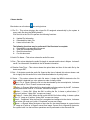
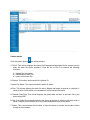
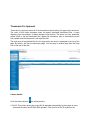
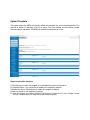
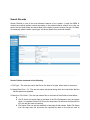
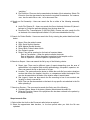
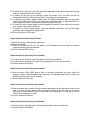
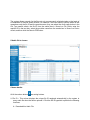
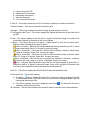
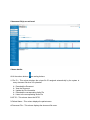
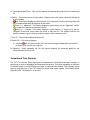
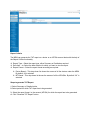
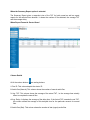
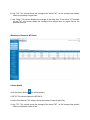
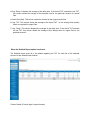
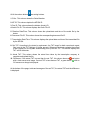
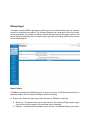
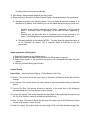
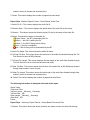
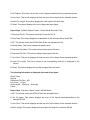
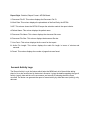
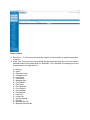
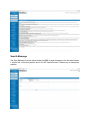
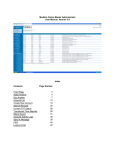
Column details: Blue buttons on all columns are sorting buttons. 1. File ID – This column displays the unique file ID assigned automatically by the system to every audio file when the MRM uploads it. Click the link to the File ID to perform the following functions: − Update File Information − Download this Audio File − Listen to this Audio File The following functions may be performed if the file status is complete: − Download the corresponding document − View the corresponding document − Email this document − Fax this document 2. Audio File Name – This column shows the audio file name. 3. Size - This column displays the audio file length in seconds and the size in Kbytes. It shows 0 sec/K if no information is available in the file header information. 4. Dictation Date/Time – This column shows the upload date and time of the audio file by the doctor as per EST. 5. Stat – If the doctor marks the audio file Urgent at the time of upload, this column shows a red tick to signify that this audio file is to be transcribed/edited on a priority basis. 6. Status – This column shows the audio file status. It helps the MRM to determine the file status which is depicted in a color schema to make it clearly visible. Red - File in Transit: When the file is to be downloaded by the transcriptionist, it shows a red button with a "File in Transit" mouse-over image. Yellow - In Process: When the file is downloaded and being worked by the MT, it shows a simple yellow button with an "In Process" mouse-over image. Yellow 1 – Under QA1: When the QA1 is editing the file, it shows a yellow button (“1” image on it) with an “Under QA1” mouse-over image. Yellow 2 – Under QA2: When the file is with the QA2 for further editing, it shows a yellow button (“2” image on it) with an “Under QA2” mouse-over image. Green – Completed: After the final file is completed and assigned to the doctor, it shows a green button (tick mark on it) with a "Completed" mouse-over image. Green – e Signed: When the doctor e-signs the file, the status changes to a green button (“e” image on it) with an “e Signed” mouse-over image. Once a file is e signed by the doctor, the system locks it so that no other operations can be performed on the document file.