1
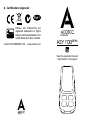
your Key Fob will send out a scene ID
telling the primary controller to activate
customized scenes that need to be
setup via your controller’s interface.
Please refer to your primary controller’s
user manual for instructions on how to
program individual scenes and how to
activate these with your Key Fob.
Using your Key Fob.
With your Key Fob now setup, it’s time
to use it. That’s as simple as pushing a
button to activate or deactivate scenes.
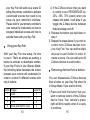
If your Key Fob is in Use (Scene) Model,
the following table illustrates the button
presses your remote will understand in
order to control 8 different scenes with
only 4 buttons.
Button
1
1
2
2
Trigger
Click
Press and hold for 2 sec.
Click
Press and hold for 2 sec.
10
Scene ID
1
2
3
4
c) If the Z-Wave device that you want
to control is at a PERCENTAGE (ie.
20%, 35%, 70% power) when you
release the button, it will allow it you
toggle the Z-Wave device between
that percentage and off.
4. Release the button you held down in
step 1.
5. Repeat the steps above if you wish to
control more Z-Wave devices from
your Key Fob. You can add multiple
devices to each button in order to
create a scene. You can add up to 40
Z-Wave devices to each button.
Removing devices from a button.
You can disassociate Z-Wave devices
from a button on your Key Fob when it’s
in Group Mode. If you wish to do this;
1.Press and hold the button that you
want to remove control of the Z-Wave
device from. Your remote’s green
light will blink rapidly when it’s ready
to continue.
15