1
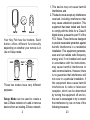
1. Press and hold your Key Fob button
that you wish to use to control a Z-Wave
device. Do not release the button until
step 4. Your Key Fob’s green light will
blink rapidly when it’s ready for the
following steps.
2. Press the Z-Wave button on the device
that you wish to control. If you’re unsure
of how to do this, refer to its user manual.
If your Key Fob is able to control the
Z-Wave device, its green light will stop
blinking and remain solid for 2 seconds.
If the Z-Wave device cannot be controlled,
its green light will still keep blinking or
its red light will blink only once when
you short press the Z-Wave button.
3. Before you release the button, you
must determine what you want it to do.
a) If the Z-Wave device that you want
to control is ON when you release
the button, it will toggle the Z-Wave
device on and off.
b) If the Z-Wave device that you want to
control is OFF when you release the
button, it will only allow you to turn
the Z-Wave device off.
14
3
3
4
4
Click
Press and hold for 2 sec.
Click
Press and hold for 2 sec.
5
6
7
8
Advanced functions.
Adding devices to your Z-Wave
network.
Your Key Fob has been designed with
the ability to add Z-Wave devices to its
network.
During the following set up process, you
need to ensure that your Key Fob is
in Setup Mode. Refer to ‘Change your
remote’s mode’ for instructions on how to
change modes.
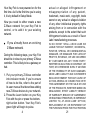
1. Press the include button, your Key
Fob’s green light will pulse slowly.
2. Press the Z-Wave button on the
device that you wish to add. If you’re
unsure of how to do this, refer to its
user manual.
11