1
Vitrea® 2 version 4.0 Installation & Setup Guide
c
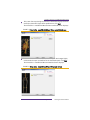
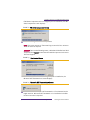
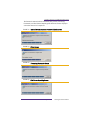
Click Create.
d
Repeat steps a through c for all new groups.
e
When you are finished adding new groups, click Close.
8
On each Vitrea workstation, import the global groups into the Local user
group Vitrea Users.
9
Create new users as usual and add users to their respective global
groups.
Associating User Accounts with Report Access
Once you have defined local and domain user accounts, you can grant users
access to reports, either by assigning users access to all reports or by defining report groups, then assigning users access to specific groups. All of this is
done within ECFAdmin.
To grant a user access to all web reports:
1
Log in as Administrator.
2
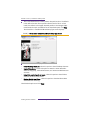
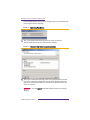
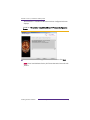
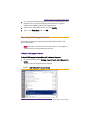
In the lower right corner of the screen, locate and double-click the blue V
icon
.
NOTE You may need to click the left arrow button on the Taskbar to
unhide all of the icons in the system tray.
The ECFAdmin window opens.
3
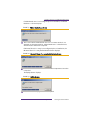
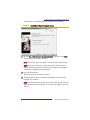
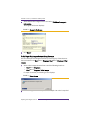
On the left side of the window, click Security.
The Web Reports User setup tab displays on the right side of the window.
4
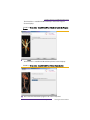
Click Add.
5
In the Username field, enter a user name.
6
In the Password field, enter a password for the user.
7
Make sure the Allow access to view all reports box is checked.
To define report groups:
1
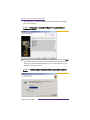
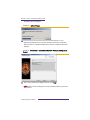
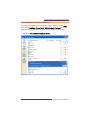
Click the Web Reports Group Setup tab.
2
Click Add.
3
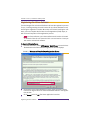
Enter the name of the report group.
4
Click OK.
Setting Up HIPAA Tools (Vitrea Only)
VPMC-8158B
29