1
Chapter 3 Using VMware Virtual Machine Importer
C HAPTER 3
Using VMware Virtual Machine Importer
This chapter describes how to import virtual machines and system images from a variety of sources into a variety of destinations.
The chapter includes the following sections:
!
“Selecting the Source for Your Virtual Machine” on page 7
!
“Importing a Standalone Virtual Machine or System Image” on page 7
!
“Importing an ESX Server Virtual Machine” on page 12
!
“Adapting an Existing Virtual Machine” on page 18
Selecting the Source for Your Virtual Machine
Virtual Machine Importer gives you three choices for importing a virtual machine. Which method you select depends on the source of the virtual machine you want to work with:
!
Import a standalone virtual machine or system image – If your source system is a virtual machine from VMware Workstation 4 or 5, VMware Player, VMware Server, VMware GSX Server, Microsoft Virtual PC, Microsoft Virtual Server, or a Symantec Backup Exec System Recovery or Norton Ghost 9 (or higher) image, proceed to the next section, “Importing a Standalone Virtual Machine or System Image” on page 7.
!
Import an ESX Server virtual machine – If your source system is a virtual machine from a VMware ESX Server or VirtualCenter system, proceed to “Importing an ESX Server Virtual Machine” on page 12.
!
Adapt an existing virtual machine – If you have used third‐party imaging software to restore a system image into a virtual machine and you want to prepare the image to run on VMware virtual hardware, proceed to “Adapting an Existing Virtual Machine” on page 18.
Importing a Standalone Virtual Machine or System Image
Follow these steps if your source system is a virtual machine from VMware Workstation 4 or 5, VMware Player, VMware Server, VMware GSX Server, Microsoft Virtual PC, Microsoft Virtual Server, or a Symantec Backup Exec System Recovery or Norton Ghost 9 (or higher) image.
The steps you follow in this section depend on whether you are importing a virtual machine or system image to work with Workstation and GSX Server, or with ESX Server and VirtualCenter. In the second case, you are directed to skip steps that apply only to virtual machines intended for migration to Workstation and GSX Server systems.
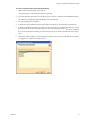
To convert a virtual machine or system image using the importer wizard
1
Make sure the virtual machine is powered off. You cannot import a virtual machine while it is operating.
2
From your Windows Start menu, choose All Programs > VMware > VMware Virtual Machine Importer. The VMware Virtual Machine Importer Wizard starts automatically. 3
From the opening panel, click Next.
4
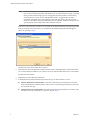
In the Source System Information panel, select Import a standalone virtual machine and click Next.
5
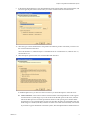
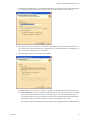
In the Specify the source for your virtual machine panel, browse or type the path to the source virtual machine (.vmc, .vmx) or Backup Exec System Recovery (formerly LiveState) image file (.sv2i). Click Next.
The Virtual Machine Importer inspects the file.
VMware, Inc.
7