1
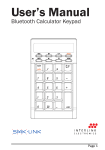
User’s Manual Bluetooth Calculator Keypad manual-calculatorkeypad-0208.ind1 1 Page 12/4/2008 2:40:20 PM Regulatory Compliance This device complies with Part 15 of the FCC Rules. Operation is subject to the following two conditions: (1) This device may not cause harmful interference, and (2) This device must accept any interference received, including interference that may cause undesired operation. FCC Certification This equipment has been tested and found to comply with the limits for a Class B digital device, pursuant to Part 15 of the FCC rules. These limits are designed to provide reasonable protection against harmful interference when the equipment is operated in a residential installation. This equipment generates, uses and can radiate radio frequency energy and, if not installed and used in accordance with the instructions, may cause harmful interference to radio communications. However, there is no guarantee that interference will not occur in a particular installation. If this equipment does cause harmful interference to radio or television reception, which can be determined by turning the equipment off and on, the user is encouraged to try to correct the interference by one or more of the following measures: • Reorient or relocate the receiving antenna. • Increase the separation between the equipment and receiver. • Con tech Notice: A approved void the Extensio must be limits. IC C The term number specifica Decla Hereby, that this requirem 1999/5/E © 2008 Page manual-calculatorkeypad-0208.ind2 2 12/4/2008 2:40:20 PM ules. ons: ce, and eived, mply ant igned s, adio e that tion. If o radio by ouraged of the ent and • Consult the dealer or an experienced radio/TV technician for help. Notice: Any changes or modifications not expressly approved by the party responsible for compliance could void the user’s authority to operate the equipment. Extension cables are not recommended, if used, they must be shielded in order to comply with the emission limits. IC Certification The term “IC” before the certification/registration number only signifies that the Industry Canada technical specifications were met. Declaration of conformity Hereby, SMK-Link Electronics Corporation declares that this product is in compliance with the essential requirements and other relevant provisions of Directive 1999/5/EC. © 2008 SMK-LINK Electronics, Inc. manual-calculatorkeypad-0208.ind3 3 Page 12/4/2008 2:40:20 PM System Requirements • • • Hardware: Bluetooth-enabled computer (with either built-in Bluetooth capability or external Bluetooth dongle) Operating System: US-version Windows 2000, XP or Vista, US-version Mac OS X or later Exception: Please note that this keypad supports US-version OS with QWERTY keyboard layout; it may not function properly under other international OS with AZERTY keyboard layout On/Off Package Contents • • • Bluetooth calculator keypad 2 x AAA batteries User’s manual Installing Batteries (Supplied) • • Remove the battery cover from the bottom of the keypad by releasing the latch and slide off the cover. To release the latch , push it toward the top of the keypad and gently lift the cover up and pull it away from the cover lock . Insert the two supplied AAA batteries (included in the package) to the battery slots. Make sure the positive (+) and negative (-) ends of the batteries match the polarity markings inside the battery compartment. • • Sna Bef com slid key Page manual-calculatorkeypad-0208.ind4 4 12/4/2008 2:40:20 PM th either etooth 00, XP On/Off ports yout; it national d) of the he d the top nd pull it Connect • • Snap the battery cover back into position. Before connecting the keypad with your Bluetooth computer you must turn the keypad power on by sliding the on/off switch located at the bottom of the keypad to the ON position. ded ure the eries ry manual-calculatorkeypad-0208.ind5 5 • Do not mix new and used batteries in the keypad. Always replace with 2 batteries of the same type from the same manufacturer. Page 12/4/2008 2:40:21 PM Connecting with Your Bluetooth Computer Before you can use Bluetooth devices for the first time you must connect your devices through a standard discovery and pairing process. The Interlink Bluetooth Calculator Keypad is designed to work with Bluetooth-enabled systems. Please review the documentations that come with your computer system for any specifics regarding your Bluetooth system and/or consult with your system vendor if you cannot find the Bluetooth connectivity in your system. 3. Rig Des Blu 4. At t disc turn bott butt The indi be c Important: During the process of connecting your Bluetooth keypad to your Bluetooth computer, you must set the keypad at Keypad Mode by tapping on the MODE key until the word Keypad appears on the LCD display. Note: The keypad is default to Keypad Mode when you turn the power on. If you have switched the mode to Calculator Mode you must perform the mode switch function to bring it back to Keypad Mode before connecting to your Bluetooth computer. Widcomm Bluetooth Software 1. 2. Make sure your computer’s Bluetooth radio is turned on. Make sure your keypad is on Keypad Mode. On/Off 5. Che and Page manual-calculatorkeypad-0208.ind6 6 12/4/2008 2:40:21 PM mputer t time d signed to view the ystem m and/or nd the 3. Right click the Bluetooth icon located on your Desktop or the System Tray, select Add a Bluetooth Device. 4. At this point, the keypad must be placed in discovery mode. First make sure the keypad is turned on (check the on/off switch located at the bottom of the keypad) then press the Connect button also located at the bottom of the keypad. The LED light on the top of the keypad will flash, indicating the keypad is in discovery mode ready to be connected to the computer. r ou on the he LCD en you de to itch LED Connect is e. On/Off 5. Check My device is set up and ready to be found and click Next. This must be performed within 20 manual-calculatorkeypad-0208.ind7 7 Page 12/4/2008 2:40:22 PM seconds to avoid expiration of the discovery signal. 8. 6. The Interlink Bluetooth Calculator Keypad will be discovered and listed on the screen. Highlight the name of the device and click Next. 7. The Bluetooth Wizard will ask you for a passkey. Select Choose a passkey for me and click Next. The Use disp “en use Wiz the con Page manual-calculatorkeypad-0208.ind8 8 12/4/2008 2:40:22 PM signal. ad will hlight 8. The Wizard will provide you with a passkey. Use your Bluetooth keypad to enter the numbers displayed on the screen, followed by pressing the “enter” key on your keypad. Note: please do not use your keyboard to enter the passkey although the Wizard calls the keypad a keyboard. You must type the numbers using the Bluetooth keypad you are connecting with. When this is done, click Next. sskey. Next. manual-calculatorkeypad-0208.ind9 9 Page 12/4/2008 2:40:23 PM Click Finish on the Wizard to complete the process. 4. Or, Pre 10. The Found New Hardware Wizard appears and the OS will install the driver automatically. No other steps are necessary. 5. Sele you 9. 11. The Bluetooth icon will turn to green. Your Bluetooth Calculator Keypad is ready to use. Macintosh Bluetooth Software 1. Make sure your computer’s Bluetooth radio is turned on. 2. Make sure your keypad is on Keypad Mode. 3. Click the Bluetooth icon located on your desktop or in the system bar. Page 10 manual-calculatorkeypad-0208.ind10 10 12/4/2008 2:40:23 PM process. s and the other Your o use. 4. Or, click the Apple icon and click System Preferences, then click on the Bluetooth icon. 5. Select Turn Bluetooth On to enable Bluetooth for your Macintosh computer if it’s not already on. re is e. sktop or manual-calculatorkeypad-0208.ind11 11 Page 11 12/4/2008 2:40:24 PM 6. Select Set Up New Device. Bluetooth Setup Assistant screen will show up. Click Continue. 7. At this point, the keypad must be placed in discovery mode. First make sure the keypad is turned on (check the on/off switch located on the bottom of the keypad) then press the Connect button also located on the bottom of the keypad. The LED light on the top of the keypad will flash, indicating the keypad is in discovery mode ready to be connected to the computer. 8. The Key Plea a ke duri 9. The the dev 10. Sele clic LED Connect On/Off Page 12 manual-calculatorkeypad-0208.ind12 12 12/4/2008 2:40:24 PM p nue. d is n the ct keypad. flash, ready to 8. The screen will ask you for the device type. Select Keyboard from the device list and click Continue. Please note that Bluetooth recognizes the keypad as a keyboard therefore it’s referred to as “keyboard” during the setup process. 9. The computer will search for Bluetooth devices in the range (within 33 feet or 10 meters) and list each device on the screen. 10. Select Interlink Bluetooth Calculator Keypad and click Continue. manual-calculatorkeypad-0208.ind13 13 Page 13 12/4/2008 2:40:24 PM 12. On t setup. Y successf 11. The Wizard will provide you with a passkey. Use your Bluetooth keypad to enter the numbers displayed on the screen, followed by pressing the enter key on your keypad. Note: please do not use your keyboard to enter the passkey. You must type the numbers using the Bluetooth keypad you are connecting with. When this is done click Continue. Page 14 manual-calculatorkeypad-0208.ind14 14 12/4/2008 2:40:25 PM 12. On the Conclusion screen, click Quit to exit setup. Your Bluetooth Calculator Keypad is successfully installed. y. mbers ng the not use ust type u are ontinue. manual-calculatorkeypad-0208.ind15 15 Page 15 12/4/2008 2:40:25 PM Using the Bluetooth Calculator Keypad Power-low indicator Wake-up feat the prev pow Mode Switch Between Keypad & Calculator Send Calculated Numbers to PC (Note: only numbers are sent; “enter” key doesn’t work on the PC under Calculator Mode) Press “enter” key to activate the Bluetooth connection every time the keypad is powered on. Wait 5 seconds before typing. Power On/Off Switch • To power on, or turn off, the keypad, use the on/off switch located at the bottom of the keypad. This Activate • Wh the Blu pres befo eve natu Power-S • The feat disp of i mod to r Blu key duri Power-l • The low con Page 16 manual-calculatorkeypad-0208.ind16 16 12/4/2008 2:40:25 PM or Mode Switch Between Keypad & Calculator end Calculated Numbers to C (Note: only umbers are ent; “enter” key oesn’t work n the PC under Calculator Mode) ress “enter” ey to activate he Bluetooth onnection every me the keypad s powered on. Wait 5 seconds efore typing. e on/off This feature is normally used when you need to transport the keypad. By turning off the keypad you can prevent power loss during travel. Remember to power on when you are ready to use the keypad. Activate Bluetooth Connection • When the keypad power is turned off, it sends the Bluetooth to inactive mode. To reactivate the Bluetooth connection after power on the keypad, press the enter key once, wait about 5 seconds, before typing on the keypad. This step is necessary every time you turn on the keypad. This is the nature of Bluetooth Power-Saving and Wake Feature • The keypad is designed with a power-saving feature which goes into sleep mode with the LCD display shutting off after approximately 4 minutes of inactivity. To wake up the keypad from sleep mode, press the wake key. Note: You don’t need to reactivate Bluetooth connection (see Activate Bluetooth Connection above) after waking up they keypad as Bluetooth connection remains activated during sleep mode. Power-low Indicator • The red LED light flashes when battery power is low. Please replace both batteries at your earliest convenience to prevent power interruption. manual-calculatorkeypad-0208.ind17 17 Page 17 12/4/2008 2:40:25 PM Mode Switch Between Calculator and Keypad • To switch between calculator and keypad modes, press the MODE key. The mode you are in is indicated on the LCD display. Sending Calculated Result to Your Computer • When the keypad is in calculator mode, you can send the calculated result to the cursor location on your computer’s active document by pressing the SEND key. Please note that only numbers will be sent to the computer, the SEND key does not transfer signal from the keypad’s enter key. In order to finish the number transfer you must use the Enter key on your keyboard to finish it. Or, you can switch your keypad to “Keypad” mode by pressing the MODE key once, then press the enter key to finish the number transfer. Remember to switch back to calculator mode by pressing the MODE key again if so desired. Functio MRC DECI +/- % MODE SEND Function Key Definitions Function Keys for Calculator Mode Only: Function Key Function Definition M+ Adds the displayed value to the number stored in the memory M- ce/ac Subtracts the displayed value from the number stored in the memory Page 18 manual-calculatorkeypad-0208.ind18 18 12/4/2008 2:40:26 PM odes, is can ion on ng the will s not In use Or, ode s the member ng the alue in the Function Key Function Definition MRC Pressing once transfers the number in the memory onto the LCD display. Pressing again clears the value stored in the memory. DECI Specifies the number of decimal places in rounding +/- Changes signs for the displayed value between positive (+) and (-) % Converts number into percentage when combined with arithmetic operator MODE Switches as a toggle key between calculator and keypad modes SEND Sends the calculated result as displayed on the LCD to where the cursor rests on your computer’s active page. Note that it does not activate ENTER key when using SEND to transfer numbers to your computer ce/ac To clear the numeric entry ed value ed in the manual-calculatorkeypad-0208.ind19 19 Page 19 12/4/2008 2:40:26 PM LCD Display Status Indicators: Display Definition - MINUS Negative value indicator MEM Memory calculator functions (M+, M-, MRC) are engaged ERR Error indicator ‘ (apostrophe) 3-digit separator CALC Calculator mode and calculator functions are engaged KEYPAD Keypad mode is engaged, values will be shown on your computer and will not be displayed on the LCD GT Grand total Rounding and Decimal Place Selectors: Display Definition F Floating decimal point system, displays the number as entered without rounding 0, 2, 4 Setting the position of decimal point and activates the 5/4 rounding mechanism Display A Opera • • • Mak on/o befo Rem seco turn Con swi key Page 20 manual-calculatorkeypad-0208.ind20 20 12/4/2008 2:40:26 PM ator Display Definition A Auto mode automatically adds a decimal point and 2 decimal places to all values entered. Examples: •Enter “1” resulting in “0.01” •Enter “10” resulting in “0.10” •Enter “100” resulting in “1.00” •Enter “1000” resulting in “10.00” •Enter “1.1” resulting in “1.10” •Enter “1.499” resulting in “1.50” The auto mode is most useful when entering a string of currencies that requires 2 decimal places. Note that the auto mode only works with addition and subtraction operators. Example: •Enter “1+2” resulting in “0.03” •Enter “60*20” resulting in “1,200.00”, not “0.12” unctions engaged re ged, on your t be D displays ounding ding Operating Tips & Trouble Shooting • • • Make sure the keypad is turned on by checking the on/off switch located at the bottom of the mouse before using it. Remember to press “enter” key once, wait about 5 seconds, to reactivate the Bluetooth connection after turning on the power switch Conserve the battery power by switching the on/off switch to OFF position when traveling or if the keypad will not be in use for awhile. If you will not manual-calculatorkeypad-0208.ind21 21 Page 21 12/4/2008 2:40:26 PM • • • • use the keypad for a long period of time remove the batteries from the battery compartment. During operation the keypad will go into sleep mode after 4 minutes of inactivity to save battery power. Click on wake key to wake it up. When the keypad behaves erratically check the power-low indicator LED for battery power status, i.e. red LED light flashing means power is low, and follow the instructions in Installing Batteries section to replace the batteries. The keypad stays connected to your Bluetoothenabled computer even when it’s turned off and out of range once it’s set up. If for any reason the connection to the system is lost it can be fixed by following the instructions in the Connecting with Your Bluetooth Computer section to reconnect the devices. If the connection is frequently lost under normal operation, contact your system vendor’s technical support or check for Bluetooth software update on your system vendor’s website. Warranty: SMK-LINK Electronics warrants to the original end-user purchaser of the Product (“you”) that the Product, excluding batteries, will be free from defects in materials or workmanship under normal use and service for one-year from date of purchase. Dated invoice or sales receipt is necessary to accompany the Product returned for warranty service consideration. Any Product repaired or replaced under the terms of the warranty is covered for the remainder of the original warranty period or ninety (90) days from the date of service or becomes d warranty either rep model if t warranty to misuse abnormal when prod rendered i items. In any indire based upo strict tort are not lim inability t capital, co claims by SMK-LIN cause rela the produ product ev such poss must first receive an on SMK-L support/co statutory r from state you and S be the com supersedi communi matter of Page 22 manual-calculatorkeypad-0208.ind22 22 12/4/2008 2:40:26 PM move the eep attery the status, ow, tteries othand on the ed by g with nnect the rmal hnical date on he the n e for receipt rranty d under of the ate of service or return shipping, whichever is longer. If the Product becomes defective in materials or workmanship during the warranty period, SMK-LINK Electronics will, at its option, either repair or replace it with a more current or upgraded model if the originally purchased model is not available. This warranty does not cover products which have been subjected to misuse, accident, physical damage, improper installation, abnormal operation or handling, neglect, inundation or fire, or when product regulatory label has been removed, altered or rendered illegible; nor does it cover accessory and consumable items. In no case shall SMK-LINK Electronics be liable for any indirect special, incidental, or consequential damages based upon breach of warranty, breach of contract, negligence, strict tort or any other legal theory. Such damages include, but are not limited to, loss of profits, loss of savings or revenues, inability to use the product or any associated equipment, cost of capital, cost of any substitute equipment, facilities or services, claims by third parties other than you, and injury to property. SMK-LINK Electronics’s total liability for damages for any cause related to, or arising out of, the use or inability to use the product, shall not exceed the original price paid for the product even if SMK-LINK Electronics has been informed of such possibility. If your Product requires warranty service, you must first contact SMK-LINK Electronics Product Support to receive an RMA Number. The contact information can be found on SMK-LINK Electronics website: http://www.smklink.com/ support/contactsupport.html. This warranty does not affect your statutory right and you may also have other rights which vary from state to state. Unless modified in writing, signed by both you and SMK-LINK Electronics, this warranty is understood to be the complete and exclusive agreement between the parties, superseding all prior agreements, oral or written, and all other communications between the parties relating to the subject matter of this warranty. manual-calculatorkeypad-0208.ind23 23 Page 23 12/4/2008 2:40:26 PM Product Support For technical support please contact SMK-LINK Electronics at http://www.smklink.com/support All trademarks and registered trademarks mentioned in this document are the property of their respective owners. Features and specifications are subject to change without notice. Thank You Thank you for purchasing the Bluetooth Calculator Keypad. We know you had other choices and we appreciate that you chose Interlink Electronics Bluetooth Calculator Keypad by SMK-LINK for your product needs. So that we may better serve you in the future, please register online at www.smklink.com/register. © 2008 SMK-LINK Electronics Page 24 manual-calculatorkeypad-0208.ind24 24 12/4/2008 2:40:27 PM