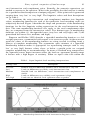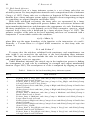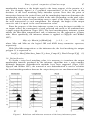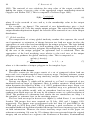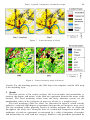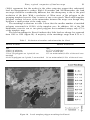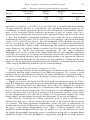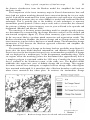
1
MAP COMPARISON KIT User manual 1 2 MAP COMPARISON KIT User manual Research Institute for Knowledge Systems BV (RIKS) P.O. Box 463 6200 AL Maastricht The Netherlands Tel. +31-43-3883322 Fax +31-43-3253155 http://www.riks.nl/ [email protected] Submitted to: National Institute for Public Health and the Environment/ RIVM Bilthoven, The Netherlands July 2003 3 TABLE OF CONTENTS Introduction ____________________________________________________________________ 6 1 Getting started _____________________________________________________________ 8 1.1 1.2 1.2.1 1.2.2 1.3 2 8 The Menu bar The Toolbar 9 10 Create your own LOG file Perform a comparison 2.3 The Map Comparison Methods 11 12 Exporting results 12 13 Per category Cell by Cell Fuzzy Inference System Fuzzy Set Numerical comparison Other operations 14 14 15 16 18 18 Customizing the views _____________________________________________________19 3.1 3.2 The Legend editor 19 The palette editor 20 The Menu System __________________________________________________________22 4.1 File menu 4.3 View menu 4.2 4.4 4.5 4.6 5 The Analyse application window 2.1 2.3.1 2.3.2 2.3.3 2.3.4 2.3.5 2.3.6 4 8 Compare Maps ____________________________________________________________12 2.2 3 Open a log file 22 Edit Menu 24 Options menu 26 25 Window menu 27 Help menu 28 Files in the Map Comparison Kit ____________________________________________29 5.1 The log file 29 5.3 Palette files 31 5.2 5.4 5.4.1 5.4.2 5.4.3 5.4.4 Legend files 30 Map files 31 ArcASCII format LLO format Idrisi file formats The region map 31 32 33 33 Appendix I: Kappa variations Appendix II: Fuzzy Inference System Appendix III: Fuzzy Set map comparison 4 5 INTRODUCTION This manual explains how you can analyse and compare maps with the use of the MAP COMPARISON KIT (MCK). Besides a number of comparison algorithms, the MCK also offers advanced options for visualizing, organizing and exporting raster maps. The first version of the MAP COMPARISON KIT dates back to 1992, when it was still called the ANALYSE TOOL. The software was initially intended for the analysis of series of maps that are generated as output by simulation software of the Research Institute for Knowledge Systems (RIKS). From 1992 onwards, the tool has steadily been further developed as part of RIKS projects for RIVM, RIKZ, RWS, EC-JRC and others. The most current extension is developed by order and for the account of RIVM, within the framework of project S/50002/01/TO, Measuring and Modelling. New additions are the extended Kappa analysis, the Fuzzy Inference System map comparison and Fuzzy Set map comparison. All these map comparison methods are the result of research performed by RIKS. Another novelty is that the software is not only suited to work in conjunction with other RIKS products, but may be used to compare any raster maps in some of the most popular file formats. In particular these are ArcASCII, Idrisi Raster and the LLO format, which is used at the Netherlands Institute for Public Health and the Environment/ RIVM. This stretches the use of the tool beyond the analysis of RIKS simulation results and inspired the name change from ANALYSE TOOL to MAP COMPARISON KIT. Chapter 1 of this manual gives the basic information required for a quick start with the MAP COMPARISON KIT. It describes the layout of the program and tells you what buttons to click in order to start comparing your maps, or the example maps given with the MCK. Chapter 2 gives a brief introduction to all the map comparison methods that are supported in the MCK. In short the main principle of the methods is described as well as the parameters that the user can set and the comparison. For in depth information about the comparison methods the user is referred to the appendices. Chapter 3 explains how the user can fully define the legends to his or her liking. Chapter 4 is meant as a reference chapter. It gives a short explanation for all commands found in the menu structure of the MCK. Chapter 5 explains about all the different files the MCK use: log files, map files, legend files and palette files. Both their structure and function are discussed. 6 7 1 GETTING STARTED After installation, the MAP COMPARISON KIT will be present in the Windows Start menu. Press the Start button in the Task bar of Windows 98/NT/2000/XP and place the (mouse) pointer on the Programs group. Walk through the menu until you find the group containing the MCK and open it by clicking the Map Comparison Kit icon. If the software was installed correctly, the Map Comparison Kit application window will open. The Open dialogue will appear asking the user to open an existing log file. A log file is a small file that points the MCK to those maps that may be used in the comparisons. Log files can be opened, edited and saved. It is also possible to build a new log file from scratch. 1.1 Open a log file Find the correct file with .log extension in the Open dialogue. The MAP COMPARISON KIT is build according to the Windows standards. Hence, it is possible to find the file by browsing thought your own computer or another computer in your network. If you have found the correct file select it and click the Open button or double click on the icon of the file. During the installation of the MCK the option is given to include a number of example log files. These are placed in the same directory as your MCK application. 1.2 The Analyse application window The Map Comparison Kit application window consists of the Caption bar, the Menu bar, the Work pane and the Toolbar. You can simultaneously open four windows maximum: three map windows and one statistics window. Furthermore, it is possible to keep the Comparison Settings dialogue open. 8 Menu bar Tool bar 1st Map 2nd Map Result map Comparison settings Result statistics • • • • • The 1st Map window contains the first map to compare/analyse. To change the contents of 1st Map window, choose another map from the combo box next to the 1-button on the Toolbar. If the 1st Map window is not open yet, then you can do so by clicking the 1-button. The 2nd Map window contains the second map to compare/analyse. To change the contents of the 2nd Map window, choose another map from the combo box next to the 2-button on the Toolbar. If the 2nd Map window is not yet open, then you can do so by clicking the 2-button. The Result map window contains the result map. This map shows spatial result of the last performed map comparison. Depending on the selected method the results are presented in a continuous scale or a nominal scale The Result statistics window contains the statistical results of the last performed map comparison. The Comparison settings dialogue allows setting and viewing the settings belonging to the active comparison method. 1.2.1 The Menu bar The menu of the MAP COMPARISON KIT is situated on the menu bar of the Map Comparison Kit application window. The commands are ordered in accordance with the Windows conventions thus ensuring quick familiarization with the software. The following overview gives a short description of each menu. The menus are described in Chapter 4. 9 Use this menu To… File manage your files. The printing facilities are also located in this menu. If you want to exit the program, you can do it from here. access the log, legend or palette editor change the presentation of a map in the active window perform all the steps necessary for a map comparison manage the windows inside the application window. access the help function. Edit View Options Window Help 1.2.2 The Toolbar Just underneath the Menu bar there is a Toolbar. The Toolbar, also known as Speed bar, gives a fast access to the principal functions of the MAP COMPARISON KIT that are also found in the main menu. Opening the map and table windows, as well as selecting the maps for the comparison can be done from the Toolbar. Use this button To… open a log file from the disk edit the log file start the Legend editor zoom in. The size of the map increases 2x with each click. zoom out. The size of the map decreases 2x with each click. select the theme to compare open the 1st Map window select the map to be shown in the 1st Map window open the 2nd Map window select the map to be shown in the 2nd Map window select a comparison method open the Comparison settings dialogue perform comparison and open the Result map window perform comparison and open the Result statistics window 10 1.3 Create your own LOG file The MAP COMPARISON KIT always works with log files. This means that if you have a number of maps on which you want to perform comparisons, you will need to make a new log file. To start a new log file click select New from the File menu in the Menu bar. A dialogue will appear allowing the user to specify the contents of the log file using by using an intuitive point & click system. Log files are discussed in more detail in section 5.1. In a log file, maps are grouped according to Themes. Maps within a Theme are displayed using the same legend and can be compared against one another. Add a theme Landscape, Coastline and Boundary are some of the themes in this example Add a map to a theme or import a complete LOG file The Elevation theme contains 12 elevation maps Remove the highlighted map or theme from the LOG file Rename the highlighted theme Change the order of appearance by moving themes or maps up and down Set the legend and palette directories Accept or reject recent changes The region map defines the active area of the maps 11 2 2.1 COMPARE MAPS Perform a comparison Comparing maps with the MAP COMPARISON KIT is a four-step process: 1. Select the maps to be compared 2. Select the desired comparison method 3. Set the parameters for this method (if applicable) 4. View the result map and/or result statistics The MCK remembers the last used maps, comparison method and parameter settings. It is therefore often possible to skip step 1, 2, or 3. The four steps can be taken by using commands from the Options menu of the Menu bar. Step 1. Alternatively, all these commands are also represented in the Toolbar. See also Section 1.2.2. Step 2. Step 3. Step 4. If the selected comparison method does not require any parameters to be set, then the Parameter… command is unavailable. If the Result map and Statistics command are also unavailable, this means that the two selected maps are unequal in size and can therefore not be compared against each other. The actual comparison calculation is performed when one of the result windows needs to be updated. This means that the calculation is only performed after a change in the 1st Map, 2nd Map, Comparison method or its Parameters AND a result window is (being) opened. This means that it is possible to select and view maps in the 1st Map and 2nd Map window without immediately performing the comparison. You can then choose to perform the comparison once both intended maps have been selected. This is especially important to realize when a calculation intensive comparison method has been selected. 2.2 Exporting results The MAP COMPARISON KIT features Clipboard support for easy report writing. This functionality is commonly known as Copy & Paste and allows the user to copy information directly from the MCK, and paste it into another 12 Windows program. Maps and legends are copied to the Windows Clipboard as bitmaps (i.e. images), whereas the result statistics are copied as tab-delimited ASCII tables (i.e. plain text). If you right-click on a legend in a map window, a Copy menu item will appear, clicking this item will send an image of the legend to the Windows Clipboard. Likewise, you can copy the map that is displayed in a map window, or the statistics from a Result Statistics window. Instead of right-clicking you can also type <Ctrl-C> to copy the contents from the active window. In most Windows programs, clicking Paste or typing <Ctrl-V> will paste the contents of the Clipboard into the document that you are working on. A special tip for Microsoft Office users: The tab-delimited table can be directly pasted into MS Word or MS Excel. In MS Word the tab-delimited table can be converted to a regular table by applying the Convert Text to Table command from the Table menu in the Menu bar. Maps can also be saved in some often-used GIS formats; you can save the map of the active map window as an Idrisi Raster Map (with .RST or .IMG suffix) or an ArcASCII Raster file (with .ASC suffix). Use the Export… command from the File menu in the Menu bar, to open a Save as dialogue for the map in the active window. 2.3 The Map Comparison Methods The Comparison Method dialogue offers three types of operations: Compare categories, Compare numerical values and Other operations. In principle, categorical maps should be compared with categorical map comparison methods and numerical maps with numerical map comparison method. The MAP COMPARISON KIT is not dogmatic and allows you to ignore these principles. If you wish to compare a numerical map using a categorical map comparison method, then the definition of categories of the legend is used. If categorical maps are compared using a numerical algorithm, the numerical value of a category is its rank number in the legend, starting at number 0. The two Other operations are numerical operations as well. In the following sections, the comparisons and other operations are discussed in the order of appearance in the dialogue. 13 2.3.1 Per category This comparison method performs a cell-by-cell comparison with respect to one (user selected) category. It simultaneously gives the user information about the occurrence of the selected category in both maps. The category to consider in the comparison is selected in the Parameters dialogue of the Per category comparison. The maps in the example below are compared with respect to the category “City”. The legend belonging to the Result map of this cell-bycell categorical comparison is self-explanatory and details to what extent the category is present in one or the other map. The Result statistics window offers aggregate results in the form of total number of cells of each type of comparison result. The cell-by-cell comparison, which is discussed in the following section, generates additional statistics for each category. 2.3.2 Cell by Cell The Cell-by-Cell comparison method is the most straightforward method for comparing raster maps. The method simply considers for each pair of cells on the two maps whether they are equal or not. This results in a comparison map displaying the spatial distribution of agreement. This comparison method does not take any parameters. As straightforward as the Cell-by-Cell comparison is its derived statistic: the Fraction Correct. This statistic is calculated as the number of equal cells divided by the total number of cells. The fraction correct is considered flawed as an overall measure for similarity. The reason is that when the fraction correct is used as a similarity index the agreement of the more common categories is weighted too heavily. For a better-balanced measure of similarity the Kappa statistic is often used. It is the fraction correct that has been rescaled to adjust for the fraction correct that would be expected if the given total numbers of categories were distributed randomly over the maps. The following (extreme) case illustrates the difference between Kappa and fraction correct: We have a model to predict the nesting locations of ducks in a park. There are two categories for the maps: nest and non-nest. In reality, a 14 nest will be found in only one out of a hundred cells. This means that a model that ignores the occurrence of nests and therefore assumes all cells to be nonnest obtains an impressive fraction correct of 0.99, regardless the fact that it represents all nest cells incorrectly. On the other hand, a model that assumes all cells to be nests obtains a meagre fraction correct of 0.01, regardless the fact that this model represents all nests correctly. Both models have the same distinguishing quality (none at all), however one scores better than the other. The reason is that the fraction correct "rewards" models that overestimate prevalent categories. The Kappa statistic removes this bias and returns the same similarity for both models (the value 0). The Kappa statistic results from two types of similarity: similarity of quantity and similarity of location. Here quantity refers tot the total number of cells taken in by each category found in the legend (in other words: the histogram) and location refers to the spatial distribution of the different categories over the map. In order to recognise to which extent similarity of location and quantity are represented in the Kappa statistic it is split up into two statistics: Kappa Histo (or KHisto) and Kappa Location (or KLoc). Where Kappa = KHisto * KLoc. KHisto only depends on the total number of cells taken in by each category and KLoc strictly depends on the spatial distribution of the categories over the map. Kappa, as well as KLoc and KHisto are calculated on the basis of the contingency table, which details the cross-distribution of categories over the two maps. The table is expressed in number of cells. The Kappa and related statistics are calculated both for the whole map and for the individual categories found in the legend. Appendix I offers detailed information on these statistics. 2.3.3 Fuzzy Inference System The evaluation of the spatial similarities between two raster maps is traditionally based on cell-by-cell comparison techniques. However, a cellby-cell comparison can register a small displacement in cells as land use disagreement even though the land use patterns may be essentially the same. The Fuzzy Inference System comparison method offers an alternative approach. Rather than cells, polygons that are found in both maps are compared on their characteristics. The calculation of the similarity is based upon a Fuzzy Inference System evaluation of these characteristics. The characteristics that are taken into account in this evaluation are area of intersection, area of disagreement and size of the polygon. The Fuzzy Inference System approach is in essence a-symmetrical, which means that the comparison of two maps is different depending on which map is considered to be the reference (or real) map and which is the comparison (or model) map. In many cases it is not possible or preferred to make this 15 distinction. For these cases it is made possible to combine the two possible a-symmetrical comparison results into one symmetrical result. The options are to calculate a cell-by-cell average, product, minimum or maximum of the two comparison results. This option can be set in the Parameters dialogue of the Fuzzy Inference System comparison method. Appendix II offers detailed information on the Fuzzy Inference System comparison method. 2.3.4 Fuzzy Set The main purpose of the Fuzzy Set map comparison is to take into account that there are grades of similarity between pairs of cell in two maps. The Fuzzy Set approach therefore is fundamentally different from its crisp counterpart, the Cell-by-Cell map comparison, which considers pairs of cells either to be either equal or unequal. The Fuzzy Set approach expresses similarity of each cell in a value between 0 (distinct) and 1 (identical), as the following figure illustrates. In order to distinguish minor differences from major differences, the Fuzzy Set approach takes two types of fuzziness into account; fuzziness of categories and fuzziness of location. Besides the result map, also two global similarity indices are calculated. The Average Similarity calculates the average similarity of all cells in the map. This similarity index is flawed in the same way as the Fraction Correct. A better similarity index is the Fuzzy Kappa, which is the fuzzy equivalent of the Kappa statistic (See section 2.3.2, for a discussion of Fraction Correct and Kappa) The following two sections give information about the parameter settings for the Fuzzy Set map comparison. More detailed information about the method can be found in Appendix III. • Fuzziness of Location In a categorical map (most commonly a land use map) each cell is taken in by a certain category. In reality this does seldom mean that the area of the cell is solely taken in by that particular category. In many cases it means that this 16 category is known or expected to be present in that neighbourhood and that the cell is mostly in accordance with that category. This fuzziness of location is taken into account, by letting the fuzzy representation of a cell be partly defined by the cells found in its proximity. The level to which neighbouring cells influence a cell is set with a function. Three types of functions are supported in the Parameters dialogue: Exponential decay, Linear decay and Constant value. Each of these functions takes a parameter, respectively: Set neighbourhood radius in cell units Accept or reject latest changes in settings. Apply settings without closing the dialogue. Expand window with advanced settings Select distance decay function Set parameter for distance decay function Halving distance, Slope and (constant) Value. In the Advanced part of the Parameters dialogue it is possible to apply two different functions for the two maps. Using this option requires a thorough understanding of the Fuzzy set map comparison algorithm. • Fuzziness of categories The definition of categories in maps is often imprecise. This is especially true if some or all categories on the map have in fact an ordinal definition, such as for instance the categories ‘high-‘, ‘medium-‘and ‘low-density residential area’ on a land use map. The boundaries between such categories are less clear-cut than what seems to be the case from the legend. This is called fuzziness of categories. In order to take fuzziness of categories into account when comparing maps it is necessary to fill out the Category Similarity Matrix. This matrix is found in the Advanced part of the Parameters dialogue. In the matrix the similarity between each pair of categories from the legend can be specified with a number between 0 (crisply distinct) and 1 (completely identical). By default the categories are set to be crisply defined, which means that the category matrix is set to unity. Clicking the Unity button will restore this setting. A Category Similarity matrix can be saved to disk by clicking the Save button. A previously saved matrix can be opened via the Load button. 17 2.3.5 Numerical comparison Six different numerical cell-by-cell comparisons are supported. They are listed in the following table: Operation Comparative measure second – first abs (second – first) (second - first) / max (abs (second - first)) abs (second – first) /max (abs (second - first)) second / first abs (second / first) difference absolute difference scaled difference scaled absolute difference relative difference absolute relative difference The box NODATA allows the user to specify, how to perceive a cell containing the no-data value when it is compared to a cell that does contain a normal value. The choice is either to give a no-data value as the result or to treat the no-data cell as if it has the value 0. 2.3.6 Other operations The other operations are not map comparison methods. They offer some often used GIS functionality and thus help to avoid some tiresome switching from one program to the other. The options are to perform a cell-by-cell addition of the 1st Map and the 2nd Map, to add a constant value to all cells in the 1st Map, or to multiply all cells in the 1st Map with a constant value. The result of the operation can be found in the Result map. 18 3 CUSTOMIZING THE VIEWS All maps of one theme are displayed according to the same legend. Likewise all discrepancy maps resulting from the same comparison method are displayed according to the same legend. These legends are completely customisable. The legends may contain the colour information for the different legend items or they may apply colours from a palette file. Therefore, this chapter contains a section about the legend editor and a section about the palette editor. For most users it suffices to only use the legend editor. Chapter 5 of this manual discusses the palette and legend files and their relation with other files in the MAP COMPARISON KIT. 3.1 The Legend editor To customize the legend of a theme or a discrepancy map select a window displaying a map of the desired theme or comparison method. Use the Legend… command from the Edit menu in the menu bar to open the Legend editor dialogue. In the figure below, the dialogue is shown and the different options are explained. Click box to start legend item editor Select palette and number of classes Choose the order of legend colours Accept or decline new settings Select type to fit data in map Shortcut to palette editor Choose lowest and highest value of legend range Obtain suggestion for legend range Select linear scale for equal intervals, custom for user defined intervals Choose the order of numeric legend entries Choose accuracy of display Choose the appearance of legend intervals 19 Apply latest settings It is possible to apply the colours from a ready-made palette from the palette directory. In the illustration above the “babylov.smp” palette is used. If you wish to customize the colours used there are two options (besides selecting an alternative palette): i. Define the colour of legend items with the Legend item editor ii. Modify the palette using the Palette editor, see Section 3.2 Important ! Modifying the palette will affect all legends that use this palette. Modifying the colours in the legend will only affect the legend belonging to the particular theme or comparison method. If in doubt do not use the Palette editor, but use the Legend item editor instead. When you click in a colour box of a legend, a Legend item dialogue opens. In this dialogue you can define the names of the labels of the legend classes and set the lower (lo) and upper (hi) limits of the class range. Also you can select a new colour to represent the cells belonging to the class. If you have configured the legend editor to create a linear scale, then you can only set a new colour with the legend editor itself. Your configurations are saved as part of a legend file associated with the theme that you are defining the new legend for. This file is saved as soon as you press the OK button in the Legend editor dialogue. 3.2 The palette editor In the Palette editor dialogue you can edit the colour palettes that the legends of the MAP COMPARISON KIT use. It is also possible to create new colour palette files (.SMP extension). When the Palette... command is selected from the View menu, the Palette editor dialogue window opens. In the figure below, the window is shown and the relevant settings are explained. The changes that you make to a palette can be saved by clicking the Save or Save as button. The changes are then saved in a palette file (.SMP). 20 The Palette editor is closely associated with the Legend editor. The latter enables to define the way in which data are presented on a map. Accept or decline the last changes 4 buttons for palette file handling (.SMP files) Set the number of colours in the palette. The maximum is 256. Default colour is black Click in a colour box, to access the colour editor for that box. Blend colours that smoothly evolve from the one indicated with the lower index, till the one, indicated with the upper index. Apply current settings Reverse the order of the colours in the palette 21 4 THE MENU SYSTEM This paragraph explains the different functions that are available from the menus of the MAP COMPARISON KIT. The menus are treated as they appear in the Menu bar from left to right and per menu from the top to the bottom. 4.1 File menu Use the File menu to open, import, or export a file, to print maps, and close the MAP COMPARISON KIT. • New Command Use the New command to create a new log file. This implies that the log file that you are currently working on is closed. If that file has not been saved to disk yet, you will be asked to do so. When you create a new log file, you can specify the contents using the log file editor as explained in Section 0 • Open… Command Use the Open… command to open a log file stored on disk. You cannot open more than one log file at the time. However, you can combine log files by using the Import function in the log editor (see Section 0). When you select the Open… command, the Open dialogue appears. If the name of the file of your choice is not visible in the list box, use the scroll bars to move through the list of filenames in the directory or disk you are working in. If the file you want to open is not in the current directory or on the current disk, use the scroll list or browse symbols in the section named Look in to change directories, disks or network sites. Double-click the name of the file you want to open. You can also type the name and path of the file in the Filename box. Press the Open button after you have typed the name of the file. 22 This command is identical to pressing the Open button from the Toolbar. • Close Command Use the Close command to close the log file you are currently working on. If the log file is new or has been changed, then you will be asked to save it. • Save as… Command Use the Save as... command to save the log file that you are currently working on. • Export… Command Use the Export… command to save the map in the active map window on the disk. Maps from all the map windows can be saved in this manner. When you select the Export… command, the Save As dialogue window appears. It contains all the files in your work directory with the right extensions. If you select in the Save as type box the type that you want to save the map, you can save maps in Idrisi format (.IMG extension) or Arc Info ASCII grid format (.ASC extension). • Page Setup… Command Use the Page Setup… command to decide on the size and scale at which you want the MAP COMPARISON KIT to print the active map. As soon as this command is active the Page Setup dialogue window appears enabling you to specify how many cells you want to print per measurement unit (cm or inch). Furthermore it is also possible to indicate if you want to print the grid on your map and you can also set the margins of the pages to be printed. • Print…Command Use the Print... command to print the map displayed in the active map window. • Print Preview Command Use the Print Preview command to get a preview of the printed document on the screen. • Print setup…Command Use the Print setup... command to change the settings on the printer enabling correct printing. 23 List of Recent Files (1,2,3,4) • The MAP COMPARISON KIT keeps track of the four most recently opened log files. It will display those in the File menu. If you select one of the four files, it will be opened. The Exit Command • Use the Exit command to quit the MAP COMPARISON KIT, if you are working with a new or modified log file, you will be asked to save your changes. 4.2 Edit Menu The edit menu offers access to the editors for log files, legend files and palette files. • Log… Command Use the Log... command to open the LOG FILE-EDITOR. • Legend… Command Use the Legend... command to open the LEGEND-EDITOR. The LEGEND-EDITOR enables you to adjust the legends of all the maps in the MAP COMPARISON KIT and to create new legends. See also Section 3.1 of this manual. • Palette… Command Use the Palette... command to open the PALETTE-EDITOR. See also Section 3.2 of this manual. Important ! Modifying a palette will affect all legends that use this palette. Modifying the colours in the legend will only affect the legend belonging to the particular theme or comparison method. If in doubt do not use the Palette editor, but use the Legend item editor instead. 24 4.3 View menu Use the View menu to change the manner in which the maps are presented in the active map window. • Go to… Command Use the Go to... command to move the cursor to a specific cell on the map. Selecting this command from the View menu opens the Go to... dialogue requesting to enter the co-ordinates of the desired cell. When you have entered the co-ordinates and clicked OK the pointer will move to the desired cell in the active map. • Zoom in Command Use the Zoom in command to increase the size of the map in the active map window by a factor 2. This command is identical to pressing the Zoom in button from the Toolbar. • Zoom out Command Use the Zoom out command to increase the size of the map in the active map window by a factor 2. This command is identical to pressing the Zoom out button from the Toolbar.. • Show Regions Command Use the Show regions command to draw (or remove) the boundaries of the regions on top of the map in the active window. The boundaries drawn are those defined in the Region map. See also section 5.4.4 While the function is selected, the menu option is preceded with a tick mark. 25 • Grid... Command Use the Grid... command to draw a (major) grid on top of the maps. When Grid… is selected, the Grid options dialogue will open and you are requested to switch on or off the Show grid lines check box. Next you have to enter the size of the grid expressed in number of cells. Finally you can offset the origin of the grid by a certain amount of cells (in order to coincide with another reference system). This grid is also called the major grid, to distinguish it from the minor grid, which is the set by the resolution of the map. • Font... Command Use the Font... command to change the font, font style and size of the character set used to print the legends of maps. • The Toolbar Command Use the Toolbar command to view or hide the Toolbar in the application window. While the function is selected, the menu option is preceded with a mark. • The Statusbar Command Use the Statusbar command to view or hide the Status bar in the application window. While the function is selected, the menu option is preceded with a tick mark. 4.4 Options menu Use the Options menu to operate the map comparison algorithms. • Theme Sub menu Use the Theme Sub menu to select the theme from the numbered items in the Sub menu. These are all themes present in the log file you are working on/ • Map1/Map 2 Sub menu Use the Map 1 sub menu to select the 1st Map from the numbered elements. Or use the Show command to open the 1st Map window. 26 Likewise, use the Map 2 sub menu to select the 2nd Map from the numbered elements. Or use the Show command to open the 2nd Map window. The submenus list all maps of the selected theme in the log file that you are working on. • Comparison method… Command Use the Comparison method… command to select which comparison algorithm to use. In this dialogue window you can select the method of your choice. See Chapter 2 of this manual for the individual comparison methods. • Parameters Use the Parameters command to open the parameter dialogue belonging to the selected comparison method. This dialogue is only available if the selected comparison makes use of parameters. • Result Map Use the Result Map command to perform the comparison and open the Result Map window • Statistics Use the Statistics command to perform the comparison and open the Result Statistics window. 4.5 Window menu Use the Window menu to arrange the contents of the screen and to activate one of the opened windows. • Cascade Command Use the Cascade command to arrange multiple opened windows in an overlapped fashion so that the Caption bar of each window is visible. • Tile Horizontally Command Use the Tile Horizontally command to arrange multiple opened windows one above another in a non-overlapped fashion so that all windows are visible. 27 Tile vertically Command • Use the Tile Vertically command to arrange multiple opened windows side by side in a non-overlapped fashion so that all windows are visible. Arrange Icons Command • Use the Arrange Icons command to arrange the icons of minimized windows at the bottom of the application window. Important ! If the map windows are arranged at the bottom of the application window, they may hide some or all of the icons. List of Windows (1,2,3,4…) • At the bottom of the Window menu a list of open windows is presented. A check mark marks the name of the active window. Choose a window from this list to make it active. 4.6 Help menu Use the Help menu to select the type of help that you want the MAP COMPARISON KIT to display on the screen. The different commands in this menu will permit to look up information about the MCK, its commands, options, and tools. • The Index Command Use the Index command to get the opening screen of the Help file of the MCK. From the opening screen, you can jump to step-by-step instructions for using the MCK. Double click the topic that you want help on. A help screen will appear. Once you open help, you can click the Contents button whenever you want to return to the opening screen. Important ! In this version of the MCK the on-line help is not operational. • About… Command Use the About... command to get the copyright notice and version number of the MAP COMPARISON KIT that you are using. The latter is important if you need assistance with the software from the developers or when you request an update of the software. 28 5 FILES IN THE MAP COMPARISON KIT The MAP COMPARISON KIT makes use of different types of files. To work with the MCK it is not necessary to know about these files, however a basic understanding will be most beneficial for the regular user. Four types of files are important in the MCK: Log files, Map files, Legend files and Palette files. A special Map file is the Region file, which designates the area of the map that is being compared. These file types are discussed in the following sections. 5.1 The log file The log file is the MCK’s gateway to the maps to compare. The log file itself does not contain any spatial data; instead it points the MCK to the maps. It also contains references to the legends directory and the palette directory. Those are the directories where the MCK will look for legend files and palette files and will place them when they are generated. A log file organises maps according to themes. Maps within a theme are displayed according to the same legend and may be compared with each other. Besides the maps belonging to the different themes there is one map with a special task this is the region map. This map is used to designate which cells inside the maps lie inside comparison area. If no region map is referred to in he log file then all cells in the maps are inside the comparison area. All maps in a log file, including those belonging to different themes, must be of the same size (contain the same number of rows and columns). The MAP COMPARISON KIT will display maps of different sizes, and allow you to adjust the legends and palettes, but no comparisons will run when the sizes of the 1st Map , the 2nd Map and the region map do not coincide. The log file contains the following information: • The legend directory • The palette directory • The region map • The name of each theme • The maps contained in each theme. 29 You can still manually edit a log file using an ASCII editor such as Windows Notepad, but will need to use the exact structure of a log file as depicted below. In general it is more convenient to use the log file editor as presented in section 0. The legend directory is called ‘Legends’ The palette directory is ‘Palettes’ The regions map is called ‘Regions.img’ There are three themes in this LOG file: ‘Landuse’, ‘Ecosystem’ and ‘Population’ There are four maps of each theme. The ‘Landuse’ maps are: ‘lu_89’, ‘lu_93’, ‘lu 96’ and ‘lu 1970’ The log file consists of lines containing a keyword and a file or directory name. The keywords LegendsDir, PalettesDir and RegionsMap are recognized and are used to point the MCK to the respective directories or map. These lines are optional. All other keywords are taken to be names of themes, and should be followed by the filename of a map. 5.2 Legend files Maps of one theme in the log file are displayed according to the same legend. This legend is found in the legend directory and has the name of the theme followed by the .txt suffix. It is not necessary to place legend files in the legend directory for all themes. If the MCK displays a theme for which there is no legend file present, then it will generate a legend with default settings. Legends contain information about the categorical definition of maps. They decide whether the values found in the map are categorical or numerical. For categorical maps the names associated with the rank numbers found in the map are given. For numerical maps the display intervals are given as well as the formatting on the display names. The legend file also contains information on the colours in which the categories are displayed. Here there are two options: 1. The legend file contains the colour coordinates for each category/ display interval 2. The legend file contains a reference to a palette file and the categories/ display intervals are coloured according to the colours found in the palette file. The rule of thumb is that colour sets that are typical for one particular theme are defined in the legend itself, whereas colour sets that have a generic value in the sense that they may be applicable for more themes are found in the palette file. Therefore the default location for the legend directory is in the 30 same directory as the log file and the default location for the palette directory is in the directory where the Map Comparison Kit executable is located. The legend files are ASCII files, meaning that you can edit them with editors such as Notepad. However to be certain that the legend file format is adhered to, it is advised to only use the legend editor of the Map Comparison Kit. 5.3 Palette files Palette files contain a collection of colours, which in practice means series of RGB coordinates. Palette files contain up to 256. The files are located in the palette directory, which is set in the log file. If the palette directory is not set in the log file or if it is a non-existent directory, then the default directory is used. This is the directory Palettes in the same directory where also the Map Comparison Kit executable is located. Palette files have an .smp suffix and are compatible with the palette files that are used in the Idrisi GIS software. 5.4 Map files The map files used in the Map Comparison Kit are all of the Raster map type. This means that they are structured like a matrix, containing cells, which are ordered in rows and columns. Each cell is assigned a value that can either be categorical or numerical. It is very important that the map files used in the comparison are of the same size which means that they have to have the same number of rows and columns. A separate legend file is used to let the Map Comparison Kit interpret and display the values found in the correctly. The supported file formats for the Map Comparison Kit are: • Idrisi 16 bit Raster format (.img) • Idrisi 32 bit Raster format (.rst) • ArcAscii raster format (.asc) • Laboratorium Lucht Onderzoek format (.llo) 5.4.1 ArcASCII format ArcASCII is a popular GIS format for raster files. An ArcASCII file consists of a header block followed by a body of cell values. The header block holds the following information: • number of rows • number of columns • x-coordinate of the lower left corner • y-coordinate of the lower left corner • cellsize • nodata value The body of cell values is organised in lines and columns and the value found at a line and column number in the file corresponds with a cell value for the 31 same row and columns number in the matrix. Lines are divided by a carriage return, columns may be separated either by spaces or by tabs. ArcASCII files are stored in ASCII format (no surprise here), thus they can be edited in ASCII editors such as Notepad. The following image gives an example of an ArcASCII file opened in Notepad. This example is taken from the Nodata Test directory, of the example files that is (optionally) installed with the MCK. 5.4.2 LLO format The LLO (.llo) format is a file format developed in conjunction with the National Institute for Public Health and the Environment (RIVM). It is a simple map format and can be used by other applications as well as the Map Comparison Kit. An .llo file itself consists of a header block and a body of cell values. The header block is structured after the ArcASCII header and holds the following information: • number of rows • number of columns • x-coordinate of the lower left corner • y-coordinate of the lower left corner • cellsize • nodata value • column number for x-values • column number for y-values • column number for z-values The body of cell information is organised in colums and must always contain a column with x, y and z values. Every line in the body refers to a cell. The value in the x and y-column are used to find the cell in the matrix and the z-column gives the particular cell value. Each column contains values, and the columns are tab or space separated. Column and row numbers are calculated as follows: col = (x – xllcorner) / cellsize; row = (y - yllcorner) /cellsize 32 These row and col values are always rounded down to integers (Flour algorithm). If cells are found more then once in the list, then the last value in the list persists. Cells that are not found in the list obtain a nodata value. LLO files are stored in ASCII format, thus they can be edited in ASCII editors such as Notepad. The following image gives an example of an LLO file opened in Notepad. This example is taken from the Chessboard variations directory, of the example files that are (optionally) installed with the MCK. 5.4.3 Idrisi file formats For documentation of the Idrisi file formats we refer to the Idrisi manual. One important characteristic of Idrisi files should be mentioned here; Idrisi files come in pairs. Idrisi stores the header information and the matrix contents in two separate files. The 16 bit version of Idrisi stores the header information in a file with a .doc suffix and the matrix values in a .img file. The .doc file is an ASCII file that may be edited from any ASCII editor. The 32 bit Idrisi maps consist of a .RST file with matrix values and a .RDC file with header information. If you move an Idrisi map from one location to another, you should always make sure to copy both of these files. Likewise if you rename an Idrisi map you should make sure to give both files the same name (except for the suffix). Examples of 32 bit Idrisi maps can be found in the Spot the Differences directory of the example files that are optionally installed with the MCK. The 16 bit files can be found in the LOV Netherlands directory. 5.4.4 The region map Due to the way in which map files are stored to disc they always represent a rectangular area. In reality we most often do not want to compare maps of this shape. Instead we want to compare a specific region within the rectangular area. For instance, if we want to compare two maps of the Netherlands then we may want to exclude all the sea as well as Belgium and Germany from the map. This can be accomplished by using a region map. The region map contains integer values in which every integer value 33 represents one region. By definition the region with the value 0 is excluded from the comparison. Thus for the UK & Ireland example a region map consisting of zeroes for all the sea and ones for all the land will be sufficient. However the region map also has a visualisation purpose; if the region map is selected in the view menu, the outlines of all regions are depicted over the active map. In the following example a region map dividing the Netherlands in 40 administrative units (COROPS) is applied. The Netherlands, without using the The Netherlands, using the region region map map The above example is taken from the LOV Netherlands directory of the example files that are optionally installed with the MCK. 34 APPENDIX I: KAPPA VARIATIONS Multi-method assessment of map similarity Alex Hagen Research Institute for Knowledge Systems P.O. Box 463, 6200 AL Maastricht, The Netherlands [email protected] Abstract. This paper describes a multi-method approach to assessment of similarity of categorical maps. The assessment incorporates several newly developed comparison methods. Some are related to the Kappa statistic, others are applications of Fuzzy Set theory. By combining the methods a broad assessment of similarity will be obtained, which makes it possible to find the magnitude, nature and spatial distribution of similarity between two maps. 1. Introduction The growth of high-resolution spatial modelling, geographical information systems and remote sensing offers many possibilities, but also challenges. A major issue in the development of analytical techniques for spatial data is the comparison of maps. The need for map comparison methods is recognized and has growing interest among researchers (Metternicht 1999, Monserud and Leemans 1992, Pontius 2000, Pontius 2001, Power, Simms and White 2001, Winter 2000). In this paper map comparison is approached from two directions. The first angle is over the confusion matrix, which is presently the “core of accuracy assessment” (Foody 2002). The confusion matrix is mostly used to derive the Kappa statistic. Additional statistics are introduced in order to come to an advanced use of Kappa statistics in Section 2. The second angle of approach is fuzzy set theory is found in Section 3. Fuzzy set theory is applied to deal with several map comparison issues that were also recognized by Foody (2002). One issue is to allow some level of positional tolerance in the map comparison. Another issue is to find the spatial distribution of error. The third issue is to differentiate in error magnitude, which means that some errors are more significant than others. 2. Advanced use of Kappa statistics The Kappa statistic is much used to assess the similarity between observed and predicted results. It is not only applied for geographical problems (e.g. Pontius 2000, Monserud & Leemans 1992) but in many other fields such as medical and social sciences. As a result much has been published about the kappa statistic and its functionality has been extensively discussed (Carletta 1996, Fielding & Bell 1996, Lantz & Nebenzahl 1987, Maxwell 1977). In this section the Kappa statistic and the contingency table that forms its basis will be shortly discussed, followed by the introduction of some derived statistics and suggestions for practical use of Kappa and its related statistics. 2.1 Contingency Table Map A categories The calculation of Kappa is based upon the so-called contingency table (sometimes also referred to as confusion matrix). Figure 1 gives the generic form of a contingency table. The table details how the distribution of categories in map A relates to that of map B. The cells contain a value which is the fraction of the cells in the map, which is taken in map A by the category specified in the matrix row, and in map B by the category specified in the matrix column. For example, a value of 0.25 for p12 would indicate that 25 percent of the mapped area is of category 1 in map A and category 2 in map B. The last row and column give the column and row totals. Each row total represents the total fraction of cells of the related category in map A. Similarly each column total represents the total fraction of cells of the related category in map B. All fractions together makes up the whole map, therefore the total sum equals 1. Total Map B categories 2 " c p12 " p1C p22 " p2C 1 2 1 p11 p21 # # # c pC1 pT1 pC2 pT2 % " " Total p1T p2T # # pCC pTC pCT 1 Figure 1. The contingency table in its generic form Monserud & Leemans (1992) On the basis of the contingency table many statistics can be derived. The following three are applied in this paper. 1. P(A) stands for Fraction of Agreement and is calculated according to Equation (1). 2. P(E) stands for Expected Fraction of Agreement subject to the observed distribution, and is calculated according to Equation (2). 3. P(max) stands for Maximum Fraction of Agreement subject to the observed distribution and is calculated according to Equations (3). c P(A) = ∑ p ii i =1 (1) c P(E) = ∑ p ∗ p iT Ti i =1 (2) c P(max) = ∑ min p , p iT Ti i =1 ( ) (3) 2.2 Kappa statistics In many situations it is preferential to express the level of agreement in a single number. When the comparison consists of a number of pair wise comparisons, the Kappa statistic can be a suitable approach (Carletta 1996). The essence of the Kappa statistic is that the fraction of agreement P(A) is corrected for the fraction of agreement statistically expected from random relocating of all cells in the map. Thus, this expected agreement is based on random location subject to the observed distribution; it is referred to as P(E). The Kappa statistic is defined according to Equation (4). K= P(A) − P(E) 1 − P(E) (4) 2.3 Kappa dissected into Khisto and Klocation Pontius (2000) clarifies that the Kappa statistic confounds similarity in quantity with similarity of location. In this sense ‘quantity’ means the total presence, as a fraction of all cells, of a category over the whole map. With ‘location’ is meant the spatial allocation of the quantity over the map. Pontius introduces two statistics to separately consider similarity of location and similarity of quantity. The statistic for similarity of quantity is called Kquantity, but the application of this statistic leads to many practical problems. The statistic for similarity of location on the other hand is very informative because it gives the similarity scaled to the maximum similarity that can be reached with the given quantities. Klocation is calculated according to Equation (5). Klocation = P(A) − P(E) P(max) − P(E) (5) An alternative expression for the similarity of the quantitative model results is the maximal similarity that can be found based upon the total number of cells taken in by each category. This is called P(max). P(max) can be put in the context of Kappa and Klocation by scaling it to P(E). The resulting statistic is newly introduced here and is called Khisto, because it is a statistic that can be calculated directly from the histograms of two maps. Khisto is defined by Equation (6). Khisto = P(max) − P(E) 1 − P(E) (6) The definition of Khisto has the powerful property that Kappa is now defined as the product of two factors (Equation (7)). The first factor is Klocation, which is a measure for the similarity of spatial allocation of categories of the two compared maps. The second factor is Khisto, which is a measure for the quantitative similarity of the two compared maps. K = Khisto ∗ Klocation (7) Besides calculating Kappa statistics for all categories combined, there is the option to calculate Kappa statistics per category. For a categorical Kappa statistic the two maps are transformed to a map consisting of only two categories. The first new category is the category for which the individual kappa statistic is derived; the second category is the combination of all other categories. 2.4 Relative Kappa statistics A typical map comparison problem is the question how well a map generated by a model (the Model Map) resembles a real map (the Reality Map). The Kappa statistic can be of use here. By itself however, it offers insufficient information, a Kappa statistic with value 0.7 may be considered very high in one case but can indicate a poor result in another. For an indication how well two maps look alike a reference level for similarity is needed. This reference level can be obtained from a Reference Map, for instance in the form of a historical map. The procedure is as follows: in first instance the Model Map is compared to the Reality Map, this comparison yields several statistics, Kappa, Khisto and Klocation. The same operation is performed on the Reality Map and a Reference Map, this comparison also yields values for Kappa, Khisto and Klocation. Finally the individual comparison results are combined, and the similarity between of the Model Map and the Reality Map can be expressed relative to the similarity of the reference map. 3. Similarity assessment with fuzzy set theory In this section fuzzy set theory as introduced by Zadeh (1965) will be applied to compare categorical maps. In order to consider fuzziness in the maps it is necessary to change the way in which cells are represented. Instead of one single category or value per cell, each cell is characterized by a membership vector. Each element in the vector declares, with a value between 0 and 1, the degree of membership for one category. Two sources of fuzziness are considered, the first is fuzziness due to vague distinctions between categories the second is fuzziness due to a gliding scale of severity of spatial error. The comparison method is documented more extensively in Hagen (to appear). 3.1 Considering categorical similarity In many maps there exists vagueness in the definition of categories. This is especially true if some or all categories on the map have in fact an ordinal definition, such as for instance the categories ‘high-‘, ‘medium-‘and ‘low-density residential area’ on a land use map. It might often be that boundaries between such categories are less clear-cut than what seems to be the case from the legend. This fuzziness can be made explicit in the vector describing the cell, by giving elements that correspond to similar categories higher membership values. Figure 2 gives an example how the fuzziness of the categories can be expressed in the membership vector. Category High density residential Medium density residential Low density residential Agriculture Industry Figure 2. Nr. 1 2 3 4 5 ( ( ( ( ( 1 0.4 0.2 0 0 Category vector 0.4 0.2 0 1 0.4 0 0.4 1 0 0 0 1 0 0 0 0 0 0 0 1 ) ) ) ) ) An example of fuzzy representation of ordinal data 3.2 Considering proximity of similar cells Proximity of similar cells can also be expressed in the membership vector. Cells within a certain distance (the neighbourhood) of a central cell influence the fuzzy representation of that cell. To achieve this, the proximity of categories is considered to contribute to the degree of membership of those categories. The different membership contributions of the neighbouring cells are combined by calculating the union according to fuzzy set theory. This is expressed in Equation (8) for a map with N categories and considering a neighbourhood consisting of C cells. mi stands for the value of the membership function at the i-th cell in the neighbourhood and is calculated according to a distance decay funtion. Vfuzzy F1 = Max ( µ1,1 ∗ m1 , µ1,2 ∗ m 2 , " , µ1,C ∗ m C ) F2 = Max ( µ 2,1 ∗ m1 , µ 2,2 ∗ m 2 , " , µ 2,C ∗ m C ) = # F = Max ( µ ∗ m , µ ∗ m , " , µ ∗ m ) C N ,1 1 N ,2 2 N ,C C (8) 3.3 Comparison of fuzzy cells The maps of fuzzy membership vectors obtained by considering proximity and categorical similarity are compared. The comparison algorithm is designed to evaluate similarity in accordance with human ‘intuitive’ criteria. This can be achieved by performing a two-way comparison, proceeding as follows: in first instance the fuzzy vector of cell A is compared to the category vector of cell B according to fuzzy set theory. Next the category vector of cell A is compared to the fuzzy vector of cell B. Finally, the lower of the two comparison results establishes the similarity. By applying the comparison cell-by-cell for the whole area a similarity map is generated. In this similarity map each cell has a value between 0 (for total disagreement) and 1 (for identical cells). Figure 3 shows six situations that clarify this point, it should be noted that the exact value for the intermediate similarities (between total disagreement and identical) depend on the membership function that is applied. The similarity values in. Figure 3 are based upon a membership function of exponential decay with a halving distance of √2 cells. 3.4 Aggregate map results to obtain overall similarity measure Kfuzzy It is possible to aggregate the similarity map that results from the Fuzzy two-way comparison to an overall value of map similarity. For instance by integrating the similarity values over the whole map. Subsequent division by the total area yields a result between 1 (for identical maps) and 0 (for total disagreement) The outcome of the fuzzy comparison depends partly on the number of categories present and also on the numerical distribution of cells over those categories. In order to make the results of maps with different numerical distribution better comparable a statistic is introduced that corrects the percentage of agreement for the expected percentage of agreement. The statistic is similar to the Kappa statistic and is therefore called Kfuzzy Situation 1: The value for similarity in the central cell will be low, because the two cells (black and white) differ, and there are no cells of the same category in the neighbourhood. The calculated similarity of the central cell is 0 Situation 2: The value for similarity in the central cell will be intermediate, because the two cells (black and grey) differ but there are cells of the same categories in the neighbourhood. The calculated similarity of the central cell is 0.5 Situation 3: As in Situation 2, the value for similarity in the central cell will be intermediate. The similarity will be smaller than in Situation 2, because the matching cells are found within a greater radius. The calculated similarity of the central cell is 0.25 Situation 4: The value for similarity of the central cell is equal to the one in Situation 3, because the matching cells are found within the same radius. The white cells do not influence the comparison. The calculated similarity of the central cell is 0.25 Situation 5: The value for similarity in the central cell will be low, because the two cells (black and grey) differ, and there are no cells of the same categories in the neighbourhood. The calculated similarity of the central cell is 0 Situation 6: The value for similarity in the central cell will be high, because the two cells match (both black), regardless the circumstance that the neighbourhoods (grey and white) are dissimilar. The calculated similarity of the central cell is 1 Figure 3. Six situations in which the left and right map are compared, with consideration of fuzziness of location. 4. Results The multi-method similarity assessment is applied on a case of validating of model results. The particular model is a constrained cellular automata (White, Engelen and Uljee 1997) applied for the study of the urban development of Dublin, as part of the Murbandy project (White, Engelen, Uljee, Lavalle and Ehrlich 2000). The objective of the case is to compare model results with observed data; the two maps are displayed in Figure 4 1998 observed data 1998 model results Figure 4. Observed and simulated maps of the metropolitan area of Dublin in 1998 Figure 5 gives the results of the Fuzzy two-way comparison in the form of a comparison map indicating, per cell, the level of agreement. The membership function that was applied is one of exponential decay with a halving distance of two cells. The comparison map can be an aid to find the cause of the disagreement. For instance a large area of strong disagreement is found in the north of the city where the model situates “Commercial areas” where “Airport” is expected. The comparison map also clearly points out the “Road and …” which represents a motorway that exists in reality but was not foreseen by the model (the curved linear shape, starting just south of the airport. Figure 5. Spatial assessment of similarity by the fuzzy set approach For validation a reference level was sought. It was found in the map of observed data of 1988 (Figure 7), this map was also used as the initial situation of the simulation. If the model map is more similar to the observed data than the reference level is to the observed data, then the validation is positive. Taking into account that land use changes only mildly in a period of ten years, this is a considerably strict validation. The comparison is performed conform the method presented in Section 2.4. The results are presented schematically in Figure 6. The conclusion is a positive validation of the model. 1998 model Kfuzzy =0.91 Khisto = 0.99 Klocation = 0.97 Quality report Kfuzzy: + 1% Khisto: + 2% Klocation: - 2% 1998 real 1988 real Figure 6. Kfuzzy =0.90 Khisto = 0.97 Klocation = 0.99 Relative comparison results Figure 7. The observed map of 1988, which functioned both as the Reference Map and as the initial situation of the simulation With the Kappa related statistics it is also possible to recognize the contribution per individual category and also to distinct between similarity due to quantity and similarity due to location. The result of that analysis can be found in Figure 8. Overall Arable land Pastures Forests Shrub and/or herbaceous vegetation associations Sparsely vegetated areas Wetlands Residential continuous dense urban fabric Residential continuous medium dense urban fabric Residential discontinuous urban fabric Residential discontinuous sparse urban fabric Industrial areas Commercial areas Public and private services Port areas Construction sites Road and rail networks and associated land Airport Mineral extraction sites Dump sites Artificial non-agricultural vegetated areas Water bodies Outside metropolitan area Figure 8. Kappa 0.96 0.95 0.94 1.00 1.00 1.00 1.00 0.78 0.95 1.00 0.91 0.96 0.86 0.95 0.85 0.00 0.43 0.88 0.97 0.99 0.93 1.00 1.00 Klocation 0.97 0.96 0.96 1.00 1.00 1.00 1.00 0.78 0.95 1.00 0.91 0.96 0.86 0.95 0.85 0.00 0.82 1.00 1.00 0.99 0.93 1.00 1.00 Khisto 0.99 0.98 0.98 1.00 1.00 1.00 1.00 1.00 1.00 1.00 1.00 1.00 1.00 1.00 1.00 0.08 0.53 0.88 0.97 1.00 1.00 1.00 1.00 Detailed Kappa results, overall and per individual category. The results presented in Figure 8 suggest that, although little improvement can still be made, most of it can be expected from improving the spatial allocation. The categories with relatively weak spatial allocation are ‘Residential continuous dense urban fabric’ and ‘Construction sites’. The relatively low scores for “Road…” and “Airport” are in accordance with the observations made on the comparison map. 5. Conclusion The multi-method approach to map comparison as presented in this paper offers a refined assessment of similarity. Due to the introduction of Khisto it is possible to express Kappa as a combination of similarity in quantity and location. By applying the Kappa related statistics per category it becomes clear how the different categories contributed. Negative aspects of the kappa statistics are compensated by the fuzzy set method. Firstly a spatial assessment of similarity is given, the comparison map is highly informative and clarifies not only the location of disagreement but also the severity. Other negative aspects of the Kappa statistics are that it cannot consider similarity between categories and does not take proximity into account. The Kfuzzy statistic can do both. By calculating relative measures for Kfuzzy, Khisto and Klocation with the aid of a reference map it is possible to give a founded validation of the similarity between a model map and an observed map. References Carletta, J. (1996). Assessing agreement on classification tasks: the kappa statistic. Computational linguistics, 22(2). Cheng, T., Molenaar, M., & Lin, H. (2001). Formalizing fuzzy objects from uncertain classification results. International Journal of Geographical Information Science, 15(1), 27-42. Fielding, A. H., & Bell, J. F. (1996). A review of methods for the assessment of prediction errors in conservation presence/ absence models. Environmental Conservation, 24(1), 38-49. Fisher, P. (2000). Sorites paradox and vague geographies. Fuzzy Sets and Systems, 113(1), 7-18. Foody, G. M. (2002). Status of land cover classification accuracy assessment. Remote Sensing of Environment, 80(1), 185-201. Hagen, A. (to appear). Fuzzy set approach to assessing similarity of categorical maps. Lantz, C. A., & Nebenzahl, E. (1996). Behavior and interpretation of the K statistic: Resolution of two paradoxes. Journal of clinical epidemiology, 49(4), 431-434. Maclure, M., & Willet, W. C. (1987). Misinterpretation and misuse of the kappa statistic. American Journal of Epidemiology, 126(2), 161-169. Maxwell, W. E. (1977). Coefficients of agreement between observers and their interpretation. British Journal of Psychiatry, 130, 79-83. Metternicht, G. (1999). Change detection assessment using fuzzy sets and remotely sensed data: an application of topographic map revision. ISPRS Journal of Photogrammetry and Remote Sensing, 54(4), 221-233. Monserud, R. A., & Leemans, R. (1992). Comparing global vegetation maps with the Kappa statistic. Ecological Modelling, 62, 275-293. Pontius Jr., R. G. (2000). Quantification error versus location error in comparison of categorical maps. Photogrammetric Engineering and Remote Sensing, 66(8), 10111016. Pontius Jr., R. G., & Schneider, L. C. (2001). Land-cover change model validation by an ROC method for the Ipswich watershed, Massachusetts, USA. Agriculture, Ecosystems & Environment, 85(1-3), 239-248. Power, C., Simms, A., & White, R. (2001). Hierarchical fuzzy pattern matching for the regional comparison of land use maps. International Journal of Geographical Information Science, 15(1), 77-100. White, R., Engelen, G., Uljee, I., Lavalle, C. and Ehrlich, D., 2000, Developing an Urban Land use Simulator for European Cities. In Proceedings of the 5th EC-GIS Workshop held in Stresa, Italy 38-30 June 1999, edited by E. Fullerton, (Ispra, Italy: European Commission, Joint Research Centre), pp. 179-190. Winter, S. (2000). Location similarity of regions. ISPRS Journal of Photogrammetry and Remote Sensing, 55(3), 189-200. Zadeh, L. (1965). Fuzzy sets. Information and Control, 8, 338-353. APPENDIX II: FUZZY INFERENCE SYSTEM int. j. geographical information science, 2001, vol. 15, no. 1, 77± 100 Research Article Hierarchical fuzzy pattern matching for the regional comparison of land use maps CONRAD POWER MATRIKS, Maastricht Technological Research Institute for Knowledge and Systems, Maastricht University, Maastricht, The Netherlands ALVIN SIMMS and ROGER WHITE Department of Geography, Memorial University of Newfoundland, St John’s, Canada (Received and accepted 20 March 2000 ) Abstract. The evaluation of the spatial similarities and land use change between two raster maps is traditionally based on pixel-by-pixel comparison techniques. However, a pixel-by-pixel comparison can register a small displacement in pixels as land use disagreement even though the land use patterns may be essentially the same. The techniques of unique polygons mapping and hierarchical fuzzy pattern matching, where the maps are compared on both a local and global level, are combined to provide a more robust alternative approach. Local matchings determine the degree of containment of each unique polygon in the template map in terms of fuzzy areal intersections. Formally, the local agreement values are based on polygon property containments and are calculated from a fuzzy logical Max-Min compositional algorithm. A global agreement value is derived by the fuzzy summation of the local matchings. The uses of these basic methods are discussed and further re nements and modelling possibilities are outlined. 1. Introduction The identi cation of categorical diŒerences between maps is the basis of much land use dynamics research. Speci cally, a wide variety of remote sensing methods have been developed for detecting land use change in bi-temporal categorical and multi-spectral imagery (Weismiller et al. 1977, Wickware and Howarth 1981, Hodgson et al. 1988, Abuelgasim et al. 1999 ). However, there are numerous examples in the literature of concerns about the limitations of the traditional methods. Conventional categorical change detection procedures, called post classi cation comparisons, perform a pixel-by-pixel overlay of two thematic maps to generate a similarity map and associated statistics that indicate regions of disagreement (Jensen et al. 1987, Hodgson et al. 1988, Dai and Khorram 1999 ). One problem with post classi cation comparison is that the accuracy and usefulness of the comparison results depend on the accuracy of the categorical classi cations and geometric registration of the maps. A second, more important, limitation is that the traditional methods can only compare maps that contain Boolean categories. By nature, land International Journal of Geographical Information Science ISSN 1365-8816 print/ISSN 1362-3087 online © 2001 Taylor & Francis Ltd http://www.tandf.co.uk/journals 78 C. Power et al. use patterns are often inherently complex and can consist of an intricate intermixture of land use types. Boolean maps must frequently simplify or otherwise misrepresent land use patterns, so that the results of a post classi cation comparison may be imprecise. The accuracy of a comparison procedure based on a more reliable and robust approach could have a marked improvement in the ability to detect and model real world change. A third problem with the traditional approaches is that, because they are based on a pixel-by-pixel comparison, they do not necessarily capture the qualitative similarities between two maps —that is, the similarity of patterns. This problem becomes important when map comparisons (e.g. of actual and predicted land use) are used to evaluate the output of predictive spatial models such as cellular automata based land use models. The predictive models are not expected to be accurate at the pixel scale. They are, however, expected to predict the approximate shapes and locations of land use regions. The lack of appropriate comparison techniques, speci cally, ones that can handle qualitative comparisons of complex land use maps for the purpose of evaluating model output, is currently a major problem in the area of cellular automata based predictive simulation modelling (White et al. 1997 ). The purpose of this paper is to present a map comparison procedure based on fuzzy set theory that can more fully capture both the complexity and the patterned quality of spatial data while also addressing the limitations of traditional pixel-bypixel comparisons. The basis of the approach is a comparison of land use maps on a polygon to polygon basis using unique polygons mapping. A fuzzy relational map comparison model is then developed that produces qualitative and quantitative descriptions of land use agreement on regional scales. The comparison model is structured to emulate the human reasoning method of identifying a hierarchy of map similarities. This requires that the map comparison be performed on both local and global levels. Finally, the utility of hierarchical fuzzy pattern matching is illustrated by analysing two sets of results: (1) a comparison of simulation results from a cellular automata based land use prediction model, and (2) a comparison of a temporal sequence of forest inventory land use maps. 2. Background: traditional pairwise pixel-by-pixel comparisons The aim of a pairwise post classi cation comparison is to identify areas of categorical disagreement between two maps by determining the pixels with a diŒerence in theme. This involves overlaying the maps on a pixel-by-pixel basis to produce a map and attribute table of site speci c diŒerences. From the information in the table, summary agreement statistics are generated to give a measure of areal disagreement. Several authors (Singh 1989, Mas 1999, Dai and Khorram 1999 ) have expressed the need for a better post classi cation change detection or map similarity procedure because of the limitations of a pixel-by-pixel comparison. First, the procedure is sensitive to image misregistration and the existence of mixed pixels. A pixel-by-pixel comparison of multi-temporal maps will interpret any misalignment of one or both of the maps as change. Furthermore, any misclassi cation of a pixel on either one or both of the maps will be interpreted as a diŒerence in theme although the disagreement is a result of the inherent errors in the dataset (Jensen 1981 ). Second, the comparison techniques will often produce results that are signi cantly diŒerent from the actual land use. This is due to their inability to account for the inaccuracies in the maps throughout the comparison operation (Macleod and Congalton 1998 ). Fuzzy regional comparison of land use maps 79 In contrast, the exibility of a fuzzy representation of spatial data oŒers the potential for avoiding the problems of traditional comparison procedures. First of all, misregistration and locational inaccuracies can be accounted for by fuzzifying the boundaries of the pixels or polygons of the input maps. Generally, the width of the fuzzy boundaries will correspond to the level of uncertainty in each of the land use maps. Using a fuzzy implication algorithm, fuzzy polygons can be compared to determine the sections that are diŒerent due to error and those that are diŒerent because of actual land use disagreement (Edwards and Lowell 1996 ). Second, fuzzy set theory provides a method of dealing and comparing maps containing a complex mixture of spatial information. A fuzzy map is more appropriate for representing a complex land use type, such as vegetation coverage, because it enables the pixels or polygons to have multiple memberships in the land use classes. Furthermore, a fuzzy map comparison model can determine the agreement between fuzzy maps while handling the complexity of the land use classes rather than simply ignoring it. Therefore, the degrees and types of categorical diŒerences between maps should be determined by a fuzzy post classi cation comparison. 2.1. T he fundamentals of fuzzy set theory Zadeh (1965 ) rst introduced fuzzy set theory as a means of describing the imprecision and vagueness of human reasoning in information communications. The basis of fuzzy set theory is the notion of imprecise membership functions, which provide ways of dealing with the limitations of traditional data classi ers (Klir 1988 ). The rigid spatial models consisting of discrete, sharply de ned, homogeneous classes ignore the geographic variability and complexity within nature and the error inherent in the measurement of it (Burrough 1989 ). Thus, a considerable amount of information is lost when sharp edged entities are combined. Fuzzy set theory provides more appropriate classi ers, because it models cases whose attributes have soft transitional rather than hard boundaries. Mathematically, a fuzzy set A in x is described by a membership function as a set of pairs A 5 {X, u (x)} x ×X (1) a where u (x) is the membership grade of x in A and x ×x means that x is found in a the universe of discourse X. The membership value u (x) ranges from zero to one, a with a gradual transition from full membership at 1 to no membership at 0. In standard set theory, a membership function has only two values: 0 or 1. The selection of the appropriate membership function for a fuzzy set is generally based on the subjective opinion of the researcher (Zimmerman 1985 ). However, the structure of the membership function will determine the extent to which the memberships change away from the optimal value (MacMillian 1978 ). Fuzzy set theory is gaining increasing support from spatial researchers. A number of studies (Cannon et al. 1986, Wang 1990, Maselli et al.1996 ) utilizing fuzzy c-means clustering for remote sensing image classi cation have shown that fuzzy set theory can deal with images containing a complex mixture of spatial and spectral information. Unlike the traditional classi ers, the fuzzy c-means clustering algorithm assigns multiple memberships to a pixel to represent land use class mixtures and intermediate conditions. Similarly, fuzzy rule based systems have used fuzzy membership functions to represent and model the qualitative estimations of interpretation experts during the image classi cation process (Blonda et al. 1991 ). 80 C. Power et al. Fuzzy set theory has also been used in GIS applications, most notably in the analysis of uncertainty propagation in GIS operations (Veregin 1989 ) and the development and manipulation of fuzzy relational databases (Burrough 1989, Wang et al. 1990, Kollias and Voliotis 1991, Sui 1992 ). Fuzzy sets have also been used in the development of a fuzzy method of accuracy assessment of thematic maps (Gopal and Woodcock 1994 ). Despite the increased use of fuzzy set theory in GIS and remote sensing, several authors (Gong 1993, Gopal and Woodcock 1994 ) have expressed the need for research involving fuzzy sets for map comparison. Edwards and Lowell (1996 ) suggest that fuzzy set theory should also be used to develop a single measure of map accuracy, such as a fuzzy Kappa statistic. Hierarchical fuzzy pattern matching addresses both of these issues. 3. Methodology Hierarchical fuzzy pattern matching is designed to emulate human reasoning when comparing multiple maps. While performing a visual comparison of maps, a person intuitively identi es a hierarchy of similarities between the maps. Speci cally, he would rst notice the overall agreement between the maps but would eventually recognize localized patterns of dissimilarities. To simulate a visual comparison of maps, hierarchical fuzzy pattern matching is similarly performed on both a local and global level. 3.1. L ocal matching The preliminary step in the local matching process is to convert the input raster land use maps into grouped polygon layers using unique polygon mapping. By performing the local matching on a polygon-by-polygon basis, the problems of a pixel-by-pixel comparison are avoided. The creation of the unique polygons maps rst involves the use of a grouping algorithm to determine the contiguous groupings of identically valued pixels in a raster map and assign them unique integer identi ers. The derived groups or polygons are comprised of pixels that have the same attribute value and contact each other in any of the eight possible directions: N, S, E, W, NE, NW, SE, or SW (Eastman 1992 ). In unique polygons mapping the rst grouping map is overlaid with the second to create an overlay image and a relational attribute table. The overlay process generates a series of relational polygons from the intersection of both grouping maps (Bonham-Carter 1994 ). A unique polygons map is illustrated in gure 1, which shows the overlay of map one and map two producing the unique polygons map and table. Each polygon on the map is assigned a unique identi er so that the table has the same number of rows as there are polygons from the overlay process. A unique polygons table is ideally suited to model land use change or map similarities because each unique polygon in the table represents the degree of containment and intersection of the polygons on map one in the polygons on map two. The degree of areal containment for each polygon in the attribute table is used to measure the local matching between polygons on the land use maps. The calculation of the areal polygon containment values depends on map one being a template or reference map of the land use characteristics of a study area and map two a predicted land use layer or an actual land use map at a later date. Note that containment applies to both land use agreement and disagreement. In the local Fuzzy regional comparison of land use maps Figure 1. 81 Structure of a unique polygon map and attribute table. matching scheme, the calculated areal intersection ratio will be the local agreements between polygons while the areal complement ratio will represent land use disagreements. The areal intersection ratio is computed by identifying the rows in the unique polygons table with identical land uses for a speci c template polygon, summing the unique areas for these rows, and dividing the summed agreement area by the total area for the polygon on the template. An areal complement value is computed as one minus the areal intersection ratio. The areal intersection and complement ratios are only computed for the unique polygons on map one since it is the template for the matching process. The calculated intersections and complements ratios are Boolean values that are computed on the assumption that the unique polygon maps are error free and that real world land use data can be con ned to crisp borders. Realistically, a more appropriate measurement of the local matching between the maps would involve the computation of fuzzy areal intersections and complements. 3.2. Development of the fuzzy inference system for local matching The purpose of the fuzzy inference system is to describe the regional similarities between land use maps with linguistic membership functions. Formally, a linguistic membership function is a mathematical curve that represents a person’s intuitive C. Power et al. 82 perception of the degree of matching between sections of the input maps. By converting the linguistic agreement expressions into membership functions, the fuzzy pattern matching model quantitatively emulates human reasoning to produce an output agreement value. The fuzzy inference system for this project was developed with the Fuzzy Logic Toolbox from Matlab (1994 ) and is based on Mamdani inferencing (Mamdani 1976 ) Many of the fuzzy inference systems in previous research are based on either Mamdani or Takagi-Sugeno (TSK) inferencing (Simpson and Keller 1995, Jang et al. 1997 ). For this project, the advantages of a Mamdani system lie in the diŒerences of the consequents of the fuzzy rules and the aggregation and defuzzi cation procedures of each system. Mamdani fuzzy inference systems are rule based decision models that produce mathematical control statements as output membership functions to handle the interactions of the inputs to the system (Jang et al. 1997 ). The design of this system requires the developer to create both input and output membership functions from linguistic interpretations of a subject. Through the compositional rule of inference and a defuzzi cation algorithm, Mamdani systems produce an overall output value from the output membership functions (Jang et al. 1997 ). The advantage of Mamdani fuzzy inference systems is that the fuzzy input and output membership functions are better suited to handle fuzziness and data uncertainty and work better with human input. A disadvantage is that the defuzzi cation process is computationally intensive and not easily subjected to rigorous quantitative analysis. Unlike Mamdani systems, TSK fuzzy inference systems only contain fuzzy input membership functions since the consequences of the rules are crisp polynomial functions. Thus, the reasoning mechanism of a TSK system can not follow the compositional rule of inference and produces a nal output value from the weighted average of the rule consequences. By avoiding the mathematical complexities of the defuzzi cation procedure, TSK systems are better suited for mathematical analysis. A signi cant disadvantage for this project is that the crisp rule outputs make a TSK model counterintuitive due to the inability to propagate fuzziness from the input to outputs in a appropriate manner (Jang et al. 1997 ). Also, the simpli cation of the consequents with crisp polynomial functions can lead to loss of membership linguistic meanings. Figure 2 is a owchart of the four basic elements of the Mamdani fuzzy inference system for the matching of the unique polygons. The crisp input values are the calculated areal intersection and complement ratios from the unique polygons mapping. The output local matching values depend on the fuzzy relational and compositional algorithms that comprise and link the sections of the fuzzy inference network. 3.3. Creation of the input and output membership functions The creation of the input membership functions depends on the development of a linguistic scaling of the local matchings for the unique polygons from the Boolean Figure 2. Four stages of designing a Mamdani fuzzy inference system. Fuzzy regional comparison of land use maps 83 areal intersection and complement ratios. Formally, the semantic expressions are needed as answers to the question: ‘What is the possibility that the land use is similar for a speci c localized comparison of unique polygons?’. A ve point scale is generated ranging from ‘very low’ to ‘very high’. The linguistic values and their descriptions are in table 1. To transform the crisp intersection and complement numbers into linguistic values, membership functions for each of the qualitative local matching scales are subjectively devised. Figure 3 identi es the shape and parameters of the membership functions for the ve linguistic scaling expressions for the areal intersection input data. The same membership functions also apply to the areal complements since they are computed from the intersection values. Two distinct types of membership functions are evident: (1) the sigmoidal curve (very low and very high), and (2) the generalized bell curve (low, medium, and high). Simpson and Keller (1995 ) describe a sigmoidal membership function as a left or right open curve, asymmetrical with respect to its crossover point. At the crossover point the values of the membership function are rising toward (or falling from) a plateau of complete membership. The asymmetric open structure of a sigmoidal membership function makes it appropriate for representing concepts such as ‘very low’ or ‘very high’ because values above or below a speci c point are assigned complete membership or non-membership. In terms of localized map comparisons, the sigmoidal curves depict instances where the land use agreement between maps is known with a high degree of certainty. When an input value falls within the Table 1. Scaling value Very low Low Medium High Very high Input linguistic local matching interpretations. Description De nite land use diŒerences; Boolean areal intersection is very low Land use diŒerences very likely; areal intersection is low Possible land use diŒerences; areal intersections and complements are similar Land use diŒerences very unlikely; areal agreement is high Land uses are identical; areal agreement close to perfect Figure 3. Membership functions for areal interesection linguistic values. C. Power et al. 84 plateau range of either sigmoidal curve, a person intuitively believes that the Boolean area measurement represents the actual degree of agreement between the maps. A generalized bell membership function is a symmetrical closed curve consisting of two transitional membership slopes connected by a total membership plateau. At the two crossover points, membership grades rise monotonically towards one plateau while they fall from another. The generalized bell functions (low, medium, and high) in gure 3 represent instances where the user believes that the Boolean areal information does not accurately describe the local matching between two maps. A generalized bell function is appropriate for these situations because its two transitional slopes enable it to determine if a Boolean areal ratio value underestimates or overestimates the actual local agreement. By shifting the emphasis of gradual membership to the boundaries of the curves, a Boolean ratio value is fuzzi ed if it falls beyond the lower or upper boundary of the total membership plateau. Note that the membership functions in gure 3 overlap. The degree of overlap is subjectively estimated to handle the uncertainty in the linguistic containment expressions and allow values to have multiple memberships in the function set (Simpson and Keller 1995 ). Based on an analysis of the data and previous research on land use dynamics (White et al. 1997 ), a third set of input membership functions is used to account for the eŒect of the number of pixels comprising the unique polygons. There is a strong possibility that many of the polygons identi ed by the grouping procedure will consist of one or two pixels. The problem that arises is whether or not a single pixel disagreement is actually change or a random artefact in the data. The calculation of a global matching value could be adversely aŒected by assigning the same weight to these small unique polygons as to the larger ones. Figure 4 displays the pixel group membership functions, both being sigmoidal curves. The input data ranges from one to four since the pixel information is divided into four distinct categories: (1) one pixel, (2) two pixels, (3) three pixels, and (4) > three pixels. The output from the fuzzy inference system is a set of linguistic expressions that describe the local matchings for the unique polygons. The output linguistic statements Figure 4. Membership functions for pixel groupings. Fuzzy regional comparison of land use maps 85 are based on a ve point evaluation scale (table 2) and require a membership function for each linguistic value. The output membership set ( gure 5) consists of two sigmoidal and three Gaussian membership curves. As with the input membership functions, the local matching output membership functions overlap. There is no point in the set where the output local matching value can have single membership in a linguistic value. Any derived output value will have multiple membership in the linguistic set, which is necessary to account for any uncertainties in the calculated local matchings. 3.4. Fuzzi cation The second stage in the development of the fuzzy inference system is the fuzzi cation of the input data. Fuzzi cation of an input variable characterizing a unique polygon involves locating the crisp input value on the x-axis of the membership functions and estimating the corresponding memberships from the y-axis. The resulting fuzzy vector consists of the memberships for each linguistic map agreement expression arranged from left to right: N f $1 (2) i i= 1 Since fuzzi cation produces as many vectors as there are input variables, in this application three fuzzy vectors are generated for each unique polygon in a map comparison analysis. F 5 [ f , f , f , ..., f ] such that 1 2 3 n Table 2. Linguistic labels of the output membership functions. Linguistic label Very Poor Poor Good Very Good Perfect Figure 5. Output function type Sigmoidal Gaussian Gaussian Gaussian Sigmoidal Local matching output membership functions. C. Power et al. 86 3.5. Rule based inference The essential part of a fuzzy inference system is a set of fuzzy rules that are related by means of a fuzzy implication function and a compositional rule of inference (Jang et al. 1997 ). Fuzzy rules are a collection of linguistic If-Then statements that describe how a fuzzy inference system makes a decision about categorizing an input or controlling an output (Simpson and Keller 1995 ). With fuzzy rule-based reasoning, the fuzzy rules are represented by a fuzzy implication function. The implication process de nes the associations between the input membership functions and determines the consequence of a rule. Furthermore, the fuzzy implication of a rule depends on its If-Then connective operator, which expresses how a fuzzy rule is delineated by a fuzzy relation (Jang et al. 1997 ). The premise variables of the rules in the local matching rule-base are connected with a conjunctive T norm which satis es the condition: t(a, b) 5 Min(a, b) (3) where Min sets the upper boundary of the function as the intersection of a and b. Formally, a T -norm refers to a logical AND connective so that fuzzy rules are written as If A and B then C To ensure that the rule-base exhibited both consistency and completeness, ten rules (table 3 ) are created for the rule-base of the local matching fuzzy inference system. The rule-base only need include the rules for which the areal intersection and complement ratios are opposites. Under Mamdani inference, the critical step in the implication process is nding the consequence of each rule by combining its strength and output membership function (Jager 1995 ). The consequence of a rule is computed by clipping an output Table 3. Rule # 1 2 3 4 5 6 7 8 9 10 Rules for the local matching fuzzy inference system. Rule structure If (Area_Inter is Very_Low) and (Area_Comp is Very_High) and (Pixel_Group is Small) then (Local is Poor) If (Area_Inter is Very_Low) and (Area_Comp is Very_High) and (Pixel_Group is Large) then (Local is Very_Poor) If (Area_Inter is Low) and (Area_Comp is High) and (Pixel_Group is Small) then (Local is Good) If (Area_Inter is Low) and (Area_Comp is High) and (Pixel_Group is Large) then (Local is Poor) If (Area_Inter is Medium) and (Area_Comp is Medium) and (Pixel_Group is Small) then (Local is Good) If (Area_Inter is Medium) and (Area_Comp is Medium) and (Pixel_Group is Large) then (Local is Good) If (Area_Inter is High) and (Area_Comp is Low) and (Pixel_Group is Small) then (Local is Good) If (Area_Inter is High) and (Area_Comp is Low) and (Pixel_Group is Large) then (Local is Very_Good) If (Area_Inter is Very_High) and (Area_Comp is Very_Low) and (Pixel_Group is Small) then (Local is Perfect) If (Area_Inter is Very_High) and (Area_Comp is Very_Low) and (Pixel_Group is Large) then (Local is Perfect) Fuzzy regional comparison of land use maps 87 membership function at the height equal to the fuzzy support of the premise of a rule. For example, gure 6 is a graphical representation of the ten rules in the database of the local matching fuzzy inference system. Note that the point of intersection between the vertical lines and the membership functions determines the membership value for each input variable in the rules. Depending on the pixel value, the height of the output local matching curve is equal to the lowest value of either the areal intersection or areal complement. For example, the height of the output curve for rule 8 is equal to the areal intersection value. Since the purpose of the fuzzy inference system is to map the input variables to an output subset, the consequence of each activated rule needs to be combined into a single output distribution (Jager 1995 ). The local matching fuzzy inference system utilizes the Max-Min compositional rule of inference for the aggregation of fuzzy rules. More speci cally, the inference scheme is applied as (Nguyen and Walker 1997 ): M(x, u) 5 Max(A (x) MinB (u)), j 5 1, 2, ..., n (4) j j where Max and Min are the logical OR and AND fuzzy connective operators, respectively. With Max-Min composition as the inference rule, the local matching for unique polygon X is expressed as: i L m(X ) 5 Max [ Min(Area_Inter (X ), Area_Comp (X ), Pixel Group (X ))] (5) i i i i 3.6. Defuzzi cation To obtain a crisp local matching value, it is necessary to transform the output membership function produced by the inference algorithm into a crisp number. Although numerous defuzzi cation methods have been suggested (Jager 1995, Nguyen and Walker 1997 ), the centroid of area defuzzi cation is used to calculate the local matching numbers because the output fuzzy sets are one dimensional (Jager Figure 6. Rule-base and inference structure of the fuzzy inference system. C. Power et al. 88 1995 ). The centroid of area calculates the crisp value of the output variable by nding the centre of gravity value of the aggregated output membership function (Nguyen and Walker 1997 ). This is computed as follows (Jager 1995 ): Ÿ cu (y)y dy b (6) Ÿ cu (y) dy b where Z is the centroid of area and u is the membership value in the output b distribution B. For example, see gure 6. The centroid of area defuzzi cation gives a local matching value of 0.73 for this sample unique polygon. The vertical line through the output membership function depicts the location of the centroid of area of the output distribution. Z(B) 5 3.7. Global matching The computation of a fuzzy global similarity number that expresses the overall areal agreement or estimation of change between two land use maps involves the aggregation of each of the local matchings for the unique polygons. The logic behind the aggregation procedure is that a local matching value is a measurement of areal agreement between two land use polygons. By multiplying a local matching number by the area of the unique polygon, an agreement area is calculated. Then, the aggregation of the local matching areas relative to the total area of the unique polygons map produces the global similarity value. This is computed as: g5 L m(x ) Area(x ) i i i , T otal Area i 5 1, 2, ..., n (7) where n is the number of unique polygons in the template layer. 4. Description of the datasets The data sources for this paper consist of a set of atemporal urban land use maps and a set of multi-temporal forest inventory maps. The fuzzy inference system compares atemporal maps for a map similarity analysis and multi-temporal maps for land use change detection. Dataset one ( gure 7), which will be referred to as Cinc1, is comprised of two simulated land use maps of Cincinnati, Ohio. A cellular automata based model of urban dynamics developed by White et al. (1997 ) produced these maps. From a set of quasi-deterministic transition rules, the simulated map was generated by ten iterations of the cellular model, with an antecedent land use map as the initial con guration. Both maps are 80 rows by 80 columns rasters at a pixel resolution of 250 m. The problem is to determine how similar the two simulations are. Map 1 is the template or reference layer in the matching process. The two land use maps in dataset two ( gure 8), called Forest 1, are classi ed Landsat TM images that were acquired on 29 July, 1985 and 3 August, 1991, respectively. The images were georegistered with less than 0.5 pixel RMS to the UTM grid on NTS map sheet 12H/04 producing a pixel resolution of 30 m. A maximum likelihood algorithm classi ed the images into forest inventory types based on eld information. However, the forest inventory maps used in this paper are subscenes containing 334 rows by 222 columns that were extracted from the original imagery and are centred on a region to the Northwest of Pasadena, Newfoundland, Fuzzy regional comparison of land use maps Figure 7. Figure 8. 89 Land use maps of Cinc1. Forest inventory maps of Forest1. Canada. For the matching process, the 1985 map is the template, and the 1991 map is the matching layer. 5. Results The rst section of the results analyses the local matches and mismatches to estimate the degree and nature of the land use agreement between the maps of the datasets. The local matching values from the fuzzy inference system are the membership values of the polygons on map two relative to a template map. The local matching values for Cinc1 are illustrated in gure 9, which visually indicates a relatively high degree of agreement between the two maps for most areas. The low matching values generally consist of smaller polygons that are dispersed throughout the study area. Along the lines of a traditional comparison matrix, the incidences of land use agreement are measured by a table of frequency of matches and mismatches for each land use category. Similar to the procedure presented by C. Power et al. 90 Figure 9. Local template polygon matchings for Cinc1. Gopal and Woodcock (1994 ), a fuzzy a cut of 0.70 is used to measure the frequency of local matches. Formally, Local Match (X, a) 5 G 1 if u > 0.7 c 0 otherwise (8) A land use polygon on a second map is similar to a template polygon if its local matching membership grade is > 0.70. Table 4 displays the results for Cinc1 using the fuzzy threshold agreement value. The rst column shows the land use type, and the second column displays the total number of polygons for each map category. The matches and mismatches are given as numbers of polygons in columns three and four while the last column shows the percentage of land use agreement for each land use class. The similarity percentages for the rivers and transportation systems are in perfect Table 4. Land use type Unclassi ed Commercial Industrial Residential River Railway Roads Total Local matchings for land use polygons of Cinc1. # of Polygons Match Mismatch Evaluation of similarity (%) 80 79 106 95 2 6 2 370 19 32 35 34 2 6 2 130 61 47 71 61 0 0 0 240 23.75 40.50 33.01 35.80 100 100 100 61.87 Fuzzy regional comparison of land use maps 91 (100%) agreement, but the results for the other categories suggest that substantial land use disagreement is evident. With 130 matches and 240 mismatches, the land use maps should be considerably diŒerent, but this discrepancy is due to the pixel resolution of the data. With a resolution of 250 m, most of the polygons in the grouping template layer for Cinc 1 consist of one or two pixels. These small template polygons account for most of the mismatches between the maps even though they represent a small portion of the study area. The matchings evaluations in table 5 show that the smaller number of matched polygons accounted for 85.98% of the template area. In addition, 188 of the 240 mismatches were for one or two pixel polygons that combined occupy only 4.73% of the template map. The local matchings for Forest1 indicate that little land use change has occurred from 1985 to 1991 ( gure 10). A majority of the matchings range from 0.70 to 1, Table 5. Evaluation of matches and mismatches for Cinc1. De nite matches 130 32.43% of polygons 85.98% of total area 221 of 370 polygons are 1 pixel; 69 are matched 41 of 370 polygons are 2 pixels; 5 are matched De nite mismatches 240 67.57 % of polygons 14.02% of total area 152 are mismatched; 3.45% of the total area 36 are mismatched; 1.28% of the total area Figure 10. Local template polygon matchings for Forest1. C. Power et al. 92 representing a high degree of containment of the 1991 map within the 1985 template layer. The matching information in table 6 shows that there is a high degree of polygonal land use pattern agreement between the maps. All of the land use categories, except cleared and no data, have agreement percentages greater than 83.0%. Unlike the previous datasets, the matched template polygons outnumber the mismatched polygons. For example, 321 of the 402 template polygons (see table 7 ) matched their counterparts on the 1991 map for an 81.4% overall areal agreement between the maps. This diŒerence in matching results may be attributed to the 30-m pixel resolution of the land use maps in Forest1. The smaller scale of the template resulted in most of its unique polygons containing more than two pixels. Table 7 shows that 101 of the 401 polygons consisted of one or two pixels, of which 15 were mismatched. 5.1. Evaluation of Boolean versus fuzzy global similarity The performance of the global matching procedure can be estimated by comparing the global matching values to a number of standard Boolean similarity measures. For this purpose, the global matching values are compared to the Coe cient of Areal Agreement (CAA) (Taylor 1977 ), Kappa coe cient of agreement (Rosen eld and Fitzpatrick-Lins 1986, Singh 1989 ), and the Tau coe cient of agreement (Ma and Redmond 1995 ). Firstly, note that the global matchings in table 8 fall between the calculated Kappa and CAA numbers. For example, the global matching value for Cinc1 is 0.71, which is between the Kappa value of 0.64 and the CAA of 0.75. This is the expected result because of the problems with both Kappa and CAA. Foody (1992 ) found that Kappa consistently overestimates chance agreement and underestimates map Table 6. Local matchings for land use polygons of Forest1. Land use type # of polygons Match Mismatch Evaluation of similarity (%) No data Water Cleared Non-forested bF MbF MO Spruce Deciduous Total 20 30 21 118 60 75 56 10 12 402 2 28 4 105 53 62 49 10 8 321 18 2 17 13 7 13 7 0 4 81 10.0 93.3 19.1 88.9 88.3 82.7 87.5 100.0 66.7 70.7 Table 7. Evaluation of the matches and mismatches of Forest1. De nite matches 321 polygons 79.6 % of the polygons 81.4% of total area 62 of 402 polygons are 1 pixel; 56 are matched 39 of 402 polygons are 2 pixels; 30 are matched De nite mismatches 81 polygons 20.4% of the polygons 18.6% of total area 6 are mismatched; 0.48% of the total area 9 are mismatched; 0.60% of the total area Fuzzy regional comparison of land use maps Table 8. 93 Boolean and fuzzy global similarity statistics. Dataset Fuzzy global matching Boolean Kappa Boolean CAA Boolean Tau Cinc1 Forest1 0.71 0.78 0.64 0.76 0.75 0.81 0.70 0.78 agreement. Congalton et al. (1983 ) state that the CAA is an unreliable measurement of map similarity because it overestimates the agreement between maps by not accounting for chance agreement. Based on this information, a preliminary requirement of an acceptable global similarity procedure is that its output value for a particular map comparison fall between the computed Kappa and the CAA values. The Tau coe cients and global matchings both satisfy the above requirement. Furthermore, the Tau values of 0.70 and 0.78 are very similar to the global matchings values of 0.71 and 0.78 (see table 8). Ma and Redmond (1995 ) describe how the use of Tau over Kappa and CAA is justi ed for its ability to incorporate probabilities into the calculations, which avoids overestimating the random agreement between maps. However, the authors failed to consider that Tau depends on a pixel-by-pixel comparison to obtain the observed agreements for the map categories. Misregistration of one or both of the maps could decrease the computed agreement value. By accounting for locational and attribute uncertainties in the computation of the local matching, the fuzzy global matching procedure is an appropriate alternative to the Boolean methods for the analysis of map similarity. Unlike the Boolean approach, chance agreement and misregistration problems are handled by the overlap of the output membership functions for the local matchings. 5.2. Fuzzy versus Boolean land use comparison results The advantages of fuzzy pattern matching over the Boolean approach are di cult to quantify because both procedures have diŒerent purposes. As a result, a visual interpretation of the diŒerences between the fuzzy and Boolean agreement maps is the basis of the discussion of the advantages of fuzzy pattern matching as a map comparison technique. Figure 11 contains the fuzzy and Boolean land use similarity maps for Cinc1. Map B is a Boolean agreement map containing discrete agreement and disagreement categories. The fuzzy land use agreement layer (Map A) displays the land use diŒerences between the input maps as a continuous range of possibilities of membership in a land use disagreement class. The visualization of the disagreement possibilities on the fuzzy map is based on a gradation in the intensity and hue of the colour for the disagreement class with the possibility of disagreement between the maps being highest for the darkest polygons and decreasing as the colour lightens. The primary advantage of a fuzzy agreement map is that it contains more information and gives a more realistic interpretation of the land use characteristics of a dataset. The fuzzy agreement information allows the user to concentrate on speci c characteristics of the results, such as whether a speci c land use type accounts for most of the darker disagreement areas. Since a cellular automata land use prediction model produced dataset one, an analyst can use the information about the higher disagreement possibility areas to recalibrate the model to produce better prediction results. This may be di cult or impossible with Boolean results because 94 C. Power et al. Figure 11. Fuzzy (A) versus Boolean (B) agreement for Cinc1. the Boolean approaches often lose agreement information when producing dichotomous similarity categories. A second advantage of the fuzzy agreement map is that it retains the form of the template layer. This gives a better visual impression of where land use diŒerences are situated spatially. For example, the areas of lowest disagreement on gure 11 represent the river and transportation system of the study area. However, the Boolean map consists of a patternless mixture of disagreement and agreement areas that make it di cult to relate the result to the original land use maps. It is apparent that Fuzzy regional comparison of land use maps 95 the discrete classi cation from the Boolean model has simpli ed the land use similarity results. The comparison of the forest inventory maps in Forest1 demonstrates how well fuzzy land use pattern matching detected forest succession during the six year study period. It should be mentioned that forest regeneration and succession are complex and complicated processes that are often di cult to model with traditional Boolean techniques. This is partially due to the inability of such techniques to represent intermediate growth patterns. Unless a major event, such as a forest re, has occurred, the patterns of change in forest inventory over six years will tend to be sporadic and fragmented (Meades and Moores 1989 ). The sensitivity of the fuzzy pattern matching model to complex growth patterns was determined by concentrating the change detection analysis on the cleared and non-forested categories ( gure 12). These forest inventory types were considered to be the ones most likely to produce mixed succession and regeneration results. The Boolean classi cation identi es the discrete change and no change classes for each forest inventory type but fails to nd areas of mixed change. The intermediate change information is lost because the Boolean approach constrains and simpli es the change detection process. The transitional range of change on the fuzzy land use possibility map ( gure 13) shows that the fuzzy model detected intermediate and de nitive change patterns. Several areas for the non-forested category have an intermediate possibility of change and are displayed in a medium grey on the disagreement membership map. These are regions where the matching process has determined that approximately half of a template polygon is contained within the 1991 map. Consider the large polygon that is outlined in the Northwest corner of the study area. The Boolean model subdivides this region into areas of de nite change and no change. This suggests that entire sections have undergone a complete land use change while other regions have remained unchanged. It is unrealistic that a Boolean boundary could separate where forest succession has taken place. In contrast, the intermediate change Figure 12. Boolean change classes for cleared and non-forested. 96 C. Power et al. Figure 13. Fuzzy change possibilities for cleared and non-forested. possibility classi cation on the fuzzy map indicates that gradual forest in lling has occurred, but there has not been a complete transformation in forest inventory type. In this case, the fuzzy map has more information about the change characteristics of the study area and gives a more appropriate interpretation of dynamics of forest species succession. A further advantage of using fuzzy change possibilities rather than Boolean categories is that there are visually fewer one pixel agreements and disagreements on the fuzzy map. With the resolution of the input data being 30 m, the fuzzy inference system is sensitive to the possibility of random disagreements between the maps while the Boolean model identi es every pixel-by-pixel disagreement as change. 6. Conclusion Historically, the comparison of thematic maps has been the basis for many land use change detection procedures. Traditional pixel-by-pixel map comparison techniques are suspect because of possible map registration and error propagation problems. These Boolean similarity operations often can not adequately account for the uncertainty and complexity inherent in spatial information. A fuzzy regional polygon-by-polygon comparison methodology mitigates these di culties. In this paper it has been demonstrated that Hierarchical Fuzzy Pattern Matching can be successfully used to measure both map similarities and land use change between maps while accounting for the uncertainties in the datasets. It has been shown that a fuzzy local polygon-by-polygon land use comparison is less aŒected by possible map registration problems because the fuzzy inference system indirectly fuzzi es the boundaries of the polygons. The local matching results from the fuzzy inference system for the project datasets demonstrate the advantage of the fuzzy approach over the Boolean comparison methods. Speci cally, the fuzzy land use change possibility maps provide a better interpretation of the land use agreement characteristics of a dataset than do Boolean maps. The transitional change categories on a fuzzy map contain more change information and better represent the complex and intermediate change conditions. In addition, fuzzy maps give a better visual representation of where change has occurred spatially by retaining the form of the Fuzzy regional comparison of land use maps 97 template layers. The global matching results for the datasets analyzed outperform a number of commonly used overall similarity statistics. The work presented in this paper is a rst attempt at developing a fuzzy map comparison model that is a viable alternative to the Boolean map comparison procedures. Future research should be directed at several issues in order to expand the applicability of the model. First of all, the local matching process can be extended beyond the areal comparison of maps. The fuzzy inference system can be restructured to include membership functions for the matching of complex polygonal properties, such as shape and fractal dimension. These additional variables could aid in the explanation and description of the diŒerences between maps. For example, an increase in fractal dimension from one year to the next may be the result of an increase in the complexity of the land use pattern due to urban expansion. Secondly, the reliability of the fuzzy map similarity results and the performance of the fuzzy pattern matching model should be eld tested against a ground truthing dataset. Boolean comparison procedures generally assess the accuracy of change detection results with an error matrix and Kappa analysis. However, Foody (1995 ) states that a standard error matrix is inappropriate for computing the accuracy of a fuzzy change detection analysis because of its inability to accommodate the fuzziness in both the land use maps and the ground data. Ground data can rarely be assumed to be error free and often contain attribute and locational uncertainty. Therefore, a fuzzy accuracy assessment should handle the uncertainty in the agreement maps and ground data during the similarity analysis. For this project, the accuracy assessment will be a soft estimation of the closeness of the qualitative fuzzy labels assigned to the change maps and eld test sites. Note that fuzzy agreement labels will have to be qualitatively assigned to the test sites for the closeness measurement to be possible. Since the agreement maps and ground data will be fuzzy, the entropy of each data source can be calculated and used to determine an index of accuracy based on crossentropy (Zhang and Foody 1998 ). Cross-entropy will use the entropy values to measure the distance or closeness of the probability distribution of the agreement map to the probability distribution of the ground data. Formally, the closer the agreement map to the ground data, the lower the cross-entropy and the higher the map similarity accuracy. For a detailed discussion of cross-entropy see Foody (1995 ) and Chang et al. (1994 ). As a single index value, cross entropy can be readily interpreted to evaluate how well the fuzzy agreement and disagreement patterns represent change on the ground. Thirdly, research is required into the implementation of optimization techniques to obtain the best structure for the fuzzy inference system. It is possible that the local matching results are inaccurate because the shape of the membership curves and the amount of overlap between the functions are less than optimal. Preliminary research suggests that the solution may be to replace the fuzzy inference system with an Adaptive Neural Fuzzy Inference System (ANFIS). An ANFIS is functionally equivalent to a fuzzy inference system except that it uses a backpropagation neural network algorithm to ne tune the internal structure of the system. Using fuzzy agreement training data, the connective updating capabilities of the ANFIS would continually shape the membership functions of the matching system until a learning error threshold is reached (Jang et al. 1997 ). It is important to recognize that other fuzzy neural network systems, particularly fuzzy ARTMAP, are also applicable for the optimization process. The viability of fuzzy ARTMAP should be investigated because it avoids the problems of over tting and learning forgetfulness associated 98 C. Power et al. with backpropagation (Carpenter and Grossberg 1997, Carpenter et al. 1999, Gopal et al. 1999, Abuelgasim et al. 1999 ). More importantly, the membership values in the activation level of the network can approximate the values of the membership curves in the fuzzy inference system. During the learning process, ARTMAP would change the activity patterns and adjusts the network weights until it reached vigilance, thus indicating a match between the input areal values and a land use agreement pattern. From a trained network, the membership values in the activation node for each agreement category could be used to optimize the corresponding membership functions in the fuzzy inference system. Finally, future research must address the spatial dependency between the land use maps. The spatial autocorrelation values between the template and comparison polygons should be calculated and represented as membership functions in the fuzzy inference system. The inclusion of spatial autocorrelation into the fuzzy areal map comparison could expand the similarity analysis beyond the direct comparison of polygons to a comparison of the surroundings of the template polygons. This would be similar to a remote sensing analysis of texture or context on multi-temporal images. By enabling the model to be sensitive to spatial dependencies, the map comparison could be performed on highly segmented and fragmented land use patterns that are comprised of a complex intermixture of unique polygons. Acknowledgments This work was supported by the Social Sciences and Humanities Research Council of Canada under grant 410-95-1409 and by the Land Water Environment Information Technology Programme (LWI/ICES) of the Dutch government. Also, the helpful suggestions of two anonymous reviewers are greatly acknowledged. References Abuelgasim, A. A., Ross, W. D., Gopal, S., and Woodcock, C. E., 1999, Change detection using fuzzy neural networks: environmental damage assessment after the Gulf War. Remote Sensing of Environment, 70, 208–223. Blonda, P., Pasquarello, G., Losito, S., Mori, A., Posa, F., and Ragno, D., 1991, An Experiment for the integration of multitemporal remotely sensed images based on a fuzzy logic approach. International Journal of Remote Sensing, 12, 463– 476. Bonham-Carter, G., 1994, Geographic Information Systems for Geoscientists: modelling with GIS (Oxford; Pergamon Press), pp. 235–238. Burrough, P., 1989, Fuzzy mathematical methods for soil survey and land evaluation. Journal of Soil Science, 40, 477– 492. Cannon, R. L., Jitenda, V. D., Bezdek, J. C., and Trivedi, M. M., 1986, Segmentation of a Thematic Mapper image using the fuzzy c-means clustering algorithm. IEEE T ransactions on Geoscience and Remote Sensing, GE24, 400– 408. Carpenter, G., and Grossberg, S., 1997, Fuzzy art, In Fuzzy Engineering, edited by B. Kosko (Carmel: Prentice Hall), pp. 467–497. Carpenter, G., Gopal, S., Macomber, S., Martens, S., and Woodcock, C., 1999, A neural network method for mixture estimation for vegetation mapping. Remote Sensing of Environment, 70, 138– 152. Chang, C., Chen, K., Wang, J., and Althouse, M., 1994, A relative entropy-based approach to image thresholding. Pattern Recognition, 27, 1275–1289. Congalton, R. G., Oderwald, R., and Mead, R. A., 1983, Assessing Landsat classi cation accuracy using discrete multivariate analysis statistical techniques. Photogrammetric Engineering and Remote Sensing, 49, 1671–1678. Dai, X. L., and Khorram, S.,1999, Remotely sensed change detection bBased on arti cial neural networks. Photogrammetric Engineering and Remote Sensing, 65, 1187–1194. Fuzzy regional comparison of land use maps 99 Eastman, R. J., 1992, Idrisi T echnical Reference Manual (Clark University Publishing), pp. 77–80. Edwards, G., and Lowell, K., 1996, Modelling uncertainty in photointerpreted boundaries. Photogrammetric Engineering and Remote Sensing, 62, 337–391. Foody, G. M., 1992, On the compensation for chance agreement in image classi cation accuracy assessment. Photogrammetric Engineering and Remote Sensing, 58, 1459–1460. Foody, G. M., 1995, Cross-entropy for the evaluation of the accuracy of a fuzzy land cover classi cation with fuzzy ground data. ISPRS Journal of Remote Sensing, 17, 2–12. Gong, P., 1993, Change detection using Principal Components Analysis and Fuzzy Sets Theory. Canadian Journal of Remote Sensing, 19, 22–29. Gopal, S., Woodcock, C. E., and Strahler, A. H., 1999, Fuzzy neural network classi cation of global land cover from a 1 ß AVHRR Data Set. Remote Sensing of Environment, 67, 230–243. Gopal, S., and Woodcock, C. E., 1994, Theory and methods for accuracy assessment of Thematic Maps using fuzzy sets. Photogrammetric Engineering and Remote Sensing, 60, 181–188. Hodgson, M. E., Jensen, J. R., Halkard, E. M., and Coulter, M., 1988, Monitoring wood stork foraging habitat using remote sensing and geographic information systems. Photogrammetric Engineering and Remote Sensing, 54, 1601–1607. Jager, R., 1995, Fuzzy L ogic in Control (Delft, The Netherlands: Delft University of Technology Publishing), pp. 44–147. Jang, J. S. R., Sun, C. T., and Mizutani, E., 1997, Neuro-Fuzzy and Soft Computing: An Computational Approach to L earning and Machine Intelligence (Upper Saddle River, New Jersey: Prentice Hall), pp. 73–93. Jensen, J. R., 1981, Urban change detection mapping using Landsat digital data. T he American Cartographer, 8, 127–147. Jensen, J. R,, Ramsey, E. W., Halkard E. M., Christensen, E. J., and Sharitz, R. R., 1987, Inland wetland change detection using aircraft MSS data. Photogrammetric Engineering and Remote Sensing, 53, 521–529. Klir, G., 1988, Fuzzy Sets, Uncertainty, and Information (New Jersey: Prentice Hall ), pp. 2–50. Kollias,V. J., and Voliotis, A., 1991, Fuzzy reasoning in the development of geographical information systems FRSIS: a prototype soil information system with fuzzy retrieval capabilities. International Journal of Geographical Information Systems, 5, 209–223. Ma., Z., and Redmond, R. H., 1995, Tau coe cients for accuracy assessment of classi cation of remote sensing data. Photogrammetric Engineering and Remote Sensing, 61, 435– 439. Macleod, R. D., and Congalton, R. G., 1998, A quantitative comparison of change detection algorithms for monitoring eelgrass from remotely sensed data. Photogrammetric Engineering and Remote Sensing, 64, 207–216. MacMillian, W. D., 1978, An introduction to the theory of fuzzy sets in the context of the construction of representational spatial economic theory. In T owards the Dynamic Analysis of Spatial Systems, edited by R. L. Martin, N. J. Thrift, and R. J. Bennett (London: Pion Limited), pp. 36–52. Mamdani, E. H., 1976, Advances in the linguistic synthesis of fuzzy logic controllers. International Journal of Man-Machine Studies, 8, 669–679. Mas, J. F., 1999, Monitoring land-cover changes: a comparison of change detection techniques. International Journal of Remote Sensing, 20, 139–152. Maselli, F., Rudolph, A., and Conese, C., 1996, Fuzzy classi cation of spatially degraded Thematic Mapper data for the estimation of sub-pixel components. International Journal of Remote Sensing, 17, 537–551. MATLAB, 1994, Fuzzy Logic Toolbox Software, 1994, Mathworks Inc., 5-40. Meades, W. J., and Moores, L., 1989, Forest Site Classi cation Manual: A Field Guide to the Damman Forest T ypes of Newfoundland (Forestry Canada), pp. 1.1–3.6. Nguyen, H. T., and Walker, E. A., 1997, A First Course in Fuzzy L ogic (Boca Rafon, FL: CRC Press), pp. 21–60. Rosenfield, G. H., and Fitzpatrick-Lins, 1986, Coe cient of agreement as a measure of Thematic Classi cation accuracy. Photogrammetric Engineering and Remote Sensing, 48, 131–137. Simpson, J. J., and Keller, R. H., 1995, An improved fuzzy logic segmentation of sea ice, 100 Fuzzy regional comparison of land use maps clouds, and ocean in remotely sensed Arctic imagery. Remote Sensing of Environment, 54, 290–315. Singh, A., 1989, Digital change detection using remote-sensing data. International Journal of Remote Sensing, 10, 989–1003. Sui, D., 1992, A fuzzy GIS modelling approach for urban land evaluation. Computers, Environment, and Urban Systems, 16, 101–115. Taylor, P., 1977, Quantitative Methods in Geography (Boston: Houghton Mi‚ in Company), pp. 177–179. Veregin, H., 1989, Error modelling for the map overlay operation. In T he Accuracy of Spatial Databases, edited by M. Goodchild and S. Gopal (London: Taylor & Francis), pp. 3–18. Wang, F., 1990, Improving remote sensing image analysis through fuzzy information representation. Photogrammetric Engineering and Remote Sensing, 56, 1163–1169. Wang, F., Hall, G. B., and Subaryano, P., 1990, Fuzzy information representation and processing in conventional GIS software: database design and application. International Journal of Geographical Information Systems, 4, 261– 283. Wickware, G. M., and Howarth, P. J., 1981, Procedures for change detection using Landsat digital data. International Journal of Remote Sensing, 2, 277–291. Weismiller, R. A., Kristof, S. J., Scholz, D. K., Anuta, P. E., and Momin, S. A., 1977, Change detection in Coastal Zone environments. Photogrammetric Engineering and Remote Sensing, 43, 1533– 1539. White, R., Engelen, G., and Injee, I., 1997, The use of constrained cellular automata for high-resolution modelling of urban land use dynamics. Environment and Planning B, 24, 323–343. Zadeh, L., 1965, Fuzzy sets. Information and Control, 8, 338–353. Zhang, J., and Foody, G. M., 1998, A fuzzy classi cation of sub-urban lland cover from remotely sensed imagery. International Journal of Remote Sensing, 19, 2721– 2738. Zimmerman, H., 1985, Fuzzy Set T heory and its Applications (Boston: Kluwer Nijhaft Publishing), pp. 1–150. APPENDIX III: FUZZY SET MAP COMPARISON . . , 2003 . 17, . 3, 235–249 Research Article Fuzzy set approach to assessing similarity of categorical maps ALEX HAGEN Research Institute for Knowledge Systems, P.O. Box 463, 6200 AL Maastricht, The Netherlands; e-mail: [email protected] (Received 18 October 2001; accepted 13 May 2002) Abstract. For the evaluation of results from remote sensing and high-resolution spatial models it is often necessary to assess the similarity of sets of maps. This paper describes a method to compare raster maps of categorical data. The method applies fuzzy set theory and involves both fuzziness of location and fuzziness of category. The fuzzy comparison yields a map, which specifies for each cell the degree of similarity on a scale of 0 to 1. Besides this spatial assessment of similarity also an overall value for similarity is derived. This statistic corrects the cellaverage similarity value for the expected similarity. It can be considered the fuzzy equivalent of the Kappa statistic and is therefore called K . A hypothetical Fuzzy case demonstrates how the comparison method distinguishes minor changes and fluctuations within patterns from major changes. Finally, a practical case illustrates how the method can be useful in a validation process. 1. Introduction With the growth of high-resolution spatial modelling, geographical information systems and remote sensing the need for map comparison methods increases. Good comparison methods are needed to perform calibration and validation of spatial results in a structured and controllable manner. The importance of map comparison methods is recognized and has growing interest among researchers (Monserud and Leemans 1992, Metternicht 1999, Winter 2000, Pontius 2000, Pontius and Schneider 2001, Power et al. 2001). For most purposes visual, human comparison still outperforms automated procedures. When comparing maps the human observer takes many aspects into consideration without deliberately trying. Local similarities, but also global similarities, logical coherence, patterns etc. are recognized. Map comparison methods performed by software usually capture one of these aspects, but overlook the others. Furthermore, they generally lack the flexibility to switch from one aspect to the other when the data requires it. The best example of this rigidity is the cell-by-cell comparison of two checkerboards; the first board has a white field in the upper left corner, the second a black field. The average observer would immediately recognize the two boards as being highly similar in quality, however a cell-by-cell comparison method would find a black cell where a white one is expected and vice versa. Hence total disagreement would be concluded. International Journal of Geographical Information Science ISSN 1365-8816 print/ISSN 1362-3087 online © 2003 Taylor & Francis Ltd http://www.tandf.co.uk/journals DOI: 10.1080/13658810210157822 236 A. Hagen Despite these clear disadvantages, there are situations where automated map comparison is preferred above visual comparison. One reason is that an automated procedure can save time and human effort. More important is that automated procedures are explicitly defined and therefore repeatable. Thus, the method can be analysed and evaluated and the results can be verified. A visual comparison will always be subjective and often intuitive. The outcome of a visual comparison will therefore depend on the person performing the comparison. The comparison method presented here, was primarily developed to be of use in the calibration and validation process of cellular models for land-use dynamics. The method is based on fuzzy set theory (Bandemer and Gottwald 1995, Zadeh 1965). Several authors addressed the potential of fuzzy set theory for geographical applications (Cheng et al. 2001, Fisher 2000) and fuzzy set theory has been used before to assess the accuracy of map representations and for map comparisons (Metternicht 1999, Lewis and Brown 2001, Power et al. 2001). The subject of map comparison is closely related to accuracy assessment of maps, in the sense that accuracy assessment is one of its applications. Foody (2002) presents an overview of the status of land cover classification accuracy assessment. Several issues that are brought to attention in that overview are, at least partly addressed in this paper. Foody (2002) asks: ‘Why cannot some level of positional tolerance be more generally incorporated into thematic map accuracy assessment’. Also, it is stressed that ‘spatial variability of error can be a major concern’. Finally Foody (2002) states that there is ‘scope for considerable research’ on the topic of fuzzy classifications in accuracy assessment. The objective is to find a method that to some extent mimics the human comparison and gives a detailed assessment of similarity. The method is aimed at comparing categorical raster maps. The assessment results are spatial and gradual; additionally an overall figure for similarity is aggregated from the detailed spatial results. 2. Methods For the comparison of maps, two sources of fuzziness are considered: fuzziness of location and fuzziness of category. A similar distinction is found in (Cheng et al. 2000), where thematic and geometric aspects of uncertainty are treated separately. In this paper, fuzziness means a level of uncertainty and vagueness of a map. This fuzziness is not inherently present in the map, but follows from an observer’s interpretation. Fuzziness of category means the observation that some categories in the legend of a map are more similar to each other than others. With fuzziness of location is meant that the spatial specification found in a categorical map is not always as precise as appears; a category that in the map is positioned at a specific location may be interpreted as being present somewhere in the proximity of that location. In the original map every cell is represented by a single category. In the fuzzy representation a cell will partially belong to multiple categories. To allow cells to belong to multiple categories simultaneously they are assigned a membership vector. The elements of the vector give the degree of belonging to each category. In this paper three types of membership vectors will be distinguished the Crisp Vector ( V ) the Fuzzy Category Vector ( V ) and the Fuzzy Neighbourhood Vector crisp cat ( V ). The Crisp Vector does not involve fuzziness at all. The Fuzzy Category nbh Vector represents a cell when only fuzziness of category is considered. Finally, the Comparing categorical maps by fuzzy set theory 237 Fuzzy Neighbourhood Vector represents a cell considering fuzziness of both category and location. Equation (1) gives the general form of the Crisp Vector, its membership values are set according to equation (2). It signifies that in the Crisp Vector representation of a cell has a degree of membership of 1 for its original category and 0 for all other categories. Table 1 gives examples of crispvectors at four different locations each in different categories. AB m crisp,1 V crisp = m crisp,2 e (1) m crisp,C Original category im =1, m =0, (i≠j ) crisp,i crisp,j (2) 2.1. Representation of fuzziness of categories Vagueness may exist in the definition of categories. This is especially true if some or all categories on the map have in fact an ordinal definition, such as for instance the categories ‘high-‘, ‘medium-‘and ‘low-density residential area’ on a land use map. Similarity between categories is expressed in the Fuzzy Category Vector (equation 3), by assigning a higher degree of membership for categories that are more similar to the original category. That means that for the original category it will have a full membership degree of 1. For the other categories the membership will be between 0 and 1 according to level of similarity, as expressed in equation (4). AB m cat,1 V = cat m cat,2 e (3) m cat,C =1, 0∏m ∏1, (i≠j ) (4) cat,i cat,j Table 2 demonstrates, for example how the fuzziness of the categories can be expressed in the Fuzzy Category Vector. The meaning of this particular fuzzy representation of categories is that, for instance, ‘low density residential’ is considered more similar to ‘high density residential’ than ‘industry’. On the other hand ‘low density residential’ is less similar to ‘high density residential’ than ‘medium density residential’. Original category im Table 1. Crisp Vector representation of four categories. Category Urban area Undeveloped Agriculture Water Original representation 1 2 3 4 Crisp Vector (1, (0, (0, (0, 0, 1, 0, 0, 0, 0, 1, 0, 0) 0) 0) 1) A. Hagen 238 Table 2. Fuzzy representation of ordinal data. Category Number High density residential Medium density residential Low density residential Agriculture Industry Water 1 2 3 4 5 6 Fuzzy Category Vector (1 (0.4 (0.2 (0 (0 (0 0.4 1 0.4 0 0 0 0.2 0.4 1 0 0 0 0 0 0 1 0 0 0 0 0 0 1 0 0) 0) 0) 0) 0) 1) In the previous example it is clear that ‘high-’, ‘medium-’ and ‘low-density residential’ are sub-categories of ‘residential’. Maps will more often contain a mixture of categories and sub-categories. The sub-categories are not always ordinal; they can also be nominal. The difference between categories in the legend that are subcategories of the same main category is often less distinct than between categories that do not belong to a common group of categories. This can also be expressed in the Fuzzy Category Vector, as is illustrated by an example in table 3. In the example of table 3 the sub-categories ‘citrus-’, ‘sugarcane-‘ and ‘banana agriculture’ are considered more similar to each other than to the other categories, ‘residential’, ‘industry’ and ‘water’. It should be kept in mind that the fuzzy representation is in reality an interpretation of the original crisp data. There are no straightforward rules for assigning membership values. The definition of the appropriate set depends, for instance, on the nature of the map, the aim of the comparison and the number of categories present. 2.2. Representation of fuzziness of location Besides fuzziness of category also fuzziness of location is considered. The calculation of fuzziness of location is based upon the notion that the fuzzy representation of a cell depends on the cell itself and, to a lesser extent, also the cells in its neighbourhood. The extent to which the neighbouring cells influence the fuzzy representation is expressed by a distance decay function. For instance a cone (defined by radius), an exponential decay (defined by halving distance) or a 3-D Gausse curve (defined by variance), see figure 1 (Bandemer and Gottwald 1995). Which function is most appropriate and also the size of the neighbourhood depends on the nature of the uncertainty, vagueness of the data and the observer’s tolerance for spatial error. From a theoretical point of view, there is not a best alternative, hence it is worthwhile to experiment with size and form of the function. Table 3. Fuzzy representation of hierarchical data. Category Residential Citrus agriculture Sugarcane agriculture Banana agriculture Industry Water Number 1 2 3 4 5 6 Fuzzy Category Vector (1 (0 (0 (0 (0 (0 0 1 0.3 0.3 0 0 0 0.3 1 0.3 0 0 0 0.3 0.3 1 0 0 0 0 0 0 1 0 0) 0) 0) 0) 0) 1) Comparing categorical maps by fuzzy set theory 239 Figure 1. Some 3D memberships. The different membership contributions of the neighbouring cells are combined by calculating the fuzzy union of all neighbouring cells multiplied by their respective distance based membership. The vector that results from this operation is the Fuzzy Neighbourhood Vector. This is expressed in equations (5) and (6) for a map with C categories and N cells in the neighbourhood. Equation (6) shows how cells in the neighbourhood contribute to the fuzzy representation of the central cell. With increasing distance from the central cell, the contribution decreases, as expressed by the distance based membership m . The highest contribution of each category sets the j membership value of that category. AB m nbh,1 V nbh = m m nbh,2 e (5) nbh,C m =|m *m , m *m , ..., m *m | (6) nbh,i nbh,i,1 1 cat,i,2 2 cat,i,N N Max where F =the degree of membership for category i, m =membership of category i nbh,i,j i for neighbouring cell j in V , m =membership of category i for neighbouring nbh cat,i,j cell j in V , m =distance based membership of neighbouring cell j. cat j Figure 2 and equation (7) illustrate this for a cell in a neighbourhood with a radius of 2 cells. Figure 2 describes the situation. Equation (7) applies equations (5) and (6) for the central cell of the particular situation. M N1×0.2 Nmnbh,1 =N0×0.5 N N0×0.2 N N N0×0.2 V =Nm =N0×0.5 nbh nbh,2 N N0×0.2 N N N0×0.2 Nmnbh,3 =N1×0.5 P N1×0.2 1×0.5 0×0.2N Q 1×1 0×0.5N N 1×0.5 0×0.2N N Max N 0×0.5 1×0.2N N M1 Q 0×1 0×0.5N N=N0.2N 0×0.5 1×0.2N N P0.5S Max (7) N 0×0.5 0×0.2N N 0×1 1×0.5N N 0×0.5 0×0.2N S Max In the example of figure 2, the Fuzzy Category Vector is equal to the Crisp Vector, indicating that similarity between categories has not been considered. The procedure is identical if the Fuzzy Category Vector does express similarity between categories. A. Hagen 240 Figure 2. Neighbourhood, legend and membership definition. 2.3. T he comparison 2.3.1. Comparison of two fuzzy cells The similarity of two maps can be assessed by cell-by-cell comparison of the fuzzy vectors assigned to all cells. The expression for similarity at each location is based upon the fuzzy set intersection of the two fuzzy vectors, and is given in equation (8). S( V , V )=[|m , m | , |m , m | , ..., |m , m | ] (8) A B A,1 B,1 Min A,2 B,2 Min A,C B,C Min Max In equation (8), S( V , V ) stands for the similarity between a cell in map A and A B one at the same location in map B. Zadeh (1965) indicates the same expression by the letter M and refers to it as the ‘maximal grade for the intersection AmB’. This similarity index is chosen because it is functional, relatively simple and intuitive. Many other fuzzy similarity measures have been researched and proposed, however, and a better alternative may be found (Zwick et al. 1987, Shyi-Ming 1995, Xuzhu 1995, Tolias, Panas and Tsoukalas 2001). Equation (8) calculates the similarities if the Fuzzy Neighbourhood Vectors of the two central cells found in figure 3. The membership settings and notations are those used before in figure 2. ,V )=[|1, 0.5| , |0.2, 1| , ..., |0.5, 0.5| ] =0.5 (9) nbh,A nbh,B Min Min Min Max The value for similarity ranges from 0 to 1. S( V , V ) will equal 0 for two A B completely dissimilar neighbourhoods and 1 for neighbourhoods with matching central cells. The value of 0.5 resulting from the operation is to be interpreted as ‘considerably similar’. It is noted, however, that this similarity value is due to the fact that both central cells neighbour a grey cell. Thus the calculated similarity is based on the neighbours rather than the cells themselves. S( V 2.3.2. T wo-way comparison By directly comparing the fuzzy representations of two cells a part of the comparison result depends on the comparison of the two neighbourhoods, excluding the central cell. The consequence is that even if two cells at the same location in two maps belong to different categories and these two categories are not similar to any Figure 3. Two neighbourhoods and their central cells. Comparing categorical maps by fuzzy set theory 241 of the categories in the neighbourhood, there is a possibility that the cells are considered similar because their neighbourhoods are similar. This is not intended for the map comparison. To avoid an overpowering influence of the similarities between the neighbourhoods, the so-called two-way comparison is introduced. It proceeds as follows: in first instance the Fuzzy Neighbourhood Vector of cell A is compared to the Crisp Vector of cell B. Next the Crisp Vector of cell A is compared to the Fuzzy Neighbourhood Vector of cell B. Finally, the lower of the two comparison results establishes the similarity at that location (equation 10). S (A, B)=|S( V ,V ), S( V ,V )| (10) TwoWay nbh,A Crisp,B Crisp,A nbh,B Min The calculation of the two-way similarity value of the central cells in figure 3 is calculated according to equations (11–13). A lower similarity of 0.2 is found. , |1, 0| , |0.5, 0| ] =0.5 (11) Min Min Min Max S( V ,V )=[|1, 0| , |0.2, 1| , |0.5, 0| ] =0.2 (12) nbh,A Crisp,B Min Min Min Max S (A, B)=|0.5, 0.2| =0.2 (13) TwoWay Min Figure 4 shows six situations to illustrate the preference for the two-way comparison over the direct comparison of Fuzzy Neighbourhood Vectors. For each situation both the similarity according to the direct comparison of the Fuzzy Neighbourhood Vectors and the two-way comparison are given. It demonstrates that only the two-way comparison yields the intended similarity results. S( V nbh,A ,V Crisp,B )=[|0.5, 1| 2.4. K statistic for overall map similarity Fuzzy The previous paragraphs specify how for each cell a local measure of similarity can be calculated. In addition to this, it is for some applications useful to obtain an overall value of similarity. An overall value can be obtained by integrating the similarity values over the whole map. Division by the total area yields a result between 1 (for identical maps) and 0 (for total disagreement). Since regular grid maps are considered, this is equivalent to calculating the average similarity of all cells. The average similarity, however, is not necessarily a good measure for overall similarity, because the expected value for similarity would be strongly influenced by the number of categories in the map and also by the numerical distribution of cells over those categories. In order to make the results of maps with different numerical distributions more comparable a statistic is introduced that corrects the percentage of agreement for the expected percentage of agreement, based upon the number of cells taken in by each category on each map (i.e. based upon the histograms of the two maps). The statistic is similar to the Kappa statistic and is therefore called K . The Fuzzy formula for K (equation 14) is identical in form to that of the Kappa statistic Fuzzy (Carletta 1996, Monserud and Leemans 1992). The difference lies in the calculation of the expected similarity. P −P e = o (14) 1−P e where P =observed percentage of agreement (i.e. average similarity); P =expected o e similarity, based upon given histograms. In the following paragraphs P is derived for two-way comparisons in which e K Fuzzy 242 A. Hagen Figure 4. Six situations in which the middle cells of the left and right map are compared, with consideration of fuzziness of location. Weights according exponential decay function with halving distance of 2. fuzziness of categories is not considered. The concept of neighbourhood ring needs to be introduced. In a raster map cells that are at the same distance from a central cell are said to form a neighbourhood ring. In figure 5 the first nine rings are Comparing categorical maps by fuzzy set theory 243 Figure 5. Numbered rings within a four cell radius. numbered 1 to 9. The central cell is numbered 0. In table 4 their relevant characteristics are presented. The calculation of K as described below applies for fuzziness of location with Fuzzy a distance decay membership function. The membership values depend on the membership function. In this case (equation 15) it is an exponential decay function, with a halving distance of two cells. M(d )=eln(1/2)×d/2=2−d/2 (15) Consider the generic contingency table comparing maps X and Y (table 5), where p =fraction of cells which are of category i in map X and category j in map Y ; and ij X =total fraction of category i in map X. i In case the two central cells, category a in map Y and category b in map X, do not match, then the probability that both the central cells have their counterpart on Table 4. Ring characteristics. Ring 0 Number of cells Cumulative number of cells excluding central Distance (cells) Membership value 1 4 0 4 1 2 3 4 5 4 8 4 12 8 20 4 24 0 1 √2 1 0.71 0.61 6 4 28 7 8 8 36 8 44 1 2 e C Total 4 48 2 √5 √8 3 √10 √13 4 0.5 0.46 0.38 0.35 0.33 0.30 0.25 Table 5. Generic contingency table. Map X categories 9 Map Y categories 1 2 … c p 11 p 21 e p C1 Y 1 p 12 p 22 e p C2 Y 2 … … P ... ... p 1C p 2C e p CC Y C Total X 1 X 2 e X C 1 A. Hagen 244 a cell within a certain distance is calculated as P(n) (equation 16). There, n is the number of cells present within that distance P(n)=(1−(1−X )n)×(1−(1−Y )n) (16) a b The smallest distance within which the central cells of both cells are matched on the other map determines the similarity in a two-way fuzzy comparison. The probability that this is the i-th neighbourhood ring is the probability that both cells match within the cumulative number of cells of the i-th ring, P(n ), minus the probability i that both cells already match within the previous ring, P(n ). i−1 c c E(i| )= ∑ ∑ [(1−∂ )×Y ×X ×(P(n )−P(n ))] (17) i1 ab a b i i−1 a=1 b=1 Equation (17) calculates for each combination of categories, a and b, the probability that their determining ring is the i-th. ∂ stands for the Kronecker-delta of a ab and b, which has the value 1 if a and b are equal, and 0 if they are not. The probability of matching central cells is calculated separately and according to the Kappa statistic (Monserud and Leemans 1992) (equation 18). c )= ∑ Y ×X (18) a a a=1 The total statistic for the expected percentage of agreement is the weighted summation of all rings, according to equation (19). E(i| i=0 R P = ∑ E(i)×M(d ) (19) e i i=0 In equation (19), R is the number of the furthest ring, M is the fuzzy membership function and d is the radius of the i-th ring. i The derivation of K as presented here does not consider the size of the map. Fuzzy The size of the maps is relevant however, because the neighbourhoods are different at the edges of maps. This should be considered in case small or irregularly shaped maps are compared. In these cases K is underestimated because P is overFuzzy e estimated. A solution to this problem is to find the cumulative number of cells in each neighbourhood ring for every cell, calculate the expected similarity for each cell and derive the average per cell. An alternative for the analytical calculation of P is e to find an estimate by Monte Carlo analysis. 3. Results 3.1. Hypothetical case The two maps in figure 6 were created in order to demonstrate the features of the map comparison method. Several types of differences occur: minor shifts, major shifts, growth/decline, introduction/removal, and differences of cell categories within clusters of similar content. The method is symmetrical; this means that there is no difference between comparing map 1 with map 2 or vice versa. Therefore, growth is equivalent to decline, as is introduction to removal. A large part of the map is coloured white, this does not indicate a so-called no-data value, but rather the white cells represent a category, just like the coloured cells. Figure 7 gives the results of the direct cell-by-cell method (a) and the proposed fuzzy cell-by-cell method (b). The fuzzy membership function is that of exponential Comparing categorical maps by fuzzy set theory 245 Figure 6. The two maps to compare. Figure 7. Comparison results (a) Cell-by-cell comparison. (b) Fuzzy comparison of maps. decay with a halving distance of two cells and a neighbourhood with a four-cell radius. The direct cell-by-cell method consists of the pair-wise comparison of the categories in each cell of the two maps; cells where the maps are identical in both maps are in white, cells where the categories differ are in black. In the fuzzy comparison map lighter cells are more similar than darker cells. The comparison map that results from the procedure contains values between 0 and 1. This can be more detailed than required. Based on the objective of the map comparison it can be worthwhile to include a classifying step. For instance it is possible to distinguish between total agreement, medium similarity and low similarity. Figure 8 gives the map resulting from classification with the use of a threshold level at 0.65. The areas containing new introductions (e.g. the added linear element in the upper-left corner) or major shifts (e.g. the shifts of two larger oval shapes) are distinguished from the areas of minor shifts (e.g. the other linear elements) and fluctuations within patterns (e.g. the pattern of coloured cells at the lower-right side of the map). K is calculated to be 0.49. This means that the maps are significantly more Fuzzy similar than would be expected solely from the number of cells of each category, because that level of similarity has the K value of 0. The maps are, however, Fuzzy also clearly distinct, because highly similar maps will have a K value close to 1, Fuzzy which stands for completely identical. As a bare figure the K statistic is not Fuzzy 246 A. Hagen Figure 8. Three levels of agreement by the proposed fuzzy comparison method. highly informative. It is more informative if there is reference material available as in the practical case presented in §3.2. 3.2. Practical case The case presented here applies the two-way fuzzy comparison method for validation. It compares results generated by a model with real data. The particular model is a constrained cellular automaton (White et al. 1997) applied for the study of the urban development of Dublin, as part of the Murbandy project (White et al. 2000). Three maps are compared with the observed 1998 data (figure 9). The first map is the 1988 base map (figure 10(a)), which was the starting situation for the model. Next is the 1998 map generated by the original model (figure 10(b)). Finally, the 1998 map generated by an improved version of the model (figure 10(c)) is used. The land-use maps are found in the left column, the comparison maps in the right (figure 10). Lighter cells in the comparison maps indicate larger similarity. The comparison with the base data (figure 10(a)) yields a relatively high K Fuzzy (0.90), even though the modelling effort is zero. This means that between 1988 and 1998 a small number of cells change land-use, however the changes are severe (not many cells are coloured grey; they are mostly dark grey). The K of the base map can be used as a reference level. Models scoring lower Fuzzy Figure 9. Dublin 1998 validation data. Comparing categorical maps by fuzzy set theory 247 Figure 10. Three comparison results from validation process. than 0.90 do ‘more damage than good’, while models scoring higher achieve ‘better than minimally required’. The results from the original model (figure 10(b)) contain a relatively large number of cells that are not identical (they are grey) and their similarity is relatively low (they are mostly dark grey). As a result K is smaller than that of the 1988 Fuzzy base data. Finally, the result map of the improved model still contains a large number of non-identical cells, however the similarity of these cells is relatively high (they are lighter grey). The resulting K is higher than that of the base data and therefore Fuzzy yields a positive validation of this model. 4. Discussion By applying fuzzy set theory for the comparison of categorical maps it is possible to obtain a spatial and gradual analysis of the similarity of two maps. The results 248 A. Hagen from the comparison are basically in accordance with those of a visual inspection: it distinguishes minor deviations and fluctuations within similar areas from major deviations. The comparison method considers uncertainty and vagueness in the specification of the location of categories (fuzziness of location) as well as in the definition of the categories (fuzziness of category). The values for similarity will range from 0 to 1. The average of all cells can be used as a measure of overall similarity of the two maps and also lies between 0 and 1. The comparison method yields results that are more gradual than those from other methods (kappa statistic or cell-by-cell comparison); hence it is more likely to give an adequate indication of small differences. The introduction of the K statistic makes it possible to compare individual Fuzzy comparison results, and therefore makes it possible to rank a collection of maps according to similarity to a reference map. In the calculation of K the observed Fuzzy level of similarity is corrected for the statistically expected level of similarity. The derivation of expected similarity presented in this paper is valid for comparisons considering only fuzziness of location. Furthermore, the derivation assumes infinitely large maps. For small or irregularly shaped maps and for comparisons that also involve fuzziness of category, K has not been derived yet. Instead of formally Fuzzy deriving the expected level of similarity it is also an option to apply Monte Carlo analysis of randomly generated maps. A general expression or procedure for calculation of K will be subject of further research. Fuzzy The selection of the appropriate shape and size of the membership function deserves further research as well. These settings determine the tolerance of the comparison. It is expected that the appropriate tolerance is related to the uncertainty contained in the map. There are many sources of uncertainty for instance data quality, model complexity, spatial scale and definition of map categories. Once more is known about the relationship between uncertainty and fuzzy representation of maps, it will be worthwhile to further explore the possibilities of differentiation of fuzzy representation; the two maps that are compared can be subject to different membership functions, the neighbourhood radius may vary per category, for model results that look further in the future a larger tolerance may be used, and many other refinements can be considered. The comparison methods can be of practical use in calibration procedures. The overall figure for similarity can be used directly to qualify model results. It is potentially more effective to incorporate the spatial results in the procedure and focus the model improvements on those areas or categories with the most severe disagreement. The results of remote sensing and high-resolution spatial models can be assessed in more detail than before. Based upon the spatial comparison results it is possible to specify the discrepancies between observed data and model results. Furthermore the comparison map can be used to find correlations between similarity and other spatial occurrences (e.g. certain categories, distances from landmarks, geographical and political boundaries etc.). The applicability of the method is not restricted to geographical problems; other fields of potential use are image analysis, pattern recognition and video image analysis. References B, H., and G, S., 1995, Fuzzy sets, fuzzy logic, fuzzy methods with applications (Chichester, New York: J. Wiley). Comparing categorical maps by fuzzy set theory 249 C, J., 1996, Assessing agreement on classification tasks: the kappa statistic. Computational L inguistics, 22, 249–254. C, T., M, M., and L, H., 2001, Formalizing fuzzy objects from uncertain classification results. International Journal of Geographical Information Science, 15, 27–42. F, P., 2000, Sorites paradox and vague geographies. Fuzzy Sets and Systems, 113, 7–18. F, G. M., 2002, Status of land cover classification accuracy assessment. Remote Sensing of Environment, 80, 185–201. L, H. G., and B, M., 2001, A generalized confusion matrix for assessing area estimates from remotely sensed data. International Journal of Remote Sensing, 22, 3223–3235. M, G., 1999, Change detection assessment using fuzzy sets and remotely sensed data: an application of topographic map revision. ISPRS Journal of Photogrammetry & Remote Sensing, 54, 221–233. M, R. A., and L, R., 1992, Comparing global vegetation maps with the Kappa statistic. Ecological Modelling, 62, 275–293. P, Jr. R. G., 2000, Quantification error versus location error in comparison of categorical maps. Photogrammetric Engineering & Remote Sensing, 66, 1011–1016. P Jr, R. G., and S, L. C., 2001, Land-cover change model validation by an ROC method for the Ipswich watershed, Massachusetts, USA. Agriculture, Ecosystems and Environment, 85, 239–248. P, C., S, A., and W, R., 2001, Hierarchical fuzzy pattern matching for the regional comparison of land use maps. International Journal of Geographical Information Science, 15, 77–100. S-M, C., 1995, Measures of similarity between vague sets. Fuzzy Sets and Systems, 74, 217–223. T, Y. A., P, S. M., and T, L. H., 2001, Generalized fuzzy indices for similarity matching. Fuzzy Sets and Systems, 120, 255–270. W, R., E, G., and U, I., 1997, The use of constrained cellular automata for high-resolution modelling of urban land-use dynamics. Environment and Planning B: Planning and Design, 24, 323–343. W, R., E, G., U, I., L, C., and E, D., 2000, Developing an Urban Land use Simulator for European Cities. In Proceedings of the 5th EC-GIS Workshop held in Stresa, Italy 28–30 June 1999, edited by E. Fullerton (Ispra, Italy: European Commission, Joint Research Centre), pp. 179–190. W, S., 2000, Location similarity of regions. ISPRS Journal of Photogrammetry & Remote Sensing, 55, 189–200. X, W., D B, B., and K, E., 1995, A comparative study of similarity measures. Fuzzy Sets and Systems, 73, 259–268. Z, L. A., 1965, Fuzzy sets. Information and Control, 8, 338–353. Z, R., C, E., and B, D. V., 1987, Measures of similarity among fuzzy concepts: a comparative analysis. International Journal of Approximate Reasoning, 1, 221–242.