1
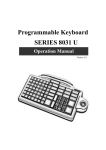
Programmable Keyboard
SERIES 8031 S
Operation Manual
Version 1.0
This equipment has been tested and found to comply with
the limits for Class A digital device. Pursuant to Part 15 of
the FCC Rules. These limits are designed to provide
reasonable protection against harmful interference in a
residential installation. This equipment generates, uses,
and if not installed and used in accordance with the
instructions may cause harmful interference will not occur
in a particular installation. If this equipment does cause
harmful interference to radio or television reception, which
can be determined by turning the equipment off and on.
The user is encouraged to try correct interference by one or
more of the following measures:
- Reorient or relocate the receiving antenna.
- Increase the separation between the equipment and
receiver.
- Connect the equipment into an outlet on a circuit different
from that to which the receiver is connected.
- Consult the dealer or an experienced radio/TV technician
for help. This booklet is available from the U.S. government Printing Office, Washington, DC 20402, Stock NO.
004-000-00345-4.
CAUTION: Any changes of modifications not
expressly approved by the grantee of this device
could void the user’s authority to operate the
equipment.
Operation is subject to the following two conditions:
(1) This device may not cause harmful interference.
(2) This device must accept any interference received
including interference that may cause undesired
operation.
1
Contents
1. Before You Install
2. Preparation for Programming
3. Programming Your Keyboard
4. Operating Your 8031
5. Troubleshooting
Appendix I: Keyboard Layout
Appendix II :Specifications
Appendix III:Scan Code mode and ALT mode
Appendix IV:Frequently Asked Questions
2
Before You Install
1
Before You Install
•••••••
The 8031 programmable keyboards have beenzz
specially designed for use with personal computers or
terminals in point-of-sale and industrial applications.
This manual describes how to connect the keyboard to
your system, how to design a keyboard layout which
meets your special requirements, and how to install your
keyboard layout into the 8031 keyboard.
There are two model of 8031. One is a tactile keyboard
with seven rows and fifteen columns for a maximum of
105 keys; another emulates for QWERTY keyboard
layout. Both of them are with single, double, and quadruple key caps. For the keyboard layout, key functions
and key data strings are completely programmable.
Each keyboard is capable of two concurrent keyboard
maps with switching between the maps controlled by
one designated key.
Go to Appendix I for picture reviewing.
JP-8031 has both RS232 and IBM keyboard wedge
interface operation mode, and they can be set before you
start to use. The 8031 keyboard is capable of receiving
data from any external RS232 device (e.g., bar code
scanner) and transmitting that data to a host computer
via either the keyboard wedge or an RS232 interface. A
magnetic stripe reading decoder is built into the circuit
board of the 8031, allowing easy stripe of the built card
reader.
Step 1: Turn off your computer
By shutting off your computer, you will prevent any accidental damage to the keyboard and your computer.
3
Before You Install
Step 2: Review packing list
Please ensure that your keyboard shipment is complete.
keyboard Model 8031 includes:
• 1 pce 8031 programmable keyboard
• 1 pce Operation Manual
• 1 pce keyboard wedge Y cable
• 1 package Key-top
4
Preparation for Programming
2
Preparation For Programming
•••••••
This chapter describes the connection of Series
8031 keyboards to a host computer for
programming. The 8031 keyboard may be
programmed through either the RS232 port or
IBM keyboard port.
Programming via the RS232 Port
Step 1: Turn off your computer
If you have not already done so, turn off your computer to avoid
any accidental damage to the keyboard and your computer.
Step 2: Decide on power access
The keyboard requires +12V DC for programming via the RS232
port(Please refer to Appendix II). This may be provided through an
internal connection in your computer or through an external
connection to a 110V/220V adapter. The components for an
internal connection are provided. If you are using an external
adapter, be sure that it conforms with the specifications listed in
Appendix II and then go to Step 4.
Step 3: Using internal power source
Review the RS232 installation shown in Diagram 2.1.
Plug the RS232 cable to your computer on the COM port,
system will provide +12V DC to the keyboard through RS232
cable.
5
Preparation for Programming
Diagram 2.1
Step 4: Connect keyboard to computer
Attach the 9-pin female (DB9F) RS232 connector with
built-in DC jack to an available male equivalent (DB9M)
RS232 communication port on your computer. Provide
power to the DC jack on the DB9F connector using
either a cable connection to the +12V DC power plate or
an external adapter.
Connect the 9-pin female (DB9M) side of the RS232
cable to the HOST port on the rear face of the keyboard.
Step 5: Disconnect peripherals from keyboard
While using the HOST port for programming the
keyboard, be sure that no peripheral devices are connected to any of the remaining ports.
6
Preparation for Programming
Step 6: Confirm RS232 pin assignments
Please ensure that the RS232 on your computer
conform with the pin assignments of the HOST port on
the 8031 keyboard:
Step 7: Turn on your computer
Once all connections are complete, turn on your
computer. It should boot up normally. The keyboard will "beep" three times.
The keyboard is now ready for programming. Turn
to Chapter 3.
Programming via the Keyboard Port
Turn off your computer to avoid any accidental damage
to the keyboard. Refer to the keyboard installation shown
in Diagram 2.2.
Unplug the QWERTY keyboard cable from your
computer. Plug the QWERTY keyboard cable into
female side of the Y cable on the 8031 keyboard
cable. Plug the male end of the Y cable into the keyboard port of your computer.
Once all connections are complete, turn on your
computer. It should boot up normally. The keyboard will
"beep" three times.
The keyboard is now ready for programming. Turn to
Chapter 3.
7
Preparation for Programming
Keyboard Port
Diagram 2.2
8
Programming Your Keyboard
3
Programming Your Keyboard
•••••••
The 8031 keyboard may be custom programmed to meet the requirements of your
application software. This chapter describes the
procedure for programming custom maps into
the 8031 keyboard.
The programming tool allows user define two
maps; each map contains 105 keys, and each
key allows length 60 characters. It also a multilanguage supported keyboard.
Step 1: Install 8031 programming tool
HTTP://WWW.JARLTECH.COM
Then run "setup.exe" of the setup file, the install shield
will complete this installation, and create a shortcut to
windows start menu.
When you execute the programming tool at the first
time, there's a message pops up telling user which
operation system is using and which mode can be
operate.
9
Programming Your Keyboard
Step2: Create or open a keyboard maps file(See Picture 3-1)
As picture bellowing, the main item includes "Create' Load
'Save' Auto Save" function for creating a new map file; load
map file from a created file, and also save defined file to a
file.
The using file will be show on the bottom of right as the
"current map file":
Picture 3-1
10
Programming Your Keyboard
NOTE: Before you starting to define JP-8031 keyboard map,
ensure you are working with Keyboard interface or RS232
mode.
Step3: Load Main Setting From JP-8031(See Picture 3-2)
The select allows user load main setting from JP-8031, and
this action only executes in RS232 mode.
Step4: Detect Firmware Version
This select allows user detect JP-8031 firmware, and it can only
be executing via RS232 mode.
Step5: Reset JP-8031 ToDefault Setting
The select allows user reset keyboard parameters and maps
setting to be factory default value.
This action can be executing via RS232 mode and keyboard
mode. and the keyboard interface can only execute with
operating system Windows 95' Windows98 and WindowsME..
11
Programming Your Keyboard
Picture 3-2
Step6: Envionment of keyboard setting(See picture 3-3)
In the"JP-8031 Main Settings" as picture shown at bellowing,
customer may set all configuration items of the keyboard.
The results will be shows as a list on the first programming
window.
12
Programming Your Keyboard
Step6-1: Main Setting Page
Operation Mode:
The Operating mode allows user designing the host of 8031.
There are two interfaces built as "RS232 mode" and "Keyboard
mode" and all the output data from 8031 will go through the interface
, which is selected by user.
Buzzer Sound:
When Buzzer Sound is enabled, it's enabled all sound of JP-8031
Keyboard, which includes key sound; card reader stripe sound;
buffer full sound etc.,
Once the function is disabled, there's no sound appeared exceping
keyboard boot-up sound(For twice).
Picture 3-3
13
Programming Your Keyboard
Keyboard protocol:
This selection allows user to defining "KB Mode scan code delay" and
"KB mode character delay". The range is from 0 to 255.
The delay time value:
Scan Code Delay = 0~255 (X 50us)
Character Delay = 0~255 (X 50us)
RS232 Protocol:
This setting allows user define RS232 parameters (EX: Baud-rate).
and baud rate and the RS232 parameters are required for the proper
functioning of both the host and the auxiliary RS232 port.
Step6-2: MSR setting:(See picture 3-4)
The setting allows user defining MSR settings including Track1'
Track2' Track3 main setting as Error Beep sounds; Prefix/Suffix
enable setting; KB Data Output Mode.
And in the details Tracks setting, Each track may define track's stripe
direction; enable end/start/LRC Sentinel; enable prefix/suffix; Beep
sound when stripe..
Picture 3-4
14
Programming Your Keyboard
Step6-3: AUX setting:(See Picture 3-5)
The setting allows user defining AUX port settings including enable
AUX port1/AUX port 2' ' Buffer full warning sounds. When buffer
queues with full data and couldn't send them out, system will give
beeps for warning.
Picture 3-5
Step6-4: : Prefix/Suffix:(See Picture 3-6)
This setting allows user defining MSR prefix and suffix of Track1
Track2 Track3.
15
Programming Your Keyboard
Picture 3-6
Step6-5:MSR ISO Standard Field Splitting:(See Picture 3-7)
The setting allows user define configuration of MSR ISO Standard
Field Splitting. The default settings are disable.
Picture 3-7
16
Programming Your Keyboard
Step6-6:QWERTY Keyboard:
The setting allows user define QWERTY PC keyboard. It includes
Enable Keyboard and Buffer full waning sounds.
Step6-7:Key Lock:
The setting is defining key lock of 8031 keys. User may define the
key locks configuration (EX: The levels of key lock) when the setting
is enabled.
Step6-8:Keyboard Layout Scan Code:(See picture 3-8)
The setting allows user define Key board scan code layout of each
language. Please select language as what language of your
operation system.
Only Germany and English available so far
Picture 3-8
Step6-9:KeyboardSpeed
The setting allows user define Key board speed with "repeating rate"
and "Delay before repeate".
17
Programming Your Keyboard
Step7: Defined Keyboard Maps
The setting allows user define 8031 keyboard map. You may click
each key, and the sub window for key maps details setting will
appear for designing.
Following steps are description for the common settings of keys
status.
Step7-1: Enable Key
This setting allows user active key or clear mark to disable the key
activity.
Step7-2: Enable Click Sound
This setting allows user enable click sound of keys.
Step7-3: Enable Repeat
This setting allows user enable keys repeating speed.
Step7-4: Map Changing
The 8031 has two maps for designs.
This keyboard allows use defining a key to switch maps; once a key
be enabled for map changing function, then, the keyboard map will
be changed from map1 to map2 when press this key.
Step7-5: ALT mode output
This setting allows user enabling a function for the keyboard's
ASCII code output, it can be set to "Alt" mode or "Scan code" mode.
The default mode is "Scan code mode"
Note: For the details description of "ALT mode" and "Scan code mode", please see
AppendixIV
Step7-6: Delay between character
When user scrolling the scale, the keyboard output speed between
characters will be changed as what you adjusted.
18
Programming Your Keyboard
Picture 3-9
Step7-7: Key lock Setting
This setting allows user define key lock's level.
i.e. when you set key #1 to be level 1 and level 2, then the key#1
can only be use when the key lock set to be level 1 and level 2.
Note: JP-8031 allow user setting key lock with 6 level key
lock.
Step7-8: Current String Property
The field allows use key in characters or string to be contents of one
key. i.e. when you set key #1 as "Welcome to the Web Site",
then, when you press Key #1, the output will be what you typed in
this field: " Welcome to the Web Site".
19
Programming Your Keyboard
Note:
If your operate Mode set to be RS232 interface, then, the
output should be RS232 recognized tool, ex: "Windows
Terminal"; When your operate Mode set to be keyboard mode.
The output should be keyboard recognized tool, ex: "Windows
notepad".
Above buttons of the"String Editor" field in the picture 3-9 are tools
for editing key contents. You may use them to edit string or
characters.
The "Special key" is as (picture 3-9) bellow, which is designed for
"special function", you may use the "special key " to define each
key as picture's below. i.e. In your key #1 setting field, click <F1>
from the special key and add it to your "current string property",
after you write it to map(you may use "single key program" to
write data of a key), press key #1. the <F1> function appears as
QWERTY PC keyboard behavior.
You may also set "ALT" and "Shift" functions key On/Off to fit your
expect. In keyboard mode, the capital characters cannot be type
on the field, and you may click "Shift ON" before the string to set
them on,
ie: <shift-on> abcd<shift-off>abcd,
The result will be : ABCDabcd
NOTE: The "Special key" can only exist on keyboard interface.
20
Programming Your Keyboard
Picture 3-9
21
Programming Your Keyboard
Picture 3-10
Step8: Programming(See picture 3-10)
After complete the values and maps setting of keyboard. The
settings need to write in 8031 EEPROM for record.
There are two interfaces for 8031 programming.
You may select keyboard interface when you are working with
Windows 95/98/ME and ensured connected Keyboard to 8031.
Another interface is RS232, you may use this interface when you
are work with RS232 interface.
The following window will appear:
22
Programming Your Keyboard
After press "Start" button, 8031 programming tool will start to write
values and maps file to EEPROM.
Step9: Load keyboard map from JP-8031
When you select this item, you may load 8031 currently setting and
maps to be new keyboard setting and map, and they are including
maps configuration.
The following window will appear when you selected this item, and
after you press "Start" button, the 8031 programming tool will start to
load setting and map from 8031.
After load the map, You may save it to be a new file with another file
name, so that, user can easy to restore it in the future.
23
Operating Your 8031
4
Operating Your 8031
•••••••
The Series 8031 keyboards may be operated in
conjunction with your host computer or terminal
using either a keyboard wedge interface or an
RS232 interface. As your requirements change
in the future, the keyboards may be reprogrammed
to match the interface you require.
Step 1: Connect 8031 to computer
The 8031 keyboard connections for RS232 or
keyboard wedge interface are the same as those
described in Chapter 2. Please refer to Diagram 2.
1 for RS232 mode or Diagram 2.2 for keyboard
wedge mode.
Step 2: Connect RS232 Device to 8031 AUX Port (male)
The RS232 AUX port on the rear panel of the 8031is
available for an RS232 input device, as in Diagram 4.1.
RS232 AUX port
Diagram 4.1
24
Operating Your 8031
Step 3: Connect K/B Device to 8031 Keyboard port(Female)
The K/B port on the rear panel of the 8031 is available
for an Keyboard input device, as in Diagram 4.2.
Note: The K/B AUX port 2 is optional.
Keyboard AUX port
Diagram 4.2
Step 4: Using the Card Reader
An built magnetic stripe decoder is configured
on the 8031 with a card reader. User
may use it with the 8031 programming tool as
Chapter3 step6 defined.
25
Operating Your 8031
Step 3: Using the Optional Key Lock
An built circuit for optional key lock. Once you set the key
lock's level of 8031 programming tool. You may use it to
control what level's lock for each key.
The 8031 keyboard supports key locks level from level 1
to level 6( customized )
26
Troubleshooting
5
Troubleshooting
•••••••
Situation
Solution
• The downloading
of the keyboard
map from the
computer to the
8031 keyboard
does not work.
• Check the cable connections according to the descriptions in Chapter 2. For RS232 programming and
operation, be sure that the power supply is connected.
• When programming via RS232, be sure that the correct
communication port has been selected. If the port
selection is correct, perhaps the computer RS232
interface is defective.
• The 8031
keyboard does
not transmit any
data.
• Check the cable connections of the keyboard and
adaptors (if used, e.g., PS/2 keyboard plug). Does the
keyboard beep correctly when the power is turned on?
• Open 8031 programming tool to confirm that you
selected the correct operation of the 8031 keyboard
(RS232 vs. keyboard wedge).
27
Appendix I
A Appendix I
•••••••
JP-8031 Keyboard layout:
There are two keyboard layout of the 8031 keyboard.
1.QWERTY Keyboard Layout
JP-8031WPXX
you may find the layout from programming tool for definition.
28
Appendix I
2. Key Matix
The keyboard layout as Key Matrix design.
JP-8031WSXX
you may find the layout from programming tool for definition.
29
Appendix II
A
Appendix II
•••••••
Specifications
Model 8031
Keyboard
• Tactile keyboard
• 7 rows x 15 columns
• Cherry keyswitch
• ABS plastic key caps
• Single, dual and quadruple key caps available
• User-definable key layout
Power
Requirements
• RS232 interface: +12V DC from host computer or through
adaptor from external 110/220V AC source with polarity as
follows:
• Keyboard interface: +5V DC from host computer
Physical
• Dimensions: 330mm (L) x 195mm (W) x 55mm (H)
• Weight: 1170g
Communication • One internal connector for TTL-signal magnetic stripe reader
Ports
• One Internal connect for KeyLock
• One RS232 input-output HOST port
• One RS232 input AUX port
• One keyboard AUX port
LED indicator
• LED1 Green -- Power ON
-- MAP1 ON
• LED2 Red -- MAP2 ON
• LED2 Green -- Caps Lock ON
30
Appendix II
Specifications of Connecter and Switcher
Connector Pin Assignments
Keyboard AUX Port
#1: Keyboard data(AUX 1)
#2: Keyboard data(AUX2)
#3: Ground
#4: + 5V
#5: Keyboard clock(AUX1)
#6: Keyboard click(AUX 2)
RS232 AUX Port (Male)
#1:
#3: RX
#5: Ground
#6: RTS
#9: +12V/+5V DC power
RS232 HOST Port (Female)
#1:
#7: RTS
#2: RX
#8: CTS
#3: TX
#9: +12V/+5V DC Power
#5: Ground
Keyboard Host port
#1:
#3:
#4:
#5:
Switcher
Keyboard data
+5 V
Ground
Keyboard clock
Switcher
SW1
ON : Enable RS232 Host Data In
: Disable RS232 AUX Data In
OFF: Disable RS232 Host Data in
: Enable RS232 AUX data In
SW2
ON: Reset 8031 to Default setting.
Switch pin to ON until beep sound
appear(around 3~5 sec.), then, switch it
to OFF.(The switching time should be
finished in 2 sec.)
31
Appendix IV
A
Appendix III
•••••••
Scan Code mode and ALT mode
JP-8031 supports two ways for keyboard wedge data
sending:
1. Scan Code Mode:
This is the standard code of PC keyboard designation, when you
press a key, there are two kind of code sending. One is "make
code", and another is "Break code"
when key-press-down, it makes a key data: "Make Code",
when key-press-up, it makes a key data called: " Break Code", this
mode is useful for normal application design.
Note: In scan code mode, if you design a key "A", the software will
get data "A" or "a" that depends on the "Caps lock" status.
2. ALT mode code:
Sometimes, user cannot use "Scan Code" for special application
design, so, there's a "ALT mode" code for user easier to design
theirs application. The ALT-mode is for sending ASCII code, and
through PC keyboard. The method is use "ALT" key and the
numbers of PC keypad.
For example, Code number "A" in ASCII table is "65". So, you may
keep press "ALT" function key and then press number "6", and
number "5", after that, release "ALT" key, the "A" will appears on
the screen.
Note: In ALT mode, if you design a key "A", the software will only
get data "A".
32
Appendix IV
A
Appendix IV
•••••••
Frequently Asked Questions
1. Q : Why is there a period of blank time before the "beep" indication of successful
programming?
A : The software has to initialize the download
data to keyboard during this period, so please
wait some seconds.
2. Q : Why we can not program this 8031 keyboard through the RS232 port?
A:
1. Check if your connection of hardware is
correct.
2. Check if your setting in 8031 programming
tool is correct.
3. Try to disable the mouse driver. May be
this com port is occupied by an unreliable
mouse driver.
3. Q : How to program a guard key correctly?
A : For Programming a quad key, please program
one of the four keys with data only and disable the
other three keys.
The double-key is set by the same method.
33
ISSUED: April, 2002 -V2.0
34