1
2. Per Port Statistics
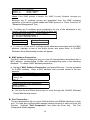
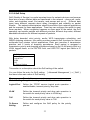
If you select “Per Port Statistics” from the Port Perspective screen, you can also
get a port list screen.
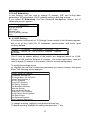
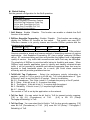
Select one of the ports, you can get the statistics counters for the port. For
example, Port 7 is selected.
Port 7 Statistics
Total No. of Bytes Received: 1,096,656
Total No. of Packets Received: 9,076
Total No. of Broadcast Packets Received: 4,439
Total No. of CRC/Alignment Errors Received: 0
Total No. of Undersize Packets Received: 0
Total No. of Oversize Packets Received: 0
Total No. of Collisions: 0
Total No. of 64-byte Packets Received: 5,034
Total No. of 65 to 127-byte Packets Received: 1,657
Total No. of 128 to 255-byte Packets Received: 2,005
Total No. of 256 to 511-byte Packets Received: 380
Total No. of 512 to 1023-byte Packets Received: 0
Total No. of 1.0 to 1.5-kbyte Packets Received: 0
VTotal No. of Bytes Transmitted: 384
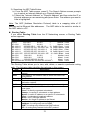
To reset counters for the port in the screen above, press R. Then select Yes in
the confirm screen to reset the counters.
Note: If the counters are always zero, please check [Basic Management] ->
[General] -> Statistics Collection. If it is disable, please enable it.
3. Per Port MAC Limit
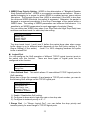
You can configure Mac address learning function of each port with this function
to
1. Limited Learning
2. Unlimited Learning
3. No Learning
for Mac address limit application on port.
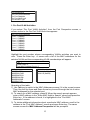
If you select this function, the screen will appear.
Per Port MAC Limit
Port 1 (10/100M): Unlimited
Port 2 (10/100M): Unlimited
Port 3 (10/100M): Unlimited
Port 4 (10/100M): Unlimited
Port 5 (10/100M): Unlimited
Port 6 (10/100M): Unlimited
Port 7 (10/100M): Unlimited
Port 8 (10/100M): Unlimited
Then you highlight the port number and press Enter. The following screen will
appear.
16