1
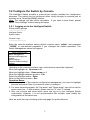
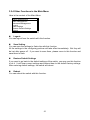
Other - A protocol other than one of the other four listed
above.
1). Adding Routing Table Entries
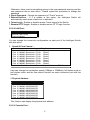
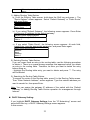
a). From the Routing Table screen, hold down the Shift key and press +. The
"Route Options" screen appears. Select "Default Gateway" or "Static Route"
and press Enter.
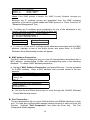
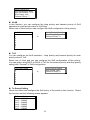
Route Options
Default Gateway
Static Route
b). If you select "Default Gateway", the following screen appears. Press Enter
and type an IP address for the default gateway.
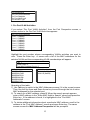
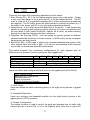
Default Route Specifications
Default Gateway: 0.0.0.0
Metric: 1
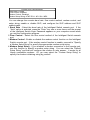
c). If you select "Static Route", the following screen appears. At each field,
press Enter, type the appropriate parameter, and press Enter again.
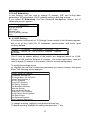
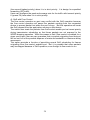
Static Route Specifications
Network:
Mask:
Gateway:
Metric: 1
2). Deleting Routing Table Entries
If you no longer need an entry in the routing table, use the following procedure
to delete it. There is no precautionary message that appears before you delete
an entry in the routing table. Therefore, be sure you want to delete the entry
before doing so.
- Highlight the Routing table entry you want to delete and press "-". The entry
will be deleted.
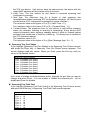
3). Searching for Routing Table Entries
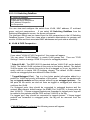
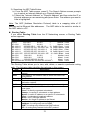
To search for entries in the Routing table, press S in the Routing Table screen.
Then "Enter Network Address" screen appears. Type the network address you
want to search for, then press Enter.
Note: You can assign the gateway IP address of the switch with the “Default
Gateway” in Adding Routing Table Entries operation for management through
Internet.
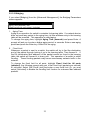
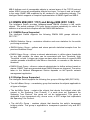
DHCP Gateway Setting :
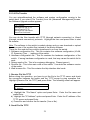
If you highlight DHCP Gateway Settings from the "IP Networking" screen and
press the Enter key, a DHCP Gateway Settings screen appears.
In this screen:
22