1
-9-
STARTING SHOP-PRO
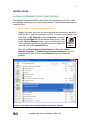
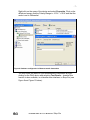
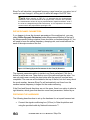
Insert the USB key and double click the Shop-Pro icon. A startup window will
appear, giving you the option to create a new project or open an existing one.
You must give your project a name, and you can change the folder your project is
saved in. The startup window also gives the option of measuring with metric or
imperial units.
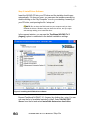
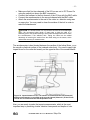
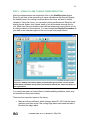
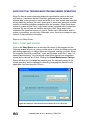
After clicking OK on the startup window, you will see the main program view with
the Cutting Conditions menu open.
CALCULATIONS AND ANALYSIS
STEP 1 - WORK MATERIAL SELECTION AND CUTTING CONDITIONS INPUT
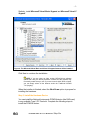
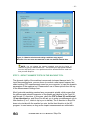
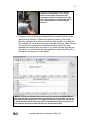
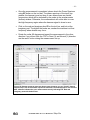
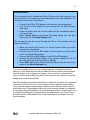
Using the Cutting Conditions window, click on one of the classes of materials.
You will see a sub-class of materials on the right window, where you can select
the material that is closest to the one you will machine. Shop-Pro will scan its
database, and select the most accurate and closest material it has. It can never
exactly represent the material cutting force coefficient you have, since it is
dependent on the specific material, tool geometry details and cutting conditions.
However, the errors will be mostly within 30% in predicting chatter free depth of
cuts but the stable speed pockets will hardly change. In short, you should give
30% room in selecting chatter free depth of cuts, unless you calibrate the cutter
in machining the specific material you are machining. If you use solid end mills,
Ti6Ale4V, Al6061, Al7050 and Al7075 material databases will be accurate better
than 80% since they were calibrated by MAL.
At the bottom of the page, please select the radial immersion, the number of
teeth and feed rate. The radial immersion is needed to calculate chatter free
depth of cuts and speeds, the feed is used to predict the torque and power.
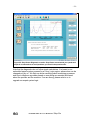
See Figure 11 for a reference.
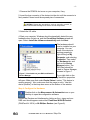
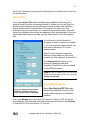
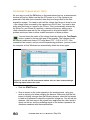
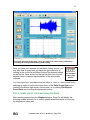
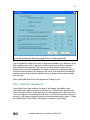
Once you click OK, the program will take you to the next window, Measurement
Settings.
07/06/2006 MAL Inc. User Manual for Shop-Pro