1
USER FUNCTIONS
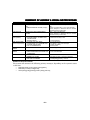
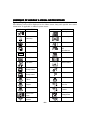
Automation
Ready To Arm
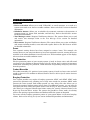
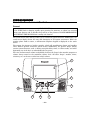
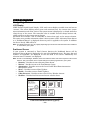
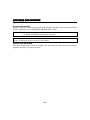
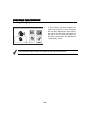
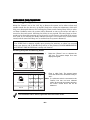
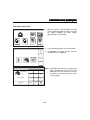
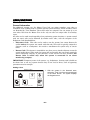
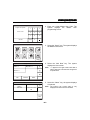
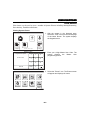
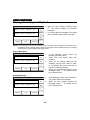
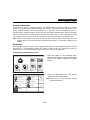
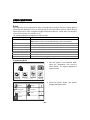
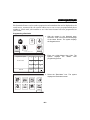
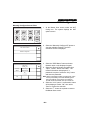
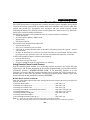
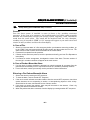
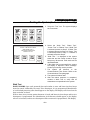
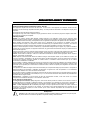
3. Select a “Rules” key followed by the Edit
button. The system displays a keyboard.
Rules 2
Rules 1
New
New
Rules 3
Rules 4
New
New
Rules 5
Rules 6
New
New
Note: Rules 21-40 are only
TotalConnect Service.
Edit
accessible
through
Delete
5100-100-070-V0
Ready To Arm
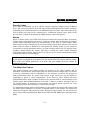
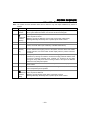
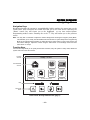
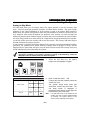
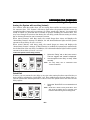
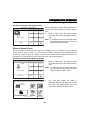
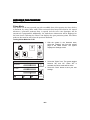
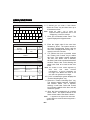
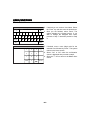
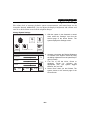
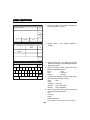
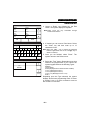
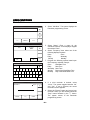
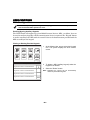
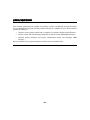
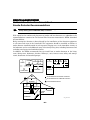
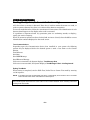
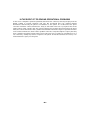
4. If desired you can enter a Rule Name. Select
the “Clear” key and then enter up to 13
characters of text.
123!@#
Q
E
W
A
Clear
R
T
Y
U
I
O
S
D
F
G
H
J
K
Z
X
C
V
B
N
M
ABC...
P
L
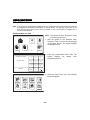
Note: Select the “ABC…” key to switch the keyboard
between upper/lower case or the “123!@#” key to
switch to numbers.
5
Done
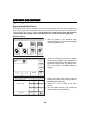
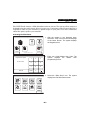
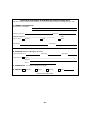
Once you are finished, select “Done”. The
system returns to the Rules screen.
5000-100-190-V0
Ready To Arm
Name
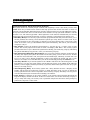
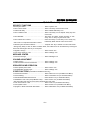
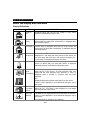
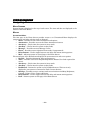
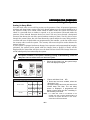
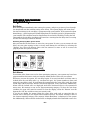
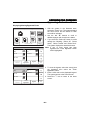
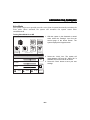
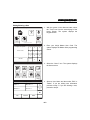
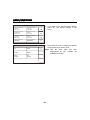
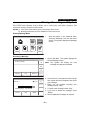
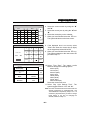
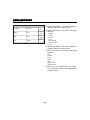
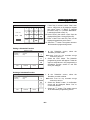
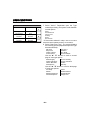
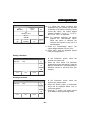
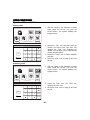
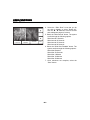
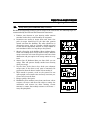
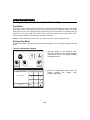
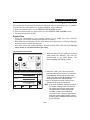
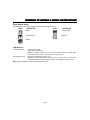
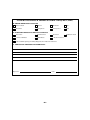
6. Select the “Type” button. Dependant upon what
features are programmed in your control the
system toggles between the following Types:
01
Type
Disabled
Save
5000-100-188-V0
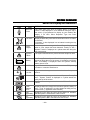
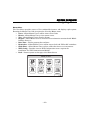
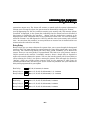
Disabled
Trigger Output
Scene (displayed when Z-Wave has been enabled)
To Ph. 1 (Message to Phone 1)
To Ph. 2 (Message to Phone 2)
To Ph. 1 & 2 (Message to Phone 1 & 2)
Email 1
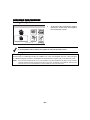
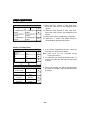
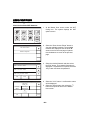
Depending upon the Type selected, the system
displays several new programming fields. If Scene
is selected, refer to the Home Automation Guide PN
800-11309V1 for information.
– 51 –