1
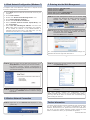
4. Wired Network Configuration (Windows 7)
A computer with wired Ethernet connection is required for the
first-time configuration of the Wireless AP.
1. Click “Start” button located at the lower-left corner of your
computer.
2. Click “Control Panel”.
3. Double click “Network and Sharing Center” icon.
4. Click “Change Adapter Settings”.
5. Double click “Local Area Connection”.
5. Entering into the Web Management
Default
Default
Default
Default
Default
IP Address: 192.168.1.253
Username: admin
Password: admin
SSID (2.4GHz): Planet AP 2.4G
SSID (5GHz): Planet AP 5G
STEP 1: The Web management allows you to access and
manage the Wireless AP easily. Launch the Web
browser and enter the default IP address
http://192.168.1.253.
6. Select “Internet Protocol Version 4(TCP/IPv4)” and
click “Properties”.
7. Select “Use the following IP address” and then click
“OK” button twice to save the configuration. For example,
as the default IP address of the WDAP-C7200AC is
192.168.1.253 and the router is 192.168.1.254, you may
choose from 192.168.1.1 to 192.168.1.252.
STEP 2: When the login window pops up, please enter the
User Name and Password. The default User Name
and Password are both “admin”.
Then click OK button to continue.
For security reasons, it is recommended to change the
password at the first login and memorize it.
–5–
–6–
STEP 3: After you enter into the Web User Interface, go to
Setup Wizard to configure your wireless network.
STEP 2: Highlight the wireless network (SSID) to connect and
click [Connect] button.
For security reasons, strongly recommended to
configure the Encryption Method and Passphrase of
your wireless network.
STEP 4: Once the basic configuration of the WDAP-C7200AC
is done, click “Finished” button to make the change
take effect.
6. Wireless Network Connection
STEP 1: Right-click on the network icon displayed in the
system tray.
STEP 3: Enter the encryption key of the WDAP-C7200AC if
necessary.
You have already finished the configuration of the
WDAP-C7200AC. Now you can use your iPhone, iPad, laptop,
and any other Wi-Fi device to connect with it wirelessly and
start surfing the internet.
Further Information:
The above steps introduce simple installations and configurations
for the WDAP-C7200AC. For further configurations of LAN,
Wireless, Access Control, etc, please refer to the user’s manual in
the CD. If you have further questions, please contact the local
dealer or distributor where you purchased this product.
2010-E11010-000
–7–
–8–