1
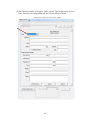
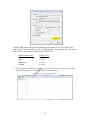
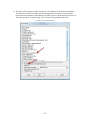
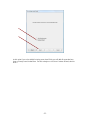
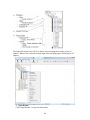
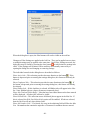
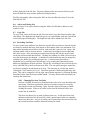
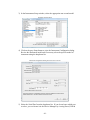
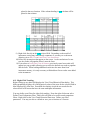
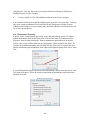
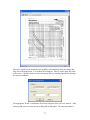
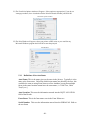
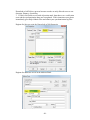
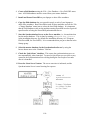
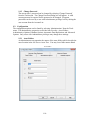
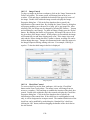
‘Dropdown Box’ button on the Form Tools palette. The mouse cursor will
change from an arrow to a crossbar. Click and drag to establish the location
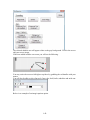
of the dropdown box. Double click within the dropdown box to display the
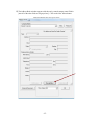
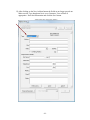
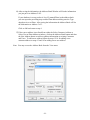
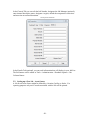
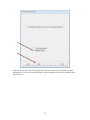
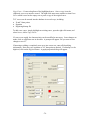
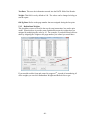
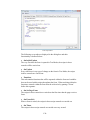
Dropdown Box Properties dialog box. Within the List Box Options area of
the dialog box, enter the selections allowed. Selecting the Sort check box will
sort the listing in ascending order. Selecting the Dropdown List check box
will limit entry only to items listed in the List Box Options. A dropdown
control can be populated from a file located in the PowerDB installation
directory by checking ‘Load from file’ and specifying the file name.
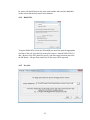
Dropdown Properties
10.1.2.7 Sub-Form Control
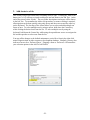
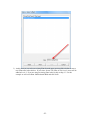
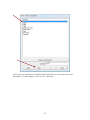
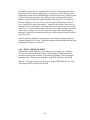
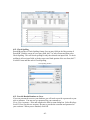
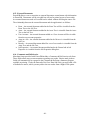
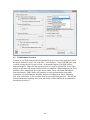
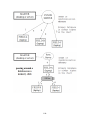
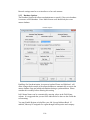
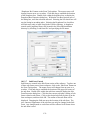
Sub-Forms are created in the Sub-Form section of the software. To place one
of these sub-forms onto a form workspace, click on the ‘Sub-Form’ button on
the Form Tools palette. The mouse cursor will change from an arrow to a
crossbar. Click and drag to establish the location of the upper left corner of
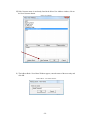
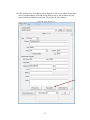
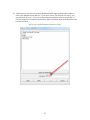
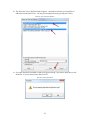
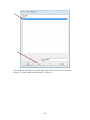
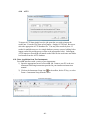
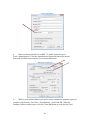
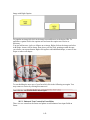
the sub-form. Double click within the sub-form control to display the SubForm Properties dialog box. Click the down arrow to display a listing of subforms created as sub-forms. Click on the desired sub-form to place it on the
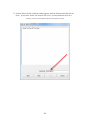
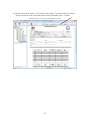
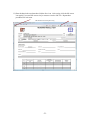
form workspace, and then click OK. The outline of the sub-form will be
displayed. Dragging the field can move the location of the sub-form. The
size, content or appearance of the sub-form can only be changed in the SubForm. Any changes made to a sub-form will be reflected in all forms where
the sub-form is used.
-131-