1
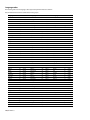
Item
Description
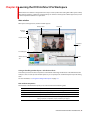
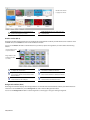
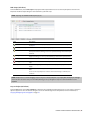
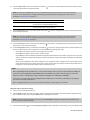
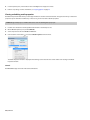
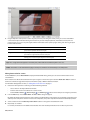
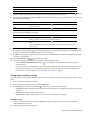
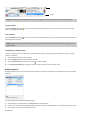
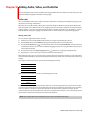
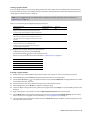
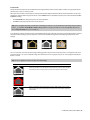
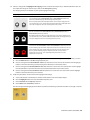
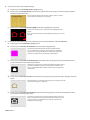
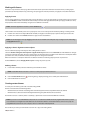
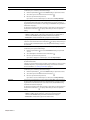
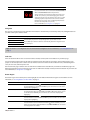
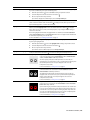
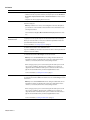
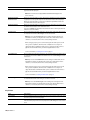
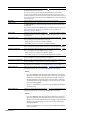
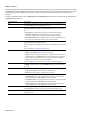
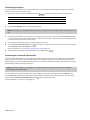
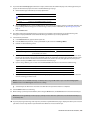
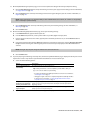
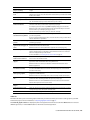
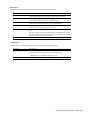
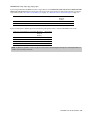
Color channel
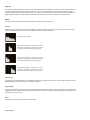
Maps the color channels in the button highlight mask to the
four colors used in the color set selected in the Selected button
colors or Activated button colors drop-down list.
A pixel containing any red channel component uses the color
set’s fill color (color 1), a pixel containing any green channel
component uses the color set’s anti-alias color (color 2), a pixel
containing any blue component uses the color set’s outline/
background color (color 3), and a completely black pixel uses
the color set’s transparent color (color 4).
For more information, see Using color sets on page 44.
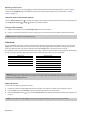
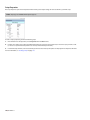
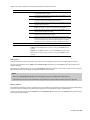
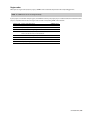
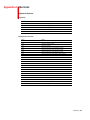
Navigation
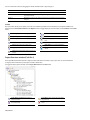
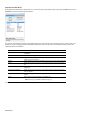
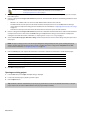
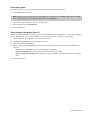
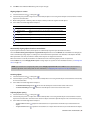
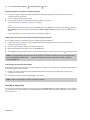
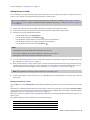
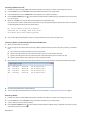
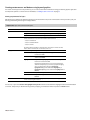
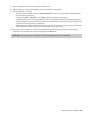
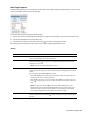
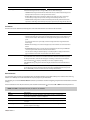
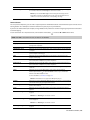
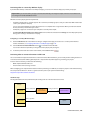
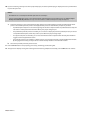
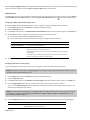
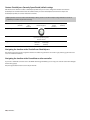
The controls on the Navigation page determine which button is selected when you use the Up, Down, Left, and Right buttons on
your DVD or Blu-ray Disc remote control.
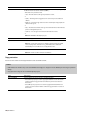
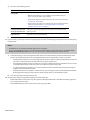
Item
Description
Left
Select the box and choose a command from the menu to determine which button is
selected when you press the corresponding button on your remote control.
Right
Up
Down
Choose Auto if you want the software to automatically determine navigation based
on button layout.
Tip: You can also use the navigation tool to view and edit button navigation. For more information, see The Navigation tool on
page 58.
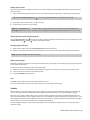
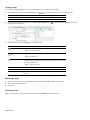
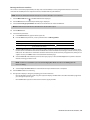
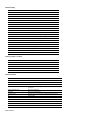
Color Sets
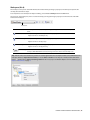
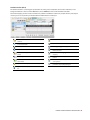
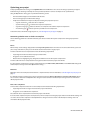
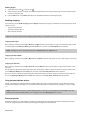
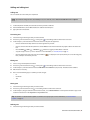
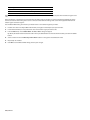
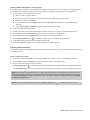
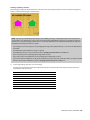
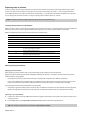
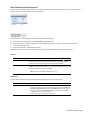
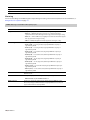
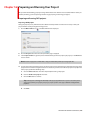
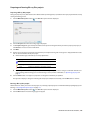
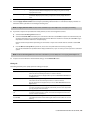
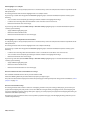
Color sets determine which colors are used to indicate selected, activated, and inactive buttons on your menu page.
You can have four project-wide color sets that are available to every menu page in your project, and each menu page in your
project can also have up to four custom color sets with four colors each. Each color set includes a fill color, outline/background
color, anti-alias color, and transparent color.
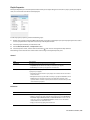
Use the Color Sets page to edit the color sets that will be available for the selected menu, and then use the General page in the
Menu Page Properties pane to choose which color sets are used for the selected, activated, and inactive buttons on your menu. For
more information, see Using color sets on page 44.
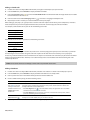
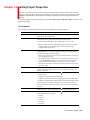
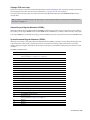
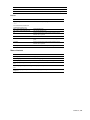
Button Region
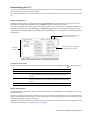
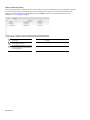
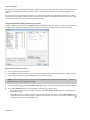
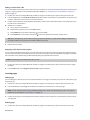
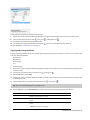
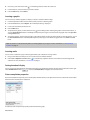
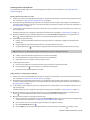
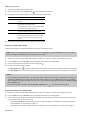
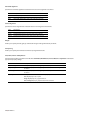
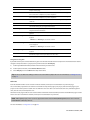
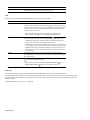
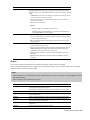
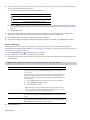
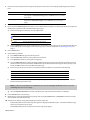
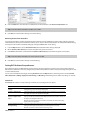
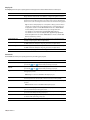
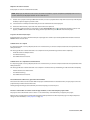
The button region control allows you to set the highlight colors for buttons within button regions on the timeline. For more
information, see Inserting buttons-on-video markers on page 76.
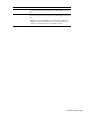
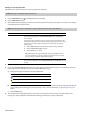
Item
Description
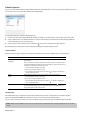
Selected button colors
Select the down arrow button ( ) and choose a color set that will be used to display
the sel ected button on a page. Choose None if you do not want to use color sets to
display button highlighting.
Activated button colors
Select the down arrow button ( ) and choose a color set that will be used to display
the selected button when you press Enter on the DVD or Blu-ray Disc remote control
to activate it. Choose None if you do not want to use color sets to display button
highlighting.
Default colors
Select the down arrow button ( ) and choose a color set that will be used to display
unselected buttons on the menu. Choose None if you do not want to use color sets to
display button highlighting.
Use subtitle colors
If there are buttons placed in a graphic subtitle, you can set the color of the
unselected buttons. Select the down arrow button ( ) and choose No if you do not
want to use color sets for unselected buttons. Select When available if a color set has
been designated for the subtitle.
120 | CHAPTER 11