1
Subtitle Properties
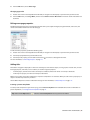
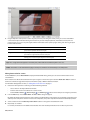
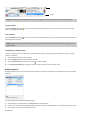
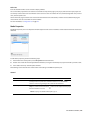
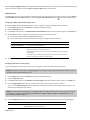
You can use the Properties window to adjust subtitle text positions and adjust which color set is used to draw subtitle text. You can
choose which color set is used for each subtitle event independently.
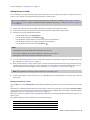
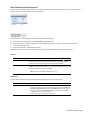
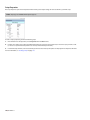
To edit subtitle properties, perform the following steps:
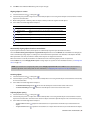
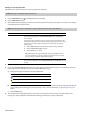
1. Double-click a menu in the Project Overview window (or navigate in the workspace) to open the menu you want to edit.
2. Select a subtitle event in the Timeline window or a text box in the workspace. The Properties window will display different
controls depending on your current selection.
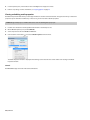
3. Click the specific control, click the down arrow button ( ), and choose a setting from the drop-down list.
The following sections describe the controls under each heading in the Subtitle Properties pane.
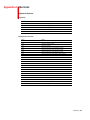
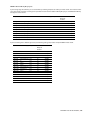
Transformations
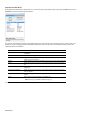
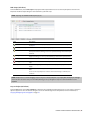
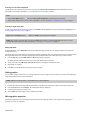
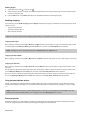
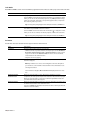
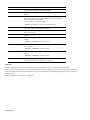
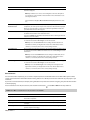
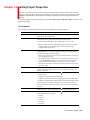
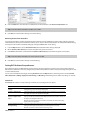
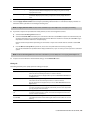
The Transformations page is displayed in the Properties window when you select a subtitle text box in the workspace.
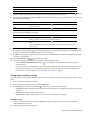
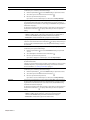
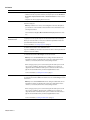
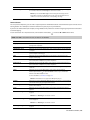
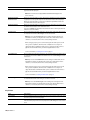
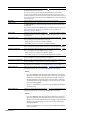
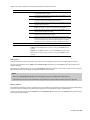
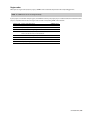
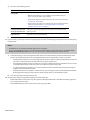
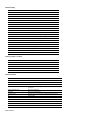
Item
Description
X position
Edit the X position and Y position values to change the center of the selected text
box’s position.
Y position
These coordinates are based on the frame size of your project. For example, if you’re
creating an NTSC DV project with a frame size of 720x480, (0,0) is the top-left corner of
the frame, and (720,480) is the lower-right corner.
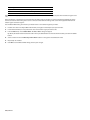
• Select the number and type a new value.
• Use the spin controls to adjust the value.
• Select the value and click the down arrow button ( ) to display a slider that you
can use to adjust the value.
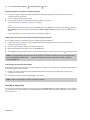
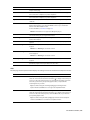
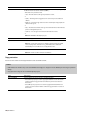
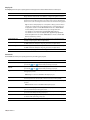
X size
Edit the X size and Y size values to change the size of the selected text box.
Y size
• Select the number and type a new value.
• Use the spin controls to adjust the value.
• Select the value and click the down arrow button ( ) to display a slider that you
can use to adjust the value.
Maintain aspect ratio
Select the Maintain aspect ratio box, click the down arrow button ( ), and choose
Yes from the drop-down list if you do not want the text to be stretched when you
change the height or width of the text box.
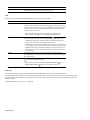
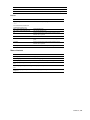
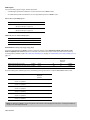
Subtitle Event
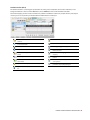
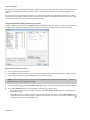
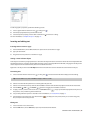
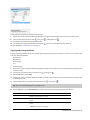
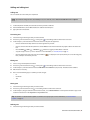
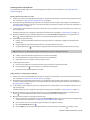
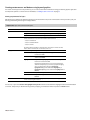
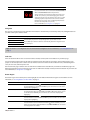
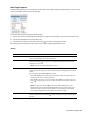
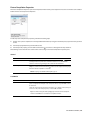
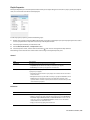
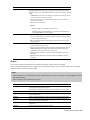
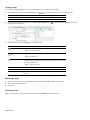
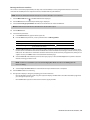
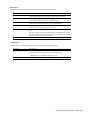
The Subtitle Event page is displayed in the Properties window when you select a subtitle event in the Timeline window.
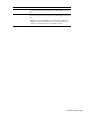
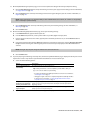
Choose a setting from the Colors drop-down list to assign a color set to the selected subtitle events.
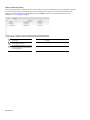
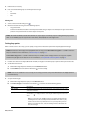
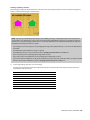
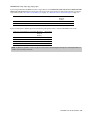
You can create a custom color set for each title in your project using the Color Sets page in the Media Properties window.
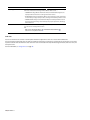
Note: Subtitle events are drawn over the entire screen. If the color set’s transparent color is not fully transparent, the screen will be
tinted.
126 | CHAPTER 11