1
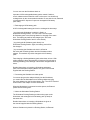
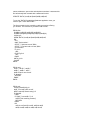
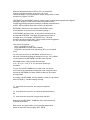
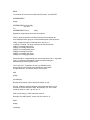
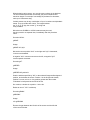
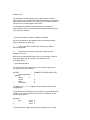
When calculating an expression, OPL uses the simplest arithmetic possible
for the numbers involved. If all of the numbers are integers, integer
arithmetic is used; if one is outside integer range but within long
integer range, then long integer arithmetic is used; if any of the
numbers are not whole numbers, or are outside long integer range,
floating-point arithmetic is used.
This has the benefit of maximising speed, but you must beware of calculations
going out of the range of the type of arithmetic used. For example,
in "X=200*300" both "200" and "300" are integers, so integer
arithmetic is used for speed (even though "X" is a floating-point
variable). However, the result, 60000, cannot be calculated because
it is outside integer range (32767 to -32768), so an `Integer Overflow'
error is produced.
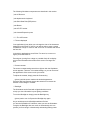
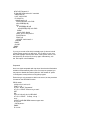
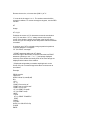
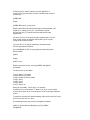
You can get around this by using the INT function, which turns
an integer into a long integer, without changing its value. If you
rewrite the previous example as "X=INT(200)*300", OPL has to use
long integer arithmetic, and can therefore give the correct result
(60000). (If you understand hexadecimal numbers, you can instead write
one of the numbers as a hexadecimal long integer eg "200"
would become "&C8".)
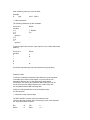
Integer arithmetic uses whole numbers only. For
example, if "y%" is 7 and "x%" is 4, "y%/x%" gives 1.
However, you can use the INTF function to convert an integer
or long integer into a floating-point number, forcing floating-point
arithmetic to be used for example, "INTF(y%)/x%" gives
1.75. This rule applies to each part of an expression -e.g.
"1.0+2/4" works out as "1.0+0" (=1.0), while "1+2.0/4"
works out as "1+0.5" (=1.5).
If one of the integers in an all-integer calculation is a constant,
you can instead write it as a floating-point number. 7/4 gives 1,
but 7/4.0 gives 1.75.
*** Operations on strings
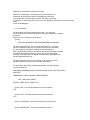
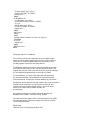
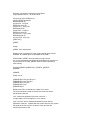
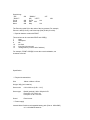
If "a$" is ""down"" and "b$" is ""wind"", then the
statement "c$=a$+b$" means "c$" becomes ""downwind"".
Alternatively, you could give "c$" the same value with the statement
"c$="down"+"wind"".
When adding strings together, the result must not be longer than the
maximum length you declared eg if you declared "LOCAL a$(5)"
then "a$="first"+"second"" would cause an error to be displayed.
Most operators do not work on strings. To cut up strings, use string
functions like MID$, LEFT$ and RIGHT$, explained
in a later chapter. You need them to extract even a single character
you cannot, for example, refer to the 4th character in "a$(7)"
as "a$(4)".
****** Displaying variables































































































![[ Team LiB ] In this new edition of the best selling title, the author](http://vs1.manualzilla.com/store/data/005787639_1-73d0050a51fd68261a86e8b5d7df46e8-150x150.png)