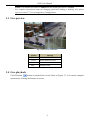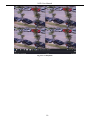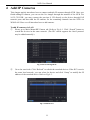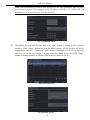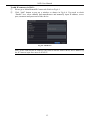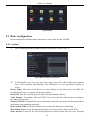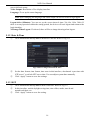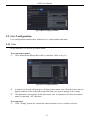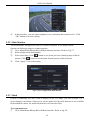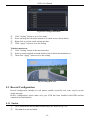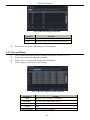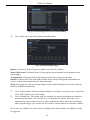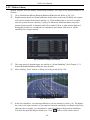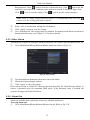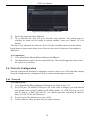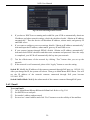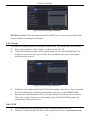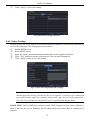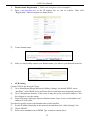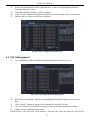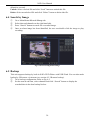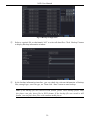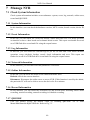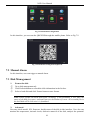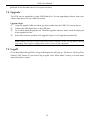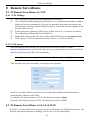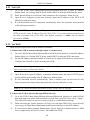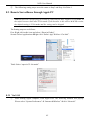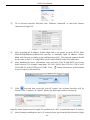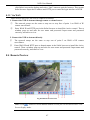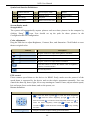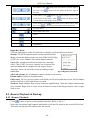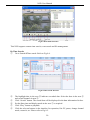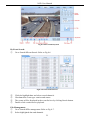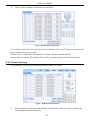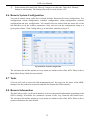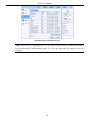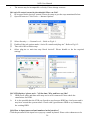
1
NVR User Manual For H.264 16/32-channel network video recorder All rights reserved CAUTION Please read this user manual carefully to ensure that you can use the device correctly and safely. There may be several technically incorrect places or printing errors in this manual. The updates will be added into the new version of this manual. The contents of this manual are subject to change without notice. This device should be operated only from the type of power source indicated on the marking label. The voltage of the power must be verified before using the same. Kindly remove the cables from the power source if the device is not to be used for a long period of time. Do not install this device near any heat sources such as radiators, heat registers, stoves or other devices that produce heat. Do not install this device near water. Clean only with a dry cloth. Do not block any ventilation openings and ensure proper ventilation around the machine. Do not power off the NVR at normal recording condition. This machine is for indoor use only. Do not expose the machine in rain or moist environment. In case any solid or liquid get inside the machine’s case, please turn off the device immediately and get it checked by a qualified technician. Do not try to repair the device by yourself without technical aid or approval. When this product is in use, the relevant contents of Microsoft, Apple and Google will be involved in. The pictures and screenshots in this manual are only used to explain the usage of our product. The ownerships of trademarks, logos and other intellectual properties related to Microsoft, Apple and Google shall belong to the above-mentioned companies. This manual is suitable for 16/32-channel network video recorders. All examples and pictures used in the manual are from 16-channel NVR. Contents 1 Introduction ............................................................................................................................... 1 1.1 NVR Introduction ........................................................................................................................ 1 1.2 Main Features .............................................................................................................................. 1 2 Hardware Installation ............................................................................................................... 3 2.1 Install Hard Drive & DVD Writer ................................................................................................ 3 2.1.1 Install Hard Drive .................................................................................................................. 3 2.2 Install DVD Writer ....................................................................................................................... 3 2.3 Front Panel Descriptions .............................................................................................................. 4 2.4 Rear Panel Instructions ................................................................................................................ 5 2.5 Remote Controller ........................................................................................................................ 5 2.6 Control with Mouse ..................................................................................................................... 6 2.6.1 Connect Mouse ...................................................................................................................... 6 2.6.2 Use Mouse ............................................................................................................................. 6 3 Basic Function Instruction ........................................................................................................ 8 3.1 Startup and Shutdown .................................................................................................................. 8 3.1.1 Startup .................................................................................................................................... 8 3.1.2 Shutdown ............................................................................................................................... 8 3.2 Login ............................................................................................................................................ 8 3.3 Live preview ................................................................................................................................ 9 3.4 Live playback ............................................................................................................................... 9 4 Add IP Cameras ........................................................................................................................11 5 Main Menu Setup Guide ......................................................................................................... 14 5.1 Basic configuration .................................................................................................................... 15 5.1.1 System ................................................................................................................................. 15 5.1.2 Date & Time ........................................................................................................................ 16 5.1.3 DST...................................................................................................................................... 16 5.2 Live Configuration ..................................................................................................................... 17 5.2.1 Live ...................................................................................................................................... 17 5.2.2 Main Monitor ....................................................................................................................... 18 5.2.3 Mask .................................................................................................................................... 18 5.3 Record Configuration................................................................................................................. 19 5.3.1 Enable .................................................................................................................................. 19 5.3.2 Record Bitrate ...................................................................................................................... 20 5.3.3 Time ..................................................................................................................................... 21 5.3.4 Stamp ................................................................................................................................... 21 5.3.5 Recycle Record .................................................................................................................... 22 5.3.6 Snap ..................................................................................................................................... 22 5.4 Schedule Configuration.............................................................................................................. 22 5.4.1 Schedule............................................................................................................................... 22 5.4.2 Motion Schedule .................................................................................................................. 23 5.4.3 Sensor Schedule ................................................................................................................... 24 5.5 Alarm Configuration .................................................................................................................. 24 5.5.1 Sensor Alarm ....................................................................................................................... 24 5.5.2 Motion Alarm....................................................................................................................... 26 5.5.3 Other Alarm ......................................................................................................................... 27 5.5.4 Alarm Out ............................................................................................................................ 27 5.6 Network Configuration .............................................................................................................. 28 5.6.1 Network ............................................................................................................................... 28 5.6.2 Email.................................................................................................................................... 29 5.6.3 Server ................................................................................................................................... 30 5.6.4 NAT ..................................................................................................................................... 30 5.6.5 Other Settings ...................................................................................................................... 31 5.7 User Management Configuration ............................................................................................... 33 5.8 Advanced ................................................................................................................................... 35 5.8.1 Reset .................................................................................................................................... 35 5.8.2 Import/Export ...................................................................................................................... 35 5.8.3 Block/Allow List ................................................................................................................. 35 6 Search, Playback & Backup .................................................................................................... 36 6.1 Time Search ............................................................................................................................... 36 6.2 Event Search .............................................................................................................................. 36 6.3 File Management ....................................................................................................................... 37 6.4 Search by Image ......................................................................................................................... 38 6.5 Backup ....................................................................................................................................... 38 7 Manage NVR ............................................................................................................................ 40 7.1 Check System Information ......................................................................................................... 40 7.1.1 System Information.............................................................................................................. 40 7.1.2 Event Information ................................................................................................................ 40 7.1.3 Log Information ................................................................................................................... 40 7.1.4 Network Information ........................................................................................................... 40 7.1.5 Online Information .............................................................................................................. 40 7.1.6 Record Information .............................................................................................................. 40 7.1.7 QRCODE ............................................................................................................................. 40 7.2 Manual Alarm ............................................................................................................................ 41 7.3 Disk Management ...................................................................................................................... 41 7.4 Upgrade...................................................................................................................................... 42 7.5 Logoff ........................................................................................................................................ 42 8 Remote Surveillance ................................................................................................................ 43 8.1 IE Remote Surveillance by NAT ................................................................................................ 43 8.1.1 NAT Settings ........................................................................................................................ 43 8.1.2 NAT Access ......................................................................................................................... 43 8.2 IE Remote Surveillance via LAN & WAN ................................................................................. 43 8.2.1 Via LAN............................................................................................................................... 44 8.2.2 Via WAN .............................................................................................................................. 44 8.3 Remote Surveillance through Apple PC ..................................................................................... 45 8.3.1 Via LAN............................................................................................................................... 45 8.3.2 Via WAN .............................................................................................................................. 47 8.4 Remote Preview ......................................................................................................................... 47 8.5 Remote Playback & Backup ...................................................................................................... 49 8.5.1 Remote Playback ................................................................................................................. 49 8.5.2 Remote Backup .................................................................................................................... 52 8.6 Remote System Configuration ................................................................................................... 53 8.7 Tools........................................................................................................................................... 53 8.8 Remote Information ................................................................................................................... 53 Appendix A FAQ ......................................................................................................................... 55 Appendix B Calculate Recording Capacity .............................................................................. 59 Appendix C Compatible Devices ............................................................................................... 60 Appendix D 16-CH Specifications ............................................................................................. 61 Appendix E 32-CH Specifications .............................................................................................. 62 NVR User Manual 1 Introduction 1.1 NVR Introduction This series of devices are standard 16/32 CH real-time 3MP/1080P/960P/720P high resolution NVR, which adopt the most advanced SOC technique to ensure high definition recording in each channel and realize outstanding robustness of the system. The series of product integrates 8 CH PoE network ports, supporting 8 IP cameras direct connection to NVR, simultaneous 4 CH playbacks, and HDMI 1080P high resolution display. All of these features make the device meet different security requirements of home, financial, commerce, enterprise, transportation and government, etc. 1.2 Main Features COMPRESSION FORMAT Standard H.264 compression with low bit rate and better image quality LIVE SURVEILLANCE Support HDMI/VGA output Supports 16/32CH 3MP/1080P/960P/720P/D1 @30 fps IP video input Support channel security by hiding live display Display the local record state and basic information Support USB to make full control RECORD MEDIA Support two SATA HDDs to record for a longer time without any limitation BACKUP Support USB 2.0 devices to backup Support built-in SATA DVD writer to backup Support saving recorded files with AVI standard format to a remote computer through internet RECORD & PLAYBACK Record modes: Manual, Schedule, Motion detection and Sensor alarm recording Support recycle after HDD full Support 3MP/1080P/960P/720P/D1 recording Resolution, frame rate and picture quality are adjustable Two record search mode: time search and event search Support 4 screen playback simultaneously Support deleting and locking the recorded files one by one Support remote playback in Network Client through LAN or internet ALARM Support 4 CH alarm inputs and 1 generic output Support schedule for motion detection and sensor alarm 1 NVR User Manual Support pre-recording and post recording Support linked channels recording once motion or alarm triggered on certain channel SECURITY Customize user right: log search, system setup, two way audio, file management, disk management, remote login, live view, manual record, and playback Support 1 administrator and 63 users Support event log recording and checking, events unlimited NETWORK Support TCP/IP, DHCP, PPPoE, DDNS protocol Support NAT technology Support IE browser to do remote view Support QRCODE Scanning through mobile phone client Support client connection amount setup Support dual stream. Network stream is adjustable independently to fit the network bandwidth and environment Support picture snap and color adjustment in remote live Support remote time and event search, and channel playback Support remote full menu setup, changing all the NVR parameters remotely Support mobile surveillance by phones with iPhone & Android OS Support CMS/NVMS to manage multi devices on internet 2 NVR User Manual 2 Hardware Installation Check the unit and the accessories after getting the device. Please don’t power up the unit till the physical installation is complete. 2.1 Install Hard Drive & DVD Writer 2.1.1 Install Hard Drive Notice: 1. This series supports two SATA hard drives. Please use the hard drive the manufacturers recommend specially for security and safe field. 2. Please calculate HDD capacity according to the recording setting. Please refer to “Appendix B Calculate Recording Capacity”. ① Loosen the screws on the back and side of the device to open the top cover. ② Take out the HDDs and connect the power and data cables and then put the HDDs onto the bottom of the device. ③ Turn over the machine and secure the HDDs with the screws and then install back the top cover. Note: For this series products, you shall connect the power and data cables first, and then put the HDDs onto the bottom of the device. 2.2 Install DVD Writer ① ② Loosen the lock screws in the front panel to remove the barrier. Put the DVD writer onto the bottom of the case. 3 NVR User Manual ③ ④ Connect the power and data cables. Secure the DVD writer with the screws. Note: The writer which is for backup only must be the compatible device we recommend. Please refer to “Appendix C Compatible Devices”. 2.3 Front Panel Descriptions Type Work state indicator Name Power The power indicator turns blue when NVR is powered up. HDD The light turns blue when HDD is writing and reading. Net The light turns blue when it is able to access the network. Backup The light turns blue when backing up files and data. Play The light turns blue when playing video. REC The light turns blue when recording. Number 1~9 Input number 1~9 or choose camera. MENU/+ 1. Enter menu in live 2. Increase the value in setup. BACKUP/- 1. Decrease the value in setup 2. Enter backup mode in live. Input number 0, 10, and the above number together with other 0/10+ digital keys. Function button Input button IR receiver USB Description Focus 1. Record manually 2. FOCUS function enables at PTZ mode. Speed 1. Rewind key 2. SPEED function enables at PTZ mode. IRIS 1. Enter play interface 2. IRIS function enables at PTZ mode. P.T.Z 1. Fast forward 2. Enter PTZ mode in live. Direction button Change direction to select items. Multi-screen Change screen display mode like1/4/8 channel. Enter button Confirm selection. IR For remote controller. USB port To connect external USB devices like USB flash, USB HDD for backup or update firmware; or connect to USB mouse. 4 NVR User Manual Notice: The front panel descriptions are only for reference; please make the object as the standard. 2.4 Rear Panel Instructions Fig 2-1 Rear Panel for 16/32-ch Name Description Audio In For two-way talk; connect to active pickups Audio out Audio output, connect to the sound box 4CH alarm inputs Alarm In GND Grounding Alarm Out 1CH relay output RS485 Connect to keyboard. A is TX+, B is TX- HDMI port Connect to high-definition display device VGA port VGA output, connect to monitor LAN Network port USB port Connect to external USB devices (unavailable for upgrade) PoE Ports PoE network ports; connect to 8CH IPC with PoE function Alarm Out Connection: Pull out the green terminal blocks and loosen the screws in the alarm out port. Then insert the wires of the alarm output devices into the port of NO and COM separately. Finally, tighten the screws. Provided that the external alarm output devices need power supply, you can connect the power supply as per the following figures. 2.5 Remote Controller It uses two AAA size batteries. Open the battery cover of the Remote Controller. Place batteries. Please take care of the polarity (+ and -). Replace the battery cover. Key points to check in case the remote doesn’t work. 1. Check batteries polarity. 2. Check the remaining charge in the batteries. 3. Check IR controller sensor for any masking. 4. Check the ID of the remote with respect to the NVR. 5 NVR User Manual If it still doesn’t work, please try using a good known remote, or contact your dealer. The interface of remote controller is shown in Fig 2-2 Remote Controller. Button REC Search MEUN Exit ENTER Direction button ZOOM PIP Function Record manually. To enter search mode. To enter menu. To exit the current interface. To confirm the choice or setup. To move cursor in setup. Multi Next To zoom in. To set picture in picture. To control playback. Play/Pause/Stop/Previous Section/Next Section/Rewind/Fast Forward. To choose multi screen display mode. To switch between single picture and picture group. SEQ To go to auto dwell mode. INFO Get information about NVR like firmware version, HDD information. Fig 2-2 Remote Controller 2.6 Control with Mouse 2.6.1 Connect Mouse It supports USB mouse through the ports on the rear panel. If mouse is not detected or doesn’t work, check below steps: 1. Make sure the mouse is plugged in the USB mouse port. 2. Try with a good know mouse. 2.6.2 Use Mouse During live: Double-click on any camera window to see the full screen. Double-click again to return to the previous screen. Right click to reveal the control menu on the screen. Right click again to hide the menu. In Configuration: Click to enter a particular option. Right click to cancel the option or to return to the previous menu. In order to input a value in a particular screen, move cursor to the input box and click. An input window will appear as Fig 2-3. It supports digits, alphabets and symbols input. Click “Shift” button to input capital letters and symbols; click “Shift” button again to return. It supports mouse drag. Take motion detection area setup for example: Click customized, hold down the left button and drag to set motion detection area. 6 NVR User Manual Fig 2-3 Digital Numbers and Letters Input Window In Playback: Click to choose the options. Right click to return to live mode. In Backup: Click to choose the options. Right click to return to previous picture. In PTZ Control: Click left button to choose the buttons to control the PTZ. Click right button to return to live. Note: Mouse is the default tool for all operations unless an exception, as indicated. 7 NVR User Manual 3 Basic Function Instruction 3.1 Startup and Shutdown Please make sure all the connections are done properly before you power on the unit. Proper startup and shutdown are crucial to expanding the life of your NVR. 3.1.1 Startup ① ② ③ Connect with the power. The device will boot and the power LED would turn blue. A WIZARD window will pop up and show some information about time zone, time setup, network configuration, record configuration and disk management. You can set here and refer to the concrete setup steps from the corresponding chapters. If you don’t want to set up Wizard, please click “Exit” button to exit. Note: The default output is HDMI output. Hold and press ESC key to switch the resolution of the VGA & HDMI output. 3.1.2 Shutdown You can shut down the device by using IR remote controller or mouse. ① Go to Main Menu and select “Shut Down” icon. This will take you to a shutdown window. ② Click OK. Then the unit will power off after a while. ③ Disconnect the power. 3.2 Login You can login or log off the NVR system. Once logged off you cannot do any other operation except changing the multi-screen display. Fig 3-1 Login 8 NVR User Manual Notice: The default user name is admin and the default password is 123456. For complete operational steps for changing password, adding or deleting user please refer to section 5.7 User management Configuration. 3.3 Live preview Fig 3-2 Live Preview Interface Symbol Meaning Green Manual record Yellow Motion detection record Red Sensor Alarm record Blue Schedule record 3.4 Live playback Click Playback button to playback the record. Refer to Figure 3-3. You can do complete operation by clicking the buttons on screen. 9 NVR User Manual Fig 3-3 Live Playback 10 NVR User Manual 4 Add IP Cameras This chapter mainly introduces how to connect multiple IP cameras through NVR. Once you finish adding IP cameras, you can see the live images through the monitor of the NVR. For 16/32 CH NVR, you may connect the previous 8 CH directly to the device through PoE network ports and then add the IP cameras for the remaining channels into the NVR via WAN/LAN. Here we will introduce how to add cameras. To add IP cameras via LAN: ① Please go to Main MenuIP Camera tab. Refer to Fig 4-1. Click “Search” button to search the devices in the same network. (The IPC which supports the Onvif protocol may be added manually.) Fig 4-1 Device Management ② Go to the search tab. Click “Refresh” to refresh the searched devices. If the IPC is not in the same local network, you can select the device and click “Setup” to modify the IP address of the searched device. Refer to Fig 4-3. Fig 4-2 Add Devices 11 NVR User Manual Note: If the network of IP cameras and NVR are in LAN, their IP address must be in the same network segment. For example: If the IP address of NVR is 192.168.011.007, the IP address of IP camera must be 192.168.011.XXX. Fig 4-3 Modify IP Address ③ Checkmark the searched devices and click “OK” button to return to the previous interface. Click “Apply” button and then the added devices will be listed in the device management interface. “Connected” status means connecting the device successfully and you will see the live image. You may select the added device and click “Setup” button to modify channel, IP address of the device as shown in Fig 4-5. Fig 4-4 Search Devices Fig 4-5 Modify Devices 12 NVR User Manual To add IP cameras via WAN: ① Please go to Main MenuIP Camera tab. Refer to Fig 4-1. ② Click “Add” button to pop up a window as shown in Fig 4-6. You need to check “Enable” box, select channel and manufacturer and manually input IP address, server port, username and password of this device. Fig 4-6 Add Device Note: If the NVR and the IP cameras you want to add are both in WAN, the IP address of the IP camera input here must be WAN IP. 13 NVR User Manual 5 Main Menu Setup Guide Click right mouse or press ESC button on the front panel to display the main menu toolbar on the bottom of the screen. Refer to Fig 5-1. Fig 5-1 Main Menu Toolbar Click the icon beside the screen mode to display a channel select dialog. Screen Mode: You can choose a screen display mode to show the live images. PIP: Click this button to set PIP. Click this button to choose the bigger picture and then click the little PIP button beside the word “None” to set the smaller picture. After that, you can see a picture in picture. Dwell: Dwell means to display live images from different cameras in a sequence. The images may be displayed as a single channel or in a grid fashion from different cameras. Dwell mode is enabled only when the chosen display mode is not able to display all the available cameras. Color: If this button is enabled, you can adjust the color of live images. E-Zoom: Single channel large screen electronic amplification. Audio: Enable sound. PTZ: Click the PTZ button to control rotation position, speed and auto scan of the PTZ connected to the IP camera. Record: Click this button to start/stop recording. Playback: Click this button to playback the recorded files. You can click “Move” button and drag it anywhere with the left mouse to move the main menu bar anywhere. Click “Main Menu” button to pop up a window as Fig 5-2; you can also press MENU button on the front panel or operate with remote controller to display the main menu. Clicking “Setup” icon will pop up the configuration menu. Fig 5-2 Main Menu 14 NVR User Manual System Setup 5.1 Basic configuration Basic configuration includes three sub menus: system, date & time and DST. 5.1.1 System ① Go to Main MenuSetupBasicSystem interface. Refer to Fig 5-3. Fig 5-3 Basic Configuration-System ② In this interface you can set up the device name, device ID, video format, max network user, VGA resolution and language. The definitions for every parameters display as below: Device Name: The name of the device as it may display on the client end or on CMS, this would help the user to recognize the device remotely. Device ID: This ID is used to map the NVR with speed dome cameras. Video Format: Two modes: PAL and NTSC. User can select the video format according to the cameras being used. Password Check: If enabled the user would need to input the user name and the password for performing corresponding operations. Show System Time: If selected, displays the current time during live monitoring. Max Online Users: To set the maximum number of concurrent user logins in the NVR. Show wizard: If selected, the GUI would launch the startup wizard on every boot, allowing 15 NVR User Manual user to do basic setup. Video Output: Resolution of live display interface. Language: To set up the menu language. Note: After changing the language and video output, the device needs to login again. Logout After (Minutes): You can set up the screen interval time (30s, 60s, 180s, 300s). If there is no any operation within the setting period, the device will auto logout and return to the login interface. No Image When Logout: If selected, there will be no image showing when logout. 5.1.2 Date & Time ① Go to Main MenuSetupBasicDate & Time tab. Refer to Fig 5-4. Fig 5-4 Basic Configuration-Date & Time ② ③ Set the date format, time format, time zone in this interface; checkmark “sync time with NTP server” to refresh NTP server date. You can adjust system date manually. Click “Apply” button to save the settings. 5.1.3 DST ① ② ③ Go to Main MenuSetupBasicDST interface. Refer to Fig 5-5. In this interface, enable daylight saving time, time offset, mode, start & end month/week/date, etc. Click “Apply” button to save the setting. 16 NVR User Manual Fig 5-5 Basic Configuration-DST 5.2 Live Configuration Live configuration includes three submenus: live, main monitor and mask. 5.2.1 Live In this interface, you can set up camera name. To set up camera name: ① Go to Main MenuSetupLiveLive interface. Refer to Fig 5-6. Fig 5-6 Live Configuration-Live ② ③ A software keyboard will pop up by clicking camera name area. Click the letters and (or) digital numbers on the keyboard to input the name you want to display in live image. Checkmark the camera name in the show name area. All channels will show the camera name by checking “All” checkbox. To set up color: ① Click “Setting” button for a particular camera/channel to see a window as below. 17 NVR User Manual ② In this interface, you can adjust brightness, hue, saturation and contrast in live. Click “OK” button to save the setting. 5.2.2 Main Monitor The main monitor settings allow you to set camera sequence in live display mode. Operate the following steps to set main monitor: ① Go to Main MenuSetupLiveMain Monitor interface. Refer to Fig 5-7. ② Select display mode and channel. ③ Select dwell time. Click ④ picture. Click button to set the latter channel groups of dwell picture. Click “Apply” to save the setting. button to set up the previous channel groups of dwell Fig 5-7 Live Configuration-Main Monitor 5.2.3 Mask If there is something you don’t want to display in the live image, you can set mask. For a given channel a maximum of three areas can be masked. If the mask function is not available in the added IP camera, the mask function here will not take effect. To set up mask area: ① Go to Main MenuSetupLiveMask interface. Refer to Fig 5-8. 18 NVR User Manual Fig 5-8 Live Configuration-Mask ② ③ ④ ⑤ Click “Setting” button to go to live image. Press and drag the left mouse button to set mask area as shown below. Right click to exit the mask setting interface. Click “Apply” button to save the setting. To delete mask area: ① Click “Setting” button in the mask interface. ② Select a certain masked area and double click to delete that masked area. ③ Then click “Apply” button to save the setting. Fig 5-9 Setting Mask Area 5.3 Record Configuration Record configuration includes six sub menus: enable, record bit rate, time, recycle record, stamp and snap. Before Configuration, please make sure your NVR has been installed with HDD and has completed its initialization. 5.3.1 Enable ① ② Go to Main MenuSetupRecordEnable tab. Refer to Fig 5-10. Checkmark record and audio. 19 NVR User Manual Fig 5-10 Record Configuration-Enable Parameter ③ Meaning Record To enable/disable recording for the channel. Audio To enable/disable audio recording for the channel. Select All to set up the same settings for all channels. 5.3.2 Record Bitrate ① ② ③ ④ Go to Main MenuSetupRecordRecord Bitrate. Refer to Fig 5-11. Set up rate, resolution and max bit stream. Select “All” to set the same settings for all channels. Click “Apply” button to save the setting. Fig 5-11 Record Configuration-Record Bitrate Parameter Rate Resolution Meaning Range from: 1-30(NTSC)1-25(PAL). Supports 3MP, 1080P, 960P, 720P, D1. Quality The default quality is higher. Encode CBR. Max bit stream Range from: 256~12288kbps. 20 NVR User Manual If the value of the parameter is set to exceed the maximum resources of the system, the system will automatically adjust it. 5.3.3 Time ① ② ③ Go to Main MenuSetupRecordTime interface to set recording time. Refer to Fig 5-12. Set Pre-alarm record time and post-alarm record time. Select “All” to set the same settings for all channels. Click “Apply” to save the setting. Fig 5-12 Record Configuration-Time Pre-alarm Record Time: Set the time in seconds to pre-record before the actual recording begins. Post-alarm Record Time: Set the time in seconds to post-record after the actual recording has finished, five options: 10s, 15s, 20s, 30s, 60s, 120s, 180s and 300s. Expire Time: Set the expiration time for recorded video. If the set date is overdue, the recorded files will be deleted automatically. 5.3.4 Stamp This provides an option to enable or disable the Camera Name and the Time stamp on the video. The user can also choose a position for the stamp on the screen. To set up stamp as follows: ① Go to Main MenuSetupRecordStamp interface. Refer to Fig 5-13. ② Checkmark camera name and time stamp. Click “Setting” button to set up the position of the stamp. You can drag the camera name and time stamp at random positions as shown below. 21 NVR User Manual Fig 5-13 Record Configuration-Stamp ③ Select “All” to set up all channels with the same parameters. Before drag After drag 5.3.5 Recycle Record This option is used to recycle the HDD space once it is full. If enabled, the system will automatically delete the old records and recycle the space if it is completely utilized. The setting steps are as follows: ① Go to Main MenuSetupRecord Recycle Record interface. ② Checkmark recycle record to activate auto recycling. If the option is disabled or not selected, the NVR would stop recording once HDD is full. ③ Click “Apply” button to save the setting. 5.3.6 Snap In this interface, user can set up resolution, quality, snap interval, snap number. 5.4 Schedule Configuration Schedule configuration includes three sub menus: schedule, motion and sensor. 5.4.1 Schedule This tab allows defining schedule for normal recording for seven days of a week, 24 hours of a day. Every row denotes an hourly timeline for a day. Click the grid to do relevant setup. A 22 NVR User Manual highlighted area denotes selected timeline. Operate the following steps to set schedule: ① Go to Main MenuSetupSchedule interface. Refer to Fig 5-14. Fig 5-14 Schedule Configuration-Schedule ② Select channel and click button to add a certain day schedule. Click button to delete the selected schedule. If you want to apply the schedule setting of a certain channel to other or all channels, you need to select channel and click “Copy” button. You can also set week schedule by double-clicking in the grinding area. This will take you to see a dialog box as Fig 5-15. ① Select a day and click “Add” button to schedule start time and end time. Then click to save. ② Select other days and add schedule or copy settings from one schedule to the others under the Apply Settings To item. Fig 5-15 Schedule-Week Schedule 5.4.2 Motion Schedule This tab allows setting schedule for motion based recording. The setting steps are as follows: ① Go to Main MenuSetupScheduleMotion tab. ② The setup steps for schedule for motion based recording are similar to normal schedule setup. You can refer to 5.4.1 Schedule for details. 23 NVR User Manual Note: The default schedule of motion based recording is 24ⅹ7. If you want to activate motion based recording, you must enable motion alarm and set up schedule for motion alarm (see Chapter 5.5.2 Motion Alarm for more details). 5.4.3 Sensor Schedule This tab allows setting schedule for sensor based recording. The setting steps are as follows: ① Go to Main MenuSetupScheduleSensor interface. ② The setup steps for schedule for sensor based recording are similar to normal schedule setup (see Chapter 5.4.1 Schedule for details). Note: The default schedule of sensor based recording is 24ⅹ7. If you want to activate sensor based recording, you must enable sensor alarm and set up schedule for sensor alarm (see Chapter 5.5.1 Sensor Alarm for more details). 5.5 Alarm Configuration Alarm configuration includes four sub menus: sensor, motion, other alarm and alarm out. 5.5.1 Sensor Alarm Sensor includes three sub menus: basic, alarm handling and schedule.The previous 4CH is the local alarm inputs and the remaining channels are IPC alarm inputs.(The IPC shall support this function.) Operate the following steps to configure sensor alarm: ① Go to Main MenuSetupAlarmSensorBasic tab. Refer to Fig 5-16. Fig 5-16 Alarm Configuration-Sensor-Basic ② ③ ④ ⑤ Enable channels by checking the checkboxes beside the desired channels. Set the alarm type according to triggered alarm type. Two options: NO and NC. Click “Apply” button to save the setting. Go to Alarm Handling tab. Refer to Fig 5-17. Select hold time and then click “Setting” button to pop up a dialog box as shown in Fig 5-18. 24 NVR User Manual Fig 5-17 Alarm Configuration-Sensor-Alarm Handling ⑥ Go to alarm tab to select the options to handle alarm. Fig 5-18 Alarm Handling-Trigger Buzzer: If selected, the local buzzer would be activated on an alarm. Show Full Screen: If selected, there will pop up the chosen channel on the monitor on an alarm trigger. To Alarm Out: If selected, this would trigger external relay output on an alarm. Email: If selected, the NVR will send an email alert to the preconfigured email address in case of a sensor based alarm from the particular input. Snap: If selected, the system will snap images of the checked channels on an alarm and save them in the HDD automatically. ⑦ ⑧ Go to To Record tab. Select recording channels. It would be recorded in case of an alarm. Click “OK” button to save the setting. Go to Schedule tab. The setting steps for schedule for sensor based alarm are similar to normal schedule setup. You can refer to 5.4.1 Schedule for details. This step is very important for sensor alarm. Even if you have enabled the sensor alarm for all channels and set up the trigger, you will not see the result of sensor alarm if no schedule is added. If you have set schedule for sensor based recording in the same timeline, recordings can also be triggered. 25 NVR User Manual 5.5.2 Motion Alarm Motion includes two sub menus: motion and schedule. The steps to set motion alarm are as follows: ① Go to Main MenuSetupAlarmMotionMotion tab. Refer to Fig 5-19. ② Enable motion alarm, set alarm hold time which refers to the time till which the system will wait for further detection of motion. e.g. If the holding time is set to 10 seconds, once the system detects a motion, it will go to alarm but would not detect any other motion alarm (specific to channel) until 10 seconds. If there is other motion detected during this period it is considered it as continuous movement, otherwise it will be considered as a single motion. Fig 5-19 Alarm Configuration-Motion ③ ④ The setup steps of motion trigger are similar to “Alarm Handling” (See Chapter 5.5.1 SensorAlarm Handling setting for more details). After clicking “Area” button, a dialog box will pop up as Fig 5-20. Fig 5-20 Motion-Area ⑤ In the Area interface, you can drag slide bar to set the sensitivity value (1-8). The higher the value is the more sensitive it is to motion. Since the sensitivity is influenced by color and time (day or night), you can adjust its value according to the practical conditions. Left click the grid and drag to delete area. Click icon to set the whole area as 26 NVR User Manual detection area. Click icon to clear the set detection area. Click icon to test the sensitivity as per the local conditions. Once motion is sensed, it displays a figure icon. Click icon, to save the setting. Click icon to exit the current interface. Note: Prior to setting motion detection field it is recommended that you click icon to clear the existing field and set afresh. ⑥ ⑦ ⑧ Select “All” to set the same settings for all channels. Click “Apply” button to save the setting. Go to Schedule tab. The setting steps for schedule for motion based alarm are similar to normal schedule setup (see Chapter 5.4.1 for more details). 5.5.3 Other Alarm This tab gives a choice to configure alarm for Disk Full, IP Conflict, the Disconnect event, etc. ① Go to Main MenuSetupAlarmOther Alarm tab. Refer to Fig 5-21. Fig 5-21 Other Alarm ② Use the dropdown menu and select the event or the alarm. ③ Check the required trigger options. ④ Click “Apply” to save the setting. If the selected event is “Disk Full”, then use the drop down box for “Disk Shortage Alarm” to choose a threshold value for remaining HDD space. If the threshold value is reached, the system will trigger the Disk Full Alarm. 5.5.4 Alarm Out Alarm out includes three sub menus: alarm out, schedule and buzzer. To set up alarm out: ① Go to Main MenuSetupAlarmAlarm Out tab. Refer to Fig 5-22. 27 NVR User Manual Fig 5-22 System Configuration-Alarm Out ② ③ Input relay name and select hold time. Go to Schedule tab. This will go to schedule setup interface. The setting steps for schedule for alarm out are similar to normal schedule setup (see Chapter 5.4.1 for details). This step is very important for alarm out. Even if you have enabled alarm out in the motion based alarm or sensor based alarm, you will not see the result of alarm out if no schedule is added here. To set up buzzer: ① Go to Main MenuSetupAlarmAlarm OutBuzzer. ② Checkmark Buzzer and set buzzer alarm hold time. This would trigger the buzzer when the system is on an alarm. 5.6 Network Configuration Network configuration includes five submenus: network, email, server, NAT and other settings. Network settings must be configured if NVR is used for monitoring over network. 5.6.1 Network To set up network: ① Go to Main MenuSetupNetworkNetwork tab. Refer to Fig 5-23. ② Set HTTP port. The default HTTP port is 80. If the value is changed, you shall add the port number when typing IP address in IE address blank. e.g. If HTTP port is set to 82 and IP address is http://192.168.0.25, you should input the following IP address: http://192.168.0.25:82 into IE browser. ③ Set server port. The default server port is 6036. ④ Connect internet. There are three ways to connect internet. 28 NVR User Manual Fig 5-23 Network Configuration-Network ⑤ ⑥ If you have a DHCP server running and would like your NVR to automatically obtain an IP address and other network settings, check the checkbox beside “Obtain an IP address automatically”. Then the device will distribute IP address, subnet mask, and gateway IP and DNS server. If you want to configure your own settings, disable “Obtain an IP address automatically” item and input the IP address, subnet mask, gateway IP and DNS server. If you connect internet through PPPoE, disable “Obtain an IP address automatically” item and check PPPoE checkbox and then enter username and password. Once the setup is completed, your NVR will automatically dial up into your network. Test the effectiveness of the network by clicking “Test” button after you set up the network. If the network is well connected, please click “Apply” button to save the setting. Switch IP: Modify the IP address of the camera connected through PoE port (eg. 192.168.1.1). After you change the IP, the system will reboot. Then go to Main MenuIP Camera. You will see the IP address of the network cameras connected through PoE ports become 192.168.1.XXX. Switch SubNetMask: Modify the subnet mask of the camera connected through PoE ports. 5.6.2 Email To set up Email: ① Go to Main MenuSetupNetworkEmail tab. Refer to Fig 5-24. ② Set SMTP Server and port. ③ Set sender’s address and password. ④ Set receiver’s email address and click “Test” button to test the validity of the mailbox. 29 NVR User Manual Fig 5-24 Network Configuration-Email SMTP Server/Port: The name and port number of SMTP server. You can set up SSL check (such as Gmail) according to actual needs. 5.6.3 Server This function is mainly used for connecting ECMS/NVMS. The setting steps are as follows: ① In the server interface, select “Enable” as shown in the Fig 5-25. ② Check the IP address and port of the transfer media server in the ECMS/NVMS. The default server port for auto report is 2009. If it is modified, please go to the transfer media interface to check. Fig 5-25 Network Configuration-Server ③ ④ Enable the auto report in the ECMS/NVMS when adding a new device. Then self-define device ID and input the remaining information of the device in the ECMS/NVMS. Input the above-mentioned server IP, server port and device ID in the server interface. Then click “Apply” button to save the setting. Now, the ECMS/NVMS system will automatically connect this device. 5.6.4 NAT ① ② Go to Main MenuSetupNetworkNAT interface. Refer to Fig 5-26. Enable NAT and input the NAT Server (The default NAT Server is www.autonat.com). 30 NVR User Manual ③ Click “Apply” to save the settings. Fig 5-26 Network Configuration-NAT 5.6.5 Other Settings If your NVR is set to use PPPoE as its default network connection, you may set up DDNS to be used in connection. The setting steps are as follows: ① Enable DDNS server. ② Select DDNS server. ③ Enter user name, password and host domain name of the registered website. ④ Click “Test” button to test the effectiveness of the relevant information. ⑤ Click “Apply” button to save the setting. Fig 5-27 Network Configuration-Other Settings Note: The domain name selected by user is a banding domain name of NVR. User should logon the website provided by the server supplier to register a user name and password and then apply for a domain name online. After the successful application, user can access the device from the IE client by inputting that domain name. Enable UPnP: Select UPnP here and then enable UPnP function in your router. Therefore, there is no need for you to forward LAN IP address and port in the router in connection of internet. 31 NVR User Manual Domain name Registration (Take www.dvrdydns.com for example) ① Input www.dvrdydns.com in the IE address bar to visit its website. Then click “Registration” button to register as shown below. ② Create domain name. ③ After you successfully request your domain name, you will see your domain in the list. NVR Setting Connect NVR to the Network Client. ① Go to Main MenuSetupNetworkOther Settings, checkmark DDNS, select “dvrdydns” at the DDNS Sever pull down list box and input user name and password. ② Go to configuration interface of the router to map the server port and IP address. Click Save button to save the setting. ③ Login IE browser and input registered domain name “http://www.xxx.dvrdydns.com”, connect to NVR client. You can also quickly register the domain name in this interface. ① Set the IP address manually in the network tab and then click “Other Settings” tab. ② Check “DDNS”. ③ Select www.autoddns.com in DDNS Type column as shown above. 32 NVR User Manual ④ ⑤ Enter the host name at random, like 123. Click “Register” to register the domain name. When the successful prompt pops up, it means you successfully register your domain name. If your IP address is not WAN IP address, you should forward your IP address and port in your router. Then you can use the domain name plus HTTP port to access your device. DDNS server Website provided by dynamic domain name supplier. The optional: www. dvrdydns.com, DDNS server www.meibu.com, www.dyndns.com, www.autoddns.com, www.no-ip.com and mintdns type. User name User name for log in the website of domain name supplier. Password Password for log in the website of domain name supplier. Host domain The domain name user registered at the supplier’s website. Update interval The interval time of upgrading NVR IP address. 5.7 User Management Configuration This tab allows you to add normal or advanced users. To add user and set up user authority: ① Go to Main MenuSetupUsers. Refer to Fig 5-28. Fig 5-28 User Management Configuration ② Click “Add” button to display a dialog box as Fig 5-29. 33 NVR User Manual Fig 5-29 Add-General ③ ④ In General tab, input username, password and select user type. You can also check “Binding PC MAC Address” and input this address. Click “OK” to save the setting. Note: When the default value of binding PC MAC Address is 0, the user is not bound with the specified computer. If the bind option is used, the user would be able to log into the NVR only through the specific computer (carrying the MAC address). ⑤ ⑥ Select Authority tab and then assign the operation rights for particular user. Refer to Fig 5-30. Click “OK” to save the setting. Fig 5-30 Add User-Authority To delete user: ① Go to Main MenuSetupUsers interface. ② Select the added user you want to delete and then click “Delete” button. To modify user: ① Go to Main MenuSetupUsers interface. ② Select the added user you want to modify and then click “Modify” button to do the relevant operation. 34 NVR User Manual To change user password: ① Go to Main MenuSetupUsers interface. ② Select the added user you want to change its password and then click “Change Password” button. 5.8 Advanced Advanced configuration includes three submenus: reset, import/export and block/allow list. 5.8.1 Reset Reset the device to factory default settings. 5.8.2 Import/Export User can export the data files into mobile storage devices as backup function, and then import specified data files from mobile storage device to NVR. 5.8.3 Block/Allow List Fig 5-31 Block/Allow List Here authorized user can prohibit computer users within a certain IP address range from accessing to NVR or allow computer users within a certain IP address range to access NVR. E.g. if an admin user doesn’t want computer users within IP address range from 192.168.000.002 to 192.168.000.004 to access the NVR, he can check Block list option, and then input such IP address range. 35 NVR User Manual 6 Search, Playback & Backup Search configuration includes four submenus: time search, event search, file management and image. 6.1 Time Search ① Go to Main MenuSearchTime Search. Refer to Fig 6-1. Fig 6-1 Search Configuration-Time Search ② ③ ④ Select date and channels on the right hand side and press the ‘Search’ button. A date with highlighted borderline indicates presence of data. Set the start time by clicking a particular grid or by entering the specific value in the start time field. Select the channel display mode and click Play button to play record. Use the playback toolbar to control the playback. To set backup during a certain period in the playback interface: Select the start time by dragging the slider and click “Cut” icon. Then select the end time and click this icon again to confirm the record period. Next, click “Backup” icon to backup the record during this period. 6.2 Event Search ① Go to Main MenuSearchEvent Search button. Refer to Fig 6-2. 36 NVR User Manual ② ③ ④ ⑤ Select date and channels on the right hand side. A data with highlighted borderline indicates presence of data. Checkmark Motion, Sensor or All accordingly. Click “Search” button to display the searched event information in the event list box. Double check a certain record file to playback. Fig 6-2 Search Configuration-Event Search 6.3 File Management ① Go to Main MenuSearchFile Management interface. Refer to Fig 6-3. Fig 6-3 Search Configuration-File Management ② Select date and channels. The date with highlighted borderline indicates presence of data. ③ Click “Search” button to display the searched files in the file list box. ④ Use “All” button to lock/unlock or delete all files in the file management column. ⑤ Double click an unlocked item to play. Lock: Select a file and click Lock button to lock this file, after that, that file will not be 37 NVR User Manual deleted or covered. Unlock: Select a locked file and click “Lock” button to unlock this file. Delete: Select an unlocked file and click “Delete” button to delete this file. 6.4 Search by Image ① ② ③ ④ Go to Main MenuSearchImage tab. Select data and channels on the right hand side. Press “Search” button to search for a recorded image. Once an alarm image has been identified, the user can double click the image to play recording. Fig 6-4 Search Configuration-Image 6.5 Backup This unit supports backup by built-in SATA DVD Writer with USB Flash. You can also make backup by IE browser via internet (see section 8.5.2 Remote backup). ① Go to backup configuration. Refer to Fig 6-5. ② Set the start & end time, select channels and click “Search” button to display the searched data in the data backup list box. 38 NVR User Manual Fig 6-5 Backup Configuration ③ Select a required file or checkmark “All” to select all data files. Click “Backup” button to display Backup information window. ④ In the backup information interface, you can check the relevant information of backup files, storage type, save file type, etc. Then click “Start” button to start backup. Note: If the backup files are saved in DVR format, please check backup player. Only this player can play these files in DVR format. If the backup files are saved in AVI format, you can play these files with common media player. 39 NVR User Manual 7 Manage NVR 7.1 Check System Information Check system information includes seven submenus: system, event, log, network, online users, record and QRCODE. 7.1.1 System Information In this interface, user can check the hardware version, MCU version, kernel version, device ID, etc. 7.1.2 Event Information In this tab, you can search for events like motion, sensor and video loss. The utility provides an interface to have a date based and a channel based search. This report can further be saved on a USB flash drive as an html file using the export button. 7.1.3 Log Information In this tab, you can search for relevant logs as per the set date and event which includes operation, setup, playback, backup, search, check information and error. This report can further be saved on a USB flash drive as an html file using the export button. 7.1.4 Network Information In this interface, you can check relevant parameters of network. 7.1.5 Online Information In this tab, you can check the details of the connected online users. Refresh: refresh the current interface. Disconnect: Disconnect the online users to access NVR. If this function is used by the admin, the particular PC will not be able to access the device for five minutes. 7.1.6 Record Information In this interface, you can check the resolution, ftp and record status including sensor alarm recording, motion recording, manual recording or schedule recording. 7.1.7 QRCODE User can quickly access the mobile client by scanning QRCODE. Go to Main MenuInformationQRCODE tab. Refer to Fig 7-1. 40 NVR User Manual Fig 7-1 Information Configuration In this interface, you can scan the QRCODE through the mobile phone. Refer to Fig 7-2. Fig 7-2 Information Configuration-QRCode 7.2 Manual Alarm In this interface, user can trigger a manual alarm. 7.3 Disk Management 1. Format the disk ① ② ③ Go to disk management tab. Click Refresh button to refresh the disk information in the list box. Select a hard disk and click Format button to start format. Note: Please format the hard disk before recording. If not formatted, it will show the status of the disk-free space, and total space at the bottom of screen. All recorded files in the hard disk will be lost once it is formatted. 2. Advanced User may check model, S/N, firmware, health status of the disk in this interface. User also can monitor the temperature, internal circuit, dielectric material of the disk, analysis the potential 41 NVR User Manual problems of the disk and warn so as to protect its data. 7.4 Upgrade The NVR can be upgraded by using USB flash drive. Get the upgrading software from your vendor when there is a new software version. Upgrade Steps: ① Copy the upgrade software which gets from vendor into the USB (2.0) storage device. ② Connect the USB flash drive to the USB port. ③ Go to Main MenuUpgrade tab. Then the upgrade software name would be displayed in the upgrade list box. ④ Select that software and then click upgrade button. It will upgrade automatically. Note: Please wait for a while when the system reboots. Never cut off power during upgrading. The original configuration will be reserved after upgrade. 7.5 Logoff Go to Main MenuLogoff tab. A log off dialogue box will pop up. The device will log off by clicking “OK” button. If you want to log in again, click “Main Menu” icon to go to user name and password to re-login. 42 NVR User Manual 8 Remote Surveillance 8.1 IE Remote Surveillance by NAT 8.1.1 NAT Settings ① ② ③ ④ ⑤ ⑥ The NVR shall be powered on and connected to the network. Go to Main MenuSetupNetworkNetwork. You can obtain the IP address, Subnet Mask and Gateway automatically. You can also manually input them according to the actual network situation. And the IP address shall be in the same network segment as the network which is used. Set the preferred or alternative DNS Server (Please refer to 5.6.1 Network for details). Go to Main MenuSetupNetworkNAT tab. Enable NAT and input the NAT Server (The default NAT Server is www.autonat.com). Click “Apply” to save the parameters (Please refer to 5.6.4 NAT for details). 8.1.2 NAT Access After finishing the NAT settings, you can enter the NAT Server on the PC (Input http://www.autonat.com to go to the IE client). If you are the first time to access the NAT, the network will download the ActiveX automatically. Note: If you cannot download and install ActiveX, please refer to FAQ Q8. After installing ActiveX successfully, it will pop up the login box. Serial No: The MAC address of the NVR (Go to Main MenuInformationNetwork to check the MAC address of the NVR). User Name: The login username of NVR. The default username is admin. Password: The login password of NVR. The default password is 123456. 8.2 IE Remote Surveillance via LAN & WAN In order to view the NVR from a network it must be connected to a LAN/WAN or internet. The network setup should be done accordingly. Please refer to 5.6 Network Setup. 43 NVR User Manual 8.2.1 Via LAN ① ② ③ ④ Go to the NVR’s Main MenuSetupNetworkNetwork tab to input IP address, Subnet Mask, etc .If using DHCP, please enable DHCP in both the NVR and the router Enter Record Setup to set network video parameters like resolution, frame rate etc. Open IE on a computer on the same network. Input the IP address of the NVR in IE address bar and press enter. IE will download ActiveX component automatically. Enter the username and password in the subsequent window. Notice: If HTTP port is not 80, add the port number after IP address. For example, set HTTP port as 82, input IP address like 192.168.0.25:82. User name and password here are the same with that used on the NVR. The default username is admin and the default password is 123456. 8.2.2 Via WAN There are two ways for the NVR to connect to internet. 1. Connect the NVR to internet through router or virtual server. ① ② Go to the NVR’s Main MenuSetupNetworkNetwork interface to input IP address, Subnet Mask, etc. If using DHCP, please enable DHCP in both the NVR and router. Forward IP address and port number in Virtual Server setup of the router or virtual server. Configure the firewall to allow accessing the NVR. Note: Port forwarding settings may be different in different routers and server. Please refer to the router’s manual for details. ③ ④ Open IE browser, input IP address, or dynamic domain name and enter. If HTTP port is not 80, add the port number after IP address or domain name. IE will download ActiveX automatically. Then a window pops up and asks for user name and password. Input name and password correctly, and enter to view. Note: If you cannot download and install ActiveX, please refer to FAQ Q8. 2. Connect the NVR to internet through PPPoE directly. ① Go to the NVR’s Main MenuSetupNetworkNetwork interface to enable PPPoE and then input user name and password received from your ISP. Next, click “Apply”. The NVR will connect to the server and would give a confirmation message. ② When accessing the remote interface of NVR, user can input WAN IP to access directly (user can go to Main MenuInformationNetwork interface to check IP address). ③ If users want to utilize dynamic domain name, please apply for a domain name in a DNS server supported by the NVR or router. Then add to the NVR. 44 NVR User Manual ④ The following setting steps are as the same as Step3 and Step 4 in Point 1. 8.3 Remote Surveillance through Apple PC Note: Because the current plug-in version of client end just only supports 32-bit mode, so the safari browser shall start 32-bit mode. If the browser is the earlier MACOS version, the default setting is 32-bit mode and the setting can be skipped. The Setting steps are as follows: First: Right click safari icon and select “Show in Finder”. Second: Select ApplicationsRight click “Safari. App”Select “Get Info”. Third: Select “open in 32- bit mode”. 8.3.1 Via LAN ① After starting Apple computer, click Apple icon. The following window will pop up. Please select “System Preferences” “Internet &Wireless”click “Network”. 45 NVR User Manual ② Go to Network interface and then click “Ethernet Connected” to check the internet connection of Apple PC. ③ After acquiring the IP address, Subnet Mask and so on, please go to the NVR’s Main MenuSetupNetworkNetwork interface to manually input IP address, Subnet Mask and Gateway according to the configuration of PC. The network segment should be the same as the PC. If using DHCP, please enable DHCP in the NVR and router. After finishing the above information, users can enter LAN IP and HTTP port in the Safari browser. For example: input http://192.168.1.100:81 (here 192.168.1.100 is LAN IP of NVR, 81 is the HTTP port of NVR). Click “ ” button, the browser will download ActiveX control as shown below. ④ ⑤ Click icon and then select the ActiveX control, the welcome interface will be shown. Click “Continue” “Install” button, the following window will pop up. Input the name and password of Apple PC and then click “OK” to install this Active X control. ⑥ After finishing installing the Active X control, please quit from the Safari browser. Right 46 NVR User Manual click Safari icon on the desktop and select “Quit” button to quit the browser. Then restart Safari browser. Input the IP address and HTTP port to enter the login interface of NVR. 8.3.2 Via WAN There are also two ways for NVR to connect to Internet. 1. Connect the NVR to internet through router or virtual server. ① The network setups are the same as step one to step four of point 1 on WAN of IE remote surveillance. ② Enter WAN IP and HTTP port in the Safari browser to install the Active control. Then a window pops up and asks for user name and password. Input name and password correctly, and enter to view. 2. Connect the NVR to internet directly. ① The network setups are the same as step one of point 2 on WAN of IE remote surveillance. ② Enter WAN IP and HTTP port or domain name in the Safari browser to install the Active control. Then a window pops up and asks for user name and password. Input name and password correctly, and enter to view. 8.4 Remote Preview Fig 8-1 Remote Live Preview Note: Click button to record manual and the record file will be saved in user’s PC. Screen display mode. 47 NVR User Manual Symbol and function Definitions: 1 Channel indicator 2 Screen display mode 3 Volume 4 Snap 5 Start IE record 6 Start recording 7 Start talking 8 Playback 9 Color 10 P.T.Z control 11 Master/sub stream status Screen display mode Snap pictures: The system will automatically capture pictures and save those pictures in the computer by clicking “Snap” icon, User should set up the path for those pictures in the ConfigurationLocal configuration. Color adjustment: Drag the slide bar to adjust Brightness, Contrast, Hue, and Saturation. Click Default to reset them to original value. Buttons Description Drag the scroll bar to adjust the brightness of channel. Drag the scroll bar to adjust the contrast of channel. Drag the scroll bar to adjust the saturation of channel. Drag the scroll bar to adjust the hue of channel. Click this button to recover the default value of brightness, contrast, saturation and hue. Save the adjustment. PTZ control Please connect speed dome to the device via RS485 firstly, make sure the protocol of the speed dome is supported by the device and set the relative parameters manually. User can control the dome up, down, right, left or stop rotating on Control Center, adjust rotation speed, Iris and zoom, focus on the dome, and set the presets, etc. Buttons definition: Buttons Description to rotate the dome upwards up-left to rotate the dome diagonally to rotate the dome diagonally up-right dome downwards rotate the dome diagonally down-right towards left to rotate the to rotate the dome diagonally down-left to rotate the dome towards right to stop rotating the dome. Drag the scroll bar to adjust rotating speed of the dome. 48 to to rotate the dome NVR User Manual 'Iris' button. Click button near 'Iris' button to increase light of the dome. Click button near 'Iris' button to decrease light of the dome. 'Zoom' button. Click button near 'Zoom' button to zoom in the locale picture of this camera. Click button near 'Zoom' button to zoom out the locale picture of this camera. 'Focus' button. Click focus. Click button near 'Focus' button to have long button near 'Focus' button to have short focus. Go to the Preset Select and do auto cruise Track Auto scan Wiper button Light button Right-Key Menu Click the right mouse on the live interface to display a pull-down menu as below. Stream: The NVR supports master stream and sub stream. Master stream has higher frame rate, max 25fps (PAL)/30fps (NTSC) for every channel, but it needs higher network bandwidth; second stream has low frame rate, max 6fps (PAL)/7fps (NTSC) for every channel, but it requires low network bandwidth as compared to the master stream. Therefore, users can select the stream according to their bandwidth. Fig 8-2 Right Key Sub Menu All to sub stream: Set all channel to master stream or sub stream. Enable audio: Enable or disenable audio. Full screen: The live preview picture will display in full screen and the tool bar will be hidden; double click left or click right mouse to return. Zoom in: Single channel large screen electronic amplification. Click the channel which needs to be zoomed. Right click to select zoom in button to zoom in the image. Double click or right click to exit. 8.5 Remote Playback & Backup 8.5.1 Remote Playback Click button to go to record playback interface. Refer to Fig 8-3. Select the record date and channels and double-click the file name in the record file list box. Then user can play that file and preview the picture. 49 NVR User Manual Fig 8-3 Record File Interface This NVR supports remote time search, event search and file management. By Time Search: ① Go to SearchTime search. Refer to Fig 8-4. Fig 8-4 Time Search Interface ② ③ ④ ⑤ ⑥ The highlight date in the area ② indicates recorded data. Select the date in the area ② and record channels in area ③. Click “Search” button. The record data will be displayed in the data information list box. Set the Start time and display mode in the area ① as required. Click “Play” button to playback. Click the relevant buttons in the interface for operation, like FF, pause, change channel mode, research, etc. Please refer to Fig 8-5. 50 NVR User Manual Fig 8-5 Time Search Playback By Event Search: ① Go to SearchEvent Search. Refer to Fig 8-6. Fig 8-6 Event Search Interface ② ③ ④ ⑤ Click the highlight date and select record channels. Checkmark the event type: motion and sensor. The events will be displayed in the event list box by clicking Search button. Double-click certain item to playback. File Management: ① Go to SearchFile management. Refer to Fig 8-7. ② Select highlighted date and channels. 51 NVR User Manual ③ Click “Search” button to search the recorded files. Fig 8-7 File Management Interface Lock: Select certain file item in the file list box and then click “Lock” button to lock this file that ca not be deleted or overlaid. Unlock: Select a locked file and then click “Unlock” button to unlock this file. Delete: Select an unlock file and then click “Delete” button to delete this file from file list. 8.5.2 Remote Backup Click “Backup” button to go to backup interface. Refer to Fig 8-8. Fig 8-8 ① Remote Backup Interface Select channels, set the start and end time and then click “Search” button to display the file information in the file list box. 52 NVR User Manual ② Select backup files and click “Browse” button to set the path. Then click “Backup” button to start backup. The backup files will be saved on user’s PC. 8.6 Remote System Configuration You can do remote setup of the device which includes functions like basic configuration, live configuration, record configuration, schedule configuration, alarm configuration, network configuration and user configuration. You should select an option from the menu list on the left and then set up the relative parameters. Only one user can do configuration setup at a given point of time. Click Config tab to go to the below interface as Fig 8-9. Fig 8-9 Remote System Configuration The sub menu list and the options in every menu are similar to that of the NVR. Please refer to Main Menu Setup Guide for more details. 8.7 Tools Click on tool’s tab to access the disk management tool. You can view the status of the HDD, change/view the read/write properties and can also format the HDD remotely. 8.8 Remote Information The Info tab provides a web based interface to access the general information pertaining to the NVR’s settings. It includes five submenus: System, Event, Log, Network and Online users. The sub menu list and the options in every menu are similar to that of the NVR. Please refer to system information for more details. 53 NVR User Manual Fig 8-10 Remote Information Search Note: There may be slight differences with respect to functions of remote surveillance between through IE and through Apple PC. Here we only take IE remote access for example. 54 NVR User Manual Appendix A FAQ Q1. Why can’t the NVR turn on even after connecting to the power? a. The power adapter could have gone bad. Please change a new power adapter. b. The power from the adapter may be not enough for operating the NVR. Please use the power adaptor supplied along with the NVR. c. It could be a hardware problem. Q2. The system displays live image without menu, why? Check whether the monitor is connected to the main video out. The monitor might be connected to VGA /HDMI port whereas the NVR may be set for output through BNC or vice versa. Q3. The NVR LED turns on, however there is no output. Why? a. The power from the adapter may be not enough for operating the NVR. Please use the power adaptor supplied along with the NVR. b. It could be a wiring issue. Please check the connection for the same. c. Check the monitor settings. Q4. Why are no images displayed on few or all the channels of the NVR? a. It could be a wiring issue. Please check the cable and the ports of the cameras. b. The problem can also be related to cameras. Please check the same. c. Please make sure that you have added and enabled the cameras. Q5. Why can’t I find the HDD? a. The power from the adapter may be not enough for operating the NVR. Please use the power adaptor supplied along with the NVR. b. It could be a wiring issue. Please check the power and data cables of the HDD. c. The HDD could have gone bad. Change a new one. Q6. The system cannot record, why? a. Make sure the HDD was formatted prior to use. b. Maybe the user hasn’t enabled the record function or has done incorrect setup. Please refer to Record Configuration for more details. c. Maybe HDD is full and thus the NVR is not able to record. Check HDD information from Disk management and if required, please enable the recycle function. d. Check the attributes of the HDD. It might be set to read only mode. e. The HDD could have gone bad. Please change another one. Q7. Mouse does not work. How can I do? a. The mouse should be connected to the USB port at the rear side. b. After connecting the mouse, allow the NVR to detect the mouse for seconds. If not detected, try restarting the NVR. 55 NVR User Manual c. The mouse may be incompatible or faulty. Please change a mouse. Q8. ActiveX control cannot be downloaded. How can I do? a. IE browser blocks ActiveX control. Please do setup as per the steps mentioned below. ① Open IE browser. Click Tools-----Internet Options. ② ③ ④ b. Select Security------Custom Level….Refer to Fig 8-1. Enable all the sub options under “ActiveX controls and plug-ins”. Refer to Fig 8-2. Then click OK to finish setup. Other plug-ins or anti-virus may block ActiveX. Please disable or do the required settings. Fig 8-1 Fig 8-2 Q9: NVR displays “please wait…”all the time. Why and how can I do? a. HDD power cable and data cable may not be well connected. Please check the connections for HDD. b. It is also possible that the NVR was forced to stop because HDD has a bad sector and it may have caused the system to halt. Check with a good known HDD or try formatting the existing HDD. Q10: How to input password and numbers in the interface? Click the password or the input box to pop up a small keyboard. Please select characters to be 56 NVR User Manual input (the initial password is 123456), or you can use the digital keys on the front panel, or the digital keys on the remote controller. Q11: A hard disk is being identified as a new device however it was being used with another NVR of same model. Should it be formatted prior to use? It is possible to migrate an HDD from one NVR to another provided that the NVRs are of the same model and that the HDD being migrated would be used as the sole disk in the new NVR. However in cases where the new NVR already contains a HDD, the migrated disk being installed would have to be formatted. In general migrating disks from one NVR to another is not recommended. Q12: What is the minimum configuration required for remote monitoring? PC Module Parameters CPU Intel Celeron 2.4G Motherboard Intel 845 HDD 80G RAM 512M VGA NVIDIA GeForce MX440/FX5200 ATIRADEON 7500/X300 OS Windows 2000(SP4 above) /Windows XP(SP2 above) /VISTA DirectX 9.0 Q13: How to handle the situation that the codec Control is blocked when downloading in the VISTA or Win7 system? This problem can be fixed in two ways: a. Enter Control PanelUser Account and Family Safety User Account Control (refer to Fig 13-1); click Turn User Account on or off. Cancel Use User Account Control (UAC) to help protect your computer. b. Right click IE browser (refer to Fig 13-2), select Run as administrator to run browser. Fig 13-1 Fig 13-2 Q14. How to play the backup file? 57 NVR User Manual a. b. Insert your USB device where the backup files are saved in the USB port of PC. If your files are saved in DVR format, you must have already downloaded the backup player box before doing backup. Then double click to open your USB disk to find your backup files and backup player. Double click icon to install backup player. After you install it, open this player and click “Open Path” button to open your backup file. Next, click play button to play the backup file. Double click the image and then right click to enable audio. If you save your backup files in AVI format, you can directly open your file by using the media player which supports this format. Q15. The IPC of other companies with Onvif function but is unable to access connected through PoE port. How can I do? a. Check whether the IPC supports PoE power supply or not. b. Maybe the NVR can not search its IP address. You can go to Main MenuSetupNetwork to set up. Change the IP beside “Switch IP”. For example, the IP address of the camera with Onvif function is 192.168.2.132. Well, you should switch the IP in the NVR to192.168.2.1. Then go to Main MenuIP Camera to check this camera after rebooting. 58 NVR User Manual Appendix B Calculate Recording Capacity You can calculate the size of hard disk according to the storage time and NVR recording settings. The formula is as follows in full frame rate condition. Used space per hour (MB/h) = Bitrate(kbps) ÷8 ×3600 ÷1024. The below are the details at different settings. Resolution 1080P Frame Rate 30fps (NTSC) Bit Rate (kbps) Used Space(MB/h) 12M 5400 10M 4500 8M 3150 6M 2700 4M 1800 2M 900 The calculation format is: Total Recording capacity = Used space per hour (MB/h) (coverage rate of hard disk) × recording time (hour) × channel numbers For instance, one customer sets resolution to 1080P, frame rate to 15fps, bitrate to 4M and enables total 4 channels. He wants the unit to record continuously in a month. Below is the calculation: Total Recoding capacity = 900 (mb/h) × 24(hours/day) × 30(days) × 4 (channels) = 2592000 (MB) = 2531.25(GB) Therefore, customers just install two SATA HDDs with 1.5TB for one month recording. 59 NVR User Manual Appendix C 1. Compatible Devices Compatible USB drive after test. Brand Capacity SSK 2GB Netac 4GB Kingston 2GB/8GB/16GB/32GB Aigo 2GB Smatter vider 1GB SanDisk 4GB/8GB/16GB/32GB 2. Compatible SATA CD/DVD writers after test. Brand Model TECLAST GH22NP20/TL-22XD BENQ DW220S-0K4 LITEON DH—20A6S01C LITEON DH-20A4P02C SAMSUNG TS-H653B 3. Compatible HDD list. Brand Capacity Seagate Barracuda 80GB/160GB/250GB/320GB/1.5TB/2TB/3TB Seagate SV35.3 1TB Seagate Pipeline HD.2 500GB Maxtor Diamondmax 160GB HITACHI Deskstar 80GB/160GB Western Digital 160GB/250GB/320GB/1.5TB/2TB/3TB Samsung HD161HJ 160GB 60 NVR User Manual Appendix D 16-CH Specifications Compression Format H.264 Video Output VGA × 1; HDMI × 1 IP Input 3MP/1080P/960P/720P/D1 @ 30fps HDMI/VGA Resolution 1280 × 1024 / 1024 × 768 / 800 × 600 Record Resolution 3MP, 1080P, 960P, 720P, D1 Audio Input RCA × 1 Audio Output RCA × 1 Alarm Input 4CH Alarm Output 1CH Record Mode Manual / Sensor / Timer / Motion detection Simplex/Duplex/Triplex Pentaplex Common Network Port RJ45 × 1 PoE Network Port RJ45 × 8 Communication Interface RS485, USB3.0 × 1, USB2.0 × 1 (one for backup, another for USB mouse) Disk Info SATA × 1 + DVD-RW × 1 or SATA ×2 Remote Controller YES Power Supply ATX Power Consumption <12W (without HDD) Temperature -10℃ - 50℃ Humidity 10%-90% 61 NVR User Manual Appendix E 32-CH Specifications Compression Format H.264 Video Output VGA × 1; HDMI × 1 IP Input 3MP/1080P/960P/720P/D1 @ 30fps HDMI/VGA Resolution 1280 × 1024 / 1024 × 768 / 800 × 600 Record Resolution 3MP, 1080P, 960P, 720P, D1 Audio Input RCA × 1 Audio Output RCA × 1 Alarm Input 4CH Alarm Output 1CH Record Mode Manual / Sensor / Timer / Motion detection Simplex/Duplex/Triplex Pentaplex Common Network Port RJ45 × 1 PoE Network Port RJ45 × 8 Communication Interface RS485, USB3.0 × 1, USB2.0 × 1 (one for backup, another for USB mouse) Disk Info SATA × 1 + DVD-RW × 1 or SATA ×2 Remote Controller YES Power Supply ATX Power Consumption <12W (without HDD) Temperature -10℃ - 50℃ Humidity 10%-90% 62 450011000606 A1