1
Checking out and using a camera
Among other things, your tech fee dollars allow you to check-out equipment from
EWU. The equipment checkout is located on the bottom floor of JFK Library.
For the purposes of this project, we recommend renting the Sony CX550V, or simply
“the Sony 550” because we have several available for checkout, and the camera has an easyto-use intelligent auto function. If you are recording yourself, we also recommend using a
tripod. If you are using a camera other than the Sony 550, these directions will not be exact.
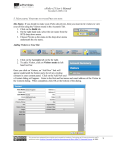
1 To turn the camera on, simply open the LCD screen.
Next, press the menu button in the top left corner. If
there is no menu button in the top left corner, simply
press your finger anywhere on the LCD and the information should display and you will be free to press the
menu button.
Because the edTPA project requires a maximum file
size of 500 MB, we are going to change the camera settings
so that it will record in stantdard definition mode to reduce
file size. For this project, standard definition video from the
Sony 550 will be more than adequate video quality.
2 Press “show others” in the bottom left of the LCD
3 Using the touchscreen scroll bar on the left, scroll
down to HD / STD set and select it. (It will be in the
“shooting set” section of the list). After that, press the
STD QUALITY option on the right side of the screen,
then press yes. Your videos will now record in standard
definition.