1
When you checkout a camera from the JFK library you
should also be given a cable to connect to any computer’s USB
port. Not all computers on campus have SD card readers, however, so we recommend you record to the cameras internal hard
drive. Settings may vary between cameras, but your goal is to
switch to standard definition and internal storage.
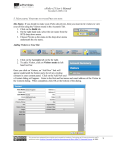
4 Just like in steps 1 and 2, press menu and then show
others. Scroll down to “Media Settings” within the “manage
media” section of the list. Press “Media Settings” on the
LCD.
5 Press “Movie Media Set” on the left side of the
screen to tell the camera where to store movie files.
Press “INT. MEMORY” to tell the camera to store
movie files in the internal hard drive instead of the
SD card. Press “yes” to confirm. Your camera will
now save movie files to its internal hard drive.
6 If and only if the word “iAuto” is NOT displaying
on your LCD, press the iAuto button on the body
of the camera where the LCD would close. The
intelligent auto function basically takes care of the
remaining camera settings automatically, so you
don’t have to worry about it. Once you’ve got your
7 When you are done recording and ready to edit, plug
your camera into the computer via the included USB
cable and press “USB Connect” on the camera LCD.