1
HANDHELD CONTROLLER
USER MANUAL
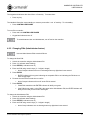
5. Press ENTER
•
ENTER indicator will turn green indicating an acceptable PIN or red indicating the PIN does not
have enough digits
6. Re-enter the new PIN a second time to confirm
• Active Group indicators turn off as the PIN is entered
7. Press ENTER
•
If both PINs match then the ENTER indicator will briefly turn green
•
If the PINs do not match, or the PIN is the same as the User PIN, the ENTER indicator will briefly
turn red and you will need to start again
Using the CLEAR key during Changing PIN:
•
If the CLEAR key is pressed and no PIN digits have been entered, the controller will return to Administrator
mode with no Administrator operations selected
•
If the CLEAR key is pressed and at least one PIN digit has been entered, the controller will return to the
start of the Changing PINs operation
4.2.3 Resetting PINs (Administrator feature)
This operation will reset the User and Administrator PINs to factory defaults:
1. Unlock the controller using the Administrator PIN
2. Press 3 (3 indicator starts flashing)
3. Press ENTER (3 indicator turns off)
•
The ENTER indicator will turn green for a correct operation or red for an incorrect operation
4.2.4 Display
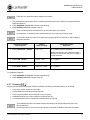
The keypad and indicators can be set to different illumination options.
Pressing and holding the CONFIG key cycles through:
1. Dim indicators
2. Dim indicators
3. Bright indicators
keypad backlight
no keypad backlight
no keypad backlight
dark nighttime conditions
bright daytime conditions
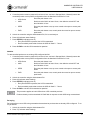
4.2.5 Clear
To deselect all keypad selections since ENTER was last pressed:
•
Press CLEAR
•
Indicators then display the current mode of the Active Group(s)
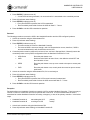
4.2.6 Battery Diagnose
Battery Diagnose sends a command to the controlled product to display its battery state of charge. Each controlled
product will respond independently.
© 2013 Carmanah Technologies Corporation
11