Download PayEasy +HR - A&A Computers Ltd
Transcript
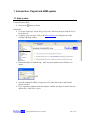
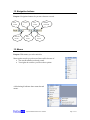
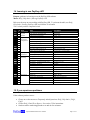
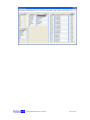
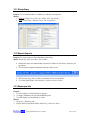
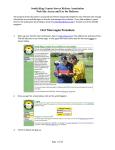
1.4 Learning to use PayEasy+HR Purpose: guidance in learning to use the PayEasy+HR software Menu: Help | Help Index | Starting PayEasy+HR Below are the steps to start working with PayEasy+HR. To print out the table, use Help | Help Index | Starting PayEasy+HR, and click the Print button. Tick √ when you have completed a task. # √ 1 2 3 4 5 6 7 8 9 10 11 12 13 14 15 16 17 18 19 20 21 22 23 24 25 26 27 28 Area Step See topics Learn the Program interface Move between records, make a new record Learn about the date format used Learn how to insert pictures Complete Company data Enter PAYE data Set the SDL percentage Optionally: Set salary grades and levels Enter pensions information Edit pull-down lists Select what employee tabs to see. Change password, Set up users Enter employee info View and print employee reports Start payroll Set leave balance brought forward Enter loan information Edit salaries – incomplete months, leave Edit salaries – Overtime Edit salaries – financial adjustments Check if the payroll is correct View and print salaries Post salaries Salary information for previous months Backing up Create a new company file Select another data file Set up for multi-user access Update the software Navigation buttons Date Format Picture / logo Company information PAYE SDL Grades and Levels Pensions Reference tables Tabs in Employee info (1) Passwords (2) Users, Rights Employee info Reports: Print and View (1) Reset payroll (2) Recalculate Leave adjustment Loans (1) Factor (2) Leave Overtime (1) Deductions (2) Earnings (3) Deposited Tabular overview for the month (1) Reports: Print and View (2) Export reports Post Month Set month Backup, Restore Make a new company file Link to Data file Network Download Updates Preparation of the program: Configuration Employee information Payroll processing Maintenance 1.5 If you experience problems If the software produces errors: • • • Choose to see the answers to Frequently Asked Questions: Help | Help Index | FAQ1, FAQ2 Choose Help | Email Error Report. See section 5.2 for instructions. Send an email to [email protected] and ask for assistance. Payroll and Human Resources Software Page 6 of 32