1
VBOXTools SOFTWARE
MANUAL
2
VBOXTools Software Manual Version 1.11
Contents
CONTENTS ........................................................................................................................................................................ 3
INTRODUCTION ................................................................................................................................................................ 9
INSTALLATION .......................................................................................................................................................................... 9
REGISTRATION .......................................................................................................................................................................... 9
GETTING STARTED................................................................................................................................................................... 10
Setting Up the VBOX on a Vehicle ................................................................................................................................. 10
Logging Data ................................................................................................................................................................. 11
Viewing Logged Data .................................................................................................................................................... 12
Viewing Live Data .......................................................................................................................................................... 13
Viewing Data as Numerical Results ............................................................................................................................... 15
OTHER LEARNING RESOURCES ................................................................................................................................................... 16
CUSTOMER SUPPORT ............................................................................................................................................................... 16
CONFIGURING THE VBOX AND MODULES ....................................................................................................................... 17
CHANNELS ............................................................................................................................................................................. 18
Standard Channels ........................................................................................................................................................ 18
Internal Analogue Inputs and Internal VCI (SX, SL, VBIII and VBOX3i Models Only) ..................................................... 18
VCI Modules .................................................................................................................................................................. 19
External CAN Modules ................................................................................................................................................... 20
LOGGING............................................................................................................................................................................... 21
Log Conditions ............................................................................................................................................................... 21
Compact Flash Log Rate ................................................................................................................................................ 22
Serial Output ................................................................................................................................................................. 22
Advanced Driver Assistance Systems (ADAS) ................................................................................................................ 22
CAN .................................................................................................................................................................................... 23
Config ............................................................................................................................................................................ 23
Tx Identifiers .................................................................................................................................................................. 23
CAN TERMINATION ................................................................................................................................................................ 24
GPS ..................................................................................................................................................................................... 24
DGPS .............................................................................................................................................................................. 24
WAAS DGPS ................................................................................................................................................................... 24
Local (BaseStation) DGPS .............................................................................................................................................. 24
Send Message to GPS Board ......................................................................................................................................... 25
GPS Optimisation .......................................................................................................................................................... 25
Kalman Filter ................................................................................................................................................................. 25
VB3I SL MODE ...................................................................................................................................................................... 25
UNIVERSAL LEAP SECOND VALUE ............................................................................................................................................... 26
ELEVATION MASK ................................................................................................................................................................... 26
OUTPUT CONFIGURE ............................................................................................................................................................... 26
VBOXIII & VBOX3i outputs ............................................................................................................................................. 26
INFO ..................................................................................................................................................................................... 27
LOGGING............................................................................................................................................................................... 27
Logging to Compact Flash ............................................................................................................................................. 27
Logging to Computer Hard Disk .................................................................................................................................... 29
VBOXTOOLS SOFTWARE – OVERVIEW ............................................................................................................................ 31
SOFTWARE MENU BAR ............................................................................................................................................................ 32
SOFTWARE BUTTON BAR .......................................................................................................................................................... 32
VBOX SOURCE....................................................................................................................................................................... 32
3
VBOXTools Software Manual Version 1.11
VBOXTOOLS – FILE .......................................................................................................................................................... 33
LOAD .................................................................................................................................................................................... 33
SAVE .................................................................................................................................................................................... 33
APPEND ................................................................................................................................................................................ 34
COMPARE.............................................................................................................................................................................. 34
Load Compare File 1 - 3 ................................................................................................................................................. 34
Save Compare File 1 - 3 ................................................................................................................................................. 34
Remove Compare File 1 - 3 ............................................................................................................................................ 34
SUMMARY ............................................................................................................................................................................. 34
CIRCUIT MAP ......................................................................................................................................................................... 35
Loading a Circuit Map ................................................................................................................................................... 35
PRINT ................................................................................................................................................................................... 35
IMPORT................................................................................................................................................................................. 35
EXPORT ................................................................................................................................................................................. 35
Export to Google Earth .................................................................................................................................................. 35
Applying Lat and Long offsets ....................................................................................................................................... 35
Viewing the data In Google Earth ................................................................................................................................. 36
Export to Route Mapping Software ............................................................................................................................... 36
Exporting to Route Mapping Software .......................................................................................................................... 36
VBOXTOOLS – VBOX ....................................................................................................................................................... 37
SUMMARY ............................................................................................................................................................................. 37
VBOX SET UP ........................................................................................................................................................................ 37
VBOXTOOLS – VIEW........................................................................................................................................................ 38
MAIN GRAPH ......................................................................................................................................................................... 38
CUSTOM GRAPH ..................................................................................................................................................................... 38
REPGEN ................................................................................................................................................................................ 38
REAL TIME PLOT ..................................................................................................................................................................... 38
NEW DATA DISPLAY ................................................................................................................................................................ 39
MULTIPLE-CHANNEL WINDOWS ................................................................................................................................................ 39
NOTEPAD .............................................................................................................................................................................. 39
ARRANGE WINDOWS............................................................................................................................................................... 39
TERMINAL ............................................................................................................................................................................. 40
Terminal Basics.............................................................................................................................................................. 40
Baud Rate ...................................................................................................................................................................... 40
Connect ......................................................................................................................................................................... 40
Clear Screen ................................................................................................................................................................... 40
Log Serial Data .............................................................................................................................................................. 40
ASCII Chart ..................................................................................................................................................................... 41
Close Terminal ............................................................................................................................................................... 41
Format of Data Display ................................................................................................................................................. 41
4
VBOXTools Software Manual Version 1.11
VBOXTOOLS – MAIN GRAPH ........................................................................................................................................... 42
OVERVIEW............................................................................................................................................................................. 42
MOVING AROUND THE GRAPHS................................................................................................................................................. 43
Zoom ............................................................................................................................................................................. 43
Pan ................................................................................................................................................................................ 43
Cursor ............................................................................................................................................................................ 43
EXPORTING GRAPH AND MAP IMAGES ........................................................................................................................................ 43
EDITING A VBOX FILE.............................................................................................................................................................. 43
Cut All Data before Cursor ............................................................................................................................................. 43
Cut All Data after Cursor ............................................................................................................................................... 43
Cut Data Between Two Points ....................................................................................................................................... 43
GRAPH SETUP - GRAPH ............................................................................................................................................................ 44
Selecting Channels......................................................................................................................................................... 44
Channel and Axis Setup ................................................................................................................................................. 44
Channel Setup ............................................................................................................................................................... 45
Axis Setup ...................................................................................................................................................................... 46
X-Axis ............................................................................................................................................................................. 46
Show Start/Finish/Split Lines On Graph ........................................................................................................................ 47
Advanced Setup ............................................................................................................................................................. 47
Graph Measure Tool ...................................................................................................................................................... 47
Clear Highlight ............................................................................................................................................................... 48
GRAPH SETUP – DATA ............................................................................................................................................................. 48
Show Selected Channels Only ........................................................................................................................................ 48
GRAPH SETUP - MAP ............................................................................................................................................................... 48
Measuring Straight Line Distance ................................................................................................................................. 48
Set Map Window Position Cursor Type ......................................................................................................................... 49
Loading Map Background Images ................................................................................................................................. 49
Creating a Circuit Overlay ............................................................................................................................................. 49
Aligning Circuit Tracks ................................................................................................................................................... 50
START / FINISH AND SPLIT LINES ................................................................................................................................................ 50
Defining Start / Finish Lines and Splits .......................................................................................................................... 50
Set Combined Start/Finish Line ..................................................................................................................................... 50
Set Separate Finish Line................................................................................................................................................. 50
Setting Splits .................................................................................................................................................................. 50
Moving Splits ................................................................................................................................................................. 51
Loading and Saving Start / Finish Line and Split Data ................................................................................................... 51
Clearing Start, Finish Line, or Split Data ........................................................................................................................ 51
Clearing All Start / Finish Line and Split Data ................................................................................................................ 51
Adjusting the Gate width .............................................................................................................................................. 51
Setting Split Names ....................................................................................................................................................... 51
Comparing Individual Runs............................................................................................................................................ 52
CREATING NEW ‘MATHS CHANNELS’ .......................................................................................................................................... 52
Close .............................................................................................................................................................................. 52
VBOXTOOLS – CUSTOM GRAPH ...................................................................................................................................... 53
CREATING A CUSTOM GRAPH .................................................................................................................................................... 53
X-Axis ............................................................................................................................................................................. 53
Y-Axis ............................................................................................................................................................................. 53
Graph Type .................................................................................................................................................................... 53
Scales ............................................................................................................................................................................. 53
Update Graph ................................................................................................................................................................ 54
Export ............................................................................................................................................................................ 54
Close .............................................................................................................................................................................. 54
Cursor and Zoom ........................................................................................................................................................... 54
5
VBOXTools Software Manual Version 1.11
VBOXTOOLS – REPORT GENERATOR ............................................................................................................................... 55
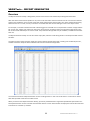
OVERVIEW............................................................................................................................................................................. 55
REPORT GENERATOR BASICS ..................................................................................................................................................... 56
Load ............................................................................................................................................................................... 56
Printing and Saving Results ........................................................................................................................................... 56
Pick Test......................................................................................................................................................................... 56
Test Setup ...................................................................................................................................................................... 57
Start/Scan File ............................................................................................................................................................... 57
Pause ............................................................................................................................................................................. 57
Stop ............................................................................................................................................................................... 57
Reset .............................................................................................................................................................................. 57
File Replay ..................................................................................................................................................................... 57
Multi-Part or Batch Tests .............................................................................................................................................. 58
USING THE PRE-SET TEST PROFILE BUTTONS ................................................................................................................................ 58
Brake Test ...................................................................................................................................................................... 58
Trigger Test ................................................................................................................................................................... 58
Circuit Test ..................................................................................................................................................................... 58
Accel Test....................................................................................................................................................................... 58
0 - 0 (Zero to Zero)Test .................................................................................................................................................. 58
POST PROCESSING USING REPORT GENERATOR ............................................................................................................................ 59
Step 1: Loading a File .................................................................................................................................................... 59
Step 2: Setting the Profiles ............................................................................................................................................ 59
Step 3: Scanning the File ............................................................................................................................................... 59
Highlighting a Run ......................................................................................................................................................... 59
Step 4: Viewing a Run in the Graph Screen ................................................................................................................... 59
Step 5: Comparing Runs in the Graph Screen ................................................................................................................ 59
Step 6: Comparing Runs from different files in the Graph Screen ................................................................................. 60
MULTIPLE LAP REPLAY ............................................................................................................................................................. 60
LIVE ANALYSIS USING REPORT GENERATOR.................................................................................................................................. 61
Step 1: Setting Real Time Mode .................................................................................................................................... 61
Step 2: Setting the Profiles ............................................................................................................................................ 61
Step 3: Creating Live Windows ...................................................................................................................................... 61
Step 4: Conduct the Test ................................................................................................................................................ 61
Step 5: Viewing the Data in a Graph Screen .................................................................................................................. 62
CREATING A CUSTOMISED TEST PROFILE ...................................................................................................................................... 63
Setting the Column Titles .............................................................................................................................................. 63
Average From Start ....................................................................................................................................................... 63
Average Between Test Lines .......................................................................................................................................... 63
Minimum ....................................................................................................................................................................... 63
Maximum ...................................................................................................................................................................... 63
Minimum between test lines ......................................................................................................................................... 63
Maximum between test lines ........................................................................................................................................ 63
Delta Between Test Lines .............................................................................................................................................. 63
Show Column Average .................................................................................................................................................. 63
Standard Deviation........................................................................................................................................................ 64
DEFINING TEST CONDITIONS ..................................................................................................................................................... 65
Start Conditions ............................................................................................................................................................. 65
‘Speed Greater Than’ Filter............................................................................................................................................ 65
Brake Trigger Activated ................................................................................................................................................. 65
Maths Channel Start Condition ..................................................................................................................................... 65
End Conditions............................................................................................................................................................... 66
Line Conditions .............................................................................................................................................................. 66
CREATING CUSTOM TEST SETUP PROFILES ................................................................................................................................... 69
Loading and Saving Custom Test Profiles ...................................................................................................................... 69
Pick Test......................................................................................................................................................................... 69
Start / Finish & Splits ..................................................................................................................................................... 70
BATCH PROCESSING ................................................................................................................................................................ 70
Multi-File Test................................................................................................................................................................ 70
Multi-Part Test .............................................................................................................................................................. 70
6
VBOXTools Software Manual Version 1.11
SPEED COLUMNS .................................................................................................................................................................... 70
Memory Stores .............................................................................................................................................................. 72
Report Generator Maths Channels ................................................................................................................................ 73
VBOXTOOLS – REAL TIME PLOT ...................................................................................................................................... 74
REAL TIME PLOT SCREEN .......................................................................................................................................................... 74
OPTIONS ............................................................................................................................................................................... 74
Changing the Replay Speed ........................................................................................................................................... 74
Screen Update Delay ..................................................................................................................................................... 75
Split Time from Start/Finish ........................................................................................................................................... 75
OVERLAY ............................................................................................................................................................................... 75
MANUAL SCALE ...................................................................................................................................................................... 75
Auto centre .................................................................................................................................................................... 75
Show Direction .............................................................................................................................................................. 76
LIVE VBOX DATA ................................................................................................................................................................... 76
REPLAYING VBOX DATA .......................................................................................................................................................... 76
VBOXTOOLS – DATA DISPLAY ......................................................................................................................................... 77
DATA DISPLAY .................................................................................................................................................................... 77
Creating a Live Window ................................................................................................................................................ 77
Selecting the Live Display Data Channel ....................................................................................................................... 77
Selecting the Live Display Data Format ......................................................................................................................... 78
Live Window Setup ........................................................................................................................................................ 78
Setting Level Alerts ........................................................................................................................................................ 78
VBOXTOOLS – TOOLS ...................................................................................................................................................... 79
BODY ANGLE CHANNEL CREATOR............................................................................................................................................... 79
Automatic Channel creation .......................................................................................................................................... 79
CENTRE LINE DEVIATION SET-UP ................................................................................................................................................ 79
RADIUS OF TURN SET-UP .......................................................................................................................................................... 79
MEMORY STORES ................................................................................................................................................................... 80
KALMAN FILTER ...................................................................................................................................................................... 80
PC FILE MANAGER .................................................................................................................................................................. 80
TRANSMIT DATA VIA INTERNET CONNECTION ............................................................................................................................... 80
Setting up the Remote PC(Client) .................................................................................................................................. 81
COLD START........................................................................................................................................................................... 81
NOTEPAD .............................................................................................................................................................................. 81
VBOXTOOLS – CONFIG MENU ......................................................................................................................................... 82
SAVE .................................................................................................................................................................................... 82
LOAD .................................................................................................................................................................................... 82
VBOXTOOLS – OPTIONS MENU ....................................................................................................................................... 82
COM PORT SELECT ................................................................................................................................................................. 82
LANGUAGE ............................................................................................................................................................................ 82
UNITS OF MEASUREMENT ........................................................................................................................................................ 83
WideScreen.................................................................................................................................................................... 83
Telemetry Mode ............................................................................................................................................................ 83
7
VBOXTools Software Manual Version 1.11
VBOXTOOLS – HELP ........................................................................................................................................................ 83
MANUAL ............................................................................................................................................................................... 83
ABOUT.................................................................................................................................................................................. 83
VBOXTOOLS SOFTWARE – KALMAN FILTER ................................................................................................................................. 84
REAL TIME FILTERING .............................................................................................................................................................. 84
VBIII & VBOX3I - IMU INTEGRATION ....................................................................................................................................... 85
Noisy and intermittent GPS Signal ................................................................................................................................ 85
Long duration dropouts ................................................................................................................................................. 86
Hardware configuration ................................................................................................................................................ 86
POST PROCESSING................................................................................................................................................................... 89
Using the Kalman Filter Software .................................................................................................................................. 89
Repairing a File .............................................................................................................................................................. 89
Filtering the File ............................................................................................................................................................. 90
Saving the File ............................................................................................................................................................... 90
Converting the Log Rate of a VBOX File ........................................................................................................................ 90
VBOXTools Software – Maths Channels
91
MATHS CHANNEL BASICS ......................................................................................................................................................... 91
CREATING A NEW CHANNEL IN THE GRAPH SCREEN ....................................................................................................................... 92
Step 1: Loading the File ................................................................................................................................................. 92
Step 2: Opening the New Channel Window .................................................................................................................. 92
Step 3: Creating the Maths Expression .......................................................................................................................... 92
Step 4: Calculating the Maths Expression ..................................................................................................................... 92
Step 5: Viewing the New Channel ................................................................................................................................. 92
Step 6: Saving the New Channel .................................................................................................................................... 92
CREATING A MATHS CHANNEL IN THE REPORT GENERATOR ............................................................................................................ 93
Step 1: Connecting the VBOX for Live Data ................................................................................................................... 93
Step 2: Running the Maths Channel .............................................................................................................................. 93
Step 3: Creating the Maths Expression .......................................................................................................................... 93
Step 4: Configuring the Report Generator Screen ......................................................................................................... 94
Step 5: Creating a Maths Channel Live Window ........................................................................................................... 94
MATHS FUNCTIONS AND CUSTOM FORMULAE .............................................................................................................................. 94
RATE OF CHANGE ................................................................................................................................................................... 95
RACELOGIC TEST CONFIGURATIONS ............................................................................................................................... 96
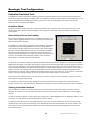
CENTRELINE DEVIATION TESTS ................................................................................................................................................... 96
Centreline Setup ............................................................................................................................................................ 96
Determining a Centre line heading................................................................................................................................ 96
Viewing Centreline Deviation ........................................................................................................................................ 96
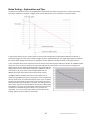
BRAKE TESTING – EXPLANATION AND TIPS ................................................................................................................................... 97
Using a Brake Pedal Trigger (Not Applicable to VBOXII Lite) ........................................................................................ 98
Dynamic Modes ............................................................................................................................................................. 98
Rock Back At the end of a brake stop, the car often rocks backwards as the suspension settles. To make sure this
does not affect the result, the default setup end speed when you select ‘Brake Test’ or ‘Trigger Test’ profiles in the
Report Generator screen is set to 0.8km/h, which eliminates this in 99% of cases. ..................................................... 99
Auto Corrected Distance Start Speed ............................................................................................................................ 99
MFDD – Mean Fully Developed Deceleration ................................................................................................................ 99
TROUBLESHOOTING ..................................................................................................................................................... 100
NO SATELLITE LOCK ...............................................................................................................................................................100
NO COMMUNICATION ...........................................................................................................................................................100
COM PORT UNAVAILABLE......................................................................................................................................................100
VBOX NOT RESPONDING - GPS COLDSTART ..............................................................................................................................100
INDEX ........................................................................................................................................................................... 101
8
VBOXTools Software Manual Version 1.11
Introduction
Welcome to VBOXTools software. This software program enables you to configure the setup of your VBOX or to view and
process the VBOX data either in real time or in post-processing.
The VBOXTools software is based around the ‘Report Generator’ data-processing engine, with links to Graphing tools,
Mapping tools, Live Data windows and VBOX Setup tools. Using a combination of these elements, and existing default
profiles, allows the user to generate complex testing scenarios with ease.
The examples given in this user manual usually relate to the VBOXIII or VBOX3i. Customers using other products, in
particular the VBOX Mini and VBOX Speed Sensors, should be aware that there are some differences between the
operation of their units and the instructions given here. Please consult the user guide for your VBOX product for more
detailed operating and installation instructions.
Installation
The VBOXTools software must be installed onto the hard drive of a computer; it cannot be run from the installation CD.
To install the software insert the CD into the CD drive of your computer. The VBOX Tools installation automatically
detects the language settings of the computer and installs the software in the relevant language. Then follow the onscreen instructions to complete the installation.
NB: Currently the installation process is only in English, please contact Racelogic to find out when other languages
become available.
The VBOXTools software is not limited to one user or computer; it can be installed on more than one computer.
Registration
So that Racelogic can continue to provide you with notification of the latest software releases and firmware upgrades and
to offer technical support, please register your application. You can fill out the supplied registration form and return it to
Racelogic or you can click the ‘Register by email’ button on the opening splash screen of the software and follow the
instructions.
The software can be used without registering by clicking the ‘Register Later’ button. However, VBOXs using older versions
of firmware will only work with VBOXTools if the software is registered.
9
VBOXTools Software Manual Version 1.11
Getting Started
This quick start guide enables you as a new VBOX user to get started and introduces you to key features.
The VBOX GPS engine receives constant information from the satellites in view and accurately measures the movement of
the VBOX antenna connected to the vehicle (or the internal antenna of the VBOX Mini, if no external antenna is
connected). This data is recorded onto a compact flash or SD (secure digital) card by the VBOX and at the same time made
available on the CAN bus and the RS232 port, where available.
Please note that the instructions given in this section, and the manual in general, relate specifically to the VBOXIII or
VBOX3i, although the same concepts can be applied to other products in the VBOX range, including the VBOX Mini and
VBOX Speed Sensor products.
For detailed instructions on how to use a particular VBOX, please refer to that VBOX’s User Manual.
Setting Up the VBOX on a Vehicle
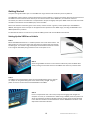
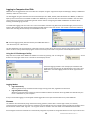
STEP 1
Mount the VBOX GPS antenna in a suitable position on the roof of the vehicle. The
ideal position is in the centre of the roof away from any objects that may shadow
the GPS signal. This creates a large metal object underneath the antenna to shield
it from signals reflected by the ground that cause ‘multi-path’ errors.
STEP 2
Screw the gold SMA connector on the antenna cable firmly onto the VBOX 'ANT'
socket, making sure that the socket on the VBOX is free from any contamination.
STEP 3
The VBOX can be powered from either the rechargeable battery pack or the 12v
car adapter. If using the battery pack ensure that it is fully charged. Plug the
power connector into the socket marked POWER on the VBOX.
STEP 4
Insert a compact flash card or SD card (not required if logging data straight to a
computer via serial, or via Bluetooth or USB if using a VBOX3i). With the power and
aerial connected the red Power LED will illuminate and the green Sat LED will flash
in line with the number of received satellites. See the VBOXIII User Guide for a full
explanation of the LED indicators.
10
VBOXTools Software Manual Version 1.11
STEP 5 (for live data viewing)
Connect the serial cable (CAB01) to the RS232 socket on the VBOX. If using a VBOX
Mini, connect a USB cable to the USB connector on the VBOX Mini.
NB: If using a VBOX3i the unit can be connected to the computer also via USB and
Bluetooth, which allow higher serial data rates.
STEP 6 (for live data viewing)
Connect the other end of the serial cable to the COM port on your laptop. If you do not
have a COM Port you will need to purchase a USB to Serial Converter and use this
instead. If using a VBOX Mini, connect the USB cable to a USB socket on the computer.
Logging Data
Connect the VBOX as shown previously and leave it for 10-15 minutes to acquire a good satellite lock. It is good practice
to do this at the beginning of your day; after you have done this satellites will be instantly picked up and locked onto,
even after periods of the power being switched off or overhead obstructions blocking the view of the sky. If the VBOX has
not been used for a long time or if it was last used many miles from its current location, it may take time to find satellite
lock. If this situation arises perform a ‘GPS Cold Start’ to reset the GPS engine; refer to the section ‘Troubleshooting’ for
more details.
Once the VBOX starts to get a lock on visible satellites, the ‘SAT’ LED will flash a number of times equal to the number of
received satellites. At a normal test track facility you should expect to see between 7 and 12 satellites being received by
the VBOX. When the VBOX has a lock on 5 or more satellites then the VBOX is ready to use.
On a VBOX Mini, a flashing satellite image will appear on most of the display screens whenever there are insufficient
satellites locked; once the satellite image disappears, the unit has locked onto enough satellites for testing to begin.
Now simply drive the vehicle, performing any vehicle tests required. In the VBOX’s default mode it will log all data when
the vehicle is moving. The blue LED on the front panel of the VBOX will illuminate and flash when data is being logged to
the compact flash card. When you have finished your first test with the VBOX come to a halt, wait until the blue logging
LED turns off, then press the LOG button to close the file (VBOXIII and VBOX3i), and then remove the compact flash card.
On the VBOX Mini, wait for at least five seconds after the vehicle comes to rest before removing the SD card.
For further explanation of how to change VBOX logging modes and set up additional logging channels via VBOX modules,
refer to the ‘Configuring the VBOX and Modules’ chapter.
11
VBOXTools Software Manual Version 1.11
Viewing Logged Data
Insert the compact flash / SD card into a suitable card reader that has been installed in a computer running the
VBOXTools software, or connect the VBOX Mini to the computer using a USB cable to download data from the SD card.
From the main menu bar of the VBOXTools software click on the ‘File load’ icon. This will bring up a File Browser dialog
box where you can point to the compact flash card location, then click and open the VBOX .VBO data file stored on the
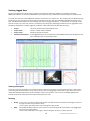
card. The VBOXTools software has now loaded the file into its background memory. To view this file in the Graph screen
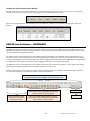
click the ‘Graph’ icon in the main tool bar. The Graph screen will appear, displaying the data from your logged file in four
windows (If the data file has been logged by a VVB then a fifth video player window will also open):
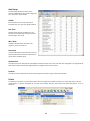
Graph Graph : Data –
Graph : Map –
Windows Video Player –
This main window shows speed against time.
Contains a table of data collected.
Shows the path of the vehicle.
If the logged data file was recorded with a Video VBOX a video player window will also
open and display the corresponding AVI file.
Viewing a data point
The cursor in the main window can be moved using the keyboard’s arrow keys, by moving the mouse to a new location
and clicking the left mouse button, or by clicking on the cursor and dragging the mouse left or right. When the cursor is
moved the Data table displays the value of the data at that cursor position. The crosshairs in the Map window also
indicate the position of the vehicle at the time selected by the cursor.
Zooming
Graph: To zoom in on a portion of the Graph window click with the left mouse button and drag the mouse to
the right over the area you wish to zoom.
To zoom out to the Graph limits, click and drag from right to left.
Map: On the Map window, select an area to zoom in on by clicking the left mouse button and dragging the
mouse to the right and down
To zoom out to the Map’s limits again, click and drag the mouse in any other direction.
12
VBOXTools Software Manual Version 1.11
In both the Graph and the Map, the up and down arrows and the mouse wheel can be used to zoom in and out around
the graph’s centre. Pressing shift whilst doing this, zooms in larger steps.
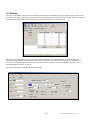
The Data window contains a table of channels logged by the VBOX that are available for viewing in the Graph window. If
you wish to view any of these channels check the tickbox to the left of the channel name. Uncheck the tickbox to deselect
them.
Graph Measure Tool
To provide a quick summary of sections of the data in the Graph screen use the ‘Graph Measure Tool’.
Move the cursor line to the start of the section you wish to highlight and place the mouse pointer over the cursor. Press
and hold the ‘shift’ key then click and hold the left mouse button. Keeping the left mouse button pressed, move the
mouse cursor right to drag out a blue highlighted area. At the end of the area you wish to highlight, release the left mouse
button, a table of results for all channels in the highlighted area will then be displayed. Refer to the ‘ Graph Measure Tool’
section of this manual for more information.
For further details and a more thorough explanation of the Graph window functions refer to the ‘Graph Screen’ section of
this manual.
Viewing Live Data
Connect the VBOX to a vehicle as described earlier in the section ‘Setting up the VBOX on a Vehicle’. Then connect the
serial communication cable CAB01 to a computer running the latest VBOXTools software. If the VBOXTools software does
not already have the data source set to ‘Online’ then press the F11 button or click on the connection button in the top
right section of the main menu bar. When using a VBOX Mini, connect the unit to the computer via the supplied USB
cable and ensure that the USB mode option in the VBOX Mini is set to ‘VBOX TOOLS’
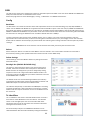
The Connection Detail box in the top right will indicate whether VBOXTools is connected to a
COM port and the top title bar will display the connection information.
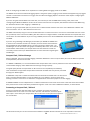
The VBOXTools software allows the user to create multiple new windows displaying live VBOX
data in any one of six formats:
Numeric
Text
Level bar
13
Angular meter
Compass
Line graph
VBOXTools Software Manual Version 1.11
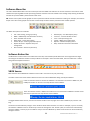
Create a new window by clicking on the ‘New Data Display’ icon in the main button bar. Each time the ‘New Data Display’
button is clicked a new window displaying speed will appear.
To change the channel displayed in a window right click inside the display pane. Select ‘Main Data’ and choose a channel
from the list of those available.
NB: The channels in the ‘Lap Timing Channels’ category will only update if both of the following conditions are true:
A set of start/finish/split lines have been created or loaded into the software.
The Report Generator is running a test (live or post-processed) which uses start/finish/split lines as the start, end
or line conditions.
To change the format of the display window right click
inside the display pane. Then from the ‘Display Type’ menu
select one of the six alternative options.
In a Line Graph window more than one channel can be shown on the same line graph, for example if four wheel speeds
were being logged then these channels could all be shown in the same window. Below is an example of some of the live
windows and the different formats they can be displayed in.
For further instruction on live windows can be found in the ‘Data Display’ section, for the on-line processing of data
please refer to the ‘Report Generator’ section of this manual.
14
VBOXTools Software Manual Version 1.11
Viewing Data as Numerical Results
Numerical results from vehicle tests can be extracted from a logged VBOX file or from live VBOX data using the VBOXTools
software.
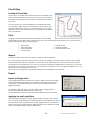
To extract typical acceleration test results from a logged VBOX file on a compact flash card, first insert the
compact flash card into a card reader connected to the computer and run the VBOXTools software. Load
the file into the software using the ‘File load’ option found in the main menu bar.
NB: you can also use the ‘Report Generator load into RepGen’ option, but the data will then not be
available in the graph screen.
Click on the ‘Report Generator’ icon in the main tool bar to open the Report Generator screen.
Then click the ‘Accel Test’ button in the Report Generator Button Bar to configure the screen to show typical acceleration
results. If the Accel Test has been replaced with a custom profile, it can be restored using the ‘Reset to default’ option
under the ‘Default Test’ options of the Report Generator menu.
The ‘Accel Test’ icon loads in a set of pre-defined settings, created by Racelogic which can then be modified to suit your
personal needs.
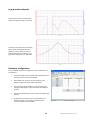
To do this click the ‘Test Set-up’ icon and and the Report Generator Set
Up screen will appear.
Set the start and end speeds to the required values for the test, for
example if the test is a 0-100km/h test then set the start speed to
0km/h and the end speed to 100km/h. Click the ‘Apply’ button and then
close the Test Setup window. The Report Generator window is now set
to scan the file and extract all results of 0-100km/h tests.
15
VBOXTools Software Manual Version 1.11
Click the ‘Scan File F2’ button to produce a table of
results from all of the 0-100km/h tests in the loaded
file.
The Report Generator screen can also be used in a ‘real
time’ mode to process live results from VBOX data.
For further information on using the Report Generator
screen refer to the chapter ‘VBOXTools - Report
Generator’.
Other Learning Resources
The VBOXTools software CD contains a copy of this manual and also copies of hardware data sheets. Example VBOX files
and Application Notes are also included.
The website is regularly being updated with new applications to help your understanding of VBOX and expand your
testing capability.
Customer Support
When you register your product, you will be entitled to lifetime technical support.
16
VBOXTools Software Manual Version 1.11
Configuring the VBOX and Modules
To configure a VBOX datalogger or VBOX speed sensor, the VBOX needs to be connected to a power source and a PC.
(Please refer to the VBOX User Guide for details of the RS232 serial connection).
Please note that the setup options available will vary between units, particularly for VBOX speed sensors. The VBOX Mini
has no on-screen configuration options (only information about the unit is shown) but the VBOX Setup facility can be used
for configuration of a VBOX Mini Input Module when attached to the VBOX Mini.
Enter the VBOX Setup screen by clicking on the ‘VBOX Set-up’ button in the
Main Button bar.
Or Selecting ‘VBOX Setup’ from the ‘VBOX ‘ option of the main Menu bar.
A new window will appear like the screen shown below. The example shown is the standard setup window of a VBOX3i
SL, so in addition to the standard channels available there are also Internal A/D and VCI Modules channels shown with
their own tabs.
If a VBOX CAN module is connected then a dedicated tab will also appear in the same row as the standard channels tab.
The main Button bar of this window contains six icons that give access to all the VBOX setup options.
NB: A VBOX with Slip Angle (VBS20SL, VB20SL & VB20SL3) can be configured either as a VBOX module or in a similar way
to a VBOX, depending on the mode of operation at the time.
17
VBOXTools Software Manual Version 1.11
Channels
Standard Channels
The first screen, ‘Channels’, shows which GPS parameters are enabled for logging to compact flash. The default channels,
that are locked to log to compact flash are:
Satellites (number being received).
Time.
Latitude.
Longitude.
Speed
Heading.
Height.
Trigger Event Time.
Vertical Speed.
These main channels are locked to prevent important channels that are key to additional analysis from not being logged. For
example, the satellite channel also contains data from the brake trigger, the latitude/longitude are required to plot the vehicle’s
path, and the heading is necessary to calculate lateral acceleration.
The bandwidth status bar ‘Log Channel Usage’ at the bottom gives an indication of available logging bandwidth. When the status
bar is full, all of the bandwidth is used; if more logging channels are added beyond this, there is a risk that data will be lost. The
bandwidth status bar is calculated for a speed optimised compact flash card. If a windows formatted card is used, the status bar
will be inaccurate with the risk that data may be lost.
The option to enable a channel in the serial data stream is kept as a separate option so that the serial data stream does not
become too overloaded. It is often the case that not all logged channels are needed in the serial data stream for live viewing.
Note that to add the channel to the serial stream; the channel must also be set for logging to the compact flash card.
Internal Analogue Inputs and Internal VCI (SX, SL, VBIII and VBOX3i Models Only)
The VBOXIII is equipped with 4 built-in analogue inputs and 8 external CAN channels (VCI). The configuration windows for the
analogue and VCI channels on VBOXIII appear alongside the standard channels tab.
Clicking on the ‘Internal AD’ tab will display the 4
analogue input channels. Logging of each channel can
be turned on or off simply by ticking or clearing the tick
box next to each channel name, under ‘Log to compact
flash’. Each channel can also be added to the RS232
serial data stream by also clicking the ‘Send over serial’
tick box.
Clicking on the channel name button will display the corresponding channel setup window, left.
The native measurement unit for the internal analogue channels is Volts therefore a scale of 1 and
offset of 0 corresponds to a live data value in volts. By changing the scale and offset values, the
live data reading (and therefore the logged data value) can be calibrated for real sensor values.
18
VBOXTools Software Manual Version 1.11
VCI Modules
Clicking the ‘VCI Modules’ tab will show the number of VCI CAN channels available to that unit. Logging of each channel can be
turned on or off simply by ticking or clearing the tick box next to each channel name, under ‘Log to compact flash’. Each channel
can also be added to the RS232 serial data stream by also clicking the ‘Send over serial’ tick box.
By clicking on a channel button, the channel setup window will appear. In the setup window it is possible to define the
parameters that the VBOX will use to extract a signal from a CAN Frame. The setup window also contains a ‘Database’ icon.
Clicking this button allows signal information to be loaded in from an industry standard CAN Database (.dbc) file, or from a
Racelogic Database File (.rdf, .vci, & .ref).
For further information on CAN Bus data contact Racelogic.
19
VBOXTools Software Manual Version 1.11
External CAN Modules
Click a channel
button to set the
scale, offset or
channel name
Click the tick boxes to log
the channel or enable the
channel’s data to be sent
as serial data
The VBOXTools creates a tabbed page in the setup window for each input module that it finds. If it finds two modules of the
same type (for example, two ADC03s) then it lists each one by its serial number which can be seen on the lower set of tabs. The
presence of CAN modules is automatically detected by the VBOX when the VBOX Set-up is run. Each detected CAN module is
allocated a tab in the Channels screen.
Configuring a CAN Module
Click on the tab for the CAN module you wish to configure, in the Channels section of the VBOX Set-up window. This will show a
window that has a tick box and channel button for each channel of the CAN module.
Clicking on a channel button opens up a channel setup box allowing the user to set the channel name, units of measurement,
scale and offset. Once a channel is configured, the settings are stored within the associated module. Also displayed in the
channel setup is a real-time view of the data on that channel. The data shown is scaled and offset, so if an ADC02 input channel
is connected to a 5V throttle potentiometer and the scale and offset are calibrated for percentage throttle opening, then the live
data value will show a reading as a percentage of throttle opening.
Some CAN modules have
other options, for example
frequency input modules
have ‘output mode’, allowing
the user to choose between
frequency, pulse count and
speed in mph or km/h
Channel setup allows the
user to set name, units,
scale and offset for data.
Live Data display of input
channel data in scaled
units
Zoom button shows a
large data window (see
below)
20
VBOXTools Software Manual Version 1.11
Once a channel has been enabled by clicking the tick box, it will then be present in the
logged data. For the enabled CAN data to be present in the serial data stream for real
time viewing, it will need to be enabled in the ‘Send over serial’ column. Refer to the
‘Serial Output (VBOXIII & VBOX3i Only)’ section for information on serial channel
enabling.
For further information on configuring individual Racelogic CAN modules refer to each module’s dedicated manual.
Logging
This screen gives access to the logging settings of a
VBOX. The page shown right is the logging page of a
VBOXIII. The SX, SL, VBOXII and VBOXII Lite models do
not have options for a 100Hz serial data rate or
Advanced Log Conditions.
Log Conditions
Only When Moving
When the ‘Only When Moving’ option is selected the
VBOX will only log data to the compact flash card
when the speed is higher than 0.5 km/h. This mode
helps stop compact flash cards being filled with
unwanted data.
Continuously
The ‘Continuously’ option causes the VBOX to log all
enabled data to the compact flash card continuously.
Advanced
‘Advanced’ (VBIII and VBOX3i only) allows the control of logging to be determined by channels and threshold levels of these
other channels using Boolean notation. For example it could be arranged so that logging starts when a logged temperature
channel reaches 25 degrees. More than one logging condition can be created using more than one of the enabled channels.
When the ‘Advanced’ option is ticked, a button labelled ‘Advanced’ appears in the Logging
window. When this button is pressed you can define the logging conditions, as shown in the
window below.
Tick the box in the ‘Used’ column to enable that criterion.
In the ‘Channel’ column any one of the currently logged standard or CAN channels can be
selected from a drop down menu, accessed by left-clicking the mouse in the channel box.
The ‘Condition’ option allows the selection of the Boolean condition to be applied, from the
following options:
= Equal to.
>= Greater than or equal to.
< Less than.
<> Not equal to.
The ‘Value’ option allows a threshold value to be entered for the
logging condition to apply to.
NB: When using Time as a logging threshold the time should be
entered in milliseconds. For example the time 14 hrs 35 minutes
and 20 seconds would be expressed in milliseconds as 52520000.
21
VBOXTools Software Manual Version 1.11
Stop Logging Delay
When the Logging option ‘Only When Moving’ and ‘Advanced logging’ options are selected the ‘Stop Logging Delay’ option
becomes available. This allows logging to continue for a set period of time even though the vehicle has come to a stop and speed
is less than 0.5km/h. The delay time periods are 1, 2, 5 and 10 seconds.
Compact Flash Log Rate
This option allows the setting of the rate at which data is logged to the compact flash card by the VBOX. The maximum is 5-20Hz
for SX/SL models, 20Hz for VBOXII and VBOXII Lite and 100Hz for VBOXIII and VBOX3i.
Serial Output
A VBOXIII and VBOX3i can output all enabled Standard and CAN channels at 5Hz and 20Hz on the RS232 serial data stream but
due to the large amount of data the available data is limited at the higher rates of 50Hz and 100Hz.
USB/Bluetooth
On a VBOX3i all Standard and CAN channels are available through the USB or Bluetooth connections at 100Hz.
RS232 serial output
In 50Hz mode all of the standard channels are present in the serial data stream but no CAN channels.
The 100Hz mode is designed for accurate live data monitoring and analysis of acceleration and brake stop times, distances and
acceleration values. In this mode only the channels Satellite, Time, Speed and Trigger event time are present in the serial data
stream.
The 5Hz mode is primarily for sending serial data via low-bandwidth connections. For example, the VBOX Telemetry Modules
are optimised to transmit data at this lower serial rate. This lower serial rate ensures that all available channels, including CAN
channels, can be transmitted over serial.
Advanced Driver Assistance Systems (ADAS)
When using VBOXIII or VBOX3i/SL, an additional section appears called “Vehicle Separation”. This allows these VBOX’s to be
configured for use in Vehicle Separation mode (as either the remote or local VBOX), to set a static separation point, or to set the
VBOX back to normal (non Vehicle Separation) operation. Please refer to the VBOXIII & VBOX3i User Manual or the Vehicle
Separation Application Note for further information.
22
VBOXTools Software Manual Version 1.11
CAN
The CAN screen contains the configuration options for the CAN output of the VBOX. In the case of the VBOXIII and VBOX3i the
CAN port socket allocation is controlled from this screen.
Within this page there are three tabbed pages, ‘Config’, ‘Tx Identifiers’ and ‘VBOX3i CAN Resistor’.
Config
Baud Rate
The ‘Baud Rate’ icon allows the selection of the CAN output data rate from one of the following, 125, 250, 500, 1000Kbit or
‘Other’. On the VBOXIII and VBOX3i this is applied to the Vehicle CAN Bus output. In the case of SX, SL, VBOXII and VBOXII Lite
these baud rate settings are applied to their only CAN port. If a Multi Function Display (MFD) is also being used with the SX, SL,
VBOXII or VBOXII Lite the MFD will only work when it also has its baud rate set to the same rate. See the user guide of the MFD
for information on setting the MFD baud rate. The MFD’s default data rate is 500kb/s.
To select a baud rate other than the four standard options, click on ‘Other’. In the new screen that appears, enter the
approximate value of the baud rate you wish to use along with a suitable tolerance (as a percentage). Click on the ‘Calculate’
button and the software will then display all possible baud rates matching those settings. Select the desired option by doubleclicking it.
NB: VBOX units cannot function at all of the baud rates listed, particularly the lower baud rates.
ReScan
When clicked, the ‘ReScan’ icon will force the VBOX to rescan its CAN bus. This can be used if modules are connected or
disconnected, allowing a data update without the need to exit and re-enter VBOX setup.
Delete Settings
‘Delete Settings’ causes the VBOX to delete any settings associated
with CAN modules.
Racelogic Bus (VBOXIII & VBOX3i Only)
This function, the port diagram shown in the centre of the setup
window, allows the association of the CAN ports to the CAN and
RS232 sockets to be swapped. The ports are swapped by clicking
anywhere in the screen image of the CAN and RS232 sockets. The
ports will not swap until VBOX Set-up has been exited and in the case
of the VBOXIII after it reboots.
The default mode is to have the Racelogic CAN bus (for modules)
associated to the CAN socket and the Vehicle CAN bus interface and
VBOX CAN output bus associated to the RS232 socket.
This CAN bus swap facility is useful when the VBOXIII/3i is not being
used with modules but is being used with a connection to a vehicle
CAN bus and also requires connection to a PC via the RS232 serial at
the same time.
Tx Identifiers
The ‘Tx Identifiers’ tab contains the CAN identifiers that are used in
transmission of the VBOX data out to the CAN bus. The identifier
values can be changed by the user to avoid conflict with other
equipment that may also be connected. The tick boxes allow CAN
messages to be turned on or off.
On the Secondary CAN port of a VBOXIII the Identifiers can be
switched between Standard and Extended by ticking the Xtd ID box.
23
VBOXTools Software Manual Version 1.11
CAN Termination
Ability to add CAN termination to either the CAN or RS232 port. Required when other Racelogic units, like the VBOX Manager,
are being connected to the VBOX.
GPS
The GPS page contains settings that are relevant directly to the GPS engine inside the VBOX. See individual products manuals for
more detailed product specific information.
DGPS
Differential GPS is a facility that increases the absolute positional accuracy of VBOX latitude, longitude and height channels.
There are two options available: WAAS DGPS and Local (BaseStation) DGPS.
There are three different levels of positional accuracy available with Local Basestations, the availability of these depends on the
version of VBOX and upgrade options that you have purchased.
NB: If a GPS coldstart is performed then the DGPS setting will need to be re-enabled.
WAAS DGPS
This form of DGPS uses the DGPS correction information transmitted by a geo-stationary DGPS satellite. It requires the vehicle to
be in view of the nearest DGPS geo-stationary satellite. This improves latitude and longitude positional accuracy from 3m to
1.8m.
Local (BaseStation) DGPS
This form of DGPS uses DGPS correction information transmitted from a Local Base Station GPS unit via radio telemetry. This
requires a Racelogic Basestation and radio telemetry unit which increases the Latitude, Longitude and Height accuracies.
Currently there are two types of Basestation available.
1) RLVBBS2
40cm RTCM correction output applicable to all VBOXIII and VBOXII units
20cm correction output applicable only to an upgraded SX, SL, or VBOXIIS
2) RLVBBS3
40cm RTCM correction output applicable to all VBOXII, VBOXIII, and VBOX3i units
2 cm RTK correction output applicable to VBOXIII and VBOX3i RTK models
Enabling DGPS
Enabling or Disabling any of the DGPS modes is done via a drop down menu in the GPS page of VBOX setup.
With a VBOXIIS 20cm and 40cm options are available. (20cm is only available if the VBOXIIS is has a 20cm GPS upgrade option).
With a standard VBIII or VBOX3i only 40cm is available, with a VBIII or VBOX3i RTK either 40 cm or 2cm is available. In some
cases the option for RTK is shown when not available, if the option is selected a message informs the user the feature is not
available.
24
VBOXTools Software Manual Version 1.11
Send Message to GPS Board
This function is used to set non-standard settings in the GPS engine. This will generally only be used on advice from a VBOX
support technician.
GPS Optimisation
The GPS screen also gives the option to set the Dynamic mode of the VBOX. This option directly changes the SMI smoothing
index applied by the GPS engine to all Doppler-derived data, notably speed and heading. The lower smoothing levels have a
higher dynamic response but are adversely noisier. The three options are:
Normal:
The ‘Normal’ mode should only be used for any testing that does not involve any high dynamic manoeuvres.
High Dynamics: The ‘High dynamics’ setting should be used for high accuracy Trigger Brake Stops or any test where time
and distance are critical and the vehicle test incorporates highly dynamic manoeuvres.
Low Dynamics: The ‘Low dynamics’ mode is used for smoother velocity and heading data and less acceleration noise only in
lower dynamic tests.
The dynamic mode of a VBOX can be viewed in the live VBOX Summary screen.
Kalman Filter
The real-time Kalman filter is a feature provided within the GPS engine of a VBOXII and as part of the firmware in VBOXIII and
VBOX3i. The Kalman filter smoothes the position and speed data in real time in conditions where satellite reception can be
varied, such as a heavily tree-lined road, or through a built up area.
For circuit analysis the Kalman filter works very well and stops any positional jumps in the data due to trees or buildings. It also
generally smoothes all of the results for easy comparison between files.
In the VBOXIII and VBOX3i the level of filtering applied to the speed trace and position information can be independently
adjusted. If the settings are both set to zero, the Kalman filter will have no influence and is effectively off. This setting is
unaffected by a GPS Cold Start on the VBOXIII and VBOX3i.
In the VBOXII the levels of filtering cannot be adjusted; the
Kalman filter can only be enabled or disabled.
Note: Once the filter is turned on, it remains on until it is manually
turned off or a GPS Cold Start is performed, even if the VBOX is
disconnected from its power supply.
NB: This applies to some units only.
It is important to note that the Kalman filter is a real time filter
that is carried out on the data as it is written to the flash card or
RAM. It therefore cannot be removed if already applied to data. If
the nature of your tests involve viewing and analyzing real time
data then the built-in real time Kalman filter is recommended.
See the ‘VBOX Tools Software – Kalman Filter’ chapter for a more
detailed explanation of the different uses of the Kalman filter.
VB3i SL Mode
When a VB3i SL is connected to VBOX Tools, when you enter the setup you will be presented with an additional option to toggle
between dual and single antenna mode.
25
VBOXTools Software Manual Version 1.11
Universal Leap Second Value
Due to the slowing rotation of the Earth, a time offset exists between UTC time and GPS time (the time shown as ‘UTC time’ in
VBOX data files). This offset is slowly increasing, at a rate of one second every few years.
To correct the time shown in the logged data, update this value with the latest leap second value, available from Racelogic. At
the time of writing (Nov 2011), the current offset was 15 seconds.
Elevation Mask
Feature to be used to improve GPS signal quality when nearby obstacles like trees and buildings are reflecting or temporarily
obscuring the signal. Increasing the elevation mask angle will cause the GPS engine to ignore satellites below the mask angle.
Feature should be used carefully, as increasing the angle does have the effect of reducing the total number of received satellites
used in the solution.
Output Configure
For VBOX systems that are equipped with analogue and digital signal outputs, the Output Configure window allows adjustment
to the signal scaling. The ‘Frequency Settings’ box refers to the digital speed output. It is possible to configure the number of
pulses per meter that the VBOX outputs. The test button enables the user to force the VBOX output to simulate a selectable
speed value.
The ‘Analogue 1 & 2’ windows allow adjustment of the VBOX analogue output scale. For VBOX systems with only one analogue
output, the signal relates to speed.
The ‘Level Settings’ allow an output value to be produced based on conditions applied to the changing state of a parameter. For
Example ‘height > 150’ produces a value of 1.
VBOXIII & VBOX3i outputs
VBOXIII/3i systems are equipped with two analogue
outputs; the signal source is selectable from any of the
following parameters:
Speed.
Heading.
Height.
Vertical Velocity.
GPS Longacc (Longitudinal Acceleration).
GPS Latacc (Lateral Acceleration).
The analogue outputs cover a 0 to 5 volt range. Signal
output can be scaled to best suit the test conditions by
setting the ‘5 volts =’ and ‘0 volts =’ options to the
required limits.
All VBOXs have one digital output that is configured for speed. But VBOXIII units with firmware >2.14 build4 also have a second
digital level output.
This digital level output can be configured to be any channel currently being logged by the VBOX. A threshold value can then be
specified so that the output is 5V if the condition is true or 0V if it is false. A tolerance or hysteresis value may also be applied,
depending on the condition specified.
26
VBOXTools Software Manual Version 1.11
Testing the Digital and Analogue Outputs
The VBOX Set-up ‘Output Configure’ screen has a test facility so that the digital and analogue outputs can be tested without the
need to connect an antenna and move the vehicle. To access this facility press the Test button. After a confirmation screen, the
screen shown on the right will appear. In this screen you can enter and apply a speed, which will then force the digital and
analogue outputs to give an output value relating to this speed.
Info
The info screen provides information on firmware and hardware
revisions of the VBOX and the GPS engine within the VBOX. It
also displays the PC time and the VBOX time. The VBOX internal
clock can be synchronised with that of the connected PC by
clicking the ‘Synchronise’ icon.
NB: An internal Real Time clock that can be synchronised is not
available on VB2SX5,VB2SX10, VB2SX,VB20SL, VBS20SL,
VBS20SL3 or VB20SL3.
The VBOX internal time is not the UTC time (from satellites) used
as a time stamp at every VBOX sample but a separate, real time
and date that is shown in the VBOX file in the header
information. This can be seen when a VBOX file is viewed by a
text editor such as Notepad.
Dataloggers and Speed Sensors with Slip Angle (VBS20SL, VB20SL, & VB20SL3)
The VBOXTools software can also be used to configure Data loggers and Speed Sensors with Slip Angle. Configuration of the Slip
angle sensor unit differs from other modules because it can be configured in two different ways – as a VBOX Module connected
to a VBOX (see ‘Configuring a CAN Module’, above), or as a standalone speed sensor, similar to the setup process for other
sensors. Please refer to the relevant manual for further details.
Logging
Selected data is recorded to a compact flash card when inserted in the VBOX. Using the VBOXTools software, RS232 data can be
recorded direct to a VBOX file on the hard drive of the computer via serial, USB or Bluetooth.
Logging to Compact Flash
When a compact flash card is inserted into the VBOX, data will automatically be recorded to the card when the logging
conditions tell the VBOX to log. On VBOXII and VBOXII Lite data will be recorded to internal RAM (1Mb) when a compact flash
card is not inserted.
For additional convenience, data logged to compact flash is stored in a standard text file format allowing it to be imported easily
into most types of analysis software. The parameters to be logged are selected by the user during the setup procedure. This
mode means that installation is very simple, and no laptop has to be carried in the vehicle. Please note that the VBOX Mini logs
data in a binary format ‘.dbn’ file, although this can be converted to ‘.vbo’ format (the same as used by other VBOX products) by
loading the file into the VBOXTools software then saving it with a ‘.vbo’ extension. It is also not possible to select which channels
are logged by the VBOX Mini – all channels are logged automatically.
Using post-processing, the same results can be obtained as using the software as real time mode.
Post processing is the recommended method of using a VBOX as the user is then always dealing with unmodified data.
In this mode the VBOX can be used to log in three ways:
Continuously.
Only when the car is moving.
When manually triggered using a start/stop switch.
NB: The VBOX Mini can only operate in ‘Log only when moving’ mode.
27
VBOXTools Software Manual Version 1.11
Refer to ‘Configuring the VBOX’ for an explanation on setting different logging modes in the VBOX.
The VBOXIII and 3i also have advanced logging options. Using these options, logging can be started and stopped using any logged
channel or combination of channels as a trigger. See the ‘Advanced Logging Options’ subsection of the chapter ‘Configuring the
VBOX and Modules’.
If you are using the internal RAM to store the data, it is necessary to clear the RAM before starting a test; refer to the
‘Configuring the VBOX and Modules’ section of this manual. Once the test is complete, download the data from the VBOX using
the ‘Download’ button under ‘Logging’ in ‘VBOX Set-up’.
If you are using a compact flash /SD card, insert it into a suitable reader and then click ‘Load’ on the VBOXTools software ‘File’
menu to load the ‘.vbo’ or ‘.dbn’ data file from the card.
The VBOX automatically assigns a name to the data file which is created on the card. This name is incremented each time a new
file is produced, and is in the format ‘VBOX_AAA’ where AAA is an integer between 1 and 999. Note that the compact flash card
cannot store more than 999 files. If you are using a VBOXIII, the file name will be ‘VBOXAAAA’ where AAAA is a value between 1
and 9999.
If you are using a Racelogic File Manager product with your VBOXIII or VBOX3i then
a name can be created for the files. For example, the name ‘brake’ would make the
files brake001.vbo then brake002.vbo etc, stored in a directory called ‘brake’. The
File Manager can also be used to view graphs immediately after a test. It can also be
used to delete unwanted files, for example after a test that has been carried out
incorrectly. Please contact your VBOX distributor for more information regarding the
File Manager.
Compact Flash / SD Card Storage
Where supported, the most convenient logging method for VBOX files is onto a compact flash / SD card. All different capacities
of compact flash / SD card can be used.
In a VBOXII or VBOXIILite, it is recommended that the compact flash card is used in preference to the internal RAM due to
increased data integrity, lower download times and larger storage capacity.
Use good quality brands of compact flash or SD card to ensure compatibility and reliability.
Lexar and SanDisk are approved compact flash card brands. Suitable cards may also be purchased
through your VBOX supplier.
A VBOXII will accept FAT or FAT16 formatted cards but not FAT32 formatted cards. The FAT format
type is normally selectable when a card is formatted. It is not, however, necessary to format a
working card and in most cases it is sufficient to simply delete the contents to prepare it for data logging.
A VBOXIII & VBOX3i are more dependent on a suitable card format to ensure fast access times. If the card has to be formatted
then please use the Card Format facility available through the ‘Tools’ menu of the VBOXTools software, as shown below.
Formatting a Compact Flash / SD Card
Connect a compact flash /SD card reader to your computer and insert the card to be
formatted. Click on the ‘Tools’ icon in the main menu bar and select the ‘Format Compact
Flash’ option. Then select your compact flash /SD card from the list of options that appear in
the next window.
This will then format your card to a format most suitable for all VBOXs. Please note that this is not required on new cards.
28
VBOXTools Software Manual Version 1.11
Logging to Computer Hard Disk
VBOX files can be logged direct to the hard disk of a computer using the ‘Log Data to PC (PC File Manager)’ facility in VBOXTools
software, under the ‘Tools’ menu.
The data logged using this method comes from the RS232 port of a VBOX ; RS232, USB or Bluetooth of a VBOX3i; or USB of an
SX/SL (or the serial stream transmitted via USB on the VBOX Mini), so channels will also need to be enabled in the serial data
stream if they are required in the file being stored. See the section ‘Configuring the VBOX and Modules’ for details about
enabling and disabling log channels.
To enable Disk Logging click the ‘Tools’ icon in the main toolbar and select ‘Log Data to PC (PC File Manager)’ from the list of
options. After selecting this option the Disk Logging window appears in the main screen. This window contains the buttons to
control the recording of a file directly onto the hard drive of a PC.
NB: The Disk Logging facility will automatically save VBOX Mini data in
‘.vbo’ file format; not ‘.dbn’ format.
The PC File Manager also incorporates an ‘Auto Filter and scan’ option which will pass live data through a Kalman Filter when the
vehicle comes to a stop, before displaying the results of a live test, when used in conjunction with the Report Generator.
Using the PC File Manager facility
Swap the source mode of the VBOXTools software to ‘Online’ by pressing ‘F11’ or clicking the
button in the top right of the screen. The button should display ‘Online’.
source
If the Disk Logging window is not already open enable the Disk
Logging screen by clicking on PC File Manager in the ‘Tools’ dropdown menu. The Disk Logging window as shown right will then
appear.
Logging Modes
Log Continuously:
With ‘Log Continuously’ ticked the PC file manager will log serial data, regardless of movement.
Log Only when moving:
Without ‘Log Continuously’ ticked only when the software detects movement will it log VBOX serial data directly to a
file in a new folder on your computer.
At any time the disk logging can be stopped and the logged file can be opened and viewed as any other VBOX file.
Filename
The software will automatically assign the filename vblog_AAA.vbo, where AAA is a three-digit number, to new files,
incrementing the number for each new file. These files are automatically stored in a folder named according to the date, which
will itself be in a folder called ‘Log Files’. The ‘Log Files’ folder is created in the same folder as the VBOXTools executable.
Even though the filename and folder are automatically assigned it is possible to change the filename to one of your own choice.
29
VBOXTools Software Manual Version 1.11
To change the file name first ensure that the disk logging is stopped. Then click the button in the filename
window
and enter a new file name.
Start logging with the new file name by clicking on the New File icon or pressing
‘F7’.
Starting and Stopping
Logging of a VBOX file to the PC’s hard disk can be started and stopped with the
‘Start’ and ‘Stop’ icons in the Disk Logging window, or the ‘F2’ and ‘F3’ keys
respectively. If Logging is stopped, ‘Start’ will continue logging to the same file
name. Only the ‘New File’ icon or ‘F7’ key will start logging to a new file.
Voice Tagging
When logging data on a PC with the File Manager tool, voice notes regarding test
conditions or erroneous runs can be added to the file, which can be replayed
instantly when viewing logged files in the Graph screen.
To enable voice tagging, select PC File Manager from the Tools menu and check the
Voice tagging enabled box. Once logging is started (by pressing F2 or clicking on the
green Start button, voice tagging can then be activated and deactivated by either
pressing F12, or clicking the Record button.
Voice tags appear in data traces as green circles on the trace and can be replayed by
clicking on these circles.
Viewing the Logged File in the Graph Screen
You can view the data that has just been logged in the main Graph screen by clicking the ‘Graph Last
File’ icon or pressing ‘F5’. The Graph Screen will appear, displaying the data from the logged file. All the
normal Graph functions will still be available.
Auto Filter and Scan
The ‘Auto Filter and scan’ function is used in conjunction with the Report Generator screen. With this function enabled, when
the vehicle reaches 0km/h the live data is automatically filtered, scanned and then displayed in the results table of the Report
Generator screen. It is advised that this is not used without first consulting your VBOX agent.
Using the Auto Filter and Scan Facility
Run the Report Generator software and set up the test profile and
columns as desired for your particular test.
Note: The test can start and end where you like but the vehicle must
come to 0km/h before the results will be processed and displayed.
Enable the Disk Logging screen and tick the ‘Auto Filter and scan’
option.
Now conduct your test and at the end of your test, when the vehicle
reaches 0km/h, the VBOXTools software will change source mode to
‘File’ and then display the filtered and scanned results in the Report
Generator window.
To start the Disk Logging and Report Generator again, press ‘F11’ to
swap the source back to VBOX.
30
VBOXTools Software Manual Version 1.11
Viewing the Filtered and Scanned Results
The text results of the run are shown automatically in the Report Generator grid. To view the results from a run in the graph
window ensure that you include the column title ‘Graph Run’ in the Report Generator screen.
When the run has finished click on the ‘Graph’ icon in the ‘Graph run’ column. This run will then be displayed in the Graph
Window.
VBOXTools Software – OVERVIEW
The VBOXTools software provides you with a facility for setting up and configuring a VBOX and associated VBOX modules. The
VBOXTools software also provides you with an ability to monitor live data in many formats. Real-time or offline data processing
can also be performed through the software.
The software also provides a facility for the Serial VBOX data to be streamed live to a VBOX file recorded directly to the hard
drive of a computer. This means that you can very quickly view data in the graph screen at the end of a test without the need to
remove and load the file from the compact flash card. This Disk Logging facility effectively enables VBOX data to be logged direct
to a VBOX file on the computer’s hard drive. See the ‘Logging’ section of this manual for further details.
The VBOXTools screen is structured with a main toolbar at the top that is constant to the software, certain options will change
between live and greyed out based on which software module is currently in use.
Below the main menu bar is the button bar which is software module specific, for example if the Report Generator function is
run, the report generator control functions appear in the second button bar.
This is the main software menu bar, certain options become
greyed out based on the software module currently in use.
This is the main button bar
showing the main VBOX
Tools module options.
This is the module specific button bar showing
basic graph functions. Available buttons depend
on which module is currently loaded.
Data Source
This is the module specific button bar showing
basic graph functions. Available buttons depend on
which module is currently loaded.
Data Source
31
VBOXTools Software Manual Version 1.11
Software Menu Bar
The main software Menu Bar is the main control panel for the VBOX Tools software. It contains menus for all functions of the
software and opening different data processing modules and views. Controls related to the loading and processing of data files
and the set-up of the VBOX is performed from this menu.
NB: Certain menu options will be greyed out until a particular module has been selected for viewing. For example, the ‘Custom
Graph’ menu will remain greyed out until the ‘Custom Graph’ button has been pressed and the module opened.
The Menu bar options are as follows:
File – Data loading, saving, & printing
VBOX – VBOX Setup and information summary
View – Module view control
Main Graph – Graph data options
Custom Graph – Custom graph data options
Report Generator – RepGen setup and
configuration
Real Time Plot – Real Time plot setup
Data Display – Live Data display setup
Terminal – Terminal window control
Tools – Data processing tools
Config – VBOX Tools configuration
Options – Software display options
Help – Manual and version information
Software Button Bar
The Button Bar consists of the main button bar to the left, and a module specific button bar to the right which changes
according to the software module currently loaded. For example in the screenshot below, the main button bar is visible
along with the RepGen button bar.
VBOX Source
Most functions of the VBOXTools software can be used in real time or for post processing.
The status of the ‘Connection’ button determines the source of the VBOX data being used by the software.
If the ‘Connection’ button is ‘Online’ the software is connected in real-time to a VBOX unit, the
COM port number can be seen in the top title bar of the software.
If the ‘Connection’ button is ‘Offline’ the software is not connected to a VBOX unit and the name
of the file is reported in the top title bar of the software.
To toggle between data sources, click the ‘Connection’ button in the top right corner of the software (or press the ‘F11’
key).
The Source will automatically change in some situations when other functions are used. For example, if you are currently
connected to a VBOX in ‘Online’ mode and you load a file through the ‘File load’ option, the Source will automatically
change to ‘Offline’. Similarly if you are ‘Offline’ and you click the ‘VBOX Set-up’ button then the Source will automatically
change to ‘Online’.
32
VBOXTools Software Manual Version 1.11
VBOXTools – FILE
The file menu is used to control the data displayed by VBOX Tools. From the file menu it is possible to
load in a data file, append data to an open file, compare two, three or four sets of data overlaid
together, and save/export the data out of the software in various formats. Loading in a file displays the
data in the graph, data and map windows if activated.
Load
The ‘Load’ option opens a file browser window which is used to navigate to the folder where a .VBO or
.DBN data file is located, double clicking on the file will open the data file. If the data file has been
logged by a Video VBOX it will have an associated video file which will be automatically loaded in to the
software at the same time as the data file and will be displayed in a video player window.
Save
To Save a file select the ‘Save’ option in the file menu. If
changes are made to the previously loaded VBOX file it
may be required to save the file with a new file name.
The save facility has the option to include or exclude
channels from the new file. After the ‘Save’ button has
been pressed the window to the right appears, in which
channels can be selected for saving.
The minimum recommended channels are checked by
default but there is no restriction on which channels can
be selected.
If the file has been logged by a VBOX3i using an IMU, the
measured channels will have been smoothed by the Kalman
filter. If the Pre-Kalman unsmoothed data is also required
then those channels need to be selected from the ‘PreKalman Filter’ tab.
A number of channels such as ‘Acceleration’ and ‘Radius of
Turn’ are calculated when the data file is loaded into the
software, these are not selected by default as they will be
calculated each time the VBO file is loaded. However, if the
data is to be used by another software package these
channels may be required.
33
VBOXTools Software Manual Version 1.11
Any CAN channels logged by the unit can be selected for saving from the CAN tab and if the data file was logged by a
Video VBOX the user has the option of also saving the logged video data.
The user can add comments to the file header by entering data into the text box on the ‘Comments’ tab. NB: In the ‘Files
of Type’ dropdown Menu in the file browser window it is possible to change the file type to either ‘.VBO’, ‘.CIR’ or ‘.CSV’.
For more information on the use of ‘.CIR’ circuit files see the ‘Graph Setup – Map’ section of the ‘VBOXTools – Main
Graph’ Section.
Append
VBOX files can be joined together using the ‘Append’ option in the ‘File’ menu. A file browser window allows the selection
of another file which will be appended to the current file. For example similar sections of test data in different files can be
made into one file using this function.
Compare
This function allows up to four similar data
files to be overlaid in the graph screen and
compared directly. For example two data files
logged by separate sources starting at the
same time can be compared.
This function is also extremely useful in
comparing data from concurrent test runs, or
laps of a track as in the example on the right.
See the ‘Post Processing Using Report
Generator’ section for how to perform data
comparison.
Load Compare File 1 - 3
This loads a data file into slot 1, 2, or 3 for comparison with the previously loaded file.
Save Compare File 1 - 3
This saves comparison file 1, 2, or 3. A file browser window will open allowing the file to be named and the save location
of the file to be selected.
Remove Compare File 1 - 3
If a run needs to be removed the ‘Remove Compare File #’ option needs to be
selected, this will clear the data file loaded into the selected slot and remove it
from the graph window.
Summary
The ‘Summary’ option provides a quick way to view basic details of the file that is
loaded.
When a file has been opened in the VBOXTools software the summary button
provides a summary of the loaded file as shown on the right, and includes details
such as the sample rate and number of lines in the file.
NB: For VBOX Summary, see ‘VBOXTools – VBOX’ section.
34
VBOXTools Software Manual Version 1.11
Circuit Map
Loading a Circuit Map
A circuit map is a template that can be placed on the ‘Graph:Map’, over
which the vehicle position data can be overlaid. A circuit overlay file can
be loaded into the map window using the ‘Circuit Map’ option from the
‘File’ menu.
A circuit overlay file is a standard VBOX file, but saved with the suffix
‘.CIR’ instead of ‘.VBO’. Any file can be loaded in as an overlay file, just
change the default ‘Files of type’ to ‘.CIR’ when loading it in. For more
details on how to create a circuit overlay, see ‘Creating a Circuit Overlay’
later in this chapter.
Print
The graph, map, data windows, and real- time plots can all be printed
independently by clicking the ‘Print’ option from the ‘File’ menu and selecting which display to print. The user has the
options of printing any of the following displays:
Main Graph
Main Graph Data
Main Graph Map
Custom Graph
RepGen Results
Realtime Plot Map
Realtime Plot Lap Times
Import
The ‘Import’ option allows the user to import a ‘.KML’ file from Google Earth.
If a circuit map does not exist for the track you are going to be visiting it is possible to trace the outline of it in Google
Earth and export the path to a Google Earth ‘.kml’ file. The inside and outside of your chosen track should be traced,
crossing over at the start/Finish line. The ‘.kml’ file can then be imported into VBOXTools for conversion to a track map
by clicking on ‘File Import’, then once the ‘.kml’ file has been imported it can then be saved from VBOXTools as a ‘.cir’
file for later use with lap data from the circuit.
Please refer to the Google Earth help files for instructions on creating paths in the software.
Export
Export to Google Earth
The ‘to Google Earth’ feature allows you to create a ‘.KML’ file that can be loaded
into the free Google Earth software. The software can then display the main file
and compare runs as different colours, and can even show split line and event
trigger information.
To create the ‘.KML’ file, select ‘File’, then ‘Export’ then ‘To Google Earth’. A
window will appear asking which data you wish to save.
Tick the desired boxes then click ‘OK’, then select a destination for the save file.
Applying Lat and Long offsets
After clicking the save button, an offset option window will appear next, in which
you can specify an X (latitude) then Y (longitude) offset to the exported data. Due to
the fact that often the overhead pictures used by Google Earth are not positioned
exactly correctly you will find that your VBOX data may have an offset to the image.
This can be compensated for using this offset facility.
35
VBOXTools Software Manual Version 1.11
Viewing the data In Google Earth
To view the data in Google Earth, simply double-click on the .kml file’s icon, which will cause the software to
automatically run, load and zoom in on the location corresponding to the .kml file. Alternatively run the Google Earth
software and then click ‘File – Open’ to browse for and open the .kml file.
Note that the Google Earth limit on this file size is 65535 lines, which
equates to the following:
100Hz data = 10.9 minutes
20 Hz data = 54 minutes
10 Hz data = 109 minutes
If you have data files which are larger than this, VBOX Tools will
automatically subsample the data to keep it within the Google Earth
limit. This will ensure that longer files will be exported without being
truncated.
Export to Route Mapping Software
The ‘To Mapping Software’ option allows a text file to be created from a ‘.VBO’ file that is suitable for direct import into
Microsoft AutoRoute or Microsoft Streets & Trips, which will then show the path of the vehicle in the mapping software.
There is also an option to create a special type of file for use with Google Earth software, which is covered in the section
‘Export to Google Earth’ above.
Select ‘File Export’ then choose ‘To Mapping Software’ from the three options.
A small selection box will appear where the export rate can be chosen. This export rate
directly determines how often a Pin marker is shown in the mapping software window.
Select an appropriate rate then give the new file a name.
For example, selecting ‘Every 1 minute’ will generate a file with positional data recorded
every minute. This allows reduction of the file size when viewing large journeys in the
mapping software.
There is also a selection option called ‘Every trigger event’, which will make a data output
at each trigger point. This can be employed as an easy way to see on a map the marked points of interest made using a
brake trigger during your tests. When the rate is selected, the software will prompt the user for a file name under which
to save the data onto the disk. Enter a suitable name for the output and click the ‘Save’ button to create a new file.
The data file created for import into the Mapping Software is in a semi-colon de-limited, ASCII text format. The
parameters for each line are:
UTC Time
Latitude
Longitude
Speed
Heading
Exporting to Route Mapping Software
Open AutoRoute or Street & Trips. Click on ‘Data’, then select ‘Import
Data Wizard’.
When prompted, browse for the ‘.csv’ file you have just created and open
it, then select ‘Comma’ as the delimiter and click ‘Next’. In column F2
select Latitude as the column name from the drop down menu. In column
F3 select Longitude as the column name from the drop down menu, then
click ‘Finish’.
The program then generates a map of your data location and places markers on the map at every data point that was
specified when the output file was created, for example once every second or at every brake trigger event.
36
VBOXTools Software Manual Version 1.11
VBOXTools – VBOX
Summary
When a VBOX is connected to a computer
running the VBOXTools software the ‘Summary’
button can be pressed at any time to view the
details of the connected VBOX. Basic setup
details of the VBOX are shown as well as the
serial number, firmware version and GPS
firmware revision. Details of any connected
modules are also shown.
VBOX Set Up
To configure a VBOX datalogger or VBOX speed sensor, the VBOX needs to be connected to a power source and a PC.
(Please refer to the VBOXIII User Guide for details of the serial connection).
Please note that the setup options available will vary between units, particularly for VBOX speed sensors. The VBOX Mini
has no on-screen configuration options (only information about the unit is shown) but the VBOX Setup facility can be used
for configuration of a VBOX Mini Input Module when attached to the VBOX Mini.
Enter the VBOX Setup screen by clicking on the ‘VBOX Set-up’ button in the
Main Button bar.
Or Selecting ‘VBOX Setup’ from the ‘VBOX ‘ option of the main Menu bar.
See the section ‘ Configuring the VBOX and Modules’ for more information on setting up the VBOX.
37
VBOXTools Software Manual Version 1.11
VBOXTools – VIEW
The view menu allows the user to quickly open a selected module, selecting one of the options
under the view menu opens the selected module in the Main View. Once the module is loaded the
corresponding menu in the Main menu bar will become un-greyed out:
Main Graph
Custom Graph
RepGen
Real Time Plot
New Data Display
Notepad
Arrange Windows
Terminal
Main Graph
Custom Graph
Selecting Main Graph opens the Graph module which
consists of the Graph, Graph:Data, Graph:Map, Video
Player (If data file logged by Video VBOX), and Main Graph
button bar.
Selecting Custom Graph opens the button bar and the
Custom Graph module in the main view, the ‘Custom
Graph’ menu option then becomes live.
RepGen
Real Time Plot
Selecting Report Generator opens the Report Generator
module which consists of the results table and the RepGen
Button Bar. The ‘Report Generator’ Menu option also
becomes live.
Selecting Real Time Plot opens the Real Time plot module
in the Main window and opens the Real Time plot button
bar, the ‘Real Time Plot’ menu option then becomes live.
38
VBOXTools Software Manual Version 1.11
New Data Display
Multiple-Channel Windows
A ‘live window’ is a display window that can display data
from a VBOX channel in real time or from a logged channel
in a VBOX file. The live windows can be placed anywhere
on the screen and each may be set to one of six different
display types. The colour and format of these windows can
also be adjusted.
In a display of the ‘line graph’ type, more than one data
channel can be assigned to the same graph. When the Data
menu is accessed for a line graph live window there is an
extra option called ‘Add Channel’ listed. Using this option
enables extra channel to be added to the same line graph.
Notepad
Arrange Windows
Selecting the Notepad option will open a file browser
window, selecting a ‘.VBO’ file will open it in Notepad so
the raw data can be viewed in text format.
The use of different screen resolutions or multiple screens
can cause VBOXTools windows to be placed outside of the
default screen size, that is then not viewable when the
default screen is used.
This facility allows any VBOXTools windows that have been
lost off the visible screen to be located back into the visible
screen area.
39
VBOXTools Software Manual Version 1.11
Terminal
The VBOX Terminal screen allows you to access live data transmitted between the VBOX and a laptop / desktop PC via the
serial link. The main application of the terminal within the VBOX software is as a troubleshooting aid. A good example of
this would be using the terminal to examine the start-up messages produced by a VBOX or CAN module. Using the
information contained within these messages could save considerable time during the fault finding process.
The terminal application is accessed by clicking on the terminal button at the right of the main button bar.
The main body of the screen displays the data from the port of the module to which it is connected. By default, the data
in the main window is shown in an ACSII format.
Terminal Basics
Once inside the terminal application the main toolbar offers the following options.
Baud Rate
This option is used to select the baud rate of the data to be received over the serial link.
Connect
This button will connect the terminal screen to the live data on the serial link. Once connected
the button icon will change to a connect symbol.
Clear Screen
The ‘Clear Screen’ option is used to clear any existing data from the display screen.
Log Serial Data
The serial data displayed on the terminal screen can be logged and saved to a text file for later inspection. Clicking the
‘Log serial data’ icon brings up a typical Windows save box where a filename and location can be typed.
40
VBOXTools Software Manual Version 1.11
ASCII Chart
This displays a simple reference chart that lists how common characters are represented in hexadecimal.
Close Terminal
The ‘Close Terminal’ option exits the terminal application and returns back to the main VBOX toolbar.
Format of Data Display
The column located on the right of the Terminal window can be used to display the serial data
stream in different formats.
The format is selected by clicking the relevant radio button; the output will be displayed in the
column below the selection window. The serial data is still displayed on the main Terminal
screen but with the selected format also displayed in the column window.
Standard Messages
Towards the bottom of the screen there is a text box for entering messages to send via the Terminal Screen. By clicking
the down arrow to the right of this text box, you can reveal a list of messages commonly used when communicating with
VBOXs. To use one of these messages, simply select it from the list and click ‘Send’ as usual.
Advanced Options
There are several other options within the Terminal Screen that can be used for enhanced functionality. These settings
are intended for use by advanced users, and it is recommended that you only adjust them if you are familiar with serial
communications and terminal programs.
41
VBOXTools Software Manual Version 1.11
VBOXTools – MAIN GRAPH
Overview
The VBOXTools Graph Screen facility is a utility that allows VBOX files to be viewed and compared in windows: a main
graph window, a data table window and a map window. In the graph window different parameters can be plotted against
either time or distance. It also offers a facility to extract minimum, maximum, average and delta values between points in
the viewed data. For more information on loading in data files see the section ‘VBOXTools – File’.
The map window shows the path of the vehicle, calculated from the latitude and longitude data, and in combination with
the graph window can be used to define start/finish lines, and split points. A circuit overlay can be applied to the map
window, allowing you to see the position of the vehicle in relation to the edges of the track. See ‘Application Notes –
Circuit Mapping and Line Analysis’ for more details on how to add a circuit overlay.
Each of the three display windows can be resized by stretching the window, and all of
these windows can be printed.
All of the parameters logged by the VBOX can be displayed, and the colours of each line
can be customised. In addition to the logged parameters, a number of calculated
channels (such as lateral acceleration and longitudinal acceleration) can be displayed.
Up to three additional files can be loaded and displayed at the same time, making data
comparison a quick and easy process.
By selecting ‘Graph’ on the main toolbar, the file that is currently loaded is shown as a
speed against time graph. The graph window automatically sets the speed scale to show the maximum value contained in
the file. If the data file was logged by a Video VBOX a video player window will also open.
Graph set-up options can be accessed either by clicking the “Channel and Axes Set-up” icon in the toolbar above the main
graph screen, or by right clicking any of the Graph windows.
42
VBOXTools Software Manual Version 1.11
Moving Around the Graphs
Once a file has been loaded into the software (See ‘VBOX Tools – File’) and is displayed the data from the file can be
examined more closely using the following basic functions: zoom, pan and cursor movement.
Zoom
Zooming in on the data in the graph or map window can be done three ways.
Move the cursor to the beginning of the zoom area then click and hold the left mouse button and drag the cursor
to the right with the mouse to the end of the zoom area (right and down for the map). Move the mouse in the
opposite direction to zoom out to the limits of the data.
Use the up and down arrow keys on the keyboard to zoom in around the current cursor position. Holding the
shift key at the same time makes the zoom happen in bigger steps.
If your mouse has a roll ball then this can be used to zoom in around the current cursor position. Holding the
shift key whilst using the mouse roller ball will make the zoom occur in bigger steps.
Pan
To pan the view in the graph or map window, put the mouse over the area you wish to pan then click and hold the right
mouse button and move the mouse in the direction that you wish to pan.
Cursor
The cursor position in the graph and map windows are linked and move together. The left and right arrow keys control
the movement of the cursor. If the shift key is simultaneous pressed then it moves faster across the screen. The cursor
can also be placed in the graph window by left-clicking the mouse button at the desired cursor position.
Exporting Graph and Map Images
The ‘Export Data’ in the Main Graph menu allows the Graph window or Map window to be exported in one of five image
formats and also allows the data in the windows to be exported in text or Excel formats.
NB: Using this method to store data means that all smoothing applied to the channel will also be exported.
Editing a VBOX File
Sections of a VBOX file can be removed using basic editing
commands accessed through the ‘Edit Data’ icon in the
Graph screen toolbar.
Cut All Data before Cursor
This feature removes the entire file up to the cursor position in the main memory only. You can use this to select an area
of the graph you are interested in and then save just a portion.
Cut All Data after Cursor
This feature removes the main memory file from the point of the cursor onwards.
Cut Data Between Two Points
This feature removes the main memory file between two specified cursor points.
43
VBOXTools Software Manual Version 1.11
Graph Setup - Graph
Selecting Channels
All values logged by the VBOX appear in the data window; all except those viewed the last time the software was used are
initially greyed out, but the data can still be seen. To enable a particular channel (for example satellites) and make it
visible on the screen, click in the tick box to the left of the channel name. For example, to display lateral acceleration:
Click here to turn the
channel on or off
Double click anywhere on the data
grid to setup the Channels and Axis.
The VBOXTools software will automatically scale the channel to its minimum and maximum values and show it in the
graph window. The enabled channel will then be highlighted in its display colour.
The data table contains all of the logged channels from the VBOX file plus Lateral and Longitudinal Acceleration and
Radius of Turn channels, calculated when the file is loaded. By default only the speed channel is enabled. The list can be
accessed by scrolling up or down to find the desired channel.
A channel can also be found by typing the first letter of the channel, for example ‘S’ for Satellites, providing that the data
table is the currently active window. If there is more than one channel that starts with the same letter then press the key
again until the software stops on your desired channel.
Channel and Axis Setup
For each channel there are a number of attributes that can be configured, including those relating to the y-axis. These are
set up in the Channel Set-up and Axis Set-up screens, which are accessed by double-clicking on any of the channels in the
Graph:Data table or by right clicking the mouse button in any of the graph windows and selecting the ‘Graph Setup
Graph Channel and Axis Setup’ option, or by clicking the ‘Channel and Axis Setup ’ button in the button bar.
44
VBOXTools Software Manual Version 1.11
Channel Setup
Visible
The tick boxes in this column switch individual
channels on or off in the graph window.
Channel Name
This column contains the names of the
available channels in this file.
Units
Shows the units of each of the available
channel.
Smoothing
In this column a smoothing level can be
applied to each channel individually. This can
be useful for the Acceleration channels. The
smoothing level number directly relates to the
number of samples used in the smoothing
routine (moving window).
Axis
Displays which axis the channel is associated
with. To change the associated axis, left click
the mouse in the right hand end of the axis
box once the channel has been made visible.
Run 1
This column shows the selected colour for
each active channel. To change the colour
click on the colour box of the channel and
select a new colour from the colour selection
box that appears.
If compare files are also loaded then Run2,
Run3 etc columns will be present in which the
colours of these compare file channels can be
set.
45
VBOXTools Software Manual Version 1.11
Axis Setup
The Axis Setup window contains all the
controls needed for assigning and configuring
the y-axis of the Graph screen.
Visible
Each tick box in this column switches an
individual axis on or off in the graph window.
Axis Title
Shows the title of each available axis. The
axis title can be edited by clicking on the box
and entering a new name.
Min / Max
The Min and Max boxes allow the scale
ranges for each axis to be set.
Autoscale
The autoscale option causes the axis scales to
automatically fit the minimum and maximum
values of the loaded channel.
Symmetrical
This option will cause the positive and negative maximum values on the axis to be the same magnitude. The magnitude of
these will be determined by the largest positive or negative value of the channel.
Position
This option controls whether the channel Axis appears at the left or right of the Graph window.
X-Axis
To swap the x-axis from Time to Distance either press the right mouse button anywhere on any Graph screen and click
‘Graph Setup’, or click the ‘Graph Set-up’ icon then select ‘Graph X-Axis’, then choose one of the two options, ‘Time’ or
‘Distance’.
46
VBOXTools Software Manual Version 1.11
Show Start/Finish/Split Lines On Graph
If this option is enabled then any Start/Finish or split lines will be shown in the main Graph as a vertical line.
Start/Finish Line – Green
Split lines – Blue
Finish line -Red
Advanced Setup
The Advanced Graph setup allows the graph parameters to be added
and modified. Background and border colours can be changed, and a
graph title and legend can also be added.
Graph Measure Tool
This tool can be used to highlight a section of data in the Graph window and produce a table that summarises the data
captured in the window. The data in the table shows start, end, difference, maximum, minimum and average values for
each of the channels on display in the window.
The area of data that is displayed in the table is highlighted in blue in the Graph window. This is often useful for quickly
establishing average values between two points in a file. In this brake stop example it can be seen from the table that the
average Longitudinal Acceleration during this stop was 0.905g.
47
VBOXTools Software Manual Version 1.11
Creating a Measure Tool Window
There are two ways to create a Measure Tool window.
Follow the menu path “Main Graph Graph setup Graph Measure Tool” this will then guide you through
the process with on-screen instructions. This process allows the use of keyboard cursor arrow keys to move the
cursor, which can allow more precise positioning of the start and end points, than the mouse controlled method
below.
Move the cursor to the start of the section you wish to highlight. Then place the mouse pointer over the cursor
position and press and hold the ‘shift’ key, then click and hold the left mouse button. Keep the left mouse button
pressed and move the mouse cursor right to drag out a blue highlighted area. At the end of the area you wish to
highlight, release the left mouse button. On release of the left mouse button a table of results for all channels in
the highlighted area appears as in the screenshot above.
Saving and Printing the Measure Tool Data Table
Click the ‘Save to file’ icon in the Measure Tool toolbar to save the data in the table in one of two formats, ‘.CSV’ or ‘.TXT’.
Click the ‘Print’ icon in the Measure Tool toolbar to print the table.
Clear Highlight
Selecting this option clears the highlighted run from the Main graph screen. This will only have an effect if
RepGen has been run on a data set and one of the graph runs selected in the RepGen table.
Graph Setup – Data
Show Selected Channels Only
The data table channel list can be reduced to only show the enabled channels, as in the example above, by clicking the
right mouse button when the mouse pointer is in the data table, then selecting ‘Graph Setup Data Show Selected
Channels Only’. This is very useful when you are moving the cursor through the graph window and wish to see the
displayed channels data at the cursor point.
Graph Setup - Map
Measuring Straight Line Distance
The Graph Screen provides the possibility of measuring the straight-line distance between two points (as opposed to the
distance travelled, which is more commonly shown).
To do this, first right-click on the main graph window and select
the option ‘Measure Straight Line Distance’. VBOXTools will then
prompt you to position the cursor at the point at which
measuring should start.
You can then move the cursor to any point on the graph as
normal; the distance will be displayed at the top of the Map
screen.
48
VBOXTools Software Manual Version 1.11
Set Map Window Position Cursor Type
The cursor type of the Main run and any compared run can be changed to any one of 9
different types. This is useful if two compared runs are being replayed to compare vehicle
track position on two separate runs.
To change the cursor type right click anywhere in the graph screen and select ‘Graph
Setup Map Set position cursor type’ from the on screen menu.
The following Menu will appear in which you can assign the cursor type for each of the
four possible runs.
Loading Map Background Images
Right click the Mouse anywhere in the graph screen and select the
option ‘Graph Setup Map Map background Image Set’ to load in
a background image, or ‘Graph Setup Map Map background Image
Clear’ to remove it.
Creating a Circuit Overlay
A circuit overlay is a VBOX file created to map the outer bounds of a circuit to improve track and driving line analysis
when viewing data in the Graph screen Map window.
Power up the VBOX and let it acquire satellites for at least 5
minutes.
Drive to the left hand side of the start of the circuit.
Place the aerial on the left hand side of the roof.
Insert the compact flash card or clear the RAM, ready for
logging.
Drive round the left hand side of the circuit.
Stop back at the place you started.
Move the aerial from the left hand side of the roof to the right
hand side slowly, being careful not to cover the aerial – let it
see the sky at all times.
Drive at right angles across the track to the opposite side.
Drive round the right hand side of the circuit.
If you are using the internal RAM:
Download the file from the VBOX.
When it asks to save the file, select ‘Save as type’ and pick ‘Circuit file’ (.cir).
If you are using a compact flash card:
Load from the compact flash card using ‘File Load’
Save using ‘Save’, select ‘Save as type’ and pick ‘Circuit file’ (.cir).
Now that a ‘.cir’ circuit overlay has been created, it can be loaded into the Graph screen and viewed in the Map window.
This makes a great facility for driving line analysis, particularly if a local basestation has been used to improve the VBOX’s
positional accuracy.
In the example to the right, three different laps and the circuit overlay are shown in a zoomed Map window. The different
lines through the corner of each lap can be seen clearly.
49
VBOXTools Software Manual Version 1.11
Aligning Circuit Tracks
It is possible to manually align the circuit views of comparison runs and also the overlay file. This is to correct for any GPS
positional drift that may have occurred during runs.
To align the circuit tracks, first load a main file and at least one compare run or an overlay. Right-click in any of the graph
screens and select ‘Graph Setup Map Align Circuit Tracks’.
You will be prompted to enter the number of the compare run to move, or ‘C’ for the circuit overlay.
After that you can move the selected plot using the cursor keys and you finish by pressing the ‘Return’ key. Holding ‘Shift’
whilst using the cursor keys will move the circuit plot by a greater amount.
You can adjust the amount by which each press of the keys moves the circuit plot by zooming in or out of the graph in the
normal way; the further the graph is zoomed in, the smaller each adjustment will be.
Start / Finish and Split Lines
Defining Start / Finish Lines and Splits
To define a start / finish line, move the cursor in the Graph
window to the desired point, when the vehicle is at the
position at which you wish to place a Start / Finish, Finish or
Split line, press the following keyboard keys or Button Bar
buttons to place them:
Start / Finish – ‘Spacebar’ –
Finish – ‘Shift’ + ‘Spacebar’ –
Split – ‘S’ –
When the cursor is moved in the Graph window the cursor in
the Map window follows this movement so you can see
where the cursor point relates to on the track. After setting a
start / finish line a green dot will then appear in the Map
window at the corresponding cursor position.
Note: It is important to try to place Start/Finish line or splits at a fast part of the circuit to reduce the effects of positional
error and to get the best lap timing accuracy; without DGPS or local correction the positional accuracy of VBOX is 3m 95%
CEP (Circle of Error Probable; 95% of all samples will fall within a 3m radius of the actual point), so crossing a line that has
a potential 3m error at the fastest speed will take a shorter time and therefore reduce the potential time error.
Set Combined Start/Finish Line
A Start / Finish line assumes the start and finish line are in the same position, as occurs on most circuits. A Finish line is
primarily used when the start and finish lines are in two separate locations, such as slalom tests or hill climb courses.
Set Separate Finish Line
A separate finish line can be placed when the start line is not also the finish line. This is used in situations such as
hill climbs or data analysis along a stretch of track that does not end where it starts. Create a finish line by
holding the ‘shift’ key whilst pressing the space bar at the desired cursor location or by selecting the ‘Set Finish’
button from the ‘Start / Finish & Splits’ menu.
Setting Splits
A user selectable number of spit points can also be set. However the more splits that are set the more processing
power is required, so the number should be kept reasonably low (< 30). To define the split points, press the ‘S’
key at the desired cursor location or select the ‘Set Split’ option from the ‘Start/Finish/Split Lines’ drop down
menu, or press the ‘Set Split’ Button on the Main Graph Button Bar.
50
VBOXTools Software Manual Version 1.11
Moving Splits
Splits can be moved by pressing ‘m’ in the Graph window and entering the number of the split to be moved, or by
selecting ‘Move split’ from the ‘Main Graph Start/Finish/Split Lines’ menu.
Once created, split lines can be saved into a split file for later use using the ‘Save’ option in the Start / Finish & Splits
menu.
Loading and Saving Start / Finish Line and Split Data
Click on the ‘Main Graph Start/Finish/Split Lines Load’ icon in the main toolbar, you can then browse for a
previously generated split file (‘.spl’, or ‘.dsf’) containing start / finish and
split line information.
Click on the ‘Save’ option in the same location to save to the start / finish
and split line information created in the Graph screen to a ‘.spl’ or ‘.dsf’ file.
Clearing Start, Finish Line, or Split Data
To selectively clear a Start, Finish or Split line from the graph window, select
‘Delete Start/Finish/Split (D)’ from the ‘Start/Finish Split Lines’ Menu.
The pop-up window shown on the right will present the user with the option of which line to delete; S for Start/Finish
Line, F for Finish Line, and a number designating which split point to delete.
Clearing All Start / Finish Line and Split Data
The current Start/Finish and split file information can be cleared from the
VBOXTools background memory and display screens by pressing the ‘C’ button or
selecting ‘Clear All’ from the ‘Start / Finish & Splits’ menu in the Main Graph
menu.
Adjusting the Gate width
The default width of the Start/finish and Split lines is 25m, 12.5m either side of the
point of creation of the line. If this width is too big or too small then edit the value
in this screen. An example reason for adjusting this width is if two sections of track
run very close to each other and there is a risk that a split set in this location could
be triggered on the nearby section of track. In this case the Width would need
reducing.
Setting Split Names
Using this facility each split point can be given a name, this is particularly useful
when splits points are placed at notable points on a circuit like named corners.
This gives you a better indication of where the split point was set on the circuit.
To set a name select the ‘Split Names’ option in the ‘Start/Finish Split Lines’ menu,
then enter a name alongside a Split point in the split points window and press OK
to apply the name.
51
VBOXTools Software Manual Version 1.11
The name given to the split then appears in any text report in which split points are displayed, such as the Report
Generator window shown below.
Comparing Individual Runs
The comparing of individual runs from one or more files in the Graph Screen is achieved through the Report Generator
screen. The Report Generator screen provides a quick an easy way to list runs from one or more files and then load these
runs into the graph screen.
Please refer to the ‘Post Processing using Report Generator’ section of the Report Generator section of this manual.
Creating New ‘Maths Channels’
In addition to the standard, calculated and CAN channels available through a VBOX, the Graph screen can show a number
of additional channels based on existing channels and mathematical expressions created by the user. These can then be
displayed on the graph and in the data table and saved as a permanent addition to the VBOX .vbo file.
To create a new channel, click the ‘Generate New Channel’ icon and fill in the required fields of the new window
that is displayed. Complete instructions on using this feature can be found in the ‘Math Channel’ section of this
manual.
Close
This closes the Main Graph Window.
52
VBOXTools Software Manual Version 1.11
VBOXTools – CUSTOM GRAPH
The custom graph facility allows any of the logged channels to be placed on either the x or the y axis of a Graph window.
Up to four channels can be placed on the y axis simultaneously, making analysis simpler. An example of this is a g-plot
where lateral acceleration is plotted against longitudinal acceleration. The screen shot below is a g-plot taken from some
laps of a circuit. You can see by the shape of the plot that high braking (-ve g) is done in a straight line (low Lateral g). Also
it can be seen that the shape of the plot is symmetrical showing that the same Lateral g can be pulled in either direction.
Creating a Custom Graph
Load your VBOX file into the VBOXTools software using the ‘File - Load’ option. Click on the ‘Custom Graph’ button. A
blank Custom Graph window will appear and the Custom Graph toolbar will appear under the file menu bar as shown
below.
X-Axis
To select which channel to display select ‘Custom Graph X-Axis Data’ and select one of the channels from the drop
down list.
Y-Axis
Assign up to four channels to the y-axis by clicking the ‘Custom Graph Y-Axis’ and selecting which y-axis, 1 to 4 to
change and then choosing a channel from the ‘Data’ drop down list. After assigning these channels click the ‘Update
Graph’ icon.
Graph Type
The graph type can be set to either Line or Point graph.
Scales
You may find the x-axis and y-axis range values need setting to suit
the data displayed. To adjust the axis range click the ‘Set Range’
icon, then enter the new values in the axis range box, shown here.
The y-axis ranges are adjustable for each channel, via the tabs in
the axis range box.
53
VBOXTools Software Manual Version 1.11
Update Graph
Click the Update graph button to set the graph screen to refresh the graph with the new settings.
Export
Click the ‘Export’ icon to select a format for exporting the Custom Graph screen image.
Close
Clicking the close button or selecting ‘Custom Graph Close’ closes the Custom graph window.
Cursor and Zoom
The custom graph cursor tracks the data line corresponding to the first y-axis whenever the left/right arrow keys are
pressed. When the middle mouse button or up/down arrow keys are used, the custom graph view will zoom in or out
around the cursor’s current location.
54
VBOXTools Software Manual Version 1.11
VBOXTools – REPORT GENERATOR
Overview
The Report Generator facility is designed to provide a fast and accurate method of producing text-based data.
After the column titles and test profile are set, a file can be scanned to show the results from all occurrences of the test
profile in the loaded file. There are five preset test setup profile buttons that provide a very quick method of extracting
data from test runs in a file, not only in the form of a results table but also for viewing the runs in the Graph screen.
For example, if a number of brake tests with a brake trigger are recorded onto a compact flash card then simply load the
file, click on the ‘Trigger Test’ profile icon then press ‘Scan File (F2)’ to display results from all brake trigger stops in the
file. Custom made Test Setups can also be made. The preset test setup profiles may be modified, renamed and saved for
later use.
The Report Generator facility can also be used to replay files, with the results being shown in the Graph window and Live
windows.
The title bar of the report generator shows the name of the test profile being used, including ones created by the user,
and will show if the setup has been modified at all from the saved test setup profile.
The screenshot shows the Report Generator screen including toolbar. In this case results from a circuit test are shown
with data reported at intervals around the track.
When you first run the Report Generator facility, you will be presented with a large blank spreadsheet style window. For
the Report Generator screen to be able to know what data to scan for and what data to display the column titles will need
to be set and a ‘Test Set-up’ created.
55
VBOXTools Software Manual Version 1.11
Report Generator Basics
Load
Click on ‘File Load’ in the menu bar to load a file into the VBOXTools software ready for analysis in the Report
Generator screen or viewing in the Graph screen.
Click on the ‘Report Generator Load into RepGen’ icon to load a file
only into the Report Generator screen, without affecting anything on the
Graph screen.
The ‘Load into RepGen’ feature is particularly useful when you wish to
load a number of separate files and compare portions of them on the same graph.
Printing and Saving Results
Printing
Click the ‘Print Results’ button in the Report Generator toolbar to print a copy of the current Report Generator results on
a printer.
Saving
The current results in the Report Generator window can be saved in one of five
output formats. Click the ‘Save Results’ icon in the Report Generator toolbar to
bring up a format selection window. After selecting one of the five formats
available a Windows Save dialogue box will appear.
Copy and Paste
In addition to the ‘Save’ button, it is also possible to cut and paste data
directly from the main report display to other applications such as Microsoft
Word or Excel. To copy and paste data move the mouse pointer to the topleft cell of the information that is needed. Then click and hold the left mouse
button while dragging the mouse pointer to the bottom-right of the required
data. When the left button is released, it is possible to complete the copying
of the data either with ‘CTRL + C’, or by clicking the right mouse button and
select ‘Copy’.
To paste the data, open the new application, for example Excel, then either
right-click and select ‘Paste’ or use ‘Ctrl + V’ on the keyboard.
Pick Test
The Pick Test option allows you to quickly and easily select a
previously saved RepGen test, and load it in to the software.
Click on ‘Report Generator Pick Test’ and browse to the
directory containing the saved Tests. Select the required test and
click on the Load button.
56
VBOXTools Software Manual Version 1.11
Test Setup
Selecting this option allows the modification of the Report Generator Test parameters.
Start/Scan File
‘Offline’
Click on the ‘Start/Scan File’ icon or press the ‘F2’ button to make the Report Generator software scan through the loaded
file and extract and display results that fit the loaded test profile.
When a file is being scanned, the column headings will be highlighted in green to show that scanning is in progress. Then,
if the conditions become valid for the test according to the chosen start and end conditions, the highlight will turn blue.
‘Online’
Click on the ‘Start/Scan File’ icon or press the ‘F2’ button’ to start the processing of the incoming serial data in order to
display results that fit the loaded test profile.
When the Report Generator is scanning serial data, the column headings will be highlighted in green to show that the
Report Generator is actively scanning incoming serial data and then turn blue when test start conditions are met and
results are being displayed.
Pause
The ‘Pause’ icon will pause the Report Generator at its current cursor location within the loaded file. When scanning has
been paused, pressing the ‘Scan File’ or ‘Pause’ buttons again will restart scanning from the current position, whilst
pressing the ‘Reset’ button will delete the on-screen results and return to the start of the file.
Stop
If the Report Generator is being used in real time then the ‘Stop’ icon will stop the Report Generator software from
scanning the live data from the VBOX.
Reset
The ‘Reset’ icon will clear the screen of all current results. The column headings will turn red whilst this function is being
performed.
File Replay
The file replay option allows a file to be scanned at three different
speeds. This is useful if you are also using live windows to view
channels from the replayed file. The replay menu is accessed by clicking
on the Report Generator menu then selecting Replay Speed. The
available speeds are: Quick Scan, 1x, 2x, 5x, and the fastest your
computer can achieve.
During the replay, the Map Window cursors will track vehicle positions of the vehicles with respect to time. In the Graph
screen the cursor will also track the current position in the files.
The first screen shot below shows only a slight difference in track position (blue and red cursors) as expected at the start
of the run. The second screen shot shows a large difference in track position achieved approaching the end of the lap by
the faster run in red.
Note: If lots of live windows are also open then the
replay speed may not always be exactly as selected
due to the time taken to redraw the live data
windows. This is especially true on slower
computers.
57
VBOXTools Software Manual Version 1.11
Multi-Part or Batch Tests
The batch test option allows different types of test to be conducted in sequence, without the need for user-intervention.
This can be useful for performing a variety of tests in a single session, or for performing equipment calibration runs and
then feeding the calibration results into the subsequent test. Batch tests can be performed both in real time and in post
processing.
In addition to the full range of test setup options, the setup files can contain screen layout configurations. This allows the
Report Generator to change which parameters are displayed – and the position and format in which they are displayed –
to show information in the clearest possible manner during each part of the test.
Using the Pre-Set Test Profile Buttons
The Report Generator screen has five preset test setup profiles that can be accessed by buttons on the Report Generator
toolbar.
If you wish to modify an existing profile, they are stored under the ‘Saved Tests’ directory in the main installation
directory. These tests are created the first time they are used. They can then be modified and re-saved with the same
name, and if they become corrupted, then simply delete them, and the software will re-create them the next time you
press the relevant button. They can also be modified and renamed to suit the users requirements.
Brake Test
This test profile will automatically set the column titles to:
Start Conditions 100km/h and End Conditions 0km/h.
Trigger Test
This test profile will automatically set
the column titles to:
Start Conditions Brake Trigger and End Conditions set to 0km/h. The test setup options have also been set so that only the
end result of each brake stop is shown allowing results of many tests to be shown in the same screen.
Circuit Test
This test profile will automatically set the column titles to:
Start Conditions set to start / finish line and End Conditions set to start / finish line, thus displaying lap times.
Note: a ‘Split’ file (.spl) containing start / finish line data must also be loaded.
Accel Test
This test profile will automatically set the column titles
to:
This test setup is set to have Start Conditions set to 0km/h and End Conditions set to “End of acceleration” (see below).
Also, data lines will be created every 10km/h.
0 - 0 (Zero to Zero)Test
This test profile will automatically set the column titles to:
Start Conditions set to 0km/h and End Conditions set to 0km/h, this separates the results into individual runs starting and
ending at zero.
58
VBOXTools Software Manual Version 1.11
Post Processing Using Report Generator
This guide explains how to extract data from a VBOX file and display the results in a table and then compare selected runs
in the Graph screen. In this example the file will contain a number of acceleration runs, but the same theory applies to
any style of test.
Step 1: Loading a File
Open the Report Generator screen by clicking the Report Generator
button in the main button bar then load a file using either the File menu
or the ‘Report Generator Load into RepGen’ option.
Step 2: Setting the Profiles
Specify some column titles and configure the Test Set-up profile to select the required data from your file; see ‘Creating a
Customised Test Profile’ in this chapter for more detail. Alternatively, select one of the pre-set test icons, (from the
Report Generator toolbar) that most suits the test you wish to view; see ‘Using the Pre-Set Test Profile
Buttons’ in this chapter for more details. In our example we selected the pre-set test profile ‘Accel Test’.
Step 3: Scanning the File
Now that the test profile has been set and the file has been
loaded, click the ‘Scan File’ icon to start the software
processing the file for every run that matches the test profile.
The results of this scan will be displayed instantly in the
Report Generator grid.
To the right, you can see the results from the Accel Test scan.
In this case 3 valid runs have been detected, with data at
every 10km/h shown in the table. This report was created
from the example file ‘accel_example.vbo’, which has been
included on the VBOXTools software CD. The User Text
column can be inserted to add notes on the testing. These
notes are then saved with the results.
Highlighting a Run
If the Graph screen was open during file scanning, it is
possible to show the location of each run on the graph. Simply
click on the last line of the desired run and it will be indicated
on the graph by a green highlight. Note that this will not work
if you click on a cell containing an icon or an include box.
Step 4: Viewing a Run in the Graph Screen
To display one of these runs in the Graph screen click on the ‘Graph’ icon shown at the end of each run
in the Graph run column. The Graph screen will now appear showing the data from this run in the
Graph, Data and Map windows of the Graph screen. All of the windows in view can now be moved so
that all data can be seen on the screen.
Step 5: Comparing Runs in the Graph Screen
To compare another run from the Report Generator results in the Graph screen, click on the ‘Graph’ icon of the chosen
run. A selection box will appear; select one of the ‘Compare Run ’ buttons so that the run gets loaded as a comparison
file. The run to be compared will now appear alongside the original run in the Graph screen, as shown in the example
screen below.
As you can see the main run is shown in red and the compare run in blue. Because this is now running the full graph
screen, all facilities of the Graph screen are available.
59
VBOXTools Software Manual Version 1.11
Step 6: Comparing Runs from different files in the Graph Screen
If you wish to compare runs from different files then you need to load the
first file and follow the steps 1-5 above. To then load in the second file for
comparison click on the ‘Load into RepGen’ button from the Rep Gen tool
bar. This will then load the file into the Report Generator section of the software and not overwrite the file information
already displayed in the Graph window.
With the second file loaded simply press the Rep Gen ‘Scan’ button. Runs that fit the test
profile will be extracted and displayed in the Report Generator table. Now click on the Graph
Icon of any of the newly displayed runs that you wish to compare in the graph screen. The
‘Open as’ window will then appear allowing you to compare the run to an existing run in the
Graph screen.
Multiple Lap Replay
It is possible to compare two or more circuit laps from different logged files then replay the
files so that corresponding vehicle track positions from each run can be viewed as the replay occurs. This is very useful to
see graphically at which points on a circuit one driver loses or gains time.
Follow instructions 1-6 above to load two or more compared runs into the graph screen.
Select you choice of cursor types for each compared run. See ‘Setting Map window cursor types’ in the Graph Screen
section of this manual.
The example shows two laps from the same circuit , the lap in red is a faster lap as can be clearly seen by the higher
speeds achieved at many places throughout the lap.
60
VBOXTools Software Manual Version 1.11
Live Analysis Using Report Generator
This guide explains how to extract test results from live VBOX data, display the results in a table and then compare
selected runs in the Graph screen. In this example the test data was from a number of trigger brake stops, but the same
theory applies to any style of test.
Step 1: Setting Real Time Mode
Because the data for this test is coming direct from the serial port of a VBOX the source mode
needs to be swapped to ‘Online’ mode. Do this by pressing ‘F11’ or clicking the ‘Source’ icon
so that it is in ‘Online’ mode.
If the Disk Logging window is not in view on the screen then enable Disk Logging by clicking on the ‘Tools’ icon in the main
toolbar and selecting ‘PC File Manager’ from the drop-down menu. See the ‘Disk Logging’ section of this manual for
further explanation.
Click on the ‘Report Generator’ icon in the main button bar to open the Report Generator screen.
Step 2: Setting the Profiles
Now set the test profile for the test to be performed, in this example a brake stop. To do this select one of the
preset test profiles from the Report Generator toolbar or load a custom profile. Alternatively create a new one
for this test. In this example we have used the preset ‘Trigger Test’ profile.
Step 3: Creating Live Windows
In addition to the live data results appearing in the Report Generator window, live
windows can be created to display calculated data from the VBOX during the test.
See the section ‘VBOXTools - Data Display’ of this manual.
For example if MFDD is set as one of the columns in the Report Generator window,
then a live window can be created that will display the MFDD result. To display a
column’s data in a live window right-click the mouse on the column title and select
‘View as Live Data’.
If the speed at start, split or finish lines is required, it is recommended that the “Lap Timing” live windows are used
because these will only be updated upon crossing the appropriate kind of start, split or finish line. (Normal speed live
windows will be updated every sample, or every RepGen results line, depending on how the live window was created).
To create a “Data Display - Lap Timing” live window, use the “New Data Display” icon in the main menu and then select
the appropriate channels from the Lap Timing group.
Step 4: Conduct the Test
Click the ‘Start’ icon or press ‘F2’ to make the
Report Generator software start scanning
the VBOX data. Pressing the ‘Start’ button
will also start the Disk Logging if it wasn’t
already running.
Now everything is set for the test to start. In
our example, when a brake stop is
performed the Report Generator screen will
show results from trigger to zero. The live
windows will show constant data and the live
windows created from the Report Generator
will update accordingly.
In the screenshot on the right, the results
from the live brake stops can be seen in the Report Generator grid. Live data windows show the Time, number of
Satellites, Speed as both a line graph and analogue display plus smoothed longitudinal acceleration as text.
61
VBOXTools Software Manual Version 1.11
Step 5: Viewing the Data in a Graph Screen
To view any of the runs that the Report Generator window has captured first click the ‘Stop’
icon or press the ‘F3’ key to stop the Report Generator software scanning live data. Then click
the ‘Graph’ icon from whichever run you wish to view. This will then open the Graph screen,
loaded with the data from the selected run. If you wish to compare another run from the
data in the Report Generator window, click on the ‘Graph’ icon for the selected run and
select one of the ‘Compare Run X’ icons to load the second file as a compare file.
62
VBOXTools Software Manual Version 1.11
Creating a Customised Test Profile
Setting the Column Titles
The first step when setting up a customised profile is to configure the parameters
that are to be displayed for the test. If a test setup is already loaded, clear any of the
unwanted columns by pressing the right mouse button when the cursor is over any
of the grey title boxes. This brings up an option box with ‘Insert Column’, ‘Delete
Column’, ‘Clear Column’ and ‘Clear all Columns’ options.
You will then need to add channels that are required for your test to the grey blank
column titles; click on the grey box at the top of the first column in the Report
Generator screen. A box will appear with a drop-down menu indicating the data for
that column, ‘Blank’ by default.
Click on the arrow on the right-hand side of the word ‘Blank’ to drop down a list of
the available parameters. The list contains all of the logged parameters stored in the
VBOX data file and calculated values such as distance. If external channels such as
those from an ADC03 analogue module or TC8 thermocouple module have been
logged in the VBOX data file then these channels will also be listed. Also listed are
the Maths channels set up using the Maths channel facility.
Click
Here
After selecting the data channel from the drop-down menu the box shows a list of
attributes that can be applied to the data channel. The column label can be edited
and a multiplier and offset applied.
Average From Start
This will average all of the sample values in the file between the start and current
line of a run.
Average Between Test Lines
This averages all sample values between current displayed and previous data lines.
Minimum
This displays the minimum value of this channel for each run up to the current line.
Maximum
This displays the maximum value of this channel for each run up to the current line.
Minimum between test lines
This displays the minimum value of this channel between the display line and the previous display line..
Maximum between test lines
This displays the maximum value of this channel between the display line and the previous display line..
Delta Between Test Lines
This displays the difference between the values on the current and previous test lines.
Show Column Average
The column average selection will average all the data in the selected column and display the resulting value in this
column at the end. For example this could be used to quickly display the average brake stop distance from a file of many
runs.
63
VBOXTools Software Manual Version 1.11
Standard Deviation
The standard deviation selection will calculate the standard deviation of all the results in the selected column and display
the result and the end of the selected column. This is very useful data as it gives an idea of the consistency of the all the
results.
Standard Deviation is calculated in the following way:
1) calculate the average of all the values
Which means take the sum of all the values from sample 1
to sample N and multiply it by 1 over the number of samples.
2) Then calculate the sum of the square of the differences
between each point and the average, multiply by 1 over
the number of samples, then square root:
Available Parameters
The list of parameters available for selection as column titles not only contains the standard VBOX channels and any
available CAN channels, it also contains some other useful channels:
Run number (Run num) – This number increments for each new run (one section of data between the test start
and end conditions).
MFDD – The Mean Fully Developed Deceleration, is usually taken as the average deceleration of a brake stop
taken between 80% and 10% of the test start speed.
Corrected distance (Corrtd dist) – The distance from the point at which the brake trigger is activated to the test
end speed, corrected by multiplying the total distance by the ratio of the square of the trigger speed to the
nominated ‘corrected distance start speed’. The ‘corrected distance start speed’ can be set to a chosen value or
the nearest 10km/h or mph. This is set on the options page of ‘Test Set-up’.
File time – The time that the scanned file was recorded.
Trigger speed – Shows the speed at which the Trigger occurred.
Save run – With this selected, the logo of a disk will appear at the end of each run. An individual run on the
Report Generator display can then be saved as a ‘.vbo’ file.
Include box – This will place a tick box on the display screen for each run. This enables selected runs to be
included or excluded from column average totals and when saving the results.
Graph run – A logo of a graph appears at the end of each run. On clicking this icon, the Graph screen
automatically opens, displaying this run.
Average Longitudinal Acceleration (Avg longacc) – This column will display the average Longitudinal
Acceleration, calculated by the following formula:
2
2
o a = (v –u )/2s
o Where a is acceleration, v is the final speed, u is the initial speed and s is the distance travelled.
Vmax – This displays the highest speed achieved in the run.
Centre Line Deviation- This is a calculated channel of vehicle deviation from a specified centre line. The centre
line is configured by setting a heading in ‘Tools’ – ‘Centre line deviation setup’
User Text – This enables the user to enter text that can be included in the results table. It can also be used as the
filename for Auto-saved files.
Relative Height – Calculated from the vertical velocity channel (when available), this gives the change in height
from the start of the run. Over shorter tests, this can be more accurate than the standard Height channel.
File Name, Serial Number, File Date – Inserts these details from the file into the results table, for easier
reference.
Time Since Midnight – This measure of time can be used easily with Maths Channels and Memory Stores. In
particular, it can be used to calculate important information such as time between brakestops.
Test Name – This inserts the name of the .rcf file used to generate the results table. This is particularly useful
when exporting results tables for analysis in other software or when using the batch test facility to perform
multiple different tests on the same file.
Radius Of Turn – Displays the radius of turn as calculated from the GPS data. The options selected in the “Radius
of Turn Setup” tool also apply in RepGen.
Maths Channels – Any maths channels defined by the user can also be entered as a column header.
64
VBOXTools Software Manual Version 1.11
Defining Test Conditions
The next step is to define the test conditions. These define the conditions under which a test sequence will start and stop.
They also allow the user to select how the report data is compiled, for instance whether an extra report line is added for a
given speed, distance or time.
The following section explains each part of the test setup in more
detail.
Start Conditions
These define the conditions under which the test will start. The start
condition options are:
Speed (when the speed crosses a user-defined threshold).
Brake trigger activated (with optional speed range).
Cross start / finish line.
Immediately (from the start of the file or direct after an end
condition).
Maths channel 1 thresholds.
These conditions can be combined with an OR relationship, meaning
that if you activate all of speed, brake trigger activated and the cross
start/finish line option, the test will start when any one of the
conditions are valid. The trigger options can be enabled or disabled
using the tick box on the left of each trigger parameter. If a box is
ticked, the parameter will be used to trigger the test.
Three filter options are available for the speed condition:
Increasing.
Decreasing.
Either.
These are used with the speed in an AND relationship; if, for example, the increasing option is enabled, the test will only
start if at least one of the trigger conditions is met and the speed is increasing. If you are having problems triggering a
test, set this to ‘either’.
There is also a facility to make the computer beep when the start condition is met.
‘Speed Greater Than’ Filter
This can also be used to filter out 0kmh to 0km/h runs that do not go over the stated speed. This is particularly useful for
removing small movements in between proper acceleration runs.
Brake Trigger Activated
The “Brake Trigger Activated” option allows the test to begin when the brake trigger is pressed. If the associated speed
range is set to non-zero values, the brake trigger will only cause the test to start if the speed is within the specified range.
This filter will enable the software to ignore any cases of a brake stop that does not start above the user-specified speed.
If the speed range has zero values for its limits, the test will start when the trigger is pressed, regardless of the speed.
Maths Channel Start Condition
The test can also be started using a Maths channel threshold start condition. A greater than ‘>’ and less than ‘<’ option
dictates when the test will start. To enable one of these options click the small tick box and enter a threshold value in the
box to the right. For more information on the Maths Channel please refer to the ‘Maths Channel’ chapter of this manual.
You can use this to start a test from any logged channel by making the maths channel equal to the desired channel.
65
VBOXTools Software Manual Version 1.11
End Conditions
The end conditions are similar in operation to the start conditions. They
define the conditions under which a test will end. There are six parameters
that can be configured to end the test. They are all related by an OR
relationship, so if any one of the conditions are met during the test, the
test will end. As with the start conditions, a filter is available for selecting
whether the speed should be increasing, decreasing or either.
The “End of acceleration” condition occurs whenever the longitudinal
acceleration is less than -0.1G for one second. The longitudinal acceleration
is automatically smoothed for the purposes of this calculation. This feature
allows tests such as acceleration runs to be analysed without prior
knowledge of the vehicle’s final speed.
Line Conditions
The start and end conditions will each add a line to the test report when a
condition is met. The line conditions may be used to add useful data to the
report between the start and end events.
There are a number of conditions that can be configured to add lines to the test
report, as listed in the table below.
Test lines can also be created using the Maths channel threshold conditions. To
add a maths channel test line enable the desired maths channel condition and
enter a threshold in the relevant box. A channel must then be defined in the
Maths Channel, please refer to the Maths Channel section of this manual for
further information.
The “Allow Reset” option on the maths channel line conditions allows a new line
to be generated each and every time that condition goes from being invalid to
being valid. If this option is not enabled, a result line will only be generated the
first time that condition goes valid in any given run.
Condition
Speed line
Distance line
Time line
Brake trigger event line
Start/finish line
Finish line
Split line
Operation if enabled
A new line will be added at user defined speed intervals, for
example every 10km/h
A new line will be added at user defined distance intervals, for
example every 10m
A new line will be added at user defined time intervals, for example
every 0.2s
A new line will be added upon activation of the brake trigger.
A new line will be added as the start/finish line is crossed
A new line will be added as the finish line is crossed
A new line will be added as a split line is crossed
66
VBOXTools Software Manual Version 1.11
Options
The options tab contains test setup configuration options.
Comments Section Size
This option sets the size of the area set aside for test comments at the
beginning of the test data.
Acceleration Units
This option allows the user to select the units of acceleration from a
choice of either G, m/s2 or ft/s2.
Time Format
From this option, the user can select whether to have time displayed in
seconds only format (ss.ss), or in minutes and seconds (mm:ss.ss).
Autosave Data
With this option selected the displayed report data is automatically saved
to a new file.
New File for Each Test
This option dictates whether a new file is created for each test or
whether all tests are saved to the same file.
Row Count
This option allows you to increase the maximum line limit with the
Report Generator screen. Smaller line limits will decrease the time for
some operations (such as resetting data) and are generally more suitable for less powerful machines. The default setting
is 1500 lines.
Continuous Testing
This option will allow the software to continue scanning for more runs after completing the first.
Hide Start Condition Line
This function will cause the start condition line to be omitted from the report. This is useful when creating a report that
only has the end result on each line, particularly when carrying out multiple brake stops and using the column average
function to work out the average stopping distance. This feature is usually combined with the ‘Don’t leave a line between
tests’ option and an ‘include box’ in one of the columns.
Hide End Condition Line
This function will cause the end condition line to be omitted from the report. It can also be set only to omit the end line if
the speed has exceeded a specified value during the run.
Hide Line Condition Line
This function will cause any line condition result lines to be omitted from the report. This is useful for removing lines
which are required to carry out the test, but are not actually required in the results table.
Don’t Leave a Line Between Tests
This suppresses the blank line created after each time the end condition is met.
Hide Test Resets On Over/Under Speed
With this option enabled, the software will not display any occurrences of data fitting the start conditions but not the end
conditions, for example going over and then back under the start speed whilst preparing for an acceleration run. This is
very useful for eliminating unwanted data between valid runs.
67
VBOXTools Software Manual Version 1.11
Generate Lines Only During Brake Trigger
This switch causes the software to only display data lines when the Brake/Event marker switch is activated. It should be
used in conjunction with the Start and End conditions also set to ‘Brake trigger’.
In this mode the start condition will occur when the Brake/Event marker switch activates and the End condition is met
when the Brake/Event marker switch is de-activated.
This can be used for compiling data for tests such as a coastdown tests, see Application notes on the website or CD for
guidance on ‘Coastdown Tests’.
MFDD Settings
The MFDD (Mean Fully Developed Deceleration) settings are set with these options. The MFDD can be calculated from
percentage values of the start speed or from exact speeds, depending on what values are set. See the section entitled
‘Brake Testing – Explanation and Tips’ for more details.
Corrected Distance
This option allows the corrected distance to be calculated either from a nominated speed or from the nearest round
10km/h value.
If a brake trigger is fitted, this is the distance from the point at which the brake trigger is activated until the vehicle
reaches 0km/h. It is corrected by multiplying the total distance by the ratio of the square of the trigger speed to speed at
this nominated or the nearest 10km/h speed.
The Corrected Distance is used to compare the distance from triggered brake stops of different runs. To combat the
problem of human error resulting in the brake pedal being pressed at a different speed every time, the Corrected
Distance corrects the data to a known speed thus allowing accurate data comparison.
Accel Smoothing Level
This allows the amount of smoothing on the longitudinal and lateral acceleration calculations to be adjusted. As a rule of
thumb, we tend to use level 2 for 20Hz data, and level 12 for 100Hz data.
68
VBOXTools Software Manual Version 1.11
Creating Custom Test Setup Profiles
Often you will want to customise a test profile to the settings required for a particular test, or re-use the same settings.
Custom test profile settings can be saved in place of one of the five preset profiles. For example if after modifying the
Accel Test settings and selecting column titles as desired, selecting ‘Report Generator Default Test 4 Assign Current
Test Settings’ then choose a name and location for the configuration file and click the ‘Save’ button. The test name in the
toolbar will change to match that of the configuration file.
One of the five default test setup profile icons can be assigned to the test if desired, using the ‘Assign icon’ option in the
drop-down list.
The screen shot below shows an example of the first preset test now being set to a custom test called Racelogic1.
To restore a default test, select the ‘Return to default’ option from the tests menu.
Loading and Saving Custom Test Profiles
The ‘Load Set-Up’ and ‘Save Set-Up’ buttons at the top of each test setup window allow the test configurations to be
saved and then re-loaded.
Set-up change warning
When making changes to an un-saved set-up, VBOX tools will flash up
dialogue box to give the user an option to save the existing set-up before
the changes are applied.
Pick Test
Clicking ‘Pick Test’ or pressing ‘F4’ brings up a window
that contains a list of previously saved custom test
profiles. These profiles are saved in the PC’s directory
structure for ease of access. From the ‘Report
Generator Pick Test’ window, click on ‘select
directory’. This will enable you to browse the
directory structure for the folder where your test
profiles are saved. Once the required folder is located,
press ‘Enter’ to open this in the ‘Report Generator
Pick Test’ window. The test profile can then be
selected from the list.
Adding and Removing Test Profiles
Click the ‘Add Test’ icon to open a browse window then search for your test setup file and click ‘Open’ to add this setup to
the list.
To remove a test from the list, select it with the mouse or the up and down arrows then click the ‘Remove Test’ icon to
delete the highlighted file from the Pick Test window.
69
VBOXTools Software Manual Version 1.11
Start / Finish & Splits
The Report Generator screen includes a feature in its toolbar
that allows you to load split files into the software, or to clear
any splits previously set in the file. This feature can be very
important because it allows you to load a file into the Report
Generator only and still use split lines, as opposed to having
to use the ‘Load All’ feature.
Please note, however, that it is not possible to set split lines within the Report Generator itself – to do this, the file will
need to be loaded into software using the ‘Load All’ button, after which split points can be set normally (see ‘Start / Finish
Lines and Splits’ in the ‘Graph Screen’ section for more details).
Batch Processing
There are two forms of batch processing: batch run and batch test.
Multi-File Test
It is possible to process runs from multiple files at the same time in the Report Generator screen. To do this, the test
setup must be configured before loading the files. Once the test has been configured as desired, click the arrow next to
‘Load Into RepGen’ and select the option ‘Multiple Files. Select the required files, and the Report Generator will process
them automatically.
NB: The files to be processed must all be within a single directory.
Multi-Part Test
The multi-part test option allows different types of test to be conducted in sequence, without the need for userintervention. This can be useful for performing a variety of tests in a single session, or for performing equipment
calibration runs and then feeding the calibration results into the subsequent test. In addition to the full range of test
setup options, the setup files can contain screen layouts. This allows the Report Generator to change which parameters
are displayed – and the format and position in which they are displayed – to show information in the clearest possible
manner during each part of the test.
Multi-part tests are configured by selecting a series of existing or new RepGen test setup files and arranging them in the
desired order. These files can include all of the normal test settings, including start, end and line conditions, speed
columns and column headings, as well as screen settings.
Before it can be used, a multi-part test configuration must be saved in the format .btf (“Batch Test File”). It can then be
subsequently reloaded if desired, however the component .rcf files will also need to be available in their original
directories with their original names.
Once the multi-part test has been configured and saved, it can be used simply by loading a file (post-processing mode) or
connecting a VBOX (real time mode) and either clicking the “Multi-part Test Run” button or pressing F6.
Speed Columns
The use of Speed columns in Report Generator is to allow interim time values to be displayed across the screen in
columns rather than down the screen in rows. See the table below for an example of the use of Speed Columns:
Acceleration example
Four 0-60km/h runs have been performed and the times at 10km/h intervals have been generated:
Run num
1
2
3
4
0-10
0.39
0.48
0.47
0.6
Avg=0.49
0-20
0.71
0.8
0.81
0.99
Avg=0.83
0-30
1.02
1.15
1.16
1.4
Avg=1.18
70
0-40
1.48
1.45
1.49
1.88
Avg=1.57
0-50
1.83
1.74
1.81
2.88
Avg=2.06
0-60
2.2
2.13
2.15
3.33
Avg=2.45
VBOXTools Software Manual Version 1.11
If speed columns were not used, then each time result would be on a separate row, making it impossible to average each
speed range:
Run num
1
Speed
0
10
20
30
40
50
60
Time
0.0
0.39
0.71
1.02
1.48
1.83
2.2
2
0
10
0
0.48
Configuring Speed Columns
The individual Speed Columns are configured from within the normal ‘Test
Setup’ in Report Generator. There are two tabbed pages for the speed
columns, 1-10 and 11-20.
Each Speed Column generates a result which is
based on the time between two events. These
two events can be selected from a pull down
list:
The start and end points for each Speed Column can be configured by
manually entering the value
Or by using the Auto Generate function.
NB: Even though you may have set an individual Speed Column to a 0-60
test, you still have to set the overall Test Start and End conditions as normal
using ‘Test Setup’. For example, if you are doing a test from 0-100 with 10
speed columns, then set Start Conditions to 0 km/h, End Conditions to 100
km/h, then set 10 speed columns for the 10 increments in-between.
Assigning a Speed Column
To assign a results window column to one of the Speed Columns, click the column
header and then select one from the pull down list.
NB: If the name of the Speed Column does not appear in this list, then make sure
that the ‘Use’ box has been ticked in the Test Setup.
NB: Some features such as ‘highlight run’ do not work in conjunction with speed
columns.
71
VBOXTools Software Manual Version 1.11
Memory Stores
Memory stores are permanent memory locations used to store results form a test, so that they can be carried over to
another test. The value in the Memory Store is a permanent value, so it is not lost when the software is shut down, or
when a new test starts. There are 10 memory stores in total and data is allocated in one of three ways:
Assigned manually – by clicking on ‘Tools’ – ‘Memory stores’
Assigned from a cell in the results grid – by right clicking on that cell
Assigned from a result in a column of the results grid – by right clicking the column header
Memory Store example
In this example, a wheel speed encoder is fitted to measure the wheel slip. The wheel speed encoder outputs a set
number of pulses per revolution, but because the tyre diameter can vary, the exact calibration of the encoder is required
first.
Set the maths channel to divide the wheel speed encoder frequency channel by Speed(GPS),
Select the ‘average from start’ option.
Right click the maths channel column header and assign it to a Memory
store. Set the Memory store to pick up the results at the ‘End of Test’
condition.
Scan an acceleration test without wheel spin. At the end of the test the
memory store is loaded with a value relating to the calibration ratio of
the speed encoder.
This memory store can then be used as a multiplier in subsequent tests to
transform the Wheel speed encoder output into a calibrated wheel speed output
in km/h.
72
VBOXTools Software Manual Version 1.11
Memory Stores from Test Lines
When choosing to assign a column’s line condition result value to a memory store, it is possible to assign this from either
a specific test line for which this applies, or from every new valid line condition.
To assign a specific line result to a memory store, click “Assign value to memory store” from the Report Generator results
table, as explained above. The Memory store dialogue box presents the option to choose a specific line number. ensure
the Test Line box is checked and then manually enter the line number to be assigned.
Memory Stores as Column Headers
Any of the 10 memory stores can be selected as a column header in a results table, useful for when it is desirable to know
the value held in the memory store at each test line. To select a memory store as a header, left click on the column
header in the table and a drop down menu of available channels will be given. Scroll down to the required memory store,
select this and then click OK
Report Generator Maths Channels
The Report Generator toolbar contains a ‘Maths Channel’ icon, which can be used to create up to
five Maths channels for use with the Report Generator. As well as displaying the results of
mathematical expressions with every line of information created by the Report Generator, these
Maths channels may be used as start conditions or line conditions.
See the section ‘Maths Channel’ for more details.
73
VBOXTools Software Manual Version 1.11
VBOXTools – REAL TIME PLOT
Real Time Plot Screen
The VBOX Real Time Plot screen is a vehicle path plotting screen which is updated in ‘Online’ mode when a VBOX is
connected to a laptop running the VBOX Tools software. It can also be used in ‘Offline’ mode using a replay function. As
well as plotting the path, it can be used to measure times between points on a track set by the user.
It can also be used to replay a recorded file with a choice of four speeds. However, for most applications it is
recommended that lap timing be done through the Report Generator screen.
The Real Time Plot screen is accessed by pressing the Real-Time plot button in the Main Button bar.
Virtual markers can be applied to the track and the timings between these markers are displayed in a table on the screen.
The screenshot below shows four and a half laps of a circuit with a start / finish line and two split points. The numerical
results of the test are shown in the table.
A file can be replayed in this window or plotted in real time, but for lap timing or split point times to be displayed, the
position of these lines must be created or loaded into the software.
The data used to create this path of a vehicle is the Latitude and Longitude information calculated by the VBOX.
Options
There are a number of real time plot screen options to give control of use
and setup of the screen
Changing the Replay Speed
Click the ‘Options’ icon on the Real Time Plot toolbar then select the
‘Replay Speed’ option. Then select the desired replay speed from the
four options:
1x
2x
5x
Quick Scan
true speed
Twice normal speed
Five times normal speed
Instant
If the software has start, finish and split points loaded or created when a file replay occurs then the times relevant to
these splits will be displayed in the columns on the right of the main display screen.
74
VBOXTools Software Manual Version 1.11
Screen Update Delay
This option allows the user to change the refresh rate of the Real Time Plot screen:
20Hz
10Hz
5Hz - Default
2Hz
1Hz
Note that if you use a faster screen update, you may end up using a lot of your processor resources, which means the
software can become un-responsive to user inputs until the replay has finished.
Split Time from Start/Finish
This option determines whether the split times are from split to split or from the Start line to the split line.
Overlay
An overlay can be used in conjunction with the real time plot by loading a circuit overlay file using the pull down menu
under ‘Realtime Plot Circuit Overlay Load’. Note that in post processing mode, the target data file needs to be
loaded first.
The ‘Circuit’ option in this menu gives control of the colour and line thickness of the circuit overlay.
Manual Scale
The default option is for automatic scaling but if manual scale is selected then the scale of the real time plot window can
be controlled on a slider bar at the bottom of the screen, or by clicking on the ‘+’ and ‘-‘ at the ends of the slider, or by
using the arrow keys (Make sure the plotting screen is selected first by clicking on it.)
Auto centre
This option cause the live or replayed position of the vehicle to stay in the centre of the screen. This is not available until
the manual scale option is enabled.
75
VBOXTools Software Manual Version 1.11
Show Direction
This options adds a pointer to the vehicle path dot to show the current heading of the vehicle. This is not available until
the manual scale option is enabled.
Live VBOX Data
With the Real Time Plot screen running and a VBOX connected to the computer, this screen will show the live path of the
vehicle. In this mode Start/finish lines and split points can be placed so that live lap timing can be performed.
Replaying VBOX Data
A VBOX file can be replayed in this screen to show the path and to produce a table of lap timing and
split line time results.
To replay a file, load the file into the VBOXTools software using the ‘File Load’ icon, then click the
‘Replay File’ icon on the Real Time Plot toolbar.
76
VBOXTools Software Manual Version 1.11
VBOXTools – DATA DISPLAY
DATA DISPLAY
A ‘live window’ is a display window that can display data from a VBOX channel in real time or from a logged channel in a
VBOX file. The live windows can be placed anywhere on the screen and each may be set to one of six different display
types. The colour and format of these windows can also be adjusted.
There are four examples in the screenshot below. Time is shown in a numerical window, satellite count is shown as a level
bar, speed is shown on an angular meter and then speed and four separate wheel speeds are shown together in one line
graph window.
Numerical and Level bar windows cannot be re-sized, all others can. Having a large number of live windows open, or
many channels on a single window, requires a fast processor.
Numerical
Bar Graph
Angular
Line graph
Resizable
Text
Creating a Live Window
Click on the ‘New Window’ icon in the main toolbar and a new live window will be created. The new live window shows
speed in the numerical display format by default. This window can be moved and sized just like any normal window. The
live windows have a ‘snap’ facility, which means if one is placed close to another, it will automatically snap into alignment
with the other live window.
Selecting the Live Display Data Channel
To change the display channel in any one window, move the mouse cursor over the display window and right click the
mouse, then select the ‘Main Data’ option.
This will bring up a new selection box showing the different channel types. Select one to bring up a new selection box and
then select any of the channels listed within that box.
Standard Channels:
These are the standard channels created by the VBOX.
Calculated Channels:
These are channels calculated using the standard channel data.
CAN Channels:
These are any channels from CAN modules connected to the VBOX.
Lap Timing Channels:
These are speed at start/Finish, speed at Finish, and speed at Split.
Memory Stores:
These are any Memory store channels saved.
Serial Status:
These are channels which report any CRC errors in the serial communications.
77
VBOXTools Software Manual Version 1.11
Selecting the Live Display Data Format
To change the display format of a live window, move the mouse over the live window and right click the mouse, then
select ‘Display Type’. From the drop down menu that appears select the format of your choice.
Live Window Setup
Once a live window has been created there are attributes
of the window that can be configured from the menu that
appears when the mouse is right clicked when over the
live window. The attributes that can be changed vary
between different types of live window; not all options are
available for every display type. The options available
include:
Update Only When Moving – This option causes
the live window to only update when speed is detected.
Smooth Level – This option will apply smoothing to the live channel on the VBOX, useful when displaying
Acceleration channels.
Chart – This option opens an advanced editing window.
Automatic axis scaling – With this option set the display window will automatically scale the axis to fit the
incoming data.
Y-Axis Scale Reset – Selecting this option will rescale the Y-axis to fit the current value, allowing the user to
quickly zoom the window to a scale suitable for viewing. This is particularly useful if, for example, the satellite
reception is obscured momentarily, causing the Y-axis to reset to extremes of value, losing resolution.
Max Samples – The number of samples of data displayed in the window can be set with this option.
Display – This contains setup options for maximum and minimum range values and display colours.
Number of elements – The number of bars shown in the level bar can be altered to make it easier to read.
Font Colour – The font colour of the Text format window can be set in this option.
Level Alerts – This feature allows the user to enable warnings in the form of audible beeps and a flashing
window surround when user-definable levels are exceeded or ranges are met.
Setting Level Alerts
Right click the mouse to open the data setup menu of the live
window, then select Set-up from the menu options. Then select
Level Alerts to open the following window.
The Level Alerts setup window allows the configuration of the
channel levels at which audible alerts can sound accompanied by
the border of the Live Window flashing.
The Alert options allow a warning beep to be triggered when the
data is.
1)
2)
3)
4)
Above a threshold
Below a threshold
Between two thresholds
Outside of two thresholds.
78
VBOXTools Software Manual Version 1.11
VBOXTools – TOOLS
This drop down menu contains some VBOX functions and VBOXTools software modules. It will also be the location of links
to any further software modules released in the future.
Body Angle Channel Creator
Slip angle, Pitch Angle and Roll angle can be calculated in
post processing from a file which contains YAW03 or IMU02
data. To do this, a file must contain longitudinal acceleration
(‘X_Accel’), lateral acceleration (‘Y_Accel’) and/or yaw rate
(‘YawRate’).
Simply load the file into the VBOXTools software as normal,
then select ‘Body Angle Channel Creator Create Channels’
from the Tools menu. The additional channels can then be
added to the graph screen and can be used in the Report
Generator screen as normal. These channels can also be
saved by selecting them in the CAN tab when saving the file.
Automatic Channel creation
If the ‘Auto Run on file load’ option is ticked then the Body Angle Channels will be automatically created when a file is
loaded, provided that the file has the required channels.
The method used for calculating these angles works by comparing the GPS calculated Longacc and Latacc and comparing
these with the Latacc and Longacc measured using the sensor. Any differences in these results is from the roll or pitch
angles of the vehicles, and the software uses the following equations to calculate them:
If f = acceleration measured using sensor and y = acceleration calculated from GPS, then
Angle = cosˉ¹ { f * y + √ {(y² - f² + 1) / (y²+1)} }
Note that the method used to calculate these angles is good for steady state tests only, if you have a high dynamic test,
then you will not get accurate results during the transitions. This is due to the smoothing which is applied to the GPS
Longacc and Latacc when compared with the measured Longacc and Latacc from the sensor.
Centre Line Deviation Set-up
Click this option to enter the set-up screen to allow configuration of the centre line deviation reference heading value.
See ‘Centre Line Deviation tests’ chapter for more details.
Radius of Turn set-up
Click this option to open the Radius of Turn setup window, in which the
smoothing level and maximum radius value can be set. Setting a
maximum Radius and Smoothing level in this window is primarily to apply
smoothing to the live Radius of Turn data that can be shown in Live
windows or used in Report Generator.
This window also applies to the Radius of Turn channel that is created in
post processing when a file is loaded. This smoothing would therefore be
on top of the smoothing that can be applied in the Graph window for the Radius of Turn channel.
The Radius of Turn channel is also available as an input parameter in the Maths Channel and Generate New Channel
facilities.
79
VBOXTools Software Manual Version 1.11
Memory Stores
Click this option to view or edit a current memory store
name or value.
Kalman Filter
This selection runs the Kalman Filter module; please refer to the ‘Kalman Filter’ chapter of this manual.
PC File Manager
Clicking this option opens the PC File Manager window, which is used to control the disk logging. A facility is available
within this section for Auto filtering of results; please refer to the ‘PC File Manager’ chapter of this manual.
Transmit Data Via Internet Connection
NB: The VBOX Internet Link requires each of the two computers involved to be set-up using the following instructions.
PC connected to the VBOX (server)
To set-up the Internet link on the VBOXTools software, you need a
VBOX connected to a PC, either via the serial cable, USB, Bluetooth,
or the Telemetry Link. Once the link is established, go to "Tools" on
the main toolbar, and click "Internet connection". Then choose
"Server", and then enter a Port number (for example you can use 996,
as this is not used by any other service). Now click "Ok".
This PC is now acting as a server, and you will need to know what the
IP address of this server is to connect via a remote PC.
If you are not sharing an Internet connection with any other computer (ie. directly connected via dial up, ISDN or ADSL)
do the following:
To check the IP address of this machine, go to the Windows Start bar, and click on "Run", then enter "cmd" and press
enter. A DOS style window will now appear, Type ipconfig and hit enter. You will then get a number of results, one of
which will be the IP address of your computer. Make a note of this IP address (Note this will probably change every time
you drop your connection to the internet).
For this to work, you must have the firewall disabled on your computer, or the Port number (996) opened up to allow
communication. To check for this, go to "Control panel" ->"Network connections", then right click the network that
connects to the Internet, and select "Propeties". Click on the "Advanced" Tab, and make sure the box "Protect my
80
VBOXTools Software Manual Version 1.11
computer and network..." is un-checked. If you are sharing an Internet connection with a number of other users via a
server and a router then do the following:
Go to the website www.whatismyip.com and you will be given your IP address. Make a note of this. You will also need to
have an open port on your router that is mapped to your PC. You will need to ask an IT technician to open one up for you
(you can use 996), make a note of this as well.
Setting up the Remote PC(Client)
To set up the remote PC that will do the monitoring, run the
VBOXTools software, and go to "Tools"->"Internet connection" and
select "Client". You will now need to enter the IP address of the Server
computer, and the Port number (996). This is the IP address that you
found from the instructions above.
Now click "Ok" and the text in the top blue bar of the main screen of
the VBOXTools software should show connected. If this appears, but
no data comes through, the it may be because the sample rate is too
high. To reduce this go back into "Internet connections" and select
"Client" and click the "Advanced" tab. A skip count option then
appears which allows the sample rate to be divided down by the
number selected. If 2 is selected then the sample rate will be halved,
reduce the sample rate down by half (skip count 2), and try again.
Providing the Server computer is set-up and connected to a working VBOX, your VBOXTools software main screen display
will now be displaying as if it was connected directly to the VBOX. You will now be able to create and use Live windows to
display data from the available display channels. The VBOXTools ‘source detail’ window should indicate the current VBOX
status as normal
.
If the Server computer is not set-up then you will receive the message stating ‘Ensure Server software is running’
If you cannot get a connection at all, then make sure you have ability to output to Port 996 on the server by running the
VBOXTools software, and setting up the server connection, and entering Port 996, and clicking ok. Then go to the website:
http://grc.com/x/ne.dll?rh1dkyd2 , and click proceed.
https://www.grc.com/x/ne.dll?bh0bkyd2
You will be given a table of coloured results; check the 996 is coloured red or green. If it is not, then you need to contact
your IT technician and ask him to allow you to use this port (or another if this is in use). This facility enables the VBOX live
data to be sent over the Internet from one PC connected to a VBOX to another PC running the VBOX software. To use this
software see the main section Internet Connection.
Cold Start
The ‘ColdStart’ option is also known as a GPS Cold Start, as it forces the GPS engine in the VBOX to reset the downloaded
almanac of current satellite positions. This can be used if a VBOX is having trouble locking onto satellites, which can be
caused by the VBOX not having been used for a period of time or if it was last used in a very different location.
Every time a VBOX is used it downloads a new almanac, which takes about 10-15 minutes of continuous exposure to the
same satellites. A downloaded almanac is usually relevant for about four weeks, providing the satellites have not been
forced into very different orbits by their operators.
After performing a ColdStart leave the VBOX powered up in a situation where the antenna has a good clear view of the
skies, for 15 minutes. Once the VBOX has downloaded the almanac it is much quicker to re-acquire satellites in noisy
situations such as near trees, buildings and bridges.
Notepad
Click this option to open a windows Notepad window.
81
VBOXTools Software Manual Version 1.11
VBOXTools – CONFIG MENU
This drop down menu allows you to load and save options for the configuration and screen position of VBOXTools
software screens. This option also allows you to load and save basic VBOX settings, the RepGen setup, and Graph settings.
These configuration files are saved with the prefix .rcf.
The software also has an autosave facility that will automatically store the settings and window positions last used and reopen the software with the same settings and positions.
Save
The ‘Save’ option allows you to include configuration data from any or all of the
software areas or VBOX settings in a .rcf file, by ticking the relevant boxes before
clicking ‘Save’.
Load
The ‘Load’ option allows you to load configuration data from a file. You will only be able
to Load config data for a section of the software if configuration data for that module
has been included in the config .rcf file.
Using this facility a VBOX can be set up quickly and easily, by loading an existing VBOX
setting into the VBOXTools software and then sending it to the VBOXIII. See the section
‘Configuring the VBOX and Modules’ for more details.
VBOXTools – OPTIONS MENU
The ‘Options’ drop down menu contains five features:
COM Port Select
Use the ‘COM Port’ menu item to select which serial COM port is used
by the software.
If you are using a built-in serial port, then usually this is assigned to
COM 1.
If you are using a USB to serial converter then this may be installed on a COM port other than COM 1. Ensure that the USB
to serial converter is Microsoft approved for use with your operating system. To find out which COM port has been
assigned to a USB to serial converter, go to ‘Start’ -> ‘Control Panel’ -> ‘System’ -> ‘Hardware’ -> ‘Device Manager’ and
check under ‘Ports’.
Make sure no other software is using the same COM port as the VBOXTools software; typically mobile phone / PDA
synchronization software will take over the COM port, and will need to be disabled. (Microsoft Activesync is a particular
culprit. Disable this in the Task Manager; wcescomm.exe is the offending application.)
Language
One of the huge improvements made to the new release of the software is to provide multi-language support. Users now
have the choice between: English, German, French, Chinese, Korean and Japanese.
82
VBOXTools Software Manual Version 1.11
Units of Measurement
The ‘Units of measurement’ menu allows you to set the speed units to km/h, mph or knots and the distance units to
meters or feet.
WideScreen
Some widescreen laptops may exhibit sizing problems with windows in VBOXTools. If they do then select this
‘Widescreen’ option.
Telemetry Mode
This mode should be enabled if the PC is being used at the receiving end of a VBOX telemetry link.
Enabling Telemetry Mode stops the VBOXTools software from automatically polling the connected VBOX, which is
impossible over the Telemetry link and causes communication errors.
VBOXTools – HELP
Manual
This option opens the installed version of the VBOX Tools manual in Adobe PDF format.
About
Selecting the ‘About’ menu opens a pop-up window with the version number of the software installation.
83
VBOXTools Software Manual Version 1.11
VBOXTools Software – Kalman Filter
There are three ways of using the Kalman filter: Real-time, IMU integration (VBOX3i only), and post-processing.
Real Time Filtering
The real-time Kalman filter is a feature provided within the GPS engine of VBOXII and as part of the firmware in VBOXIII
and VBOX3i. The Kalman filter smoothes the position and speed data in real time in conditions where satellite reception
can be varied, such as a heavily tree-lined road, or through a built up area.
Because the Kalman filter smoothes the speed output, it will affect brake tests results; so it is important not to use it in
this situation. For circuit analysis the Kalman filter works very well and stops any positional jumps in the data due to trees
or buildings. It also generally smoothes all of the results for easy comparison between files.
In the VBOXIII and VBOX3i the level of filtering applied to the speed trace and position information can be independently
adjusted. If the settings are both set to zero, the Kalman filter will have no influence and is effectively off. This setting is
unaffected by a GPS Cold Start on the VBOXIII and VBOX3i.
In the VBOXII the levels of filtering cannot be adjusted;
the Kalman filter can only be enabled or disabled.
Note: Once the filter is turned on in the VBII, it remains
on until it is manually turned off or a GPS Cold Start is
performed, even if the VBOX is disconnected from its
power supply.
It is important to note that the Kalman filter is a real time
filter that is carried out on the data as it is written to the
flash card or RAM. It therefore cannot be removed if
already applied to data. If the nature of your tests involve
viewing and analyzing real time data then the built-in real
time Kalman filter is recommended.
84
VBOXTools Software Manual Version 1.11
VBIII & VBOX3i - IMU Integration
The VBOX3i has the capability of integrating the GPS data with inertial data from the IMU02 Inertial Measurement Unit in
Real-Time allowing accurate filtering and smoothing of the following parameters:
Latitude
Longitude
Velocity
Heading
Height
Vertical Velocity
The advantage of VBOX3i-IMU integration over Non-IMU Kalman filtering is that the Kalman filter is using physical inertial
measurements from the IMU and GPS engine together. This allows it to rely on IMU data when GPS signal quality is bad or
absent (for a short duration).
Noisy and intermittent GPS
Signal
The Racelogic Kalman filter is capable of
using GPS measurement data and IMU
inertial measurement data together to
compensate for GPS dropouts or noise.
Right is a plot of the number of satellites
(blue) and GPS velocity (red) which is
experiencing noise then dropouts due to
the vehicles environment.
The plot right illustrates the difference in
quality between the Kalman filter derived
velocity (black) compared to the velocity
derived from GPS alone (red).
The Kalman derived velocity can be seen
to be a very accurate estimation of the
velocity of the vehicle despite the
adverse conditions.
To illustrate the accuracy of the Kalman
derived velocity, left is the the Kalman
derived velocity in black and the wheel
speed derived velocity in blue.
85
VBOXTools Software Manual Version 1.11
Long duration dropouts
The plot right shows a complete GPS
dropout of approximately 6.5 seconds.
Comparing the Kalman derived velocity
(black) to the Average Wheel speed
(blue) you can see that even with no
GPS input the Kalman estimate is very
good when relying solely on IMU data.
Hardware configuration
First the VBOX3i needs to be configured to use the IMU data it is
connected to.
1.
Connect the IMU to the CAN port of the VBOX3i with the
required cable and power the VBOX3i.
2.
Open VBOX Tools and connect the computer to the
VBOX3i using either RS232, USB or Bluetooth.
3.
Select the appropriate COM port. The ‘serial data OK’
message should appear in green beneath the COM port
number.
4.
Click on the ‘VBOX Setup’ button to open the VBOX setup
window.
5.
Underneath the channels tab a ‘3-axis Modules’ tab
should be visible. This indicates the IMU has been
correctly detected by the VBOX3i.
86
VBOXTools Software Manual Version 1.11
6.
If the ‘3 axis Modules’ tab is not visible, click on the
‘CAN’ button at the top of the window.
7.
Make sure that the ‘Racelogic CAN Modules only’ (red)
is assigned to the CAN port that the IMU is connected
to.
8.
Exit setup, then re-enter. This should correctly detect
the presence of the IMU data should the ports have
previously been swapped.
NB: If the IMU tab has still not appeared under
channels, the IMU settings should be checked to
make sure it is transmitting data at the correct
baud rate and is configured correctly. If the LED
above the CAN port is not lit green the CAN messages
from the IMU are not being understood by the VBOX3i
and it is likely the IMU configuration is incorrect.
9.
Next click on the GPS button. Under the Kalman Filter
section check the ‘Use IMU’ box.
10. The VBOX3i will now use the inertial data recorded by
the connected IMU and integrate it with the GPS data to
generate filtered and smoothed data speed and position
data.
NB: If no IMU is currently connected, the data logged by
the VBOX3i will be the raw unfiltered GPS data. If
however an IMU is connected after the VBOX3i has
begun to log data the file will contain a mix of unfiltered
and filtered data.
11. Once the VBOX3i has been set up to use the IMU
data it will automatically log to CF card the Speed Quality,
IMU Kalman Filter Status and IMU channels.
These channels allow Racelogic to troubleshoot
any problems that may be encountered with the
Kalman filter generated data and cannot be switched
off.
If the IMU channels need to be made available
for viewing live in VBOX Tools click on the ‘Check
All’ button under ‘Send over serial’.
The VBOX Kalman filter module is designed to take a standard .vbo file that has been logged under poor conditions (for
example in close proximity to trees and buildings) and from this generate another .vbo file with more accurate speed and
position data.
87
VBOXTools Software Manual Version 1.11
The reason the Kalman filter can improve raw data is because the position and speed are measured using two different
methods in the original .vbo file; speed is measured using Doppler shift, and position is measured using normal GPS
triangulation. Speed and position are related very closely, which means you can use speed to calculate position, and viceversa. Another advantage of using the Kalman filter in post processing is that the whole data set is available, which means
the filter can be run both forwards and backwards to get a closer approximation to the true result.
As an example of the position smoothing, we will use a file that was a circuit
outline taken at the Nurburgring. In this file trees close to the edges of the
track have caused poor satellite reception resulting in noise and steps in the
data.
The original file is indicated by the red trace and the Kalman filtered version
by the blue trace. As can be seen in the blue trace, the Kalman filter has
correlated positional and speed data to remove the steps in position without
the loss of data that would occur with other filtering methods.
The speed data shown on the left shows
the noisy original in red and the Kalman
filtered in blue.
NB: If you are measuring braking
distance, the Kalman filter must not be
used.
88
VBOXTools Software Manual Version 1.11
Post Processing
This provides a superior level of improvement to noisy data than the VBOX’s built-in Kalman filter (but not better than the
IMU). It is superior because it is applied in post processing, allowing it to analyse the data both forwards and backwards.
To get the best results from the Kalman filter software the Kalman filter in the VBOX must be disabled.
Two VBOXs in an area of poor satellite coverage (close proximity to buildings), one
with the Kalman filter enabled (blue trace) one without (red trace).
Using the Kalman Filter Software
The Kalman filter module is accessed from the ‘Tools’ icon in the main toolbar of the
VBOXTools software.
Selecting ‘Kalman Filter’ from the drop-down menu displays the screen below right.
When a file is loaded into the VBOXTools software (see ‘Getting Started’ for
instructions on how to do this) selected information about the file will then appear in
the File Statistics window of the Kalman filter module.
Dropouts
At this stage check to see if there are any lost sample points due to satellite
loss by checking the number of ‘Dropouts’ reported in the file.
Repairing a File
If there are any reported dropouts, click the ‘Repair’ icon. This will then
scan through the file to find these dropouts and use linear interpolation to
temporarily fill the gaps.
If the file still shows dropouts after repairing, then the file cannot be further
repaired using the software and the available data. You can still proceed to
the Kalman filter stage.
89
VBOXTools Software Manual Version 1.11
Filtering the File
To process the data further click on ‘Filter’ in the filter screen.
To adjust the smoothing levels you can drag the Speed and Position filter sliders independently. It is sometimes useful to
keep the speed only mildly filtered to retain the transient dynamics (for example a gear change), but smooth the position
data more heavily to get a smooth trajectory. It may take a bit of trial and error with these settings to get the desired
results.
Saving the File
To save the new filtered and/or repaired file click on the ‘Save’ icon in the main VBOXTools toolbar. This can be done after
the file has been either repaired, filtered or both.
Converting the Log Rate of a VBOX File
The Kalman filter software module can also be used to convert a 5, 20 or 100Hz file to one of the other log rate options.
For example a 20Hz file can be converted to a 5Hz file or interpolated to a 100Hz file.
To save a file with a different log rate load the file into the VBOXTools software using the ‘Load All’ icon.
Run the Kalman filter module, but then without using any repair or filter options click on the
‘Interpolate/Subsample’ icon at the top of the Kalman Filter window. A small window will appear
prompting you to choose the log rate you wish to save the file as.
For example if a 20Hz file is loaded the first prompt screen will be a 100Hz option.
If you choose ’No’ at this first log rate option then another box will appear offering the other log rate.
After confirming a log rate the standard VBOX file save window will remain to allow selection of a filename and location.
90
VBOXTools Software Manual Version 1.11
VBOXTools Software – Maths Channels
The VBOXTools software contains a facility that allows mathematical expressions to be created from a combination of
VBOX data channels, numbers and mathematical functions.
An example of this facility could be the calculation of road gradient by taking the vertical velocity channel, dividing it by
the speed channel and multiplying by 100, thus creating gradient as a percentage.
The Maths Channel facility can be accessed in two sections of the VBOXTools software.
In the Graph screen the Maths Channel facility is accessed through the Generate New Channel button on the
Graph toolbar.
In the Report Generator screen the Maths Channel facility is accessed through the Maths Channel button on the
Report Generator toolbar.
In the Report Generator screen five Maths Channels can be created and then used in the live or post processed data.
These are permanently labelled Maths 1 - 5.
In the Graph Screen any number of new channels can be created from logged VBOX file information, providing the
number of CAN channels plus new Maths Channels does not exceed 32.
Maths Channel Basics
Having selected the Maths Channel in Report Generator or
‘Generate New Channel’ in the Graph screen a new window
appears in which the mathematical expressions are entered.
The main window shows a list of logged or live channels
available.
The ‘Expression’ box is the area in which the mathematical
expression is created.
A channel from the list is added to the expression by clicking
on it.
Basic maths functions are added to the expression box by
typing them directly into the box. The symbols for the basic
maths functions are:
+ – Addition.
– – Subtraction.
* – Multiplication.
/ – Division.
( ) – Open and close brackets.
More complex mathematical functions can also be typed into the expression box or selected from the
‘Maths Functions’ drop-down menu.
91
VBOXTools Software Manual Version 1.11
Creating a New Channel in the Graph Screen
The following example demonstrates the creation of a Gradient channel from logged VBOX data. Gradient is calculated by
dividing Vertical Velocity (km/h) by Speed (km/h) then multiplying by 100.
Step 1: Loading the File
Load the logged file by clicking the ‘Load All’ icon and browsing
for the file. Click on the ‘Graph’ icon to open the Graph screen,
which will then show the loaded file.
Step 2: Opening the New Channel Window
Click on the ‘Generate New Channel’ icon in the Graph screen toolbar. A new window will appear containing a list of
available channels from the loaded file.
Step 3: Creating the Maths Expression
Click on the Vertical Velocity channel so that the capital letter associated with it appears in the expression box. Type ’/’ to
add the divide symbol, click on the Speed channel to add it to the expression then type ‘*100’.
Step 4: Calculating the Maths Expression
Now click on the ‘Generate Channel’ icon at the top of the window. A box will appear with an example
of your calculation performed on the data at the first sample point. Then a Channel Name box will
appear into which you should type a channel name, in this case Gradient.
After clicking ‘OK’ the Channel Units box will appear; for this example ’%’ is
used. Click ‘OK’ again and the new channel will appear in the channel list.
Step 5: Viewing the New Channel
Now that a new Maths channel has been created it will appear in
the list of available channels and can be viewed in the Graph
screen like any normal channel.
Step 6: Saving the New Channel
Click the ‘Save’ icon in the main toolbar to save the file with the
new Maths channel to a new file. The new file will then include
the Maths channel.
92
VBOXTools Software Manual Version 1.11
Creating a Maths Channel in the Report
Generator
This example details the creation of a Maths channel to show
wheel slip, by determining a difference value between a CAN
Wheel Speed channel and the Speed channel of the vehicle. The
live results will be shown in the Report Generator screen, along
with the five Maths channels. The Maths channels can also be
shown in live windows.
Step 1: Connecting the VBOX for Live Data
Connect the VBOX to the computer and switch the power on.
Then connect the VBOX to the test vehicle CAN bus and
configure the VBOX CAN input channels to pick up wheel speeds
from the test vehicle. See the section ‘Configuring the VBOX and
Modules’ for more information about how to enable CAN
channels.
Step 2: Running the Maths Channel
Click on the ‘Report Generator’ icon to open the Report
Generator screen and then start the Maths Channel feature by
selecting ‘Maths Channel’ from the Report Generator toolbar. A
new window will appear, containing a list of available channels enabled in the serial data stream of the connected VBOX.
You can see in the screenshot above right, that the last four entries in this case are the four Wheel Speed channels for the
test vehicle.
Step 3: Creating the Maths Expression
The equation for wheel slip of one of the wheels as a percentage is:
(Speed – Wheel speed) / Speed * 100.
Click the required channels from the list to add them to the expression and type the symbols and numbers necessary to
create the expression.
The formula should read as shown:
As this expression was created in the
Formula 1 section, Maths channel 1 will now
show the results from this equation. The
window Formula 2 can be used to create a
percentage slip channel for the other front
wheel. Now the Maths Channel screen can
be closed.
93
VBOXTools Software Manual Version 1.11
Step 4: Configuring the Report Generator Screen
Now that a Maths channel has been configured the Report Generator screen will need a test profile to be set and a
column added in which to display the Maths channel. In this case the test is a trigger activated brake stop, so the preset
test setup ‘Trigger Test’ has been chosen. The column titles ‘maths channel1’ and ‘maths channel2’ are added to the
columns.
In the Test Set-up screen set the Line Conditions so that a data line will appear in the results when either of the Maths
channels are greater than 10%. Effectively if the wheel speed becomes less than 90% of the vehicle speed then a data line
will appear.
Step 5: Creating a Maths Channel Live Window
To create a live window of the Maths channel right click on the Maths channel column title and select the option ‘View as
Live Data’. In our case the new live windows will now show a live percentage reading of slip from our two front wheels.
Maths Functions and Custom Formulae
Both the Maths Channel and New Channel features are capable of using advanced maths functions, such as square root
and cosine, as well as allowing you to save your own formulae for future use. Formulae saved in the Maths Channel
screen can be used in the New Channel screen, and vice versa.
To save a formula, it must first be entered in the ‘Expression’ text box (in the case of the Maths Channel screen, it can be
entered in any of the ‘Expression’ text boxes). When the formula has been entered, click the ‘Save Formula’ button. You
will then be prompted for a name for the formula. If you do not wish to save that formula (either because it is incorrect or
because you only wish to save a different formula in the Maths Channel screen), press cancel. Otherwise, enter a suitable
name and select ‘OK’.
Saved formulae can then be re-used by clicking the ‘Maths Functions’ icon and then selecting the required formula from
within the ‘User Defined’ category. This menu also displays a list of standard maths functions, which can be inserted into
the formula in the same way.
94
VBOXTools Software Manual Version 1.11
Rate Of Change
Maths Channels can also make use of a Rate Of Change (‘ROC’) function, which will output the rate at which the selected
channel is changing at every sample. This feature assumes that each sample occurs at the file’s normal logging rate, so
erroneous results may occur if data has been lost.
It is important to note that the Rate Of Change function cannot be used in combination with any other maths functions
within a single channel. However, a Maths Channel that uses the ROC function can be used as a data channel within other
Maths Channels. So if, for example, a channel was required that showed:
Maths Channel = ‘Channel A + Rate Of Change of Channel B’
It could be created by making two Maths Channels:
Maths Channel 1 = ‘Rate Of Change of Channel B’
Maths Channel 2 = ‘Channel A + Maths Channel 1’.
Maths Channel 2 can then be used to show the required data.
95
VBOXTools Software Manual Version 1.11
Racelogic Test Configurations
Centreline Deviation Tests
The VBOXTools software includes the capability to perform centreline deviation tests in both live and post-processed
modes. By knowing the heading of ‘straight ahead’, the software can work out any deviation from the reference line. This
is done using the Speed and Heading parameters, and as such is very accurate (within a few cm) for tests of short
durations (<60s). This applies to all VBOX’s.
Centreline Setup
To set the centreline heading, first select ‘Centre line deviation set-up’ from the ‘Tools’ menu, which will open a new
window within the software. A known heading can then be typed in, and set for use by the software by clicking the
‘Apply’ button.
Determining a Centre line heading
If the centreline heading is not known, it can be determined either in live
mode or from a logged file where the user has carefully driven down the
centreline without any deviation.
In a logged file, simply load the logged file into the software, select Graph
Screen, then turn the heading channel on and use the Graph Measure
Tool to find the average heading over the relevant portion of the logged
file (see the section ‘Graph Measure Tool’ for more details). To achieve
the most accurate heading value for the centre line of your test track
average the heading reading on a number of runs down the centre line of
the track. The heading value recorded by a VBOX is more accurate at
faster speeds, so this test is best done over 30kmh.
In live mode, the centreline heading can be determined from within the centre line deviation set-up screen itself. With a
VBOX with brake trigger connected to the computer, simply click the ‘Auto Sample’ button and drive along the centreline.
Then press the brake trigger once to start sampling, and once more to stop sampling. The centre line deviation set-up
screen should then display an averaged centreline heading. The ‘Auto Sample’ averages are cumulative – so that you can
make a more accurate measurement by auto sampling the same line several times by starting and stopping the auto
sample feature as required, and the software will average over the course of all of the runs. For this reason, it is essential
that you click ‘Clear Average Heading’ to remove any previous data before setting a new centreline.
Once the centreline heading has been set, click ‘Apply’ to close the screen and use this heading, or ‘Cancel’ to close the
screen without using this new heading.
It is important to measure the average heading as accurately as possible. If your straight is short, then perform the
process more than once. Once this has been determined accurately, the results should be accurate to a few centimetres.
Viewing Centreline Deviation
Once a centreline has been set, centreline deviation can be viewed in the Graph Screen, Report Generator and Live
Windows. In all modes, the centreline deviation will be set to zero at the start of a file and whenever a brake trigger is
pressed.
To view the centreline deviation in the Graph Screen, simply load a suitable logged file into the VBOXTools software, click
the ‘Graph’ icon and select the centreline deviation channel for display.
In the Report Generator screen, the centreline deviation can be set as a column heading as normal and a live window
created by right-clicking that column heading. A Live Window display of centreline deviation can also be created in the
normal way, by clicking ‘New Window’ from the main menu and then selecting ‘Centreline Deviation’ from the list of
‘Calculated Channels’.
96
VBOXTools Software Manual Version 1.11
Brake Testing – Explanation and Tips
A brake test is a deceleration test carried out between two speeds. Data taken during the test is used to calculate the
time taken and distance travelled. A trigger can be used to measure the point of activation of the brake pedal.
In the example above, the aim of the test was to examine the braking performance between 100km/h and 0km/h. A
brake pedal trigger was used, which showed a trigger activation speed of 116km/h. The target speed range was selected
for analysis within the Report Generator by setting the relevant speeds for the Start conditions and End conditions.
A very repeatable and accurate result from such a brake test is the distance from 100km/h to 0km/h. As a VBOXII samples
every 50ms, the precise point at which the speed hits 100km/h will not be known. This can be seen by looking at the
adjacent graph, which shows the speed samples around the 100km/h
target speed. The first sample before 100km/h is 100.8km/h and the
next sample is 99.7km/h. Even with the 100Hz update rate of a
VBOXIII, the sample point data would not be accurate enough.
The VBOX software calculates the precise time at which the car
passed through 100km/h by linear interpolation; it also calculates the
distance at this point. This method eliminates some errors caused by
the effect of vehicle pitch, because most of the pitching has already
taken place before the target speed is reached. The settling of the car
after it stops is ignored in the calculations, because this is detected by
the software as a ‘bump’ at the end of the speed trace and removed.
The distance calculated using this method is very accurate and
repeatable. This is more commonly used for tyre testing as all the
braking response time variables are eliminated.
97
VBOXTools Software Manual Version 1.11
Using a Brake Pedal Trigger (Not Applicable to VBOXII Lite)
The distance between the point at which the pedal was pressed and the vehicle reached 0km/h can also be measured.
This gives an overall indication of the response time of the braking system, as well as the performance of the tyres. This is
generally known as the ‘Stopping distance’.
This method is heavily dependant on the speed and accuracy of the method of determining when the brake pedal was
pressed, as well as the speed latency of the speed measurement system.
A VBOXII measures speed at a sample rate of 20Hz, which is every 50ms, and in this time the vehicle in the example above
could have travelled 1.6m. To achieve greater accuracy than this the brake pedal trigger is scanned much quicker than
every 50ms. Even though the VBOXIII at 100Hz can measure speed at intervals as low as every 10ms it also requires the
brake trigger to be scanned to give better accuracy.
Both the VBOXII and VBOXIII have a special counter that counts up in between the samples. When a trigger activation is
detected the counter is stopped and the time recorded on it is used as the ‘Trigger event time’.
The VBOXII and VBOXIII must be set to record Trigger event time, which gives the small fraction of time between the
pedal being pressed and the previous 50ms (VBOXII) or 10ms (VBOXIII) sample. This time can then be automatically
included in the calculation to add the extra distance covered during this small period of time. Trigger event time is
automatically present in the serial data stream and hence available for on-line brake testing, but it must be enabled and
logged to be present in the log file and hence available in post processing calculations.
In addition there is a slight latency in the speed calculation of the GPS system, which does not matter unless you are
referencing it to an external source. However, a brake trigger is an external source so the latency is taken into account.
When the VBOXTools software uses a brake trigger to calculate this distance and the Trigger event time has been logged,
this latency is automatically taken into account. The VBOX does this very well and an incredible level of consistency and
accuracy can be found when doing brake stops with an external trigger.
Dynamic Modes
Whenever conducting brake testing on a VBOX the dynamic mode must be set to ‘High’.
The VBOXIII has three dynamic modes that apply different levels of SMI smoothing at source inside the GPS engine. These
three levels of dynamic mode are GPS optimizations found in the GPS tab of the VBOX Set-up screen.
The modes available are ‘High’, ‘Normal’ and ‘Low’. At higher levels the response times are faster but the data is
smoothed less. At lower levels, greater smoothing occurs at the cost of reducing the response times.
98
VBOXTools Software Manual Version 1.11
Rock Back
At the end of a brake stop, the car often rocks backwards
as the suspension settles. To make sure this does not affect
the result, the default setup end speed when you select
‘Brake Test’ or ‘Trigger Test’ profiles in the Report
Generator screen is set to 0.8km/h, which eliminates this in
99% of cases.
With rock back, the stopping distance above is 25.23m.
Without rock back, the stopping distance is 25.15m.
During a high-g stop, setting the end speed at 2km/h or
0.5km/h makes very little difference to the total stopping
distance. This is because the vehicle is travelling very slowly at this point in time, less than 3cm per 20Hz sample.
Examples (without rock back) braking from 80km/h:
Cut-off speed (km/h):
0.5
1.0
2.0
5.0
10.0
Distance (m):
25.15
25.15
25.12
25.08
24.79
Auto Corrected Distance Start Speed
If a brake trigger is fitted, the ‘corrected brake stop distance’ is calculated as follows: the distance between the point at
which the brake trigger is activated and the point at which the end speed is reached is calculated, then corrected by
multiplying the total distance by the ratio of the square of the trigger speed to a nominated start speed.
In the Report Generator screen the nominated start speed for this calculation can be directly set, or the software can be
set to use the nearest rounded 10km/h point. For example if the trigger speed was 104km/h then 100km/h would be the
nominated start speed for the corrected brake stop distance.
In the Multi Function Display, this nominated start speed is always the nearest 10km/h point.
MFDD – Mean Fully Developed Deceleration
This deceleration figure is used to show the maximum deceleration figure a vehicle can achieve. It is usually the
deceleration between 80% and 10% of the trigger activation speed, the time at which the vehicle is loaded up and braking
at its highest achievable level.
The MFDD is calculated by the following formula:
MFDD = ((v_08)² – (v_01)²) / (25.92 * (s_01 – s_08))
Where:
v_08 is the speed at 80% of the brake trigger activation speed.
v_01 is the speed at 10% of the brake trigger activation speed.
s_08 is the distance at which the speed is v_08.
s_01 is the distance at which the speed is v_01.
99
VBOXTools Software Manual Version 1.11
Troubleshooting
No Satellite Lock
Check that the antenna connection is clean and secure.
Check the antenna cable for any damage.
If a second antenna is available use this to eliminate the possibility of an antenna fault.
Perform a GPS cold start (See Below) and then leave the VBOX connected to the antenna and powered up in an
open, static position for 15 minutes.
No Communication
If the red LED on the front of the VBOX is not illuminated then there is no power to the unit; check that battery is
fresh or, if using a cigar lighter, check internal cigar lighter fuse.
Check that the serial cable (CAB01) is plugged into plug 5 on the back of the VBOXII or socket RS232 on the
VBOXIII.
Check that the serial cable is plugged into the COM port of the PC.
Check that no other programs are using the same COM port.
Try going into ‘VBOX Set-up’, and then exiting again.
Disconnect the power to the VBOX, then reconnect it.
COM Port Unavailable
The computer may have been started with a VBOX connected to it; disconnect the VBOX, restart the computer
then reconnect the VBOX.
Another software package installed on your computer may have reserved the COM port.
If using a VBOX Mini, SX, or SL, the unit may be in Card Reader mode; enter the Setup Menu and select ‘USB
MODE’, then ‘VBOX TOOLS’.
VBOX not responding - GPS Coldstart
The GPS engine has locked up.
Perform a GPS Engine Coldstart
A GPS coldstart forces the GPS engine to reset its downloaded almanac of current satellite positions. This can be useful if
the VBOX is having trouble locking onto satellites, which typically occurs if the VBOX has not been used for several weeks
or if it was last used a long distance (over one thousand miles) away from the current location.
After performing a GPS coldstart leave the VBOX powered up in a static location where the antenna has an unobstructed
view of the skies until the ‘GPS’ LED becomes solid green.
Once the VBOX has downloaded the new almanac it will reacquire satellites in noisy situations (such as near trees,
buildings and under bridges) much more quickly. It will also acquire satellite much more quickly on power-up.
To perform a GPS coldstart on the VBOX see the ‘VBOXTools – Tools’ section of the manual.
100
VBOXTools Software Manual Version 1.11
Index
Body Angle Channel Creator, 80
Brake Testing
Brake Trigger, 99
Corrected Brake Stop Distance, 101
Explanation and Tips, 99
GPS Optimisation, 100
MFDD, 101
Rock back, 100
Stopping distance, 99
Trigger Event Time, 18, 100
CAN
Baud Rate, 22
Channel setup, 19, 20
Database, 19
External CAN Modules, 20
Racelogic Bus, 23
Tx Identifiers, 23
VCI Modules, 19
Vehicle CAN interface, 18
Centreline Deviation Tests, 80
CEP, 50
Circuit Map
Aligning Circuit Tracks, 50
Background Image, 49
Creating a Circuit Map, 49
Loading a Circuit Map, 35
Real-Time plot screen, 75
Coldstart
Performing a GPS Coldstart, 102
COM port, 84
Compact Flash Card, 28
Custom Graph
Scale, 53
X-Axis, 53
Y-Axis, 53
GPS
DGPS, 23
High Dynamic mode, 25
Local Basestation DGPS, 24
Low Dynamic Mode, 25
WAAS DGPS, 24
GPS Cold Start, 82
Graph
Appending a file, 34
Axis Setup, 46
Channel Setup, 45
Comparing files, 34
Comparison of Runs, 52, 60
Cutting Data after Cursor, 43
Cutting Data before Cursor, 43
Cutting Data Between Two Points, 43
Loading a file, 33
Measure Tool, 47
Measure Tool, 13
Pan, 43
Saving a file, 33
Selecting Channels, 44
Selecting the data source, 32
Viewing Live Data, 13
Zoom, 43
Zooming, 12
Kalman Filter
Converting the Log rate of a VBOX file, 92
Hardware Configuration, 88
IMU Integration, 87
Post Processing, 91
Real Time Filtering, 86
Live Analysis
Report Generator, 62
Live Windows
New Data Display, 78
Setting Level Alerts, 79
Setup, 79
Logging
Advanced, 21
Continuously, 21
Disk Logging, 81
Formatting Compact Flash, 28
Only When Moving, 21
PC File Manager, 81
To Disk, 28
Map
Measuring straight line distance, 48
Setting position cursor type, 49
Mapping Software
AutoRoute, 36
Google Earth, 36
Streets and Trips, 36
Maths Channel
Basics, 93
Functions and Formulae, 96
Rate Of Change, 97
Use with Report Generator, 95
Memory Stores, 73
PC File Manager, 81
Radius of Turn set-up, 80
Real-Time Plot
Replay Speed, 75
Registration, 9
Replaying multiple laps, 61
Report Generator, 55
Batch Processing, 71
Creating a Maths Channel, 95
Creating a new channel, 94
End Conditions, 67
Line Conditions, 67
101
VBOXTools Software Manual Version 1.11
Options, 68
Accel Smoothing Level, 69
Corrected Brake Stop Distance, 69
MFDD, 69
Post processing, 60
Pre-Set Tests
0 - 0 (Zero to Zero)Test, 59
Accel Test, 59
Brake Test, 59
Circuit Test, 59
Trigger Test, 59
Speed Columns, 71
Standard Deviation, 65
Start Conditions, 66
Rock Back, 100
Software
Button Bar, 32
COM Port Selection, 84
Configurations, 84
Menu Bar, 31
Modules, 38
Telemetry Mode, 85
Units of Measurement, 85
Widescreen Format, 85
Standard channels, 17
Start/Finish and Splits
Adjusting gate width, 51
Start/Finish and Splits
Moving Split Line, 51
Setting Finish Line, 50
Setting Splits Line, 51
Setting Start/Finish Line, 50
Start/Finish and Splits
Naming Splits, 51
Terminal, 40
Test Configurations
Brake Testing, 99
Centreline Deviation Tests, 98
Testing
Centreline Deviation Tests, 80
Creating a Customised Test Profile, 64
Custom Test Profiles, 70
Radius of Turn set-up, 80
Troubleshooting
COM Port Unavailable, 102
GPS Coldstart, 102
No Communication, 102
No Sat Lock, 102
Using Google Earth, 35
VBOX
Analogue Inputs, 18
Configuring the VBOX and Modules, 17
Kalman Filter, 25
Logging, 21
Logging Data, 11
Outputs, 26
Registration, 9
Setting Up on a Vehicle, 10
Setup, 17, 37
Standard Channels, 18
Summary, 34
Vehicle Separation, 22
Voice Tagging
Adding Voice Notes to Files, 30
102
VBOXTools Software Manual Version 1.11