1
H4D
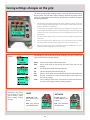
Buttons and controls − details
A
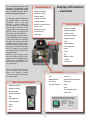
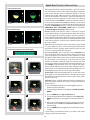
Shutter release button
A
This button has half-press and full-press positions. By pressing half-way (or softly) the
camera, auto focus function and exposure meter can be activated. By pressing all the
way down (or more firmly) the shutter will be released (or the chosen exposure procedure for example, the self timer is activated with this button).
'-"4)$0/530--0$,
CVUUPO (EXIT)
B
This is a triple function button. If you press the button for one second, the beeper will
sound (if set) and a key symbol will appear on the grip display signifying that the controls (except the shutter release) have been locked and therefore cannot be altered unintentionally in use. Press the button for one second again to unlock (this function can be
altered to lock all controls or control wheels only in $VTUPN0QUJPOT).
B
C
D
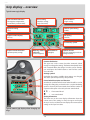
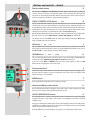
Quickly clicking the button will access the flash settings information on the display from
the main screen. See under Flash /Strobe - controls and displays for full details.
E
This button also acts as the EXIT button for many other settings including an EXIT button
when navigating the sensor unit menu.
AF button
/
0/
/
C
(SEL.)
This is a triple function button. Press this button to directly access the autofocus/manual
focus choice screen from the main screen. See under Lenses for full details. It also acts as
the ON and SEL. (= select) buttons for many other settings.
*408#CVUUPO (SAVE)
/
&/5&3
D
This is a triple function button. It provides direct access to the ISO and White Balance
settings (see under Light Metering & Exposure Control for full details).
It also acts as the SAVE and ENTER buttons for many other settings as well as an OK
button when navigating the sensor unit menu.
F
G
H
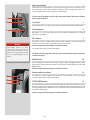
Front control wheel
E
The front and rear control wheels are used to make changes in exposure settings, access
the grip menu for settings as well as navigate the sensor unit’s menu. The effect of the
wheels’ direction is customizable.
.&/6CVUUPO
'
Accesses the first level of the menu for settings changes.
Illumination/Battery status button
G
Press to illuminate the display. Remains active until camera enters standby mode. Hold
down to access battery status/general information screen.
0/0''130'*-&4&4$
CVUUPO
I
)
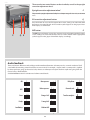
Press the button for 1 second to activate the camera. The H4D start-up logo will appear
and then the main screen. After a few seconds (customizable) the camera will enter
Standby mode.
A long press of the button will turn the camera off completely (even from Standby mode)
signified by an audible signal (if set). A quick ‘click’ on the button will access the Profiles
section of the menu from the main screen.
Note the difference in results between a long press and a quick click of this button.
20