1
Customizing your Presets
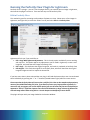
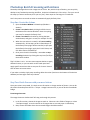
The eight system presets assigned to the preset buttons provide a great starting point for your image
correction work. But you might find that you need a customized set of adjustments for your photos. No
problem – that’s simple to do.
To create your own Preset:
1. Start with one of the System Presets or a custom preset you have imported from someone else
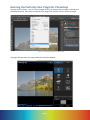
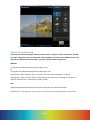
2. On the Tweak tab, make adjustments to any of the correction tools you like. Experiment with
several different images, and see how the various corrections adapt to your image content.
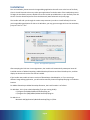
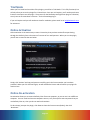
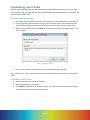
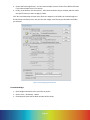
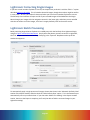
3. When you like what you see, click ‘Create’ at the bottom of the Presets and Adjust panel. You’ll
see this screen:
Figure 9 - New Preset Screen
4. Enter a name and quick description so you can remember what you adjusted.
That’s all there is to it! Now, you’ll see that Preset in the top dropdown menu under the “User Presets”
section.
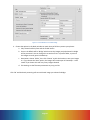
To Modify a User Preset:
1. Simply select the Preset you’d like to modify
2. Make any adjustments you need to
3. Click ‘Modify’ at the bottom of the Presets panel. You’ll see the same screen as above; edit the
description so you remember what you changed.
Page 25