1
57
USING ADOBE CONNECT 9
Adobe Connect Meeting
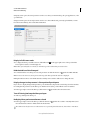
Disable private chat between participants
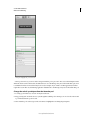
By default, two participants can chat privately. As a host or presenter, you can disable this option and prevent private chat.
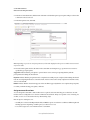
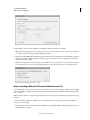
1 Choose Meeting > Preferences.
2 Select Chat Pod from the list on the left.
3 Deselect Enable Private Chat For Participants.
Use chat notifications
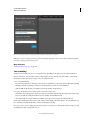
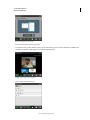
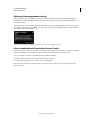
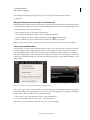
If you are a host or presenter using the Adobe Connect add-in, chat notifications let you communicate with your
audience while you are presenting. The meeting window is minimized or maximized to full-screen, concealing the
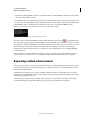
Chat pod. If an attendee sends a message while you are presenting, a notification appears in the lower-right corner of
the screen. You can see the sender’s name and the first few words of the message in the notification window. By default,
chat notifications are enabled. To prevent notifications from displaying while you are presenting, disable them.
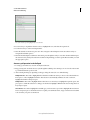
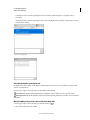
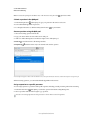
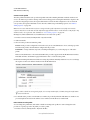
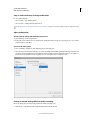
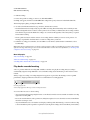
1 Choose Meeting > Preferences.
2 Select Chat Pod from the list on the left.
3 From the pop-up menu, choose either Disable or a time duration to display each notification.
Format chat text
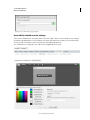
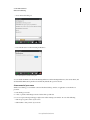
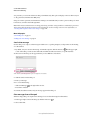
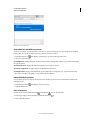
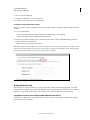
❖ In the upper-right corner of the Chat pod, click the menu icon
, and select any of the following:
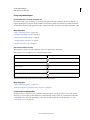
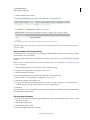
Text Size Changes size in your view only.
My Chat Color Changes your text color in the view of all participants, making your remarks stand out.
Show Timestamps For hosts only, displays the date and time of chat entries.
Email the contents of a Chat pod
Hosts and presenters can email a chat history for future reference.
❖ In the upper-right corner of the Chat pod, click the menu icon
, and select Email Chat History.
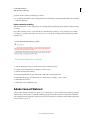
Reverse the order of reading messages by a screen reader
For users that use JAWS or some other accessibility tool, they can read the messages in the reverse order by selecting
Reverse order of messages. Messages in the Chat pod are read starting from the latest to the first, instead of the other
way round.
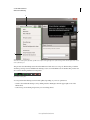
Questions and answers in meetings
You can use a Q&A pod to answer questions posed by attendees. When a presenter answers a question, the question
and answer appear as pairs in the Q&A pod.
Hosts can give participants enhanced rights, letting them answer questions as well. See “Assign enhanced participant
rights” on page 69.
Here are some examples in which the Q&A pod is helpful:
• During a large meeting, questions are added to a queue on the Q&A pod while the speaker presents. After
completing the presentation, the speaker reviews the messages, applies a filter, and begins answering the questions.
Last updated 8/28/2015