1
Page 146 – 7. Cues
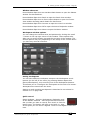
All times which you have set while programming the fixtures/dimmers
will be recorded when you save the cue.
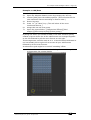
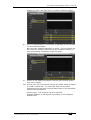
You can also edit times of a cue you have already saved like this:
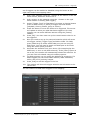
1>
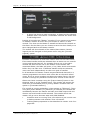
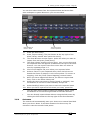
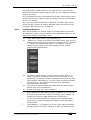
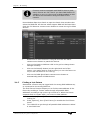
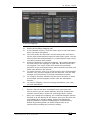
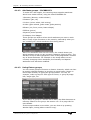
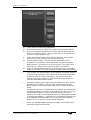
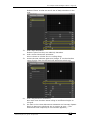
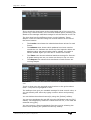
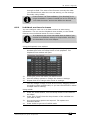
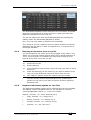
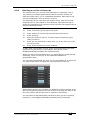
Press [Edit Times] at the top level menu.
2>
Press the Swop button of the cue.
3>
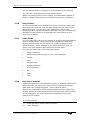
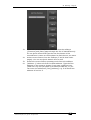
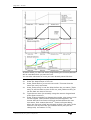
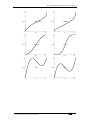
Press [Fade Mode x] to set the cue mode. This sets how the
times are used, see below.
4>
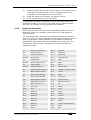
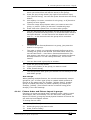
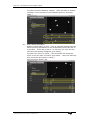
Press [Delay time] to set the delay before the cue starts, [Fade
time] to set the fade-in time of the cue, and [Fade out time] to
set the fade-out time of the cue.
5>
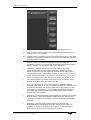
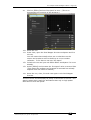
Type the new time (in seconds) using the numeric keypad and
press Enter to save it.
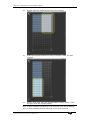
6>
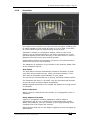
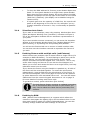
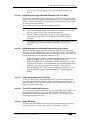
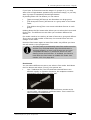
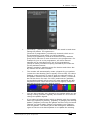
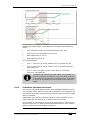
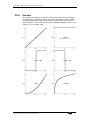
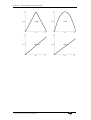
Press [Fixture Overlap] to change the overlap, then enter 0-100
on the keypad. 100% means all fixtures fade together. 0%
means that the first fixture will finish its fade before the next
one starts. 50% means that the 2nd fixture will start fading
when the first one is half way through its fade. The order of the
fixtures is set by the order you selected them (but you can
change this, see section 7.5.2).
TitanUniversal_Man_v8-0_QU.doc 05 August 2014