1
2012 SOS Install and Setup Basics Guide
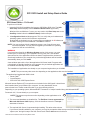
SOS Setup Wizard
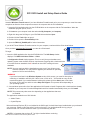
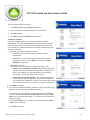
The first time you login to SOS Teacher, the Setup Wizard
appears. It walks you through the necessary setup steps for your
school. There are only three basic steps to set up your schoolwork:
• Setup your school term and calendar options
• Add your students
• Install curriculum and assign subjects
When you click the Finish button at the end of the Setup Wizard,
the basic setup for SOS is complete. You and your students can
immediately begin working. To customize assignment or grade
options for your school or change options for a specific student
or subject, please see the electronic Help file (press F1) for stepby-step instructions. You can also access the Help file by clicking User Manual in the Help Center widget on your
Home Page. There are also a number of tutorials to walk you through many of these functions. You can access them
from the Help Center widget on your Home Page or by clicking the 2012 SOS Tutorials icon on your desktop.
Note: One of the tutorials Switched-On Schoolhouse includes is, “How to Use the Setup Wizard”.
It walks you through a basic school setup. There are three ways to access the tutorials:
1. Click Start on your computer’s taskbar, and then select All Programs > AOP >
Switched-On Schoolhouse > Tutorials
2. Double-click the Tutorials shortcut icon on your desktop
3. Click Tutorials in the Help Center widget on your Home Page.
The Setup Wizard may also be viewed online at www.sostutorials.com. Click the tutorials
tab to access them. See a complete listing of available tutorials on page 30 of this booklet.
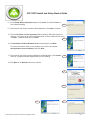
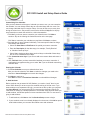
Ready to Begin?
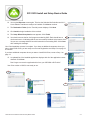
Click Next to begin your setup process or click Cancel to exit the Setup
Wizard.
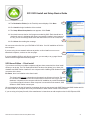
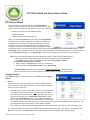
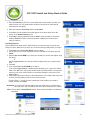
1 - School
School terms are important because you cannot assign schoolwork
to your students without them. There are a couple of points to keep in
mind as you work with terms:
• A student can only work in ONE term at a time. If you assign work
to a student in more than one term, you must switch their active
term each time they need to work on an assignment from the nonactive term.Though there is a View Other Term button in SOS
Student on the Schoolwork screen, it does not allow students to
work in other terms. This button only allows them to see what work
is assigned to them in any other school term. They cannot perform any work on assignments in other terms until
you change their active term using the SOS Teacher program.
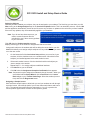
• Terms help you keep SOS School records organized. You should create a new term for each new school year.
You already created a term when you installed Switched-On Schoolhouse® 2012. If you want to use that term, click
Next at the bottom of the School Term screen and continue creating a calendar on the following page.
SOS 2010 Home Ediition Install and Setup Basics Guide• 21