1
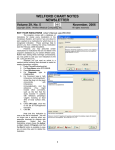
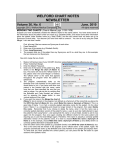
WELFORD CHART NOTES NEWSLETTER Volume 40, No. 6 June, 2012 copyright 2012, Welford Medical Computing, Inc. All rights reserved NEW VITAL SIGNS FORM FEATURES (User’s Manual, pgs. 1259-1260) Version 6.1 has many new features which make the Vital Signs Form easier to use. Let's see these in action. 1. 2. 3. 4. 5. 6. 7. Open Kelly Erickson's chart by pressing Write\New Note\Note, and specifying Kelly Erickson as the name of the patient. Press View\Forms\Vital Signs\Options to adjust the Vital Signs Form Options. Check Include Smoking and Default to last smoking. This causes the program to automatically look up the previously stored smoking information for this patient and fill it in to the Vital Signs Form as the default answer. Check Include Height and set the Units Default to feet/inches. This allows you to record the patient height in feet and inches, rather than specifying it purely in inches, which is more prone to error. (For example, some people mistakenly convert 6'2" to 60+2=62 inches, forgetting that 6 feet = 72 inches). Press OK to store these new Options. On the Vital Signs Form, check Send to Writer and Store in Lab Book. Send to Writer causes the contents of the Vital Signs Form to be placed into the Writer at the current cursor position (the same as before version 6.1). Store in Lab Book causes the contents of the Vital Signs Form to be stored directly in the Lab Book, rather than having to parse the information from the Writer. Notice the new Clear button. This is handy if you start filling information on the Vital Signs Form and then realize that all of the information is incorrect (for example, it pertains to a different patient) and you wish to erase all of it from the screen rather than closing and reopening the Vital Signs Form. 11 8. 9. On the Vital Signs Form, fill in a Temperature of 98.4F, a Pulse of 88 sitting, Blood Pressure of 140/72 sitting, Note that the most recent Height and Weight are filled in for you (assuming you have checked the Default to last weight and Default to last height Options). For Smoking, enter “non-smoker”. Press OK to both store this information in the Lab Book and insert it into the Writer. NEW @FUNCTIONS Version 6.2 has many new @functions. Let’s see how to use them. @AllEvents is replaced with all of the patient’s Events. This is handy if you record surgeries and procedures in Events and want to include them in your Templates (e.g. “Past Surgical History: @Events”). @BirthMonth is replaced with the numeric month of the year of the patient’s birthdate. (For example, if the patient were born in June, then @BirthMonth is replaced with "6"). You might include this in a Generic Report Generator Other field if you wanted to generate a report in which you sort your patients by their birth months. @BMI: This now is calculated from the Height and Weight Parsed from your note, if it appears there; otherwise, it comes from the most recent Height and Weight recorded in the Lab Book. To try this: 1. Open the Writer for Kelly Erickson. 2. Type in: "height: 64 inches, weight: 128#. “ 3. Note that the Parser Quick Summary now shows the Height and Weight ready to be added to the Lab Book (assuming you have set your Parser Options\Parser on? to Yes). 4. If you now type in the Writer: “@BMI”, this is replaced with the BMI calculated from the Height and Weight stated in your note and found in the Parser Quick Summary of “22.0 kg/m2” (even though you have not yet pressed OK to store these items in the Lab Book). : @LastMedication _Date and _Dose: @LastMedication_Date gives the date of the most recent dosing instruction for the medication. For example, @LastSimvastatin_Date is replaced with the date when the dose of simvastatin was last changed. @LastMedication_Dose is replaced with the most recent dosing instruction for the medication. For example, @LastSimvastatin_Dose is replaced with the current dose of simvastatin. These @functions are handy in a Generic Report Generator Other field, where you can then see for example which patients who are taking simvastatin are taking 80 mg per day. @LastProvisionalAssessment is replaced with the Assessment section of the most recent Provisional Note for the patient. This is handy if you tend to write Provisional Notes at the time of the patient visit, and then want to generate a Visit Summary which contains the Assessment portion of that Provisional Note. Place this @function in your Visit Summary Template. Similarly, @LastProvisionalPlan is replaced with the Plan portion of the most recent Provisional Note. Inserting this into your Visit Summary Template allows you to copy it into the Visit Summary. @MedsBeforeToday is replaced with a list of medications that the patient was taking yesterday. This is handy to include in a Visit Summary Template that you generate at the close of a visit to remind the patient what the patient was taking prior to this visit. @PatMedsBeforeToday performs the same task, except that it converts the dosing Instructions into plain English, and thus is better suited for Visit Summaries. For example, “10 mg po qam” is converted to "10 mg by mouth every morning". @MedsBeforeLastVisit is replaced with a list of medications that was taking prior to the last recorded visit. This is handy if you generate Visit Summaries after the date of the patient visit, and want to include in them the list of medications that the patient was taking prior to that visit. @PatMedsBeforeLastVisit performs the same task, except that it converts the dosing Instructions into plain English, and thus is better suited for Visit Summaries. 12 @MedsStoppedTodayNoVaccine is replaced with a list of the medications that the patient was told to stop taking today, excluding any vaccines. Since vaccines are started and stopped simultaneously since they are just given once, you generally will not want to include vaccines in a Visit Summary Template; @MedsStoppedToday would include such vaccines. Therefore, use a heading like: “Medications You Should Stop Taking: @MedsStoppedTodayNoVaccine” in your Visit Summary Templates. @SmokingStatus is replaced with the Meaningful Use Smoking Status. This is handy in a Generic Report Generator Other field, if you want to see which patients have a particular Smoking Status. @VaccinesToday is replaced with a list of the vaccines that you administered today. This can be handy in Visit Summary Templates in which you wish to inform the patient of these vaccines. For example, put the following into your Visit Summary Template: “Vaccines You Received Today: @VaccinesToday”. NEWS ON VERSION 6.2 We have added over 60 new features to version 6.2. This version allows you to be automatically notified if you have selected a patient whose name is very similar to another patient in the practice, so that you avoid choosing the wrong chart. If there are features that you would like to see in this version, please let us know at [email protected], or call MEDCOM Information Systems at 800-213-2161. SEND US YOUR TIPS If you have tips, shortcuts, questions, or suggestions for future newsletter topics, please send them to us at: Welford Medical Computing, Inc. or MEDCOM Information Systems 3779 Hermitage Trail 2117 Stonington Avenue Rockford, IL 6111 Hoffman Estates, IL 60195 13