1
ECTACO® Partner® LUX
Quick Start Guide
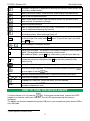
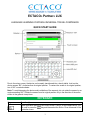
Use speech recognition (in applications featuring this function): press the key, say
your phrase, release the key.
Switch to the Home Screen. Press and hold: show recently used applications.
Show or hide the application menu.
Search. In the search window, enter the desired word or title you want to find.
Press and hold: voice search by Google.
Open the Dictionary window.
Listen to the pronunciation of the source item, its translation, or a selected portion
of text (in applications featuring this function).
Turn the device on or off. Press and hold: open the menu to choose from one of
the following options: Silent mode and Power off.
To type letters in uppercase, press Shift and then press the desired letter key. To
turn on the Caps Lock mode, press Shift twice. To turn off the Caps Lock mode,
press Shift once.
Shift
Switch language or translation direction.
or1
Ctrl
Key assignment depends on the application.
Change input language – for example, from English to Russian or from Russian to
English. The languages available depend on product model.
Enter additional letters – press Alt +key. Alternatively, press & hold a letter key.
Used in combination with the keys that have green marks. For example, you can
increase the volume by holding down the Fn key and then pressing the key
marked Vol Up.
Alt
Fn+key
Display User Manual or application Help (in applications featuring this function).
Show the on-screen keyboard. To hide the on-screen keyboard, press the
key once again or use the
key.
Delete the character before the cursor (in applications featuring text input).
, ,
,
Move cursor or highlight. Scroll lines.
The Enter key. Data input; confirm the action you have selected.
RESET
Re-initialize system. The RESET button is located on the back of the device under
the battery compartment cover.
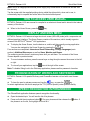
HOW TO TURN THE DEVICE ON/OFF
To turn the device on or off, press the
key. If the screen remains blank, connect the AC/DC
adapter to your device via the mini-USB port. The red LED signal shows that the battery is
recharging.
The battery can also be recharged through the USB port on your computer using the special USB to
mini-USB cable.
1
Symbol depends on product model.
2