1
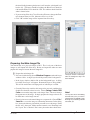
• Before moving any of the sliders click on the ‘Colorize’ checkbox in the
lower-right corner of the window. The image will go red.
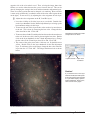
• Once the colorize checkbox is selected, the hue slider will determine
what color they layer will be. The numbers correspond to an angle on
the color wheel between 0° and 360° (see the figure to the right). Since
this is the blue filter set the hue to 240. The image will turn blue.
• Set the saturation to 100 and the lightness to -50. This will make the
image a dark, deep blue. The window should look as shown below:
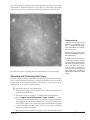
The angles around the color wheel
correspond to hue values.
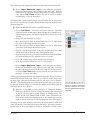
• Click ‘OK’. A new adjustment layer titled ‘Hue/Saturation 1’ will appear
above the ‘Levels 1’ layer.
• Select the ‘Hue/Saturation 1’ adjustment layer by clicking on it. Choose
Layer/Create Clipping Mask. The adjustment layer will indent;
and an arrow will point down to the ‘Levels 1’ image layer.
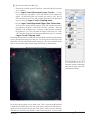
Since the ‘Levels 1’ and ‘Hue/Saturation 1’ adjustment layers are grouped to
B-band layer they will only adjust that layer. The layers window should look
as shown to the right.
Now its time to rescale and colorize the V-band and Ha layers by following the
same steps as described above for the B-band layer:
ì Rescale and colorize the V-band layer:
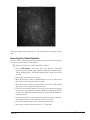
• Turn off the visibility of the B-band layer. Select the V-band layer and
turn on its visibility.
• Choose Layer/New Adjustment Layer/Levels... A ‘New
Layer; dialog box will appear. Click ‘OK’ and the levels window will
appear. To darken the background and increase the contrast in the faint
parts of the galaxy, set the black point to 35 and the gray point to 1.23.
Do not move the white point. Click ‘OK’ and then group the levels
adjustment layer by choosing Layer/Create Clipping Mask.
• Choose Layer/New Adjustment Layer/Hue/Saturation...
A ‘New Layer; dialog box will appear. Click ‘OK’ and the hue/saturation window will appear. Click on the ‘Colorize’ checkbox. Since the
V-band filter is green, set the hue to 120. Set the saturation to 100 and
the lightness to -50. This will make the image a dark, deep green. Click
‘OK’ and then group the hue/saturation adjustment layer by choosing
Layer/Create Clipping Mask.
Rev 4/1/08
The layers window in Photoshop
after the B-band layer has been
rescaled and colorized. The Ha
and V layers have not yet been
rescaled and colorized.
Image Tutorial 9