1
46
|
CH A P T E R 7 – U S I N G S M A RT N O T E B O O K T O A S K Q U E S T I O N S A ND C R E A T E
ASSESSMENTS
2. Click (Windows) or hold down (Mac)
Insert Question.
Insert Question, and then click
NOTE
If the Insert Question button isn’t in the menu bar, you can right-click (or
control-click) the menu bar and add the button.
The Insert Question wizard appears.
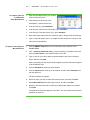
3. Click the thumbnail of the question type you want, and then click Next.
4. Type the question in the text box.
5. If you use tags to create categories in your reports, type them in the Tags box
using the examples, and then click Next.
6. For yes or no and true or false questions, select the correct answer or the
Opinion option.
For number, fraction or decimal questions, type the correct answer or select the
Opinion option.
For multiple choice or multiple answer questions, select the number of answers,
type the answers into the text boxes, click Next, and then select the correct
answers or the Opinion option.
For short answer questions, type one to four acceptable answers or select the
Opinion option.
NOTE
Short answer questions are case-sensitive. You can enter up to four answers
to support different capitalizations (for example, “iron”, “Iron” and “IRON”).
7. Assign the number of points that the student will receive if they answer the
question correctly.
NOTE
The value can be a whole or decimal number.
8. If you want to create more questions, click Insert Another, and then repeat steps
3 through 7.
NOTE
If you create another question on the next page, a message asks if you want
to add a title page to the questions, which groups those questions.
9. Optionally, use SMART Notebook software tools to add images or Adobe Flash
Player compatible file from the Gallery.