1
25
|
CH A P T E R 3 – M AN A G I N G S M A R T R E S P O N S E
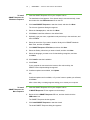
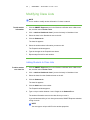
3. If a class isn’t already started, select a class in the Gradebook area, and then click
Start Class.
4. Click Lock Sign In.
Students are unable to sign in.
NOTE
If a student disconnects their clicker when Sign In is locked, they’re unable to
sign in again until you select Unlock Sign In.
SMART Response Alert
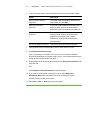
SMART Response generates alert messages for four events by default:
To enable or disable
alert messages
•
Student sign-in
•
Student sign-out
•
Student question
•
Low clicker battery
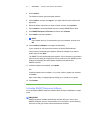
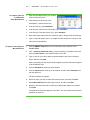
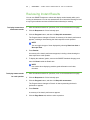
1. Click the SMART Response icon in the Windows notification area or Mac menu
bar, and select the icon below Teacher Tools.
2. If Teacher Tools opens to Basic view, click ...switch to Gradebook view if it isn't
already selected.
NOTE
If you want Teacher Tools to open to the Gradebook view when you start
Teacher Tools, select the Start here when you start Teacher Tools option in
the bottom-left corner of the window.
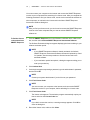
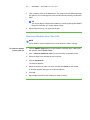
3. Click Edit (Windows) or Teacher Tools (Mac) on the menu and then select
Preferences.
The SMART Response Preferences dialog box appears.
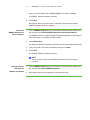
4. Select or clear the applicable check box to enable or disable alert messages
from appearing.