1
USER MANUAL
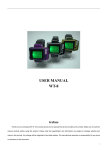
Freedom GPS-Tracker
Preface
Thank you for purchasing the Freedom. This manual shows how to operate the device smoothly and correctly. Make sure to read
this manual carefully before using this product. Please note that specification and information are subject to changes without prior
notice in this manual. Any change will be integrated in the latest release. The manufacturer assumes no responsibility for any errors or
omissions in this document.
1
Content
1 Notes and Cautions ………………………………...………………………………...3
2 System Introduction …………………………..…………………………………….3
2.1 Appearance … … … … … … … … … … … … … … … … … … … … … … … … … … … … . … 3
2.2 Full Kit ………………………………………………………………………………..…3
2.3 Specifications …………………………………………………………………………..3
3 Get Started ………………………………………………………………….………….…4
3.1 Install Software …………………………………………….………............................4
3.2 Battery Charging … … … … … … … … … … … … … … …… … … … … … … … … … … . 7
3.3 SIM Card Setup … … … … … … … … … … … … … … … … … … … … … … … … … … . 7
A. I n s t a l l a t i o n … … … … … … … … … … … … … … … … … … … … … … … … … … … … … . 8
B. Phonebook Setup…………………………………………………………..………….8
3.4 SET Parameter Instructions ……………………………………………………….8
3.5 Setup on Mobile Phone via SMS ……………………………………………….....10
A. Commands List……………………………………….…………………………….…..11
B. Commands in detail…………………………….……………………………………..12
3.6 Set up on Computer via USB Cable ..…………………………..………………...13
3.7 Track on Google earth/Google map …………………………………….……….16
3.8 Track via GPRS ………………………………………………………………………17
3.9 Check IP Address and Set up Port Number ………………………………..….19
3.10 Data Logger …………………………………………………………………………...21
A. Setting of the Logger ……………………………………………………………….………21
B. View the Recorded Waypoints ………………………………………………….…….22
3.11 Worldwide APN (Access Point Name) List ………………………………….…23
2
1 Notes and Cautions
z
GSM/GPRS network connection will determine the performance of the device.
z
The satellite signal will be blanketed by cement and metallic material, and it’s recommended to use it in
an open field.
z
To keep the best connection, please make sure the GPS antenna looks skywards.
z
Do make sure there is no any text message in the SIM card.
z
Do make sure the PIN code is deactivated.
z
Don’t let the device run at or above 50 degrees by, such as, exposing the device under the sunshine for a
long time, for safety consideration.
z
Put it in a covert place if using it for anti-theft.
2 System Introduction
2.1
Appearance
2.2
Full Kit
z
GPS Tracker
z
1100mAh Li-ion Battery
z
CD (User manual, Software included)
z
2 PIN AC Adapter
z
Car Charger
2.3
Specifications
GSM/GPRS
GSM/GPRS module
GSM Antenna
Sincom300 Quad-Band GSM module (GSM900/1800/1900MHz)
Build-in
GPS
GPS module
Protocol
GPS Antenna
SRIF III 20 channels
NMEA-0183 compliant protocol
Build-in active high sensitivity antenna
Accuracy
1-5m
Update rate
1 HZ
Cold start: 42s
Start time
Warm start: 35s
Hot start : 1s
3
Electrical
Operating Voltage
3.3V
Charge voltage
4.5~5V
Standby
15mA
Operating
80mA
Battery
Li-ion 1100mAh
other
Size
Weight
68mm*47mm*17mm
50g(including battery)
3 Get Started
3.1
Install Software
Before installing the GPS Tracker Server software, you should install dotnetfx.exe and Google Earth.exe. To configure the
unit on computer, you also need install a driver. All are included in the CD.
z Install Freedom GPS-Tracker
Find the “Setup.exe” and click to install on the computer.
Choose the installation directory, and click “Next”:
4
Until finish installation:
z Install USB Driver
Connect the unit with computer by the USB able, and the computer will ask you to install the driver. Please go to “My
computer” and right click and choose the “properties”, and move to “hardware” and choose “devices manager”, to see
“USB Device” in yellow exclamatory mark, and right click as below:
5
Choose “Update Driver”, and choose option advanced:
Choose the directory of the Driver and move to the next, and until finishing installation:
6
3.2
Battery Charging
z At the first use, please charge the battery for 8 hours to full capacity.
z In later use, please charge 4 hours to its full. To power off the device before charging is recommended.
z Connect the charger to a power supply
z The yellow LED will turn off when the battery is fully charged, and then disconnect the power supply.
3.3
SIM Card Setup
7
A. Installation
z Press the battery cover, and then pull it downwards to open it.
z Remove the battery
z Insert the SIM card into the holder according to the direction shown and close the holder when done.
z Put the battery back and close the battery cover
B. Phonebook Setup
In the tracker’s SIM card, you can store 6 numbers, and a “SET” parameter in the phonebook as below:
z The SIM card can have 5 SOS numbers, separately SOS1,SOS2,SOS3,SOS4,SOS5, and 1 TIMER.
Please be kindly advised only SOS numbers can receive the reports when the panic button is pressed, and
only TIMER will get the auto location report defined by SMS Sending Timer(which please refer to-----).
z “SET” parameter defines the working of tracker. You can define the TimeZone, GPS Reception, Auto
Location Report etc by it. (For its information in detail, please refer to-----)
z Please set them up in CAPITALS.
3.4
SET Parameter Instructions
To use the tracker, please first define the “SET” parameter. You can set it up by SMS command on mobile
phone or USB cable on computer. It consists of 26 digits. Please store it in the name of “SET”. As below is the
definition in detail:
Digit
Definition
1st-5th
Time Zone
6th-7th
8th-9th
10th
11th-16th
GPS Reception
Timer
Location
Report Timer
Battery
Monitor
Device
Password
Value& Meaning
Remarks
GMT+12:00(01200) to GMT -13:00(11300)
GMT+00:00(00000)
00: fix GPS with no interval.
00:
01-99: fix GPS data in every 1 minute to 99 minutes.
interval.
fix GPS
with no
00: device doesn’t auto report location.
01-99: device auto report to mobile phone in every 1 minute to 99 minutes
0: device doesn’t check the battery level.
1-9: device will check the battery in every 1-9 minutes and alarm in SMS
when the battery level is too low.
Set a 6 digits password as from 000000-999999.
000000
8
17th-18th
Geofence
Speeding
19th-20th
alarm
21st
Logging mode
Logging
22nd-26th
Interval
It ranges between “00”-“99”, and is calculated this way: **×50m(** is the
“00”,Geofence
digits.), say 03 is 150m, 14 is 700m.
work..
It ranges between “00”-“99”, and is calculated this way: **×10km/h(** is
“00”, Speeding alarm does
the digits.), say 04 is 40km/h, 08 is 80km/h.
not work.
“0” means to log by time; “1” means to log by distance.
Other input is invalid.
By time, it is “1-99999”s; By distance, it is “50-65000”meter.
doesn’t
Distance below 50m will
cause drift in position.
For example:
z
z
z
z
z
z
z
z
z
00800: Time zone:GMT+8:00.
00: The tracker keeps receiving GPS signal.
01: The tracker auto reports the location in every 30 minutes.
1: The tracker will check the battery every 1minute.
654321: The password is 654321.
05: The circular district is 250meters in radius (5×50m).
06: The speed limit is 60km/h (6×10km/h).
0: The waypoints is recorded by time.
00030: The time interval is 30 seconds.
¾ Time Zone
The device receives the time in Greenwich Mean Time (GMT). It is suggested to adjust the time to the local
time.
1st digit indicates ‘+’ (0) or ‘-’ (1)
2nd and 3rd digits indicate hour difference to GMT.
4th and 5th digits indicate minute difference to GMT.
Values of time zones are shown as below:
Time Zone
Value
Time Zone
Value
Time Zone
Value
GMT-12:00
11200
GMT-2:00
10200
GMT+5:45
00545
GMT-11:00
11100
GMT-1:00
10100
GMT+6:00
00600
GMT-10:00
11000
GMT
00000
GMT+6:30
00630
GMT-9:00
10900
GMT+1:00
00100
GMT+7:00
00700
GMT-8:00
10800
GMT+2:00
00200
GMT+8:00
00800
GMT-7:00
10700
GMT+3:00
00300
GMT+9:00
00900
GMT-6:00
10600
GMT+3:30
00330
GMT+9:30
00930
GMT-5:00
10500
GMT+4:00
00400
GMT+10:00
01000
GMT-4:00
10400
GMT+4:30
00430
GMT+11:00
01100
GMT-3:00
10300
GMT+5:00
00500
GMT+12:00
01200
9
GMT-3:30
10330
GMT+5:30
00530
GMT+13:00
01300
Note: Other input is regarded as the default value (00000).
¾ GPS Reception Timer
This value controls the GPS reception. The unit will fix the GPS in correspondence with this timer.
“00”: the device is always on, to receives GPS data;
“01”-“99”: the device will fix a GPS in every 1-99 minutes.
Note: Other input is regarded as the default value (00).
¾ Location Report Timer
This value controls the auto location report in SMS sending and GPRS sending.
“00”: there is no auto location report;
“01”-“99”: the unit will auto report according to the timer..
Note: Other input is regarded as the default value (00).
¾ Battery Monitor
The unit will check the battery level at a predefined interval. When the battery runs away to a low level, it will
send an alarm.
Note: The normal battery level ranges from 3400mv to 4200mv.
¾ Geofence
Geofence defines a circular district. This circular district forms on a radius defined by this value. When
Geofence is set at a place, on breach of it, the unit will send two alerts to TIMER.
¾ Speeding Alarm
This value defines the speed limit. When the tracker moves over the limit, it will send two alerts to TIMER. It
is suggested the speed limit be set no less than 50km/h. The limit below 50km/h may cause inaccurate alert,
for GPS signal may be affected.
¾ Logging Mode
The unit can record the waypoints by time or distance. “0” means it records by time. “1” means it records by
distance.
¾ Logging Interval
Recording by time, the value can be defined in the range of “1s-99999s”; Recording by distance, the value can
be defined in the range of “50m-65000m”.
Note: Other input is invalid. You can define the distance by below 50m, but this may cause drift in position.
3.5
Setup on Mobile Phone via SMS
You can set up the unit directly by SMS commands.
10
A. Commands List
This list includes all the commands. It will tell you how to set up / check the unit’s working status, get the
location reports.
Working
Command
Definition
S,SET:xxxxxxxxxxpppp
Establish/Change the “SET” parameter, to set up
ppxxxx
the unit’s working status.
S,SOFF
Turn off the Auto SMS sending.
Remarks
Refer to the below.
Auto SMS sending relates with Location Report
Timer It is suggested you turn off this function,
if you do not want the auto location report,
S,SON
Turn on the Auto SMS sending.
otherwise, it will keep sending your location
SMS, to cost you much.
S,ROFF
Turn off the GPS reception.
GPS reception relates with GPS Reception
S,SON
Turn on the GPS reception.
Timer.
S,SPDOFF
S,SPDON
S,GEOFENCEOFF
S,GEOFENCEON
Setup
Turn off the Speeding Alarm.
Turn on the Speeding Alarm to get alerted when
the speed limit is breached.
Turn off the Geofencing.
Turn on the Geofencing to get alerted when the
distance
S,GPRSOFF
Turn off the auto GPRS sending.
Auto GPRS Sending relates with Location
S,GPRSON
Turn on the auto GPRS sending.
Report Timer.
N,NAME:number
e.g. to save number 13714742568 as SOS2, the
Save the number and define the NAME.
N,NAME:D
Delete the number of NAME’s.
N,NAME:?
Check the number of NAME’s.
command is “N,SOS2:13714742568”.
e.g.
to
delete
SOS2,
the
command
is
“N,SOS2:D”.
e.g. to check SOS2’s number, the command is
“N,SOS2:?”.
Default Setting:
Auto SMS Sending ON; Auto GPRS Sending
S,F
Restore the default setting.
OFF; GPS Reception ON; Speeding Alarm ON;
Geofence
ON;
Location
Report
in
COORDINATES; Password 000000.
POWER OFF,IMEI
Power off the unit.
A,APN,username,passwo
rd,IP address,port
Set up the APN for GPRS tracking on computer.
Refer to the below.
number
Clear APN setting.
A,CLR
S,LF:NORMAL
Location
Inquiry
S,LF:GOOGLEMAP
W
Location
report
on
mobile
is
in
coordinates.
To open the link, you can view the real location
Location report on mobile phone is a link,
on mobile phone.
connecting with Google Map.
Inquire the location by these two command.
W,******(password)
Check
phone
S,?
Check the unit’s working status.
A,?
Inquiry APN status.
Numbers not in the phonebook have to input the
password to inquire the location.
Refer to the below.
11
Check IMEI number, battery level, and memory
I,?
level, hardware version and software version
B. Commands in detail
Every command will get a confirmation after being sent.
¾
S,SET:xxxxxxxxxxppppppxxxxxxxxxx
“SET” parameter can be established via this SMS command and changed later via this SMS command.
Establish or change the “SET” by this SMS
command“S,SET:xxxxxxxxxxyyyyyyxxxxx
xxxxx” (26digits without space).
z If the command is incorrect in format, it
will reply: SET! SET data format
error!
z If “SET” is not replaced successfully, it
will reply: SET! SET data save error!
Please try again.
Confirm
Notes:
z For safety consideration, the device’s password can’t be changed by SMS command; these 6 digits in SMS
must be same with the old one which is pre-set on mobile phone. If the SIM card isn’t pre-set before, the
default value will be 000000.
z In case of accident (such as the unit is in process of power-off when the SMS is sent out), this operation
may cause the parameter setting returns to the default value (including the password).
¾
S,?
This command can check the unit’s working status.
Confirm
The meaning for the reply of confirmation is as below:
GMT:+08:00
Time Zone is 00800
GPS RT:00
Fix GPS with no interval
SMS ST:01
To report a location every 1 minute
GPS R:on
GPS reception is on
S Timer:off
SMS sending is off
B Alarm:9
Auto check the battery level every 9
12
minutes
Geo:05
Geofence district is 250m in radius
SPD:07
Speed limit is 70km/h
SPD:ON
Speeding Alarm is on
GPRS:on
Auto GPRS sending is on
Geofence:off
Geofence function is off
LF:NORMAL
Location report is in coordinates
Save by time:1s
Record the waypoints in every 1 second.
¾
A,APN,username,password,IP address,port number
To view the location on computer via GPRS, you need activate the GPRS function: first to set up APN; second
to turn on GPRS (refer to the above Commands List.). To set up APN as below:
Confirm
APN Please refer to the last APN
table or consult with the
operator if not available in the
table.
IP address
Router’s IP address
modem’s IP address.
OR
Username/ Some operators may ask the username &
Password password for using GPRS. Check with
the operator if being asked. If they are
not asked, you can leave two commas
“,” in their places.
Port Number In correspondence with the computer’s
IP address.
Note:
z If APN, username, password do not change when you re-set unit, you can leave three commas in their places. In fact, as
long as any index of the command does not change, you can send the command this way.
z The IP address in this command should be WAN IP address, say Router’s / Modem’s IP address. (WAN IP address is
assigned by the ISP (Internet Service Provider). You can check the IP address here: http://www.getipaddress.com OR
http://192.168.1.1/ ) (Refer to the below.)
z The Port number should be in correspondence with LAN IP address, say the computer’s IP address. Please set it up on the
router. ( LAN IP address is the local IP. You can check it on your computer by DOS command: winipcfg (Windows98) OR
ipconfig (Windows2000/XP)。) (Refer to the below.)
3.6
Set up on Computer via USB Cable
You can set up the unit via USB cable. First, please find the USB driver and install it on the computer.
13
¾
Build up Connection
Plug up the USB cable between the computer and the unit, and power on the unit, and click open the unit’s software.
Click “Refresh”, to find the unit, and then pull down to choose “Vid:0x0471 Pid:0x000” and click “Open” to build up this
connection between the computer and the unit. And then you can check the system information by clicking “Information”.
Note: When all the settings are done, please return to “USB” option, and turn off the connection by clicking “Close”.
Otherwise, it may cause malfunction at later use.
¾
Setting of the Phonebook (PIC 1)
Move to “Setting”. Here can set up the working of the phonebook. You can save / delete / read numbers in the phonebook
here.
¾
Setting of Tracking Status (PIC 2)
You can set up the unit’s tracking status. All the values comply with “SET” parameter (Refer to Clause “C”). Input all the
values properly, and tick up to set up in the right small window and at last click “Setting” to confirm.
Read: to check the old setting.
Restore: Click here to restore the default settings.
Note:
The Time zone consists of 5 digits. The 1st digit indicates ‘+’ (0) or ‘-’ (1), e.g. if the time zone is 00800,
you input only 0800, while for 11200, you need input -1200, which must include the “-“.
14
PIC 1
¾
PIC 2
APN Setup
Input the APN, Username, Password, IP address, Port Number accordingly, and click “Setting” to confirm.
Read: To read the old settings.
Erase: To erase the old settings.
Note: Please refer to the above for how to set up APN, and the below for IP checking.
15
Note: When configuring the unit via USB cable, you can’t send SMS to the unit, for the GSM module is turned off at
the time.
3.7
Track on Google earth/Google map
You can get the latitude & longitude data by sending “W” / “W,Password” / making a call to the unit. Input
the received latitude & longitude data to Google Earth (from earth.google.com) or Google Maps
(maps.google.com), then you can find the position fix in the map. Please find below the example.
Reply
The received coordinate is this: N,Lat:2233.0361,E,Lon:11404.9644, but when we input, we should use this format:
N22 33.0361,E114 04.9644
16
Select “Satellite” or “Hybrid”.
3.8
Track via GPRS
Open the software PC Suite, and tick the “TrackerMode”, it will auto switch to “Tracker” option.
To use GPRS tracking, please set up the APN, turn on the GPRS and get the IMEI code (Refer to the
aforesaid.). Then move to Tracker option, and input these data, and at last tick the “Start/Stop GPS Track
Server” to open the Google earth automatically.
When there are two trackers, you can designate different colors for them by clicking “color”.
17
In the left column on Google earth, you can found the GPS Tracker Server in the Temporary places. After receiving data
from Tracker, the software can add a place mark in the Google earth. You can find them in Position folder.
Double click at any place mark that you can find it from the map.
18
Tick up the box of trail folder, and you can find the route in the Google earth.
Note: When using GPRS tracking, if the user does not need SMS sending, it is recommended to turn off the
SMS sending by “S,SOFF”.
3.9
Check IP Address and Set up Port Number
19
Input http://192.168.1.1/ to log into router.
This is the WAN IP in
the APN setting.
Enter your computer’s LAN IP address and Port Number into appropriate text box.
Set up the Port Number.
Make sure of it not to conflict
with your computer.
Here is the Port Forwarding OR
Forwarding Rule. Click in and
set up the Port to have it compliant
with computer’s LAN IP.
The LAN IP of the computer.
Check it in DOS command as
mentioned above.
The completed setting as below:
20
confirm
Note:Different router may have different appearance, but the setting on it is the same way.
3.10 Data Logger
A. Setting of the Logger
Move to “Setting”. Here can set up the working of the unit’s logger, and the phonebook.
For Logger: You can choose to log by time or by distance, but only one working mode can be chosen. The value range for “by
time” is 1s-99999s, for “by distance” 50m-65000m. To click “Read”, you can check the preset value.
Note: The value below 50m will cause drift in position.
21
B. View the Recorded Waypoints
First click “Read” to download all the waypoints to computer, and then choose the date filter and the speed
filter to view the specified waypoints. After choosing the filter, click “View Map”, and the Google earth will
open automatically, and display the waypoints accordingly.
When you want to empty the recorded waypoints, please click “Erase Data”.
22
23
3.11 Worldwide APN (Access Point Name) List
24
25
26
27
28