1
143
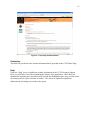
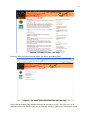
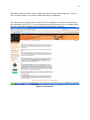
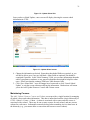
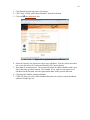
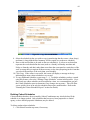
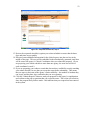
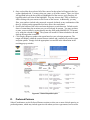
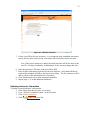
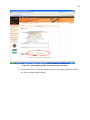
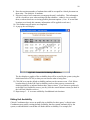
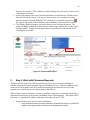
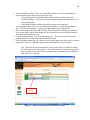
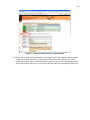
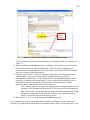
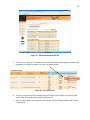
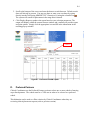
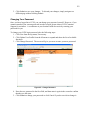
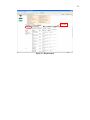
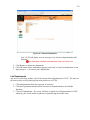
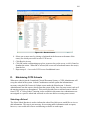
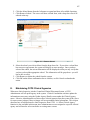
Figure 111– Grant Access
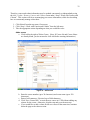
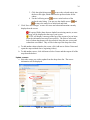
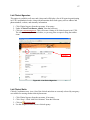
4. Select one or more users by placing a checkmark in the box next to the name of the
user(s) for which you want to reinstate CCPS access.
5. Click Grant Access.
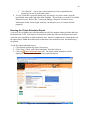
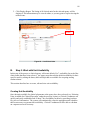
6. Click OK on the confirmation pop-up box to proceed to restore access, or click Cancel to
abandon the action. When OK is selected, the screen will refresh and remove the user(s)
from the list.
7. Repeat steps 4 – 6 to restore CCPS access for additional users.
Revoking a User’s Access
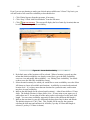
CCPS provides functionality to temporarily suspend privileges to an existing user by revoking
their access. This allows the user and their information to remain in the system, rather than
deleting the user entirely, so that they may be given access again at a later date.
To revoke a user’s access:
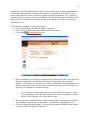
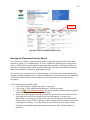
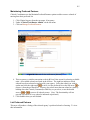
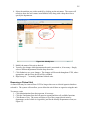
1. Click Administration from the top menu, if necessary.
2. Click the User button from the left menu to expand and show all available functions.
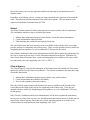
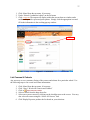
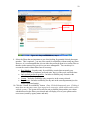
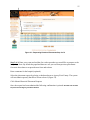
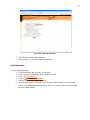
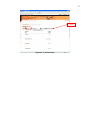
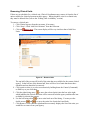
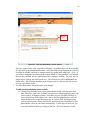
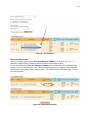
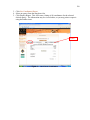
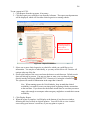
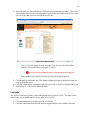
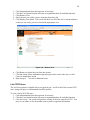
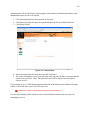
3. Click Revoke Access. The screen will show a list of all CCPS users, who currently have
access based on their user type: