1
SkyRaider User Manual
Step 2
August 26, 2015
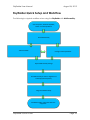
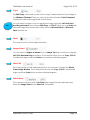
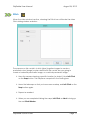
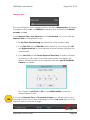
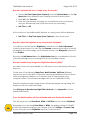
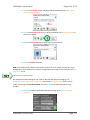
Start MallincamSky
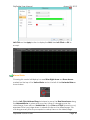
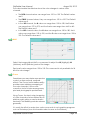
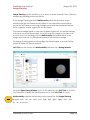
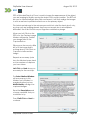
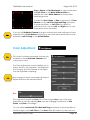
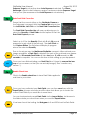
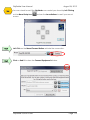
Get the image of your object on the Image Window of MallincamSky, adjust the settings on the
software for your planned object and size the window so you have room for other software on
your monitor real-estate. If you have a dual Monitor system, move MallincamSky to the second
monitor.
During your initial NSN experience, you will find it easier to even get the object of
interest onto the MallincamSky Software window. This allows you to spend some
time playing and adjusting the settings prior to connecting to NSN. As you become
more comfortable, you will not worry about that and will adjust while connected
to NSN (with the whole universe watching you live).
Step 3
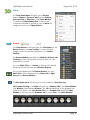
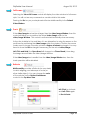
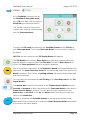
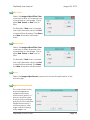
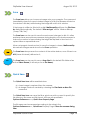
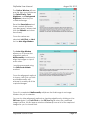
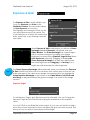
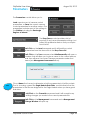
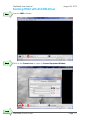
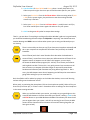
Start Manycam/Splitcam/WebcamMax
Size the Manycam/Splitcam/WebcamMax window so that is beside the
MallincamSky Window and you can see both with little overlap. If you have a dual
monitor system you can slide both the MallincamSky Software Window and the
Manycam/Splitcam/WebcamMax window to the second monitor.
Step 4
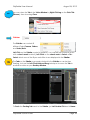
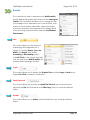
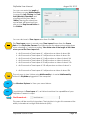
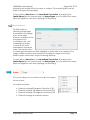
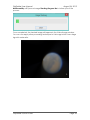
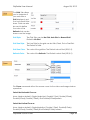
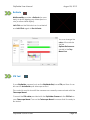
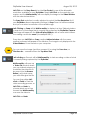
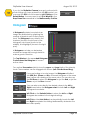
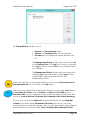
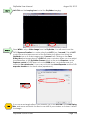
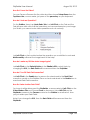
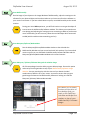
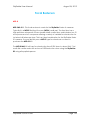
Have Manycam/ Splitcam/Webcam Max grab the window image
All of these packages have the ability to get a desktop image. Choose this option
and overlay the sizing window on top of your MallincamSky Software Image
Window. You may need to play with the sizes until you obtain the ideal
combination of both the fit in your screen. You want to ensure that you get a
good image of whatever the MallincamSky Software is looking at inside the
Manycam/ Splitcam/ Webcam Max window.
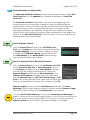
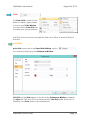
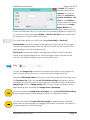
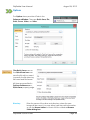
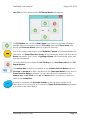
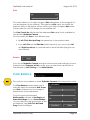
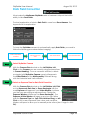
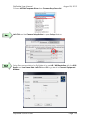
This allows you to select
the size and location of
the desktop that you
want on the SplitCam.
Just slide and adjust the
overlay on top of your
MallincamSky’s Software
image.
SkyRaider Quick Guide
Page 127