1
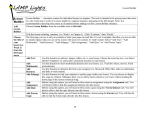
CoolSites CMS User Manual Your site has been created and is ready for you to personalise with content and imagery. We’ve created this manual so you can familiarise yourself with the nuts and bolts of your new website. The Dashboard Welcome to your website’s dashboard! Here, you will find a list of your website’s main pages and a selection of options for adding or removing content, be it text, imagery or a PDF. You can also add new primary pages and subpages, change page order and take pages offline. Adding a primary page Your primary pages act as your website’s navigation bar, showing people where to find specific information. Click ‘Add a Primary Page’ to get started. You will then be prompted to add a page heading. The navigation text for this page will automatically be created from your heading; however, the two are independent, so you can change the navigation text at a later date. This is helpful if you’ve got a particularly lengthy heading, but don’t want that whopping great bit of text in your navigation menu! After giving your page a heading, you can then add content using the ‘Main Text’ box below. If you want to copy and paste content from another source; Microsoft Word, for example, you can use this button: You can’t paste copy directly from clipboard or Microsoft Word, so this icon opens up a little box where you can paste it as plain text. As you can see, there are also options to change text to bold or put it in italics, as well as options to create numbered or bullet pointed lists. If you want to add a link to an internal or external page to your text, highlight the word you want people to be able to click on to take them there. Then, click on the link icon, which will open up a new box. Under the ‘Link Info’ tab, you will be prompted to enter a URL – the address of the page you want to link to. If you are linking to an external page, go to the ‘Target’ tab, where you can decide how you want it to open; in a new window, for example. Then simply click ‘OK’ and ‘Update’ to save your changes. Adding a subpage, or ‘secondary page’ Adding a subpage is easy. Let’s say you wanted to add a new page to your blog. Simply click ‘Add Blog’, which you will see on your dashboard, next to the ‘text’ and ‘images’ buttons. You will be taken to a page where you can add text to your subpage. When you’re finished, you can click the orange ‘see all pages’ button, which will take you back to your dashboard. You can use the purple ‘plus’ button to see your subpages on the dashboard. Text and Imagery To add text to a page you can click on the text button, which appears alongside the page name. This will take you through to the heading and main text of your page, which you can edit and update. You can also choose to edit images. To do this, click on ‘images’ and choose the file you would like to upload. If you want to give it a name or add a caption, you can also do that at this point. You may also be asked to upload a thumbnail. Once the image had uploaded, it will appear in a section called ‘Your Images’, where you can manage images, change the order they appear in or edit captions. Uploading a PDF In the bottom, left-‐hand corner of your dashboard, you will find options to add pages, change the order of pages and upload PDFs. When you click ‘Upload PDF’ you will be taken to a page called ‘Manage PDFs’. Here, you can choose a PDF file to upload. Once it has been uploaded, it will appear below in a list of your files. This list is important, as it shows you the link of each PDF, which you will need if you want to include them in the content of a page. To do this, you should copy the link for the specific PDF you would like to refer the reader to. Then go to the text you would like the PDF to appear in. In the main text box, you may have written about a piece of work you have had published, for example. You might write ‘View PDF’ a link, which opens your PDF. This is much like adding a link to another page, as explained earlier in the manual. Simply highlight the text you want people to be able to click on, and go to the link button. Here, you can paste the PDF link you copied earlier. If you want it to open in another window, you can go to ‘target’ and choose ‘New Window’ from the dropdown menu. Deleting or Taking Pages Offline While you are working on a page, you might not want it to be visible to the public. To take a page offline, hover over the tick icon. It will give you the option to take the page offline, and you can always put it back online if you change your mind. To delete a page, click on the dustbin icon. Arrange Page Order On your dashboard, there is the option to reshuffle your pages and subpages. It is a simple drag and drop system, but remember to click ‘confirm change’ when you have your pages in the preferred order. Site Settings Clicking on ‘Site Settings’ on the navigation bar above your dashboard will take you through to a list of settings, which you can manage or change whenever you want. The categories that fall under ‘Site Settings’ are: Contact Page Forms By default, any enquiries will go to your account email address. If you want to change this you can do so by going to ‘site setting’ and entering your preferred address under ‘contact form email address’. Social Media This section allows you to enter the account details for your social media accounts. This might be your Twitter handle, for example, or your Facebook ID. Once you have added the accounts you would like on your website, click submit. The relevant social media icons will then appear on your page. Visitors to your site can then click them to view each account. Upload Section This option allows you to upload logos, background images and favicons. Simply choose your file and click ‘upload’. If you’re wondering what a ‘favicon’ is, it’s the little symbol that appears next to the name of your website in an open tab. SEO and Google If you know what you’re doing with SEO, choose the ‘advanced’ option. This will give you access to the metatags for each webpage, which you can then customise as you wish. If you’re not super SEO savvy, choose the ‘simple’ option. Here, you can enter a general page header for your website, along with a short description and a string of relevant keywords. If you are a hairdressing salon in Norfolk, for example, you might want to enter words like ‘hairstyles’, ‘hairdresser’, ‘bridal hair Norfolk’ etc. Site Footer If you would like to add a site footer, which may contain information such as your business address or site credits, you can do so here. Simply enter the text you would like in each block and click ‘submit’. Cost Options If you want to change the repeat and one-‐off options on your site, this is the place to do it. Repeat options include: adding a shopping cart, adding multiple pages, choosing our full SEO package or social media service, and displaying your website in multiple languages. One-‐off options include: choosing our copywriting service, having us design a site for you, Google setup, Facebook and Twitter accounts setup, Twitter and Facebook feeds, photo library access and even a full site setup service. Clicking the box next to any of the listed options will add it to your total, whether as a one off or a monthly payment. Card Payments This setting allows you to add a new credit card to your account or to make a manual payment. You can choose the currency you want to make your payment in from the drop down menu. Card details are encrypted and stored on a secure database. Cancel Subscription If for any reason you want to cancel your subscription with CoolSites, you can do so here. Clicking ‘confirm’ means that your site will be down and your monthly payments will be stopped. If you’re having an issue that we can resolve, we’re here to help, so always give us a call before cancelling your subscription. Payment History It’s always good to be able to keep an eye on your payment history. This setting will take you through to a list of payments along with the date each one was made. Language To display different languages on your website, you will need to have selected this as one of your cost options. Location For those sites that need a Google Map on their contact page, the Google code is input here.