1
C utLogic 1D, © TMachines, s.r.o.
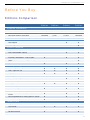
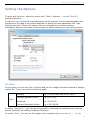
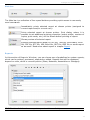
Assemblies
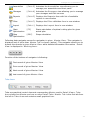
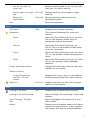
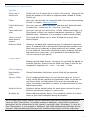
[Ctrl+3] Activates the Assemblies view allowing you to
manage your assemblies and their parts
Storages
[Ctrl+4] Activates the Storages view allowing you to manage
your storages and their sources
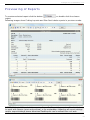
Reports
[Ctrl+P] Displays the Reports form with list of available
reports in new window
Filter
[Ctrl+F] Displays the Filter definition form in new window
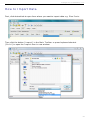
Import
[Ctrl+I] Displays the Import form in new window
Start
Optimization
[F3]
Starts calculation of optimal cutting plan for given
actual plan
Stop
Optimization
[ESC]
Stops calculation
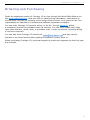
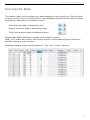
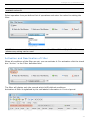
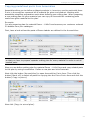
Following data navigator serves for navigation in given Master View . This navigator is
displayed only if other than Master Tab is chosen (active). This navigator allows you to
browse the records in given Master View while detailed information from active Detail
View is displayed in Working Area .
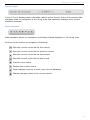
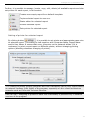
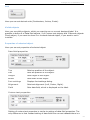
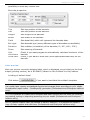
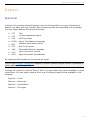
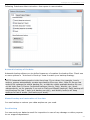
Function of the buttons of navigator is following:
First record of given Master View
Prior record of given Master View
Next record of given Master View
Last record of given Master View
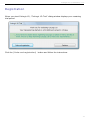
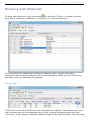
Tabs Area
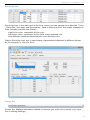
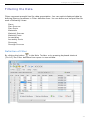
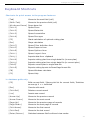
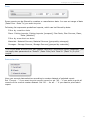
Tabs are graphical control elements representing Master and/or Detail Views. Tabs
Area shows one Master and one or more Detail Tabs. Master Tab is the first tab from
the left in Tabs Area and contains small graphical icon.
22