1
PART 2: Using The Studio 4
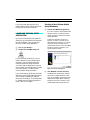
Saving a State Document Under a
Different Name
Sometimes, you may modify a Studio 4
state without wishing to overwrite the
original state document. In this case, you
should choose the Save As command
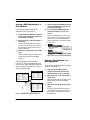
from the Studio 4 menu to save the modified state under a different name.
OPENING A STUDIO 4 STATE
DOCUMENT
To open a Studio 4 state document:
•
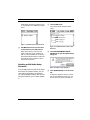
Choose Open from the Studio 4
menu. A standard Macintosh open
dialog box will appear.
•
The MIDI Routing, Channelizing and
Muting window settings for each
interface in the current Studio Setup.
ESTABLISHING A "DO
NOTHING" STATE
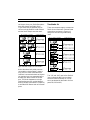
As an example, you'll create a “Do Nothing” state in this section. The “Do
Nothing” state has no routings, mutings
or MIDI channelizing. It's a convenient
starting place from which to build other
Studio 4 state documents, and is also convenient to use with sequencers or OMS
patches.
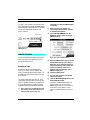
To define a “Do Nothing” state:
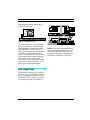
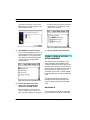
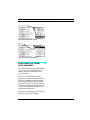
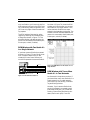
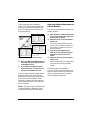
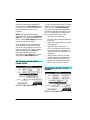
햲 Set the Network Routing window (if
required) to the desired conditions.
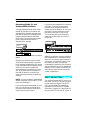
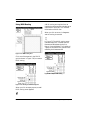
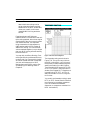
햳 Open the MIDI Routing, Channelizing
and Muting window.
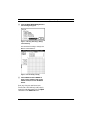
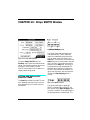
햴 Click the Clear button
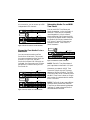
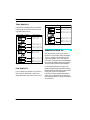
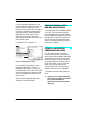
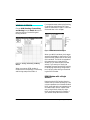
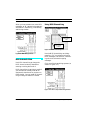
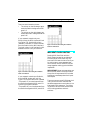
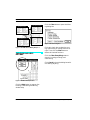
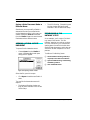
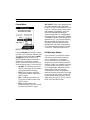
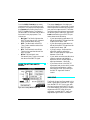
Figure 8.2: Opening a Studio 4 State
Select the file you wish to open.
•
Click Open to load the new Studio 4
state.
The new Studio 4 state document will
replace:
•
54
The Network Routing window settings for each interface in the current
Studio Setup.
Opcode Systems, Inc.