1
Step 2 Fingerprint or password enrollments: To become the administrator
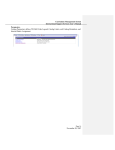
2-1 Click one of the blue fingers and follow the instructions on the bottom left-hand side to enroll
the fingerprint. (Enrolled at least 3-5 times)
2-2 The color will turn from blue to pink for successfully enrollment. Click “Exit”.
2-3 The password function will act as a secondary access security for unclear fingerprint images.
Tick enable rescue password first before enter password
(Recommend to enter at least six digits password, it can be numbers and alphabets)
2-4 Users can access the Fingerprint Flash FP51 through fingerprint or password if both have enrolled
previously.
Step 3 Deleting or adding existing fingerprints:
3-1 Click “palm” icon
on bottom right-hand side of your screen and select “change password”.
3-2 Fingerprint password verification.
3-3 Click the pink finger to delete the image that was saved previously, click “Yes” to continue
3-4 Repeat Step 2 to enroll the new fingerprint.
Step 4 Unlock USB Flash Disk:
4-1 Click “palm” icon and select “unlock USB Flash Disk”.
2